

Page 1
Enter sale amount, press OK
Press OK again and pass terminal to customer
Customer inserts/swipes/taps card and confirms sale amount
TIP: Customer chooses: % or $ then inputs amount
Customer confirms total and enters PIN #
Terminal will process transaction, press OK
Terminal prints merchant copy and prompts to print customer copy
Press DOWN ARROW to access Transaction Menu
Press DOWN ARROW again to scroll to next screen and 5 for Refund
function
Enter Merchant Password, press OK
Enter Invoice # of the transaction to be refunded, press OK
Enter refund amount, press OK
Press OK again and pass terminal to customer
Customer inserts/swipes card and confirms sale amount Terminal will
process refund, press OK
Terminal prints merchant copy and prompts to print customer copy
Press DOWN ARROW to access Transaction Menu
Press 2 for Pre-authorization function
Enter amount of pre-authorization, press OK
Press OK again and pass terminal to customer
Customer inserts/swipes card and confirms sale amount
Customer enters PIN #
Terminal will process transaction
Terminal prints merchant copy and prompts to print customer copy
Press DOWN ARROW to access Transaction Menu
Press 3 for (pre-authorization) Completion function, press OK
Enter Invoice #, press OK
Confirm correct transaction to be completed, press OK
Enter final total amount of sale, press OK
Confirm completion amount, press OK
Terminal prints merchant copy and prompts to print
Press DOWN ARROW to access Transaction Menu
Press DOWN ARROW to scroll to next screen and 4 for Force Post, press OK
Enter Voice Authorization number, press OK
Customer swipes/inserts card
Enter amount of forced (manual) transaction, press OK
Customer enters PIN #
Terminal will process transaction
Terminal prints merchant copy and prompts to print customer copy
FORCE CREDIT CARD TRANSACTION
PRE-AUTHORIZATION COMPLETION
Press UP ARROW to access Admin menu
Select 3 SETUP
Select 1 OPTIONS
Enter ADMIN password, press OK
Choose Language
Press Cancel twice to return to main screen
CHANGING THE LANGUAGE
PRE-AUTHORIZATION
REFUND
CREDIT SALE
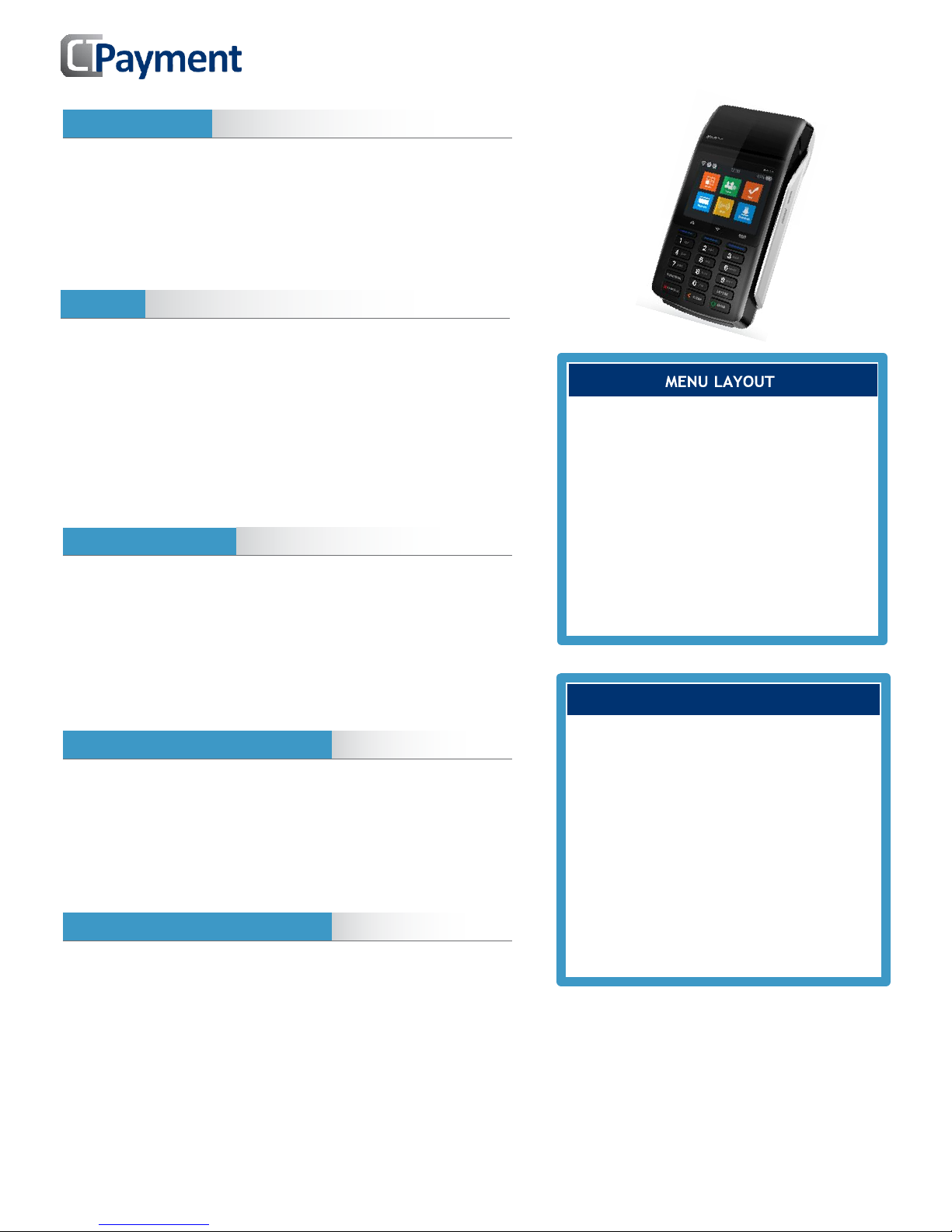
UP ARROW will access the ADMIN
MENU and the DOWN ARROW will
access the TRANSACTION MENU
To input letters and special characters
the alpha key will need to be used.
Press the number on the keypad that
contains the character and press the
ALPHA key until that character is
visible on the screen.
PAX D210 Quick Reference Guide
Page 2
PAX S90
Quick Reference Guide
R E S T A U R ANT
Enter sale amount, then press OK
Press OK again and pass terminal to customer
TIP: Customer chooses % or AMT, inputs tip and confirms total amount
Customer inserts/swipes/taps card
CASHBACK: Customer chooses cashback amount, confirms fee and total
Customer chooses Checking or Savings account
Customer enters PIN #
Terminal will process transaction
Terminal prints merchant copy and prompts to print customer copy
Press DOWN ARROW to access Transaction Menu
Press DOWN ARROW to scroll to next screen and 5 for Refund function
Enter Merchant Password, press OK
Enter Invoice # of the transaction to be refunded, press OK
Enter refund amount, press OK
Press OK again and pass terminal to customer
Customer inserts/swipes card and confirms refund amount Customer
chooses Checking or Savings account
Customer enters PIN #
Terminal will process transaction
Terminal prints merchant copy and prompts to print customer copy
Press DOWN ARROW to access Transaction Menu
Press DOWN ARROW F2 to scroll to next screen then 6 for Void function
Enter merchant password + OK
To Void last transaction press Yes
To Void other transaction press Other and enter Invoice #
Enter Record #, press OK
Confirm correct transaction and amount, press OK
Customer inserts/swipes card and confirms void amount
Customer enters PIN #
Terminal will process transaction
Terminal prints merchant copy and prompts to print customer copy
Press DOWN ARROW to access Transaction Menu
Press F2 twice to scroll to third menu then Press 7 for Reprint function
To Reprint receipt for last transaction press Yes
To Reprint other transaction press Other
Enter Invoice # and press OK to confirm
Terminal will print receipt
Press UP ARROW to access Admin Menu
Press 1 for Settlement, press OK
If you have pre-authorizations pending a pre-auth report will print
If you need to close any pending pre-authorizations:
Choose yes and follow pre-auth completion instructions
If you choose No pending pre-authorizations:
Confirm total Sales total, press OK
Confirm total Refunds, press OK
Confirm Net total press OK.
Confirm Totals match Settlement Batch, press OK
Print summary report
SETTLEMENT
REPRINT RECEIPT
Technical Support
CREDIT OR DEBIT CARD VOID
DEBIT REFUND
DEBIT CARD SALE
TRAINING MODE
IMPORTANT NOTE: When terminal is in
training mode any Sale transactions will
not be processed. Please ensure you
turn Training OFF to begin accepting
payments.
Batch must be closed (settlement) to be
in training mode
Press UP ARROW for Admin Menu
Press DOWN ARROW to scroll twice and 8
for Training mode
Enter merchant password, press OK
Select TRAINING YES/NO, press OK
PAX D210-W
Quick Reference Guide
06 2017
 Loading...