

Page 1

Page 2
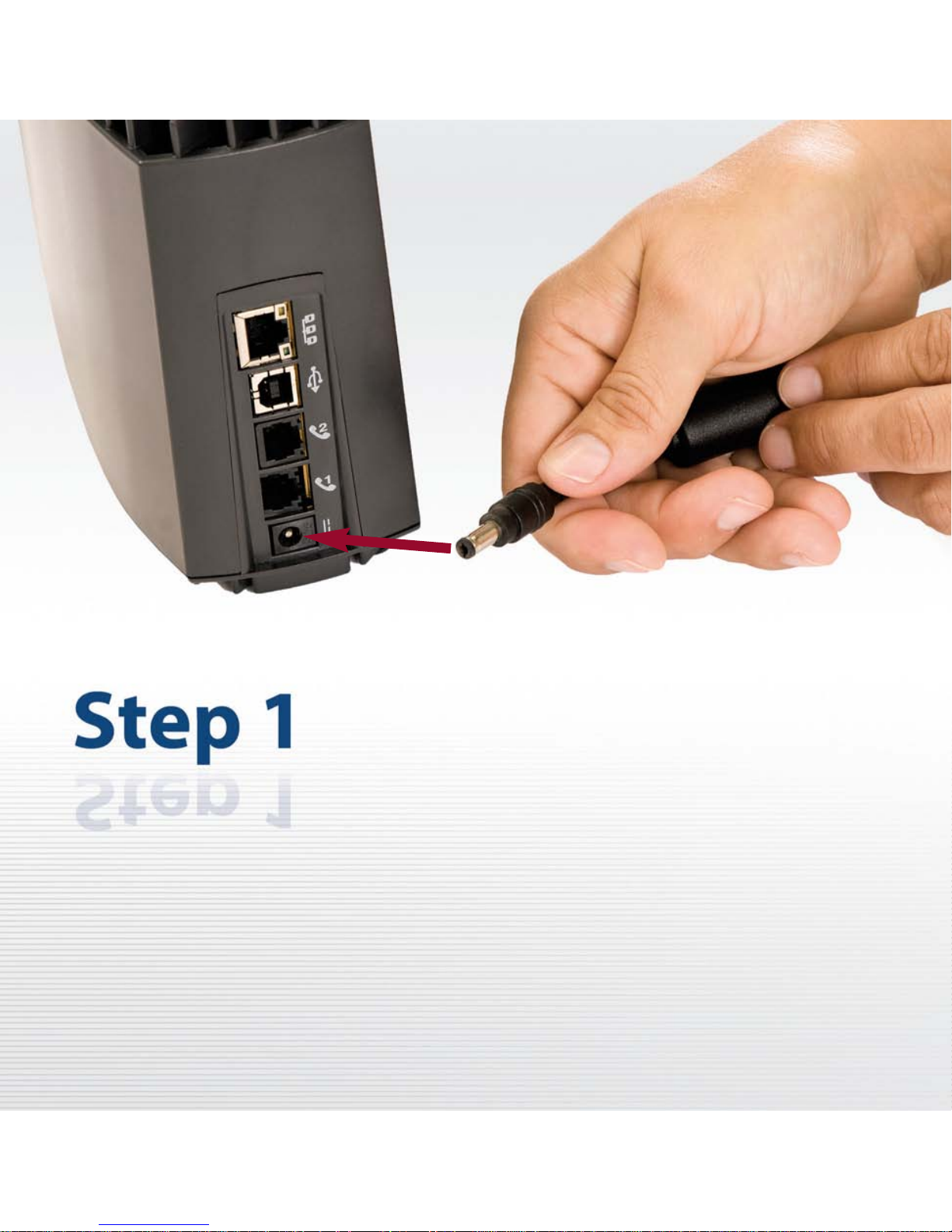
Insert the connector of the power cord that is attached to
the power supply into the power jack on the SOMAport.
Page 3
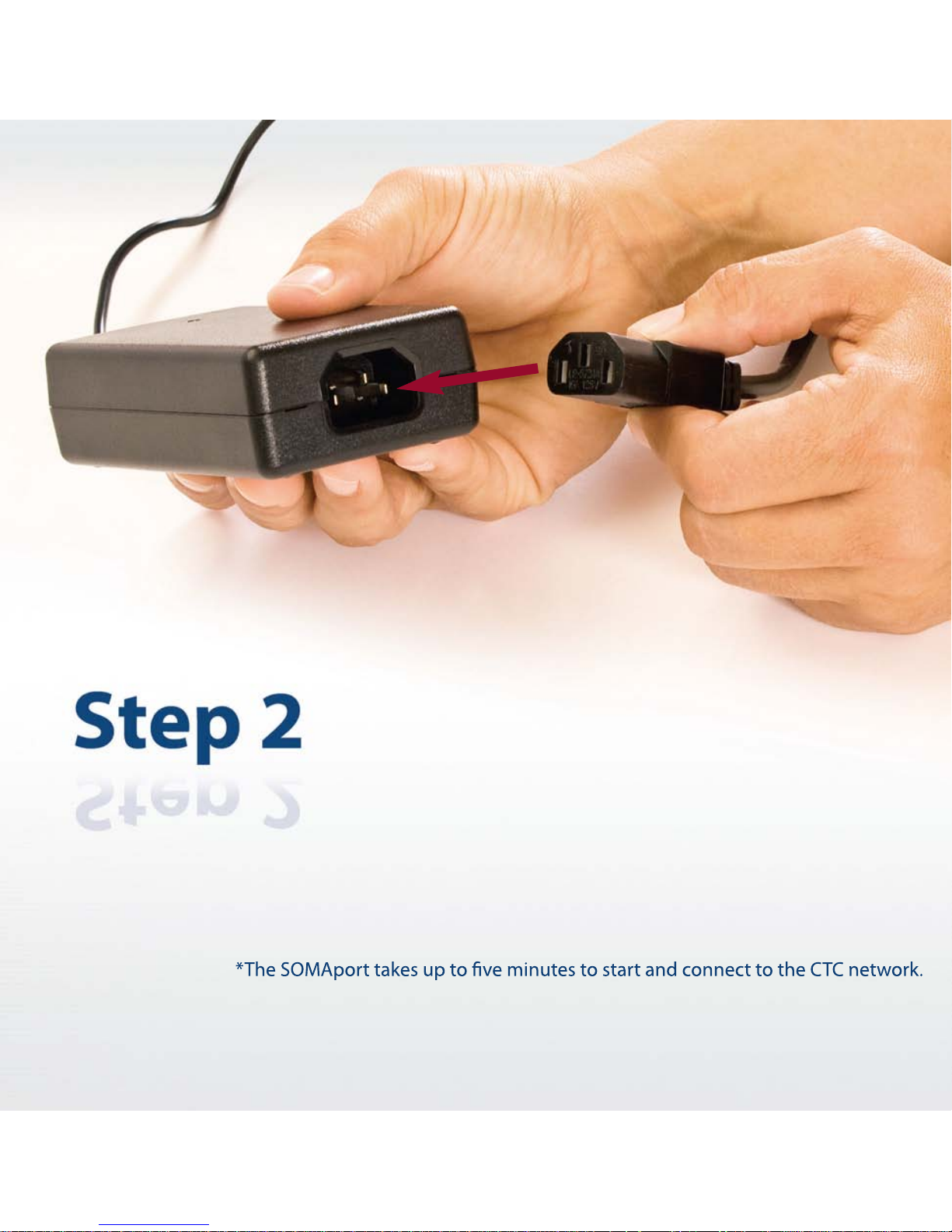
Insert the Socket end of the AC power cord into the power supply.
Insert the plug end of the AC power cord into a power outlet.
The light on the front of the SOMAport turns green before you begin connecting
your computer to the SOMAport.
Page 4
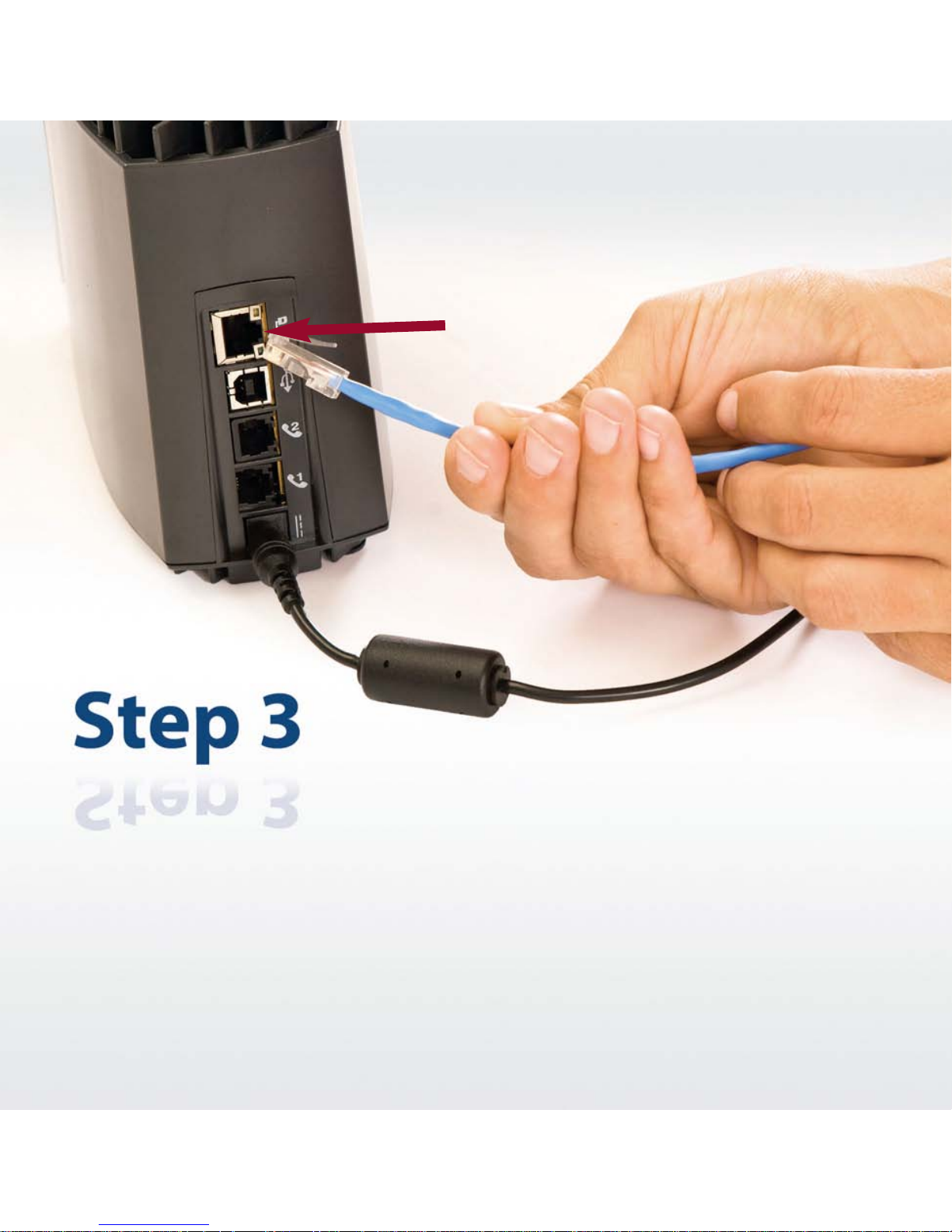
Using your Ethernet cord, insert one end of the Ethernet
cable into the Ethernet port on the SOMAport.
Ethernet port lights:
GREEN Light- The computer is connected
AMBER Light- Data is being transmitted
Page 5
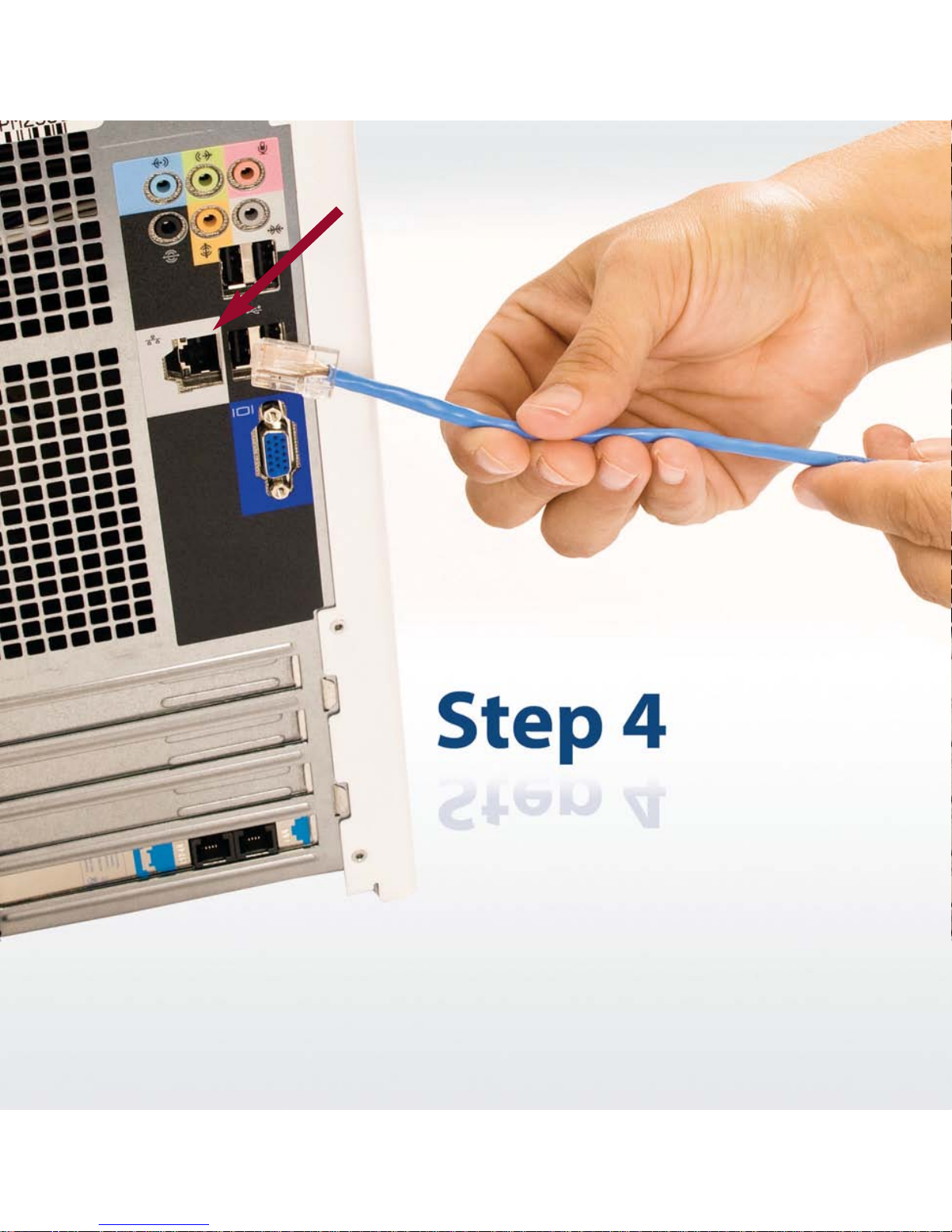
Insert the other end of
the Ethernet cable into
the Ethernet port on
your computer, or your
wireless router.
Page 6
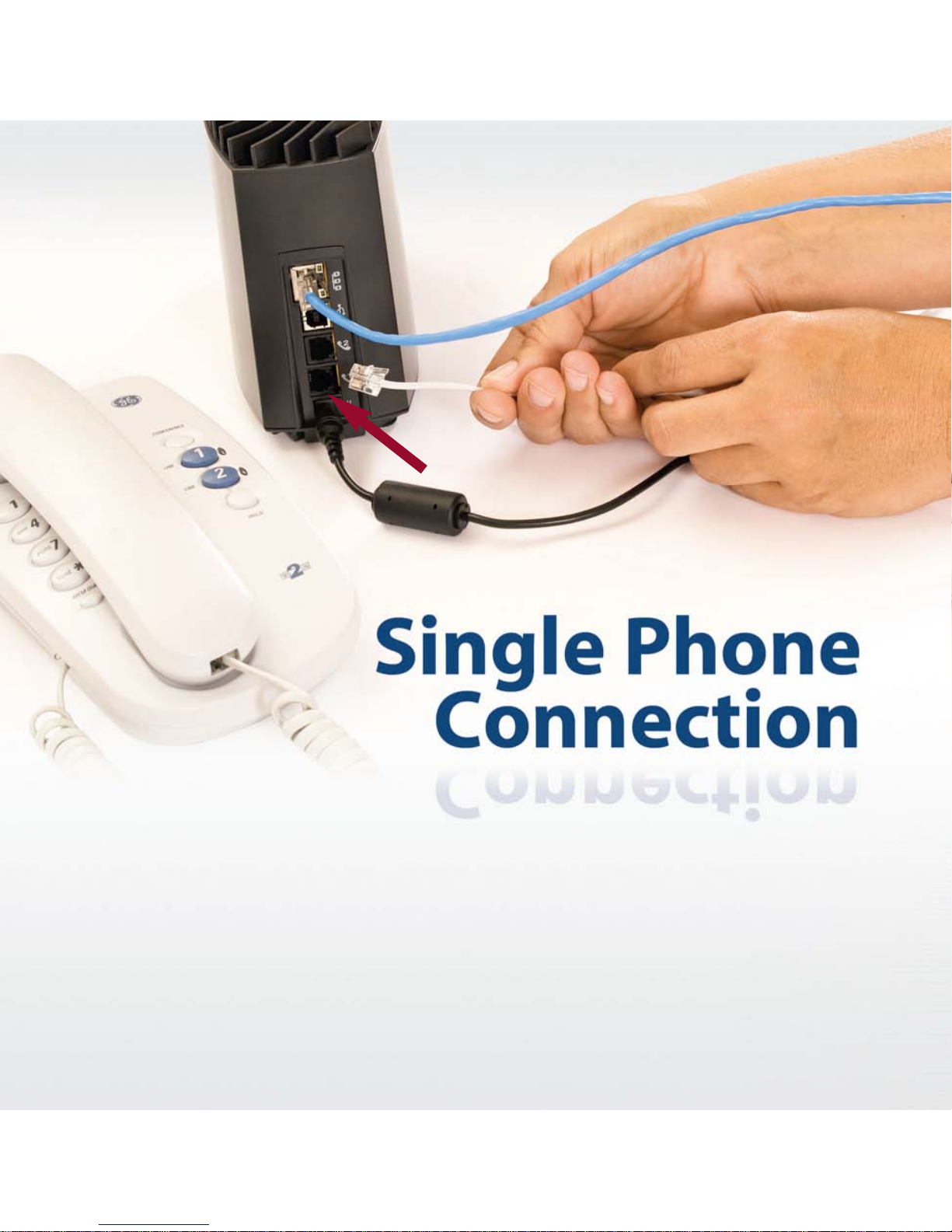
OPTIONAL
For connecting a telephone (1 phone only)
1) Insert the phone cord into the bottom phone jack .
2) Pick up handset and listen for dial tone.
a. If you hear a series of tones (not dial tone),
the SOMAport is stillbooting up.
Hang up and try again when status light turns green.
b. If you hear silence, make sure the cord
is securely connected.
CTC phone service required, where available.
Page 7
Hooking up all your phones in your house.
1) If you would like to have all phone jacks operational with your CTC
SkyWave phone service you can select one of the following options:
a. You can disconnect from your wired carrier from your
demarcation point.
b. You can call a CTC technician to install SkyWave to all
phone jacks within your house. (Includes a one time
tripcharge of $65)
c. Or sign up for CTC Inside Wire Maintenance for only $2.95
a month for one year or more, and a CTC technician
will come and install SkyWave phone service to all
your phone jacks.
*With CTC Wire Maintenance you will also receive timely and professional in-home
service visits from a CTC technician anytime a problem arises with your telephone
jacks or wiring at no additional charge.
CTC phone service required, where available.
Page 8
For trouble shooting tips and FAQ please visit our website at
www.ctctelcom.net and click on SkyWave, or turn to page 31
in your SOMAport Setup Guide book.
911 Name, Telephone Number & Address will be registered to the address on
address, the 911 information on record with local authorities will be inaccurate.
CTC is not responsible for 911 record information when using SkyWave Voice
that has been removed from the customer address on record. It is the customer’s
responsibility to notify CTC of any changes to 911 record information.
Page 9
Choose the best location
Although the SOMAport’s internal antenna is self-steering, you can
optimize signal reception by following these recommendations when
choosing a location:
• Allow at least 18 inches of space around the SOMAport.
the basement.
• Place the SOMAport higher up in a room. For example on a
• Try to place the SOMAport near a window or open shade.
• Try to avoid placing the SOMAport close to certain electronic
devices, such as microwave ovens and possibly computer
monitors, as they can cause interference.
Page 10
Enjoy!
Page 11
Getting to know the Skywave
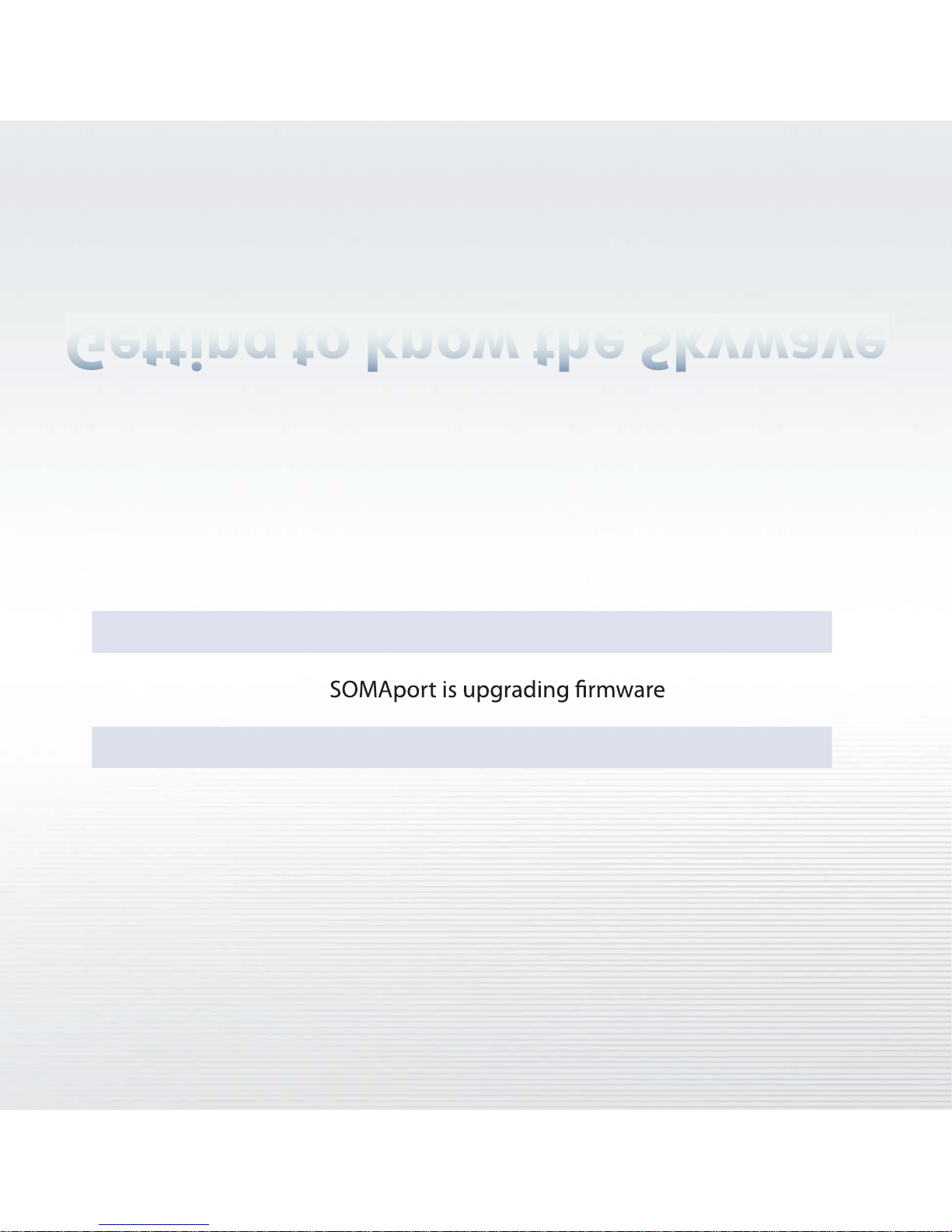
Status Light
OFF SOMAport is not plugged in.
AMBER SOMAport is booting up
FLASHING AMBER
GREEN SOMAport is powered and running normally
RED An error occurred, unplug power cord and
plug back in. If red light stays contact
CTC support.
Page 12
Getting to know the Skywave
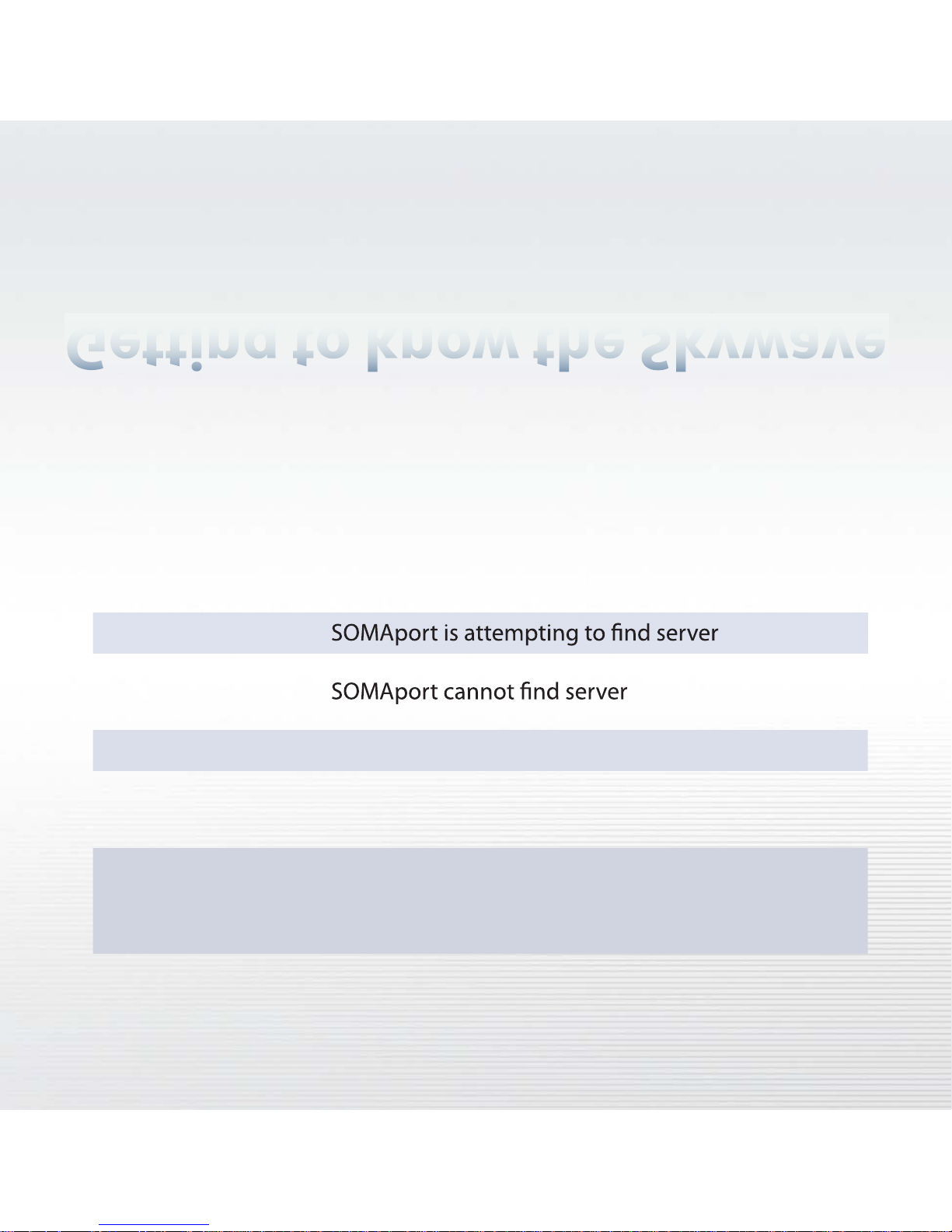
Network Light
OFF SOMAport is not plugged in
AMBER
FLASHING AMBER
FLASHING GREEN SOMAport is attempting to establish a connection
GREEN Connection has been established
RED An error occurred, unplug power cord and
plug back in. If red light stays contact
CTC support.
 Loading...