

Page 1
Quick Guide
Page 2
Wi-DAPTOR
2
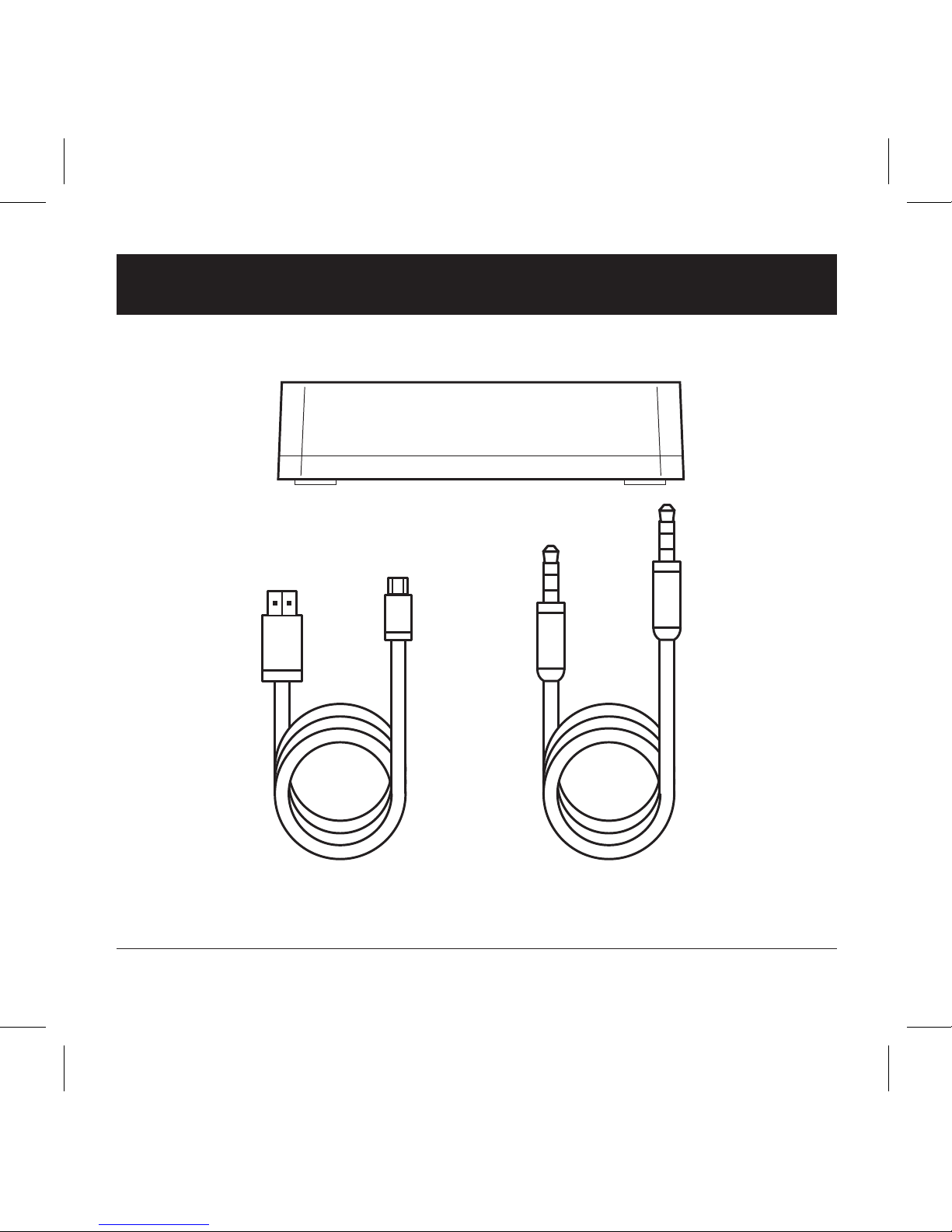
1. Unbox it
Main unit
USB
Cable
3,5 mm minijack
male to male cable
Page 3
3
Wireless Multiroom Adaptor
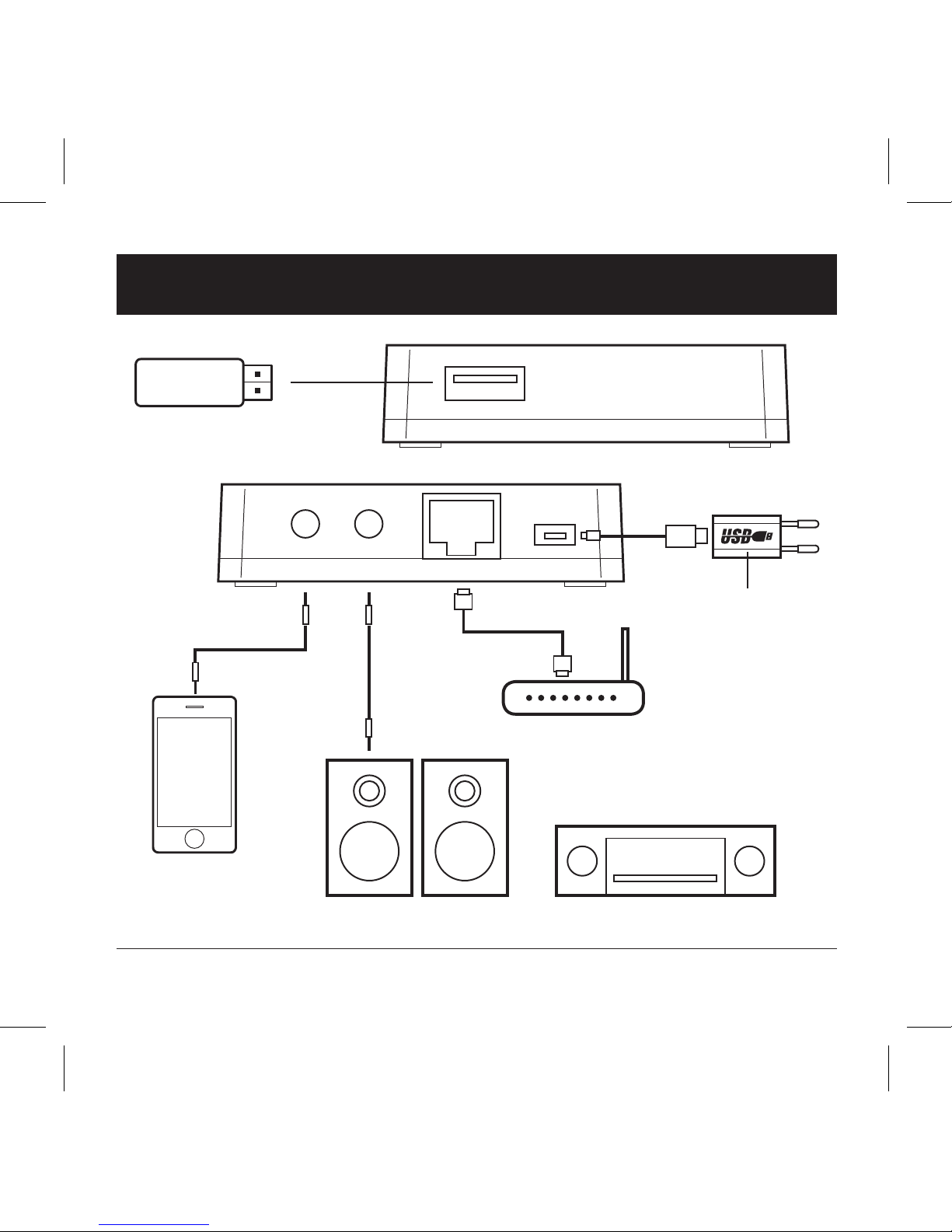
2. Connect it
Audio Amplifier
Router
Active Speakers
Smartphone
or any analog
source
NOT INCLUDED
Please use any USB
power supply
USB
USB
Audio File Playback
IN OUT
ETHERNET
POWER
OR
Page 4

Wi-DAPTOR
4
3. Network it
Use App Store (IOS devices) or Google Play
(Android devices) to download WiSound
application (Wi-Fi connection and internet
access are required).
Run the App and follow on screen guide
to setup network.
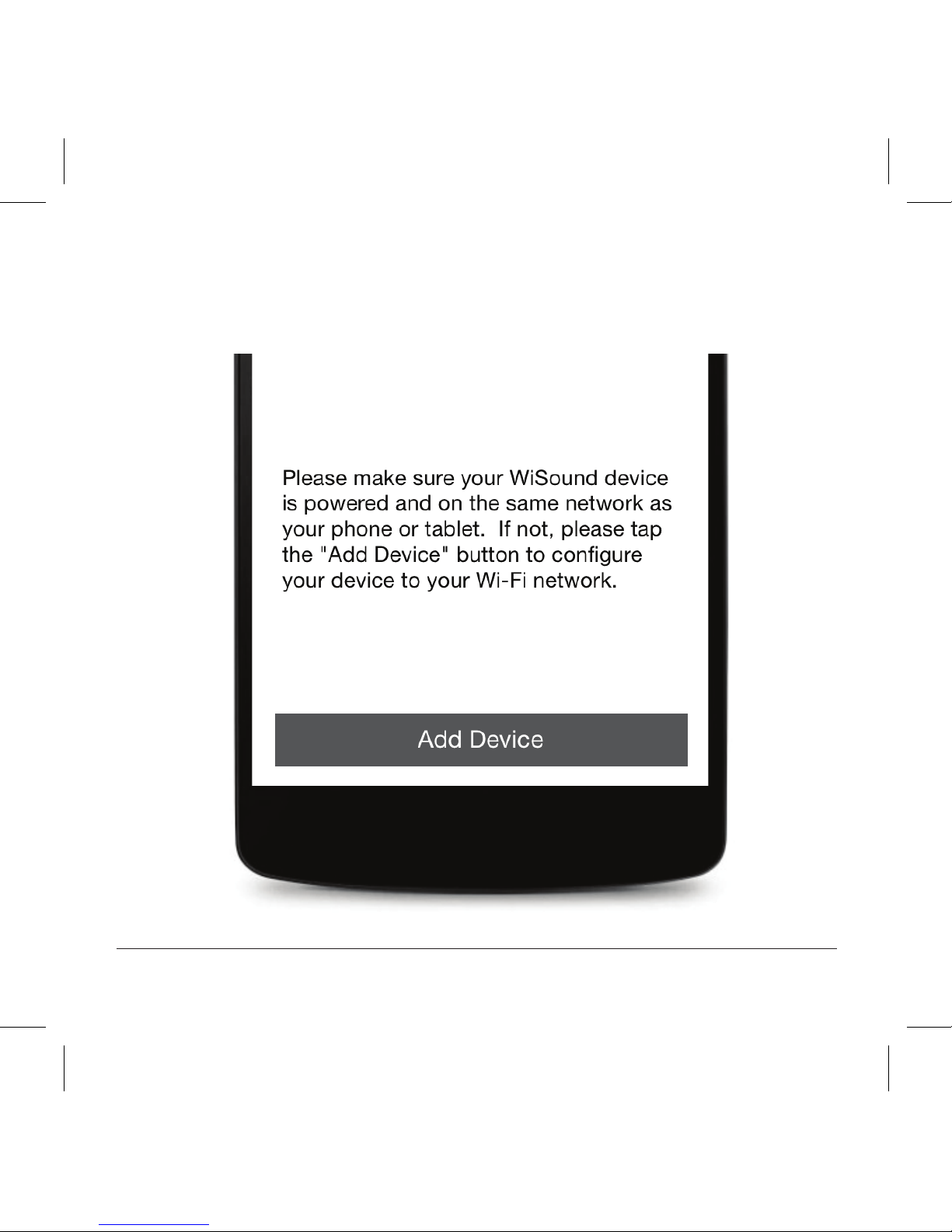
To add the first device in your network:
Page 5
5
Wireless Multiroom Adaptor
1. Press Add Device button
Page 6
Wi-DAPTOR
6
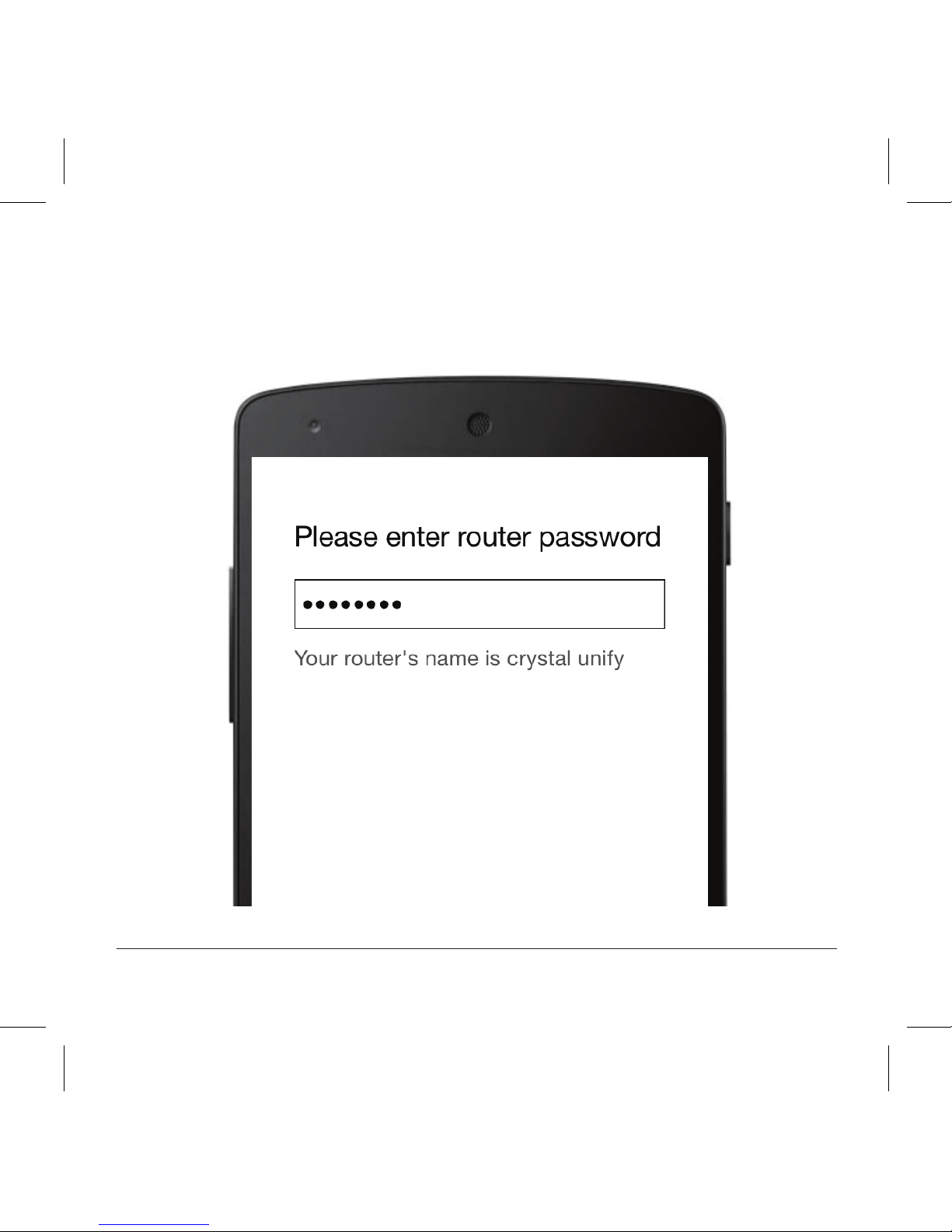
2. Type the password of your wifi network
and press next
Page 7
7
Wireless Multiroom Adaptor
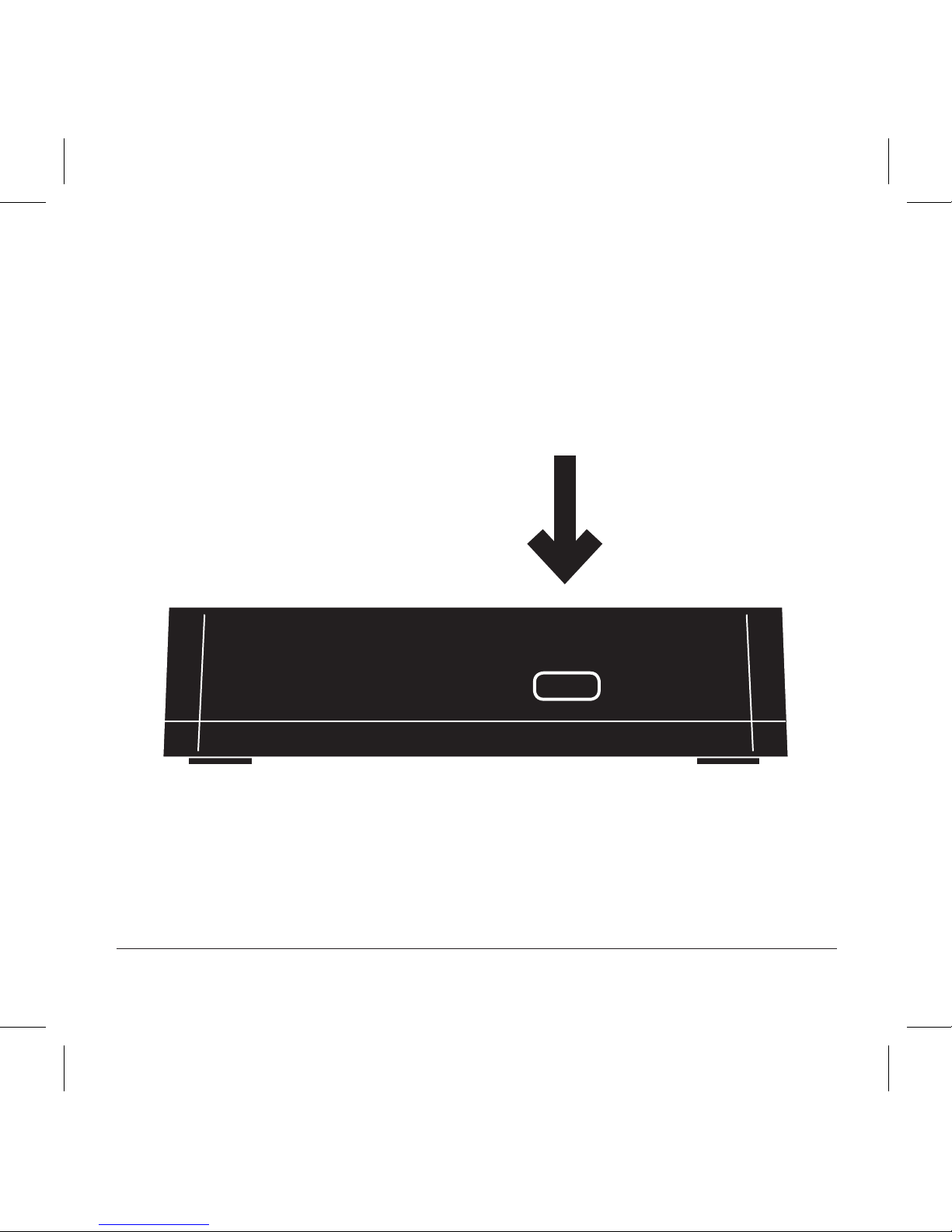
3. Press the WPS button on the side of your
device and press next
WPS
Page 8
Wi-DAPTOR
8
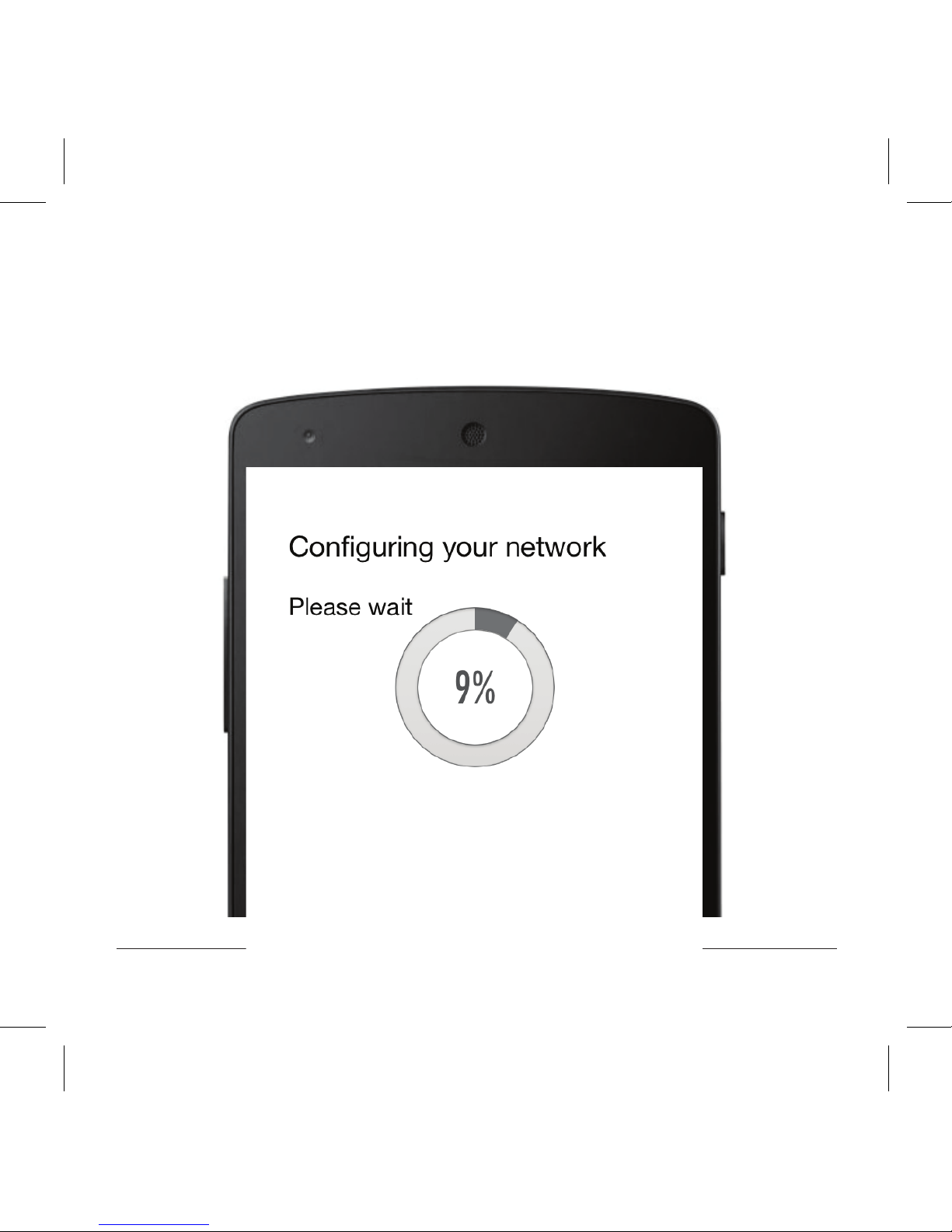
4. The App searches the device
and automatically adds it to your network
Page 9
9
Wireless Multiroom Adaptor
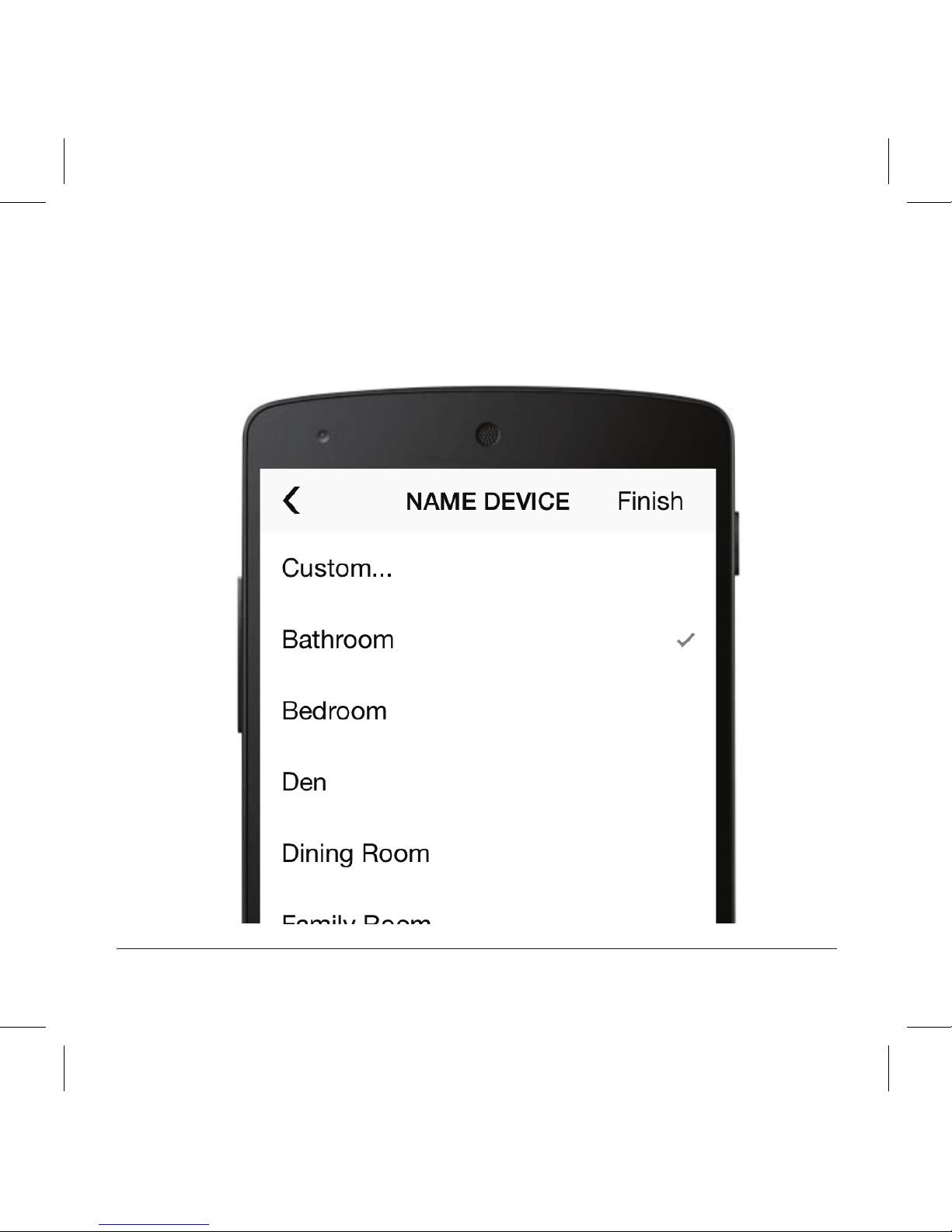
5. You can now select the device’s name
or set a custom one
Page 10
Wi-DAPTOR
10
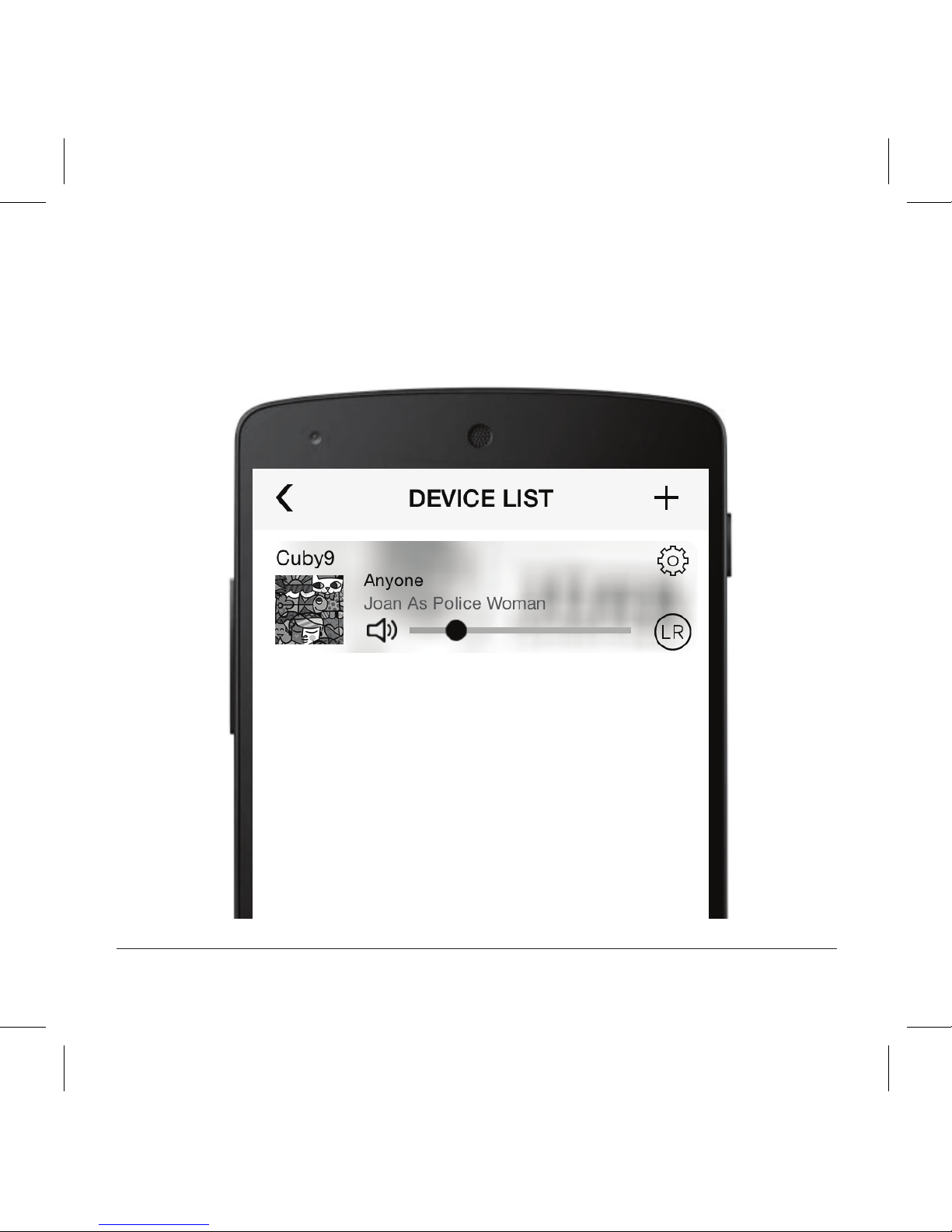
6. To add more devices, press + on the top
right and repeat steps 1-5
Page 11

11
Wireless Multiroom Adaptor
Note: If you use Ethernet connection, instead of Wi-Fi the
above procedure is not required. You just need to run the
App and the device is already there!
Useful:
If there is no Wi-Fi router available, you can connect
your phone/tablet directly to the device’s network.
Typically the name is Wi-DAPTOR_YY and the default
password is Wisound1234. You are strongly advised
to change this password through the App or through
your devices’s web interface (10.10.10.254, under
Network tab).
To access the device’s web
interface, you can also scan
this QR code:
Page 12
Wi-DAPTOR
12
4. Group it
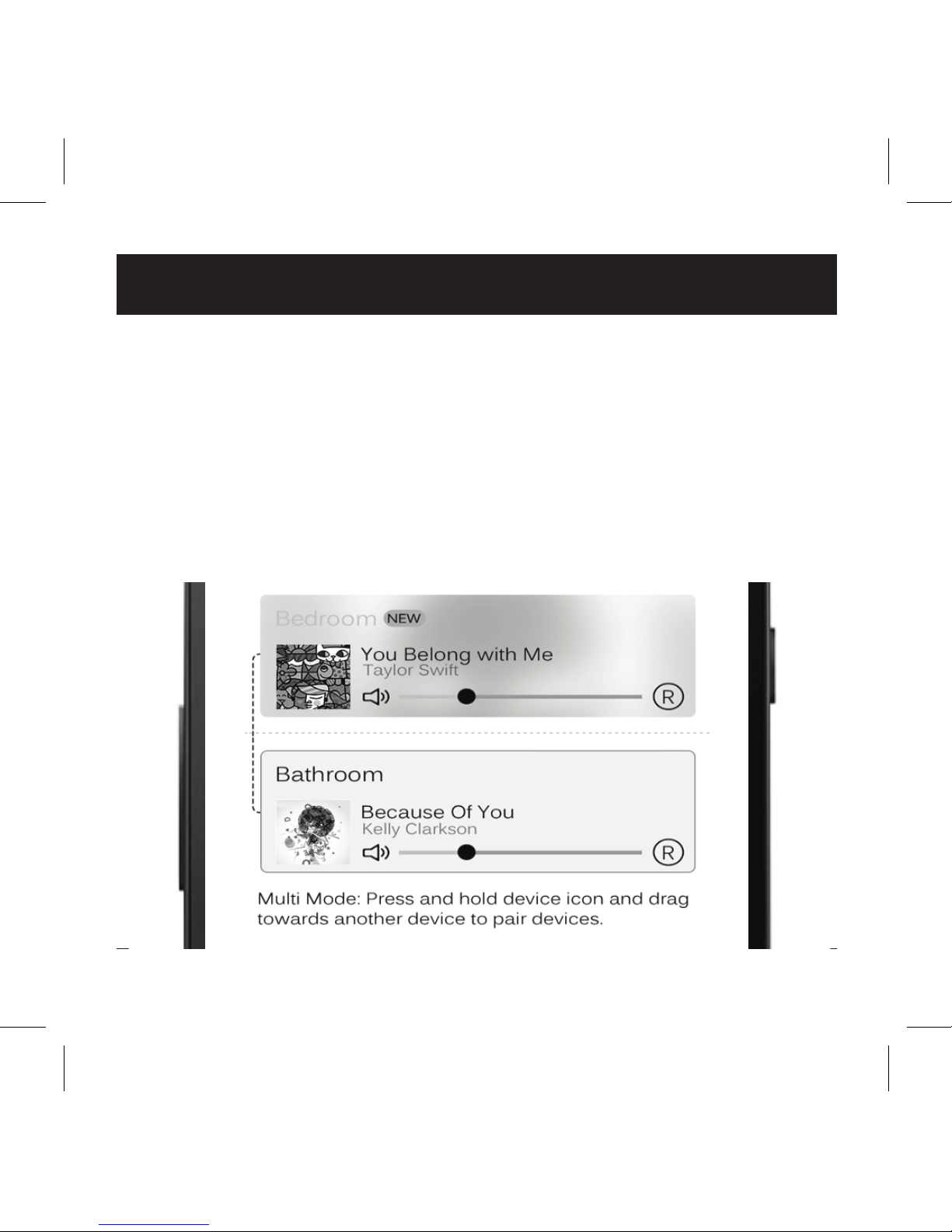
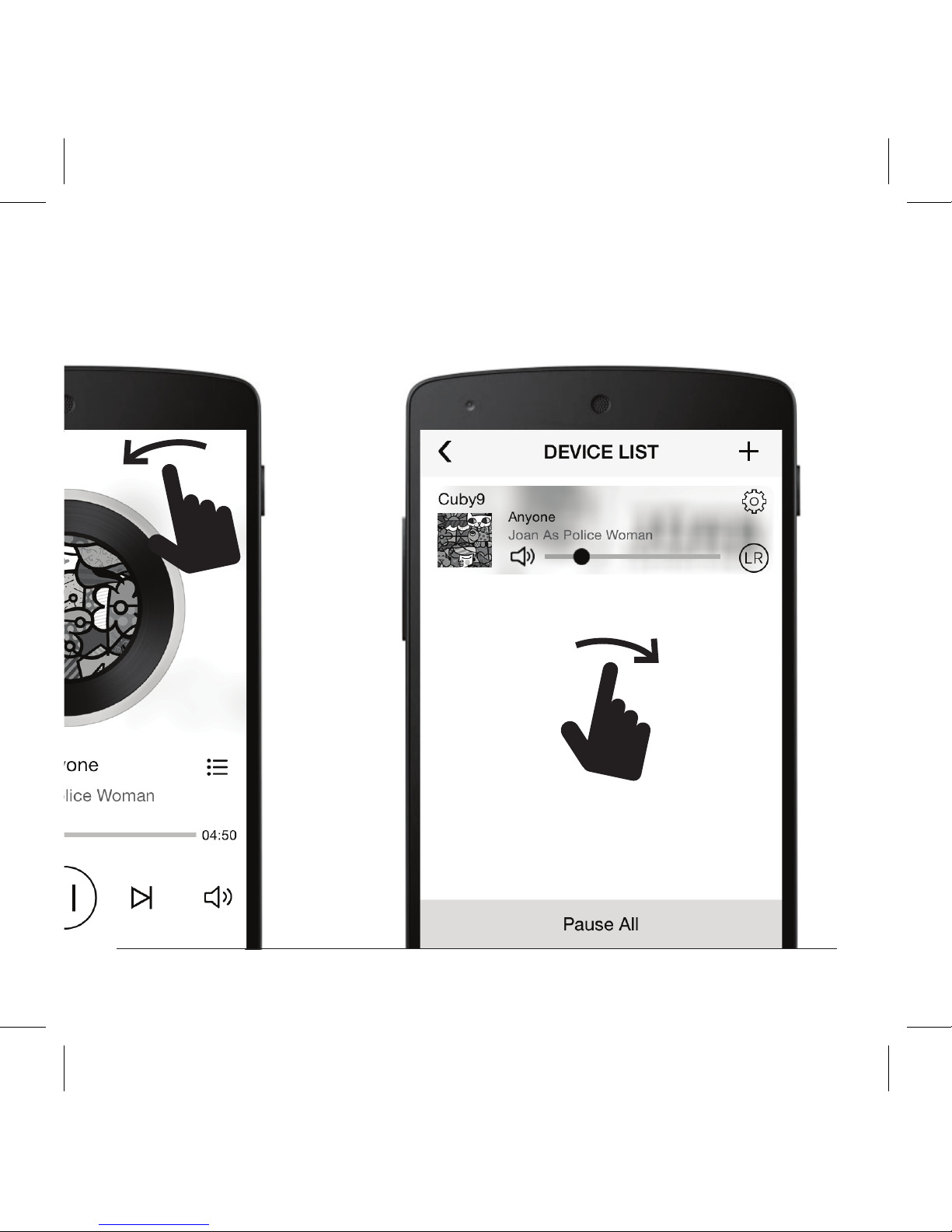
In the list of the available devices, grab and drag
one device and drop it over another device.
In this way, this device (slave) becomes part of a
group and Master’s music is also played through
all the Slave devices.
Page 13
13
Wireless Multiroom Adaptor
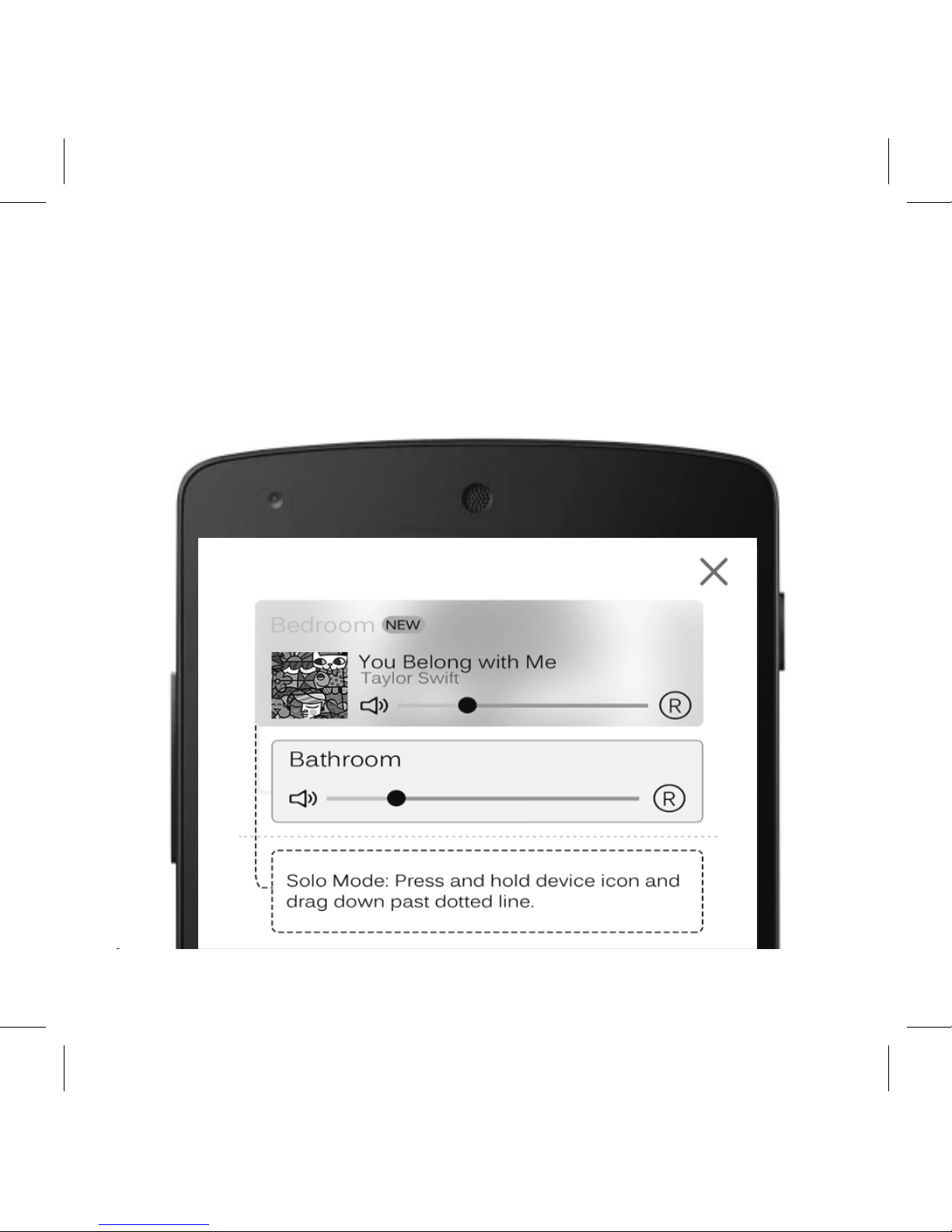
If you want to ungroup, just grab and drag the
slave device below the middle line. Slave
device becomes Master device and can play
different music.
Page 14

Wi-DAPTOR
14
Useful:
• You can make one or more groups
• You can have more than one Slave devices
under the same Master
• You can simultaneously control the volume of
all the devices in a group by using Volume
buttons of your phone/tablet
• For a Group configuration, choose which
device can play Left (L) , Right (R) or Left/
Right (LR), by touching the relevant icon.
Page 15

15
Wireless Multiroom Adaptor
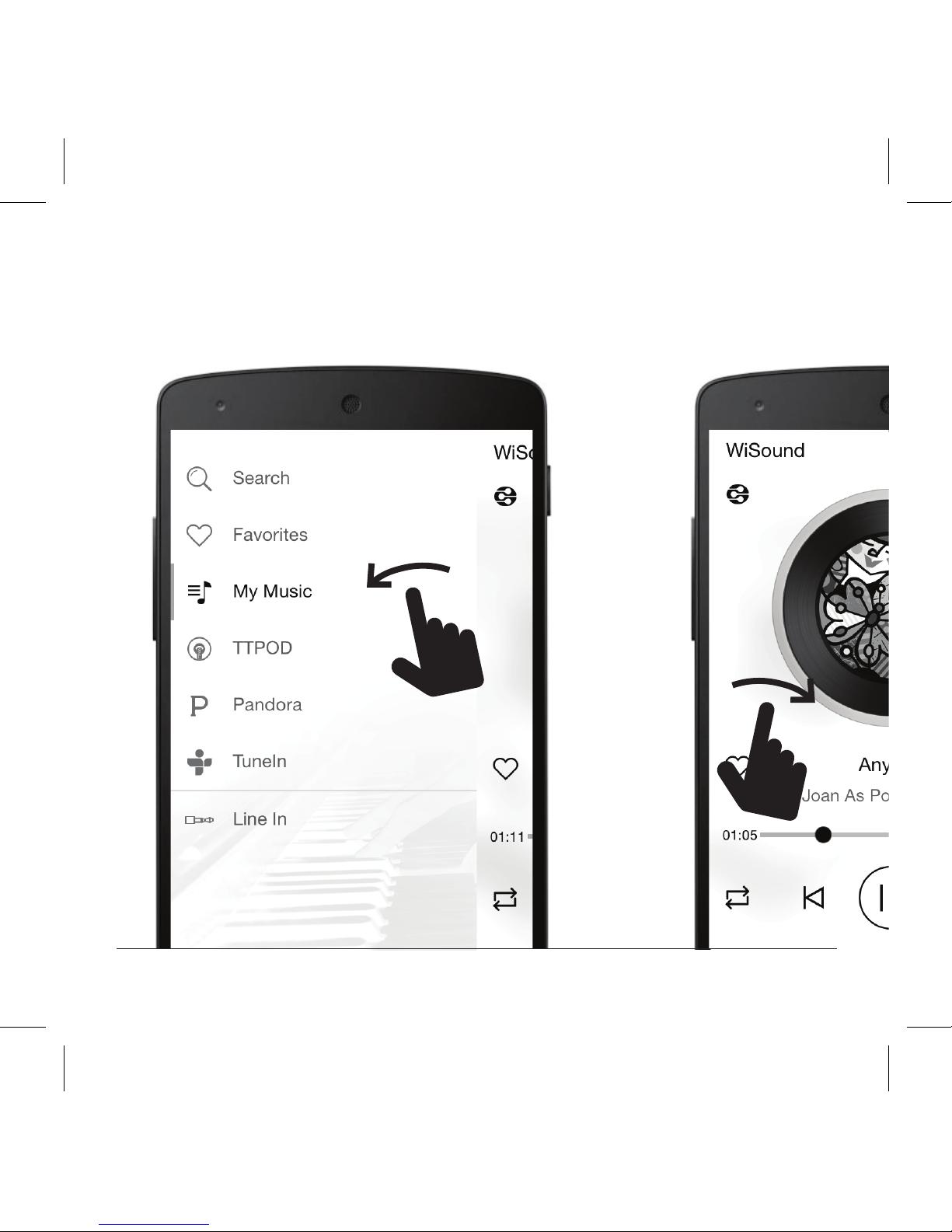
5. Play it (Through WiSound App)
• Select your local songs or USB songs
through My Music
• Access Web Radio through TuneIn
• Select Input
• Search for online songs through Search
• Access your Favorites through Favorites
• Access Web services (Pandora/Spotify/
Deezer) by touching the corresponding
icons (region dependent)
Page 16
Wi-DAPTOR
16
Music Selection
Now Playing
Page 17
17
Wireless Multiroom Adaptor
Available Devices
Page 18

Wi-DAPTOR
18
Depending on your operating system, please select
the proper way of playing music.
IOS
1. Slide upwards to access the Control Center
2. Press the AirPlay button and select Wi-DAPTOR as
a music destination
3. Play your music as you would do for local playback
Android
1. If your phone is not equipped with DLNA
application, go to Google Play store and
download /install a relevant application
(eg. Bubble UPNP, iMediaShare)
6. Play it (Without WiSound App)
Page 19

19
Wireless Multiroom Adaptor
2. Run the DLNA application and from the devices
menu, select Wi-DAPTOR as the target device
(DLNA renderer)
3. Play your music as you would do for local playback
PC
1. If your PC does not have a DLNA streaming
application (first generations of Windows OS),
download/install a relevant application
(eg. Windows Media Player 11, Foobar)
2. Run the DLNA application and from the devices
menu, select Wi-DAPTOR as the target device
(DLNA renderer)
3. Play your music as you would do for local playback
Page 20
CrystalAcoustics.com|WiSound.com
WirelessMultiroom.com
 Loading...