

Page 1
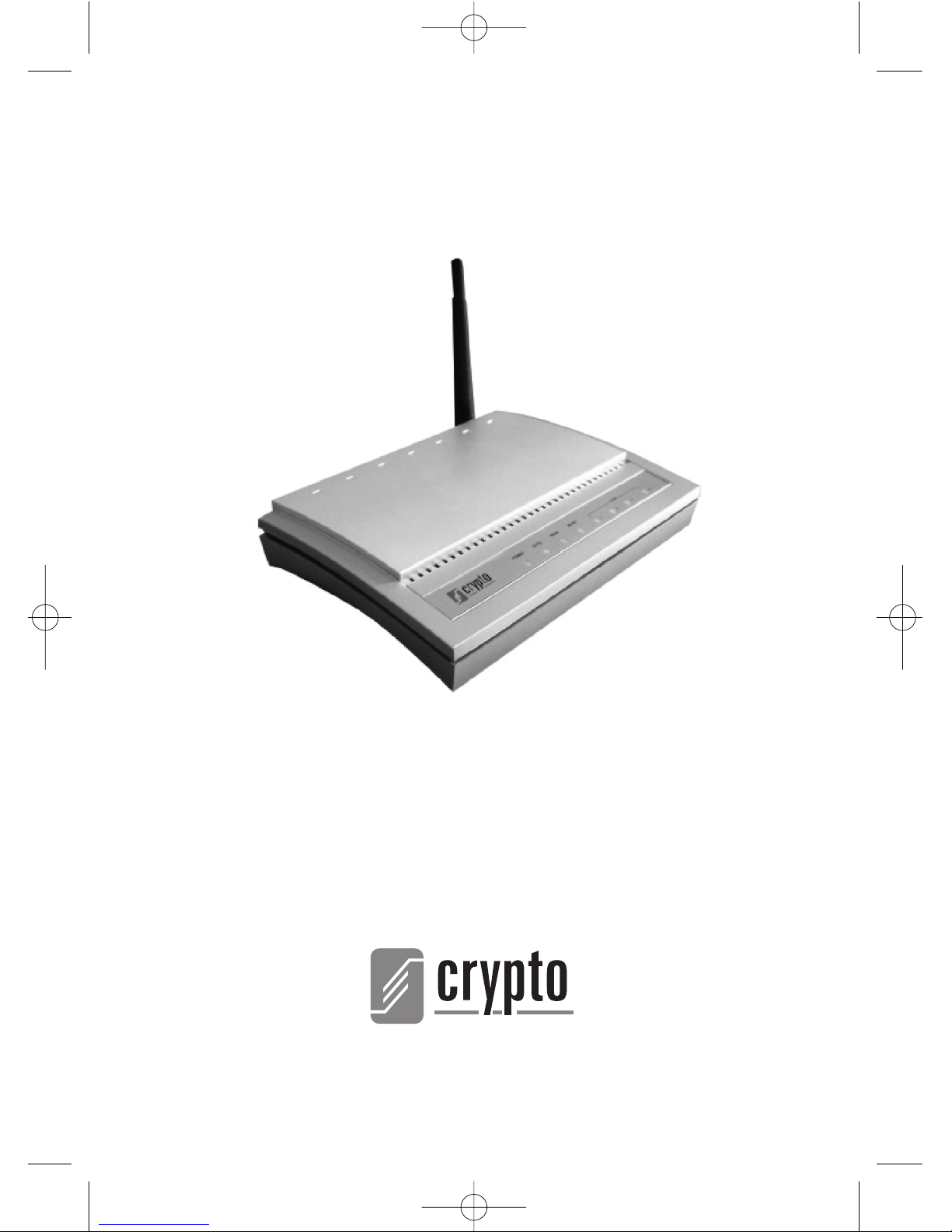
USERS MANUAL
WR 100 Wireless Router
wr100manual 5/16/06 11:41 AM Σελίδα 39
Page 2

40
Contents
1
PPaacckkaaggee CCoonntteennttss
_ _ _ _ _ _ _ _ _ _ _ _ _ _ _ _ _ _ _ _ _ _ _ _ _ _ _ _ _ _ _ _ _ _ _ _ _ _ _ _ _ _ _ _ _ _ _ _ _ _4 1
2
TThhee WWRR 110000 WWiirreelleessss RRoouutteerr
_ _ _ _ _ _ _ _ _ _ _ _ _ _ _ _ _ _ _ _ _ _ _ _ _ _ _ _ _ _ _ _ _ _ _ _ _ _ _41
2.1
PPrroodduucctt FFeeaattuurreess
_ _ _ _ _ _ _ _ _ _ _ _ _ _ _ _ _ _ _ _ _ _ _ _ _ _ _ _ _ _ _ _ _ _ _ _ _ _ _ _ _ _ _ _ _ _ _ _ _ _ _4 2
2.2
FFrroonntt PPaanneell
_ _ _ _ _ _ _ _ _ _ _ _ _ _ _ _ _ _ _ _ _ _ _ _ _ _ _ _ _ _ _ _ _ _ _ _ _ _ _ _ _ _ _ _ _ _ _ _ _ _ _ _ _ _ _ _ _4 2
2.3
RReeaarr PPaanneell
_ _ _ _ _ _ _ _ _ _ _ _ _ _ _ _ _ _ _ _ _ _ _ _ _ _ _ _ _ _ _ _ _ _ _ _ _ _ _ _ _ _ _ _ _ _ _ _ _ _ _ _ _ _ _ _ _ _4 3
3
HHaarrddwwaarree IInnssttaallllaattiioonn PPrroocceedduurree
_ _ _ _ _ _ _ _ _ _ _ _ _ _ _ _ _ _ _ _ _ _ _ _ _ _ _ _ _ _ _ _ _ _43
4
CCoonnffiigguurriinngg tthhee RRoouutteerr
_ _ _ _ _ _ _ _ _ _ _ _ _ _ _ _ _ _ _ _ _ _ _ _ _ _ _ _ _ _ _ _ _ _ _ _ _ _ _ _ _ _ _ _ _4 4
4.1
RRuunnnniinngg SSttaattuuss
_ _ _ _ _ _ _ _ _ _ _ _ _ _ _ _ _ _ _ _ _ _ _ _ _ _ _ _ _ _ _ _ _ _ _ _ _ _ _ _ _ _ _ _ _ _ _ _ _ _ _ _ _4 6
4.2
WWiizzaarrdd
_ _ _ _ _ _ _ _ _ _ _ _ _ _ _ _ _ _ _ _ _ _ _ _ _ _ _ _ _ _ _ _ _ _ _ _ _ _ _ _ _ _ _ _ _ _ _ _ _ _ _ _ _ _ _ _ _ _ _ _ _ _4 6
4.3
AAddvvaanncceedd CCoonnffiigg
_ _ _ _ _ _ _ _ _ _ _ _ _ _ _ _ _ _ _ _ _ _ _ _ _ _ _ _ _ _ _ _ _ _ _ _ _ _ _ _ _ _ _ _ _ _ _ _ _ _ _4 7
4.4
WWLLAANN SSeettttiinngg
_ _ _ _ _ _ _ _ _ _ _ _ _ _ _ _ _ _ _ _ _ _ _ _ _ _ _ _ _ _ _ _ _ _ _ _ _ _ _ _ _ _ _ _ _ _ _ _ _ _ _ _ _ _5 0
4.5
DDHHCCPP SSeerrvveerr
_ _ _ _ _ _ _ _ _ _ _ _ _ _ _ _ _ _ _ _ _ _ _ _ _ _ _ _ _ _ _ _ _ _ _ _ _ _ _ _ _ _ _ _ _ _ _ _ _ _ _ _ _ _ _ _5 4
4.6
VViirrttuuaall SSeerrvveerr
_ _ _ _ _ _ _ _ _ _ _ _ _ _ _ _ _ _ _ _ _ _ _ _ _ _ _ _ _ _ _ _ _ _ _ _ _ _ _ _ _ _ _ _ _ _ _ _ _ _ _ _ _ _5 6
4.7
SSeeccuurriittyy
_ _ _ _ _ _ _ _ _ _ _ _ _ _ _ _ _ _ _ _ _ _ _ _ _ _ _ _ _ _ _ _ _ _ _ _ _ _ _ _ _ _ _ _ _ _ _ _ _ _ _ _ _ _ _ _ _ _ _ _5 9
4.8
RRoouuttiinngg TTaabbllee
_ _ _ _ _ _ _ _ _ _ _ _ _ _ _ _ _ _ _ _ _ _ _ _ _ _ _ _ _ _ _ _ _ _ _ _ _ _ _ _ _ _6 3
4.9
SSyysstteemm TTooooll
_ _ _ _ _ _ _ _ _ _ _ _ _ _ _ _ _ _ _ _ _ _ _ _ _ _ _ _ _ _ _ _ _ _ _ _ _ _ _ _ _ _ _ _ _ _ _ _ _ _ _ _ _ _ _ _6 5
4.10
LLooggoouutt
_ _ _ _ _ _ _ _ _ _ _ _ _ _ _ _ _ _ _ _ _ _ _ _ _ _ _ _ _ _ _ _ _ _ _ _ _ _ _ _ _ _ _ _ _ _ _ _ _ _ _ _ _ _ _ _ _ _ _ _ _ _6 9
5
TTeecchhnniiccaall SSuuppppoorrtt
_ _ _ _ _ _ _ _ _ _ _ _ _ _ _ _ _ _ _ _ _ _ _ _ _ _ _ _ _ _ _ _ _ _ _ _ _ _ _ _ _ _ _ _ _ _ _ _ _ _6 9
6
TTeecchhnniiccaall SSppeecciiffiiccaattiioonnss
_ _ _ _ _ _ _ _ _ _ _ _ _ _ _ _ _ _ _ _ _ _ _ _ _ _ _ _ _ _ _ _ _ _ _ _ _ _ _ _ _ _ _70
7
GGlloossssaarryy
_ _ _ _ _ _ _ _ _ _ _ _ _ _ _ _ _ _ _ _ _ _ _ _ _ _ _ _ _ _ _ _ _ _ _ _ _ _ _ _ _ _ _ _ _ _ _ _ _ _ _ _ _ _ _ _ _ _ _ _7 0
wr100manual 5/16/06 11:41 AM Σελίδα 40
Page 3
41
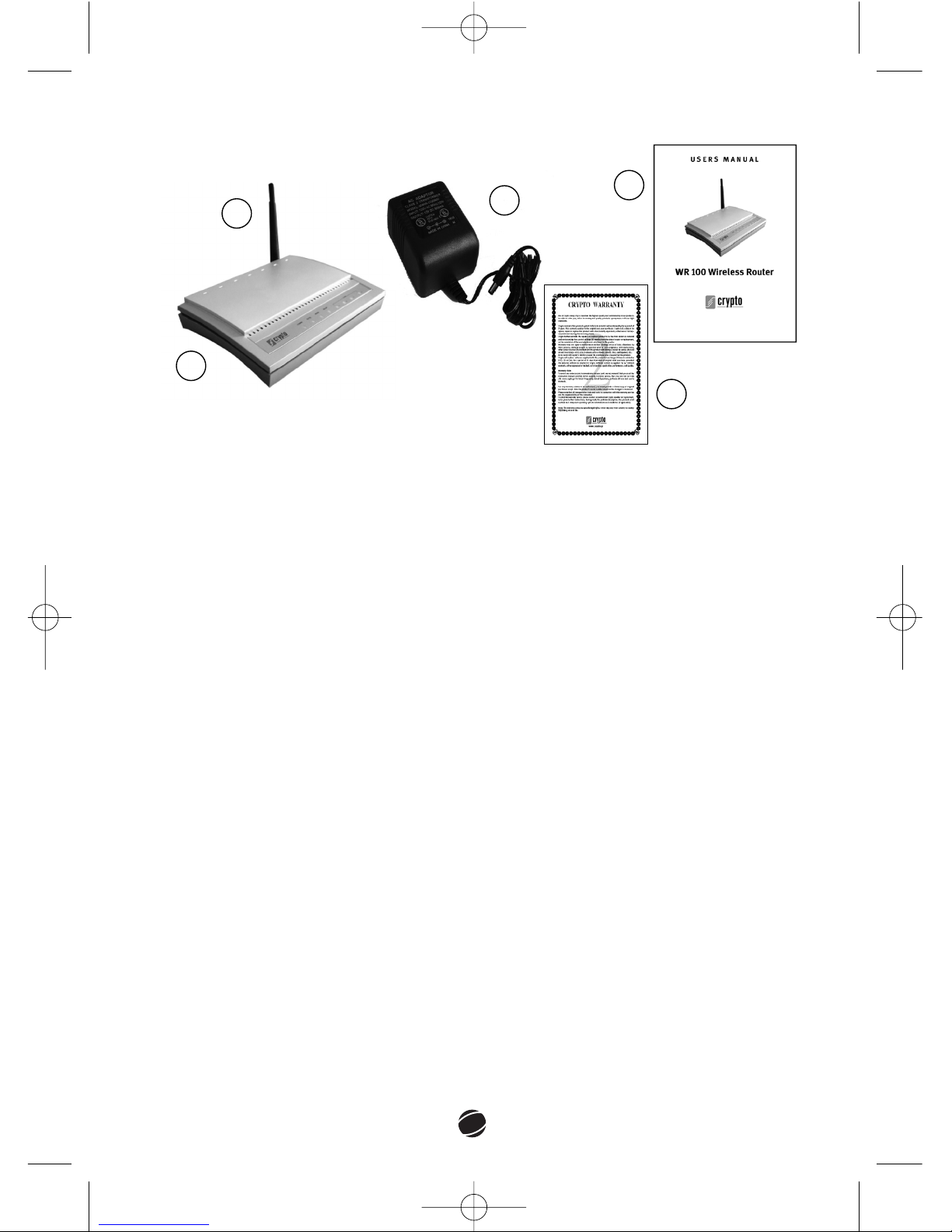
1 Package Contents
11.. CCrryyppttoo WWRR 110000 WWiirreelleessss RRoouutteerr
2. Antenna
3. Power Adapter
4. Printed Manual
5. Warranty
2 The WR 100 Wireless Router
Congratulations on purchasing the WR 100 Wireless Router, a reliable and
secure Internet router, which enables multiple users to share the Broadband
Internet connection through an ADSL or cable modem.
This Wireless Router is supports the new high speed
IIEEEEEE 880022..1111gg
standard
that enables connection speeds up to
5544MMbbppss..
The 802.11g standard is also
compatible with
880022..1111bb
products. In addition to that, it supports
aaddvvaanncceedd
sseeccuurriittyy ffeeaattuurreess..
Simply connect the router to your DSL/Cable modem, configure your router,
connect your PC wirelessly or via LAN cable and you’re ready to access the
Internet
It is an ideal solution for the Small and Medium-sized Business (SMB) and the
Small Office/Home Office (SOHO) use, providing an instant network and giving
you the flexibility to handle today’s expansion of broadband Internet.
1
2
3
4
5
wr100manual 5/16/06 11:41 AM Σελίδα 41
Page 4
42
2.1 Product Features
ñ 4-in-1 solution: Wireless Access Point, Router, 4-port Switch, Firewall
ñ Compliance with IEEE 802.11g, IEEE 802.11b standards
ñ Data rates up to 54Mbps for 802.11g and 11Mps for 802.11b
ñ One 10/100M WAN port for connection to WAN
ñ Four 10/100M WAN ports for connection to LAN
ñ Features virtual server, DMZ, UPnP
ñ Strong network security with 64/128bit WEP and WPA-PSK support
ñ Supports SSID broadcast control and access control based on MAC address
ñ Firewall Security
ñ Upgradeable Firmware
ñ Detachable Antenna
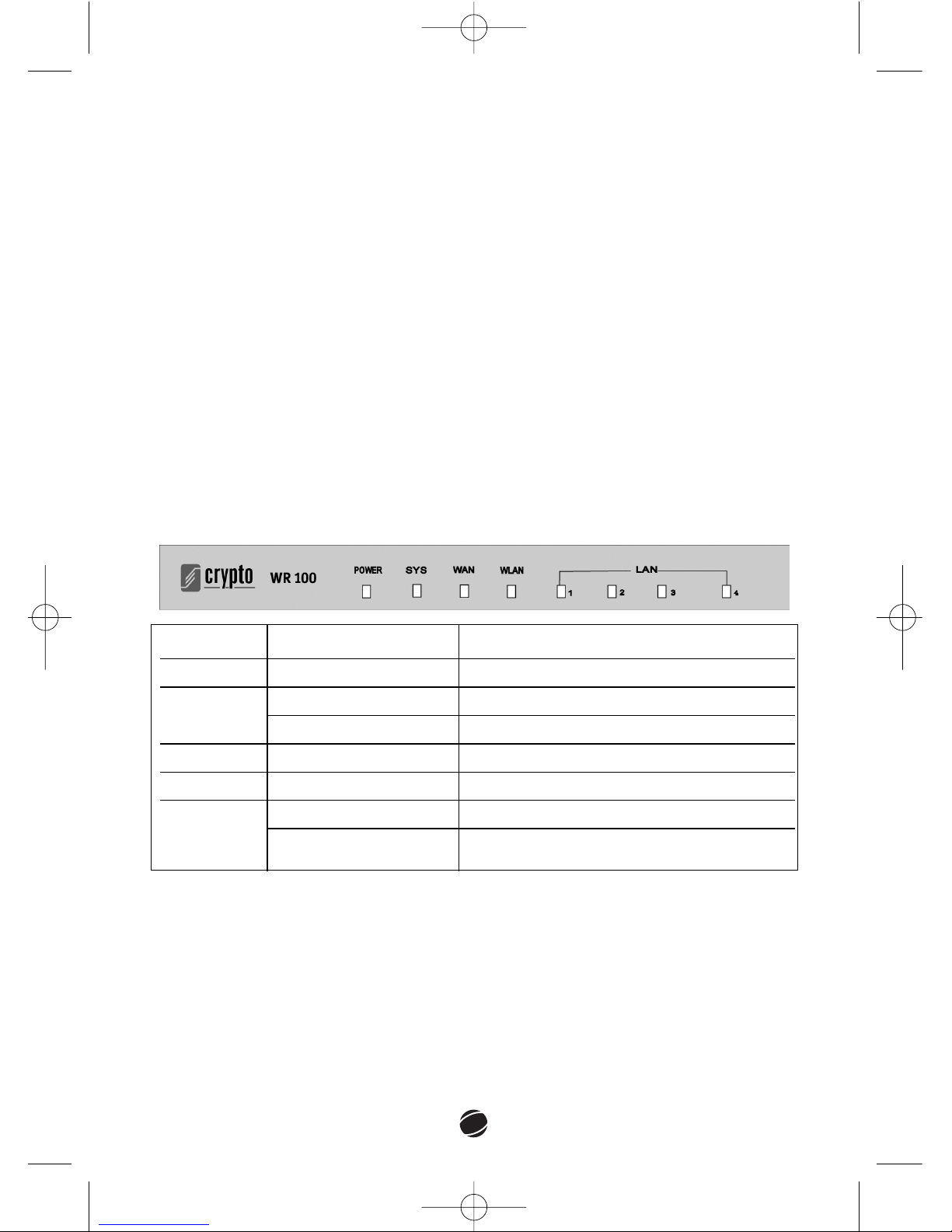
2.2 Front Panel
LLEEDD IInnddiiccaattiioonn FFuunnccttiioonn
POWER Steady Green Light The device is powered up
SYS
Blinking Light The wireless router is booting
Steady Green Light A wireless device is ready
WAN Steady Green Light WAN port is successfully connected
WLAN Blinking Light The radio signal is right
LAN Steady Green Light A LAN connection is established
(1/2/3/4) Blinking Light LAN activity (sending or receiving data)
wr100manual 5/16/06 11:41 AM Σελίδα 42
Page 5
43
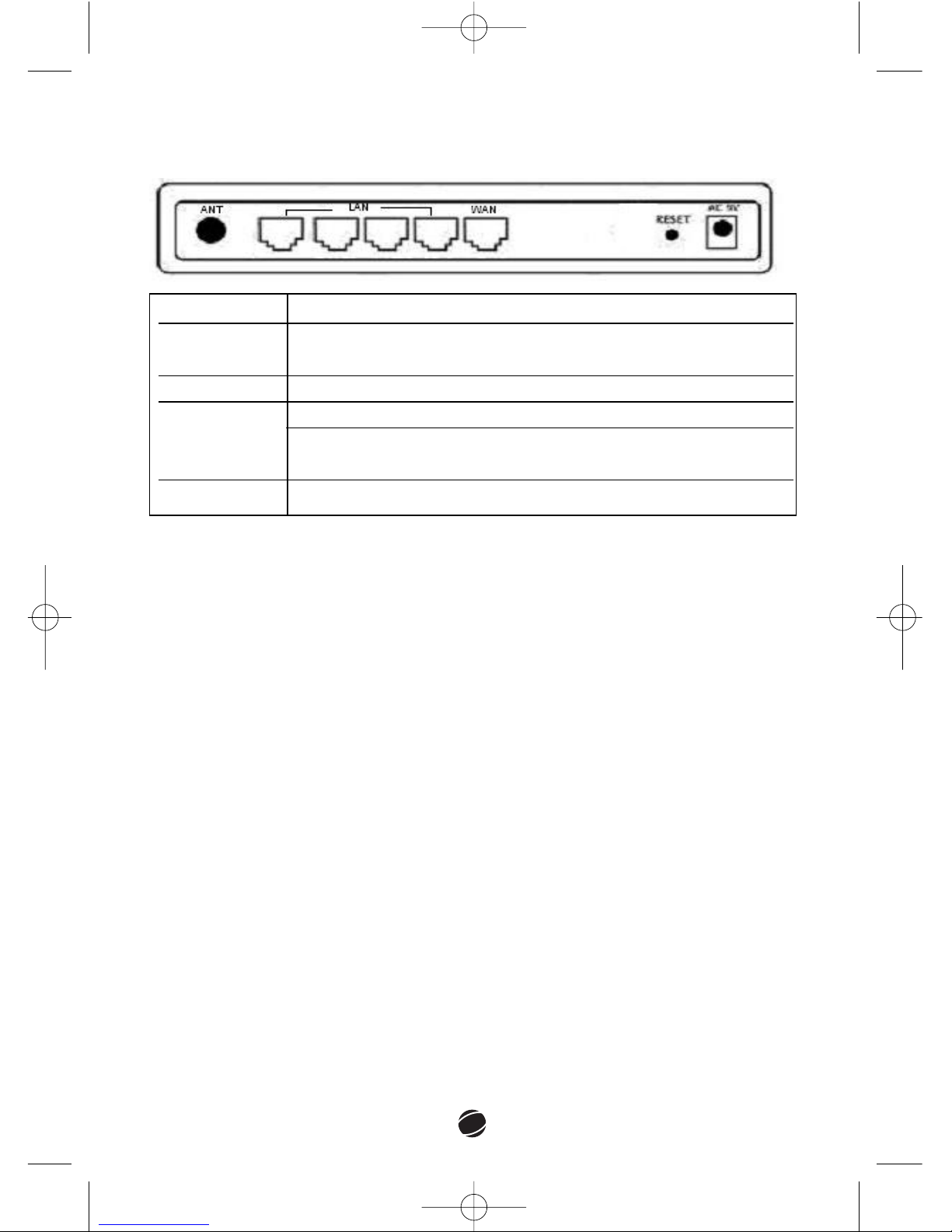
2.3 Rear Panel
3 Hardware Installation Procedure
ñ Attach the Antenna at the Rear Panel of your Wireless Router.
ñ Connect the WAN port of the Wireless Router with the LAN port of an ADSL
modem or a hub/switch.
ñ
WWiirreedd ccoonnnneeccttiioonnss..
Connect devices to the LAN ports of the Wireless Router.
You can connect the Wireless Router to the Ethernet Adapter of your PC
directly, using an RJ-45 Ethernet Cable. Or, you can connect a Hub/Switch to
a LAN port of the router.
ñ Plug the Wireless Router to a power supply socket.
ñ
WWiirreelleessss ccoonnnneeccttiioonnss..
Install a Wireless Ethernet Adapter such as the Crypto
WP 100E Wireless PCI Card at your PC. Configure the WP 100E and connect to
the Wireless Router wirelessly.
PPoorrtt//BBuuttttoonn FFuunnccttiioonn
LAN (1/2/3/4) Connect the router to your PC's Ethernet port, or to the
uplink port on your hub/switch, using a RJ-45 cable
WAN Connect to DSL or cable MODEM
RESET
Press instantly to reboot the device.
Press and hold for more than 4 seconds to restore the
factory settings.
AC 9V Connect to the supplied power adapter
wr100manual 5/16/06 11:41 AM Σελίδα 43
Page 6
44
4 Configuring the Router
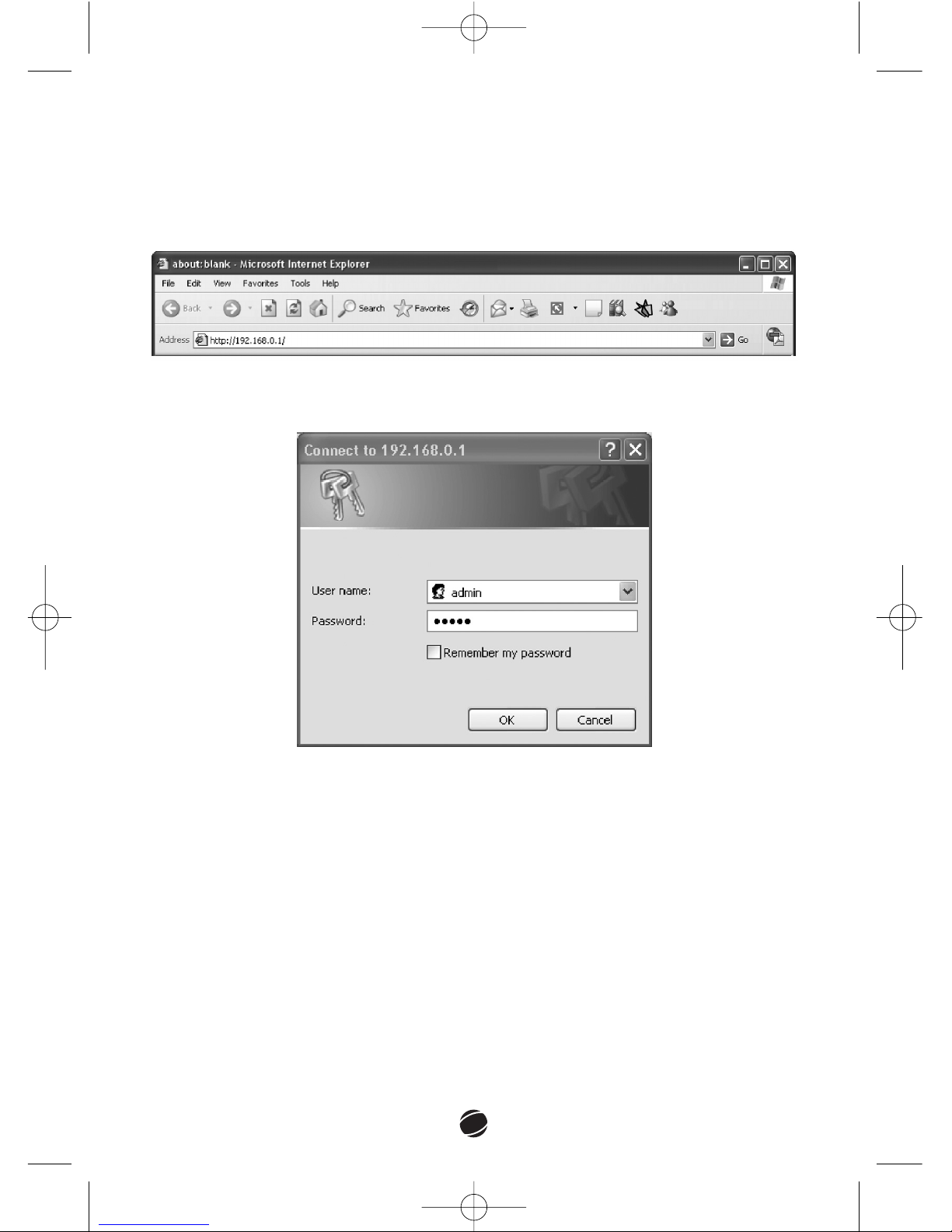
To access the configuration menu launch a web browser, such as Internet
Explorer, and type the router’s IP address. The default IP address is
192.168.0.1.
Enter your username and password and click
OOKK..
The default username is
""aaddmmiinn""
and default password is
""aaddmmiinn""..
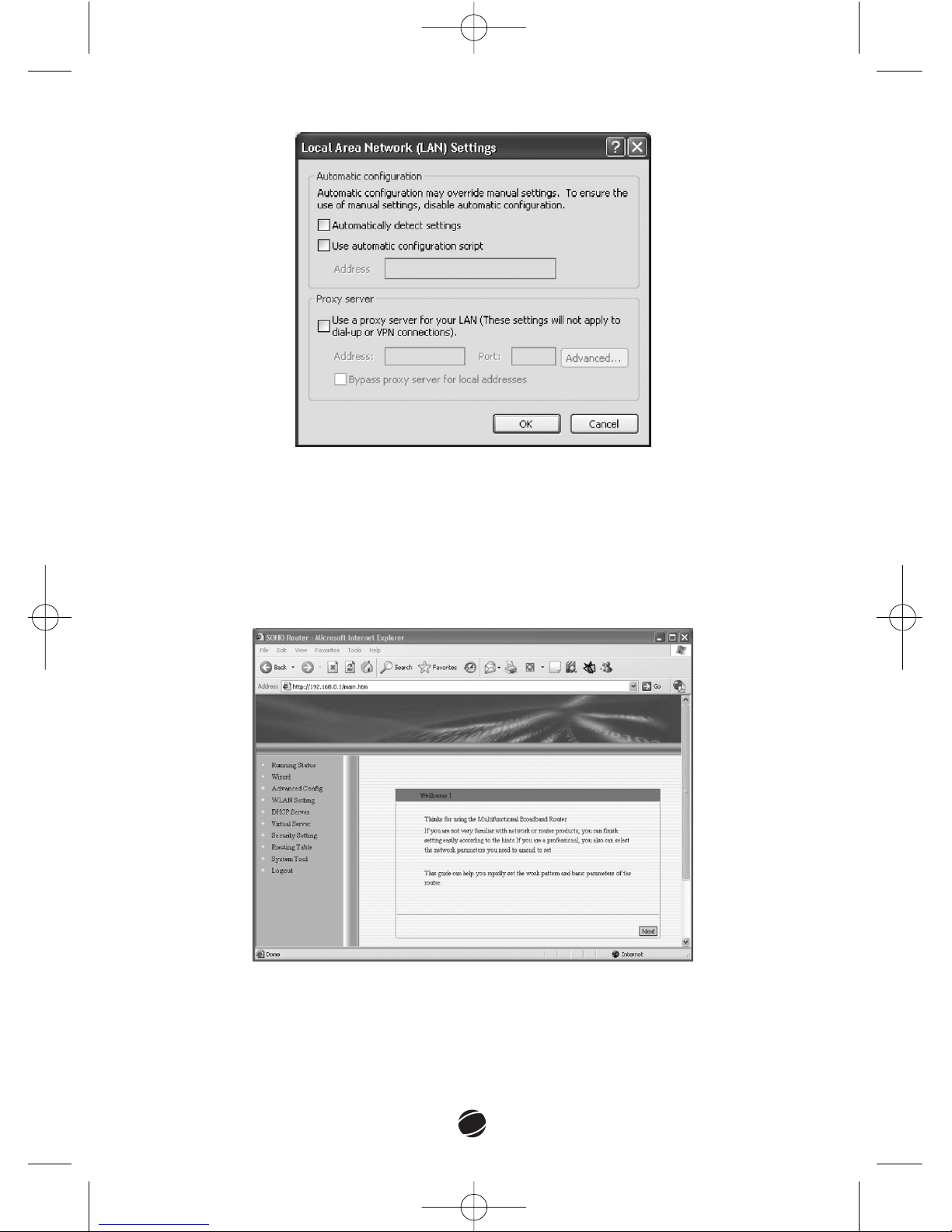
If the above window does not appear then do the following:
Go to Menu, select:
TToooollss __ IInntteerrnneett OOppttiioonnss..
In the window that opens, go to
the
CCoonnnneeccttiioonn
tab and select
NNeevveerr ddiiaall aa ccoonnnneeccttiioonn..
Click on
LLAANN SSeettttiinnggss
and make sure that no option is checked in the window
that appears:
Click
OOKK
to close this window.
Click
OOKK
to close the Internet Options window.
wr100manual 5/16/06 11:41 AM Σελίδα 44
Page 7
45
ñ Make sure that the IP address 192.168.0.1 is not occupied by another
computer of the LAN. If so, change the router’s IP address in one unoccupied
in the range: 192.168.0.2 - 192.168.0.154. The subnet mask must be set to
255.255.255.0 and the Gateway to 192.168.0.1. You can also set your
computer to obtain IP address automatically.
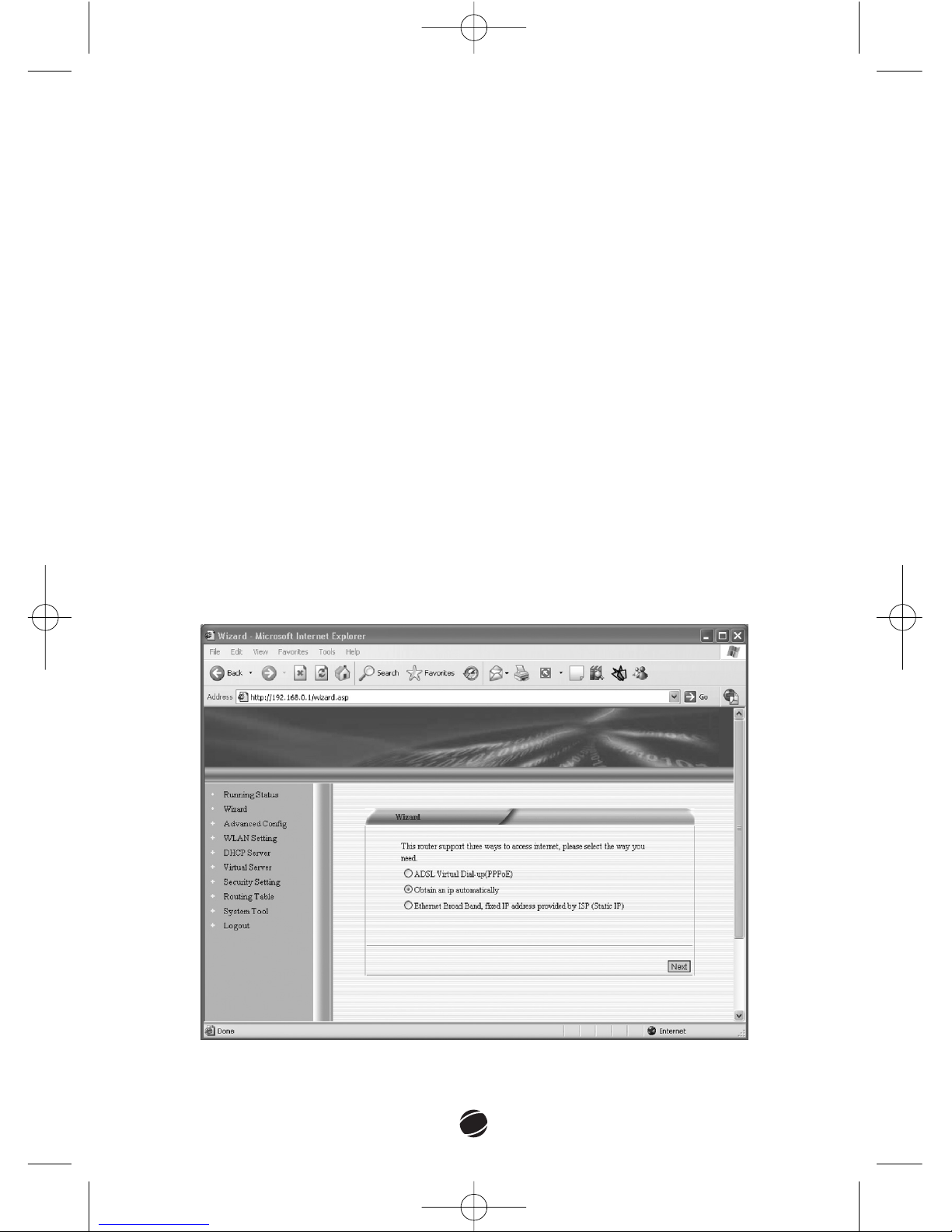
πf you enter the username and password correctly, the welcome page will
appear:
Click on an item on the left side of the page to view and change the
Click
NNeexxtt
to enter the Wizard Section and quickly configure your router.
wr100manual 5/16/06 11:41 AM Σελίδα 45
Page 8
46
4.1 Running Status
This page provides important information on the status of your wireless router.
WWAANN ssttaattuuss
displays the current status of the following items:
Link, WAN IP, Netmask, Gateway, DNS, Secondary DNS, Link Δype, Linked
Time.
LLAANN ssttaattuuss
displays the current IP address and netmask, the status of DHCP
Server, NAT and firewall.
You can also view
iinnffoorrmmaattiioonn
on the router’s running time, the current system
time, the number of clients, the firmware version, the bootcode version, the
LAN MAC Address, the WAN MAC Address and the hardware version.
4.2 Wizard
The wizard helps you configure the basic parameters of the router and start
using it as soon as possible. In this part you are required to fill in only the
information that is necessary to access the Internet.
If you click on the
WWiizzaarrdd
the following page will appear:
wr100manual 5/16/06 11:41 AM Σελίδα 46
Page 9

47
Select one of the available ways that you will be using to access the Internet.
11.. AADDSSLL VViirrttuuaall DDiiaall--uupp ((PPPPPPooEE))
Select this, if your ISP requires the PPPoE (Point-to-Point Protocol over
Ethernet) protocol to connect you to the Internet. (Your ISP should provide all
the information required for this)
Click
NNeexxtt
and fill in the information in the next page. You will need to fill in the
following information:
ñ Username: The ADSL username provided by your ISP
ñ Password: The ADSL password provided by your ISP
22.. OObbttaaiinn aann iipp aauuttoommaattiiccaallllyy
If you access the Internet by dynamic IP, you can obtain your IP address from
the ISP automatically.
33.. EEtthheerrnneett BBrrooaadd BBaanndd,, ffiixxeedd IIPP aaddddrreessss pprroovviiddeedd bbyy IISSPP ((SSttaattiicc IIPP))
Select this if you access the Internet by static IP (that is your ISP provides you
with a fixed IP address) or if you are connecting to either a PC that has access
to internet or a hub/switch of an existing LAN network. Click Next and you will
need to fill in the following information that it is provided by your ISP:
ñ IP Address: The IP address provided by your ISP
ñ Netmask: The subnet mask provided by your ISP
ñ Gateway: The gateway provided by your ISP
ñ DNS Server: The DNS Server provided by your ISP
ñ Secondly DNS (optional)
Click
NNeexxtt
to continue. Click
SSaavvee
on the page that appears and then click
RReebboooott
for the changes to take effect.
4.3 Advanced Config
This is a set a pages that gives you access to the settings of your router. You
can view and configure every detail of the device in order to adjust it to your
needs and preferences. All the settings are described and explained below. For
additional information, you can refer to the Glossary.
wr100manual 5/16/06 11:41 AM Σελίδα 47
Page 10
48
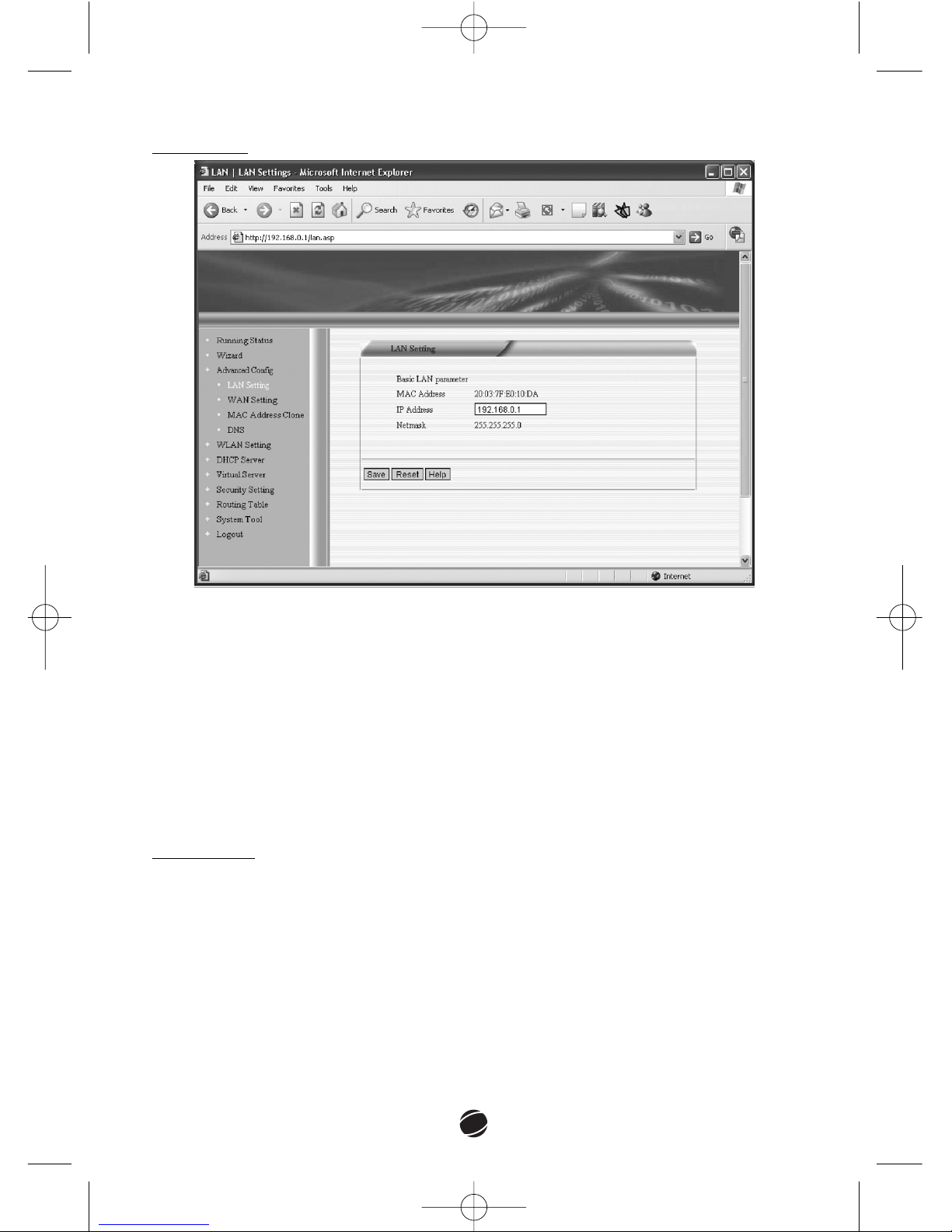
LLAANN SSeettttiinngg
MMAACC AAddddrreessss::
The MAC Address of this router in the LAN. You cannot change it.
IIPP AAddddrreessss::
The IP Address of this router in the LAN. The default IP is
192.168.0.1. If you change it you will have to use the new IP address to access
the router. The default gateway of every computer of the LAN should be set to
this IP address. Otherwise the computer would not be able to access the
Internet.
NNeettmmaasskk::
The Subnet Mask of this router in the LAN. The default setting is
255.255.255.0.
WWAANN SSeettttiinngg
In this page you can see and configure the parameters of the WAN. This page
will be different depending on the way you have chosen to access the Internet.
If you choose to connect to an existing network, for example, you need to
specify the router’s IP for the WAN side. This IP can be totally different from the
IP range used on the LAN side. That is the great advantage of the WR 100
wireless router.
wr100manual 5/16/06 11:41 AM Σελίδα 48
Page 11
49
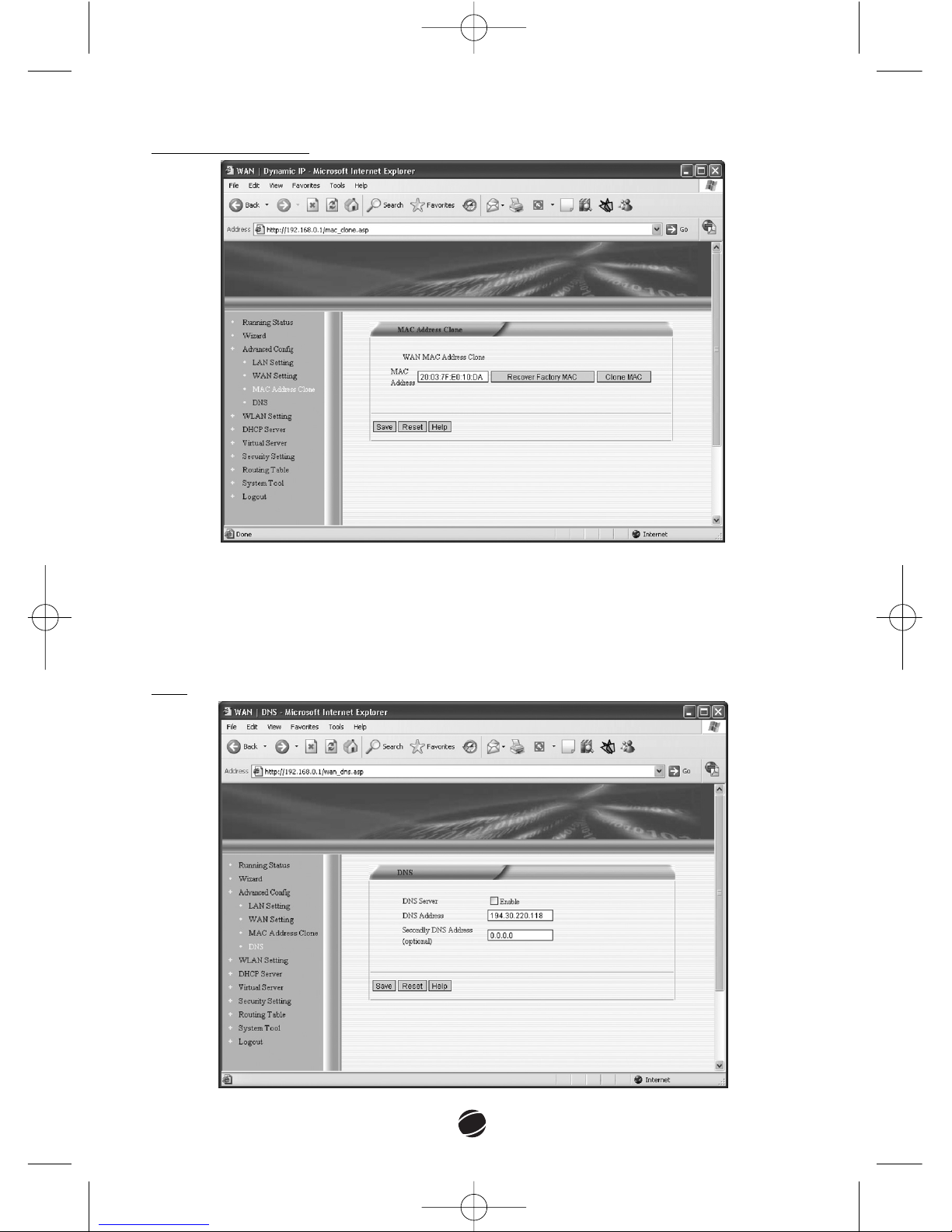
MMAACC AAddddrreessss CClloonnee
If your ISP restricts service to PCs only, use the MAC Clone feature to copy a PC
Media Access Control (MAC) address to your router. This procedure will cause
the router to appear as a single PC, while allowing online access to multiple
computers on your network.
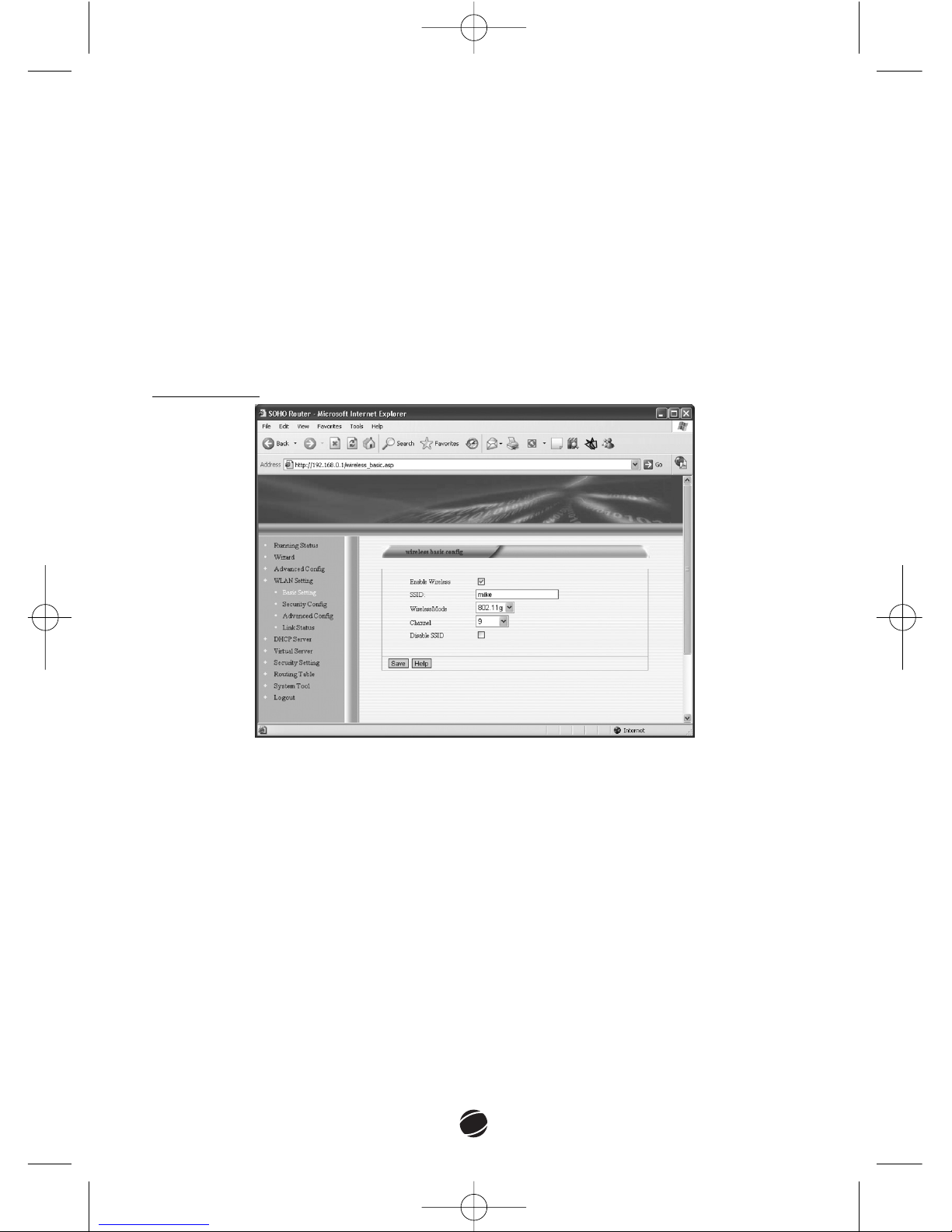
DDNNSS
wr100manual 5/16/06 11:41 AM Σελίδα 49
Page 12
50
This page lets you change your DNS settings. You can choose to enable or
disable the "DNS Server" feature, you can change you DNS Address or fill in a
secondary DNS Address.
4.4 WLAN Setting
This is a set of pages that give you access to the Wireless settings of the router.
You can configure every detail of the device in order to adjust it to your needs
and preferences. All the settings are described and explained below. For
additional information, you can refer to the Glossary.
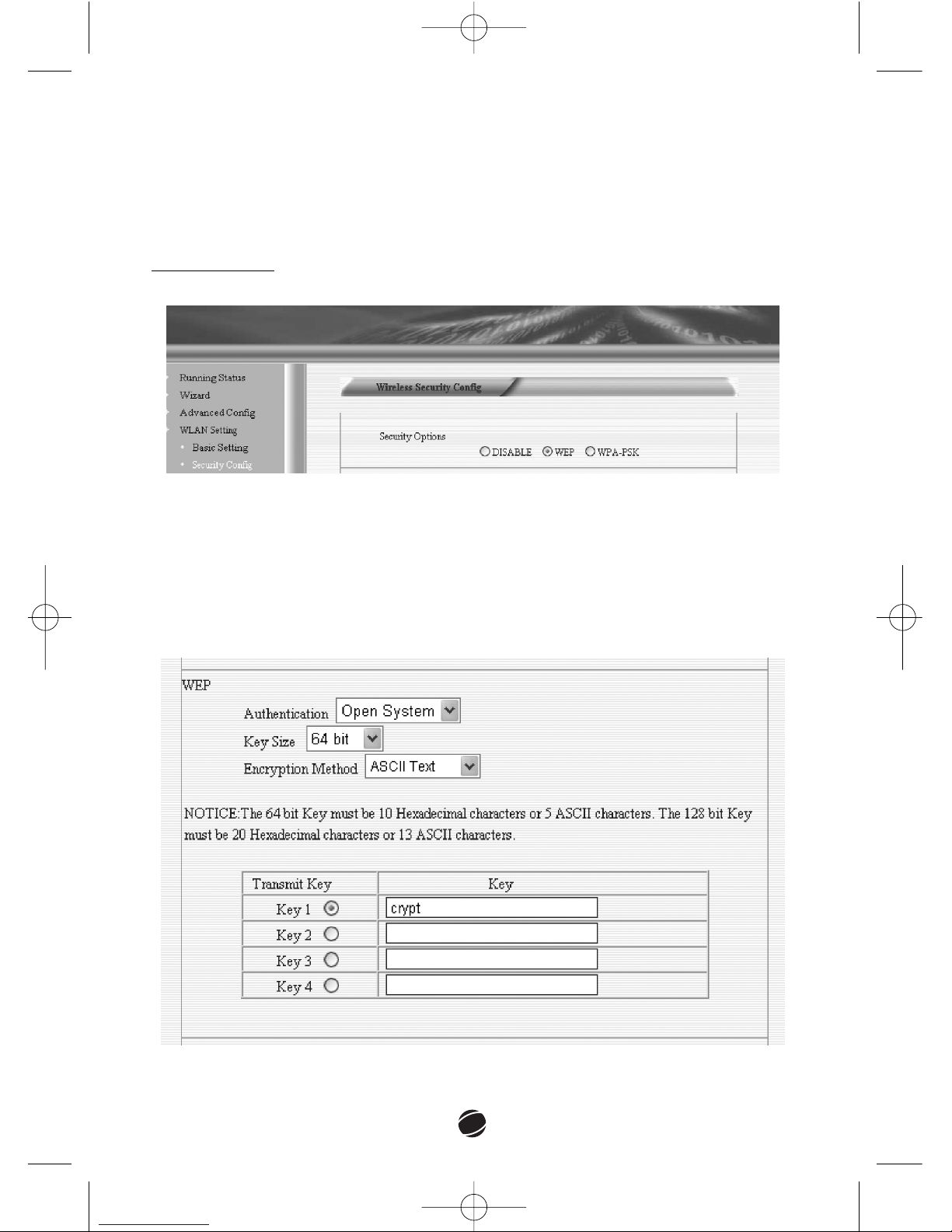
BBaassiicc SSeettttiinngg
EEnnaabbllee WWiirreelleessss::
Check this box to enable the wireless network. When enabled,
a computer can be connected wirelessly with the router. When not enabled, the
router will not be visible by any wireless devices.
SSSSIIDD:: SS
ervice SSet
IIdd
entifier, which is a unique name shared among all clients
and nodes in a wireless network. All wireless devices on a wireless network
must employ the same SSID in order to communicate with each other. This
means that all computers using the same SSID belong to the same network.
It is case-sensitive and must not exceed 32 characters.
WWiirreelleessssMMooddee::
Choose a wireless standard. The available options are 802.11b
(data rate up to 11Mbps in the 2.4 GHz band) and 802.11g (data rate up to
54Mbps in the 2.4 GHz band, backwards compatible with 802.11b)
wr100manual 5/16/06 11:41 AM Σελίδα 50
Page 13
51
CChhaannnneell::
The channel that the Wireless Router will operate in. You can select a
channel between 1 and 11, or select the AUTO option.
Disable SSID: When disabled, the router will stop broadcasting the SSID to the
wireless hosts. This is an extra security feature
SSeeccuurriittyy CCoonnffiigg
This page allows you to configure the security settings of your router.
Select
DDIISSAABBLLEE
to disable security,
WWEEPP
to enable WWired EEquivalency PProtocol
encryption or
WWPPAA--PPSSKK
to enable WWi-Fi PProtected AAccess - PPre SShared KKey
security.
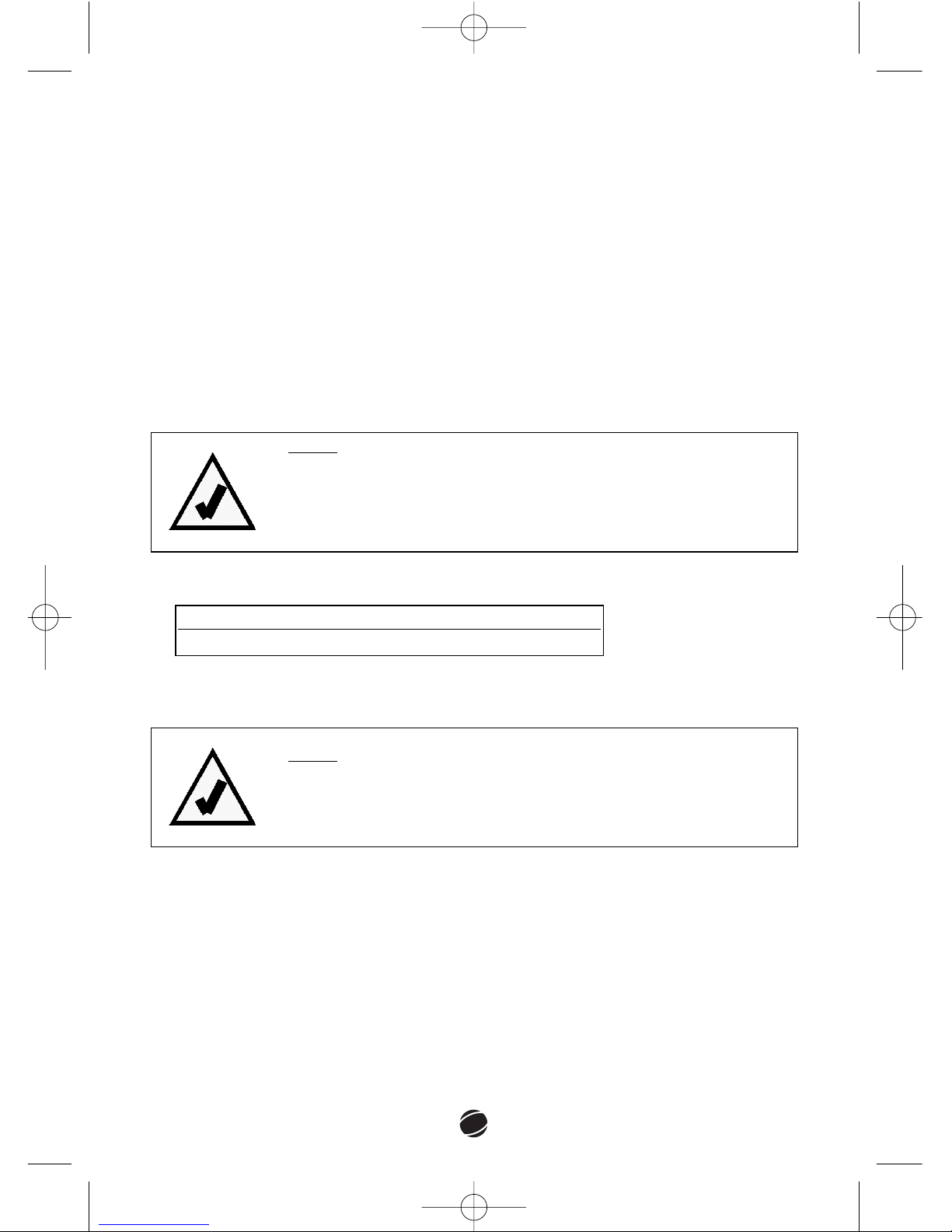
ñ WEP
If WEP is selected, you will have to configure the following:
wr100manual 5/16/06 11:41 AM Σελίδα 51
Page 14
52
AAuutthheennttiiccaattiioonn::
Select the authentication mode (Open System or Shared Key).
A WEP Key can be entered in both Open System and Shared Key authentication
modes (in both cases a secret key is used but the authentication procedure is
different). Open System authentication is a null authentication algorithm. Any
station that requests authentication receives it. When Shared Key
authentication is enabled, the Access Point / Router sends a packet to the
client. If the packet is correctly encoded then the client is authenticated. All the
nodes and hosts on the network must use the same authentication type.
KKeeyy ssiizzee::
Select the key length to be 64 bits or 128 bits.
EEnnccrryyppttiioonn MMeetthhoodd::
Select the Encryption method (ASCII Text or Hexadecimal).
NNoottee::
The 64 bit key must consist of 10 Hexadecimal digits or 5 ASCII
characters.
The 128 bit key must consist of 26 Hexadecimal digits or 13
ASCII characters.
NNoottee::
When WEP security is enabled, all the wireless clients that
wish to connect to the Access Point must also have WEP
enabled with the identical WEP Key value entered.
EExxaammppllee::
WEP Key: You can enter up to 4 keys, but you can choose only one of them to
be the effective key.
WWEEPP
Key in
HHEEXX
format 64bits: 1234AC9E01
WWEEPP
Key in
AASSCCIIII
format 64bits: PG7+A
ñ
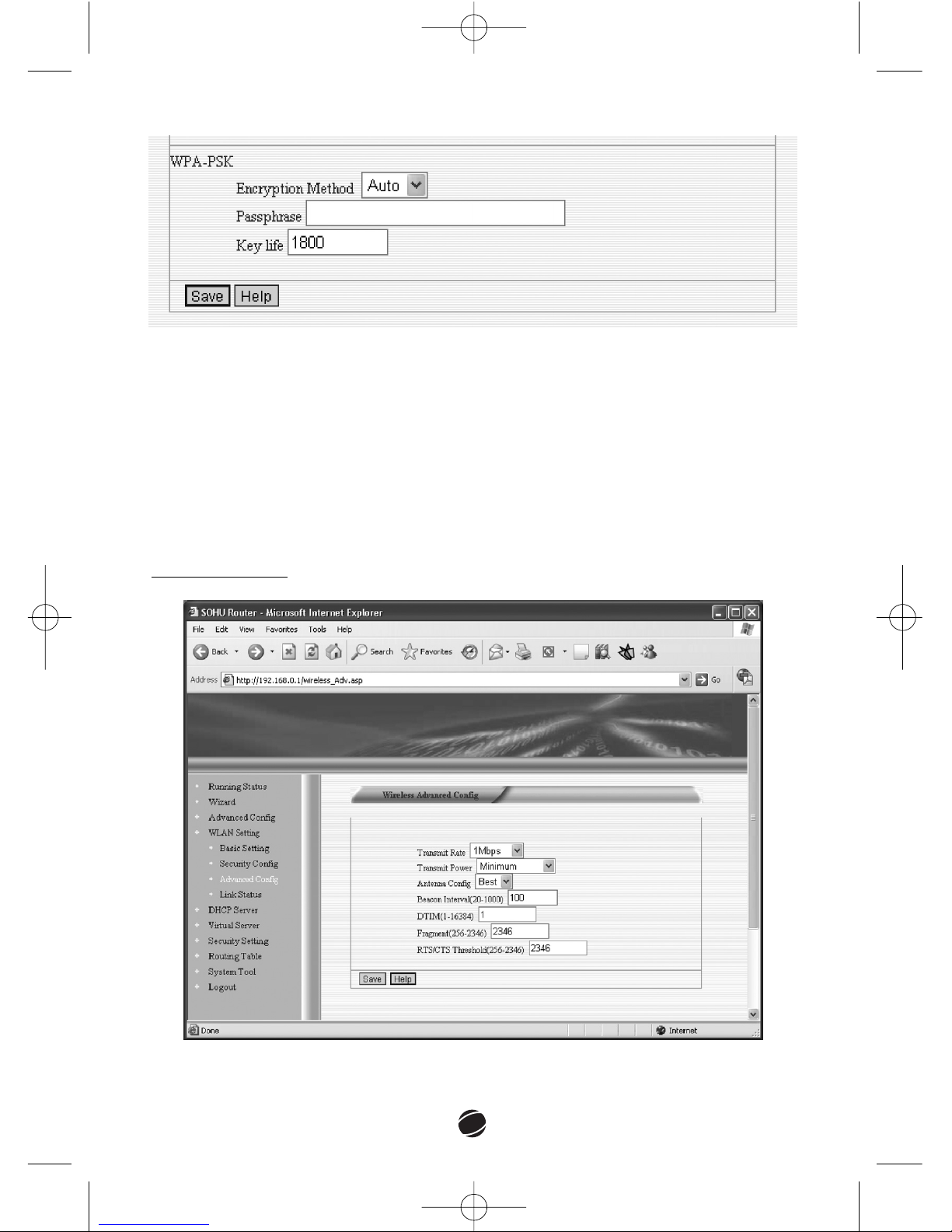
WWPPAA--PPSSKK
If WPA-PSK is selected, you will have to configure the following:
wr100manual 5/16/06 11:41 AM Σελίδα 52
Page 15
53
EEnnccrryyppttiioonn MMeetthhoodd::
Select the encryption method (auto, TKIP – Time Key
Integrality Protocol or AES – Advanced Encryption Standard)
PPaassssffrraassee::
You can use a 1 to 63 characters string to set the password or you
can leave it blank. In this case, the 802.1x Authentication will be activated.
Make sure that the same password is used on the client's end.
KKeeyy LLiiffee::
Enter the number of seconds that will elapse before the key changes
automatically.
AAddvvaanncceedd CCoonnffiigg
wr100manual 5/16/06 11:41 AM Σελίδα 53
Page 16

54
TTrraannssmmiitt RRaattee::
Select a data rate value
(54/48/36/24/18/12/9/6/11/5.5/2/1/Best). When
BBeesstt
is enabled the device
will select the optimal transmission rate.
TTrraannssmmiitt PPoowweerr::
Select the desired transmission power (Full, Half, Quarter,
Eighth, Minimum). You can use this in case you want to lower the transmission
power of the router if you wish to connect it to an external high gain antenna.
AAnntteennnnaa CCoonnffiigg::
Select Best, 1 or 2.
BBeeaaccoonn IInntteerrvvaall ((2200--11000000))::
Set the period of time in milliseconds that the
Wireless Router sends out a beacon.
DDTTIIMM ((11--1166338844))::
Set the value for DTIM. Delivery Traffic Indication Message is a
message informing clients about the next time window for listening to
broadcast and multicast messages. It is essentially a count of the number of
beacon frames that must occur before the router sends the buffered multicast
frames
FFrraaggmmeenntt ((225566--22334466))::
Set the number of bytes that constitute the
fragmentation boundary of packets. Default value: 2347 bytes
RRTTSS//CCTTSS TThhrreesshhoolldd ((225566--22334466))::
Set the size of RTS/CTS packet.
The
RRTTSS//CCTTSS (RR
equest TTo SSend/CClear TTo SSend) function controls station access
to the medium. If you enable RTS/CTS on a particular station, it will refrain from
sending a data frame until the station completes a RTS/CTS handshake with
another station .If the packet that the Wireless Router is transmitting is larger
than the threshold, it will initiate the RTS/CTS function. If the packet size is
equal to or less than the threshold, the router will not enable RTS/CTS. You can
use a threshold of around 500. If it is set too high, then packet collisions can
affect connection quality. If it set too low, then the throughput may be reduced.
Default value: 2347 bytes
LLiinnkk
SSttaattuuss
This page displays information on the computers connected to the LAN (MAC
Address, state etc).
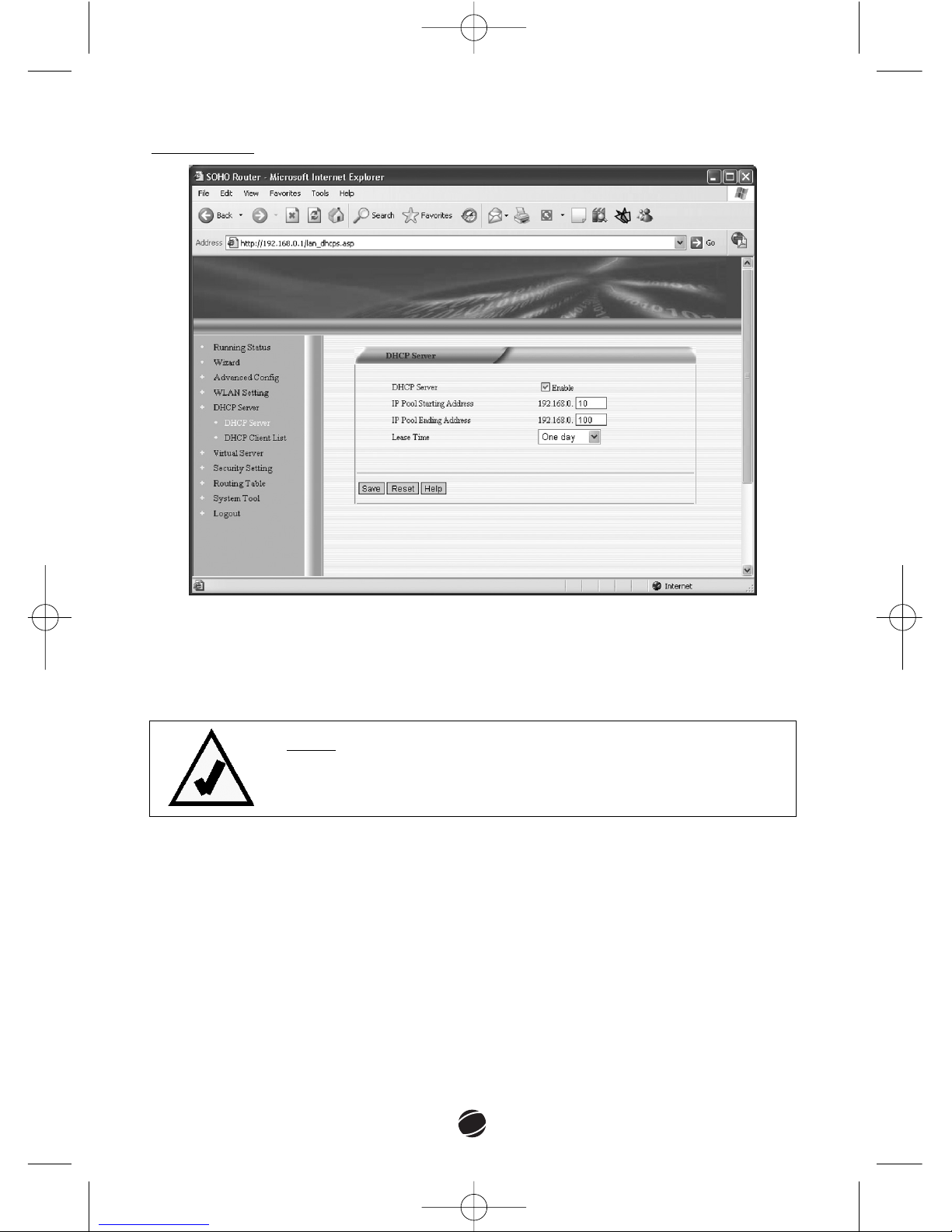
4.5 DHCP Server
DDHHCCPP (DD
ynamic HHost CConfiguration PProtocol) is a protocol that automatically
assigns dynamic IP addresses to devices on a network
wr100manual 5/16/06 11:41 AM Σελίδα 54
Page 17
55
DDHHCCPP SSeerrvveerr
DDHHCCPP SSeerrvveerr::
Check the box to enable the DHCP server function.
IIPP PPooooll SSttaarrttiinngg AAddddrreessss::
Select the lower bound of the IP range.
IIPP PPooooll EEnnddiinngg AAddddrreessss::
Select the upper bound of the IP range
LLeeaassee TTiimmee::
Select the lease time for the IP address assigned by DHCP.
NNoottee::
If you enable DHCP, you have to set all the devices connected
to the router to obtain an IP automatically.
wr100manual 5/16/06 11:41 AM Σελίδα 55
Page 18
56
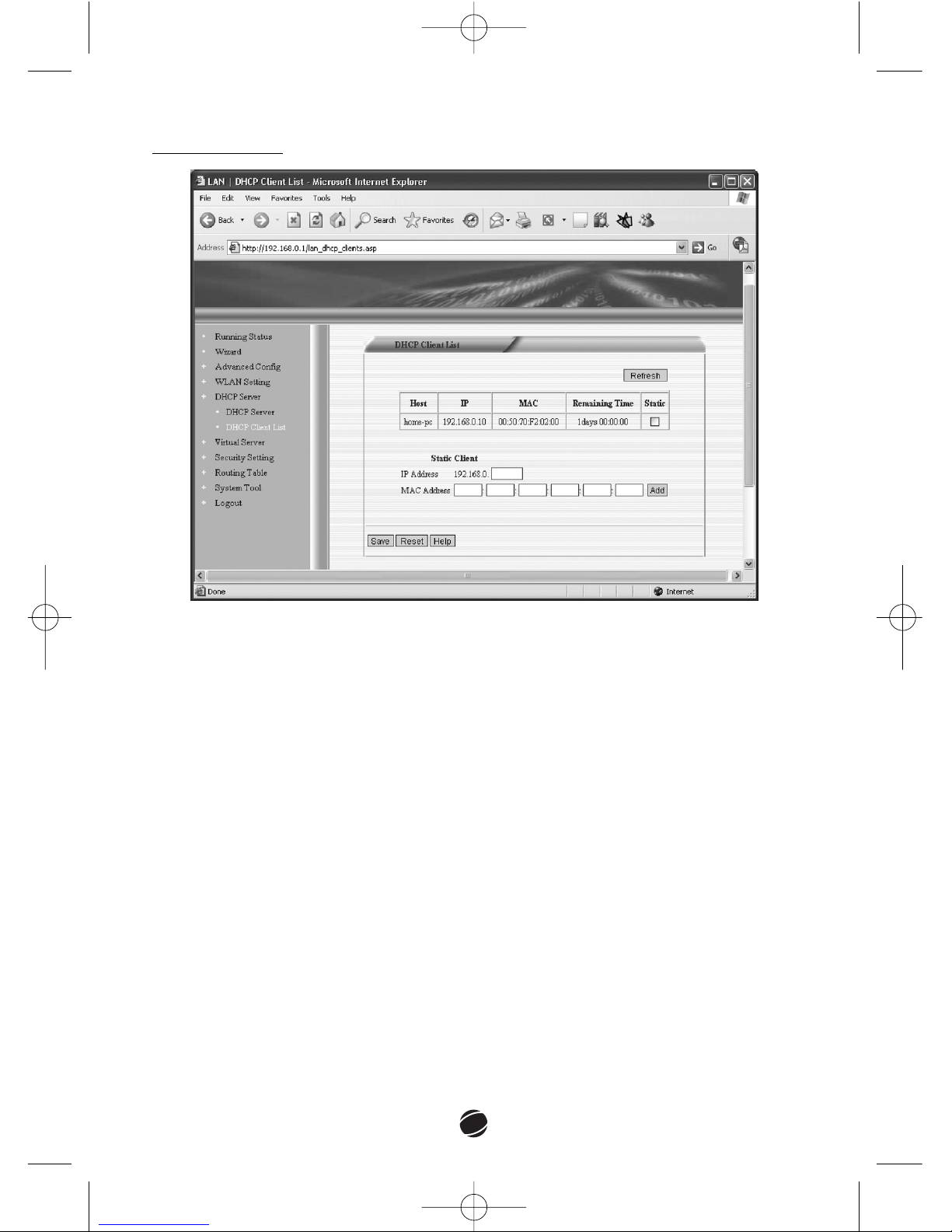
DDHHCCPP CClliieenntt LLiisstt
You can assign an appointed IP address to a LAN station.
IIPP AAddddrreessss::
Enter the desired IP address.
MMAACC AAddddrreessss::
Enter the device’s MAC address
Click
AAdddd..
When you are finished click Save to save your settings.
To remove a host from the table, uncheck the corresponding
SSttaattiicc
box and
click
SSaavvee..
You can click
RReesseett
to restore the page to the last saved state.
You can click
HHeellpp
to view the help page on this subject.
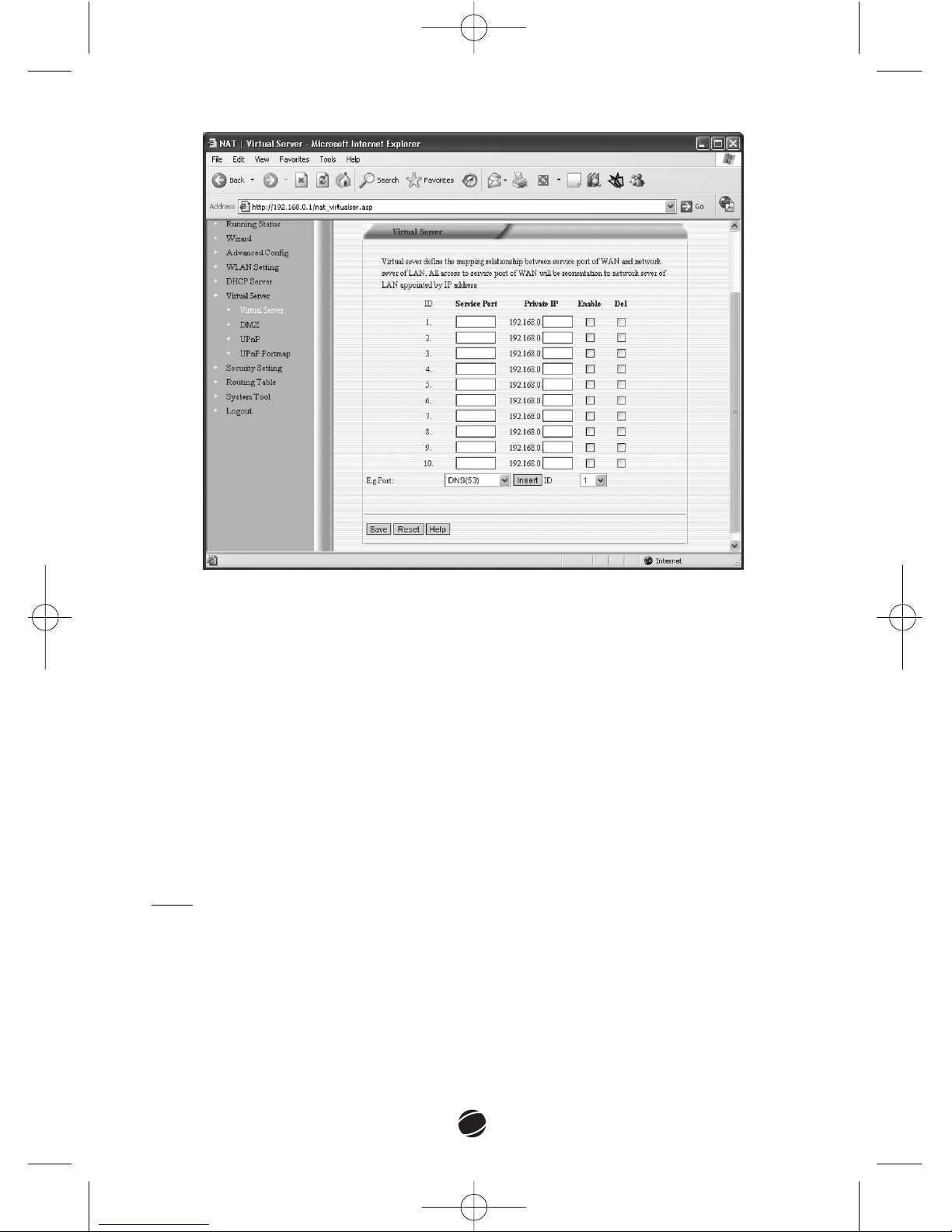
4.6 Virtual Server
The virtual server allows you to make some services or resources of your
internal network accessible to external Internet users. A virtual server is
defined as an IP address and a service port, and all requests to this port will be
redirected to the computer associated with this port in the Virtual Server.
wr100manual 5/16/06 11:41 AM Σελίδα 56
Page 19
57
To add a service using Virtual Server, perform the following steps:
1. Enter the
SSeerrvviiccee PPoorrtt
number or select an item from the well known services
that appear in the list
EE..gg.. PPoorrtt..
2. Select a unique
IIDD
number, and click
IInnsseerrtt..
3. Enter the
PPrriivvaattee IIPP
address of the machine to which you want to allow
access from the Internet.
4. Check
EEnnaabbllee..
5. Click
SSaavvee
in order to save the settings.
You can click
RReesseett
to restore the page to the last saved state.
You can check
DDeell
to delete a service from the Virtual Server.
You can click
HHeellpp
to view the help page on this subject.
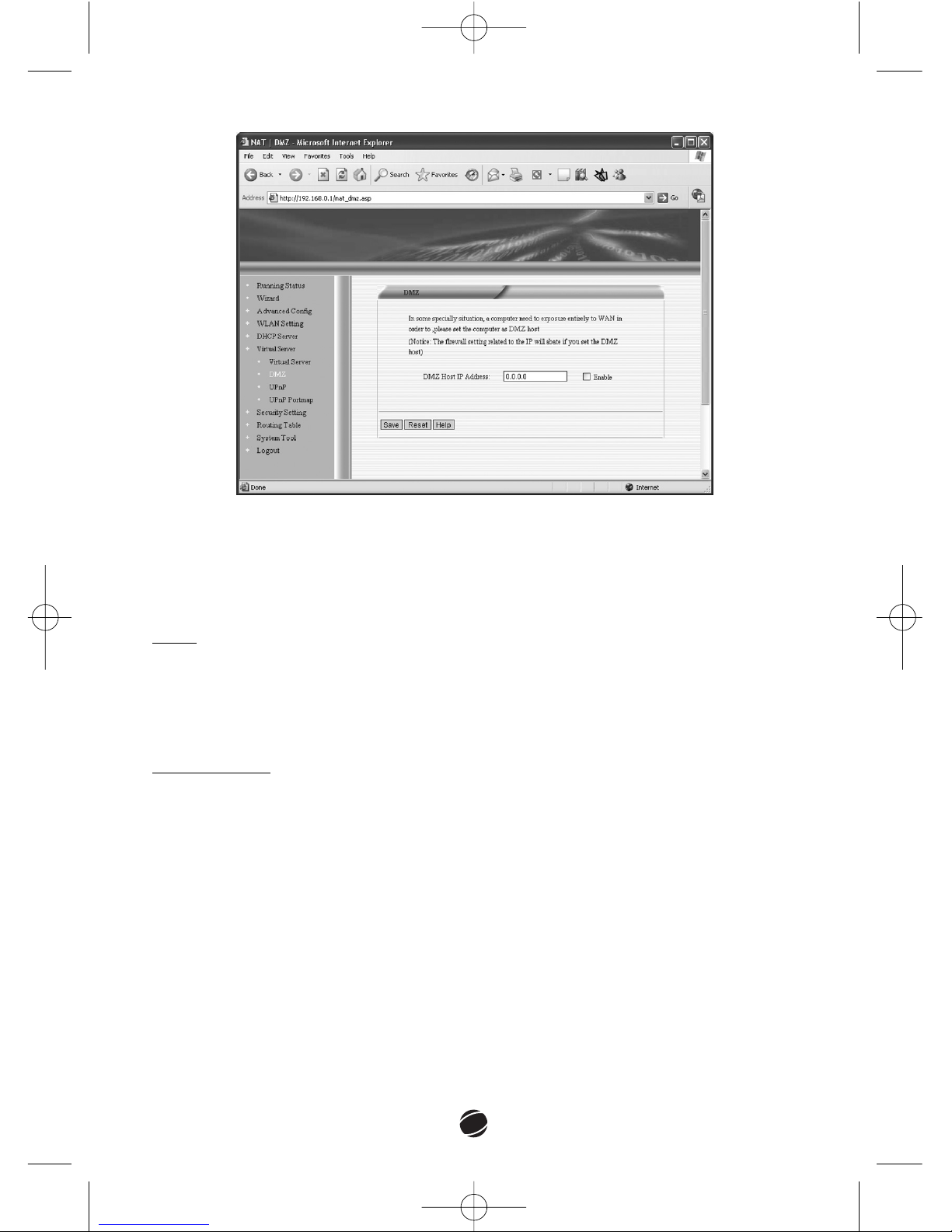
DDMMZZ
The router normally stops incoming Internet traffic from getting on your
network. Instead of discarding the incoming traffic or using port forwarding,
you can send it to one computer on your network by establishing a "Default
DMZ Server". (DMZ = Demilitarized Zone.)
wr100manual 5/16/06 11:41 AM Σελίδα 57
Page 20
58
To create a DMZ, type the server’s IP address, check the
EEnnaabbllee
box and click
SSaavvee..
You can click
RReesseett
to restore the page to the last saved state.
You can click
HHeellpp
to view the help page on this subject.
UUPPnnPP
To enable UPnP check the
EEnnaabbllee UUPPnnPP
box and click Save.
Click
RReesseett
to restore the page to the last saved state.
Click
HHeellpp
to view the help page on this subject.
UUPPnnPP PPoorrttmmaapp
In this page you can see information about the UPnP devices that are
connected to your LAN:
RReemmoottee HHoosstt::
Description of the remote host.
PPuubblliicc HHoosstt::
Router’s port for UPnP
PPrriivvaattee HHoosstt::
Description of private host.
PPrriivvaattee PPoorrtt::
The port of the private host.
PPrroottooccooll::
Display TCP or UDP protocol.
DDuurraattiioonn::
Display the time that the device has been connected to the LAN.
CCoommmmeenntt::
UPnP map information
wr100manual 5/16/06 11:41 AM Σελίδα 58
Page 21
59
4.7 Security
This set of pages allows you to configure the security settings of your router.
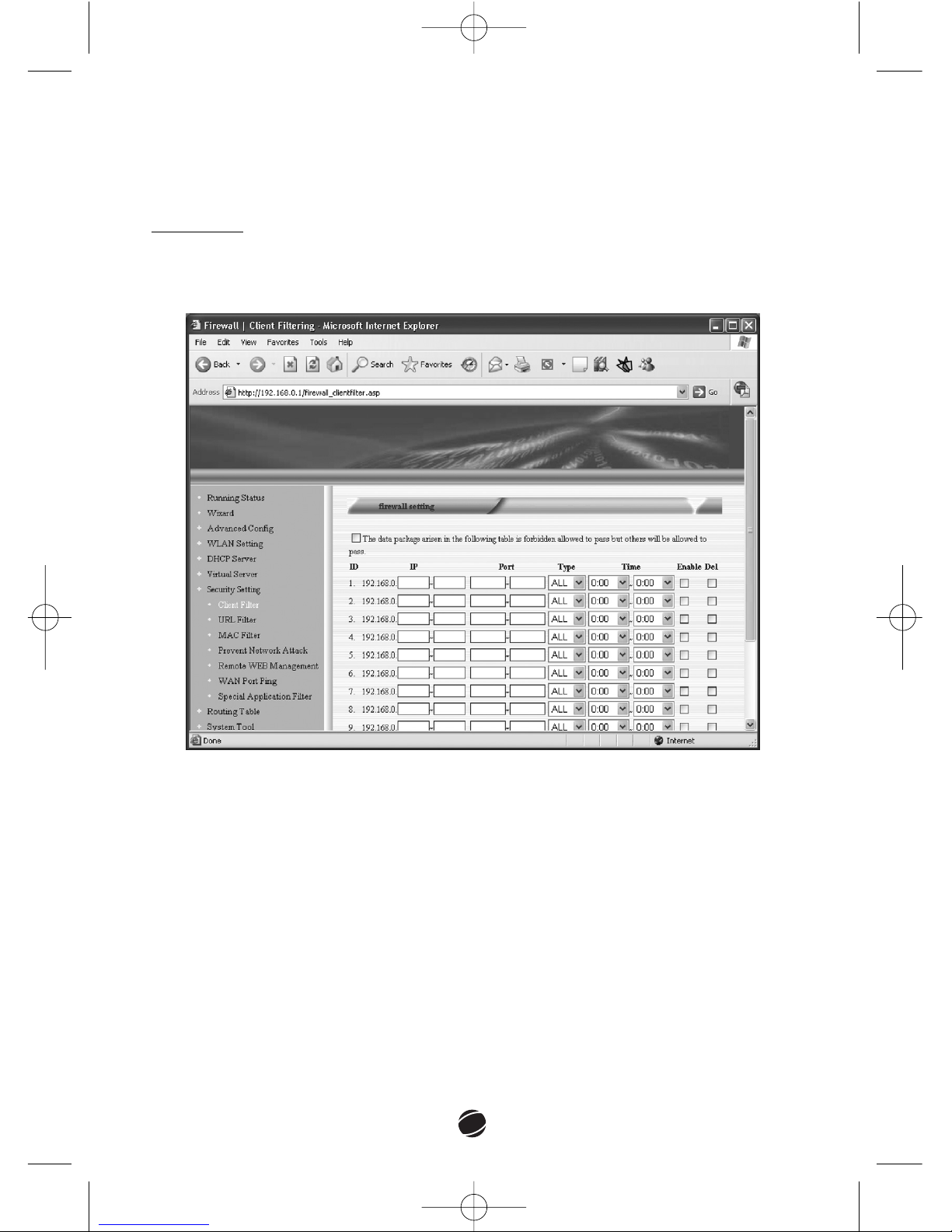
CClliieenntt FFiilltteerr
You can use this feature to filter Internet access for local clients based on IP
addresses, application types and time of day.
Click
EEnnaabbllee
to enable this filter rule.
Click
SSaavvee
to save the settings.
Check the box at the top of the page, in order for the rules to take effect.
You can click
RReesseett
to restore the page to the last saved state.
You can click
DDeell
to delete a client filter.
You can click
HHeellpp
to view the help page on this subject.
wr100manual 5/16/06 11:41 AM Σελίδα 59
Page 22
60
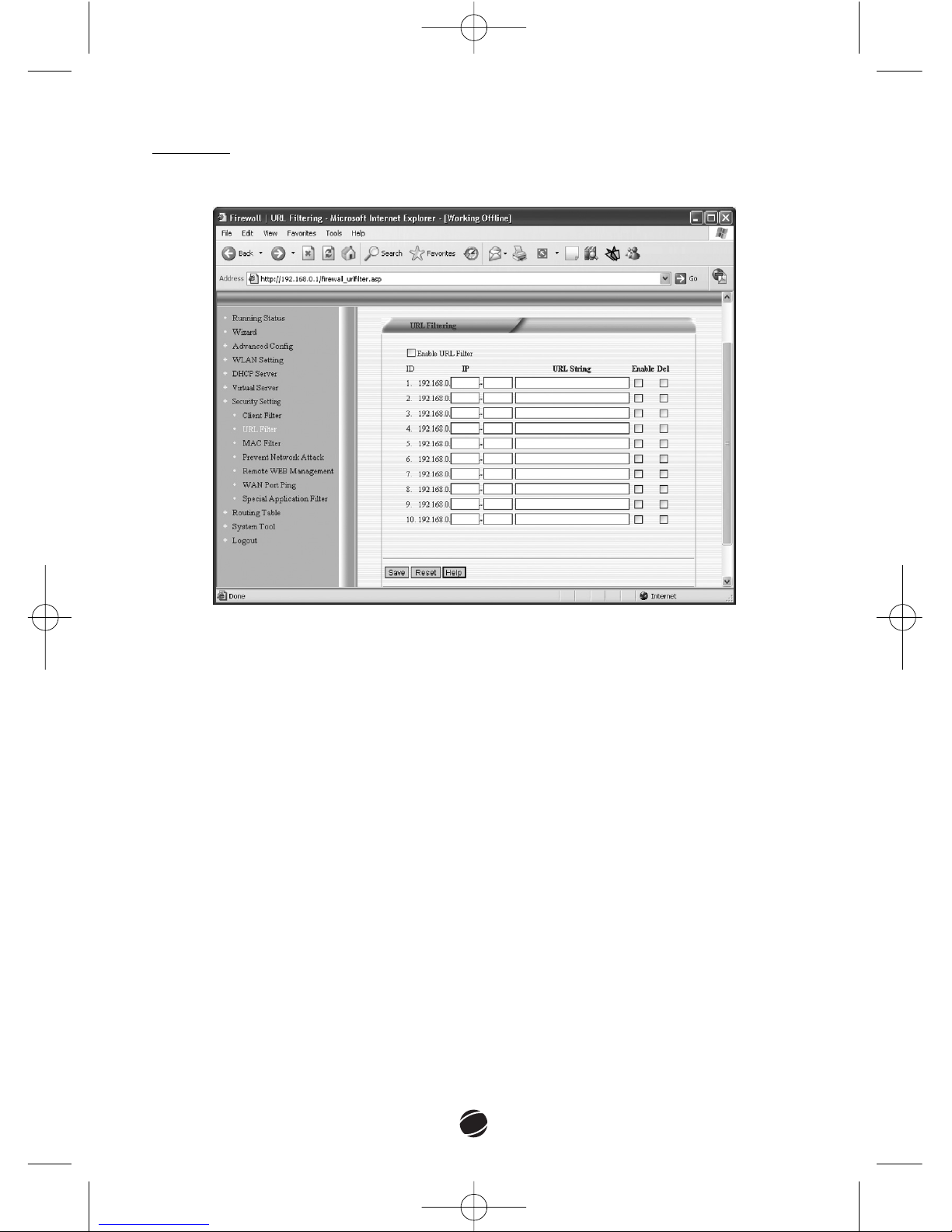
Check the box
EEnnaabbllee UURRLL FFiilltteerr
to enable this feature.
IIPP
: The IP addresses of your local network stations on which you want to apply
a filter.
If you leave this field empty, the filter will be applied on all computers in the
LAN.
UURRLL::
Any part of a URL that you want to block. For example, specifying
something will disallow access to any Web site whose URL contains the word
something.
EEnnaabbllee::
When this check box is selected, the router applies URL blocking to the
specified keyword for the computers with the specified IP addresses.
Click Save to save the settings.
You can click
RReesseett
to restore the page to the last saved state.
You can click
DDeell
to delete a URL filter.
You can click
HHeellpp
to view the help page on this subject.
You may have to restart your PC or open a new cmd prompt (go to
SSttaarrtt __ RRuunn
and type
ccmmdd
) and type
nneett ssttoopp ddnns
sccaacchhee
, in order to stop DNS caching in
Windows.
UURRLL FFiilltteerr
This feature allows you to type in a string and the router will block any URL that
contains that string.
wr100manual 5/16/06 11:41 AM Σελίδα 60
Page 23
61
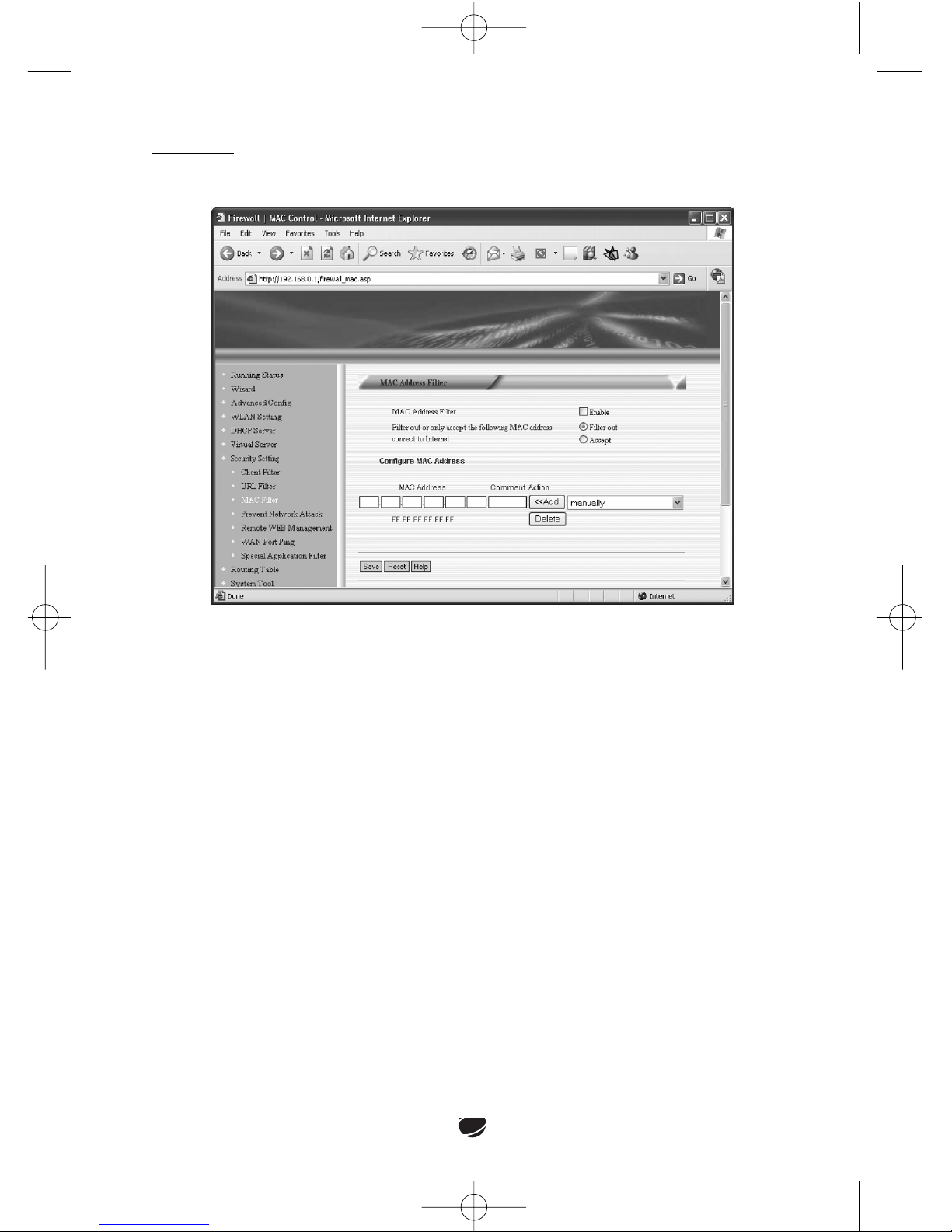
Check the
EEnnaabbllee
box to enable MAC Address Filtering.
Select
FFiilltteerr oouutt
if you want the devices with the specified MAC addresses not
to access the Internet.
Select
AAcccceepptt
if you want only the devices with the specified MAC addresses to
access the Internet.
MMAACC AAddddrreessss::
Enter the MAC address of the computer on which you want to
apply the filter and click
AAdddd..
You can type a MAC address manually or select one from the drop down menu
next to the Add button.
CCoommmmeenntt::
You can type a comment or a description of the computer you are
referring to.
Press
DDeelleettee
to remove a MAC address from the list.
You can click
RReesseett
to restore the page to the last saved state.
You can click
HHeellpp
to view the help page on this subject.
MMAACC
FFiilltteerr
This feature allows you to specify a device in your local network by its MAC
address and allow/prevent it from accessing the router.
wr100manual 5/16/06 11:41 AM Σελίδα 61
Page 24
62
PPrreevveenntt NNeettwwoorrkk AAttttaacckk
Check the
PPrreevveenntt NNeettwwoorrkk AAttttaacckk
box to enable this feature. When enabled, if
a network attack is monitored the bandwidth will be limited.
If you want to see the IP address of the computer who launched the attack, go
to
SSyysstteemm TTooooll __ SSyysstteemm LLoogg..
You can click
RReesseett
to restore the page to the last saved state.
You can click
HHeellpp
to view the help page on this subject.
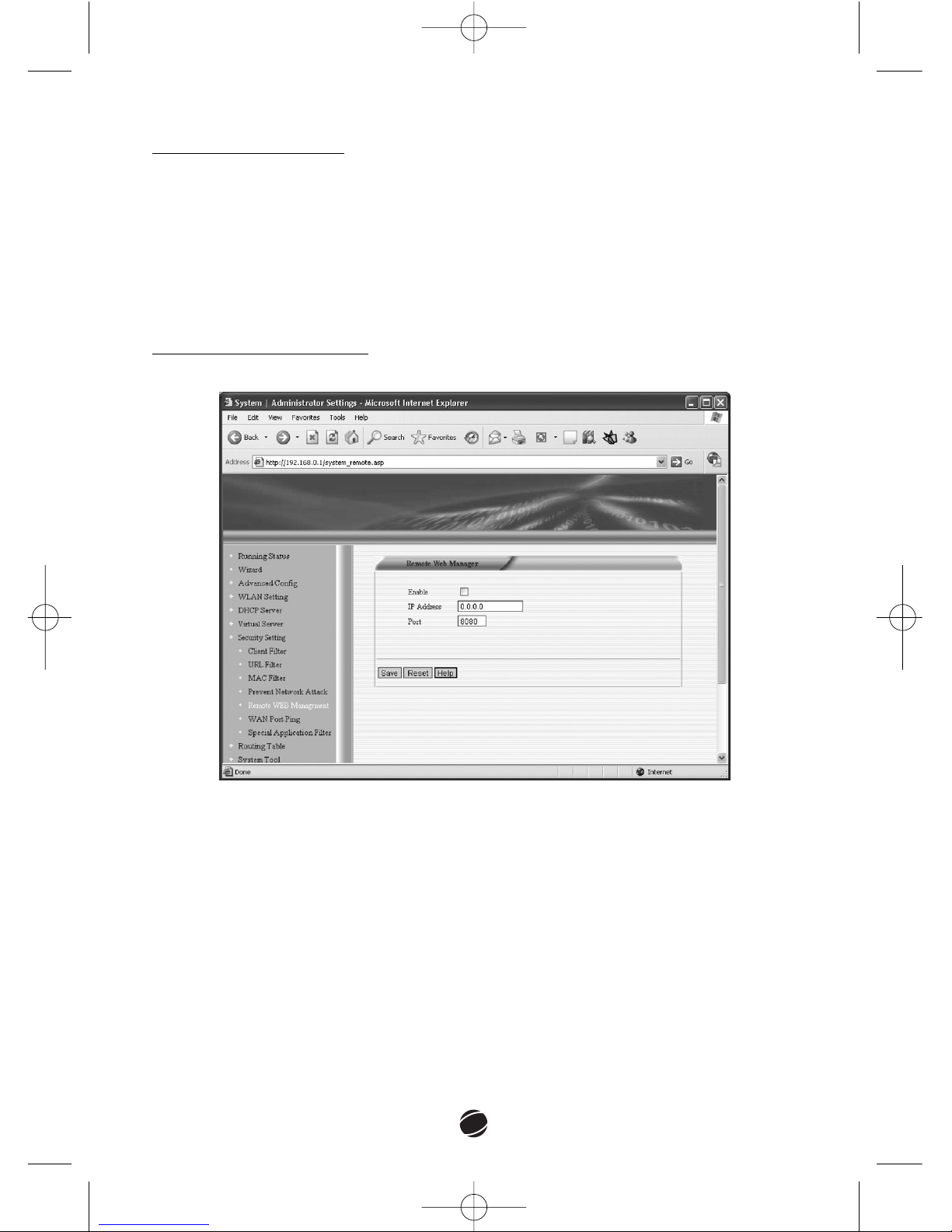
RReemmoottee WWeebb MMaannaaggeemmeenntt
This feature allows you to manage theWireless Router from the internet.
Check the
EEnnaabbllee
box to enable remote web management.
IIPP AAddddrreessss::
Type the IP address of the PC that you want to perform remote
management from. The default IP address is 0.0.0.0, which means that no
computer can perform remote management on the router.
PPoorrtt::
Type the router’s port. The default port is 80. If you change this, in order
to log on to the router for remote management, you’ll have to type the URL as
hostIP:port.
You can click
RReesseett
to restore the page to the last saved state.
You can click
HHeellpp
to view the help page on this subject
wr100manual 5/16/06 11:41 AM Σελίδα 62
Page 25
63
WWAANN PPoorrtt PPiinngg
This feature discards PING from the WAN side. To forbid external users to ping
your router, check the box
IIggnnoorree ppiinngg ddaattaa ffrroomm WWAANN ppoorrtt..
SSppeecciiaall AApppplliiccaattiioonn FFiilltteerr
This feature allows you to block some applications.
DDiissaabbllee MMSSNN::
Check this box to disable MSN
DDiissaabbllee QQQQ::
Check this box to disable QQ
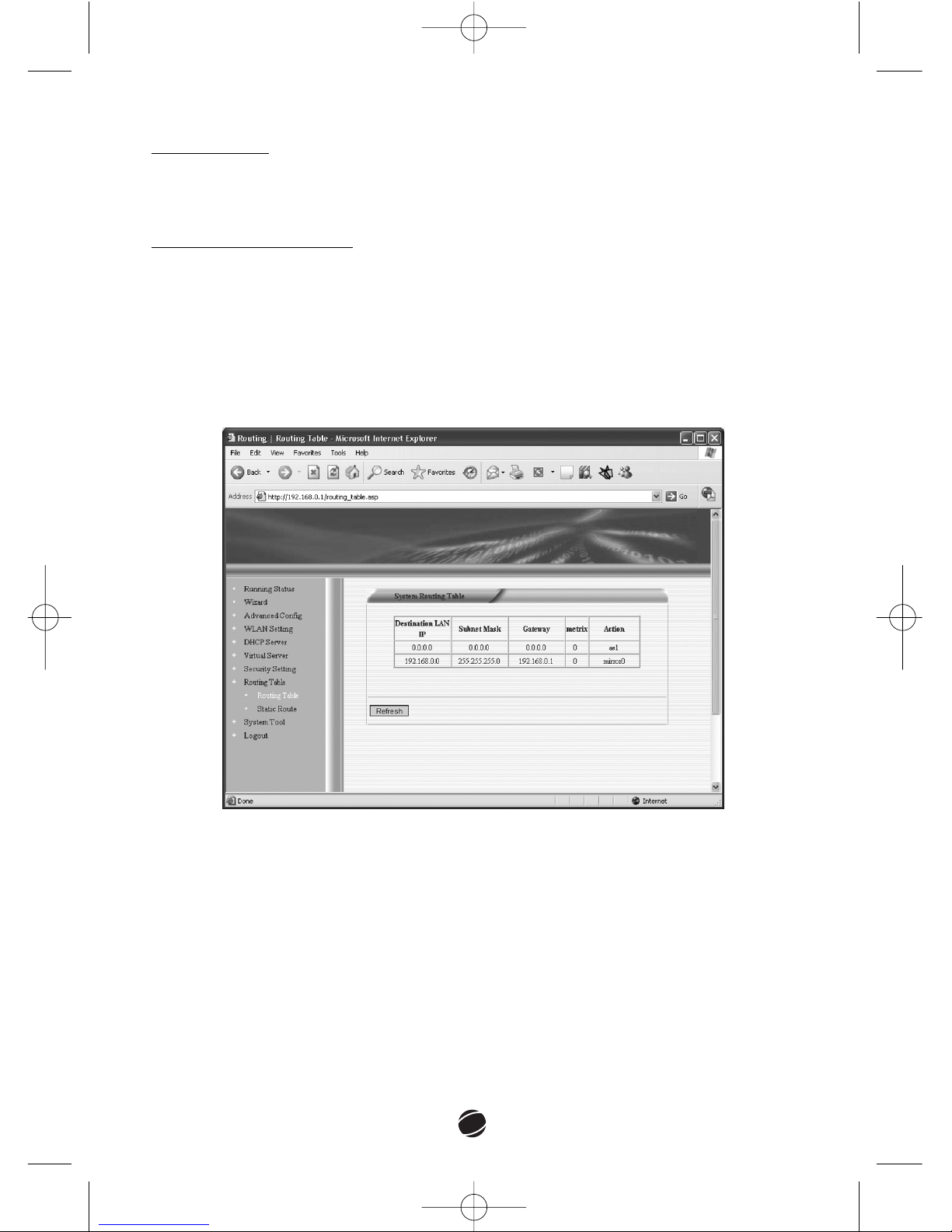
4.8 Routing Table
This page displays the current routing information in the system.
wr100manual 5/16/06 11:41 AM Σελίδα 63
Page 26
64
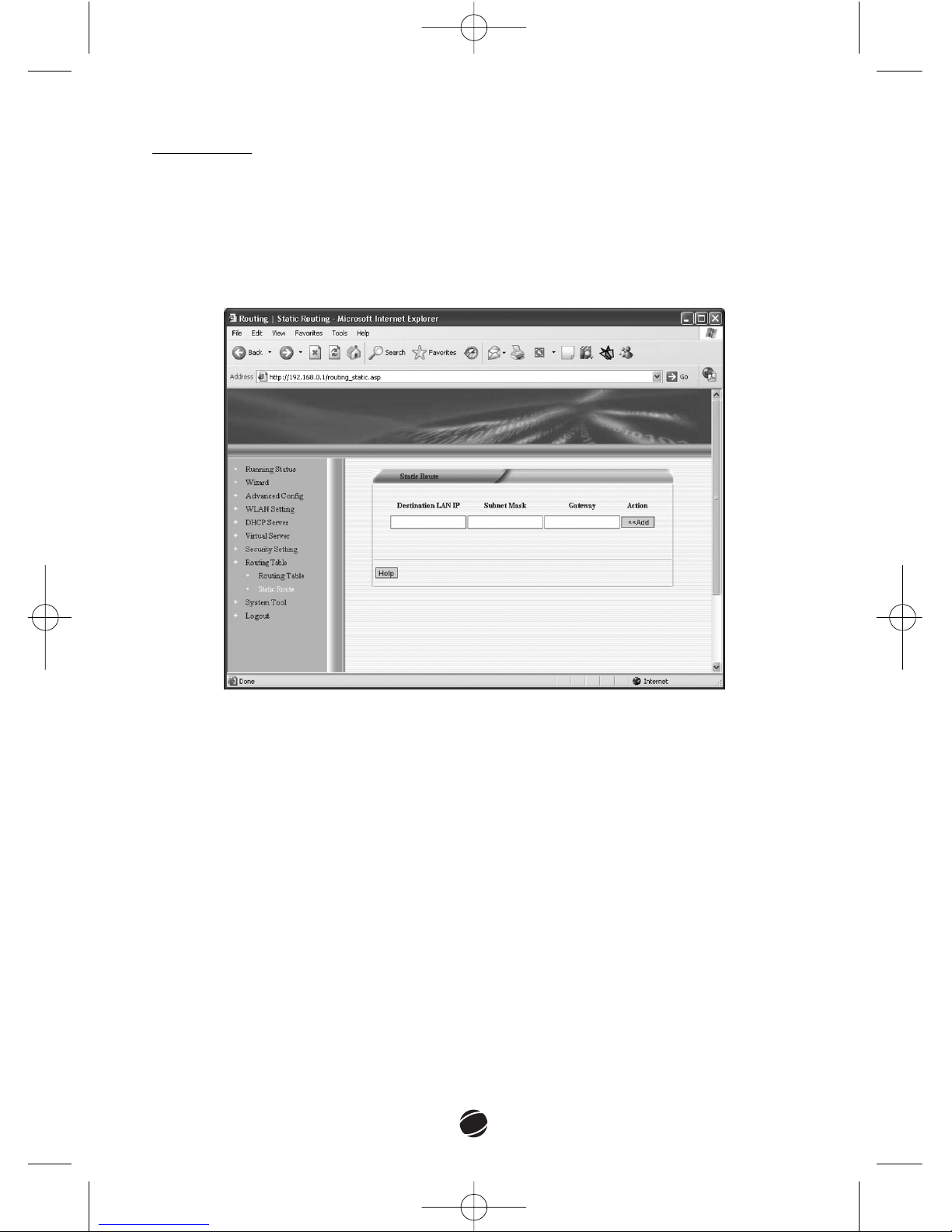
SSttaattiicc RRoouuttee
Static Routing is the process in which the system network administrator
manually configures network routers with all the necessary information for
successful packet forwarding. The administrator constructs the routing table in
every router by putting in the entries for every network that could be a
destination.
DDeessttiinnaattiioonn LLAANN IIPP::
Type the IP address of the LAN you want to access.
SSuubbnneett MMaasskk::
Type the subnet mask of destination LAN
GGaatteewwaayy::
Type the next gateway of the path towards the destination LAN. This
is the IP of the neighbour router that your router should communicate with on
the path to the destination LAN.
The IP of the gateway must be in the same network segment of either WAN or
LAN.
Click
AAdddd..
wr100manual 5/16/06 11:41 AM Σελίδα 64
Page 27
65
4.9 System Tool
TTiimmee
In this page you can configure the router’s time settings.
Select the time zone of the country you are currently in and click
SSaavvee..
You
must be connected to the Internet so that the router can obtain this kind of
information.
If you shut down the router the time information will be lost and the router will
automatically set the time to GMT value.
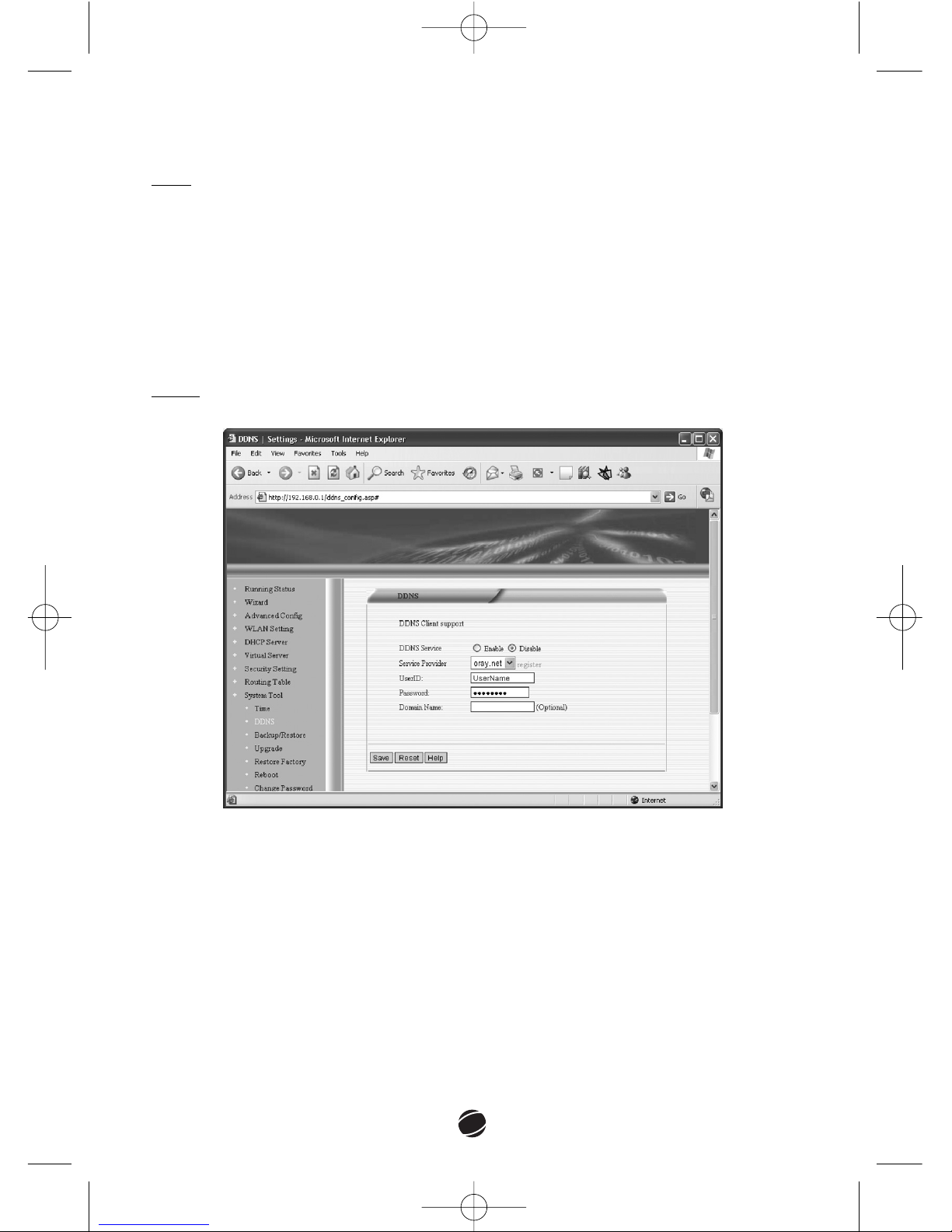
DDDDNNSS
DDDDNNSS SSeerrvviiccee::
Select Enable or Disable to enable or disable the DDNS.
SSeerrvviiccee PPrroovviiddeerr::
You have to select a DDNS service provider and register.
UUsseerrIIDD::
Type your username as registered with your DDNS provider.
PPaasssswwoorrdd::
Enter your password as registered with your DDNS provider.
DDoommaaiinn NNaammee::
Type the Domain Name (optional)
Click
SSaavvee
to save your settings.
wr100manual 5/16/06 11:41 AM Σελίδα 65
Page 28
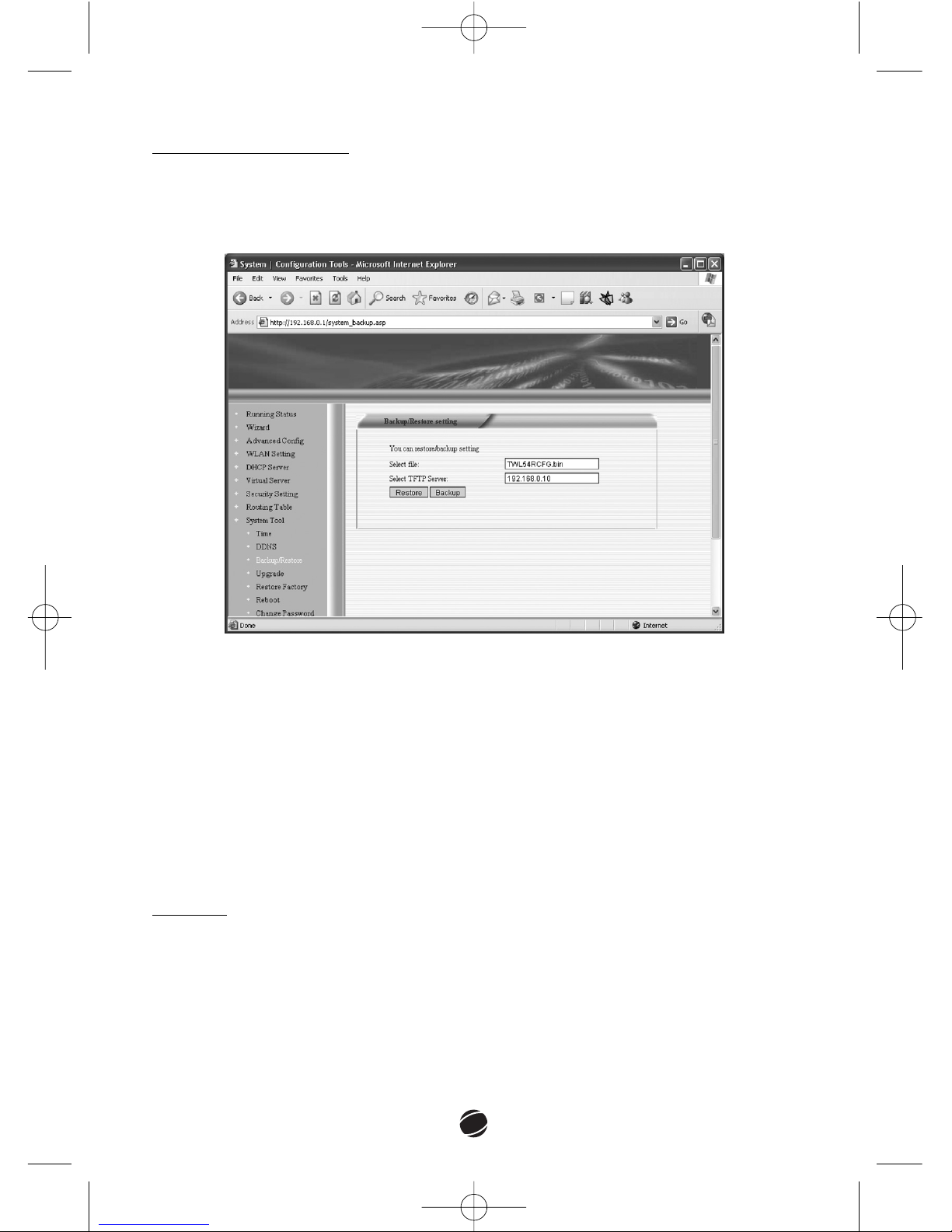
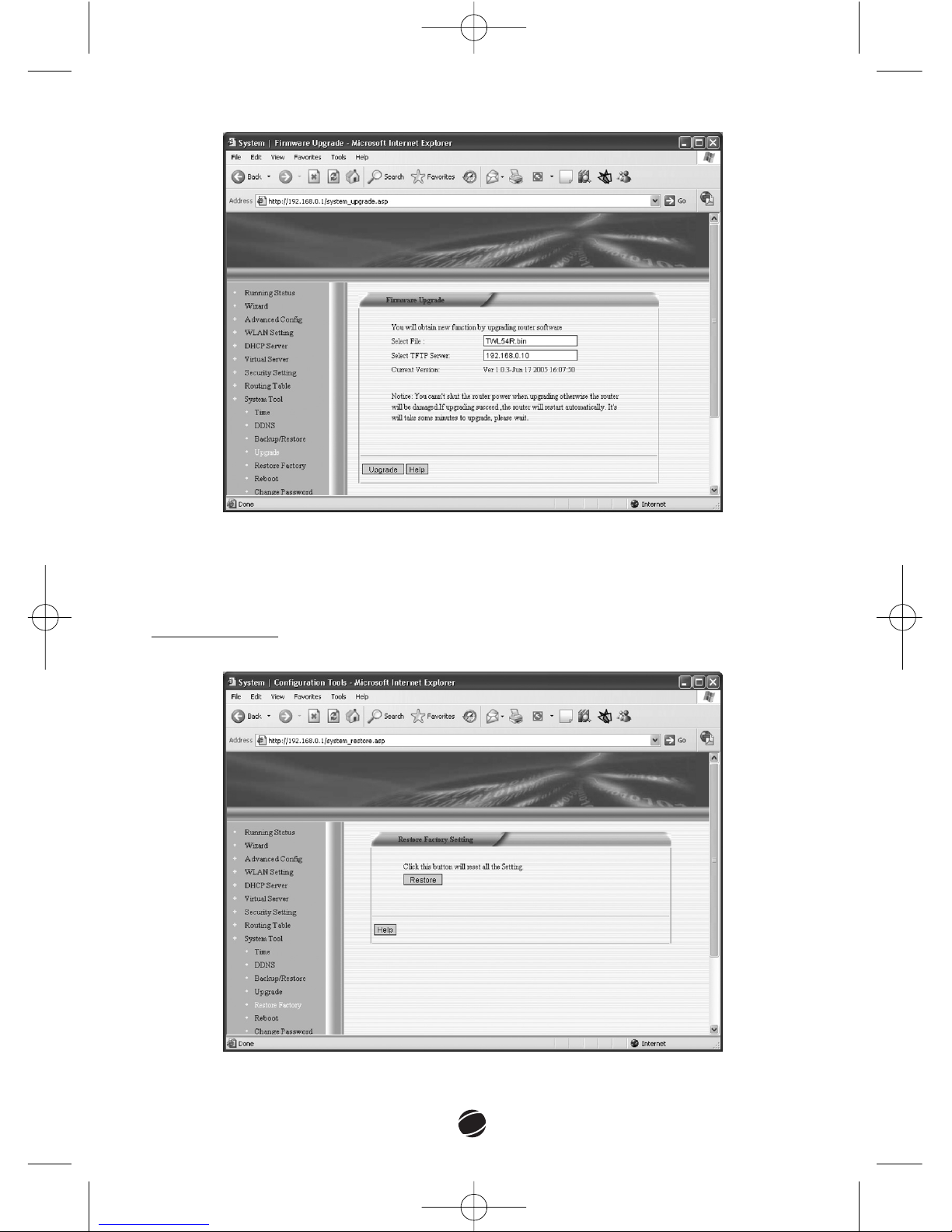
UUppggrraaddee
In this page you can update the firmware of your WR 100 router.
66
BBaacckkuupp//RReessttoorree SSeettttiinngg
In this section you can backup the current settings of your router or you can
restore your router to previously saved settings. You will need a TFTP server
software to be installed on your computer.
To backup:
1. Launch the TFTP server to a computer.
2. Enter the IP address of the computer that is running the TFTP.
3. Click
BBaacckkuupp
to create a system’s setting backup file (it will be created in
the directory of TFTP).
To restore:
1. Launch the TFTP server
2. Upload the system’s setting backup file.
3. Click
RReessttoorree..
4. Reboot the router.
wr100manual 5/16/06 11:41 AM Σελίδα 66
Page 29
67
1. Type the IP address of a computer running a TFTP server.
2. Select the firmware file to download.
3. Click
UUppggrraaddee..
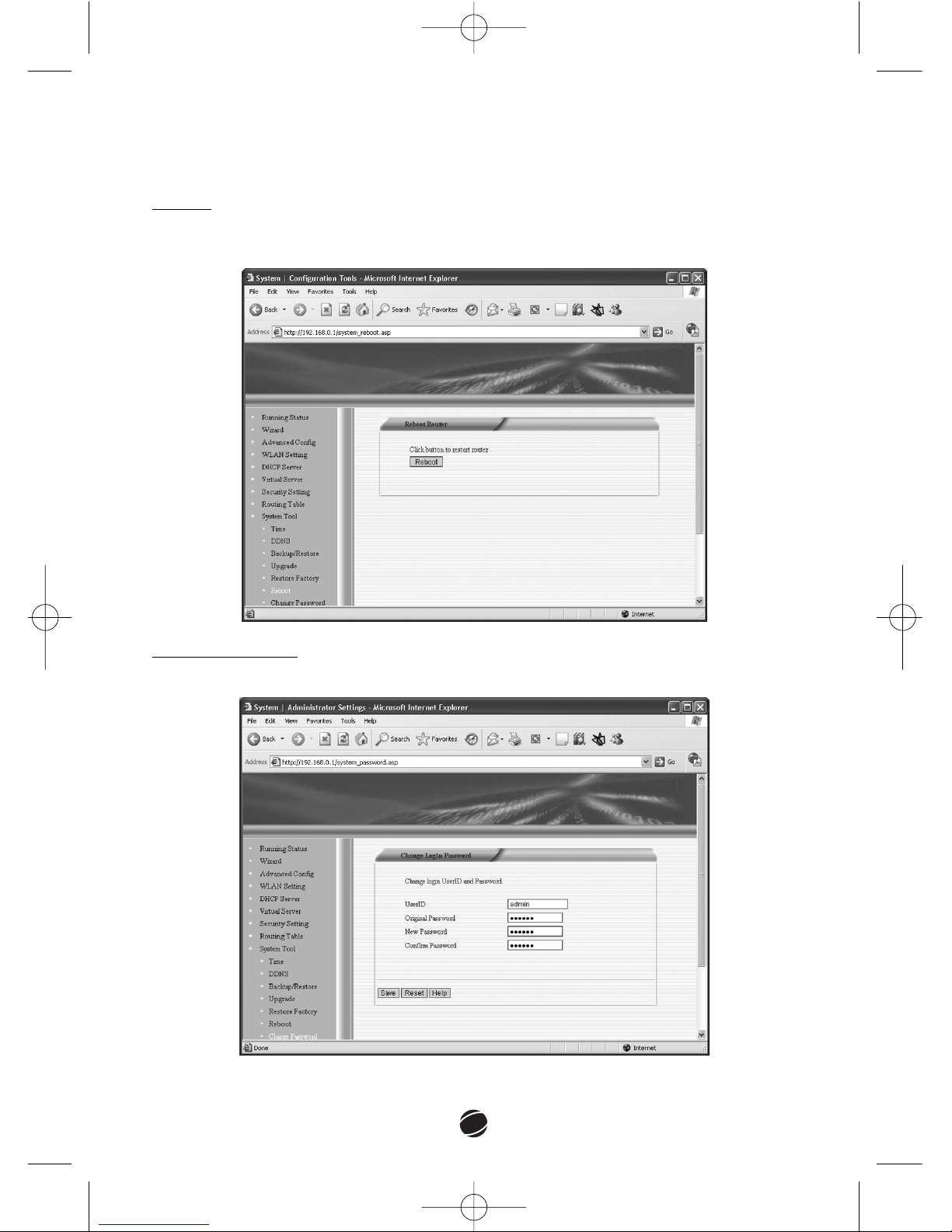
RReessttoorree FFaaccttoorryy
Click
RReessttoorree
to reset the router’s settings to the factory default values.
wr100manual 5/16/06 11:41 AM Σελίδα 67
Page 30
68
After using this option, you must reboot the router for the factory settings to be
restored.
RReebboooott
Click
RReebboooott
to reboot the router. Rebooting is the equivalent of unplugging
the power adapter and then plugging it back in.
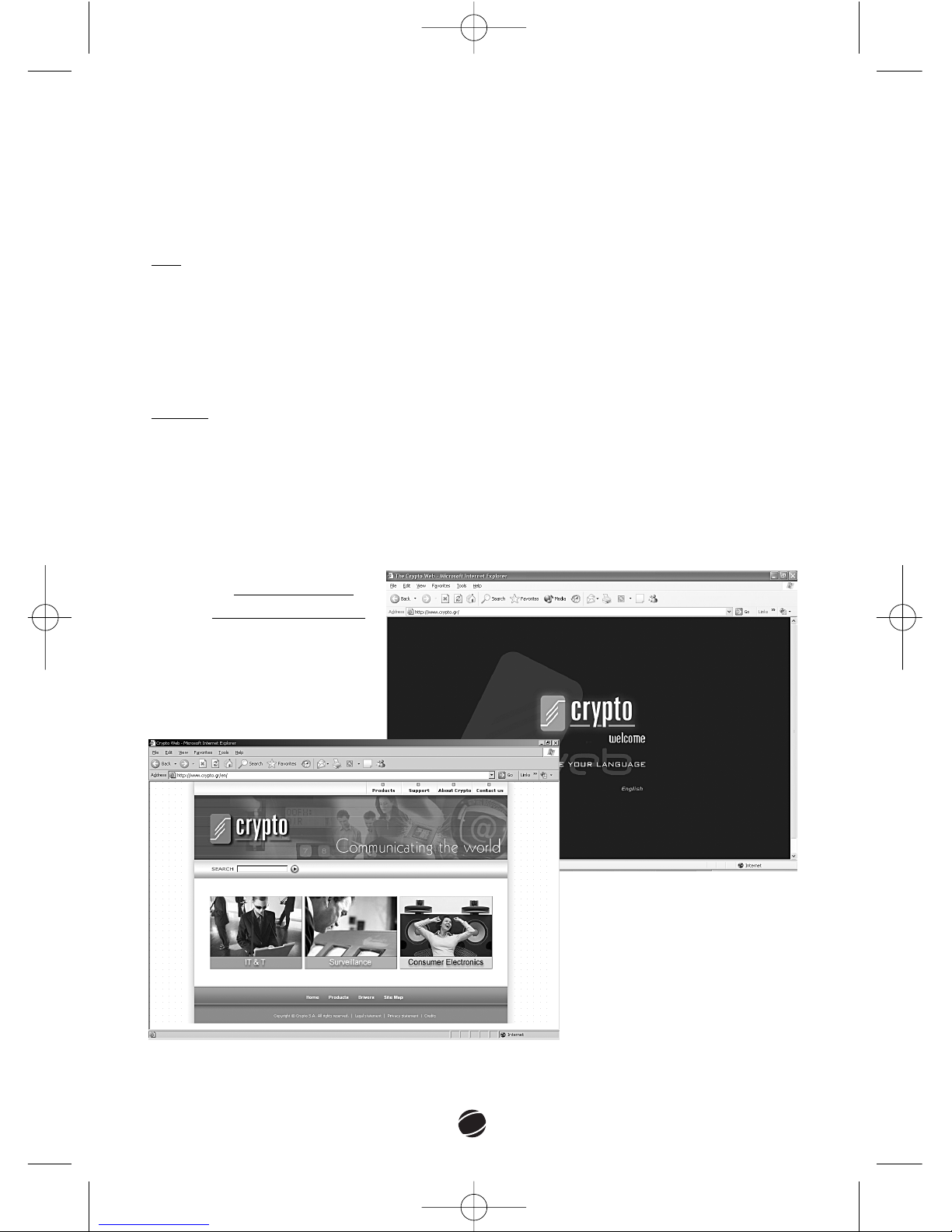
CChhaannggee PPaasssswwoorrdd
In this page you can change the username and / or password.
wr100manual 5/16/06 11:41 AM Σελίδα 68
Page 31
69
UUsseerrIIDD::
Type the username you want to use.
OOrriiggiinnaall PPaasssswwoorrdd::
Type the old password.
NNeeww PPaasssswwoorrdd::
Type the new password.
CCoonnffiirrmm PPaasssswwoorrdd::
Type the new password again.
LLoogg
This page displays the system log.
You can see here whether there has been a network attack.
Click
CClleeaarr
to clear the system log.
Click
RReeffrreesshh
to refresh it.
LLooggoouutt
Click
LLooggoouutt
if you want to log out the router. The system will prompt you first,
before logging you out.
5 Technical Support
For technical information and support please contact us:
Web Site:
wwwwww..ccrryyppttoo..ggrr
E-mail:
ssuuppppoorrtt@@ccrryyppttoo..ggrr
wr100manual 5/16/06 11:41 AM Σελίδα 69
Page 32

70
6 Technical Specifications
SSttaannddaarrddss
ñ IEEE 802.11b
ñ IEEE 802.11g
DDaattaa MMoodduullaattiioonn TTyyppee
ñ 802.11b [DSSS]
ñ 802.11g [OFDM]
SSeeccuurriittyy
ñ WEP 64/128bit
ñ WPA-PSK
LLEEDDss
ñ POWER
ñ SYS
ñ WAN
ñ WLAN
ñ LAN (1-4)
PPoowweerr SSuuppppllyy
ñ 9Volt
DDaattaa RRaatteess
ñ 802.11g: Up to 54Mbps
(6/9/12/18/24/36/48/54)
ñ 802.11b: Up to 11Mbps (1/2/5.5/11)
MMeeddiiaa AAcccceessss PPrroottooc
cooll
ñ CSMA / CA
ñ CSMA/CD
ñ TCP/IP
ñ PPPoE
ñ DHCP
ñ ICMP
ñ NAT
IInntteerrffaaccee
ñ One 10/100Mbps WAN port
ñ Four 10/100Mbps LAN ports
WWeeiigghhtt
ñ 270gr
PPhhyyssiiccaall DDiimmeennssiioonnss
ñ 175x130x29mm (LxWxH)
Technical Specifications are subject to change without prior notice.
wr100manual 5/16/06 11:41 AM Σελίδα 70
Page 33

71
802.11 802.11 refers to a family of specifications developed by the IEEE
for wireless LAN technology. 802.11 specifies an over-the-air
interface between a wireless client and a base station or
between two wireless clients
802.11b (also referred to as 802.11 High Rate or WI-Fi) -- an extension to
802.11 that applies to wireless LANS and provides 11 Mbps
transmission (with a fallback to 5.5, 2 and 1 Mbps) in the 2.4
GHz band. 802.11b uses only DSSS. 802.11b was a 1999
ratification to the original 802.11 standard, allowing wireless
functionality comparable to Ethernet.
802.11g The 802.11g specification is a standard for wireless local area
networks (WLANs) that offers transmission over relatively short
distances at up to 54 megabits per second, compared with the
11 Mbps theoretical maximum with the earlier 802.11b
standard. Networks employing 802.11g operate at radio
frequencies between 2.400 GHz and 2.4835 GHz, the same
band as 802.11b. But the 802.11g specification employs
orthogonal frequency division multiplexing (OFDM), the
modulation scheme used in 802.11a to obtain higher data
speed. Computers or terminals set up for 802.11g can fall back
to speeds of 11 Mbps. This feature makes 802.11b and 802.11g
devices compatible within a single network.
ADSL Asymmetric digital subscriber line. One of four DSL
technologies. ADSL is designed to deliver more bandwidth
downstream (from the central office to the customer site) than
upstream. Downstream rates range from 1.5 to 9 Mbps,
whereas upstream bandwidth ranges from 16 to 640 kbps.
ADSL transmissions work at distances up to 18,000 feet (5,488
meters) over a single copper twisted pair.
AES Advanced Encryption System is an encryption technique that
utilizes a symmetric 128-Bit block data encryption
ASCII American Standard Code for Information Interchange is a code
for representing characters as numbers. Each letter is
represented as a number from 0 to 127. ASCII was originally
developed for communications and uses only seven bits per
7 Glossary
wr100manual 5/16/06 11:41 AM Σελίδα 71
Page 34

72
character. Since computers use 8-bit byte (256 character
combinations) and ASCII uses only the first 128 (0-127), the
second set of 128 characters (128-255) are technically not
ASCII, but are typically used for different language and math
symbols representation.
Authentication The process of identifying a network client usually based on a
username and password.
Beacon A beacon is a packet broadcasted by the Access Point / Router
in order to keep the network synchronized.
Channel A channel is a separate path through which signals can flow.
CTS Clear To Send. A signal sent from the receiving station to the
transmitting station that indicates it is ready to accept data
DDNS Dynamic DNS. It is a system for allowing an Internet domain
name to be assigned to a varying IP address. This makes it
possible for other sites on the Internet to establish connections
to the machine without needing to track the IP address
themselves.
Default
Gateway The IP address of the device that provides access to the
Internet.
DHCP Dynamic Host Configuration Protocol. Provides a mechanism
for allocating IP addresses dynamically so that addresses can
be reused when hosts no longer need them.
DMZ Demilitarized Zone - A part of the network that is neither part of
the internal network nor directly part of the Internet. Basically a
network sitting between two networks.
DNS Domain Name System. System used on the Internet for
translating names of network nodes into addresses.
DTIM Delivery Traffic Indication Message is a message informing
clients about the next time window for listening to broadcast
and multicast messages. It is essentially a count of the number
of beacon frames that must occur before the access point
sends the buffered multicast frames.
Encryption The modification of data using a secret code. Encryption is an
effective way to achieve data security.
Ethernet Baseband LAN specification invented by Xerox Corporation and
developed jointly by Xerox, Intel, and Digital Equipment
Corporation. Ethernet networks use CSMA/CD and run over a
wr100manual 5/16/06 11:41 AM Σελίδα 72
Page 35

73
variety of cable types at 10 Mbps. Ethernet is similar to the IEEE
802.3 series of standards.
Firewall Router or access server, or several routers or access servers,
designated as a buffer between any connected public networks
and a private network. A firewall router uses access lists and
other methods to ensure the security of the private network.
Firmware Software set permanently or semi permanently in a device's
Memory.
Fragmentation When the size of a transmitted packet exceeds a certain limit
allowed by the network medium it is broken into several
segments. The procedure is called fragmentation. Low
fragmentation thresholds result in smaller frames and can
tackle with packet collision problems due to network traffic.
Setting the threshold too low can lead to, reducing throughput
due to the additional headers applied to each. High
fragmentation threshold has the opposite effect.
FTP File Transfer Protocol. Application protocol, part of the TCP/IP
protocol stack, used for transferring files between network
nodes.
HTTP Hypertext Transfer Protocol. The protocol used by Web
browsers and Web servers to transfer files, such as text and
graphic files.
IP address 32-bit address assigned to hosts using TCP/IP. An IP address
belongs to one of five classes (A, B, C, D, or E) and is written as
4 octets separated by periods (dotted decimal format). Each
address consists of a network number, an optional subnetwork
number, and a host number. The network and subnetwork
numbers together are used for routing, and the host number is
used to address an individual host within the network or
subnetwork. A subnet mask is used to extract network and
subnetwork information from the IP address.
ISP ISP stands for Internet Service Provider. An ISP provides access
to the Internet for others via some connectivity service(s).
LAN Local Area Network, a computer network that spans a relatively
small area. Most LANs are confined to a single building or
group of buildings.
LED Light Emitting Diode, an electronic device that lights up when
electricity is passed through it.
wr100manual 5/16/06 11:41 AM Σελίδα 73
Page 36

74
MAC Media Access Control. Lower of the two sublayers of the data
link layer defined by the IEEE. The MAC sublayer handles
access to shared media, such as whether token passing or
contention will be used.
MAC address Standardized data link layer address that is required for every
port or device that connects to a LAN. Other devices in the
network use these addresses to locate specific ports in the
network. and to create and update routing tables and data
NAT Network Address Translation. Mechanism for reducing the
need for globally unique IP addresses. NAT allows an
organization with addresses that are not globally unique to
connect to the Internet by translating those addresses into
globally routable address space.
Open System
Authentication Open System authentication is a null authentication algorithm.
Any station that requests authentication receives it. If the key
that the station is using is not correct, then further
communication is not possible
Ping A utility to determine whether a specific IP address is
accessible. It works by sending a packet to the specified
address and waiting for a reply.
PPP Point-to-Point Protocol. Successor to SLIP that provides router-
to-router and host-to-network connections over synchronous
and asynchronous circuits, designed to work with several
network layer protocols, such as IP, IPX, and ARA. PPP also has
built-in security mechanisms, such as CHAP and PAP.
PPPoE PPP over Ethernet networks.
RTS Request To Send is a signal sent from the transmitting station
to the receiving station requesting permission to transmit.
Shared Key
Authentication When Shared Key authentication is enabled, the Access Point /
Router sends a packet to the client. The client uses a secret key
in order to encode the packet and retransmits the encoded
information back to the Access Point / Router. If the packet is
correctly encoded then the client is authenticated
SSID Service Set Identifier is a unique name shared among all clients
and nodes in a wireless network. The SSID must be identical for
all clients and nodes within a wireless network.
wr100manual 5/16/06 11:41 AM Σελίδα 74
Page 37

75
Static Route Routing information that is manually configured into either a
router or host. Such information is not subject to dynamic
update via routing protocols.
Subnet Mask A mask used to determine what subnet an IP address belongs
to.
TFTP Trivial File Transfer Protocol. Simplified version of FTP that
allows files to be transferred from one computer to another
over a network, usually without the use of client authentication
(for example, username and password).
TKIP Temporal Key Integrity Protocol. The TKIP works with a RADIUS
server and changes the network keys every 10.000 packets,
ensuring greater security.
UDP User Datagram Protocol -- A transport layer protocol for the
Internet. It is a datagram protocol which adds a level of
reliability and multiplexing to IP datagrams.
UPnP Universal Plug and Play is making home networking simple for
users. UPnP offers network connectivity of PCs, intelligent
appliances, and wireless devices.
Virtual Server A program or set of programs dedicated to sending web pages
on request, on behalf of a particular web site. The word
"virtual" implies that several such sets of programs may reside
on a single machine, allowing them to serve different web sites
independently, by sharing the machine resources.
WAN Wide Area Network, a computer network that spans a relatively
large geographical area. Typically, a WAN consists of two or
more local – area networks (LANs).
WEP Wired Equivalent Privacy is an encryption scheme that is used
in wireless data communication and prevents stations that do
not have the correct WEP key from linking to an Access Point /
Router
WPA-PSK Wi-Fi Protected Access Pre Shared Key is a variation of the WPA
standard that is designed for small office – home use. It
incorporates a Pre Shared Key, called passphrase to prevent
unwanted stations from linking to an Access Point / Router.
wr100manual 5/16/06 11:41 AM Σελίδα 75
Page 38

76
wr100manual 5/16/06 11:41 AM Σελίδα 76
 Loading...