

Page 1
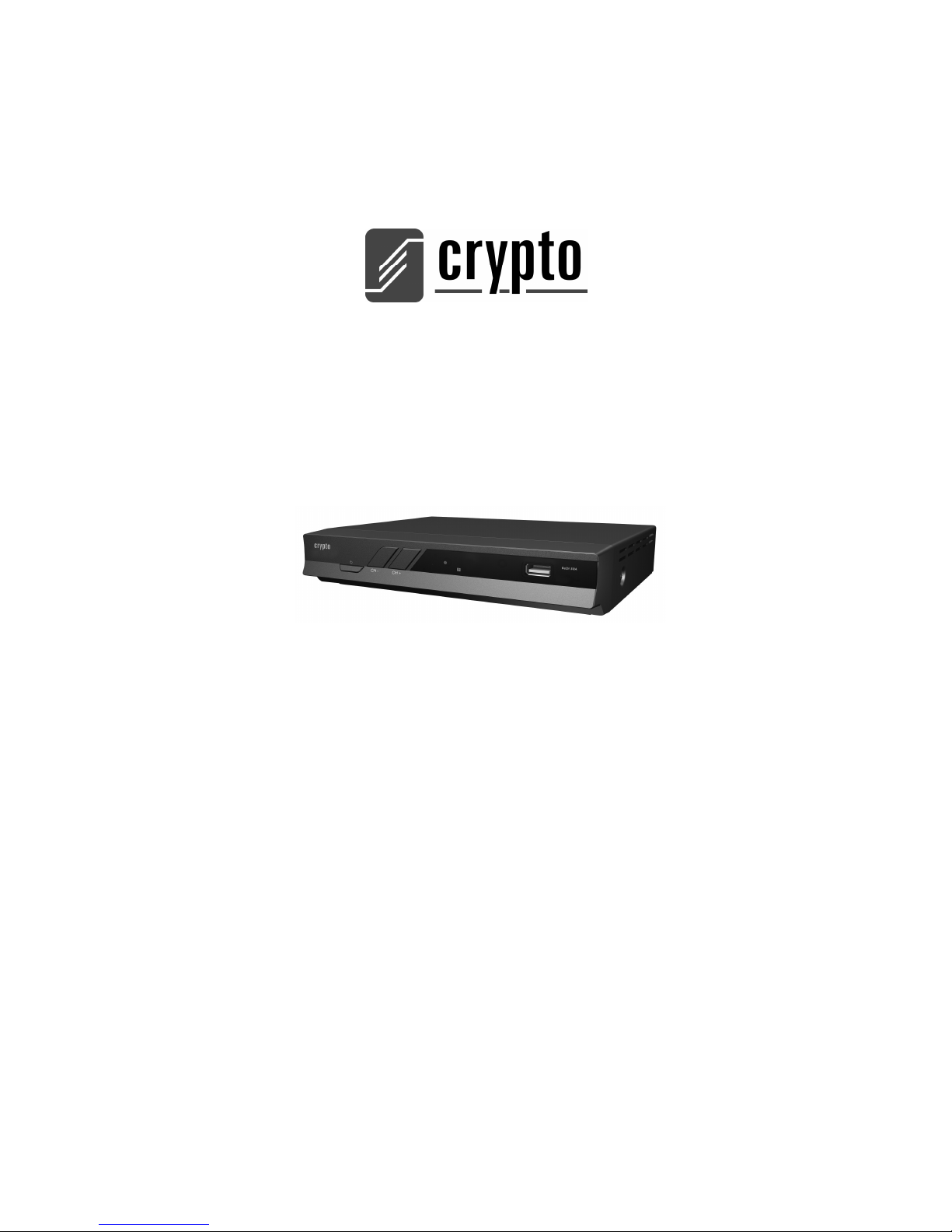
SD DVB-T
MPEG-4 RECEIVER
ReDi 50A
Quick User Manual
to begin immediately watching digital television
Con tain s:
System Connections,
Getting started for the first time & Channel Scanning,
Device Features
E P G, T I M E S H I F T, P V R
Page 2
ReDi 50A Quick User Manual
V . I p i r o u 4 5 , 1 5 1 2 5 M a r o u s i , Τel: 210-8098700, Fax: 210-6122512
Site: w w w . c r y p t o . g r , Email: [email protected]
2
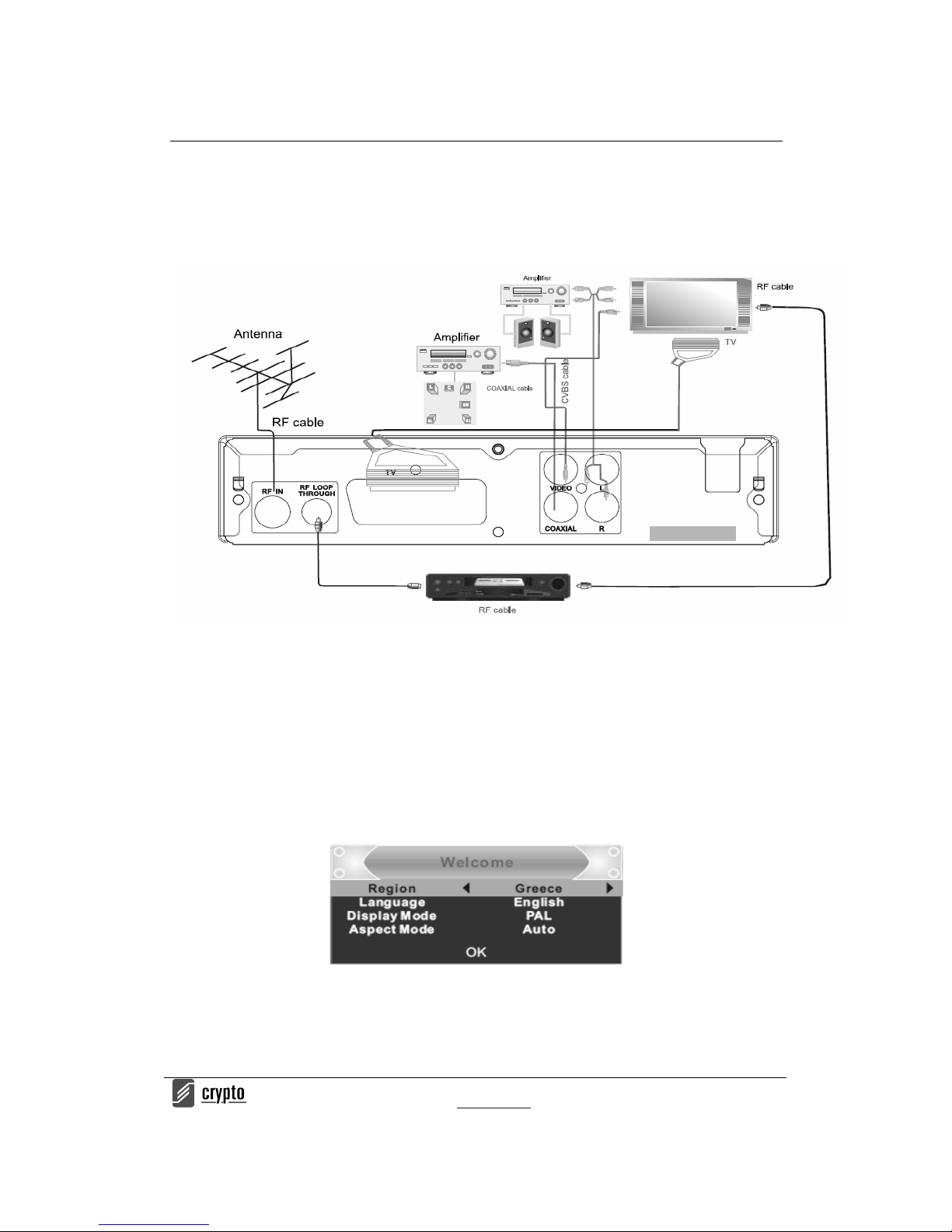
SYSTEM CONNECTIONS
GETTING STARTED FOR THE FIRST TIME
Th e ve ry f ir st time t hat th e devi ce is go ing to be u sed th e “w elcome ” menu w ill ap pear. Pres s
the cursors buttons to adjust the region, language, Display Mode, Aspect Mode (according to
y ou r T V ty p e yo u c a n ad j u st b e t we e n 16 : 9 o r 4 : 3 o r a u t o t o l e t t h e d ev i c e to p i ck o n e
automatically according to the TV type that you have).
When you are done just select ok and press ok button on your remote to start the channel
search.
Channel Scan
T o b e a b l e t o s c a n f o r c h a n n e l s a f t e r y o u s t a r t t h e d e v i c e f o r t h e f i r s t t i m e d o t h e f o l l o w i n g .
Page 3
ReDi 50A Quick User Manual
V . I p i r o u 4 5 , 1 5 1 2 5 M a r o u s i , Τel: 210-8098700, Fax: 210-6122512
Site: w w w . c r y p t o . g r , Email: [email protected]
3
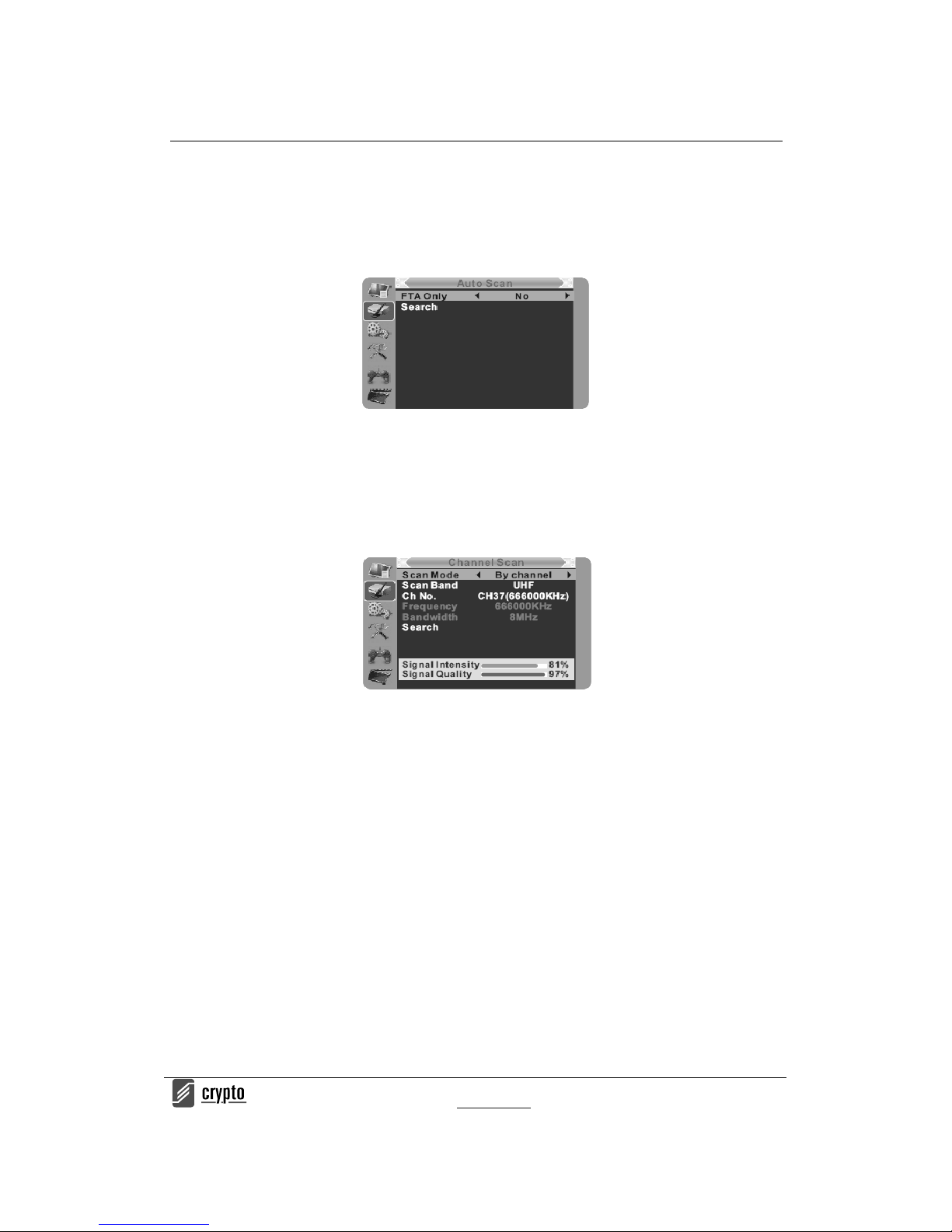
A u t o S c a n
1. Select the "Auto Scan" and press "O K" but ton to enter the Au to Scan menu.
2. Press the curs or butt on to set "F TA Onl y", then highligh t "Search" and press the "OK"
button to start the auto scan.
Detailed Scanning
1. Select "Channel Scan", and press th e " OK" bu tto n to enter the Channel Scan menu.
2. Press cursor button to set Scan mode, Scan Band, Channel No., Frequency and
Bandwidth, then highlight "Search" and press "OK" button to start channel scan .
Cha nnel Scan mode:
-By channel
-By frequency
DEVICE FEATURES
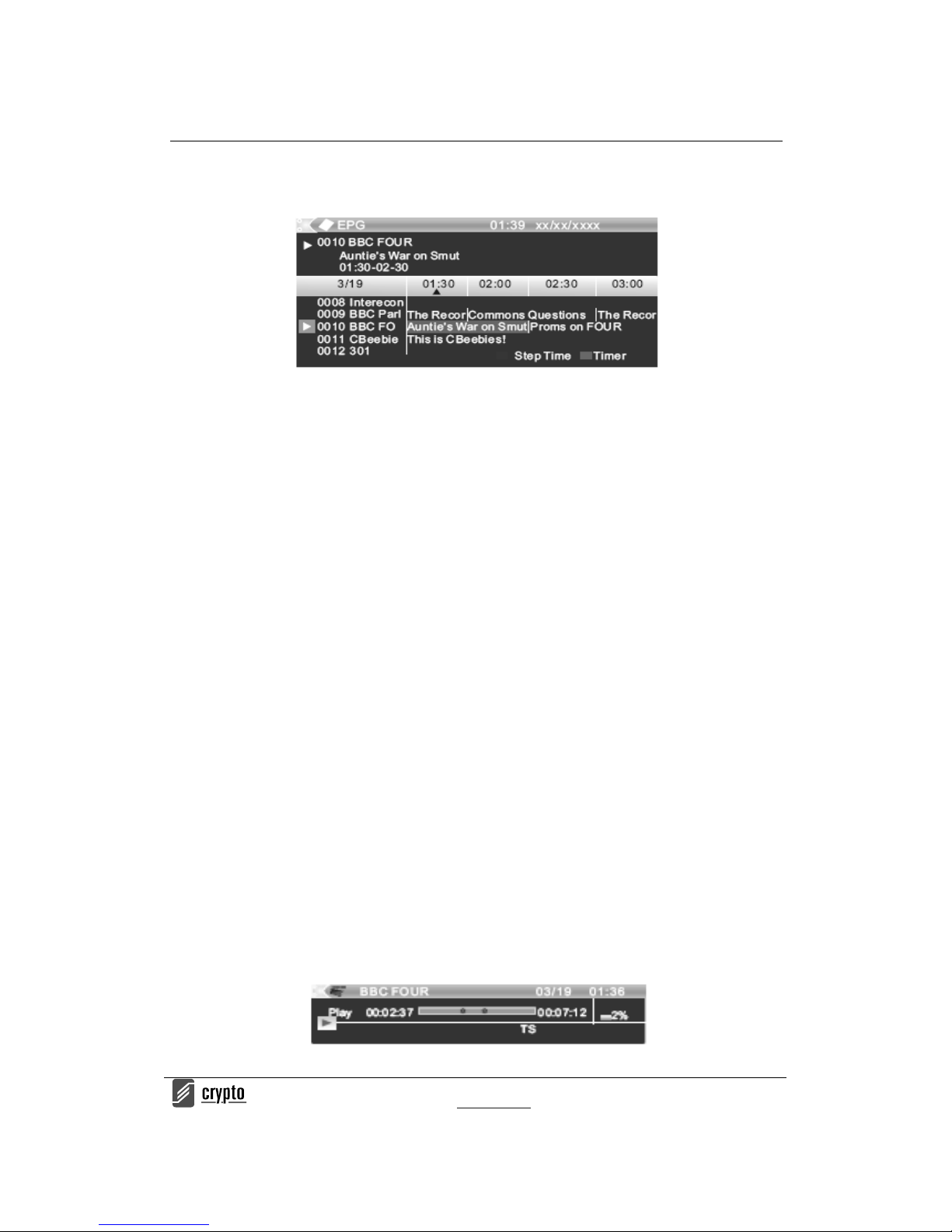
Electronic Program Guide (EPG)
With the DVB-T you can have access to program information any time you want. That feature
is displayed on-screen with functions al lowing a viewer t o navigate, select, and discover
content by time, title, channel etc. Also you can have access to TV guide of any digital
channel. To use this function simply follow the following:
1. Press "EPG" button to enter EPG men u.
2. Press cur sor b utt on to switch b etw een channel list, events schedule o f the sel ect ed
channel and now/next events.
3. Press "Green" button to start Timer settings.
With this option you can set the device to open or close whenever you want, set a channel as
wake up channel and schedule to record any future broadcast.
4. Press "Red" button to enter the "Step time" menu.
With this option you can find information aboput a program of each channel, based on hours
or days. Eg you can see the t he program quide of a channel 2 or 3 days later, etc.
Page 4
ReDi 50A Quick User Manual
V . I p i r o u 4 5 , 1 5 1 2 5 M a r o u s i , Τel: 210-8098700, Fax: 210-6122512
Site: w w w . c r y p t o . g r , Email: [email protected]
4
5. If you want to go back to the channel pre ss the " EPG" button again.
T i m e S h i f t
Th e digita l rece iver ReD i 50 A giv es y ou the abi lity to re cord and watch one pro gram
interfacin g with the vie wing time. All you have to do is to connect an ext ernal h ard drive or a
USB stick in the usb port of the device.
With this function you can:
Pause the program and continue to see if another time.
NOTE: For proper operat ion of TIME SH IFT it is recomme nd using a storage d evice that
supports USB 2.0 and has high speed read /write. Also if it is possible it is recommended to
use a USB stick or HDD with high storage space. The product can support up to 2TB disk s
The TIME SHIFT is a feature where you can simultaneously track, pause or to go back and
forth when you are watching a program. For example, while watching your favorite show
someone rings the door bell. No problem. Just press “Pause” button freeze the image. when
y ou r e tu r n yo u ca n r es u m e v i e wi n g f r o m w h e r e y o u l e f t b y pr e s si n g “ P l a y”
• Enable TIME SHIFT
- To use TIME SHIFT press <PAUSE> and a bar with the time when the recording is started
(right) will appear. From this moment and forth the channel program will be recorded.
Each time you wish to pause or rewind the program a new bar will appear.
Notice tha t now the bar has 2 times. The right is the normal time showing the on going time
from the beginning when started Time Shift and the left is the play backed time according to
the time you choose to watch of the recorded program.
Page 5

ReDi 50A Quick User Manual
V . I p i r o u 4 5 , 1 5 1 2 5 M a r o u s i , Τel: 210-8098700, Fax: 210-6122512
Site: w w w . c r y p t o . g r , Email: [email protected]
5
During TIME SHIFT, it is possible to do the following.
- Press "PAUSE" to pause the program and <PLAY> to continue watching later.
- Press "STEP FORWARD" or "FORWARD" to fast forward the recorded program at specified
time steps according to “Jump” settings(30 Mon - 30 minutes) or at 2χ, 4x, spe ed e tc
respectively.
- Press "STEP BACKWARD" or "BACKWARD" to quickly rewind the recording at specified
time steps according to “Jump” settings (30 Mon - 30 minutes) or at 2χ, 4X, spe ed e tc,
respectively.
Th is choic es a ffe ct onl y the rec orde d pr ogr am , an d no t the func tion of TIME SHI FT.
T o r e t u r n t o t h e n o r m a l p l a y i n g t i m e p r e s s t h e " S T O P " a n d t h e n t h e < E X I T > . T h e T I M E S H I F T
will continue to record but you will watch the normal time of the program
• S t o p TI M E SH I F T
Th e TI ME S HIFT i s sw itch o ff whe n yo u ch ang e the channe l or if you en ter the main m enu
NOTE:
• The TIME SHIFT is disabl ed when you activate it for a specific channel and you have
scheduled a recording (PVR) to another channel. When that recording starts the device will
ta ke you to that cha nnel a utom at ically and i t wi ll dea ct ivat e Tim e Sh ift t o th e ot her
• The TIME SHIFT can be activa ted whi le recording a program, but only for that channel you
are recording.
Examples:
- Suppose you want to see a show but because you're busy you can not watch the first 20
minutes. All you need to do is to activate TIME SHIFT at the start of the show and after 20
minutes you will be able to view it from the beginning by pressing the "BACKWARD" button
rewinding the recorded program.
- With the activation of TIME SHIFT, you can also see a movie without having to wait the
annoying ads. What you must do i s: Start TIME SHIFT and allow the device to record for 10 to
20 minutes. Then turn backwards the recording b y pres sin g t he "BA CKW ARD" b utton and
start to see it from the beginning. When it's time for the ads just make the program run fast
forward by pressing the "FORWARD" button and press the <play> when the ads are finished.
With this little trick you can skip the ads while the normal time of the movie is continued to be
recorded.
Page 6
ReDi 50A Quick User Manual
V . I p i r o u 4 5 , 1 5 1 2 5 M a r o u s i , Τel: 210-8098700, Fax: 210-6122512
Site: w w w . c r y p t o . g r , Email: [email protected]
6
Personal Video Recording (PVR)
• Instant Recording
With this feature, with a touch of a button you can write a program you are watching.
- Press <RECORD> button on your remote to immediately start recording the program you
are watching
- Pressing the button again <RECORD>, you can adjust the duration of the recording.
- Press <STOP> button to stop recording. A window will appear.
- Select YES to stop recording. Select NO to resume recording.
• Scheduled Recording
Apart from the operation of direct recording, the device can be scheduled to write a program
in the future.
-Press and the <Menu> button and select <settings>, <Timer Settings>
Th is men u lets you s et the t imer f or a rec ord in g.
T i m e M o d e : O f f / O n c e / D a i l y
T i m e s e r v i c e : R e c o r d
Wa keup C han ne l: Set th e ch anne l you wa nt to record .
Wa keup D ate: Press OK and then the numbers to enter the date of recording.
Wa keup Ti me: Pre ss OK and then t he n umbers to ent er t ime yo u wa nt t he d evic e to sta rt
writing.
Duration: Press OK and then the numbers to enter the duration of the r ecording
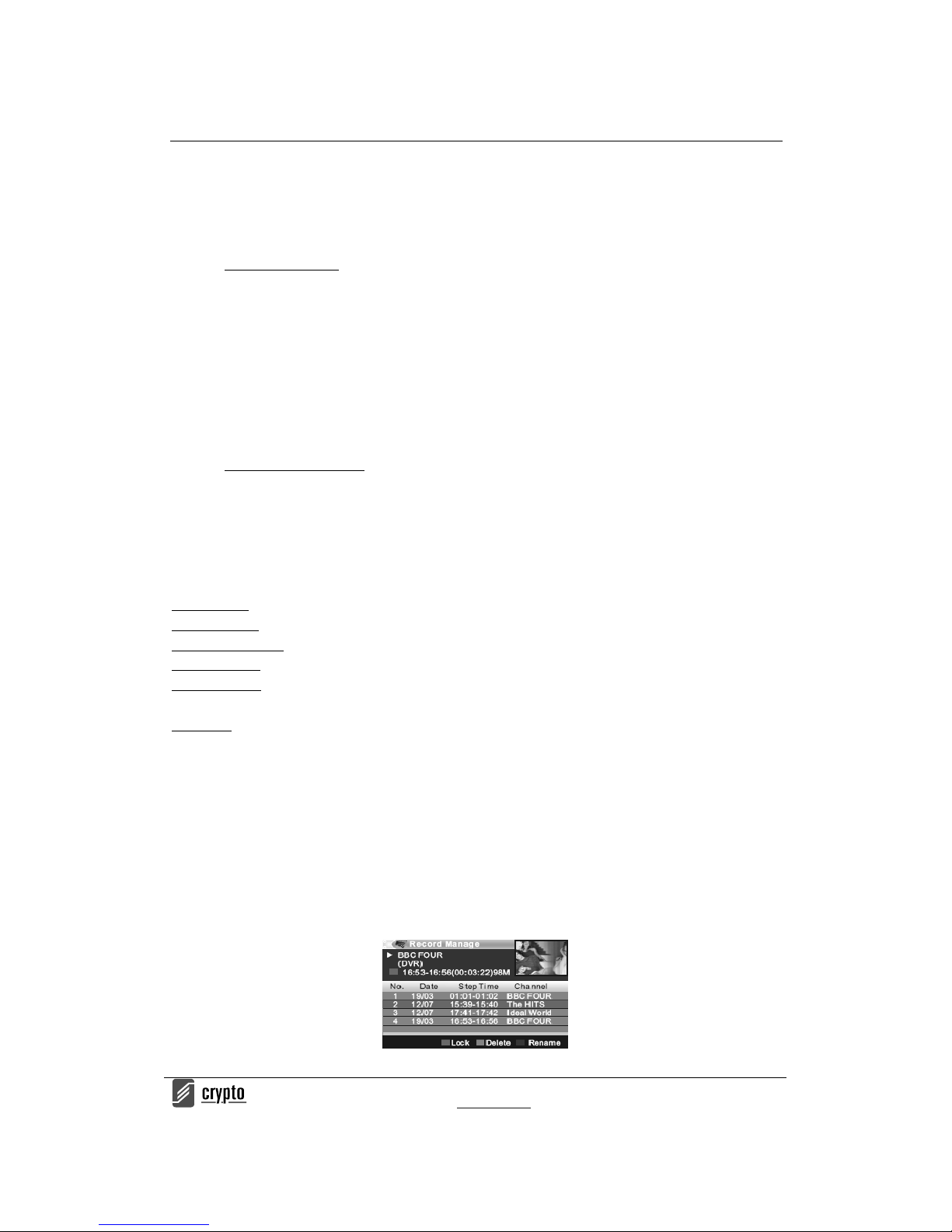
T o s e e a l l t h e p r o g r a m s y o u h a v e r e c o r d e d p r e s s :
1. Menu <Rec&Media> select “R ecord Man ager” press OK or press “PVR” button
2. Press the Up and Down arrow k eys to selec t the desired entry and press the OK to play the
file.
3. Press <EXIT> on the remote to ex it the menu.
Page 7
ReDi 50A Quick User Manual
V . I p i r o u 4 5 , 1 5 1 2 5 M a r o u s i , Τel: 210-8098700, Fax: 210-6122512
Site: w w w . c r y p t o . g r , Email: [email protected]
7
Not e :
• When you write a program in a particular channel you can watch another of the same
group of four digital channels, at the same time you mak e the record .
• When you have programmed a recording for a channel and you are watching another
with the time shift activated when the recording will start the device automatically
deactivate Time Shift and ta kes yo u t o t he channel that is progr ammed to be
recorded.
• During the time that a recording takes p lace the Time Shift function can be activated
in parallel with the recording only for t hat specific chan nel and not for anyone else.
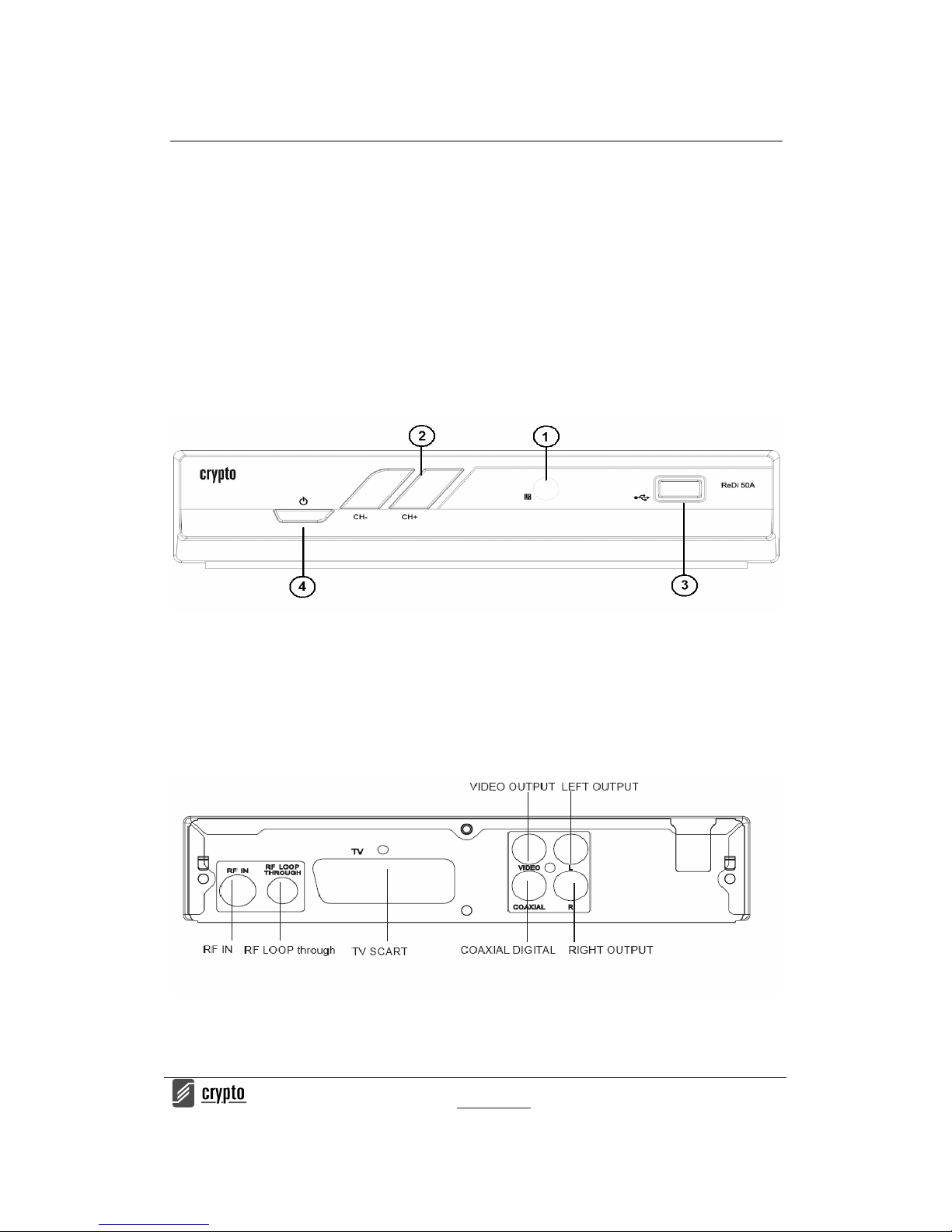
Front panel
1. Remote sensor
2. Channel up/ Down
3. USB slot
4. Standby button
Rear panel
 Loading...