

Page 1
User Guide
V.ALRT
Duress Buttons
for use with
5 July 2017
Document: V.ALRT-170705 REV 3
Page 2
CriticalArc Using V.ALRT Duress Buttons with SafeZone
CriticalArc V ALRT USER GUIDE Page | 2
Summary
Introduction
This document summarises the setting up and usage of a V.ALRT Bluetooth duress button for use in
conjunction with your SafeZone App on your Apple or Android smartphone.
The V.ALRT button comes with a rubber lanyard ring or wrist strap as standard, and a belt clip is
available optionally. It comes installed with a CR2032 watch battery, which should last 5+ months of
normal usage.
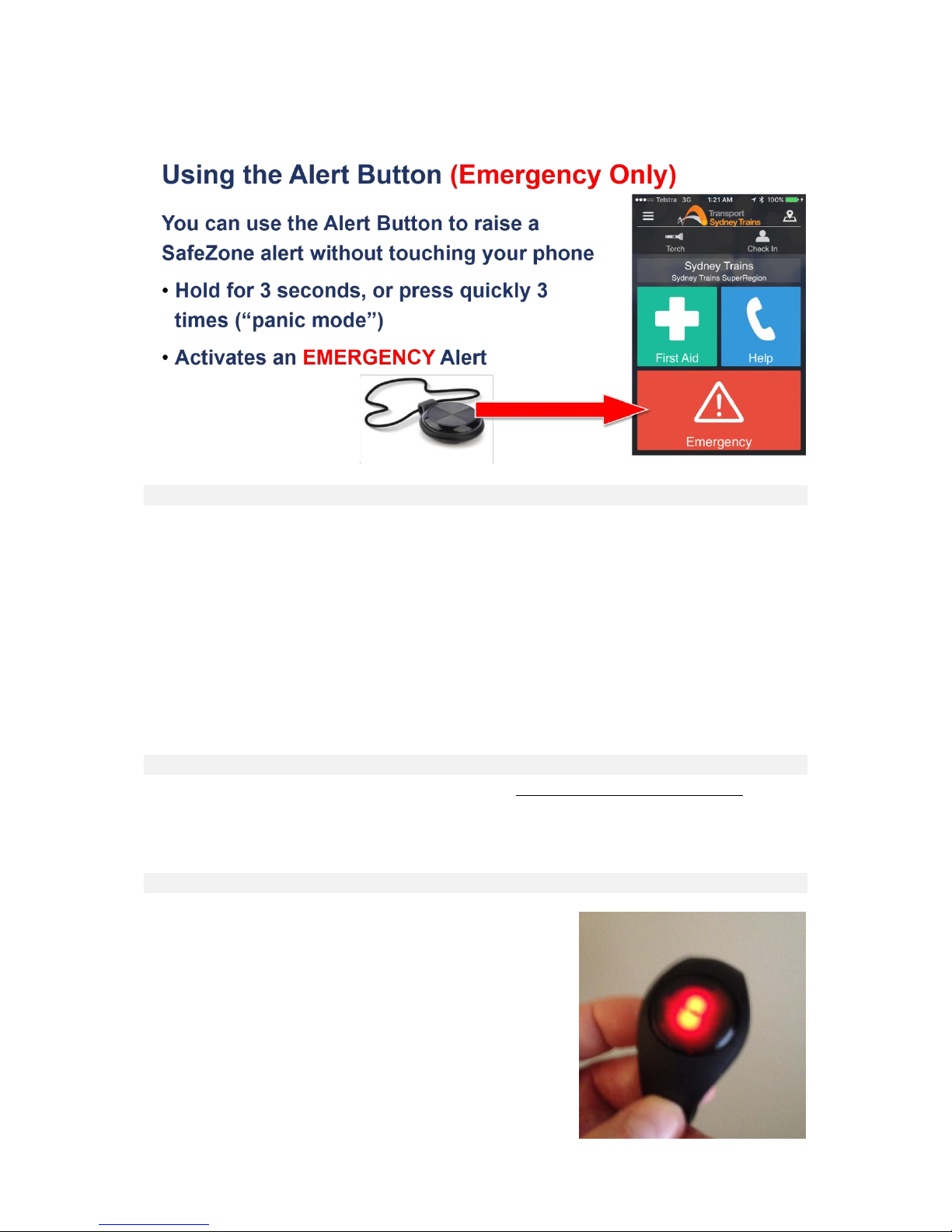
The button allows you to raise an Emergency [RED] Alert in your SafeZone App, without contact with
your phone.
In order to use the V. ALRT, the button must be:
- Paired with your phone;
- In range of your phone (SafeZone & the button will warn you when out of range), and
- SafeZone app must be running on your phone (it can be in foreground or background, but not
“killed”).
Compatibility
V.ALRT can only be used on SafeZone app 3.25+ and is not supported on Windows Phones.
Supported devices are:
- iPhones and iPads with iOS 7.1 and above
- Android Phones and Tablets that have Bluetooth capability running Android 4.3 and above
V.ALRT behaviour
Single beep then green continuous flashing: Ready to pair
with SafeZone app
Double beep then red continuous flashing: Disconnected
from a paired SafeZone app instance (either because of manual
disconnect, or too far away from the phone).
Single long beep then red continuous flashing: Long V.ALRT
press activation, attempting to raise an Emergency Alert with
SafeZone app.
Continuous beep and red flashing: Emergency Alert
successfully activated within SafeZone app either from long
press activation or triple press panic activation.
Page 3
CriticalArc Using V.ALRT Duress Buttons with SafeZone
CriticalArc V ALRT USER GUIDE Page | 3
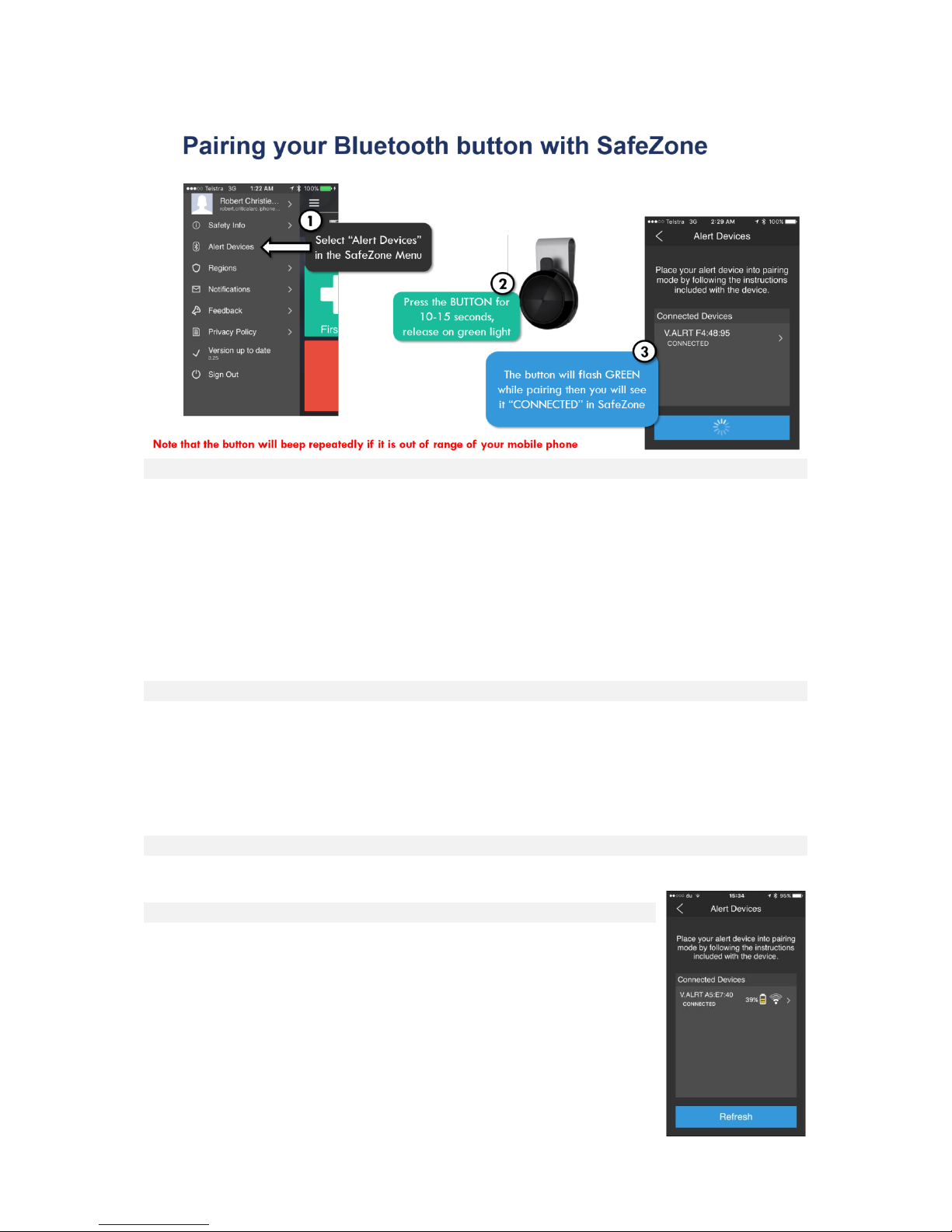
Pairing the V.ALRT button
• Open SafeZone app.
• Select "Alert Devices" from the side menu.
• Press and hold V.ALRT for 15 or more seconds, it will then beep and start flashing green, at
which point you may release the V.ALRT .
o The V.ALRT to pair with will appear in the list of devices on SafeZone app and it will
be in the "Disconnected" state (be careful not to do this at the sometime as anyone
else in the vicinity as they are hard to distinguish by name).
• Tap the V.ALRT device from the list of devices in SafeZone app, and from the pop up menu,
choose "Connect".
o The V.ALRT device will beep once and stop flashing green. Its state in the SafeZone
App will change to "Connected" and can now be used to raise alerts.
Unpairing
• Open SafeZone app.
• Select "Alert Devices" from the side menu.
• Tap the V.ALRT device from the list, and from the pop up menu, choose "Disconnect".
o The V.ALRT device will beep twice, flash red continuously and its state in SafeZone
app will change to "Disconnected" and can no longer be used to raise alerts.
• The V.ALRT can be quickly re-paired by simply tapping the device a second time and
choosing "Connect".
Device Naming
Devices cannot be named at this time. They are identified out of the box as "V.ALERT" followed by
partial device id, e.g. "V.ALERT B4:B9:C2".
Battery Usage
Use of the V.ALRT does cause a small amount of additionally battery drain on
SafeZone mobile device but this should not be significant.
The V.ALRT itself requires a battery replacement every so often depending
on usage, battery level is shown within the SafeZone App.
Note: from version 3.42+, SafeZone includes V.ALRT connection monitoring,
signal strength indicator and battery life indicator
Page 4
CriticalArc Using V.ALRT Duress Buttons with SafeZone
CriticalArc V ALRT USER GUIDE Page | 4
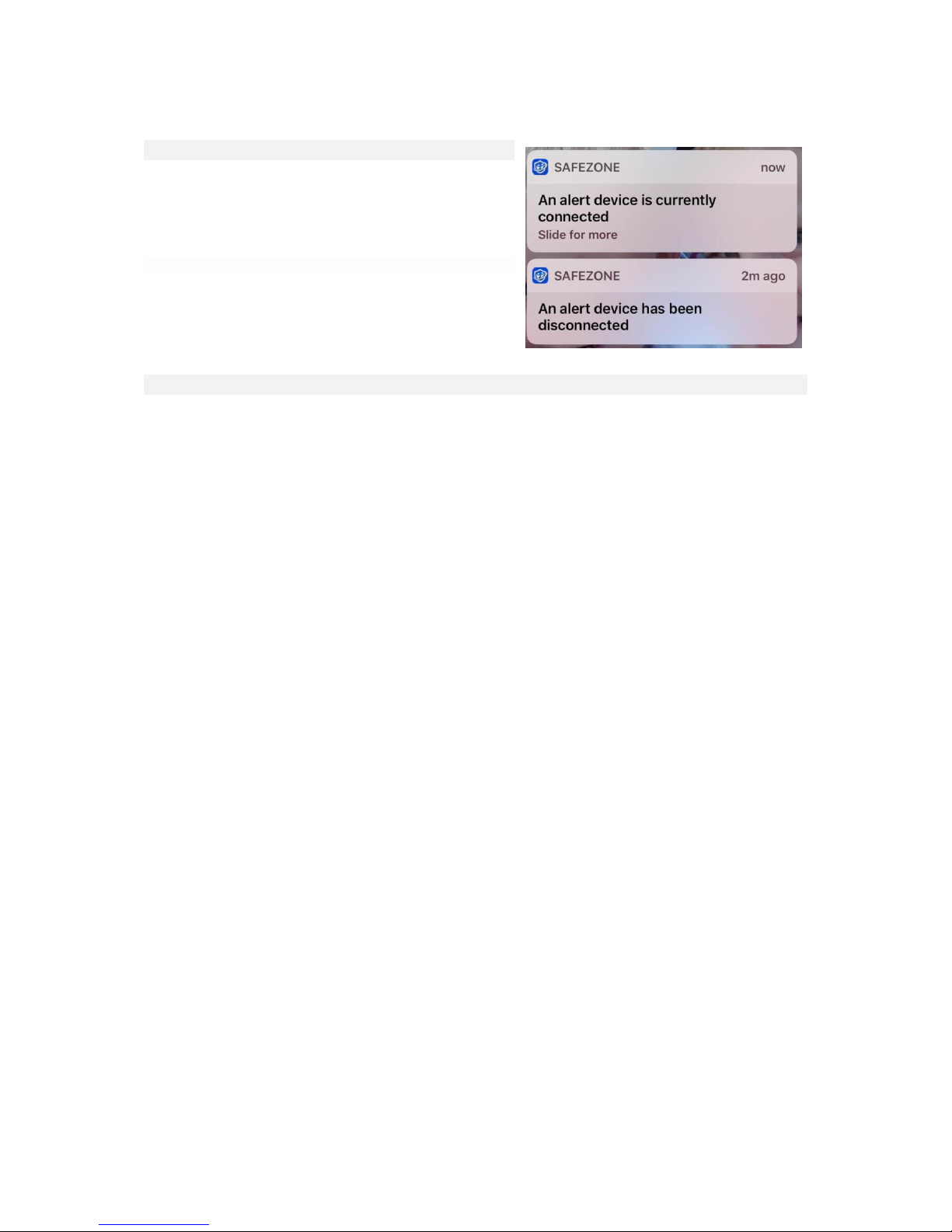
Out of range warnings for V.ALRT
If you walk away from your V.ALRT device (more than
25 metres approximately) the SafeZone App will display
connection messages as shown:
Battery replacement
Once the battery has been depleted it is possible to get it changed at shops that offer watch battery
replacements. The V.ALRT has a standard Lithium CR2032 inside. To ensure that the device
remains water tight it is recommended that the battery is replaced by a competent person.
For anyone considering changing the battery the following guide will help:
The battery cover is on the rear of the device and has two dimples to allow the use of a tool or for
finger grip.
Often you can turn the cover by applying downward force with your fingers while turning, however if
the cover is too tight, you may need to take it to a battery replacement location such as a watchmaker
or key cutter. Alternatively, you can use a watch opening tool as described on the following page.
NOTE: Turn the cover Anti-Clockwise. It only needs to turn a short distance ( 3-4 mm, less than ¼”)
before it can be opened. There is no thread, it uses a bayonet-grip type setting.
Page 5
CriticalArc Using V.ALRT Duress Buttons with SafeZone
CriticalArc V ALRT USER GUIDE Page | 5
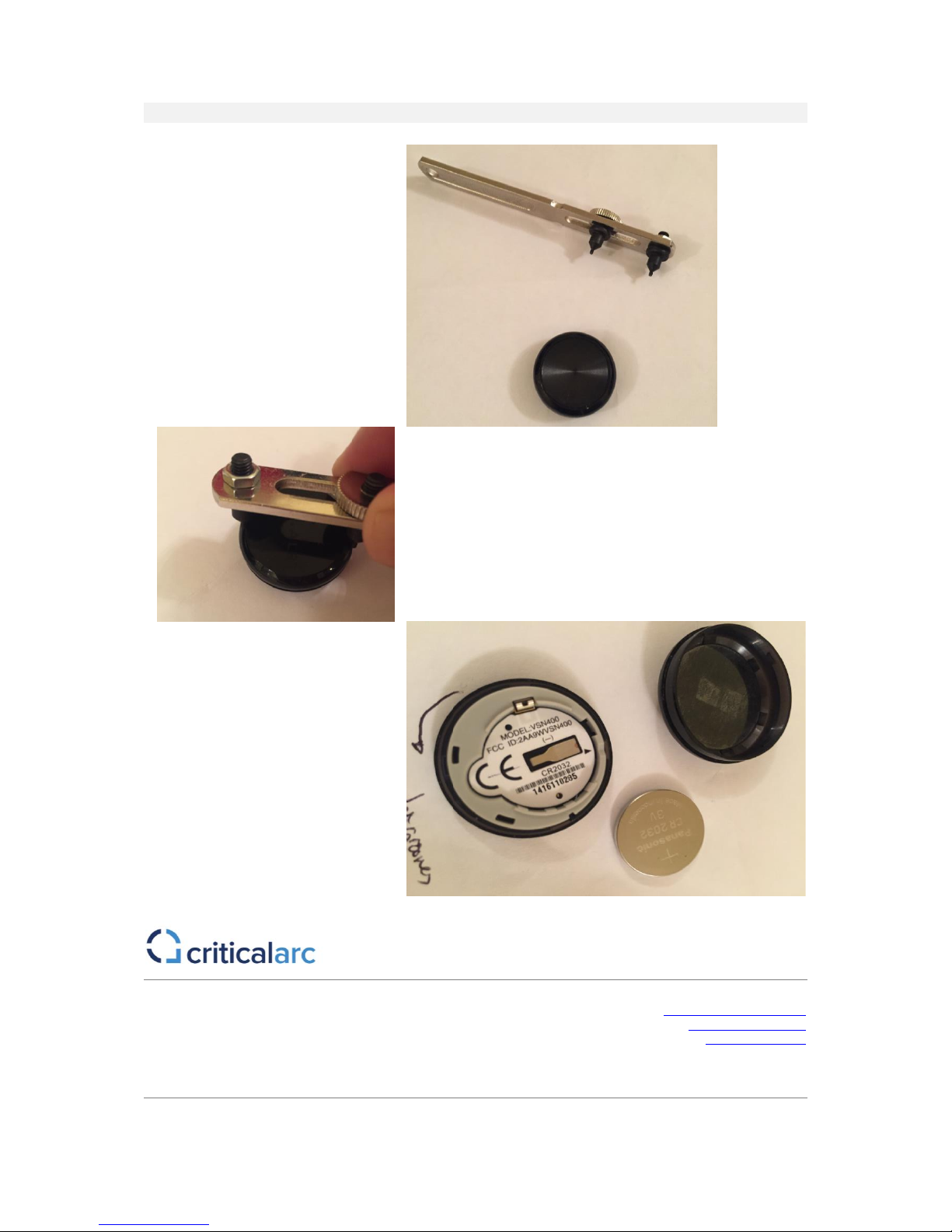
Using a Watch opening tool to remove the battery cover
This is the simplest design with two
prongs but there are other tools
which have three prongs which
would be more suitable if there
were a number of V.ALRT’s
batteries which needed changing.
If you look at Amazon or ebay there
are many at different price points
and quality available.
The tool needs to be adjusted to the correct diameter to fit
snugly between the dimples on the circumference of the
V.ALRT.
Turn the tool gently in the direction of the arrow below and
the back cover will loosen and can be lifted off exposing the
battery as below.
A new battery should be inserted and the back cover gently
placed on the back so it site snugly. Using the tool, and
turning the other way the cover will lock back on.
Try turning with your fingers to
ensure the cover has locked on. If
the V.ALRT is to remain watertight
the whole process needs to be
carried out without damaging the
seals and ensuring the cover is
located correctly.
If you are unsure seek the services
of a professional watch battery
fitter.
Copyright © 2017 CriticalArc Pty Ltd Contact CriticalArc
All rights reserved See www.criticalarc.com/contact/
E-mail: [email protected]
Web: www.criticalarc.com
Trademarks: SafeZone, the SafeZone Logo, Intrinsic and CriticalArc are trademarks of CriticalArc Pty Ltd. All other trademarks mentioned
herein are the property of their respective owners.
 Loading...