

Page 1

User Guide
Page 2

GETTING STARTED ............................................................................................................................................... 1
DEVICE LAYOUT ....................................................................................................................................................................................... 1
MAIN KEYS .............................................................................................................................................................................................. 2
CHARGING THE BATTERY ......................................................................................................................................................................... 2
SIM CARD AND MICROSD CARD ........................................................................................................................................................... 3
POWER ON & OFF, REBOOT AND AIRPLANE MODE ............................................................................................................................... 3
LOCKING/UNLOCKING THE SCREEN ......................................................................................................................................................... 5
TOUCH SCREEN ....................................................................................................................................................................................... 5
HOME SCREEN ........................................................................................................................................................................................ 8
NOTIFICATIONS AND QUICK SETTINGS PANEL ....................................................................................................................................... 9
ENTERING TEXT..................................................................................................................................................................................... 12
TAKING SCREENSHOTS ......................................................................................................................................................................... 14
SETTINGS ............................................................................................................................................................... 16
WI-FI ................................................................................................................................................................................................... 16
BLUETOOTH .......................................................................................................................................................................................... 18
DATA USAGE ........................................................................................................................................................................................ 20
MOBILE NETWORKS.............................................................................................................................................................................. 21
DISPLAY ................................................................................................................................................................................................ 21
SOUND ................................................................................................................................................................................................. 22
BATTERY ............................................................................................................................................................................................... 23
LOCATION ............................................................................................................................................................................................ 23
SECURITY .............................................................................................................................................................................................. 24
ACCOUNTS ........................................................................................................................................................................................... 25
BACKUP ................................................................................................................................................................................................ 26
RESET ................................................................................................................................................................................................... 26
DATE & TIME ....................................................................................................................................................................................... 27
Page 3

APPS ........................................................................................................................................................................ 29
INSTALLING OR UNINSTALLING APPS.................................................................................................................................................... 29
PHONE ................................................................................................................................................................................................. 30
CONTACTS............................................................................................................................................................................................ 31
MESSAGING ......................................................................................................................................................................................... 33
EMAIL ................................................................................................................................................................................................... 36
CHROME............................................................................................................................................................................................... 38
CALENDAR............................................................................................................................................................................................ 40
CAMERA ............................................................................................................................................................................................... 40
PHOTOS ............................................................................................................................................................................................... 44
CLOCK .................................................................................................................................................................................................. 45
DOWNLOADS ....................................................................................................................................................................................... 46
CALCULATOR ........................................................................................................................................................................................ 46
YOUTUBE ............................................................................................................................................................................................. 46
TECHNICAL DATA .............................................................................................................................................. 49
SPECS & HARDWARE ........................................................................................................................................................................... 49
IN-BOX CONTENTS ............................................................................................................................................................................... 50
DECLARATION OF HAZARDOUS SUBSTANCES....................................................................................................................................... 51
HEALTH/SAFETY/WARRANTY GUIDE ........................................................................................................ 52
IMPORTANT HEALTH INFORMATION AND SAFETY PRECAUTIONS ......................................................................................................... 52
SAFETY INFORMATION.......................................................................................................................................................................... 64
FDA CONSUMER UPDATE .................................................................................................................................................................... 70
NINE DRIVER SAFETY TIPS .................................................................................................................................................................... 82
CONSUMER INFORMATION ON SAR ................................................................................................................................................... 85
Page 4

Page 5
1
Getting Started
Google and Android are trademarks of Google LLC.
Get off to a running start with your new device.
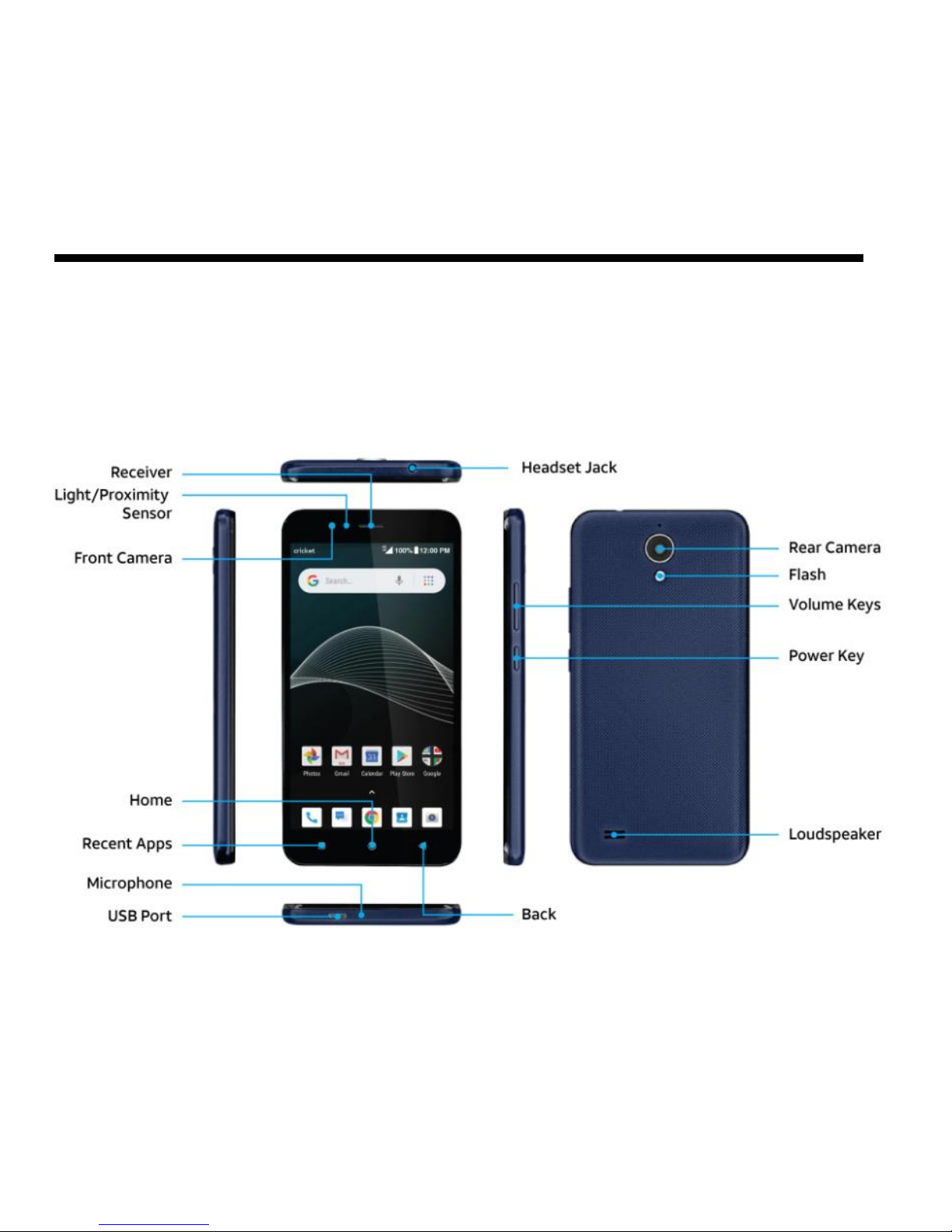
Device Layout
Page 6
2
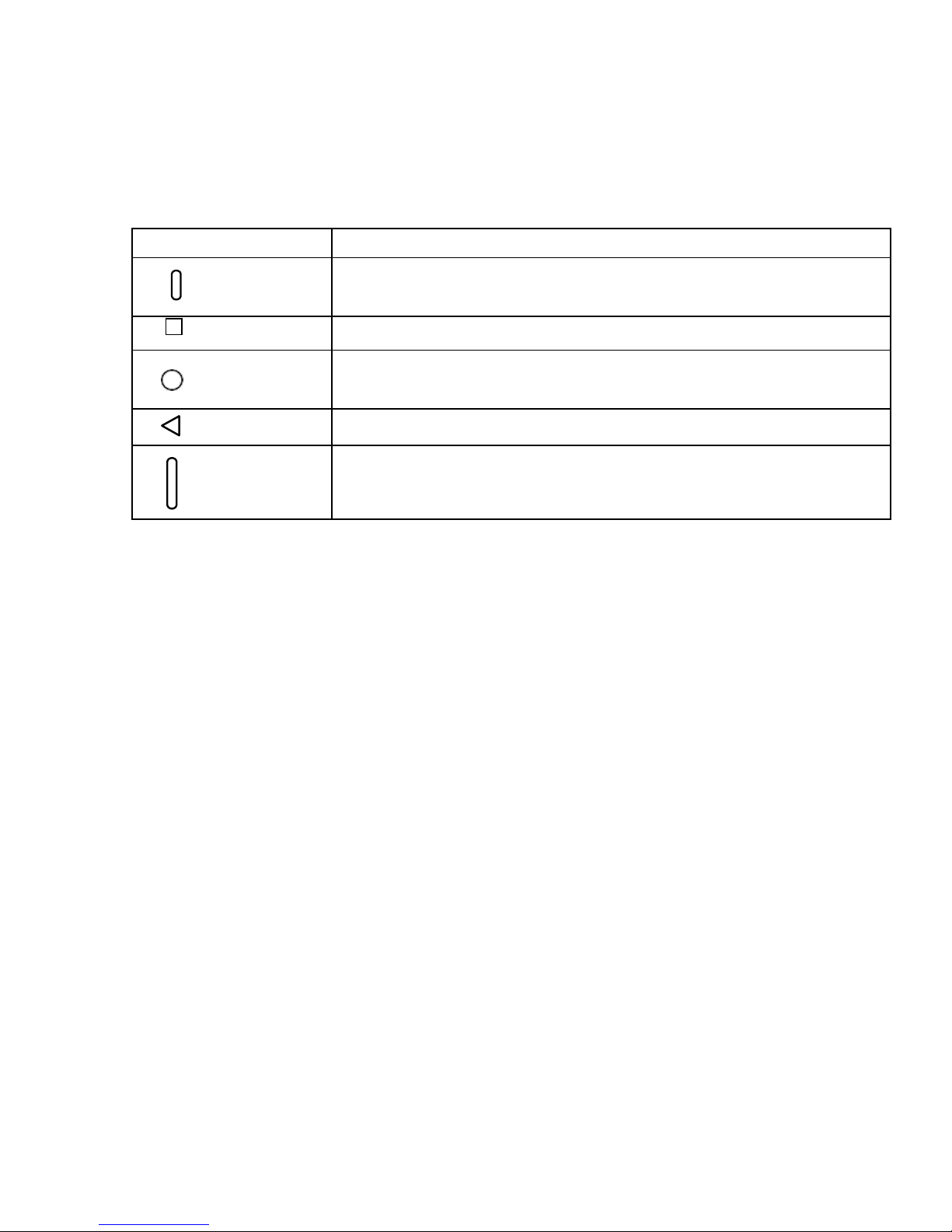
Main Keys
Key
Function
Power
•
Press and hold to turn your phone on or off.
•
Press to turn on or lock the screen.
Recent Apps
•
Tap to open the list of recent apps.
Home
•
Tap to return to the Home screen.
•
Tap and hold to activate Google Search.
Back
•
Tap to return to the previous screen.
Volume
•
Press to adjust the phone volume.
Charging the Battery
1. Connect one end of the data cable to the USB port. This is located on the lower
left side of your phone.
2. Connect the other end to the travel adapter.
3. Connect the travel adapter to an electrical outlet to fully charge your phone.
• Use the travel adapter that comes with your phone; using other adapters
may damage your phone.
• Charging your phone through a USB cable that is attached to a laptop takes
more time than charging it with the travel adapter.
• The phone will power off automatically when the battery is too low. Charge
the battery if this happens. When the battery is critically low, the charging
status may not be displayed immediately (you must wait before it is
Page 7
3
displayed). Using the phone to play games or perform other activities during
the charging process may cause the phone to power off due to low battery.
• The battery will gradually discharge if it is left unused for a long period of
time. Before using the battery again, you must recharge it in order to power
on and use your phone normally.
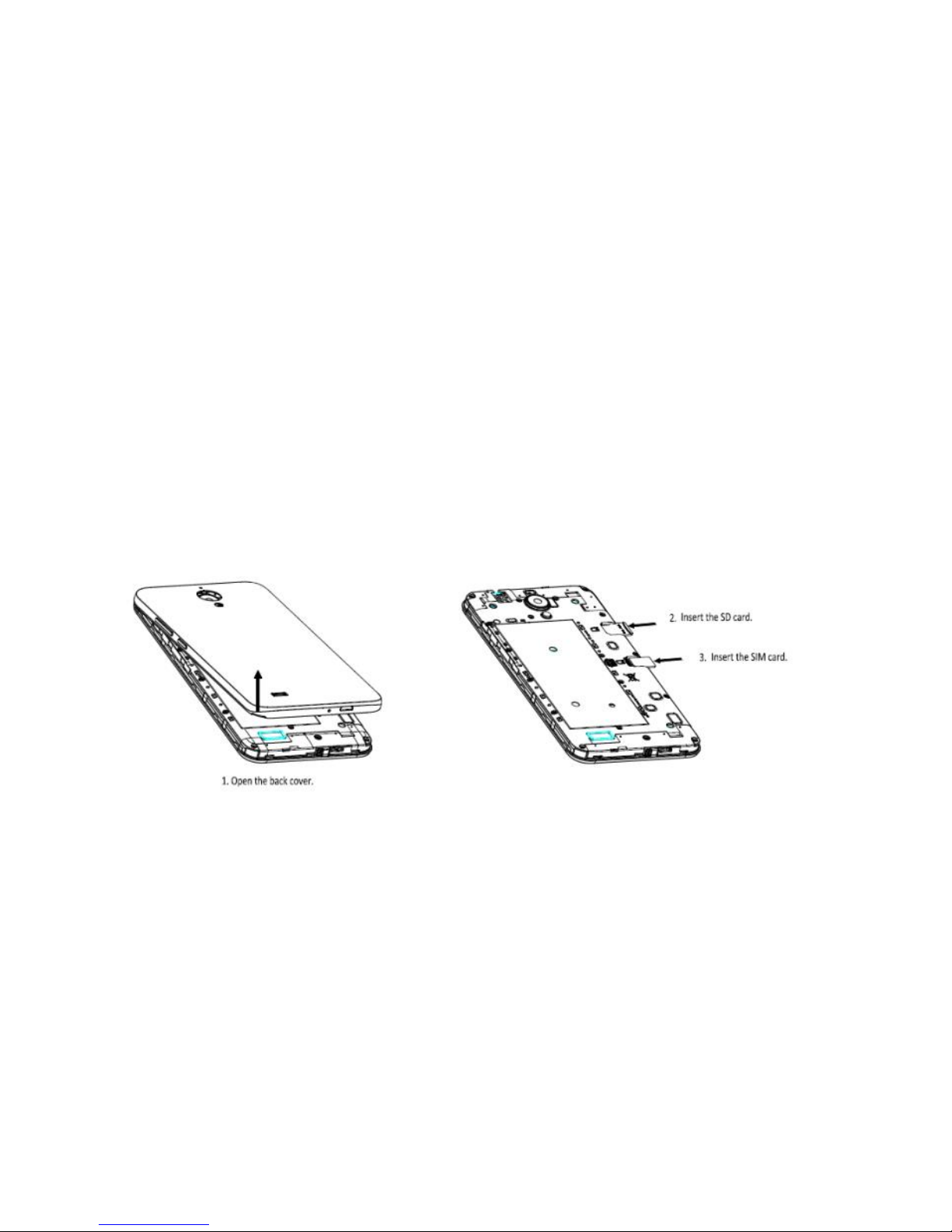
SIM Card and microSD Card
Power On & Off, Reboot and Airplane mode
The Power key is located on the right-hand side of your phone.
• Power on: When the phone is off, press and hold the Power key for a few seconds
to turn on the phone.
• Power off: When the phone is on, press and hold the Power key until the options
pop up. Select Power off to turn off the phone.
Page 8

4
• Restart: When the phone is on, press and hold the Power key until the options
pop up. Select Restart to restart the phone.
• Airplane mode: When the phone is on, use a finger to swipe down from the top
of any screen. Select , and the phone will automatically disable all signal
transmission.
Note: You can also swipe up the screen in home screen, tap to enter the Settings
screen. Then, choose Network & Internet > Airplane mode.
Page 9
5
Locking/Unlocking the Screen
Locking the phone turns the screen off and prevents unintended operations.
To lock the screen while using the phone, simply press the Power key. Also, if the
phone is not used for a specified period of time, the screen turns off and
automatically locks.
To unlock the screen, press the Power key to turn on the screen and slide the Padlock
icon up.
Note: Swipe up the screen in home screen, tap to enter the Settings screen. Then,
choose Security & location > Screen lock to set the type of lock screen.
Touch Screen
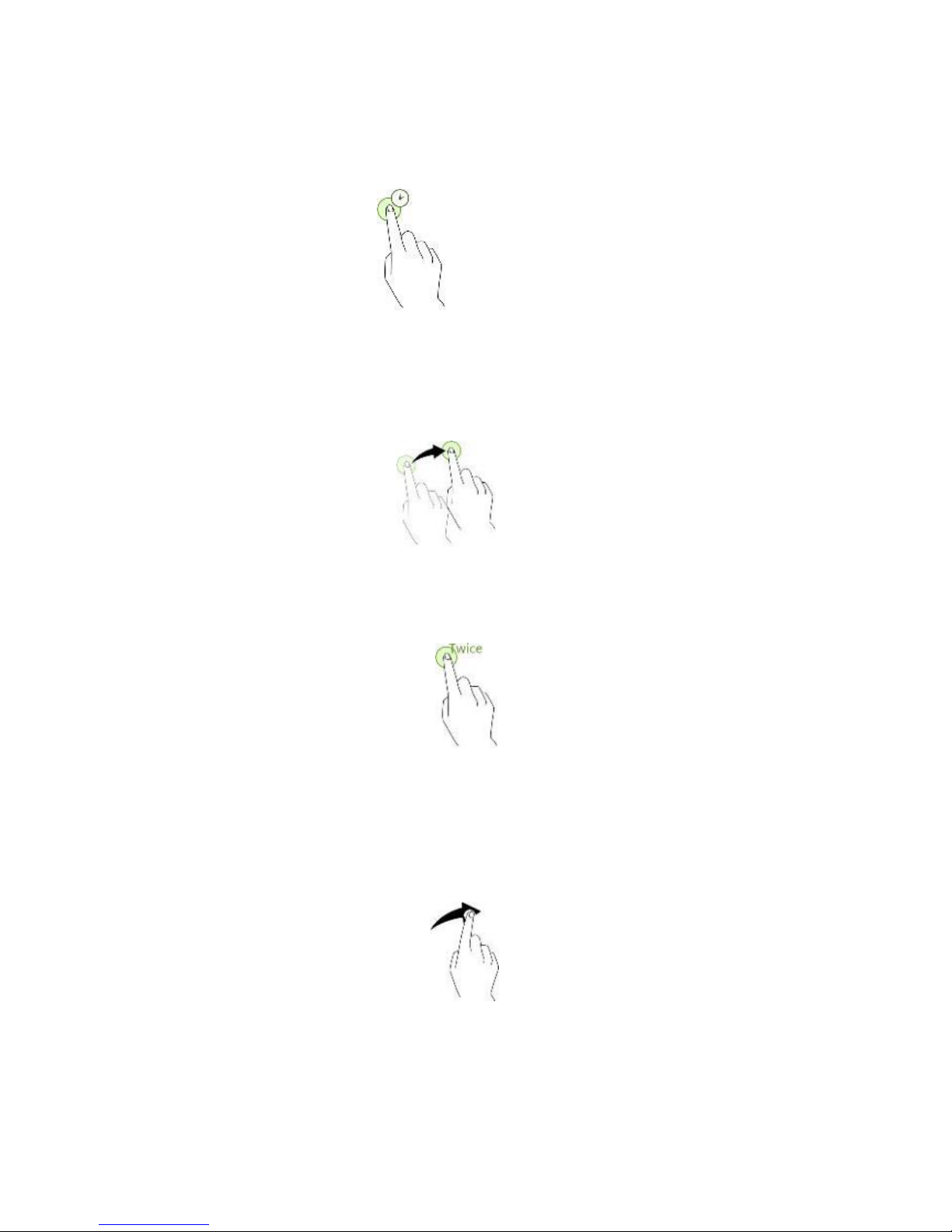
Tapping: To open an app, to select a menu item, to press an on-screen button, or to
enter a character using the keyboard on the screen, tap it with your finger.
Tapping and holding: Tap and hold an item on the screen for more than 400
milliseconds to access available options.
Page 10
6
Dragging: To move an item, tap and hold it and drag it to the target position.
Double-tapping: Double tap on an image to zoom in. Double tap again to return.
Swiping: Swipe to the left or right on the Home screen to view other panels if other
panels available.
Page 11

7
Spreading and pinching: Spread two fingers apart on a map or image to zoom in. Pinch
to zoom out.
Page 12
8
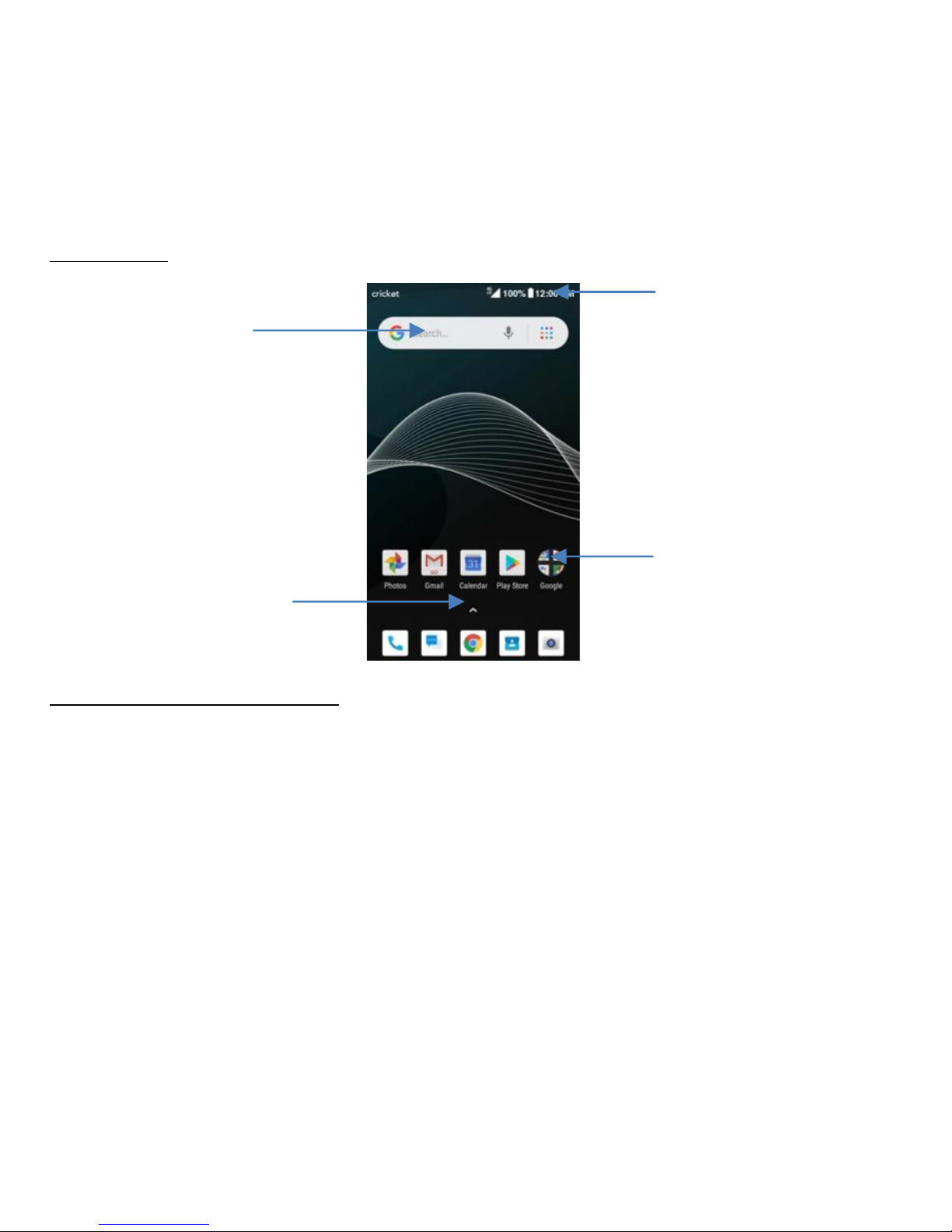
Home Screen
Basic Layout
Customizing your home screen
The Home screen displays widgets, favorite apps, and more. To view other panels,
swipe to the left or right if other panels available.
On the Home screen, tap and hold an empty area to access the available options
including WALLPAPERS, WIDEGETS and HOME SETTINGS.
• To add an app, tap and hold it from the Apps screen, and then drag it to the
Home screen. To add widgets, tap and hold an empty area on the Home screen,
tap WIDGETS, tap and hold a widget, and then drag it to the Home screen.
• To move an app, tap and hold an item on the Home screen, and then drag it to a
Google
Widget
Status Bar
App Folder
Apps Screen
Page 13

9
new location. To move the item to another panel, drag it to the side of the
screen.
• To remove an item, tap and hold the item. Then, drag it to Remove at the top of
the screen.
• To create a folder, tap and hold an app, and then drag it over another app; drop
the app when a folder frame appears around the apps; a new folder containing
the selected apps will be created. To add more apps to the folder, tap and hold
another app, and then drag it to the folder.
Notifications and Quick Settings Panel
Notifications alert you to the arrival of new messages, calendar events, and alarms, as
well as ongoing events.
• When a notification arrives, its icon appears at the top of the screen. Icons for
pending notifications appear on the left, and system icons showing things like the
Wi-Fi signal, mobile carrier signal, or battery strength are on the right.
• Swipe down from the top of your phone screen to open the notification panel
and view details.
• When you’re finished with a notification, swipe it away. To dismiss all notifications,
touch CLEAR ALL at the bottom right of the notifications list.
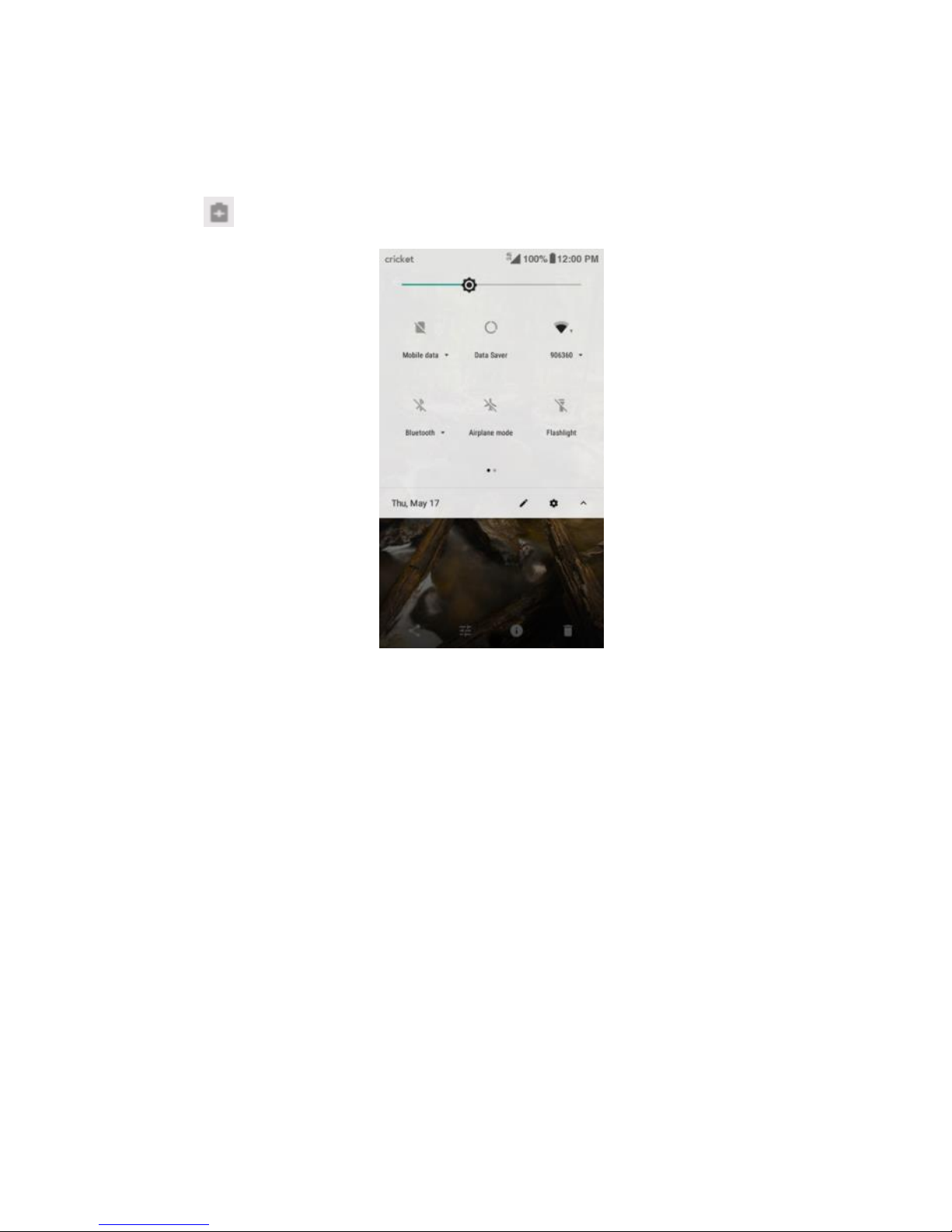
Use Quick Settings to easily get to frequently used settings, like turning on Airplane
Page 14
10
mode. To access the Quick Settings panel, swipe down from the top of your phone
screen twice with one finger or once with two fingers.
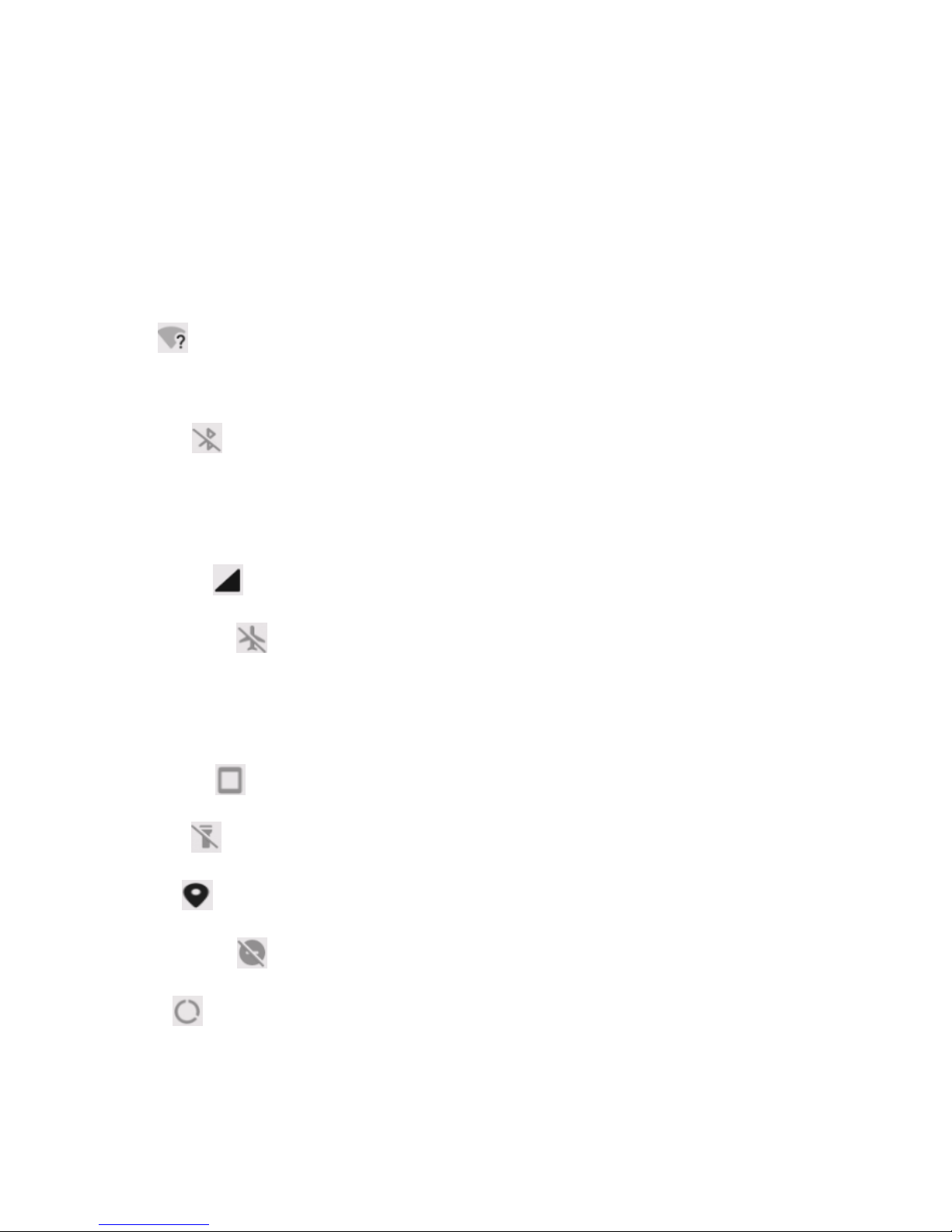
To change a setting, just touch the icon:
• Wi-Fi: Turn Wi-Fi on or off. To open Wi-Fi settings, touch the Wi-Fi network
name.
• Bluetooth: Turn Bluetooth on or off. To open Bluetooth settings, touch the
word
“Bluetooth”.
• Mobile data: See Mobile data and turn it on or off.
• Airplane mode: Turn airplane mode on or off. Airplane mode means your
phone
won’t connect to Wi-Fi or a cell signal, even if one is available.
• Auto-rotate: Lock your device’s orientation in portrait or landscape mode.
• Flashlight: Turn the flashlight on or off.
• Location: Turn the location service on or off.
• Do not disturb: Adjust Do not disturb settings and turn it on or off.
• Battery: Turn battery saver on and off.
Page 15
11
• Data Saver: Turn Data saver on and off.
Page 16
12
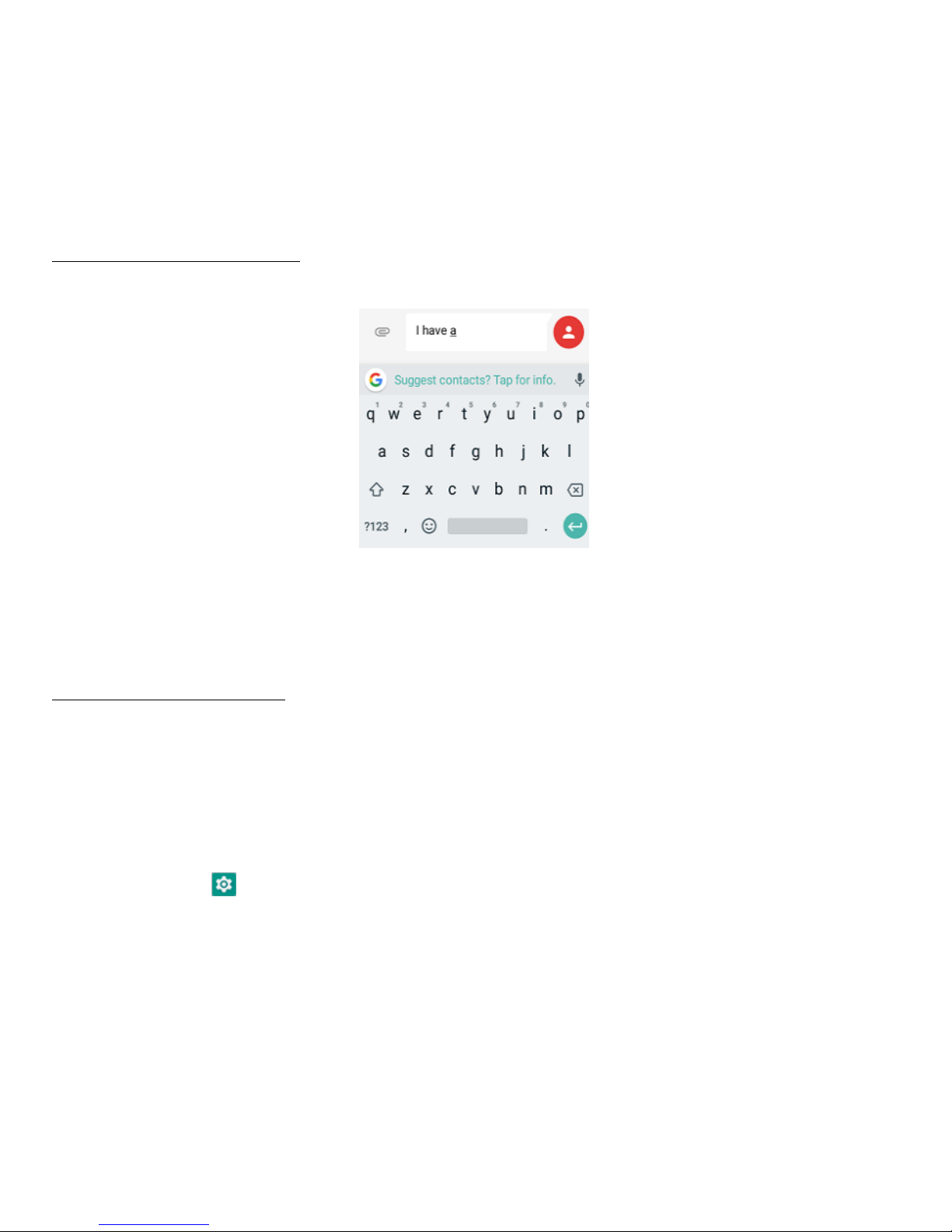
Entering Text
Using the text input panel
The input panel can be used to enter text. Tap the Back key to hide the input panel.
Tap the text input area to open the input panel.
Switching input methods
Your phone comes with two text-input methods. You can choose one of them to input
text.
1. To change your phone's default input method, swipe up the screen in home
screen, tap to enter the Settings screen.
2. Tap System > Languages & input > Virtual keyboard, and then select an input
method.
• Gboard
Page 17

13
• Google voice typing
Page 18
14
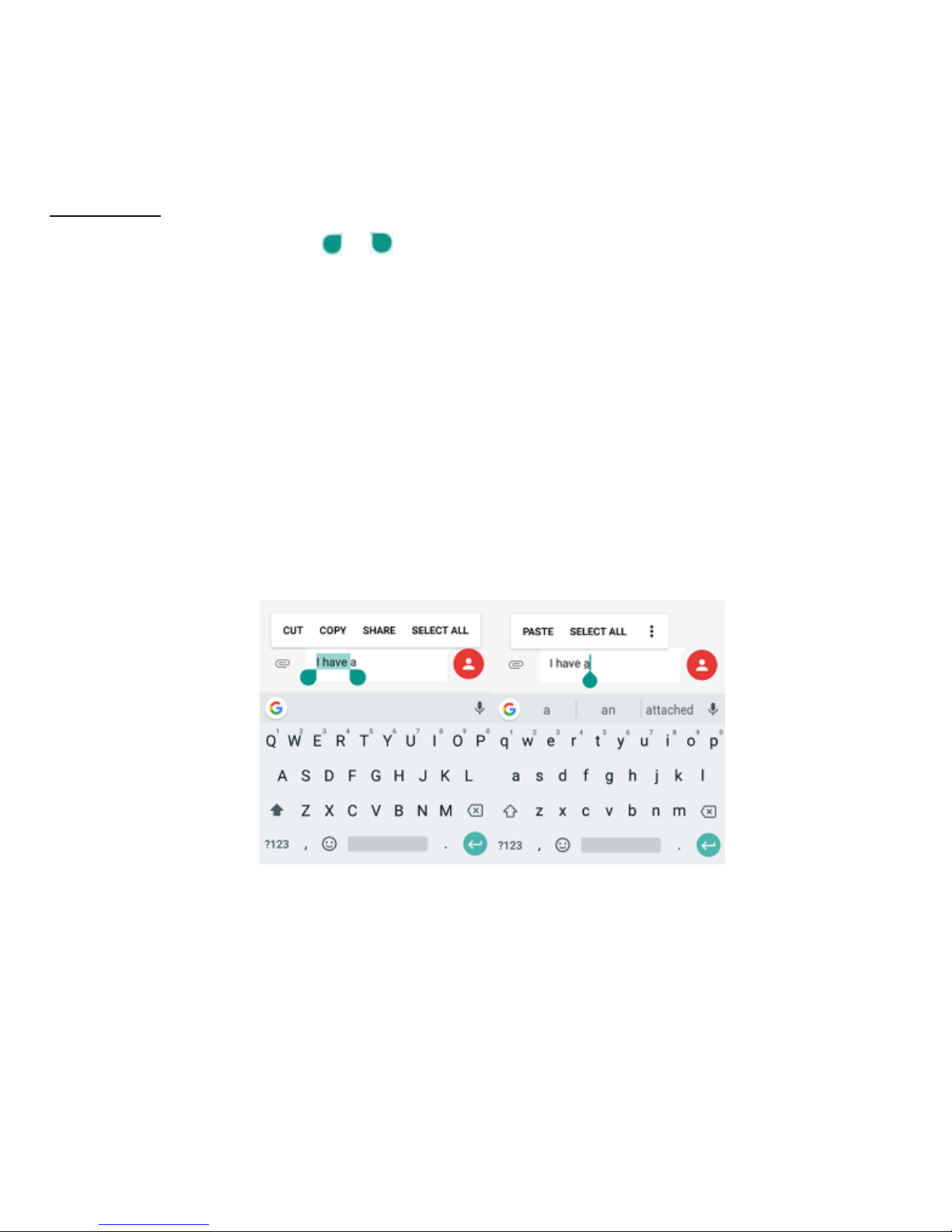
Editing text
Tap and hold over text. Drag or to select the desired text. You can use the
shortcuts that appear on the top of the text to quickly edit the text.
• CUT: Cut selected text.
• COPY: Copy selected text.
• SHARE: Share selected text.
• PASTE: Replace text with the text you previously cut or copied.
• SELECT ALL: Select all text.
Taking Screenshots
1. Focus on the image displayed on your phone screen.
2. Press and hold the Power key and Volume down key at the same time.
Page 19

15
3. The image will be auto-saved in Photos.
Page 20

16
Settings
Wi-Fi
Connecting to a Wi-Fi network
1. On the Home screen, swipe up the screen, tap to enter the Settings screen.
Then, choose Network & Internet > Wi-Fi to turn Wi-Fi on/off.
2. Drag the slider to On enabling your phone to scan for available Wi-Fi networks.
3. Tap the name of a desired network to connect, entering the password if
necessary.
• Previously connected and saved networks, will be automatically joined, a user
can join a network and forget it, removing it from the known networks list.
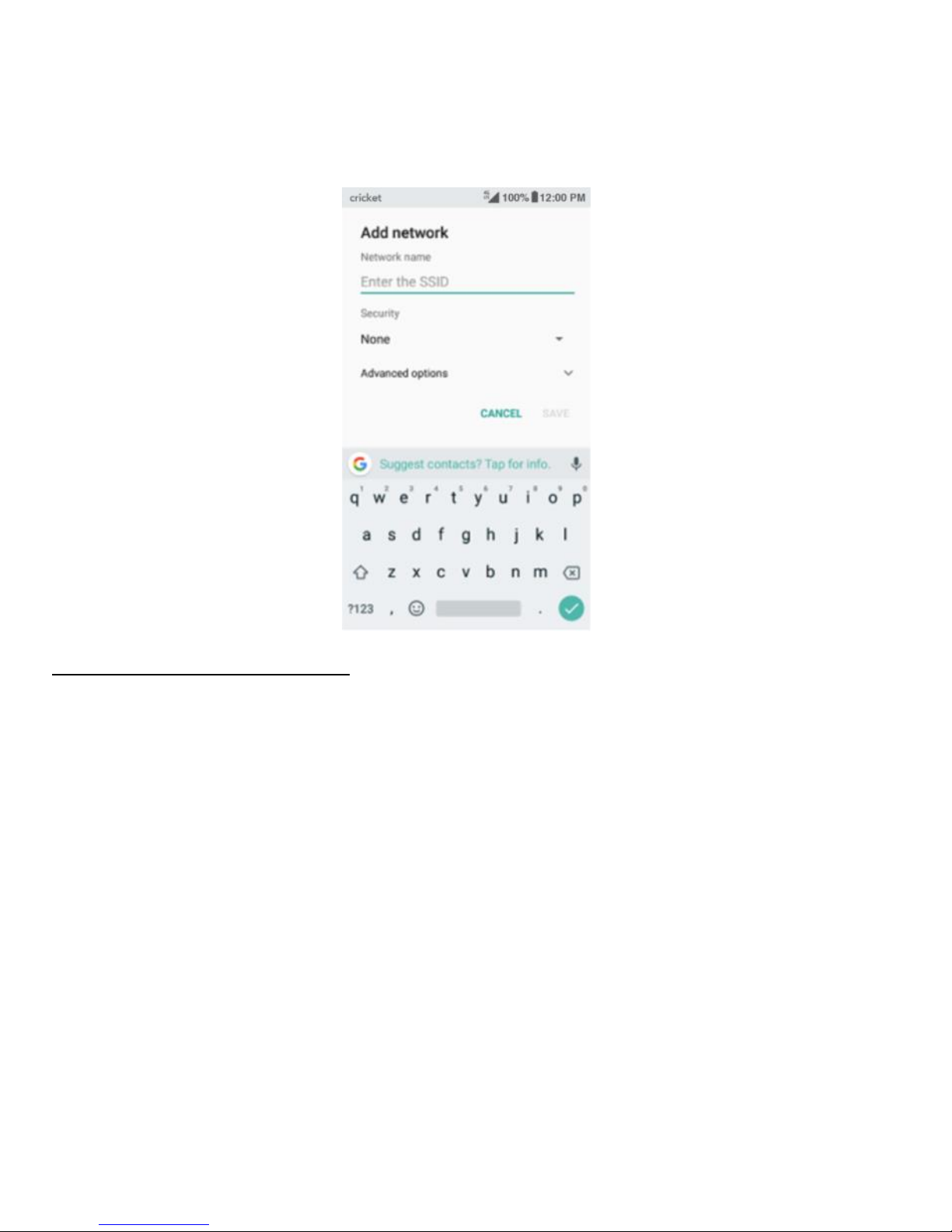
To add a network
1. Swipe down to the bottom of the screen and tap Add network.
2. Enter the SSID network name and select the correct security mode.
3. Tap SAVE.
• Once the phone connects to a Wi-Fi network, the phone will reconnect to that
network each time it is available without requiring a password. To prevent the
phone connecting to the network automatically, select it from the list of
networks and tap FORGET.
Page 21
17
Setting Advanced Wi-Fi Options
1. Swipe down to the bottom of the screen and tap Wi-Fi preferences.
2. You will not be notified whenever a public network is available. If you want to be
notified, drag the slider for Network notification to the right.
Note: To save your phone’s data usage, your phone will remain connected to Wi-Fi
when your screen sleeps.
Page 22
18
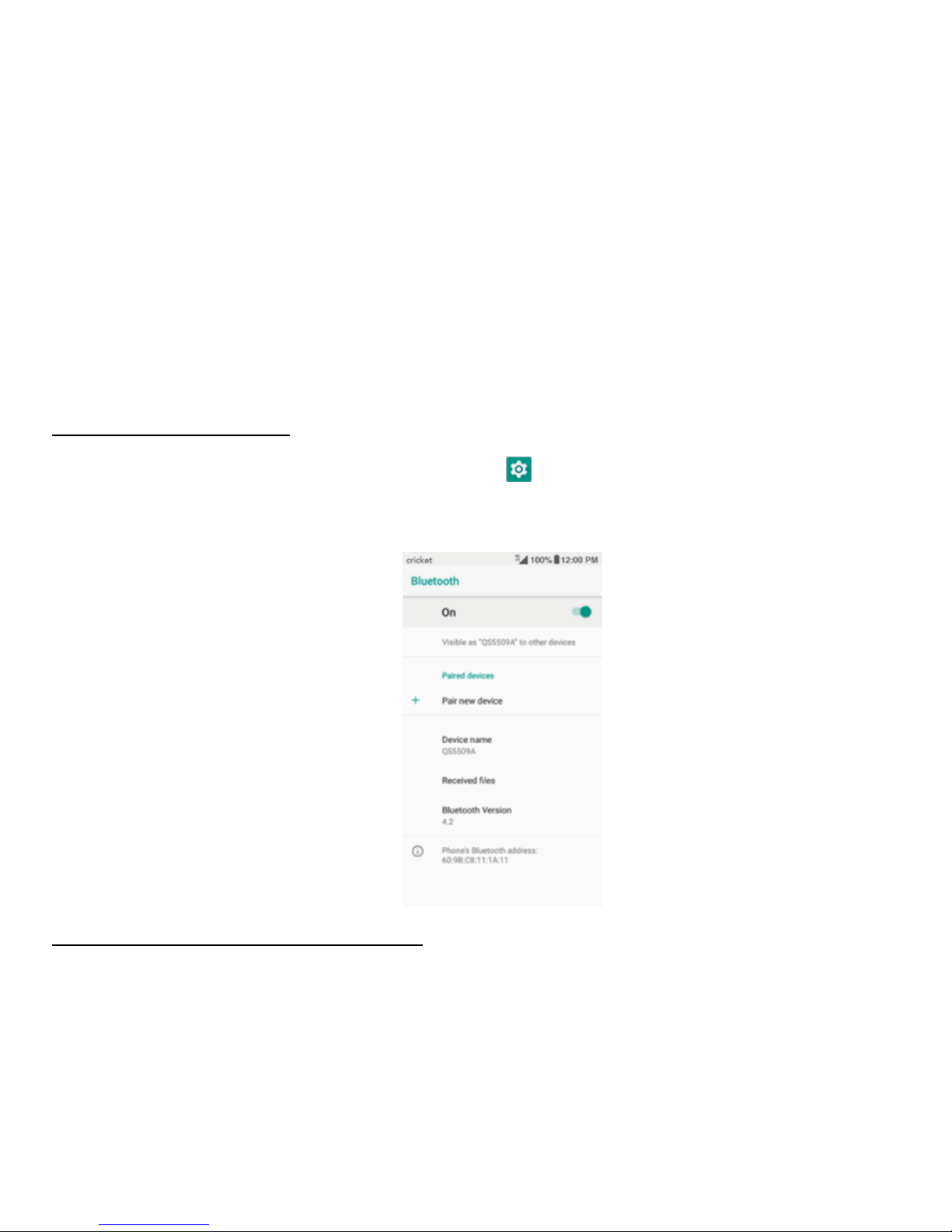
Bluetooth
Bluetooth has the capacity to connect several mobile devices at once, enabling
superior synchronization while reversing challenges and problems that would
otherwise occur. Use Bluetooth to maximize awesome phone capabilities and functions
of your device.
Turning Bluetooth on/off
On the Home screen, swipe up the screen, tap to enter the Settings screen. Then,
choose Network & Internet > Bluetooth to turn Bluetooth on/off.
Changing your phone’s Bluetooth name
Your phone contains a default Bluetooth name which will be visible to other Bluetooth
devices during connection attempts. You can change the default name to a more
Page 23

19
identifiable one.
1. On the Bluetooth settings screen, tap Device name to rename this device.
2. Enter a new name and tap RENAME.
Pairing your phone with a Bluetooth device
When initially using a new Bluetooth device, it will be necessary to pair it with your
phone, which is crucial in order to connect.
Now both devices save the connected record and will auto-connect for you next time.
If the device to pair with is not contained in the list, ensure that it is turned on and that
it is set to be detectable.
1. On the Bluetooth settings screen, tap Pair new device.
2. Your phone will begin searching for nearby Bluetooth devices.
3. Within the list, tap the ID of the Bluetooth device so as to pair with it.
4. Ensure that both devices show the same passkey and tap PAIR.
5. The phone is connected
Unpairing or aligning a Bluetooth device
Some Bluetooth devices have multiple profiles. Profiles can include the ability to
transmit your conversations, play music in stereo, or transfer files or other data.
You can select which profiles you want to use with your phone. You can also change
the name of the Bluetooth device as it appears on your phone.
Page 24

20
1. On the Bluetooth settings screen, tap next to the connected Bluetooth device
which you are configuring.
2. Tap FORGET to unpair it.
Data Usage
On the Home screen, swipe up the screen, tap to enter the Settings screen. Then,
choose Network & Internet > Data usage.
• Mobile data: Set your phone to use data connections on any cellular network
• Billing cycle: Set the monthly billing cycle date of each month.
You may enable Set data limit and enter a value to set the data usage limit under the
Data limit settings.
Note: If you turn on Wi-Fi and the data service simultaneously, the phone will
automatically use the Wi-Fi connection. If Wi-Fi is disconnected, the phone will use the
data service to continue the data connection. Please note that absence of Wi-Fi will
use your data which could cost you an amount of money according to your tariff with
your mobile operator.
Page 25

21
Mobile Networks
On the Home screen, swipe up the screen; tap to enter the Settings screen. Then,
choose Network & Internet > Mobile network.
• Mobile Data: Turn Mobile Data on/off.
• International Data Roaming: Connect to data services when roaming.
• Data usage: Show data usage
• Enhanced LTE Services: Enable HD Voice and advanced communication services
where available.
• Network: Choose an available network.
• Access Point Names: Set up access point names (APNs).
Display
On the Home screen, swipe up the screen, tap to enter the Settings screen. Then,
choose Display.
• Brightness level: Set the brightness of the display.
• Adaptive brightness: Turn on/off. Optimizes brightness level.
• Wallpaper: Change the background picture of the Home screen and the Lock
screen.
Page 26

22
• Sleep: Set the screen sleep time. Your screen will automatically turn off if no
operations are performed within the time set.
• Auto-rotate screen: Turn auto-rotate screen on/off.
• Font size: Set the font size according to your preference.
• Display size: Adjust settings.
• Screen saver: Turn on/off and adjust settings.
• Ambient Display: Turn on/off. Wakes the screen when notifications are received.
Sound
On the Home screen, swipe up the screen, tap to enter the Settings screen. Then,
choose Sound.
1. Drag the slider to adjust the Media volume, Alarm volume, or Ring volume. You can
also adjust the Ring volume by pressing the Volume key on the right side of your
phone.
2. Tap Phone ringtone. Choose a desired ringtone for your phone.
3. Tap Do Not Disturb preferences to turn on/off and adjust settings.
4. Tap Wireless Emergency Alerts to adjust emergency alert settings.
Note: Please note that high volume can damage your ears.
Page 27

23
Battery
On the Home screen, swipe up the screen, tap to enter the Settings screen. Then,
choose Battery.
• Here you may monitor how apps, other data and your phone system all consume
battery power.
• Prolong your phone battery life by turning on Battery saver. On the Battery screen,
tap Battery saver, drag the slider to On. Battery saver turns off automatically when
your phone is charging.
• Tap on battery percentage, the battery percentage shall appear inside the battery
level icon in the status bar.
Location
On the Home screen, swipe up the screen, tap to enter the Settings screen. Then,
choose Security & location > Location. You can let your device access GPS, Wi-Fi
networks, and Cellular networks to estimate your location. Apps that have your
permission can use this information to deliver location-based services, such as the
ability to check in, view commute traffic, or find nearby restaurants.
On the Location screen, you can perform the following operations:
1. Turn on or off the location service.
2. Set Mode to High accuracy, Battery saving, or Device only.
3. Check the location services.
Page 28

24
4. View recent location requests.
Note: Using location access does make more demands on your battery. If you need to
save battery life then you can turn it off, though when the switch is off, your device
won’t be able to find your precise location or share it with any apps.
Security
Setting a screen unlock pattern
You can set a screen unlock pattern. Once the screen has locked, it needs to be drawn
correctly in order to unlock the screen.
• Swipe up the screen in home screen, Tap > Security & location > Screen lock >
Pattern.
• Follow the onscreen instructions to draw the unlock pattern.
• Draw the same unlock pattern again and tap CONFIRM.
• Choose notifications and tap DONE.
Setting a screen unlock PIN
You can set a numeric PIN to unlock your phone. Once the screen has locked, it needs
to be entered correctly in order to unlock the phone.
• Swipe up the screen in home screen, Tap > Security & location > Screen lock >
PIN.
• Enter a password containing at least 4 digits.
Page 29

25
• Tap NEXT.
• Enter the same number again and tap OK.
Setting a screen unlock password
You can set a screen unlock password to unlock your phone.
• Swipe up the screen in home screen, Tap > Security & location > Screen lock >
Password.
• Enter a password containing at least 4 digits.
• Tap NEXT.
• Enter the same number again and tap OK.
Accounts
Use the Accounts settings to add, remove, and manage your accounts, such as
Exchange, Facebook, Google, Twitter and other supported accounts.
On the Home screen, swipe up the screen, tap to enter the Settings screen. Then,
choose Users & accounts.
Adding an account
1. Tap Add account.
2. Select the kind of account to add.
3. Follow the onscreen instructions to enter the required information about the
Page 30

26
account.
4. Configure the account.
5. When you are finished, the account you configured is added to Accounts.
Backup
On the Home screen, swipe up the screen, tap to enter the Settings screen. Then,
choose System > Backup > turn it on.
• Back up to Google Drive: Back up app data, Wi-Fi passwords and other settings to
Google Drive.
• Backup account: Set up or edit your Google backup account.
Reset
On the Home screen, swipe up the screen, tap to enter the Settings screen. Then,
choose System > Reset options.
• Reset Wi-Fi, mobile & Bluetooth: Reset all network settings, including Wi-Fi,
Mobile data and Bluetooth.
• Reset app preferences: Reset all preferences for:
- Disabled apps
- Disabled app notifications
Page 31

27
- Default applications for actions
- Background data restrictions for apps
- Any permission restrictions
• Erase all data (factory reset): Erase all data from your phone’s internal storage,
including:
- Your Google account
- System and app data and settings
- Downloaded apps
- Music
- Photos
- Other user data
Note: Before restoring factory settings, it is vital that you first back up all important
data on the phone; otherwise all data will be lost after factory settings have been
restored.
Date & Time
On the Home screen, swipe up the screen, tap to enter the Settings screen. Then,
Page 32

28
choose System > Date & time.
• Automatic date & time: Use network-provided time.
• Automatic time zone: Use network-provided time zone.
• Set date: Adjust the date manually.
• Set time: Adjust the time manually.
• Select time zone: Select the desired time zone from the list. Scroll the list to view
more time zones.
• Use 24-hour format: Switch between 24-hour format and 12-hour format.
Note: When your phone is using date and time settings provided automatically by
the network, you cannot manually set the date, time and time zone.
Page 33

29
Apps
Installing or Uninstalling Apps
To purchase and download apps, tap to enter the Play Store after connecting to
Wi-Fi.
Note: Apps can also be downloaded from web pages using the phone browser or
third-party app download software.
Installing apps
Browse apps by category or using search bar to search for a keyword. Select an app to
view information about it. To download free apps, tap Install. For the apps which
charge apply, tap the price and follow the on-screen instructions.
Uninstalling apps
In the apps menu, long tap on the app you want to uninstall and then drag it to
Uninstall at the top of the screen
Note: Some pre-installed apps can't be uninstalled.
Page 34
30
Phone
Making a call
On the Home screen, tap on enter the Phone screen.
1. Enter a phone number in the keypad to make a call. If the keypad does not appear
on the screen, tap to open it.
2. You can choose someone to call from your contacts list, after choosing the
contact,
3. Tap to make the call.
4. To view recent calls, tap Call History tab.
5. During a call, you can tap at the bottom of the screen to hang up.
6. Calls can also be made from other widgets or apps that contain your contact
information, by simply tapping the phone number.
Receiving a call
• The Incoming Call screen pops up when a call comes in, along with the caller
numbers and other information you’ve entered in the contacts.
• To answer a call, slide up to answer
Page 35
31
• To reject a call, slide down to reject
• Press the lower part of Volume key on the left side of your phone to mute the
ringer. There are various options available when a call comes in.
• Any missed calls are logged in the Call History, along with a notification.
Exploring the call history
The Call History contains history of calls received, missed and made. It's an easy
way to redial a number, return a call or add a number to your contacts.
1. Tap Phone to enter Phone screen.
2. Tap the Call history tab, you can see a list of your most recent incoming and
outgoing calls.
3. Tap , and then choose Call History to see more calls. Arrow icons beside a call
indicate the type of call, and multiple arrows indicate multiple calls:
• Missed call
• Incoming call
• Outgoing call
Contacts
On the Home screen, tap to enter the Contacts screen. This app easily saves all of
your important contact information including contact names, numbers and email
Page 36

32
addresses.
Adding a contact
1. Tap at the lower right corner of the Contacts screen and enter the contact
information.
2. Tap SAVE to save it.
Note: To add a phone number to the contacts list from the keypad, enter the number
and tap Add to a contact.
Searching for a contact
1. On the Contacts screen, tap Search .
2. Enter keywords in the search box. Search results will be displayed below the
search bar.
Note: You can also slide the scroll bar to quickly search for a contact.
Adding a contact to favorites
1. On the Contacts screen, tap the contact to enter the detail screen.
2. Tap at the top right. The star will fill color to indicate that the contact has
been added to the favorites. Tap to cancel.
Page 37
33
Editing a contact
1. On the Contacts screen, tap the contact to enter the detail screen.
2. Tap Edit at the top right. Edit relevant information and then tap SAVE option
to save the contact.
Deleting a contact
1. On the Contacts screen, tap the contact to enter the detail screen.
2. Tap More at the top right and then tap Delete.
3. Tap DELETE to confirm that you want to delete the contact.
Messaging
On the Home screen, tap to enter the Messaging screen.
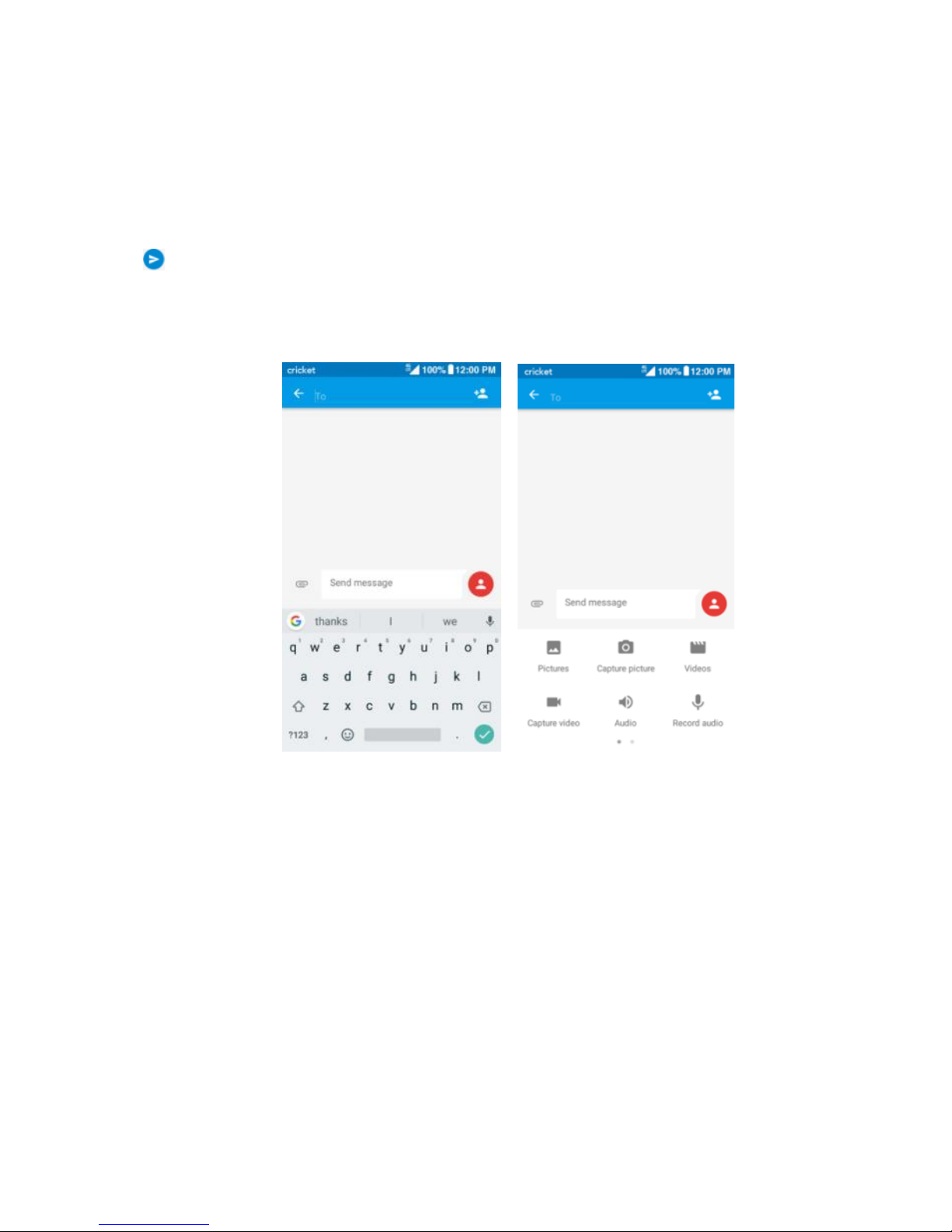
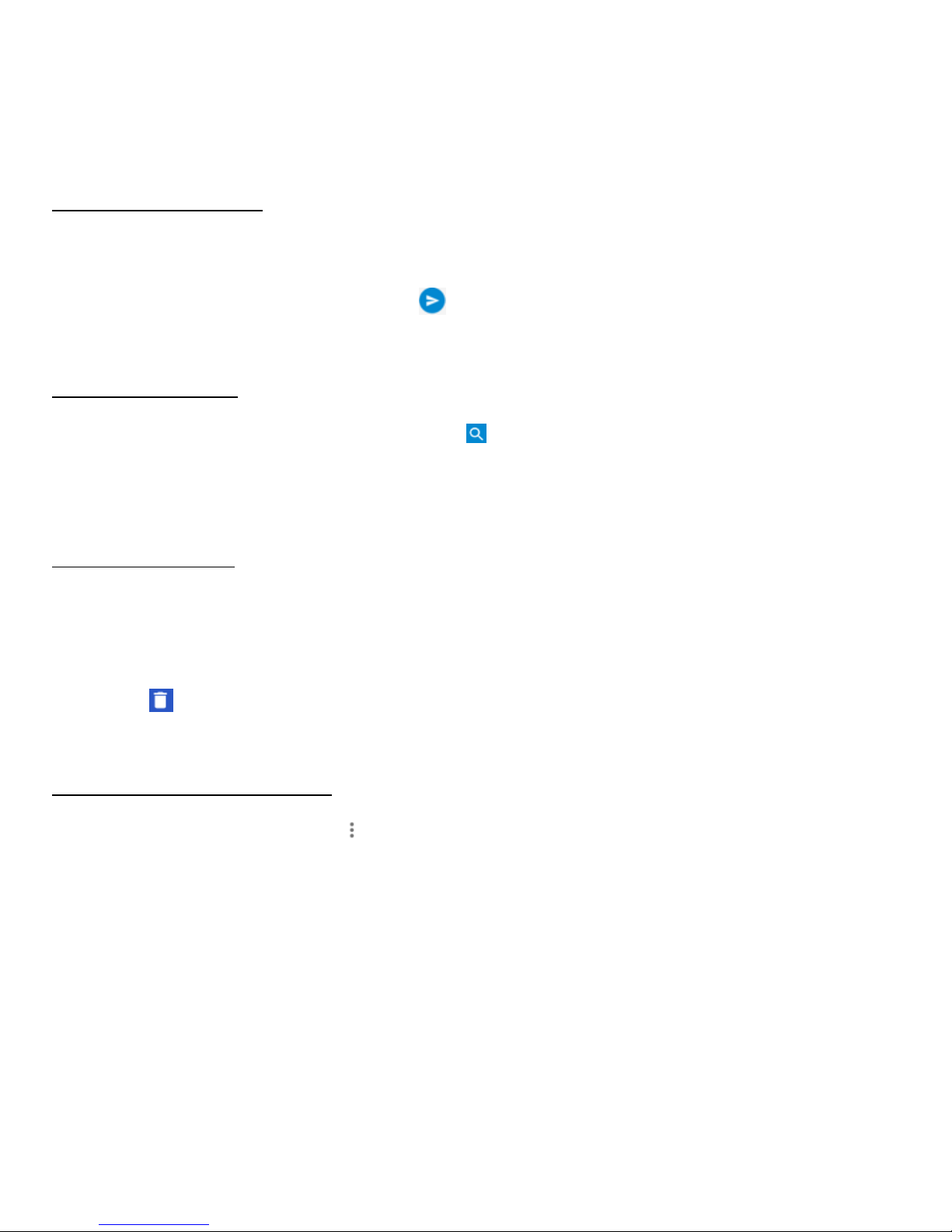
Creating a message
1. On the Messaging screen, tap .
2. Enter the recipient's number or you can tap to select contacts.
3. Add your message. Tap to attach media files such as an image, contacts and
Page 38
34
slides.
4. Tap to send the message.
Note: An SMS will be sent as an MMS when media files are added.
Page 39
35
Replying to a message
1. On the Messaging screen, select the message you want to reply to.
2. Compose your message and tap to send it.
Searching messages
1. On the Messaging screen, tap Search .
2. Enter message content or keywords to quickly search for the message you need.
Deleting a message
1. On the Messaging screen, long press the message conversation you want to
delete.
2. Tap to delete the message conversation.
Customizing Message Settings
On the Messaging screen, tap > Settings to configure message settings, including
set default message app, change notification sound, delete old messages, etc.
Page 40
36
Email
Setting up & using Gmail
The Gmail app allows you to read and compose emails.
On the Home screen, tap to enter the Gmail screen. Here Gmail has various uses.
For instance, utilize your Gmail account for signing in to all Google apps & services
including but not limited to:
• Google Play Music
• Google Play Store
• Google Drive
Getting familiar with your Email app
• When using it for the first time, you need to enter your email address and
password to configure an account.
• After your email account is configured, you can archive, delete, label, or perform
other mail operations.
• Tap the icon on the left of a mail thread to select it.
• Tap at the top of your phone screen to manage your emails.
- On the Email screen, you can tap > Settings to add a new email
account.
- On the Email settings screen, tap an email account and customize your Email
Page 41

37
settings.
Page 42
38
Chrome
On the Home screen, tap to browse the Internet, search for information and
bookmark your favorite webpages to access them conveniently.
Browsing web pages
1. Tap the address field.
2. Enter the web address or a keyword to browse the web page.
Adding a bookmark
1. Open the web page you want to bookmark.
2. Tap > .
Opening a bookmark
1. On the Chrome screen, tap > Bookmarks.
2. Select the bookmark of the website you want to view.
Customizing browser settings
1. On the Chrome screen, tap > Settings.
2. On the Settings list, you can select menus to customize the browser.
Page 43

39
Page 44

40
Calendar
On the Home screen, tap to enter the Calendar screen. Use Calendar to create
and manage events, meetings, and appointments. Your Calendar helps organize your
time and reminds you of important events.
• If you have synced your Gmail account, the first time you open the Calendar app
on your phone; it will show your current calendar events.
• To modify the Calendar view, tap and choose Day, Week, Month, and
Schedule.
• View or edit event details by tapping an Event.
Camera
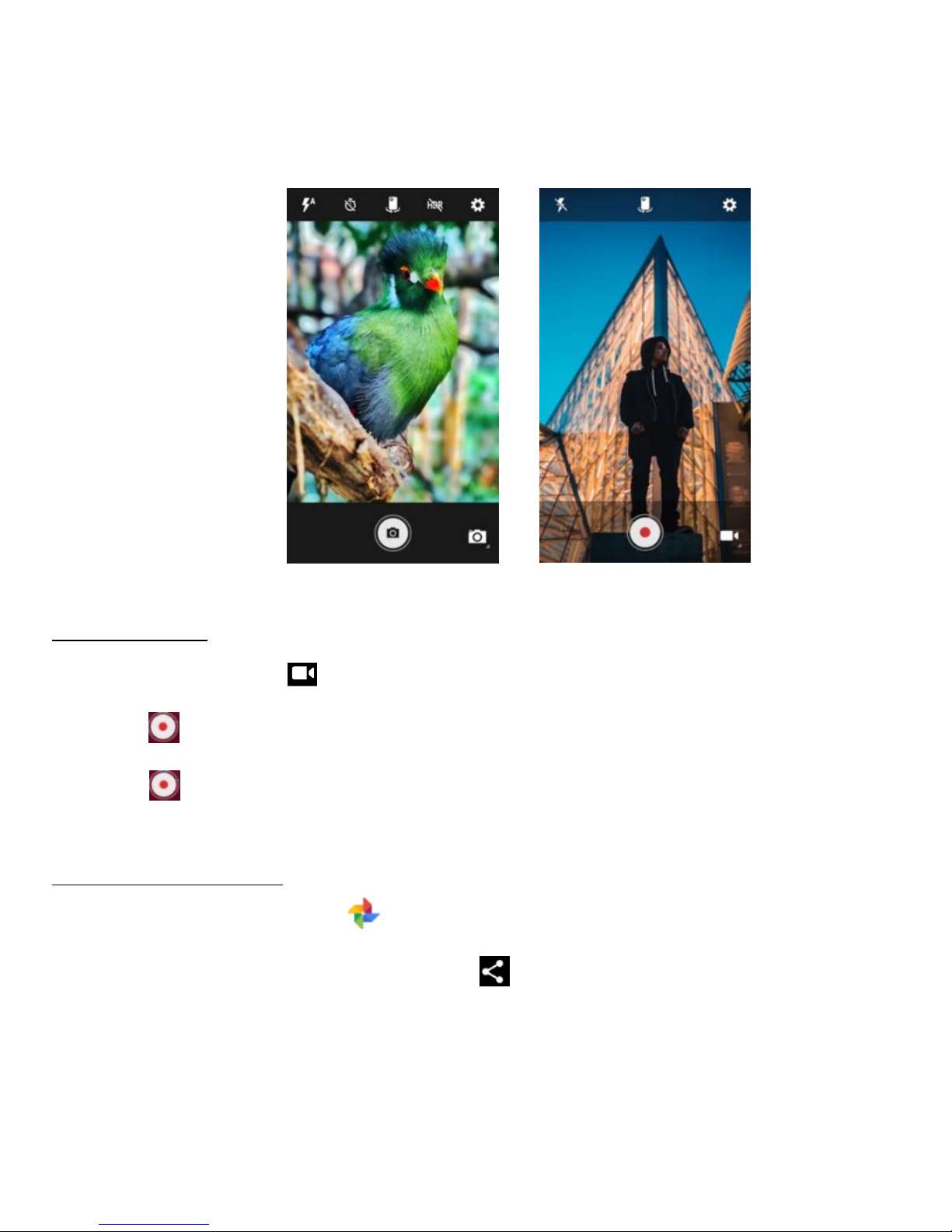
You can use the Camera app for both taking pictures and recording videos.
Taking a photo
1. On the Home screen, tap to open the camera.
2. Focus on your subject by tapping on your phone screen.
3. Tap to take a photo.
Note: Swipe right to view camera mode options.
Page 45

41
Page 46
42
Creating a video
1. Tap the video icon to activate the Video mode.
2. Tap to start recording a video.
3. Tap to stop and save when you finish recording.
Sharing a video or photo
1. On the Home screen, tap to enter the Photos screen.
2. Select a video or photo and tap share .
3. From the pop-up screen, select your desired sharing method.
Page 47

43
Page 48

44
Photos
On the Home screen, tap to enter the Photos screen, you can view and manage
photos and videos stored in your phone. When you’re signed into your device with
your Google Account, the Photos app makes it easy to auto-backup all the photos and
videos you take, organize them, and share with friends.
• To delete an image or a video, long press the image or video, you can select some
image or a video that you want to delete, tap to delete.
• Also, you can tap the menu icon > Select, then select some image or a video
that you want to delete, then tap to delete.
• To edit an image, select an image, tap Edit , select the options and tap SAVE.
Page 49
45
Clock
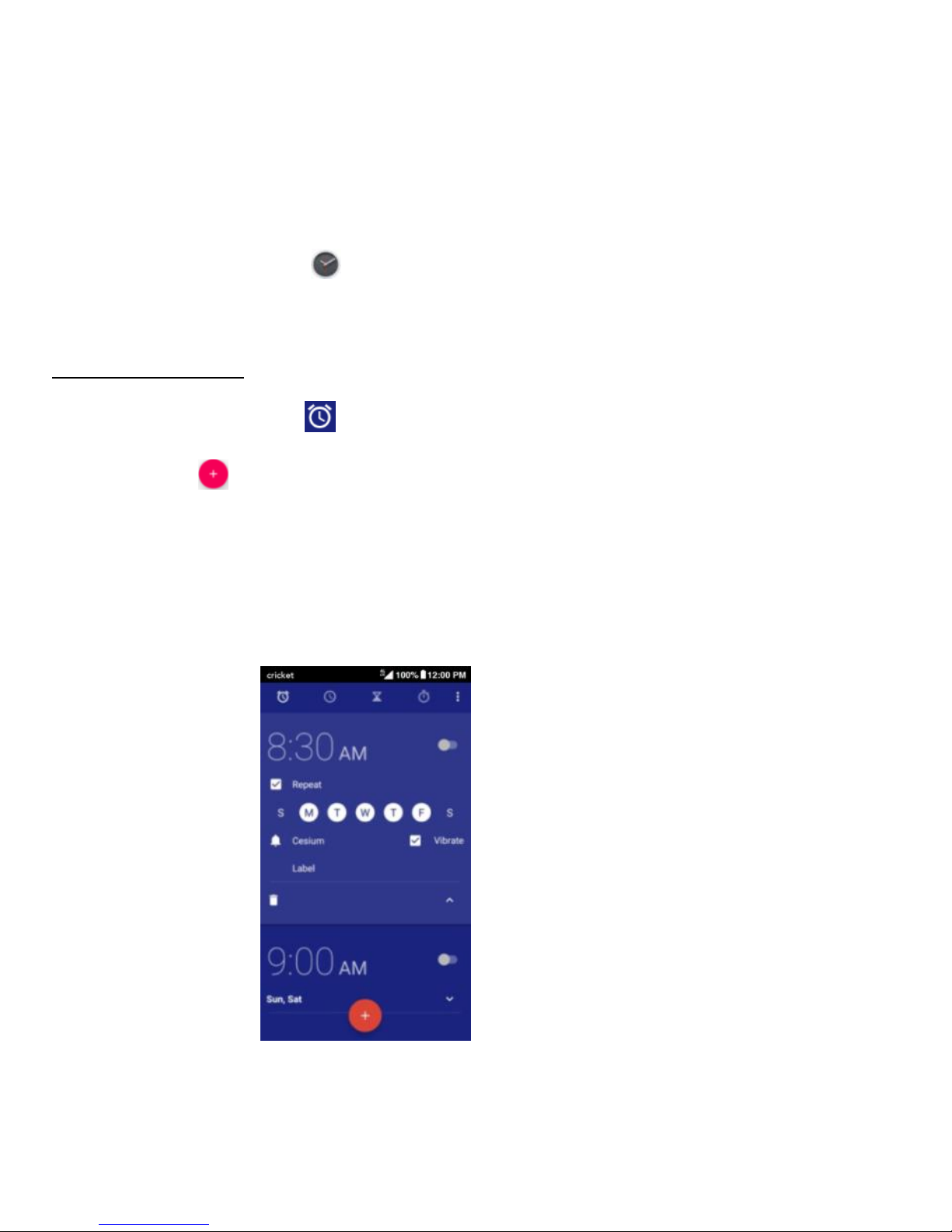
On the Home screen, tap to enter Clock screen. You can set alarms, check the
current time in many cities around the world, set a specific duration or time an event.
Operating the alarm
On the Clock screen, tap to switch to the Alarm tab.
• Tap and change the time displayed to set your alarm.
• Once your alarm is set, you may add a label to it.
• Tap the Vibrate check box and choose your ringtone from the Cesium
pop-up screen.
Page 50

46
Downloads
On the Home screen, tap to enter the Downloads screen.
• You can download files from Gmail or other areas.
• On the Downloads screen, tap an item to open it.
• Tap and hold an item until appears, and then tap it to share the item
through one of the many sharing methods.
• Tap and hold an item until appears, and then tap it to delete the item.
Calculator
On the Home screen, tap to enter the Calculator screen. You can perform simple
or complex calculations.
• Swipe left to display the scientific calculator.
YouTube
On the Home screen, tap to enter the YouTube screen. You can watch the
world’s videos and keep up with your favorite YouTube channels. Sign in to access
your subscriptions, playlists, uploads, purchases, history and more.
Sign in to YouTube
• To sign in ,you should tap > select Sign in, Select an existing account on your
Page 51

47
device, or go to Add Account to add a new account to your device.
Switch channels
If you have multiple channels associated with the same account, you can switch
channels by signing out and signing in again. To sign out, go to > Sign out.
Watch videos
Tap a thumbnail to begin playing a video. Tap in the video player to access
additional viewing options.
• Full screen: To play the video in full screen, tap the full screen icon or rotate
your device horizontally.
• Video quality: To manually adjust the video quality, tap > Quality on a video.
• Captions: Enable captions on a video by selecting > Captions on a video. Not
all videos may have closed captioning available.
Watch videos while browsing
Minimize the video to navigate the app without missing a single moment of the video
you’re currently watching. This way, you can browse suggestions, playlists, and more
Page 52

48
without pausing or stopping the video.
• Minimize and maximize the player: Swipe down to minimize the video player and
continue navigating the app. Swipe upwards on the minimized video to maximize
it again.
• Dismiss the player: Swipe left to right if you no longer want to view the minimized
video
Playback settings
Limit mobile data usage by going to > Settings > General > Limit mobile data
usage. When enabled, HD video will only stream on a Wi-Fi connection.
Page 53
49
Technical Data
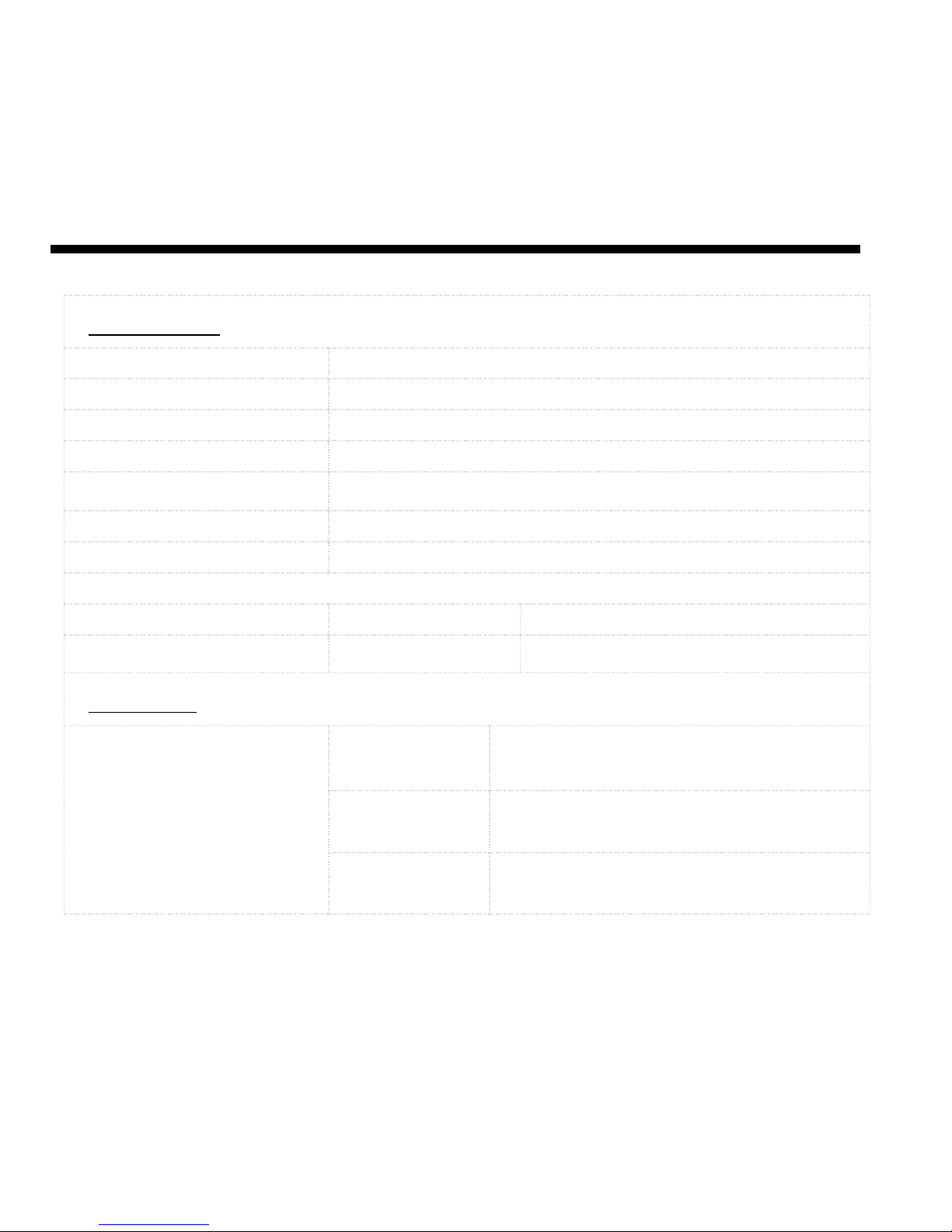
Specs & hardware
Specifications
Dimensions
6.10” x 3.09” x 0.352”
Form Factor
Bar, Touch screen
Antenna
Built-in
SIM card
Nano SIM
Network Mode
UMTS and LTE
Camera
Rear camera: 5 MP AF; Front camera: 2 MP FF
Earphone Jack
3.5mm earphone jack
Screen Parameters
Type
Screen Size
Resolution
TN
5.5 inches
854x480
Accessories
Battery
Battery
Type
Li-ion Polymer Battery
Rated
Capacity
3000 mAh
Nominal
Voltage
3.85 Vdc
Page 54
50
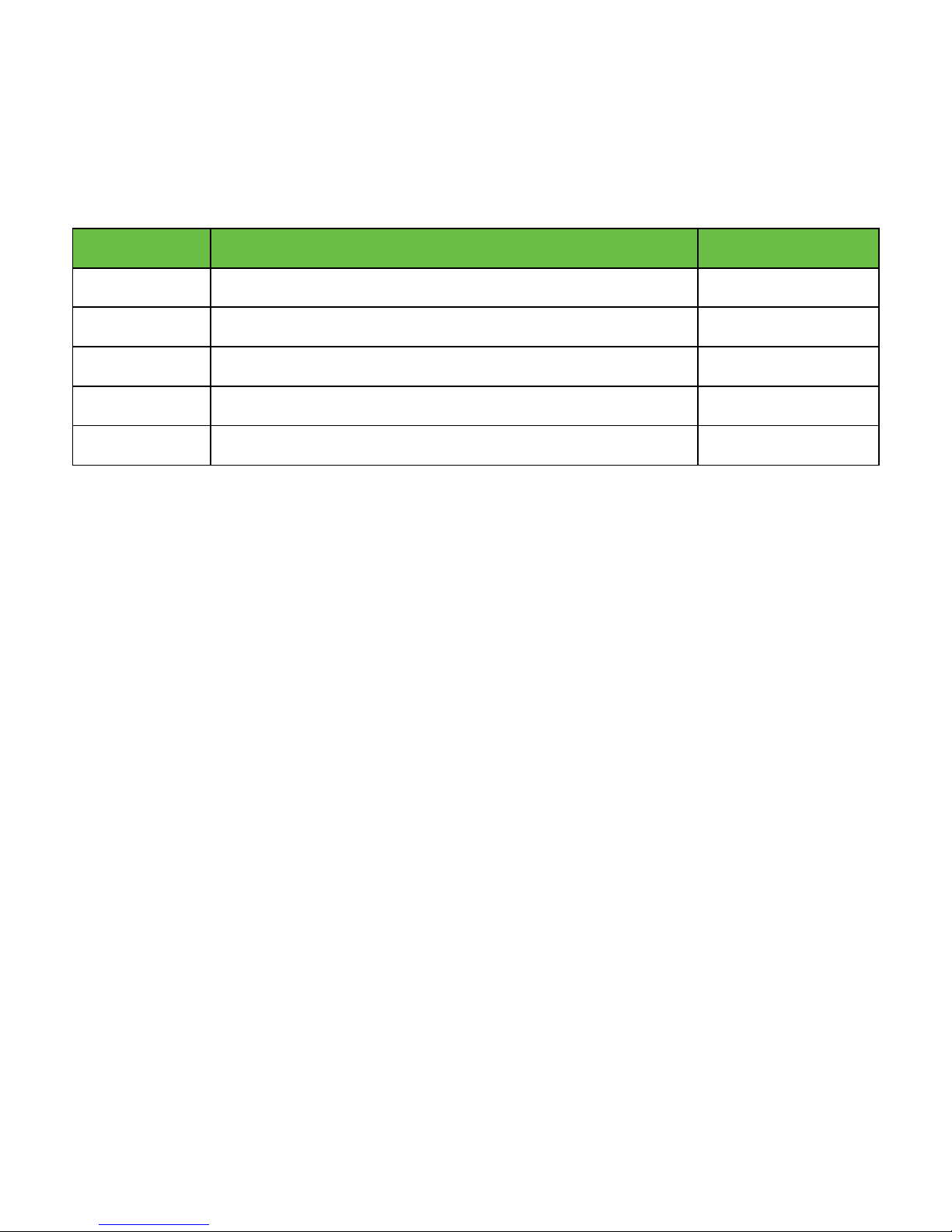
In-box contents
No.
Name
Quantity
1
Phone
1
2
Travel Charger
1
3
USB Cable
1
4
Safety Guide
1
5
Quick Start Guide
1
Note: The items supplied with the phone and any available accessories may vary
depending on the region or service provider.
Page 55
51
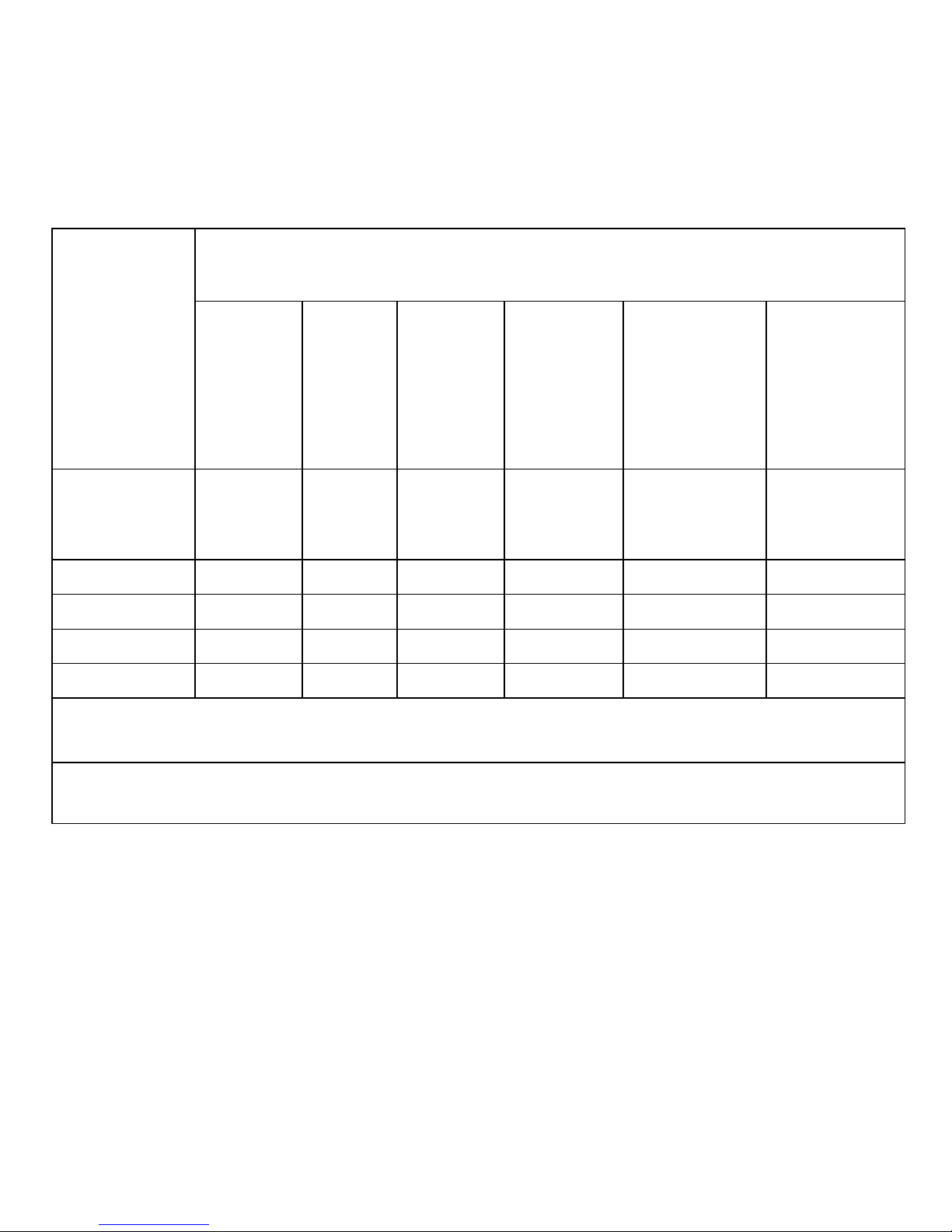
Declaration of hazardous substances
Parts Name
Toxic or hazardous substances or elements
Plumbum
(Pb)
Mercury
(Hg)
Cadmium
(Cd)
Chromium VI
(CrVI))
Polybrominated
Biphenyls
(PBB)
Polybrominated
Dipheyl Ethers
(PBDE)
PCB Board
& Accessories
○ ○ ○ ○ ○
○
Plastics
○ ○ ○ ○ ○
○
Metals
○ ○ ○ ○ ○
○
Battery ○ ○ ○ ○ ○ ○
Other
○ ○ ○ ○ ○
○
○: indicates that the content of the toxic or hazardous substance in all homogeneous
materials is within the limit of the SJ/T11364-2014 standard.
×: indicates that the content of the toxic or hazardous substance in some
homogeneous materials exceeds the limit of the SJ/T11364-2014 standard.
Page 56

52
Health/Safety/Warranty Guide
Important health information and safety precautions
When using this product, the safety precautions below must be taken to avoid possible
legal liabilities and damages. Retain and follow all product safety and operating
instructions. Observe all warnings in the product operating instructions. To reduce the
risk of bodily injury, electric shock, fire and damage to the equipment, closely observe
all of the following precautions.
Safety precautions for proper grounding installation
Caution: Connecting to improperly grounded equipment can result in an electric shock
to either you or your device. This product is equipped with a USB Cable for connecting
to a desktop or notebook computer. Be sure your computer is properly grounded
before connecting this product to the computer. The power supply cord of a desktop
or notebook computer has an equipment-grounding conductor and a grounding plug.
The grounding plug must be plugged into an appropriate outlet which is properly
installed and grounded in accordance with all local codes and ordinances.
Safety precautions for power supply unit
Use the correct external power source. A product should be operated only from the
type of power source indicated on the electrical ratings label. If you are not sure of the
Page 57

53
type of power source required, consult your authorized service provider or local power
company. For a product that operates from battery power or other sources, refer to the
operating instructions that are included with the product.
Electrical safety
This product is intended for use when supplied with power from the designated
battery or power supply unit. Other usage may be dangerous and will invalidate any
approval given to this product. Handle battery packs carefully. This product contains a
Li-ion battery. There is a risk of fire and burns if the battery pack is handled
improperly. Do not attempt to open or service the battery pack. Do not disassemble,
crush, puncture, short external contacts or circuits, dispose of in fire or water, or
expose a battery pack to temperatures higher than 60°C (140°F).
Note: Danger of explosion if battery is incorrectly replaced. Replace only with specified
batteries. Recycle or dispose of used batteries according to all applicable local
regulations, or in accordance with the instructions in the reference guide.
Follow these other specific precautions:
1. Keep the battery or device dry and away from water or any liquid as it may cause
a short circuit.
2. The phone should be connected only to products that bear the USB-IF logo or
Page 58

54
have completed the USB-IF compliance program.
3. Keep metal objects away so they do not come in contact with the battery or its
connectors as it may lead to short circuit during operation.
4. Always keep the battery out of the reach of babies and small children to avoid
swallowing. Consult a doctor immediately if the battery is swallowed.
5. Do not use a battery that appears damaged, deformed, discolored, has any rust
on its casing, if it overheats, and/or if it emits a foul odor.
6. Use of an unqualified battery or charger may present a risk of fire, explosion,
leakage or other hazard.
7. Only use the battery with a charging system that has been qualified with the
system
per this standard: IEEE-Std-1725-200x.
8. Replace the battery only with another battery that has been qualified with the
system per this standard: IEEE-Std-1725-200x.
9. Avoid dropping the phone or battery. If the phone or battery is dropped,
especially on a hard surface causing damage, take it to a service center for
inspection.
10. If the battery leaks: Do not allow the leaking fluid to come in contact with eyes. If
Page 59

55
contact occurs, DO NOT rub the eyes. Rinse with clean water immediately and
seek medical advice. Do not allow the leaking fluid to come in contact with skin
or clothing. If contact occurs, flush the affected area immediately with clean water
and seek medical advice. Take other precautions to keep a leaking battery away
from fire as there is a danger of ignition or explosion.
Prevention of hearing loss
Caution: Permanent hearing loss may occur if earphones or headphones are used at
high- volume levels for prolonged periods of time.
Safety precautions for direct sunlight
Store this product away from excessive moisture and extreme temperatures. Do not
leave the product or its battery inside a vehicle or in places where the temperature
may exceed 60°C (140°F), such as on a car dashboard, window sill, or behind glass that
is exposed to direct sunlight or strong ultraviolet light for extended periods of time.
This may damage the product, overheat the battery, or pose a risk to the vehicle.
Environmental restrictions
Do not use this product in gas stations, fuel depots, chemical plants or where blasting
operations are in progress, or in potentially explosive atmospheres such as fueling
Page 60

56
areas, fuel storehouses, below deck on boats, chemical plants, fuel or chemical transfer
or storage facilities, and areas where the air contains chemicals or particles, such as
grain, dust, or metal powders. Please be aware that sparks in such areas could cause
an explosion or fire resulting in bodily injury or even death.
Aircraft safety
Due to the possible interference caused by this product to an aircraft’s navigation
system and its communications network, using this device’s phone function on board
an airplane is prohibited in most countries. If flight personnel authorize use of
electronic devices, switch device to Airplane Mode (consult User Guide for instructions)
to turn off RF functions that may cause interference.
Road safety
In many jurisdictions, vehicle operators are not permitted to use communication
services with handheld devices while the vehicle is in motion, except in the case of
emergency. In some countries, using hands-free devices as an alternative is allowed.
Safety precautions for rf exposure
1. Use of non-original, non-manufacturer-approved accessories may violate your
local RF exposure guidelines and should be avoided.
2. Use only original, manufacturer-approved accessories when such accessories
contain metal of any kind.
3. Avoid using your phone near strong electromagnetic sources, such as microwave
Page 61

57
ovens, sound speakers, TV and radio.
4. Avoid using your phone near metal structures (for example, the steel frame of a
building).
Explosive atmospheres
When in an area with a potentially explosive atmosphere or where flammable materials
exist, the device should be turned off and the user should obey all signs and
instructions. Sparks in such areas could cause an explosion or fire resulting in bodily
injury or even death. Users are advised not to use the equipment at refueling points
such as service or gas stations, and are reminded of the need to observe restrictions
on the use of radio equipment in fuel depots, chemical plants, or where blasting
operations are in progress. Areas with a potentially explosive atmosphere are often,
but not always, clearly marked such as fueling areas, below deck on boats, fuel or
chemical transfer or storage facilities,
and including, but not limited to areas where the air contains chemicals or particles
such
as grain, dust, or metal powders.
Interference with medical equipment functions
This product may cause medical equipment to malfunction. The use of this device is
prohibited in most hospitals and medical clinics for which regulations and rules are
commonly posted in such facilities. In these instances, turn your phone OFF as health
Page 62

58
care facilities frequently use equipment that is adversely affected by RF energy. If you
use any personal medical device(s), consult the manufacturer of your device(s) to
determine if the device(s) is adequately shielded from external RF energy. Your health
care provider may be able to assist you in obtaining this information.
Non-ionizing radiation
Your device has an internal antenna. This product should be operated in its normal-use
position to ensure the radiative performance and safety from interference. As with
other mobile radio transmitting equipment, users are advised that for satisfactory
operation of the equipment and for personal safety, it is recommended that no part of
the human body should come too close to the antenna during equipment operation.
Use only the supplied integral antenna. Use of unauthorized or modified antennas may
impair call quality and damage the phone, causing loss of performance and SAR levels
exceeding the recommended limits, as well as causing non-compliance with local and
national regulatory requirements. In order to limit RF energy exposure and to ensure
optimal phone performance, operate the device only it its normal-use position. Contact
with the antenna area may impair call quality and cause your device to operate at a
higher power level than needed which can reduce antenna performance and battery
life.
Battery information and precautions
To assure product safety, there shall be precautions below.
Page 63

59
Danger!
• Use dedicated chargers and follow the specified conditions when charging the
cell.
• Use the cell only with the specified equipment.
• Do not put or store cell together with metal articles such as necklaces, hairpins,
coins, or screws.
• Do not short circuit the (+) and (-) terminals with metal conductors.
• Do not place cell in a device with the (+) and (-) in a reverse way.
• Do not penetrate cell with a sharp articles such as a needle.
• Do not disassemble the cell.
• Do not weld the cell directly.
• Do not use a seriously damaged or deformed cell.
• Thoroughly read the user’s manual before use. Inaccurate handling of polymer
lithium ion cell may result in heat, fire, explosion, damage or the capacity loss of
the cell.
Warning!
• Do not put cell into a heating vessel, washing machine or high-pressure
container.
• Do not use cell with primary batteries, or batteries of a different package, type, or
brand.
• Stop charging the cell if charging is not completed within the specified time.
Page 64

60
• Stop using the cell if abnormal heat, odor, discoloration, deformation or abnormal
condition is detected during use, charge, or storage.
• Keep away from cell immediately when leakage or foul odor is detected.
• Wash well with clean water immediately if liquid leaks onto your skin or clothes.
• If liquid leaking from the cell gets into your eyes, do not rub your eyes. Wash
them well with clean water and call physician immediately.
Caution!
• Store batteries out of reach of children so that they are not accidentally swallowed
or handled.
• If younger children use the cell, their guardians should explain the proper
handling.
• Be sure to read the user’s manual and cautions on handling thoroughly before
using the cell.
• Batteries have cycle life. Replace failed cell with a new cell that is the same brand
immediately after normal life cycle expiration, or if expiration has occurred
prematurely.
• Store battery in a low-humidity and low-temperature environment if the battery
won’t be used for an extended period of time.
• Keep it far away from articles or materials with static electric charges while the cell
is charged, used or stored.
Page 65

61
• Wipe with a dry cloth before using the cell if the terminals of the cell become
dirty.
Safety instructions of travel charger
Please read the following information carefully.
1. The maximum ambient temperature of the travel charger shall not exceed 40°C
(104 degrees F).
2. The Travel Charger shall be installed according to specification. The current of
load and output power shall not exceed the following value:
• Input: AC100-240V~ 50/60Hz 0.3A
• Output: DC5V 1.5A
3. The Travel Charger shall be used for I.T. equipment only.
4. For indoor use only.
5. Cleaning – Unplug this from the wall outlet before cleaning. Do not use liquid
cleaners or aerosol cleaners to clean; use only a dry cloth.
6. Water and moisture – Do not use this product under moist environment.
7. Self-servicing – Attempting to service this product on your own, or opening or
removing device covers may result in exposure to dangerous voltage or other
hazards.
8. Unplug this apparatus during lighting storms or when unused for lengthy
durations.
Page 66

62
9. This Travel Charger is not intended to be repaired by service personnel in case of
failure or component defect.
FCC notice and cautions
This device and its accessories comply with Part 15 of FCC Rules. Operation is subject
to the following conditions:
1. This device and its accessories may not cause harmful interference.
2. This device and its accessories must accept any interference received,
including interference that may cause undesired operation.
Part 15.21 Statement:
Changes or modifications that are not expressly approved by the manufacturer could
void the user’s authority to operate the equipment.
Part of Statement 15.105:
This equipment has been tested and found to comply with the limits for a class B digital
device, pursuant to Part 15 of the FCC Rules. These limits are designed to provide
reasonable protection against harmful interference in a residential installation. This
equipment generates, uses, and can radiate radio frequency energy and, if not installed
and used in accordance with the instructions, may cause harmful interference to radio
communications. However, there is no guarantee that interference will not occur in a
particular installation. If you experience interference with reception (e.g., television),
Page 67

63
determine if this equipment is causing the harmful interference by turning the
equipment off and then back on to see if the interference is affected.
If necessary, try correcting the interference by one or more of the following measures:
• Reorient or relocate the receiving antenna.
• Increase the separation between the equipment and receiver.
• Connect the equipment into an outlet on a circuit different from that to which
the receiver is connected.
• Consult the dealer or an experienced radio/TV technician for further assistance.
HAC
This phone meets the M4/T4 level rating.
This phone has been tested and rated for use with hearing aids for some of the
wireless technologies that it uses. However, there may be some newer wireless
technologies used in this phone that have not been tested yet for use with hearing
aids. Therefore, it is important to experiment with the various features of this phone
and in different locations using your hearing aid or cochlear implant, to determine if
you hear any interfering noise. Consult your service provider or the manufacturer of
Page 68

64
this phone for information on hearing aid compatibility. If you have questions about
return or exchange policies, consult your service provider or phone retailer.
Safety information
Please read and observe the following information for safe and proper use of your
phone and to prevent damage. Also, keep the user guide in an accessible place after
reading it for ease in locating it for future reference.
Violation of the instructions may cause minor or serious damage to the product.
1. Do not disassemble, open, crush, bend or deform, puncture or shred your
equipment.
2. Do not modify or remanufacture your equipment. Do not attempt to insert
foreign objects into the battery. Do not immerse your equipment in water or
other liquids, or expose it to water or other liquids, fire, explosions or other
hazards.
3. Do not short-circuit the battery or allow metallic conductive objects to contact
the battery terminals.
4. Avoid dropping the phone. If the phone is dropped on a hard surface or
elsewhere, take it to a service center for inspection if damage is suspected.
Charger and adapter safety
1. The charger and adapter are intended for indoor use only.
Page 69

65
2. Insert the battery pack charger vertically into the wall power socket.
3. Only use the approved battery charger so as to avoid serious damage to your
phone.
4. When traveling abroad, only use the approved battery pack charger along with
the correct phone adapter.
Battery information: care and proper disposal
1. Please dispose of your battery properly or take it to your local wireless carrier for
recycling.
2. The battery doesn’t need to be empty before recharging, and replace the battery
when it no longer provides acceptable performance.
Note: The battery can be recharged several hundred times.
3. Use only in box chargers specific to your phone model as they are designed to
maximize battery life.
4. Do not disassemble or short-circuit the battery.
5. Keep the battery’s metal contacts clean.
6. Recharge the battery after long periods of non-use to maximize battery life. Note:
Battery life will vary due to usage patterns and environmental conditions.
7. Use of extended backlighting, Browser, and data connectivity kits affect battery
life as well as talk/standby times.
8. The self-protection function of the battery cuts the power of the phone when its
Page 70

66
operation is in an abnormal state. In this case, remove the battery from the
phone, reinstall it, and turn the phone on.
Explosion, shock, and fire hazards
1. Do not put your phone in a place that is subject to excessive dust, and always
keep the minimum required distance between the power cord and heat sources.
2. Unplug the power cord prior to cleaning your phone, and clean the power plug
pin when necessary.
3. When using the power plug, ensure that it’s firmly connected.
4. Placing the phone in a pocket or bag without covering the phone receptacle
(power plug pin), metallic articles (e.g.: coins, paperclips, pens) may short-circuit
the phone. Always cover the receptacle when not in use.
5. Metallic articles that come into contact with the phone may short-circuit the +
and – battery terminals (metal strips) which may result in battery damage, or
even an explosion.
General notice
1. Using a damaged battery or placing a battery in your mouth may cause serious
injury.
Page 71

67
2. Placing items containing magnetic strip components (e.g.: credit cards, phone
cards, bank books, subway tickets) near your phone may damage the data stored
in the magnetic strips.
3. Talking on the phone for long periods of time may reduce call quality due to
heat generation.
4. Do not immerse your phone in water. If this happens, immediately turn the
phone OFF.
5. Do not paint your phone.
6. Phone data, including contact information, ringtones, text messages, voice
messages, pictures or videos, etc., may be inadvertently deleted due to careless
use, phone repair, or software upgrades. Please back up your important phone
numbers and all other vital data.
Note: Neither the manufacturer nor any person or entity associated therewith is
liable for any damages whatsoever due to loss of any or all data stored on any of
your devices.
7. When using the phone in public places, set the ringtone to vibration so you don't
disturb others.
8. Do not turn your phone on or off while the device is in close proximity to your
ear.
9. Use accessories, such as earphones and headsets with caution. Ensure that cables
Page 72

68
are tucked away safely and do not touch the antenna.
Caution:
Avoid potential hearing loss.
Prolonged exposure to loud sounds (including music) is the most common cause of
preventable hearing loss. Some scientific research suggests that using portable audio
devices, such as portable music players and cellular telephones, at high volume
settings for long durations may lead to permanent hearing loss. This includes the use of
headphones (including headsets, ear buds and Bluetooth®, or other wireless devices).
Exposure to very loud sound has also been associated in some studies with tinnitus
(ringing in the ear), hypersensitivity to sound, and distorted hearing. The amount of
sound produced by a portable audio device varies depending on the nature of the
sound, the device, the device settings and the headphones. Hence, individual
susceptibility to noise-induced hearing loss and other hearing problems can vary.
Please follow these important guidelines for hearing loss prevention:
1. Set the phone’s volume in a quiet environment and select the lowest volume for
which you can hear clearly.
2. When using headphones, turn the volume down if you cannot hear the people
Page 73

69
speaking
3. near you or if the person sitting next to you can hear what you are listening to.
4. Do not turn the volume up to block out noisy surroundings. If you choose to
listen to your portable device in a noisy environment, consider using noise-
cancelling headphones to block out background noise.
5. As the volume increases, less time is required before your hearing could be
affected, so consider limiting your listening time.
6. Avoid using headphones after exposure to extremely loud noises (e.g.: live
concerts) that might cause temporary hearing loss which, in turn, might cause
unsafe volume levels to sound like normal levels.
7. Do not listen at any volume that causes you discomfort. If you experience ringing
in your ears, hear muffled speech or experience any temporary hearing difficulty
after listening to your portable audio device, discontinue use and consult your
health care provider.
You can obtain additional information on this subject from the following sources:
American Academy of Audiology
11730 Plaza American Drive, Suite 300 Reston, VA 20190
Voice: (800) 222-2336
Page 74

70
Email: [email protected] • Internet: www.audiology.org
National Institute on Deafness and Other Communication Disorders
National Institutes of Health
31 Center Drive, MSC 2320 Bethesda, MD USA 20892-2320
Voice: (301) 496-7243
Email: [email protected] • Internet: http://www.nidcd.nih.gov/health/hearing
National Institute for Occupational Safety and Health
Hubert H. Humphrey Bldg. 200 Independence Ave., SW Washington, DC 20201
Voice: 1-800-35-NIOSH (1-800-232-4636)
Internet: http://www.cdc.gov/niosh/topics/noise/default.html
FDA Consumer Update
The U.S. Food and Drug Administration’s (FDA) Center for Devices and Radiological
Health Consumer Update on Mobile Phones:
1. What is the FDA's role concerning the safety of wireless phones?
Under the law, the FDA does not review the safety of radiation-emitting consumer
Page 75

71
products such as wireless phones before they can be sold, as it does with new
drugs or medical devices. However, the agency has authority to take action if
wireless phones are shown to emit Radio Frequency (RF) energy at a level that is
hazardous to the user. In such a case, the FDA could require the manufacturers of
wireless phones to notify users of the health hazard and to repair, replace, or recall
the phones so that the hazard no longer exists. Although the existing scientific data
does not justify FDA regulatory actions, the FDA has urged the wireless phone
industry to take a number
of steps, including the following:
1. Support current and future research regarding possible biological effects of the
type of RF emitted by wireless phones;
2. Design wireless phones in a way that minimizes any RF exposure to the user that
is not necessary for device function; and
3. Cooperate in providing users of wireless phones with complete and accurate
information regarding possible effects of wireless phone use on human health
and safety.
The FDA belongs to an interagency working group of the federal agencies that have
responsibility for different aspects of RF safety to ensure coordinated efforts at the
federal level. The following agencies belong to this working group:
Page 76

72
1. National Institute for Occupational Safety and Health
2. Environmental Protection Agency
3. Occupational Safety and Health Administration
4. National Telecommunications and Information Administration
The National Institutes of Health participates in some interagency working group
activities as well. The FDA shares regulatory responsibilities for wireless phones with
the Federal Communications Commission (FCC). All phones that are sold in the
United States must comply with FCC safety guidelines that act to limit RF exposure.
The FCC relies on the FDA and other health agencies for safety questions about
wireless phones. The FCC also regulates the base stations that the wireless phone
networks rely upon. While these base stations operate at higher power than do the
wireless phones themselves, the RF exposures that people get from these base
stations are typically thousands of times lower than those they can get from wireless
phones. Base stations are thus not the subject of the safety questions discussed in
this document.
2. Do wireless phones pose a health hazard?
Current scientific evidence does not show that any health problems are associated
with using wireless phones. There is no proof, however, that wireless phones are
absolutely safe. Wireless phones emit low levels of Radio Frequency (RF) energy
Page 77

73
while operating microwave ranges (which also emit very low levels of RF when they
are in standby mode). While high levels of RF can produce health effects (by
heating tissue), exposure to low-level RF that does not produce heating effects
results in no known adverse health effects. Many studies of low-level RF exposures
have not uncovered any biological effects. Although some studies have suggested
that some biological effects may occur, such findings have not been confirmed by
additional research. In some cases, other researchers have had difficulty in
reproducing those studies, and/or determining the reasons for inconsistent results.
3. What are the results of the research done already?
The research conducted thus far has produced conflicting results, and many studies
have suffered from flaws in their research methods. Animal experiments
investigating the effects of Radio Frequency (RF) energy exposures characteristic of
wireless phones have yielded conflicting results that often cannot be repeated in
other laboratories. A few animal studies, however, have suggested that low levels of
RF could accelerate the development of cancer in laboratory animals. However,
many of the studies that showed increased tumor development used animals that
had been genetically engineered or treated with cancer-causing chemicals so as to
be pre-disposed to develop cancer in the absence of RF exposure. Other studies
exposed the animals to RF for up to 22 hours per day. These conditions are not
Page 78

74
similar to the
conditions under which people use wireless phones, so it is largely unknown what
the results of such studies mean for human health and safety. Three large
epidemiology studies have been published since December 2000. These studies
investigated possible associations between the use of wireless phones and primary
brain cancer (glioma, meningioma, acoustic neuroma, other brain tumors, and
salivary gland tumors), leukemia, or other types of cancer. None of the studies
demonstrated the existence of any harmful health effects from wireless phone RF
exposures. However, none of the studies can provide absolute findings about long-
term exposures since the average period of phone use in these studies was
approximately three years.
4. What kinds of phones are the subjects of this update?
Here the term “wireless phone” refers to handheld wireless phones with built-in
antennas, often called “cell”, “mobile”, or “PCS” phones. These types of wireless
phones can expose the user to measurable Radio Frequency (RF) energy because of
the short distance between the phone and the user’s head. These RF exposures are
limited by FCC safety guidelines that were developed with the advice of the FDA
and
Page 79

75
other federal health and safety agencies. When the phone is located at greater
distances from the user, the exposure to RF is drastically reduced due to a person's
RF exposure rapidly decreasing with increasing distance from the source. The so-
called “cordless phones,” which have a base unit connected to the telephone wiring
in a house, typically operate at far lower power levels, thus producing RF exposures
far below the FCC safety limits.
5. What is the FDA doing to find out more about the possible health effects of
wireless phone RF?
The FDA is working with the U.S. National Toxicology Program and with groups of
investigators around the world to ensure that high-priority animal studies are
conducted to address concerns about the effects of exposure to Radio Frequency
(RF) energy. The FDA has been a leading participant in the World Health
Organization International Electro Magnetic Fields (EMF) Project since its inception in
1996. An influential result of this work has been the development of a detailed
agenda of research needs that has implemented new research programs around the
world. The project has also resulted in a series of public information documents on
Page 80

76
EMF issues. The FDA and the Cellular Telecommunications & Internet Association
(CTIA) have a formal Cooperative Research and Development Agreement (CRADA) to
conduct research on wireless phone safety. The FDA provides the scientific
oversight, obtaining input from experts in government, industry, and academic
organizations. CTIA-funded research is conducted through contracts with
independent investigators. The initial research will include both laboratory studies
and studies of wireless phone users. The CRADA will also include a broad
assessment of additional research needs in the context of the latest research
developments around the world.
6. What research is needed to decide whether RF exposure from wireless
phones poses a health risk?
A combination of laboratory studies and epidemiological studies of people actually
using wireless phones would provide some of the vital data. Lifetime animal
exposure studies could be completed in a few years. However, very large numbers of
animals
would be needed to provide reliable proof of a cancer-promoting effect, if one
exists. Epidemiological studies can provide data that is directly applicable to human
populations, but ten or more years of follow-up research may be needed to provide
Page 81

77
answers about certain health effects, such as cancer. This is due to the interval
between exposure time to a cancer-causing agent and the rate for which tumors
develop - if they do. This could take several years into the future. The interpretation
of epidemiological studies is hampered by difficulties in measuring actual RF
exposure during day-to-day use of wireless phones. Many factors affect this
measurement, such as the angle at which the phone is held, or which model of
phone is used.
7. What has the FDA done to measure the Radio Frequency energy coming from
wireless phones?
The Institute of Electrical and Electronic Engineers (IEEE) is developing a technical
standard for measuring the Radio Frequency (RF) energy exposure from wireless
phones and other wireless handsets with the participation and leadership of FDA
scientists and engineers. The standard, “Recommended Practice for Determining the
Spatial-Peak Specific Absorption Rate (SAR) in the Human Body Due to Wireless
Communications Devices: Experimental Techniques”, sets forth the first consistent
test methodology for measuring the rate at which RF is deposited in the heads of
wireless phone users. The test method uses a tissue-simulating model of the human
head. Standardized SAR test methodology is expected to greatly improve the
consistency of measurements made at different laboratories on the same phone.
Page 82

78
SAR is the measurement of the amount of energy absorbed in tissue, either by the
whole body or a small part of the body. It is measured in watts/kg (or mill-watts/g)
of matter. This measurement is used to determine whether a wireless phone
complies with safety guidelines.
8. How can I find out how much Radio Frequency energy exposure I can get by
using my wireless phone?
All phones sold in the United States must comply with Federal Communications
Commission (FCC) guidelines that limit Radio Frequency (RF) energy exposures. The
FCC established these guidelines in consultation with the FDA and the other federal
health and safety agencies. The FCC limit for RF exposure from wireless phones is set
at a Specific Absorption Rate (SAR) of 1.6 watts per kilogram (1.6W/kg). The FCC limit
is consistent with the safety standards developed by the Institute of Electrical and
Electronic Engineering (IEEE) and the National Council on Radiation Protection and
Measurement. The exposure limit takes into consideration the body’s ability to
remove heat from the tissues that absorb energy from the wireless phone and is set
well below levels known to have effects. Manufacturers of wireless phones must
report the RF exposure level for each model of phone to the FCC. The FCC website
(http://www.fcc.gov/cgb/cellular.html) gives directions for locating the FCC
identification number on your phone, so you can find your phone’s RF exposure
Page 83

79
level in the online listing.
9. What about children using wireless phones?
The scientific evidence does not show a danger to users of wireless phones,
including children and teenagers. If you want to take steps to lower exposure to
Radio Frequency (RF) energy, the measures described above would apply to children
and teenagers using wireless phones. Reducing the time of wireless phone use and
increasing the distance between the user and the RF source will reduce RF exposure.
Some groups sponsored by other national governments have advised that children
be discouraged from using wireless phones at all. For example, the government in
the United Kingdom distributed leaflets containing such a recommendation in
December 2000. They noted that no evidence exists that using a wireless phone
causes brain tumors or other ill effects. Their recommendation to limit wireless
phone use by children was strictly precautionary; it was not based on scientific
evidence that any health hazard exists.
10. What steps can I take to reduce my exposure to Radio Frequency energy from
my wireless phone?
If there is a risk from these products- and at this point we do not know that there is
- it is probably very small. But if you are concerned about avoiding even potential
Page 84

80
risks, you can take a few simple steps to minimize your exposure to Radio
Frequency (RF) energy. Since time is a key factor in how much exposure a person
receives, reducing the amount of time spent using a wireless phone will reduce RF
exposure. If you must conduct extended conversations by wireless phone on a daily
basis, consider placing more distance between your body and the source of the RF,
since the exposure level drops off dramatically with distance. For example, you
could use a headset and carry the wireless phone away from your body or use a
wireless phone connected to a remote antenna. Again, the scientific data does not
demonstrate that wireless phones are harmful. But if you are concerned about the
RF exposure from these products, you can use measures like those described above
to reduce your RF exposure from wireless phone use.
11. What about wireless phone interference with medical equipment?
Radio Frequency (RF) energy from wireless phones can interact with some electronic
devices. For this reason, the FDA helped develop a detailed test method to measure
Electro Magnetic Interference (EMI) of implanted cardiac pacemakers and
defibrillators from wireless telephones. This test method is now part of a standard
sponsored by the Association for the Advancement of Medical Instrumentation
Page 85

81
(AAMI). The final draft, a joint effort by the FDA, medical device manufacturers, and
many other groups, was completed in late 2000. This standard will allow
manufacturers to ensure that cardiac pacemakers and defibrillators are safe from
wireless phone EMI. The FDA has tested hearing aids for interference from handheld
wireless phones and helped develop a voluntary standard sponsored by the Institute
of Electrical and Electronic Engineers (IEEE). This standard specifies test methods and
performance requirements for hearing aids and wireless phones so that no
interference occurs when a person uses a “compatible” phone and a “compatible”
hearing aid simultaneously. This standard was approved by the IEEE in 2000. The FDA
continues to monitor the use of wireless phones for possible interactions with other
medical devices. Should harmful interference be found to occur, the FDA will
conduct testing to assess the interference and work to resolve the problem.
12. Where can I find additional information?
For additional information, please refer to the following resources: FDA web page
on wireless phones (http://www.fda.gov), under “C” in the subject index, select Cell
Phones > Current Research Results. Federal Communications Commission (FCC)
RF Safety Program (http://www.fcc.gov/cgb/cellular.html)
International Commission on Nonionizing Radiation Protection (http://www.icnirp.de)
Page 86

82
World Health Organization (WHO) International EMF Project
(http://www.who.int/emf)
Health Protection Agency (http://www.hpa.org.uk/)
Nine Driver Safety Tips
Your wireless phone gives you the powerful ability to communicate by voice almost
anywhere, anytime. An important responsibility accompanies the benefits of wireless
phones, one that every user must uphold. When operating a car, driving is your first
responsibility. When using your wireless phone behind the wheel of a car, when
permitted by local law, practice good common sense and remember the following tips:
1. When available and permitted by local law, use a hands-free device. A number of
hands- free wireless phone accessories are readily available today. Whether you
choose an installed mounted device for your wireless phone or a speaker phone
accessory, take advantage of these devices if available to you.
2. Get to know your wireless phone and its features such as speed dial and redial.
Carefully read your instruction manual and learn to take advantage of valuable
features most phones offer, including automatic redial and memory. Also, work to
memorize the phone keypad so you can use the speed dial function without taking
your attention off the road.
3. Suspend conversations during hazardous driving conditions or situations. Let the
Page 87

83
person you are speaking with know you are driving; if necessary; suspend the call
in heavy traffic or hazardous weather conditions. Rain, sleet, snow, and ice can be
hazardous, but so is heavy traffic. As a driver, your first responsibility is to pay
attention to the road.
4. Make sure you place your wireless phone within easy reach and where you can
reach it without removing your eyes from the road. If you get an incoming call at
an inconvenient time, if possible, let your voicemail answer it for you.
5. Dial sensibly and assess the traffic; if possible, place calls when you are not
moving or before pulling into traffic. Try to plan your calls before you begin your
trip or attempt to coincide your calls with times you may be at a stop sign, red
light, or otherwise stationary. But if you need to dial while driving, follow this
simple tip - dial only a few numbers, and then check the road and your mirrors
then continue.
6. Do not take notes or look up phone numbers while driving. If you are reading an
address book or business card, or writing a “to-do” list while driving a car, you are
not watching where you are going. Use common sense. Do not get caught in a
dangerous situation because you are reading or writing and not paying attention
to the road or nearby vehicles.
7. Use your wireless phone to call for help. Your wireless phone is one of the greatest
Page 88

84
tools you can own to protect yourself and your family in dangerous situations --
with your phone at your side, help is only three numbers away. Dial 911 or other
local emergency number in the case of fire, traffic accident, road hazard, or
medical emergency. Remember, it’s a free call on your wireless phone!
8. Do not engage in stressful or emotional conversations that may be distracting.
Stressful or emotional conversations and driving do not mix; they are distracting
and even dangerous when you are behind the wheel of a car. Make people you
are talking with aware you are driving and if necessary, suspend conversations
which have the potential to divert your attention from the road. Call roadside
assistance or a special wireless non- emergency assistance number when
necessary. Certain situations you encounter while driving may require attention,
but are not urgent enough to merit a call for emergency services. But you can still
use your wireless phone to lend a hand. If you see a broken- down vehicle posing
no serious hazard, a
broken traffic signal, a minor traffic accident where no one appears injured or a
vehicle you know to be stolen, call roadside assistance or other special non-
emergency wireless number. The above tips are meant as general guidelines.
Before deciding to use your mobile device while operating a vehicle, it is
recommended that you consult your applicable jurisdiction’s local laws or other
Page 89

85
regulations regarding such use. Such laws or other regulations may prohibit or
otherwise restrict the manner in which a driver may use his or her phone while
operating a vehicle.
9. Use your wireless phone to help others in emergencies. Your wireless phone
provides you a perfect opportunity to be a “Good Samaritan” in your community.
If you see an auto accident, crime in progress or other serious emergency where
lives are in danger, call 911 or other local emergency number, as you would want
others to do for you.
Consumer Information on SAR (Specific Absorption Rate)
This Model Phone Meets the Government’s Requirements for Exposure to Radio
Waves. Your wireless phone is a radio transmitter and receiver. It is designed and
manufactured not to exceed the emission limits for exposure to radiofrequency (RF)
energy set by the Federal Communications Commission (FCC) of the U.S. Government.
These FCC exposure limits are derived from the recommendations of two expert
organizations, the National Council on Radiation Protection and Measurement (NCRP)
and the Institute of Electrical and Electronics Engineers (IEEE). In both cases, the
recommendations were developed by scientific and engineering experts drawn from
industry, government, and academia after extensive reviews of the scientific literature
related to the biological effects of RF energy. The exposure limit for wireless mobile
Page 90

86
phones employs a unit of measurement known as the Specific Absorption Rate, or SAR.
The SAR is a measure of
the rate of absorption of RF energy by the human body expressed in units of watts per
kilogram (W/kg). The FCC requires wireless phones to comply with a safety limit of 1.6
watts per kilogram (1.6 W/kg). The FCC exposure limit incorporates a substantial
margin of safety to give additional protection to the public and to account for any
variations in measurements. Tests for SAR are conducted using standard operating
positions specified by the FCC with the phone transmitting at its highest certified power
level in all tested frequency bands. Although SAR is determined at the highest certified
power level, the actual SAR level of the phone while operating can be well below the
maximum value. Because the phone is designed to operate at multiple power levels to
use only the power required to reach the network, generally, the closer you are to a
wireless base station antenna, the lower the power output. Before a phone model is
available for sale to the public, it must be tested and certified to the FCC that it does
not exceed the limit established by the government adopted requirement for safe
exposure. The tests are performed in positions and locations (e.g., at the ear and worn
on the body) as required by the FCC for each model. This device was tested for typical
body-worn operations with the back of the phone kept 0.39 inches (1.0 cm) between
the user’s body and the back of the phone. To comply with FCC RF exposure
Page 91

87
requirements, a minimum separation distance of 0.39 inches (1.0 cm) must be
maintained between the user's body and the back of the phone. Third-party belt clips,
holsters, and similar accessories containing metallic components should not be used.
Body-worn accessories that cannot maintain 0.39 inches (1.0 cm) separation distance
between the user's body and the back of the phone, and have not been tested for
typical body-worn operations may not comply with FCC RF exposure limits and should
be avoided. The FCC has granted an Equipment Authorization for this model phone
with all reported SAR levels evaluated as in compliance with the FCC RF emission
guidelines. The highest SAR value for this model phone when tested for use at the ear
is 0.56 W/kg and when worn on the body, as
described in this user’s manual, is 0.75 W/kg. While there may be differences between
SAR levels of various phones and at various positions, they all meet the government
requirement for safe exposure. SAR information on this model phone is on file with the
FCC and can be found under the Display Grant section of
http://www.fcc.gov/oet/ea/fccid/ after searching on FCC ID. To find information that
pertains to a particular model phone, this site uses the phone FCC ID number which is
usually printed somewhere on the case of the phone. Sometimes it may be necessary
to remove the battery pack to find the number. Once you have the FCC ID number for
your phone, follow the instructions on the website and it should provide values for
Page 92

88
typical or maximum SAR for that phone. Additional information on Specific Absorption
Rates (SAR) can be found on the Cellular Telecommunications Industry Association
(CTIA) website at http://www.ctia.org/ In the United States and Canada, the SAR limit
for mobile phones used by the public is 1.6 watts/kg (W/kg) averaged over one gram
of tissue. The standard incorporates a substantial margin of safety to give additional
protection for the public and to account for any variations in measurements.
FCC hearing-aid compatibility (HAC) regulations for wireless devices
On July 10, 2003, the U.S. Federal Communications Commission (FCC) Report and Order
in WT Docket 01- 309 modified the exception of wireless phones under the Hearing Aid
Compatibility Act of 1988 (HAC Act) to require digital wireless phones be compatible
with hearing-aids. The intent of the HAC Act is to ensure reasonable access to
telecommunications services for persons with hearing disabilities. While some wireless
phones are used near some hearing devices (hearing aids and cochlear implants), users
may detect a buzzing, humming, or whining noise. Some hearing devices are more
immune than others to this interference noise, and phones also vary in the amount of
interference they generate. The wireless telephone industry has developed a rating
system for wireless phones, to assist hearing device users to find phones that may be
compatible with their hearing devices. Not all phones have been rated. Phones that are
rated have the rating on their box or a label located on the box. The ratings are not
Page 93
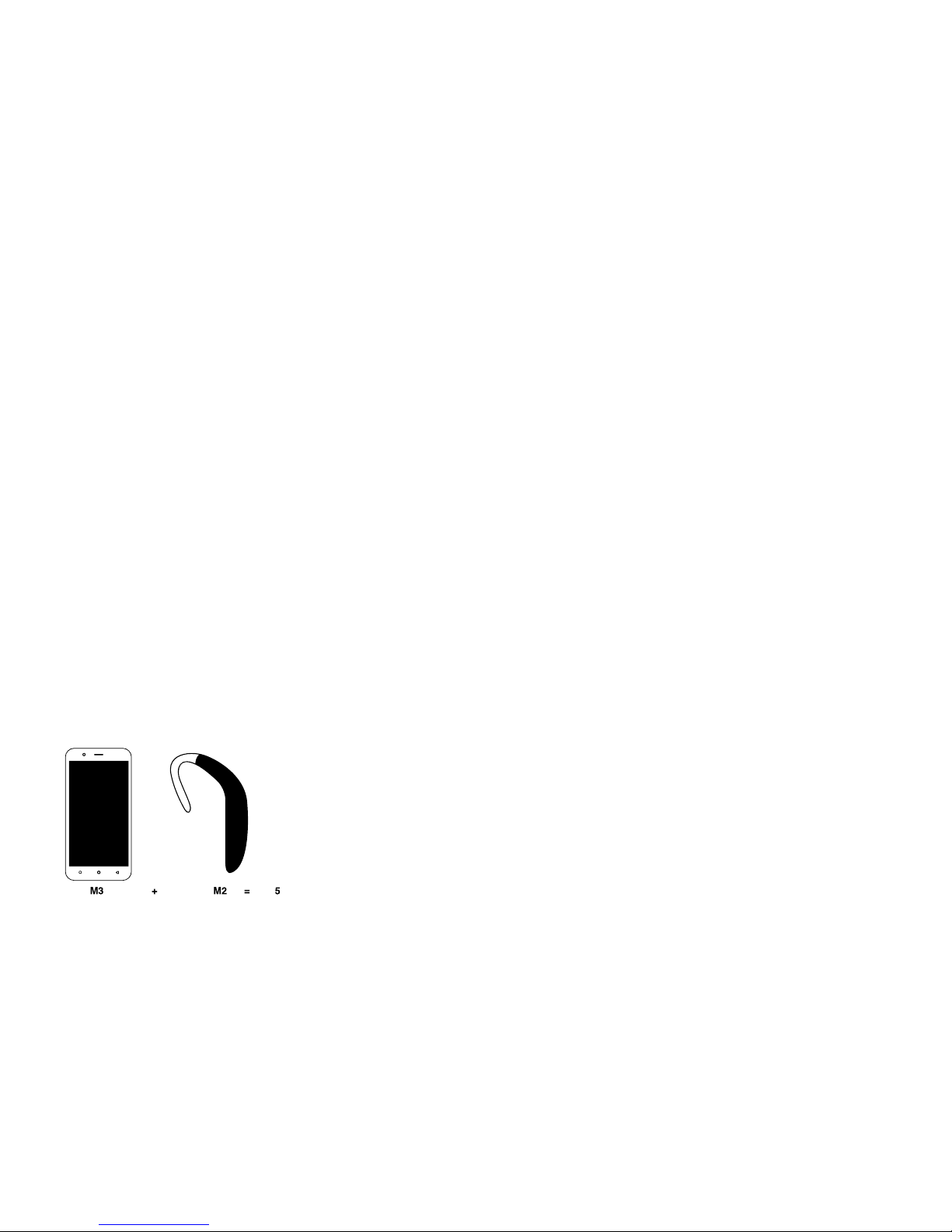
89
guaranteed. Results will vary depending on the user's hearing device and hearing loss.
If your hearing device happens to be vulnerable to interference, you may not be able
to use a rated phone successfully. Trying out the phone with your hearing device is the
best way to evaluate this. M-Ratings: Phones rated M3 or M4 meet FCC requirements
and are likely to generate less interference to hearing devices than phones that are not
labeled. M4 is the better/higher of the two ratings. T-Ratings: Phones rated T3 or T4
meet FCC requirements and are likely to generate less interference to hearing devices
than phones that are not labeled. T4 is the better/ higher of the two ratings. Hearing
devices may also be rated. Your hearing device manufacturer or hearing health
professional may help you find this rating. Higher ratings mean that the hearing device
is relatively immune to interference noise. The hearing aid and wireless phone rating
values are then added together. A sum of 5 is considered acceptable for normal use. A
sum of 6 is considered for best use.
In the example illustrated above, if a hearing aid meets the M2 level rating and the
wireless phone meets the M3 level rating, the sum of the two values equal M5. This
should provide the hearing-aid user with “normal usage” while using their hearing aid
Page 94

90
with the particular wireless phone. “Normal usage” in this context is defined as a signal
quality
that’s acceptable for normal operation. The M mark is intended to be synonymous
with the U mark. The T mark is intended to be synonymous with the UT mark. The M
and T marks are recommended by the Alliance for Telecommunications Industries
Solutions (ATIS). The U and UT marks are referenced in Section 20.19 of the FCC Rules.
The HAC rating and measurement procedure are described in the American National
Standards Institute (ANSI) C63.19 standard. When you're talking on a cell phone, it's
recommended that you turn the BT (Bluetooth) mode off for HAC.
For information about hearing aids and digital wireless phones:
Wireless Phones and Hearing Aid Accessibility http://www.accesswireless.org/Home.aspx
FCC Hearing Aid Compatibility and Volume Control
http://www.fcc.gov/cgb/consumerfacts/hac_wireless.htm
 Loading...