

Page 1
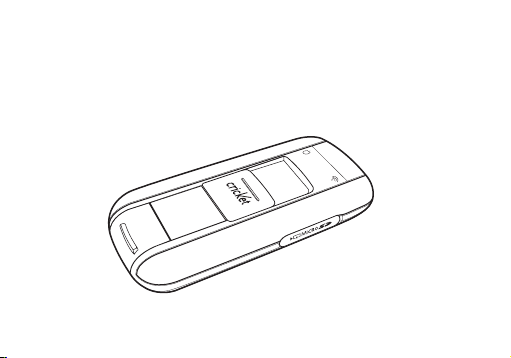
User Manual
Cricket A605 EVDO USB Modem
Page 2

2
1. BEFORE USING CRICKET A605 .........................3
About This User’s Manual .......................................3
Product Overview ......................................................3
Product Package Contents.....................................3
Introduction to Cricket A605 USB Modem.......5
Product Features ........................................................5
Product Handling .......................................................6
Configuration ...............................................................6
2. INSTALLATION AND SETUP FOR
CRICKET BROADBAND ......................................7
Installing Software...................................................... 7
Setup Program - Windows ......................................8
Setup Program - Mac OS X ....................................11
3. USING CRICKET BROADBAND ........................14
Features....................................................................... 14
Getting Started .......................................................... 15
Connecting ................................................................. 16
Text Messaging ..........................................................17
4. CRICKET BROADBAND PREFERENCES ........19
General Preferences ...............................................19
WWAN Specific Settings ......................................20
VPN Settings .............................................................. 21
Text Message Settings ...........................................21
Update settings .......................................................22
Additional Features ................................................ 23
5. INSTALLING CRICKET A605 ............................ 27
Recommended System Requirements ...........27
Using the Modem ..................................................28
Remove the Modem from your Computer....28
Using the USB Modem Extension
Y Cable ......................................................................29
TROUBLESHOOTING .............................................31
CARE AND MAINTENANCE ................................ 32
WARRANTY ............................................................. 33
SAR INFORMATION ..............................................39
SAFETY INFORMATION ........................................ 41
FCC COMPLIANCE INFORMATION ...................42
U.S.A. U.S.FEDERAL COMMUNICATIONS
COMMISSION RADIO FREQUENCY
INTERFERENCE STATEMENT.............................. 42
CONTENTS
3
1. BEFORE USING CRICKET A605
About This User’s Manual
You will find all the information you need to
install and use the Cricket A605 in this user
manual. Before using the Cricket A605, you
must properly install the modem by closely
following the installation instructions.
Instructions
• Install the Cricket Broadband software by
inserting the Cricket A605 USB Device
into your PC. The installation software
is included in the Cricket A605 modem
memory. When you insert the Cricket A605
into your computer, the installation process
will automatically begin.
• It is highly recommended that you read the
safety precautions described in this manual
before using the Cricket A605.
Documents Included on Your Modem
Memory
• Broadband Usage Conditions, Terms &
Conditions
• User Manual
Product Overview
Thank you for purchasing Cricket A605
USB Modem.
The Cricket A605 is a high-speed wireless
device that enables your computer to
connect to Cricket’s high-speed wireless
network.
The Cricket A605 is simple to install and
use.
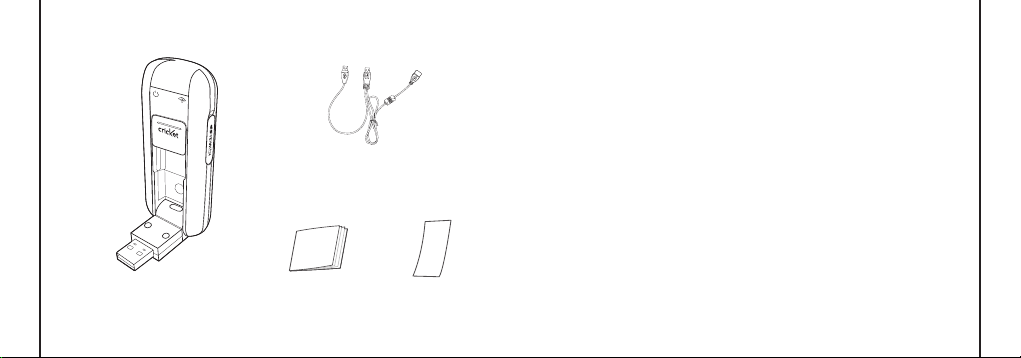
Product Package Contents
The following items are included in the
product package. If any of the items listed
below are missing, please contact the retail
location where you purchased the product.
Page 3
4
1. BEFORE USING CRICKET A605
5
1. BEFORE USING CRICKET A605
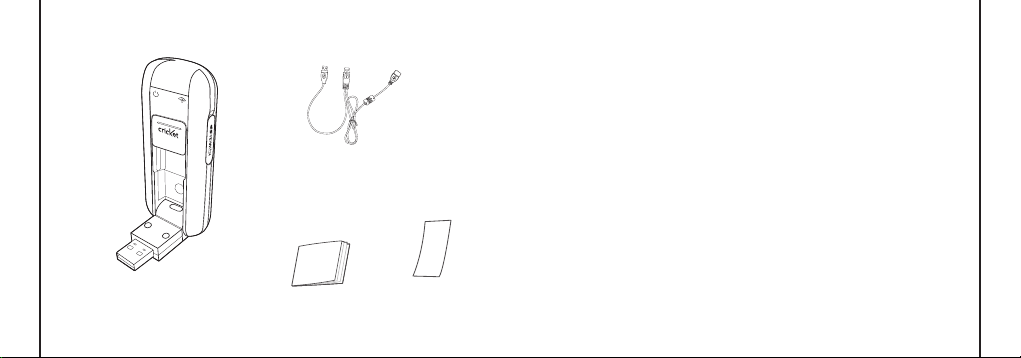
Cricket A605 Wireless
USB Modem
USB Modem Extension
Y Cable
Quick Start Guide Cricket Broadband
Warranty Exchange
Information
Introduction to Cricket A605
USB Modem
The Cricket A605 is designed for the USB
port on your computer, which is available
in most PC models. The Cricket A605 can
be used to access the Internet, send and
receive e-mail and text messages. It is
extremely useful when you are away from
home, on the road, or wherever wired
Internet access is not readily available.
Product Features
- Power management: The Cricket A605
utilizes power management and system
overhead reduction functions provided
by the USB interface for maximum power
savings.
- Antenna design: Ecient, innovative design
optimizes data transfer rate and sensitivity
to network signals.
- Extension Y Cable connector: Connect the
Y cable to two separate USB ports of your
computer to deliver sucient power when
needed to increase RF performance, and to
solve clearance issues.
- USB Modem that supports Type A USB
Port interface.
- Supports North American PCS (1900 MHz),
Cellular (800 MHz) and AWS
(Tx 1700MHZ, Rx 2100MHZ) bands.
- Utilizes Qualcomm QSC6085 chipset.
- Supports high-speed network
technologies.
- Supports Windows 2000, XP, Vista, 7 and
Apple Macintosh systems with installed
Cricket Broadband software and driver.
Page 4

6
1. BEFORE USING CRICKET A605
7
Product Handling
- Do not place any adhesive labels on
the USB connector. It may leave a sticky
residue that can cause problems inside the
PC USB port.
- The Cricket A605 USB device should
easily slide into the USB port. Do not force
the Cricket A605 into the USB port as it
may cause damage to the modem and/
or the port.
- Keep the Cricket A605 in a dry and clean
place. (Storage temperature: -22°F to 149°F
[- 30°C to 65°C]). Keep your device away
from liquids, dust and excessive heat.
Configuration
To use the Cricket A605, you should install
the Cricket Broadband software included
in the modem memory and configure the
Cricket A605 USB device. See the next
section for more information on software
installation and USB device configuration.
2. INSTALLATION AND SETUP FOR CRICKET BROADBAND
This section will guide you through the
installation and setup process for
Cricket Broadband. Before getting started,
you should become familiar with the
documentation that came with your USB
Modem.
Installing Software
Warnings
• Make sure to complete the unplugging/
ejection process before removing the
Cricket A605. If you remove the device
improperly, the modem may be damaged.
Notes
• If you have inserted the device properly,
Windows will inform you of the new
hardware. Wait until Windows completes
the “Found New Hardware” task.
Note: In Windows 2000, several windows
similar to “Found New Hardware” window
can appear and disappear automatically.
In Windows XP, several tool tips similar to
the “Found New Hardware” function will
appear and disappear in the system tray
automatically. In Windows Vista, several tool
tips similar to the “Installing device driver
software” function will appear and
disappear in the system tray automatically.
Once hardware detection is complete, you
will be prompted to start activation.
• It is normal to hear a short beep sound
each time you insert or remove the Cricket
A605. It is an audible notification that your
PC recognizes the new hardware.
Getting Started (Windows)
To install the Cricket Broadband software:
1. Turn on your computer then close all
applications.
Page 5
8
9
2. INSTALLATION AND SETUP FOR CRICKET BROADBAND
2. INSTALLATION AND SETUP FOR CRICKET BROADBAND
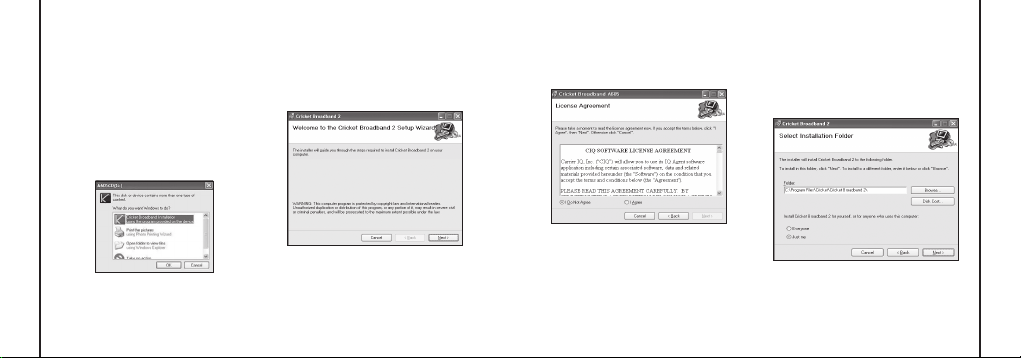
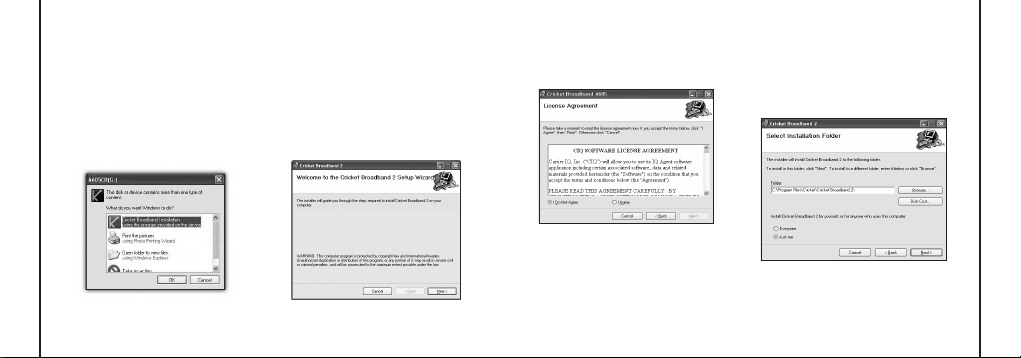
S TEP 2:
Please take a moment to read
license agreement now. If you accept the
term, click “I Agree”, then [Next] button
to continue.
S TEP 3:
You are now ready to select the
location on your computer where
Cricket Broadband should be installed. It is
recommended that you do not modify the
default destination folder. Click the [Next]
button to continue.
2. Insert the Cricket A605 modem into your
USB port.
3. Your computer will recognize Cricket
A605 modem and start the installation
sequence automatically. Below pop-up
screen is shown if your OS is Windows
Vista or Windows 7. If the program does
not launch automatically, go to my
computer and select the ‘A605CD’ drive
and double click ‘start.exe’ program.
4. Follow the steps in the next section.
Setup Program - Windows
S TEP 1:
The “Welcome to the Cricket
Broadband Setup Wizard” screen appears.
Click the [Next] button to continue with the
installation process.
Page 6
10
2. INSTALLATION AND SETUP FOR CRICKET BROADBAND
11
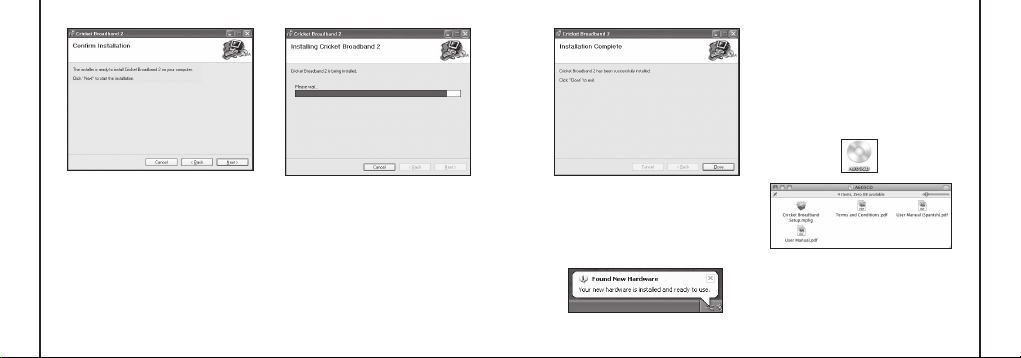
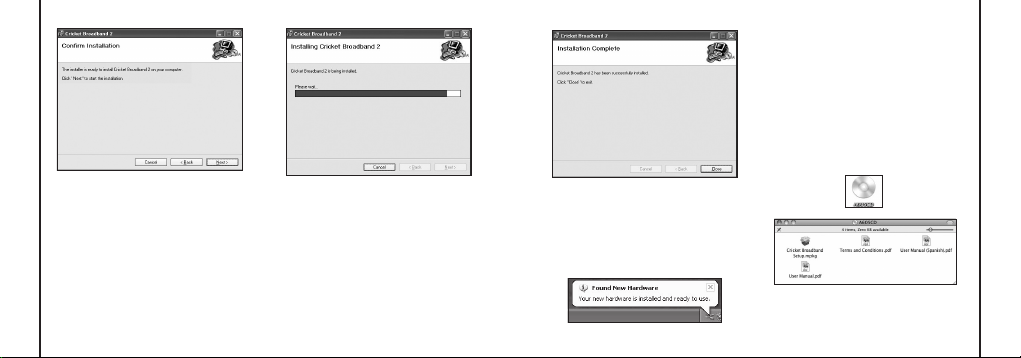
S TEP 4:
During this step the components
of Cricket Broadband product are being
installed onto your computer. Installation
will occur to the destination folder
specified in Step 2.
S TEP 5:
Installation of Cricket Broadband is
now complete. Click the [Close] button to
leave the Cricket Broadband setup
program and begin using your new
software.
2. INSTALLATION AND SETUP FOR CRICKET BROADBAND
*
The setup program will automatically
create a Cricket Broadband shortcut on
your desktop.
S TEP 6:
Please wait while Cricket A605 is
installed and ready to use.
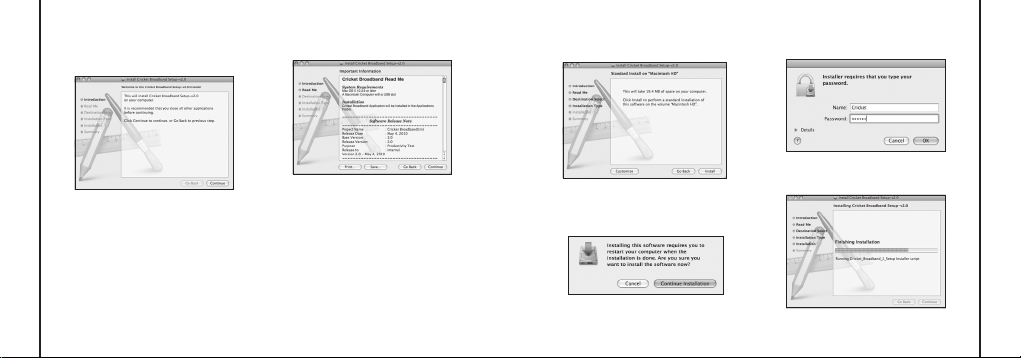
Setup Program - Mac OS X
S TEP 1:
Insert A605 into the PC, then
A605CD disk drive should be automatically
mounted. Double click A605CD icon on the
Desktop. Double click the Cricket
Broadband Setup icon to launch the
installer.
Page 7
12
13
2. INSTALLATION AND SETUP FOR CRICKET BROADBAND
2. INSTALLATION AND SETUP FOR CRICKET BROADBAND
S TEP 4:
Click [Install] to begin the standard
installation on system volume.
S TEP 5:
Finally, the Setup Wizard shows
confirm window, click the [OK] button to
continue.
Enter the Name/Password used to log into
the computer then click [OK].
S TEP 6:
Cricket Broadband installation
begins.
S TEP 2:
Click [Continue] button in the
welcome window to proceed with the
installation.
S TEP 3:
The Read Me file appears. Click the
[Continue] button.
Page 8
14
15
3. USING CRICKET BROADBAND
3. USING CRICKET BROADBAND
*
A WWAN capable device is required to
use the WWAN features. Individual WWAN
features are also device dependent as
described in the WWAN section above.
Other Features:
• Logs connections used, duration and bytes
sent and received.
• It also supports text messaging.
• See the section “Additional Features” for
more information about the features of
Cricket Broadband.
Getting Started
Double click on the Cricket Broadband icon
on your desktop or click on the Windows
Start menu and select Cricket Broadband
from the list of programs.
About the Wireless Networks View
Cricket Broadband will open the Broadband
Networks window by default. This view is
where you manage your Broadband
connections. The Broadband Networks
window displays all currently available
network connections.
At a glance you can see the signal strength.
Your current connection state and the
elapsed time of the connection are
displayed along the bottom of the status bar.
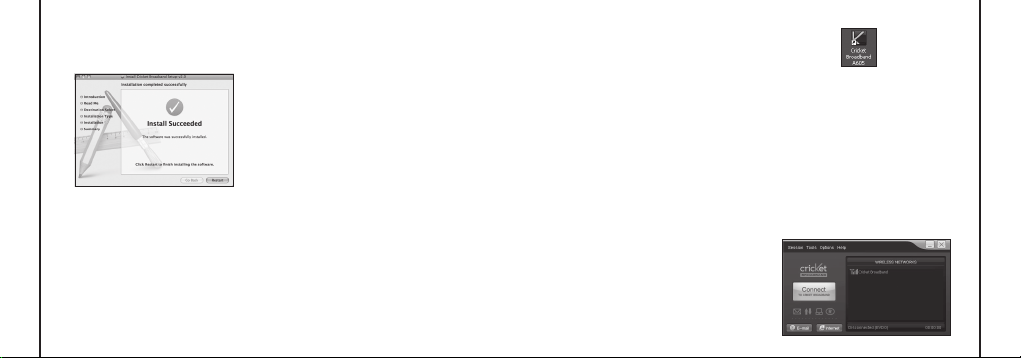
S TEP 7:
Installation is now complete.
Click the [Restart] button to close the setup
wizard. Then OS is restarted.
Today’s online world oers more services
everyday and Wireless gives you the tools
you need to take advantage of the best in
connectivity solutions. With Cricket
Broadband, enjoy the freedom and
convenience of wireless Internet
connectivity from your laptop computer!
Features
WWAN (Wireless Wide Area Network,
1xEV-DO/1xRTT/CDMA) Specific Features:
• Congures your PC to use your USB
Modem.
• Creates a Data Connection if using an
EVDO capable USB Modem.
• Copies utility to create wireless copies of
your dial-up connections, if supported by
your device.
• Test function for WWAN device.
Page 9
16
17
3. USING CRICKET BROADBAND
3. USING CRICKET BROADBAND
Connecting
Once your device is properly configured,
connecting to the Internet is as simple as
clicking the “Connect” button.
Once connected, the “Connect” button will
change to “Disconnect”.
Simply click this to end your current
connection. To connect to any other network
shown, select it, and then select “Connect”.
The Status Bar
Information regarding your current network
connection can be seen in the status bar
along the bottom of Cricket Broadband
interface. For more information on this status
bar, see the section “The Status Bar” in the
“Additional Features” section.
Cricket Broadband will display status
information at the bottom during the
connection process as well as while
connected.
When not connected, the status text in the
lower left corner will display “Not
connected” for the currently selected
network. The timer will display “00:00:00”.
Once connected, the status text will display
“Connected” and the timer will begin to run.
Right clicking on the tray icon provides
various options and double clicking on it will
always show the application. Placing your
cursor on it will display the current
connection status.
Based on your preferences, your browser,
e-mail, or program of your choice can be
launched automatically upon connection.
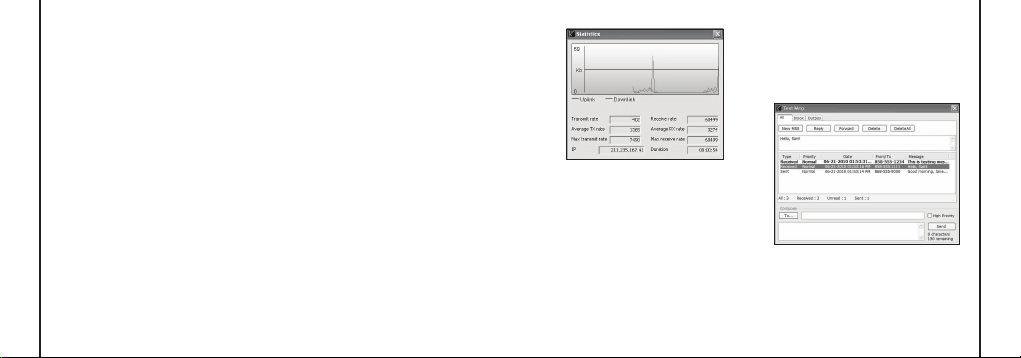
At any time during your connection you can
check your current connection speed and
throughput stats in the Statistics window. To
see this window, select “Statistics” from the
“Session” menu.
Using the “Data” connection:
By default Cricket Broadband enables the
software for data connections.
If your connection fails when you try to
connect, please try to reconnect.
Dormancy:
The data session becomes dormant if you
are not sending or receiving any data. As
soon as you resume sending or receiving
data, the data session will return to an
active state.
Text Messaging
Cricket Broadband supports text messaging
for the Cricket A605.
Receiving Text Messages
• All of your text messages will appear in the
list box at the top of the text messaging
view. By default, all sent and received
messages will appear.
Page 10

18
3. USING CRICKET BROADBAND
19
4. CRICKET BROADBAND PREFERENCES
• To view only certain messages, click on
the message and select “All”, “Inbox” or
“Outbox”.
• If you are in the text messaging view and
a new message arrives, the message will
automatically appear in the list and
formatted in bold.
• To view a long text message, select the
message in the list view. The details of the
message will appear above the list.
• To reply to an incoming message, select
the message and press the [Reply] button.
The phone number of the sender will auto
populate in your new message. Enter your
new message and press the [Send] button
to send the message.
• To forward an incoming message, select
the message and press [Forward] button.
The message will auto populate in the send
area below prefixed with “FW:.” Press the
[Send] button to send the message.
Sending Text Messages
• The Cricket A605 is capable of sending
text messages to:
— A US-based wireless number, enter:
1, then the wireless number.
— A wireless number outside the US, enter:
011, the country code, then the wireless
number.
— An email account, enter: an email
address.
• To send a text message to one or more
subscribers, enter their 10-digit mobile
numbers separated by semi-colons
in the “To...” field. (Ex: 5555555555;
5555555556).
• With some devices that support text
messaging contact lists, you may be able
to click on the [To] button to open your
contact list.
• The phone number and the message elds
are required.
• The character counter allows from 0 to 150
and counts all of the characters typed in
the message field. (Spanish: 0~130)
• Click the [Send] button.
General Preferences
Click on [Options], then [Preferences].
General Tab
Run Connection Manager at Startup:
If this
option is checked the Cricket Broadband
starts automatically when Windows starts.
Show Splash Window:
Display splash
window when Cricket Broadband starts.
Page 11
20
4. CRICKET BROADBAND PREFERENCES
21
4. CRICKET BROADBAND PREFERENCES
Minimize Application into Tray:
When you
minimize the application it will now appear in
the Windows task bar. To restore the
application click on Cricket Broadband tray
icon, and select [Open].
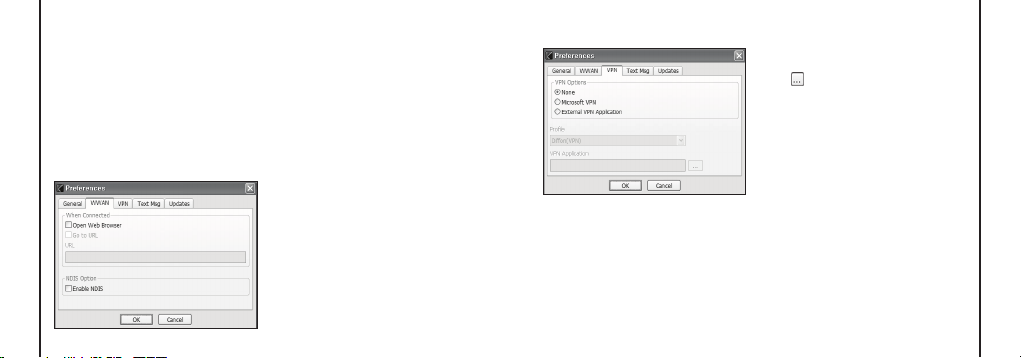
WWAN Specific Settings
WWAN preferences
This is used to set various WWAN
connection settings.
Open Web Browser:
When data
connection is established successfully,
Cricket Broadband executes default
web-browser automatically.
Go to URL:
To enable web-browser go to
web site you defined using URL field below.
URL:
Website URL for starting page of web
browser started automatically upon
connecting to the Cricket Broadband
network.
NDIS Option:
When enabled, NDIS
provides a internet connection always.
• Click the [Ok] button.
VPN Settings
VPN Options
• None: Do not use VPN.
• Microsoft VPN: Use VPN client of
Microsoft Windows.
• External VPN Application: Use other VPN
client application provided another vendor.
Profile (Microsoft VPN only)
Select Microsoft VPN Profile.
External VPN Application
Specify other VPN client application. To
choose the application from your local disk,
click “ ” button.
• Click the [Ok] button.
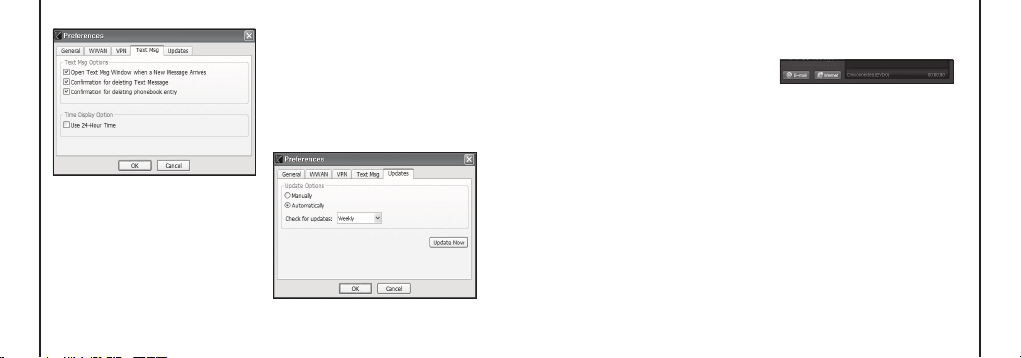
Text Message Settings
Text Message is a messaging application
for your wireless device which allows you to
compose and send text messages to other
wireless phones.
The Text Msg tab in the preferences dialog
allows you to configure certain text message
delivery options. These options include:
Page 12
22
4. CRICKET BROADBAND PREFERENCES
23
4. CRICKET BROADBAND PREFERENCES
• Open Text Msg Window when a new text
message arrives: Enable/disable automatic
opening of the Text Msg window on arrival
of new text messages.
• Conrmation for deleting a text message:
Confirm deletion of text messages.
• Conrmation for deleting a phonebook
entry: Confirm deletion of phonebook
entries.
• Use 24-Hour Time: Select 24-Hour or
12-Hour clock used for Text Message.
• Click the [Ok] button.
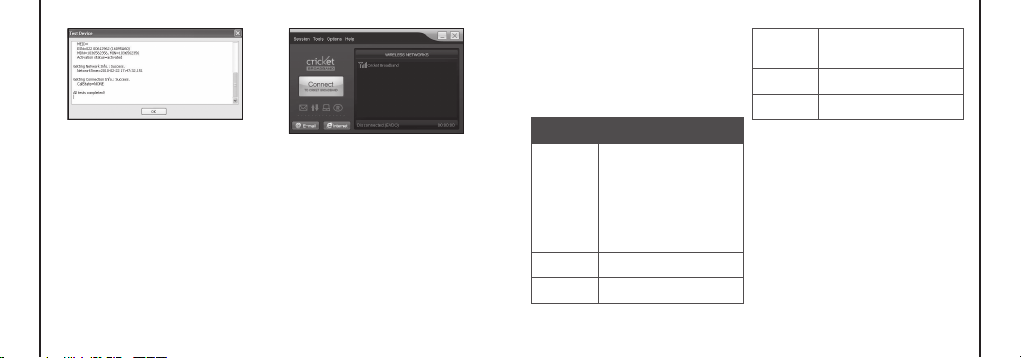
Update settings
This feature allows Cricket Broadband
software to check for software updates and
it can be updated manually or automatically.
• Manually: If you choose this option, the
software will only check for update when
you select “Update Now” button or select
“Help”, then “Check for updates” from
main screen.
• Automatically: You can allow the software
to automatically check for updates, daily,
weekly, or monthly. It only checks when
the application is running and when it
detects that you are connected and able to
access the Internet.
Additional Features
In addition to the basic features mentioned
in previous sections, Cricket Broadband has
the additional features listed below.
Status Bar
The details of your current connection can
be seen in the status bar at the bottom of
Cricket Broadband interface. This status bar
is always visible when the interface is fully
expanded.
Connection Status
The text on the status bar reflects your
current state. During an active connection,
this text will change to “Connected”.
If you are not connected, it will display
“Disconnected”.
WWAN USB Modem Status Area
The text can change to the following:
• No Device:
Your WWAN USB Modem is
removed from the laptop.
• Device not activated:
Your USB Modem
needs to be activated. Select “Activation”
from the Tools menu.
Page 13

24
4. CRICKET BROADBAND PREFERENCES
25
4. CRICKET BROADBAND PREFERENCES
Throughput
The amount of data that you have sent and
received since the current network
connection was initiated can be seen by
holding the mouse over the green up and
down arrows on the left side of the status
bar.
Elapsed Time
The amount of time that has elapsed since
the current network connection was
initiated is tracked on the lower left side of
the status bar.
The Session Menu
Connect / Disconnect:
You can connect or
disconnect the wireless networks.
The Tools Menu
Log
: This provides a concise session log
of your network activity. Click on a column
heading to sort the log. This window also
displays the total number of sessions as well
as the total time connected.
The information displayed in the Usage log
can be customized using the controls that
appear just below the list.
To view only the connection history of a
specific network type, check the “Selected
connection” checkbox and select the
desired type from the drop-down list.
To view only the connections made during
a specific interval, check the “Date range”
checkbox and specify the date in the “From:”
and “To:” fields.
To clear the log, press the Clear button.
Note that clearing the log cannot be undone.
Close:
Close the log window.
The Options Menu
Activation:
Programs the activation code,
phone number, and IMSI(MIN) to the USB
Modem.
Find Device:
Find your modem device again.
This is useful if you need to reconfigure
Cricket Broadband to use a new USB
Modem.
Test WWAN Device:
Retrieve and display
detailed information about your WWAN
device (1xEV-DO/1xRTT/CDMA USB
Modem) such as manufacturer, model,
version, etc. This information can be
valuable when troubleshooting a problem.
Page 14
26
27
4. CRICKET BROADBAND PREFERENCES
5. INSTALLING CRICKET A605
Preferences: This is used to select
preferences for connection settings.
The “Internet” button
Launches the default web browser on your
computer.
The “Email” button
Launches the default email application on
your computer.
The Help Menu
The Cricket Broadband has a Help section.
Please see the Help section for additional
questions.
Recommended System
Requirements
To successfully install and use the Cricket
A605 USB device in your PC, the following
system specifications are required.
Item Required Specification
Operating
system
Windows® 2000 SP4
Windows® XP SP1 to SP3
Windows Vista™
(32 bit & 64 bit)
Windows® 7 (32 bit & 64 bit)
Mac OS® X 10.4.11 to 10.6.3
(32 bit & 64 bit)
CPU 150MHz or faster
Port Type A USB port 2.0
Dial-up
networking
DUN bound to TCP/IP
Memory 128 MB
Disk Space
32 MB
*
The Cricket A605 is useful for computers
that include a USB port. Voice service is
not supported.
Page 15
28
29
5. INSTALLING CRICKET A605
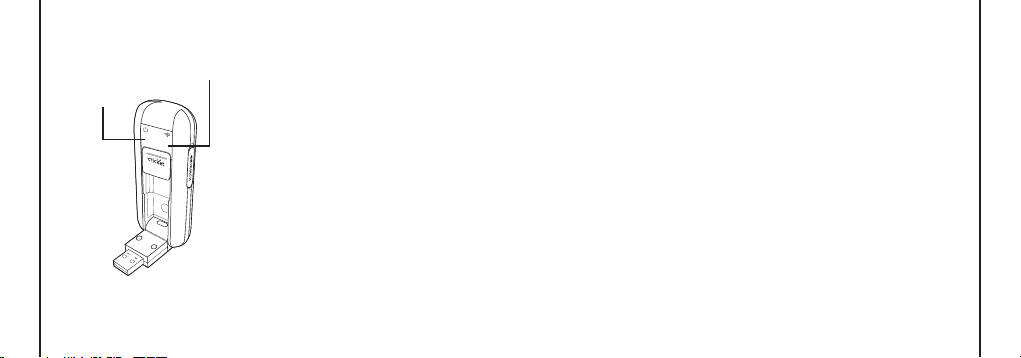
Using the Modem
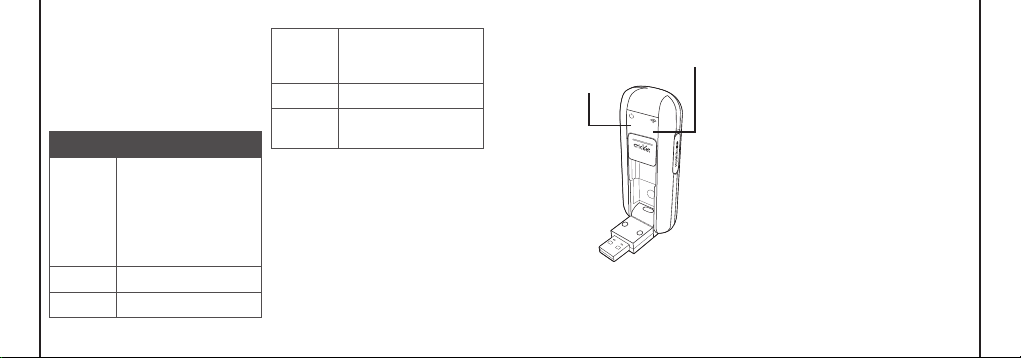
Power statue LED
• Green:
Power OK.
• Red:
Not enough power for current
conditions. If you see red on the power
status LED it is recommend that you use
the USB modem extension Y cable.
Signal strength indicator
• 0~ 4:
Weak or no signal strength, 4: high
signal strength.
Remove the Modem from your
Computer
• Remove the Cricket A605 from your
laptop. When removing the modem,
always grip the sides of the modem and
pull carefully.
5. INSTALLING CRICKET A605
Using the USB Modem
Extension Y Cable
• The Cricket A605 modem package
includes an extension USB Y-shaped
cable. Although the Y cable is not required
for use with your Cricket A605 modem,
it oers increased performance for your
modem under certain operating conditions.
Connect the Y cable to two separate USB
ports of your computer to deliver sucient
power when needed to increase RF
performance, and to solve clearance
issues.
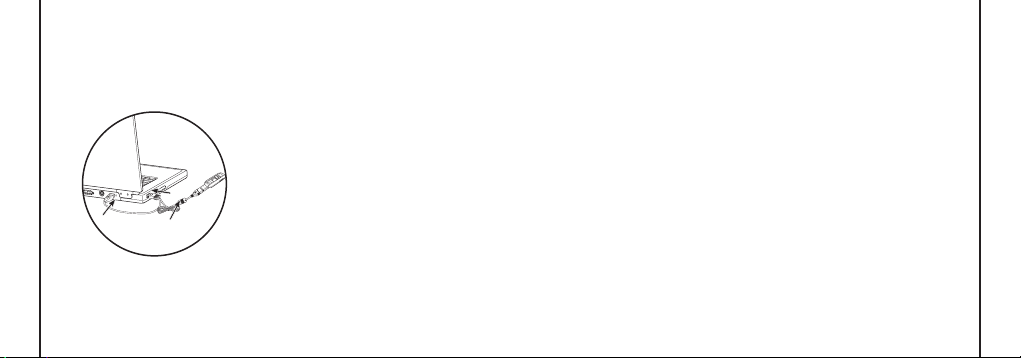
Using the USB Modem Extension Y Cable:
1) Plug the single end of the Y-shaped cable
into the Cricket A605 modem. [A]
2) Depending on the condition you are
trying to solve (increased RF
performance, or clearance issues), plug
either one of the two connected ends
of the USB modem extension Y cable
into the Type A USB port(s) on your
computer. [B]
Note: The USB modem extension Y cable
black connector is the primary data power
cable used to either extend the Cricket
A605 modem away from your computer
allowing you to locate the modem in a more
optimum signal location or solve any
computer USB port clearance issues. The
USB modem extension Y cable gray
connector is a power boost Y cable and
must be used with black connector to
provide the modem up to 1Amp of current
for use in weaker signal areas. The Y cable
must be connected to two separate USB
ports.
Power status LED
Signal strength indicator
Page 16
30
5. INSTALLING CRICKET A605
31
TROUBLESHOOTING
3) The device is connected to and powered
by the computer as soon as the USB Y
cable is plugged properly into the
appropriate Type A USB port(s).
4) Click Connect.
B
A
#1
B
#2
Troubleshooting
1. LED indicator not lighting up
• Check if A605 is inserted into USB port
correctly.
• Re-insert A605 into the USB port
(Forcing A605 into the USB port may
cause considerable damage).
• Insert A605 into another USB port.
2. Error occurs when running Cricket
Broadband
• Check if Cricket Broadband is installed
correctly.
• Reinstall the Cricket Broadband or
Reboot the PC.
3. CM displays “No device” on status bar
• Check to ensure that A605 is inserted in
USB port correctly.
• Check if the USB driver is installed
correctly.
• Wait until status changes to
“Disconnected”, it may take a minute.
4. Internet connection fails
• Check if no signal strength LED.
• Check if the modem is activated.
• Check if WiFi function in your computer
is disabled.
If you have additional support questions
about your Cricket A605 modem, please call
1-800-CRICKET.
Page 17

32
CARE AND MAINTENANCE
33
WARRANTY
CARE AND MAINTENANCE
Your device is a product of superior design
and craftsmanship and should be treated
with care. The suggestions below will help
you protect your warranty coverage.
• Keep the device dry. Precipitation,
humidity and all types of liquids or
moisture can contain minerals that will
corrode electronic circuits.
• Do not use or store the device in dusty,
dirty areas. Its moving parts and electronic
components can be damaged.
• Do not store the device in hot areas.
High temperatures can shorten the life of
electronic devices, damage batteries, and
warp or melt certain plastics.
• Do not store the device in cold areas.
When the device returns to its normal
temperature, moisture can form inside
the device and damage electronic circuit
boards.
• Do not attempt to disassemble the device.
• Do not drop, knock, or shake the device.
Rough handling can break internal circuit
boards and fine mechanics.
• Do not use harsh chemicals, cleaning
solvents, or strong detergents to clean
the device.
• Do not paint the device. Paint can clog
the moving parts and prevent proper
operation.
• Use only the supplied or an approved
replacement antenna. Unauthorized
antennas, modifications, or attachments
could damage the device and may violate
regulations governing radio devices.
All of the above suggestions apply equally
to your device, battery, charger,
or any enhancement. If any device is not
working properly, take it to the nearest
authorized service facility for service.
WARRANTY
One (1) year Limited Warranty (U.S.)
For products purchased from Cricket or its
authorized dealers Cricket warrants that
this device (“Product”) is free from defects
in material and workmanship that result in
Product failure during normal usage,
according to the following terms and
conditions (the “Limited Warranty”):
1. This Limited Warranty for the Product
extends for one (1) year beginning on the
date of the purchase of the Product.
2. The Limited Warranty extends only to the
original purchaser (“Consumer”) of the
Product and is not assignable or transferable to any subsequent purchaser/
end-user.
3. The Limited Warranty extends only to
Consumers who purchase the Product
from Cricket or its authorized dealers.
4. During the Limited Warranty period, Cricket will repair or replace, at Cricket’s sole
option, any defective parts, or any parts
that will not properly operate for their
intended use with new or refurbished
replacement items if such repair or
replacement is needed because of
product malfunction or failure during
normal usage. the Limited Warranty does
not cover defects in appearance,
cosmetic, decorative or structural items,
including framing, and any non-operative
parts. Cricket’s limit of liability under
the Limited Warranty shall be the actual
cash value of the Product at the time the
Consumer returns the Product for repair,
Page 18

34
WARRANTY
35
WARRANTY
determined by the price paid by the
Consumer for the Product less a
reasonable amount for usage. Cricket
shall not be liable for any other losses
or damages. these remedies are the
Consumer’s exclusive remedies for breach
of the Limited Warranty.
5. Upon request from Cricket, the Consumer
must prove the date of the original
purchase of the Product by a dated bill of
sale or dated itemized receipt.
6. The Consumer shall bear the cost of
shipping the Product to Cricket. Cricket
shall bear the cost of shipping the
Product back to the Consumer after the
completion of service under this Limited
Warranty.
7. The Consumer shall have no coverage or
benefits under this Limited Warranty if any
of the following conditions are applicable:
a. the Product has been subjected to
abnormal use, abnormal conditions,
improper storage, exposure to moisture
or dampness, unauthorized
modifications, unauthorized
connections, unauthorized repair,
misuse, neglect, abuse, accident,
alteration, improper installation, or other
acts which are not the fault of Cricket,
including damage caused by shipping.
b. the Product has been damaged from
external causes such as collision with
an object, or from fire, flooding, sand,
dirt, windstorm, lightning, earthquake
or damage from exposure to weather
conditions, an act of God, or battery
leakage, theft, blown fuse, or improper
use of any electrical source, damage
caused by computer or internet viruses,
bugs, worms, trojan Horses, cancelbots
or damage caused by the connection to
other products (including but not limited
to hardware and software) not recommended for interconnection by Cricket.
c. the Product serial number plate or the
enhancement data code has been
removed, defaced or altered.
d. the defect or damage was caused by
the defective function of the cellular
system or by inadequate signal
reception by the external antenna, or
viruses or other software problems
introduced into the Product.
8. Cricket does not warrant uninterrupted
or error-free operation of the Product. If a
problem develops during the Limited
Warranty period, the Consumer shall take
the following step-by-step procedure:
a. The Consumer shall return the Product
to the place of purchase for repair or
replacement processing.
b. The Consumer shall include a return ad-
dress, daytime phone number and/ or
fax number, complete description of the
problem, proof of purchase and service
agreement (if applicable).
Expenses related to removing the
Product from an installation are not
covered under this Limited Warranty.
c. The Consumer will be billed for any
parts or labor charges not covered by
this Limited Warranty. the Consumer will
be responsible for any expenses related
to reinstallation of the Product.
d. Cricket will repair the Product under
the Limited Warranty within 30 days
after receipt of the Product. If Cricket
cannot perform repairs covered under
this Limited Warranty within 30 days, or
after a reasonable number of attempts
to repair the same defect, Cricket at
Page 19

36
WARRANTY
37
WARRANTY
its option, will provide a replacement
Product or refund the purchase price of
the Product less a reasonable amount
for usage.
e. If the Product is returned during the
Limited Warranty period, but the problem with the Product is not covered
under the terms and conditions of this
Limited Warranty, the Consumer will
be notified and given an estimate of
the charges the Consumer must pay to
have the Product repaired, with all
shipping charges billed to the
Consumer. If the estimate is refused,
the Product will be returned freight
collect. If the Product is returned after
the expiration of the Limited Warranty
period, Cricket’s normal service policies
shall apply and the Consumer will be
responsible for all shipping charges.
9. You (the Consumer) understand that the
Product may consist of refurbished
equipment that contains used
components, some of which have been
reprocessed. the used components
comply with Product performance and
reliability specifications.
10. Disclaimer of Warranty. EXCEPT AS
SET FORTH IN THIS EXPRESS LIMITED
WARRANTY, CONSUMER TAKES THE
PRODUCT “AS IS,” AND CRICKET MAKES
NO WARRANTY OR REPRESENTATION
AND THERE AER NO CONDITIONS,
EXPRESS OR IMPLIED, STATUTORY
OR OTHERWISE, OF ANY KIND
WHATSOEVER WITH RESPECT TO THE
PRODUCT, INCLUDING BUT NOT
LIMITED TO ANY IMPLIED WARRANTY
OF MERCHANTABILITY, OR FITNESS
FOR A PARTICULAR PURPOSE OR USE;
WARRANTIES OF TITLE OR
NON-INFRINGEMENT; DESIGN,
CONDITION, QUALITY, OR
PERFROMANCE OF THE PRODUCT;
THE WORKMANSHIP OF THE PRODUCT
OR THE COMPONENTS CONTAINDED
THEREIN; OR COMPLIENT OF THE
PRODUCT WITH THE REQUIREMENTS
OF ANY LAW, RULE, SPECIFICATION OR
CONTRACT PERTAINING THERETO.
11. CRICKET SHALL NOT BE LIABLE FOR
SPECIAL, INCIDENTAL, PUNITIVE OR
CONSEQUENTIAL DAMAGES,
INCLUDING BUT NOT LIMITED TO LOSS
OF ANTICIPATED BENEFITS OR
PROFITS, LOSS OF SAVINGS OR
REVENUE, LOSS OF DATA, PUNITIVE
DAMAGES, LOSS OF USE OF THE
PRODUCT OR ANY ASSOCIATED
EQUIPMENT, COST OF CAPITAL, COST
OF ANY SUBSTITUTE EQUIPMENT OR
FACILITIES, DOWNTIME, THE CLAIMS OF
ANY THIRD PARTIES, INCLUDING
CUSTOMERS, AND INJURY TO
PROPERTY, RESULTING FROM THE
PURCHASE OR USE OF THE PRODUCT
OR ARISING FROM BREACH OF THE
WARRANTY, BREACH OF CONTRACT,
NEGLIGENCE, STRICT TORT, OR ANY
OTHER LEGAL OR EQUITABLE
THEORY, EVEN IF CRICKET KNEW OF
THE LIKELIHOOD OF SUCH DAMAGES.
CRICKET SHALL NOT BE LIABLE FOR
DELAY IN RENDERING SERVICE UNDER
THE LIMITED WARRANTY, OR LOSS OF
USE DURING THE PERIOD THAT THE
PRODUCT IS BEING REPAIRED.
NOTHING CONTAINED IN THE
INSTRUCTION MANUAL SHALL BE
CONSTRUED TO CREATE AN EXPRESS
WARRANTY OF ANY KIND
WHATSOEVER WITH RESPECT TO THE
PRODUCT. ALL IMPLIED WARRANTIES
Page 20

38
39
WARRANTY
SAR INFORMATION
AND CONDITIONS THAT MAY ARISE BY
OPERATION OF LAW, INCLUDING IF
APPLICABLE THE IMPLIED WARRANTIES
OF MERCHANTABILITY AND FITNESS
FOR A PARTICULAR PURPOSE, ARE
HEREBY LIMITED TO THE SAME
DURATION OF TIME AS THE EXPRESS
WRITTEN WARRANTY STATED HEREIN.
12. Some states do not allow limitation of
how long an implied warranty lasts, so
the one (1) year warranty limitation may
not apply to you (the Consumer). Some
states do not allow the exclusion or
limitation of incidental and consequential
damages, so certain of the above
limitations or exclusions may not apply
to you (the Consumer). this Limited
Warranty gives the Consumer specific
legal rights and the Consumer may also
have other rights which vary from state
to state.
13. Cricket neither assumes nor authorizes
any authorized service center or any
other person or entity to assume for it
any other obligation or liability beyond
that which is expressly provided for in
this Limited Warranty including the
provider or seller of any extended
warranty or service agreement.
14. This is the entire warranty between
Cricket and the Consumer, and
supersedes all prior and
contemporaneous agreements or
understandings, oral or written, relating
to the Product, and no representation,
promise or condition not contained
herein shall modify these terms. the
agents, employees, distributors, and
dealers of Cricket are not authorized to
make modifications to this Limited
Warranty, or make additional warranties
binding on Cricket. accordingly,
additional statements such as dealer advertising or presentation, whether oral or
written, do not constitute warranties by
Cricket and should not be relied upon.
15. This Limited Warranty allocates the risk
of failure of the Product between the
Consumer and Cricket. the allocation
is recognized by the Consumer and is
reflected in the purchase price.
16. IF ANY PORTION OF THIS LIMITED
WARRANTY IS HELD ILLEGAL OR
UNENFORCEABLE BY REASON OF ANY
LAW, SUCH PARTIAL ILLEGALITY OR
UNENFORCEABILITY SHALL NOT
AFFECT THE ENFORCEABILITY FOR
THE REMAINDER OF THIS LIMITED
WARRANTY WHICH PURCHASER
ACKNOWLEDGES IS AND WILL ALWAYS
BE CONSTRUED TO BE LIMITED BY ITS
TERMS OR AS LIMITED AS THE LAW
PERMITS.
SAR INFORMATION
THIS MODEL PHONE MEETS THE
GOVERNMENT’S REQUIREMENTS FOR
EXPOSURE TO RADIO WAVES.
Your wireless phone is a radio transmitter
and receiver. It is designed and
manufactured not to exceed the emission
limits for exposure to radiofrequency (RF)
energy set by the Federal
Communications Commission of the U.S.
Government. These limits are part of
comprehensive guidelines and establish
permitted levels of RF energy for the
general population. The guidelines are
based on standards that were developed
by independent scientific organizations
through periodic and thorough evaluation
of scientific studies. The standards include a
substantial safety margin designed to assure
Page 21

40
41
SAFETY INFORMATION
SAR INFORMATION
the safety of all persons, regardless of age
and health. The exposure standard for
wireless mobile phones employs a unit
of measurement known as the Specific
Absorption Rate, or SAR. The SAR limit set
by the FCC is 1.6 W/kg. * Tests for SAR are
conducted with the phone transmitting at
its highest certified power level in all tested
frequency bands. Although the SAR is
determined at the highest certified power
level, the actual SAR level of the phone
while operating can be well below the
maximum value. This is because the phone
is designed to operate at multiple power
levels so as to use only the power required
to reach the network. In general, the closer
you are to a wireless base station antenna,
the lower the power output. Before a phone
model is available for sale to the public, it
must be tested and certified to the FCC that
it does not exceed the limit established by
the government adopted requirement for
safe exposure. The tests are performed in
positions and locations (e.g., at the ear and
worn on the body) as required by the FCC
for each model. The highest SAR value for
this model modem when tested for use near
the body, as described in this user guide, is
1.14 W/Kg. While there may be dierences
between the SAR levels of various phones
and at various positions, they all meet the
government requirement for safe exposure.
The FCC has granted an Equipment
Authorization for this model phone with all
reported SAR levels evaluated as in
compliance with the FCC RF exposure
guidelines. SAR information on this model
phone is on file with the FCC and can be
found under the Display Grant section of
http://www.fcc.gov/ oet/fccid after searching
on FCC ID: Q78-A605. Additional
information on Specific Absorption Rates
(SAR) can be found on the Cellular
Telecommunications Industry Asso-ciation
(CTIA) web-site at http://www.wow-com.com.
* In the United States and Canada, the SAR
limit for mobile phones used by the public is
1.6 watts/kg (W/kg) averaged over one gram
of tissue. The standard incorporates a
sub-stantial margin of safety to give
additional protection for the public and to
account for any variations in measurements.
SAFETY INFORMATION
SAFETY INFORMATION FOR FIXED
WIRELESS TERMINALS POTENTIALLY
EXPLOSIVE ATMOSPHERES
Turn your phone OFF when in any area with
a potentially explosive atmosphere and
obey all signs and instructions. Sparks in
such areas could cauls e an explosion or fire
resulting in bodily injury or even death.
INTERFERENCE TO MEDICAL DIVICES
Certain electronic equipment may be
shielded against RF signal from you
wireless phone. (pacemakers, Hearing Aids,
and so on) Turn your phone OFF in health
c are facilities when any regulations posted
in these areas instruct you to do so. RF
signals may aect improperly installed or
inadequately shielded electronic system in
motor vehicles.
EXPOSURE TO RF ENERGY
Use only the supplied or an approved
replacement antenna. Do not touch the
antenna unnecessarily when the phone is
in use. Do not move the antenna close to,
or couching any exposed part of the body
when making a call.
Page 22

42
43
U.S.A. U.S.FEDERAL COMMUNICATIONS...
FCC COMPLIANCE INFORMATION
NEAR BODY OPERATION
This device was tested for typical near body
operations with the back of the phone kept
0.5 cm from the body. To maintain
compliance with FCC RF exposure
requirements, it must have a minimum
distance including the antenna of 0.5 cm
from the body during normal operation
FCC COMPLIANCE
INFORMATION
This device complies with Part 15 of FCC
Rules.
Operation is subject to the following two
conditions:
(1) This device may not cause harmful
interference, and
(2) This device must accept any interference
received. Including interference that may
cause undesired operation.
U.S.A.
U.S.FEDERAL COMMUNICATIONS COMMISSION RADIO
FREQUENCY INTERFERENCE
STATEMENT
INFORMATION TO THE USER
NOTE : This equipment has been tested and
found to comply with the limits for a Class B
digital device pursuant to Part 15 of the FCC
Rules. These limits are designed to provide
reasonable protection against
harmful Interference in a residential
installation This equipment generates, uses,
and can radiate radio frequency energy and,
if Not installed and used in accordance with
the instructions, may cause harmful
Interference to radio communications.
However, there is no guarantee that
interference will not occur in a particular
Installation. If this equipment does cause
harmful interference to radio or television
reception, which can be determined by
turning the equipment o and on, the user is
encouraged to try to correct the interference
by one or more of the following measures:
*- Reorient or relocate the receiving
antenna. Increase the separation
between the equipment and receiver.
*- Connect the equipment into an outlet of
a circuit dierent from that to which the
receiver is connected.
*- Consult the dealer or an experienced
radio/TV technician for assistance.
Changes or modification not expressly
approved by the party responsible for
Compliance could void the user’s authority
to operate the equipment. Connecting of
peripherals requires the use of grounded
shielded signal cables.
08/10
Page 23
Manual del usuario
Módem USB EVDO Cricket A605
Page 24

1. ANTES DE USAR EL MÓDEM CRICKET A605 .3
Acerca de este Manual del usuario .....................3
Descripción general del producto .......................3
Contenido del paquete del producto .................3
Introducción al módem USB Cricket A605 ......5
Funciones del producto...........................................5
CONTENIDO
Manejo del producto ................................................6
Configuración ..............................................................6
2. INSTALACIÓN Y CONFIGURACIÓN DE
CRICKET BROADBAND ......................................7
Instalación del software ...........................................7
Programa de configuración en Windows ..........8
Programa de configuración en Mac OS X ........11
3. USO DE CRICKET BROADBAND .....................14
Funciones ................................................................... 14
Para iniciar ..................................................................15
Conexión .....................................................................16
Mensajes de texto ................................................... 18
4. PREFERENCIAS DE CRICKET BROADBAND 20
Preferencias generales .........................................20
Configuración específica de WWAN ................20
Configuración de VPN ...........................................21
Configuración de mensajes de texto...............22
2
Configuración de actualizaciones .....................23
Funciones adicionales........................................... 24
5. INSTALACIÓN DE CRICKET A605 ..................28
Especificaciones recomendadas de sistemas 28
Uso del módem ......................................................29
Retiro del módem de la computadora ...........29
Uso del cable de extensión en Y del
módem USB .............................................................30
SOLUCIÓN DE PROBLEMAS ............................... 32
CUIDADO Y MANTENIMIENTO .......................... 33
GARANTÍA ............................................................... 34
INFORMACIÓN DE SAR.........................................41
INFORMACIÓN DE SEGURIDAD ........................ 43
INFORMACIÓN DE CUMPLIMIENTO CON LAS
DISPOSICIONES DE LA FCC ............................... 44
DECLARACIÓN DE INTERFERENCIA DE
RADIOFRECUENCIA DE LA COMISIÓN FEDERAL
DE COMUNICACIONES DE LOS EE. UU. ..........45
Acerca de este Manual del usuario
En este manual del usuario, encontrará
toda la información necesaria para instalar
y usar el módem Cricket A605. Antes
de usar el módem Cricket A605, debe
instalar correctamente el módem siguiendo
atentamente las instrucciones de instalación.
Instrucciones
• Instale el software Cricket Broadband
insertando el dispositivo USB Cricket A605
en la PC. El software de instalación viene
incluido en la memoria del módem Cricket
A605. El proceso de instalación se inicia
automáticamente al insertar el módem
Cricket A605 en la computadora.
• Es altamente recomendable que, antes
de usar el módem Cricket A605, lea las
precauciones de seguridad descritas en
este manual.
Documentos incluidos en la memoria del
módem
• Condiciones de uso de la banda ancha,
Términos y condiciones
• Manual del usuario
Descripción general del producto
Gracias por comprar un módem USB Cricket
A605.
El módem Cricket A605 es un dispositivo
inalámbrico de alta velocidad que permite a la
computadora conectarse a la red inalámbrica
de alta velocidad de Cricket.
El módem Cricket A605 es fácil de instalar
y usar.
Contenido del paquete del
producto
El paquete del producto incluye los
siguientes elementos. Si falta alguno
de los elementos de la siguiente lista,
comuníquese con la tienda minorista donde
compró el producto.
1. ANTES DE USAR CRICKET A605
3
Page 25
Introducción al módem USB
Cricket A605
El módem Cricket A605 está diseñado
para conectarse al puerto USB de la
computadora, que está disponible en la
mayoría de los modelos. El módem Cricket
A605 se puede usar para acceder a Internet,
Cable de extensión en
Y del módem USB
enviar y recibir mensajes de e-mail y de
texto. Es de suma utilidad si sale de casa, va
de viaje o requiere acceso a Internet y no
está disponible.
Funciones del producto
1. ANTES DE USAR CRICKET A605
Módem USB inalámbrico
Cricket A605
4
Guía de inicio rápido
Información sobre
cambio de garantía
de Cricket Broadband
- Administración de energía: El módem
Cricket A605 utiliza las funciones de
administración de energía y reducción de
gastos del sistema de la interfaz USB para
ofrecer el máximo ahorro de energía.
- Diseño de la antena: Diseño eficiente e
innovador, que optimiza la velocidad de
transferencia de datos y la sensibilidad a
las señales de red.
- Conector del cable de extensión en Y:
Conecte el cable en Y en los dos puertos
USB distintos de la computadora a fin
de obtener la energía suficiente si es
necesario para aumentar el rendimiento
de la radiofrecuencia y resolver problemas
de permiso.
- Módem USB compatible con interfaz de
puerto USB tipo A.
- Admite bandas norteamericanas PCS (1.900
MHz), celular (800 MHz) y AWS (transmisión:
1.700 MHZ, recepción: 2.100 MHZ).
- Utiliza conjunto de chips Qualcomm
QSC6085.
- Admite tecnologías de red de alta
velocidad.
1. ANTES DE USAR CRICKET A605
5
Page 26

- Admite sistemas Windows 2000, XP, Vista,
7 y Apple Macintosh, con el software y el
controlador Cricket Broadband instalados.
Manejo del producto
- No coloque etiquetas adhesivas en el
conector USB. Puede que dejen un residuo
pegajoso que puede causar problemas en
el interior del puerto USB de la PC.
- El dispositivo USB Cricket A605 se desliza
fácilmente en el puerto USB. No fuerce el
módem Cricket A605 en el puerto USB
ya que puede causar daños en el módem
o puerto.
1. ANTES DE USAR CRICKET A605
- Mantenga el módem Cricket A605 en
un lugar seco y limpio. (Temperatura de
almacenamiento: -30 °C a 65 °C [-22 °F a
149 °F]). Mantenga el dispositivo lejos de
líquidos, del polvo y del calor excesivo.
6
Configuración
Para usar el módem Cricket A605, debe
instalar el software Cricket Broadband
incluido en la memoria del módem y
configurar el dispositivo USB Cricket A605.
Consulte la siguiente sección para obtener
más información sobre la instalación del
software y la configuración del dispositivo
USB.
Esta sección ofrece una guía para el
proceso de instalación y configuración de
Cricket Broadband. Antes de iniciar, debe
familiarizarse con la documentación que
incluye el módem USB.
Instalación del software
Advertencias
• Recuerde nalizar el proceso de
desconexión/eyección antes de retirar
el módem Cricket A605. Si no retira
correctamente el dispositivo, el módem se
puede dañar.
Notas
• Si insertó bien el dispositivo, Windows le
informará sobre el nuevo hardware. Espere
hasta que Windows complete la tarea de
“Nuevo hardware encontrado”.
Nota: En Windows 2000, pueden aparecer
y desaparecer automáticamente varias
ventanas similares a la ventana “Nuevo
hardware encontrado”. En Windows XP,
aparecen y desaparecen automáticamente
de la bandeja del sistema varios datos sobre
herramientas similares a la función “Nuevo
hardware encontrado”. En Windows Vista,
aparecen y desaparecen automáticamente
de la bandeja del sistema varios datos
sobre herramientas similares a la función
“Instalación del software de controlador del
dispositivo”. Una vez nalizada la detección
de hardware, recibirá un aviso de comenzar
la activación.
• Cada vez que se inserta o retira el módem
Para iniciar (Windows)
Para instalar el software Cricket Broadband:
1. Encienda la computadora y cierre todas
2. Inserte el módem Cricket A605 en un
Cricket A605, se escucha un breve pitido.
Es un aviso audible de que la PC reconoce
el nuevo hardware.
las aplicaciones.
puerto USB.
2. INSTALACIÓN Y CONFIGURACIÓN DE CRICKET BROADBAND
7
Page 27
P ASO 2:
3. La computadora reconoce el módem
Cricket A605 e inicia automáticamente la
secuencia de instalación. A continuación,
aparece una pantalla emergente si el
sistema operativo es Windows Vista
o Windows 7. Si el programa no se
inicia automáticamente, vaya a Mi PC,
seleccione el controlador “A605CD” y
haga doble clic en el programa “start.exe”.
4. Siga los pasos de la siguiente sección.
2. INSTALACIÓN Y CONFIGURACIÓN DE CRICKET BROADBAND
8 9
Programa de configuración en
Windows
P ASO 1:
Aparece la pantalla “Welcome
to the Cricket Broadband Setup Wizard”
(Bienvenido al Asistente de configuración
de Cricket Broadband). Haga clic en el
botón [Next] (Siguiente) para continuar con
el proceso de instalación.
Ahora, dése un momento para
leer el contrato de licencia. Si acepta los
términos, haga clic en “I Agree” (Acepto) y
en el botón [Next] para continuar.
P ASO 3:
Ya está listo para seleccionar
la ubicación en la computadora en que
desea instalar Cricket Broadband. Es
recomendable que no modifique la carpeta
de destino predeterminada. Haga clic en el
botón [Next] para continuar.
2. INSTALACIÓN Y CONFIGURACIÓN DE CRICKET BROADBAND
Page 28
P ASO 4:
Durante este paso, los
componentes del producto Cricket
Broadband se instalan en la computadora.
La instalación se produce en la carpeta de
destino especificada en el paso 2.
P ASO 5:
La instalación de Cricket
Broadband ya finalizó. Haga clic en
el botón [Close] (Cerrar) para salir del
programa de configuración de Cricket
Broadband y comenzar a usar el nuevo
software.
El programa de configuración crea
*
automáticamente un acceso directo a
Cricket Broadband en el escritorio.
P ASO 6:
Espere mientras Cricket A605 se
instala y está listo para usarse.
Programa de configuración en
Mac OS X
P ASO 1:
Inserte el módem A605 en la PC.
Luego, la unidad de disco de A605CD
se debe montar automáticamente. Haga
doble clic en el icono del A605CD en el
escritorio. Haga doble clic en el icono de
configuración de Cricket Broadband para
iniciar el instalador.
2. INSTALACIÓN Y CONFIGURACIÓN DE CRICKET BROADBAND
10
2. INSTALACIÓN Y CONFIGURACIÓN DE CRICKET BROADBAND
11
Page 29
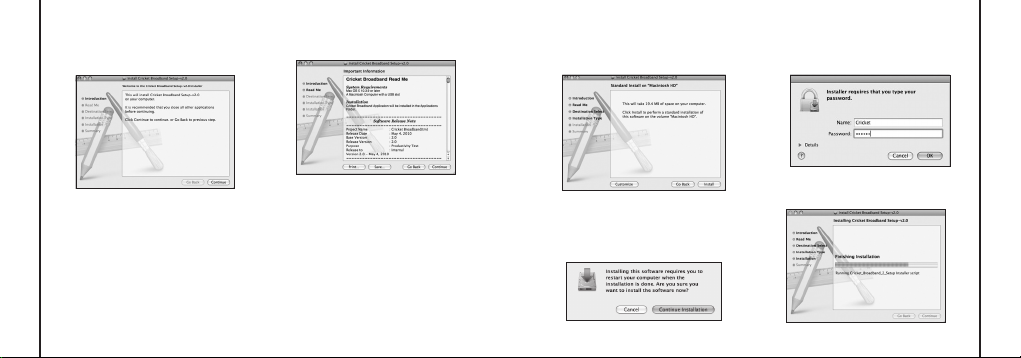
P ASO 2:
Haga clic en el botón [Continue]
(Continuar) de la ventana de bienvenida
para continuar con la instalación.
P ASO 3:
Aparece el archivo Léame. Haga
clic en el botón [Continue].
P ASO 4:
Haga clic en [Install] (Instalar) para
comenzar la instalación estándar en el
volumen del sistema.
P ASO 5:
Finalmente, cuando el Asistente
de configuración muestre la ventana de
conrmación, haga clic en el botón [OK]
(Aceptar) para continuar.
Ingrese el nombre y la contraseña usados
para iniciar sesión en la computadora y
haga clic en [OK].
P ASO 6:
Se inicia la instalación de Cricket
Broadband.
2. INSTALACIÓN Y CONFIGURACIÓN DE CRICKET BROADBAND
12 13
2. INSTALACIÓN Y CONFIGURACIÓN DE CRICKET BROADBAND
Page 30
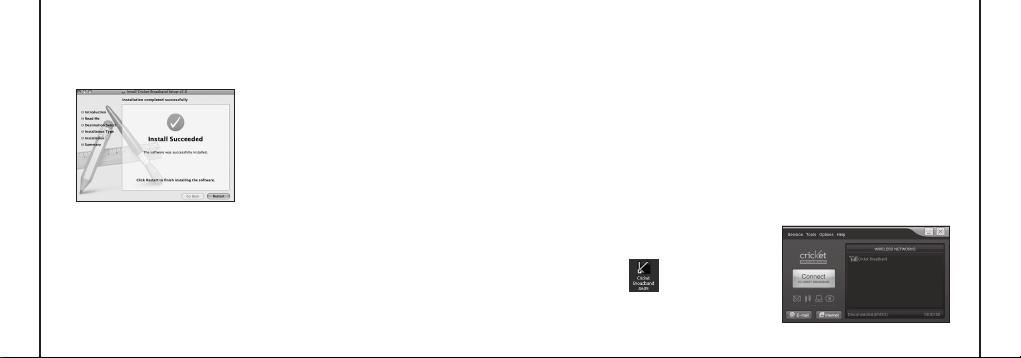
P ASO 7:
La instalación ya finalizó.
Haga clic en el botón [Restart] (Reiniciar)
para cerrar el Asistente de configuración.
Entonces, el sistema operativo se reinicia.
En la actualidad, el mundo de Internet ofrece
cada día más servicios, y la tecnología
3. USO DE CRICKET BROADBAND
inalámbrica le ofrece las herramientas que
le permiten aprovechar lo mejor de las
soluciones de conectividad. Con Cricket
Broadband, disfrute de la libertad y la
conveniencia de la conectividad de Internet
inalámbrica desde su computadora portátil.
14 15
Funciones
WWAN (Red de área ancha inalámbrica,
1xEV-DO/1xRTT/CDMA) Funciones
específicas:
• Congura la PC para el uso del módem
USB.
• Crea una conexión de datos si usa un
módem USB con capacidad de EVDO.
• Copia una utilidad que permite crear
copias inalámbricas de las conexiones de
marcación, si lo admite el dispositivo.
• Prueba el funcionamiento del dispositivo
WWAN.
Se requiere un dispositivo con capacidad
*
de WWAN para usar las características
de WWAN. Las funciones individuales de
WWAN también dependen del dispositivo
en la sección WWAN anterior.
Otras funciones:
• Registra las conexiones usadas, la
duración, y los bytes enviados y recibidos.
• También admite mensajes de texto.
• Consulte la sección “Funciones
adicionales” para obtener más información
acerca de las funciones de Cricket
Broadband.
Para iniciar
Haga doble clic en el icono de Cricket
Broadband del escritorio, en el menú de
Inicio de Windows, y seleccione Cricket
Broadband en la lista de programas.
Acerca de la vista de redes inalámbricas
Cricket Broadband abre en forma
predeterminada la ventana de redes de
banda ancha (Broadband Networks). Esta
vista permite administrar las conexiones de
banda ancha. La ventana de redes de banda
ancha muestra todas las conexiones de red
actualmente disponibles.
Con sólo un vistazo, puede ver la intensidad
de la señal. El estado actual de la conexión
y el tiempo transcurrido de la conexión
aparecen junto a la parte inferior de la barra
de estado.
3. USO DE CRICKET BROADBAND
Page 31
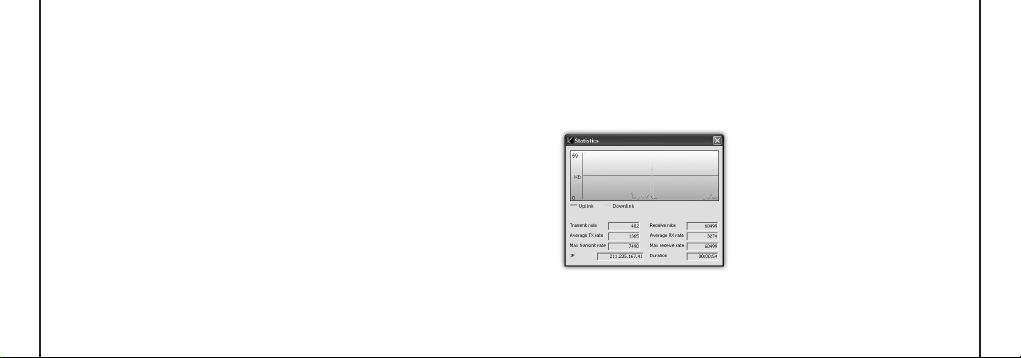
Conexión
Una vez correctamente configurado el
dispositivo, la conexión a Internet es
tan simple como hacer clic en el botón
“Connect” (Conectar).
Una vez conectado, el botón “Connect”
cambia a “Disconnect” (Desconectar).
Simplemente haga clic en él para nalizar la
conexión actual. Para conectarse a cualquier
otra red que aparezca, selecciónela y luego
haga clic en “Connect”.
Barra de estado
La información pertinente a la conexión a
3. USO DE CRICKET BROADBAND
la red actual se puede ver en la barra de
estado junto a la parte inferior de la interfaz
de Cricket Broadband. Para obtener más
información sobre esta barra de estado,
consulte el capítulo “Barra de estado” de la
sección “Funciones adicionales”.
16 17
Cricket Broadband muestra la información
de estado en la parte inferior del proceso de
conexión y mientras esté conectado.
Si no está conectado, el texto de estado
de la esquina inferior izquierda muestra
“No conectado” para la red actualmente
seleccionada. El temporizador muestra
“00:00:00”. Una vez conectado, el texto de
estado muestra “Connected” (Conectado), y
el temporizador comienza a funcionar.
Si hace clic derecho en el icono de la
bandeja, aparecerán varias opciones;
si hace doble clic, siempre aparecerá la
aplicación. Si coloca el cursor sobre él,
aparecerá el estado de conexión actual.
Según sus preferencias, se puede iniciar
automáticamente el navegador, e-mail o
programa de su elección al momento de
conectarse.
En cualquier momento durante la conexión,
puede revisar las estadísticas de velocidad
y rendimiento de la conexión en la ventana
Statistics (Estadísticas). Para ver esta
ventana, seleccione “Statistics” en el menú
“Session” (Sesión).
Uso de la conexión de datos:
De forma predeterminada, Cricket
Broadband activa el software para
conexiones de datos.
Si la conexión falla al intentar conectarse,
intente volver a conectarse.
Latencia:
La sesión de datos pasa a estado latente
si no se envían ni se reciben datos. Al
momento de reanudar el envío o recepción
de datos, la sesión de datos vuelve al
estado activo.
3. USO DE CRICKET BROADBAND
Page 32
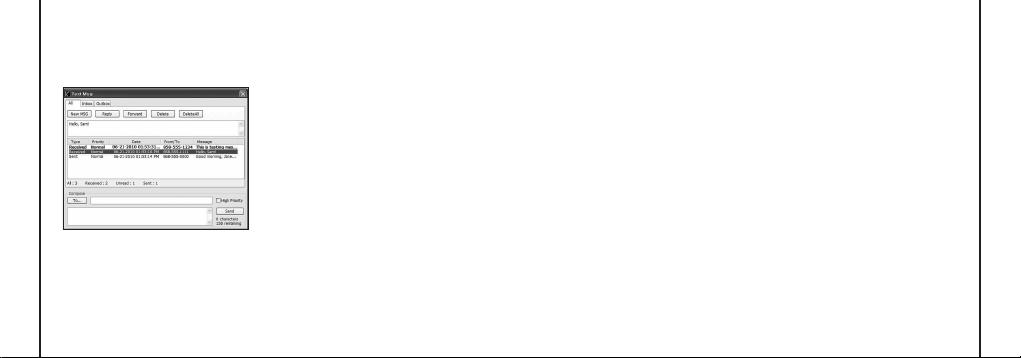
Mensajes de texto
Cricket Broadband admite mensajes de
texto para el módem Cricket A605.
3. USO DE CRICKET BROADBAND
Recepción de mensajes de texto
• Todos los mensajes de texto aparecen en
el cuadro de lista, en la parte superior de
la vista de mensajes de texto. De forma
predeterminada, aparecen todos los
mensajes recibidos.
18
• Para ver sólo ciertos mensajes, haga clic
en el mensaje y seleccione “All” (Todos),
“Inbox” (Buzón de Entrada) o “Outbox”
(Buzón de Salida).
• Si está en la vista de mensajes de texto
y llega un nuevo mensaje, éste aparece
automáticamente en la lista con formato
en negrita.
• Para ver un mensaje de texto prolongado,
seleccione el mensaje en la vista de lista.
Los detalles del mensaje aparecen sobre
la lista.
• Para responder a un mensaje entrante,
seleccione en el mensaje y presione el
botón [Responder]. El número de teléfono
del remitente aparece automáticamente
en el nuevo mensaje. Ingrese el nuevo
mensaje y presione el botón [Send] para
enviar el mensaje.
• para reenviar un mensaje entrante,
seleccione el mensaje y presione el botón
[Forward] (Reenviar).
El mensaje aparece automáticamente en el
área de envío a continuación con el prefijo
“FW:.” Presione el botón [Send] para enviar
el mensaje.
Envío de mensajes de texto
• El módem Cricket A605 puede enviar
mensajes de texto a:
— Un número inalámbrico de EE. UU.
Para ello, ingrese: 1, luego el número
inalámbrico.
— Un número inalámbrico fuera de EE. UU.
Para ello, ingrese: 011, el código del país
y luego el número inalámbrico.
— Una cuenta de e-mail. Para ello, ingrese
una dirección de e-mail.
• Para enviar un mensaje de texto a uno
o más suscriptores, ingrese los números
móviles de 10 dígitos separados por un
punto y coma en el campo “Para...”. (Por
ejemplo: 5555555555; 5555555556).
• Con algunos dispositivos que admiten
listas de contactos de mensajes de texto,
puede hacer clic en el botón [To] para abrir
la lista de contactos.
• El número de teléfono y los campos del
mensaje son obligatorios.
• El contador de caracteres permite entre 0
y 150, y cuenta todos los caracteres que
se ingresan en el campo del mensaje.
(Español: 0~130)
• Haga clic en el botón [Send].
4. PREFERENCIAS DE CRICKET BROADBAND
19
Page 33
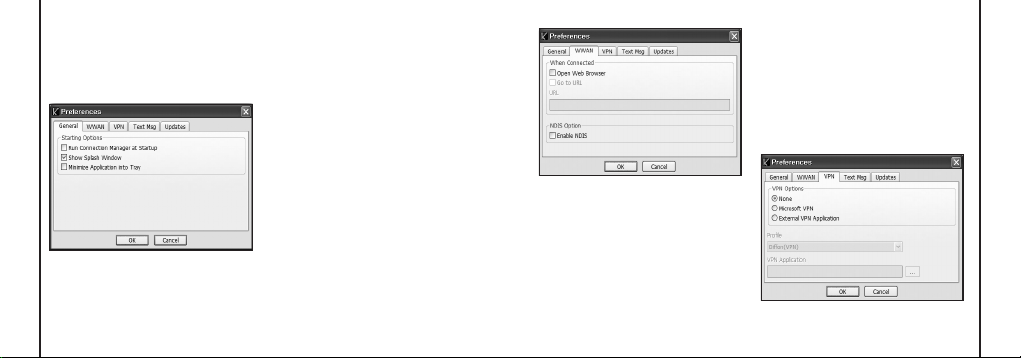
Preferencias generales
Haga clic en [Options] (Opciones) y luego en
[Preferences] (Preferencias).
Ficha General
Run Connection Manager at Startup
(Ejecutar administrador de conexión al
inicio):
Si se marca esta opción, Cricket
4. PREFERENCIAS DE CRICKET BROADBAND
Broadband se inicia automáticamente al
iniciarse Windows.
20
Show Splash Window (Mostrar ventana
de presentación):
presentación al inicio de Cricket Broadband.
Minimize Application into Tray (Minimizar
aplicación en la bandeja):
aplicación, aparece en la barra de tareas de
Windows. Para restaurar
la aplicación, haga clic en el icono de
bandeja de Cricket Broadband y seleccione
[Open] (Abrir).
Muestra una ventana de
Al minimizar la
Configuración específica de
WWAN
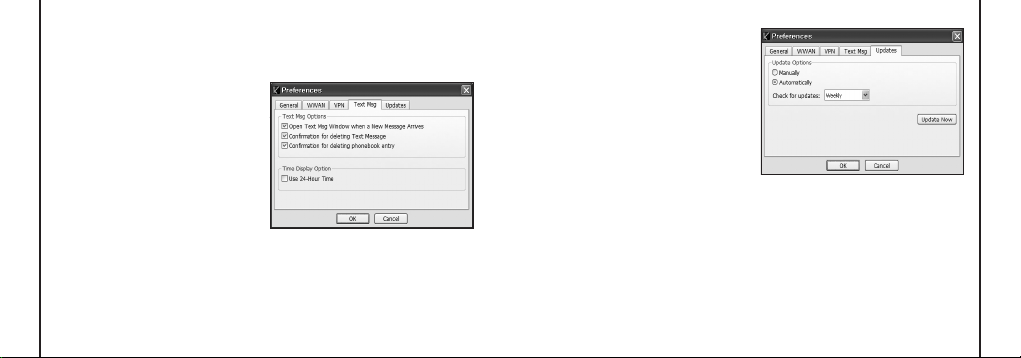
Preferencias de WWAN
Se usa para establecer diferentes
configuraciones de conexión de WWAN.
Open Web Browser (Abrir navegador Web):
Cuando la conexión de datos se establece
correctamente, Cricket Broadband ejecuta
automáticamente el navegador Web.
Go to URL (Ir a un URL):
el navegador Web, vaya al sitio Web
que definió usando el campo de URL a
continuación.
URL:
URL de sitio Web para iniciar la
página de un explorador Web iniciada
Para activar
automáticamente al conectarse a la red de
Cricket Broadband.
NDIS Option (Opción de NDIS):
activa, NDIS proporciona una conexión
permanente a Internet.
• Haga clic en el botón [OK].
Si se
Configuración de VPN
4. PREFERENCIAS DE CRICKET BROADBAND
21
Page 34
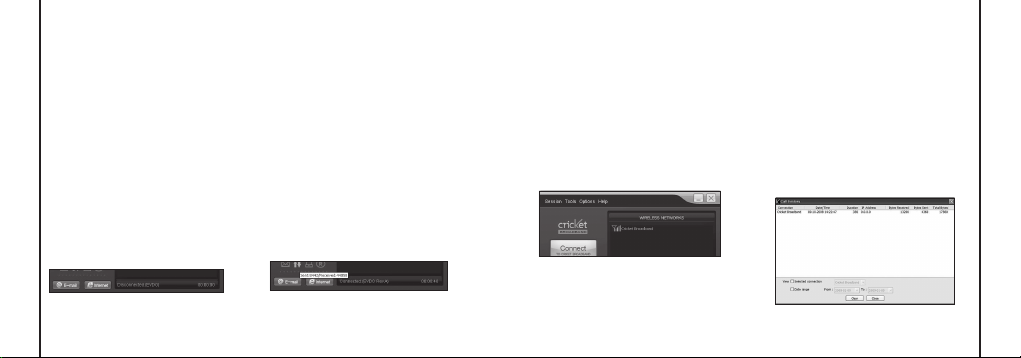
Opciones de VPN
• None (Ninguna): No use VPN.
• Microsoft VPN (VPN Microsoft): Use el
cliente VPN de Microsoft Windows.
• External VPN Application (Aplicación
de VPN externa): Use otra aplicación
de cliente VPN proporcionada por otro
proveedor.
Profile (Perfil; sólo para VPN Microsoft)
Seleccione el perfil de VPN Microsoft.
Aplicación de VPN externa
Especifique otra aplicación de cliente VPN.
Para elegir la aplicación en el disco local,
haga clic en el botón “ ”.
• Haga clic en el botón [OK].
4. PREFERENCIAS DE CRICKET BROADBAND
22
Configuración de mensajes de
texto
Text Message es una aplicación de
mensajes para dispositivos inalámbricos,
que permite escribir y enviar mensajes de
texto a otros teléfonos inalámbricos.
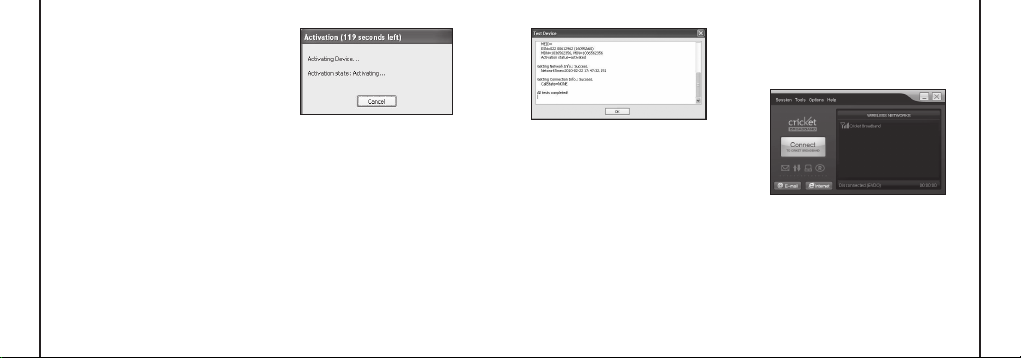
La cha Text Msg (Msj de texto) del diálogo
Preferences permite configurar ciertas
opciones de envío de mensajes de texto.
Estas opciones son:
• Open Text Msg Window when a new text
message arrives (Abrir la ventana Text
Msg cuando llegue un nuevo mensaje
de texto): Active o desactive la apertura
automática de la ventana Text Msg al llegar
nuevos mensajes de texto.
• Conrmation for deleting a text message
(Confirmación para borrar un mensaje
de texto): Confirme la eliminación de
mensajes de texto.
• Conrmation for deleting a phonebook
entry (Confirmación para borrar una
entrada del directorio): Confirme la
eliminación de entradas del directorio.
• Use 24-Hour Time (Usar formato de 24
horas): Seleccione un reloj de 12 ó 24
horas para Text Message.
• Haga clic en el botón [OK].
Configuración de
actualizaciones
Esta característica permite que el software
Cricket Broadband busque actualizaciones
de software y se puede actualizar manual o
automáticamente.
• Manually (Manualmente): Si elije
esta opción, el software sólo busca
actualizaciones si hace clic en el botón
“Update Now” (Actualizar ahora) o
selecciona “Help” (Ayuda) y luego “Check
for updates” (Buscar actualizaciones) en la
pantalla principal.
• Automatically (Automáticamente):
Puede permitir que el software busque
automáticamente actualizaciones en forma
4. PREFERENCIAS DE CRICKET BROADBAND
23
Page 35
diaria, semanal o mensual. Sólo busca si
se ejecuta la aplicación, y cuando detecta
que está conectado y que puede acceder
a Internet.
Funciones adicionales
Además de las funciones básicas
mencionadas en secciones anteriores,
Cricket Broadband cuenta con las funciones
adicionales mencionadas a continuación.
Barra de estado
Los detalles de la conexión actual se
pueden ver en la barra de estado en la parte
inferior de la interfaz de Cricket Broadband.
Esta barra de estado está siempre visible si
la interfaz se expande completamente.
4. PREFERENCIAS DE CRICKET BROADBAND
Estado de conexión
El texto de la barra de estado refleja su
24
estado actual. Durante una conexión activa,
este texto cambia a “Connected”.
Si no está conectado, aparece
“Disconnected” (Desconectado).
Área de estado de módem USB WWAN
El texto puede cambiar a:
• No Device (Sin dispositivo):
USB WWAN se retiró de la computadora
portátil.
• Device not activated (Dispositivo no
activado):
El módem USB se debe activar.
Seleccione “Activation” (Activación) en el
menú Tools (Herramientas).
El módem
Rendimiento
La cantidad de datos que envía y recibe
desde que se inició la conexión a la red
actual se puede ver pasando el mouse por
encima de las echas verdes hacia arriba
y abajo, que se encuentran en el lado
izquierdo de la barra de estado.
Tiempo transcurrido
La cantidad de tiempo transcurrido desde
que se inició la conexión a la red actual
se puede controlar en la esquina inferior
izquierda de la barra de estado.
Menú de sesión
Connect / Disconnect (Conectar
/ Desconectar):
desconectar las redes inalámbricas.
Puede conectar o
Menú de herramientas
Log (Registro)
conciso de la actividad de la red durante
la sesión. Haga clic en el encabezado de
una columna para ordenar el registro. Esta
ventana también muestra el número total
de sesiones, además del tiempo total de
conexión.
La información que aparece en el registro de
uso se puede personalizar con los controles
que aparecen justo debajo de la lista.
: Proporciona un registro
4. PREFERENCIAS DE CRICKET BROADBAND
25
Page 36
Para ver sólo el historial de conexión de
un tipo específico de red, marque la casilla
de vericación “Selected connection”
(Conexión seleccionada) y seleccione el tipo
deseado de la lista desplegable.
Para ver sólo las conexiones hechas durante
un intervalo específico, marque la casilla
de vericación “Date range” (Rango de
fechas) y especique la fecha en los campos
“From:” (Desde:) y “To:” (Hasta:) .
Para borrar el registro, presione el botón
Clear (Borrar).
Tenga en cuenta que, una vez borrado el
registro, no lo podrá deshacer.
Close (Cerrar):
Cierra la ventana de registro.
Menú de opciones
Activation (Activación):
4. PREFERENCIAS DE CRICKET BROADBAND
de activación, el número de teléfono y la
IMSI(MIN) en el módem USB.
26 27
Programa el código
Find Device (Encontrar dispositivo):
a encontrar el módem. Es útil si debe
reconfigurar Cricket Broadband para usar
un nuevo módem USB.
Test WWAN Device (Probar dispositivo
WWAN):
Recupera y muestra información
detallada sobre el dispositivo WWAN
(módem USB 1xEV-DO/1xRTT/CDMA),
como fabricante, modelo, versión, etc. Esta
información puede ser valiosa para resolver
un problema.
Vuelve
Preferences (Preferencias): Se usa para
seleccionar preferencias de la configuración
de conexión.
Botón “Internet”
Inicia el navegador Web predeterminado en
la computadora.
Botón “Email”
Inicia la aplicación de e-mail predeterminada
en la computadora.
Menú de ayuda
Cricket Broadband cuenta con una sección
de ayuda. Consulte esta sección en caso de
tener más preguntas.
4. PREFERENCIAS DE CRICKET BROADBAND
Page 37
Especificaciones recomendadas
de sistemas
Para instalar y usar correctamente el
dispositivo USB Cricket A605 en la PC, se
requieren las siguientes especificaciones
del sistema.
Elemento Especificación requerida
Windows® 2000 SP4
Windows® XP SP1 a SP3
Sistema
operativo
5. INSTALACIÓN DE CRICKET A605
CPU 150 MHz o más rápido
Puerto Puerto USB 2.0 tipo A
28 29
Windows Vista™
(32 bit y 64 bit)
Windows® 7 (32 bit y 64 bit)
Mac OS® X 10.4.11 a 10.6.3
(32 bit y 64 bit)
Acceso
telefónico
a redes
Memoria 128 MB
Espacio en
disco
El módem Cricket A605 es útil para
*
computadoras que incluyen puerto USB.
El servicio de activación por voz no es
compatible.
DUN dependiente de
TCP/IP
32 MB
Uso del módem
Indicador de intensidad de la señal
LED de estado de energía
LED de estado de energía
• Verde:
La energía está bien.
• Rojo:
No hay suciente energía para las
condiciones actuales. Si el LED de estado
de energía está rojo, se recomienda que
use el cable de extensión Y del módem
USB.
Indicador de intensidad de la señal
• 0~ 4:
Intensidad de señal débil o sin señal,
4: Intensidad de señal alta.
Retiro del módem de la
computadora
• Retire el módem Cricket A605 de la
computadora portátil. Al retirarlo, siempre
tómelo de los lados y jálelo con cuidado.
5. INSTALACIÓN DE CRICKET A605
Page 38
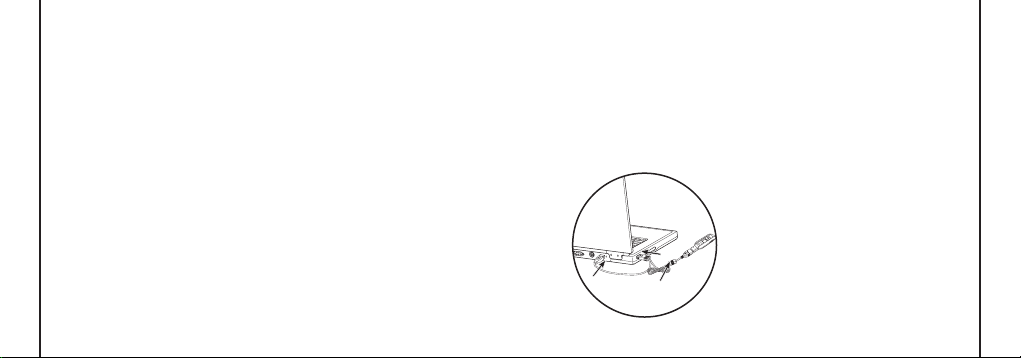
Uso del cable de extensión en Y
B
A
# 1
B
#2
del módem USB
• El paquete del módem Cricket A605
incluye un cable de extensión USB
con forma de Y. Aunque el cable en
Y no es necesario para usarse con el
módem Cricket A605, ofrece un mayor
rendimiento para el módem en ciertas
condiciones operativas. Conecte el cable
en Y en los dos puertos USB distintos de
la computadora a fin de obtener la energía
suficiente si es necesario para aumentar
el rendimiento de la radiofrecuencia y
resolver problemas de permiso.
5. INSTALACIÓN DE CRICKET A605
Uso del cable de extensión en Y del
módem USB:
1) Conecte el extremo simple del cable
en forma de Y en el módem Cricket
A605. [A]
30
2) Dependiendo del problema que
intente resolver (mayor rendimiento de
radiofrecuencia o problemas de permiso),
conecte uno de los dos extremos
conectados del cable de extensión en Y
del módem USB en los puertos USB tipo
A de la computadora. [B]
Nota: El conector negro del cable de
extensión en Y del módem USB es el
principal cable de alimentación de datos
usado para utilizar el módem Cricket A605
aleado de la computadora, lo que permite
ubicarlo en un lugar con mejor señal o
resolver todos los problemas de permiso de
puerto USB de la computadora. El conector
gris del cable de extensión en Y del módem
USB corresponde a un cable en Y de
aumento de la energía y se debe usar con
el conector negro para alimentar al módem
con hasta 1 amperio de corriente para que
funcione en áreas de señales más débiles.
El cable en Y se debe conectar a dos
puertos USB distintos.
3) El dispositivo se conecta a la
computadora y recibe alimentación de
ella desde el momento en que se conecta
bien el cable en Y USB en los puertos
USB tipo A correspondientes.
4) Haga clic en Connect.
5. INSTALACIÓN DE CRICKET A605
31
Page 39

Solución de problemas
1. EL INDICADOR LED no enciende
• Verique si el módem A605 está bien
insertado en el puerto USB.
• Vuelva a insertar el módem A605 en el
puerto USB (Forzar el módem A605 en
el puerto USB puede provocar daños
graves).
• Inserte el módem A605 en otro puerto
USB.
SOLUCIÓN DE PROBLEMAS
2. Se producen errores cuando se ejecuta
Cricket Broadband
• Verique si Cricket Broadband está bien
instalado.
• Vuelva a instalar Cricket Broadband o
reinicie la PC.
32
3. CM muestra “No device” (No hay disposi-
tivo) en la barra de estado
• Verique que el módem A605 esté bien
insertado en el puerto USB.
• Verique si el controlador USB esté bien
instalado.
• Espere hasta que el estado cambie a
“Disconnected” (Desconectado). Esto
puede tardar un minuto.
4. La conexión a Internet falla
• Verique si no hay intensidad de señal
LED.
• Verique si el módem está activado.
• Revise si la función de WiFi en su com-
putadora está desactivada.
Si tiene más preguntas de soporte sobre
el módem Cricket A605, llame al 1-800CRICKET.
CUIDADO Y MANTENIMIENTO
Su dispositivo es un producto de diseño
y maestría superiores, por lo que se
debe tratar con cuidado. Las siguientes
sugerencias le ayudarán a proteger la
cobertura de su garantía.
• Mantenga seco el dispositivo. La lluvia,
la humedad y todo tipo de líquidos o
humedad pueden contener minerales
que causan corrosión a los circuitos
electrónicos.
• No utilice ni guarde el dispositivo en áreas
polvorientas o sucias. Sus partes móviles
y componentes electrónicos pueden
dañarse.
• No utilice ni guarde el dispositivo en áreas
con altas temperaturas. Las temperaturas
elevadas pueden acortar la vida de
los dispositivos electrónicos, dañar las
baterías y deformar o derretir ciertos
plásticos.
• No utilice ni guarde el dispositivo en
áreas a bajas temperaturas. Cuando el
dispositivo recobre su temperatura normal,
se puede formar humedad dentro del
dispositivo y dañar los tableros de circuitos
electrónicos.
• No intente de desarmar el dispositivo.
• No deje caer, golpee ni sacuda el
dispositivo. El manejo rudo puede romper
los tableros de circuitos internos y los
mecanismos delicados.
• No utilice sustancias químicas abrasivas,
disolventes de limpieza ni detergentes
fuertes para limpiar el dispositivo.
• No pinte el dispositivo. La pintura puede
obstruir las partes móviles e impedir un
funcionamiento adecuado.
CUIDADO Y MANTENIMIENTO
33
Page 40

• Utilice únicamente la antena suministrada
u otra de reemplazo aprobada. Las antenas
no autorizadas, las modificaciones o los
accesorios pueden dañar el dispositivo y
GARANTÍA
pueden violar las reglamentaciones sobre
los dispositivos de radio.
Todas las sugerencias anteriores se aplican
tanto para el dispositivo como para la
batería, el cargador o cualquier mejora.
Si el dispositivo no está funcionando
adecuadamente, llévelo al centro de servicio
autorizado más cercano para su reparación.
GARANTÍA
Garantía limitada de un (1) año (EE. UU.)
Para productos comprados a Cricket o
sus distribuidores autorizados, Cricket
garantiza que este dispositivo (el “Producto”)
carece de defectos en los materiales o la
fabricación que causen fallo del Producto
34
durante su uso normal, según los siguientes
términos y condiciones (la “Garantía
limitada”):
1. La Garantía limitada para el Producto se
extiende durante un (1) año a partir de la
fecha de compra del Producto.
2. La Garantía limitada se extiende
únicamente al comprador original (el
“Consumidor”) del Producto y no se
puede asignar o transferir a compradores
o usuarios finales subsiguientes.
3. La Garantía limitada se extiende
únicamente a los Consumidores que
compran el Producto a Cricket o sus
distribuidores autorizados.
4. Durante el período de Garantía limitada,
Cricket reparará o reemplazará, a
discreción exclusiva de Cricket, cualquier
parte defectuosa o que no opere
adecuadamente para el uso intencionado
con elementos de reemplazo nuevos o
reacondicionados si dicha reparación
o reemplazo son necesarios por mal
funcionamiento del producto o falla
durante el uso normal. La Garantía
limitada no cubre defectos en la
apariencia ni en elementos cosméticos,
decorativos o estructurales, lo que incluye
el armazón y las partes que no operan.
El límite de la responsabilidad de Cricket
según la Garantía limitada deberá ser el
valor real en efectivo del Producto en el
momento en que el Consumidor lo lleva
para su reparación, determinado por el
precio pagado por el Consumidor por el
Producto menos una cantidad razonable
por el uso. Cricket no será responsable
de ninguna otra pérdida o daño. Estas
soluciones son las únicas que tiene el
Consumidor en caso de incumplimiento
de la Garantía limitada.
5. Por solicitud de Cricket, el Consumidor
debe comprobar la fecha de compra
original del Producto según una factura
de venta fechada o un recibo desglosado
fechado.
6. El Consumidor correrá con los gastos
de envío del Producto a Cricket. Cricket
correrá con los gastos de envío del
Producto de regreso al Consumidor luego
de completar la reparación que cubre
esta Garantía limitada.
7. El Consumidor no tendrá cobertura
ni beneficios bajo los términos de
esta Garantía limitada si alguna de las
siguientes condiciones aplica:
a. el Producto ha estado sujeto a uso
anormal, condiciones anormales,
almacenamiento inadecuado,
exposición a la humedad o a un
GARANTÍA
35
Page 41

líquido, modificaciones inadecuadas,
conexiones no autorizadas,
reparaciones no autorizadas, uso
inadecuado, negligencia, abuso,
GARANTÍA
accidentes, alteraciones, instalación
inadecuada u otros actos que no sean
responsabilidad de Cricket, lo que
incluye el daño causado durante el
envío.
b. el Producto ha resultado dañado por
causas externas como colisión con un
objeto o por fuego, inundación, arena,
suciedad, vendavales, rayos, terremoto
o daños por exposición a condiciones
atmosféricas, desastres naturales,
fugas de la batería, robo, quemadura
de un fusible o uso inadecuado de
una fuente eléctrica, daño causado
por virus de computadora o Internet,
errores de software, gusanos, caballos
36
de Troya, canceladores de correo
publicitario no solicitado (cancelbots)
ni por daños causado por la conexión
a otros productos (lo que incluye, entre
otras cosas, hardware y software) no
recomendados para interconexión por
Cricket.
c. se ha retirado, alterado o destruido
la placa con el número de serie del
Producto o el código de mejora de
datos.
d. el defecto o daño fue causado por
función defectuosa del sistema celular
o por recepción inadecuada de señal
por una antena externa, virus u otros
problemas de software introducidos en
el Producto.
8. Cricket no garantiza la operación
ininterrumpida ni libre de errores del
Producto. Si surge un problema durante
el período de Garantía limitada, el
Consumidor debe seguir paso a paso el
procedimiento indicado a continuación:
a. El Consumidor deberá devolver el
Producto al lugar de compra para el
procesamiento de su reparación o
reemplazo.
b. El Consumidor deberá incluir una
dirección de retorno, número de teléfono
diurno o número de fax, una descripción
completa del problema, comprobante de
compra y acuerdo de servicio (si aplica).
Esta Garantía limitada no cubre los
gastos relacionados con retirar el
Producto de algún lugar donde ha sido
instalado.
c. Al Consumidor se le cobrará cualquier
repuesto o mano de obra que no estén
cubiertos por esta Garantía limitada.
El Consumidor será responsable de
cualquier gasto relacionado con la
reinstalación del Producto.
d. Cricket reparará el Producto según
los términos de la Garantía limitada
dentro de los treinta días siguientes a
la recepción del Producto. Si Cricket no
puede realizar las reparaciones cubiertas
por esta Garantía limitada en un plazo
de treinta días o luego de una cantidad
razonable de intentos por reparar el
mismo defecto, Cricket, a su entera
discreción, ofrecerá un Producto como
reemplazo o reembolsará el valor de la
compra menos una cantidad razonable
por el uso.
e. Si el Producto se devuelve durante
el período de Garantía limitada pero
el problema con el Producto no está
cubierto por los términos y condiciones
de esta Garantía limitada, se notificará
al Consumidor y se le proporcionará
GARANTÍA
37
Page 42

un cálculo de los cobros que deberá
pagar para la reparación del Producto,
junto con todos los gastos de envío
cobrados al Consumidor. Si el cálculo
GARANTÍA
es rechazado, el Producto será
devuelto con cargo al destinatario. Si
el Producto se devuelve después de
que caduque el período de Garantía
limitada, aplicarán las políticas normales
de servicio de Cricket, y el Consumidor
será responsable de todos los gastos
de envío.
9. Usted (el Consumidor) acepta que
el Producto pueda estar compuesto
por equipo reparado que contenga
componentes usados, algunos de los
cuales habrán sido reprocesados. Los
componentes usados cumplirán con
las especificaciones de desempeño y
confiabilidad del Producto.
38 39
10. Exención de la Garantía. CON
EXCEPCIÓN DE LO ESTABLECIDO EN
LA GARANTÍA LIMITADA EXPRESA, EL
CONSUMIDOR ACEPTA EL PRODUCTO
“COMO ESTÁ” Y CRICKET NO HACE
GARANTÍAS NI REPRESENTACIONES
Y NO HAY CONDICIONES, EXPRESAS
NI EXPLÍCITAS, ESTATUTARIAS U
OTRAS, DE NINGÚN TIPO CON
RESPECTO AL PRODUCTO, LO QUE
INCLUYE, ENTRE OTROS ASPECTOS,
NINGUNA GARANTÍA IMPLÍCITA DE
POSIBLE COMERCIALIZACIÓN NI
AJUSTE PARA UN PROPÓSITO O
USO PARTICULAR; GARANTÍAS DE
TÍTULO O NO INFRACCIÓN; DISEÑO,
CONDICIÓN, CALIDAD O DESEMPEÑO
DEL PRODUCTO; FABRICACIÓN DEL
PRODUCTO O LAS PARTES QUE
CONTIENE, NI EL CUMPLIMIENTO DEL
PRODUCTO DE LO ESTIPULADO EN
TODA LEY, NORMA, ESPECIFICACIÓN NI
CONTRATO PERTINENTES.
11. NO SERÁ RESPONSABLE DE DAÑOS
ESPECIALES, INCIDENTALES, PUNITIVOS
O RESULTANTES, LO QUE INCLUYE,
ENTRE OTRAS COSAS, PÉRDIDA DE
BENEFICIOS O GANANCIAS ESPERADOS,
PÉRDIDA DE AHORROS O INGRESOS,
PÉRDIDA DE DATOS, DAÑOS PUNITIVOS,
PÉRDIDA DE USO DEL PRODUCTO O
CUALQUIER EQUIPO ASOCIADO, COSTO
DE CAPITAL, COSTO DE CUALQUIER
EQUIPO O CENTRO DE REEMPLAZO,
TIEMPO DE INACTIVIDAD POR AVERÍA,
RECLAMACIONES DE CUALQUIER
TERCERO, COMO CLIENTES, Y DAÑOS
A LA PROPIEDAD QUE RESULTEN DE LA
COMPRA O USO DE ESTE PRODUCTO, O
DEL INCUMPLIMIENTO DE LA GARANTÍA,
DEL CONTRATO, POR NEGLIGENCIA
AGRAVIO O CUALQUIER OTRA TEORÍA
LEGAL O EQUITATIVA AÚN SI CRICKET
TENÍA CONOCIMIENTO DE LAS
PROBABILIDADES DE DICHOS DAÑOS.
CRICKET NO SERÁ RESPONSABLE DE
RETRASOS EN LA PRESTACIÓN DEL
SERVICIO BAJO LOS TÉRMINOS DE LA
GARANTÍA LIMITADA, NI DE LA PÉRDIDA
DE USO DURANTE EL TIEMPO EN QUE EL
PRODUCTO ESTÉ EN REPARACIÓN.
NINGUNO DE LOS CONTENIDOS DEL
MANUAL DE INSTRUCCIONES DEBERÁ
CONSIDERARSE COMO GARANTÍA
EXPRESA DE NINGÚN TIPO RESPECTO AL
PRODUCTO. TODAS LAS GARANTÍAS Y
CONDICIONES IMPLÍCITAS QUE PUEDAN
SURGIR POR LA APLICACIÓN DE LA LEY,
ENTRE OTRAS, SI APLICA, GARANTÍAS DE
POSIBILIDAD DE COMERCIALIZACIÓN Y
AJUSTE A UN PROPÓSITO PARTICULAR,
QUEDAN AQUÍ LIMITADAS A LA MISMA
DURACIÓN DE LA GARANTÍA EXPRESA
GARANTÍA
Page 43

POR ESCRITO AQUÍ ESTABLECIDA.
12. Algunos estados no permiten
limitaciones en cuanto a la duración
de una garantía implícita, por lo que
la limitación de un (1) año podría no
aplicar para usted (el Consumidor).
Algunos estado no permiten la exclusión
o limitación de daños incidentales o
resultantes por lo que algunas de las
INFORMACIÓN DE SAR
limitaciones o exclusiones anteriores
podrían no aplicar para usted (el
Consumidor). Esta Garantía limitada
le da al Consumidor derechos legales
específicos, además de otros que podría
tener según el estado.
13. Cricket no asume ni autoriza a ningún
centro autorizado de servicio ni a otra
persona o entidad a asumir ninguna
obligación o responsabilidad más allá
de lo establecido expresamente en
40 41
esta Garantía limitada, lo que incluye
al proveedor o vendedor de cualquier
extensión de la garantía o acuerdo de
servicio.
14. Esto constituye la totalidad de la Garantía
entre Cricket y el Consumidor y
reemplaza todos los acuerdos o arreglos
anteriores y contemporáneos, ya sean
orales o escritos, relacionados con el
Producto, y ninguna representación,
promesa ni condición que no estén aquí
contenidas deberán modificar estos
términos. Los agentes, empleados,
distribuidores y expendedores de
Cricket no están autorizados a hacer
modificaciones a esta Garantía limitada
ni a hacer garantías adicionales que
comprometan a Cricket. De igual manera,
las declaraciones adicionales como
presentaciones o publicidad del
expendedor, ya sean orales o escritas,
no constituyen garantías y no son
confiables.
15. Esta garantía limitada asigna el riesgo de
fallo del Producto entre el Consumidor y
Cricket. La asignación es reconocida por
el Consumidor y se refleja en el precio
de compra.
16. SI CUALQUIER PORCIÓN DE ESTA
GARANTÍA LIMITADA SE CONSIDERA
ILEGAL O SIN FUERZA EJECUTORIA
POR CUALQUIER LEY, DICHA
ILEGALIDAD PARCIAL O INCAPACIDAD
DE EJECUTAR NO AFECTARÁ LA
FUERZA EJECUTORIA DEL RESTO DE
ESTA GARANTÍA LIMITADA QUE EL
COMPRADOR RECONOCE QUE ES Y
SIEMPRE SERÁ DEFINIDA POR SUS
TÉRMINOS O POR LAS LIMITACIONES
QUE PERMITA LA LEY.
INFORMACIÓN DE SAR
ESTE MODELO DE TELÉFONO CUMPLE
LOS REQUISITOS DEL GOBIERNO EN
CUANTO A LA EXPOSICIÓN A LAS ONDAS
DE RADIO.
Su teléfono inalámbrico es un transmisor
y receptor de radio. Está diseñado y
fabricado para que no supere los límites
de emisión para la exposición a la energía
de radiofrecuencia (RF) que establece la
Comisión Federal de Comunicaciones del
Gobierno de los Estados Unidos. Estos
límites son parte de pautas integrales y
establecen niveles permitidos de energía
de RF para la población general. Las pautas
se basan en estándares desarrollados por
organizaciones científicas independientes
a través de evaluaciones periódicas
y exhaustivas de estudios cientícos.
Los estándares incluyen un margen de
INFORMACIÓN DE SAR
Page 44

seguridad considerable diseñado para
assure garantizar la seguridad de todas las
personas, sin importar la edad ni salud. Los
estándares de exposición para teléfonos
móviles inalámbricos se valen de una
unidad de medida conocida como Tasa
específica de absorción (Specific Absorption
Rate, SAR). El límite de la SAR establecido
por la FCC es de 1,6 W/kg. * Las pruebas
de SAR se llevan a cabo con el teléfono
transmitiendo a su nivel de potencia
certificado más alto en todas las bandas de
frecuencia comprobadas. Aunque la SAR se
INFORMACIÓN DE SEGURIDAD
determina al nivel de potencia certificado
más alto, el nivel real de SAR del teléfono
mientras funciona puede estar muy bajo
el valor máximo. Esto se debe a que el
teléfono está diseñado para funcionar a
niveles de potencia múltiples, de manera
de usar solamente la potencia necesaria
para alcanzar la red. En general, mientras
42 43
más cerca esté a una antena de estación
de base inalámbrica, más baja será la salida
de potencia. Antes de que un modelo de
teléfono esté dispobible para la venta al
público, este se debe someter a pruebas
y la FCC debe certificar que no supera el
límite establecido por el requisito adoptado
por el gobierno para una exposición segura.
Las pruebas se llevan a cabo en posiciones
y ubicaciones (por ejemplo, en la oreja y el
cuerpo), según lo requiere la FCC para cada
modelo. El valor más alto de SAR para este
modelo de módem cuando se probó para un
uso cerca del cuerpo, según lo descrito en
esta guía del usuario, es 1,14 W/Kg. Si bien
pueden existir diferencias entre los niveles
de SAR de distintos teléfonos y en distintas
posiciones, todos cumplen el requisito del
gobierno para una exposición segura. La
FCC otorgó una Autorización de equipo para
el modelo de este teléfono con todos los
niveles informados de SAR evaluados en
cumplimiento con las pautas de exposición
a RF de la FCC. La información de SAR
sobre este modelo de teléfono se encuentra
archivada en FCC y se puede consultar
en la sección Display Grant (Mostrar
autorización) de http://www.fcc.gov/ oet/
fccid después de buscar en la ID de la
FCC: Q78-A605. Más información sobre
las Tasas específicas de absorción (SAR)
se encuentra en el sitio Web de la Cellular
Telecommunications Industry Association
(CTIA) en http://www.wow-com.com. * En
Estados Unidos y Canadá, el límite de SAR
para teléfonos móviles usados en público es
de 1,6 vatios/kg (W/kg) en promedio sobre
un gramo de tejido. El estándar incorpora
un margen sustancial de seguridad para
ofrecer mayor protección al público y
compensar las variaciones de mediciones.
Información de seguridad
INFORMACIÓN DE SEGURIDAD PARA
TERMINALES INALÁMBRICAS FIJAS
EN AMBIENTES POTENCIALMENTE
EXPLOSIVOS
APAGUE su celular si se encuentra en un
área con una atmósfera potencialmente
explosiva y cumpla todas las señales e
instrucciones. Las chispas en esas áreas
podrían causar una explosión o un incendio,
que a su vez podrían causar lesiones
corporales o incluso la muerte.
INTERFERENCIA CON DISPOSITIVOS
MÉDICOS
Cierto equipo electrónico podría estar
blindado contra las señales de RF de su
teléfono inalámbrico. (como marcapasos,
prótesis auditivas y demás). APAGUE su
teléfono en centros de atención de la salud
INFORMACIÓN DE CUMPLIMIENTO CON LAS DISPOSICIONES DE LA FCC
Page 45

cuando las regulaciones publicadas en
estos lugares lo indiquen. Las señales de
RF pueden afectar sistemas electrónicos
instalados o blindados de manera
inadecuada en los vehículos automotores.
EXPOSICIÓN A ENERGÍA DE RF
Utilice únicamente la antena suministrada
u otra de reemplazo aprobada. No toque la
antena si no es necesario cuando el celular
esté en uso. No mueva la antena cerca o
recostada a cualquier parte expuesta del
cuerpo al hacer una llamada.
OPERACIÓN JUNTO AL CUERPO
Este dispositivo fue probado para
operaciones típicas de uso junto al cuerpo
con la parte posterior del teléfono a 0,5 cm
del cuerpo. Para mantener el cumplimiento
con los requisitos de exposición a RF de
OMISIÓN FEDERAL DE COMUNICACIONES DE EE. UU...
la FCC, debe haber una distancia mínima,
44 45
incluida la antena de 0,5 cm, con respecto al
cuerpo durante la operación normal.
Información de cumplimiento
con las disposiciones de la FCC
Este dispositivo cumple con la Parte 15 de
las normas de la FCC.
La operación está sujeta a las siguientes
dos condiciones:
(1) Este dispositivo no puede causar
interferencia perjudicial.
(2) Este dispositivo debe aceptar toda
interferencia recibida. Esto incluye
la interferencia que podría causar
operación no deseada.
EE. UU.
DECLARACIÓN DE
INTERFERENCIA DE
RADIOFRECUENCIA DE LA
COMISIÓN FEDERAL DE
COMUNICACIONES DE LOS
EE. UU.
INFORMACIÓN PARA EL USUARIO
NOTA: Este equipo se ha probado, y se
comprobó que cumple con los límites
de un dispositivo digital de Clase B en
cumplimiento con la Parte 15 de las normas
de la FCC. Estos límites están diseñados
para ofrecer protección razonable contra la
Interferencia perjudicial en una instalación
residencial. Este equipo genera, usa y
puede irradiar energía de radiofrecuencia
y, si no se instala y usa según las
instrucciones, puede causar Interferencia
perjudicial a las comunicaciones radiales.
Sin embargo, no hay garantía de que no
habrá interferencia en una instalación
particular. Si este equipo llega a causar
interferencia perjudicial a la recepción
de la radio o la televisión, que se puede
determinar apagando y encendiendo
el equipo, se insta al usuario a tratar de
corregir la interferencia con una o más de
las siguientes medidas:
*- Reoriente o reubique la antena receptora.
Aumente la separación entre el equipo y
el receptor.
*- Conecte el equipo a un enchufe de un
circuito distinto a aquel en que esté
conectado el receptor.
*- Si necesita ayuda, consulte al expendedor
o a un técnico experimentado en radio
y televisión.
OMISIÓN FEDERAL DE COMUNICACIONES DE EE. UU...
Page 46

Los cambios o modificaciones que no estén
aprobados expresamente por la parte
responsable del Cumplimiento podrían
negarle al usuario la potestad para usar el
equipo. La conexión de periféricos exige
el uso de cables de señal con protección a
tierra y blindados.
OMISIÓN FEDERAL DE COMUNICACIONES DE EE. UU...
46
08/10
 Loading...