

Page 1
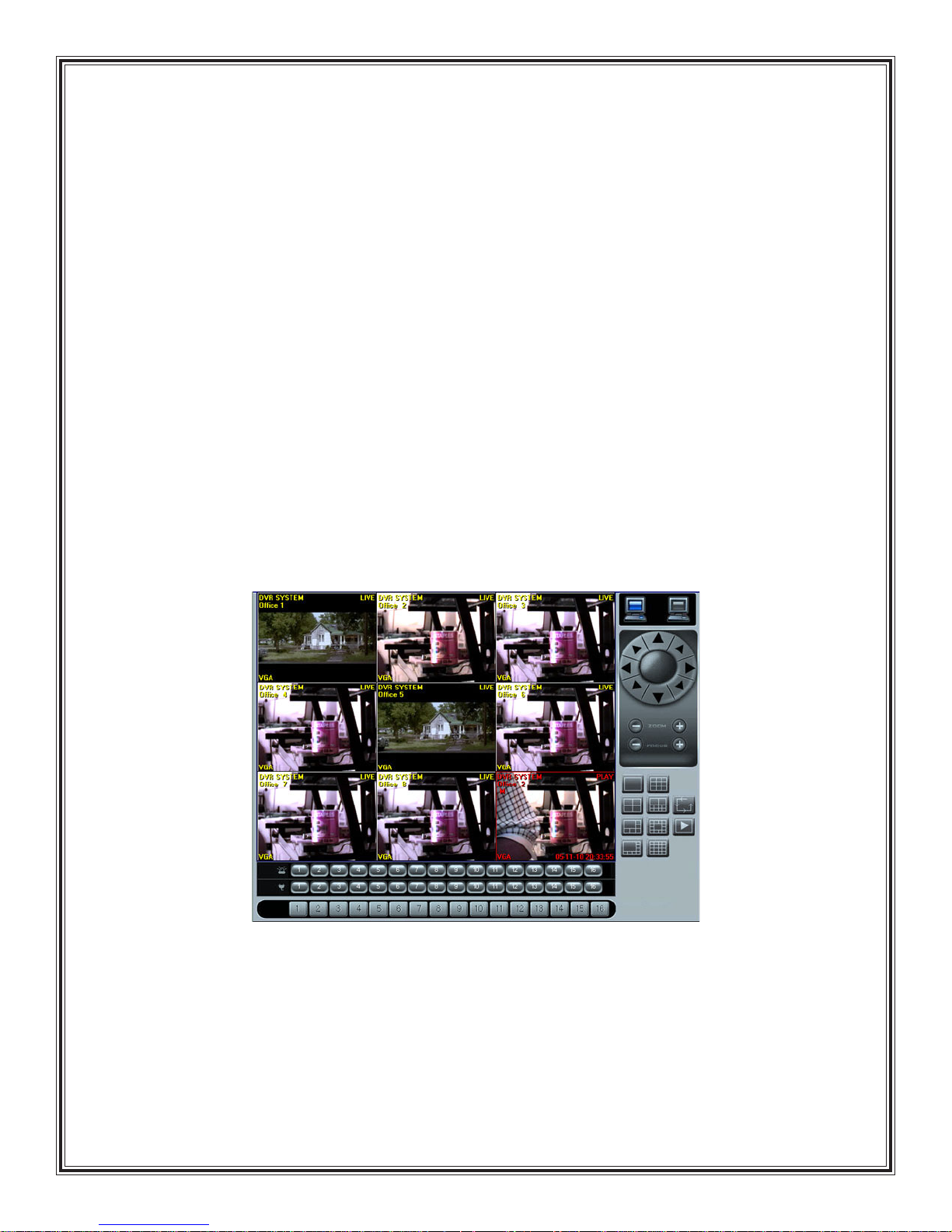
CDVS-7000 Series
Internet Browser
Remote Software
Guide
Crest Electronics, Inc. 2005
version 11.1005
Page 2

Web Surveillance Program
The web surveillance program offers the following functions when connecting with a CDVS-7000
series DVR using an internet browser:
- Real time image surveillance
- Real time audio
- Image search by date and time
- PTZ control
- Real time sensor event notification
Note
Web connection, Static Ip on DVR
A static IP is an IP address that never changes. To connect to a static IP enter the IP address in the
web browser address window . An example IP would be 65.85.107.120.
To use Web surveillance function, “Use Network” and “Use
Web” must be checked in network window of DVR environment setting screen.
Web connection pr otocol is TCP/IP and port number is 80
If port number is changed from the default port 80, then the port
number must be added after the address in the web browser
address window . Example: http://192.168.1.25:7300/
Web Connection, Dynamic IP on DVR
A dynamic IP address is one that changes frequently. If you use a dynamic,
DVR should be connected with external DDNS. Enter the DDNS domain in the internet browser
address window. An example of this type of address is Crest.dyndu.net.
Note
Refer to Appendix of DVR User Guide for information on
connecting DVR with external DDNS.
2
Page 3
Connection
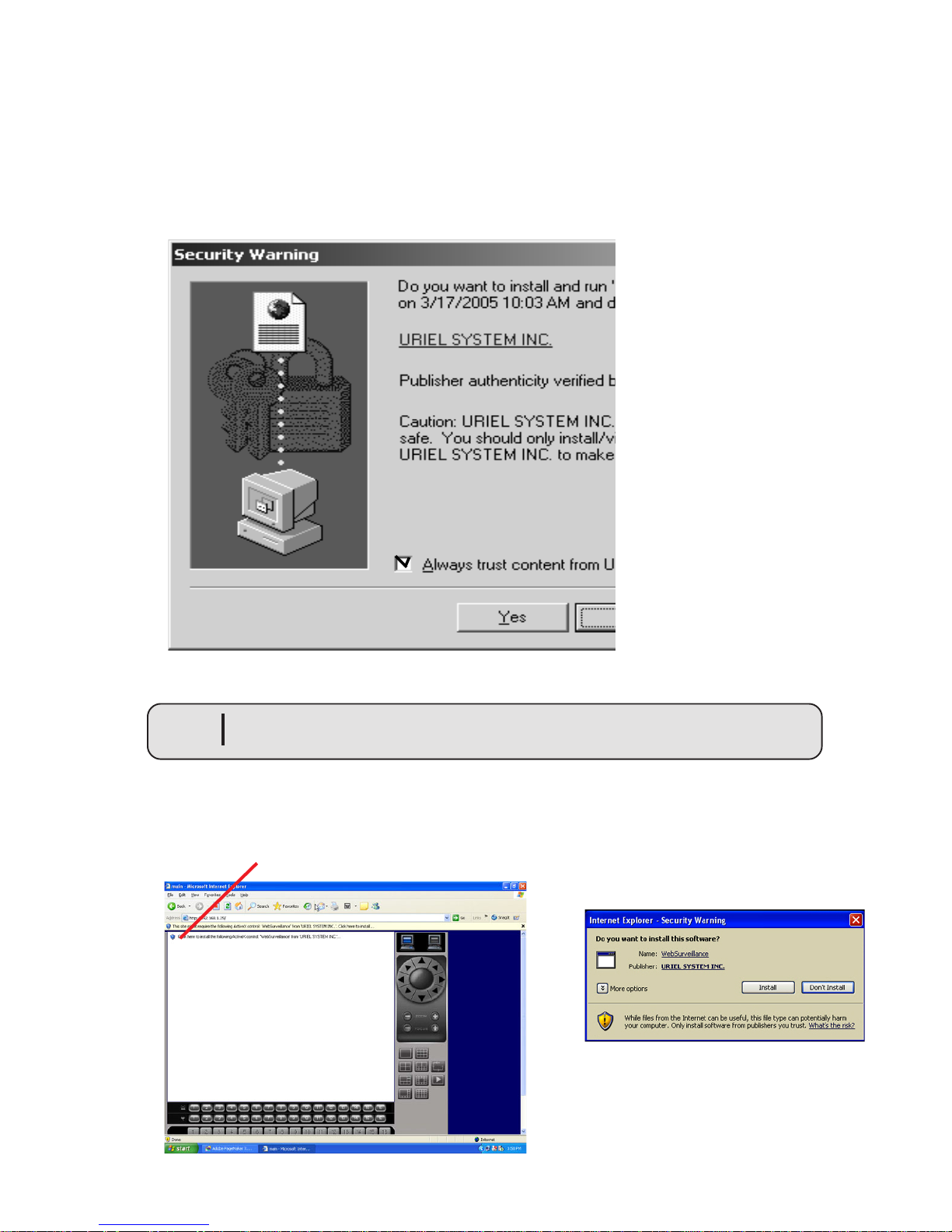
To connect, enter IP or DDNS domain of DVR in address window of web browser. The first time the
connection is made, program will be automatically downloaded. You will receive the message below . Check
“Always trust content from Uriel Systems Inc.” and click “yes”.
Authentication Download
Note
click to install ActiveX
Windows Xp SP2 users are asked to install Active X as shown in the
image below.
Install activeX controls
3
Page 4
Surveillance Operation
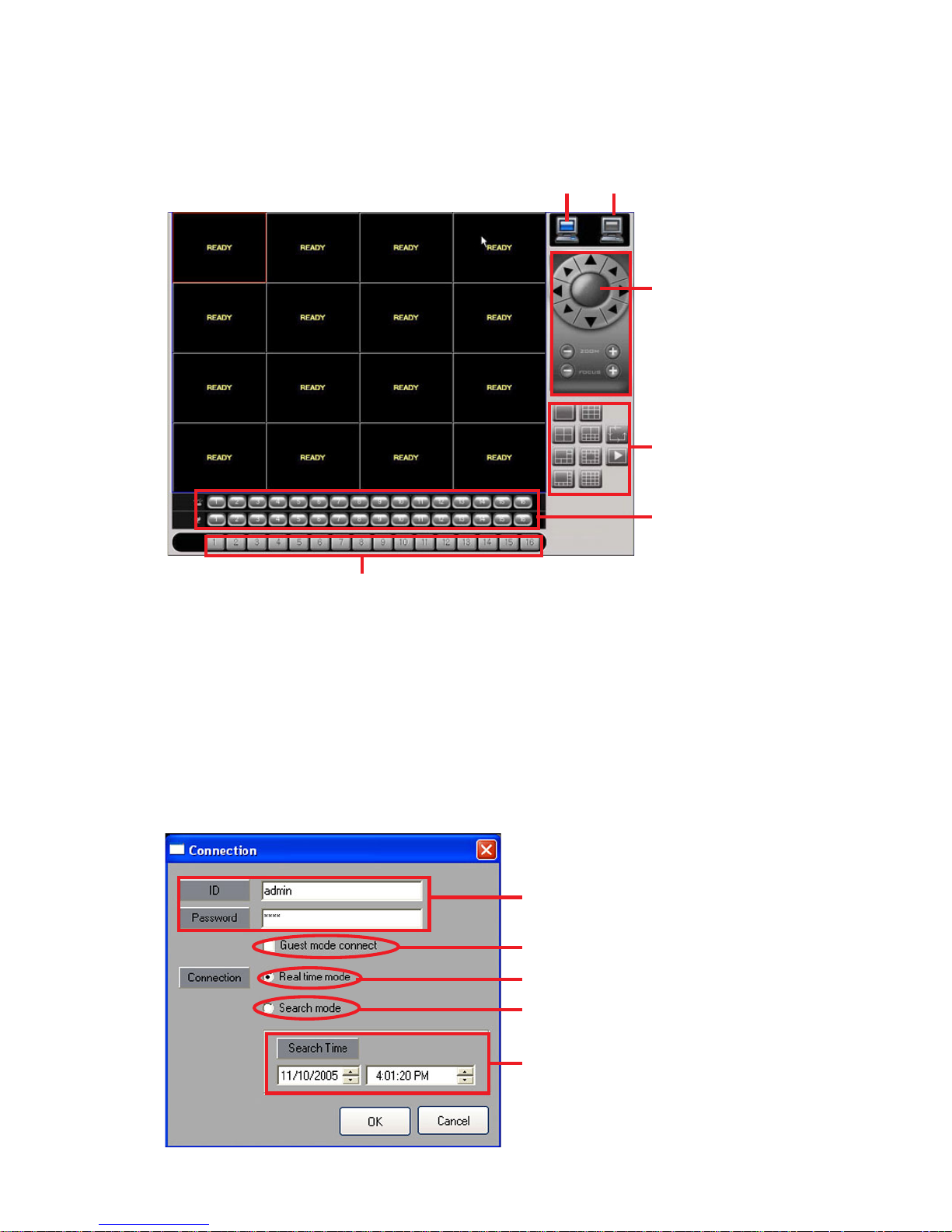
After installing the web browser controls, the Surveillance screen appears. The image below shows
the different functions of the surveillance screen.
log-in log out
PTZ controls
screen divisions
sensor/relay alarms
camera selection
Log-in
Click the log-in icon and the log-in window appears. There are two options for logging in: Guest, which
does not require a user id or password (must have anonymous user checked in DVR system settings
or guest will not connect) or connection, which requires a user id and password. T o view live video from
DVR, select Real time mode from the log-in window . T o view recorded video, select Search mode and
enter date and time to begin playback. See image below .
user id and password needed if guest mode is not used
if guest mode is checked no password is needed
live video mode
search video mode
date and time for search mode
4
Page 5
Log Out
Clicking the log out icon ends the connection.
PTZ Controls
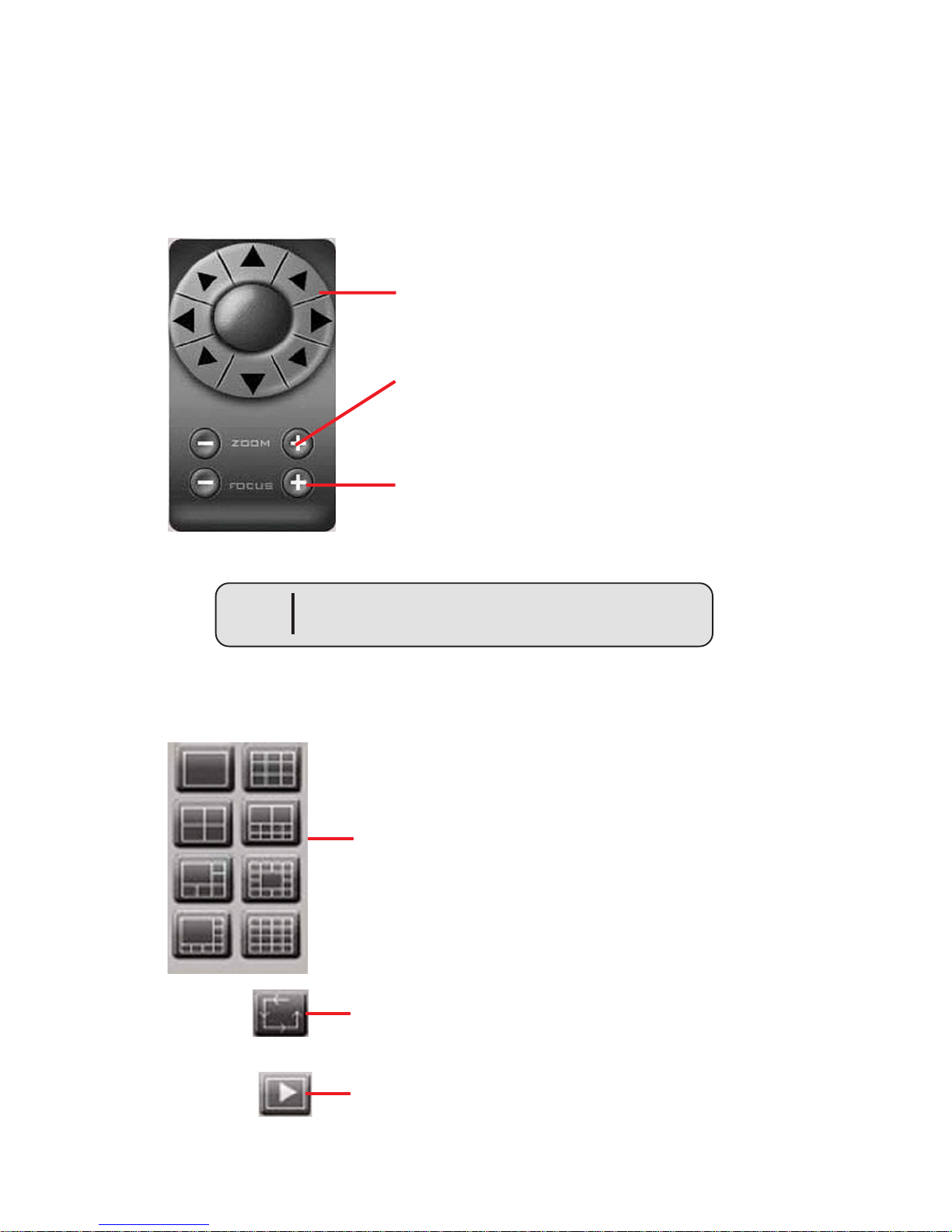
PTZ function allows for limited control of PTZ camera. The image belows shows the PTZ functions.
Pan/Tilt control adjusts the camera direction up,
down, left, right, and diagonally .
Zoom control adjusts the zoom in and out.
Focus adjusts the focus in and out.
Split Screen
Note
PTZ camera must be installed and set up in
DVR before PTZ is functional
Clicking an icon changes the surveillance
screen into desired split screen.
Rotates image in order of split screen
Moves image to next screen in split screen
5
Page 6
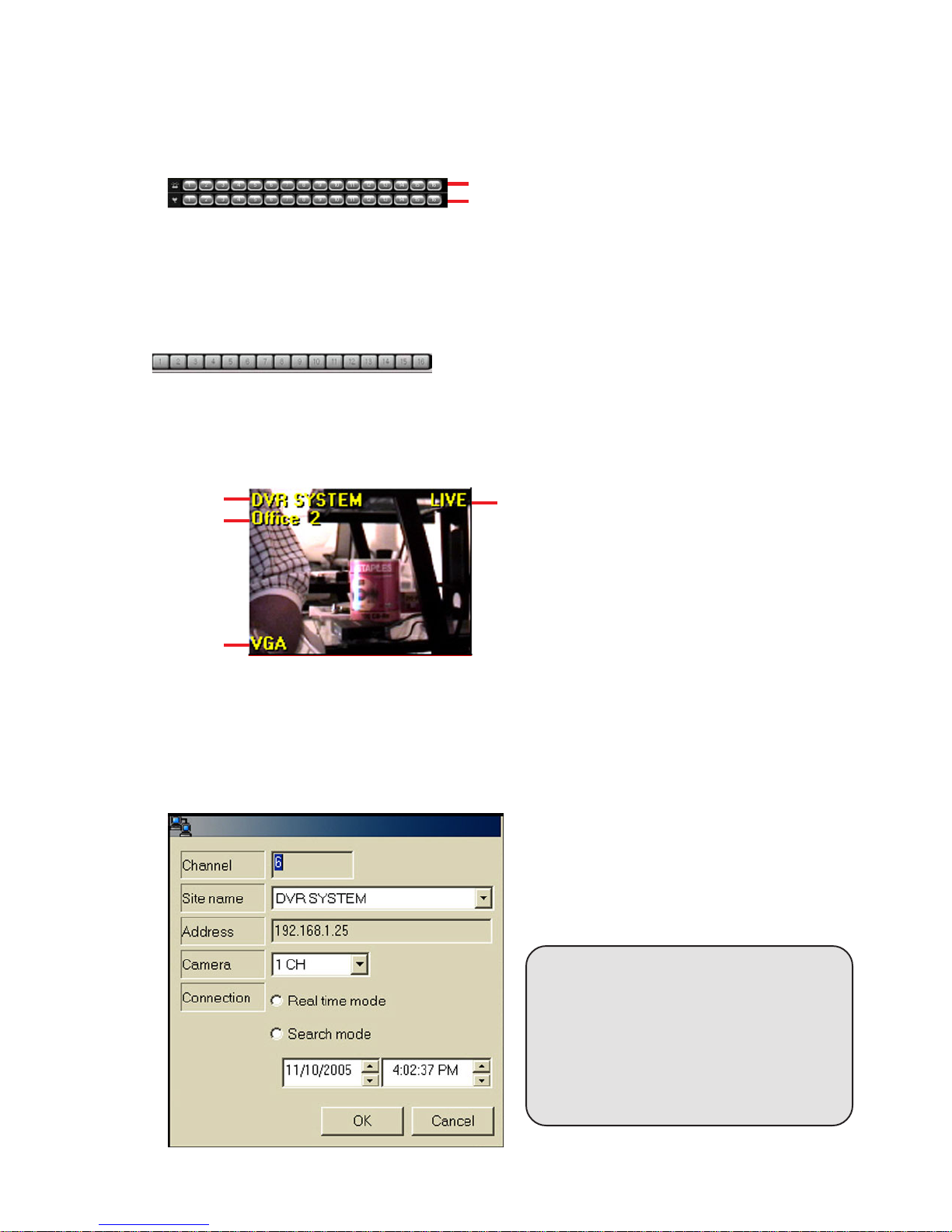
Sensor/Relay Alarms
Sensor/Relay displays real time alarm events. Sensor alarms display in Red. Relay controls display in
blue when activated.
sensor alarm
control relay
Camera Selection Control
Used when in single camera display mode to select camera to display .
Surveillance Image
When the image is the selected image, the boundary will be red.
site name
camera name
resolution
image mode live or playback
Connect Channel
Individual cameras can be searched by right clicking in the camera area. The popup menu appears as
shown below . Camera can be viewed in either live or playback mode. Up to 16 live or playback channels
can be selected in combination with different sites.
Select the camera and viewing mode (live or
playback). If playback is selected, then set date
and time for playback. Click OK.
Note
If playback is selected and image is
not displayed after search has started,
it is possible that the image has been
overwritten or there is no recorded
video for selected date.
6
 Loading...