

Page 1
Page 2

Introduction
Keep a watch on your family, pet, home or office 24/7, even when you’re not there. Creative Live!®Cam IP
SmartHD gives you a live update on your phone, wherever you are. Get activity alerts, listen or talk to your
kids or pets and capture moments. It’s as good as being there at different places at the same time.
Package Checklist
Your Creative Live! Cam IP SmartHD package comes with the following:
l The Creative Live! Cam IP SmartHD
l USB cable
l AC power adapter
l Mounting kit
l Quick Start Guide
Minimum System Requirements
Network Connectivity
l 2.4 GHz Wi-Fi network connection
For iOS device
l iPhone
®
running iOS 8.0 or higher
For Android™ device
l Phone running Android 4.0 or higher
For Windows®OS
l Microsoft
®
Windows 7 or higher
For Mac®OS
l Mac OSX
®
10.11 or higher
Registering Your Product
Registering your product ensures you receive the most appropriate service and product support available.
You can register your product during installation or at register.creative.com.
Please note that your warranty rights are not dependent on registration.
More Help
For the latest news and products, please visit www.creative.com. The site also includes information on
making purchases, technical help and the latest software updates.
Live! Cam IP SmartHD (VF0820) – Introduction 2
Page 3
About Your Hardware
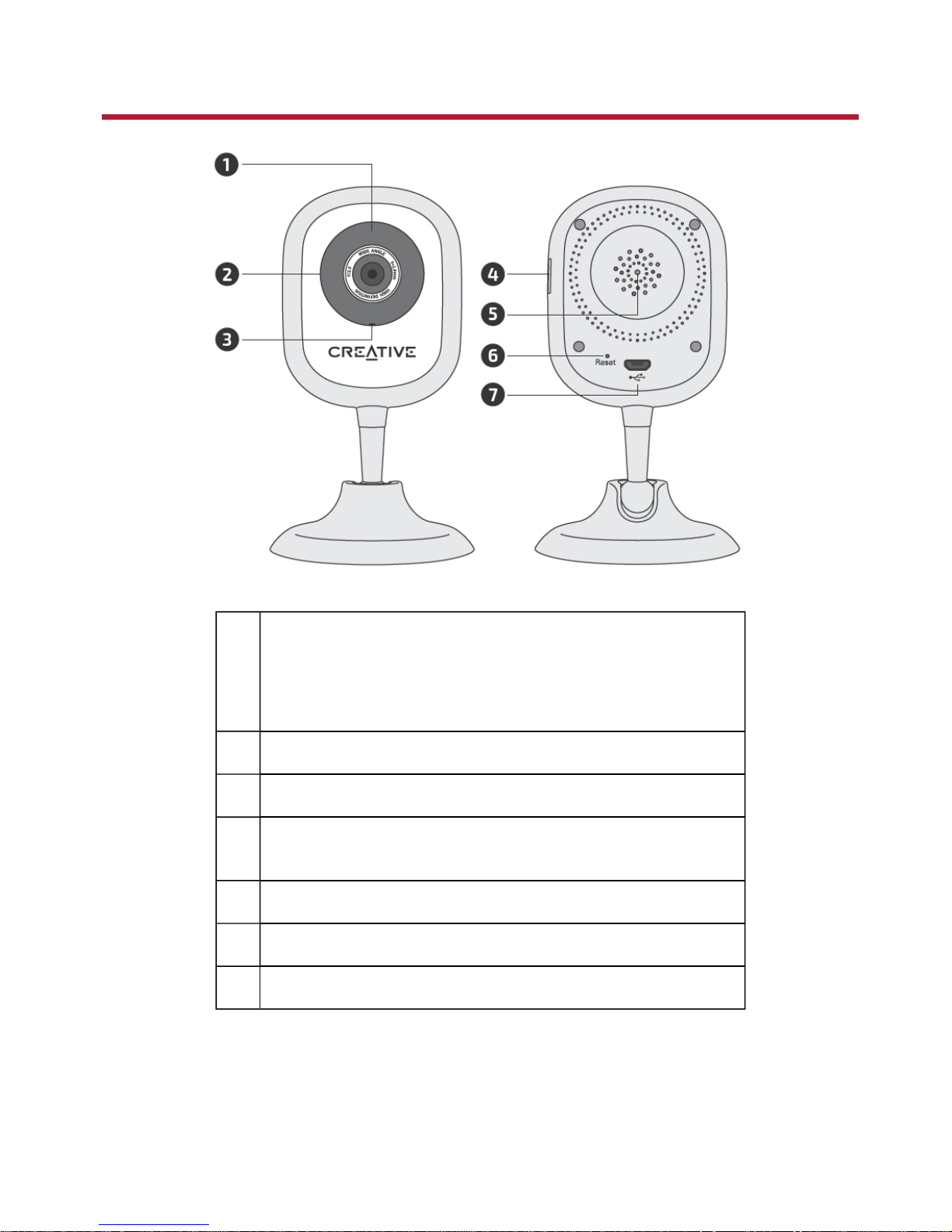
1 LED Indicator
l Red: Booting
l Red (blinking): Ready to connect
l Blue (blinking): Wi-Fi connecting
l Blue: Wi-Fi connected
2 Infrared LEDs
3 Microphone
4 microSD slot
l Insert a microSD card to store video recordings
5 Speaker
6 Reset button
7 USB port
Live! Cam IP SmartHD (VF0820) – About Your Hardware 3
Page 4
Setting Up Your Device
Step 1: Positioning of Live! Cam IP SmartHD
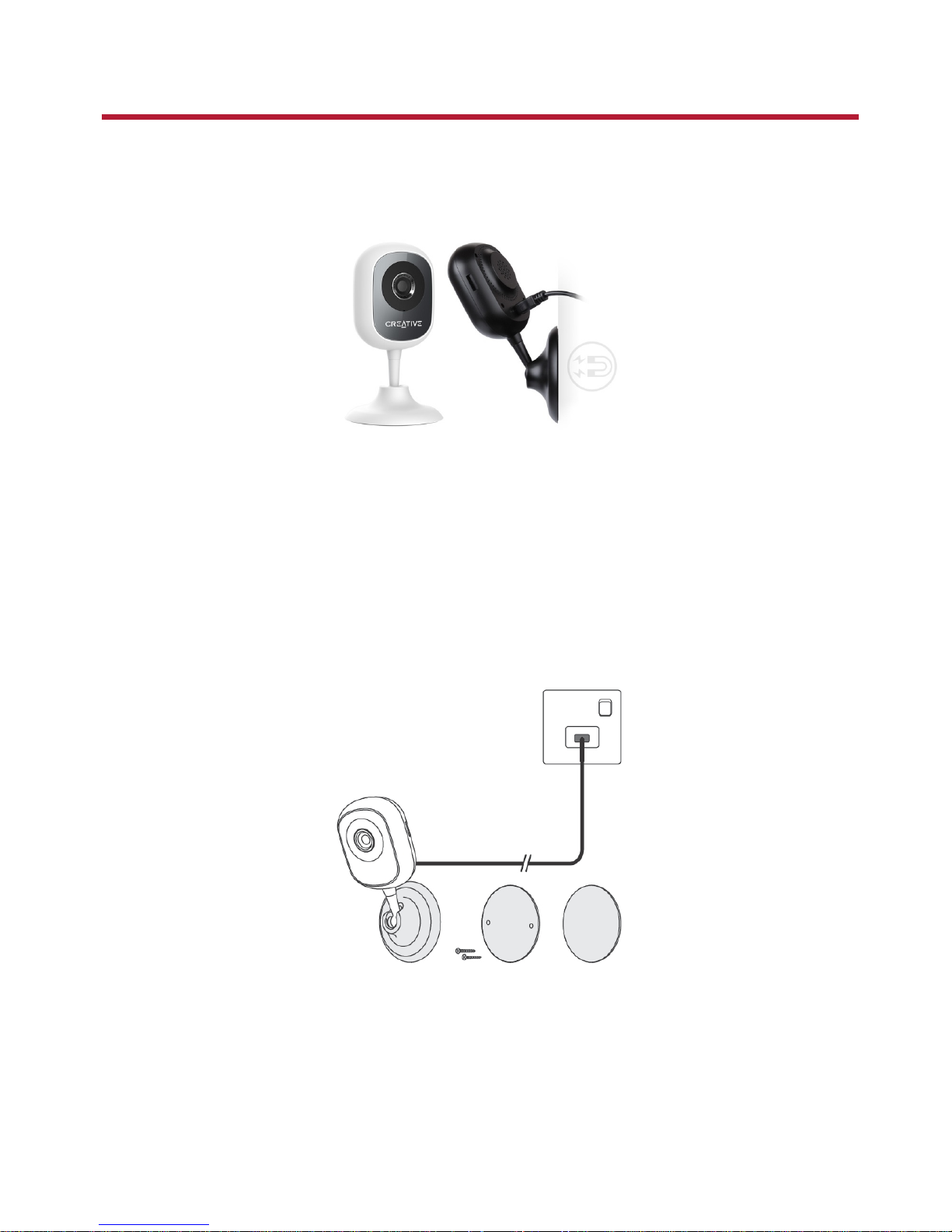
Place it upright, mount it on the wall or stick on metal surfaces with its magnetic base.
Connecting to power supply
Connect your camera directly to an ACpower supply using the supplied cable and power adapter.
LEDindicator:
l Red: Booting
l Red (blinking): Ready to connect
Mounting the camera
Secure the mounting plate to a flat surface using either the screws or mounting tape supplied.
Notes:
Peel off the protective film on the bottom of the camera before mounting.
Ensure the camera is mounted within reach of an AC power supply.
Live! Cam IP SmartHD (VF0820) – Setting Up Your Device 4
Page 5
Step 2: Installing the Live! Cam app
1. Connect your smart device to your Wi-Fi network.
2. Install the free Creative Live! Cam app from the App Store or Google Play.
Notes:
Ensure you connect to a 2.4GHz Wi-Fi network.
Keep your Wi-Fi name and password ready.
Step 3: Creating an account
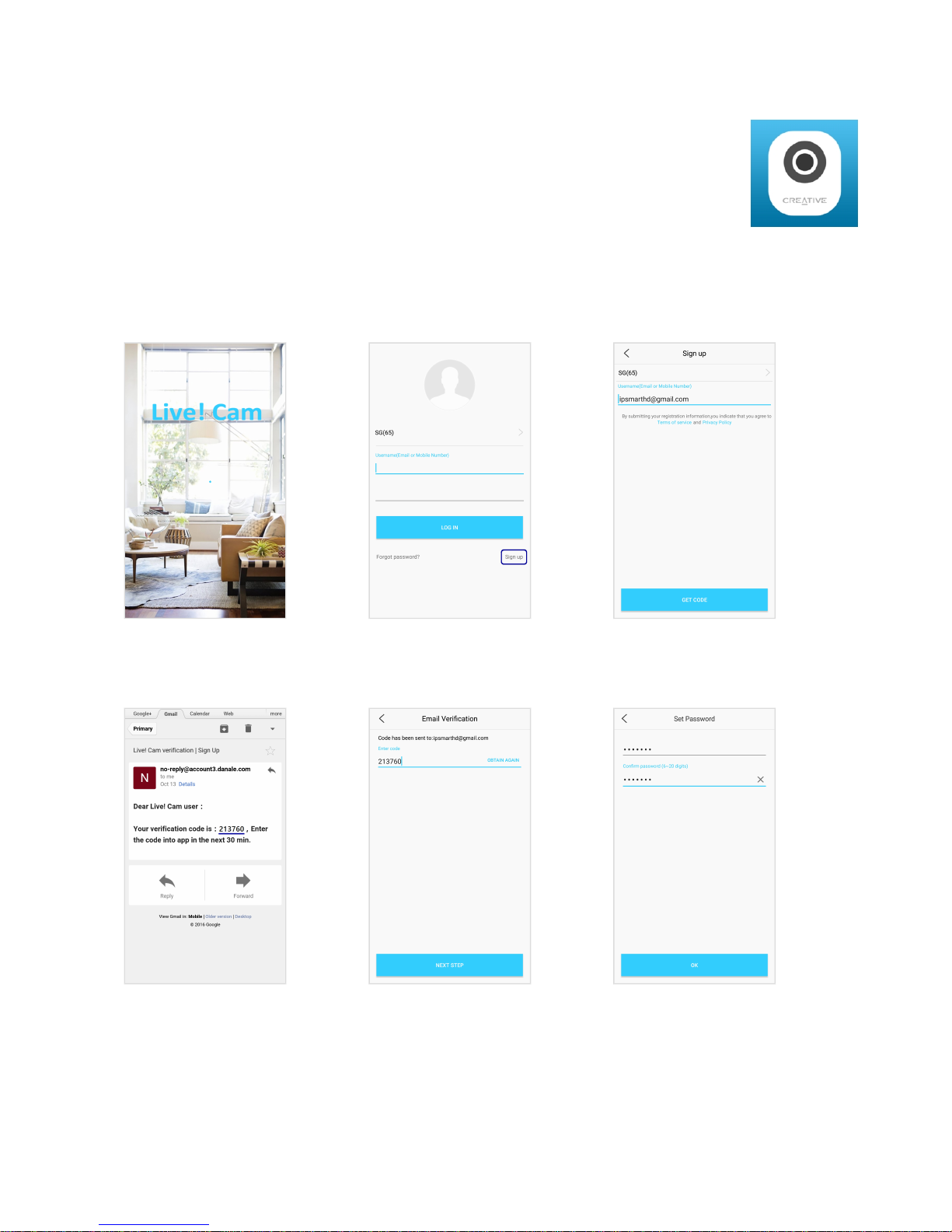
Open the Live! Cam app.
Select Sign Up to create a new
account.
Enter your valid Email address
OR Phone Number.
A Verification Code will be
sent to your email or phone.
Enter the Verification Code.
Enter your preferred
Password.
Live! Cam IP SmartHD (VF0820) – Setting Up Your Device 5
Page 6
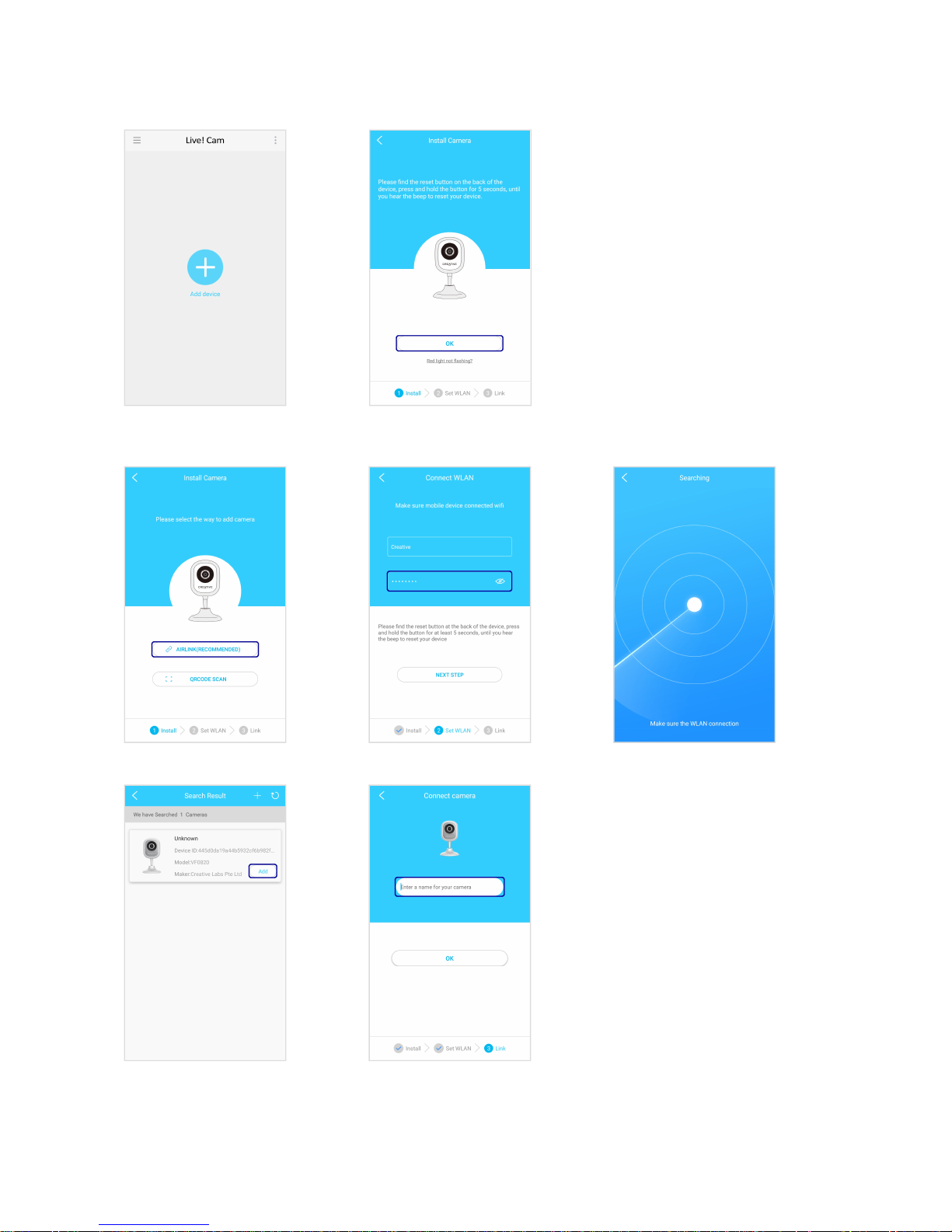
Step 4: Adding Camera
Note:
If the LED indicator is not blinking red,
reset the camera. Use a pin and press
the reset button at the back of your
camera for 10 seconds or until you hear a
sound. See Using Your Device –
Restore Factory Default Settings.
Via Airlink (Recommended)
Enter your Wi-Fi password.
When your camera is
connected, the LED indicator
will light up in blue.
^
Enter a name for your camera.
Live! Cam IP SmartHD (VF0820) – Setting Up Your Device 6
Page 7
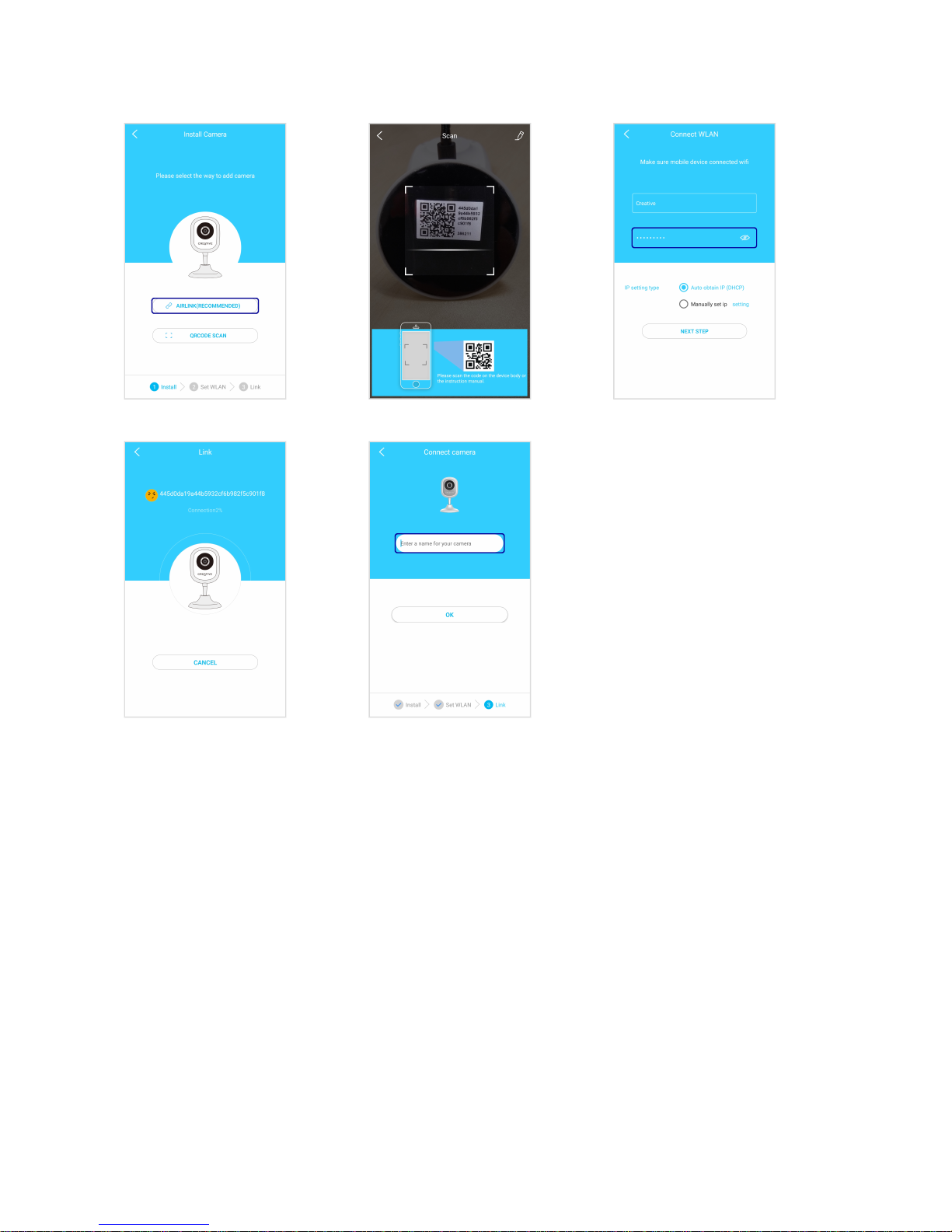
Via QR Code Scan
Enter your Wi-Fi password.
When your camera is
connected, the LED indicator
will light up in blue.
^
Enter a name for your camera.
Note:
^ If your camera fails to connect:
i. Check your Wi-Fi connection.
ii. Ensure that the Wi-Fi password is correct.
iii. Reset the camera and try again.
To change the name of your camera, see Using Your Device – Rename Camera
Live! Cam IP SmartHD (VF0820) – Setting Up Your Device 7
Page 8
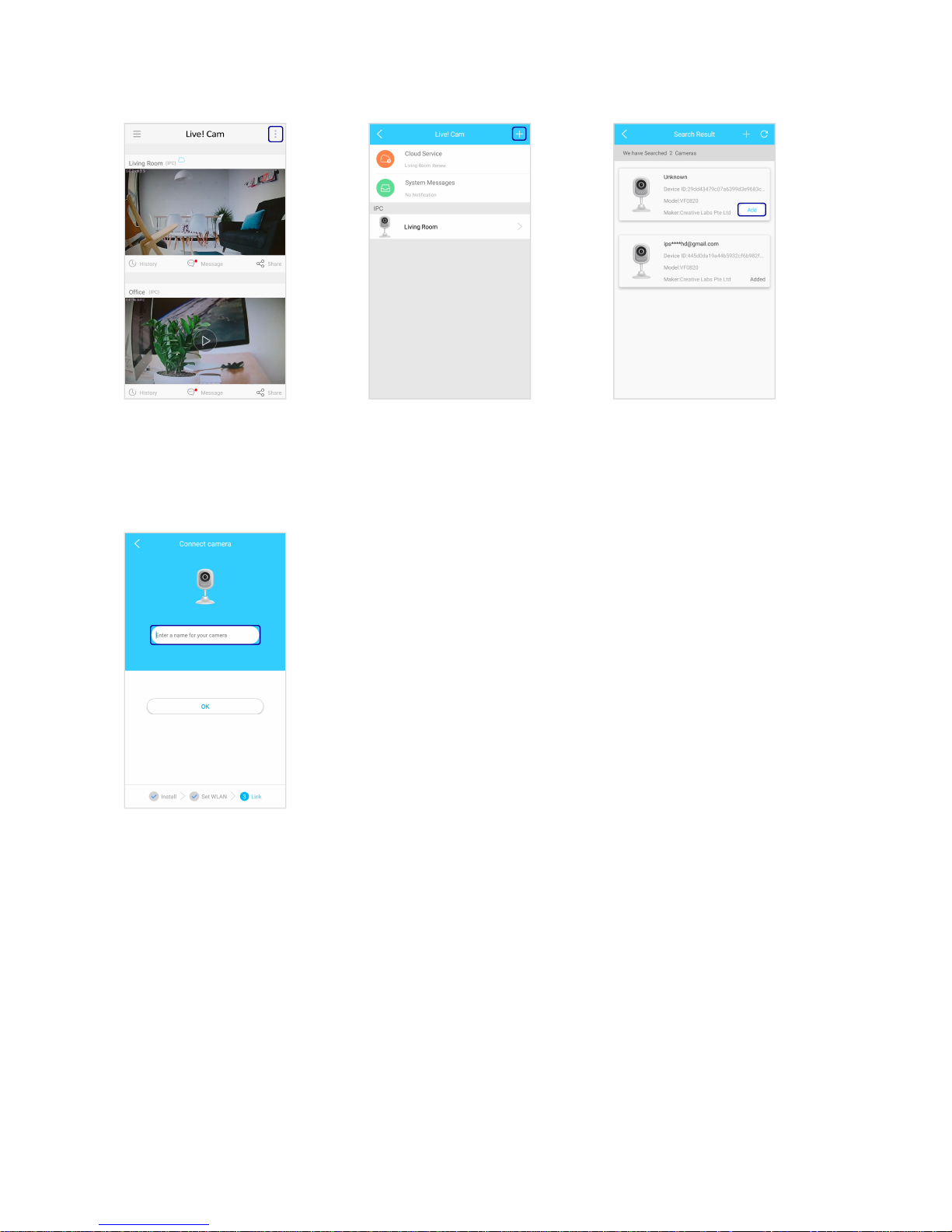
To add another camera
Select Add to add your
camera.
When your camera is
connected, the LED indicator
will light up in blue.
^
Enter a name for your camera.
Note:
^ If your camera fails to connect:
i. Check your Wi-Fi connection.
ii. Ensure that the Wi-Fi password is correct.
iii. Reset the camera and try again.
Live! Cam IP SmartHD (VF0820) – Setting Up Your Device 8
Page 9
Using Your Device
View Live Video
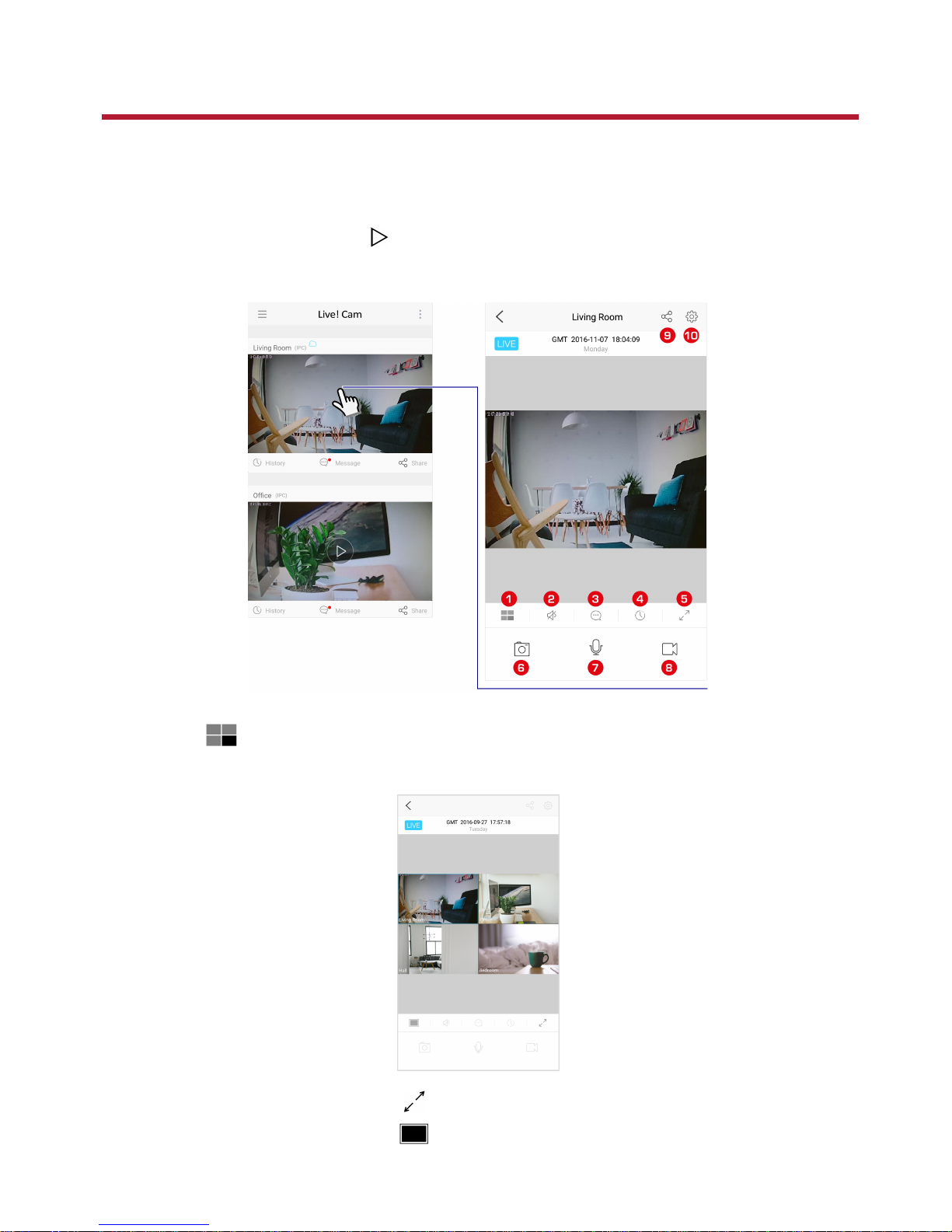
After adding your camera(s), the camera(s) will be displayed on the main screen.
If there is more than one camera, tap to view the live video of the selected camera.
For more playback options, tap on the playback screen.
1. Multiview
View 4 cameras live on one screen.
fullscreen mode
single view
Live! Cam IP SmartHD (VF0820) – Using Your Device 9
Page 10
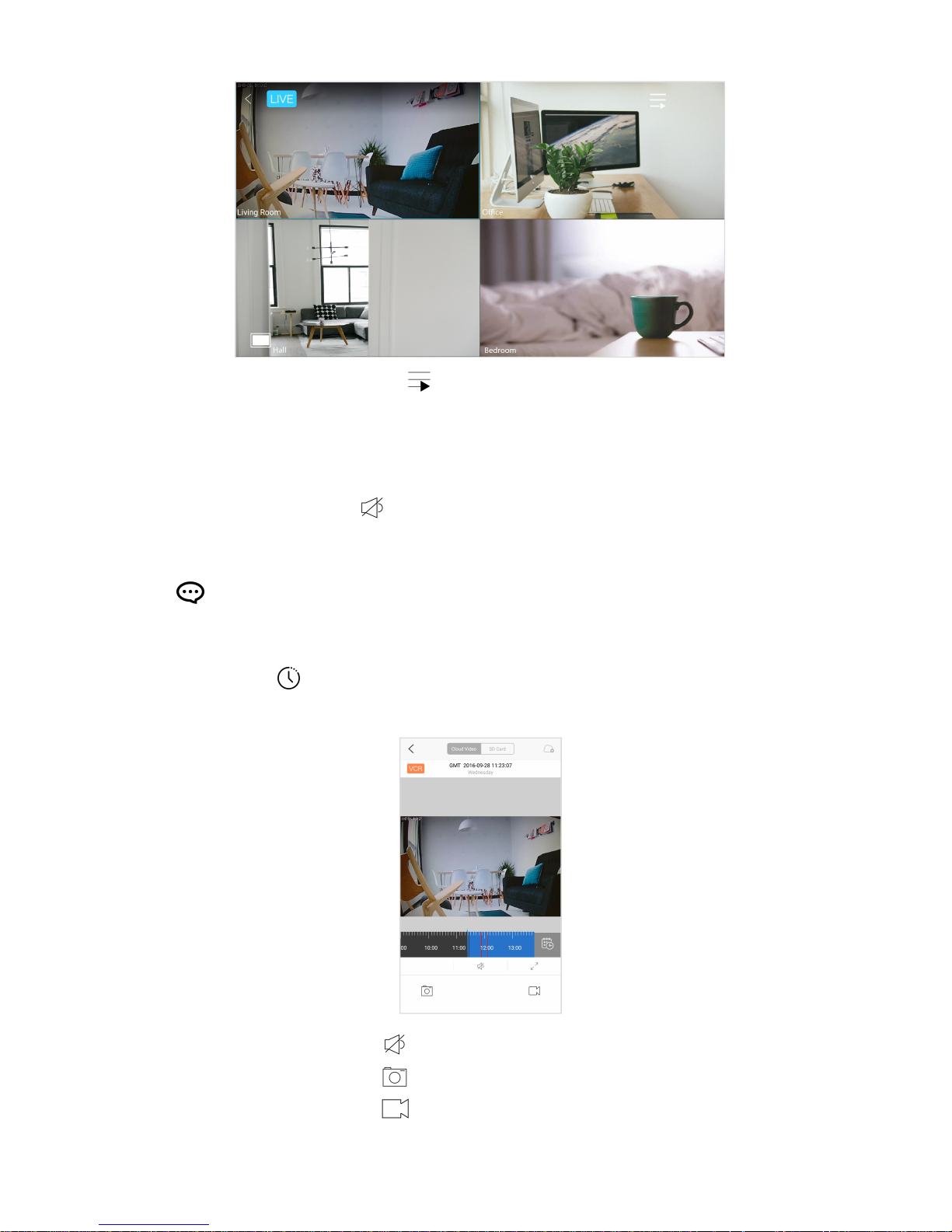
list of cameras
Tip:
Double-tap the playback screen to switch from single view to multiview, and vice versa.
2. On/Off Camera Microphone
Turn on the camera microphone to listen to audio via the camera.
3. Alerts
View short video recordings of motion or sound detected.
4. Recording history
View the video recording history stored on the cloud or microSD card.
on/off recorded audio
take snapshot*
record video*
Live! Cam IP SmartHD (VF0820) – Using Your Device 10
Page 11
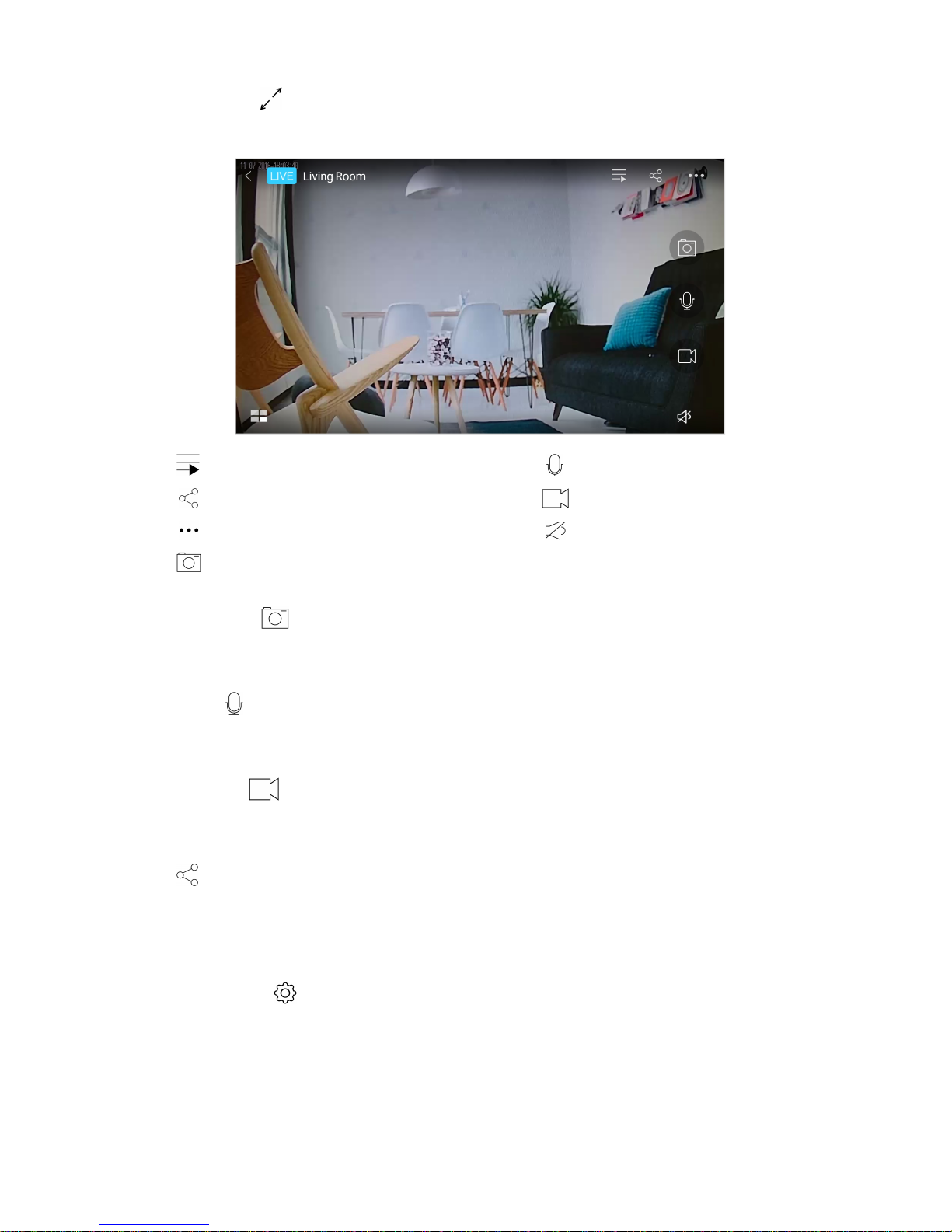
5. Full screen view
Display the live feed in full screen.
list of cameras push to talk
share record video*
more (video quality and screen rotation) on/off camera microphone
take snapshot*
6. Take snapshot*
Take a snapshot of the live video playback.
7. Push to talk
Tap and hold to talk through the camera via your smart device.
8. Record video*
Tap to start recording. Tap again to stop.
9. Share
Share your camera with your family or friends.
To manage your shared cameras, see Manage Sharing.
10. Camera settings
Configure your camera, set alerts, schedule recordings and more.
Note:
* The file will be saved into your smart device.
Live! Cam IP SmartHD (VF0820) – Using Your Device 11
Page 12
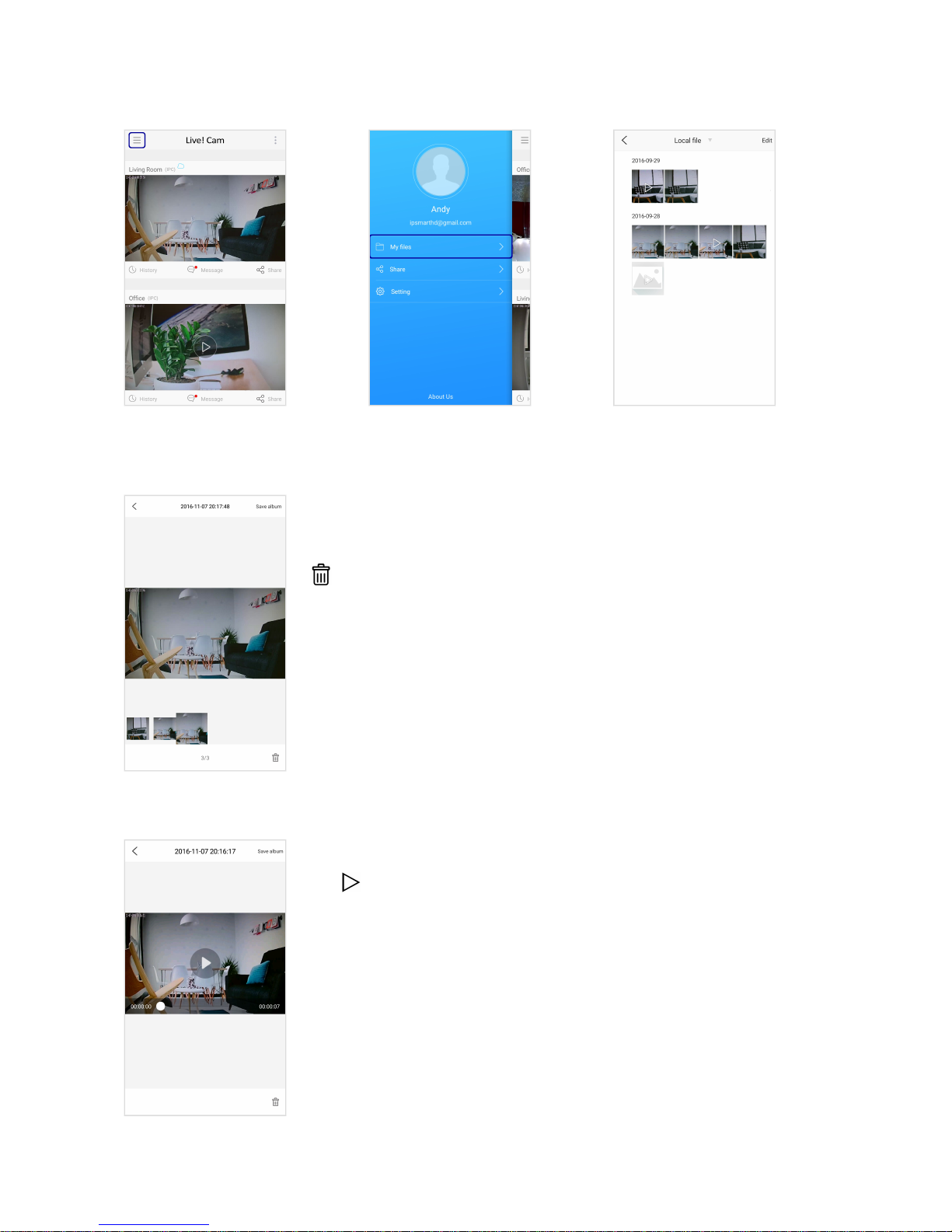
View Recorded Videos and Snapshots on Smart Device
Select a file to view or play it.
View image
Swipe left or right to browse.
delete file
Play video
Tap to play.
Live! Cam IP SmartHD (VF0820) – Using Your Device 12
Page 13
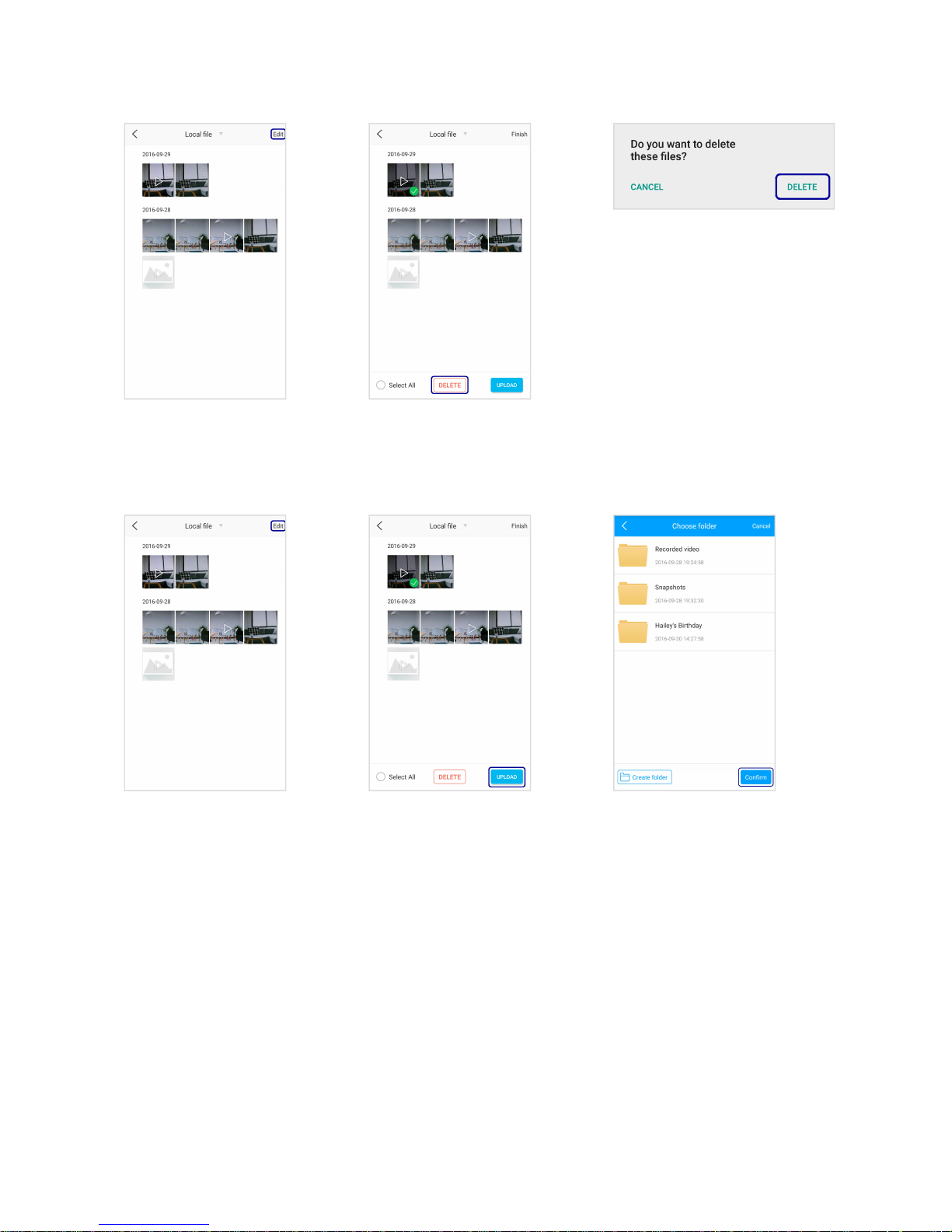
Delete files
Select the desired file.
Upload files to cloud*
Select the desired file. Choose the location.
To create a new folder, select
Create folder.
Note:
* See Using Cloud Storage for more information.
Live! Cam IP SmartHD (VF0820) – Using Your Device 13
Page 14
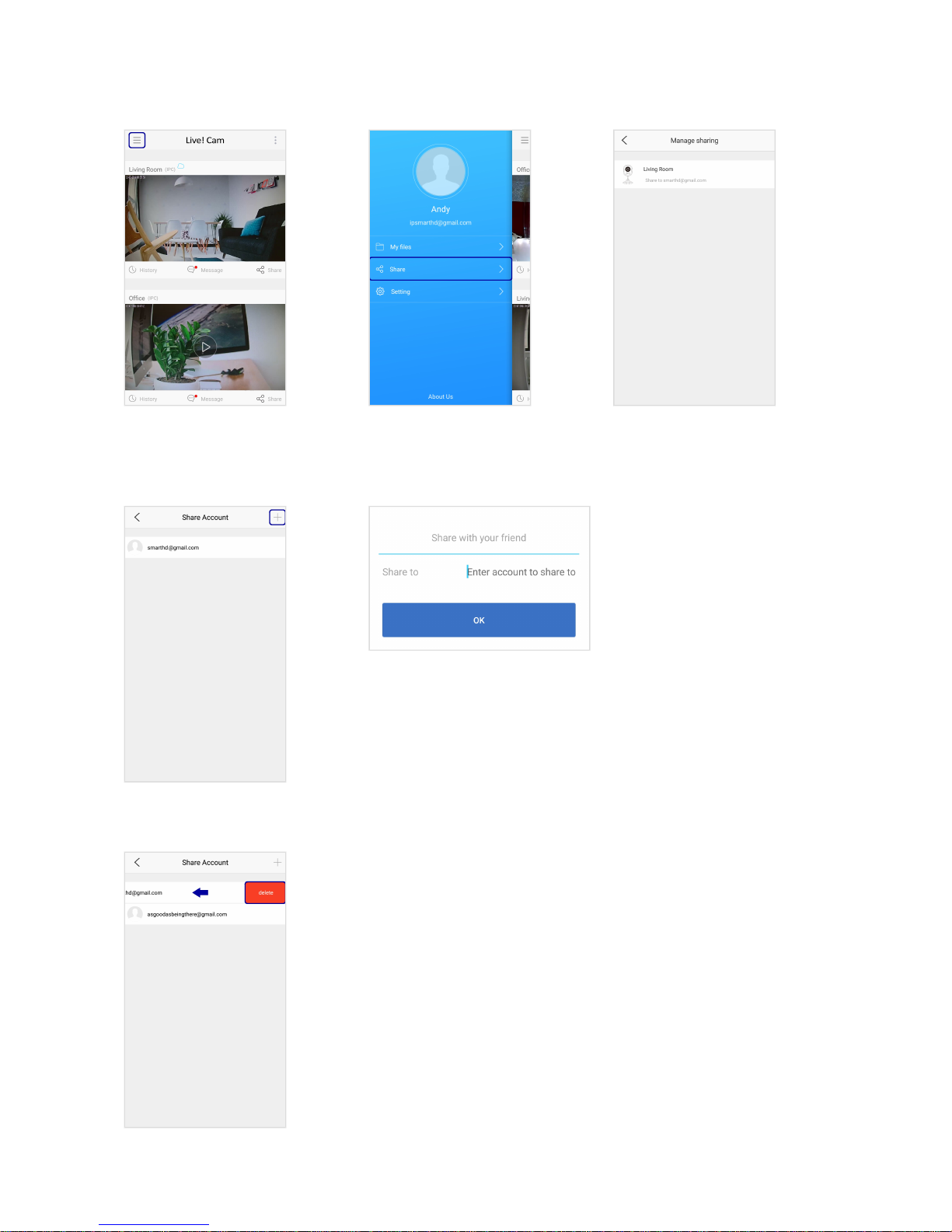
Manage Sharing
Select a camera.
To add more friends
Enter your friend's email.
To stop sharing
Swipe left on the email address, and select delete.
Note:
Users connected to a shared camera are automatically disconnected when the
camera is deleted from your account. See Delete Camera.
Live! Cam IP SmartHD (VF0820) – Using Your Device 14
Page 15
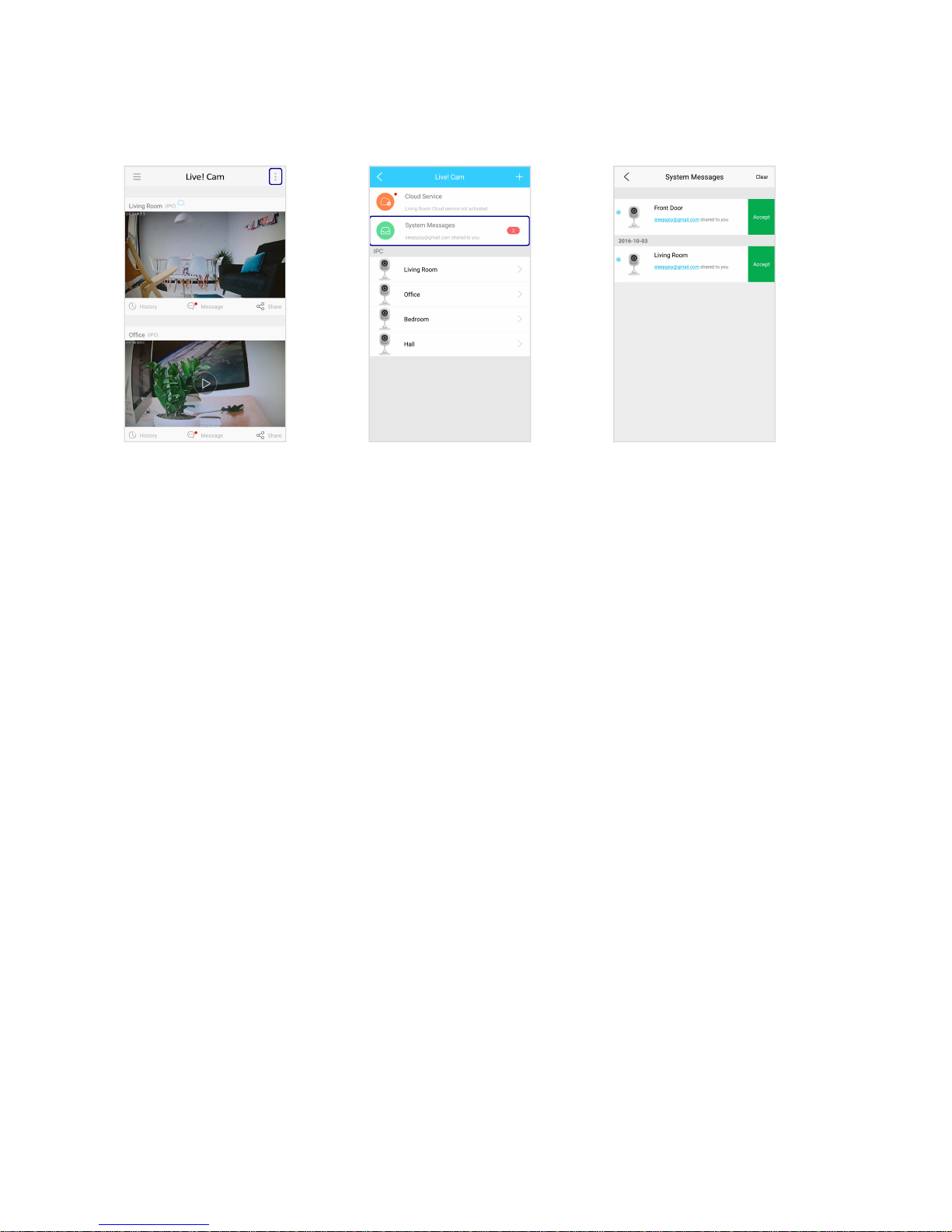
System Messages
When someone shares their camera with you, you will see the invitation in System Messages.
Accept the invitation to view
the camera.
Live! Cam IP SmartHD (VF0820) – Using Your Device 15
Page 16
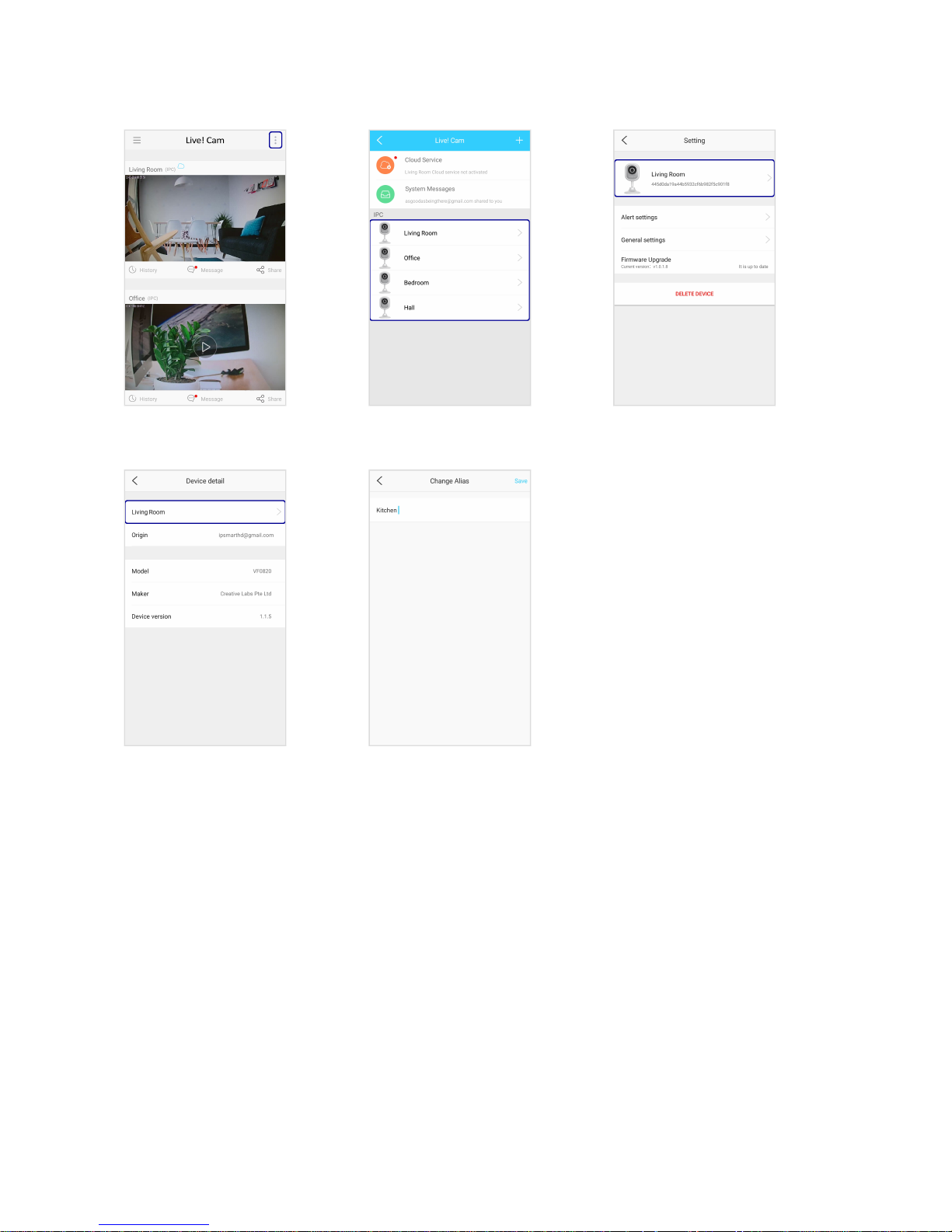
Rename Camera
Select a camera to configure.
Rename your camera.
Live! Cam IP SmartHD (VF0820) – Using Your Device 16
Page 17
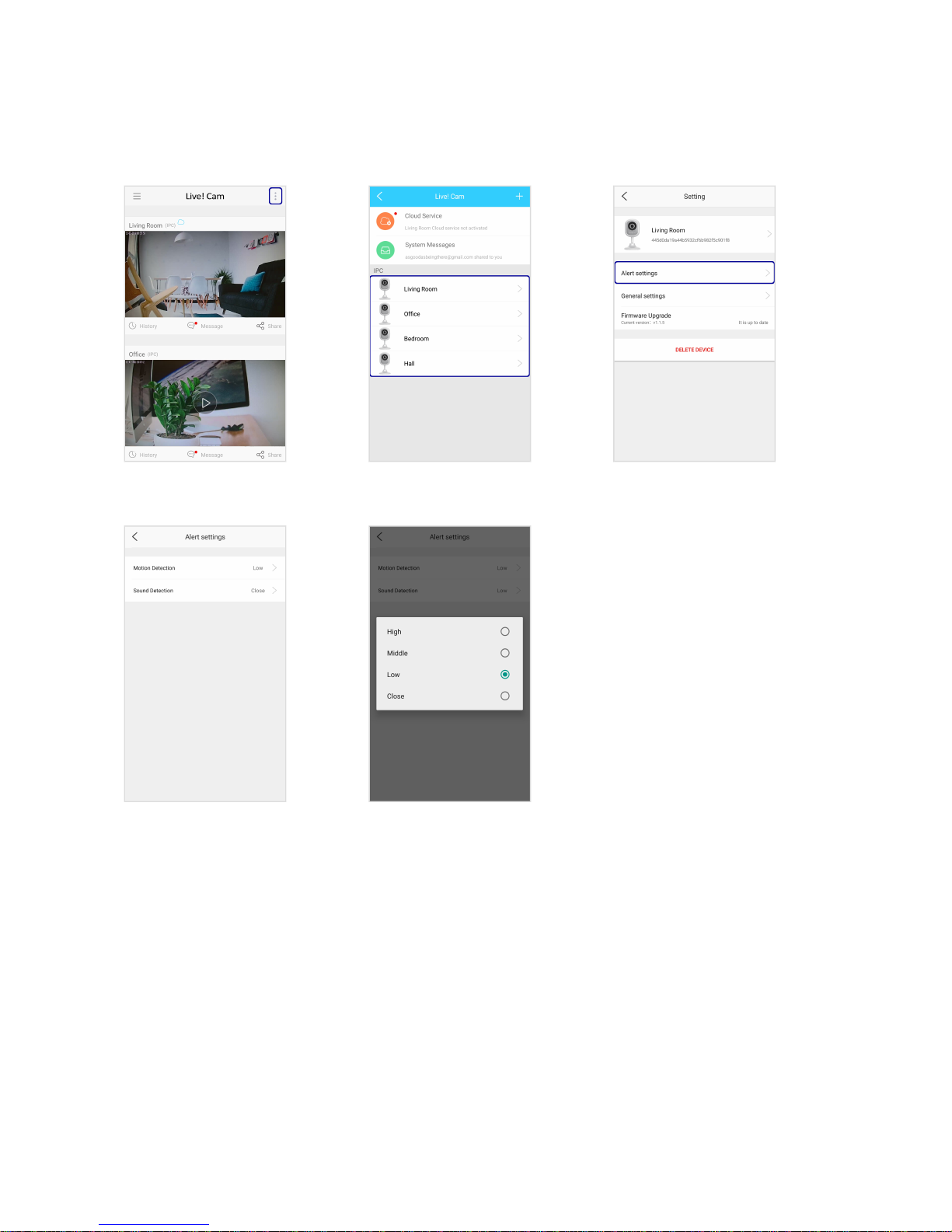
Set Alert Notifications
When alerts are enabled, the camera will push notifications to your smart device when motion or sound is
detected.
Select a camera to configure.
Select Motion Detection
or Sound Detection.
Select the sensitivity level.
Live! Cam IP SmartHD (VF0820) – Using Your Device 17
Page 18
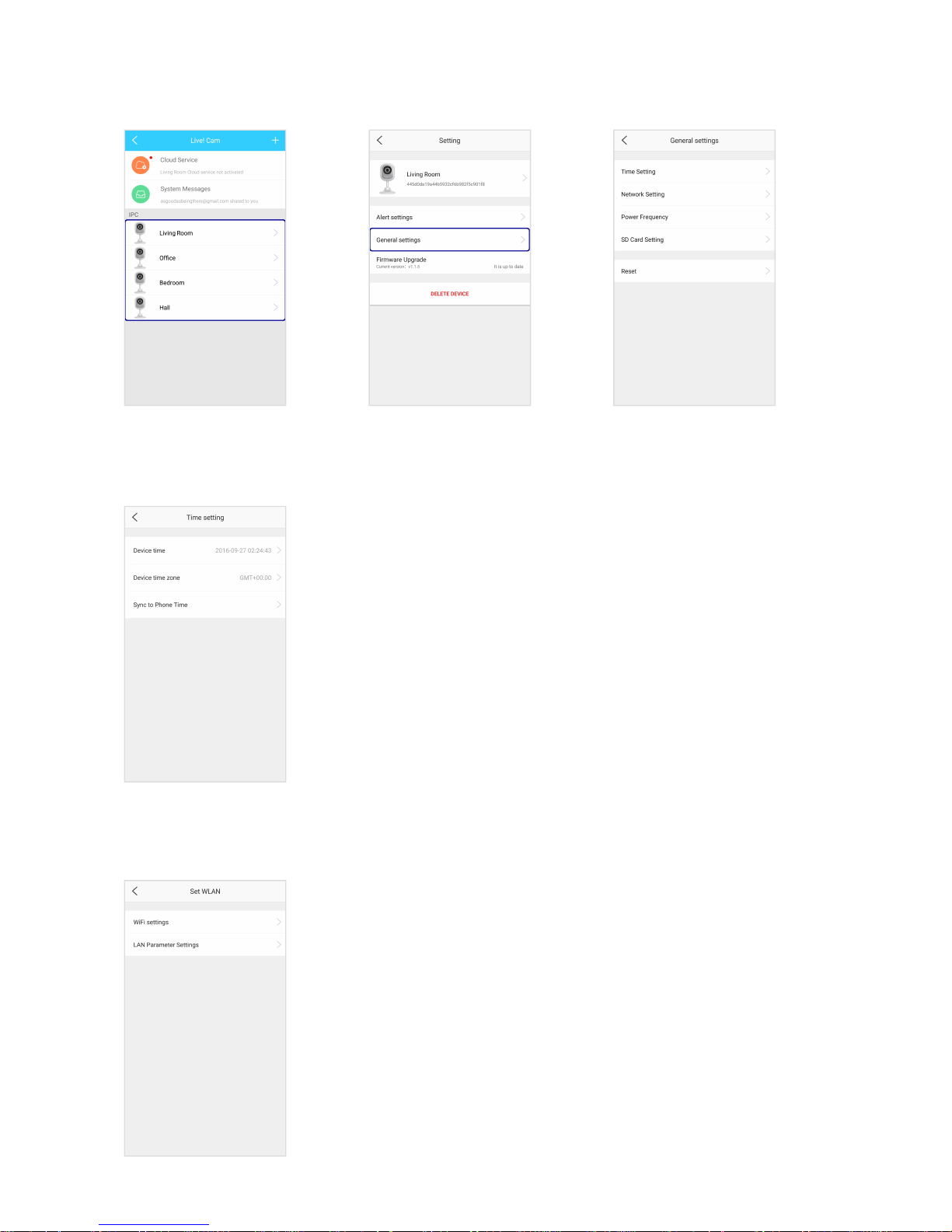
Set Time and Connection
Time Setting
Set the time on your camera. You can also sync it to your smart device's time.
Network Setting
Change the Wi-Fi network connection. Configure your camera's LAN settings.
Live! Cam IP SmartHD (VF0820) – Using Your Device 18
Page 19
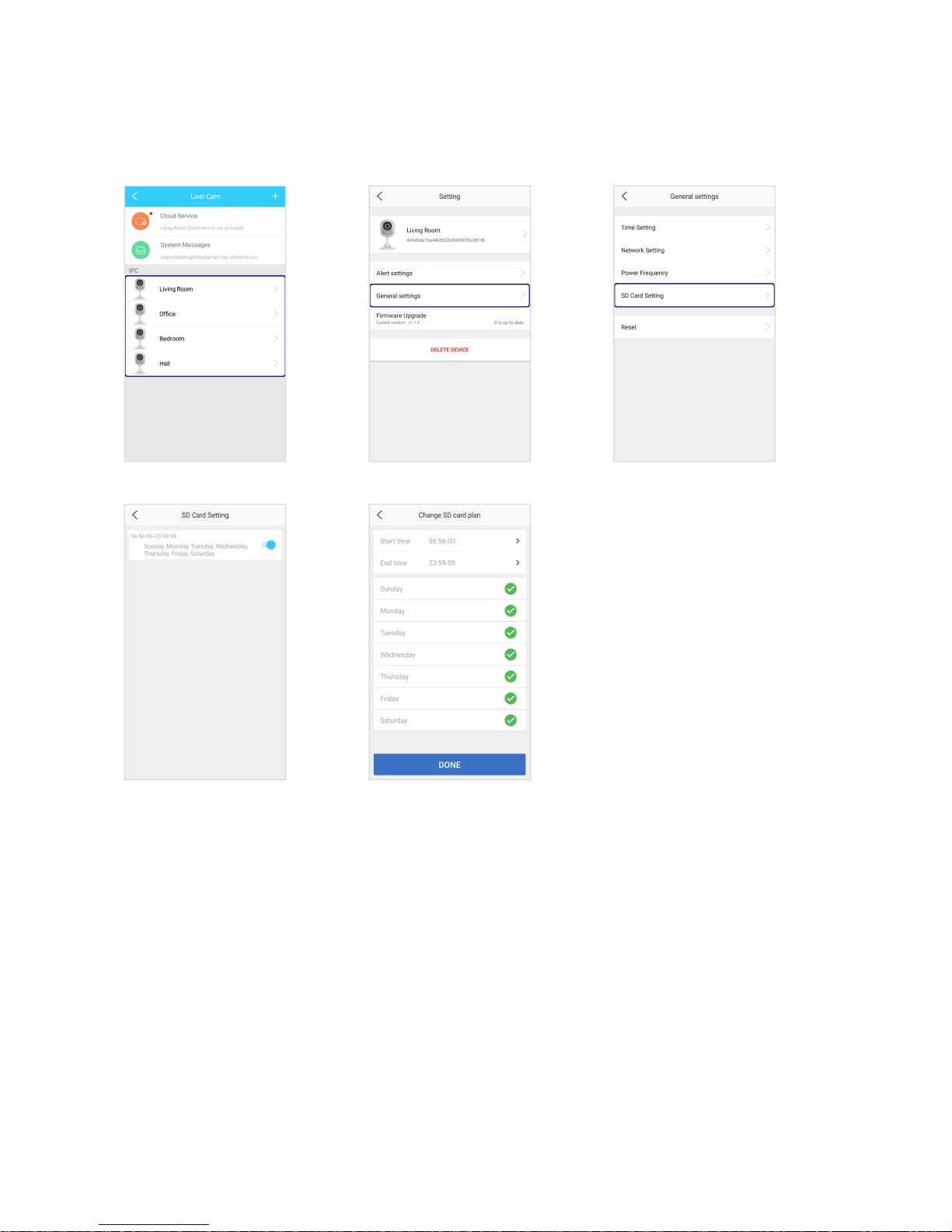
Set microSDRecording Schedule
If a microSD card is inserted into the camera, you can set the camera to automatically record videos
according to a schedule.
Set the time and day desired.
Note:
Recording on a microSD card is continuous. However, when the storage space is full, the oldest footage
will automatically be overwritten by new recordings.
Live! Cam IP SmartHD (VF0820) – Using Your Device 19
Page 20
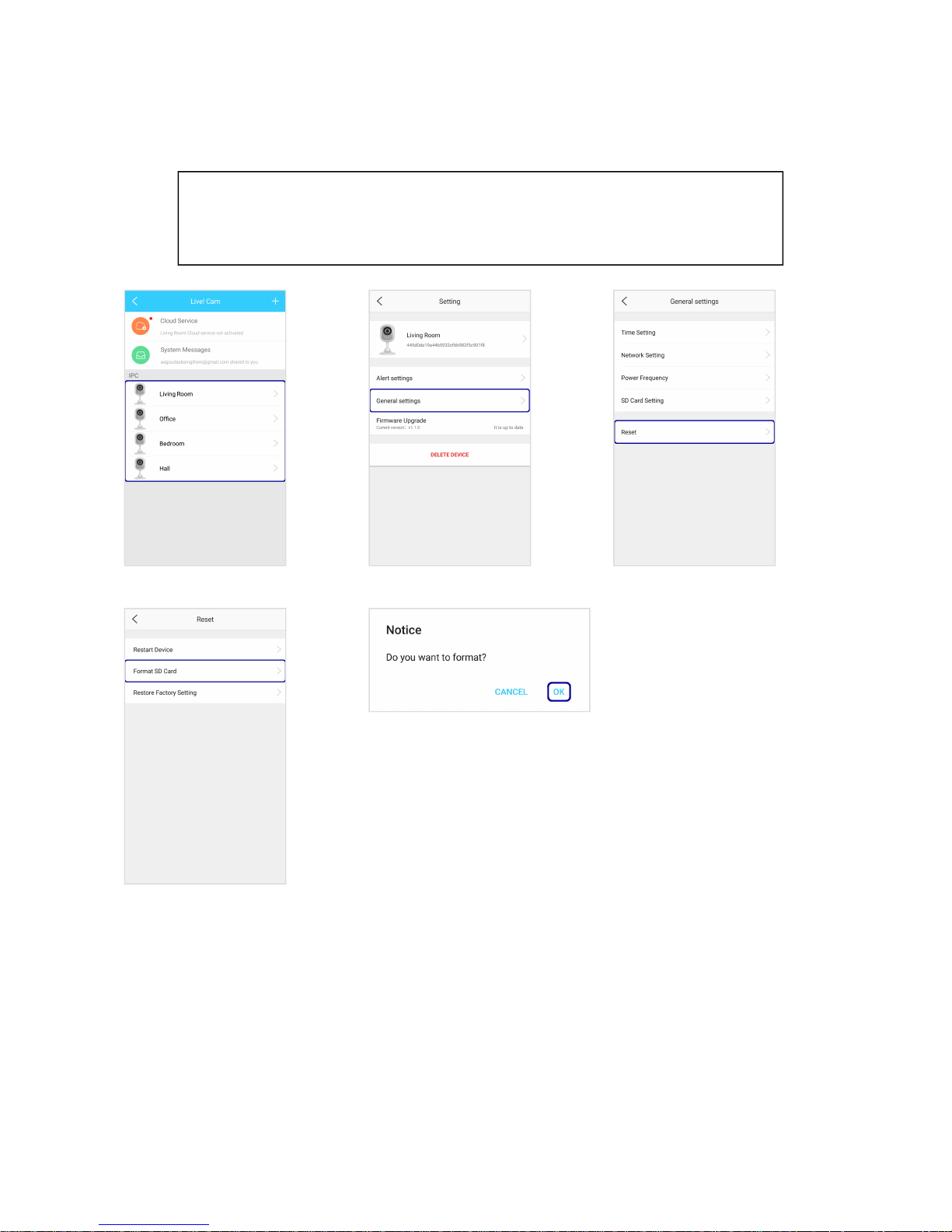
Format microSD Card
You should format the microSD card before using it for the first time on your camera.
WARNING:
Backup all your data before formatting. Formatting will erase all the data on the
microSD card.
Live! Cam IP SmartHD (VF0820) – Using Your Device 20
Page 21
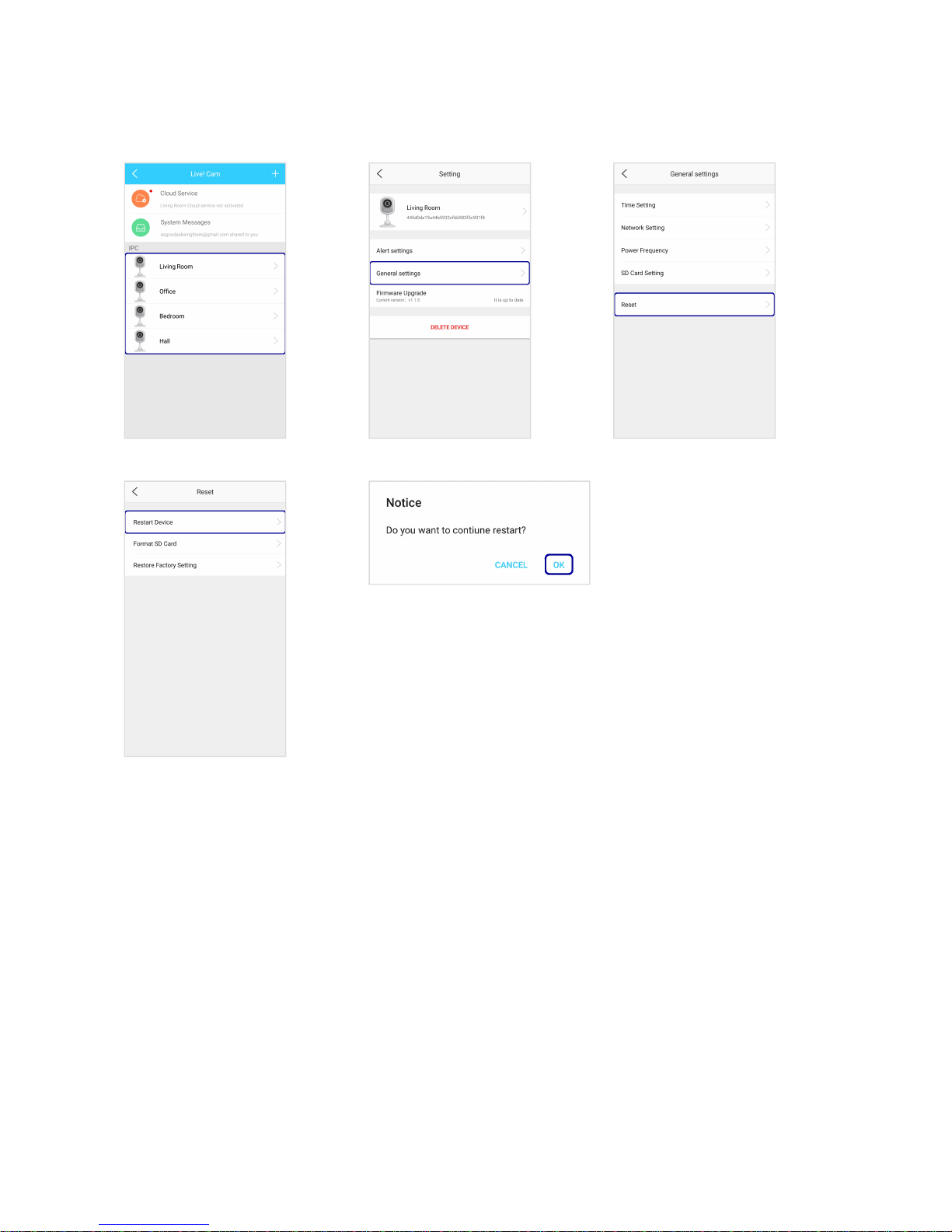
Restart Camera
If the live video freezes or if your camera is not working properly, restart the camera.
Live! Cam IP SmartHD (VF0820) – Using Your Device 21
Page 22
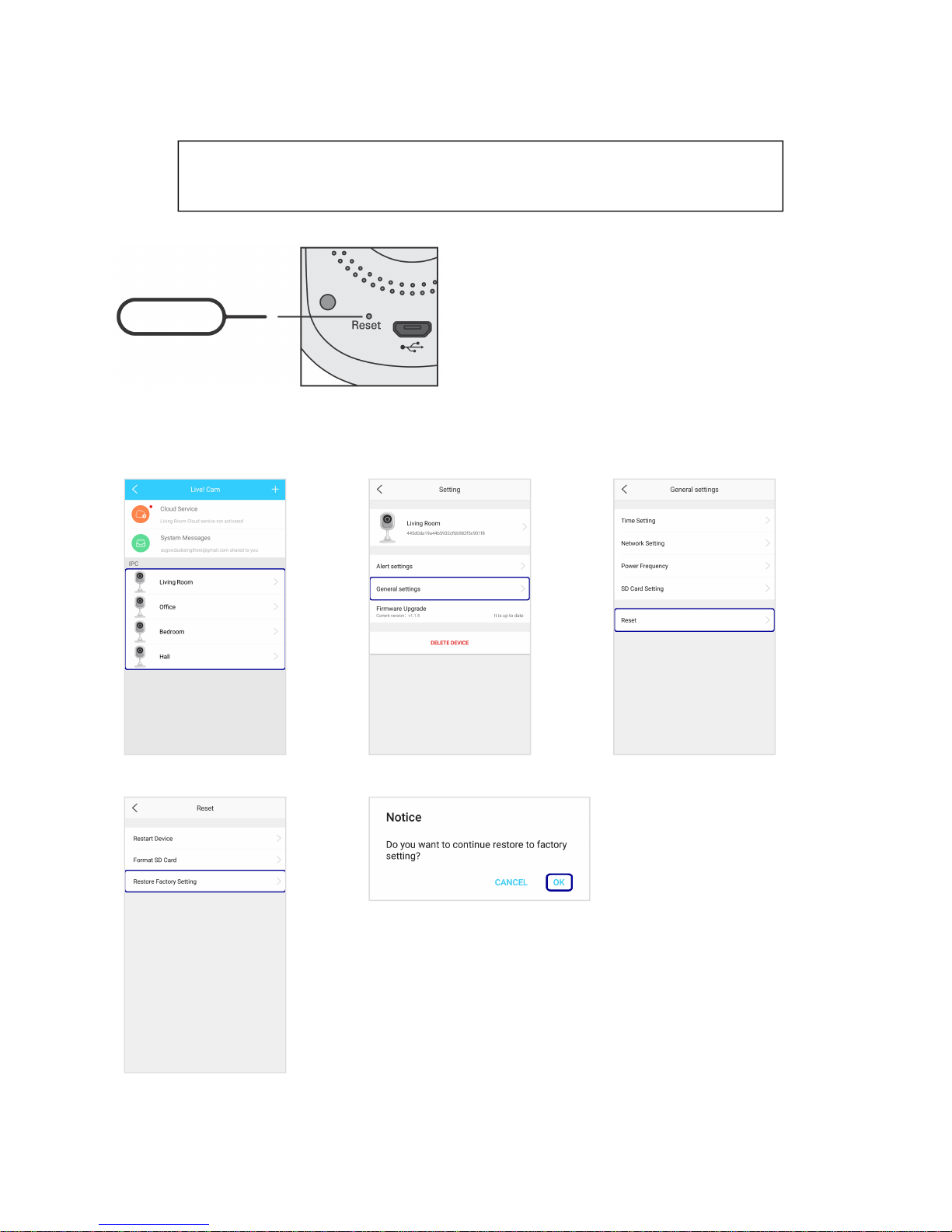
Restore Factory Default Settings
WARNING:
All settings and configurations made previously on your device will be erased.
Insert a pin and hold for 10 seconds or until you hear a
sound.
OR
Live! Cam IP SmartHD (VF0820) – Using Your Device 22
Page 23
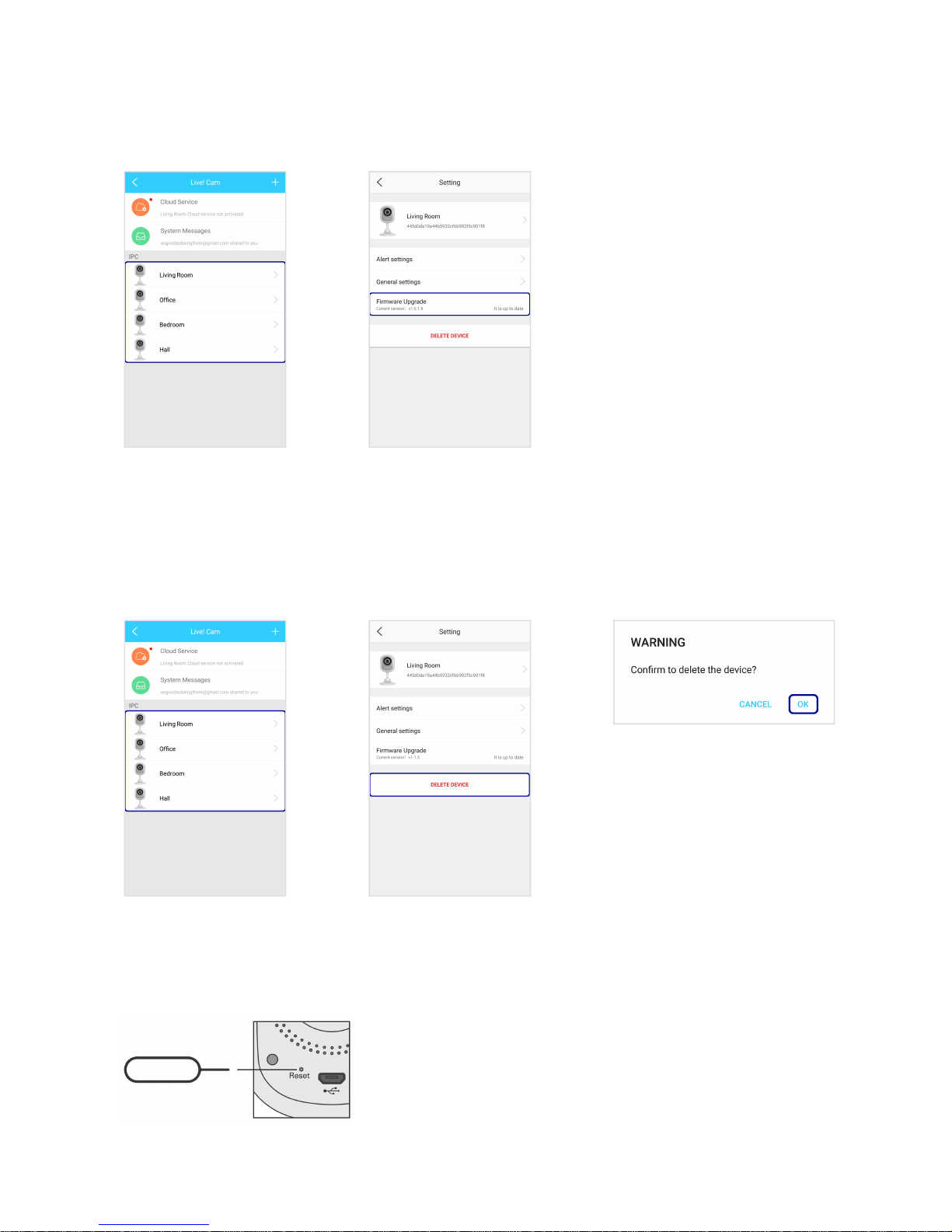
Upgrade Firmware
To check for the latest firmware.
Select a camera.
Delete Camera
To remove a camera from your account.
Select a camera.
Note:
To properly remove a camera from your account, reset the camera before adding it to another account.
Live! Cam IP SmartHD (VF0820) – Using Your Device 23
Page 24
Using Cloud Storage
Your Live! Cam account comes with an optional cloud storage.
You can record 24/7 non-stop and backup videos automatically to the cloud so you won't miss a thing.
View your video history from anywhere, on any device, and share them with anyone in a secure and easy
way.
Notes:
Each Live! Cam account is entitled to a free 30-day trial. The trial is activated automatically upon adding
the first camera to the account.
Video backup to the cloud is continuous until your subscription expires.
At any time, the cloud will only store 10 days worth of recording. On the 11th day, the oldest footage
(Day1) will be overwritten automatically.
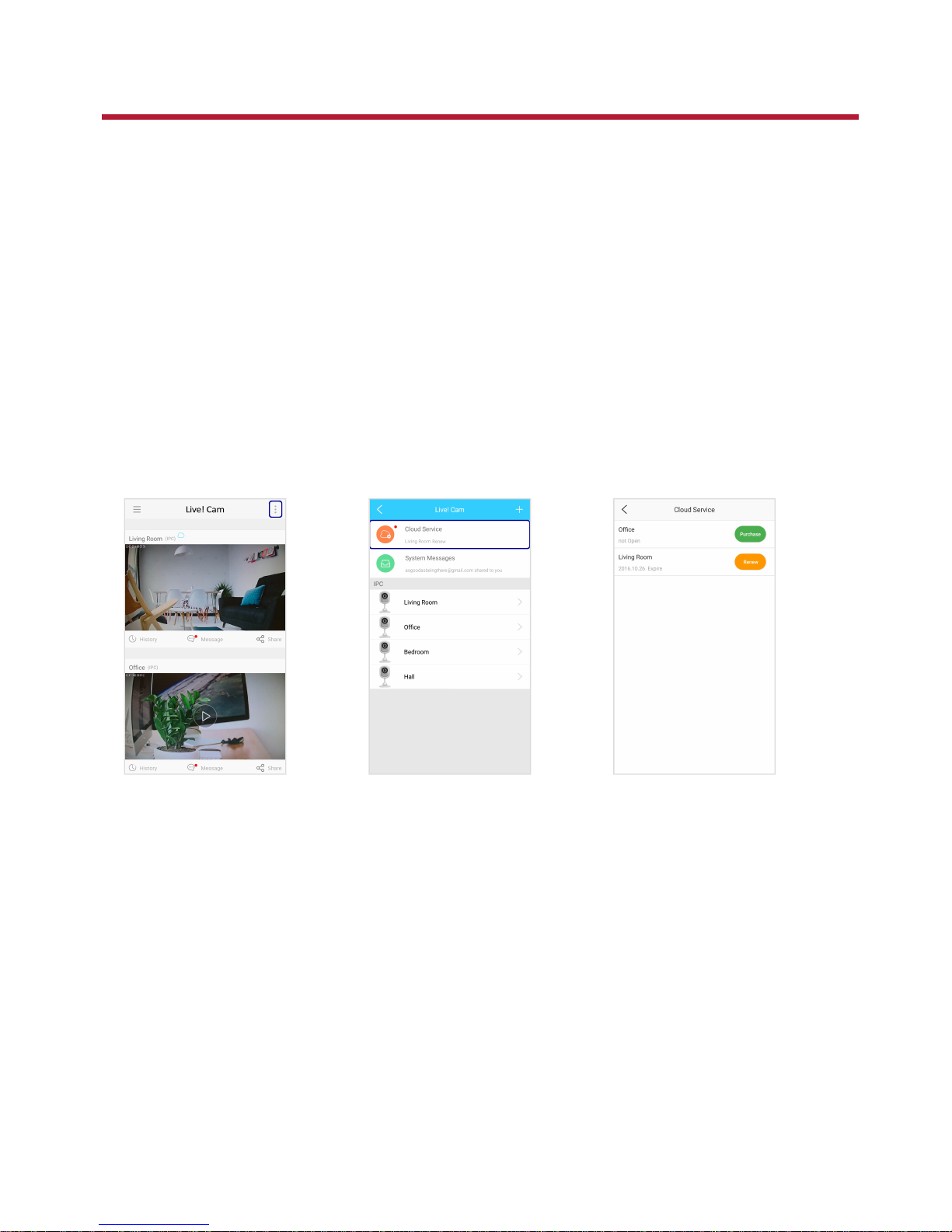
View Cloud Subscription Status
See the expiry date.
Purchase or renew your cloud
subscription.
Live! Cam IP SmartHD (VF0820) – Using Cloud Storage 24
Page 25
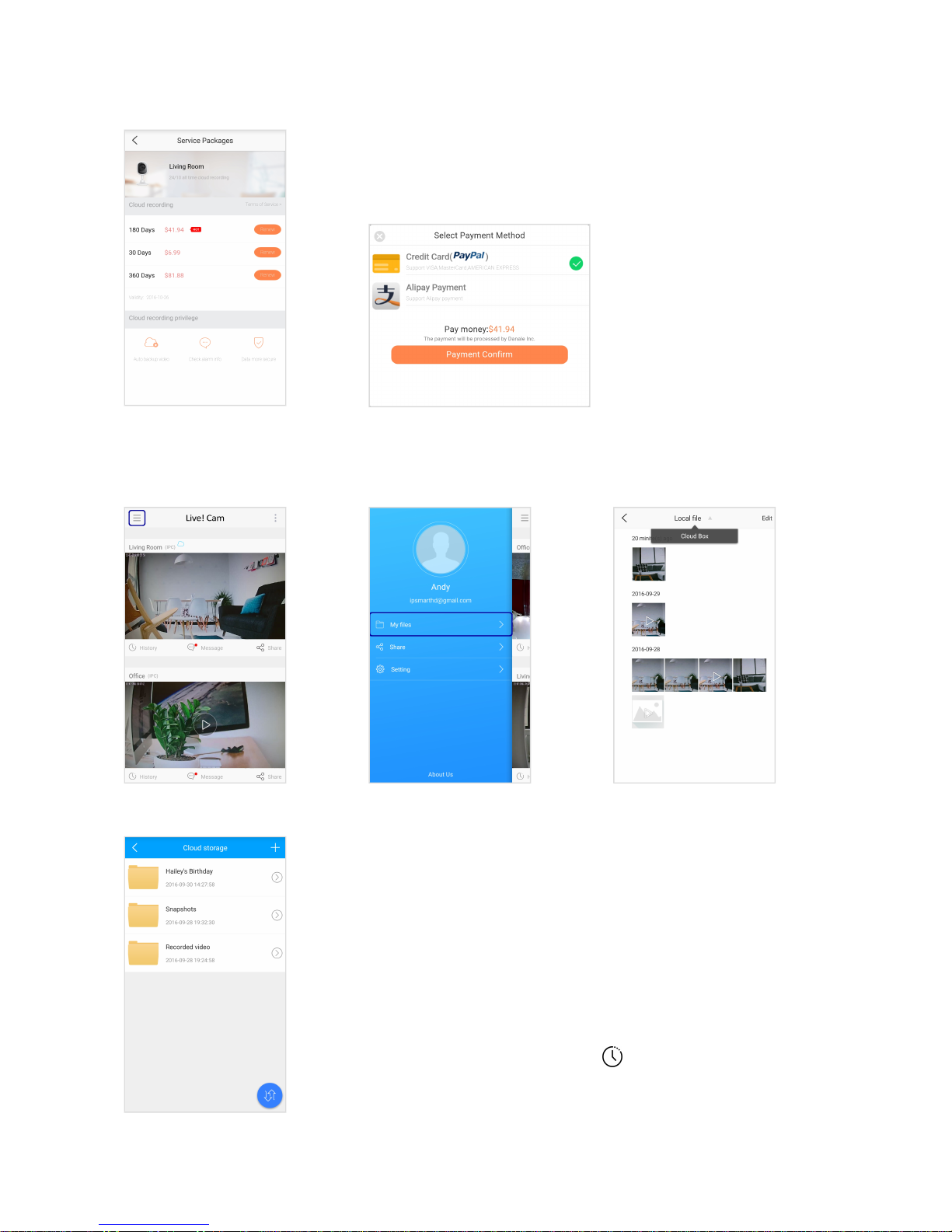
Purchase Cloud Storage
Select your desired package.
Confirm payment method.
View Files on Cloud
Select Cloud Box.
Note:
Video backup files are encrypted and cannot be viewed through
the cloud storage.
To view the backup video, tap on the main screen.
See Using Your Device – 4. Recording history
Live! Cam IP SmartHD (VF0820) – Using Cloud Storage 25
Page 26
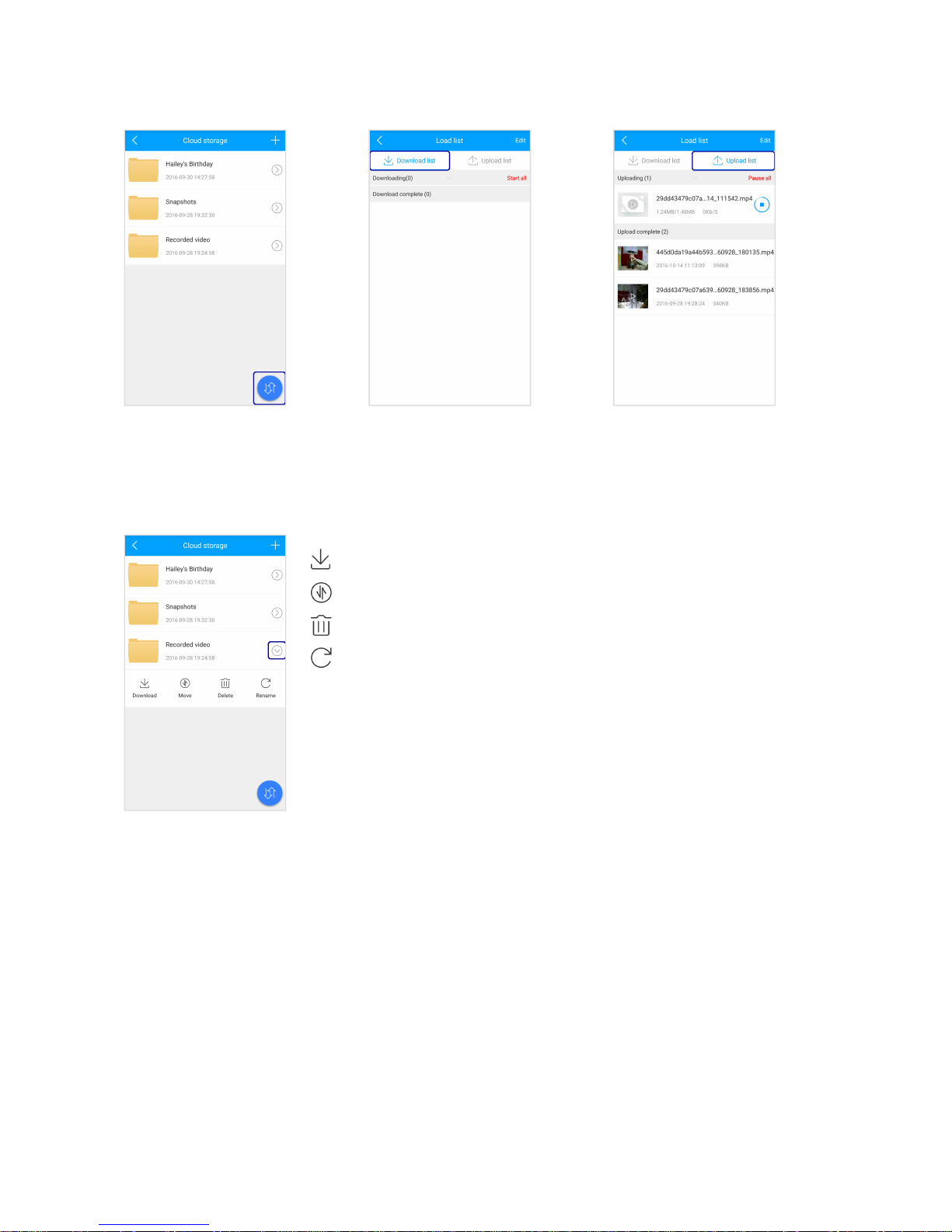
View Sync Status
View download status. View upload status.
Manage Files on Cloud Storage
download file
move file
delete file
rename file
Live! Cam IP SmartHD (VF0820) – Using Cloud Storage 26
Page 27
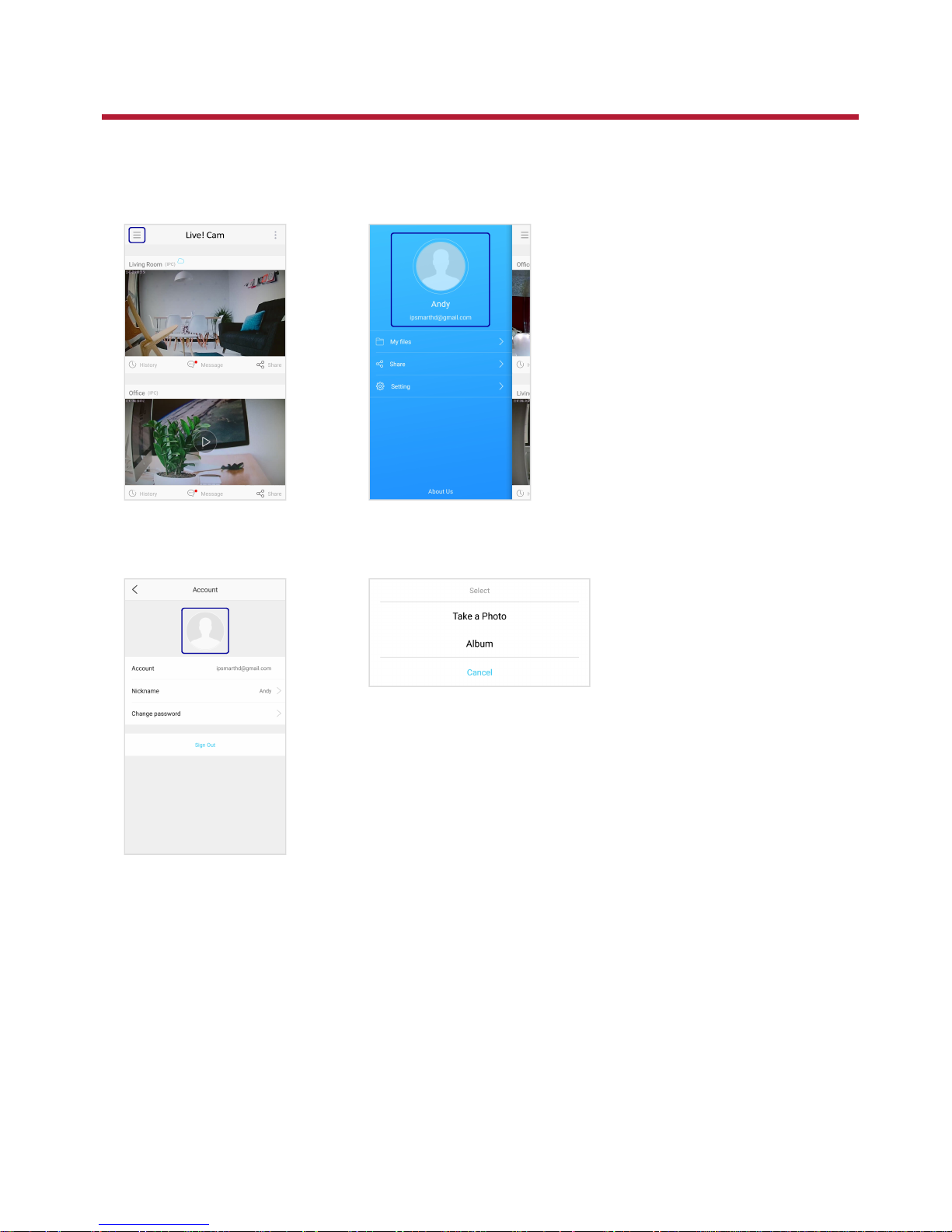
Changing Account Settings
You can change your account settings or modify the Live! Cam app settings at any time.
Account Settings
Changing Profile Picture
Take a photo or select an image
from your album.
Live! Cam IP SmartHD (VF0820) – Changing Account Settings 27
Page 28
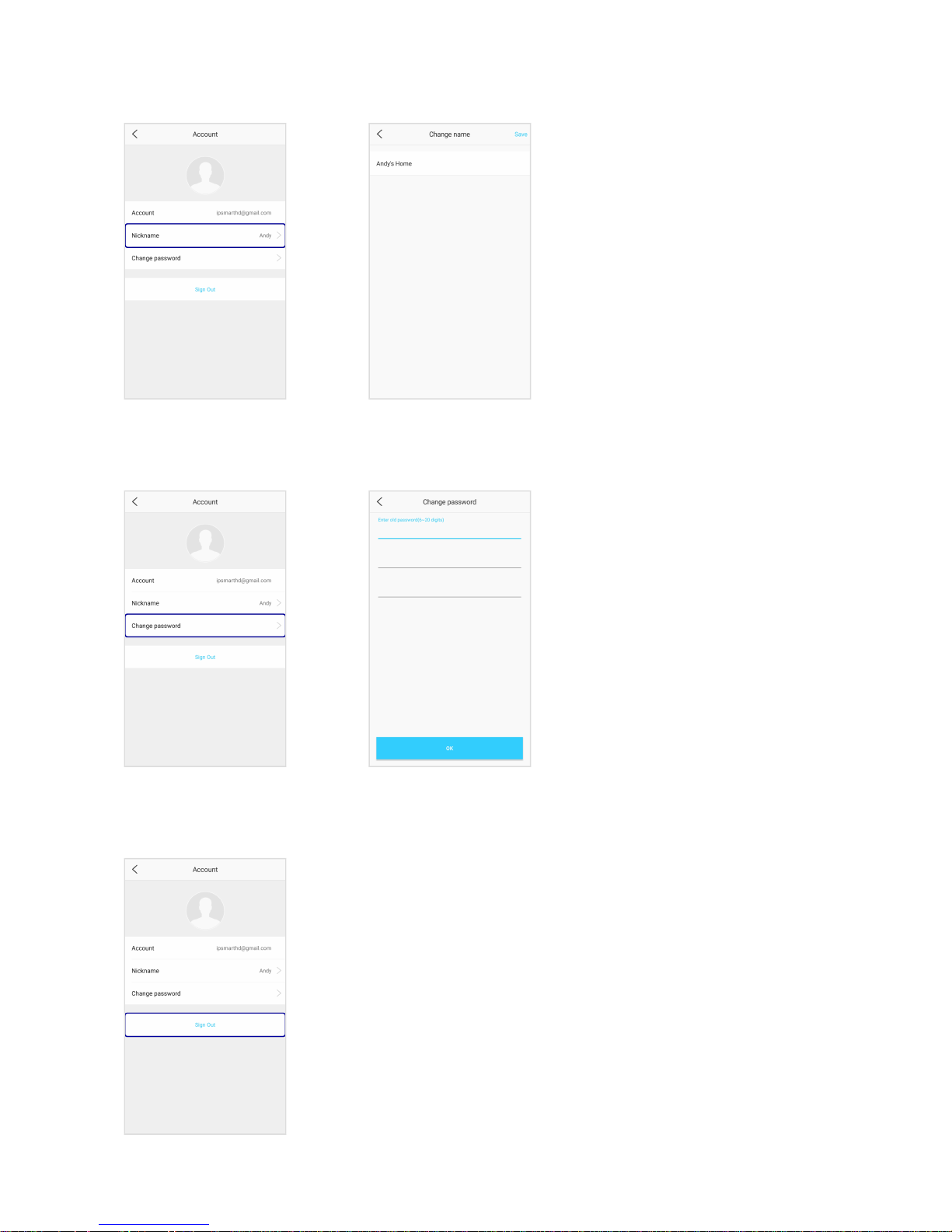
Naming Your Account
Enter a name.
Changing Password
Change your password.
Signing Out
Live! Cam IP SmartHD (VF0820) – Changing Account Settings 28
Page 29
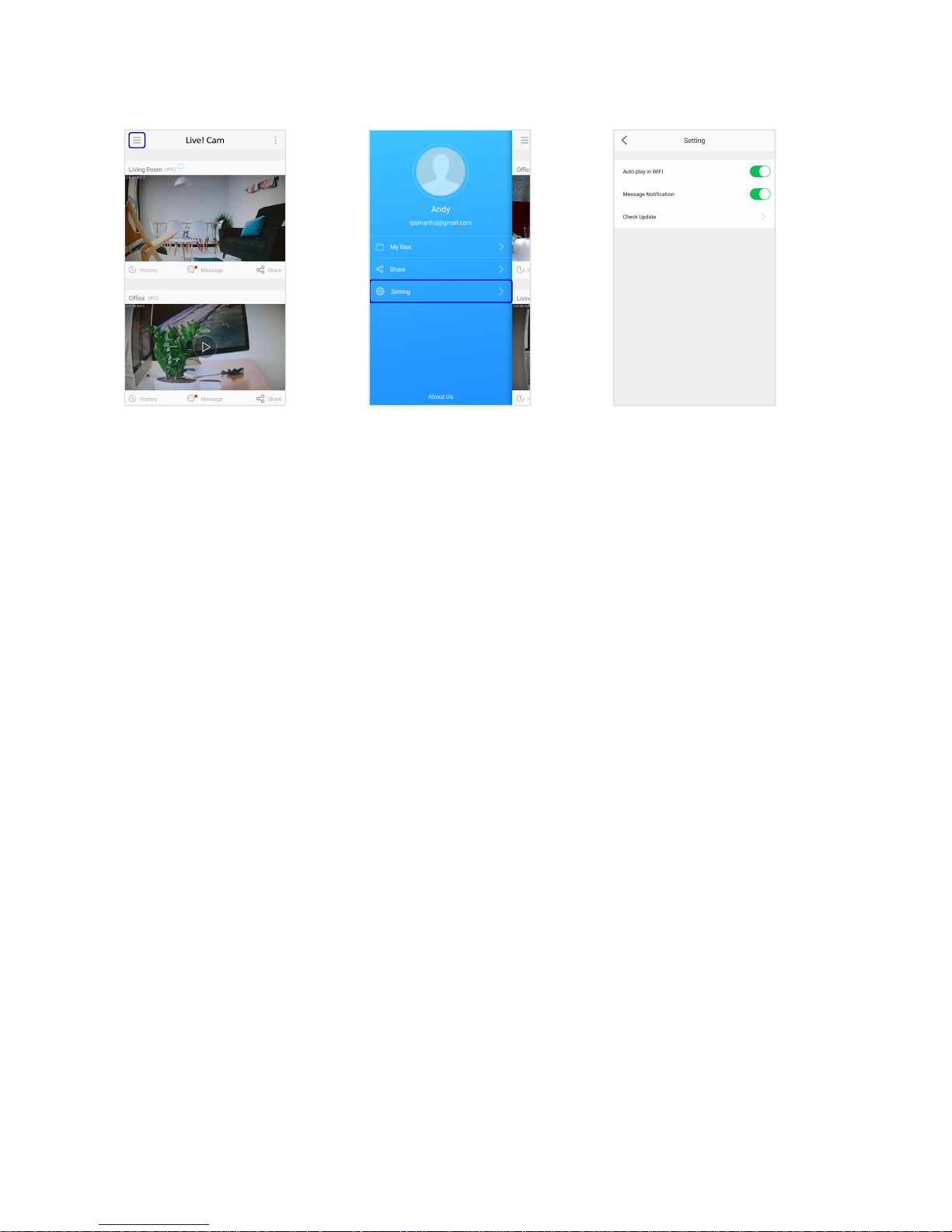
App Settings
l
Auto play in WiFi
Enable/disable videos to play automatically when you're connected to WiFi
l
Message Notification
Enable/disable the app to push alert notifications
l
Check Update
Check for the latest app updates
Live! Cam IP SmartHD (VF0820) – Changing Account Settings 29
Page 30

Live! Cam Computer Software
To take full advantage of your Live! Cam IP SmartHD, you can also install the Live! Cam software on your
computer.
The Live! Cam software lets you:
l Set up your Live! Cam IP SmartHD
l Stream live videos 24/7, in clear 720p HD
l Listen and talk with 2-way audio
l Record videos and review footage so you don't miss a thing
l View 4 cameras at once and control them remotely.
l Automatically backup videos to the cloud.
l Receive future updates and features.
Installing Application
For Windows OS
1. Using a standard web browser, visit support.creative.com/ipsmarthd.
2. Locate Live! Cam IP SmartHD and the software package for your Windows operating system.
3. Download this package into your local hard disk.
4. Locate and launch the software package.
5. Follow the on-screen instructions to complete the installation.
6. When prompted, restart your computer.
7. Launch the application by locating and clicking Live! Cam.
For Mac OS
1. Using a standard web browser, visit support.creative.com/ipsmarthd.
2. Locate Live! Cam IP SmartHD and the software package for your Mac OS.
3. Download this package into your local hard disk.
4. Double-click the downloaded file to uncompress it.
5. Double-click the Live! Cam icon and follow the subsequent on-screen instructions to complete the
installation.
6. Launch Live! Cam from the Applications > Creative folder.
Live! Cam IP SmartHD (VF0820) – Live! Cam Computer Software 30
Page 31

Uninstalling Application
In the event that an uninstallation is required (such as for upgrades), please follow the following procedure.
Before you begin, close all running applications. Applications that are still running during
uninstallation may not be removed.
For Windows OS
1. From the Control Panel, click Uninstall a program.
2. Select Live! Cam.
3. Click the Uninstall button or option.
If the User Account Control dialog box appears, click the Continue button.
4. Click the Yes button.
5. When prompted, restart your computer.
For Mac OS
1. Click Applications > Creative > Creative Uninstaller.
2. Select Live! Cam.
3. Click the Uninstall button.
4. Follow the on-screen instructions.
Live! Cam IP SmartHD (VF0820) – Live! Cam Computer Software 31
Page 32

License and Copyright
Information in this document is subject to change without notice and does not represent a commitment on
the part of Creative Technology Ltd. No part of this manual may be reproduced or transmitted in any form or
by any means, electronic or mechanical, including photocopying and recording, for any purpose without the
written permission of Creative Technology Ltd.
© 2016 Creative Labs Pte. Ltd. All rights reserved. Creative, the Creative logo and Live! Cam are
trademarks or registered trademarks of Creative Technology Ltd. in the United States and/or other
countries. App Store is a trademark of Apple Inc., registered in the U.S. and other countries. Google Play is a
trademark of Google Inc. Other trademarks and trade names are those of their respective owners. All
specifications are subject to change without prior notice. Use of this product is subject to a limited hardware
warranty. Actual contents may differ slightly from those pictured. The software included in this packaging
may not be used separately from the hardware. Before using the software, you must agree to be bound by
the terms and conditions of the end user license agreement.
Version 1.0
November 2016
Live! Cam IP SmartHD (VF0820) – License and Copyright 32
 Loading...