

Page 1

R
512MB DIGITAL
512MB DIGITAL
MP3 AUDIO PLAYER
MP3 AUDIO PLAYER
OWNER'S MANUAL
PLEASE READ BEFORE OPERATING THIS EQUIPMENT
Model: CMP168C
Page 2
SAFETY PRECAUTIONS
Before using the unit, be sure to read all
operating instructions carefully. Please note
that these are general precautions and may
not pertain to your unit. For example, this
unit may not have the capability to be
connected to an outdoor antenna.
READ INSTRUCTIONS
1.
All the safety and operating instructions
should be read before the product is
operated.
RETAIN INSTRUCTIONS
2.
The safety and operating instruction should
be retained for future reference.
3.
HEED WARNINGS
All warnings on the product and in the
operating instruction should be adhered to.
FOLLOW INSTRUCTIONS
4.
All operating and use instructions should be
followed.
5.
CLEANING
Unplug this product from the wall outlet
before cleaning. Do not use liquid cleaners
of aerosol cleaners. Use a dry cloth for
cleaning.
ATTACTHMENTS
6.
Do not use attachments not recommended
by the product's manufacturer as they may
cause hazards.
WATER AND MOISTURE
7.
Do not use this product near water-for
example: near a bathtub, washbowl, kitchen
sink or laundry tub; in a wet basement; or
near a swimming pool.
ACCESSORIES
8.
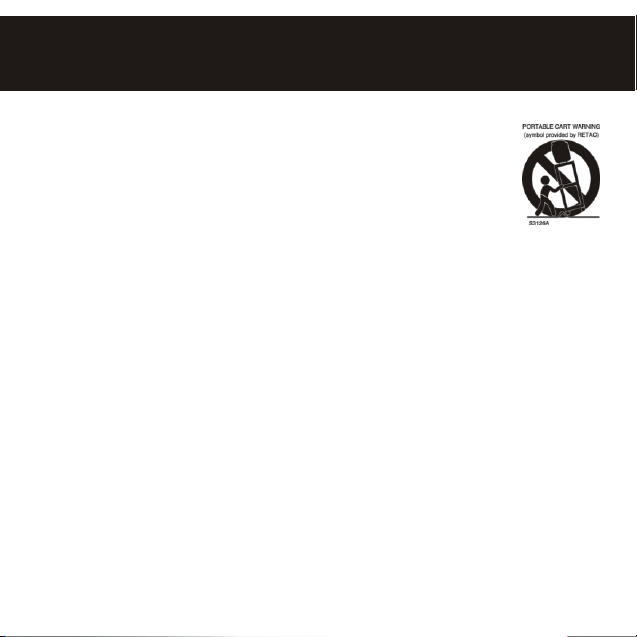
Do not place this product on an unstable
cart, stand, tripod, bracket or
table. The product may fall,
causing serious injury and
serious damage to the
product. Use only with a
cart, stand, tripod, bracket or
table recommended by the
manufacturer or sold with
the product. Any mounting
of the product should follow the
manufacturer's instructions, and should use
a mounting accessory recommended by the
manufacture.
An appliance and cart combination should
8A.
be moved with care. Quick stops,
excessive force and uneven surfaces may
cause the appliance and cart combination to
overturn.
9.
VENTILATION
Slots and openings in the cabinet and in the
back or bottom are provided for ventilation,
10.
to ensure reliable operation of the product
and to protect it from overheating. These
openings must not be blocked or covered.
The openings should never be blocked by
placing the product on a bed, sofa, rug or
other similar surface. This product should
never be placed near or over a radiator or
heat source. This product should not be
placed in a built-in installation such as a
bookcase or rack unless proper ventilation
is provided or the manufacturer's
instructions have been adhered to.
POWER SOURCES
This product should be operated only from
1
Page 3
SAFETY PRECAUTIONS
the type of power source indicated on the
marking label. If you are not sure of the
type of power supply to your home, consult
your appliance dealer or local power
company. For products intended to operate
from battery power, or other sources, refer
to the operating instructions.
GROUNDING OR POLARIZATION
11.
This product is equipped with a polarized
alternating-current line plug (a plug having
one blade wider than the other). This plug
will fit into the power outlet only one way.
This is a safety feature. If you are unable to
insert the plug fully into the outlet, try
reversing the plug. If the plug should still
fail to fit, contact your electrician to replace
your obsolete outlet. Do not defeat the
safety purpose of the polarized plug.
12.
POWER-CORD PROTECTION
Power-supply cords should be routed so
that they are not likely to be walked on or
pinched by items placed upon or against
them. Paying particular attention to cords at
plugs, convenience receptacles, and the
point where they exit from the appliance.
LIGHTING
13.
To protect your production from a lightning
storm, or when it is left unattended and
unused for long periods of time, unplug from
the wall outlet and disconnect the antenna
or cable system. This will prevent damage
to the product due to lightning and powerline surges.
POWER LINES
14.
An outside antenna system should not be
located in te vicinity of overhead power lines
or other electric light or power circuits, of
where it can fall into such power lines or
circuits. When installing an outside antenna
system, extreme care should be taken to
keep from touching such power lines or
circuits as contact with them might be fatal.
OVERLOADING
15.
Do not overload wall outlets and extension
cords as this can result in a risk of fire or
electric shock.
OBJECT AND LIQUID ENTRY
16.
Never push objects of any kid into this
product through openings as they may touch
dangerous voltage points or short out parts
that could result in fire or electric shock.
Never spill or spray any type of liquid on the
product.
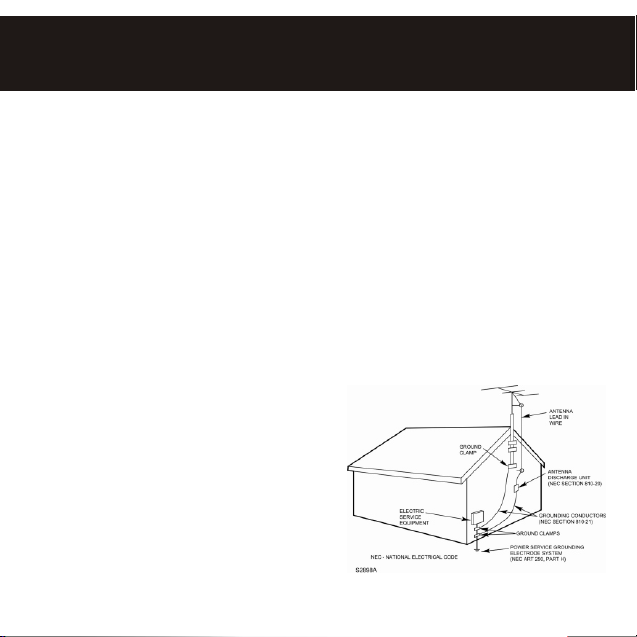
17.
OUTDOOR ANTENNA GROUNDING
If an outside antenna is connected to the
product, be sure the antenna system is
EXAMPLE OF ANTENNA GROUNDING AS PER
NATIONAL ELECTRICAL CODE
2
Page 4

SAFETY PRECAUTIONS
grounded so as to provide some protection
against voltage surges and built-up static
charges. Section 810 of the National Electric
Code, ANSI/NFPA 70, provided information
with respect to proper grounding of the mast
and supporting structure, grounding of the
lead-in wire to an antenna discharge product,
size of grounding conductors, location of
antenna discharge product, connection to
grounding electrodes and requirements for
grounding electrodes.
SERVICING
18.
Do not attempt to service this product yourself
as opening or removing covers may expose
you to dangerous voltage or other hazards.
Refer all servicing to qualified service
personnel.
REPLACEMENT PARTS
19.
When replacement parts are required, be sure
the service technician uses replacement parts
specified by the manufacturer or those that
have the same characteristics as the original
part. Unauthorized substitutions may result in
fire, electric shock or other hazards.
SAFETY CHECK
20.
Upon completion of any service or repairs to
this product, ask the service technician to
perform safety checks to determine that the
product is in proper operating condition.
21.
WALL OR CEILING MOUNTING
The product should be mounted to a wall or
ceiling only as recommended by the
manufacturer.
22.
DAMAGE REQUIRING SERVICE
Unplug the product from the wall outlet and
refer servicing to qualified service personnel
under the following conditions:
a.
When the power-supply cord or plug is
damaged.
If liquid has been spilled or objects have fallen
b.
into the product.
c.
If the product has been exposed to rain or
water.
d.
If the product does not operate normally by
following the operating instructions. Adjust
only those controls that are covered by the
operating instructions, as an adjustment other
controls may result in damage and will often
require extensive work by a qualified
technician to restore the product to its normal
operation.
e.
If the product has been dropped or the cabinet
has been damaged.
f.
When the product exhibits a distinct change in
performance-this indicates a need for service.
HEAT
23.
The product should be situated away from
heat sources such as radiators, heat registers,
stoves or other products (Including amplifiers)
that produce heat.
NOTE TO CATV SYSTEM INSTALLER
24.
This reminder is provided to call the CATV
system installer's attention to Article 820-40 of
the NEC that provides guidelines for proper
grounding and, in particular, specifies that the
cable ground shall be connected to the
grounding system of the building, as close to
the point of cable entry as practical.
3
Page 5
PRECAUTIONS
COPYRIGHT
Distributing copies of MP3, WMA or WAV tracks without permission is a violation of international copyright
laws.
SAFETY:
Vibration experienced during walking or exercising will not affect the player. However, dropping the
player or dropping a heavy object on the player may result in damage or sound distortion.
Avoid spilling any liquid onto or into the player.
Do not leave the player in a location near heat sources; in a location subject to direct sunlight,
excessive dust, sand, moisture, rain or mechanical shock; on an unlevel surface; or in a car with the
windows closed during periods of excessive heat.
ROAD SAFETY:
Do not use headphones while driving, cycling or operating any motorized vehicle. It may create a traffic
hazard and it is illegal in some areas. It can be potentially dangerous to play your headset at a high volume
while walking, especially at pedestrian crossing. You should exercise extreme caution or discontinue use
in potentially hazardous situations.
FCC WARNING:
This equipment has been tested and found to comply with the limits for a Class B digital device, pursuant to
Part 15 of the FCC Rules. These limits are designed to provide reasonable protection against harmful
interference in a residential installation. This equipment generates, uses and can radiate radio frequency
energy and, if not installed and used in a accordance with the instructions, may cause harmful interference
to radio communications. However, there is no guarantee that interference will not occur in a particular
installation. If this equipment does cause harmful interference to radio or television reception, which can
be determined by turning the equipment off and on, the user is encouraged to try to correct the interference
by one or more of the following measures:
Reorient or relocate the receiving antenna.
Increase the separation between the equipment and receiver.
Connect the equipment into an outlet on a circuit different from that to which the receiver is connected.
Consult the dealer or an experienced radio/TV technician for help.
This device complies with Part 15 of the FCC Rules. Operation is subject to the following two conditions:
This device may not cause harmful interference, and
This device must accept any interference received, including interference that may cause undesired
operation.
Modification not authorized by the manufacturer may void user's authority to operate this device.
4
Page 6

Dear Customer:
Selecting fine audio equipment such as the unit you've just purchased is only the
start of your musical enjoyment. Now it's time to consider how you can maximize
the fun and excitement your equipment offers. This manufacturer and the
Electronic Industries Association's Consumer Electronics Group want you to get
the most out of your equipment by playing it at a safe level. One that lets the
sound come through loud and clear without annoying blaring or distortion and,
most importantly, without affecting your sensitive hearing.
Sound can be deceiving. Over time your hearing "comfort level" adapts to higher
volumes of sound. So what sounds "normal" can actually be loud and harmful to
your hearing. Guard against this by setting your equipment at a safe level
BEFORE your hearing adapts.
To establish a safe level:
Start your volume control at a low setting.
Slowly increases the sound until you can hear it comfortably and clearly, and
without distortion.
Once you have established a comfortable sound level:
Set the dial and leave it there.
Taking a minute to do this now will help to prevent hearing damage or loss in the
future. After all, we want you listening for lifetime.
We Want You Listening For A Lifetime:
Use wisely, your new sound equipment will provide a lifetime of fun and
enjoyment. Since hearing damage from loud noise is often undetectable until it is
too late, this manufacturer and the Electronic Industries Association's Consumer
Electronic Group recommend you avoid prolonged exposure to excessive noise.
This list of sound levels is included for your protection.
5
Page 7
Decibel
Level
THE FOLLOWING NOISES CAB BE DANGEROUS UNDER CONSTANT
EXPOSURE:
Information courtesy of the Deafness Research Foundation.
Example
Quiet library, soft whispers
30
Living room, refrigerators, bedroom away from traffic
40
Light traffic, normal conversation, quiet office
50
Air conditioner at 20 feet, sewing machine
60
Vacuum cleaner, hair dryer, noisy restaurant
70
Average city traffic, garbage disposals, alarm clock at two feet
80
Subway, motorcycle, truck traffic, lawn mower
90
Garbage truck, chain saw, pneumatic drill
100
120
Rock band concert in front of speakers, thunderclap
140
Gunshot blast, jet engine
180
Rocket launching pad
6
Page 8
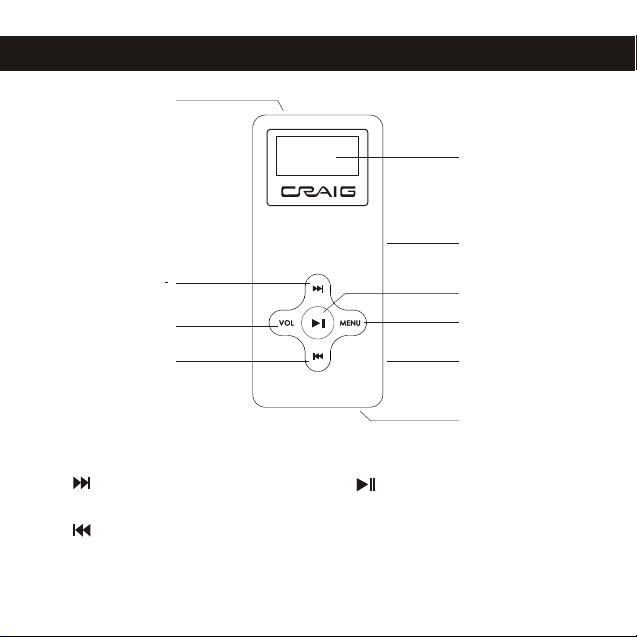
LOCATION OF CONTROLS
1
5
6
Main power switch
1.
Button
2.
VOL Button
3.
Button
4.
LCD Display
5.
2
3
4
6.
Built-in Microphone
7.
Button
8.
MENU Button
9.
Headphone Jack
10.
USB Jack
7
7
8
9
10
Page 9
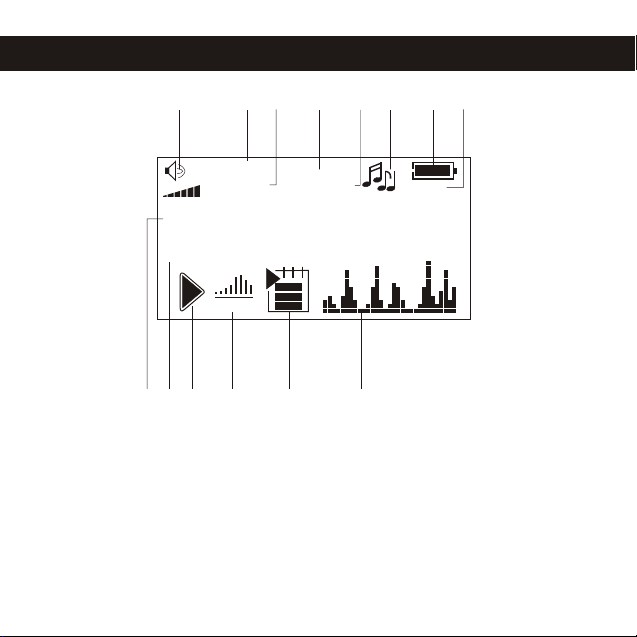
LOCATION OF CONTROLS (CONTINUED)
1 32 4 6 7
006 00:38
19
015 03:25
A Happy Day.MP3
My Music
JAZZ
11
9
Volume Level
1.
Current track number
2.
Total number of tracks
3.
Elapsed time of current
4.
track
Total time of current tracks
5.
Music mode
6.
Batter level
7.
12
5
A-B
1410 13
8.
A-B repeat status
9.
Current track information
10.
Current floder
11.
PLAY/PAUSE/STOP
12.
Mode of EQ
13.
Repeat mode
14
Spectrum display
8
8
Page 10

RECHARGE THE BUILT IN BATTERY
The MP3 player has built in a
Rechargeable battery. Recharge the
battery when the battery indicator is
low (see figure 1at the right) as follows:
1.
Slide the main power switch to OFF position ,then connect
your player to the computer using the supplied USB cable;
the unit will turn on automatically.
Computer
2.
An charging indicator would show on the player's display.
3.
Leave the player for recharging.
4.
Disconnect the player from the PC when the battery has
been recharged to full.
NOTE:
For the first time of charging, recharge the battery for minimum 12
hours.
Every recharge would take about 5 to 6 hours.
If the player would not be used for a long period, switch the main power
switch to OFF position to protect the battery.
9
Battery full Battery low
Figure 1
Page 11

DOWNLOADING AND TRANSFERRING FILES
You can download MP3 files from the Internet or use encoding software
to convert music that you have on an audio CD into MP3 format. Once
these files are stored on your computer you can easily copy them to your
player. Connect the computer to your player using the supplied USB
cable; the unit will turn on automatically.
Computer
NOTE:
Make sure the unit is turned off before connecting it to a PC.
You cannot play your music files when connected to a PC, you must
disconnect the unit from the PC first.
After disconnecting the unit from the PC, the power will automatically
turn on.
If the PC cannot locate the unit, confirm the connection as shown
10
Page 12

DOWNLOADING AND TRANSFERRING FILES (CONT.)
MMS is a Music Manage Software system
on your computer(OS :Win98/2000/XP).
After installing the MMS system, you can
manage your music files very easy.
Insert the supplied MMS installation disc,
then follow the on-screen steps to install.
When you connect the unit to a computer
via the USB cable and open the MMS
software, the screen below will appear.
Content
of PC
Content
of player
REFRESH: Click to refresh the content of the USB.
DELETE: While viewing the USB display, select the file you would like to delete
and click DELETE.
CLEAR ALL: Click to clear all of the files in the USB display frame.
DOWNLOAD: Click to copy the files from the computer to the USB.
UPLOAD: Click to copy the files from the USB to the computer.
11
Page 13

OPERATION
TO TURN THE POWER ON
1
OFF ON
1
2
Slide the Main POWER switch to the
ON position. Press and hold the
button for two seconds to turn the unit
on.
NAVIGATING THE SET MENUS
1
1
2
3
Press and hold the MENU button until
the menu appears on the display. Scroll
to the desired option by using the
abcd
or button, then press the
3
2
MENU button again to select.
HEADPHONE JACK
Plug the headphones (included) into the Headphone jack on the side of the unit.
1
1
1
TO TURN THE UNIT OFF
1
OFF ON
Press and hold the button until the
2
as as
1
power off message appear on the display
completed, then release the button. If the
player would not be in used for a long
period, slide the Main POWER switch
to the OFF position.
VOLUME BUTTONS
1
1
In playback mode, press the VOL button ,
1
,then press button to increase the
volume or button to decrease the
volume. Press VOL button again to
exit volume setting mode.
12
2
1
3
2
3
2
1
1
1
2
Page 14

OPERATION (CONTINUED)
TO LISTEN TO MP3s/WMAs
1
1
2
2
Power on the unit as page 12, the
information of first track will appear on
the player. (If the unit is in a mode other
than the Music mode, enter to the
MUSIC menu as page 12), the
information of first track will appear on
the display.
3
Press and release the button to
pause playback. Press button again
to resume playback. Press and hold
button one second to stop playback.
2
Press and release the button to
start playback; the MP3 information will
scroll across the dispaly and the song
number and timer will appear.
4
1
In playback mode, press the VOL button ,
1
,then press button to increase the
volume or button to decrease the
volume. Press VOL button again to
exit volume setting mode.
3
13
2
3
2
1
Page 15

OPERATION (CONTINUED)
HIGH-SPEED MUSIC SEARCH
1
1
2
NOTE: When you press any button, the backlight will light for a few seconds.
During playing, press and hold the or
abcdeg
buttons to move the player
2
forward or backward within a file to
locate a specific musical passage. The
player will move forward or backward at
high speed as long as the button is held.
When you release the button, normal
playback will resume.
FORWARD/REVERSE SKIP
1 2
1
Press and release the button to
advance the player to the beginning of
the next file. Press and release the
repeatedly to advance the player
button
to higher-numbered files.
Press and release the button to move
the player back to the beginning of the
currently playing file. Press and release
the button repeatedly to move the
player back to lower-numbered files.
14
Page 16

OPERATION (CONTINUED)
A-B REPEAT PLAYBACK
While playing back music or voice files, this unit can repeatedly play
back a specific section.
1
While in the Playback mode, press and
release the MENU button to define
where you want the section to start.
Press and release the MENU button
again to define where you would like the
section to end, the unit will then play the
selected area continuously.
2
Press and release the MENU button
again to cancel A-B Repeat mode.
15
Page 17

OPERATION (CONTINUED)
RECORDING A VOICE MESSAGE
1
2
1
3
Enter to menu as page 12. Select
RECORDER using the or
button.
2
12weq
2
2
Press and release the MENU button
3
3
to start recording. Speak into the
microphone at a normal tone of voice.
Press the button to pause
recording. Press the button again
to resume recording.
MENU
2
1
button to save the recording file.
Press and release
1
1
2
3
3
2
Select EXIT by pressing the or
as ,
then press MENU button to exit
3
recording mode.
NOTES:
The recording is not affected by the Volume setting as the recording level is set automatically.
abt
16
Page 18

OPERATION (CONTINUED)
PLAYING A VOICE MESSAGE
1 2
2
1
3
Enter to menu as page 12. Select
VOICE using the or
button, then press the MENU
button again to select it. The information
of first voice recording track will appear
in the display.
2
3
1
3
Press and release the button to
pause playback. Press and release
button again to resume playback. Press
and hold button one second to stop
playback.
NOTES:
Skip and search functions for Voice operate are same as Music, as described on page 14.
Press the or button to
select a message. Press the
button to start playback.
4
In playback mode, press the VOL button ,
1
.Then press button to increase the
volume or button to decrease the
volume. Press VOL button again to
exit volume setting mode.
17
1
3
2
1
3
2
1
2
3
2
3
1
Page 19

SETTING THE MENU
SETTING THE EQ-(MUSIC PLAYER ONLY)
1
2
1
3
Enter to menu as page 12. Select EQ
using the or button, then
press the MENU button again to
select it.
2
3
1
SETTING THE CONTRAST
1
2
1
3
Enter to menu as page 12. Select SYSTEM
using the or button, then
press the MENU button again to select it .
Select CONTRAST using the or
button, then press the MENU button
again to select it.
2
3
1
2
2
1
3
2
Select the desired EQ mode using the
1
asde
JAZZ, CLASSIC, POP, DDB ). Press and
hold the MENU button one second to
saving the setting and return to normal
playback mode.
2
or buttons (NORMAL, ROCK,
3
2
1
3
2
Adjust the Contrast as desired using the
abcde
MENU button one second to saving
3
the setting and return to normal playback
1
mode.
18
2
1
or button. Press and hold the
3
Page 20

SETTING THE MENU (CONTINUED)
SETTING THE PLAY MODE
1
2
1
3
Enter to menu as page 12. Select SYSTEM
using the or button, then
press the MENU button again to select
it. Select PLAYMODE using the or
button, then press the MENU button
again to select it.
2
3
1
2
SETTING THE LANGUAGE
1
2
1
3
Enter to menu as page 12. Select SYSTEM
using the or button, then press
the MENU button again to select it.
Select LANGUAGE using the or
button, then press the MENU button
again to select it.
2
1
3
3
1
2
1
3
2
Select the desired Play mode using the
abcde
1
NORMAL:
3
REPEAT 1:
1
REPEAT ALL:
RANDOM:
INTRO:
Press and hold the MENU button one
second to saving the setting and return to
playback mode.
2
or buttons.
Normal playback
Repeats the current track
Repeats all of the tracks
Randomly plays
Introduction plays
3
2
1
3
2
Select the desired language using the
1
asbc
the MENU button one second to saving
2
the setting and return to normal playback
mode.
19
2
or buttons. Press and hold
3
Page 21

SETTING THE MENU (CONTINUED)
SETTING THE BACKLIGHT TIME
1
2
1
3
Enter to menu as page 12. Select SYSTEM
using the or button, then
press the MENU button again to select it.
Select BACKLIGHT using the or
button, then press the MENU button
again to select it.
3
2
1
2
SETTING THE POWER SAVING
1
2
1
3
Enter to menu as page 12. Select SYSTEM
using the or button, then
press the MENU button again to select it.
Select AUTO OFF using the or
button, then press the MENU button
again to select it.
2
3
1
2
2
1
3
2
1
Use the or button to select the
desired backlight time (time the
backlight will stay on after a button is
3
pressed). (5SECONDS, 20SECONDS, 1
1
MINUTE) Press and hold the MENU
3
button one second to saving the
setting and return to normal playback
mode.
2
2
1
3
2
Use the or button to select the
desired Power saving time (time the unit will
stay on before turning off when idle) :
3
(DISABLE, 30 SECONDS, 1 MINUTE, 5
1
MINUTES)
button one second to saving the setting
and return to normal playback mode.
1
Press and hold the MENU
3
20
2
Page 22

SETTING THE MENU (CONTINUED)
SETTING THE RECORD MODE
1
2
1
3
Enter to menu as page 12. Select SYSTEM
using the or button, then
press the MENU button again to select it.
Select RECORD SET using the
or button, then press the MENU
button again to select it.
2
3
1
3
1
2
2
1
3
2
2
Press or button go to Bitrate
setting. Press the MENU button to select
the recording bit rate from 32kbps,
64kbps or 128kbps. Press or
abbbb
hold the MENU button one second
return to normal playback mode.
21
1
2
button to select EXIT. Press and
3
1
Page 23

SETTING THE MENU (CONTINUED)
DELETE A FILE
1
2
1
3
Enter to menu as page 12. Select SYSTEM
using the or button, then
press the MENU button again to
select it. Select DELETE using the
or button, then press the MENU
button again to select it.
2
3
1
3
2
1
3
2
1
Press the or button to select
MUSIC, ALL MUSIC, VOICE, ALL VOICE,
press the MENU button to select it.
2
Press the or button to select
1
"Yes" to delete the file, "No" skip to next
file, "EXIT" to exit the delete menu. Then,
press MENU button to confirm.
1
2
3
2
3
3
ABOUT
1
1
2
1
3
Enter to menu as page 12. Select SYSTEM using the or button, then press the
MENU button again to select it. Select ABOUT using the or button, then
press the MENU button again to select it. System information will display.
hold the MENU button one second to return to normal playback mode.
1
1
1
2
3
2
3
Press and
22
Page 24

TROUBLESHOOTING GUIDE
If you experience a problem with this unit, check the chart below before calling for service.
SYMPTOM CAUSE SOLUTION
Unit will not turn
on
x
x
No sound
x
x
x
x
x
x
x
x
Download Failure
x
The computer is
not recognizing
the player
x
Built in Li-Poly rechargeable
battery is out of power.
Main power switch is not
in the ON position.
Headphone is not
inserted.
Volume is set too low
x.
The MP3 or WMA files are
corrupted
No files are in the player
x.
The USB cable is not
securely connected.
The USB cable is not
securely connected.
Driver is not installed or
computer is not
compatible.
Recharge the battery .
Slide the POWER switch to
the ON position.
Insert headphone
x
Raising the VOLUME as page
12.
Download uncorrupted files.
x
Upload files to the unit as
described
Re-plug the cable
x
Make sure the USB cable is
securely connected
Install driver and/or see page
10 to 11 for compatibility
on pages 10 & 11.
23
Page 25

SPECIFICATIONS
Capacity
Battery
Dimensions
Weight
Audio frequency
Music format
Voice recording format
Support compress format
........................................................................................
.......................................................
.................................
..........................................................................................
.................................................................
..........................................................................
Specifications are subject to change without notice.
Built in rechargeable Li-Poly battery
3 1/2" (H) x 1 1/2" (W) x 1/4" (D) inches
.......................................................
.........................................
TO OBTAIN SERVICE ON THIS PRODUCT
EMAIL TO:
service@craigelectronics.com
24
512MB
0.06lbs
20Hz~20KHz
MP3, WMA
WAV
32Kbps-256Kbps
Page 26

LIMITED WARRANTY
Craig warrants this product to be free from manufacturing defects in
material and workmanship under normal use for a period of 90 days
from date of purchase. If service is required, please return the product
to the store where it was purchased for exchange; or, pack the unit in
the original packing material with all accessories if applicable, a copy
of your sales receipt and a Cashier's check or Money Order for $12.00
(to cover shipping and handling costs) payable to Craig Electronics
International Ltd. Ship your product freight pre-paid. Your unit will be
repaired, replaced or a refund will be forwarded to you within four
weeks of receipt of your unit. Please ship your unit to:
Craig Electronics International Ltd.
This warranty is void if the product has been: a) Used in a commercial
application or rental. b) Damaged through misuse negligence, or
abuse. c) Modified or repaired by anyone other than an authorized
Craig service center. d) Damaged because it is improperly connected
to any other equipment.
Note: This warranty does not cover: a) Ordinary adjustments as
outlined in the Owner's Manual which can be performed by the
customer. b) Damage to equipment not properly connected to the
product. c) Any cost incurred in shipping the product for repair.
1160 NW 163 Drive
Miami, FI 33169
25
Page 27

LIMITED WARRANTY (CONTINUED)
d) Damage to the product not used in the USA.
This warranty is not transferable and only applies to the original
purchase. Any implied warranties, including the warranty of
merchantability, are limited in duration to the period of this expressed
warranty and no warranty whether expressed of implied shall apply to
the product thereafter.
Under no circumstance shall Craig be liable for any loss or
consequential damage arising out of the use of this product. This
warranty gives specific legal rights. However, you may have other
rights which may vary from state to state. Some states do not allow
limitations on implied warranties or exclusion of consequential damage.
Therefore, these restrictions may not apply to you.
Printed in China CMP168C-IB-E001
26
 Loading...