

Page 1
CONTENTS
Page 2
IMPORTANT SAFETY INSTRUCTIONS
FCC STATEMENT
Page 3
IMPORTANT SAFETY INSTRUCTIONS
IMPORTANT SAFETY INSTRUCTIONS
Page 4
IMPORTANT SAFETY INSTRUCTIONS
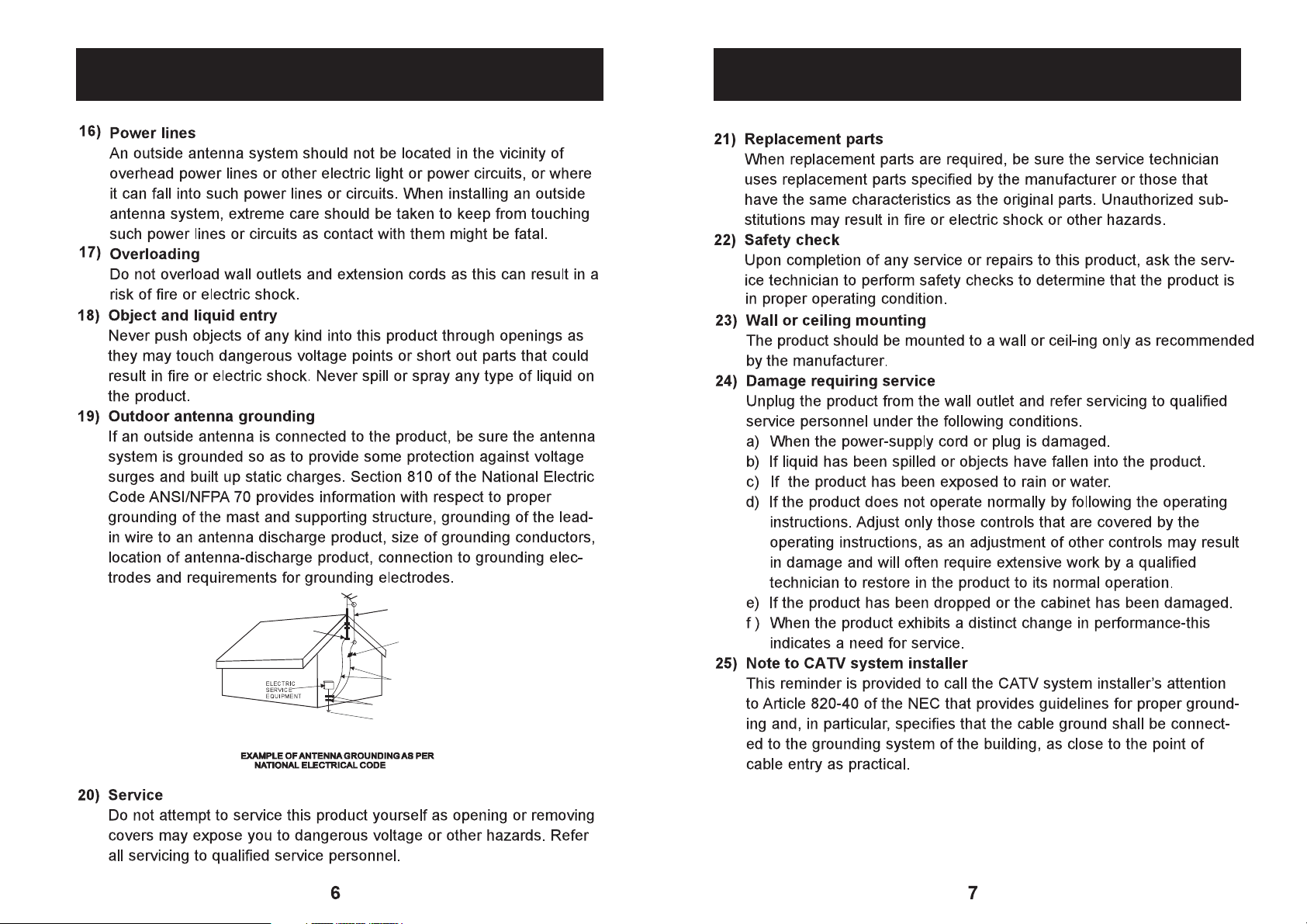
IMPORTANT SAFETY INSTRUCTIONS
GROUND
CLAMP
NEC-NATIONALELECTRICAL CODE
ANTENNA
LEAD IN
WIRE
ANTENNA
DISCHARGE UNT
(NEC SECTION 810-20)
GROUNDING CONDUCTORS
(NEC SECTION 810-21)
GROUND CLAMPS
POWER SERVICEGROUNDING
ELECTRODE SYSTEM
(NECART 250,PARTH)
Page 5
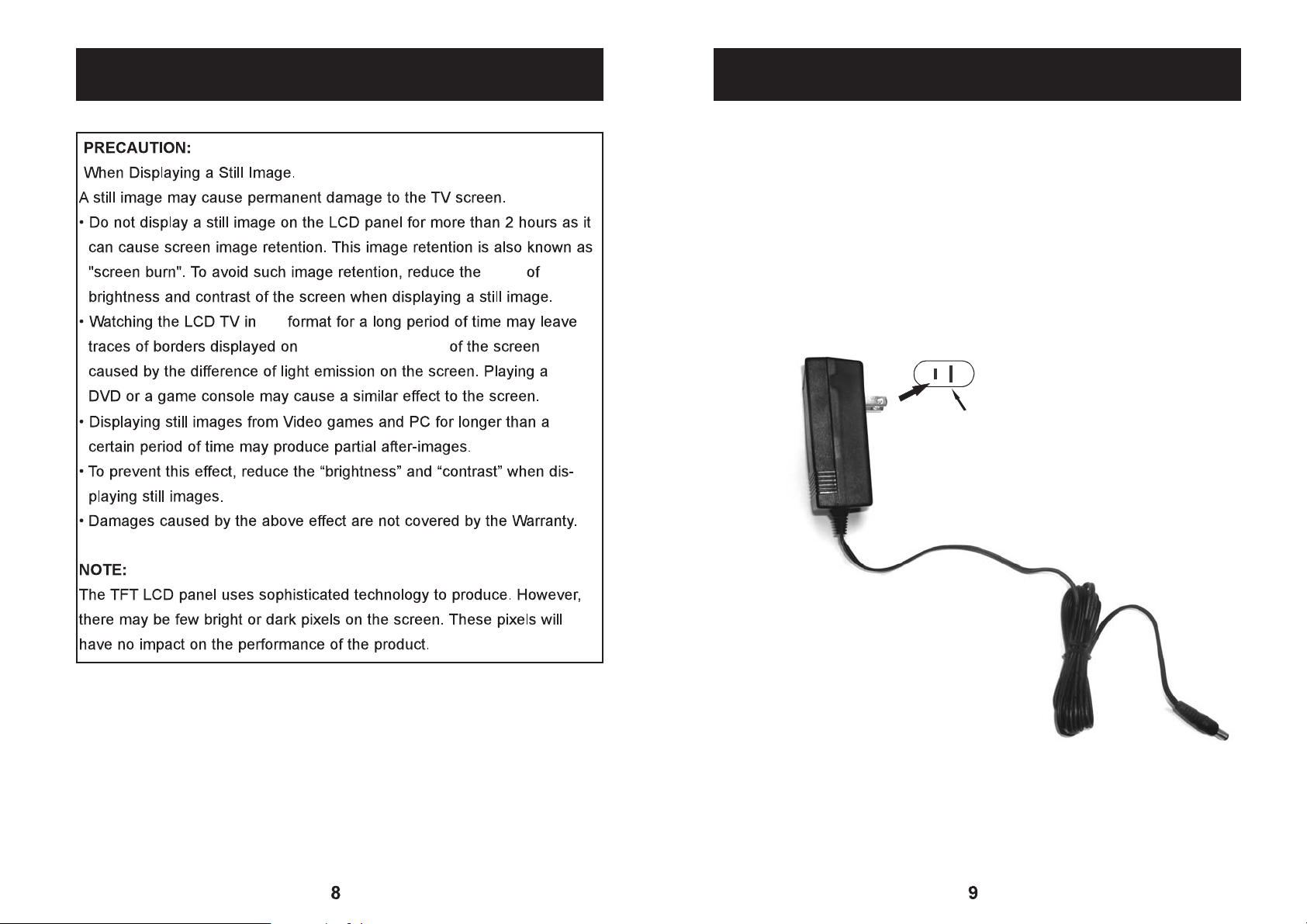
IMPORTANT SAFETY INSTRUCTIONS
level
4:3
the left and right side
POWER SOURCE
1. Insert the DC plug on supplied AC/DC adaptor to the DC IN Jack on the
Right side of TV.
2. Insert the AC/DC adaptor into a conveniently located AC outlet
having AC~ 100-240V, 50/60Hz in Vertical or Horizontal directions.
(Never insert the AC/DCAdaptor the outlet on ceiling.)
AC Outlet
AC/DC Adapter
o DC in jack on TV
T
Page 6
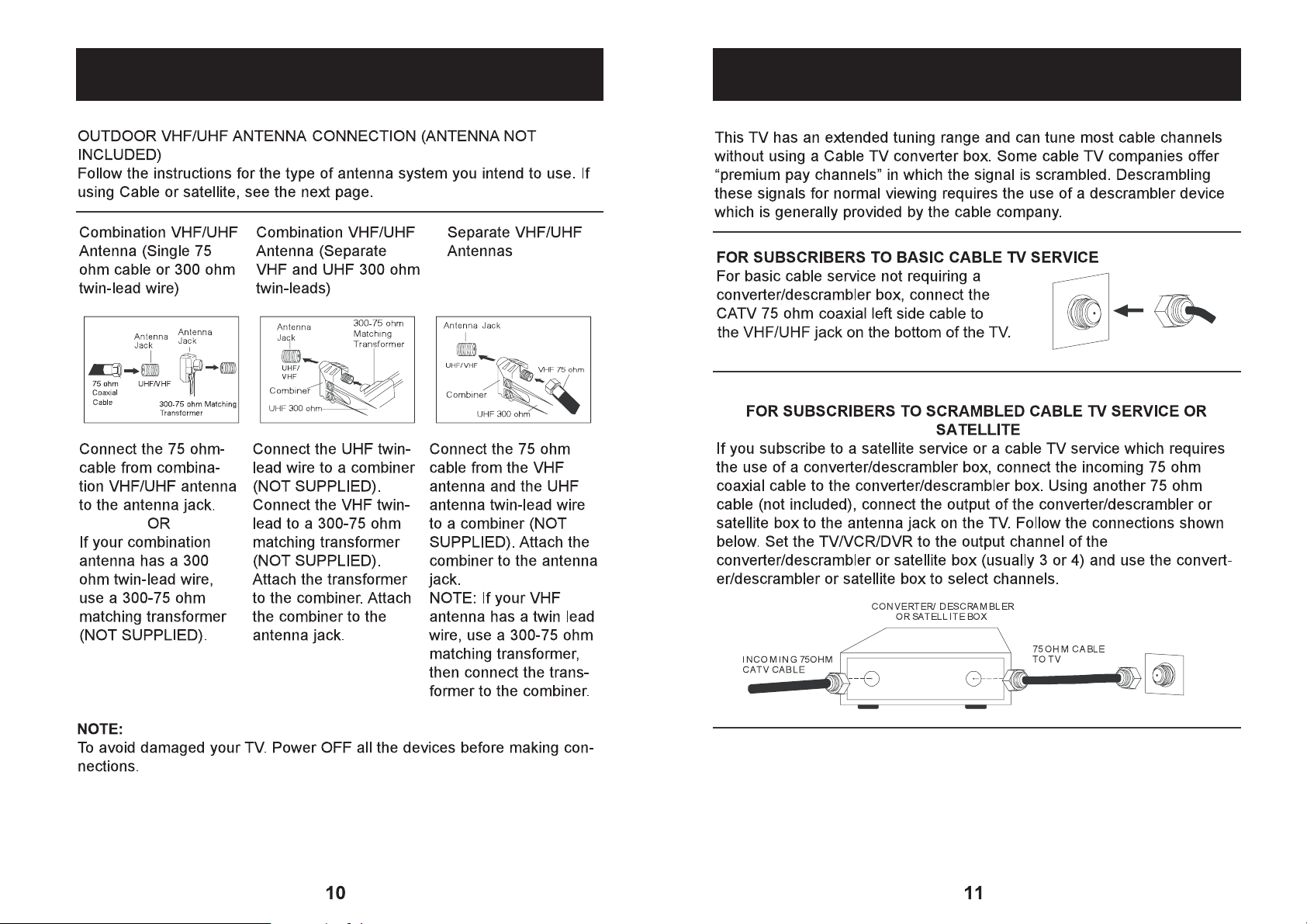
ANTENNA CONNECTIONS
CABLE CONNECTIONS
Page 7

CABLE CONNECTIONS
CABLE CONNECTIONS
CONNECTION USING HDMI(CABLE NOT INCLUDED):
1. Connect the HDMI cable (not included) from the HDMI of the TV to the
HDMI of external unit as the figure below.
2. Set the SOURCE of the TV to HDMI mode.
HDMI
VGA
PC-Audio In
CONNECTION USING AUDIO/VIDEO JACKS (CABLES NOT INCLUDED):
the signal type in setting menu
Video In
L-Audio In-R
Phones
Audio In
Video In
Page 8

CABLE CONNECTIONS
Video In
L-Audio In-R
CABLE CONNECTIONS
Y/Pb/Pr
PC (Personal Computer)
Phones
PC-Audio In
Video In
L-Audio In-R
Using component video connection cables (not included) to
1.
connect the
external device's Y/Pb/Pr output jacks to the Y/Pb/Pr jacks on the TV.
2. Connect the left and right audio connection cable from the external unit's
AUDIO OUTPUT jacks to the Audio In jacks on the TV.
3. Set the SOURCE of TV to COMP (Component) mode.
(CABLES NOT INCLUDED):
an external device
(not included)
Video In
L-Audio In-R
Phones
1.
2.
3.
PC Audio In
Using S-Video cable connect theVCR/DVD/DVR's
TV,s S-VIDEO input jack.
Audio In
S-VIDEO out jacks to th
e
Page 9

LOCATION OF CONTROLS
1. VOL- (Volume down) button
2. VOL+ (Volume up) button
3. CH- (Channel down) button
4. CH+ (Channel up) button
5. MENU button
6. SOURCE button
HDMI
VGA
PC-Audio In
Video In
L-Audio In-R
7. POWER button
8. DC IN jack
9. HDMI Port
10. VGA Port
11. PC Audio In jack
12. Y input jack
13.
Pb (U/Cb) input jack
14.
Pr (V/Cr) input jack
15. S-VIDEO Input jack
16.
Video In jack
17/18. L- Audio In-R(Audio Left and
Right channel input) jacks
19. Phones jack
20. RF Input jack
LOCATION OF CONTROLS
MUTE: MUTE ON/OFF
1.
POWER: Press to power ON/OFF
2.
(standby) the TV.
Numeric keys: Enter the channel
3.
number for direct channels access.
: For direct access a digital TV channel.
4.
(For an example, when access a digital TV
channel number 5-1, press button
"5" + "-" + "1").
(RETURN): Return to previous channel
5.
or input source.
SLEEP: Press repeatedly to activate
6.
and/or set the sleep timer.
MIS/AUDIO:
7.
In NTSC receiving mode, press to select
the audio modes to Mono, Stereo or
SAP.
In ATSC Digital receiving mode, press to
display the audio selection menu on the
screen. Using the Navigator , button
to select the desire audio mode.
ASPECT: Press repeatedly to select the
8.
aspect ratio of screen as desire.
SOURCE: Press to display the source
9.
menu on the screen. Using the Navigator
button to select the source as
or
desire, then press (enter) button
confirm your selection.
10.
EPG: Press to display the Electronic
Program Guide in digital TV channels
(Function depends on the signals emit
from TV station). Press again to exit.
to
Phones
Page 10

LOCATION OF CONTROLS
PREPARATION
CC: Press repeatedly to turn CCD (Closed
11.
Caption) On/Off.
INFO: Press to display the information;
12.
settings and the status of current mode
on the screen.
PICTURE: Press repeatedly to select the
13.
preset picture modes.
COLOR BUTTONS: Reserved using in
14.
Teletext and interaction ATSC (Digital TV)
mode as the on screen instructions.
MENU: Press to enter main setting menu.
15.
NAVIGATION (UP) ; (DOWN) button:
16.
Press to move the cursor on the setting
menu up or down.
(ENTER)button: Press to confirm the
17.
selection.
NAVIGATION (LEFT) ; (RIGHT) button:
18.
Press to move the cursor on the setting
menu to left or right.
19.
SOUND: Press repeatedly
presetting sound effect modes.
EXIT: Press to save the settings and exit.
20.
F.LIST: Press to display the Favorite List
21.
on the screen. (Operation in digital TV
receiving only).
22.
CH.LIST: Press to display the Channel List
on the screen. (Operation in digital TV
receiving only).
FREEZE: Press to hold the picture, press
23.
again resume to normal playback.
FAVO: Press to store or remove the
24.
current digital TV station in the
"Favorite Channel" list.
CH+/-: Press to increase or decrease
25.
the channel number.
VOL+/-: Press to increase or decrease
26.
the volume level.
to select the
Open the battery door by lift up.
1.
2.
3.
1.
2.
3.
4.
to be used for a long period of time, remove the batteries to prevent
5.
6.
4
13
or the device is not
15
15
Page 11

BASIC OPERATION
top of TV or remote control
TV (Green LED indicator will light). Press again to power OFF
(Standby) the TV (Red LED will light).indicator
CHANNEL SETTING
CH+orCH-
control, a few seconds later, the selected channel will apper
on screen.
VOL + or VOL -
1. Press the SOURCE button on the remote control. The list of sources
will appear on the screen.
2. Press the Navigator or button to select the desired input source
then press the (enter) button to confirm
3.
Or, press the SOURCE button on the top of TV repeatedly to select
the desire input source.
the selection.
BASIC OPERATION
AUTO SEARCHING
The method to search and automatically store the available TV (including the
traditional Analog NTSC and Digital ATSC TV stations) stations located in your area:
Press the SOURCE button on the top of TV
repeatedly to set the input source to TV. (Or,
press the SOURCE button on the remote
control, the Source menu will appear on the
screen. Press the Navigator or button to
select and highlight TV then press (enter)
button to enter to TV mode.).
Press the MENU button on the TV or remote
control. The MAIN MENU will appear on the
screen.
Press the Navigator or button to select
and highlight CHANNEL then press the
(enter) button to enter. The CHANNEL
menu will appear on the screen.
Press the Navigator or button to select
and highlight the Signal Type then press the
Navigator or button to set the input signal
type toAir or Cable as the RF connection of
the TV.
Notes:
1. Set to Air if you are connecting the TV to the
antenna to receive the TV broadcasting over
the air.
2. Set to Cable if you are connecting the TV to
a Cable TV Converter.
Press the Navigator or button to select
and highlightAuto Channel Search then press
and hold the (enter) button for about 1
second, the TV will start searching all the
available Analogue and Digital TV stations and
store them in the Channel List.
When finished searching, press the MENU
button to exit. Press the CH + or - button to
select the stored TV program as desire.
FAQs:
How many channels will l actually receive?
The actual number of channels that can be received depends on how many channels
your cable or satellite company, or local area have provided.
Contact your company to determine the number of channels in your area.
21
Page 12

THE ON-SCREEN MENU
SETTING Menus
THE ON-SCREEN MENU
Press the MENU button to enter to the
setting menu (press again to exit).
Press the or button to
select and
Navigator
highlight the function within
the menu you want to adjust. Press the
(enter) button to go to the sub-menu
to confirm the selection.
Press the
Navigator or button to adjust.
During
setting, press the EXIT button to
return to previous menu.
PICTURE MENU-for picture quality setting
Press the MENU button, the setting
menu will appear on the screen and
PICTURE highlighted.
Press the button to enter to
the PICTURE menu.
will be
(enter)
The PICTURE
setting menu will appear on the screen.
Press or button
the Navigator
repeatedly until the desired setting is
highlighted (Picture Settings, Screen
Settings, PC Settings*, Color
Temperature or Advanced Picture
Settings).
Press the button to enter into
(enter)
the sub menu, except for Color
Temperature.
When Color Temperature is highlighted,
Press or button
the Navigator
repeatedly to select NORMAL, WARM
or COOL
to save the settings and exit
then press the MENU button
.
NOTE: PC Settings is available only under the VGA source mode.
If Picture settings is selected, press
(enter) button to enter.
SETTINGS menu will appear on the screen
and the Picture Mode will be highlighted.
Press the Navigator or button
to select the picture modes to
Dynamic, Movie, User or Standard
then press the MENU button to save the
setting and exit.
If User is selected, using the
Navigator,,, and (enter)
buttons to adjust Brightness,
Contrast, Color, TINT or Sharpness as
desired.
button to save the setting and exit.
If Screen settings is selected, press
SETTINGS menu will appear on the screen
and Screen Size will be highlighted.
Press the Navigator or button to
Press the Navigator or button to select
Horizontal Position or Vertical Position
then press the (enter) button to enter.
Press the Navigator or button to set
the picture position within the screen. When
finished, press the MENU button to save
the setting and exit.
When finished, press the MENU
(enter) button to enter. The SCREEN
The PICTURE
quality
as desire
23
Page 13

THE ON-SCREEN MENU
PC VGA SETTINGS Menu Operation in VGA mode only() ( .)
In VGA mode. Enter to the PC settings menu
as previously procedures. The PC SETTINGS
menu will appear on the screen and Auto Adjust
will be highlighted.
Press and hold the (enter) button one
second then release the button. The TV will
adjust the best picture quality automatically.
When finished, press the MENU button to save
the settings and exit.
If the Horizontal Position is selected, press the
Navigator or button to adjust the horizontal
position of the picture within the screen.
If VerticalPosition is selected, press the
Navigator or button to adjust the vertical
position of the picture the screen.
If clock is selected, press the Navigator or
button to adjust the sampling frequency as to
fine tune the picture quality.
If Phase is selected, press Navigator or
to fine tune the overall sharpness of the
button
picture on the screen.
within
THE ON-SCREEN MENU
24
25
Page 14

THE ON-SCREEN MENU
27
THE ON-SCREEN MENU
Channel List Menu
Enter to the channel setting menu as previously
procedures, the CHANNEL setting menu will
appear on the screen and Channel List will be
highlighted.
Press the (enter) button, the channel list of
the stored channels will appear on the screen.
Press the Navigator or button to select
the desired channel then press the (enter)
button. A few seconds later, the selected
channel will appear on the screen.
If channel setting is selected, press the
(enter) button to enter. CHANNEL SETTING
menu will appear on the screen and Channel
Number will be highlighted.
Press the Navigator or to select the
channel you want to edit.
Press the Navigator or button to select
and highlight in channel list then press the
(enter) button to add or remove the current
channel in the channel list.
Press the Navigator or button to select
and highlight Channel label then using
Navigator , , , , button to re-name the
current channel. When finished, press the
(enter) button to confirm the new name.
Press the Navigator or button to select
and highlight in Favorite Channel then press
the (enter) button to add or remove the
current channel in the favorite channel list.
PARENTAL CONTROL Menu
The TV has V-Chip that lets you can control the type of programs your children
can watch. Parental controls included four rating system:
MPAArating, PG rating, Canada English and Canada French.
To set and activate it by:
Enter to the parental control menu as
previously procedures, the PARENTAL
CONTROL menu will appear on the screen
and Lock Parental Control will be highlight.
Enter the default password by
presses the numeric buttons. Then the
cursor will remove and highlighted the
V-CHIP automatically.
Press the (enter) button to enter, the
V-CHIP menu will appear on the screen and
Lock System will be highlighted. Press the
Navigator or button to turn the
V-Chip On or Off.
If the US V-Chip or Canada V-Chip is
selected. Press the (enter) button to enter
then using the Navigator , , ,
buttons to set the block level as the on
screen instructions as desire. Press the
MENU button to save the settings and exit.
.
1506
Notes:
1. If new Rating level is available. The blocked "Downloadable Rating" in the V-CHIP menu will
be activated automatically. Enter to it then download the new rating system as the on screen
instructions. To delete the downloaded new rating system, enter to the
"Clear Downloadable Data" then delete the new system as the on screen instructions.
2. If Change Password is selected, using the Navigator , , , , (enter)
and numeric buttons to set a new password as desire.
(NOTE: If the preset password was forgotten, you can use the super password 1506
to reset a new password.)
3. If Front Panel Lock was selected, press the (enter) button to turn it On (All the
button on the top of TV except Power On/Off button will be locked) or Off.
26
Page 15

THE ON-SCREEN MENU
THE ON-SCREEN MENU
CHANGE PASSWORD Menu
If Change Password is selected, press
(enter) button to enter. The CHANGE
PASSWORD menu will appear and Old PIN
will be highlight. Enter the preset 4 digit
passwords (or the super password ) by
pressing the numeric buttons. New PIN will
be highlighted automatically. Enter the new
4 digit password. Confirm will be highlighted,
re-enter the new password then press the
MENU button to save the new password and
exit.
If Front Panel Lock is selected, press the
(enter) button to turn this function On or Off.
Note: When locked, all the control buttons on the top of TV
(except Power On/Off button) will be locked.
1506
SETUP Menu
Enter to setup menu as the previously
procedures, the SETUP menu will appear
on the screen and the Closed Caption
will be highlight.
Press the (enter) button to enter.
The CLOSED CAPTION menu will appear
on the display and Caption Display will be
highlight, press the Navigator or
buttontoturnitOnorOff.
If Analog Caption Type is selected, press
the Navigator or button to set the
Closed Caption system to CC 1, CC 2, CC3,
CC4, TEXT 1, TEXT 2, TEXT 3 OR TEXT 4
to match the Closed Caption system of the
current Analog TV program.
If Digital Caption Type is selected, press
the Navigator or button to set the
Closed Caption system to Service 1 Service 6 to match the Closed Caption
system of the current Digital TV program.
If Digital CC Preset is selected, press the
Navigator or button to set it to
Default or Custom.
Notes:
1. This function is activated in Digital
TV receiving.
2. If set to Custom, the blocked Digital
CC style will released, using the Navigator
, , , and (enter) buttons to set
the style of the words of closed caption
as desire.
If the Menu Language is selected, press the
Navigator or button to selected the
language of On Screen Display to English,
French or Spanish as desire.
If the Clock is selected, press the ( enter)
button to enter, the CLOCK menu will appear
on the display and Time Zone will be
highlighted. Press the Navigator or
button to set the zone you are located.
If the Daylight Saving is selected, press
the Navigator or button to turn it
On or Off.
If Auto Clock is selected, press the
Navigator or button to turn it On or
Off. (When turn on , the TV will display the
time from Digital TV station directly.
Function is depend on the signal emit
from TV station).
28
29
Page 16

THE ON-SCREEN MENU
RETRACTABLE STAND
Enter to others setting menu as previously procedures, the OTHERS menu will
appear on the screen and ATV blue Back will be highlighted. Press the (enter) to
turn it On (If no signal received, background of screen will turn to Blue) or Off.
If No Signal Power Off is selected, press the
(enter) button to turn it On or Off.
Note: If turn to On, the TV will power Off
automatically if no more TV signals received
over than 10 minutes. This function is design
to save the energy when you are sleeping
during watching TV in midnight.
If No Operation Power Off is selected, press
the (enter) button to turn it On or Off.
Note: If turn to On, the TV will power Off
automatically if no any buttons was pressed
within 3 hours. This function is design to save
the energy when you are sleeping during
watching TV.
If all Reset is select, press and hold the
(Enter) button approximate 1 second to reset
all setting to default settings.
Notes:
1. The
2. To
15 for backward and 5 for foreward
30
31
Page 17

The TV turn off
automatically.
TROUBLESHOOTING
Check and make sure the Video output from the
connected device is set to HD (High Definition) and
the Audio output is set to PMC (Plus Code
Modulation). For details, refer to the Instruction
Manual of the connected device.
No Operation Power Off was set to on, when no
any buttons on the TV/remote control was
pressed within 3 hours, the TV will turn off
automatically.
Power source:
Power source of the supplied AC/DC adaptor: AC 100-240V~, 60/50 HZ, 1.2A
Output of the supplied AC/DC adaptor:
Audio output
Remote Control
Remote Control batteries (AAA SIZE)
3WattsX2
32
Page 18

LIMITED WARRANTY
34
CLC501_IB E0CR2_B0CV
 Loading...