

Page 1
> QUICK START GUIDE
USB
PREMIUM GAMING HEADSET WITH DOLBY HEADPHONE 7.1
VOID PRO
Page 2
32
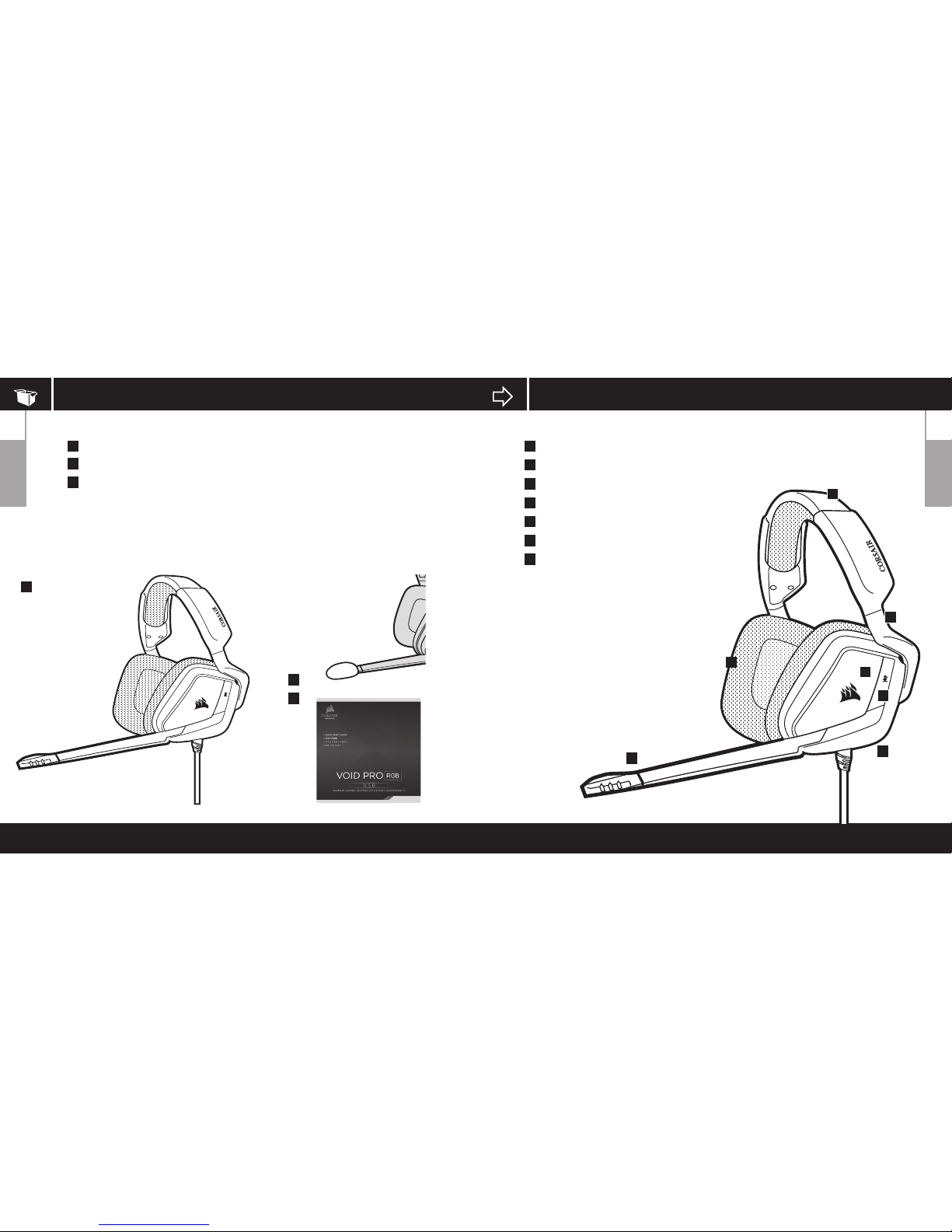
CONTROLS AND FEATURES
A
D
B
E
C
F
G
A
D
B
E
F
C
G
RGB light (user programmable)
Mute button
Mic LED (mute)
Headband adjustment
Cantilevered arm + hinge
Jog Dial (volume + EQ/Dolby)
Microfi ber covered ear pads
ENGLISH
PACKAGE CONTENTS
A
B
C
Corsair VOID PRO RGB USB Headset
microphone foam windscreen (removable)
Quick start guide
ENGLISH
A
B
C
Page 3
54
GETTING STARTED
Remember that powering the headphones over the USB cable requires a high
power (USB 2.0 or better) port. Some USB ports on older keyboards and
monitors do not support high-power devices.
Place the headset on your head and adjust the headband for a comfortable fit.
The extra-large ear pads and deep earcups enable the Corsair VOID PRO RGB
Headset to fit comfortably so you can play for hours
without fatigue.
ENGLISH
ENGLISH
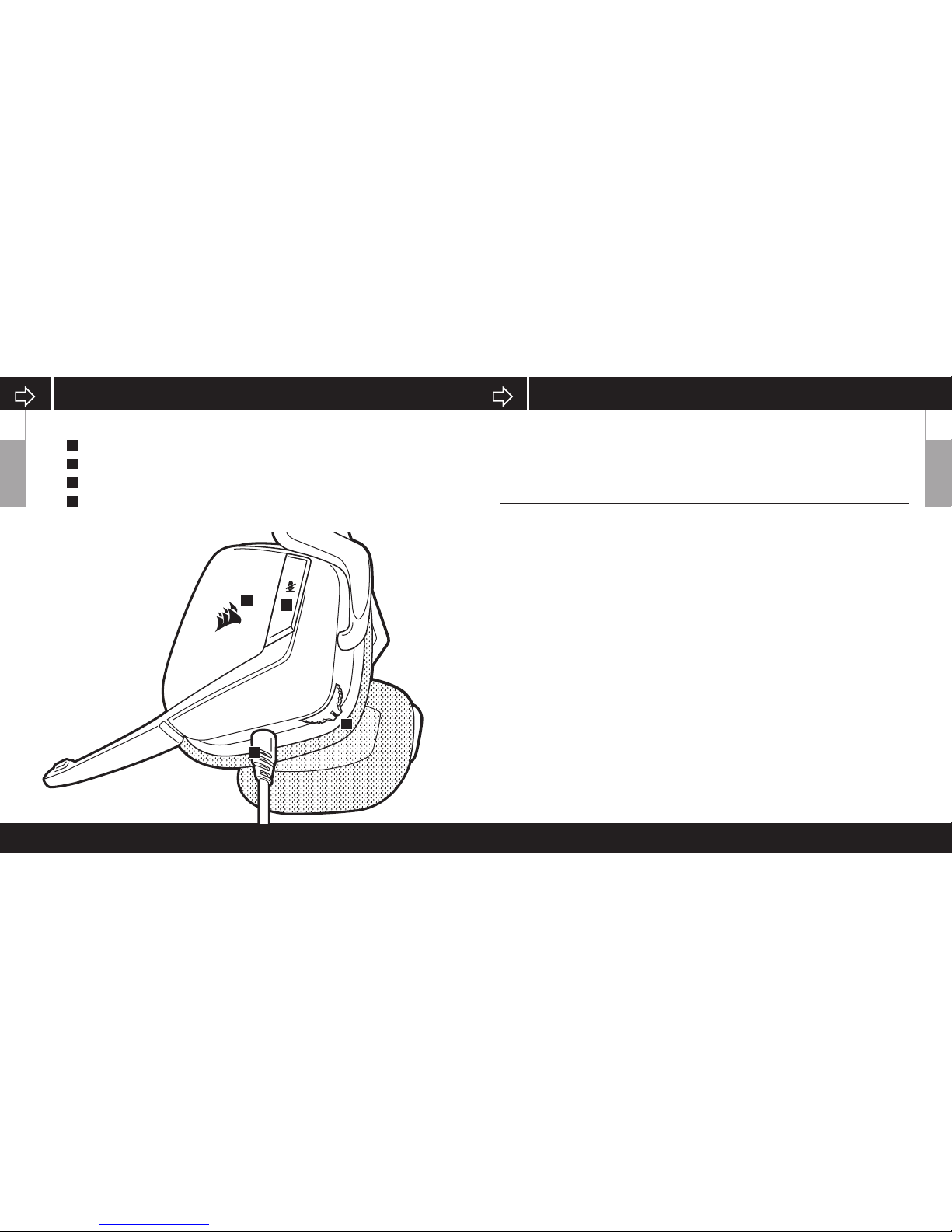
PRODUCT DETAIL (CONTROLS)
A
B
D
D
B
C
C
A
RGB light (user programmable)
Mute button
USB Cable (Non detachable)
Jog Dial (volume + EQ/Dolby)
Page 4
76
GENERAL TIPS
For the best audio performance:
• Download the Corsair Utility Engine software.
• Don’t be afraid to use the software equalizer to adjust the audio quality
to your liking. EQ presets have been provided for popular gaming and
media types.
Prolonged listening at high volumes may adversely aect your hearing.
Take breaks between sessions and always begin with the volume at the
lowest possible level before increasing.
Headset audio settings
Short key press (.1-.5 seconds) on JOG DIAL toggles EQ
Medium key press (.6-2 seconds) on JOG DIAL toggles Dolby
Headphone 7.1 surround sound
Headset mic control
Short key press (.1-.5 seconds) on mic mute button toggles mute
on and o
Long key press (2-4 seconds) on mic mute button toggles sidetone
on and o
Note: CUE software can also be used to control these features.
ENGLISH
CORSAIR UTILITY ENGINE
ENGLISH
Using the CUE software will enable the full feature set of the VOID PRO RGB
USB Headset. Note: if the headset is used without software, some features
will be disabled.
• Install the software on a PC running Windows 7, Windows 8.1, Windows 10
or later
• After installation is complete, reboot your PC, a nd launch CUE.
You can use it to:
• Choose your RGB color preference and light intensity
• Select and customize audio equalizer (EQ) settings
• Adjust headset volume, microphone input volume, and
microphone feedback
• Set Dolby Headphone 7.1 surround sound on or o
The software’s built-in documentation explains how to use the VOID PRO
RGB USB Headset features in greater detail.
Page 5
98
ENGLISH
MICROPHONE ADJUSTMENT
Your new VOID PRO RGB USB Headset features a high performance
“unidirectional” microphone designed to reject noise other than your
voice, but it must be pointed directly at your mouth to function correctly.
• Bend the flexible microphone boom to best fit near to the left corner of
your mouth.
• For improved voice quality, the included microphone foam windscreen
may be applied over the microphone head.
• We’ve found that about a 30 degree bend is a good place to start, but
feel free to increase or decrease this if your mic is too loud or too soft.
Enjoy your Corsair VOID PRO RGB USB Headset! If you have any questions
or comments, see the back panel of this guide for contact information.
ENGLISH
ADJUSTMENT
As with any audio product, reduce the volume before trying it with an audio
source the first time.
You can adjust the volume with:
• The “CUE Control” is the digital volume controller on the headset at the
bottom corner of your left earcup: hold or repeatedly toggle it downwards
to reduce volume, and upwards in short increments to increase volume.
• The standard Windows audio controller can also be used to adjust volume.
• Once the audio source is playing, set the volume to a comfortable level.
 Loading...