

Page 1
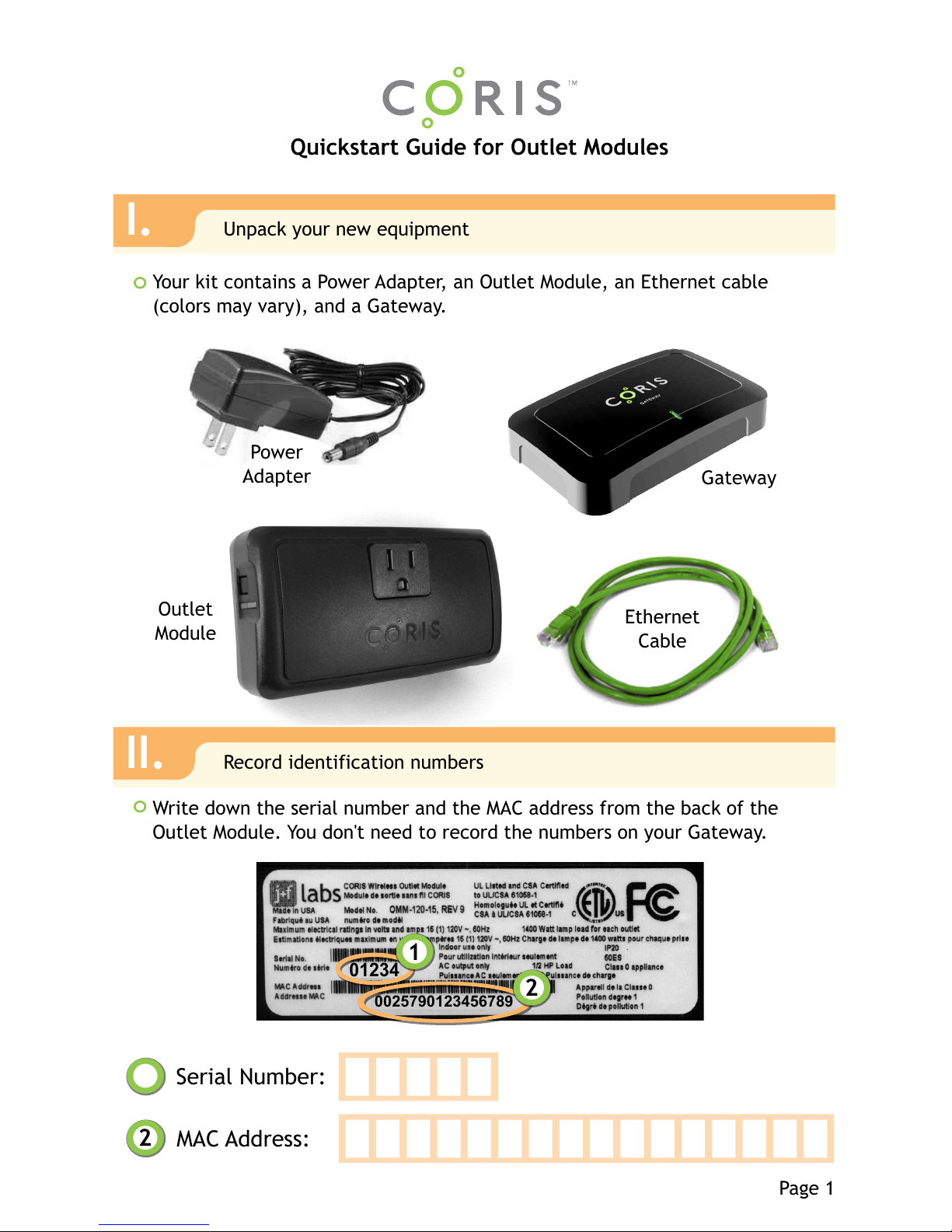
Your kit contains a Power Adapter, an Outlet Module, an Ethernet cable
(colors may vary), and a Gateway.
Quickstart Guide for Outlet Modules
Serial Number:
MAC Address:
Gateway
Outlet
Module
Ethernet
Cable
Write down the serial number and the MAC address from the back of the
Outlet Module. You don't need to record the numbers on your Gateway.
Power
Adapter
Page 1
I.
Unpack your new equipment
II.
Record identification numbers
01234
0025790123456789
2
1
2
1
$Id: page1.svg 4381 2012-01-08 22:19:10Z martini $
Page 2
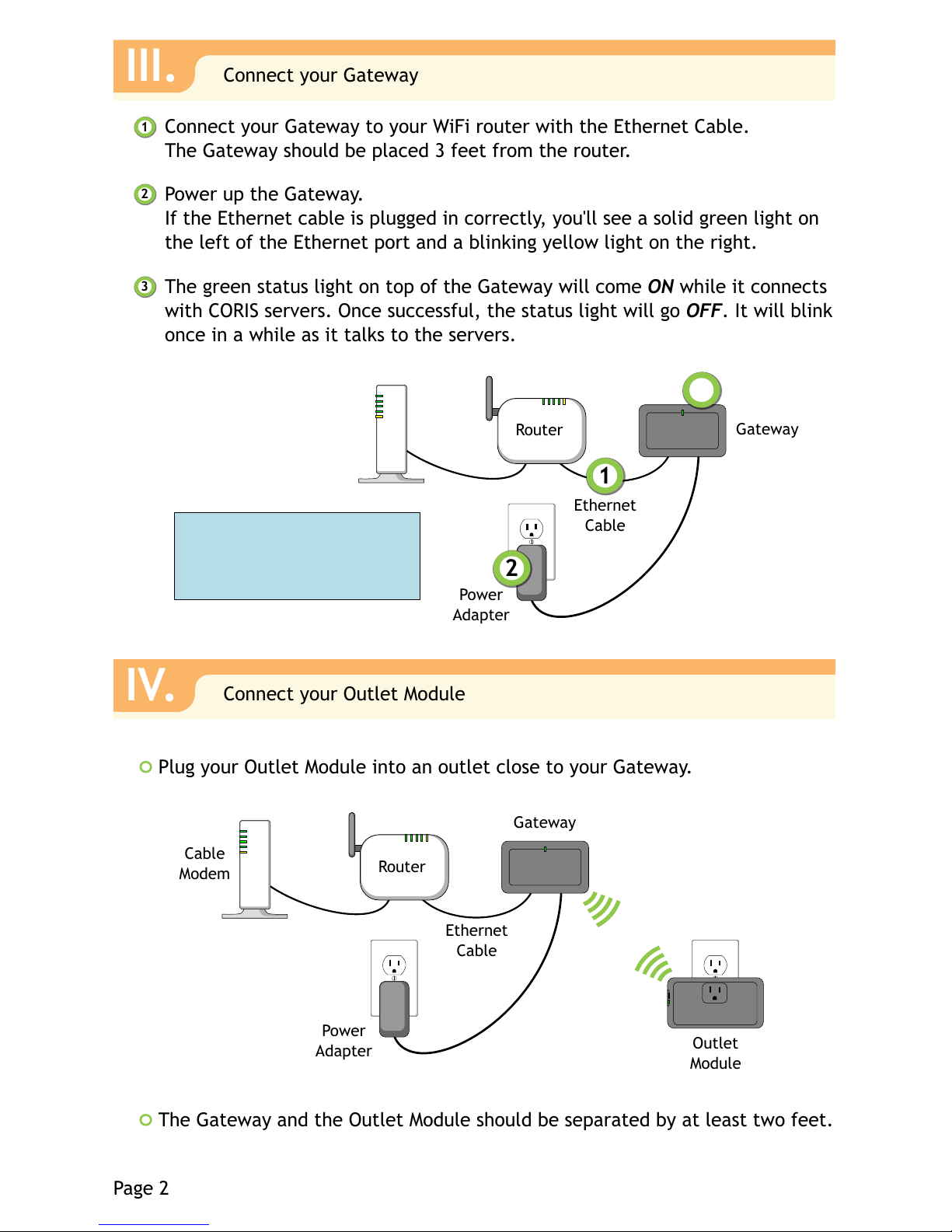
Plug your Outlet Module into an outlet close to your Gateway.
Connect your Gateway to your WiFi router with the Ethernet Cable.
The Gateway should be placed 3 feet from the router.
Page 2
III.
Connect your Gateway
IV.
Connect your Outlet Module
Cable
Modem
$Id: page2.svg 4127 2011-11-10 23:56:57Z martini $
Outlet
Module
Gateway
Power
Adapter
Ethernet
Cable
Router
Power up the Gateway.
If the Ethernet cable is plugged in correctly, you'll see a solid green light on
the left of the Ethernet port and a blinking yellow light on the right.
The green status light on top of the Gateway will come ON while it connects
with CORIS servers. Once successful, the status light will go OFF. It will blink
once in a while as it talks to the servers.
2
1
3
The Gateway and the Outlet Module should be separated by at least two feet.
Power
Adapter
Ethernet
Cable
Router
1
2
Gateway
3
Cable
Modem
Note: Some wireless
systems use all-in-one
cable modems & routers.
Page 3
On/Off Button
Status Light
$Id: page3.svg 4381 2012-01-08 22:19:10Z martini $
Page 3
V.
Register Online
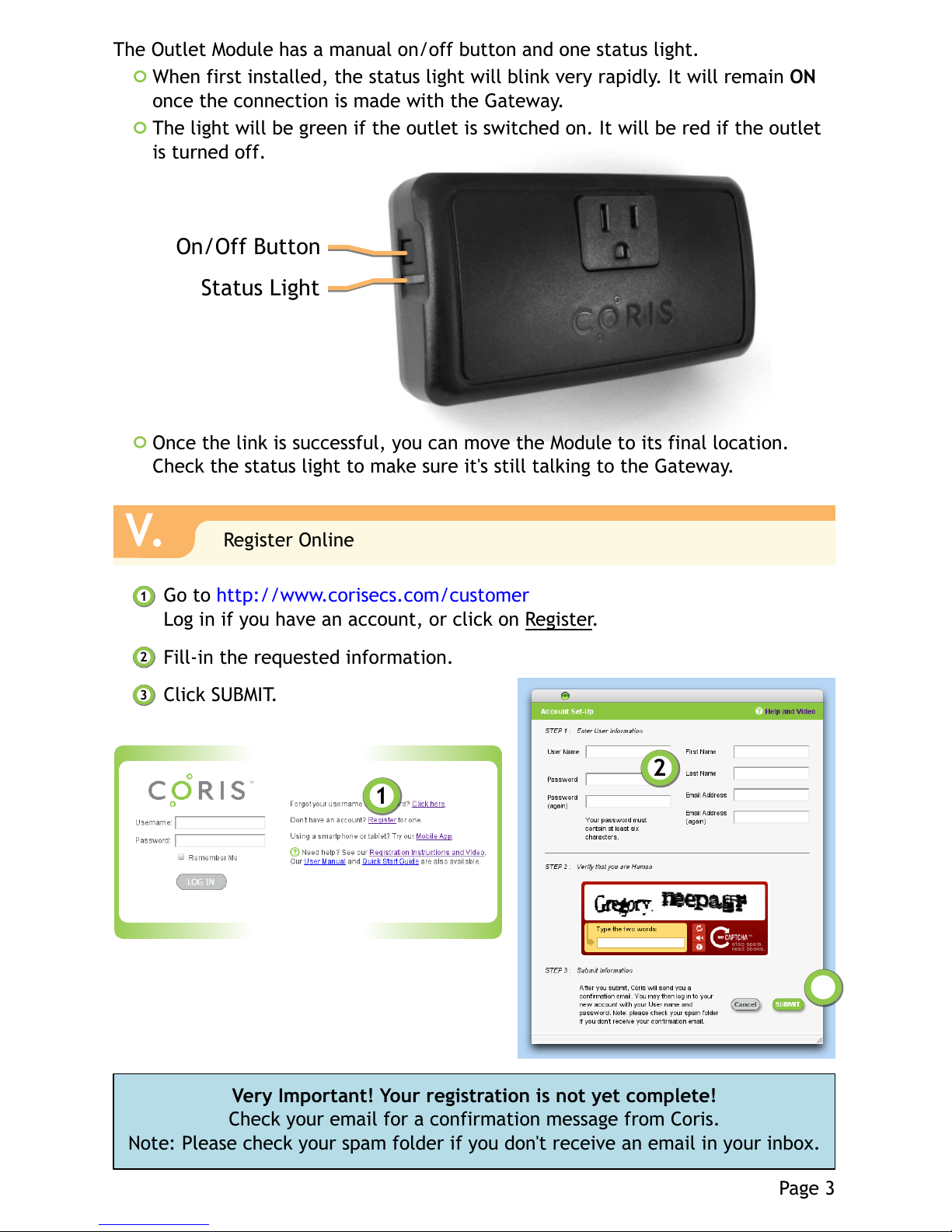
The Outlet Module has a manual on/off button and one status light.
When first installed, the status light will blink very rapidly. It will remain ON
once the connection is made with the Gateway.
The light will be green if the outlet is switched on. It will be red if the outlet
is turned off.
Once the link is successful, you can move the Module to its final location.
Check the status light to make sure it's still talking to the Gateway.
Go to http://www.corisecs.com/customer
Log in if you have an account, or click on Register.
Fill-in the requested information.
Click SUBMIT.
2
1
3
Very Important! Your registration is not yet complete!
Check your email for a confirmation message from Coris.
Note: Please check your spam folder if you don't receive an email in your inbox.
1
2
3
Page 4
2
3
1
BuildingStaff
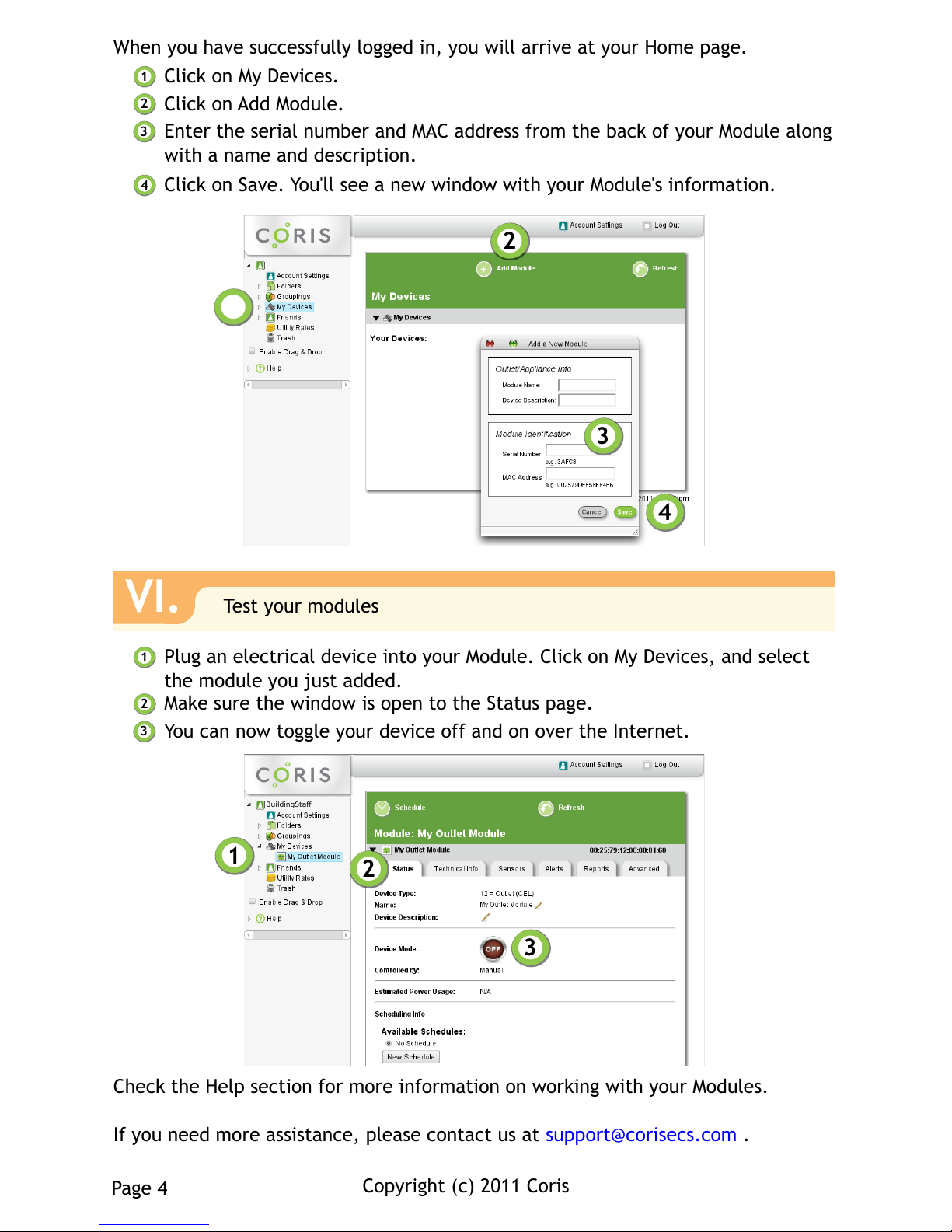
When you have successfully logged in, you will arrive at your Home page.
Check the Help section for more information on working with your Modules.
If you need more assistance, please contact us at support@corisecs.com .
Copyright (c) 2011 Coris
Page 4
VI.
Test your modules
Click on My Devices.
Click on Add Module.
Enter the serial number and MAC address from the back of your Module along
with a name and description.
2
1
3
Click on Save. You'll see a new window with your Module's information.
4
Plug an electrical device into your Module. Click on My Devices, and select
the module you just added.
Make sure the window is open to the Status page.
You can now toggle your device off and on over the Internet.
2
1
3
2
3
4
1
BuildingStaff
$Id: page4.svg 4381 2012-01-08 22:19:10Z martini $
 Loading...