

Page 1
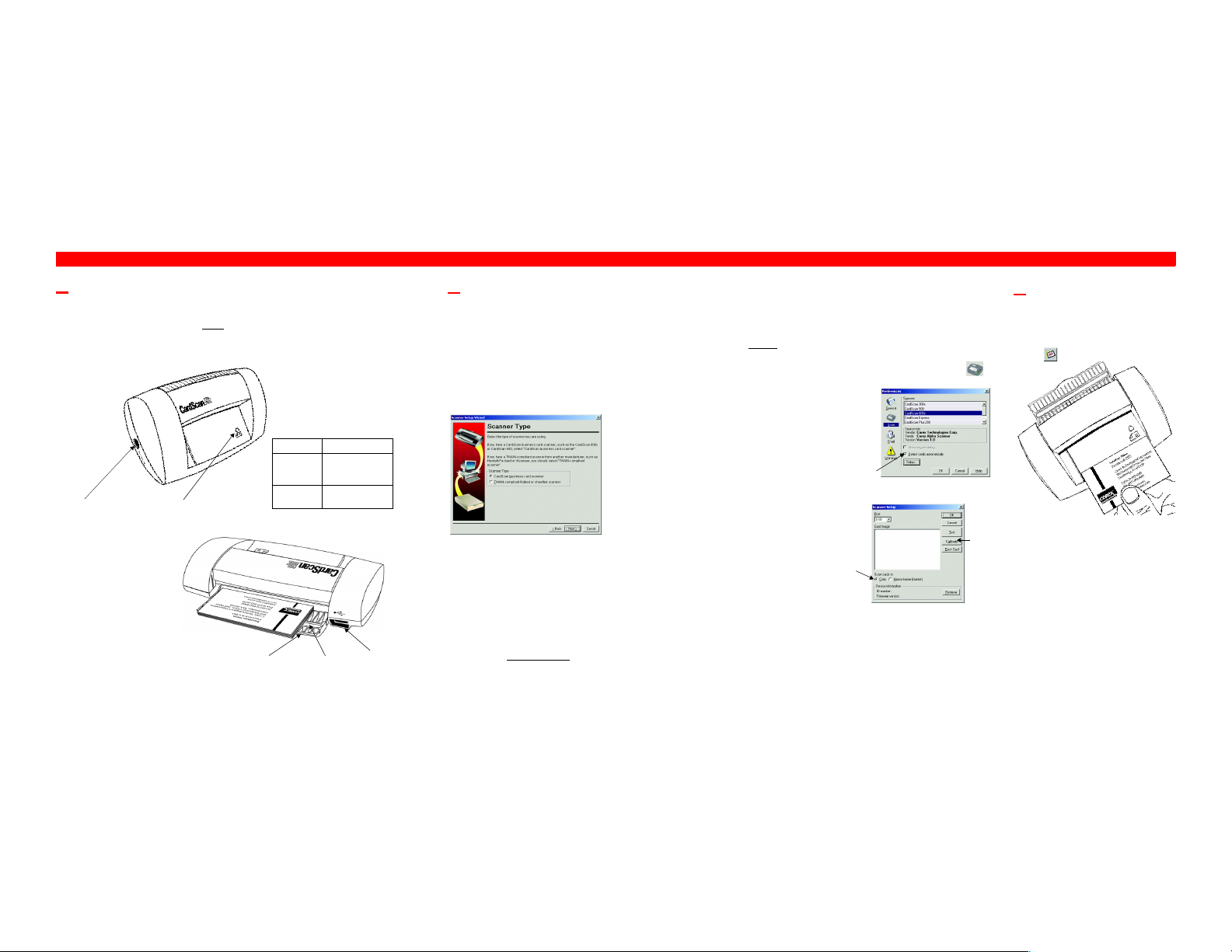
Preparing Your 600c Scanner
1. Install the CardScan software on your PC before connecting your scanner. If you do not install the CardScan
software first, Windows will not recognize the scanner.
2. Connect the AC adapter to the scanne r. Plug the AC adapter into a power out let. The scanner light comes on
red, then changes to steady green.
States of Scanner Light
ON Ready
OFF When scanning or
Blinking
Connection for AC adapter
3. Using the included cable, connect the scanner ’s USB port to the USB port on your PC.
Card Catcher
When open (as shown on the
right), the card catcher collects
scanned cards. When closed,
cards scan through the card
catcher’s slit.
You can open the card catcher
by pushing its tab (not shown)
away from the scanner.
To close the card catcher, push its
free edge toward the scanner—
until it clasps.
Scanner Light
Card Catcher Open
continuously
when disconnected
from AC powe r
Technical problem
Slit in Card Catcher
USB Cable
Connector
Setting Up Your CardScan 600c Scanner
1. Make sure the CardScan software is
installed.
2. Make sure your CardScan 600c scanner is
connected to your PC. See “Preparing Your
600c Scanner”.
3. Start CardScan. The Scanner Setup screen
of the CardScan Setup Wizard appears.
4. Choose “Yes, my scanner is connected”
then click Next. The Scanner Type screen
appears.
Choose “CardScan business card scanner”
then click Next. The Detect Scanner screen
appears.
5. Choose “Yes” then click Next. The wizard
detects the CardScan 600c scanner. The
Scanner Detected screen appears.
6. Click Next. The Check for Update screen
appears. If you choose Yes (to check for
updates), follow the directions on the Corex
Product Update and Scanner Software
Update.
7. Insert the calibration card (or a bright white
card) w ith the blank side facing up
scanner and click Next.
in the
8. When the calibration finishes, click OK. The Test
Scanner screen appears.
9. Insert a business card flush with the right side of
the scanner tray, with the front side facing up
and click Scan.
The screen displays the scanned image.
Review the image and practice scanning
various business cards.
10. After testing, click Next. The Finished screen
appears.
11. Cl ick Close.
Note: After setting up your scanner at installation,
you can return to the wizard any time, for
example, to calibrate or check for updates. To
start the wizard, choose Tools→Scanner Setup
Wizard.
Accuracy
CardScan is optimized for business cards from
Australia, Belgium, Canada, France, Germany,
Sweden, the UK and USA. Results for cards from
other countries may not be as good. To verify contact
names and addresses, choose Cards→Check
Details. Also, you can use Edit view to verify and edit
all contact information.
Calibration
Calibration significantly improves your scanner’s
accuracy. You can calibrate the scanner at any time
using:
•Scanner Setup Wizard
or
•Scan Preferences (see “Changing Scanning
Parameters”)
Scanning and Processing
Changing Scann ing Parameters
Initially, your CardScan 600c scanner is set to scan in
color. However, scanning is faster in monochrome
mode. You can switch between scanning modes, and
,
change other scanning parameters, using Scan
Preferences.
1. Choose Edit→Preferences a nd click on
the Preferences dialog. This dialog appears:
Default: scan
automatically
2. Select the 600c scanner from the list and click
Setup. This dialog appears:
Select
scanning
mode
3. Select the radio button for the desired scanning
mode and click OK.
1. Start CardScan.
2. With the front facing up, insert a card flush with
the right side of the scanner’s tray. The
scanner pulls the card through. If you change
preferences to scanning manually,
click , on the CardScan Toolbar to scan.
3. When CardScan finishes scanning, you can :
Click to
calibrate
• Continue inserting cards
•Click Batch Options to assign categories and
Notes or
• Process the card(s) by clicking Process.
Processing cards
When CardScan processes a card, it uses
AccuCard™ technology, an optical character
recognition (OCR) technology, to read the digital
image created by your scanner. It then interprets
the information and places it into the correct
labeled fields, such as Name, Title, Company,
Address, Phone, Fax, Email, and so forth. After
processing, the information appears in Edit view for
you to verify its accuracy (see “Accuracy”).
Page 2

Troubleshooting
Error Messages
Error message: “Scanner not responding”
Check each item listed below. After checking an item,
try to scan again.
1. Check the AC power and port connections.
2. Choose Too ls →Scanner Setup Wizard to
check if the correct sc anner is selected.
3. Choose Edit→Preferences→Scan. Click Setup
and make sure you’ve selected the USB port.
If none of the above solves the problem:
• Disconnect the scanner from the AC power.
• Reconnect the scanner to the AC power.
Error message: “Unknown device”
Disconnect the scanner from the port, restart
Windows, install the CardScan software, then
connect the scanner again.
Error message: “Could not find the scanner”
This error message may be caused by two different
problems. For detailed problem -solving instructions,
please visit www.cardscan.com.
Quick test
If you suspect the scanner is not working, use this
quick test:
1. Disconnect the AC adapter and USB cable from
the scanner.
2. Insert a card in the scanner until you feel
resistance.
3. Reconnect only the AC adapter. If the scanner
works, it pulls the card through.
General
Several errors on one card
Re-calibrate the scanner and scan the card again.
There may have been mechanical difficulties or the
card may have been s canned at an angle. See also
“Cards that are difficult to read”
Card image is skewed
Skewed images may impair accuracy, causing errors
in the cards. For better results, place the card flush
against the right edge of the scanner’s tray.
Scanner’s light is blinking continuously
Disconnect and reconnect the AC power.
Card jammed in the scanner
1. Choose Preferences from the Edit menu.
2. Click Scan and then Setup to display the
Scanner Setup dialog.
3. Click Eject Card to eject the card.
Two or more cards scanned as one
If you scan cards in rapid succession, some may
appear as one continuous image, thereby distorting
the text. To avoid this problem, wait for the scanner ’s
light to go ON before inserting the next card.
Cards that are difficult to read
Processing a card usually takes only a few seconds.
It may, however, take up to half a minute if the card is
difficult to read. Such cards may have:
• dark or speckled paper
• text printed in script or stylized typefaces
• text in logos or graphics
• text printed diagonally
• text printed both horizontally and vertically
FCC Statement
This equipment has been tested and found to comply
with the limits for a Class B digital device, pursuant to
Part 15 of FCC rules. These limits are designed to
provide reasonable protection against harmful
interference in a residential installation.
This equipment generates, uses and can radiate
radio frequency energy and , if not installed in
accordance with the instructions, may cau se harmful
interference to radio communications. Howeve r,
there is no guarantee that interference will not occur
in any installation.
To comply with Part 15 of FCC rules, you must use
the cable provided with the scanner.
If this equipment does cause harmful interference to
radio or television reception, which can be
determined by turning the equipment off and on, the
user is encouraged to correct the interference by one
of the following measures:
• Reposition the receiving antenna.
• Increase the distance between the equipment
and the receiver.
• Connect the scanning and computer
equipment to an outlet on a circuit different
from th e receiver’s.
810 Memorial Drive, Cambridge, Massachuset ts 02139 Tel: (617) 492-4200 Fax: (617) 492-6659
www. cardscan.com
Other brands and their products are trademarks or registere d trademarks of their respective holders.
CardScan is a product of Corex Technologies Corporation
©2001 Corex Technologies Corp. All Rights Reserved Worldwide.
CardScan is a registered trademark of Corex Technologies, Corp.
EC Declaration of Conformity
Equipment: CardScan 600c scanner and power supply.
Information Technology Equipment
100-240 VAC, 50-60Hz, 30VAMAX.
Year of Manufacture: 2001
Applicable Directives: 73/23/EEC & 93/68/EEC Low
Applicable Standards: EN60950
Type Examination Certificate: Scanner: Underwriters
Technical Support
Americas
Tel: 617-492-4200
Fax: 617-492-7505
http://www.cards can.com
[email protected]
France
Tel: +49 (0) 2203 9113333
Fax: +49 (0) 2203 9113390
http://www.masc h.com
[email protected]
Germany
Tel: +49 (0) 2203 9113331
Fax: +49 (0) 2203 9113390
http://www.masc h.com
[email protected]
United Kingdom
Tel: +49 (0) 2203 9113332
Fax: +49 (0) 2203 9113390
http://www.masc h.com
[email protected]
Others: visit www.cardscan.com for local resellers.
Voltage Directive
89/336/EEC, EMC Directive
EN55022:1994 including A1:1995
and A2:1997 Class B
EN50082-1 (1992)
Laboratory, UL1950
Power Supply: TUV-GS
P9076
 Loading...