

Page 1
CP810 User Manual
http://www.corewise.cn
2014
1
USER MANUAL
CP810
Nanjing Corewise Smart Technology Inc.
Support
Hotline: 0086-13851413726, 13851629242
Skype: xiafan_max (software), cruise.xiao (hardware)
E-mail: [email protected]
Page 2
CP810 User Manual
http://www.corewise.cn
2014
2
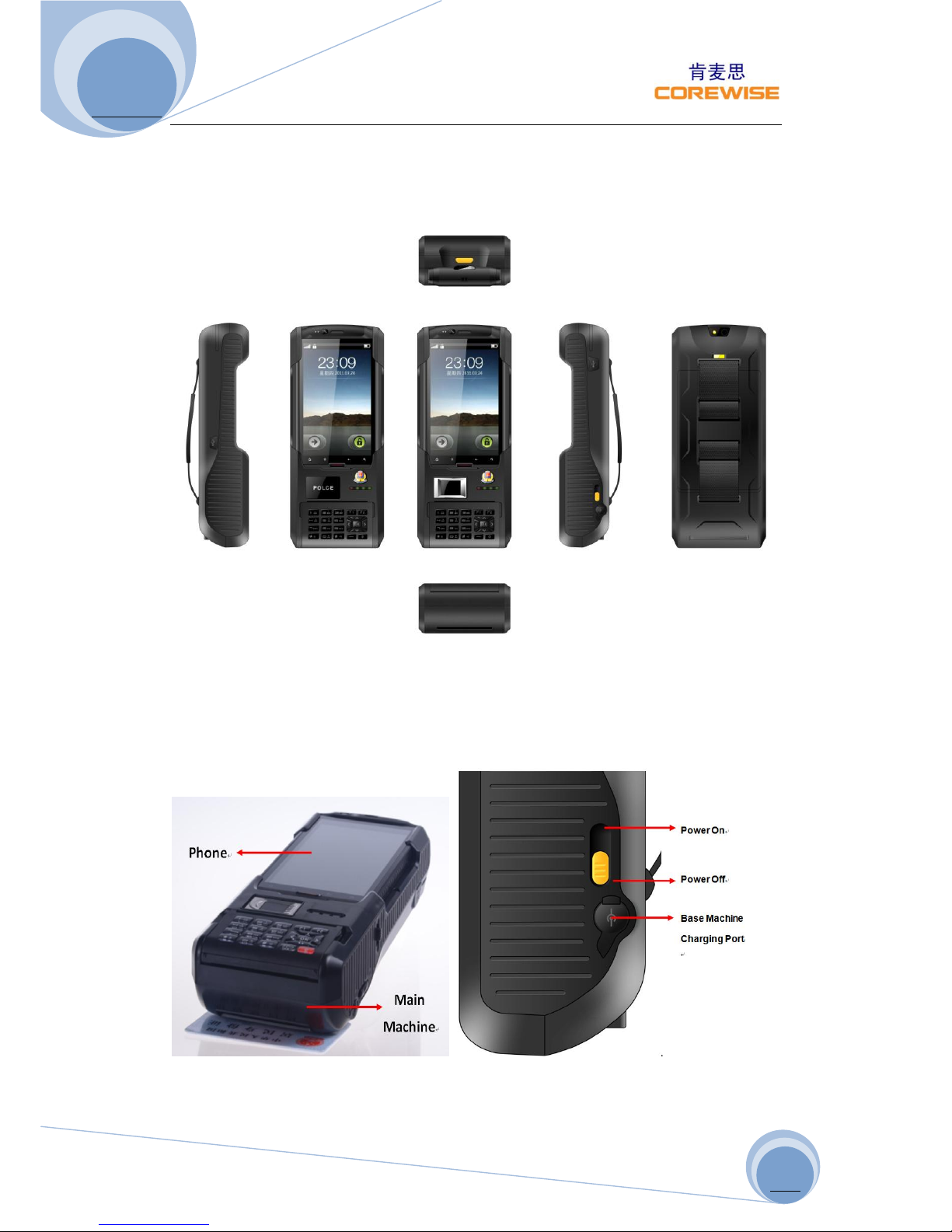
Profile Picture
Pictorial Illustrations
Page 3
CP810 User Manual
http://www.corewise.cn
2014
3
Page 4
CP810 User Manual
http://www.corewise.cn
2014
4
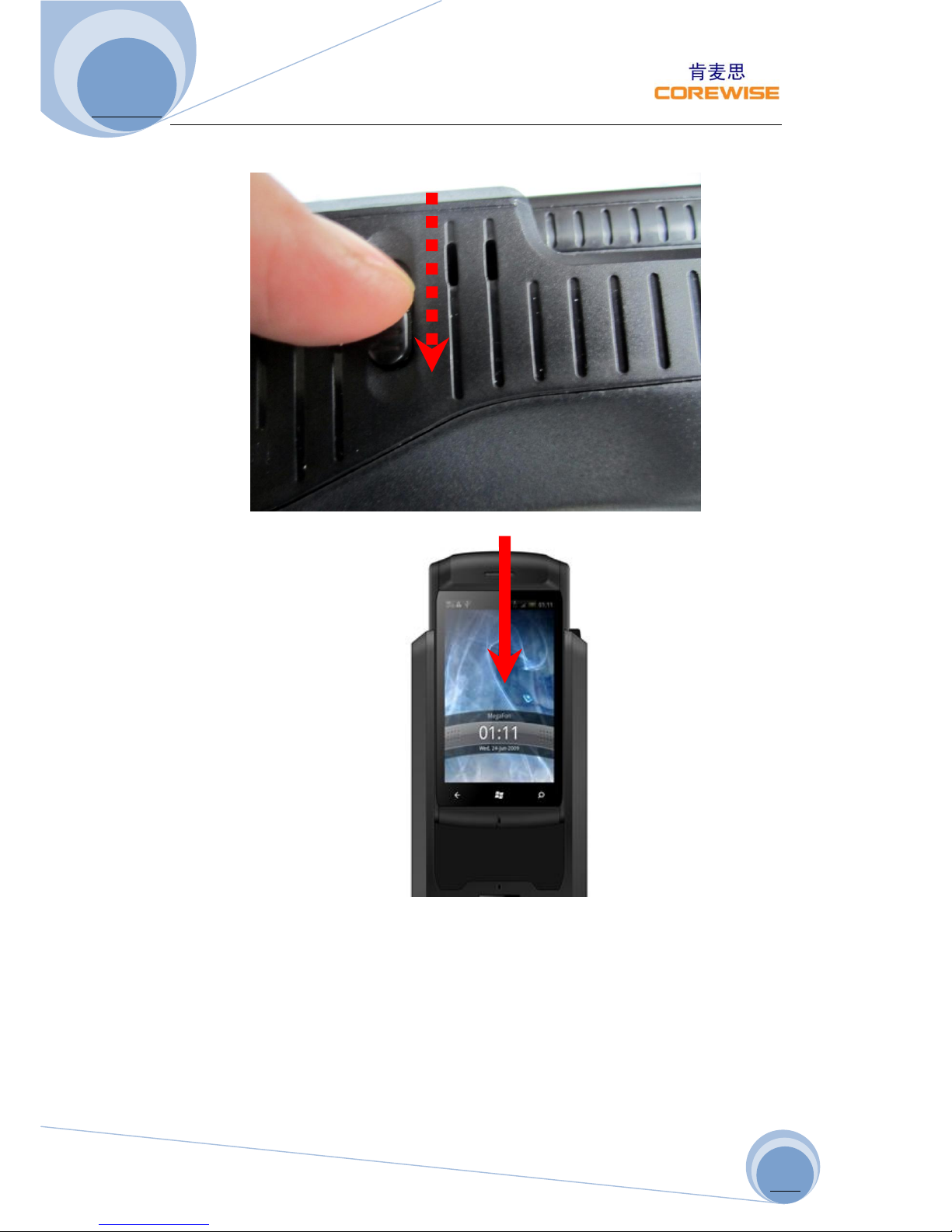
Operational Guide of Assembling Mobile Phone Into Base:
1) Press DOWN of the button until mobile phone inserted into its right place.
2) This is the right way of inserting mobile phone.
3) Release button and check if mobile phone is locked to the button. If not, repeat
step 1) and 2).
Page 5
CP810 User Manual
http://www.corewise.cn
2014
5
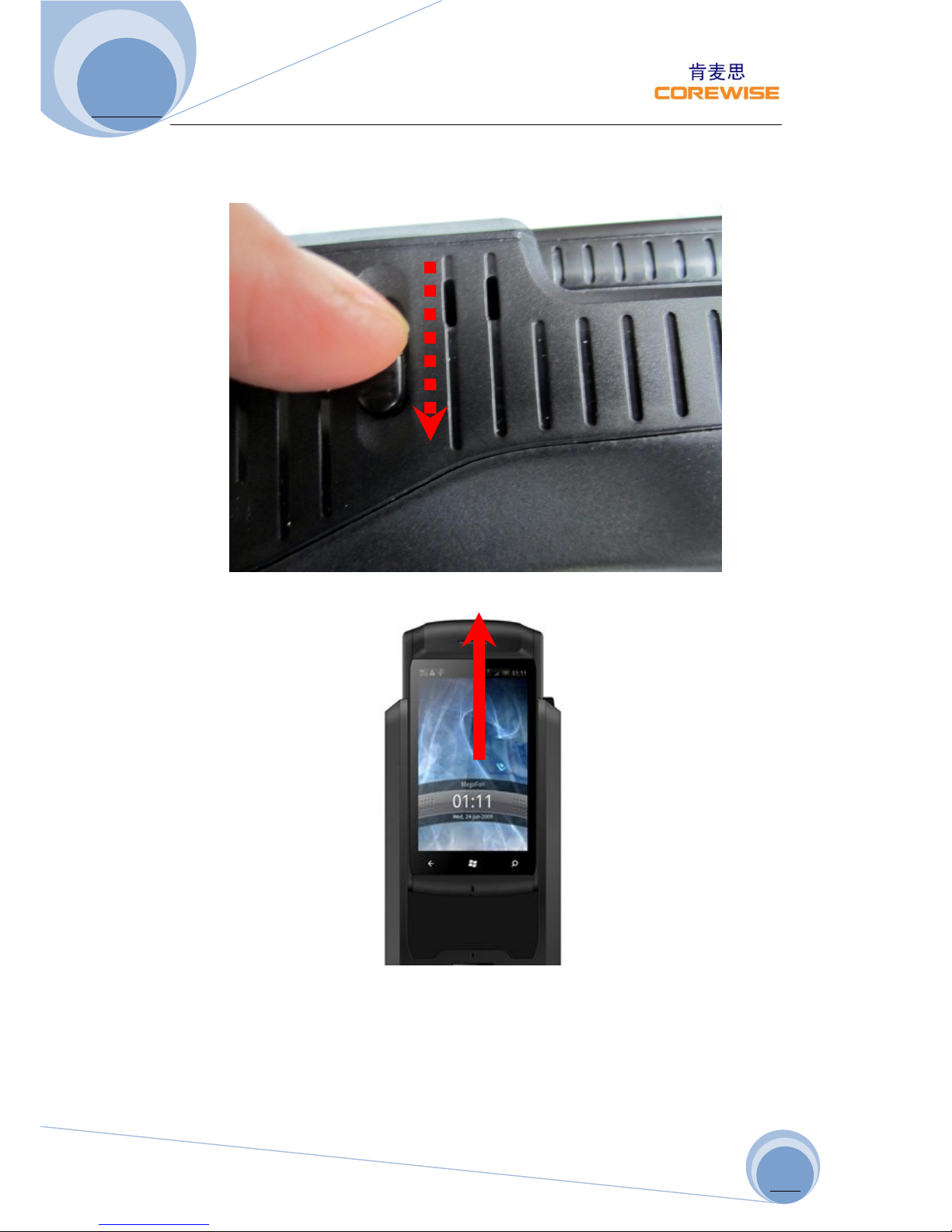
Operational Guide of Unplugging Mobile Phone Out of Base:
1) Press DOWN of the button until mobile phone is unplugged out of the base
machine.
2) Unplugging the mobile phone out of the base machine.
3) Release the button.
Page 6
CP810 User Manual
http://www.corewise.cn
2014
6
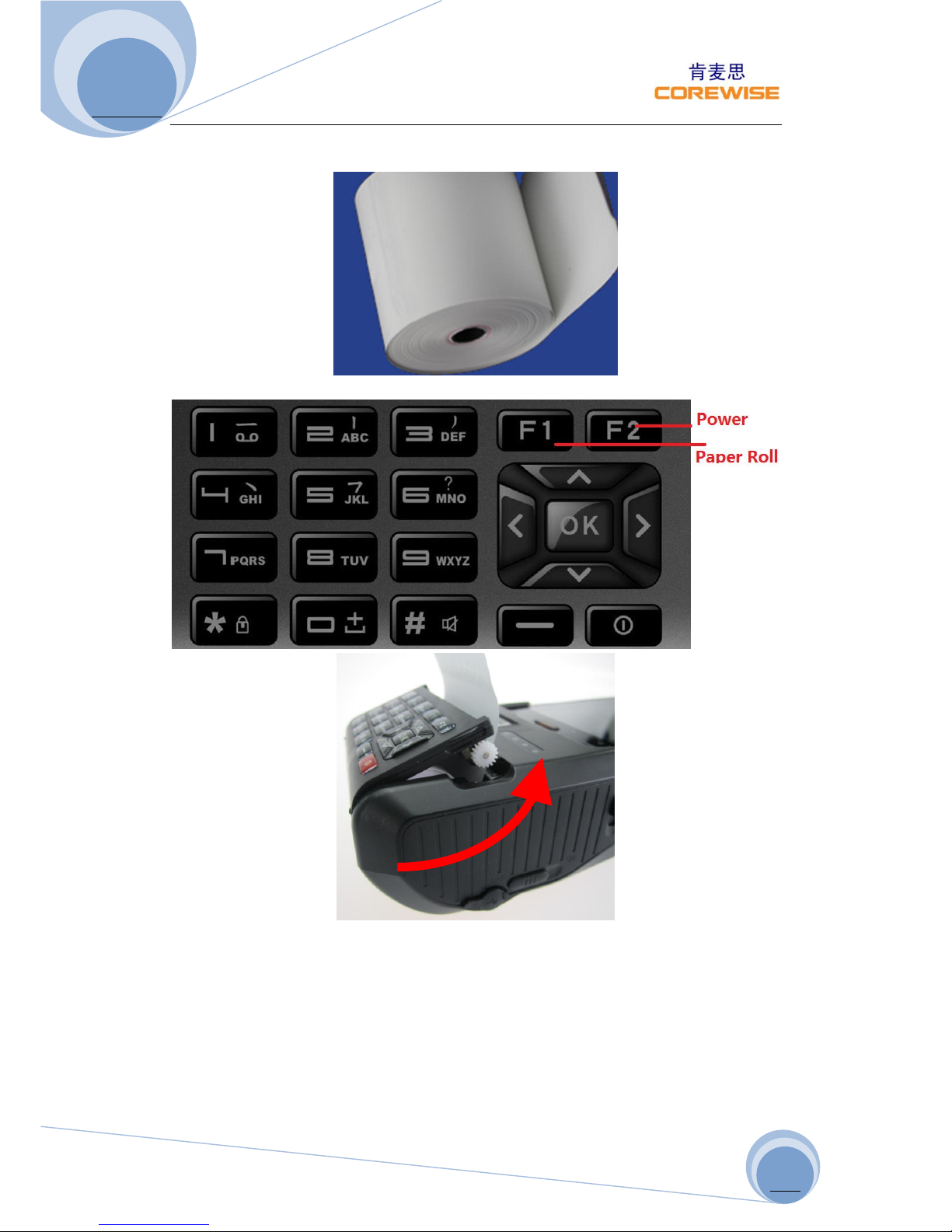
Operational Guide of Inserting Printing Paper:
1) Open cover of printer compartment, put paper roll inside.
2) Press F1 (paper rolling) button and check if paper goes smoothly.
Page 7
CP810 User Manual
http://www.corewise.cn
2014
7
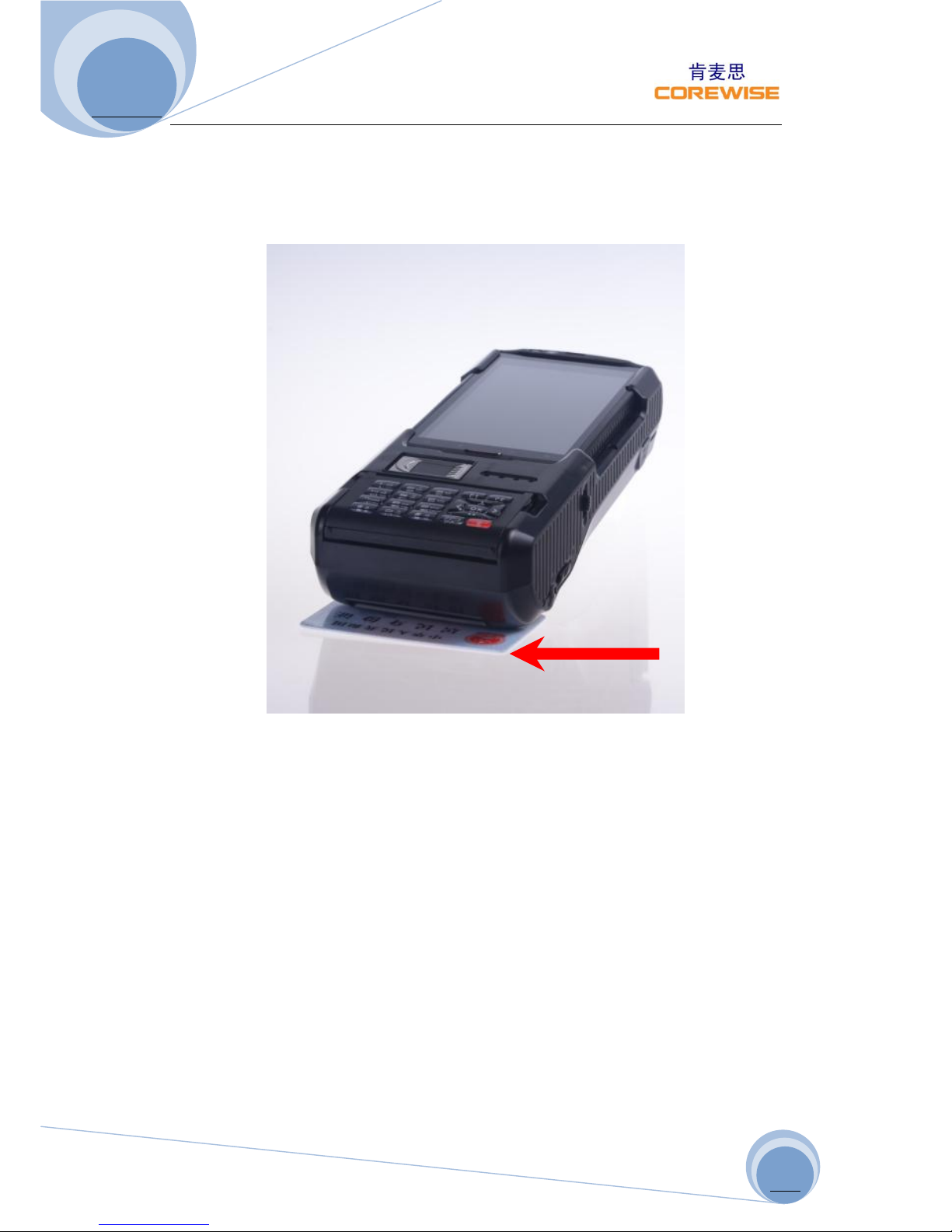
Operational Guide of Testing RFID Function:
1) Ensure mobile phone is communicating fine with base machine, and then enter
into DEMO software, select RFID button.
2) Put RFID smart card in the place as shown below.
3) Select “Read” function, information will be shown on the screen.
身份证
Page 8
CP810 User Manual
http://www.corewise.cn
2014
8
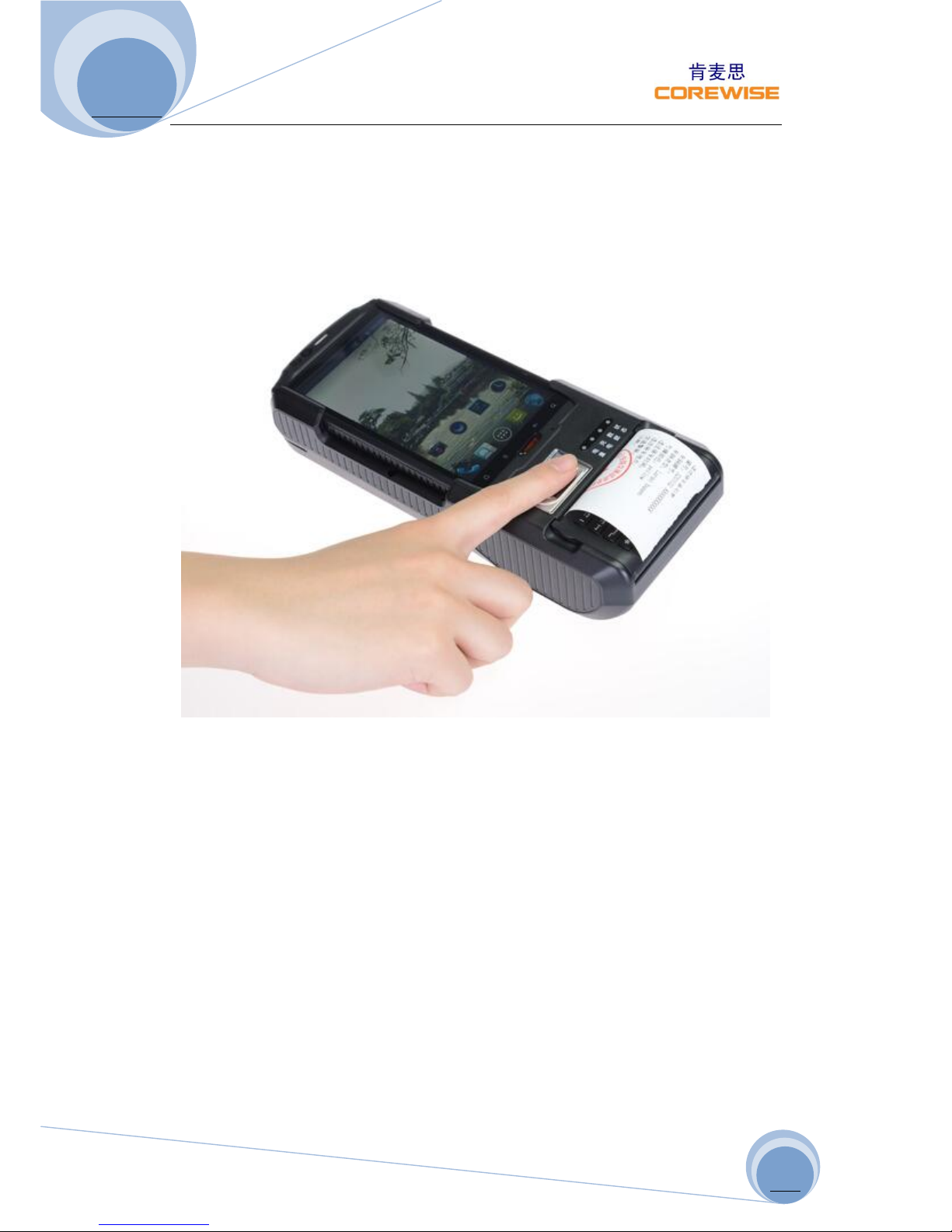
Operational Guide of Testing Fingerprint Function:
1) Ensure mobile phone is communicating fine with base machine, and then enter
into DEMO software, select Fingerprint button.
2) Press your finger on the sensor, finger tip should touches the metal frame.
3) Select “Read” function, information will be shown on the screen.
Operational Guide of Testing IC Card Function:
1) Ensure mobile phone is communicating fine with base machine, and then enter
into DEMO software, select IC Card button.
2) Insert IC card (with chipset side) into the base machine.
3) Select “Read” function, information will be shown on the screen.
Page 9
CP810 User Manual
http://www.corewise.cn
2014
9
Technical Specifications
Dimensions
220 x 92 x 49(mm) (8.7" x 3.7" x 1.9")
Weight
0.5Kg (1.1lbs) with batteries
3G
WCDMA R99: maximum data rate of 384 kbps, 2100Mhz
GSM R99: Supports CS SMS, 900/1800Mhz
GPRS : CS schemes – CS1, CS2, CS3, and CS4
EDGE : Downlink coding schemes – CS 1-4, MCS 1-9
CDMA 1X 2000/EVDO 800Mhz
CPU
Qualcomm MSM 8625, Dual Core, 1.2GHz
Internal Memory
4GB Nand Flash ROM + 4Gb LPDDR RAM
External Storage
T-Flash/Micro SD card, up to 32 GB
Operating System
Google Android 4.0.4
Display
TFT LCD 5 inch, sunlight readable, capacitive touch screen
with resolution: 480 x 800
Camera
Front 0.3M, rear 5.0M, LED, auto focus
Network Interface
Integrated WLAN 802.11 b/g, integrated Bluetooth 2.1
EDR, 10m
GPS
Supported, 10m
USB
Mini USB 10-pin, OTG supported
UART & RS232
Supported
Battery
DC 3.7V, 2500mAh/DC 7.4V, 5000mAh
Features
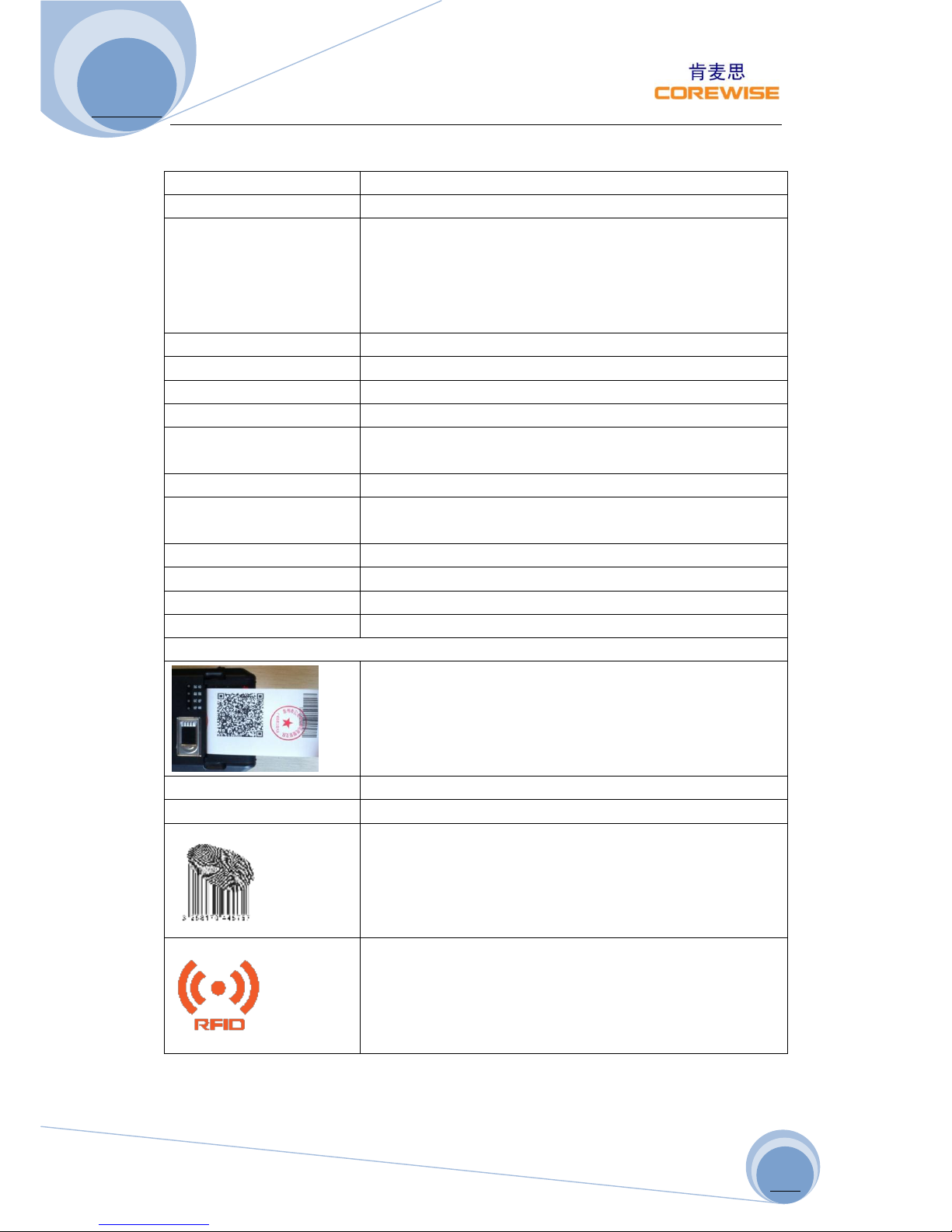
58mm standard thermal printer
IC Card
Contact IC card, ISO 7816-3
MSR
2 tracks supported
Build-in biometric fingerprint sensor, capacitive touch
screen, 508 DPI, registration/matching/verification<1s
HF RFID 13.56Mhz, ISO/IEC 14443 A, ISO/IEC 14443 B, ISO
15693, 3-5cm reading range
Page 10
CP810 User Manual
http://www.corewise.cn
2014
10
Functionalities
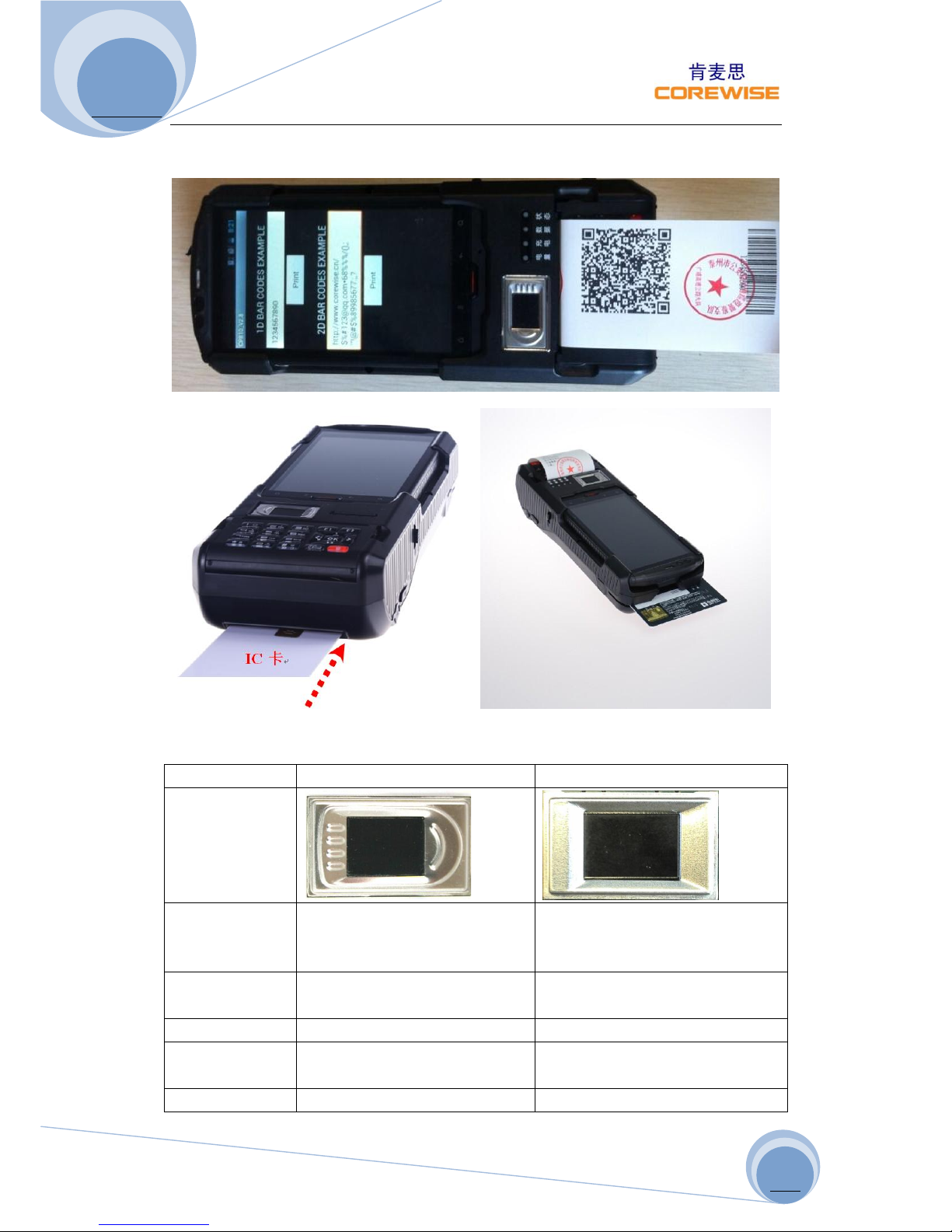
Fingerprint Sensor
TCS2SS
TCS1ST
Picture
Vendor
AuthenTec Inc. (On 27 July
2012, AuthenTec was acquired
by Apple Inc.
AuthenTec Inc. (On 27 July 2012,
AuthenTec was acquired
by Apple Inc.
Size
10.4*14.4mm array (imaging
area)
12.8*18.0mm array (imaging
area)
Type
Capacitive touch chip
Capacitive touch chip
DPI
208*288pixel array, 508DPI,
8bits per pixel
256*360pixel array, 508DPI,
8bits per pixel
Lifetime
4M finger placements
4M finger placements
Page 11
CP810 User Manual
http://www.corewise.cn
2014
11
Imaging Mode
<=20mA @ 5.0V
<=20mA @ 5.0V
Standard IM
Supply
4.4V to 5.5V
4.4V to 5.5V
EIM Modes
Supply
4.5V to 4.6V
4.5V to 4.6V
Operating
Temperature
-30 ºC to +85 ºC
-30 ºC to +85 ºC
Storage
Temperature
-40 ºC to +85 ºC
-40 ºC to +85 ºC
Compliant
RoHS, FIPS 201
RoHS, FIPS 201
Caution: The sensor surface is hard and extremely robust and will withstand years of
normal wear-and-tear. However, do not subject the sensor to sharp or hard objects
since this might cause permanent damage. Cleaning should be done with a lint-free
cotton textile. Do not subject the sensor surface to mechanical force.
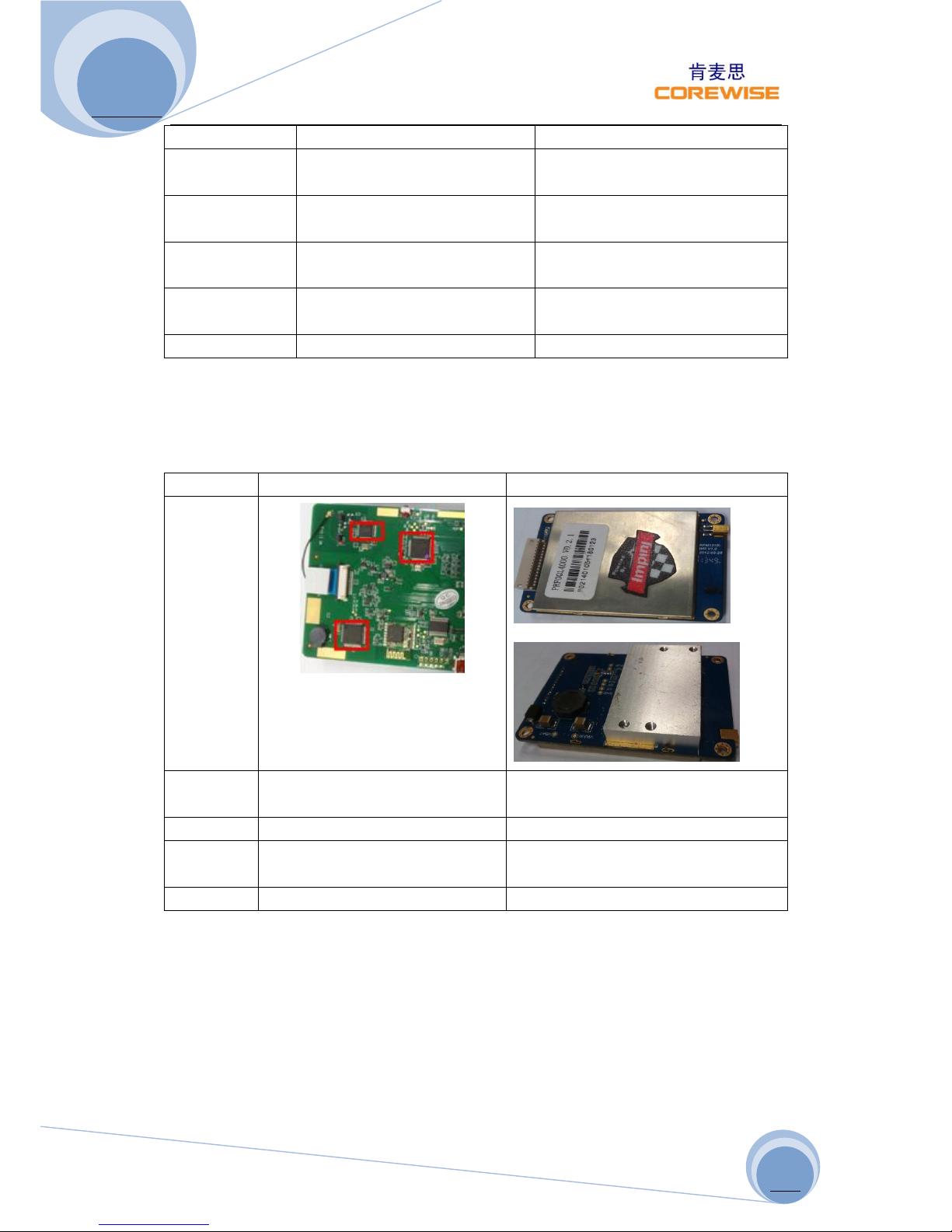
RFID (Radio-Frequency Identification)
High Frequency (HF)
Ultra-High Frequency (UHF)
Picture
Bands
13.56Mhz(HF)
865-868 MHz (Europe)
902-928 MHz (North America)
Range
10cm-1m
1-10m
Standards
ISO/IEC 14443 Type A, ISO/IEC
14443 Type B, ISO/IEC 15693
ISO18000-6C
Vendor
Corewise
Impinj R2000
Page 12
CP810 User Manual
http://www.corewise.cn
2014
12
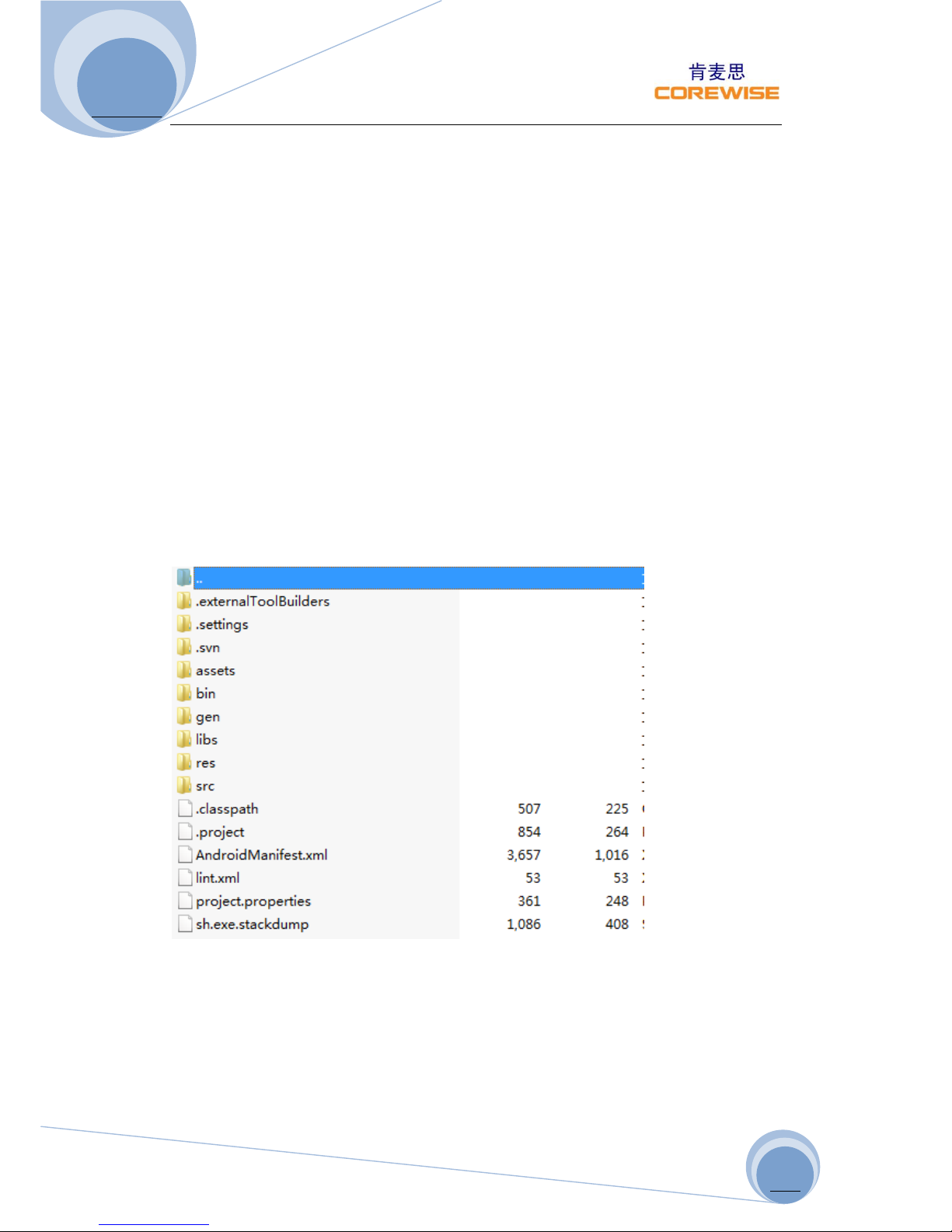
Free SDK for Further Development
Nanjing Corewise Smart Technology Inc. is basically a hardware manufacturer,
producing various smart terminals. There handheld devices are semi-finished
products, which are technically ready for miscellaneous applications in Windows
Mobile OS or Google Android OS, however request further development on basis of
our hardware.
Google Android downloadable apps or tailor-made software can work in conjunction
with our powerful terminals to create most controllable and versatile solutions to
bring human, financial, material resources as well as vehicles under absolute control
Best support will be provided by Corewise to help our buyers to code & program
software on basis of our products. We offer free SDK to the purchasers for their
purpose; programmers can take whatever they want from the software kit for
secondary development.
For any technical issues, our technical software engineers can support online via
Skype or emails to enable our purchases to make full use of the machine.
Printer Development Help
com.corewise.asynctask:
1.Construators
public AsynPrinter(Looper looper, CommunicateManager communicateManager);
2. Callback interface
Page 13

CP810 User Manual
http://www.corewise.cn
2014
13
AsynPrinter printer;
printer.setOnPrinterListener(new OnPrinterListener() {
@Override
public void onPrinterSuccess() {
}
@Override
public void onPrinterFail(int code) {
if (code == Printer.PRINT_NO_PAPER) {
} else if (code == Printer.PRINT_TIMEOUT) {
}
}
});
3. public void Printf(String Buffer); Print the string
/**
* @param bold
* @param underline
* @param height
* @param width
*/
4. public void setFontFormat(boolean bold,boolean underline,boolean height,boolean width );
Set the font bold, underline, double higher, double width.
5. public void printImage(byte[] data)
Print bitmap, width is less than 384 pixels, 500 pixels high not more than, 1bit on behalf of
1 pixels.
6. public void setBarCodePosition(int position)
Position( 1:left 2:middle 3:right)
Note: Can communicate via Bluetooth and serialport.
Page 14
CP810 User Manual
http://www.corewise.cn
2014
14
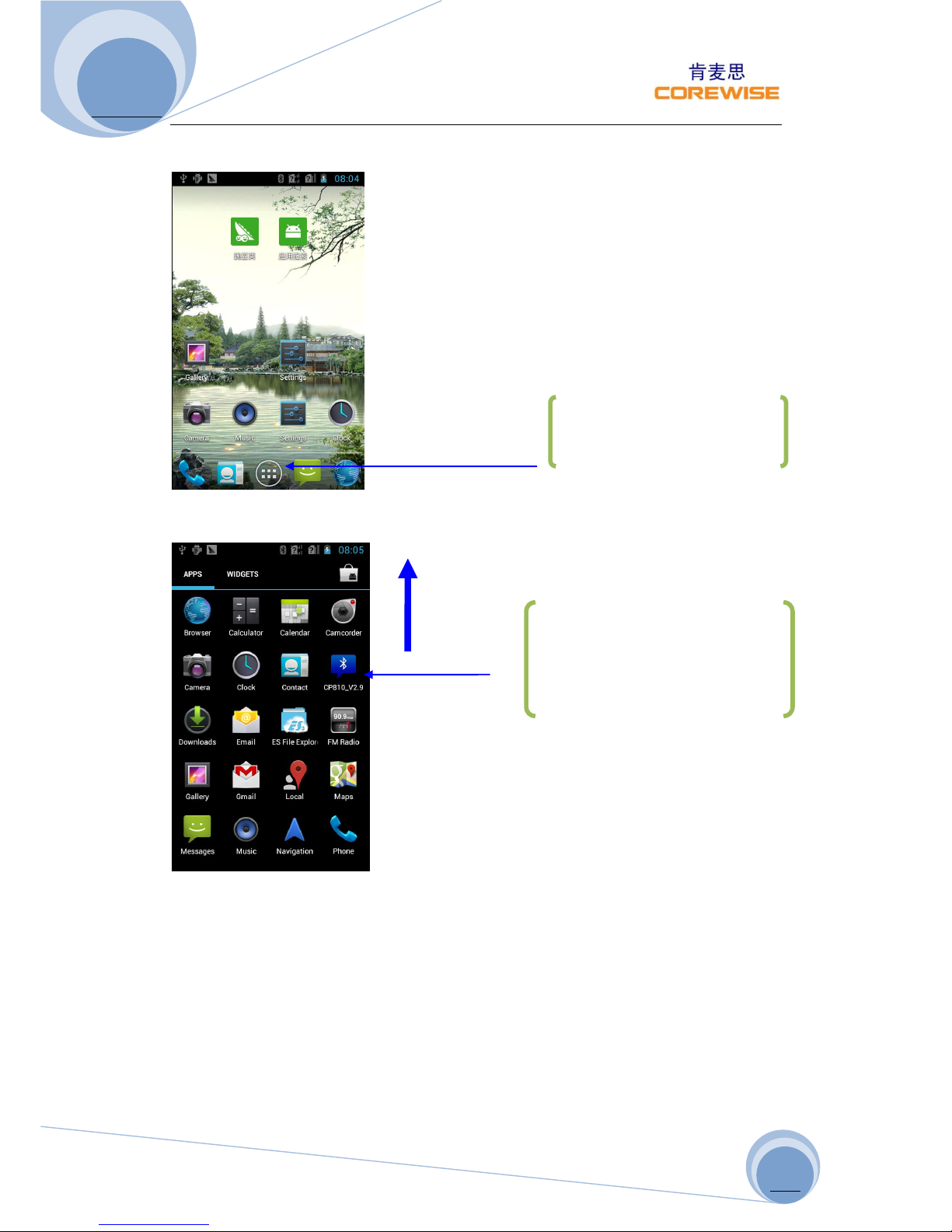
Remove Installed Demo
On the main menu page, gently press on “CP810_V2.9” Icon and drag to the screen
up side to remove the pre-installed Demo
Press this icon to enter into
main menu
Gently press on “CP810_V2.9”
Icon and drag to the screen up
side to remove the pre-installed
Demo
Page 15
CP810 User Manual
http://www.corewise.cn
2014
15
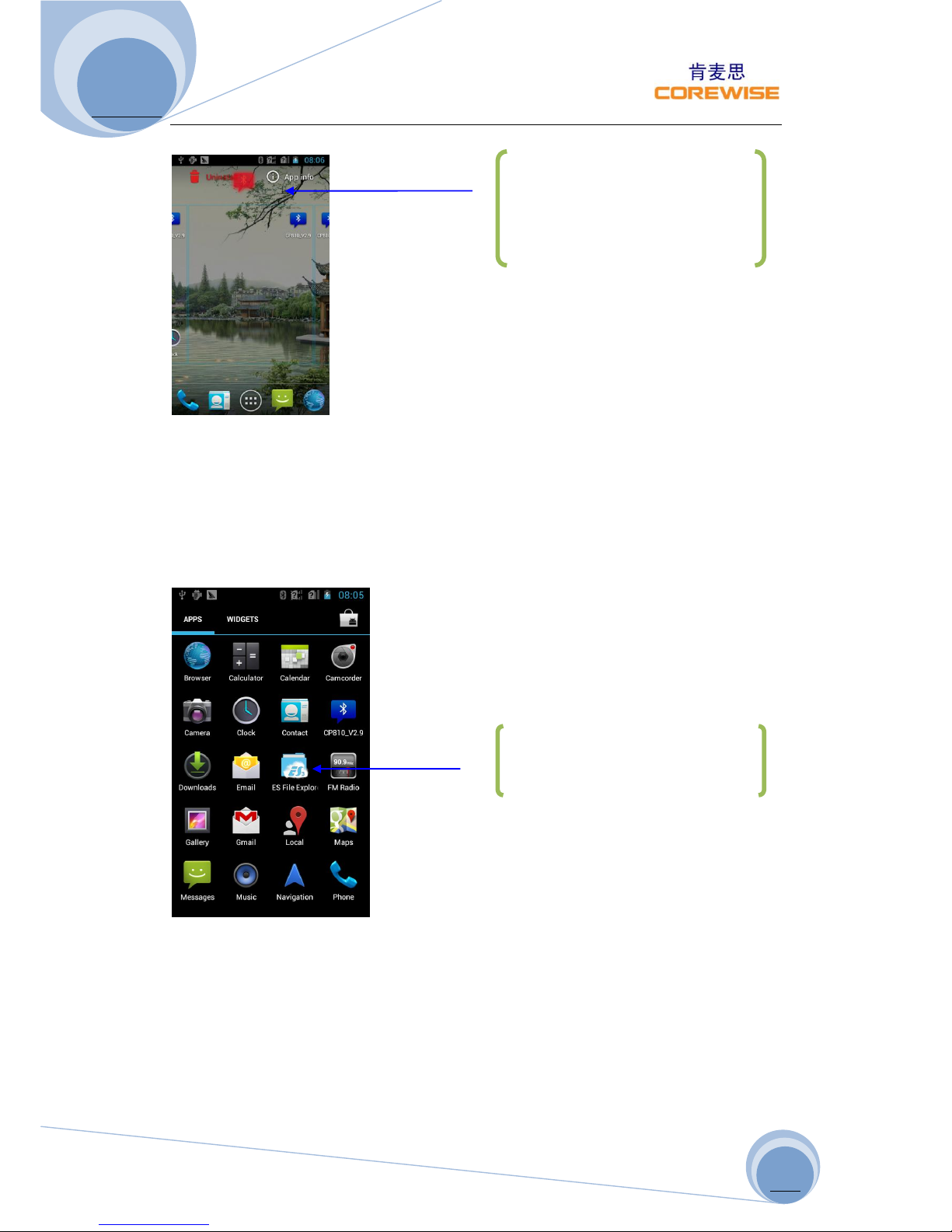
Press and drag the icon to upside until the screen shows as the following:
Install a New Demo
Step 1: Copy the new files (for instance “CP810-V2.9) into a "T-Flash/Mini SD Card";
Step 2: Unscrew rear cover of the mobile phone (A160);
Step 3: Insert the "T-Flash/Mini SD Card" into the mobile phone and screw the rear
cover up;
Step 4: Press “ES File Explorer” to enter into its file manager
Press and drag the icon to upside
until the screen shows red
“Un-install”, drop the icon into it.
Press “ES File Explorer” to enter
into its file manager
Page 16
CP810 User Manual
http://www.corewise.cn
2014
16
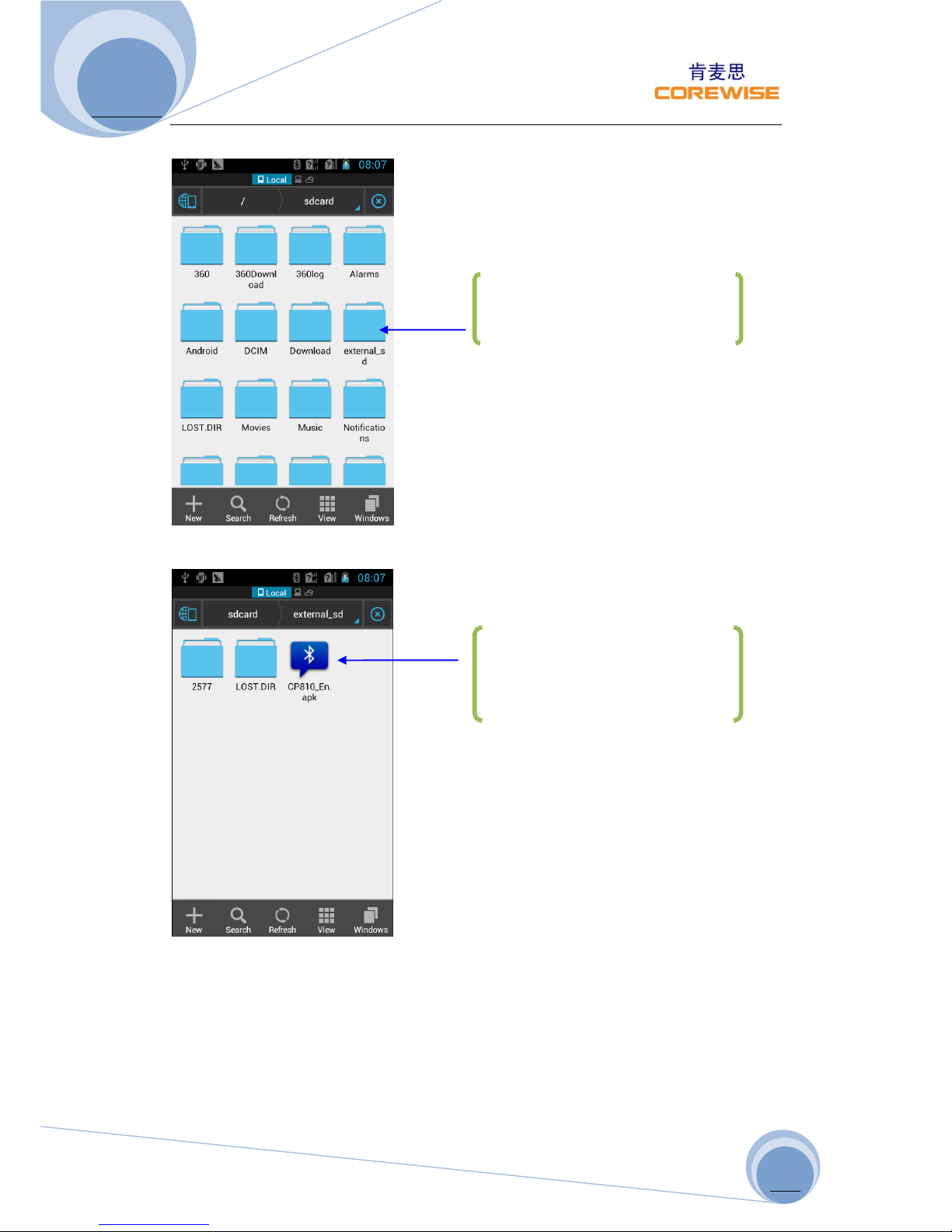
Step 5: In its file manager, find “external_sd” icon and click it
Step 6: In external sd file, you can find “CP810_En.apk”, double click it to run it.
In its file manager, find
“external_sd” icon and click it
In external sd file, you can find
“CP810_En.apk”, double click it to
run it
Page 17

CP810 User Manual
http://www.corewise.cn
2014
17
Upgrade for CP810 Barcode Printing
1. Please check the File and find the file named " CP810_Upgrade",copy those four
files inside to 2G T-Flash card root directory(T-Flash Card must be 2G).
2. Insert the "T-Flash Card" to the base, then with battery loaded.
3. Press the button "Power key" to power on,the software will update
automatically.The power light turns green and will last for a few minutes. Around 5
minutes ,it will be successfully updated,then the power light turns flashing.
4. Power off the base,and take out the T-Flash Card(T-Flash Card must be taken
out, otherwise it'll keep updating again next time you power it on).
5. Please check the File and find the file named "CP810_En".Then ready to install the
file to the Phone A160.
6. Once finished all the installations of barcode printing,then put the Phone back on
the base and power on the unit to run the software.
You can see a button of checking the software version on the software
interface.Click it to see the current version number.If it shows V2.7,it means that
you've already upgraded successfully.
(P.S.: Battery Power: More than 50% or full status. )
Packaging & Transportation
Maintain: Please use a soft and dry cloth to wipe and clean the device gently
regularly, especially display screen.
Packaging and Transportation: For long-distance transportation, packaging must be
done with protective measures. Do NOT allow rain, snow or liquid to be poured
directly on the device during transportation, as this may result in mechanical
damage.
Storage Ambience: ventilated, dry and free of sharp temperature changes, without
affecting the surrounding magnetic field, no acid, alkali or other harmful gases in the
air.
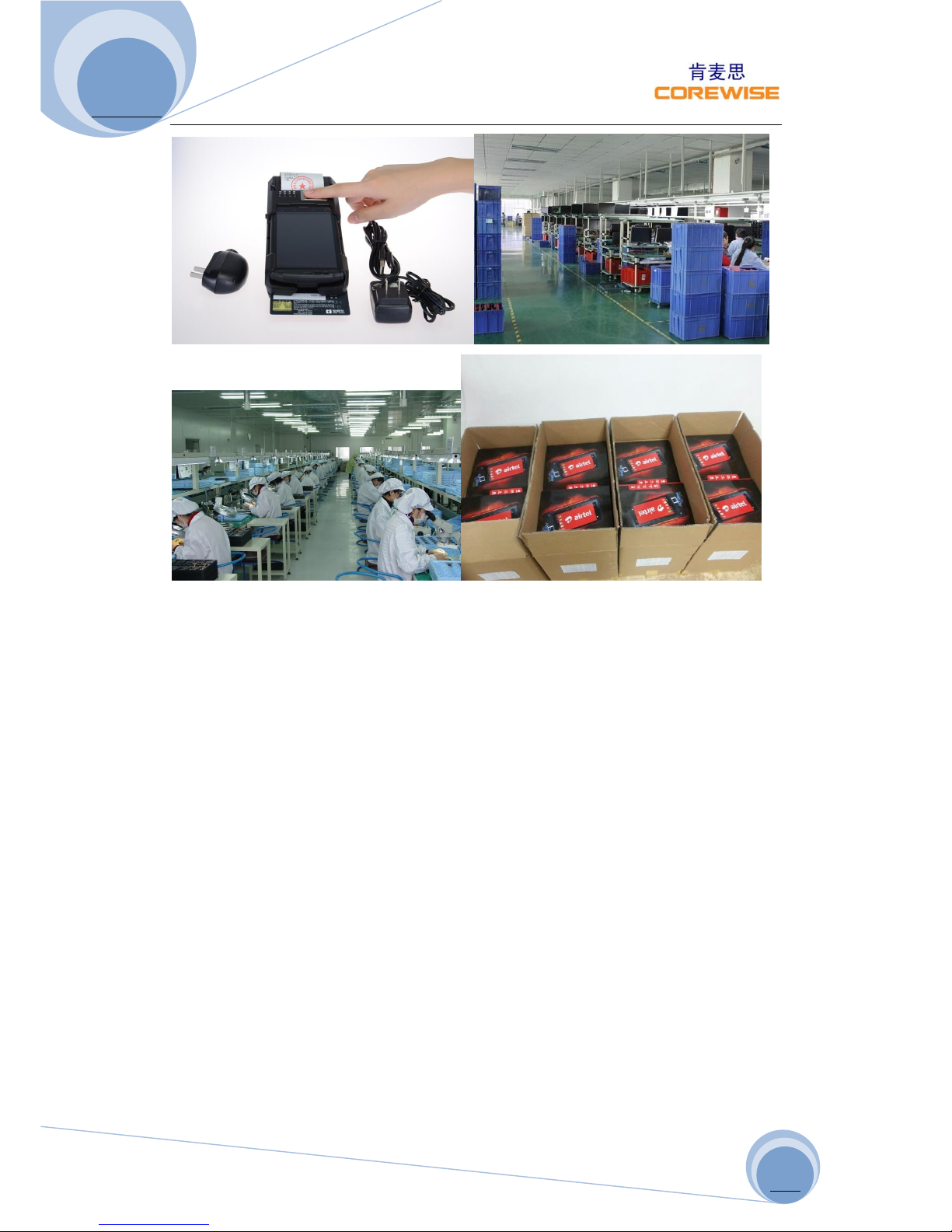
Packing List:
POS Machine: 1pc
Charger: 2 sets
Batteries: 2pcs
Data Cable: 1pc
User Manual 1pc
Page 18
CP810 User Manual
http://www.corewise.cn
2014
18
Page 19
CP810 User Manual
http://www.corewise.cn
2014
19
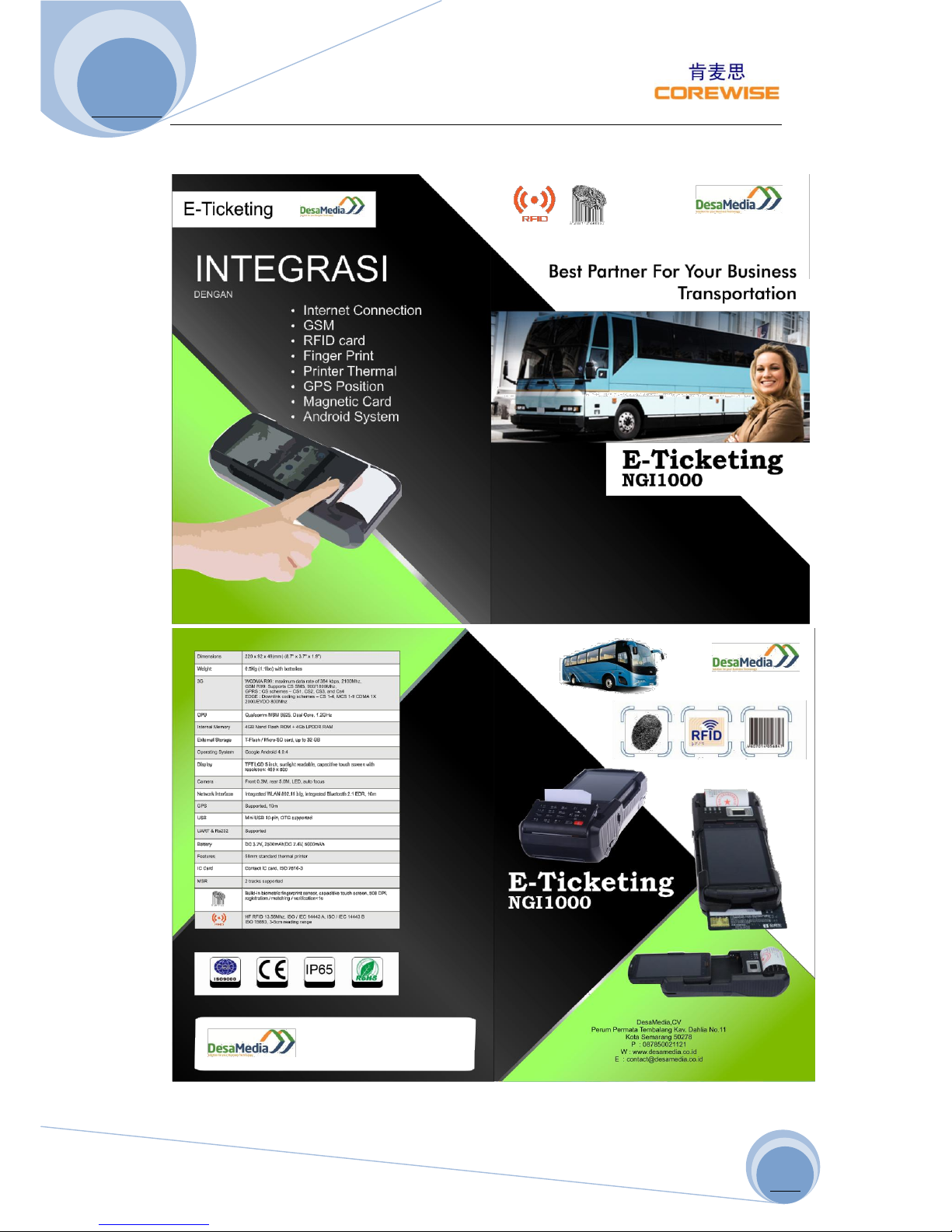
One of the Typical Applications
 Loading...