

Page 1

Coresess 3112
ADSL USB Endpoint Modem
User’s Guide
(Windows Driver)
Page 2

Corecess 3112 ADSL USB Endpoint Modem User Guide
Doc. No. CORECESS 3112_MN_Ver1.0 Rev 0
2 / 29
http://www.CORECESS.com
|FCC Part 15 Notice |
This equipment has been tested and found to comply with the limits for a Class B digital device,
pursuant to part 15 of the FCC Rules. Operation is subject to the following two conditions: (1) this
device may not cause harmful interference, and (2) this device must accept any interference
received, including interference that may cause undesired operation. Class B limits are designed to
provide reasonable protection against harmful interference in a residential installation. This
equipment generates, uses, and can radiate radio frequency energy, and, if not installed and used
in accordance with the instructions, may cause harmful interference to radio communications.
However, there is not guarantee that interference will not occur in a particular installation. If this
equipment does cause harmful interference to radio or television reception, which can be
determined by turning the equipment off and on, the user is encouraged to try to correct the
interference by one or more of the following measures:
• Reorient the receiving antenna.
• Increase the separate between the equipment and the receiver.
• Connect the equipment into an outlet on a circuit different from that to which the receiver is
connected.
• Consult the dealer or an experienced radio/TV technician for help.
|Copyright |
Copyrightⓒ Corecess All rights Reserved.
No Part of this book shall be reproduced, stored in a retrieval system, or transmitted by any means,
electronic, mechanical, photocopying, recording, or otherwise, without written permission from
the publisher.
The specifications and information regarding the products in this manual are subject to changed
without notice.
|Trademark Credit |
Corecess 3112 is registered trademark of Corecess Inc.
Windows is registered trademark of Microsoft Corp.
Corecess Inc.
997-4, Daechi-dong, Kangnam-ku, Seoul, Korea
TEL:82-2-3016-6900 FAX:82-2-3016-6622
http://www.corecess.com
Page 3

Corecess 3112 ADSL USB Endpoint Modem User Guide
Doc. No. CORECESS 3112_MN_Ver1.0 Rev 0
3 / 29
http://www.CORECESS.com
Scope
This guide provides the descriptions of the procedure to install and uninstall the
Windows USB driver for the Corecess 3112 and the usages of the Web
configuration pages.
Organization
This guide is organized as follows:
Chapter 1 Introduction
, introduces the Corecess 3112 ADSL USB Endpoint
modem, defines the scope of the document, and provides a brief overview of the
functions of Windows driver.
Chapter 2 Installation and Setup
, describes how to install, and uninstall the
Corecess 3112 ADSL USB Endpoint modem Windows driver.
Chapter 3 Configuring the Corecess 3112
, provide the descriptions and usages
for the Corecess 3112 ADSL USB Endpoint modem‘s Web configuration pages.
Appendix A Troubleshooting
, describes some problems that you might have with
the Corecess 3312 and how to isolate and possibly solve these problems.
Appendix B Technical Specifications, lists the hardware and software
specifications for the Corecess 3112.
Page 4

Corecess 3112 ADSL USB Endpoint Modem User Guide
Doc. No. CORECESS 3112_MN_Ver1.0 Rev 0
4 / 29
http://www.CORECESS.com
Table of Contents
Chapter 1 Introduction ……………………………….…… 5 ~ 8
1.1 Overview ……………………………………………………………... 5
1.2 System Requirement ..……………………………………………… 5
1.3 Important Safeguards ………………………………………………. 6
Chapter 2 Installations and Setup .……………………… 9 ~ 18
2.1 Unpacking the Box ……………………………………………….….. 9
2.2 Connectors & LED’s ……………….………………….…………….. 10
2.3 Installing the Corecess 3112 ……...…………………….………….. 11
2.4 Installing the Windows Driver ……..…………………….………….. 12
2.5 Uninstalling the Windows Driver ….…………………….………….. 17
Chapter 3 Configuring the Corecess 3112 …………… 19 ~ 25
3.1 Before Configuration ………………………...……………………… 20
3.2 Logging on to the Web Console …………………………………... 21
3.3 Configuring the Router (PPPoA/PPPoE) Mode ………..………… 22
3.4 Configuring the Bridge (RFC 1483) Mode ………………………… 24
Appendix A. Troubleshooting .…………………………… 26 ~ 28
Appendix B. Technical Specifications
………………………… 29
Page 5

Corecess 3112 ADSL USB Endpoint Modem User Guide
Doc. No. CORECESS 3112_MN_Ver1.0 Rev 0
5 / 29
http://www.CORECESS.com
Chapter 1 Introduction
1.1 Overview
The
Corecess 3112 ADLS USB Endpoint Modem
combines an “always-on” high
speed Asymmetric Digital Subscriber Line (ADSL) connection to the telephone line,
and a Universal Serial Bus (USB) connection to a computer into a single cost-
effective solution. The Corecess 3112 solution hardware connects to the computer
via USB interface. The Corecess 3112 supports T1.413-1998, G.dmt (G.992.1) and
G.lite (G.992.2) ADSL and is designed to operate in LAN and WAN modes.
The
firmware running on the Corecess 3112 is loaded from a computer through
the USB connection.
The Corecess 3112 supplies the software drivers for
Windows 98SE/Me/2000/XP.
In addition, the Corecess 3112 software includes the Web Server to support the
feature of embedded graphics configuration for the Corecess 3112 products.
Through the USB connection, end-user can know the current configuration
on the system.
1.2 System Requirements
y Pentium II 233 MHz processor or better
y 32 MB or greater of free system RAM
y Windows 98SE, Windows ME, Windows 2000, or Windows XP
y
USB port
Page 6

Corecess 3112 ADSL USB Endpoint Modem User Guide
Doc. No. CORECESS 3112_MN_Ver1.0 Rev 0
6 / 29
http://www.CORECESS.com
1.3 Important Safeguards
Read and understand all instructions. Follow all warnings and instructions marked
on the product.
Environment
y In-house stationary use, desktop or wall-mounted; the maximum ambient
temperature may not exceed 45°C (113°F) external to the housing.
y It must not be mounted in a location exposed to direct or excessive solar and/or
heat radiation.
y It must not be exposed to heat trap conditions and must not be subjected to
water or condensation.
y It must be installed in a Pollution Degree 2 environment.
Qualified Personnel Warning
Only trained and qualified personnel should be allowed to repair this equipment.
No Decomposing the Product Warning
When decomposing this product, it can cause bodily injury and broke the
equipment because of electric shock, failure, miss-operating and static electricity.
Do not decompose, repair or reorganize it without permission.
Keeping Clean in Installation Place Warning
You should keep neat and clean in installation place of product to prevent
accidents. Also, do not let the device, tool, or part be at path not to make any
cause of accidents.
Cleaning
Unplug this product from your computer before cleaning. Do not use liquid cleaners
or aerosol cleaners. Use a damp cloth for cleaning.
Water and moisture
Do not use this product near water, for example, near a bathtub, wash bowl,
kitchen sink, laundry tub, in a wet basement or near a swimming pool.
Remover Metallic Jewelry Warning
You must remove all your metallic jewelry including ring, necklace, and watch.
Metallic object is connected to electricity in case of power-on. It can cause serious
burning and damage the jewelry. Also, you would better avoid lose clothes and
necktie, slipper because it can cause accidents to people and the device.
Page 7

Corecess 3112 ADSL USB Endpoint Modem User Guide
Doc. No. CORECESS 3112_MN_Ver1.0 Rev 0
7 / 29
http://www.CORECESS.com
Ventilation Warning
When you install the product, find well ventilate place so that prevents product
failure or miss operating because of over temperature and blocks needless ones
like dust causing data loss, product failure and human injury.
Electromagnetic Wave Warning
Electromagnetic wave has bad influence on the product and cable and causes
abnormal operating by disorganized signal system. Therefore do not install or
operate this product at the place where electromagnetic wave is occurred.
Lightning Warning
Lightning may bring about serious failures like product breakdown. In order to
prevent damages from lightning, ensure that installing place and the connected
cables are not met lightning. Be careful if there is any danger caused by lightning
and install Surge suppressor system.
Lightning Activity Warning
Do not work on, connect or disconnect this product and cables during periods of
lightning activity or forecasting it.
Ground Connected Cable Warning
For all cables connected to the product, use ground connected cable to prevent or
minimize problems from surge. Also do not touch the part or supplier, not insulated,
of cables disconnected to the product
Recommended Installation Range Warning
In order to prevent falling off performance caused by signal attenuation, do not
exceed recommended installation range.
Over -temperature Warning
Unless you secure enough space around the device when installing it, air coming
out from peripheral equipments inflows to the product and over-temperature can
cause product failure or miss operating. Therefore always secure enough space
around installing place to make fresh air inflow to devices and air heated be this
product not influence another devices. In order to prevent over-temperature of this
unit, do not operate this product at place of the temperature 45℃(113℉) over.
Working Space Warning
For easy maintenance and repair in case of problems , make enough working
space around the product. It helps to prevent over-temperature.
Page 8

Corecess 3112 ADSL USB Endpoint Modem User Guide
Doc. No. CORECESS 3112_MN_Ver1.0 Rev 0
8 / 29
http://www.CORECESS.com
Modem / Telephone use
y
Avoid using a modem/telephone (other than a cordless type) during an electrical
storm. There may be a remote risk of electric shock from lightning.
y Do not use the telephone to report a gas leak in the vicinity of the leak.
y If telephone service is required on the same line and for optimum ADSL
performance or distributed filters must be installed. Depending on your ADSL
configuration and type of filters, installation must be carried out by qualified
service personnel.
y Consult your Telephone Company of ADSL Service Provider for instructions.
Page 9
Corecess 3112 ADSL USB Endpoint Modem User Guide
Doc. No. CORECESS 3112_MN_Ver1.0 Rev 0
9 / 29
http://www.CORECESS.com
Chapter 2 Installation and Setup
2.1 Unpacking the Box
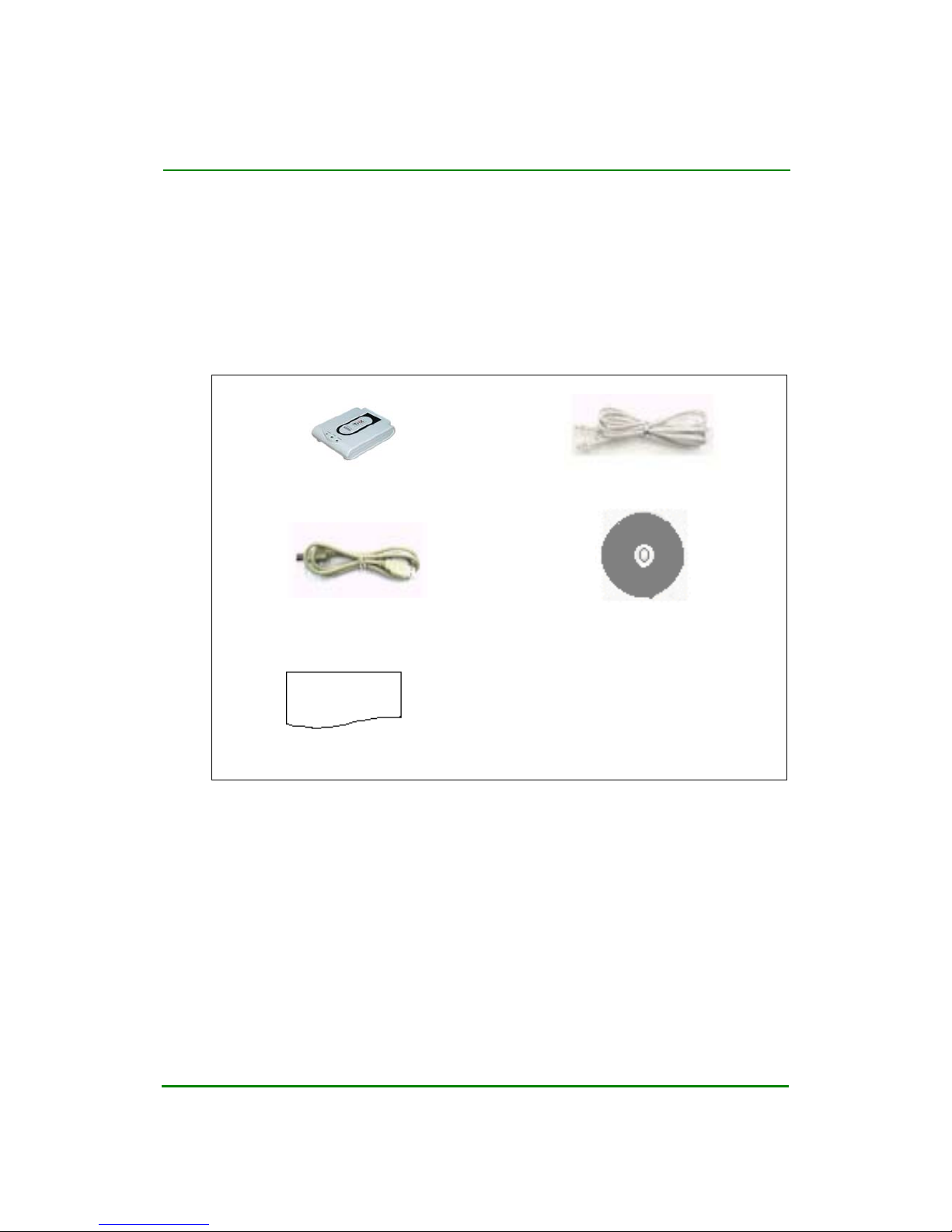
Check the shipping carton carefully to ensure that the contents include the items
you ordered.
ADSL Modem (1) ADSL (Phone) Cable (1)
USB cable (1)
Driver Installation CD-ROM
(Including manual) (1)
Quick Guide (1)
Note)
The following hardware is not provided but necessary to install and configure
the Corecess 3112. Before installing the Corecess 3112, prepare the
following haredware:
y
External Micro-filter or splitter (provided separately by your service
provider)
Quick Guide
Page 10
Corecess 3112 ADSL USB Endpoint Modem User Guide
Doc. No. CORECESS 3112_MN_Ver1.0 Rev 0
10 / 29
http://www.CORECESS.com
2.2 Connectors & LED’s
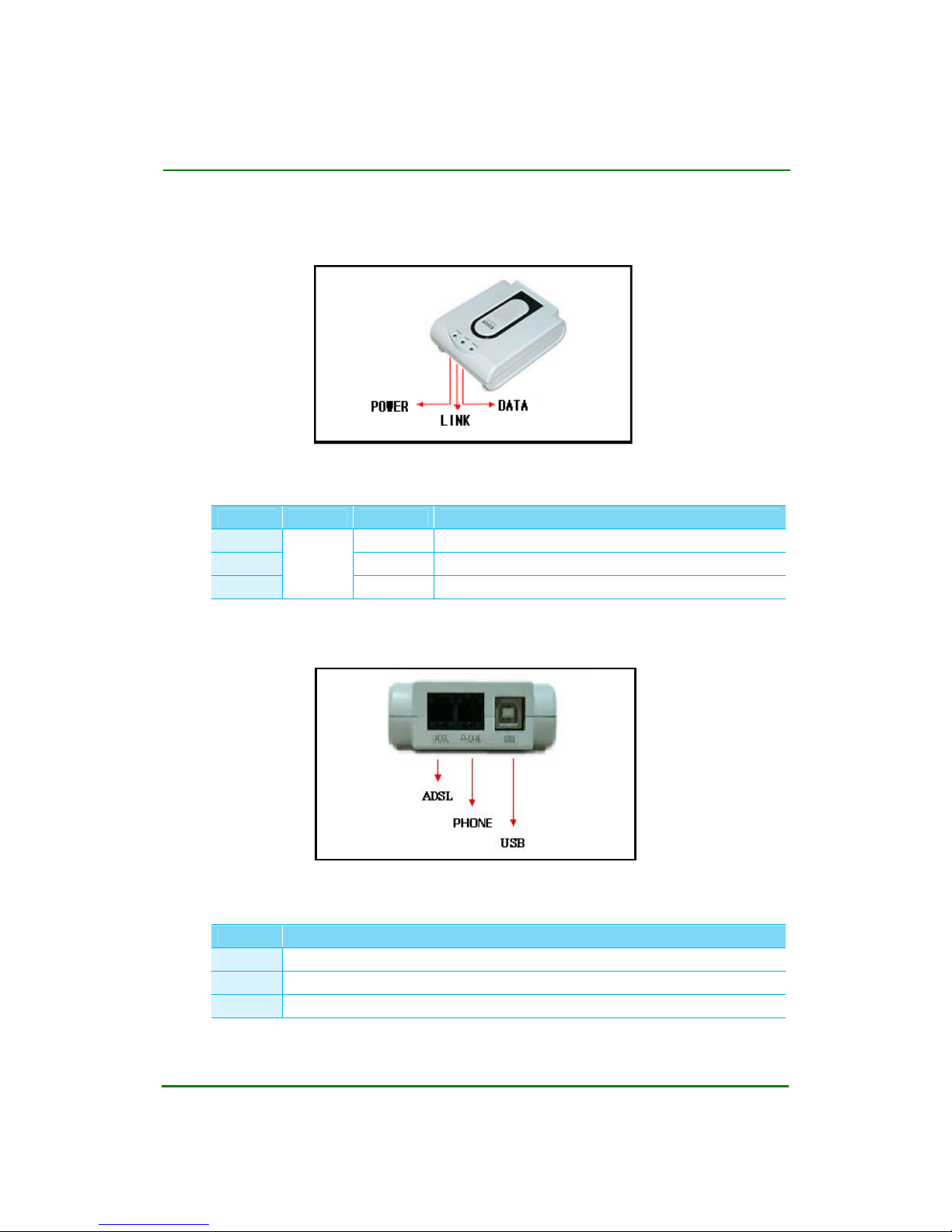
< Front Panel >
LED Operations
LED Color Status Description
POWER ON DC Power is being supplied to the Corecess 3112.
LINK ON The Corecess 3112 is connecting to ADSL network.
DATA
Green
Blink Data is being sent to or received from ADSL network.
< Rear Panel >
Port Descriptions
Port Description
ADSL Connect Corecess 3112 and ADSL line using ADSL (Phone) cable.
USB Connect Corecess 3112 and PC’s USB Port using USB cable.
PHONE Connect Corecess 3112 and PC’s USB Port using USB cable.
Page 11
Corecess 3112 ADSL USB Endpoint Modem User Guide
Doc. No. CORECESS 3112_MN_Ver1.0 Rev 0
11 / 29
http://www.CORECESS.com
2.3 Installing the Corecess 3112
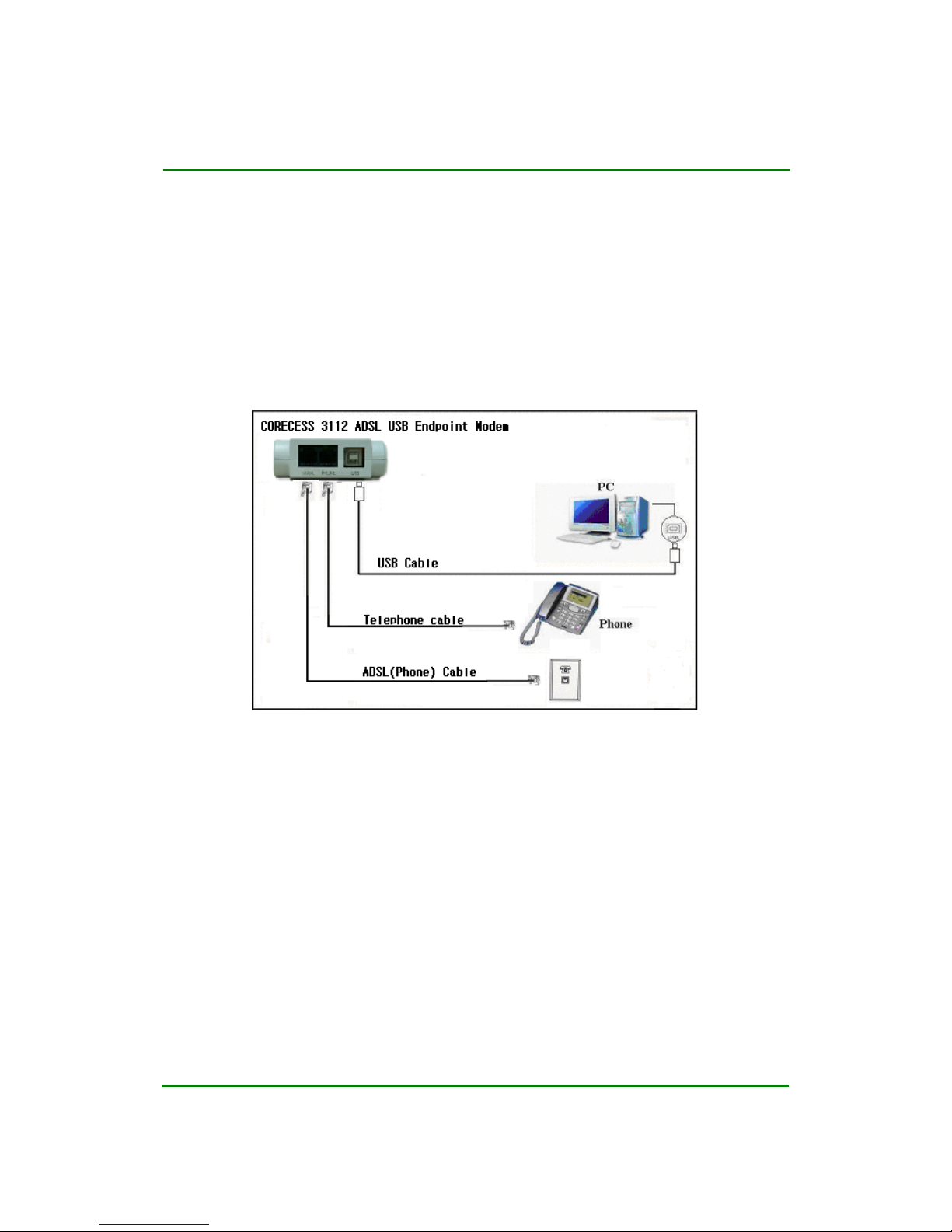
The Corecess 3112 is connected to any available USB port connector on the
computer. There are no option switches for the user to set. Once the modem is
connected to the USB port and the driver software has been installed, connect the
DSL line to “ADSL” Port on the modem. The Corecess 3112 has a second RJ11
(Phone) Port for connecting an ordinary telephone handset directly to the modem.
< ADSL Modem Installation Diagram >
1. Connect the provided ADSL (Phone) cable to the wall and then connect the other
end of the cable to the ADSL port of the Corecess 3112.
2. Connect the provided USB cable to the USB port of the Corecess 3112 and then
connect the other end of the cable to USB port on your PC.
3. Connect the telephone cable to the Phone port of the Corecess 3112 and then
connect the other end of the cable to your telephone.
Page 12
Corecess 3112 ADSL USB Endpoint Modem User Guide
Doc. No. CORECESS 3112_MN_Ver1.0 Rev 0
12 / 29
http://www.CORECESS.com
2.4 Installing the Windows Driver
The Corecess 3112 software can be installed when using the .inf files for
Windows plug-n-play.
The following examples are shown for a Windows 2000 operating system.
Installations in other Windows environments are similar.
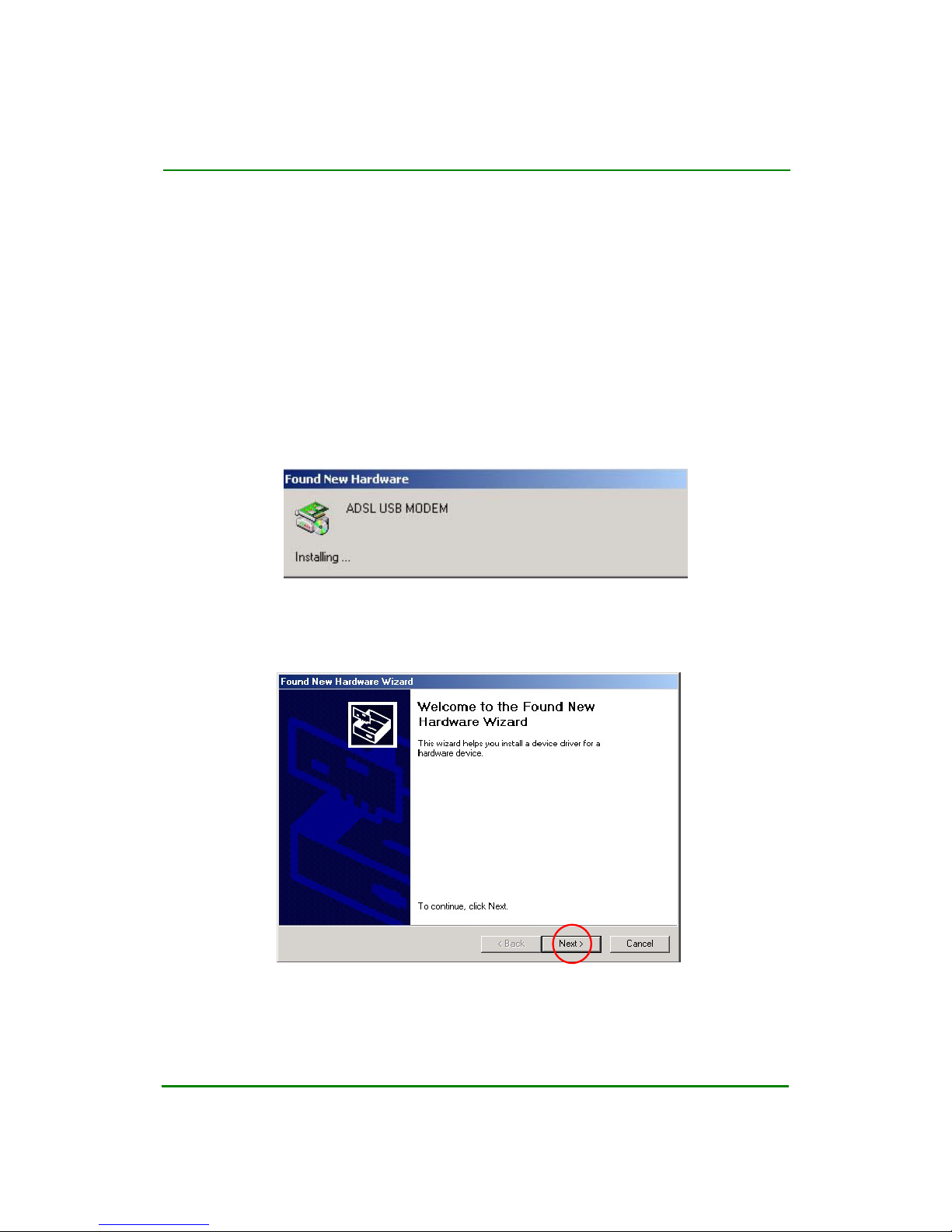
STEP 1.
With the computer running at the desktop, connect the Corecess 3112
to a USB port connected to the computer. The Windows operating
system will detect the new hardware.
STEP 2.
When prompted with the
Found New Hardware Wizard
, select
Next
to
continue.
Page 13
Corecess 3112 ADSL USB Endpoint Modem User Guide
Doc. No. CORECESS 3112_MN_Ver1.0 Rev 0
13 / 29
http://www.CORECESS.com
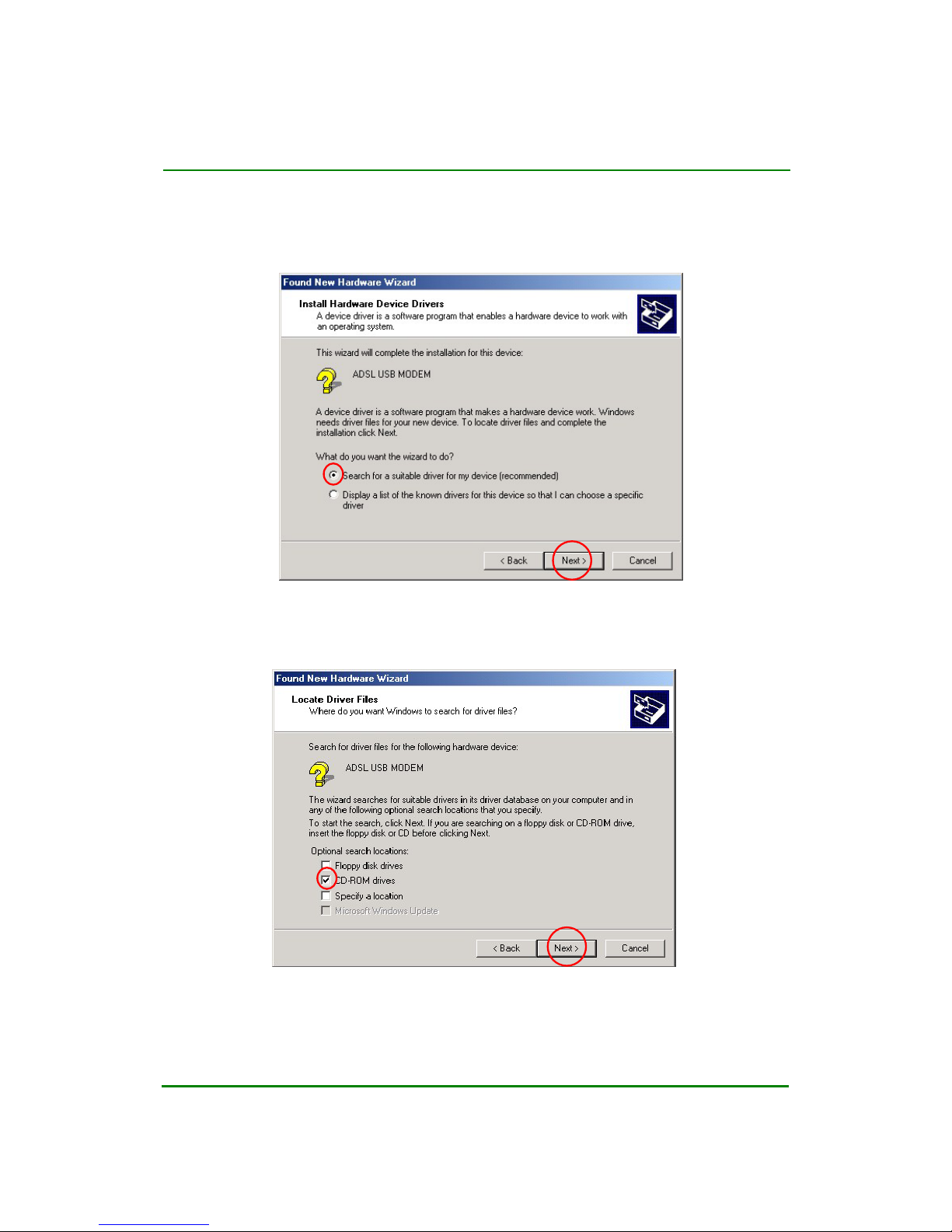
STEP 3.
The
Found New Hardware Wizard
will prompt for the device drivers.
Insert Modem installation CD into the CD drive. Select the Search for a
suitable driver for my device
option.
STEP 4.
A window will be displayed below picture, select the CD-ROM drives with
no other options selected and click Next.
Note)
If Windows does not find the drivers automatically, click
Back
to search
another location. (Refer to Appendix A. Troubleshooting)
Page 14
Corecess 3112 ADSL USB Endpoint Modem User Guide
Doc. No. CORECESS 3112_MN_Ver1.0 Rev 0
14 / 29
http://www.CORECESS.com
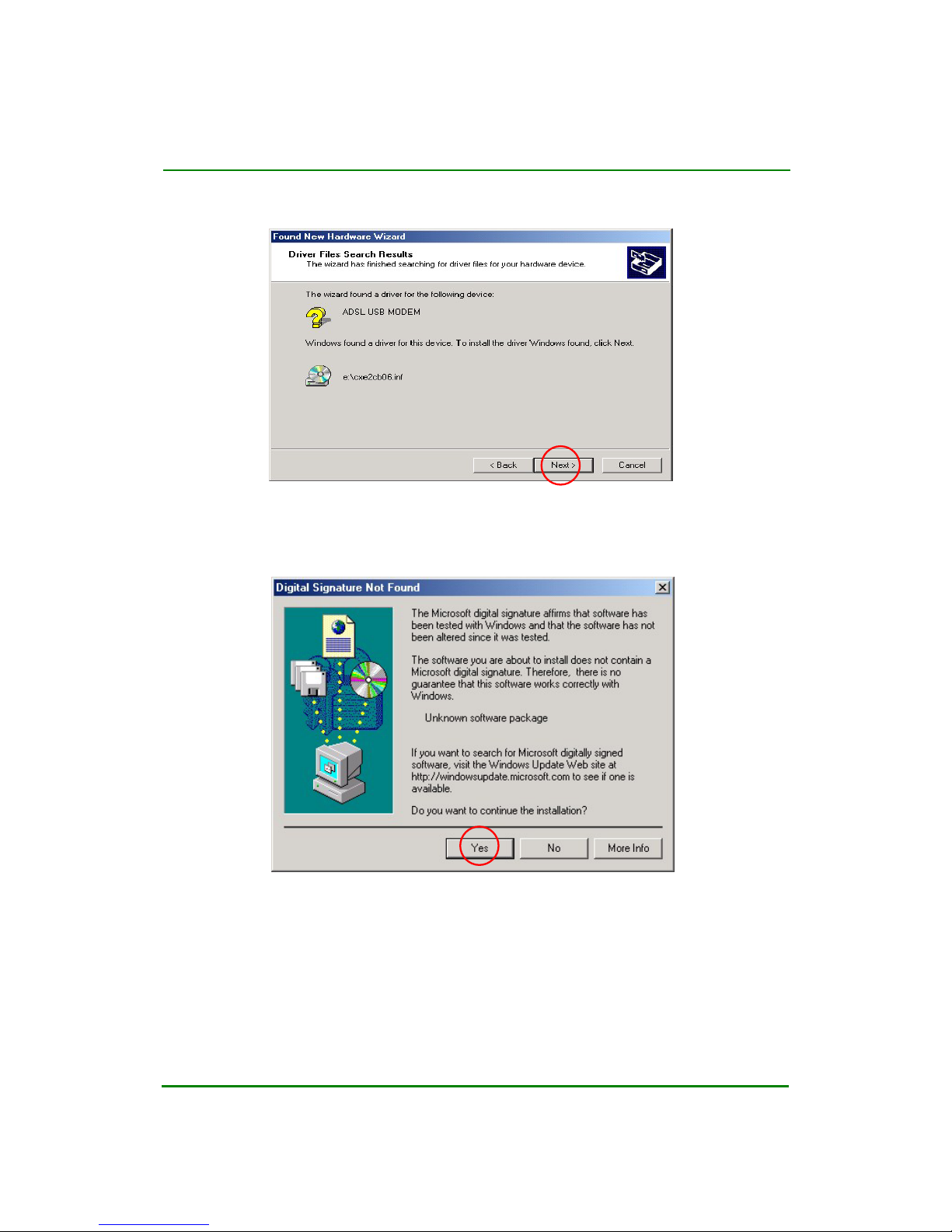
STEP 5.
When the appropriate driver is found, select
Next
to continue.
STEP 6. If a Digital Signature Not Found screen is displayed, select Yes to
continue.
Page 15
Corecess 3112 ADSL USB Endpoint Modem User Guide
Doc. No. CORECESS 3112_MN_Ver1.0 Rev 0
15 / 29
http://www.CORECESS.com
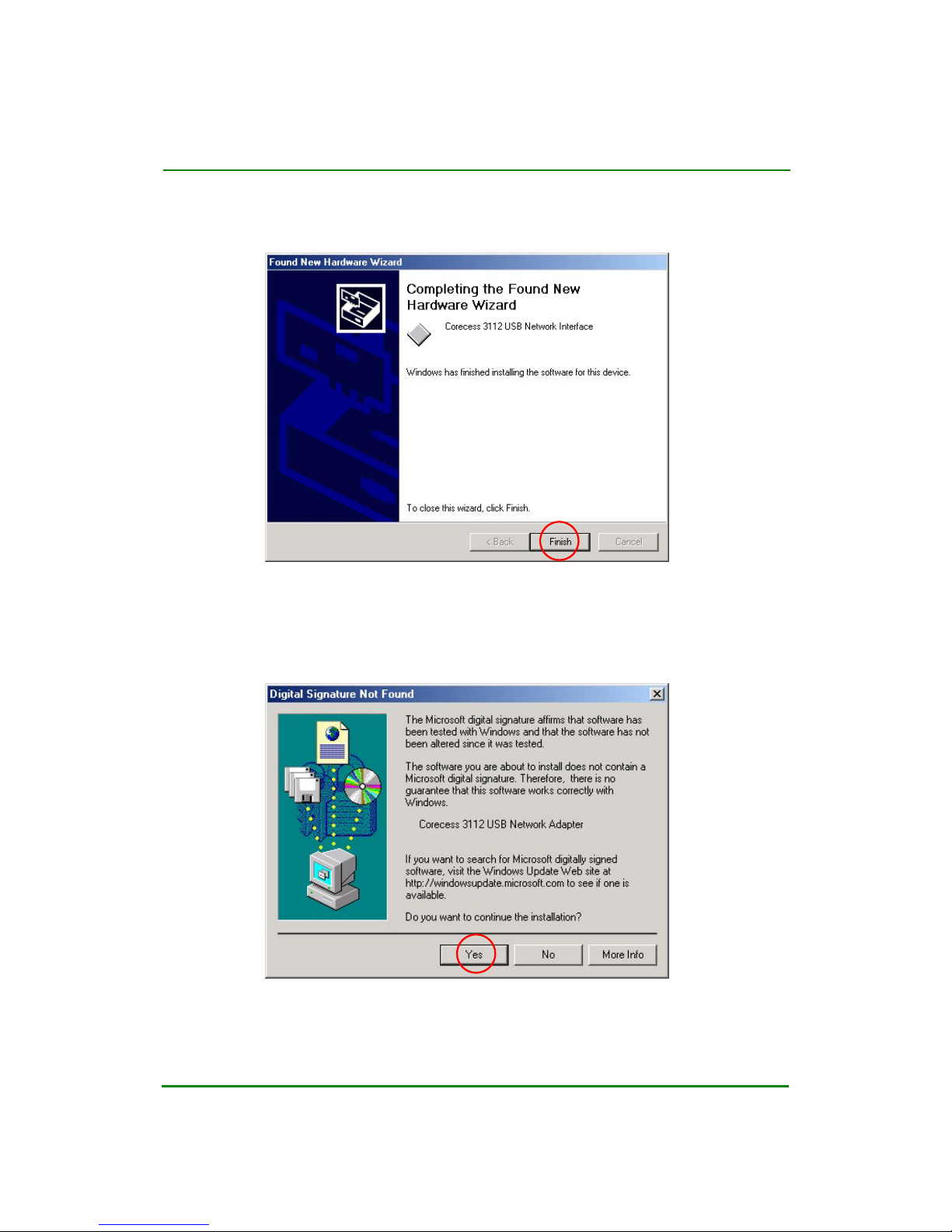
STEP 7.
A message will confirm that the device driver software has been installed,
click Finish.
Note)
If the second installation prompt will appear below pitcher. Please locate the
folder of the driver and select
Yes
to continue. The reboot prompt after the
second device installation under Windows 9x is caused by consequences
of WHQL requirements.
Page 16

Corecess 3112 ADSL USB Endpoint Modem User Guide
Doc. No. CORECESS 3112_MN_Ver1.0 Rev 0
16 / 29
http://www.CORECESS.com
STEP 8.
If you completed installation, set user ID and password (Provided by
ISP) to modem. Refer to “Chapter 3. Configuring the Corecess 3112”
STEP 9.
After confirm link state and authentication, run your browser to access
the Internet.
Note)
If you should use Corecess 3112 by PPPoE / Bridge Mode, you need to
change configuration of Corecess 3112. Refer to “
Chapter 3. Configuring
the Corecess 3112
”
Page 17
Corecess 3112 ADSL USB Endpoint Modem User Guide
Doc. No. CORECESS 3112_MN_Ver1.0 Rev 0
17 / 29
http://www.CORECESS.com
2.5 Uninstalling the Windows Driver
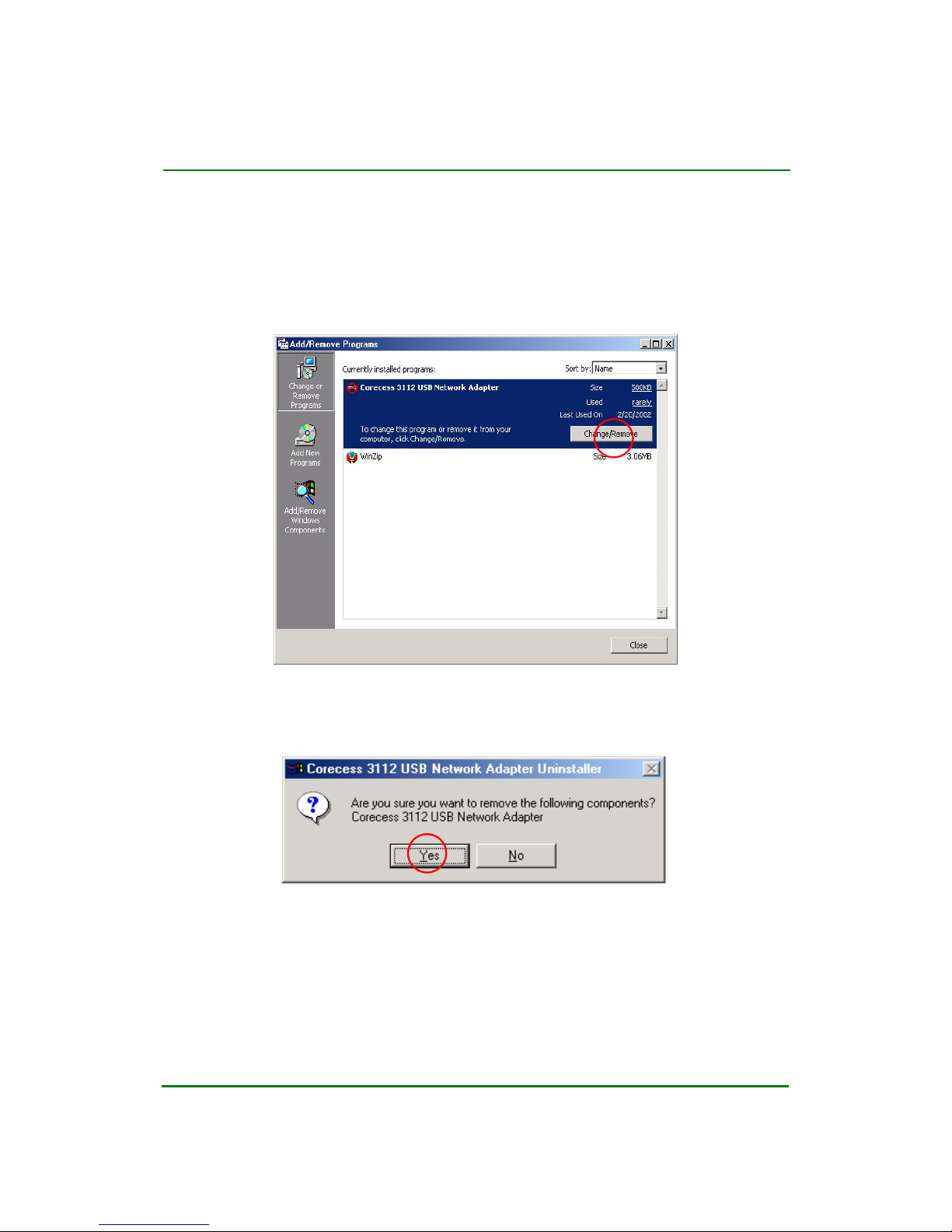
STEP 1.
The Windows
Add/Remove Programs
function found on the
Windows
Control Panel
should be used to initiate the uninstall process for INF
installations.
STEP 2. A message will be displayed asking you to confirm the removal of the
Corecess 3112 modem software, click
Yes
.
Note) Do not unplug the USB cable during the uninstall process.
Page 18
Corecess 3112 ADSL USB Endpoint Modem User Guide
Doc. No. CORECESS 3112_MN_Ver1.0 Rev 0
18 / 29
http://www.CORECESS.com
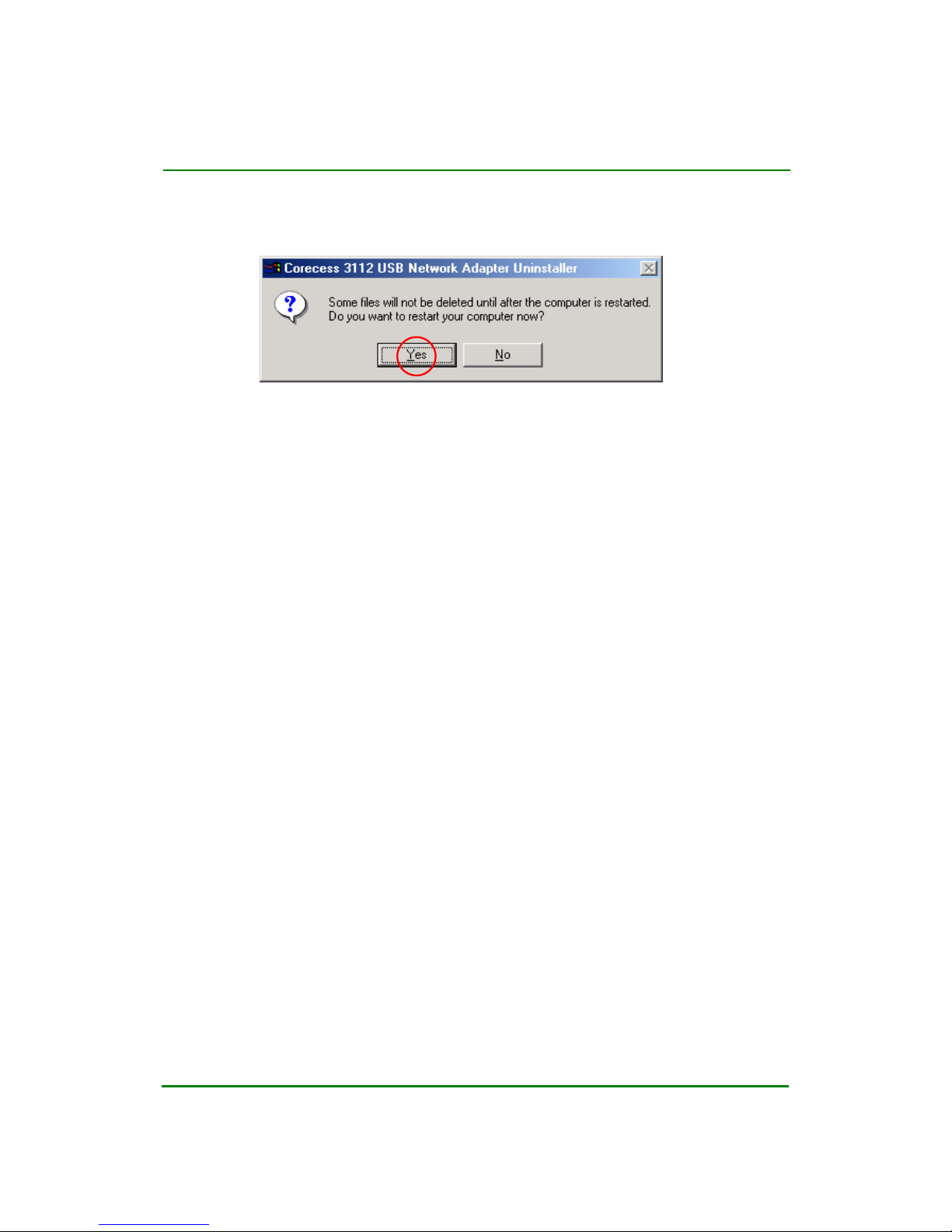
STEP 3.
After
unplug the USB cable from the PC. Select the Yes, “Do you want to
restart your computer now”.
Note)
The USB cable must be unplugged before the system is rebooted.
Page 19

Corecess 3112 ADSL USB Endpoint Modem User Guide
Doc. No. CORECESS 3112_MN_Ver1.0 Rev 0
19 / 29
http://www.CORECESS.com
Chapter 3 Configuring the Corecess 3112
After you have properly installed the Corecess 3112. If you need to change a
modem setting for Router Mode or you will review the current state of modem, You
can change the Corecess 3112 settings with an ordinary web browser such as
Microsoft Internet Explorer.
When the Corecess 3112 operates in router mode, you must change a modem
setting refer to Router mode configuration table. The following table shows the
typical configuration for using the Corecess 3112 in router mode.
< Table 3.1 Mode Configurations >
Router Mode
ADSL Service
Configuration
Bridge Mode
PPPoA / PPPoE Static IP Dynamic IP
VPI/VCI
Enter the value
provided by ISP
Default / Enter the
value provided by
ISP
Enter the value
provided by ISP
Enter the value
provided by ISP
Static I P
Address
N/A
N/A (Automatically
Assigned by ISP)
Enter the value
provided by ISP
N/A
(Automatically
Assigned by ISP)
Subnet Mask
N/A
N/A (Automatically
Assigned by ISP)
Enter the value
provided by ISP
N/A
(Automatically
Assigned by ISP)
Default
Gateway
N/A
N/A (Automatically
Assigned by ISP)
Enter the value
provided by ISP
N/A
(Automatically
Assigned by ISP)
Encapsulation
1483 Bridged IP
LLC
PPPoA VC-Mux /
PPPoE LLC
1483 Bridged IP
LLC
1483 Bridged IP
LLC
PPP User
Name
N/A
Enter the name
provided by ISP
N/A N/A
PPP
Password
N/A
Enter the password
provided by ISP
N/A N/A
WAN
DHCP Client
Disable Disable Disable Enabled
IP Address
N/A 10.0.0.2 (Default)
10.0.0.2
(Default)
10.0.0.2 (Default)
Subnet Mask
N/A
255.255.255.0
(Default)
255.255.255.0
(Default)
55.255.255.0
(Default)
LAN
DHCP Server
Enable Enabled Enabled Enabled
DNS
N/A
N/A (Automatically
Assigned by ISP)
Enter the value
provided by ISP
N/A
(Automatically
Assigned by ISP)
Note) When it is N/A, it means it does not apply to the encapsulation.
Page 20

Corecess 3112 ADSL USB Endpoint Modem User Guide
Doc. No. CORECESS 3112_MN_Ver1.0 Rev 0
20 / 29
http://www.CORECESS.com
3.1 Before Configuration
Before you configure the Corecess 3112 modem, you should get the following
information:
Connection Mode
The connection mode your Internet Service Provider (ISP) is supporting.
y
Bridge (RFC 1483) mode
y
Router (PPPoA/ PPPoE) mode
The default connection mode is PPPoA VC-Mux. After the driver installation has
completed according to this manual.
VPI/VCI
The number of PVC your service provider is giving you together with their virtual
path identifiers (VPIs) and virtual channel identifiers (VCIs). The default number of
PVC is follows:
y
VPI : 8
y
VCI : 35
User ID and Password
Point-to-Point Protocol (PPP) client name that is assigned as your login name and
PPP password to access your ISP account.
Check the Connection Status
Before you configure Corecess 3112 modem, check the connection status with
your computer.
Check the Power LED
Check the Power LED. If LED is on, the Corecess 3112 is normally connected to
USB port on your PC.
Page 21
Corecess 3112 ADSL USB Endpoint Modem User Guide
Doc. No. CORECESS 3112_MN_Ver1.0 Rev 0
21 / 29
http://www.CORECESS.com
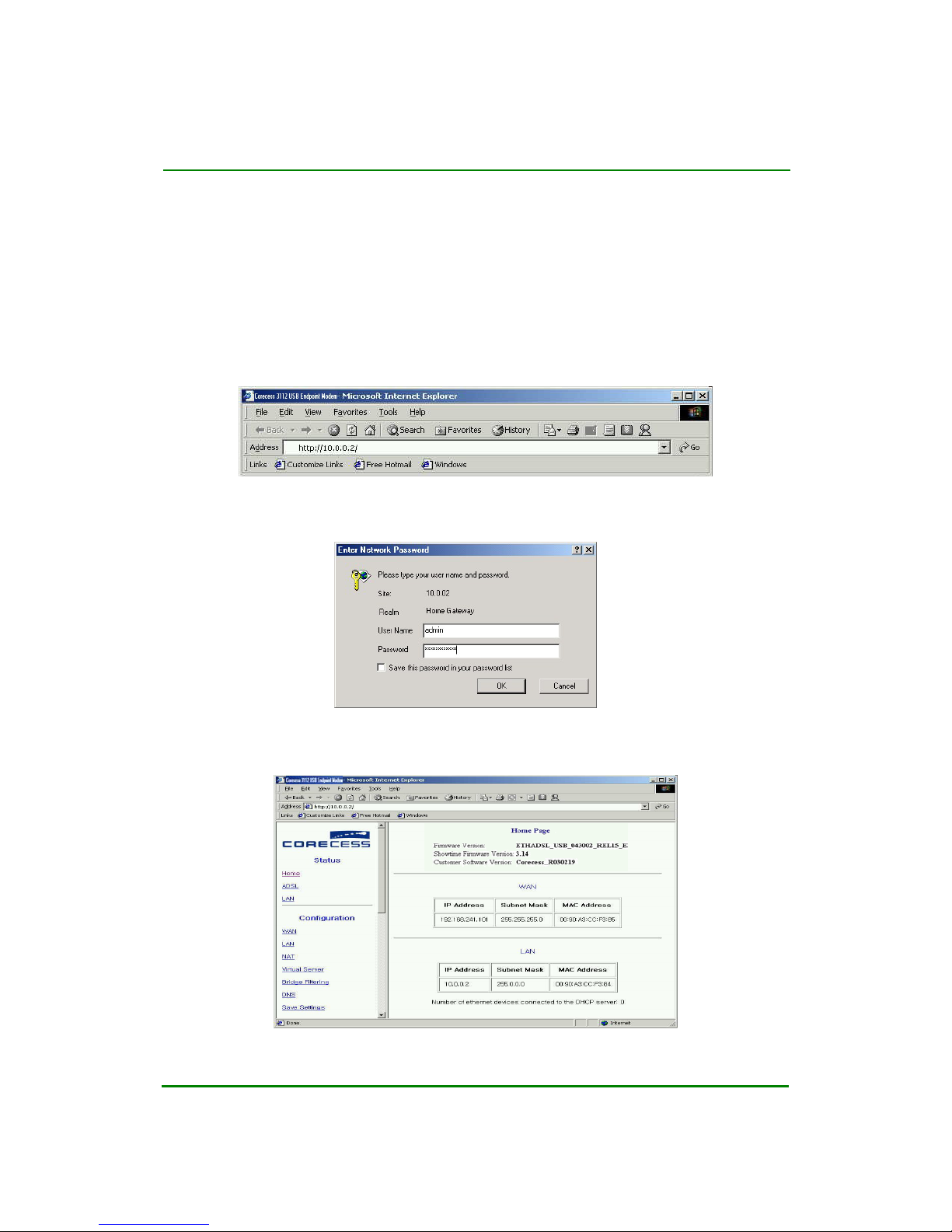
3.2 Logging on to the Web Console
Log on to the web console to configure the Corecess 3112 as follows:
1. Launch the web browser (ex. Internet explorer) installed in your PC.
2. Enter ‘http://10.0.0.2/’ for the web console page in the browser locator field and
press the [Enter].
3. The following window appears for user authentication. Enter the user name
“admin” and the password “corecess3112” and click OK.
4. When the user authentication is successful, the web console home page
appears.
Page 22
Corecess 3112 ADSL USB Endpoint Modem User Guide
Doc. No. CORECESS 3112_MN_Ver1.0 Rev 0
22 / 29
http://www.CORECESS.com
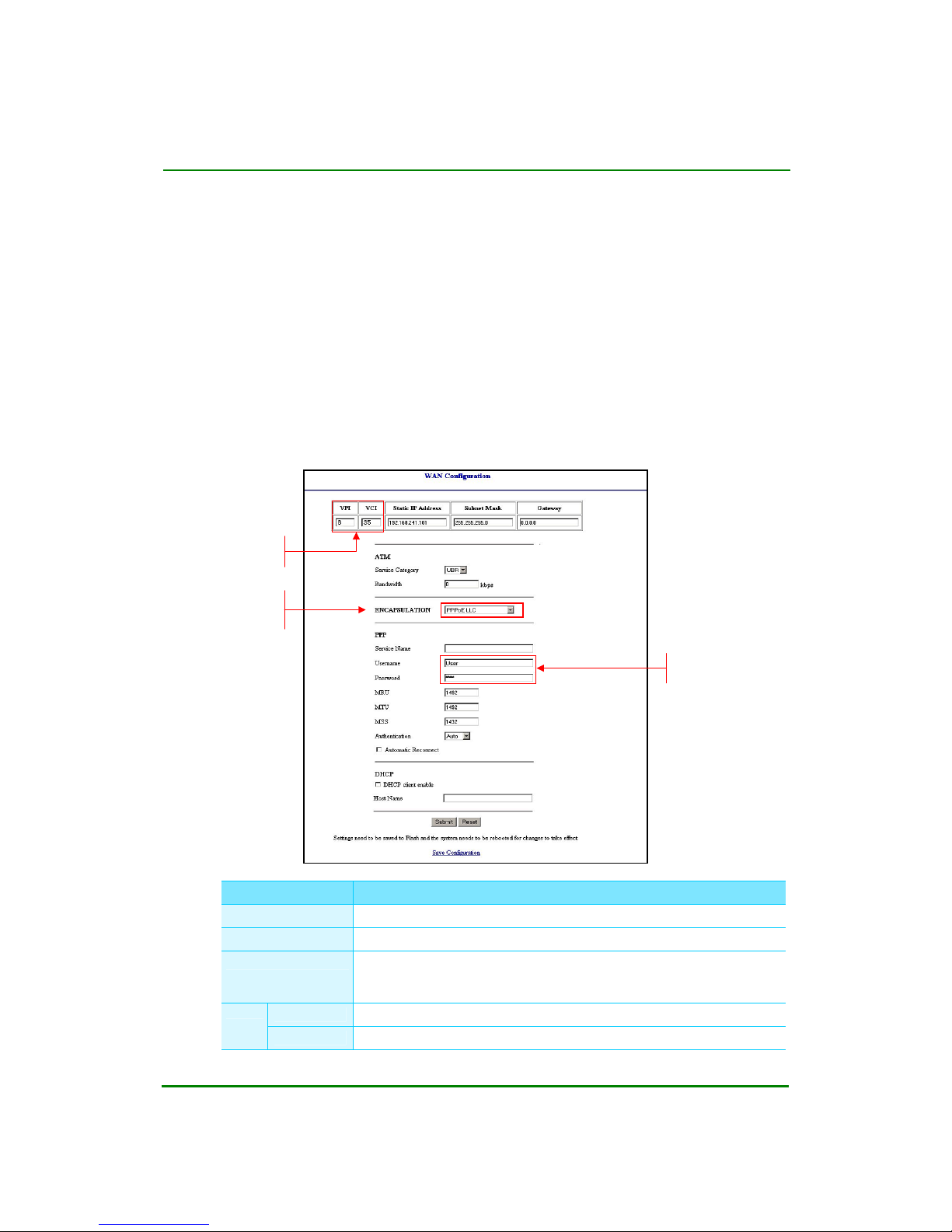
3.3 Configuring the Router (PPPoA/PPPoE) Mode
Your ISP supports the router (PPPoA/PPPoE) connection mode, configure the
Corecess 3112 as follows:
Note)
This section describes the only parameters must to be changed for the
router mode. There is no need to change the parameter values that are not
described in this section. To alter other parameter values, consult your
service provider.
1. Click the
Configuration Î WAN
on the menu frame of web console.
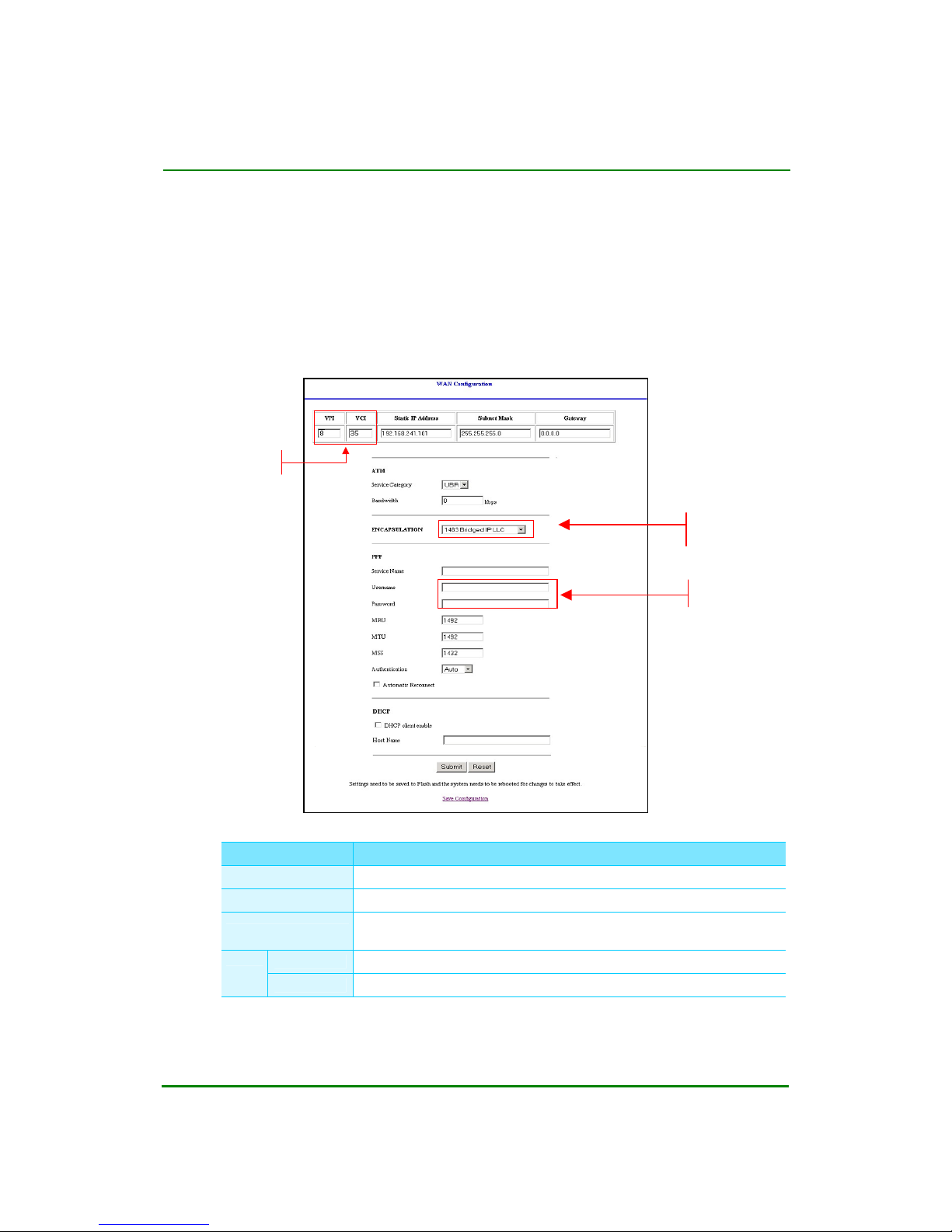
2. The <WAN Configuration> page appears. Enter the following information and
click Submit.
Parameter Description
VPI Enter the VPI value specified by your ISP. The default VPI is ‘8’.
VCI Enter the VCI value specified by your ISP. The default VCI is ‘35’.
ENCAPSULATION
Select ADSL router service type supported by your ISP.
y PPPoA VC-Mux : When your ISP provides the PPPoA service.
y PPPoE LLC : When your ISP provides the PPPoE service.
Username Enter the user login ID associated with ADSL connection.
PPP
Password Enter the user’s password.
Enter VPI and VCI
value
Select the ADSL
router service type
of your ISP
Enter user login
ID and password
Page 23
Corecess 3112 ADSL USB Endpoint Modem User Guide
Doc. No. CORECESS 3112_MN_Ver1.0 Rev 0
23 / 29
http://www.CORECESS.com
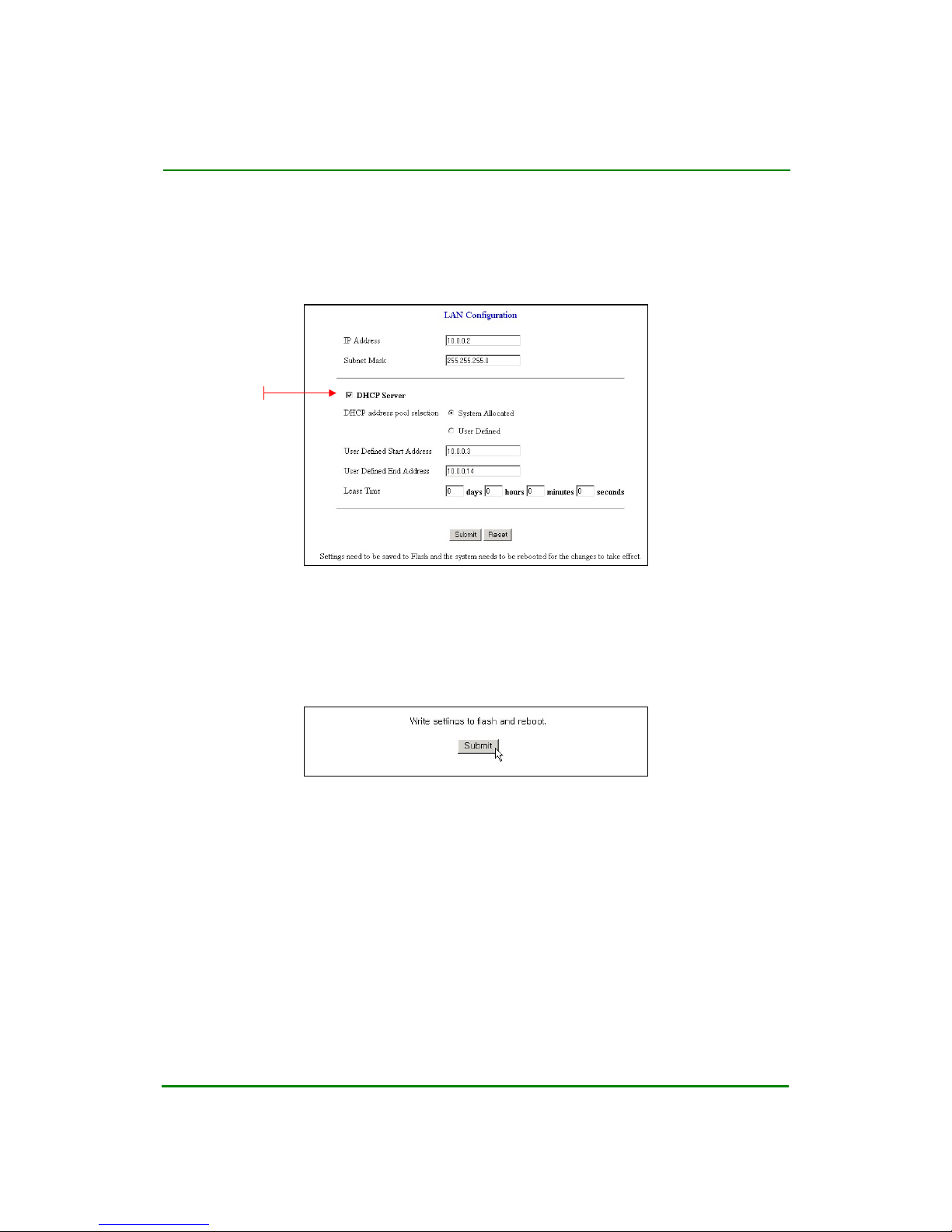
3. To select whether you want to enable or disable DHCP, click the Configuration
Î LAN
on the menu frame of web console.
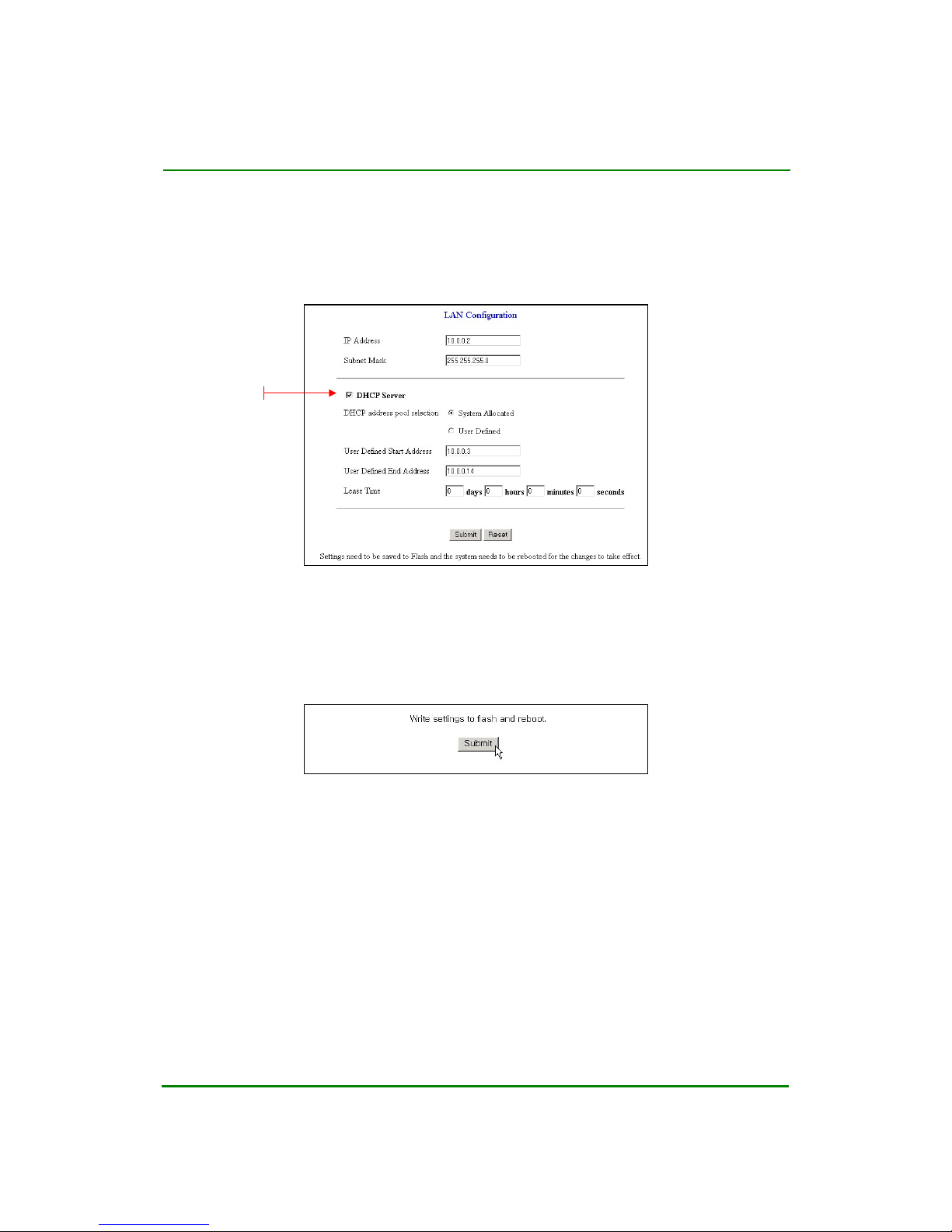
4. The <LAN Configuration> page appears. Left click in the DHCP Server check
box to enable DHCP and click Submit.
5. To apply changed configurations, click the Configuration Î Save Settings on
the menu frame of web console.
6. The following page appears, click Submit. After saving changed configurations,
the modem will be restarted to apply it.
Left clic
k
Page 24
Corecess 3112 ADSL USB Endpoint Modem User Guide
Doc. No. CORECESS 3112_MN_Ver1.0 Rev 0
24 / 29
http://www.CORECESS.com
3.4 Configuring the Bridge (RFC 1483) Mode
Your ISP supports the bridge (RFC 1483) connection mode, configure the
Corecess 3112 as follows:
1. Click the
Configuration Î WAN
on the menu frame of web console.
2. The <WAN Configuration> page appears. Enter the following information and
click Submit.
Parameter Description
VPI
Enter the VPI value specified by your ISP. The default VPI is ‘8’.
VCI
Enter the VCI value specified by your ISP. The default VCI is ‘35’.
ENCAPSULATION
Select ADSL bridge service type supported by your ISP.
y 1483 Bridge IP LLC
Username
Empty
PPP
Password
Empty
Enter the VPI
and VCI values
Select
“1483 Bridged IP
LLC”
Empty
Page 25
Corecess 3112 ADSL USB Endpoint Modem User Guide
Doc. No. CORECESS 3112_MN_Ver1.0 Rev 0
25 / 29
http://www.CORECESS.com
3. To select whether you want to enable or disable DHCP, click the Configuration
Î LAN
on the menu frame of web console.
4. The <LAN Configuration> page appears. Left click in the DHCP Server check
box to enable DHCP and click Submit.
5. To apply changed configurations click the Configuration Î Save Settings on
the menu frame of web console.
8. The following page appears, click Submit. After saving changed configurations,
the modem will be restarted to apply it.
Note) In case of using Bridge Mode, you should install PPPoE client software
(WinPoET, EnterNet300…Etc.). Please, consult your service provider.
Left clic
k
Page 26
Corecess 3112 ADSL USB Endpoint Modem User Guide
Doc. No. CORECESS 3112_MN_Ver1.0 Rev 0
26 / 29
http://www.CORECESS.com
Appendix A. Troubleshooting
If you cannot connect to ADSL network, please check the status of the LEDs on the
front panel, and then ensure the following:
1. Check the POWER LED
If the POWER LED is not solid
, check to make certain that the usb cable is
plugged securely into your computer.
2. Check the LINK LED
If the LINK LED blinks continuously and never stays solid on
, ensure that the
ADSL cable is firmly connected to the “ADSL port” on the Corecess 3112 . If the
LINK LED still blinks, contact your ADSL service provider.
If the LINK LED is not solid
, connect again the Corecess 3112 and your
computer using USB Cable. If LINK LED still blinks, contact your ADSL service
provider.
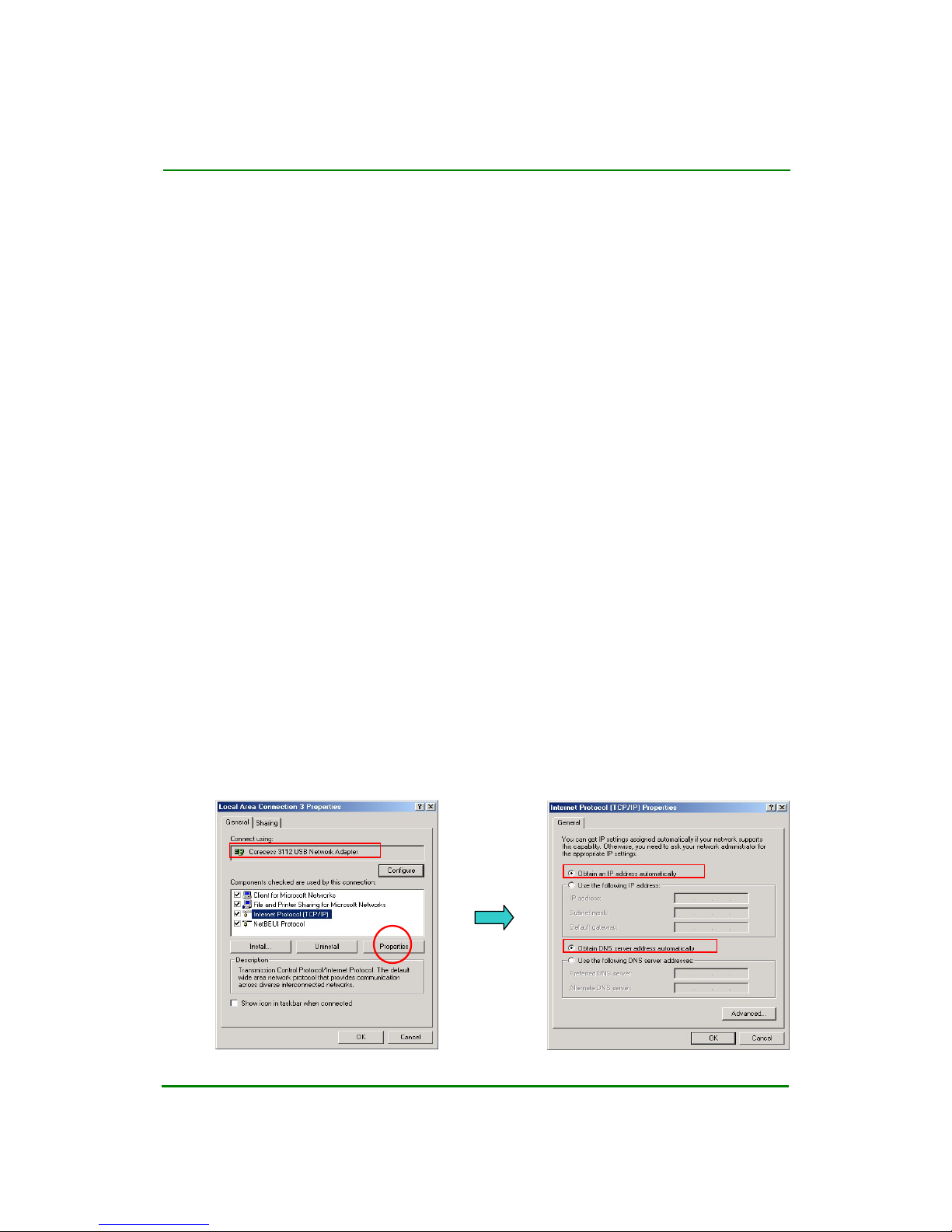
3. Check your PC’s IP address
If all LEDs operate normally and cables are firmly connected to the ports,
ensure that your PC’s IP address is properly assigned. Your PC’s IP address
setting must be dynamic IP (Obtain an IP automatically).
Check the
Network Neighborhood
(for Windows 9x) or
My Network Places
properties Æ
Local Area connection’s properties
.
< Windows 2000 >
Page 27
Corecess 3112 ADSL USB Endpoint Modem User Guide
Doc. No. CORECESS 3112_MN_Ver1.0 Rev 0
27 / 29
http://www.CORECESS.com
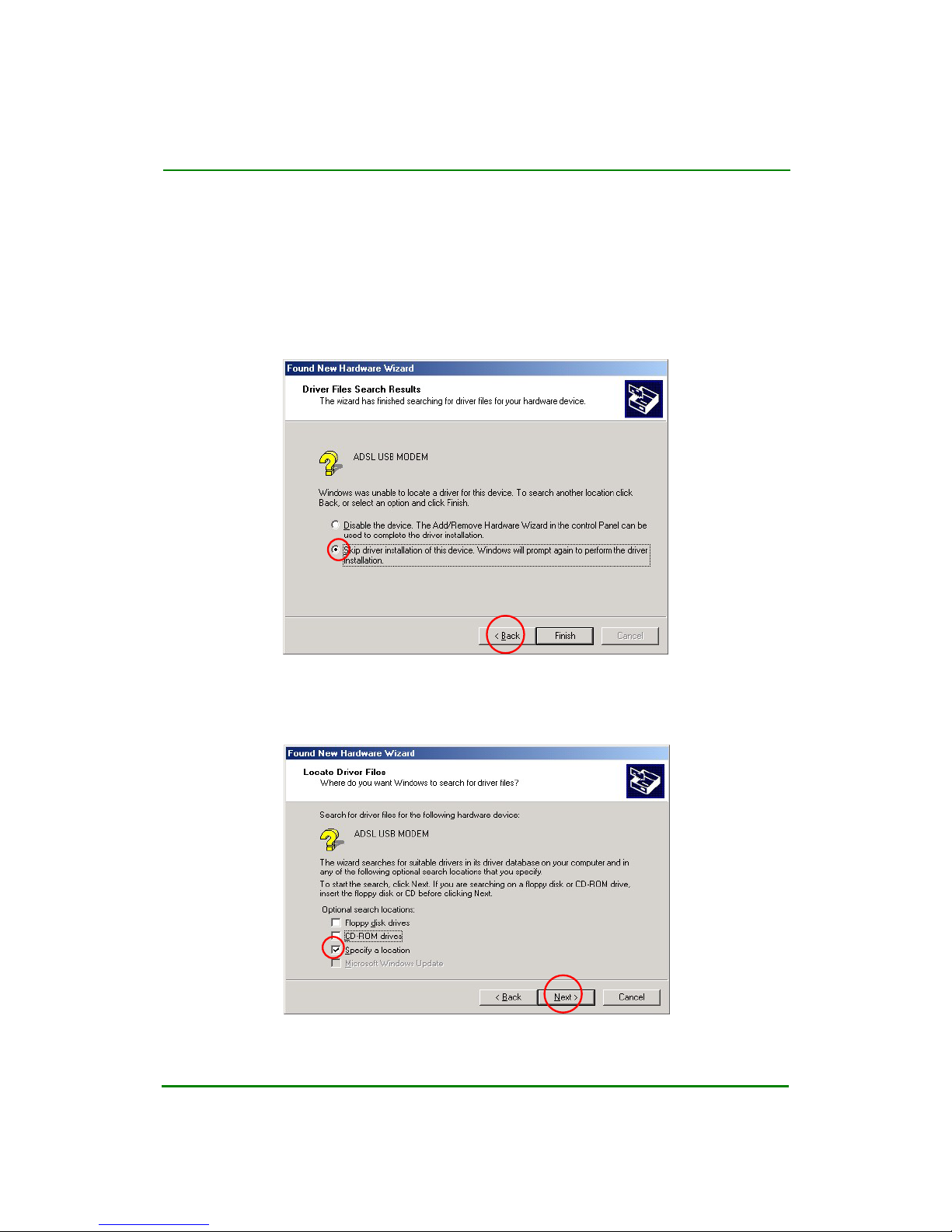
4. Windows does not find the drivers automatically
If Windows does not find the drivers automatically, take the following steps to
search another location. (Windows 2000)
STEP 1.
Choose the option that allows “
Skip driver installation…
” by
clicking inside the circle to the left of it; click
Back.
STEP 2.
Select the Specify a location option with no other options selected
and click
Next.
Page 28
Corecess 3112 ADSL USB Endpoint Modem User Guide
Doc. No. CORECESS 3112_MN_Ver1.0 Rev 0
28 / 29
http://www.CORECESS.com
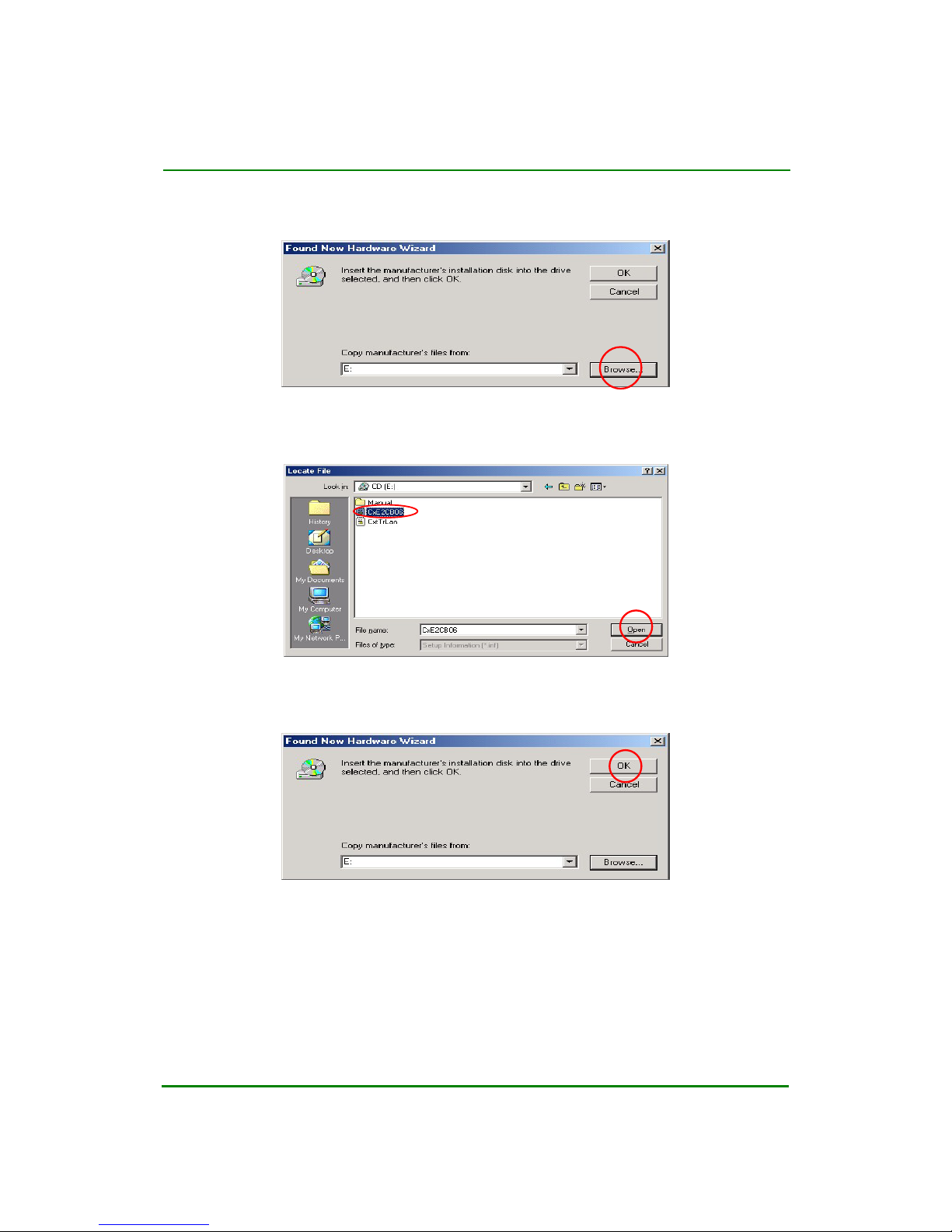
STEP 3.
STEP 4.
STEP 5.
A window will be displayed below picture, click
OK.
You will select
CxE2CB06.inf
in CD-ROM. And click
Open.
A window will be displayed below picture, click
Browser.
Page 29

Corecess 3112 ADSL USB Endpoint Modem User Guide
Doc. No. CORECESS 3112_MN_Ver1.0 Rev 0
29 / 29
http://www.CORECESS.com
Appendix B. Technical Specifications
Description Specification
ADSL
Compliance
y Compliant with ADSL standards
- Full-rate ANSI T1.413 Issue 2
- ITU-T G.992.1 (G.dmt) / ITU-T G.992.2 (G.lite)
y DMT modulation and demodulation
y Full-rate adaptive modem
- Downstream: up to 8Mbps. Max
- Upstream: up 1Mbps.max
y Interoperable with all major DSLAM equipment
- Annex A (ADSL over POTS) and Annex B (ADSL over POTS)
Protocol
Supported
y
WAN mode support:
- PPP over ATM (RFC 2364)
- PPP over Ethernet (RFC 2516)
y LAN mode support:
- Bridged/ Routed Ethernet over ATM(RFC 1483)
- Classical IP over ATM (RFC 1577)
y ATM ALL5 (Adaptation layer type 5)
y ATM SAR (Hardware SAR)
y OAM F4/F5
y DHCP Server and Client
y NAPT (Network address and port translation)
- Dynamic NAT (Network address translation)
Loop Length
Up to 18,000 feet (about 5.4km)
Security
y User authentication for PPP
y
PAP (password authentication protocol)
y
CHAP (challenge authentication protocol)
USB Interface
y Compliant with USB Specifications, Rev. 1.1
y
Modem Interface: ADSL Line / RJ-11
Phone Line / RJ-11
Operating
System Support
Windows 98SE, Me, 2000, XP
Management &
Configuration
TFTP / HTTP Web based
Environmental
Requirements
y Operating Temperature: 0℃ ~ +45℃
y Operating Humidity: 10% ~ 90%
Power
Requirement
y USB Bus Powered (No external power required)
y +5Vdc, 430mA.max
Dimension
74(W) × 93(D) × 24(H) mm
Weight
Max 90g
LED Indicators
POWER, LINK, DATA
 Loading...