

Page 1
QUICK START GUIDE
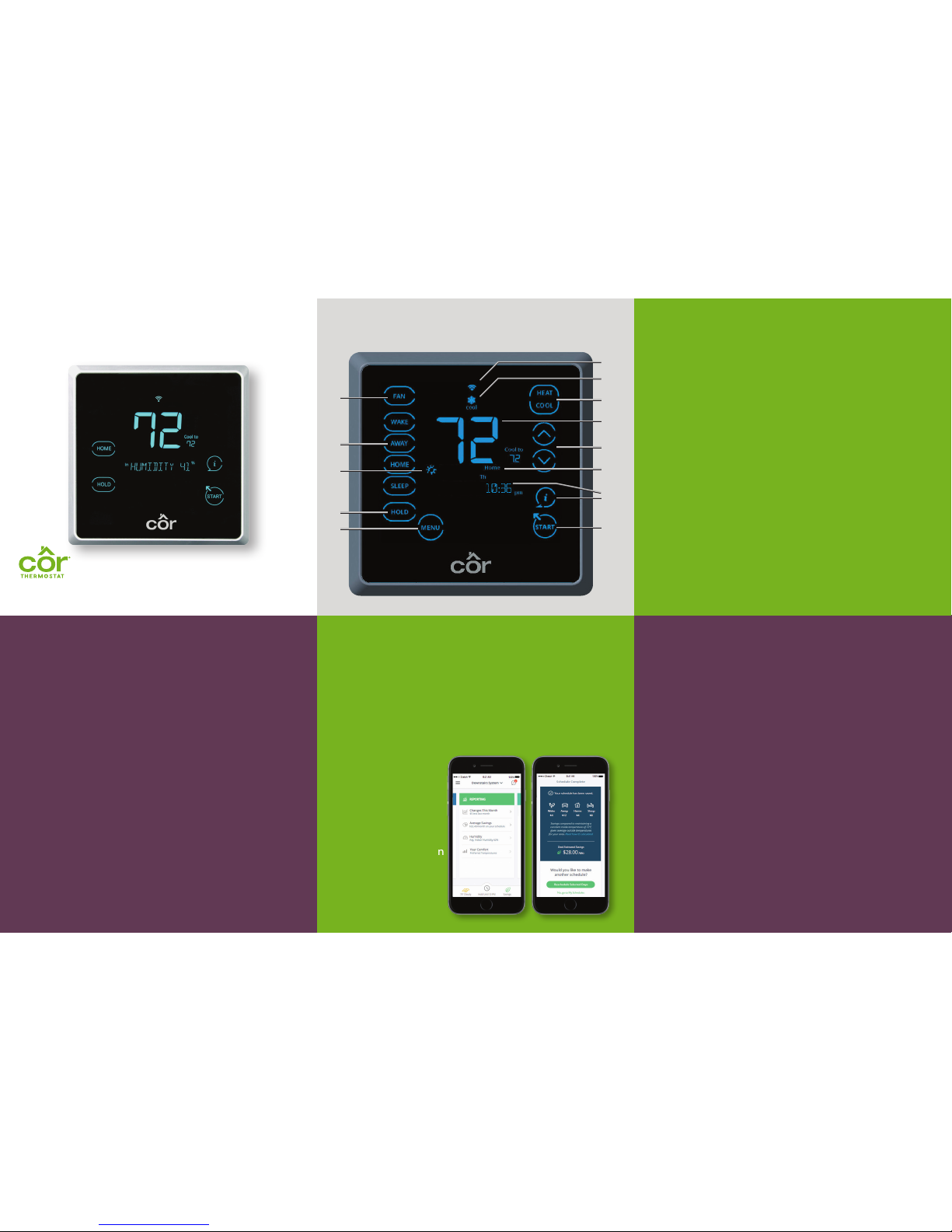
TH ERMOS TAT FEATURES
A
B
D
F
G
I
K
L
M
J
H
E
C
THE THERMOSTAT THAT SHOWS YOU
HOW TO USE ENERGY MORE EFFICIENTLY.
AT THE TOUCH OF A BUTTON.
TOUCH START TO BEGIN.
CÔR® 7C
ADDITIONAL SUPPORT
For owner’s manual, registration and more helpful
information, visit mycorhome.com.
Questions/Comments? We want to hear from you!
Call us: 844-692-6746 or (844) MY-COR-HOME
CUSTOMIZE YOUR COMFORT SETTINGS
ENERGY REPORTS AND TIPS
Starting today, the Côr® thermostat will begin
tracking your energy costs and learning about your
home to help you decrease your energy usage.
In about a month, your first Côr 7C energy report
will be available on your mobile app, and you’ll see
how your system has performed.
After creating
your schedule, you
will be given an
estimated savings
for the month.
You can use this
valuable information
to optimize
energy usage and
future savings.
Use your mobile app to adjust your comfort from
anywhere in the home, or while you’re away.
Comfort Profiles
Dial in your preferred comfort level with temperature,
fan and humidity settings. Set up standard profiles
like Wake, Home, Away and Sleep or create your own
custom profile.
Guided Scheduling
The Guided Scheduling feature will prompt you with
simple questions to help you customize a schedule
which meets your desired comfort level and lifestyle.
Geofencing
Geofencing will allow you to put your thermostat
into Away mode every time you leave your home,
saving you energy without thinking about it.
(Available on Wi-Fi
®
connected thermostat.)
©2017 Côr™ Home Automation 10/2017.
Wi-Fi® is a registered trademark of the Wi-Fi Alliance Corporation.
QSCOR7C-01
A.
B.
C.
D.
E.
F.
G.
H.
I.
J.
K.
L.
M.
Fan mode (On/Auto)
Touch•N•Go® mode
Weather
Hold
Menu options
Start button -- wakes up the screen from idle
Information button and display
Active period (Wake, Away, Home, Sleep)
and day of the week
Temperature adjustment and set point (up/down)
Indoor temperature
Change equipment mode (Heat, Cool, etc.)
Active equipment mode
Wi-Fi® signal strength
Page 2
CONNECT THE THERMOSTAT TO THE MOBILE APP
On Your Smartphone
NOTE: The thermostat needs to be connected to Wi-Fi® before
proceeding. Download the free Côr® 5C/7C Thermostat app
from your applicable Android™ or iPhone application store.
From the mobile app sign-in screen:
1. Touch “No Login?” (below the Sign In button).
2. Touch “Let’s Get Started.”
3. “Is your thermostat installed on the wall?” Select YES.
4. “Is your thermostat connected to Wi-Fi?” Select YES.
5. Read and accept the Terms & Conditions agreement.
Get serial number and registration code
6. From the thermostat, you will need two pieces of
information to create your account in the app:
A. Get the four-digit registration code:
a. Touch MENU.
b. Use the arrows until “WI-FI” is blinking.
c. Touch SELECT.
d. Use the arrows until “REG CODE” is blinking.
e. Touch SELECT. Thermostat will display “REQUESTING.”
Four-digit registration code will display.
(This may take a minute. If it says OFFLINE, ensure the
thermostat is connected to Wi-Fi first.)
f. Enter the registration code in the app. The REG code
will only be valid for 20 minutes.
B. Get the serial number (in Wi-Fi menu):
a. Touch MENU.
b. Use the arrows until “SERIAL NUM” is blinking.
c. Touch SELECT.
d. Enter the serial number in the app.
e In the app, touch NEXT to create your account.
7. Fill out the requested information. Be sure to verify it is
entered correctly. Your email address is your login ID.
8. Scroll down to complete the Home Setup section.
This information is used to calculate your monthly energy
reports. The reports will be available in the app each month.
9. Touch NEXT.
10. The mobile app will now ask for your location. Either use
the location services address or enter the address where
the thermostat is installed.
11. You will then be prompted to enter your schedule.
Continue through scheduling to complete the setup process.
Simple Wi-Fi® Setup Using Your Smartphone
After your Côr® 7C Thermostat is installed and set up by your
dealer, you will need to connect the thermostat to your Wi-Fi
network to control your home’s comfort from anywhere with
the free mobile app. This is a simple process and will only take
a few minutes using your iOS or Android™ phone. Download
the free Côr 5C/7C Thermostat app from Google Play or the
iPhone App Store.
Open the Côr 5C/7C Thermostat app on your phone:
1. Touch “No Login?” (below the Sign In button).
2. Touch “Let’s Get Started.”
3. “Is your thermostat installed on the wall?” Select YES
if installed by your dealer.
4. “Is your thermostat connected to Wi-Fi?” Select NO
to set up Wi-Fi.
5. The app will guide you through the process to get a list
of local networks for your thermostat.
Mobile app instruction for iPhone:
1. Under iPhone settings, go to Wi-Fi® settings and select the
Côr 7C thermostat.
2. Enter the thermostat’s password: 12345678. Select Join.
3. Once successful, go back to the mobile app.
4. Select “I’m Connected.”
5. Once connected to the thermostat, the mobile app will
display a list of local networks. Touch Next.
6. Enter your home router’s password and select
“Connect Thermostat to Wi-Fi.”
Mobile app instruction for Android™:
1. Touch “See Local Networks” and select the
Côr 7C thermostat.
2. Enter the thermostat’s password: 12345678. Select Join.
3. Once successful, go back to the mobile app.
4. Select your network and touch Next.
5. Enter your home router’s password and select
“Connect Thermostat to Wi-Fi.”
CONNECTING YOUR CÔR® 7C WI-FI®
On the thermostat:
Select your network:
1. From the main screen press MENU.
2. Use the arrows until “WI-FI” is blinking. Touch SELECT.
3. Use the arrows until “SCAN WI-FI” is blinking.
Touch SELECT.
4. Use the arrows until your network name is showing.
Touch SELECT.
5. Use the arrows until “SETUP-N-APP” is blinking.
Touch SELECT.
6. Use the arrows until “ENABLED” is showing.
7. Touch START to return Home.
8. When the thermostat says AP ACTIVE below the
room temperature, continue to next screen in app.
A
B
C2
C1
Wi-Fi weather setup, enter the ZIP/postal code:
1. On the thermostat, touch MENU.
2. Use the arrows until “WI-FI” is blinking.
Touch SELECT.
3. Use the arrows until “POSTAL CODE” is blinking.
Touch SELECT.
4. Use the arrows to change each number. Touch NEXT
to move to the next number.
5. Repeat until all numbers are entered.
6. Touch START to return to the home screen. It may take up
to 15 minutes for the weather to show on the thermostat.
Set up Humidity Control feature:
1. Touch MENU. (If the menu button is not visible,
touch STAR T and then MENU.)
2. Use the arrows until “SETTINGS” is blinking.
Tou ch SELECT.
3. Use the arrows until “HUMIDIFY” is blinking.
Tou ch SELECT.
4. Set Humidity to Normal, Auto or Off using the arrows.
Note: Auto mode controls humidity based on outdoor
temperature and creates comfortable humidity levels in the
home while preventing condensation from forming on windows.
D
E
Côr 5C/7C
Android is a trademark of Google Inc.
 Loading...