

Page 1
QUICK START GUI DE
ADDITIONAL SUPPORTTH E R M OS TAT FEAT U R E S
For owner’s manual, registration and more helpful
information, visit mycorhome.com.
Questions/Comments? We want to hear from you!
Call us: 844-692-6746 or (844) MY-COR-HOME
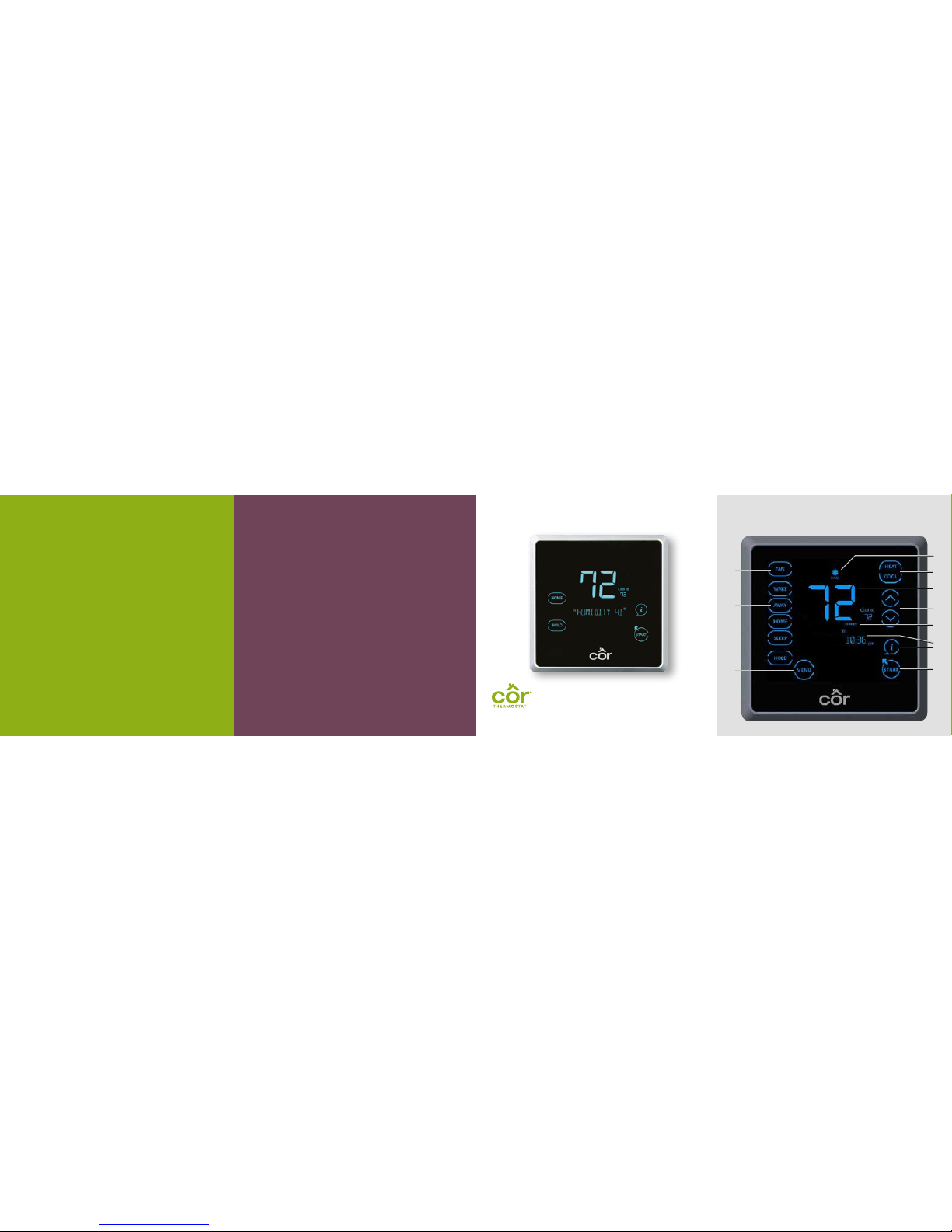
A. Fan mode (On/Auto)
B. Touch•N•Go® mode
C. Hold
D. Menu options
E. Start button -- wakes up the screen from idle
F. Information button and display
G. Active period (Wake, Away, Home, Sleep)
and day of the week
H. Temperature adjustment and set point (up/down)
I. Indoor temperature
J. Change equipment mode (Heat, Cool, etc.)
K. Active equipment mode
A
B
C
E
F
H
J
K
I
G
D
TOUCH START TO BEGIN.
CÔR® 7
©2017 Côr™ Home Automation. QSCOR7X
Page 2

Setting up your schedule times
1. If the MENU button is not visible, touch S TAR T .
2. Touch MENU and then the arrows until “SCHEDULE”
is blinking. Touch SELECT.
3. Use the arrows until “PROGRAM” is blinking.
Touch SELECT.
4. “ALL DAYS” should be listed with all of the days blinking.
Use the arrows to scroll through the options
(All Days, Weekdays, Weekend or each individual day).
Touch SELECT to select one of them.
5. Above the days of the week, the word “WAKE” is shown.
That is the time you wake up in the morning.
6. Set the hour you wake up with the arrows. Select NEXT
to change minutes and am/pm, respectively.
Touch NEXT to move to “AWAY.”
7. Repeat step 6 for “AWAY,” “HOME” and “SLEEP” periods.
8. Repeat until all days of the week have been scheduled.
9. Touch STA RT to exit.
Setting up your program period temperatures and
programmable fan settings (Wake, Away, Home, Sleep)
1. If the MENU button is not visible, touch S TAR T .
2. Touch MENU. “SCHEDULE” will be blinking. Touch SELECT.
3. Use the arrows until “PROFILES” is blinking.
Touch SELECT.
4. You will schedule both the desired winter and
summer temperatures.
5. In the middle of the screen you will see “WAKE” and the
“HEAT TO” temperature blinking.
6. Use the arrows to set the “HEAT TO” temperature for
Wake period. Touch NEXT.
7. Use the arrows to set the “COOL TO” temperature for
Wake period. Touch NEXT.
8. Us e the arrows to set the “FAN” mode for the
Wake period (Auto or On).
a. Auto – Runs the fan only when the system heats or
cools the home.
b. On – runs the fan continuously.
c. Touch NEXT to move to Away period.
9. Repeat steps 5–8 until all periods have been scheduled.
10. Touch S TART at any time to exit.
Setting the default Hold method
1. If the MENU button is not visible, touch the START button.
2. Touch MENU and then the arrows until “SCHEDULE”
is blinking. Touch SELECT.
3. Use the arrows until “HOLD PREFER” is blinking.
Touch SELECT.
4. Use the arrows to select one of the three options as
the default Hold (Permanent, Sched Chng, Timed Hold).
a. Permanent – Temperature setting will remain until
you make a change.
b. Timed Hold [Hold Until (time)] – Temperature will remain
at your setpoint until the time you set in this hold option.
c. Scheduled Change [Hold until (period)] – The menu
item is abbreviated as SCHED CHNG. It will hold your
temperature until the start time of your next period
(Wake, Away, Home, Sleep).
5. Touch SELECT to accept.
6. Touch STA RT to exit.
CUSTOMIZE YOUR COMFORT SETTINGS
Comfort Profi les
Dial in your preferred comfort level with temperature,
fan and humidity settings. Set up your profiles like
Wake, Home, Away and Sleep.
Guided Scheduling
Your Côr 7 gives you the option of programming
every day of the week differently. It is pre-programmed
at the factory with the same settings for all seven days.
Your schedule has four time periods: Wake, Away,
Home and Sleep. You can change your period to two
per day if someone is home all day. See “Changing
Number of Periods” in the owner’s manual.
 Loading...