

Page 1
Page 2
2
Control Solutions, Inc. | 503-410-5996 | [email protected]
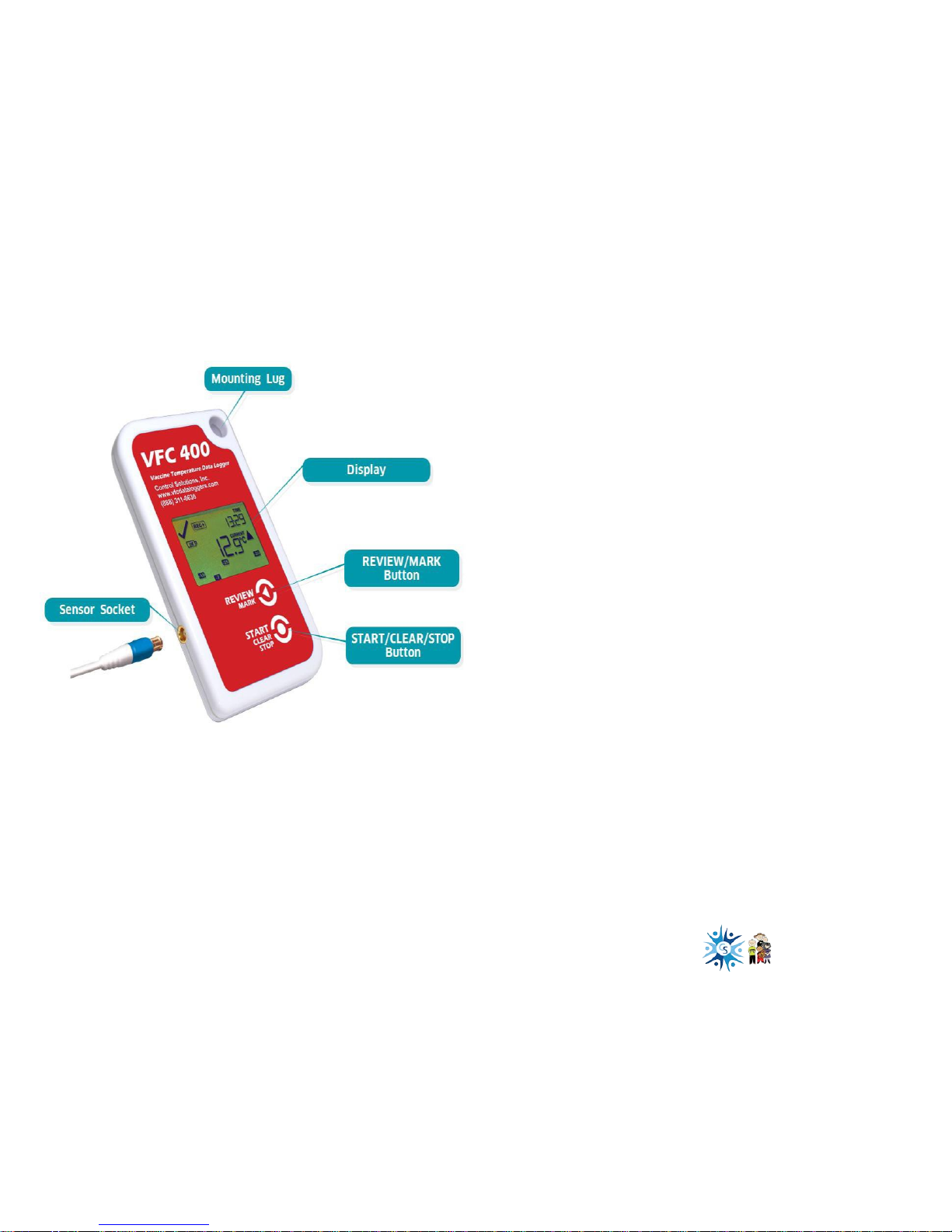
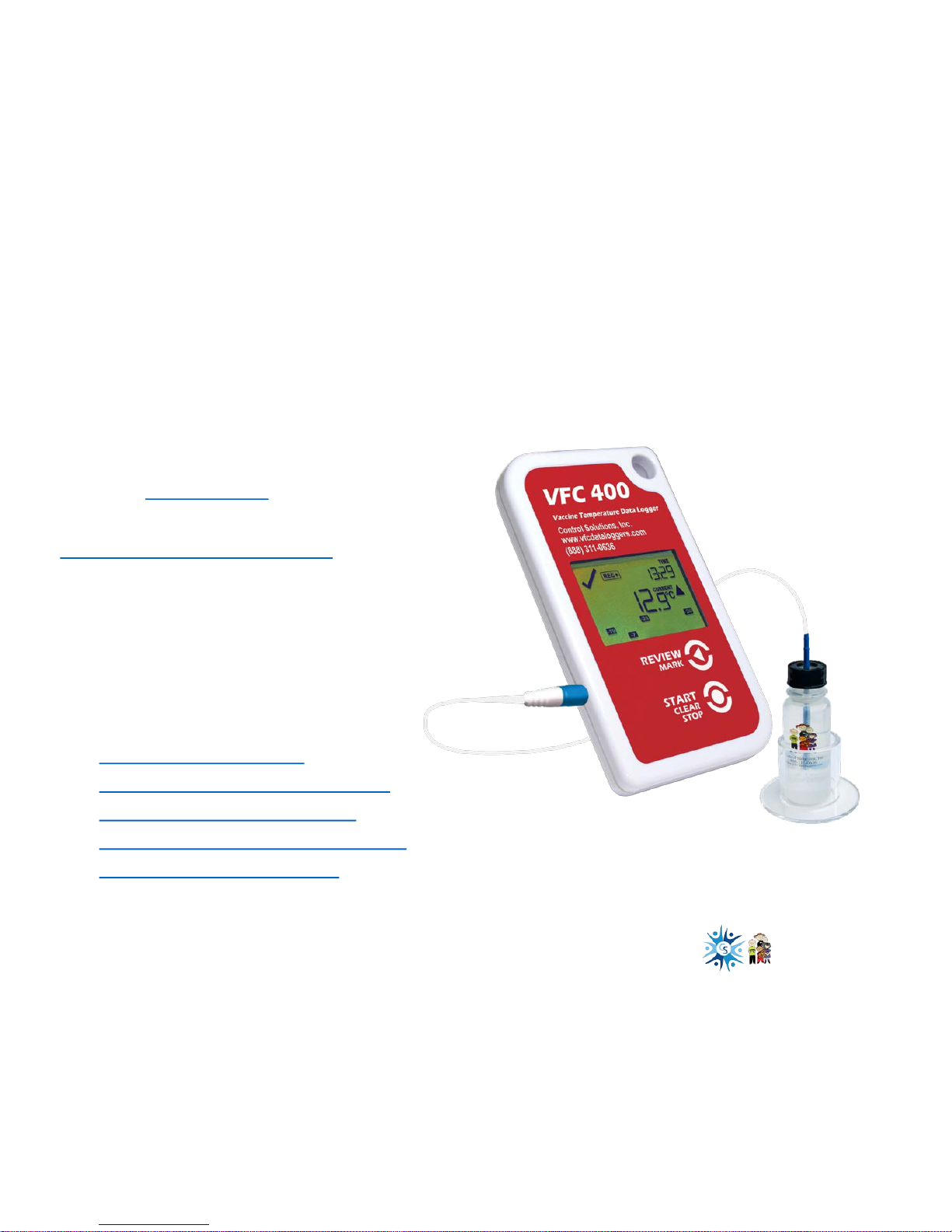
Pressing the Review/Mark button will place
the logger in review mode.
Pressing this button again while in review
mode will allow you to review up to 30 days
of min/max temperatures.
This action also places an inspection
mark in the log if recording is active.
The inspection marks validate your
twice daily temperature checks.
The Start/Clear/Stop button has
multiple functions:
Press to start your recording.
Press to stop your recording.
Press to exit the day summary mode.
Device and Buttons Actions
Overview
Page 3
3
Control Solutions, Inc. | 503-410-5996 | [email protected]
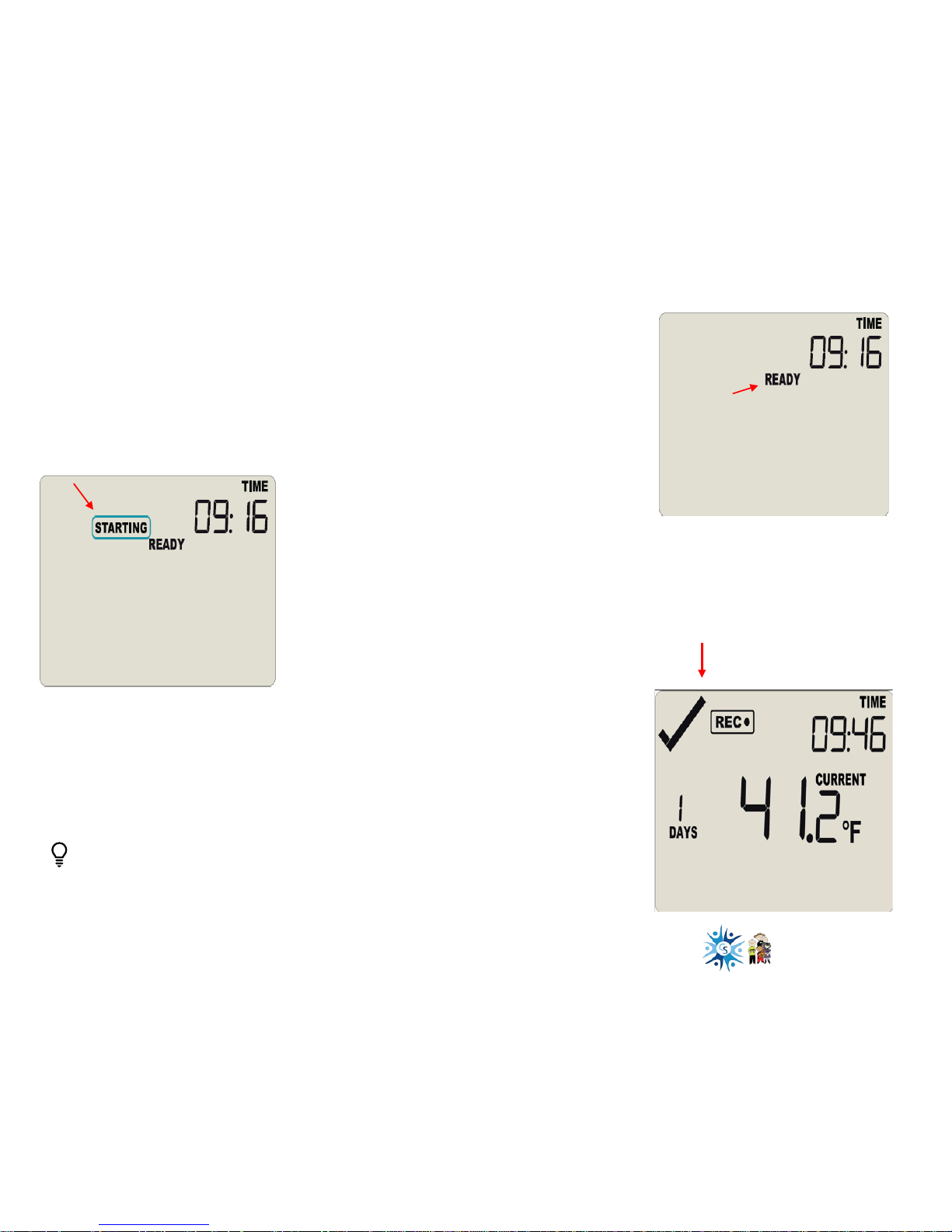
The logger must be in Ready mode for it to
be started. The logger displays READY.
Press and hold the Start/Clear/Stop button.
STARTING is displayed in addition to READY.
• Ready will disappear
• Release the button when Ready disappears
• Starting will also disappear
Starting the Logger
REC● appears indicating your logger is
recording temperature data
This check mark indicates no
alarm
Logger not starting?
Your logger will not start if…
You release the Start button before READY disappears
You hold the button longer than 2 seconds aft er READY disappears
#1
#2
#3
Page 4
4
Control Solutions, Inc. | 503-410-5996 | [email protected]
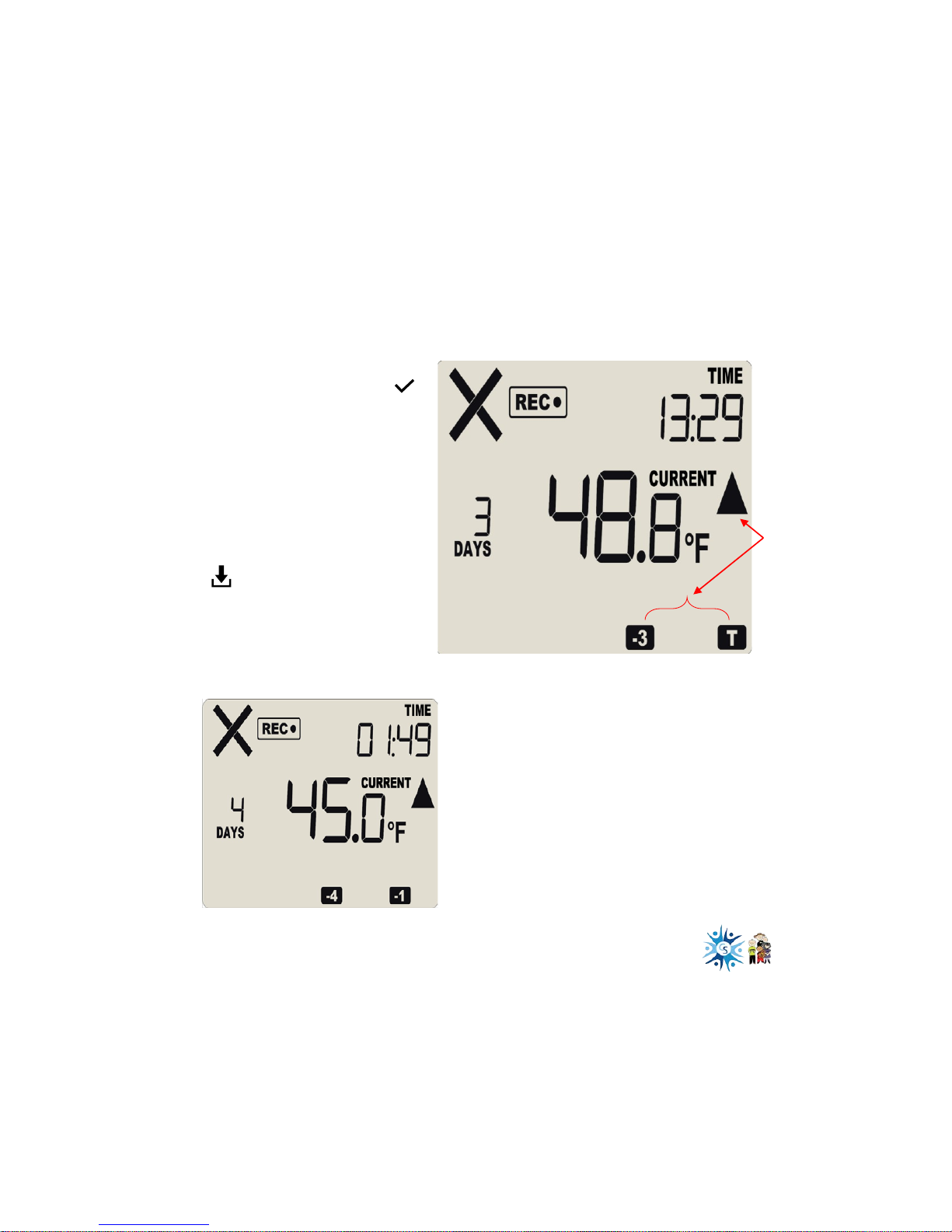
The most recently recorded
temperature, 48°F, is displayed.
This is updated at the same rate as
the logging interval.
The current time is
shown in 24hr
(military) format,
1:29pm.
An X is shown instead of
because ther e is an alarm .
The alarm day
summary shows when
an alarm was
recorded.
▲ indicates high
alarms
T indicates an alarm
today
-3 indicates an alarm
3 days ago
The number of days the log ger
has been recording is shown
here.
Remember to download data on
a regular schedule. Allowing the
memory to become full will cause
your logger to stop recording.
R eading the
Display
This example shows the next day at 1:49am
The temp is now within rang e howev er; the Xremains and
the audible alarm will continue to sound until the data is
downloaded.
The temperature has
returned to an
acceptable range but
the alarm status
remains.
The day summary has shifted by 1 day as the display time has
gone through midnight (00:00).
-4 day and -1 day are displayed indicating an alarm occurred
4 days ago and 1 day ago.
Page 5
5
Control Solutions, Inc. | 503-410-5996 | [email protected]
Reviewing
Daily
Statistics
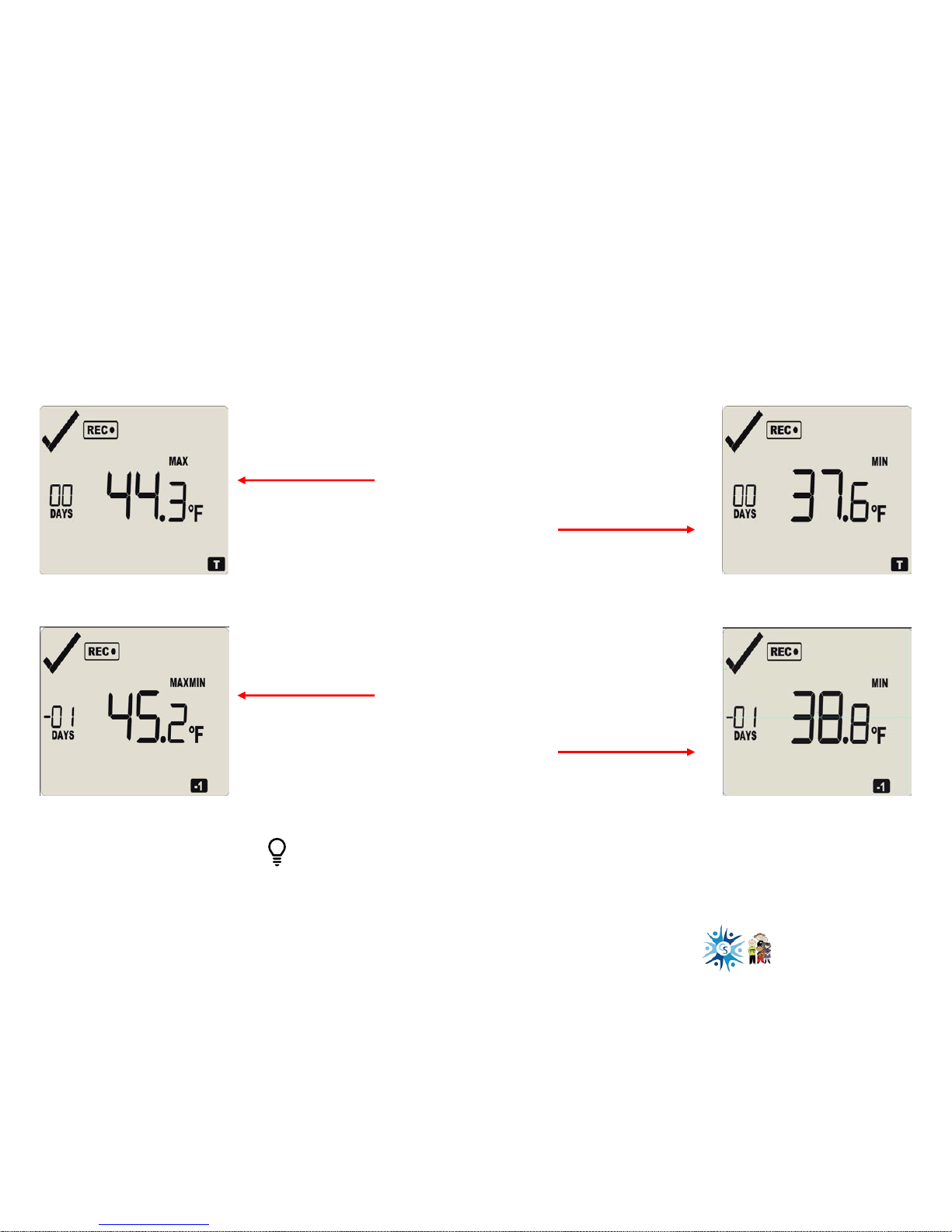
One press of the Review/Mark button puts the logger in review
mode allowing you to view minimum/maximum (min/max)
temperatures.
Min/Max temps can only be viewed when the logger is in Recording or Stopped mode.
The logger will store and display 30 days of min/max temperatures.
After pressing the review button if nothing is pressed for 30 seconds the regular display returns.
Pressing the R ev iew/Mark button again, shows the
current day’s maximum (max) temperature.
Pressing Review/Mark button again displays the
day’s minimum (min) temperature.
“T” will flash (indicating Today) | 00 Days is shown indicating ‘Today’
Pressing Review/Mark a 3rdtime shows
yesterday's max temperature.
Pres sing the Review/Mark button a 4
th
time
displays yesterday's min temperature.
-1 flashes indicating yesterday | -01 days is shown indicating “Yesterday”
Page 6
6
Control Solutions, Inc. | 503-410-5996 | [email protected]
Stopping the
Logger
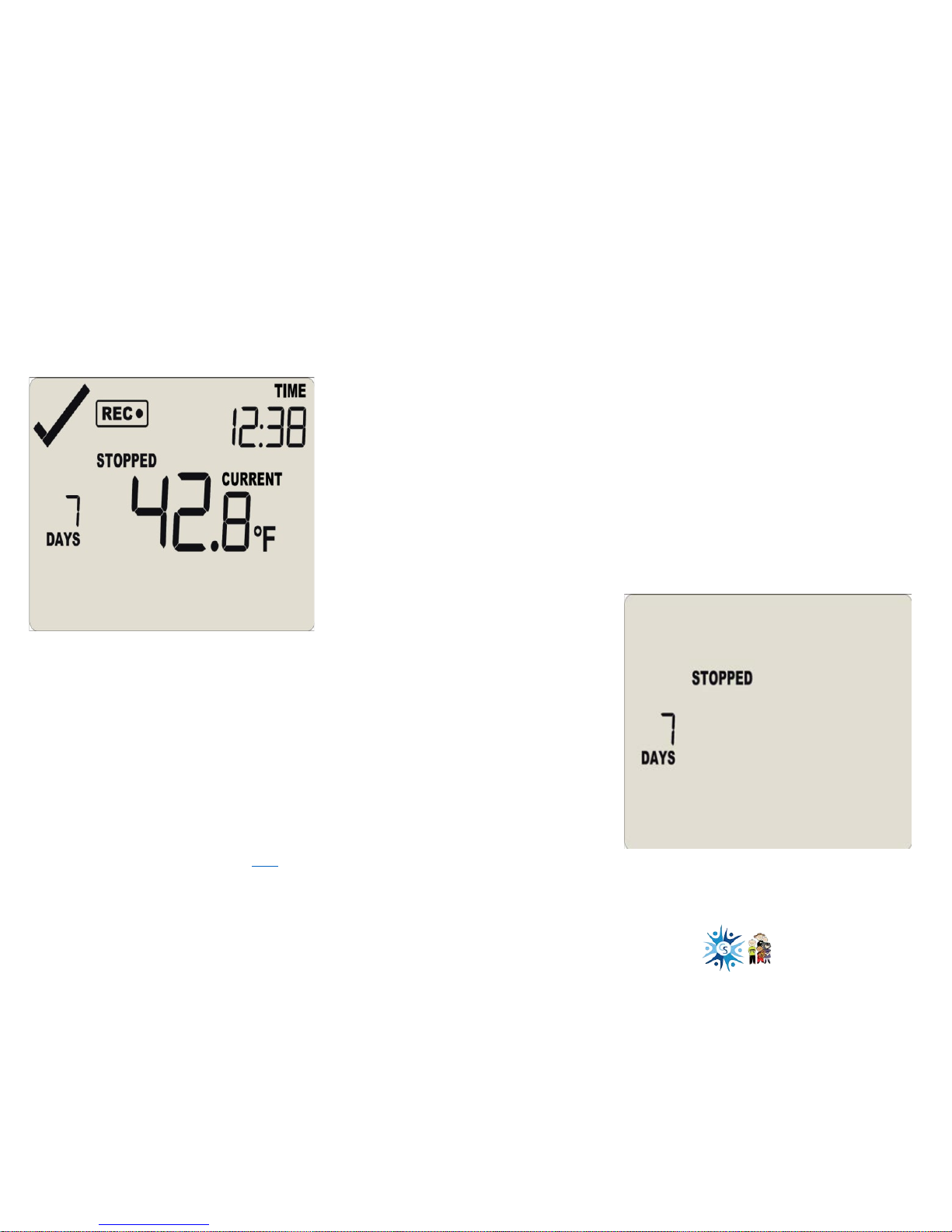
Press and hold the Start/Clear/Stop button for
1-2 seconds.
• STOPPED will appear
• REC● will disappear after 1-2 seconds
• Release t he butt on w hen REC● disappears
Stopping the logger prior to
downloading is recommended.
The display will say STOPPED and show only
the number of days collected.
Now you can download your data.
• Take the logger to your PC
• Open the Control Solutions VTMC soft w are
(you can get the software here)
• Place the logger in the docking st at ion to
download the data
Page 7
Questions about
software
download?
Visit our support page
Send us an email
7
Control Solutions, Inc. | 503-410-5996 | [email protected]
Jump to:
VFC400 Installation
VFC400 Software Download
VFC400 Software Set Up
VFC400 Logger Configuration
Data Logger Operation
 Loading...