

Page 1
Product Guide
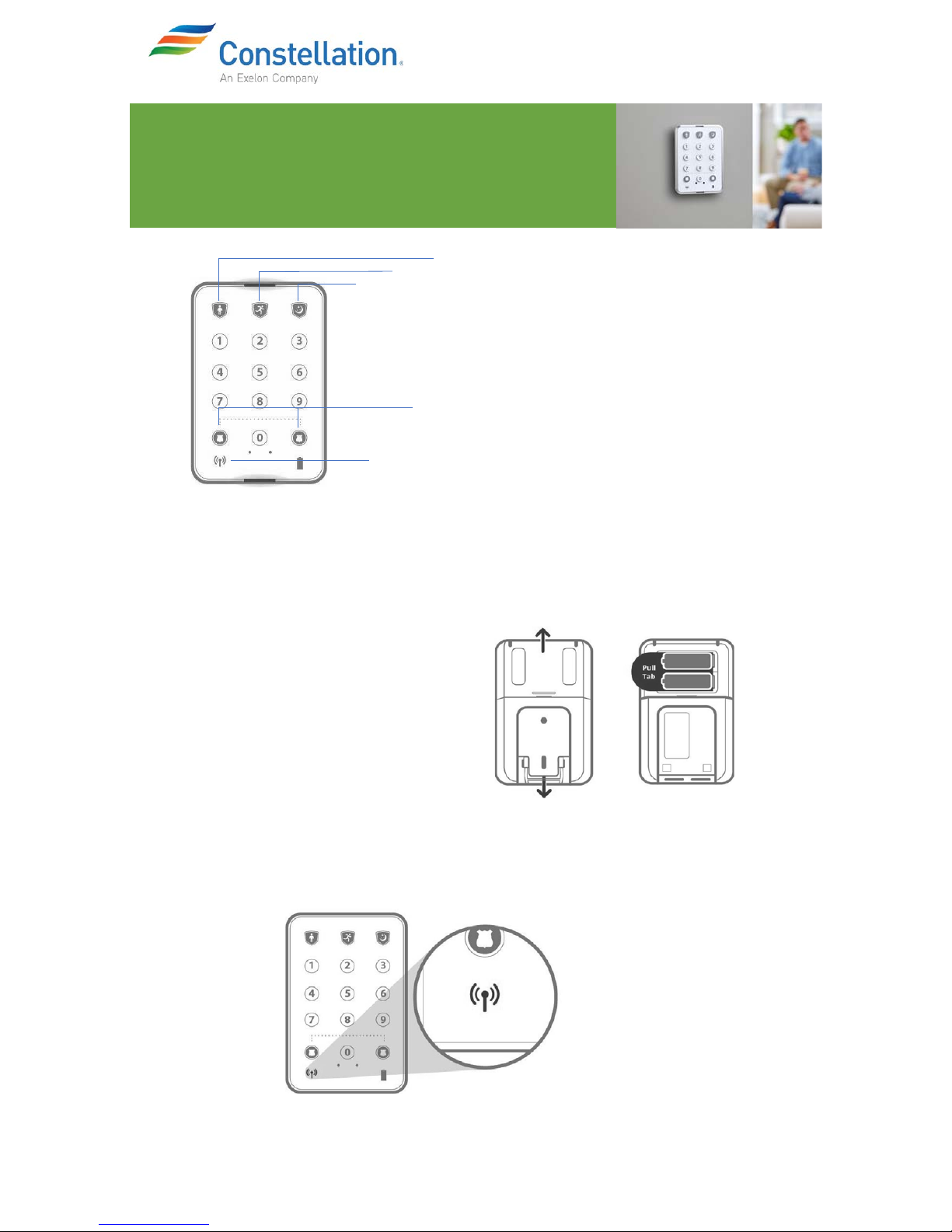
Keypad
Button Functionality
Home - Press this button followed by your pin code to Disarm your hub
Away - Press this button followed by your pin code to Arm your hub
Stay - Press this button followed by your pin code to engage Stay your hub
Panic shield buttons - When pressed both buttons simultaneously, it will engage panic mode
For additional information, please contact us
Constellation Connect Support | 1.888.918.7128 | [email protected] |
constellationconnect.com/contact
Inserting and replacing the battery
The network icon on the bottom left will start blinking, indicating that the keypad is ready to join the network.
The keypad will automatically be detected, the network icon will turn OFF
Note: When the keypad is not joined to a network, the network icon will flash. Once it is joined, the network
icon will become solid anytime the keypad is awake
Remove the battery cover and the mounting bracket
(if installed) by sliding it downward
Remove the Pull Tab to activate the CR123A
batteries as shown
1
A
B
C
D
A. Home
B. Away
C. Stay
D. Panic shield buttons
E. Network Icon
E
Page 2

Keypad
Product Guide
cont’d
Pairing with your Constellation Connect Hub
1. Enter the device wizard on your mobile app or through your online account
2. Select Keypad from the list of available devices
3. Follow the in-app or on-screen instructions to begin the pairing process on your hub
2
For additional information, please contact us
Constellation Connect Support | 1.888.918.7128 | [email protected] |
constellationconnect.com/contact
Adding Pin Codes
1. Go to your hub’s interface and click on Devices > Centralite 3-Series Settings
2. Click Add pin code, and enter your PIN Name and the PIN Code and press save pin code
3. Click Back > PIN Codes to see your existing PIN Codes list
Note: You can use any of the previously programmed codes on your Centralite 3400-G keypad to Disarm
your hub
 Loading...