

Page 1

CIO Router: CR48NA User Manual
Connected IO,
CONFIDENTIAL
CIO Router: CR48NA
User Manual
Re v: V 1 . 3
5th Mar 2019
Revision: 1.3
Page 2
Connected IO,
CONFIDENTIAL
2
CIO Router: CR48NA User Manual
Modify minimum distance of 31cm between the
Revision: 1.3
Revision History:
Date Rev No. Description By
11-Feb-19 R1.0 Initial Release Connected IO
25-Feb-19 R1.1 Add 5G statement in p.23 Connected IO
04-Mar-19 R1.2
radiator and the human body. Add Antenna
Connected IO
information into p.24
05-Mar-19 R1.3 Update Antenna information Connected IO
Page 3

Connected IO,
CONFIDENTIAL
3
CIO Router: CR48NA User Manual
Revision: 1.3
Table of Contents
1. INTRODUCTION 5
2. Hardware Configuration 5
2.1. Product Interfaces 5
2.2. Radio Configurations 7
3. System Configuration 7
3.1. Initial IP Setup 7
3.2. Setup WAN protocol 9
3.3. Setup LAN IP 9
3.4.
etup Wi-Fi 10
S
3.4.1. Setup Wi-Fi network 10
3.4.2. Connecting to the Wi-Fi 11
4. Firewall 13
4.1. WAN Ping Respond 13
4.2. Port Forwards 13
4.3. IP Filtering 14
4.4. MAC Filtering 14
4.5. Dos Prevention 15
4.6. DMZ Host 15
5. System Maintenance 16
5.1. Backup the Configuration 16
5.2. Restore the Configuration 16
5.3. Reset to Factory Default under Web GUI 17
5.4. Firmware Upgrade 17
6. WWan 18
6.1. Auto Connect 18
Page 4

Connected IO,
CONFIDENTIAL
4
CIO Router: CR48NA User Manual
Revision: 1.3
6.2. APN Change 19
6.3. Unlock PIN protection 19
6.4. Authentication 19
6.5. Modem Firmware 20
6.6. SIM slot 20
7. LOGS 20
7.1. System LOG 20
8. Antenna 21
8.1. Detachable Antennas 21
8.2. Antenna – Installation Guidelines 21
8.2.1. Instructions d’installation Professionnelle 21
8. Environmental 22
8.1. Operating Environment 22
8.2. Physical Parameters 22
9. Approvals and Certifications 22
9.1. Manufacturing 22
9.2. North American Certifications 22
9.3. FCC General Warning 23
Page 5
Connected IO,
CONFIDENTIAL
5
CIO Router: CR48NA User Manual
2
5 3 4
Revision: 1.3
1. Introduction
Connected IO’s CR48NA router (“The Router“) is a 4G router offering CAT4 connectivity. The Router
includes a 4G modem with an embedded host processor based on Qualcomm Dakota SoC which also
supports 802.11 b/g/n/ac Wi-Fi functionality. The 4G connectivity is made by an operator certified LTE
module.
This document provides instructions, and basic operational guidelines, to aid a Systems Administrator
with the deployment of this product.
2. Hardware Configuration
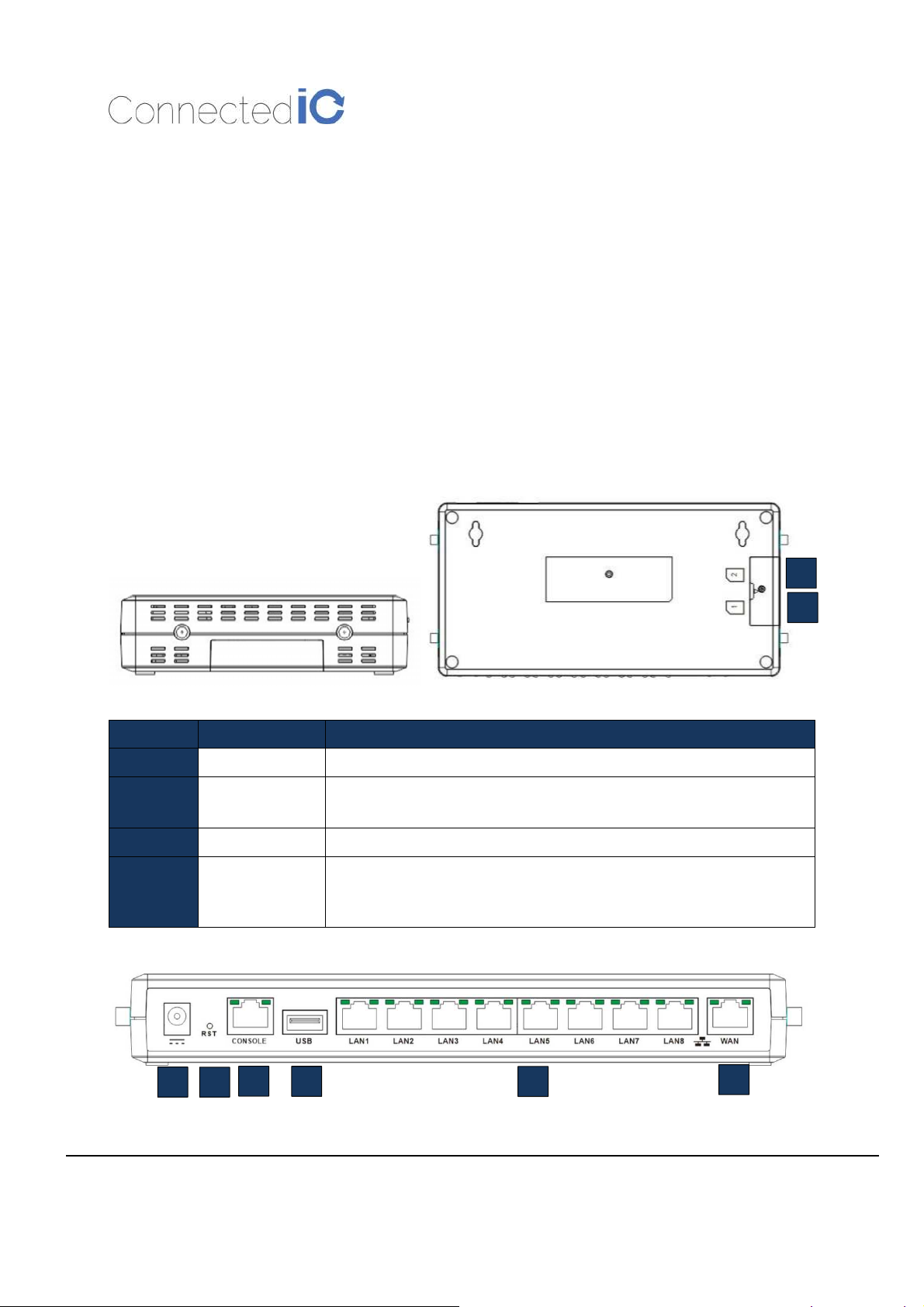
2.1. Product Interfaces
Number Item Description
1
2
3
4
DC Power Input 12VDC @ 2.0A Input. Center conductor is Positive
Reset Button
Console Serial Communications port per EIA asynchronous data transfer
USB 2.0
Push & Release to reset the device
Push & Hold for 10-seconds then release installs factory preset
USB 2.0 provides connectivity for optional storage or a USB Ethernet
dongle.
Port supplies up to 0.5A of 5V to connected devices.
7
8
1
6
Page 6
Connected IO,
CONFIDENTIAL
6
CIO Router: CR48NA User Manual
9
Revision: 1.3
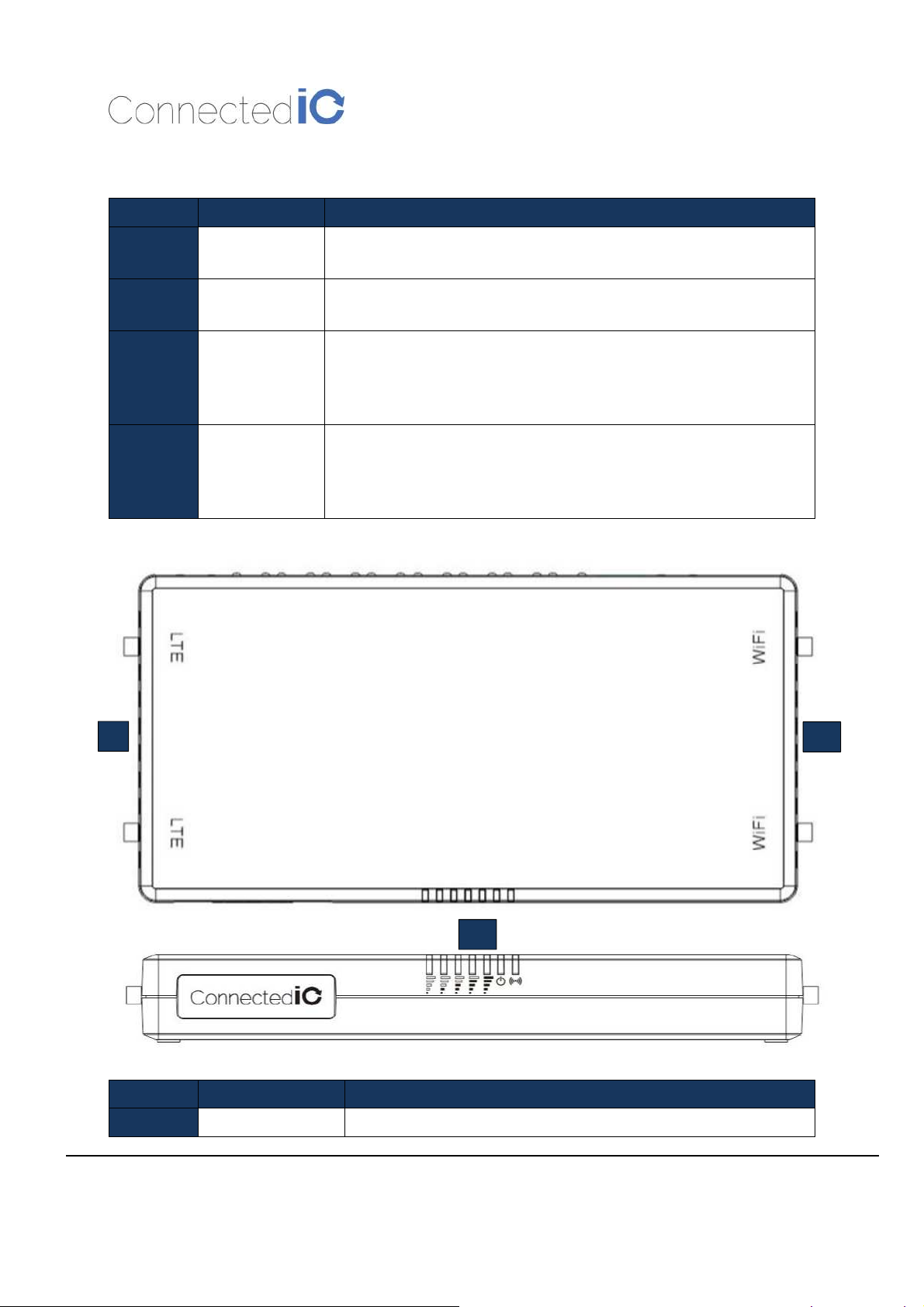
Number
5 LAN Port
6 WAN Port
7
SIM Access
8
Item Description
LAN Port for Wired Ethernet Clients
LED: Solid Green for Link, Flashing Green for Traffic
WAN Port for establishing links to leased telecommunication circuits
LED: Solid Green for Link, Flashing Green for Traffic
2FF Mini-SIM format
Slide the door open to access the SIM holder.
Push SIM into the holder to engage, push a second time to eject the
SIM
Full size SD card (Purchased Separately) for data storage.
SD Card Slot
Slide the door open to access the SD card slot.
Push SD card into the holder to engage, push a second time to eject the
SD card.
11
Number Item Description
9
Wi-Fi Antenna R-SMA connector for Wi-Fi Antennas
10
Page 7
Connected IO,
CONFIDENTIAL
7
CIO Router: CR48NA User Manual
B2: 1900
Revision: 1.3
10
11
Cellular Antennas SMA connector for both Primary and Auxiliary antenna Ports
2.2. Radio Configurations
Model Name LTE Band (MHz) 3G (MHz) Wi-Fi
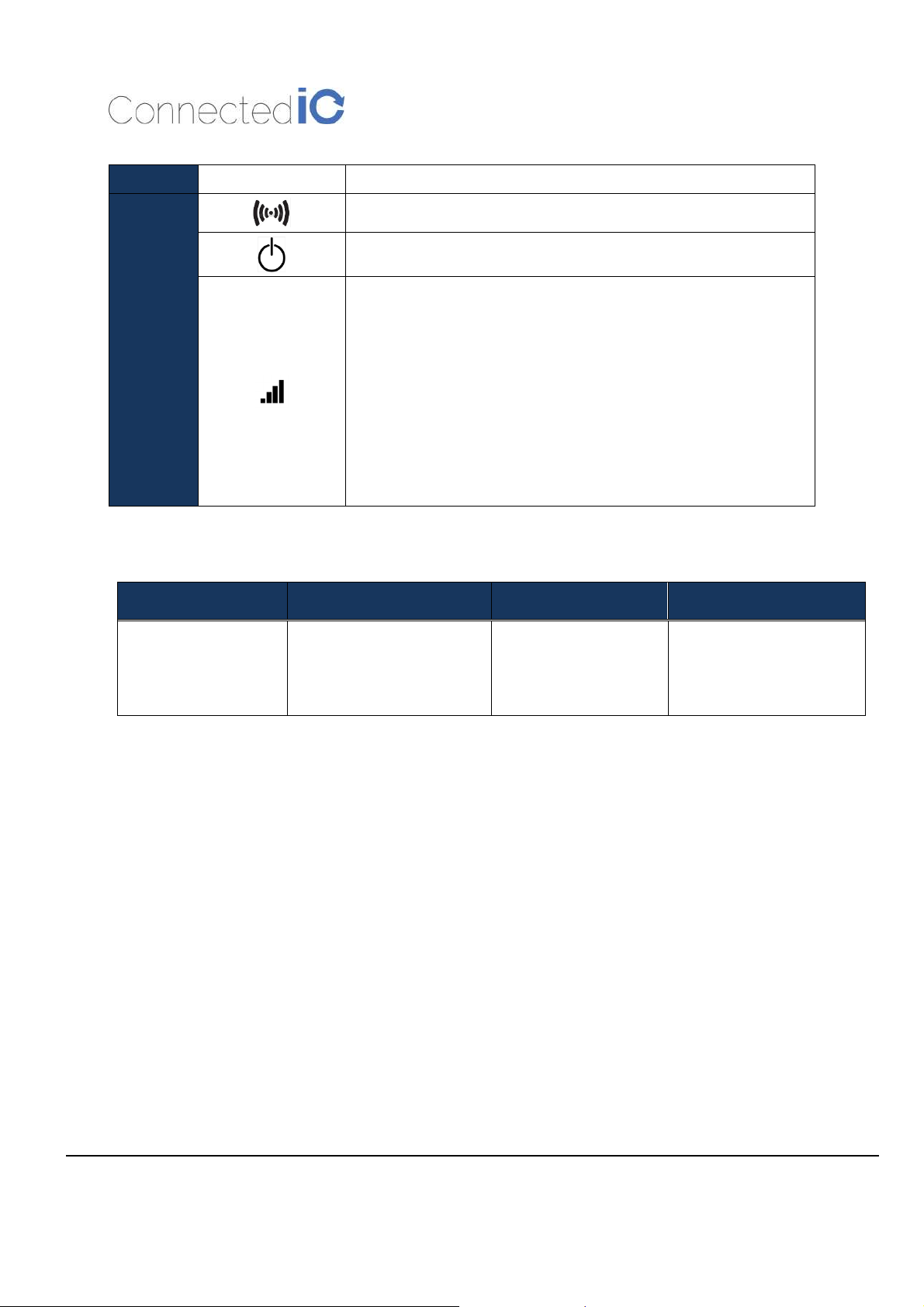
Wi-Fi LED, Orange: Wi-Fi is connected/Off: No Wi-Fi
Power LED, Yellow: Power is connected/Off: unit is off
Cellcular Connection Strenght Indicators, Green: Cellcular
Connection
The following table lists the signal strength range corresponding to
the number of LEDs lit:
5-LEDs On: Excellent
4-LEDs On: Very Good
3-LEDs On: Good
2-LEDs On: Fair
1-LED On: Weak
No-LEDs: Not functional
CR48NA
B4: AWS 1700
B5: 850
B12: 700
B13: 700
B2: 1900
B5: 850
Yes, 802.11 a/b/g/n /ac
compliant
3. System Configuration
3.1. Initial IP Setup
The Router Management GUI can be accessed through the Ethernet ports with the default IP address of
192.168.71.1
To configure The Router, follow the following sequence:
•
•
•
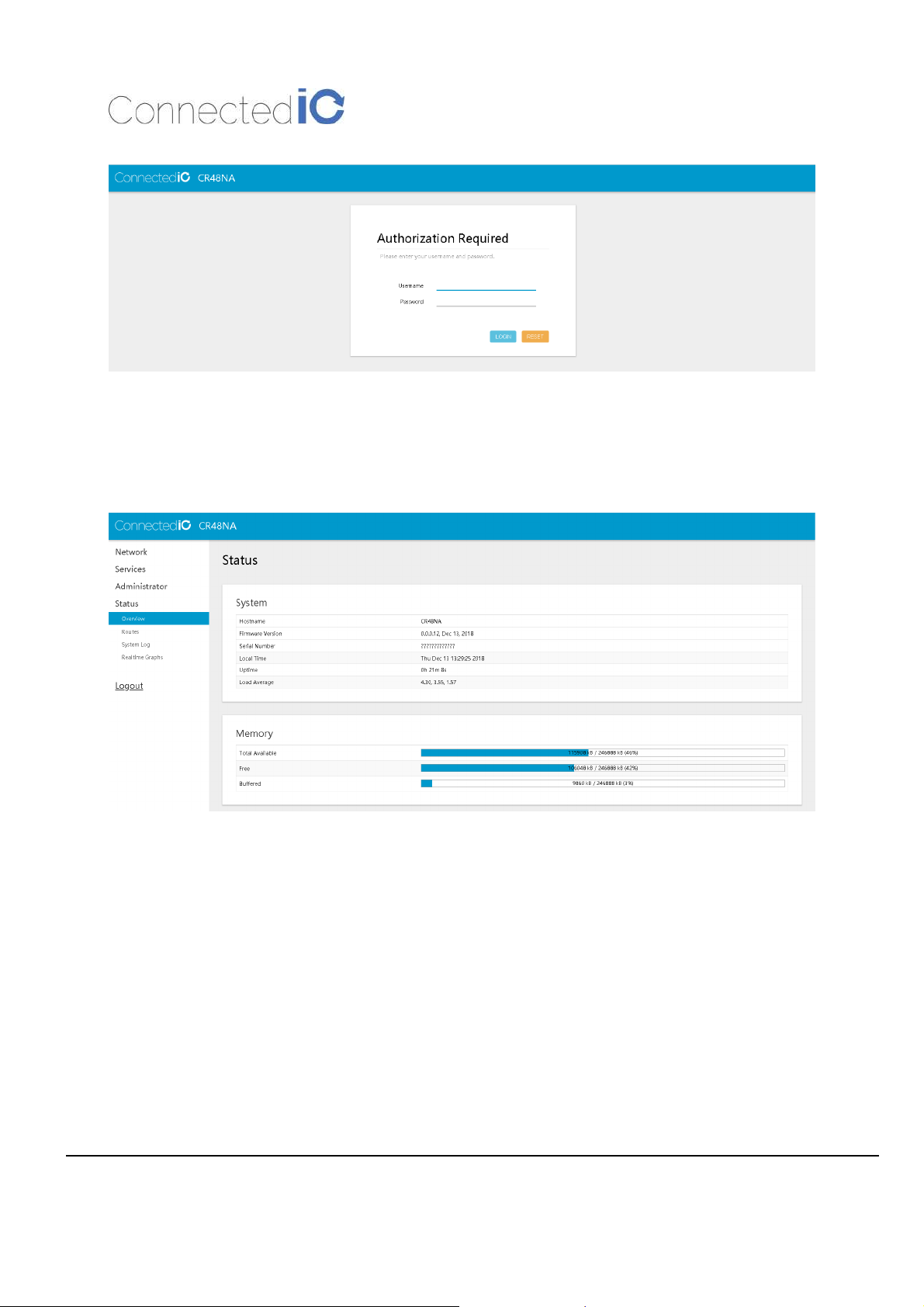
On login page, you can just click the Login icon to enter the GUI as shown in Figure 1. Default username
is “root” and default password is “password”, it is recommended that a new password be created under
.
Connect the Ethernet cable between the computer and The Router LAN port
Setup the desktop as a static IP in
Open a browser and type http://
192.168.71.
192.199.71.1
x domain or DHCP client to get IP from The Router
to start the settings
Web GUI Administrator->Administration page.
Page 8
Connected IO,
CONFIDENTIAL
8
CIO Router: CR48NA User Manual
Figure 1: Login Page
The Router overview is available after logging into the GUI, the overview page includes important
messages such as system status and memory information as shown in Figure 2.
Revision: 1.3
Figure 2: Overview Page
Page 9
Connected IO,
CONFIDENTIAL
9
CIO Router: CR48NA User Manual
Revision: 1.3
3.2. Setup WAN protocol
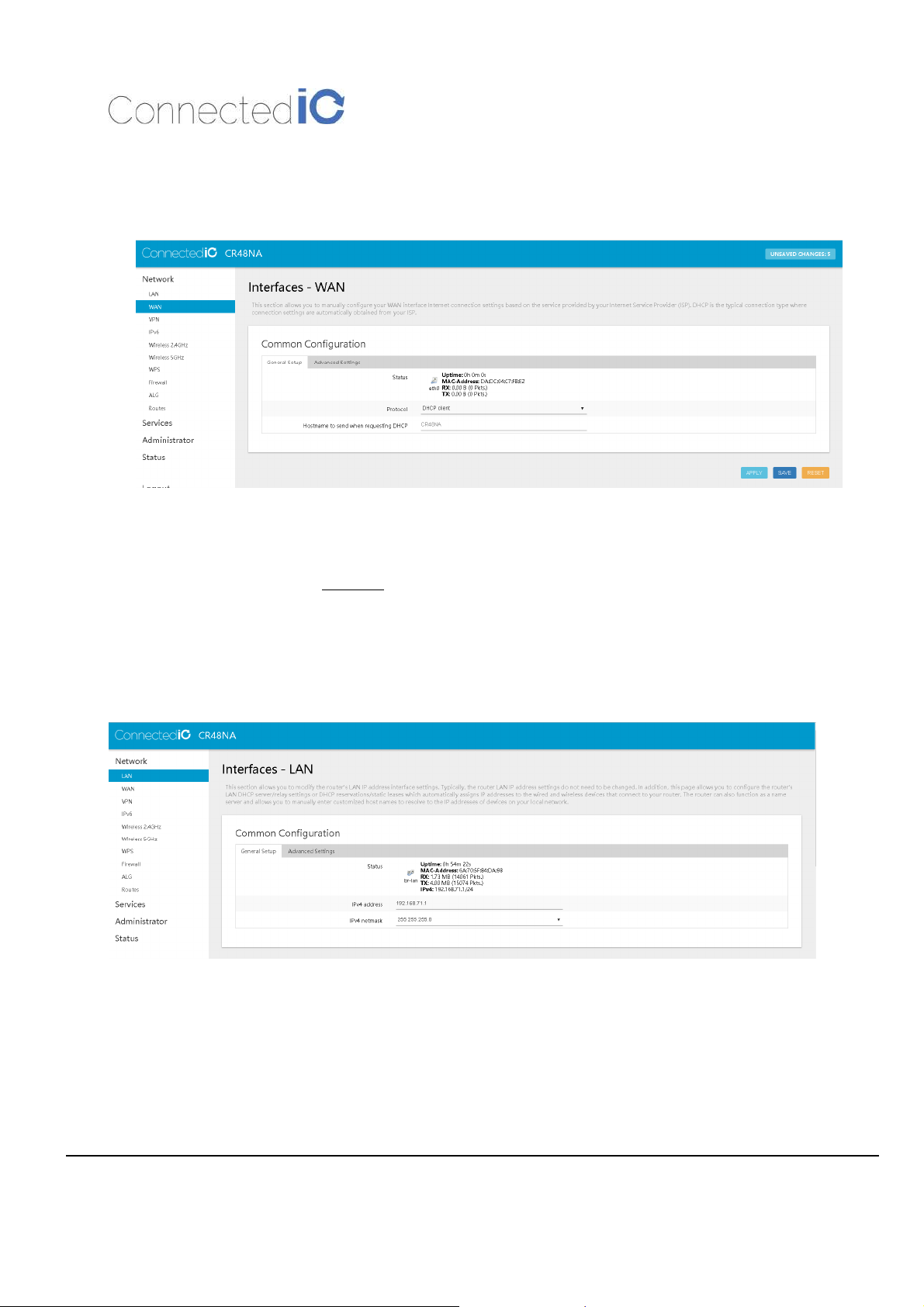
Select to Network -> WAN to configure WAN protocol as shown in Figure 3.
Figure 3: WAN protocol
Click SWITCH PROTOCOL button to after select in Protocol. Then, it needs to input WAN IP address
when you select to Static address, or input server settings when you select to PPPoE PPTP and L2TP.
For WWAN, please refer to chapter 6.
3.3. Setup LAN IP
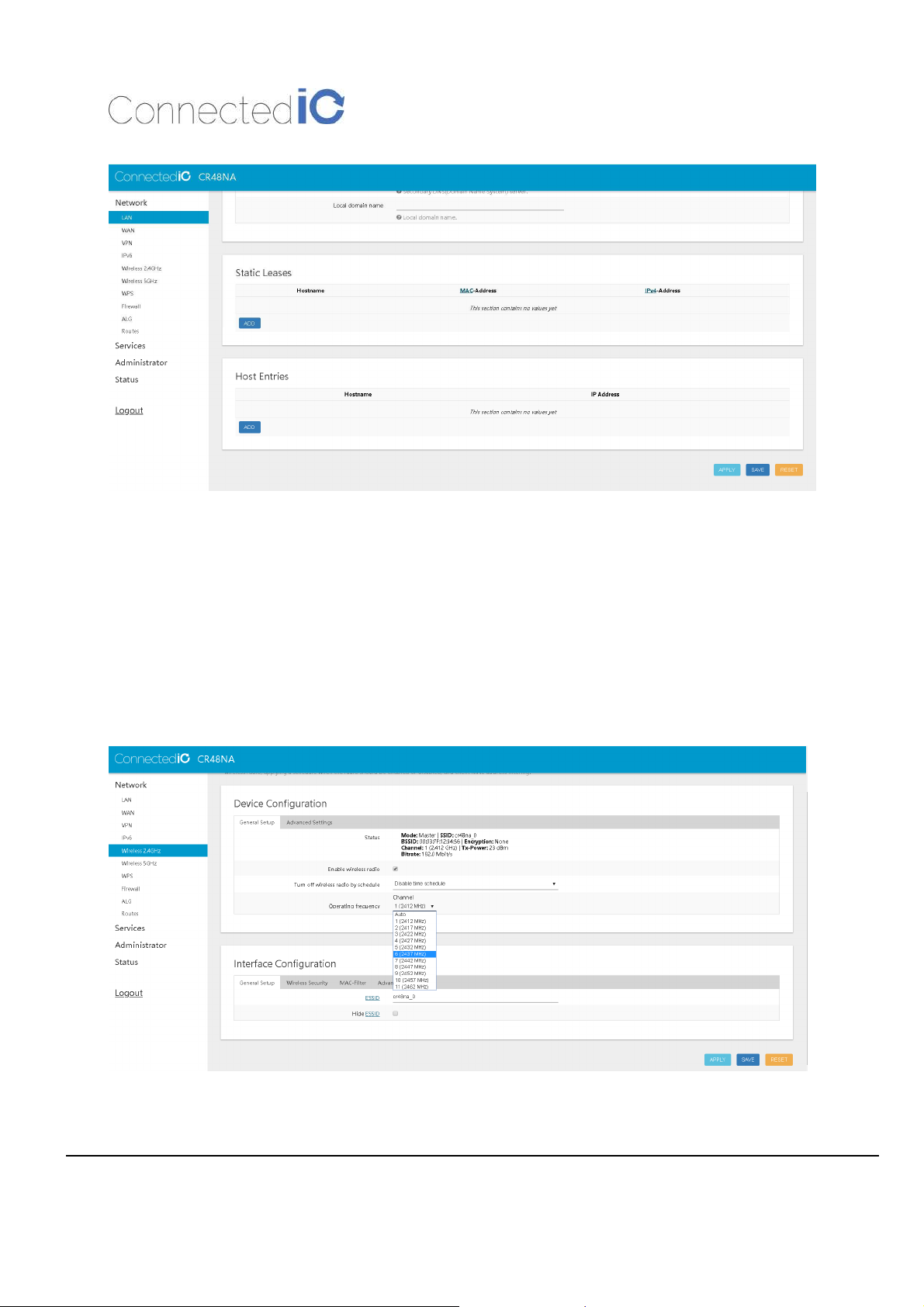
Select Network->LAN as shown in Figure 4. And Enter the new IP address in the “IPv4 address” field.
Figure 4: New IP Address for LAN
After the new IP setup, scroll down to the bottom of the page and press “APPLY” as shown in 錯誤!
到參照來源。
.
找不
Page 10
Connected IO,
CONFIDENTIAL
10
CIO Router: CR48NA User Manual
Figure 5: Save the New Setting
Revision: 1.3
3.4.
etup Wi-Fi
S
3.4.1. Setup Wi-Fi network
Select to Network -> Wireless 2.4GHz and Network -> Wireless 5GHz to configure Wi-Fi network name,
channel and encryption settings of your 2.4GHz and 5GHz respectively.
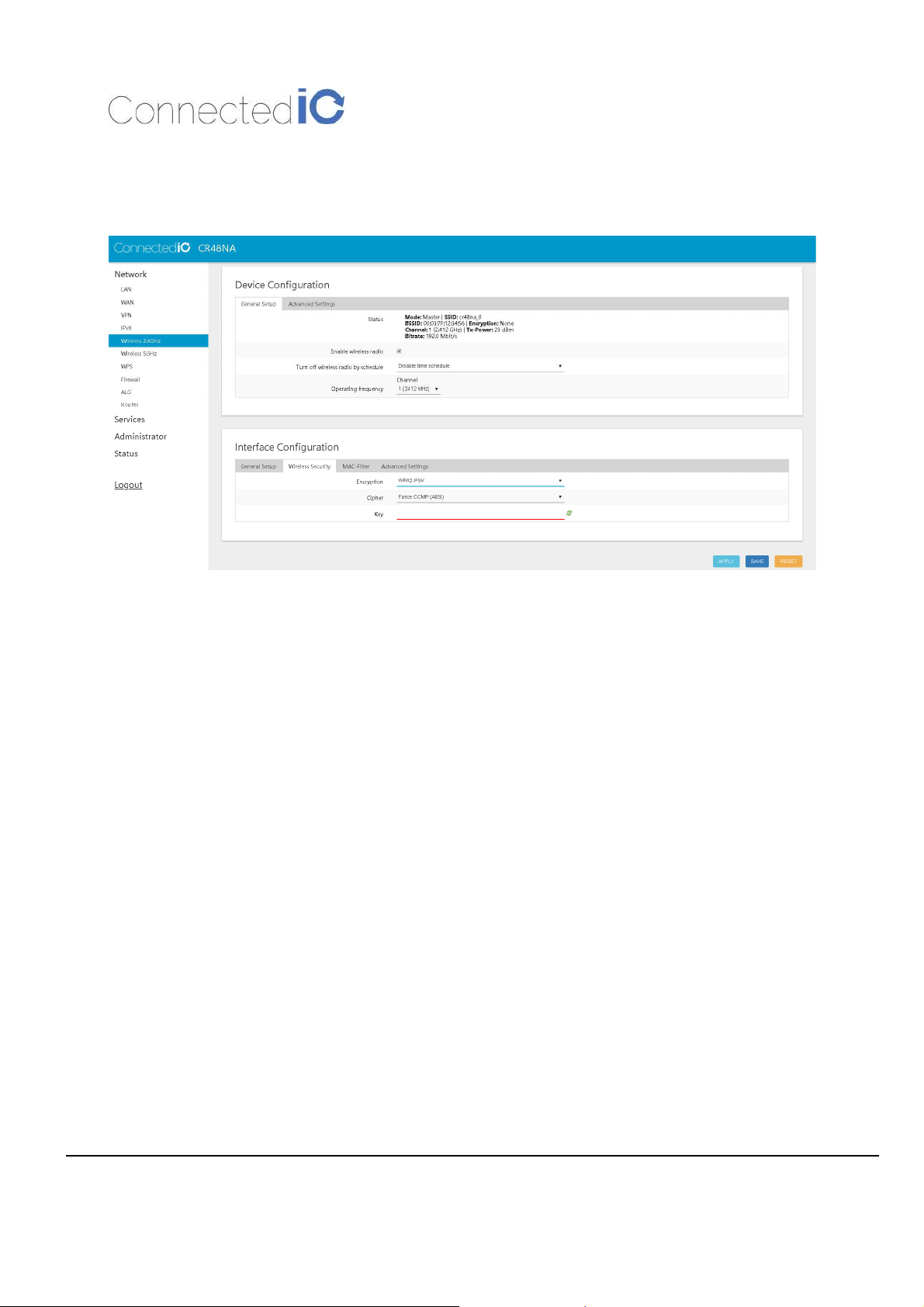
To configure Wi-Fi network name and channel, you can enter the name into SSID field and select channel
in Operating frequency as shown in Figure 6.
Figure 6: Wi-Fi name and channel
Page 11
Connected IO,
CONFIDENTIAL
11
CIO Router: CR48NA User Manual
By default, there is no encryption on Wi-Fi interfaces. It is strong suggested to enable encryption by
switch to Wireless Security and enable it by select in Encryption, Cipher and input Key as shown in
Figure 7.
Revision: 1.3
Figure 7: Wi-Fi security
After the Wi-Fi setup, scroll down to the bottom of the page and press “APPLY” as shown in Figure 6.
3.4.2. Connecting to the Wi-Fi
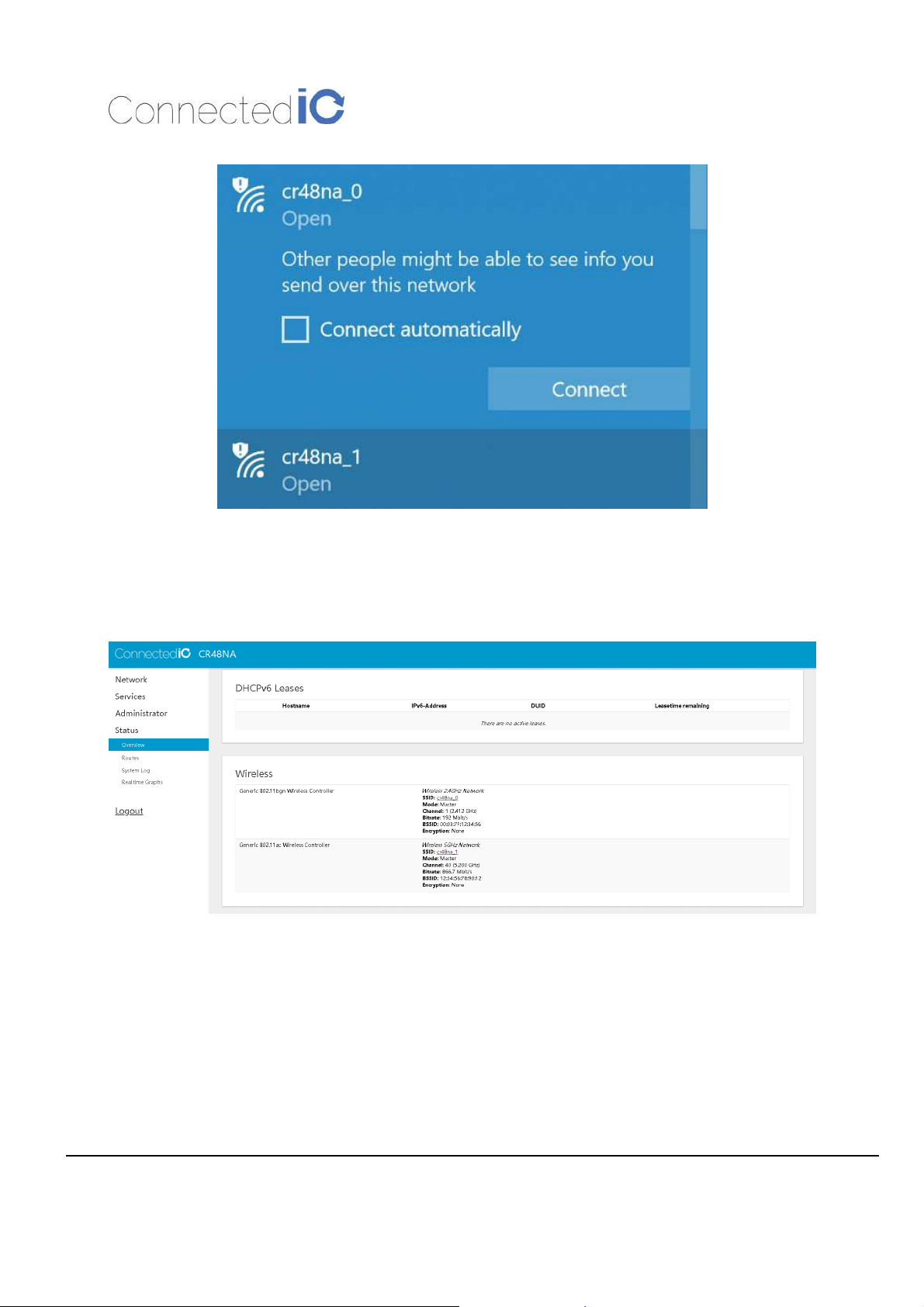
For computers using the Windows operating system (For instance: Windows 10), Click the network
internet access icon and if there are wireless networks in range, try to connect to a Wi-Fi “cr48na_0”or
“cr48na_1” network without security key as shown in Figure 8.
Page 12
Connected IO,
CONFIDENTIAL
12
CIO Router: CR48NA User Manual
Revision: 1.3
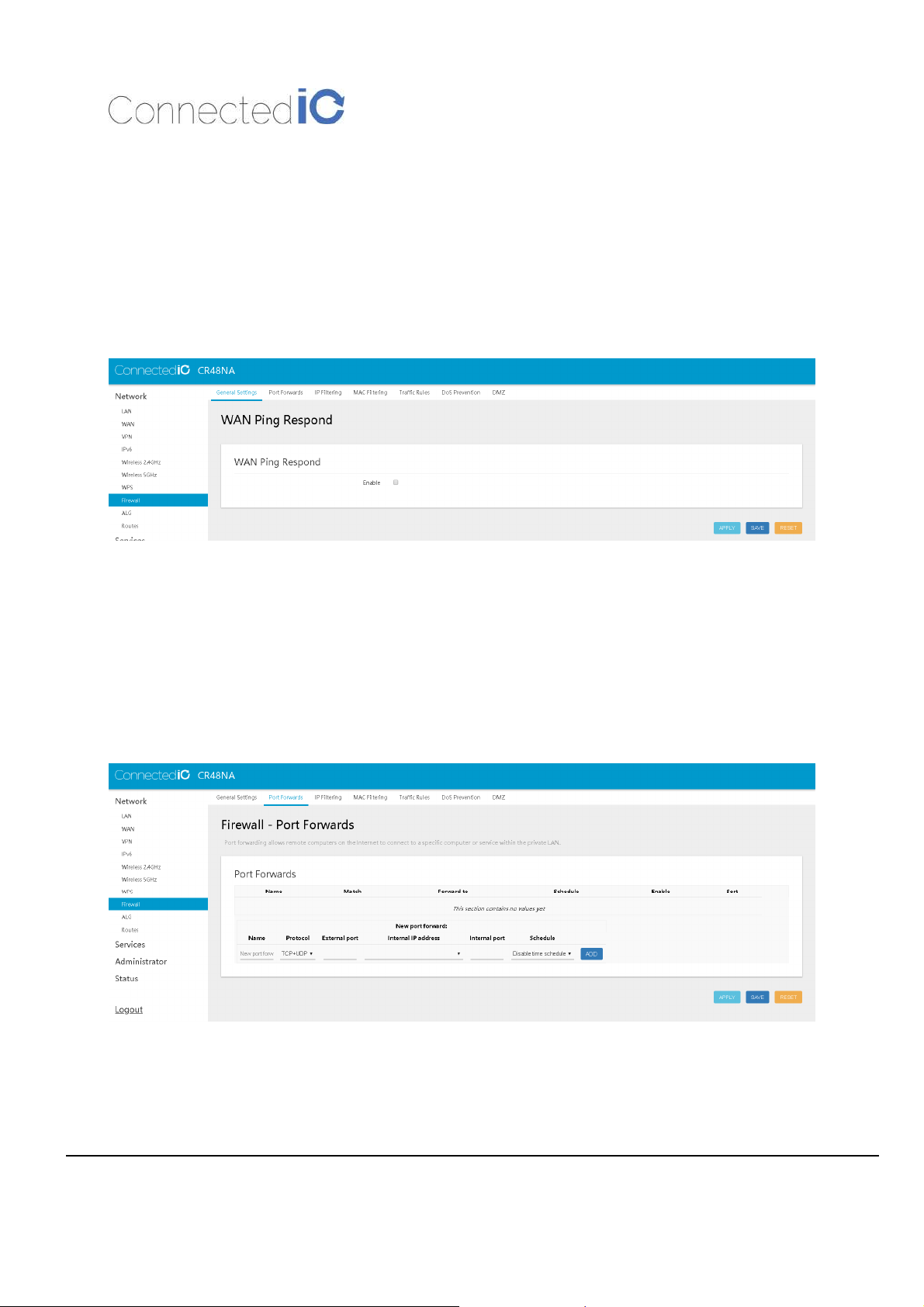
Open a browser and typing http://192.168.71.1 to login into the GUI again. Once the GUI is up the user
should see the EMU Router overview with Wi-Fi Connection information as shown in Figure 9, Wireless
Information.
Figure 8: Network Internet Access
Figure 9: Wireless Information
Page 13
Connected IO,
CONFIDENTIAL
13
CIO Router: CR48NA User Manual
Revision: 1.3
4. Firewall
4.1. WAN Ping Respond
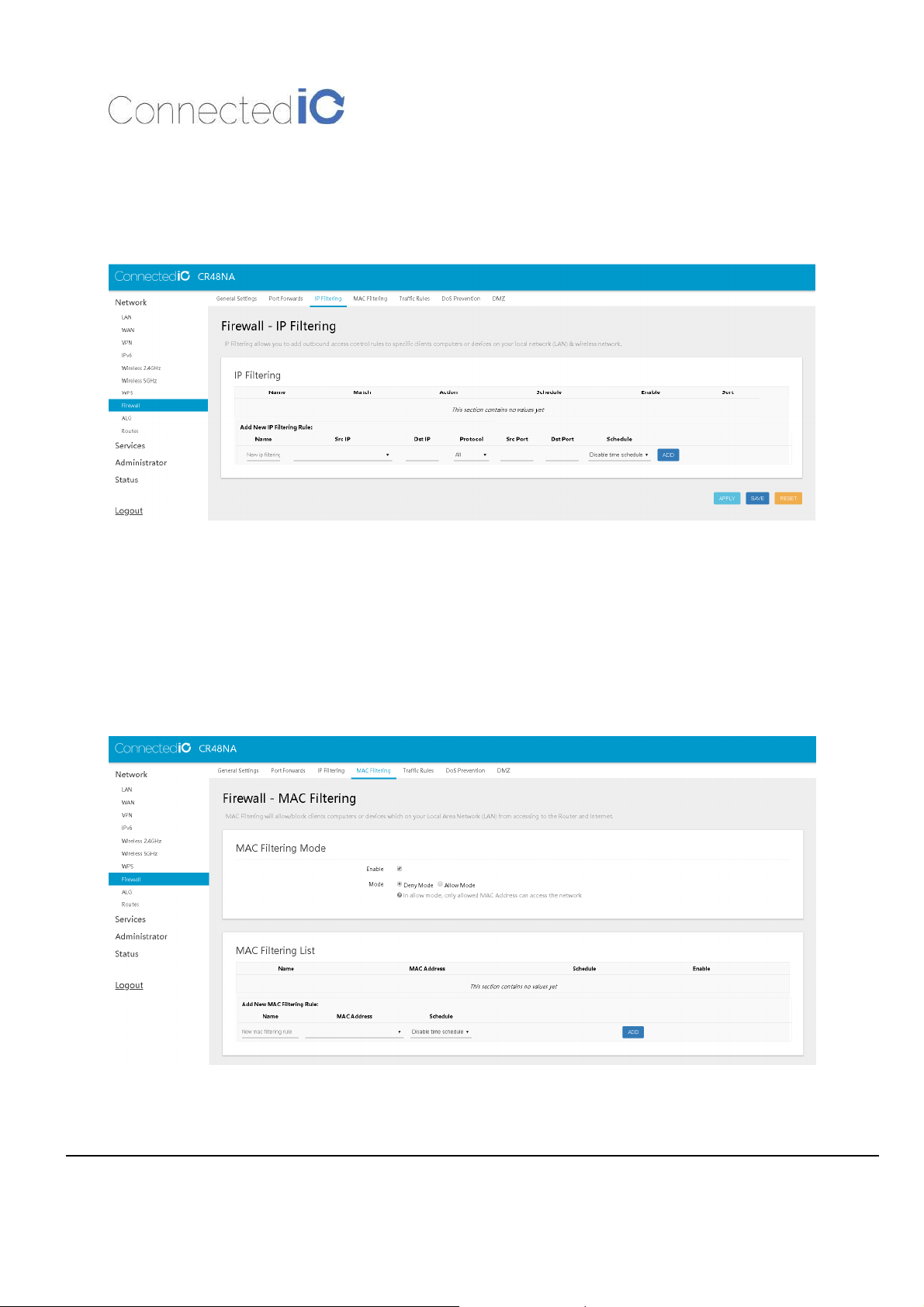
Select to Network -> Firewall -> General Settings to enable/disable WAN Ping Respond as shown in
Figure 10. Disable WAN Ping Respond is able to prevent the WAN port interfaces from responding to
ping/ICMP requests.
Figure 10: WAN ping response
4.2. Port Forwards
Select to Network -> Firewall -> Port Forwards as shown in Figure 11 to create inbound rules from the
WAN interfaces/Internet to your internal computers or devices for specific services/protocols such as a
WEB server, FTP server …. etc.
Figure 11: Port Forwards
Page 14
Connected IO,
CONFIDENTIAL
14
CIO Router: CR48NA User Manual
Revision: 1.3
4.3. IP Filtering
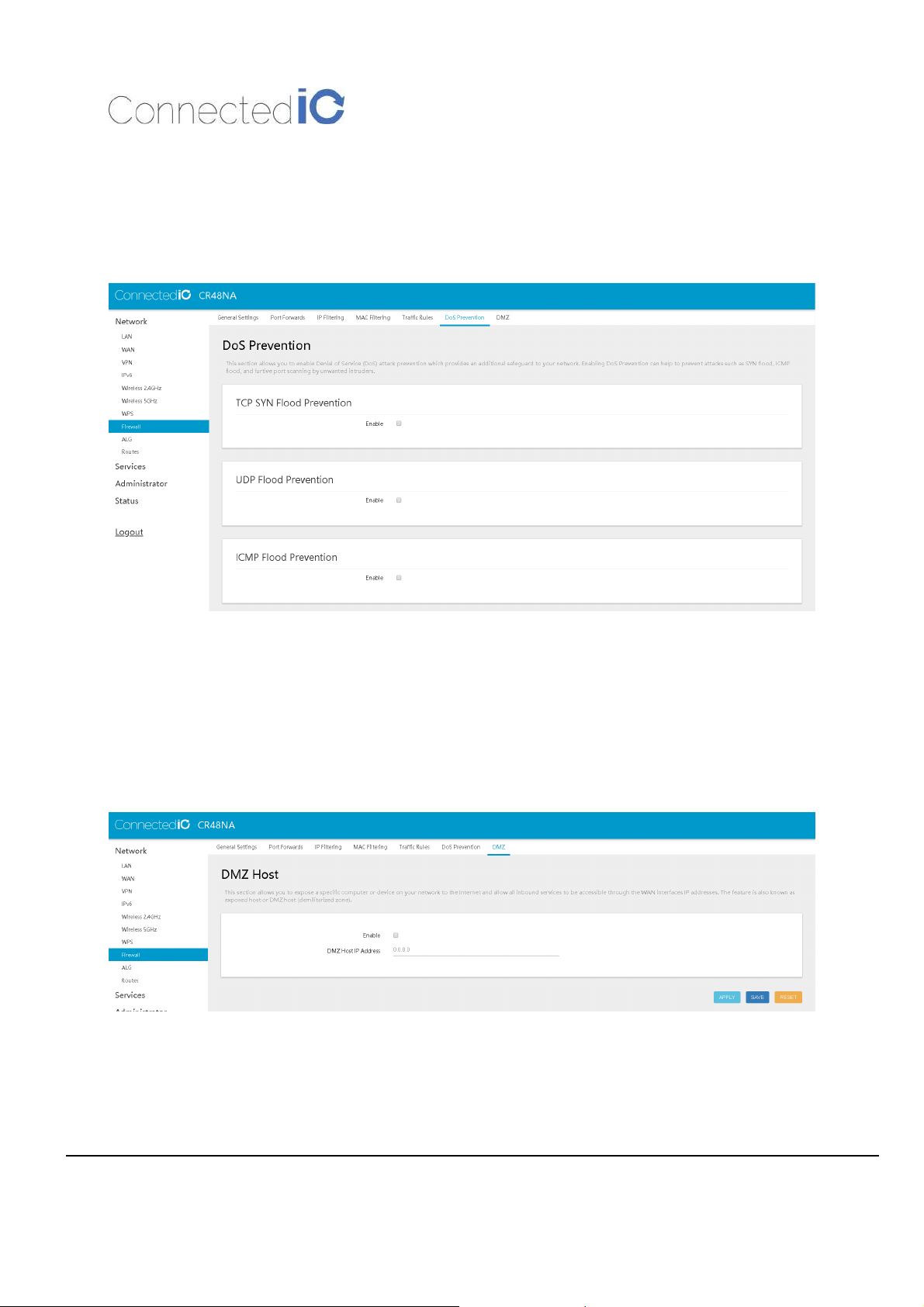
Select to Network -> Firewall -> IP Filtering as shown in Figure 12 to restrict access to the Internet to
specific IP addresses on your LAN network.
Figure 12: IP Filtering
4.4. MAC Filtering
Select to Network -> Firewall -> MAC Filtering as shown in Figure 13 to restrict access to the Internet to
specific IP addresses on your LAN network.
Figure 13: MAC Filtering
Page 15
Connected IO,
CONFIDENTIAL
15
CIO Router: CR48NA User Manual
Revision: 1.3
4.5. Dos Prevention
Select to Network -> Firewall -> Dos Prevention as shown in Figure 14 to against common denial of
service (DoS) attacks. Dos attacks are achieved by flooding a specific network resource by excessively
sending unnecessary requests which can cause the network device or resource to stop functioning.
Figure 14: DoS Prevention
4.6. DMZ Host
Select to Network -> Firewall -> DMZ Host as shown in Figure 15 to expose a specific host or device on
your LAN to the Internet to allow anyone to access it. This makes all the ports and services available on
the WAN/Internet side of the router and forwards all ports to the DMZ host.
Figure 15: DMZ Host
Page 16
Connected IO,
CONFIDENTIAL
16
CIO Router: CR48NA User Manual
Revision: 1.3
5. System Maintenance
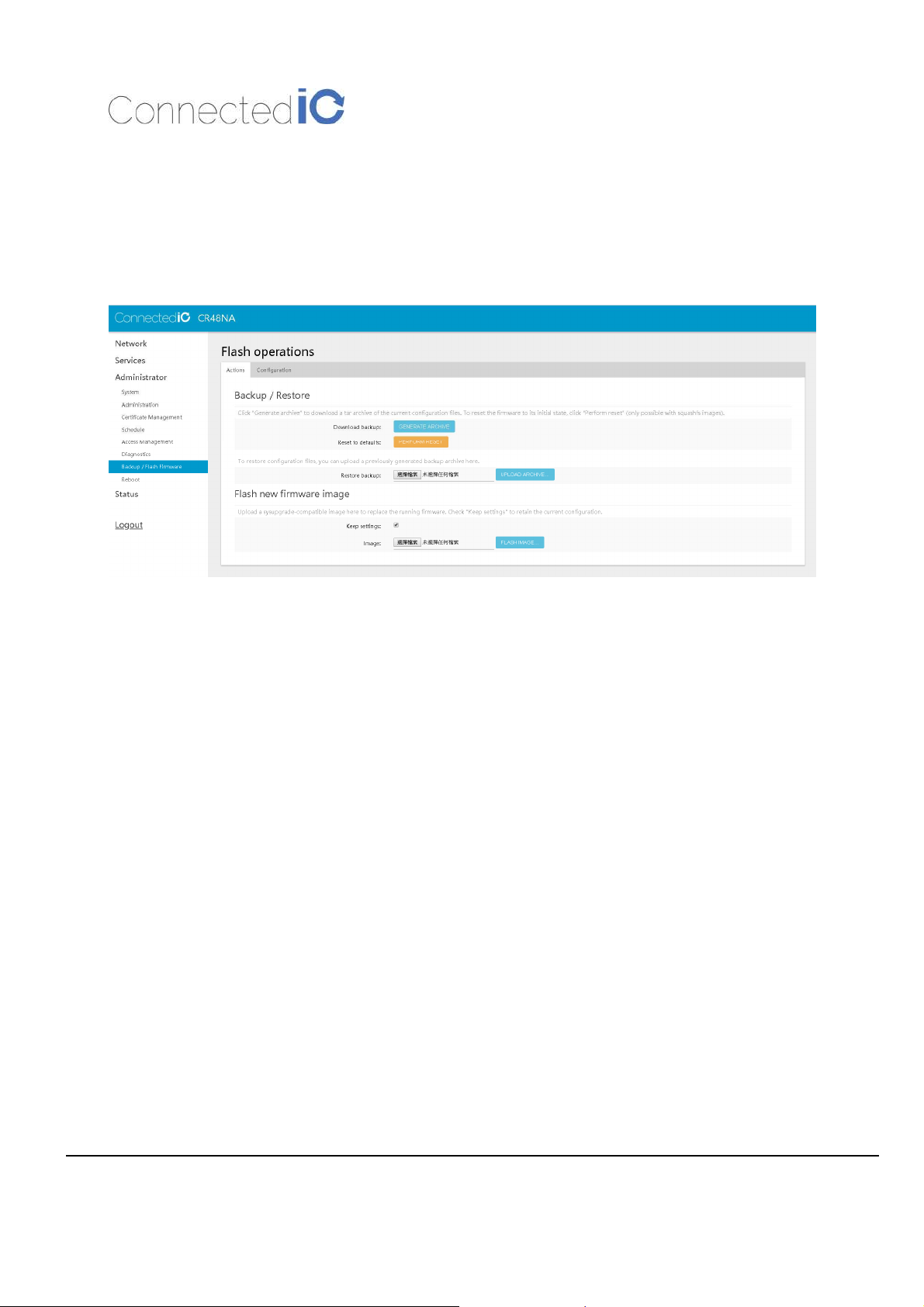
This chapter describes how to back-up the current The Router configuration to your computer, and how
to restore that same configuration later if needed. This can be done by selecting Administrator > Backup
/ Flash Firmware as show in Figure 16
Figure 16: Backup/Restore the Configuration
5.1. Backup the Configuration
Select Backup / Flash firmware in the GUI page as shown in Figure 16, then click the icon “Generate
archive” to save this configuration to a file in the folder you’ve specified.
The file is in .dat format, CIO suggests that you rename it to a meaningful filename for easy recovery.
5.2. Restore the Configuration
Click the icon “Choose File”, select the backup file, and then click “Upload archive” in flash operations
page as shown in Figure 16. Device will write the stored configuration back to flash then reboot the
system.
Page 17
Connected IO,
CONFIDENTIAL
17
CIO Router: CR48NA User Manual
Revision: 1.3
5.3. Reset to Factory Default under Web GUI
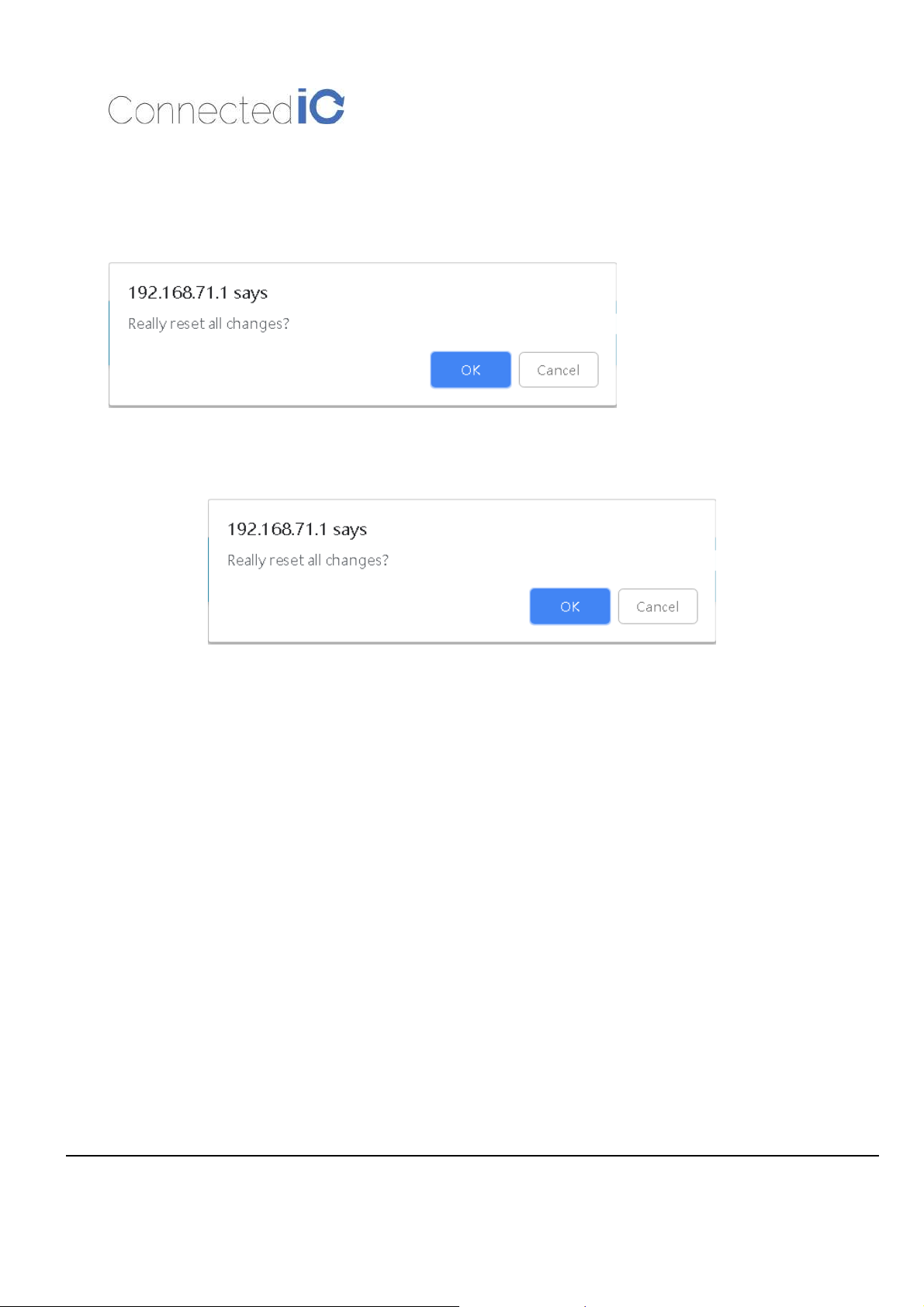
Click the icon “Perform reset” in the GUI page as shown in Figure 16, a warning window will pop-up
saying, “Really reset all changes?” as shown in
Figure 16. The device will reset to factory default and reboot if “Yes” is chosen.
NOTE: It is important NOT to power off the device before the entire process is completed.
Figure 16: Reset to Default
5.4. Firmware Upgrade
Select Administrator from web GUI and find “Backup/Flash Firmware” section as shown Figure 16.
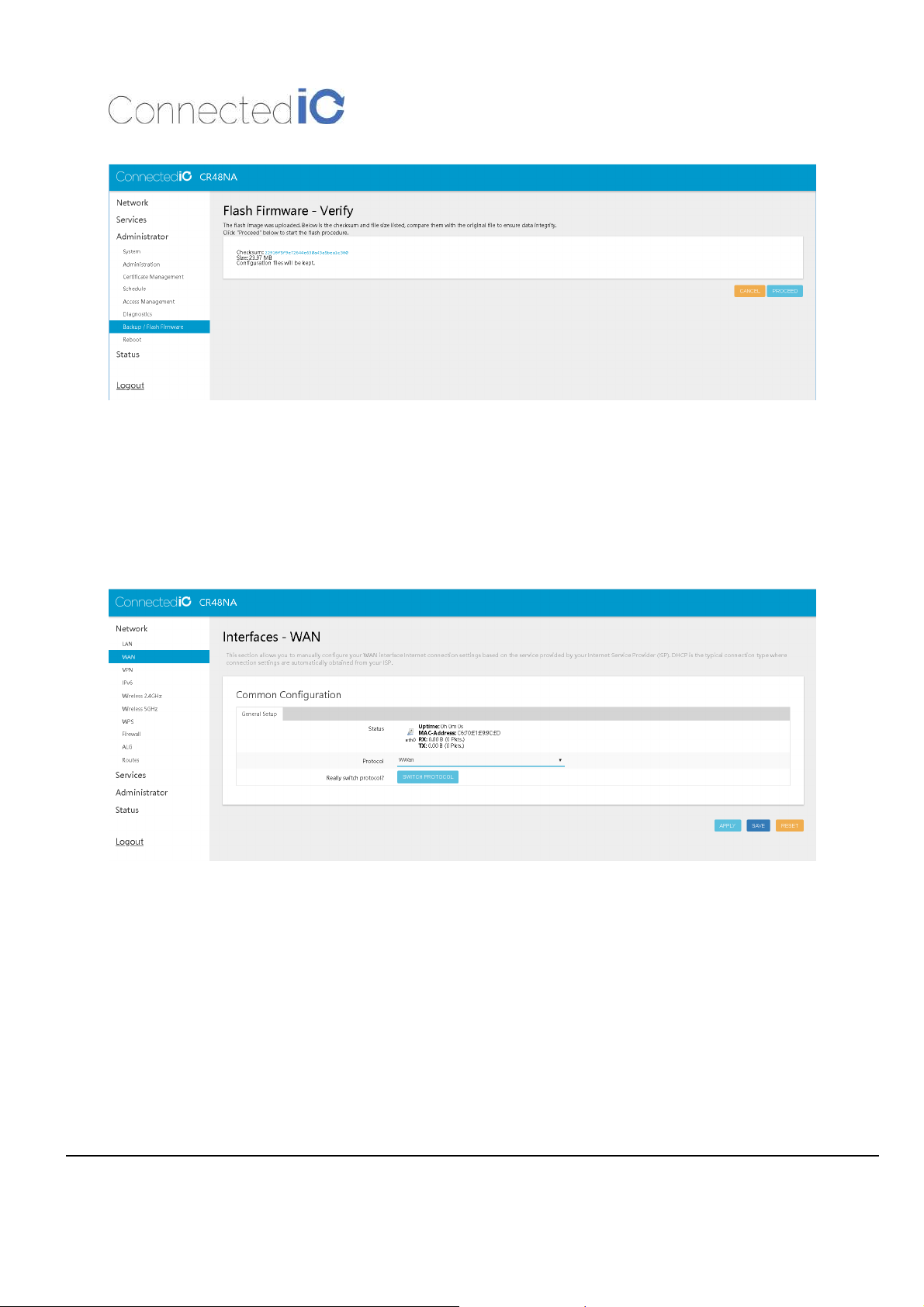
Click the icon “Choose File” and select the new image that you want upgraded to the device, then click
“Flash image”. After system uploads the file, click “Proceed” on the confirmation page as shown in
Figure 17.
The upgrade process may take longer than 10 minutes for flashing and rebooting. It is important NOT to
power off the device during the process. Administrators can PING the device after the upgrade process is
completed to ensure that the device is programmed and rebooted successfully.
Page 18
Connected IO,
CONFIDENTIAL
18
CIO Router: CR48NA User Manual
Figure 17: Firmware Upgrade
Revision: 1.3
6. WWan
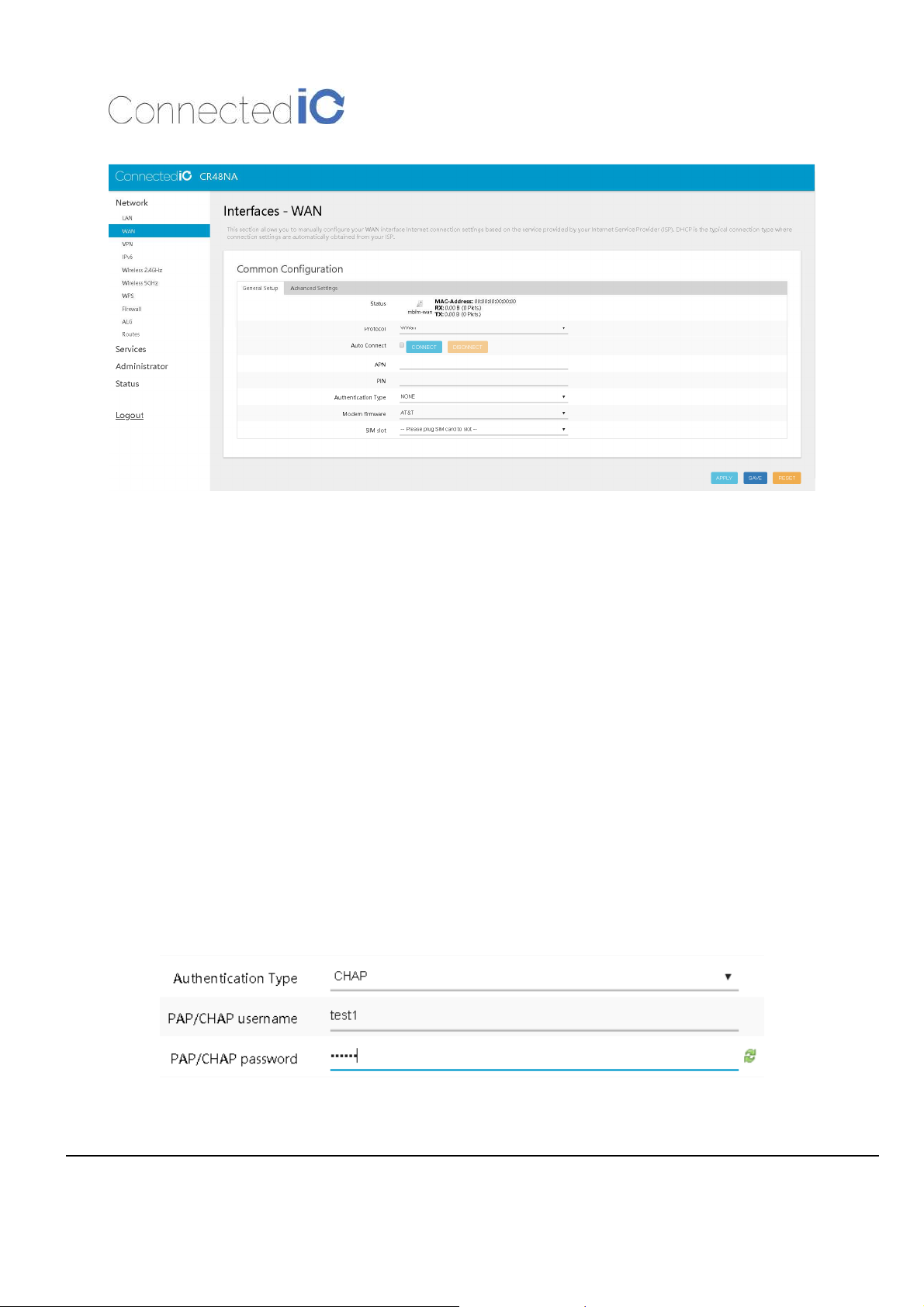
Select Network -> WAN as shown in Figure 18. Select Protocol to WWan. Then click the icon “SWITCH
PROTOCOL”
6.1. Auto Connect
Auto Connect option as shown in Figure 19, allow you to decide whether device automatic connect to
carrier when disconnection, or only connect once you would like it to connect.
Figure 18: WAN Page
Page 19
Connected IO,
CONFIDENTIAL
19
CIO Router: CR48NA User Manual
6.2. APN Change
Figure 19: WWan page
Revision: 1.3
The APN Change field allows you to change the local telecommunication company. Enter the APN name
and click “APPLY” button as shown in Figure 19.
6.3. Unlock PIN protection
If your SIM card is protected by PIN code, you must input your PIN in PIN field as shown in Figure 19
before your device is able to connect to carrier.
6.4. Authentication
Some carrier may request authentication before device able to connect to their network. In the case, once
you select Authentication type to one except NONE, and you will need to input username and password
as shown in Figure 20.
Figure 20: Authentication Type
Page 20
Connected IO,
CONFIDENTIAL
20
CIO Router: CR48NA User Manual
Revision: 1.3
6.5. Modem Firmware
CR48NA supports Verizon, AT&T, T-Mobile and service providers in Canada (Refer to “9.2. North
American Certifications”) in single sku. Select to proper modem firmware as shown in Figure 19 per your
carrier.
6.6. SIM slot
CR48NA support two SIM slot. If only one SIM slot inserted SIM card, device will automatic detect and
select to it. If both SIM slot inserted SIM card, you are able to decide which SIM is using by select in SIM
slot field as shown in Figure 19.
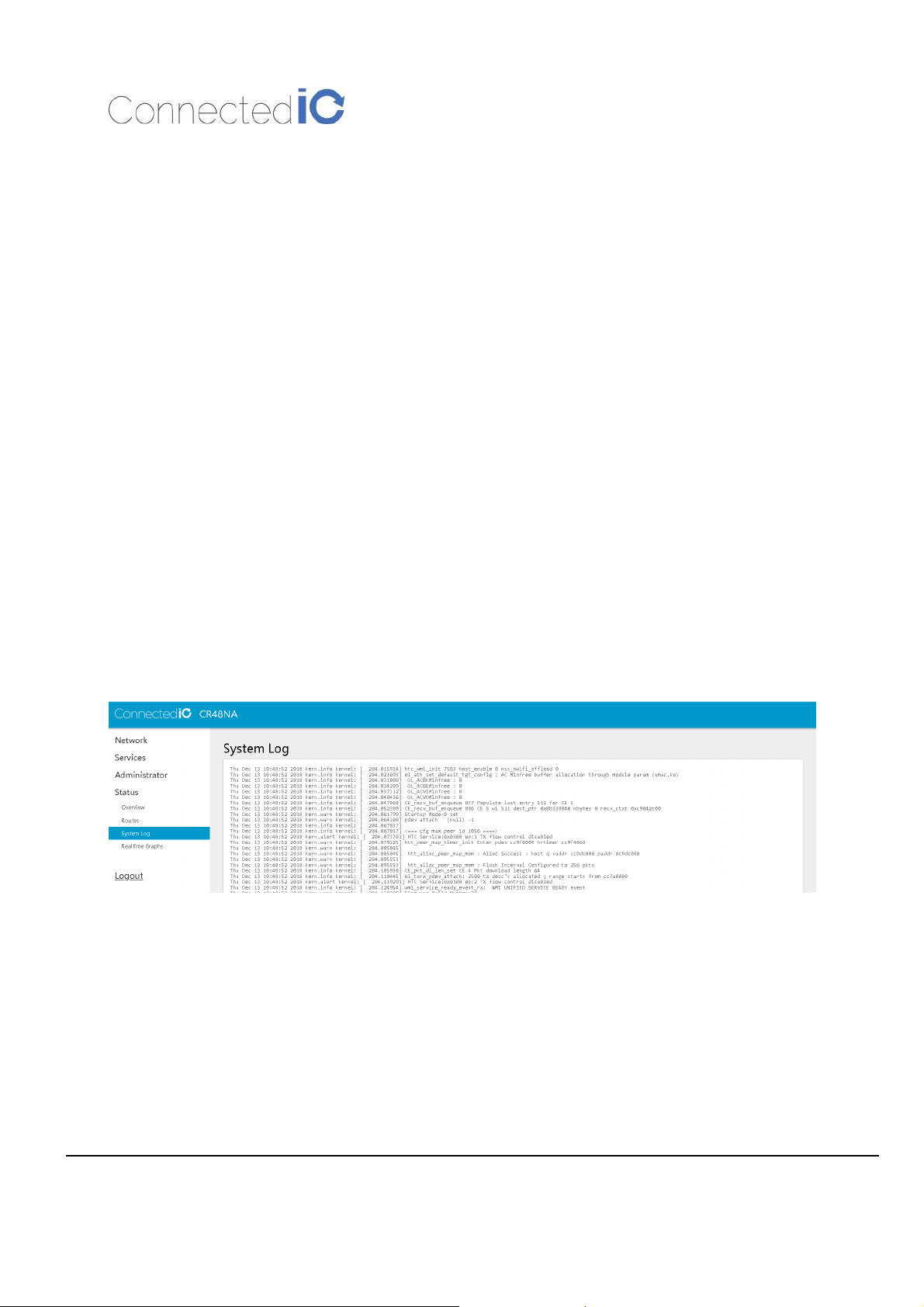
7. LOGS
7.1. System LOG
Select Status -> System Log as show in Figure 21
Figure 21: System Log
Page 21

Connected IO,
CONFIDENTIAL
21
CIO Router: CR48NA User Manual
Revision: 1.3
8. Antenna
8.1. Detachable Antennas
This LTE Router device, CR48NA integrates LTE (4G) and Wi-Fi radio function.
Detachable Antenna Guidelines
This equipment complies with the FCC and IC radiation exposure limits set forth for an uncontrolled
environment. While EUT operates for Wi-Fi 2.4G/5G and UMTS concurrently, the antenna should be
installed and operated with a minimum distance of 31cm between the radiator and the human body
8.2. Antenna – Installation Guidelines
When installing the antenna to The Router product line there are many items to consider so good antenna
performance can be maintained.
•
Install the antenna in a place covered by the LTE signal.
•
Antenna must not be installed inside a metal case.
•
Antenna shall also be installed according to the Antenna manufacturer instructions.
•
Antenna integration should optimize the Radiation Efficiency. Efficiency values >50% are
recommended on all frequency bands for any antennas selected.
•
Antenna integration should not dramatically perturb the radiation pattern. It is preferable to get,
after antenna installation, an omnidirectional radiation pattern for the best overall coverage.
•
At least 31cm of separation distance between the antennas, the collocated router transmitters, and
the human body must be maintained always.
8.2.1. Instructions d’installation Professionnelle
1. Installation
Ce produit est destine a un usage specifique et doit etre installe par un personnel
qualifie maitrisant les radiofrequences et les regles s'y rapportant. L'installation et les
reglages ne doivent pas etre modifies par l'utilisateur final.
2. Emplacement d'installation
En usage normal, afin de respecter les exigences reglementaires concernant
l'exposition aux radiofrequences, ce produit doit etre installe de facon a respecter une
distance de
31
cm entre l'antenne emettrice et les personnes.
3. Antenn externe.
Page 22

Connected IO,
CONFIDENTIAL
22
CIO Router: CR48NA User Manual
Utiliser uniiquement les antennes approuvees par le fabricant. L'utilisation d'autres
antennes peut conduire a un niveau de rayonnement essentiel ou non essentiel
depassant les niveaux limites definis par FCC/ISED, ce qui est interdit.
4. Procedure d'installation
Consulter le manuel d'utilisation.
4. Avertissement
Choisir avec soin la position d'installation et s'assurer que la puissance de sortie ne
depasse pas les limites en vigueur. La violation de cette regle peut conduire a de
serieuses penalites federales.
8. Environmental
8.1. Operating Environment
•
Operating Temperature: -20°C to +60°C
Revision: 1.3
•
Storage Temperature: -40°C to +85°C
8.2. Physical Parameters
•
Size: 116mm x 231mm x 31mm
•
Weight: 425gr (without antennas)
9. Approvals and Certifications
9.1. Manufacturing
•
RoHS Compliance
•
This device has been tested and found to be RoHS compliant with the council RoHS directive –
2011/65/EU.
9.2. North American Certifications
•
FCC Compliance:
o
This device Complies with Part 15 of the FCC Rules. Operation is subject to the
following two conditions. (1) This device may not cause harmful interference, and (2)
this device must accept any interference received, including interference that may cause
undesired operation.
Page 23

Connected IO,
CONFIDENTIAL
23
CIO Router: CR48NA User Manual
o
This device has been tested and found to comply with the limits for a Class B digital
device, pursuant to Part 15 of the FCC Rules.
•
Canada
o
CAN ICES-3 (B) / NMB-3 (B)
o
This device Complies with ICES-003:2016 Issue 6, Class B.
•
PTCRB Certification
o
This device has been tested and conforms to the PTCRB testing standards which confirms
that this cellular product operates within a defined global and industry specification and
meets the minimum level of Network performance required by PTCRB operator Member
networks.
•
Verizon Open Development Certification
9.3. FCC General Warning
Revision: 1.3
This equipment has been tested and found to comply with the limits for a Class B Digital Device,
pursuant to part 15 of the FCC Rules. These limits are designed to provide reasonable protection against
harmful interference in a residential installation. This equipment generates, uses and can radiate radio
frequency energy and, if not installed and used in accordance with the instructions, may cause harmful
interference to radio communications. However, there is no guarantee that interference will not occur in
a particular installation. If this equipment does cause harmful interference to radio or television
reception, which can be determined by turning the equipment off and on, the user is encouraged to try
and correct the interference by one or more of the following measures:
•
Reorient or relocate the receiving antenna.
•
Increase the separation between the equipment and the receiver.
•
Connect the equipment into an outlet on a circuit different from that to which the receiver is
connected.
•
Consult the dealer or an experienced radio/TV technician for help.
CAUTION:
Operations in the 5.15-5.25GHz band are restricted to indoor usage only.
Any changes or modification no expressly approved by the grantee of the device could void the user’s
authority to operate the equipment.
Page 24
Connected IO,
CONFIDENTIAL
24
CIO Router: CR48NA User Manual
LTE:
Wi-Fi:
Wi-Fi:
RF exposure warning
This equipment must be installed and operated in accordance with provided instructions and the
antenna(s) used for this transmitter must be installed to provide a separation distance of at least 23cm
from all persons and must not be co-located or operating in conjunction with any other antenna or
transmitter. End-users and installers must be provided with antenna installation instructions and
transmitter operating conditions for satisfying RF exposure compliance.
This radio transmitter FCCID: 2AMRICR48NA has been approved by FCC to operate with the antenna
types listed below with the maximum permissible gain and required antenna impedance for each antenna
type indicated. Antenna types not included in this list, having a gain greater than the maximum gain
indicated for that type, are strictly prohibited for use with this device.
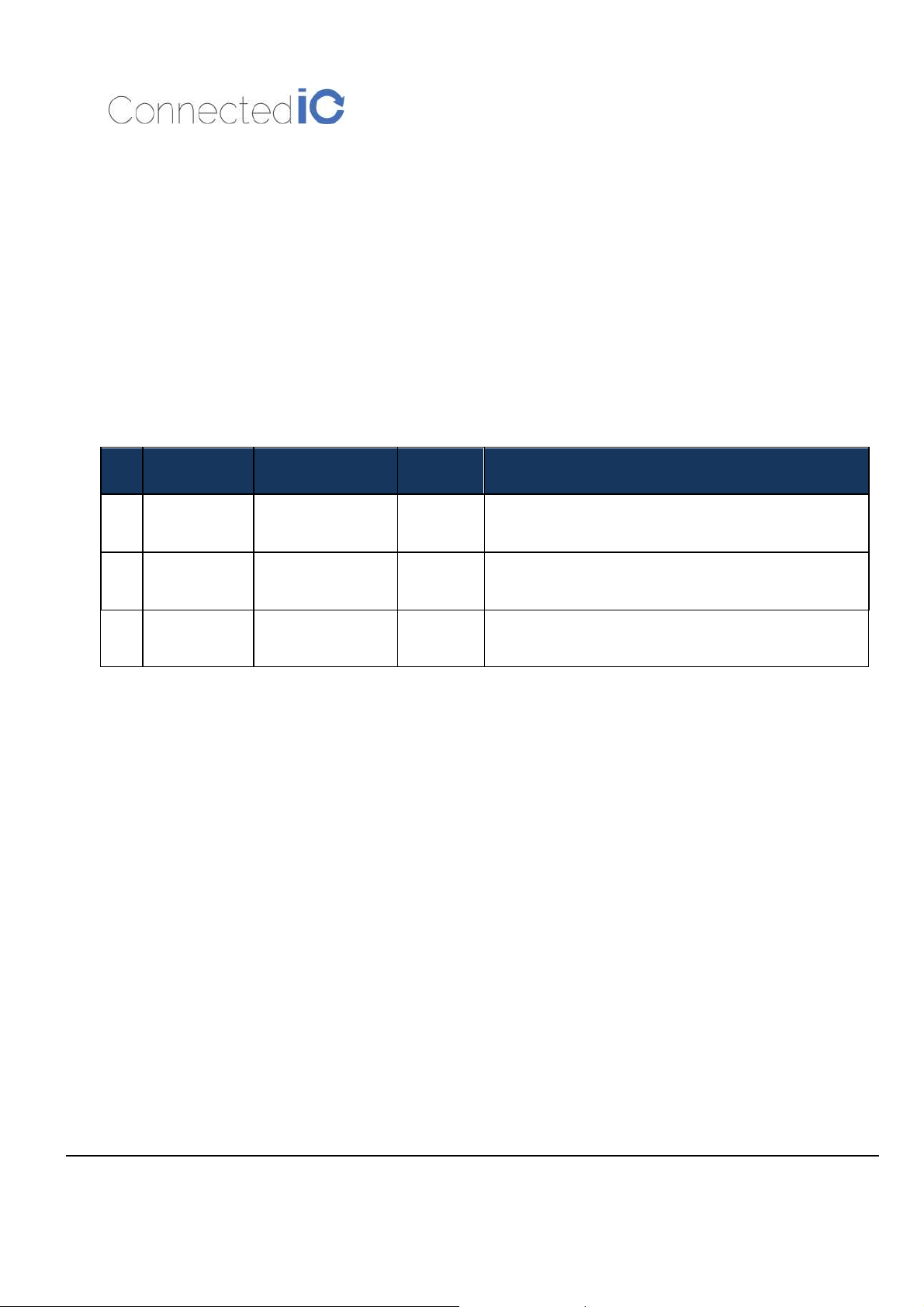
No. Manufacturer
Part No.
Antenna
Type
Revision: 1.3
Peak Gain
1
Joymax
2
Joymax
3
Joymax
YWX-6252SAXX711
TWX-6141RSXX711
TWX-1513RSXX711
Microstrip
Microstrip
Collinear
698-960MHz/ 1710-2170MHz/ 2500-2960MHz
3dBi Max
2400~2500MHz: 3.0dBi
5000~5900MHz: 5.0dBi
2400~2500MHz: 5.0dBi
5000~5900MHz: 5.0dBi
Industry Canada (IC) Notices
Canada, Industry Canada (IC) Notices
This device complies with Canada license-exempt RSS standard(s).
The device for operation in the band 5150-5250 MHz is only for indoor use to reduce the potential for
harmful interference to co-channel mobile satellite systems;
Operation is subject to the following two conditions:
(1) this device may not cause interference, and
(2) this device must accept any interference, including interference that may cause undesired
operation of the device.
Canada, avis d'Industry Canada (IC)
Le présent appareil est conforme aux CNR d'Industrie Canada applicables aux appareils radio
exempts de licence. les dispositifs fonctionnant dans la bande 5150-5250 MHz sont réservés
uniquement pour une utilisation à l’intérieur afin de réduire les risques de brouillage préjudiciable
aux systèmes de satellites mobiles utilisant les mêmes canaux; L'exploitation est autorisée aux deux
conditions suivantes:
Page 25
Connected IO,
CONFIDENTIAL
25
CIO Router: CR48NA User Manual
(1) l'appareil ne doit pas produire de brouillage, et
(2) l'utilisateur de l'appareil doit accepter tout brouillage radioélectrique subi, même si le brouillage
est susceptible d'en compromettre le fonctionnement.
Radio Frequency (RF) Exposure Information
The radiated output power of the Wireless Device is below the Industry Canada (IC) radio frequency
exposure limits. The Wireless Device should be used in such a manner such that the potential for
human contact during normal operation is minimized.
This device has also been evaluated and shown compliant with the IC RF Exposure limits under mobile
Revision: 1.3
exposure conditions. (antennas are greater than 31cm from a person's body).
Informations concernant l'exposition aux fréquences radio (RF)
La puissance de sortie émise par l’appareil de sans fil est inférieure à la limite d'exposition aux
fréquences radio d'Industry Canada (IC). Utilisez l’appareil de sans fil de façon à minimiser les contacts
humains lors du fonctionnement normal.
Ce périphérique a également été évalué et démontré conforme aux limites d'exposition aux RF d'IC
dans des conditions d'exposition à des appareils mobiles (antennes sont supérieures à 31cm à partir du
corps d'une personne).
This radio transmitter IC: 22975-CR48NA has been approved by Industry Canada to operate with the
antenna types listed below with the maximum permissible gain and required antenna impedance for
each antenna type indicated. Antenna types not included in this list, having a gain greater than the
maximum gain indicated for that type, are strictly prohibited for use with this device.
Cet émetteur radio IC: 22975-CR48NA a été approuvé par Industrie Canada pour fonctionner avec les
types d'antennes énumérés ci‐dessous avec le gain maximal admissible et impédance d'antenne requise
pour chaque type d'antenne indiqué. Types d'antennes n'est pas inclus dans cette liste, ayant un gain
supérieur au gain maximal indiqué pour ce type, sont strictement interdits pour une utilisation avec cet
appareil.
No. Manufacturer
Part No.
Antenna
Type
Peak Gain
Page 26
Connected IO,
CONFIDENTIAL
26
CIO Router: CR48NA User Manual
LTE:
Wi-Fi:
Wi-Fi:
Revision: 1.3
1
2
3
Joymax
Joymax
Joymax
YWX-6252SAXX711
TWX-6141RSXX711
TWX-1513RSXX711
Microstrip
Microstrip
Collinear
698-960MHz/ 1710-2170MHz/ 2500-2960MHz
3dBi Max
2400~2500MHz: 3.0dBi
5000~5900MHz: 5.0dBi
2400~2500MHz: 5.0dBi
5000~5900MHz: 5.0dBi
========== End of Document =========
 Loading...