

Page 1
Page 2

Table of Contents
1. Important Safety Guideline ........................................................................................2
2. Phone Overview ........................................................................................................3
3. Starting Up.................................................................................................................5
3.1 Installing SIM card .......................................................................................5
3.2 Installing battery ...............................................................................................5
3.3 Charging battery ...............................................................................................6
3.4 Switching on/off phone...............................................................................6
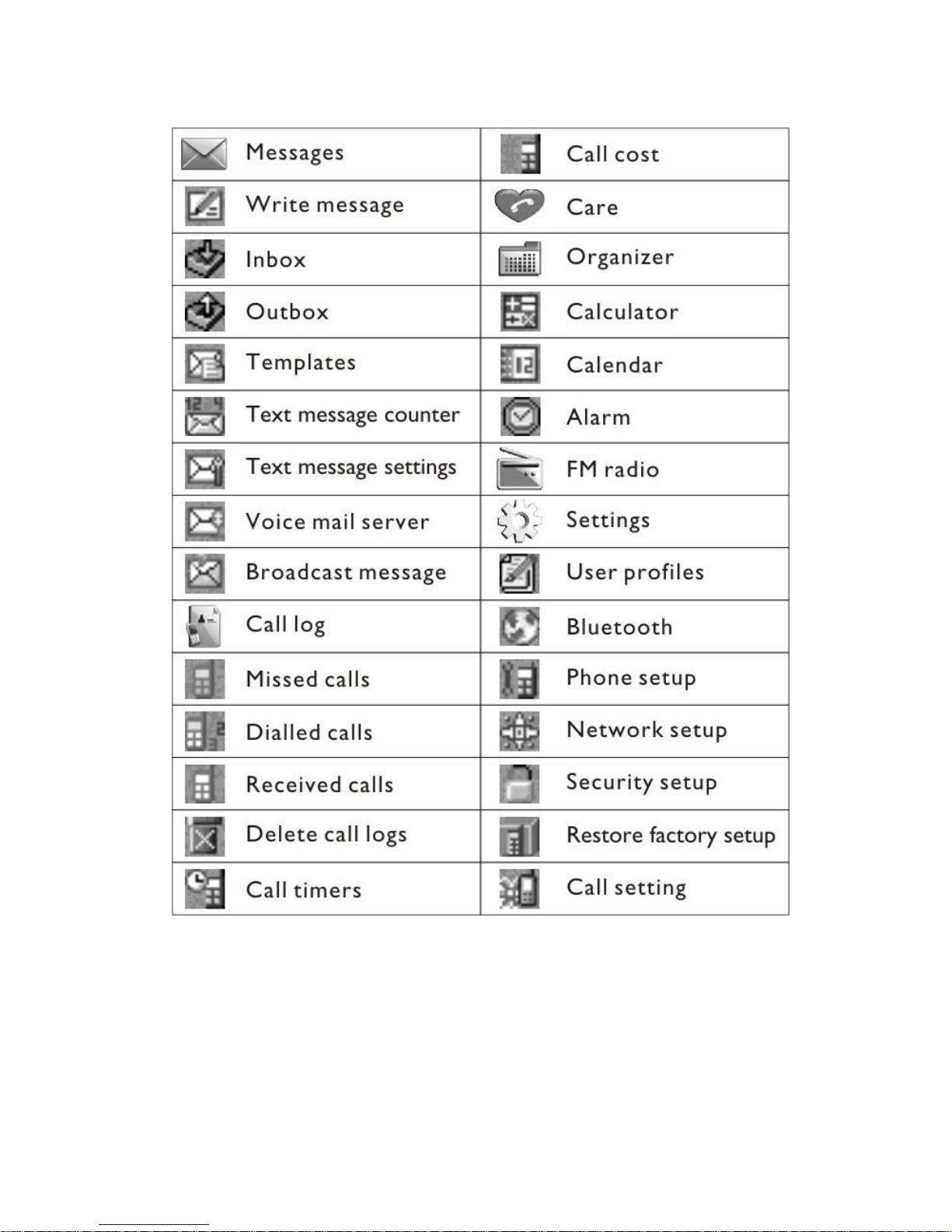
3.5 LCD display symbols........................................................................................6
4. Making Phone Call......................................................................................................8
4.1 Answering a call................................................................................................8
4.2 Making a call....................................................................................................8
4.3 Making a call with Speed Dial button...............................................................8
4.4 Redialing........................................................................................................... 9
4.5 Making emergency call......................................................................................9
4.6 Adjusting volume...........................................................................................10
4.7 Adjusting tone level response...................................................................... ..10
5. Menu Tree.............................................................................................................. ..10
6. Setting Phonebook....................................................................................................12
7. Message.....................................................................................................................13
8. Call Log.....................................................................................................................14
9. Care...........................................................................................................................14
9.1 Speed Dial ...............................................................................................14
9.2 Emergency Call .......................................................................................15
9.3 Fall Detection-SOS service.....................................................................16
9.3.1 Enabling Fall Detection-SOS Service...............................................16
9.3.2 Disabling Fall Detection SOS service...............................................17
9.4 Medical Alert..............................................................................................17
9.4.1 Doctor Appointment..........................................................................17
9.4.2 Medicine Refill..................................................................................18
9.4.3 Taking Medicine................................................................................19
10. Organizer.................................................................................................................20
11. FM Radio.................................................................................................................21
12. Settings....................................................................................................................21
12.1 User profile.......................................................................................................21
12.2 Bluetooth...........................................................................................................21
12.3 Phone setup................................................................................................... ...23
12.4 Network setup..................................................................................................23
12.5 Security setup...................................................................................................23
12.6 Restore factory settings....................................................................................25
12.7 Call setting........................................................................................................25
13. Content Table……………………………………………………………………..27
1
Page 3

1. Important Safety Guideline
Important:
please read this user manual carefully before you begin using the phone and keep this user
manual for future use. If you pass the device to a third party, be sure to pass this manual too.
Non-observance of this manual can result in serious injury or damage to the device.
Warning: These warning notices must be observed in order to prevent any injury to the
user or to third parties.
-Different countries may apply different regulations to the use of mobile phones(eg when driving,
hospitals, at petrol stations, in aircraft).Please check the laws on the use of a mobile phone
in your country and switch off the phone when usage is not permitted, or when dangerous
situations or interference could occur.
- Only use the phone in accordance with its purpose and at locations where telephoning poses no
dangers.
- Only use the manufacturer's charger and battery. Inserting an unsuitable battery or inserting
the battery incorrectly can result in danger of explosion.The battery must not be opened or
exposed to a flame.
- The operation of medical devices might be affected. The manufacturers of pacemakers
recommend a minimum distance of 20cm between the devices and phone when the phone is
turned on. Do not carry the phone in your breast pocket.
- If you suspect that there is interference between the phone and medical device, please
consult your doctor before using these devices together again.
- Keep the phone in a safe place out of children’s reach. It includes small parts which if
detached may cause a choking hazard.
- Do not disassemble this unit. Take it to a qualified service technical when repair work is
required.
- The unit should be kept away from heat source such as radiators or cooker.
- Do not use the phone at a refueling point, near fuel or chemical.
- Use dry cloth to clean the unit. Do not use any solvent.
- Do not keep the phone next to credit card or magnetic transport tickets. It might affect the
information on the magnetic strips.
1.1 Safety Notices
If your phone is lost or stolen, please immediately inform your nearest telecommunication department
or agent to disable the SIM card, so as to prevent others from using your phone and incurring
economic loss to you.
When you contact telecommunication departments or agents, they may need to know the IMEI code of
your phone (you can find it on the back label of your phon e after removing the battery). Please
Page 4

write down the code and keep it in a safe place for later use.
For the purpose of avoiding mistaken use of your phone, please adopt precautions such as:
-- Set up the PIN code of your SIM card. The PIN code can prevent your SIM card from being used
by unauthorized people.
-- On a trip or travel outside, please do not disclose your phone in public, so as to avoid unnecessary
loss. You’d better keep it close to you or lock it in your luggage.
-- Enable call barring.
1.2 Safety Precautions
Before using your phone, please carefully read through these precautions, so as to ensure safe and
correct use.
1.2.1 Current Precautions
Use only the origin al or specified accessories. Other products may cause battery leakage, overheat,
explosion, or fire.
Do not severely bump, shake or throw your phone, so as to avoid faults and fire.
Do not put your phone, battery or charger into your microwave oven or other high-pressure
devices. Otherwise, it may cause circuit damage or fire.
Do not use your phone at places with flammable or explosive gas. Otherwise, it may cause
phone faults or even fire disasters.
Do not put your phone in places of high temperature, high humidity or a lot of dust. Otherwise,
it may cause phone
faults.
Please keep your phone away from kids, so as to prevent them from using it as a toy and
incurring body injury.
Do not pu t your phone on uneven or unstable tables, so as to avoid phone faults or damages
incurred by dropping.
1.2.2 Mobile Phone
In places where the use of mobile phones is prohibited, such as planes and hospitals,
please shut down your phone, which will influence normal work of electronic equipment and
medical instruments. Please follow relevant regulations of these places. This phone offers the
automatic power-on function. Please check the alarm settings to make sure that your phone will
not automatically power on during a flight travel.
Please do not use your phone near to low-signal or high-precision electronic equipment.
Radio signal interference may cause false operation or other problems of such electronic
equipment. Special attention is required in case of the following devices: hearing aids,
pacemakers and other medical electronic devices, fire detectors, auto doors and other auto control
devices. For influence of mobile phones on pacemakers and other medical electronic devices,
please consult corresponding manufacture rs or local di stri b ut o rs.
Please do not forcefully knock at the LCD display or use it to knock at any other stuff;
otherwise the LCD will be damaged and LCD liquid will leak. If such liquid enters your eye,
there will be the danger of blinding. In that case, please use clean water to wash your eyes (do not
knead the eyes), and ask for help from the doctor.
Do not disassemble or modify this phone; otherwise it may cause damage, electric leakage or
circuit malfunction of the phone.
Page 5

In rare cases, when being used in cars of certain models, your phone may cause adverse
influence on in-car electronic devices. In that case, do not use the phone to avoid the loss of
security guarantee.
Do not use sharp articles, such as pin or pen point to press the keypad. Otherwise, it may
damage your phone or cause error operation.
If the antenna is damaged, please stop using the phone to avoid body injury.
Keep your phone away from magnetic articles such as magnetic cards, since radiation waves
emitted by the phone may clear information stored on floppy disks, value-storing cards or credit
cards.
Keep tiny metal articles such as thumb pins away from the speakers of your phone. Since the
speakers have magnetism during operation, it will absorb those small metal articles, and thus
cause body injury to the user or damage the phone.
Keep your phone away from water or other liquids, which may cause short-circuit, electric
leakage or other malfunctions of your phone.
Phone shall only be connected to a USB interface of version 2.0 or higher.
1.2.3 Battery
Do not throw the battery into fire; otherwise it may cause fire or explosion.
In packing the battery, do not impose excessive force; otherwise it may cause leakage,
overheat, explosion or fire of the battery.
Do not use electric wire or pins to cause short circuit of the battery; do not put the battery
together with metal stuff including necklaces; otherwise it will cause leakage, overheat, explosion
or fire of the battery.
Do not solder the contacts of the battery; otherwise it will cause leakage, overheat, explosion
or fire the battery.
If liquid within the battery enters the eye, there will be danger of blinding. In that case, do
not knead your eyes with your hand; use clean water to wash your eyes and then ask for help
from the doctor.
Do not disassemble or modify the battery; otherwise it may cause leakage, overheat,
explosion or fire of the battery.
Do not use or place the battery near to high-temperature places such as fire or heaters;
otherwise it may cause leakage, overheat, explosion or fire of the battery.
If the battery encounters abnormal temperature rise, color change or distortion during the
curse of use, recharging or storage, please terminate the use and replace it with a new one.
If leaked liquid from the battery touches your skin or clothes, it may cause skin burn. In that
case, please immediately use clean water to wash and ask for help from the doctor if necessary.
If the battery leaks or emits unusual odor, please immediately keep it away from flamed fire
to avoid fire or explosion.
Please avoid the battery being affected with damp; otherwise it may cause overheat, smoking
or erosion of the battery.
Please do not use or place the battery in high-temperature environment such as direct
sunlight; otherwise it may cause leakage or overheat of the battery, and may decrease its
performance and shorten its lifespan.
Do not recharge the battery for over successively 24 hours.
1.2.4 Charger
Page 6

Please use a 100-240V AC power supply. Other voltages will cause electric leakage, fire or
damage to your phone and charger.
It is strictly forbidden to cause short circuit of the charger; otherwise it will cause electricity
shock, smoking or damage of the charger.
Do not use the charger in case its power cable is damaged; otherwise it will cause fire and
electricity shock.
Please clean dust on power sockets as soon as possible.
Please do not put containers with water beside the charger, so as to avoid short circuit,
electric leakage or other malfunctions incurred by spilled water.
If the charger touches water or other liquids, cut off the power supply immediately to avoid
short circuit, fire, electricity shock and malfunctions of the charger.
Please do not disassemble or modify the charger; otherwise it will cause body injury,
electricity shock, fire or damage of the charge r.
Please do not use the charger in high-humidity places such as bathrooms; otherwise it may
cause electricity shock, fire or damage of the charger.
Do not use your wet hand to touch the charger, wire or power socket; otherwise it will cause
electricity shock.
Do not put heavy stuff on power cable or modify them; otherwise it will cause electricity
shock or fire.
Before cleaning or maintenance, please remove the plug of the charger from the power
socket.
When removing the plug, please grasp the charger. Pulling the power cable may damage the
cable and incur electricity shock or fire.
The socket-outlet shall be installed near the equipment and shall be easily accessible.
1.2.5 Cleaning& Maintenance
Do not use your phone, battery and charger in places with high humidity such as bathrooms,
and also keep them away from raindrops.
Please use soft, dry cloth to clean your phone, battery and charger.
Do not use chemical reagents such as alcohol, thinner or benzene to clean your phone.
Dusty power socket may cause bad contract and power failure, so as to incur recharging
failure. Please clean the power socket regularly.
1.2.6 Generic Precautions
Mobile Phone:
Please use your phone under the circumstances as follows: temperature: -10℃ to -50 ℃
and humidity: 35%~85%.
Please do not use your phone near fixed phones, TV sets, radio sets and office automation
equipment, so as to avoid influence on effect of such devices as well as your phone.
Battery:
Please keep the battery in cold places with good ventilation and without direct sunlight.
Lifespan of the battery is limited, and its use time will be shortened after frequent charging.
When the battery fails to function after multiple times of charging, it may come to the end of its
life, when please replace it with a new one of the same model.
Do not litter used batteries with ordinary garbage. Where there are explicit regulations on the
disposal of used batteries please follow the instructions of such regulations.
Page 7

Charger:
Do not charge your battery under the following circumstances: places with direct sunlight;
external temperature under -10 or over 50 ; places with heavy humidity, dust or vibration ℃℃
(potential fault causes); near to electric appliances such as TV sets and radio sets (adverse impact
on video/audio effect).
Page 8
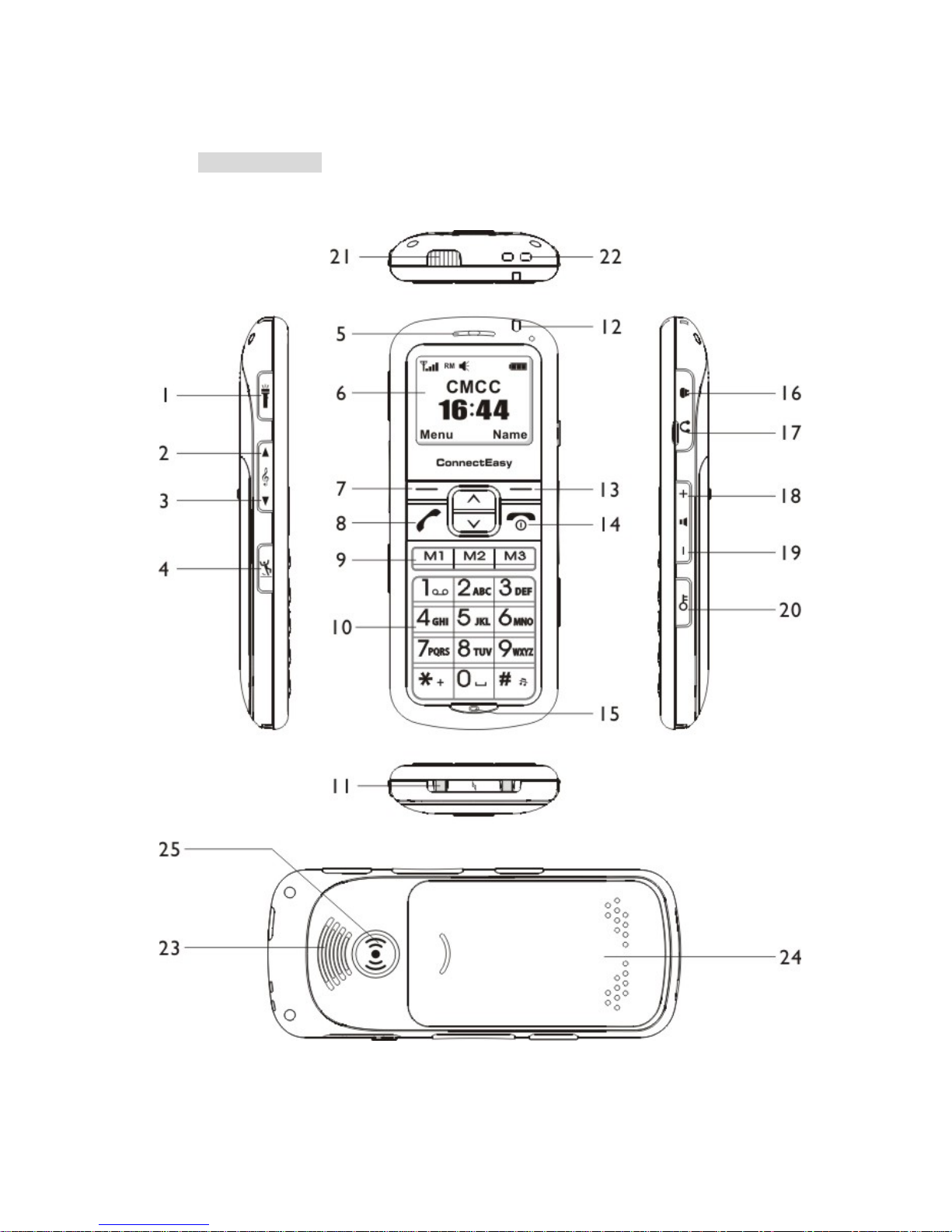
2. Phone Overview
3
Page 9

4
1. Torch button
2. Tone up
3. Tone down
4. Fall sensor ON/OFF
5. Earpiece
6. Display
7. Left soft key
8. Talk
9. Speed dial button
10. Numeric keypad
11. Charging contacts(for use
with charging dock)
12. LED
13. Right soft key
14. Power ON/OFF(End call )
15. Microphone
16. Charging socket
17. Earphone socket
18. Volume up
19. Volume down
20. Key lock
21. T orch light
22. Eye for neck strap
23. Loudspeaker
24. Battery cover
25. SOS(Emergency call
button)
Page 10
3. Starting Up
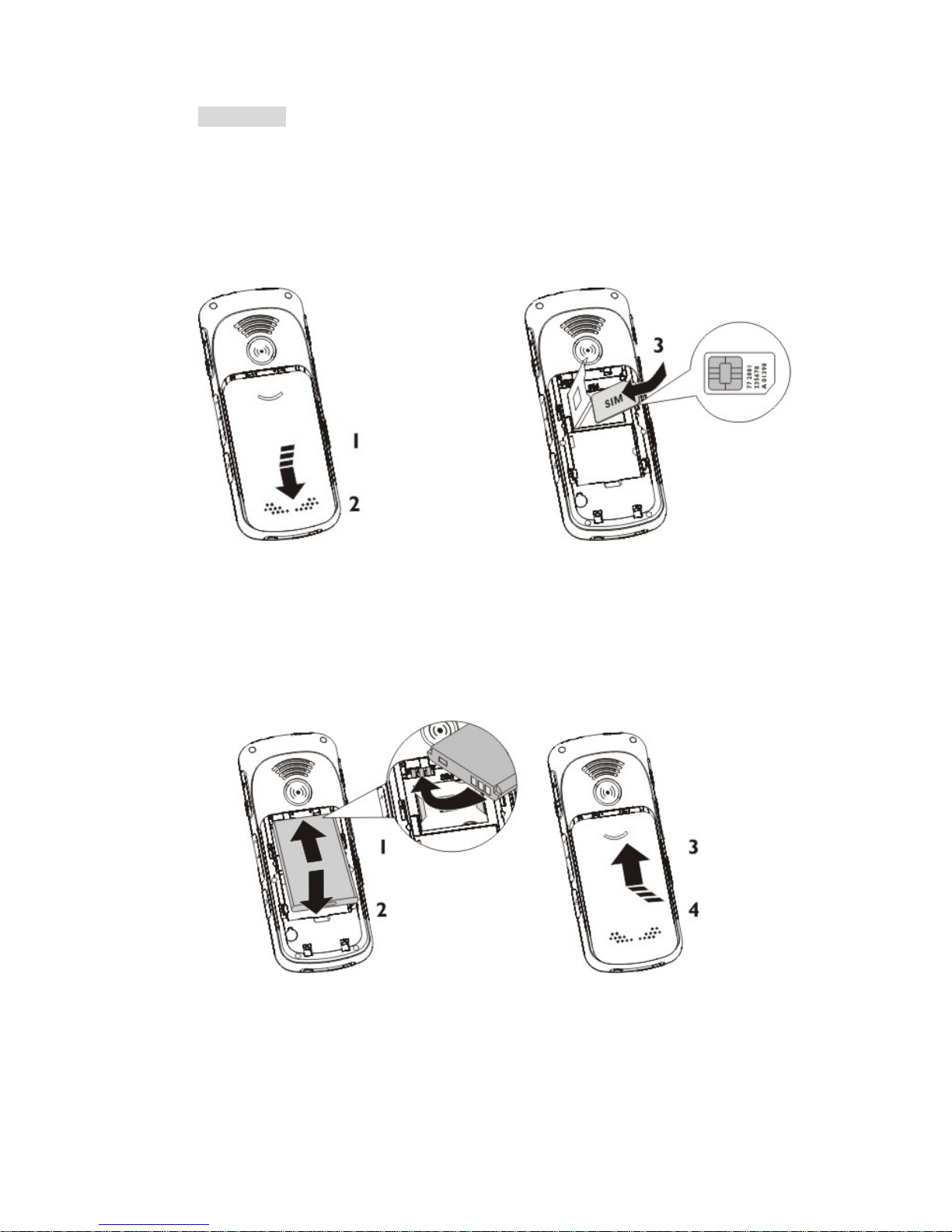
3.1 Installing SIM card
Open the battery door, insert the SIM to SIM socket
3.2 Installing battery
Insert the battery, close the battery door
5
Page 11
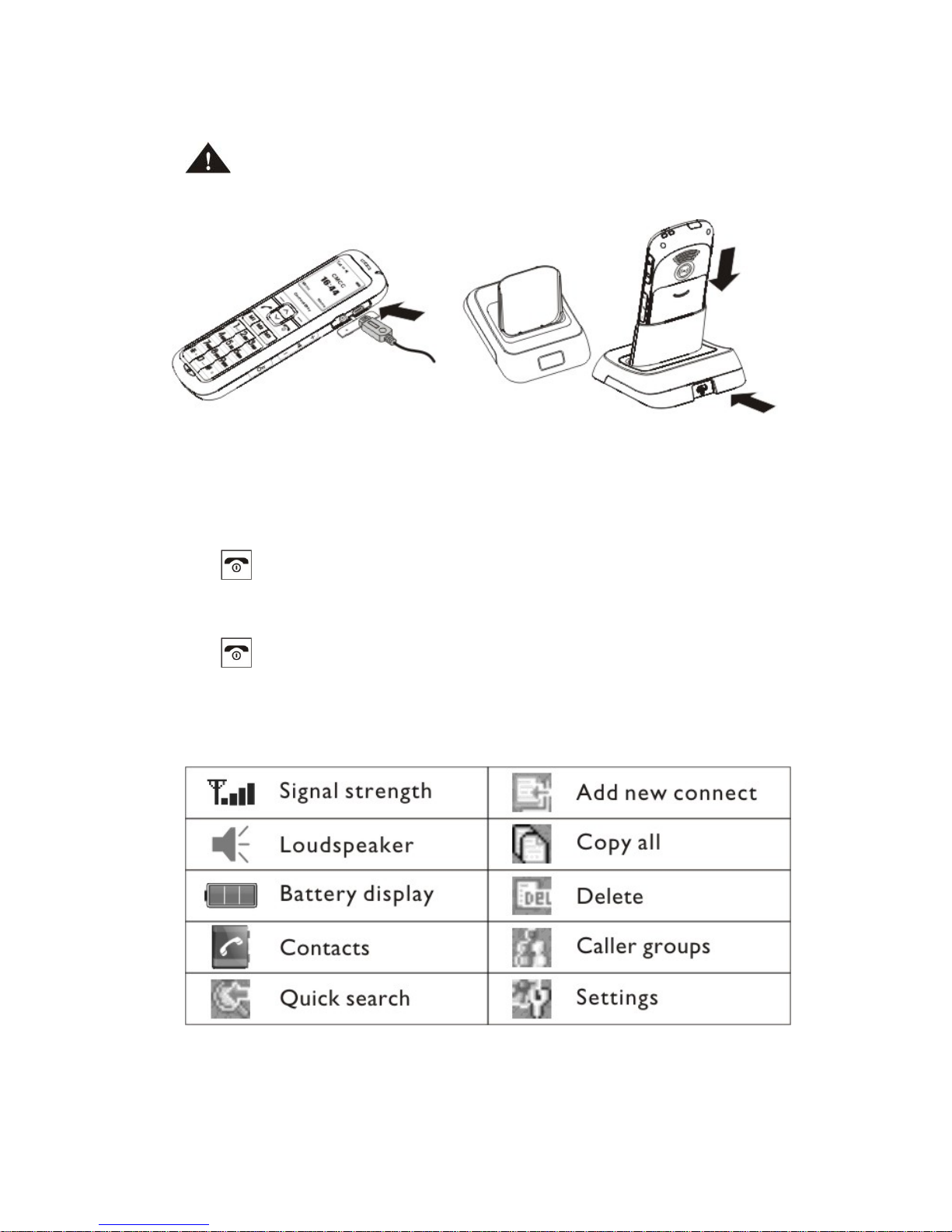
3.3 Charging battery
Important: Fully charge the battery before using it for first time.
3.4 Switching on/off phone
Switching the phone ON:
Press and hold “power On/Off ” button until the
unit turns on.
Switching the phone OFF:
Press and hold “power On/Off ” button until the
unit turns off.
3.5 LCD display symbols
6
Page 12
7
Page 13
4. Making Phone Call
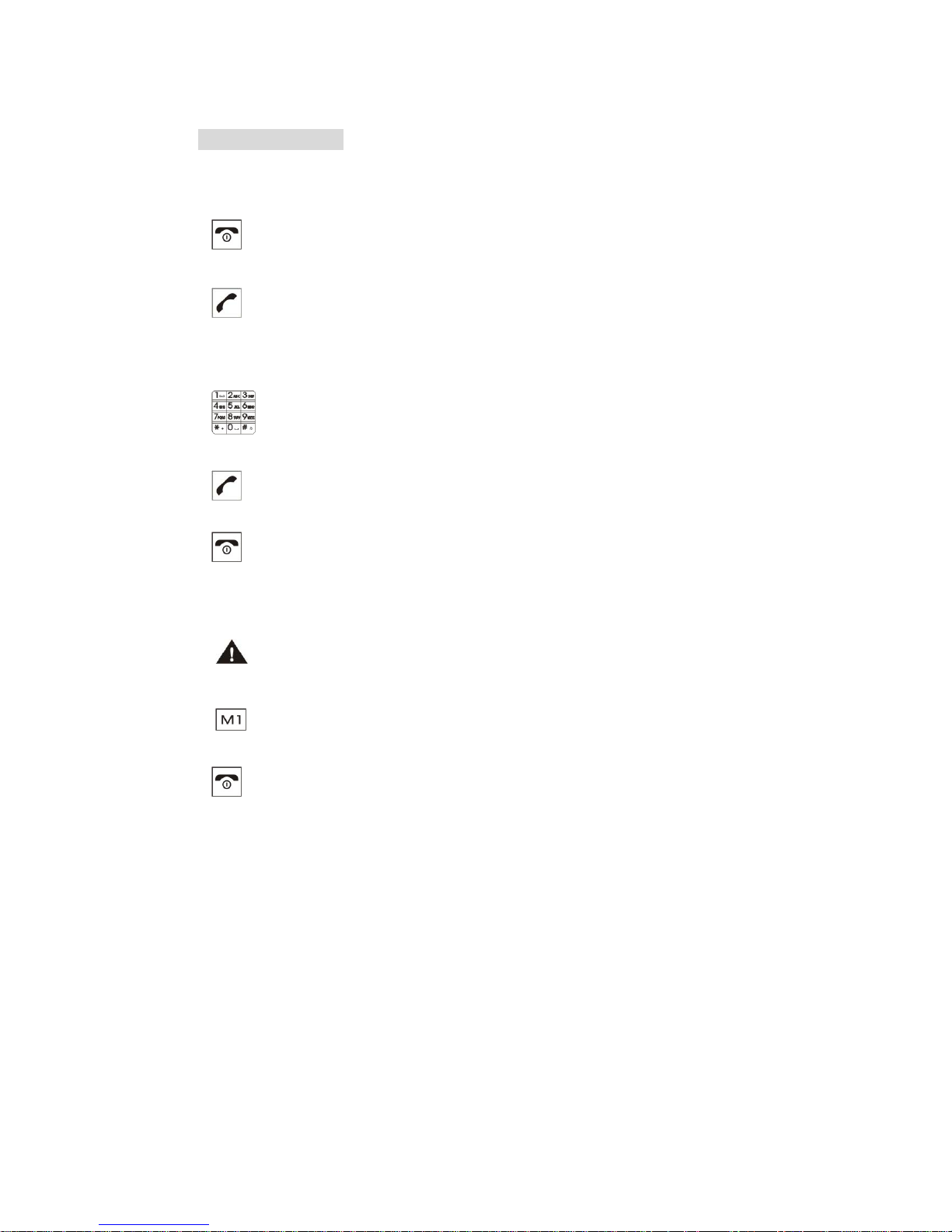
4.1 Answering a call
Press “Talk” button to answer a call
Press “End call” button to reject a call
4.2 Making a call
Enter the phone number
Press “Talk” button to call the number
Press “End call” button to end the call
4.3 Making a call with speed dial button
Important: Setting the phone number for
Speed Dial -refer to section 9.1
Press and hold M1, M2, M3 until the
corresponding number stored is calling.
Press “End call” button to end the call.
8
Page 14
4.4 Redialing
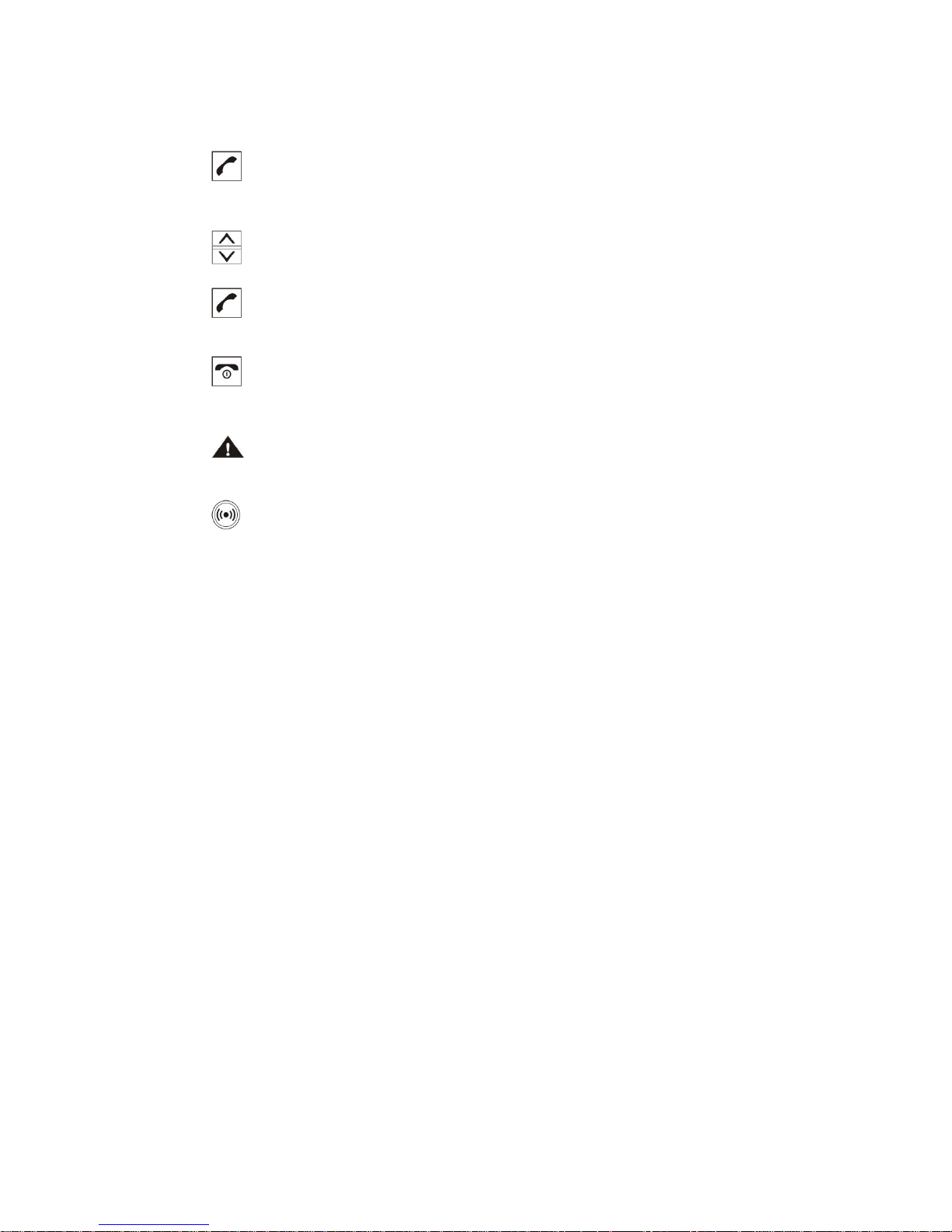
Press “Talk” button to open the call list
Press “Up” or “Down” button to select the
phone number dialed
Press “Talk” button to call
Press “End call” button to end the call
4.5 Making emergency call
Important: Setting SOS contact number -refer
to section 9.2
When the phone is idle, press & hold “SOS”
button will activate “SOS” dialing. A beep tone will be ringing and preset
“SOS” message will be sent via SMS to the preset contacts. After few
seconds, the phone will call the preset contacts and the LCD will show the
calling number.
Preset “SOS” contacts can be up to 5 phone numbers. It’s highly recommended
to save all 5 memories with your reliable contacts to maximize the chance of getting
help in emergency.
9
Page 15

4.6 Adjusting volume
During phone call, press “Volume up” or
“Volume down” to increase or decrease the
volume
4.7 Adjusting tone level response
Tone adjustment allows you to amplify the
volume at desired frequency. During phone call,
press “Tone up” button to amplify the volume at
high frequency or press the “Tone down” button
to amplify the volume at low frequency.
5. Menu T r ee
Press “Left soft button” & “
Up” or “ Down” button
to navigate the menu
Contacts
- Quick search
- Add new contact
- Copy all
- Delete
- Caller groups
- Settings
10
Page 16

11
Messages
- Write message
- Inbox
- Outbox
- Drafts
- Templates
- Text message counter
- Text message settings
- Voice mail server
- Broadcast message
Call log
- Missed calls
- Dialled calls
- Received calls
- Delete call logs
- Call timers
- Call cost
Care
- Speed Dial
- Emergency Call
- Medical Alert
Organizer
- Calculator
- Calendar
- Alarm
FM radio
Settings
- User profiles
- Bluetooth
- Phone setup
- Network setup
- Security setup
- Restore factory
settings
- Call setting
Page 17

6. Setting Phonebook
Quick search Input the initial letter of the contact you
want to search
Add new contact Select SIM card or Phone
Press “Left soft key” to enter the Name
Press “Left soft key” and select “done”
Go to Number and enter the number
Press “Left soft key” and confirm “save”
Copy all You can copy all entries from SIM card
memory to Phone memory and also from
Phone memory to SIM card memory
Delete You can delete the contact from Phonebook
Caller groups You can group your contacts in record
from the Phone with selected ringtone
Settings Go to “Memory Status” to view the
memory status of SIM card or the Phone
Go to “Name list filter” to select from
SIM card memory or from the phone
memory when you quick search the
contact
12
Page 18

7. Message
Write message
Input your message and confirm “Done”. You can select “send” Enter the phone
number or search from your phonebook
Inbox You will be alerted when you have received a
message. Go to read the message from Inbox
Outbox View your sent messages
Drafts This menu stores messages you have saved to send at a later time.
Templates There are some pre-defined message in the list.
You can view and edit the template message or create new
messages.
Text message counter
This menu shows the list of messages sent and received
Text message settings
Profile settings is set according to your SIM card
Common settings -Delivery report:set the network to inform
you when your messages have been delivered
Common settings -Reply path:allow recipients to reply to you
through SMS server.
Voice mail server
This menu provides you with a quick way of accessing your voice mailbox (if you
have this service from the network)
Broadcast message
Broadcast message are text messages delivered from the network operator to your
handset. You can go the this menu
to enable or disable it.
13
Page 19
8. Call Log
Missed calls View the last 20 unanswered calls
Dialled calls View the last 20 outgoing calls
Received calls View the last 20 incoming calls
Delete call logs Delete any call logs in record
Call timers View the duration of your incoming
and outgoing calls
Call cost View the cost of calls if it’s provided
by the network
9. Care
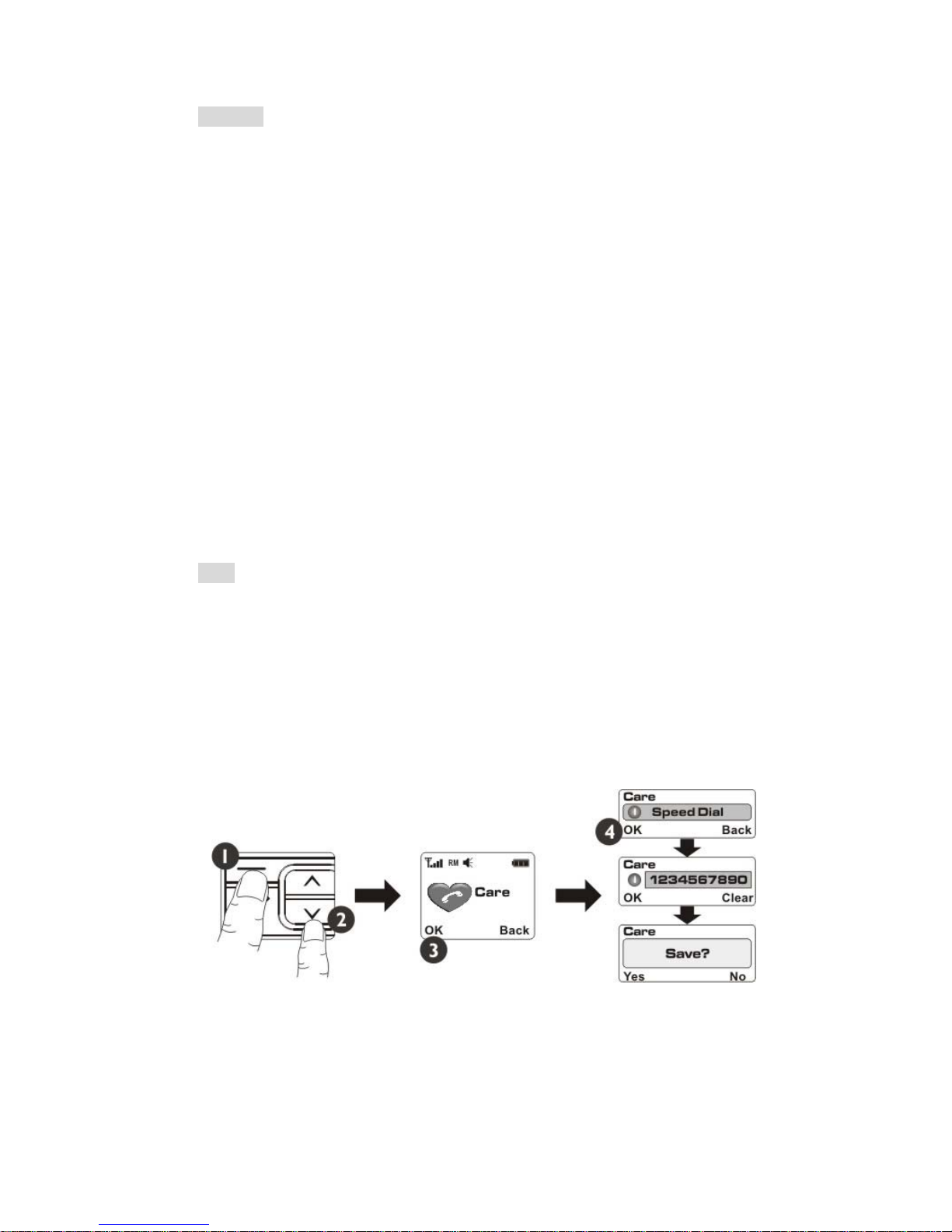
9.1 Speed Dial
Go to “Speed Dial” menu
Press “Left soft key”
Input the phone number and confirm OK.
You can input maximum 3 Speed Dial settings and make a quick call by pressing
M1, M2 and M3.
14
Page 20
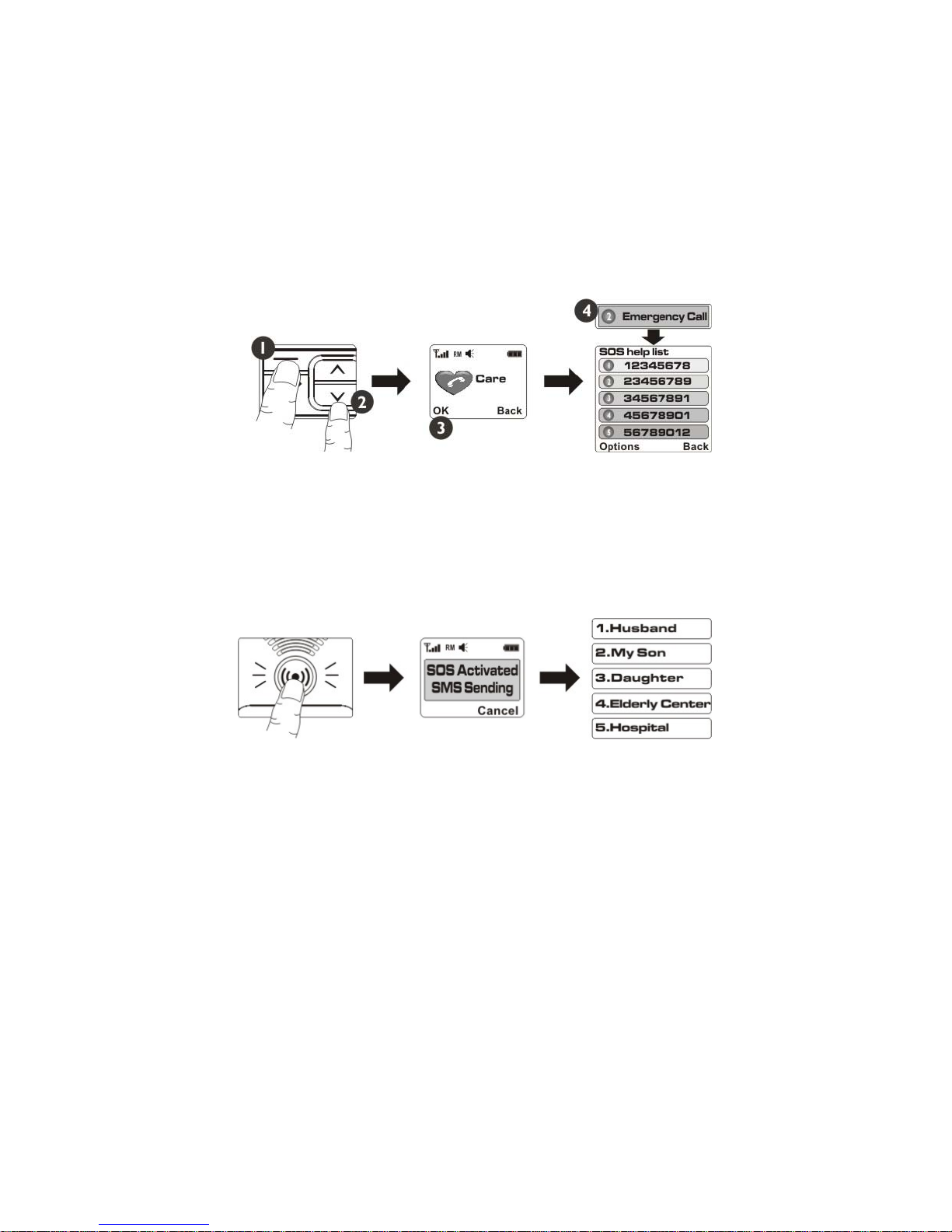
9.2 Emergency Call
Go to “Emergency Call” menu
Press “Left soft key”
Input the phone number and confirm OK.
You can input maximum 5 SOS help list that you are sure they can provide help to
you when you are in emergency.
When the phone is idle and you press “SOS” button, the phone will activate the
SOS function.The phone will ring and send “SMS” to preset 5 contact, then it will
automatically dial the first preset contact.
If the first phone number is busy or no one answers, the phone will start calling
2nd, 3rd, 4th, & 5th sequentially until one of the helpers is connected. Between
each cycle, the mobile will wait for a few minutes and activate the alarm to alert
other persons in the close area to help the user .
15
Page 21
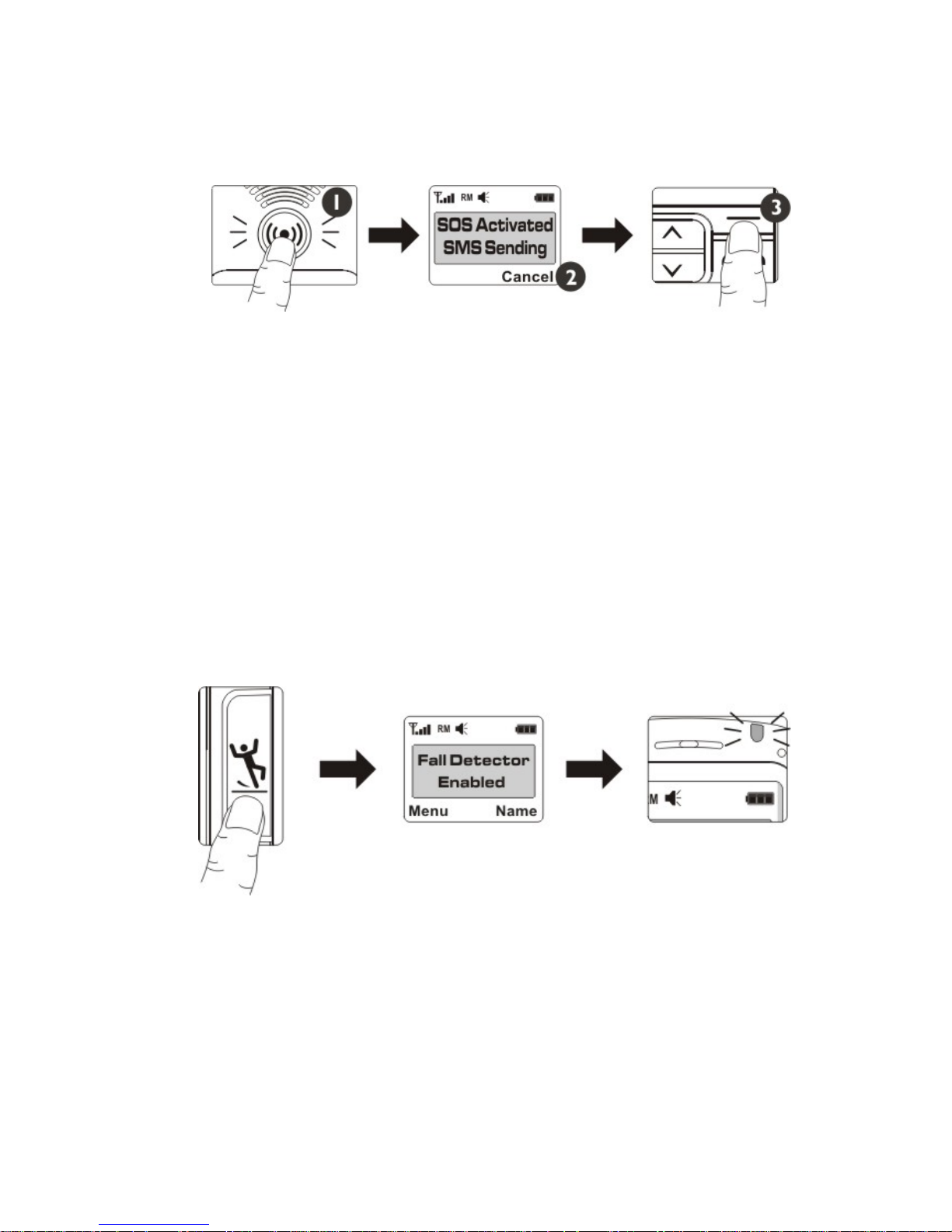
During the operation, the user can cancel the SOS calling by press “Right soft key” to
abort.
After you input the SOS contacts in the phone, the contacts will receive a SMS to
acknowledge your contacts for the SOS registration. If you remove the contact from
the SOS list, the phone will send SMS to notify the SOS deregistration.
9.3 Fall detection-SOS service
Fall detection-SOS service detects accidental fall of the user. When the user
experiences accidental fall, the phone can trigger the automatic dialing to
preset SOS contacts.
9.3.1 Enabling Fall Detection-SOS Service
Press “Fall Sensor” button, a beep tone will ring and LCD will display “Fall
Detector Enabled”. The blue LED on top will flash indicating Fall detector
is on.
16
Page 22
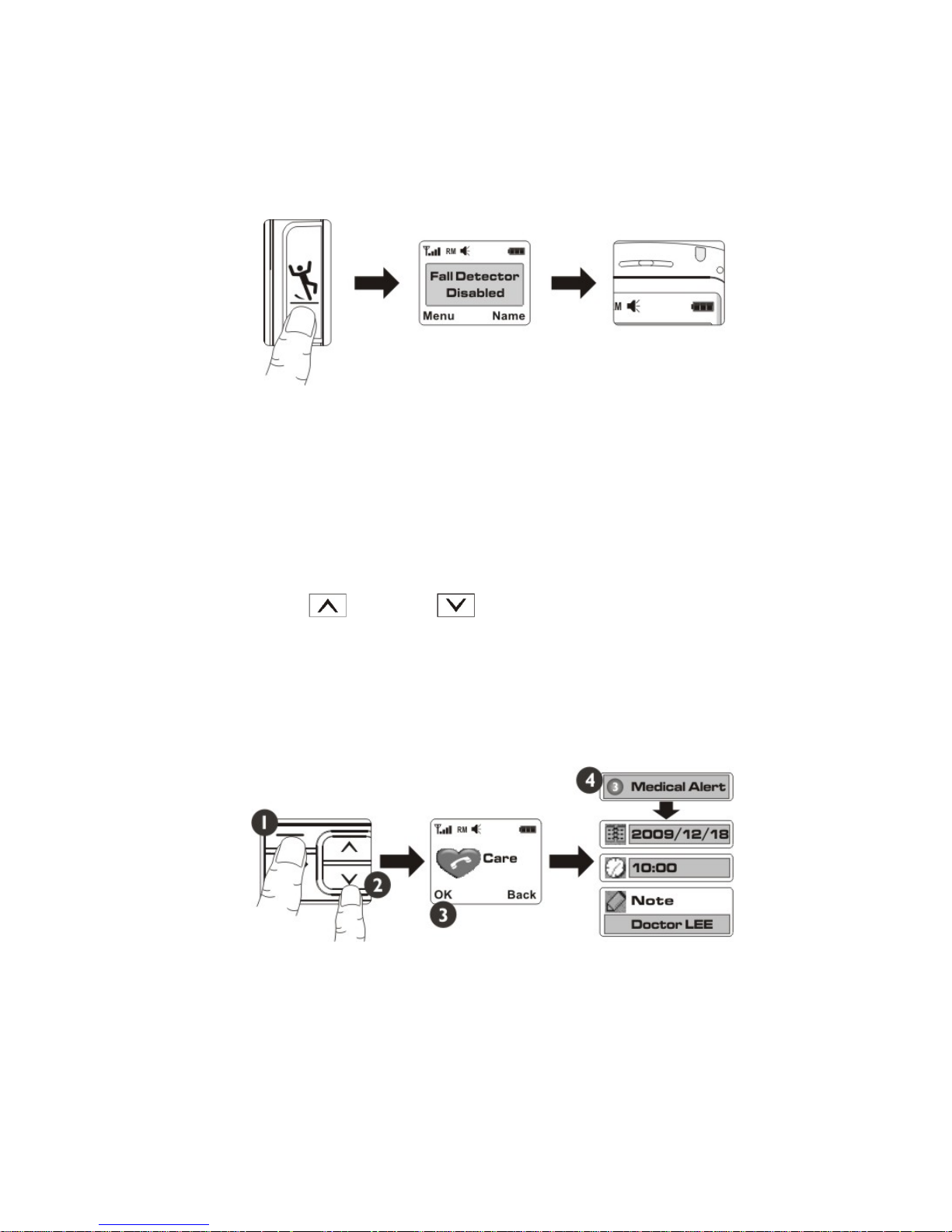
9.3.2 Disabling Fall Detection -SOS service
Press “Fall Sensor” button, a beep tone will ring and LCD will display“ Fall
Detector Disabled”. The blue LED on top will stop flash indicating Fall
detector is off.
9.4 Medical Alert
9.4.1 Doctor Appointment
Go to “Care” menu, then “Medical Alert”
Go to “Doctor Appointment”
Press “Left soft key” to add appointment schedule
Input date, Input time, Input doctor name by edit “Note”
Press “Right soft key” to save the schedule
Press “Left soft key” to confirm saving
Press “ Up” or “ Down” button to scroll
between the lines to input.
Press “Left soft key” to “View”, “Add”, “Edit” or “Delete” the schedule.
17
Page 23

When you input an doctor appointment, the phone will remind you the appointment 1
day before the appointment. You can prepare or inform your helper to take you to
doctor in advance.The Doctor appointment time will display on LCD. You
can press “ Down” button to view the coming Doctor Appointment
detail.
Remark:
The reminder will be activated according to the schedule set and the time of your
phone. Please make sure the time of your phone is updated.
9.4.2 Medicine Refill
Go to “Care” menu, then “Medical Alert”
Go to “Medicine Refill”
Press “Left soft key” to add the medicine
Input date, Input time,
Input medicine to refill by edit “Note”
Press “Right soft key” to save the schedule
Press “Left soft key” to confirm saving
Press “ Up” or “ Down” button to scroll between
the lines to input
Press “Left soft key” to “View”, “Add”, “Edit” or “Delete” the input.
When you input a Medicine Refill alert, the phone will remind
you 1day before the input time. You can prepare or inform your helper to get
the medicine in advance.
Remark: the reminder will be activated according to the schedule set and the
time of your phone. Please make sure the time of your phone is updated.
18
Page 24
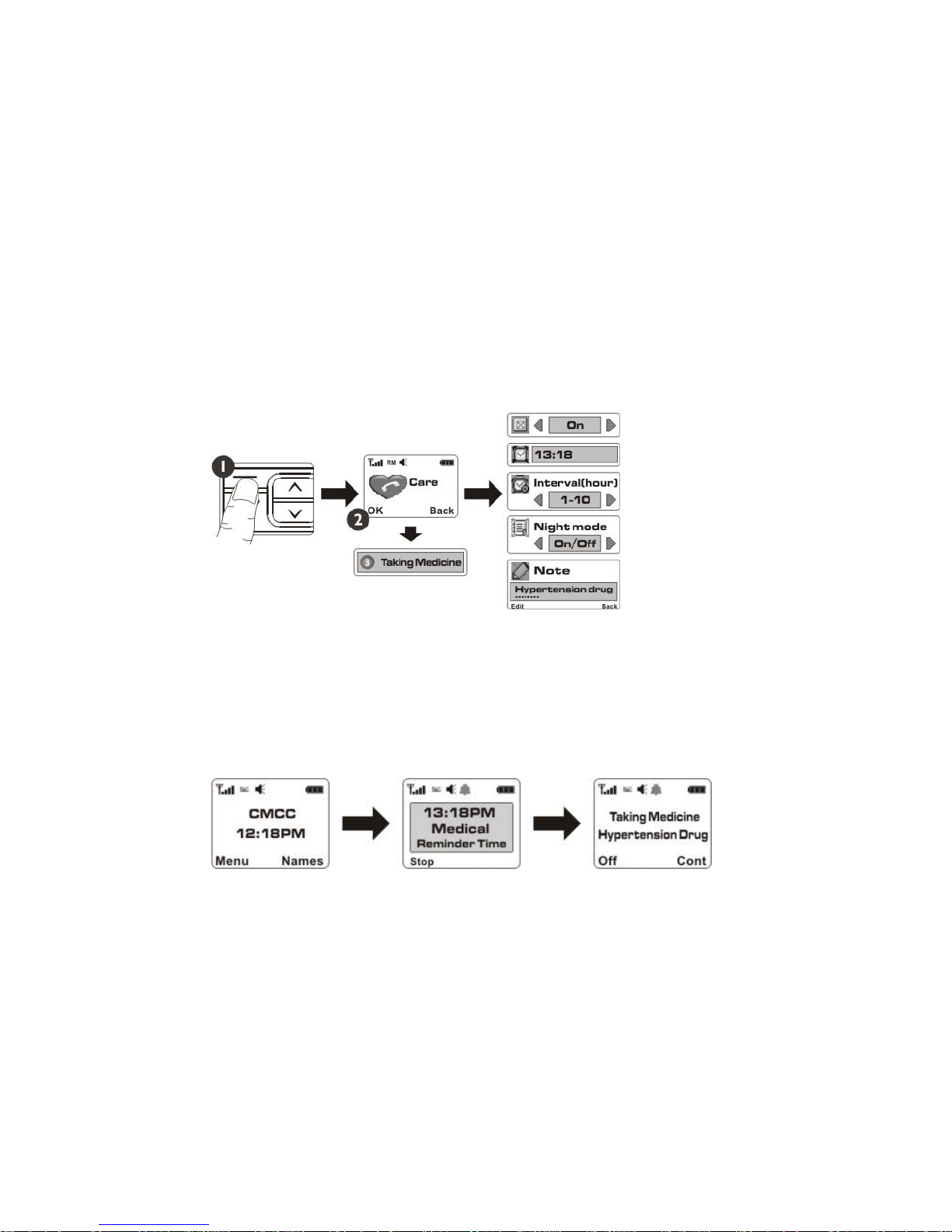
9.4.3 Taking Medicine
Go to “Care” menu, then “Medical Alert”
Go to “Taking medicine”
Press “Left soft key” to add the medicine reminder
Press “Left soft key” to turn on the medicine reminder
Input time,
Input time interval if you need to take the medicine
within 10 hours again, Confirm Night mode or not,
Input Medicine name by edit “Note”
Press “Right soft key” then “Left soft key” to confirm
turn on medicine reminder.
When you turn on the medicine reminder, the LCD will display “??”
19
Page 25

When it is time to take medicine, the alarm will ring to remind you. LCD will
display “Taking Medicine xxx”
Press “Right soft key” to continue the medicine reminder. The alarm will ring again
when time is next time interval.
Press “Left soft key” to turn off medicine reminder.
You can input maximum 10 medicine reminders.
10. Organizer
Calculator
This contains the standard functions such as +, -, x, ÷: Addition, Subtraction,
Multiplication and Division.
Calendar
When you go to this menu, a calendar will pop up.
Alarm
You can set total 5 alarms. Select an alarm to set the alarm time. The Alarm icon
will display on the LCD when you turn on the alarm.
20
Page 26

11. FM Radio
Please plug the earphone to socket before you start FM radio function.
Go to FM radio menu
Press “ Up” or “ Down” button to change the FM
frequency or Press “Left soft key” to select input Channel List (upto 30 channels),
Manual Input FM frequency, or go to “Preset auto search” and press “Left soft
key” to auto search the channel.
Go to “Settings” to turn on loud speaker setting.
Press “Right soft key” to stop FM radio playing and “End Call” button will exit FM
radio.
12. Settings
12.1 User profile
You can change and customize the phone tone setup, volume, Alert type and
Ring type for different events or environments.
12.2 Bluetooth
Power
Turn on/off Bluetooth
Inquiry audio device
Press “Left Soft key” will search new devices
21
Page 27

Go the device you want to pair
Press “Left soft key” to confirm pairing
Enter a Bluetooth PIN code and press “Bond”.
Press “Left soft key” to confirm connecting
Using device options
From the device list, press “Options” to access the
following options:
Connect/Disconnect
connect to the current selected device or disconnect
Set as default handsfree headset: default current
connected device
Rename: rename the paired device
Authorize: determine whether the phone asks you to
permit connection when the device tries to connect to your phone
Delete: remove the selected device or all displayed devices from the device list.
Service list: display available Bluetooth profile
My Device
Inquiry new device or go the device you want to connect
Press “Left soft key” to confirm connect
Settings
Visibility: allow other Bluetooth devices to search for your phone.
Change device name: change the assigned name of your phone displayed on other
devices.
Audio path: select using your phone or other Bluetooth device.
22
Page 28

12.3 Phone setup
Time and date
You can input update information of time and date
Schedule power on/off
You can set the schedule of auto Power On/Off.
Language
You can change the language for display text on the phone.
This change will also affect the language input mode.
Display characteristics
You can change settings of the phone display
LCD backlight
You can change the blightness of LCD backlight setting.
12.4 Network setup
Network selection
You can select a network that will be registered either automatically or manually.
Preference
You can set your prefered network list and priority.
12.5 Security setup
SIM lock
you can set the phone to ask for the PIN code for your SIM card when the phone
is switched on. Input the PIN you set to turn off the SIM lock if you don’t want
to turn on the SIM lock.
23
Page 29

Phone lock
You can set a security code to avoid unauthorized use of the phone
Auto keylock
When you enable this function, the phone keypad will be locked based on your
setting.
You can press “Key lock” button to lock or unlock the keypad.
Fixed dial number (SIM dependent)
You can restrict your outgoing calls to selected phone numbers. The numbers are
protected by your PIN2 code.
The numbers you wish to allow access to once this service has been enbaled, must be
added to the Number list after enabling Fixed dial number.
Barred Call (SIM card dependent)
The call barring service prevents your phone from making or receiving a certain
category of calls.
This function must support by your network service.
This function requires the call barring password.
Change password
PIN is protection to prevent use by unauthorized person.
You can change the access codes: Phone password, PIN code, PIN2 code.
24
Page 30

12.6 Restore factory settings
Input factory setting password 1122 and confirm
The phone will ask “yes to restore and reboot?”
Pres “Left soft key” to confirm reset or “Right soft key” to abort the reset
Note: The settings in the phone will be changed if you confirm restore settings.
Data stored on the SIM are unchanged.
12.7 Call setting
Caller ID
This network service allows you to prevent your phone number from being
displayed on the phone fo the person being called. However it must supports by
your network provider.
If you select “Set by network”, the phone will use the default setting provided by
the network.
Call waiting
You can activate or deactivate the function if your SIM card supports this
function.
Call divert
You can divert the phone call to designated phone number or voice mail if your
SIM card supports this function.
Call barring
This network service allows you to restrict your call.
1. To select a call barring option
All outgoing: prohibit all outgoing calls
International: prohibit international calls
International expect to home: only allow calls to numbers within dometic
country.
25
Page 31

All incoming: prohibit incoming calls
Incoming when roaming: prohibit incoming calls when you use your phone outside
of domestic country.
Cancel all: cancel all call barring settings
Change barring password: change the call barring password
The call barring service prevents your phone from making or receiving a certain
category of calls. This function must support by your network service. This function
requires the call barring password.
2. Select the type of calls to be barred.
3. Select Activate. To deactivate call barring, select deactivate.
Auto redial
Auto redial the last dialed if there is no reply
Speed dial
You can make speed dial by pressing number key “2-9” when
the phone is idle. Please input the phone number for
corresponding number of 2 to 9 and save.
More
Call time display
Turn on or off for call time display
Call time reminder
You can set call time reminder to remind you your calling time.
Auto quick end
You can set a calling time duaration. When this function is activated, the phone will
end the call automatically if the calling time duration set is reached.
Notices:
The socket-outlet shall be installed near the equipment and shall be easily accessible.
26
Page 32
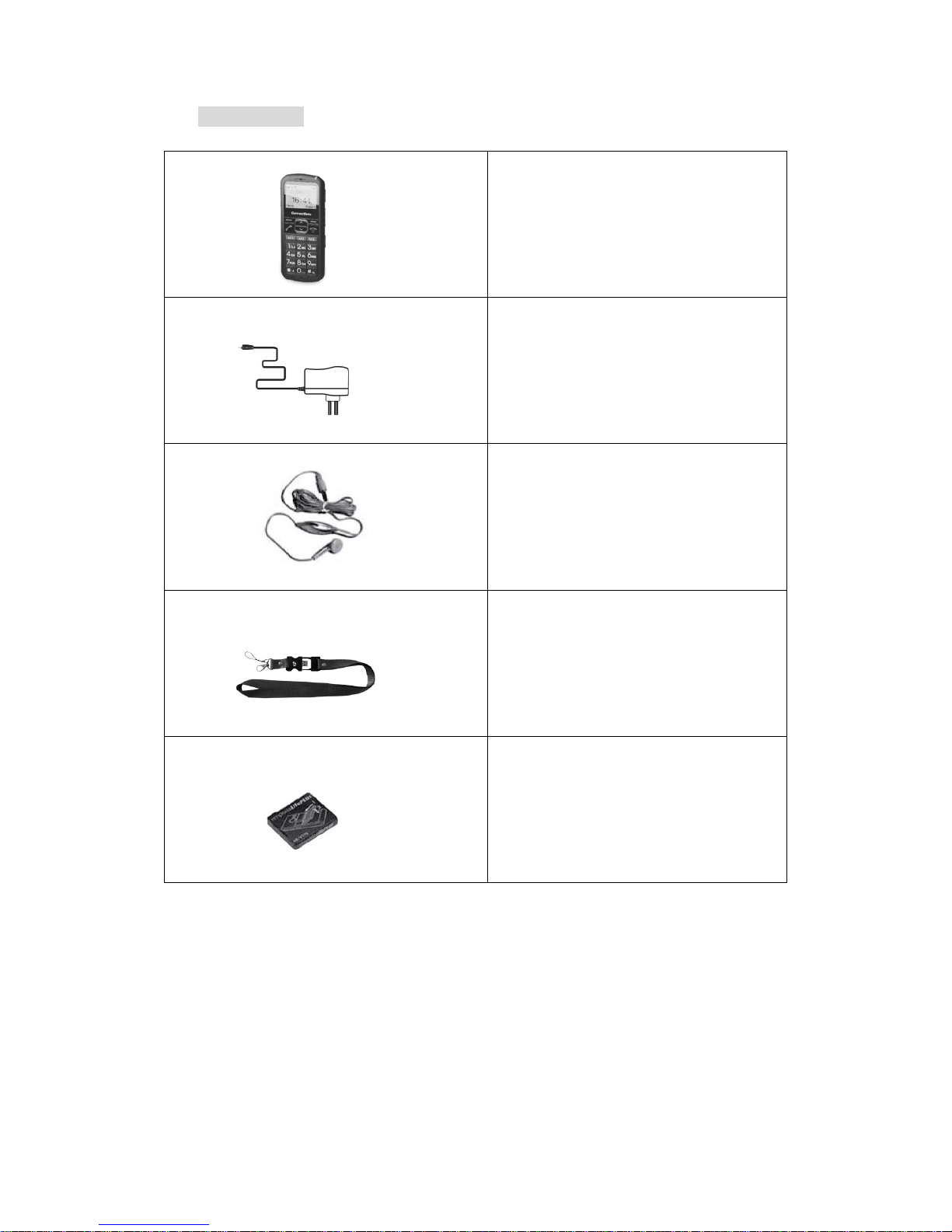
13. Content Table
GSM Phone
Adaptor
Headset
Neck-strip
Battery Pack
27
Page 33

RF Exposure Information and Statement
The SAR limit of USA (FCC) is 1.6 W/kg averaged over one gram of tissue. Device
types CS9133 (FCC ID: XWE-CS9133) has also been tested against this SAR limit.
The highest SAR value reported under this standard during product certification for
use at the ear is 0.313 W/kg and when properly worn on the body is 0.495 W/kg. This
device was tested for typical body-worn operations with the back of the handset kept
1.5cm from the body. To maintain compliance with FCC RF exposure requirements,
use accessories that maintain a 1.5cm separation distance between the user's body and
the back of the handset. The use of belt clips, holsters and similar accessories should
not contain metallic components in its assembly. The use of accessories that do not
satisfy these requirements may not comply with FCC RF exposure requirements, and
should be avoided.
This device complies with part 15 of the FCC rules. Operation is subject to the
following two conditions: (1) this device may not cause harmful interference, and (2)
this device must accept any interference received, including interference that may
cause undesired operation.
NOTE: The manufacturer is not responsible for any radio or TV interference caused
by unauthorized modifications to this equipment. Such modifications could void the
user’s authority to operate the equipment.
28
 Loading...