

Page 1
CONKER ST8
Quick Start Guide
Page 2
Powering on your phone:
To power on: Press and hold the power button for 3 seconds.
To power off: Press and hold the power button for 3 seconds,
select ‘Power off’ in the menu.
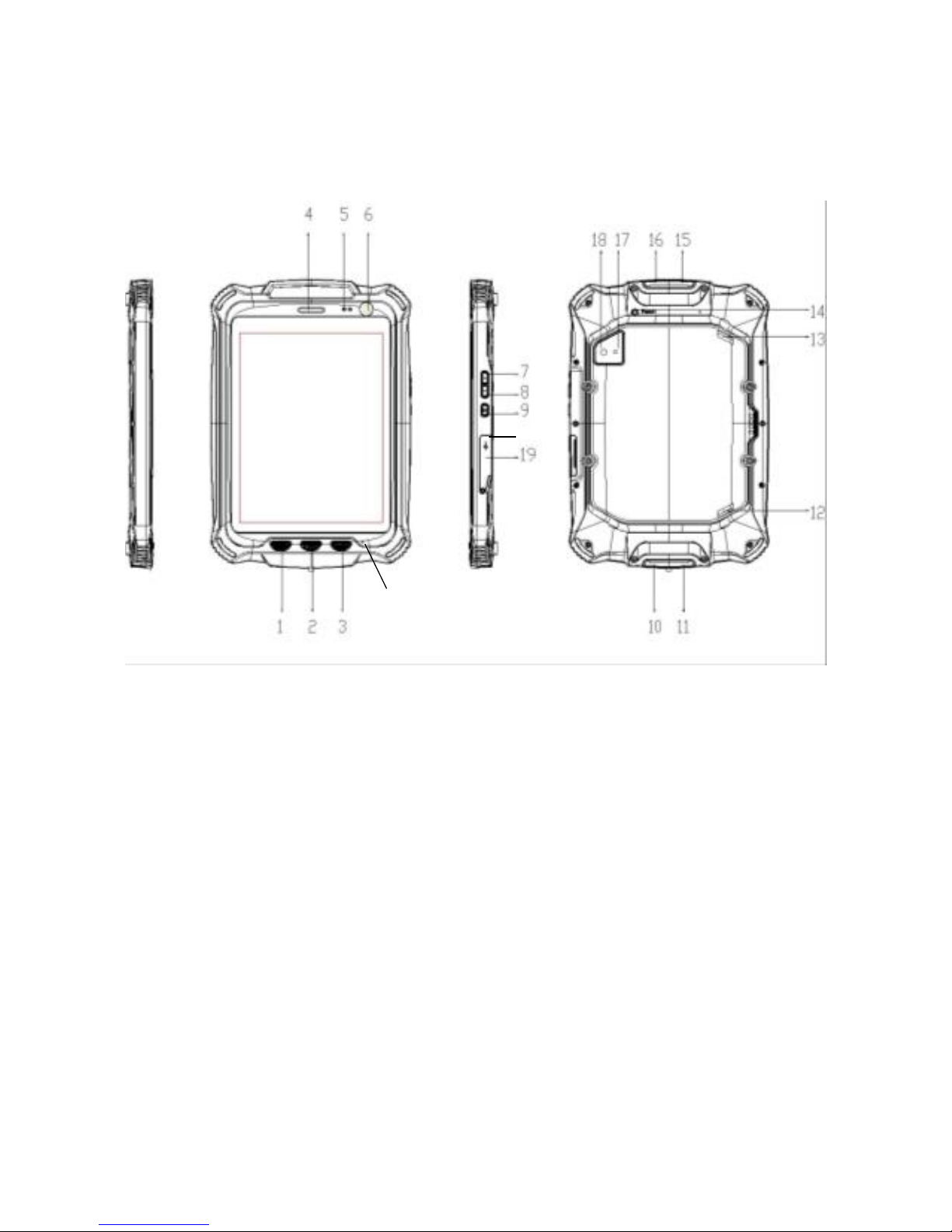
1. Application button
2. Home button
3. Back button
4. Speaker (voice)
5. Proximity sensor
6. Front camera
7. Volume up
8. Volume down
9. Power button
10. Headphones
11. Mini USB port
12. Speaker
13. Speaker
14. Reset button
15. SIM card slot
16. Micro SD slot
17. Flash
18. Rear camera
19. Micro USB port
(charging)
20. HDMI output
21. Microphone
Application button: View open applications.
Home button: Return to home screen.
Back button: Return to previous screen.
Reset Key: Immediately power off the phone.
17
20
21
Page 3
Inserting the SIM Card and micro SD memory card:
Attention: Please power off the phone before changing
the SIM cards.
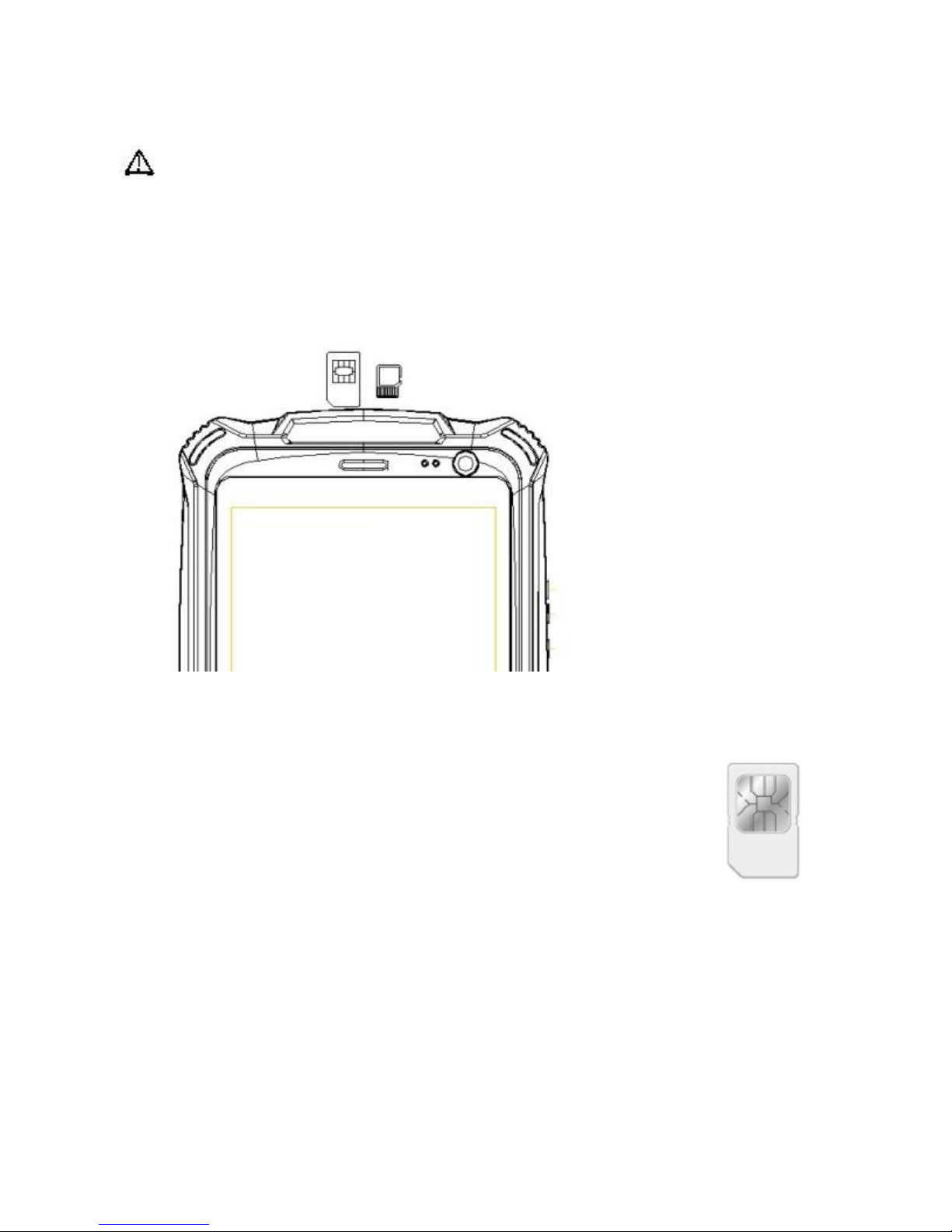
1. Open the port cover at the top of the tablet.
2. Insert the SIM cards in the SIM holder:
Please take care to observer the correct
orientation of the SIM card. With the tablet screen
facing you orientate your SIM cards as per the
picture to the right.
3. To remove the SIM card we recommend using a pair of
tweezers. In some countries this tool will be provided in the
product box.
Page 4
Charging your tablet:
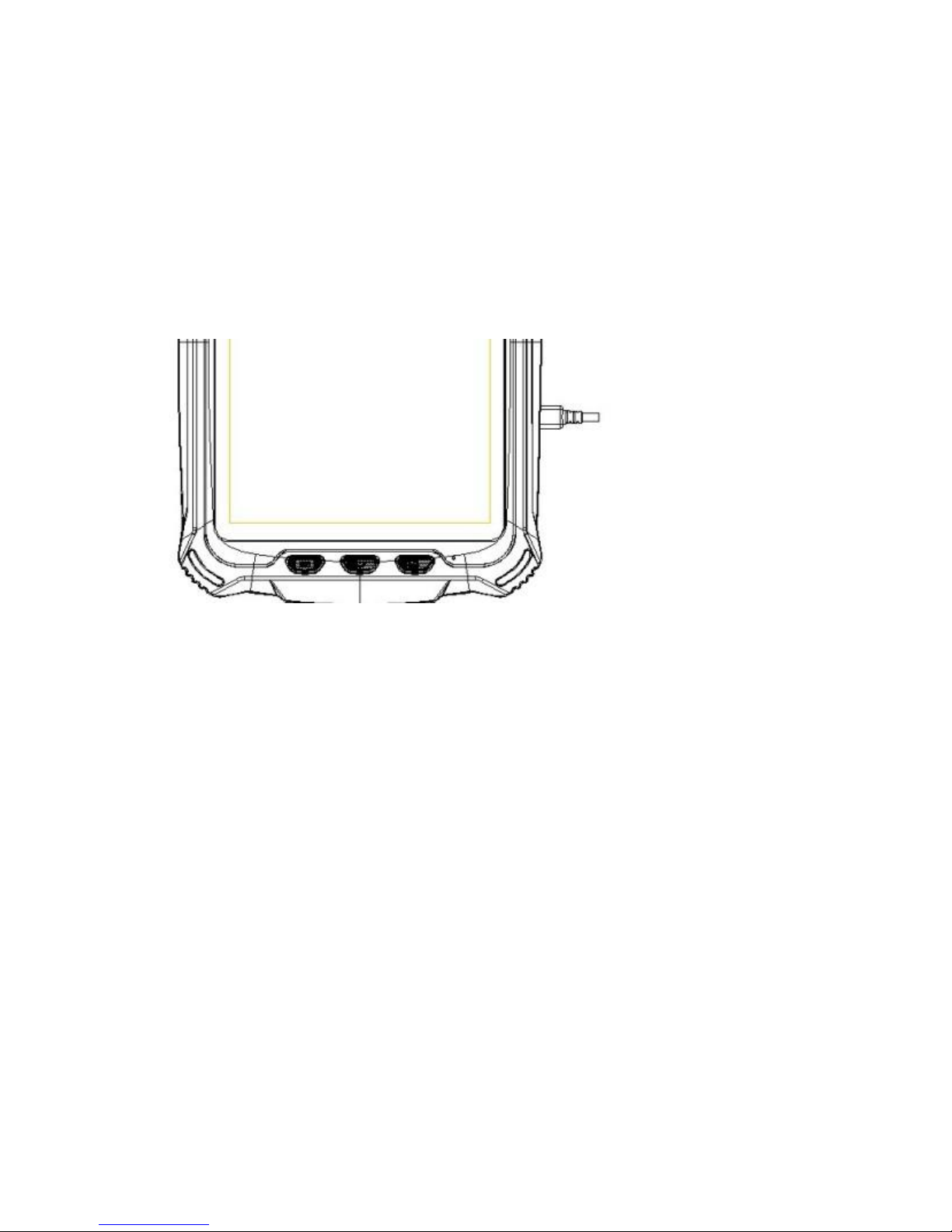
Your tablet should be charged via the Micro USB socket
on the right edge of the device as pictured below
(labelled as part 19 in the diagram on the first page of
this manual).
Please use a 5V / 2 Amp charger when possible. The
battery in your tablet is a very high capacity and using a
lower power output charger will result in very slow
charging, e.g. charging from a computer may only offer
0.5 amps.
Page 5
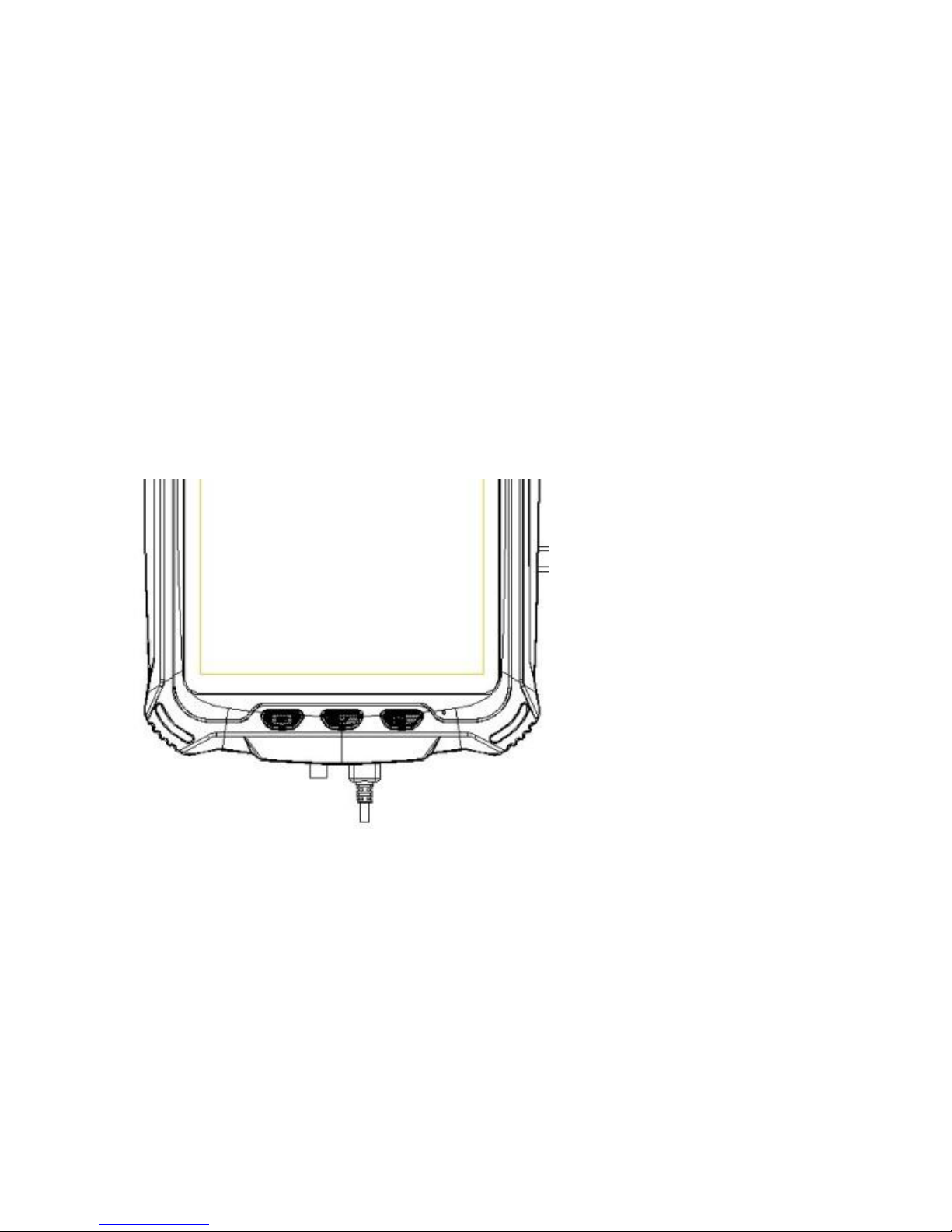
Connecting to a PC:
To connect your device to a PC please use the same
Micro USB port above that is used for charging.
Connecting headphones:
To access the headphone jack open the dust cover at
the bottom of the tablet.
The headphone jack is on the left.
Please note: The Mini USB port on the right is currently
unused. Please do not connect anything to the Mini USB
port.
Page 6
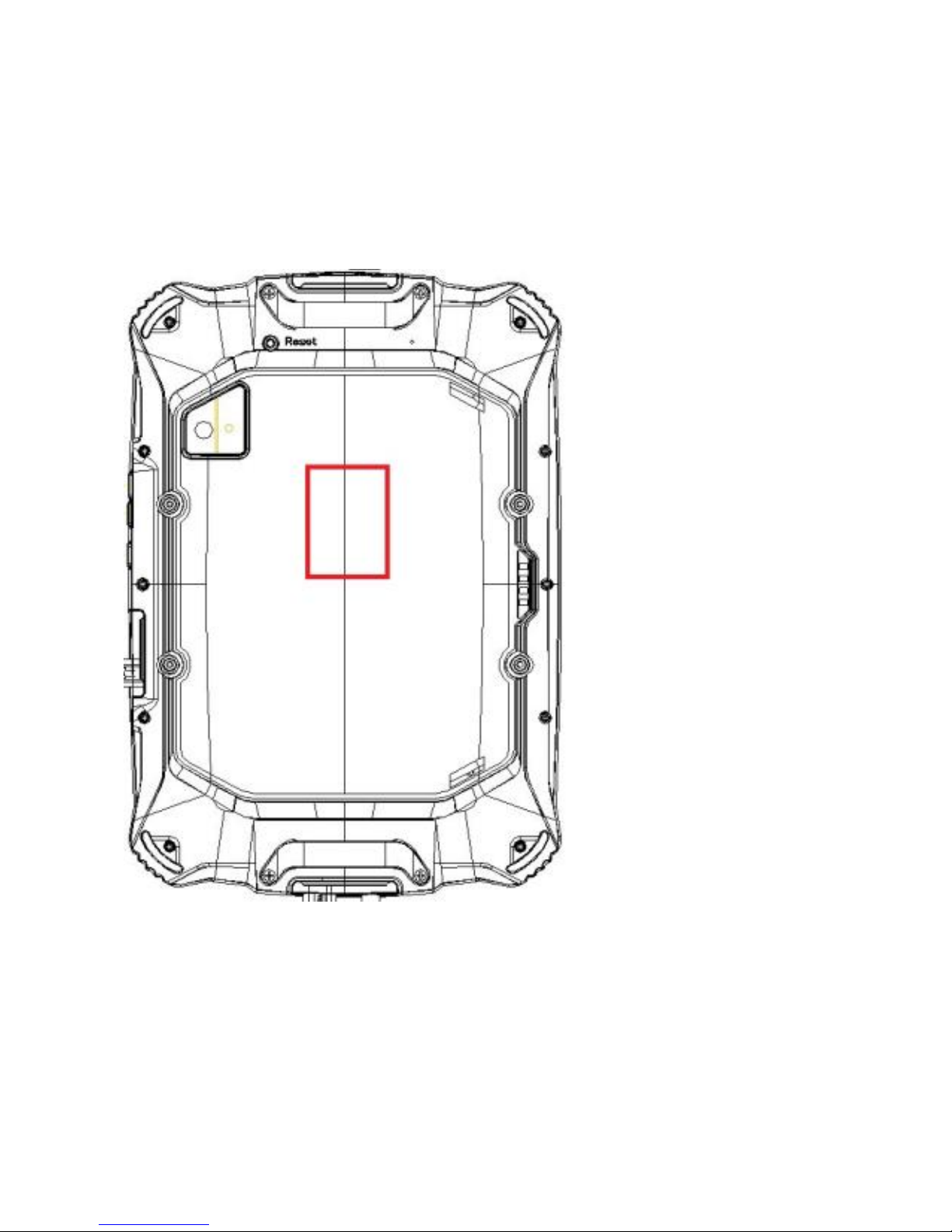
Using NFC
The NFC antenna position is marked in red below.
Page 7

Notes:
Page 8
Further Information:
For further information and support contact your reseller or visit
www.conkertab.com
CONKER
 Loading...