

Page 1
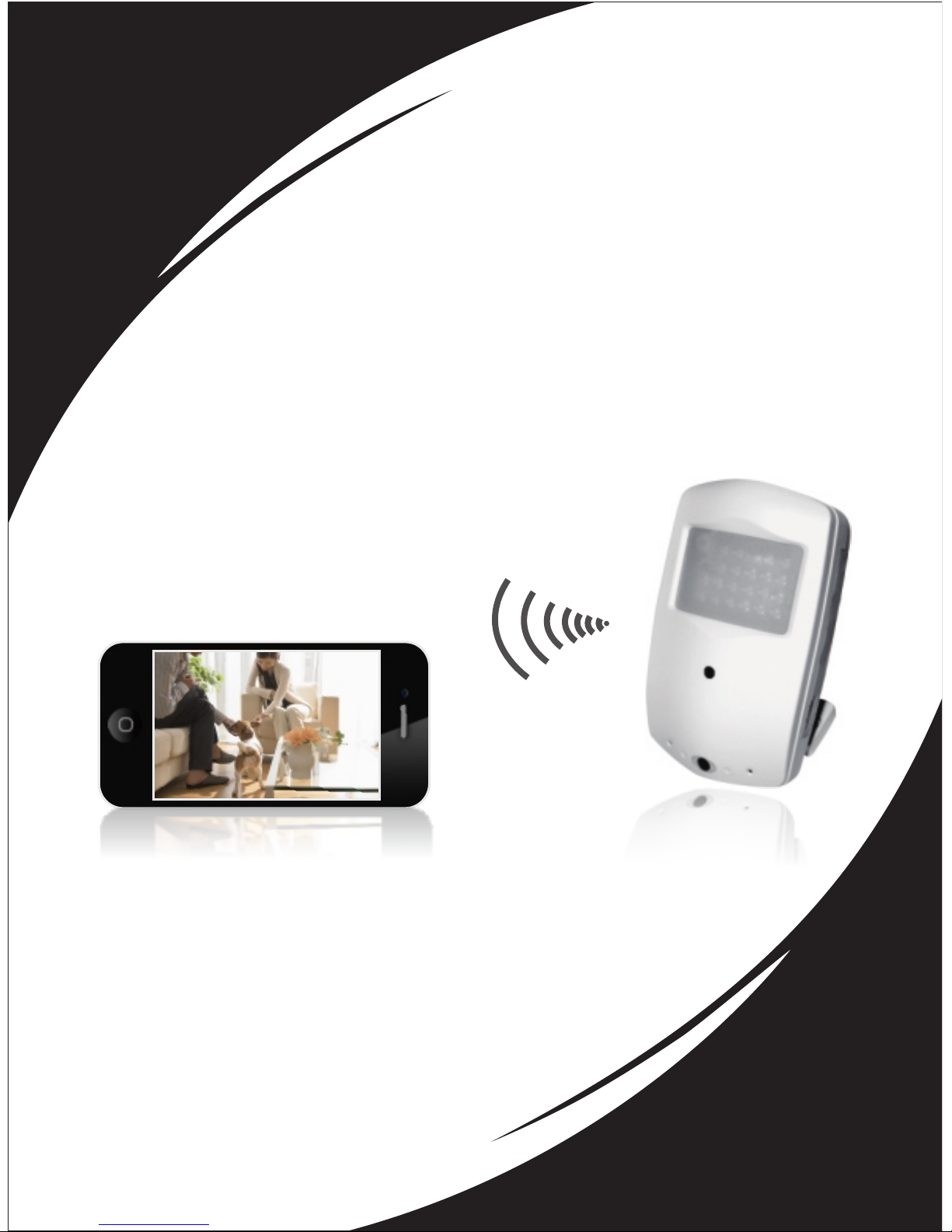
HD WIFI CAMERA
User Manual
Page 2

Content
2
introduction
Instructions
Product accessories
Structure
App download
Camera hardware installation
APP installation quick guide
Trouble shooting
Product specification
03
04
06
07
08
09
10
25
28
Page 3

Welcome!
Thank you for choosing our product. It
is a camera that could see your next
room directly/locally. And once
connected with your WiFi network
(router), you could see it from anywhere
in the world with internet access.
To help the users we especially creat a
installation video demo in the disk
included in the package. If you need
help, or you have a feedback, please let
us know! Enjoy the installation, enjoy
the camera, we sincerely hope that.
IMPORTANT:
Please do not use this camera for illeagal
purpose. And it is important to follow
the law in your country/state.
3
introduction
Page 4

Please read these instructions
before using the product.
Since this product is controlled
by a microcomputer chip, it is
normal that system halt may occur if
users operate it incorrectly. In this
case, re-start the device.
This product is neither
waterproof nor dust proof, and
therefore it can not be used
outdoors or in adverse environment.
Please adopt original DC power
supply, to avoid causing device
damage or electric shock or fire.
4
Safety instructions
Page 5

5
the device or replacement of device
parts is forbidden. The manufacturer
will not be responsible for any loss
arising from such actions.
Do not put the device into fire,
oven or microwave oven, in order to
avoid explosion.
As a result of version changes,
the user manual may be different
from the real product. Please take
the real product as the standard.
Unauthorized dismantlement of
Safety instructions
Page 6

Product accessories
6
Cam*1
Bracket*1
Warning sticker*1
Screws*2
User manual*1
Apapter*1
Micro SD card
(Optional)
Installation
demo cd*1
Page 7
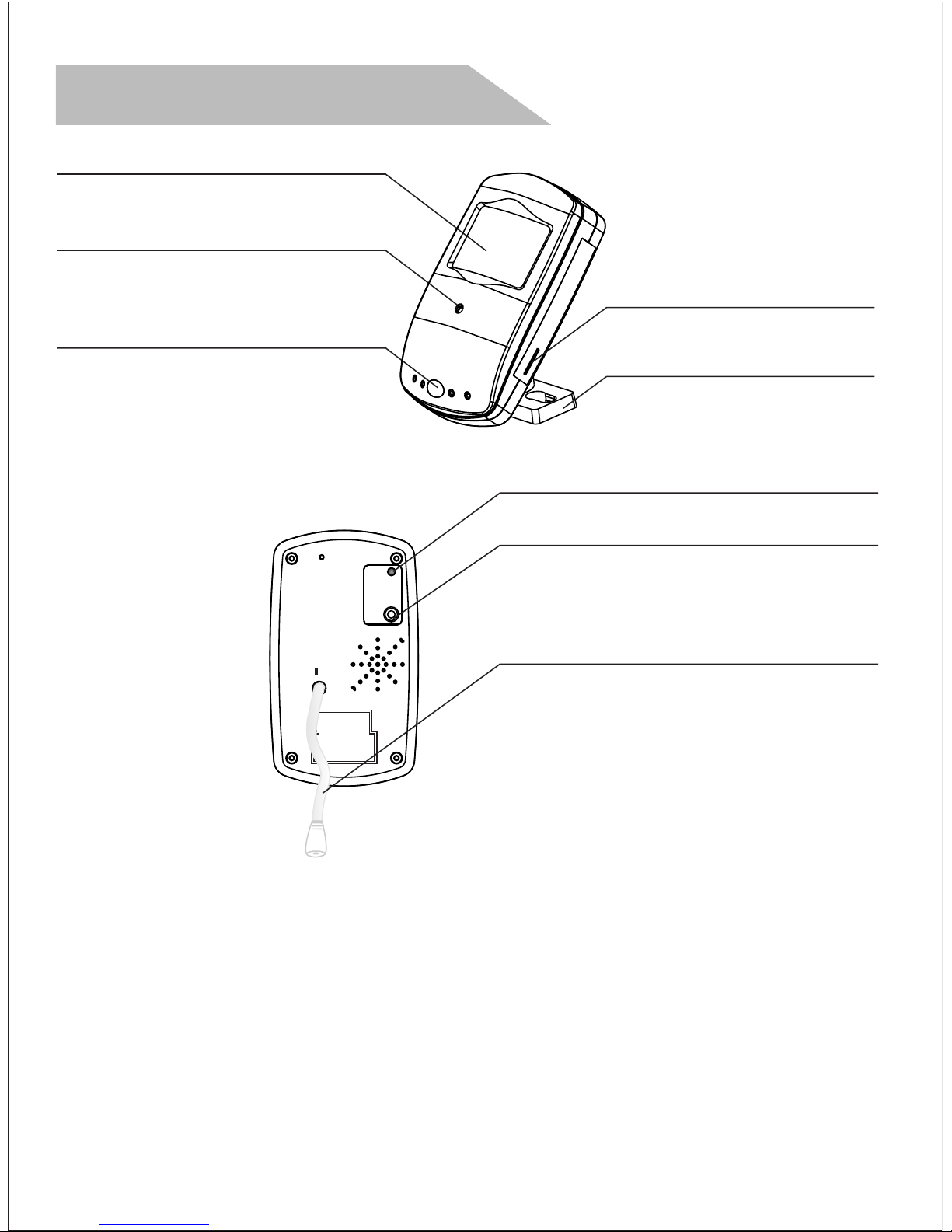
IR LEDS
CAMERA LENS
STATUS INDICATOR
MICRO SD INDICATOR
RESET
POWER CABLE
a. Flash slowly: In WiFi hotspot mode;
or the wifi network signal is not good.
b. Flash quickly: The camera is going to
be re-set.
c. Always on: In network mode.
STATUS INDICATOR:
7
Structure
MICRO SD SLOT
BRACKET
Page 8
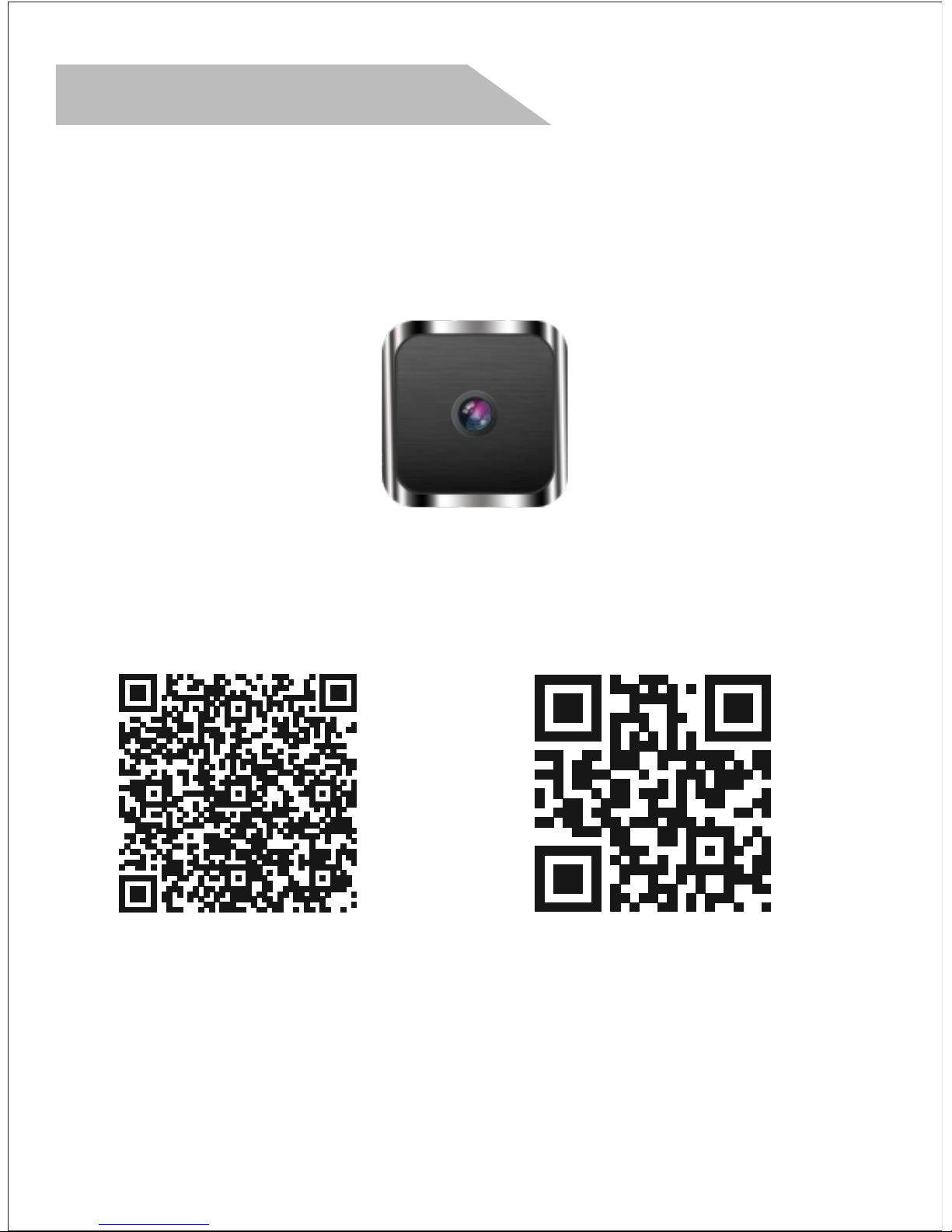
App download
8
please search in Google Play or
App store for ”Mini WiFi cam”,
which is something as belowing.
Android IOS
Mini WiFi Cam
Page 9
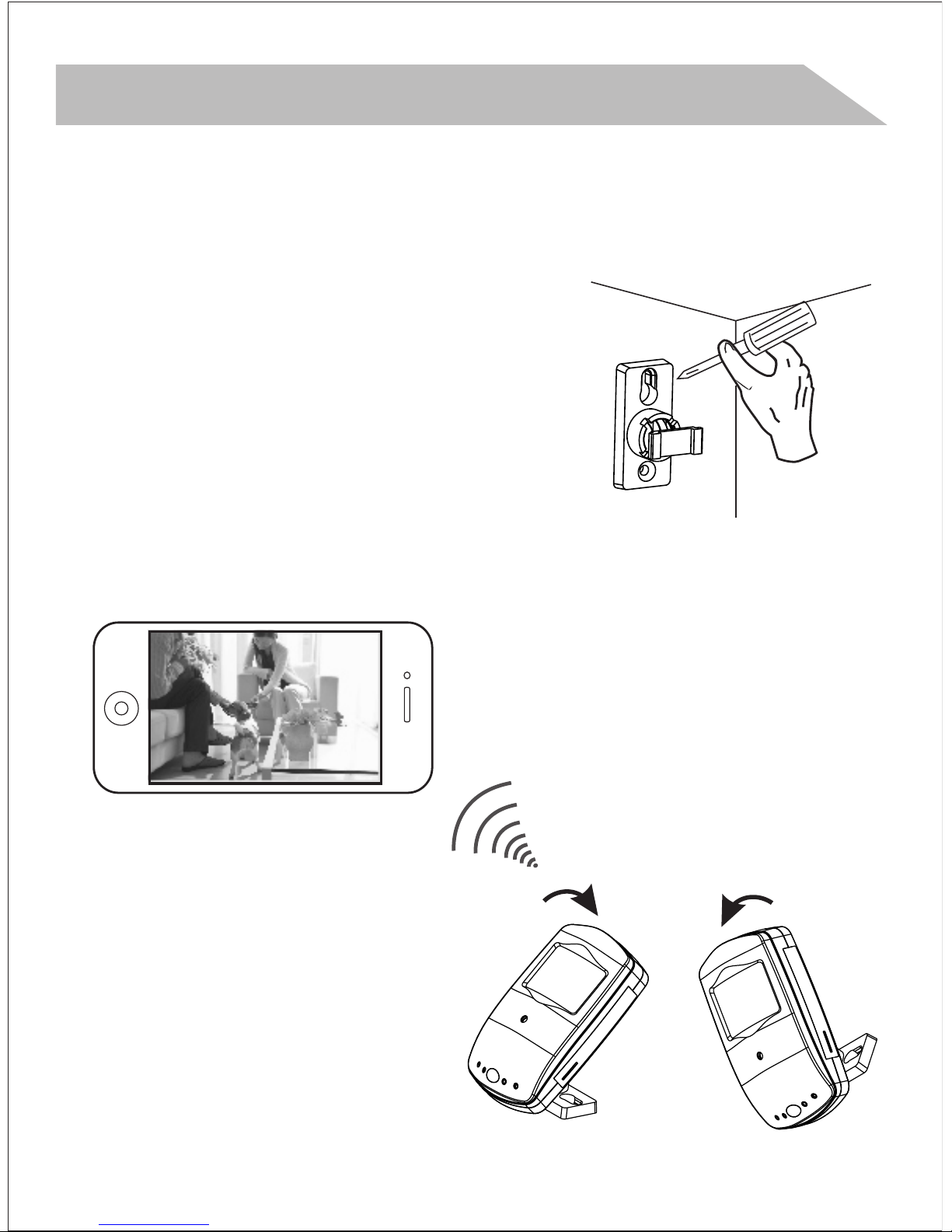
Camera hardware installation
1. Fasten the mounting brackets with the
supplied screws, and place the unit
into the mounting brackets.
2. Adjusting the view angle after
connecting the mobile phone.
9
Page 10
Step 1(App download):
Download APP ”Mini WiFi
Cam”onto your device.
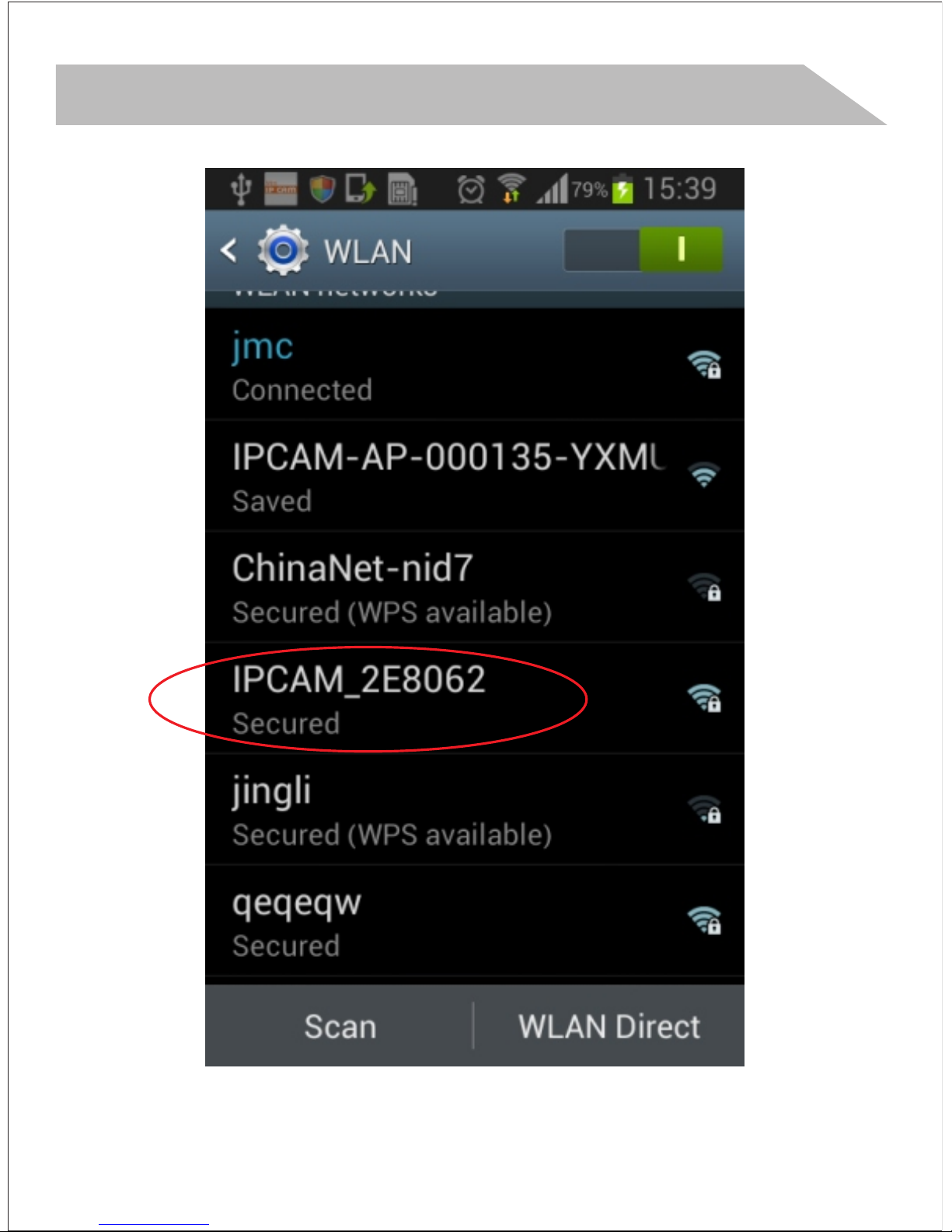
Step 2(Change Smartphone's WiFi
to the camera):
Change your Wifi connection to
“IPCAM_XXXXXX”, (XXXXXX are 6
digits of letters and numbers”
APP installation quick guide
10
Mini WiFi Cam
Page 11
APP installation quick guide
11
Android or IOS
Page 12
APP installation quick guide
12
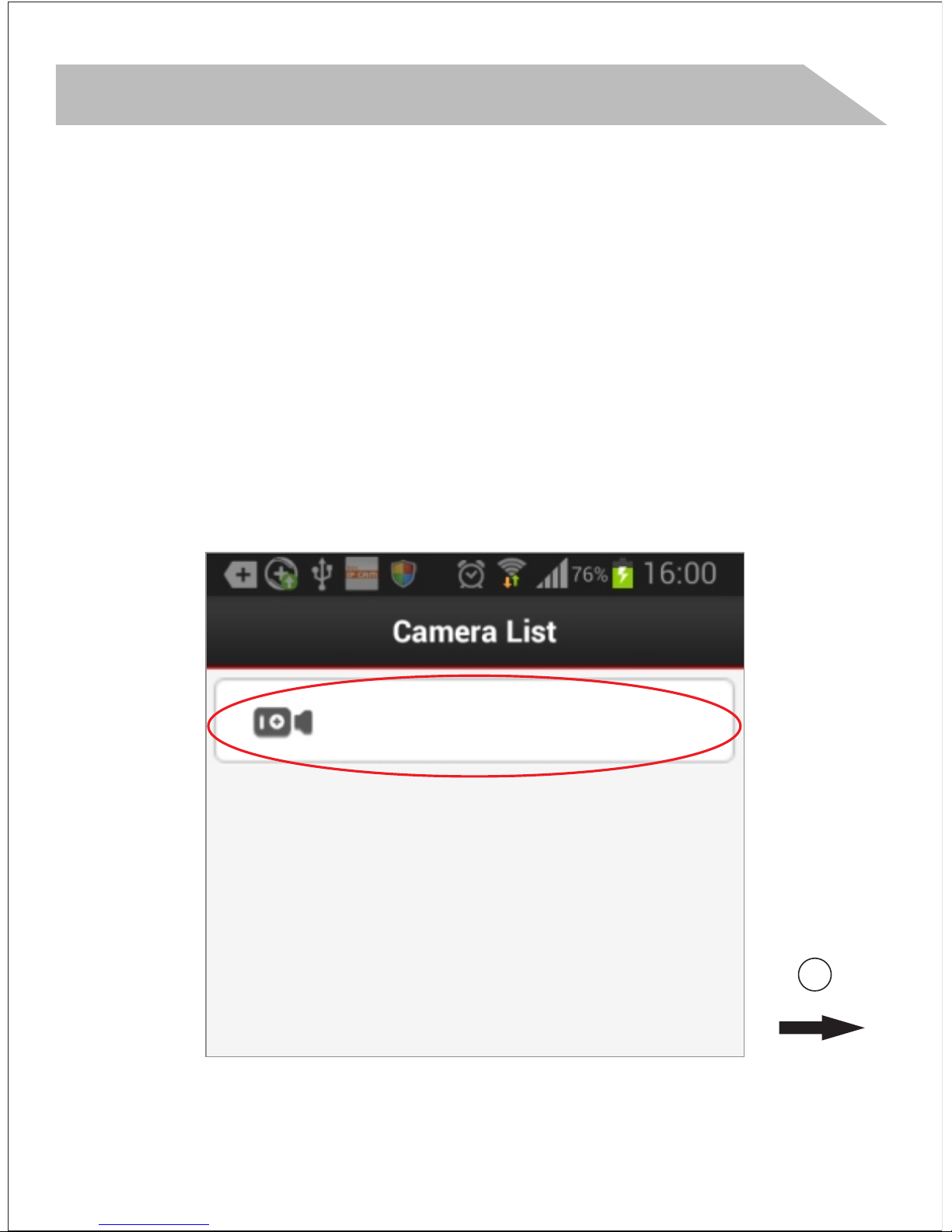
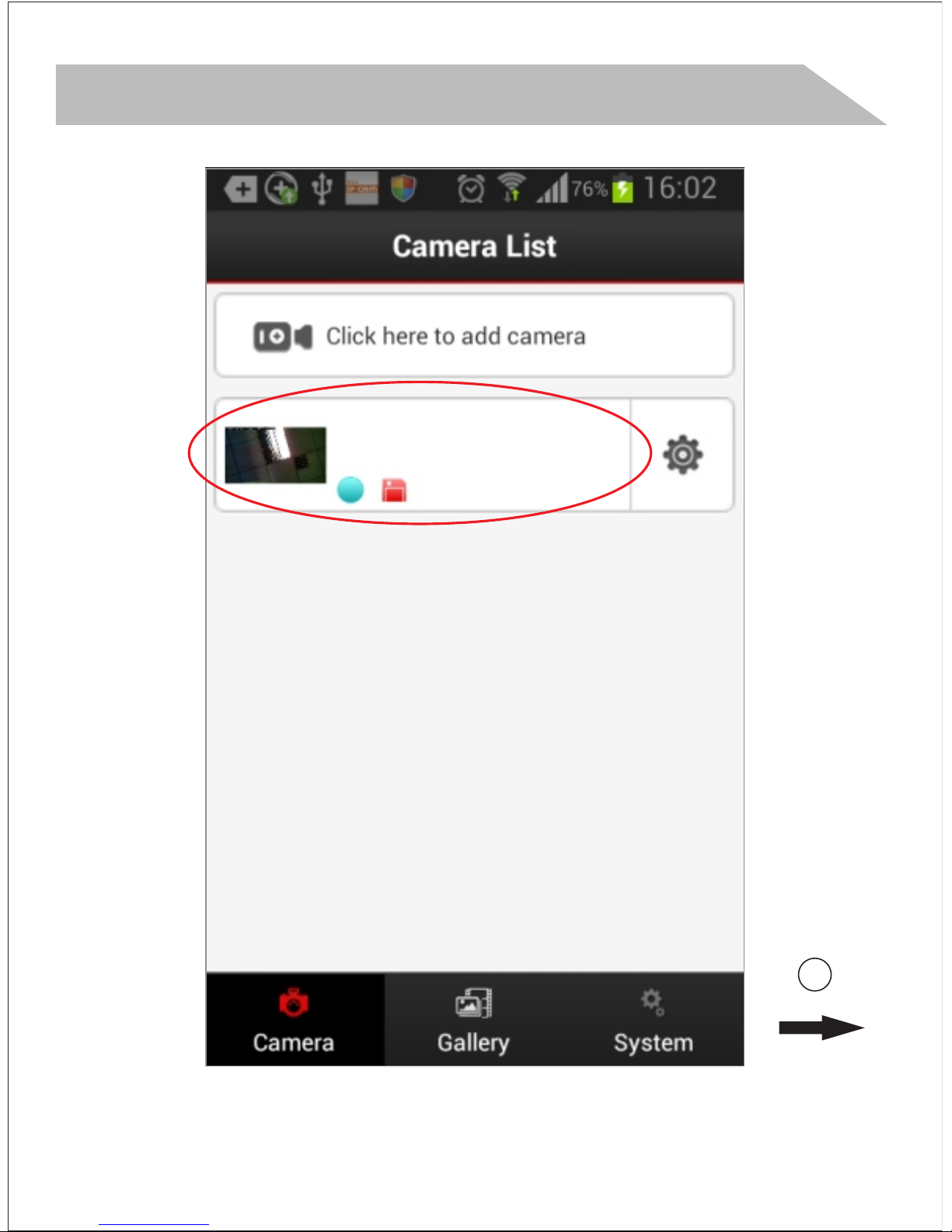
Click here to add camera
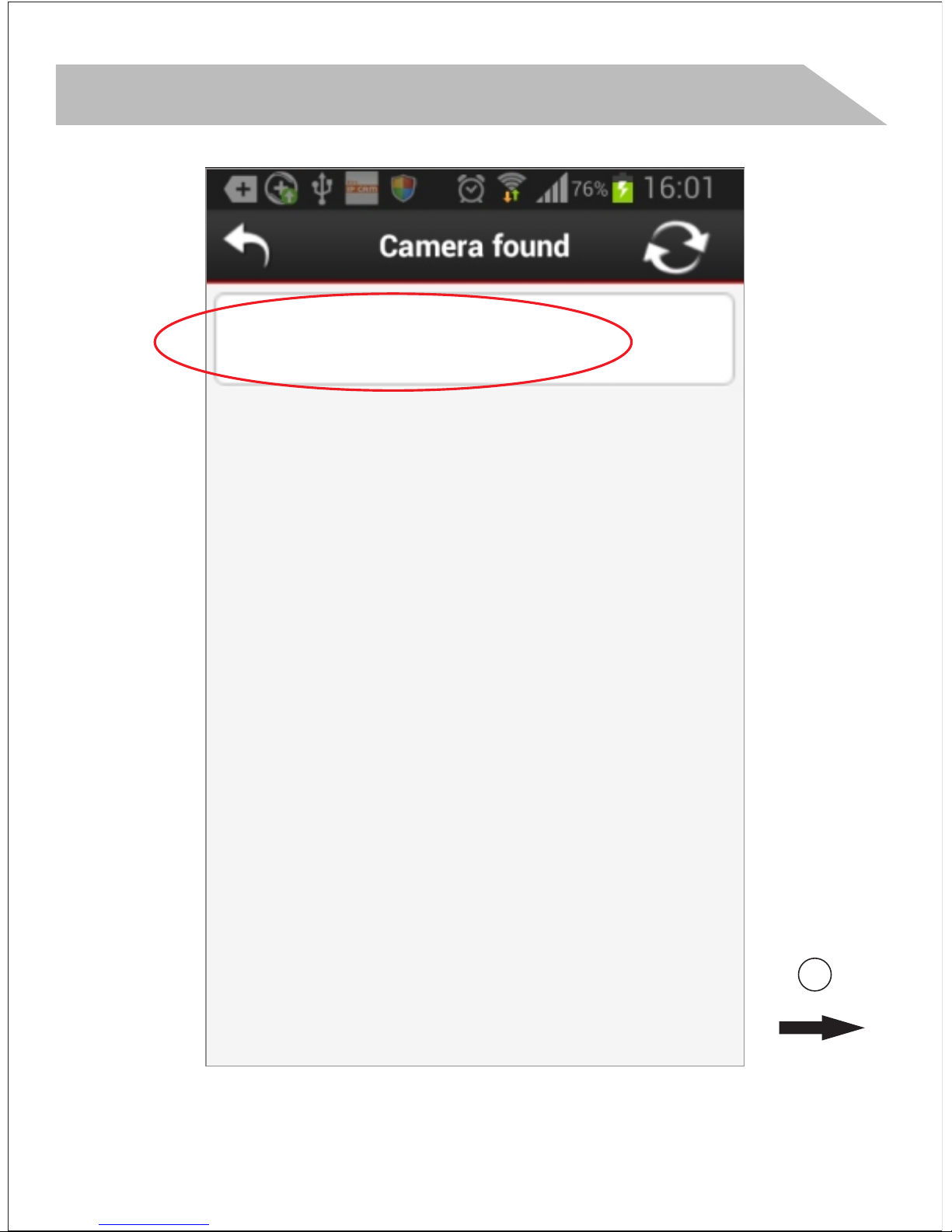
Open the App “Mini WiFi Cam” and
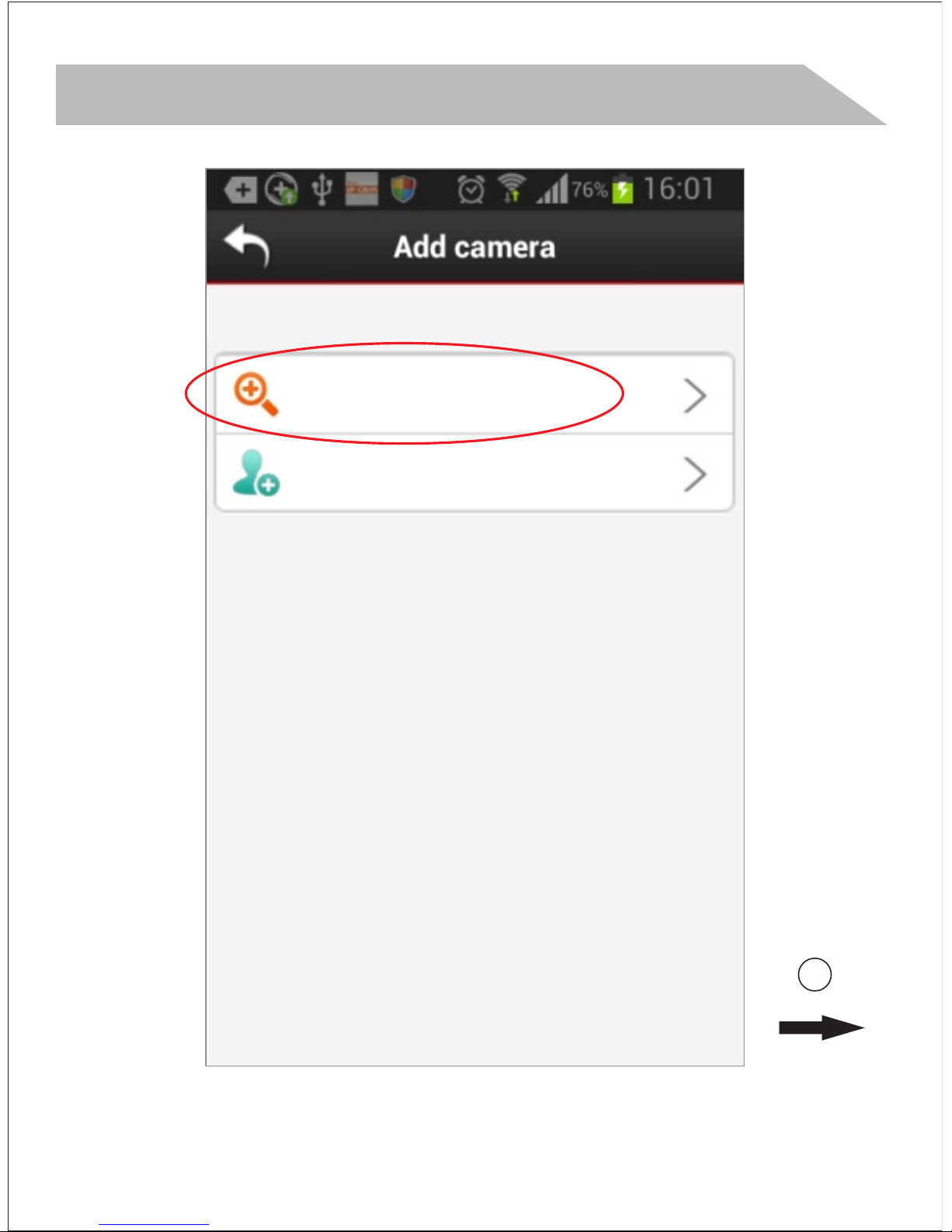
choose “click here to add camera”,
“Auto search”, “Camera found”. And
if you do not have WiFi network,
installation is done. And you could
see the next room directly.
Step 3(Install local :
2
Android or IOS
Page 13
APP installation quick guide
13
Android or IOS
2
Auto search
Manually add
Page 14
APP installation quick guide
14
3
Android or IOS
IPC-E8ABFA2E8062
RCAM-007250-NZCZS
Page 15
APP installation quick guide
15
4
Android or IOS
IPC-E8ABFA2E8062
RCAM - 0 0 7250-NZCZS
Page 16

APP installation quick guide
16
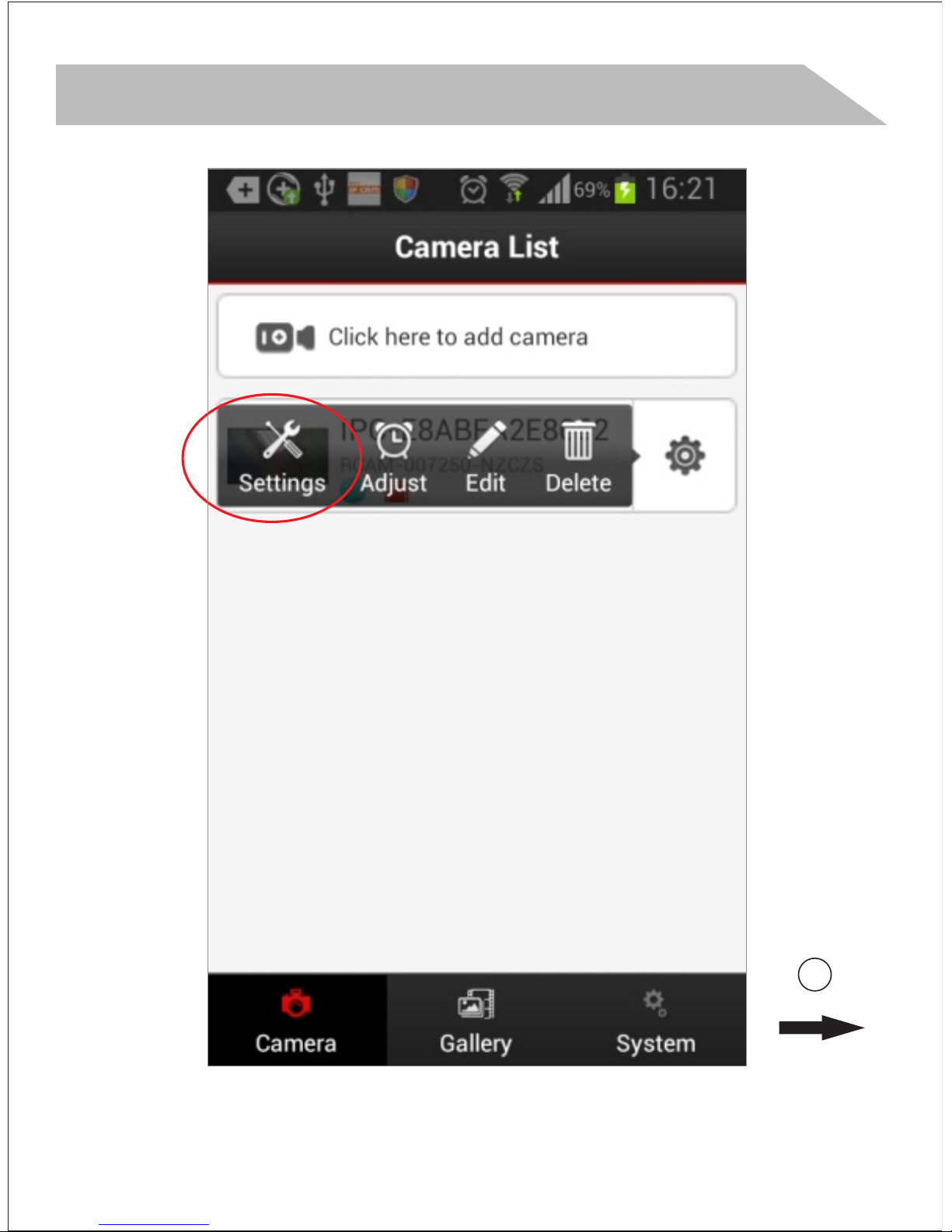
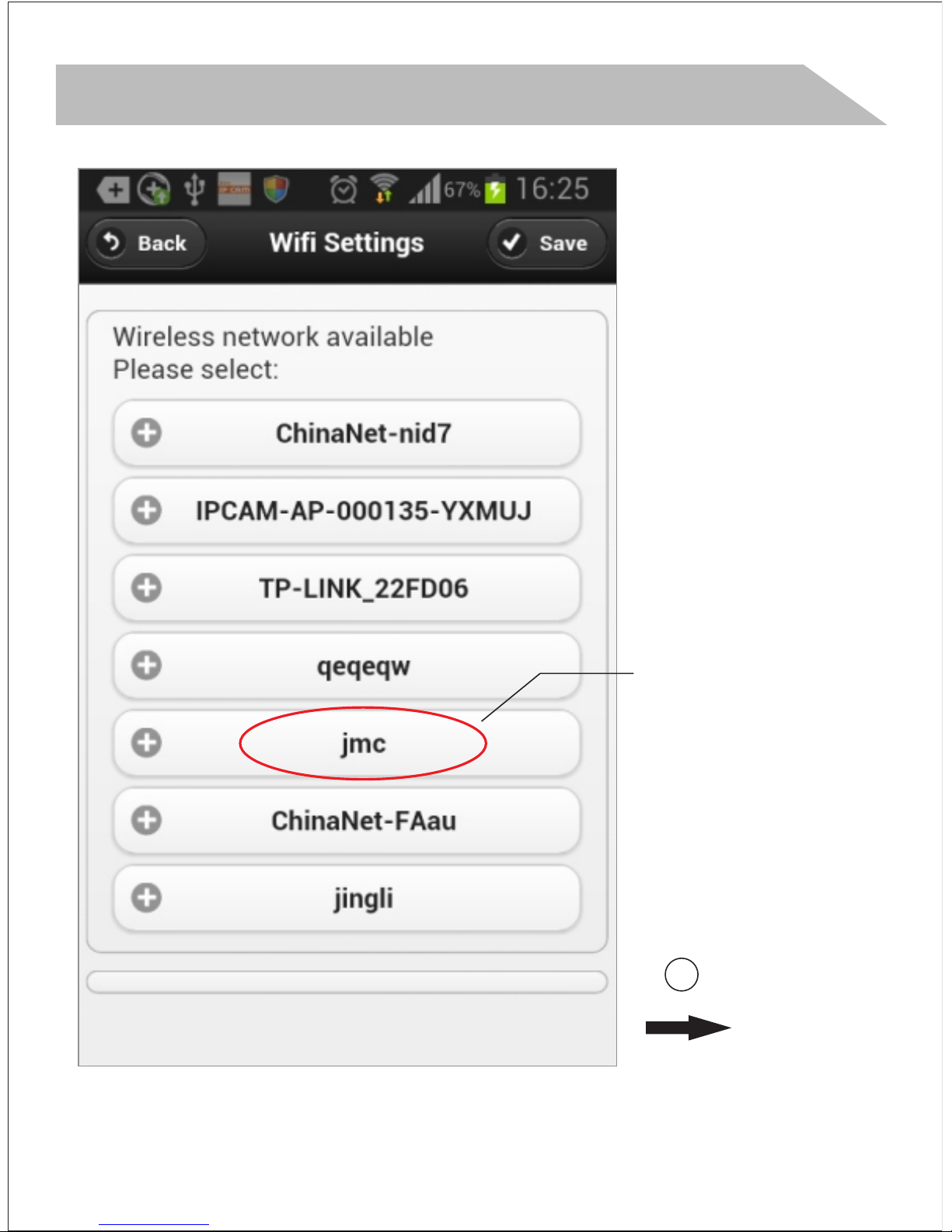
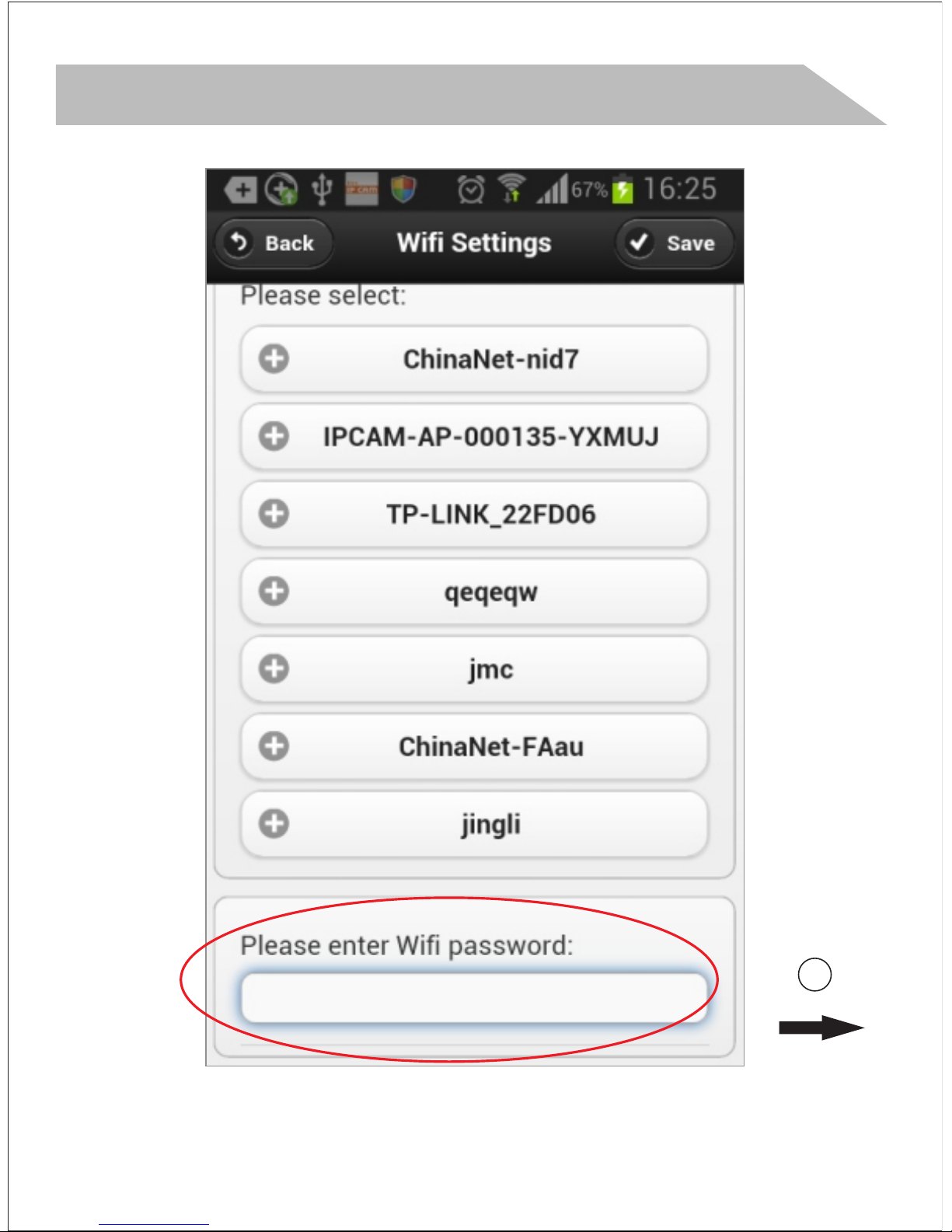
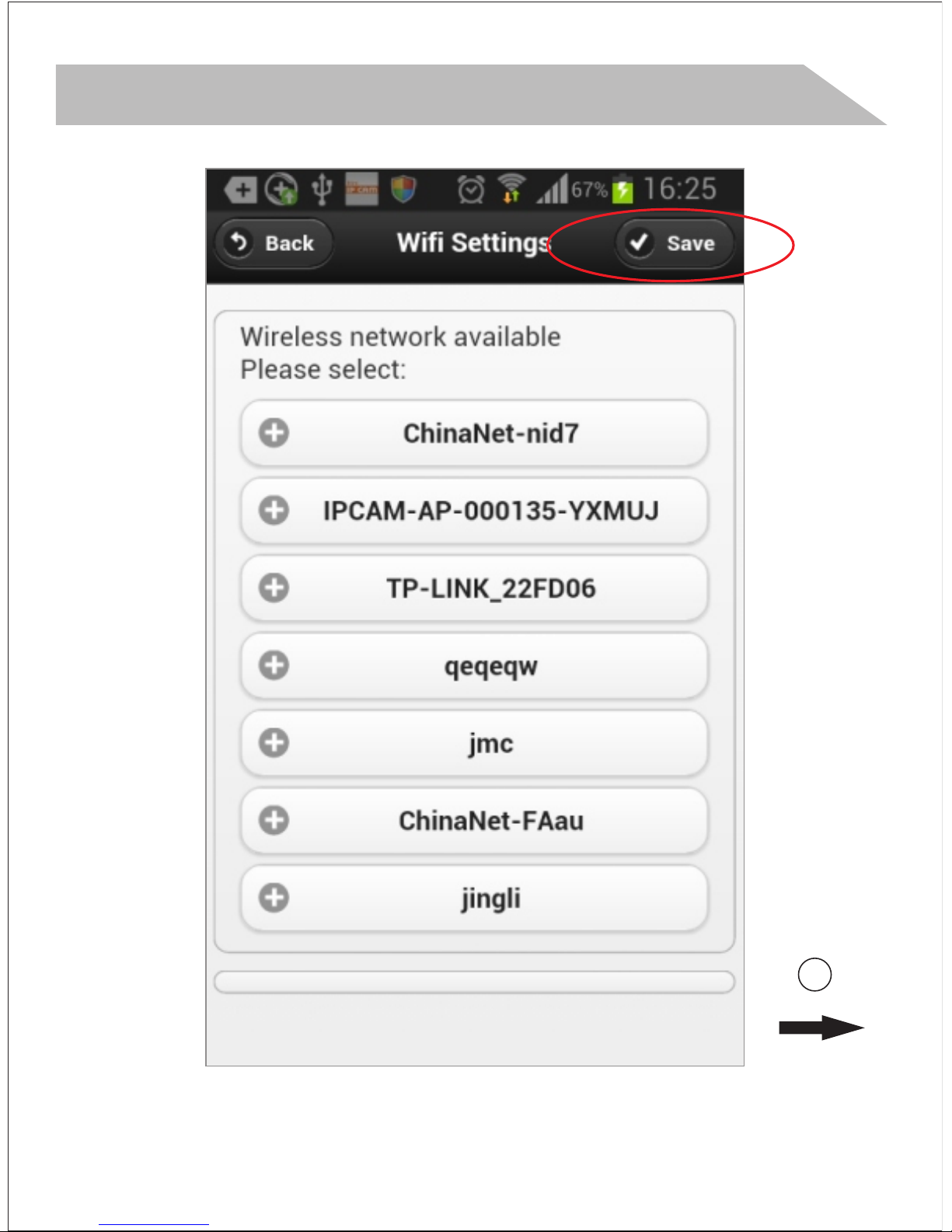
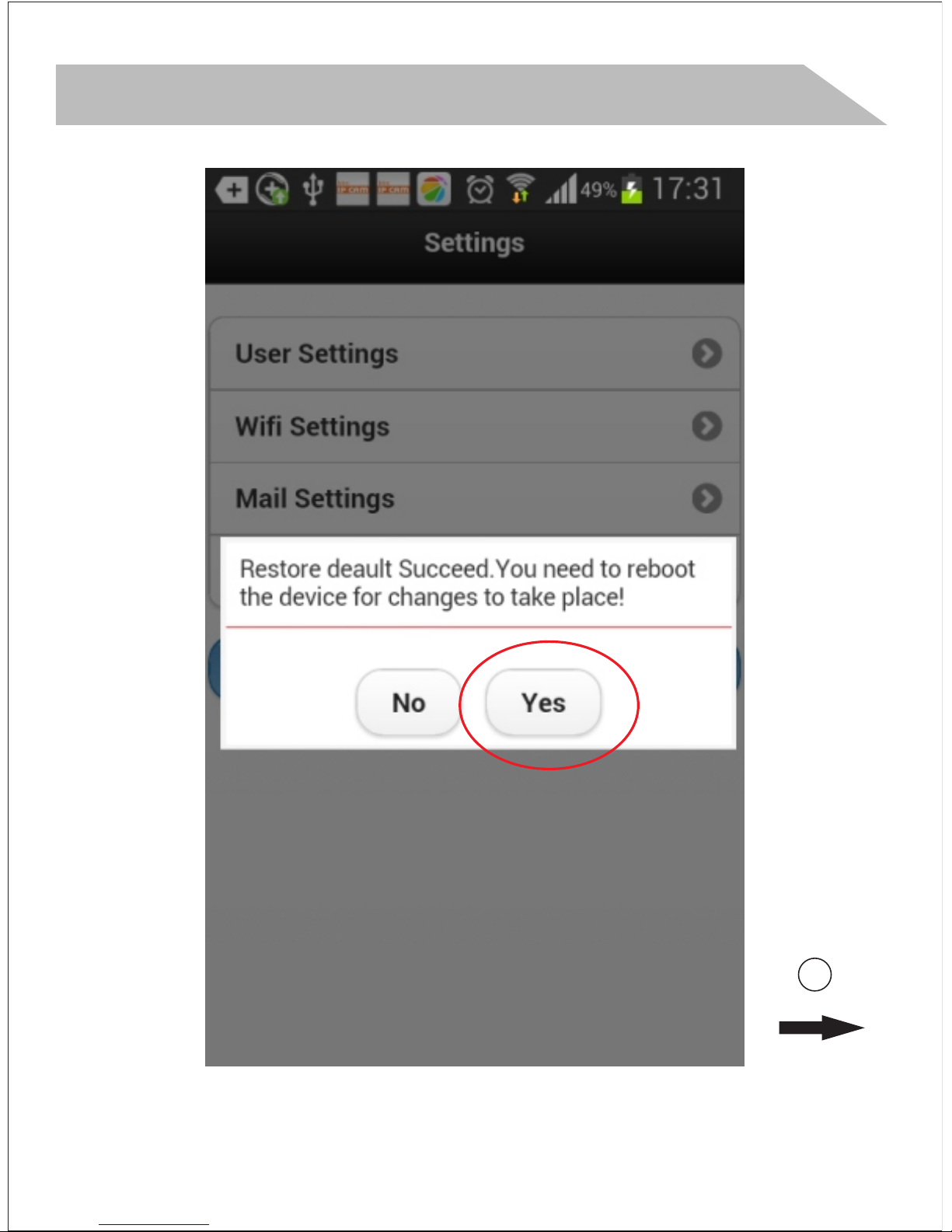
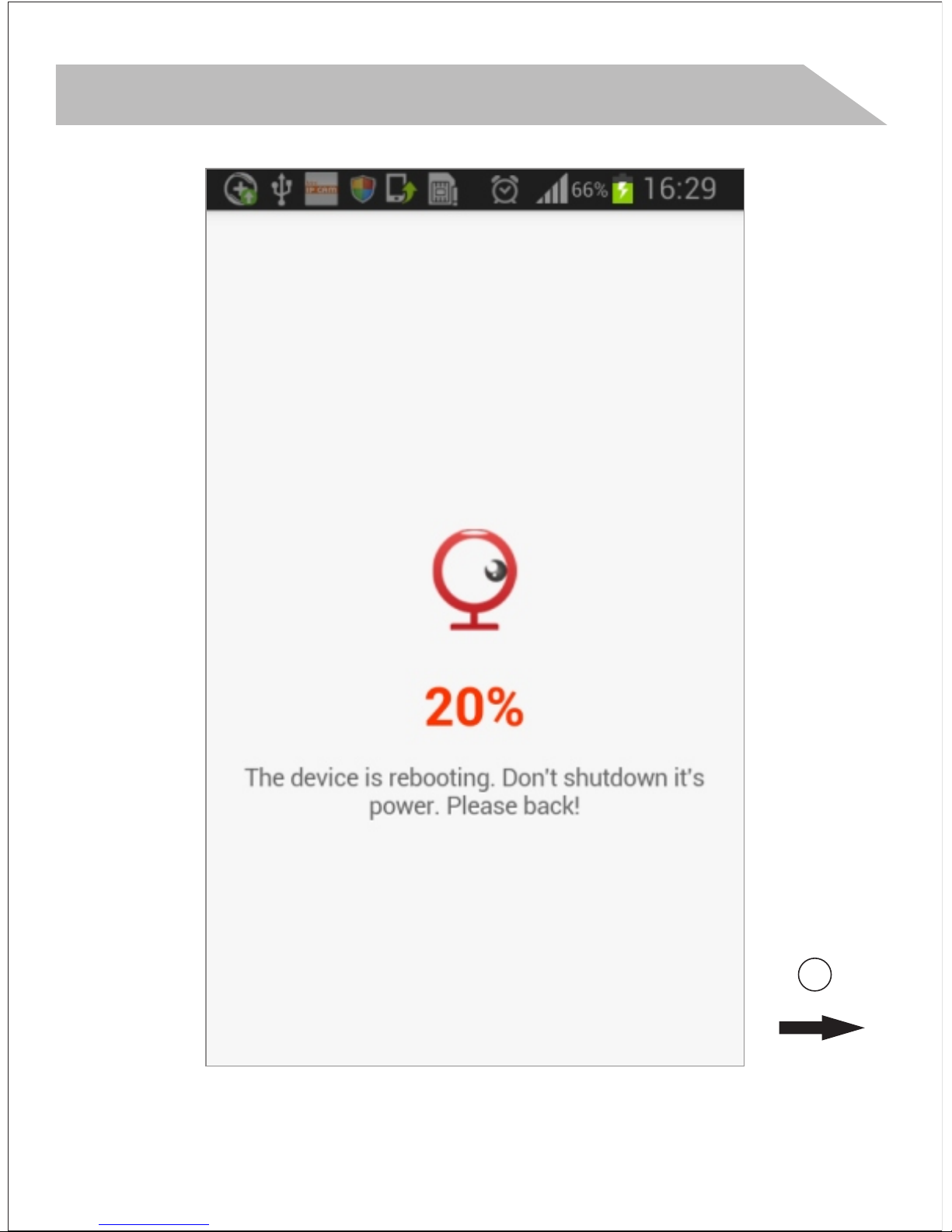
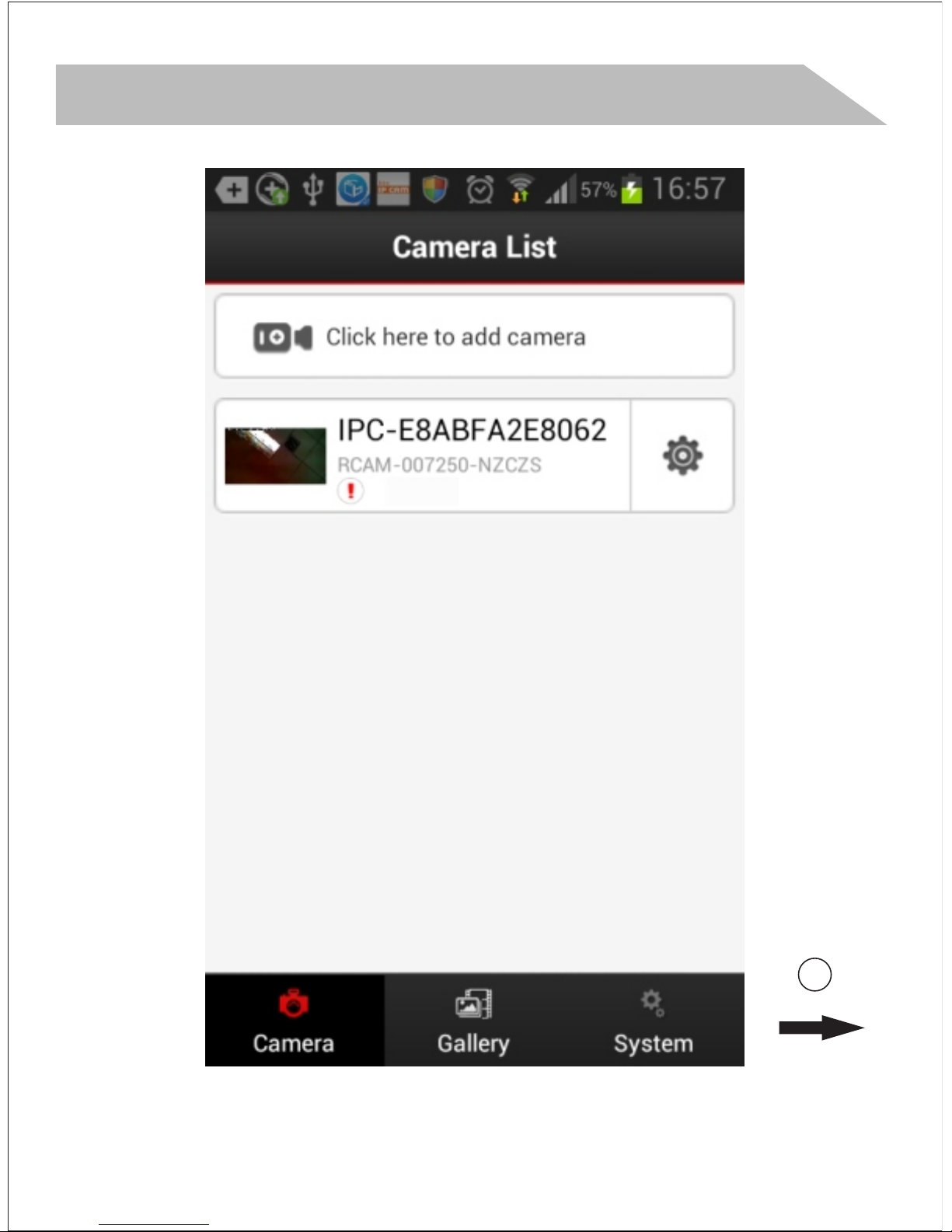
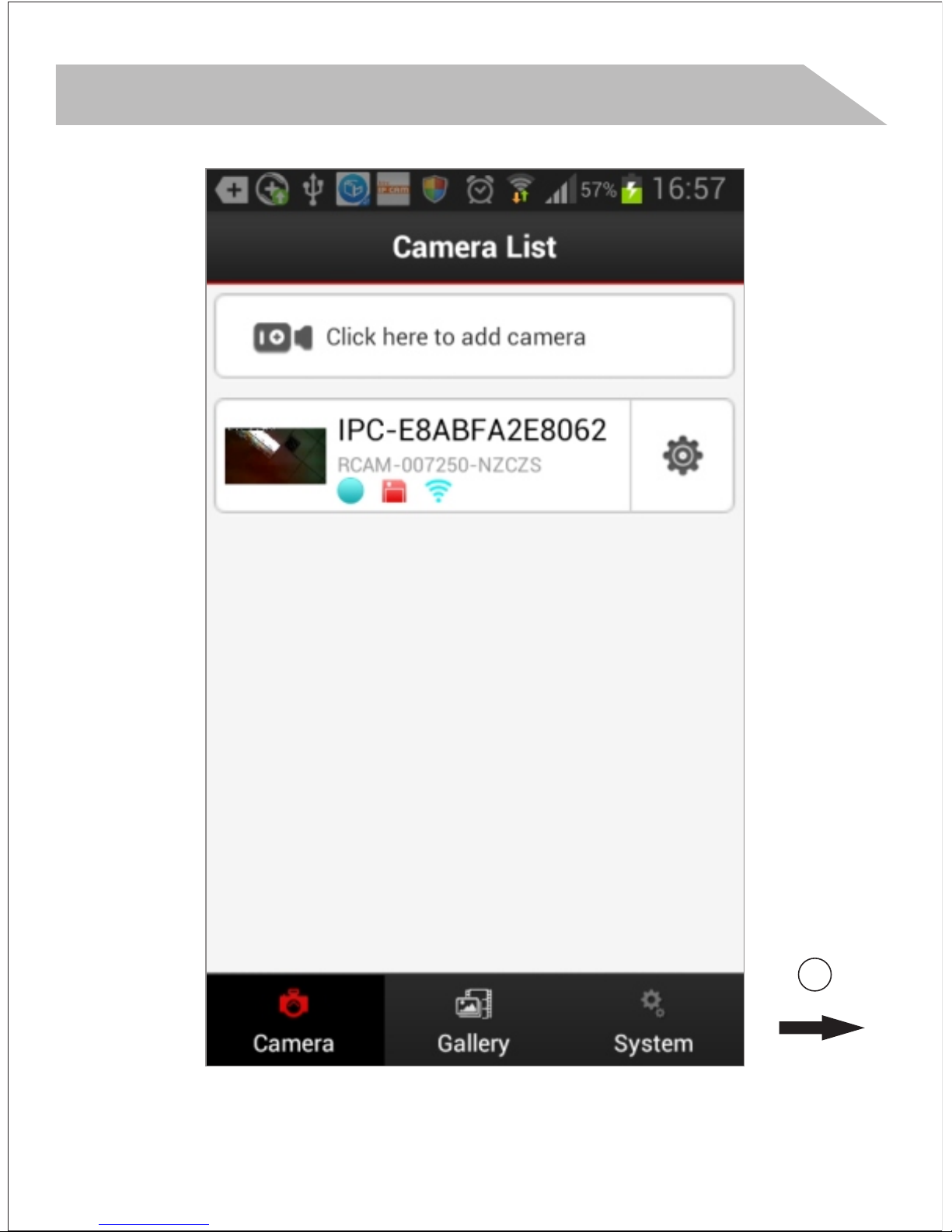
Step 4(Connect with your router
for network viewing):
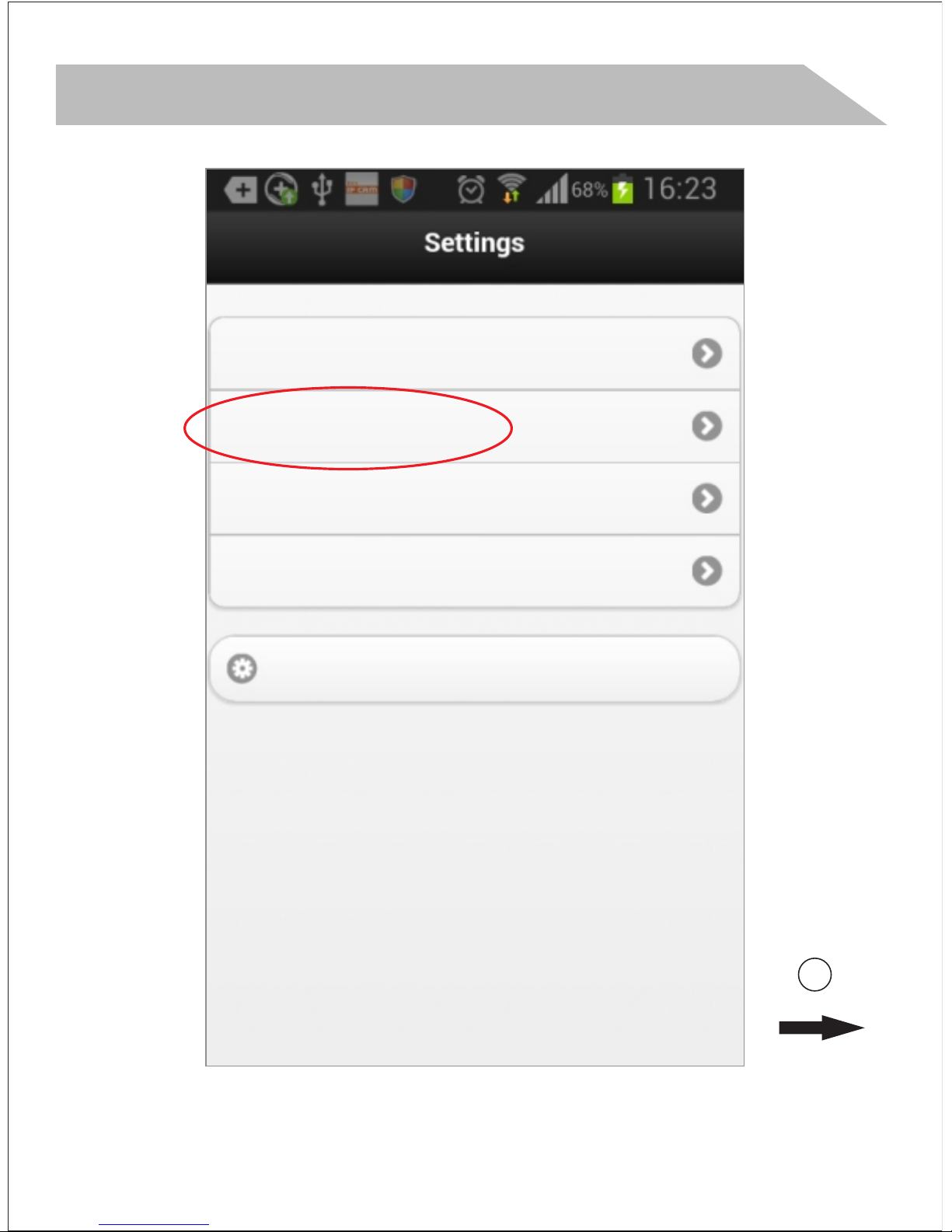
Click the GEAR and choose
settings, WiFi Settings and choose
your WiFi name. Input the password
(The correct password is
important) to choose ”save”, and
the camera will reboot. After 1-2
minutes the installation is totally
finished.
If you meet with any problem, the
installation video is suggested.
Page 17
APP installation quick guide
17
Android or IOS
1
Page 18
APP installation quick guide
18
Android or IOS
2
User Settings
Wifi Settings
Mail Settings
Alarm Settings
Restore default
Page 19
APP installation quick guide
19
Android or IOS
3
Chose your
own wifi
Page 20
APP installation quick guide
20
Android or IOS
4
Page 21
APP installation quick guide
21
Android or IOS
5
Page 22
APP installation quick guide
22
Android or IOS
6
Page 23
APP installation quick guide
23
7
Android or IOS
Page 24
APP installation quick guide
24
8
Android or IOS
Page 25
APP installation quick guide
25
9
Android or IOS
Page 26
APP installation quick guide
26
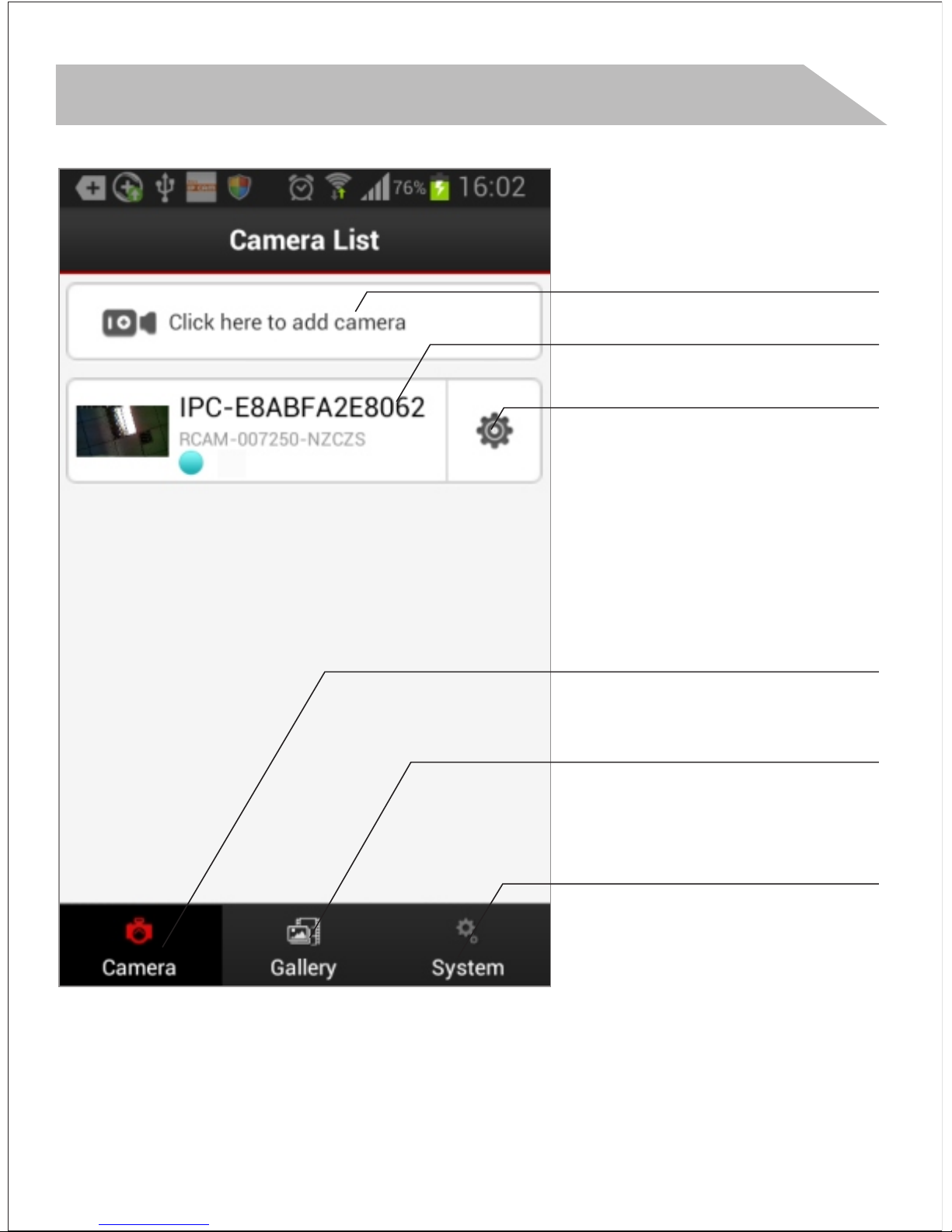
Camera added
All cameras
added
Recorded files
System
Settings
Settings
Add new
camera
Page 27
APP installation quick guide
27
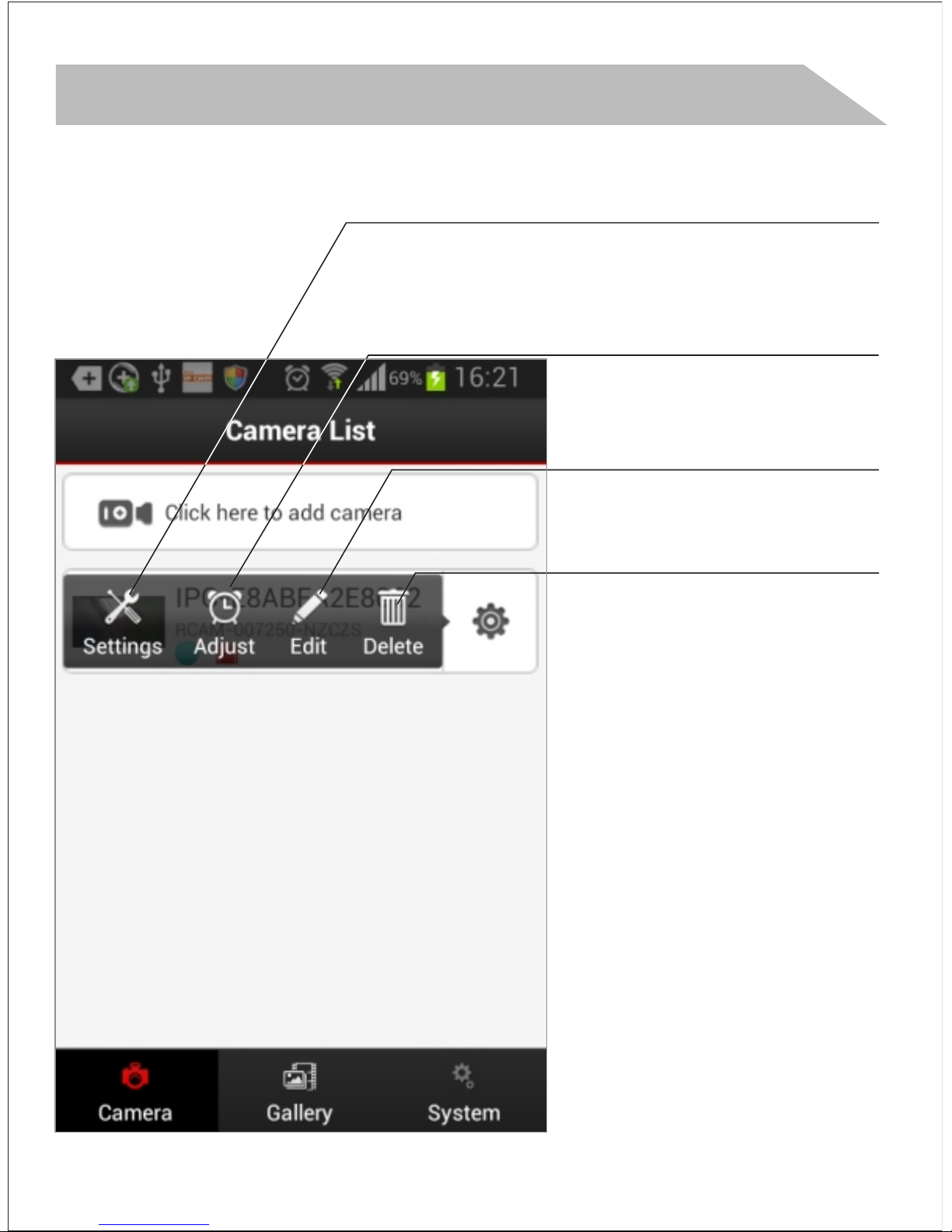
enter settings
Set camera
time same
as mobile
delete present
camera
Edit camera
information
Page 28
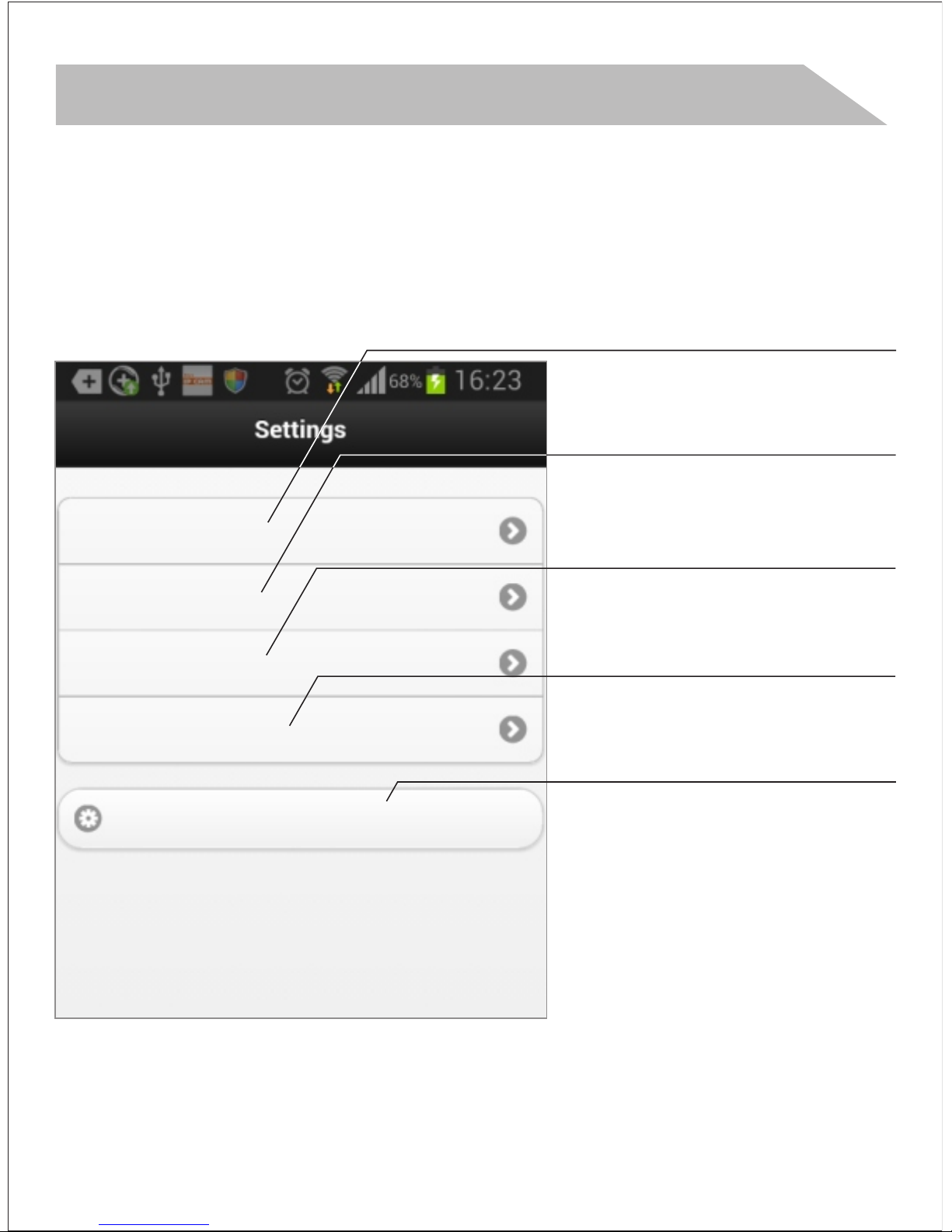
User Settings
Wifi Settings
Mail Settings
Alarm Settings
Restore default
APP installation quick guide
28
Set user
account and
password
Set WiFi
network
Set email alarm
upon motion
Motion alarm
settings
Restore default
Page 29
Trouble shooting
29
1. What is the wifi range? So can I
view while i m at work from my
phone? My work is 20miles away.
No problem for 20 miles!Once
installed it as network camera, you
could see it from anywhere in the
world. The WiFi hotspot mode is
for local view as 80 meters open
distance.
2 What is the App's name so I can .
download it to my Android phone?
The app name is: Mini WIFI Cam.
Mini WiFi Cam
Page 30

Trouble shooting
30
3. Will surveillance option work off
of battery or does it need to be on
AC adapter?
This camera doesn’t come with a
built-in battery,it need to work with
ac adaptor using the mounting
bracket.
4. How if I can’t install it successfully,
or there is some problem of my
camera?
It is suggested to reset the camera,
delete it from APP and re-install it.
And do the samething as the
installation video is also important.
Page 31

Trouble shooting
31
5. I cannot get the camera to
connect to my iPhone. It searches
but never finds the camera. Do I
just have a defective item?
Make sure you’re in AP mode and
never find the cam.Pls re-set your
wifi connection with the camera
built-in hot spot. Normally it is too
short time for this to happen.
6. Does the cam support RTSP or
onvif?
This cam doesn't support RSTP or
Onvif.
Page 32
Install Wi-Fi Camera
32
Product specification
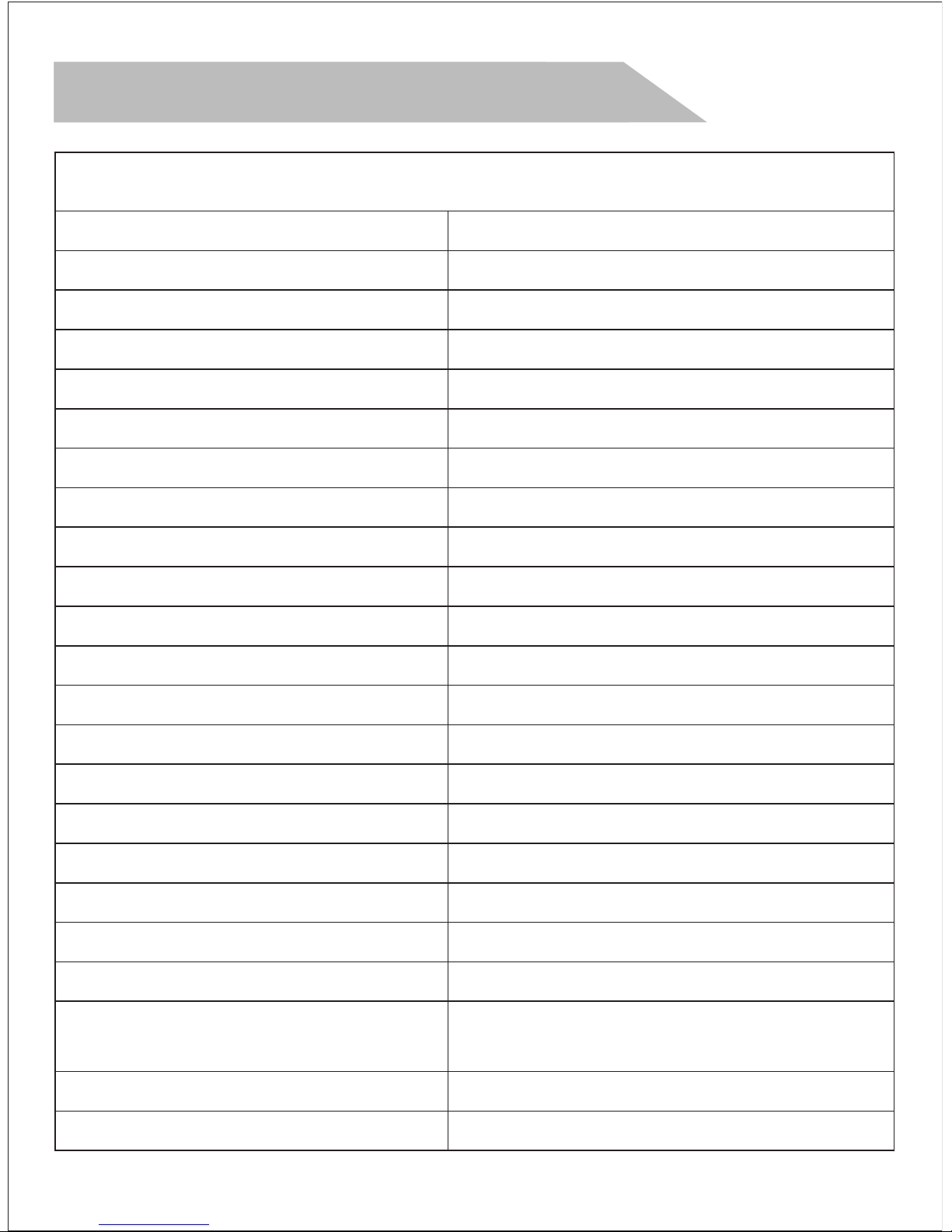
SPECIFICATIONS
ITEM
Video Specification
Image sensor
Illumination
Infra-red Sensitivity
IR Filter
Night Vision
(IR ON)0LUX
SPECIFICATION
720P/VGA H.264
OV9712D CMOS
Supported
Yes
10 meters
SNR(Signal to Noise Ratio)
Focus
Aperture
Code Rate
Day and Time Watermark
Audio
>50DB
Fixed
Auto
128-8192kbps
supported
one way audio
Infared Light
23
Audio Format
Operating Humid
-10~85%(20~80%)
G.711/G.726
Reset
Supported
Electronic Shutter
1/5-1/15,000
mobilephone monitoring iPhone. Android supported
Lens Diameter
2.0mm
Adater
5V/2A
Operating Temperature
-10°~60°C(-10°~50°C)
IP Address filtering,password
protection),User accessing log
Security
 Loading...