

Page 1

Installation Guide
Internet
Page 2

Package Contents
COMWAVE SR36ON
INTERNET MODEM
TELEPHONE CORD
Package Contents
ETHERNET CABLE
4
1 2
3
POWER ADAPTER
OUTPUT: 12V
2 x INTERNET FILTER
1
2
3
4
DSL
LAN
DC 12V
Switch
Connect your Comwave Internet Modem to your Internet Line
using the Telephone Cord supplied.
Connect to your computer using the Ethernet Cable supplied.
Connect to a power source using the Power Adapter supplied.
Power the Comwave Internet Modem on or o.
Page 3

LED Light Indicators
Note: Upon completion of set up, the LED
lights indicated above should be on.
Note: Wi-Fi light indicator should be on.
It is enabled automatically.
Page 4
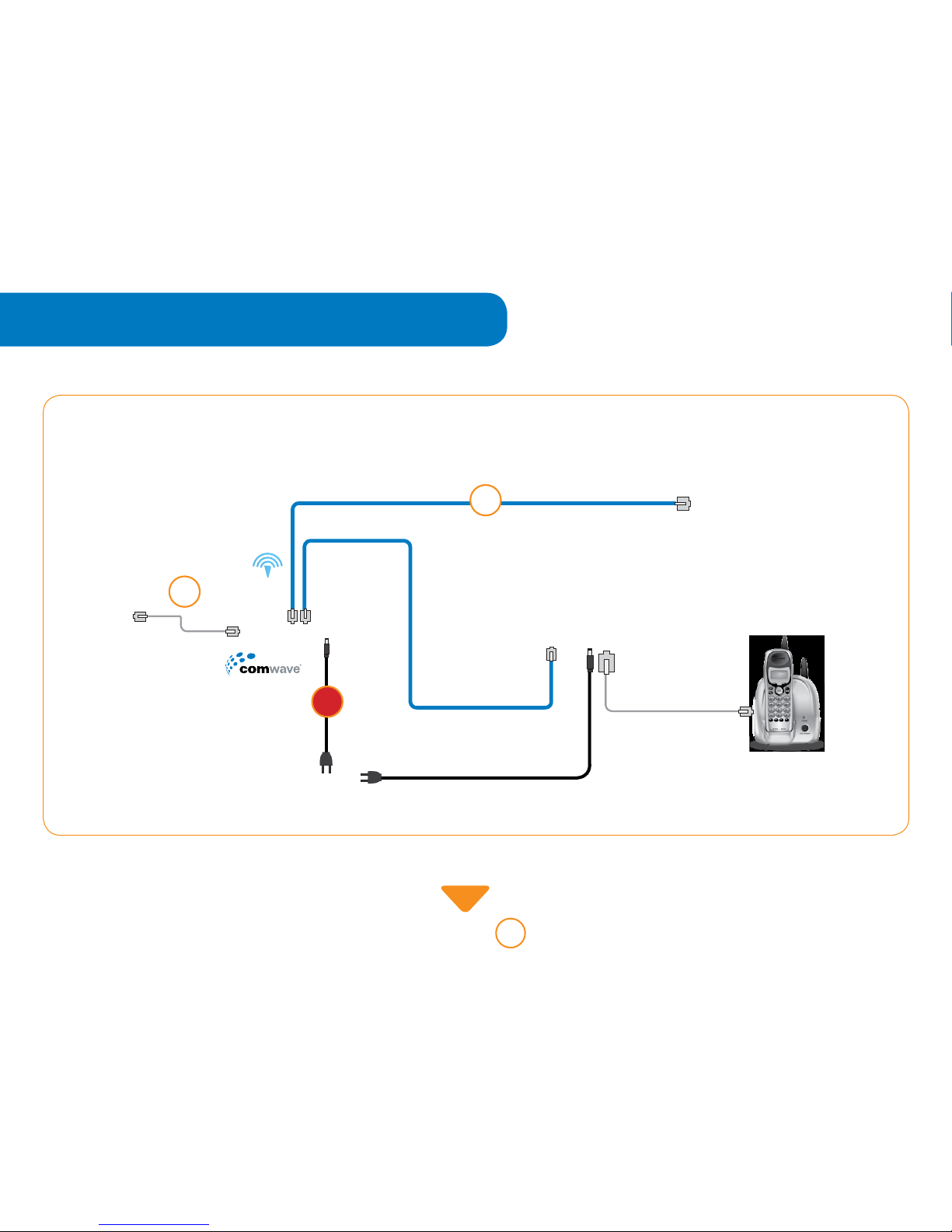
Installation
Power Outlet
Internet
Modem
2
step
3
step
4
step
Continue to
1
step
Computer
Wi-Fi
Internet
Line
Phone Jack
Comwave
Home Phone Adapter
Telephone
Page 5
1
step
2
step
3
step
4
step
5
step
6
step
7
step
8
step
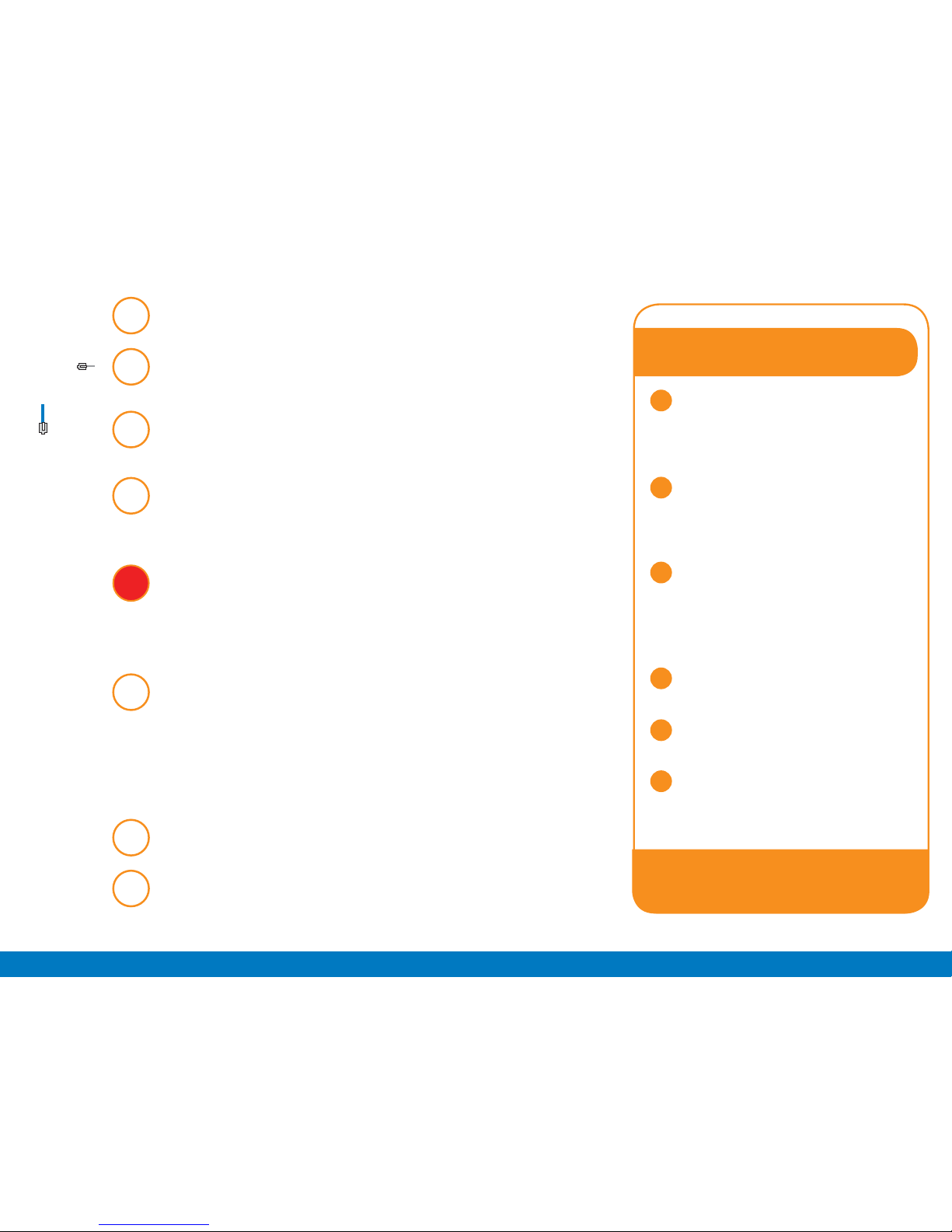
To begin installation, shut down your computer.
Connect the Comwave Internet Modem using the
supplied telephone cord to the phone jack.
Connect the supplied Ethernet Cable from the LAN port
of the Comwave Internet Modem to your computer.
(For Home Phone) Connect the supplied Ethernet cable
from the LAN port of your Comwave Internet Modem to
the WAN port of the Home Phone Adapter.
Connect the Comwave Internet Modem to a power outlet
Note: Wait until the LED Light Indicators on your
Comwave Internet Modem indicate that the Modem is
operational. This may take up to 5 minutes.
(For Home Phone) Connect a telephone to the PHONE 1
port on the Home Phone Adapter.
Then connect power to the Home Phone Adapter and
wait 5 minutes for a dial tone.
DO NOT DISCONNECT POWER as it may damage the
Home Phone Adapter.
Start your computer.
You should be able to browse the internet instantly.
Can’t access the Internet?
4
5
6
1
2
3
Unplug the power to your
Comwave Internet Modem,
Home Phone Adapter and shut
down your computer.
Wait 30 seconds and then
plug your Comwave Internet
Modem’s Power Cord back into
the power outlet.
Wait until the LED Light
Indicators on your Comwave
Internet Modem indicate that
the Modem is operational. This
may take up to 5 minutes.
Start your computer and Home
Phone Adapter.
Open your browser and start
surng the web.
Still unable to surf the Internet?
Call us at 1-866-210-9149.
We’ll get you back
up online!
Page 6
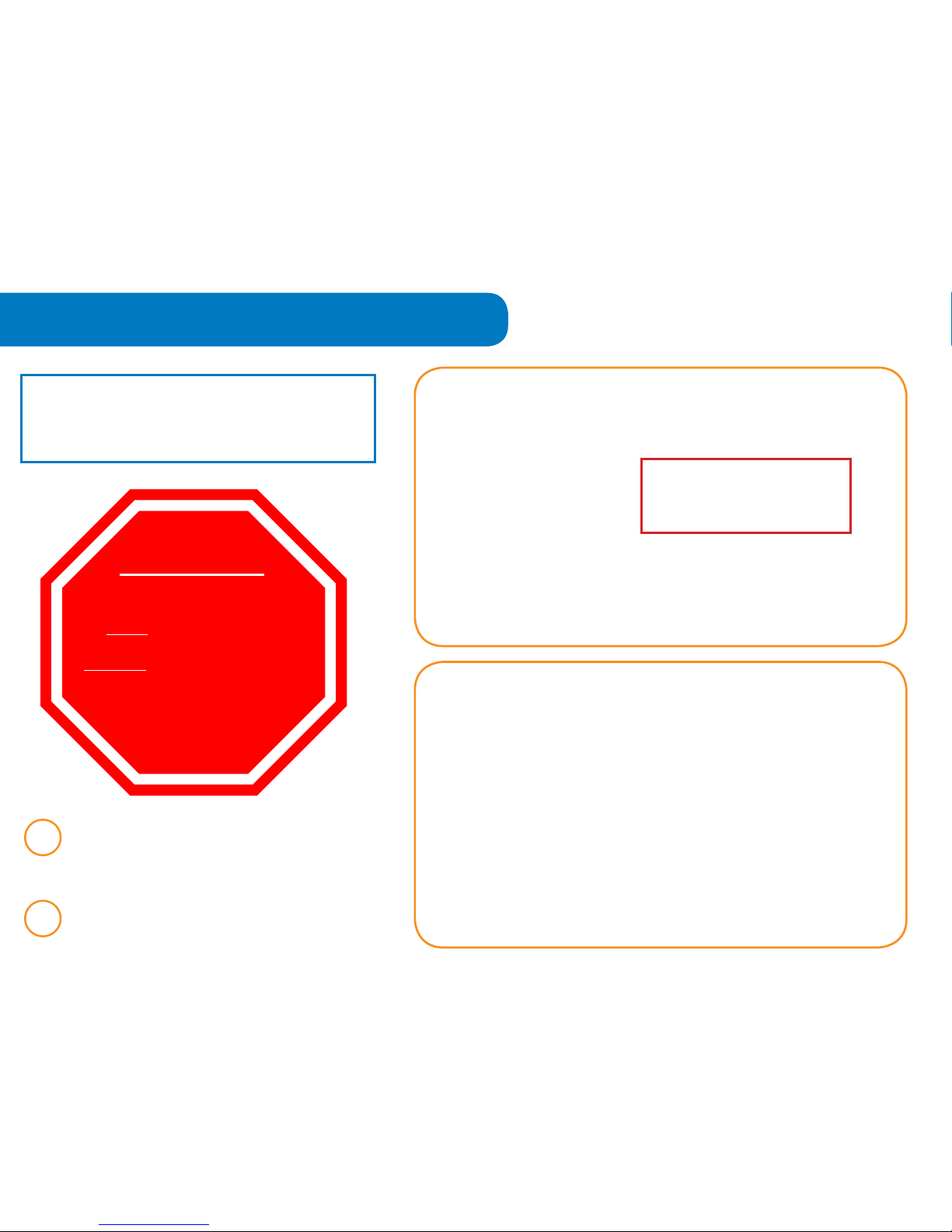
Wi-Fi Settings
Your Wi-Fi Password is the serial number
located on the bottom of your device
(eg. SR360Nxxxx-xxxxxxx)
1
STEP
2
STEP
Ensure your Computer is directly
connected to your Internet Modem
before you begin.
Open your Internet browser and type
http://192.168.17.1 in the address bar.
CAUTION
Your Comwave Internet Modem is
already Wi-Fi enabled by Comwave.
We do not recommend making any
changes to the default settings. Only
advanced users should attempt to
make changes or shut o the Wi-Fi
settings by following the steps below.
Page 7

*
SSID (Service Set Identier) is the name of your Wireless Network
Generate Wireless Key
Save
6
STEP
Enter your Username and Password.
This was provided in your Welcome
Letter by email. Click “Login” to
proceed.
Click on Wireless in the Local Network
box on the left.
Use caution when making the
following changes:
• Disable your Wi-Fi
•
Change your SSID
*
• Change your Security Type
• Choose your Wireless Key
Click Save.
5
STEP
4
STEP
3
STEP
Page 8

Need more help?
1-866-210-9149
SR360N
Watch our step by step
videos at
www.comwave.net/videos
 Loading...