

Page 1
Internet
506N Installation Guide
Page 2
Package Contents
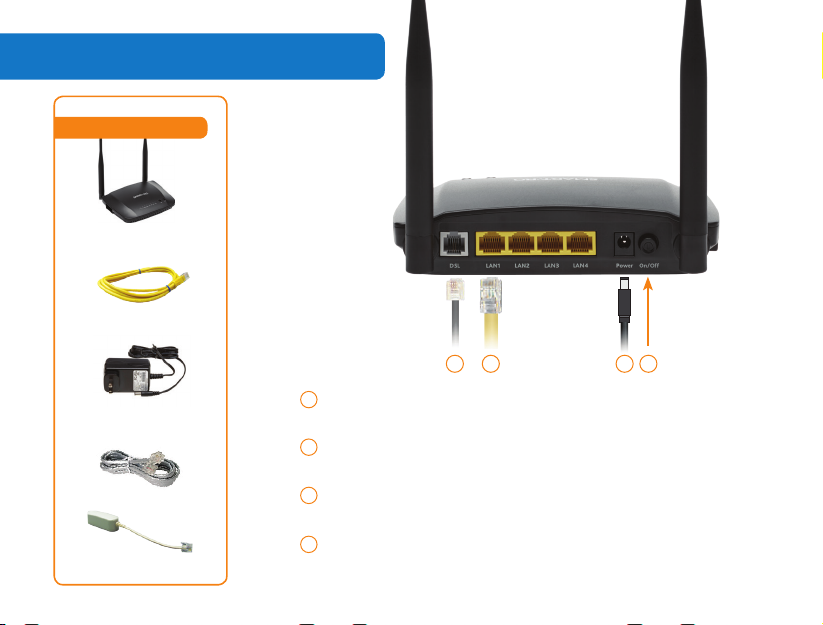
Package Contents
COMWAVE 506N
INTERNET MODEM
ETHERNET CABLE
POWER ADAPTER
OUTPUT: 12V
TELEPHONE CORD
2 x INTERNET FILTER
1
2
3
4
DSL
LAN
DC 12V
Switch
2
41
3
Used to connect your Internet Modem to your
Internet Line using the Telephone Cord supplied.
Used to connect to your computer using the
Ethernet Cable supplied.
Used to connect to a power source using the
Power Adapter supplied.
Used to power the Internet Modem on or o.
2.
Page 3
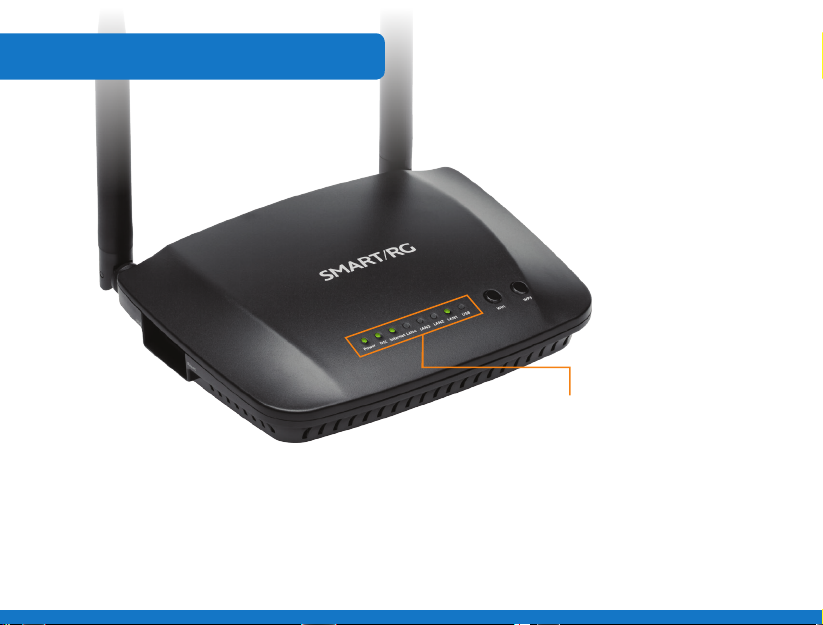
LED Light Indicators
3.
Upon completion of set up, the following
LED lights should be on.
Note: The example above shows LAN1
indicator lit. This may be dierent depending
on the LAN port you plug in.
Please follow the step-by-step instructions
on the following pages.
Page 4
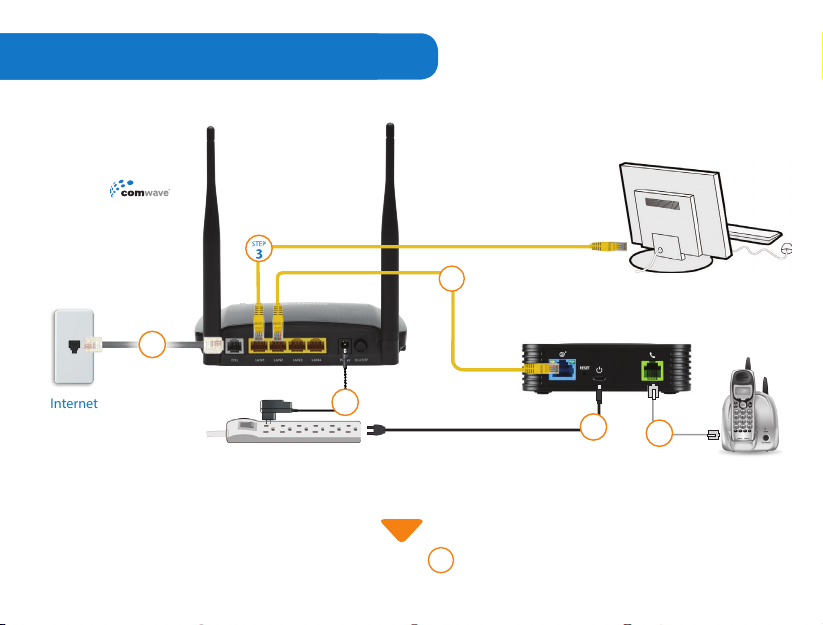
Installation Diagram
Package Contents
Internet
Modem
Phone Jack
step
2
Computer
step
4
Comwave
VoIP Adapter
Telephone
Internet
Line
step
5
Power Bar
with Surge Protector
Continue to
step
step
7
1
step
6
4.
Page 5
Installation Step-by-Step
step
To begin installation, shut down your computer.
1
step
Connect the Comwave Internet Modem using the supplied telephone cord
2
to the phone jack.
step
Connect the supplied Ethernet Cable from the LAN port of the Comwave
3
Internet Modem to your computer.
step
(For Home Phone)
4
your Comwave Internet Modem to the WAN port of the Home Phone Adapter.
step
Connect the Comwave Internet Modem to a power outlet.
5
Note:
Please allow up to 5 minutes for your modem to be operational.
step
(For Home Phone)
6
Phone Adapter. Then connect power to the Home Phone Adapter and wait
5 minutes for a dial-tone.
the Home Phone Adapter.
step
Start your computer. You should be able to browse the Internet instantly.
7
5.
Connect the supplied Ethernet cable from the LAN port of
Connect a telephone to the PHONE 1 port on the Home
DO NOT DISCONNECT POWER as it may damage
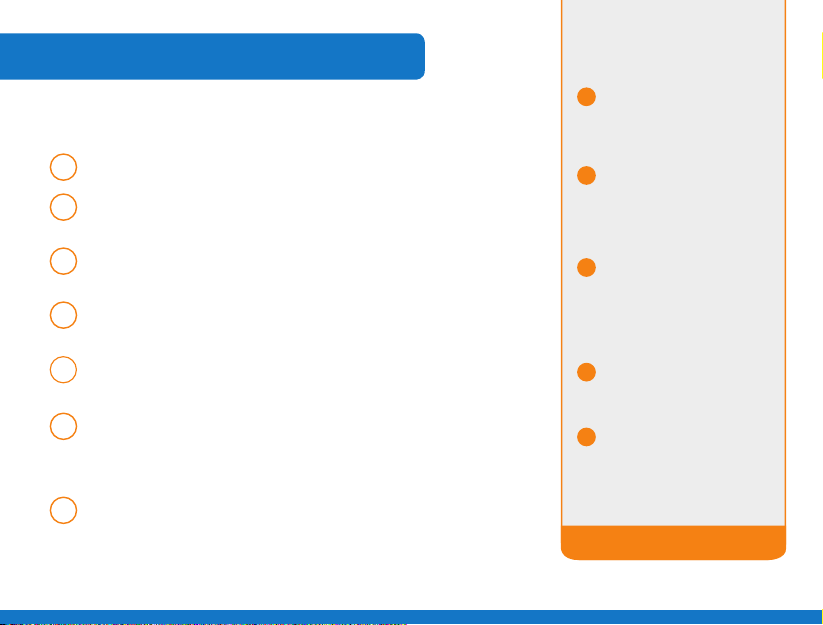
Can’t Access
the Internet?
Unplug the power to your
1
Comwave Internet modem,
home phone adapter and
shut down your computer.
Wait 30 seconds and then
2
plug your Comwave Internet
modem’s power cord back
into the power outlet.
Wait until the LED light
3
indicators on your Comwave
Internet modem indicate the
modem is operational. This
may take up to 5 minutes.
Start your computer and
4
plug in the home phone
adaptor into a power outlet.
Open your browser and start
5
surng the Internet. Check
for a dial tone.
Still unable to surf the Internet?
Call us at 1-866-210-9149.
WE’LL GET YOU BACK UP ONLINE!
Page 6
Wi-Fi Settings Step-by-Step
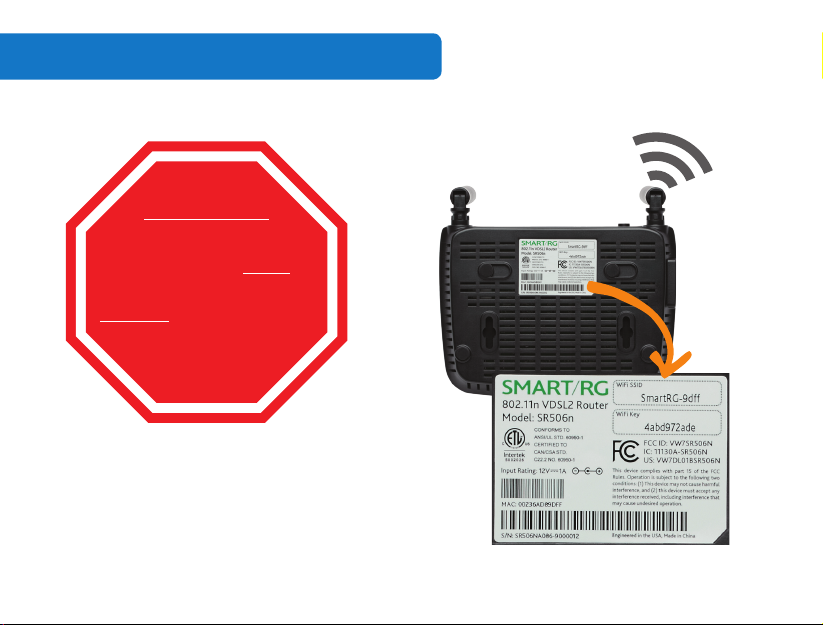
CAUTION
Your Comwave Internet
Modem is already Wi-Fi enabled
by Comwave. We do not
recommend making any changes
to the default settings. Only
advanced users should attempt
to make changes or shut o the
Wi-Fi settings by following
the steps below.
To log into your Wi-Fi, use the default login information found
on the bottom of your modem.
To change your default Wi-Fi Username and Password make sure
your computer is connected to your Internet Modem before
you begin.
6.
Page 7
Advanced Wi-Fi Settings
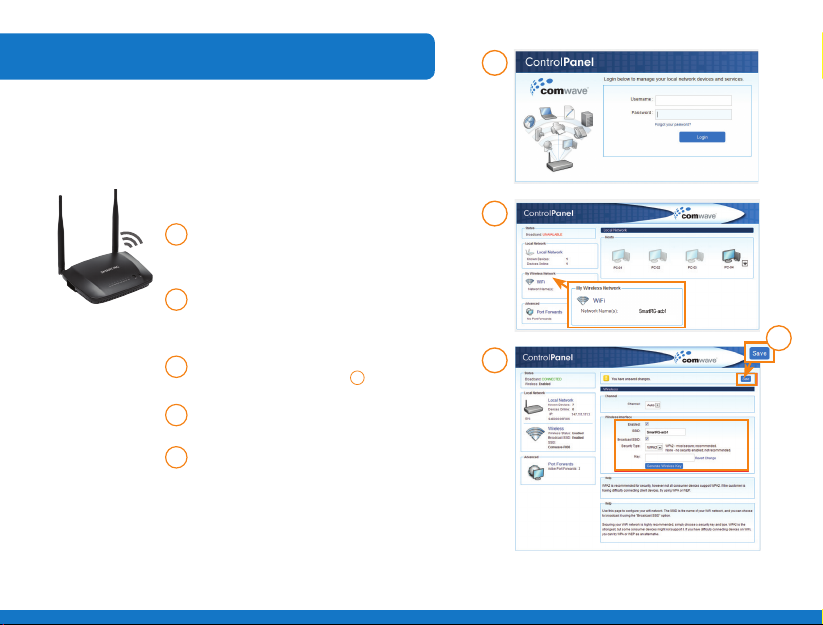
For advanced users wishing to change their network name
and/or password, follow the steps below.
step
Open your internet browser and
1
type http://192.168.17.1 in the
address bar.
step
Enter your Username and
2
Password and click LOGIN to
proceed.
step
Click on Wi-Fi in the local network
3
on left as shown in gure
step
Use caution when making any
4
changes.
step
Click Save.
5
7.
step
2
step
3
step
step
step
3
.
4
5
Page 8

Need more help?
1-866-210-9149
506N Installation Guide
 Loading...