

Page 1

User Guide & Important Information
XRD-BC Series
Page 2
The XRD-BC wireless Bluetooth acoustics design combines fashion element and new wireless technologies;
Their sophisticated design is fully compliant with the fashionable life needs.Clear sound, deep bass and better
performance as standard configuration, it than just a Shapes to lovable acoustics of the ordinary, it uses
Bluetooth 3.0 technology, get rid of the shackles of the cable, as a unique ornaments, when you any corner of
the place and then the house, but when you play the wonderful music of the ultra-high quality, how make people
enjoy. As a wireless Bluetooth acoustics, it is designed to become more humane, facial designs, you can easily
be used to enjoy music, a wireless Bluetooth connection to mobile phones, computers Bluetooth audio devices.
1
Page 3

PURPOSE CONTENTS
The purpose of this guide is to help you get started
using your new XRD-BC Series Bluetooth
Speaker.
This booklet also provides you with information
ab o u t th e ad ded featur e s an d im p ortant
information regarding this product.
Page
What’s Inside..........................................................3
Button Controls.......................................................4
Quick Start..............................................................5
Getting Started....................................................... 6
How to Connect......................................................7
LED Indicators........................................................8
Basic Operation......................................................9
Pairing With Bluetooth Devices............................13
Making Voice Calls...............................................15
Helpful Tips...........................................................16
Low Battery Alert and Charging Instructions........17
Battery Tips...........................................................18
2
Page 4
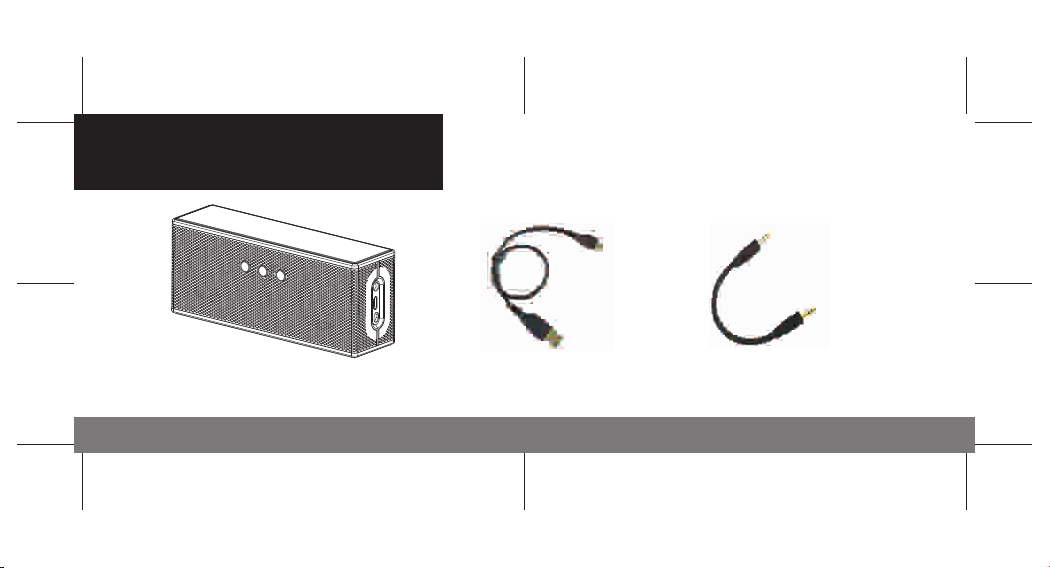
WHAT’S INSIDE
Crossroads XRD-BC
BluetoothSpeaker
USB to Micro-USB
Charging Cable
3
3.5 to 3.5mm
Audio Cable
Page 5
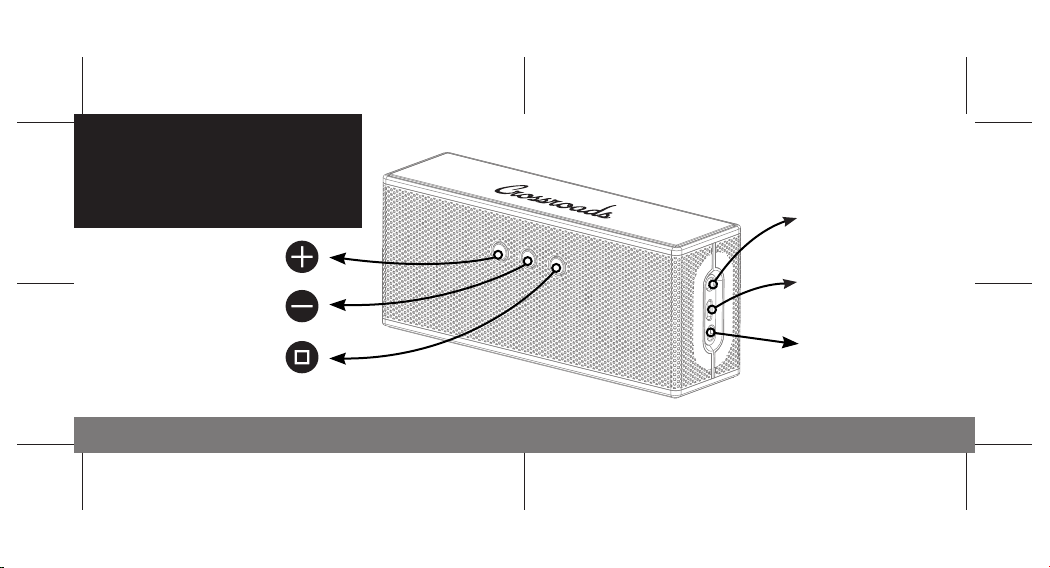
BUTTON
CONTROLS
Volume Up
Volume Down
Multi-Function
3.5mm
Audio in
Micro-USB
Charging Port
Power
On/Off
4
Page 6
QUICK START
1. Power ON Power on by sliding the Power switch” “ to ON position.
2. To pair, press and hold the “ “ For 8 seconds the LED flash BLUE/RED enable Your
Device Bluetooth and Scan and Connect the “XRD-BC”.
3. Enjoy your music or anuswer a Phonecall by XRD-BC.
5
c
Page 7
GETTING STARTED
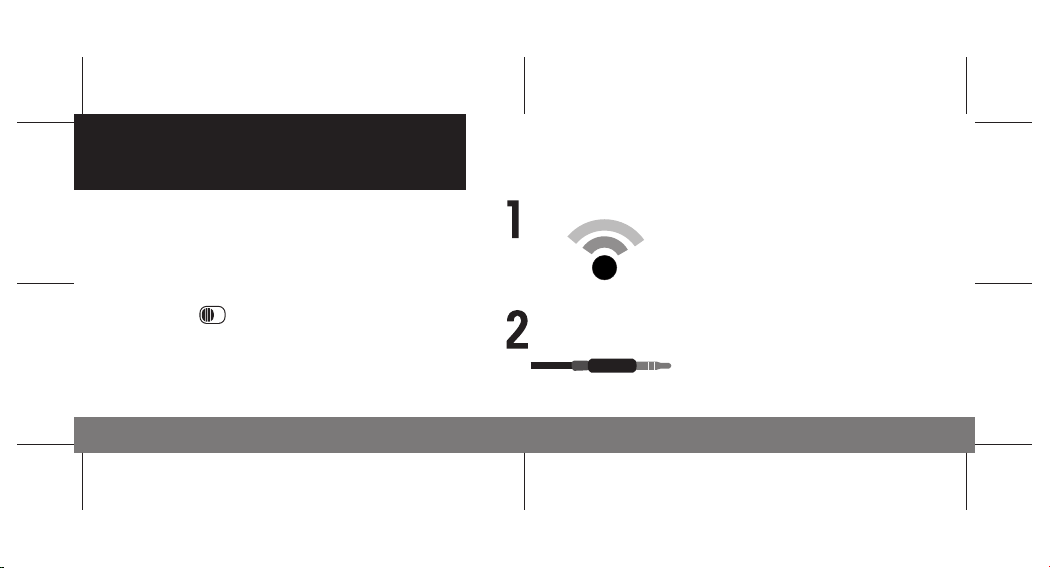
TWO WAYS TO CONNECT
POWERING UP
After you are finished charging your
device, power on by find the ON/OFF
switch “ “and Slide the switch into
the ON position.
Connect your Crossroads
Speaker to your mobile
dev i ce via Blu eto o th
Wireless.
or
6
Or connected directly to
your device via a 3.5mm
Audio Cable. (included)
Page 8

HOW TO CONNECT
Using your 3.5mm cable:
Insert one 3.5mm end into the speaker and the other 3.5mm end in to the device you want
to use with your speaker.
Using Bluetooth is easy:
1. Go to your settings and enable Bluetooth.
2. Next, search for devices.
3. Then, press and hold the Multi-function for 8 seconds.
4. Select “XRD-BC” and enjoy.
7
Page 9
LED INDICATORS
●
BLUE
RED
BLUE
& RED
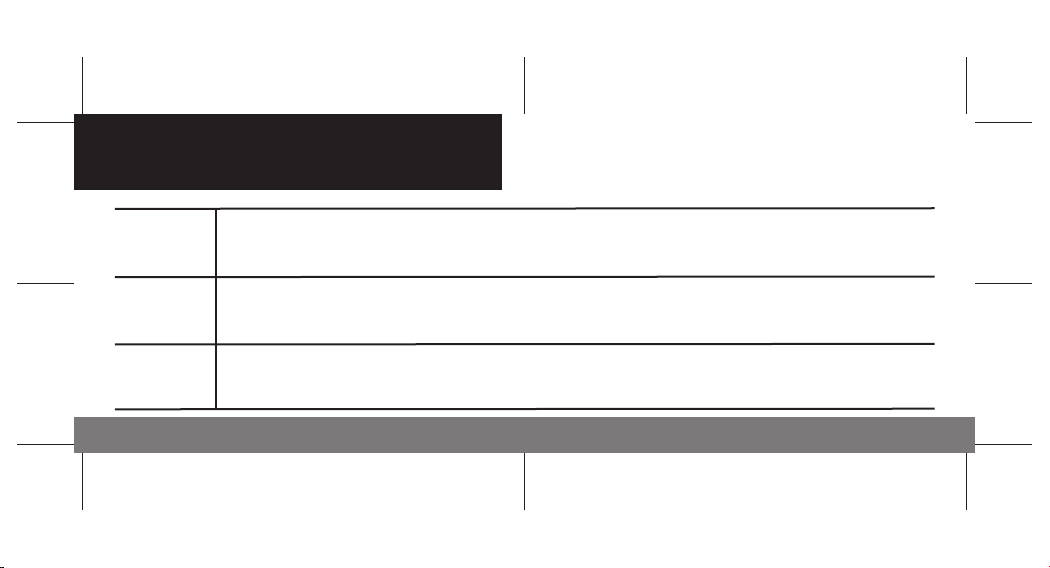
Blue Flashing means it’s On and Ready to be paired.
●
Once paired the Blue light will fast every 5 seconds.
●
Red Flashing light means the battery is low.
●
Red Solid light means that the battery is charging.
●
Both Red and Blue Flashing lights means that the Speaker is searching
for a device to pair with.
8
Page 10
BASIC OPERATION
●
Turn ON: From the OFF position, locate the ON/OFF switch” “, slide the switch to the ON position. The
blue LED flashes with an indication tone.
●
Turn OFF: From the ON position, locate the ON/OFF switch “ “, slide the switch to the OFF position. The
red LED flashes with an indication tone.
●
Pairing: Turn ON the device, hold and press the Multifunction button” “ for 6 to 8 seconds, or until the red
and blue LEDs flash alternately, indicating that the Bluetooth speaker is in paring mode and searching for a
device. Once a device is found, you can manage your connection through your Bluetooth enabled device to
complete the pairing process.
9
Page 11
BASIC OPERATION
●
Answer Call: While paired, press and immediately release the Multifunction bottom “ “ to answer an
incoming call.
●
End Call: To end call simply press and immediately release the Multifunction button “ “, a tone will sound
to indicate the function has been completed.
●
Reject Call: Press and hold the Multifunction button “ “ for three (3) seconds to reject call, a tone will
sound to indicate the function has been completed.
10
Page 12
BASIC OPERATION
●
Adjust Volume: A short press and release of the VOL “ “ button to turn up the volume; a tone will sound
when maximum volume is reached. Similarly, a short press and release of the VOL “ “ button to turn down
the volume; a tone will sound when minimum volume is reached.
●
Redial: In standby mode, press and release the Multifunction button “ “ twice.
●
Voice Dial: In the standby mode, press and hold the Multifunction button “ “ for 3 seconds.
(This function requires that your phone support this functionality).
11
Page 13
BASIC OPERATION
●
Transfer Call from Speaker to Phone: During a call, press and hold the Multifunction button “ “ for 3
seconds until you hear a tone, the same operation can transfer the sound from your phone to a Bluetooth
speaker.
●
Microphone Mute: Press and hold the VOL “ “ button can switch to open and close the mute function, a
tone will sound to indicate the function has been completed successfully.
●
Pause/Play: Short press and release the Multifunction button “ “ to play, or pause music.
●
Previous and Next: W hile the music is playing, press and hold the Vol ” “ to move forward, otherwise,
press and hold Vol “ “ to move back.
12
Page 14

PAIRING WITH BLUETOOTH DEVICES
Pairing is the process of connecting two devices via Bluetooth.
For example, when use mobile phones with Bluetooth Speaker it is necessary to operate the mobile phone
Bluetooth to search bluetooth devices, select and then connect wirelessly by PIN
The speaker pairing steps are as follows:.
1. Ensure that both the speaker, and the device you wish to connect to, are powered ON.
2. On the device you wish to connect, access the device’s bluetooth Settings and enable Bluetooth
connections.
3. Search for, discover, add, or find new devices.
13
Page 15
PAIRING WITH BLUETOOTH DEVICES
4. Next, press and hold the Multifunction button “ “ for 6 to 8 seconds or until the LED lights are flashing red
and blue alternately.
5. Your device will discover the speaker as XRD-BC, select/confirm this device. (NOTE: Each Bluetooth device is
different, please check the User Guide for your specific device.)
6. If prompted for a PIN or Password, enter: 0000, and confirm. (NOTE: Upon successful connection, the blue
LED on your speaker will flash and sound an alert. After this process the blue LED light will flash once every 5
seconds. If the pairing has failed, LEDs are will continue to be flashing red and blue alternately, you’ll need to
complete steps 1 through 6 again, in an attempt to-pair your device.)
14
Page 16
MAKING VOICE CALLS
If supported by your phone, turn the Voice Recognition feature on, and use your speaker as a speaker phone.
1. Press and release the Multifunction button “ “ once, you will hear a tone to indicate the voice function
activated
2. Say the name of the person you wish to call.
(NOTE: Speaker’s voice call function is determined by the cell phone.)
15
Page 17

HELPFUL TIPS
1. Pairing mode will last up to five (5) minutes to ensure the device is found.
2. Pairing mode will automatically commence, only if:
a. The Bluetooth speaker is powered on and preset with another device, it will automatically search and
connect to the pre-set device.
b. When the speaker disconnects from a mobile phone due to exceeding the effective range 9 typically 10
meters, or 33 feet), the Bluetooth speaker will attempt to reconnect to if the speaker reenters the effective
range within 10 minutes of exit.
16
Page 18
LOW BATTERY ALERT AND CHARGING INSTRUCTIONS
When your device is operating on a low battery, the red LED will flash and an alert will sound once every 30
seconds, this indicator often last for 5 to 10 minutes before the device shuts down and powers off on its own.
Charge your Bluetooth Speaker via the Micro USB and adapter, included in the package. While the speaker is
charging the red LED will turn on until the device is finished charging, a full charge may take between 2-3 hours.
17
Page 19

BATTERY TIPS
The Bluetooth speaker is power by a rechargeable battery, for maximum battery performances always use the
charger that is included with your Bluetooth speaker and promptly disconnect the Bluetooth Speaker when
charging us complete or the battery is full. Avoid extreme weather conditions, as it may hinder the battery’s
capacity, the ideal temperature for this Bluetooth speaker is 59°F to 78°F, any extreme weather can impair the
performance of the device, and may cause it not to operate.
A full charged battery left unused may result in complete discharge over an extended period of time. For the
safety of the environment never dispose of any battery in the trash, for your safeties do not damage the battery
or dispose of batteries in a fire as it may cause an explosion. Although the battery can be charged and
discharged multiple time, the battery will eventually wear over time, following the advice herein can help improve
and extend your battery’s life.
18
Page 20

FCC STATEMENT This equipment has been tested harmful interference to radio or television reception,
and found to comply with the limits for a Class B which can be determined by turning the equipdigital device, pursuant to Part 15 of the FCC Rules. mended off and on, the user is encouraged to try to
These limits are designed to provide reasonable correct the interference by one of the following
protec tion agai nst har mful inte rfere nc e in a measures:
residential installation. This equipment generates
uses and can radiate radio frequency energy and, if
not installed and used in accordance with the
instruct-tigons, may cause harmful interference to
radio communicatio ns. However, there is no
guarantee that interference will not occur in a
particular installation. If this equipment does cause
●
Reorient or relocate the receiving antenna.
●
In crease the separation between the equipment
and receiver.
●
Connect the equipment into an outlet on a circuit
different from that to which the receiver is
connected.
19
Page 21

●
Consult the dealer or an experienced radio/TV
technician for help.
FCC NOTICE This device complies with Part 15 of
the FCC Rules. Operation is subject to the following
two conditions:
1. The device may not cause harmful interfer-ence;
and
2. This device must accept any interference
received, including interference that may cause
20
Page 22

FCC CAUTION
●
Any changes or medications not expressly numbers, please look on the Crossroadsl speaker.
approved by the party responsible for compliance For best performance of this product, please only
could void the user’s authority cooperate this use with the power supply adapter provided,
equipment. Crossroads Speaker Mode# XRD-BC.
●
T his device and its antenna(s) must not be co-
located or operating in conjunction with another
antenna or transmitter.
FCC ID: ZG8BSK10.
To locate the FCC
21
Page 23

22
Page 24

CONTACTUS
Crossroads Products Company ©2012 Crossroads Products Company.
www.crossroads.com
Crossroads and the logo are trademarks of
Crossroads Products Company. Other
marks are the property of their respective
owners.
23
Page 25

Page 26

Page 27

 Loading...