

Page 1
Comtech of MOG8055 users manual
Package Contents:
●
MOG8055 Mouse
●
Nano-receiver Dongle
●
Quick start guide
System Requirement:
●
IBM PC or compatibility machine
●
Windows Vista XP ME/ / /2000
●
USB port
Quick start guide
Welcome for purchasing this device we will show you how to use this,
device in the following steps.
ConnecttoPCUSBPort
●
Take out this device and find out PC USB Port
●
Connect this device with PC USB Port before,
this step please refer to your,
●
PC manuals and find out the correct way for linking.
Caution
●
Please dont try to disassemble this de
vice by yourself it may bring danger,.
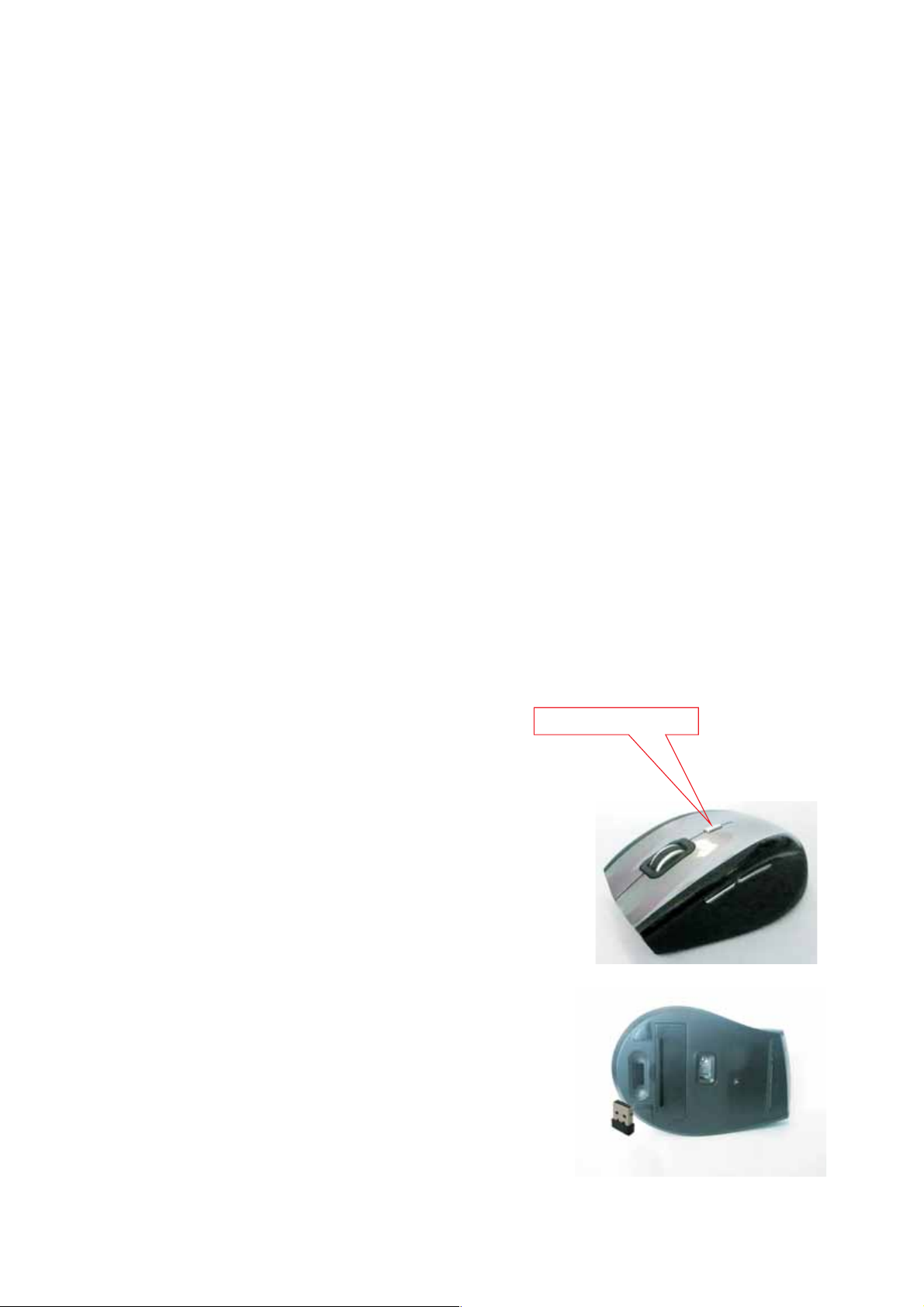
Button definition
“DPI Switch”
Mouse dpi switchable between 800/1600dpi
Note: I
time , it will enter
power-saving mode,
the receiver, the mouse will enter the same
power-saving mode, then whether you press
the mouse button the mouse is not any work,
only if your PC to open, so that the receiver
correctly work by pressing the mouse left/
middle/right keys at any one of three buttons
in order to let your mouse wake-up into the
normal operating mode
(more than 10 minutes)
:
2-level DPI switch button
for different users
f you do not move the mouse a long
In your PC off, or unplug
Page 2

FCC Statement
This equipment has been tested and found to comply with the limits for a Class B digital device, pursuant
to part 15 of the FCC rules. These limits are designed to provide reasonable protection against harmful
interference in a residential installation. This equipment generates, uses and can radiate radio frequency
energy and, if not installed and used in accordance with the instructions, may cause harmful interference
to radio communications. However, there is no guarantee that interference will not occur in a particular
installation. If this equipment does cause harmful interference
to radio or television reception, which can be determined by turning the equipment off and on, the user is
encouraged to try to correct the interference by one or more of the following measures:
-Reorient or relocate the receiving antenna.
-Increase the separation between the equipment and receiver.
-Connect the equipment into an outlet on a circuit different from that to which the receiver is connected.
-Consult the dealer or an experienced radio/TV technician for help.
To assure continued compliance, any changes or modifications not expressly approved by the party
responsible for compliance could void the user’s authority to operate this equipment. (Example- use only
shielded interface cables when connecting to computer or peripheral devices).
This equipment complies with Part 15 of FCC RF Rules. Operation is subject to the following two
conditions:
1) This device may not cause interference and
2) This device must accept any interference, including interference that may cause undesired operation of
the device.
Caution!
The manufacturer is not responsible for any radio or TV interference caused by unauthorized
modifications to this equipment. Such modifications could void the user authority to operate the
equipment.
 Loading...