

Page 1

Media Gateway
USER GUIDE
WHOLE HOME DVR/HIGH SPEED INTERNET/HOME PHONE
Page 2

2
Copyright©ComSouth2014. All rights reserved.
Contents
Welcome
KUDZU Media Player Orientation ��������4
The Main Menu Layout ���������������������� 6
Horizontal Categories �������������������������7
Vertical Lists �������������������������������������� 8
Action Menus ������������������������������������ 9
Mini TV �������������������������������������������� 10
Remote Control
Using Your Remote ������������������������� 13
Advanced Remote
Shortcut �������������������������������������������14
Menu Navigation ����������������������������� 15
Player Controls �������������������������������� 16
Pairing the Remote ��������������������������� 17
Full Screen TV
Flip Bar �������������������������������������������� 19
Flip Bar Layout �������������������������������� 20
What’s On Next ��������������������������������21
Flip Bar Options ������������������������������ 22
Controlling Live TV ����������������������������24
Player Bar ��������������������������������������� 25
Automatic Conict Detection ����������� 26
Screen Saver ����������������������������������� 26
Recorded TV
Intro to Recorded TV ����������������������� 29
Recorded TV Layout������������������������ 30
Management ������������������������������������ 31
Folder Options��������������������������������� 32
Options ������������������������������������������� 33
Series Options ����������������������������������34
Recording Space����������������������������� 35
External Hard Drive�������������������������� 36
TV Channels
TV Channels Layout ������������������������� 39
TV Channels Focus �������������������������� 40
Recording Icons �������������������������������41
Preview Panel ���������������������������������� 42
Preview Panel Layout ���������������������� 43
Channels Action Menu ���������������������44
Action Menu Options ����������������������� 45
Recording A Show ���������������������������47
Recording Options �������������������������� 48
Currently Recording ������������������������� 49
Conict Management ���������������������� 50
Change Time Slot ����������������������������� 51
Grid Guide ��������������������������������������� 52
Grid Guide Genres ��������������������������� 53
Search
Intro to Search ��������������������������������� 55
Find By Title ������������������������������������ 56
Find By Keyword ������������������������������57
Find By Category����������������������������� 58
Search Options ������������������������������� 59
Home Network
Setup �����������������������������������������������61
Getting Started �������������������������������� 62
Playing Media ���������������������������������� 63
Page 3

3
Copyright©ComSouth2014. All rights reserved.
Adding To Favorites ��������������������������64
Player Controls �������������������������������� 65
Mobile Apps
The Mobile Apps ������������������������������� 67
Downloading a Mobile App �������������� 68
Super Ticker
Super Ticker ������������������������������������� 71
Lock a Topic or Item ������������������������ 72
SuperTicker Displaying Weather ������ 73
View the Whole Story �����������������������74
Playing Games
Games ���������������������������������������������77
Screen Saver and Game Display ����� 78
Settings
Parental Controls ������������������������������81
Working with your PIN ��������������������� 83
Locking and Unlocking Programs �����84
Menu Customization ����������������������� 85
Phone ��������������������������������������������� 86
Recording Space������������������������������87
SuperTicker ������������������������������������� 88
TV Setup ����������������������������������������� 89
Aspect Ratio ������������������������������������ 90
Messages
Receiving Messages ������������������������ 93
Phone
Call Indicators ���������������������������������� 95
Call List ������������������������������������������� 96
Call Options �������������������������������������� 97
Filters
Intro to TV Filters ����������������������������� 99
Favorites
Favorites ����������������������������������������101
KUDZU Media Gateway
Hardware
External Hard Drive ����������������������� 103
Reset Button ����������������������������������104
LED Display ������������������������������������104
Wireless Network Conguration ����� 105
Connecting Devices to Your Network
������������������������������������������������������ 105
Conguring Your Ethernet Connection
������������������������������������������������������ 106
TCP/IP Conguration for Windows
2000 ����������������������������������������������107
TCP/IP Conguration for Windows XP
������������������������������������������������������ 108
TCP/IP Conguration for Windows
Vista ����������������������������������������������� 111
TCP/IP Conguration for Windows 7
and 8����������������������������������������������114
KUDZU Media Player
Hardware
Resolution Reset ��������������������������� 118
Front Panel Brightness ������������������ 118
Front Panel Buttons ����������������������� 118
Page 4
4
Copyright©ComSouth2014. All rights reserved.
KUDZU Media Player Orientation
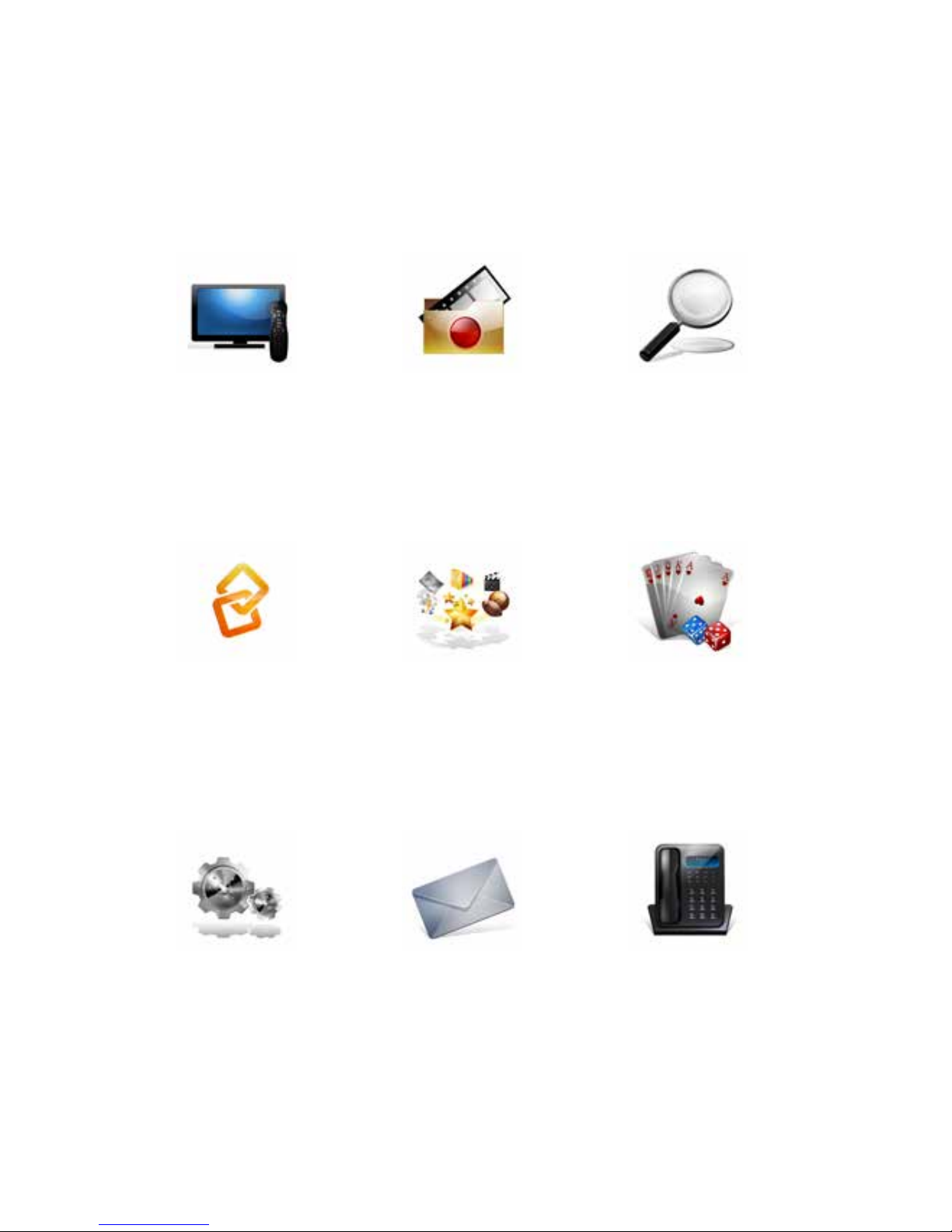
The Kudzu Media player experience starts with pressing the MENU button on the
remote� You’ll then see the top level of the main menu, a horizontal band that runs
across the middle of the screen and gives access to all of the main menu options�
Channels
A vertical menu that lists
all available channels�
Recorded TV
A list of all programs
you’ve recorded�
Search
Options to search for
programs by title, key
word or by category�
Home Network
An easy way to enjoy
media stored on your
computer from the
comfort of your TV�
SuperTicker
A customizable ticker
that lets you view the
latest news, weather and
stocks without missing
your shows�
Games
A variety of classic
games like Blackjack
and Slot Machine�
Settings
A category that allows
you to customize your
KUDZU Media Player�
Messages
A place to receive messages about ComSouth
services and updates�
Phone
A list of recent phone
calls from your incoming
lines�
Page 5
5
Copyright©ComSouth2014. All rights reserved.
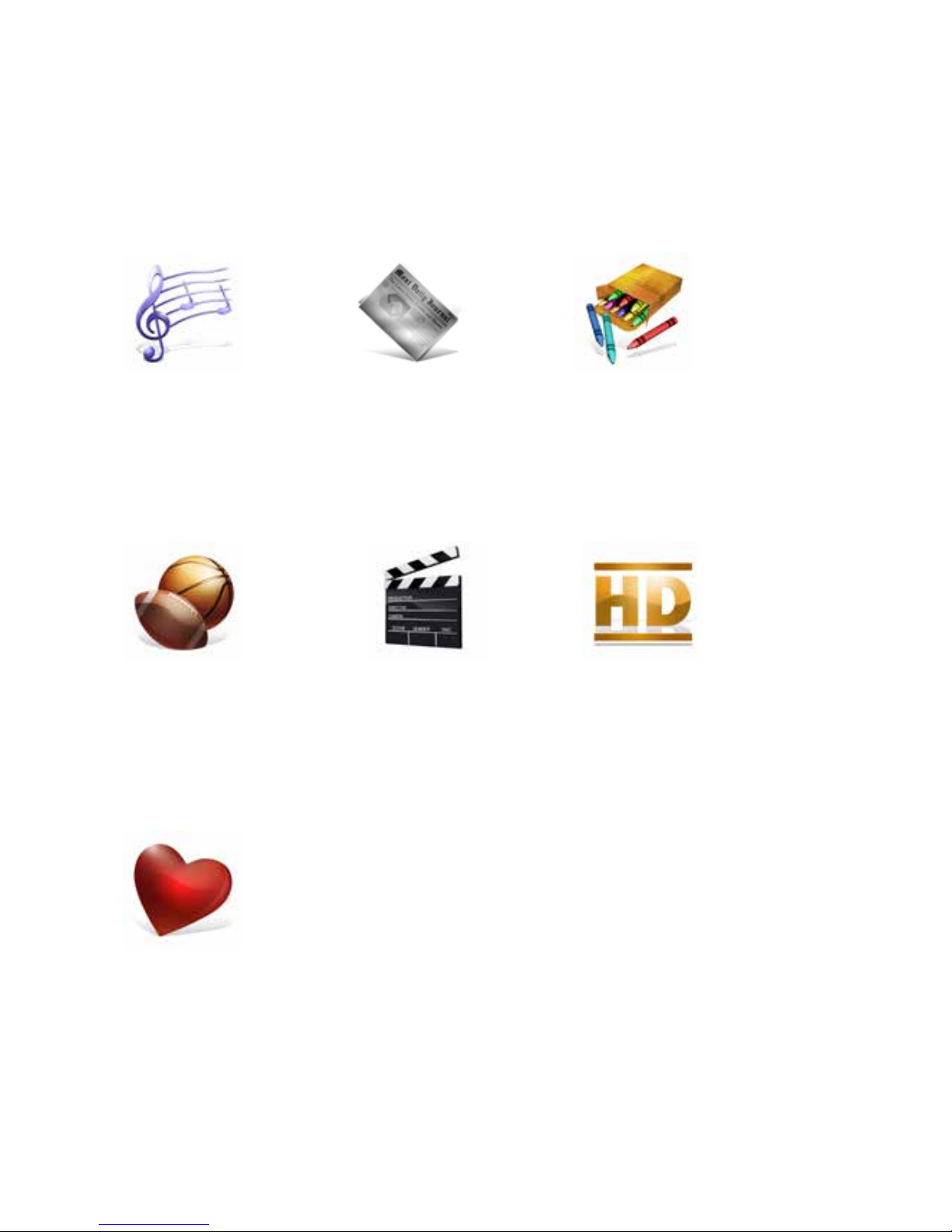
TV Music
A collection of TV music
channels to match your
taste and mood�
Sports
A lter that displays all
available sports content�
Kids
Access to all children’s
programming in one
consolidated list�
News
A lter that displays
all the 24 hour news
channels and current
news programming�
Movies
A lter that displays all
available movies, which
includes both live and
recorded TV�
HDTV
A lter that displays
all the high-denition
content�
Favorites
A lter that lets you add
your favorite TV, video,
photo and music content
to one convenient place�
Page 6
6
Copyright©ComSouth2014. All rights reserved.
6
4
5
3
2
1 7
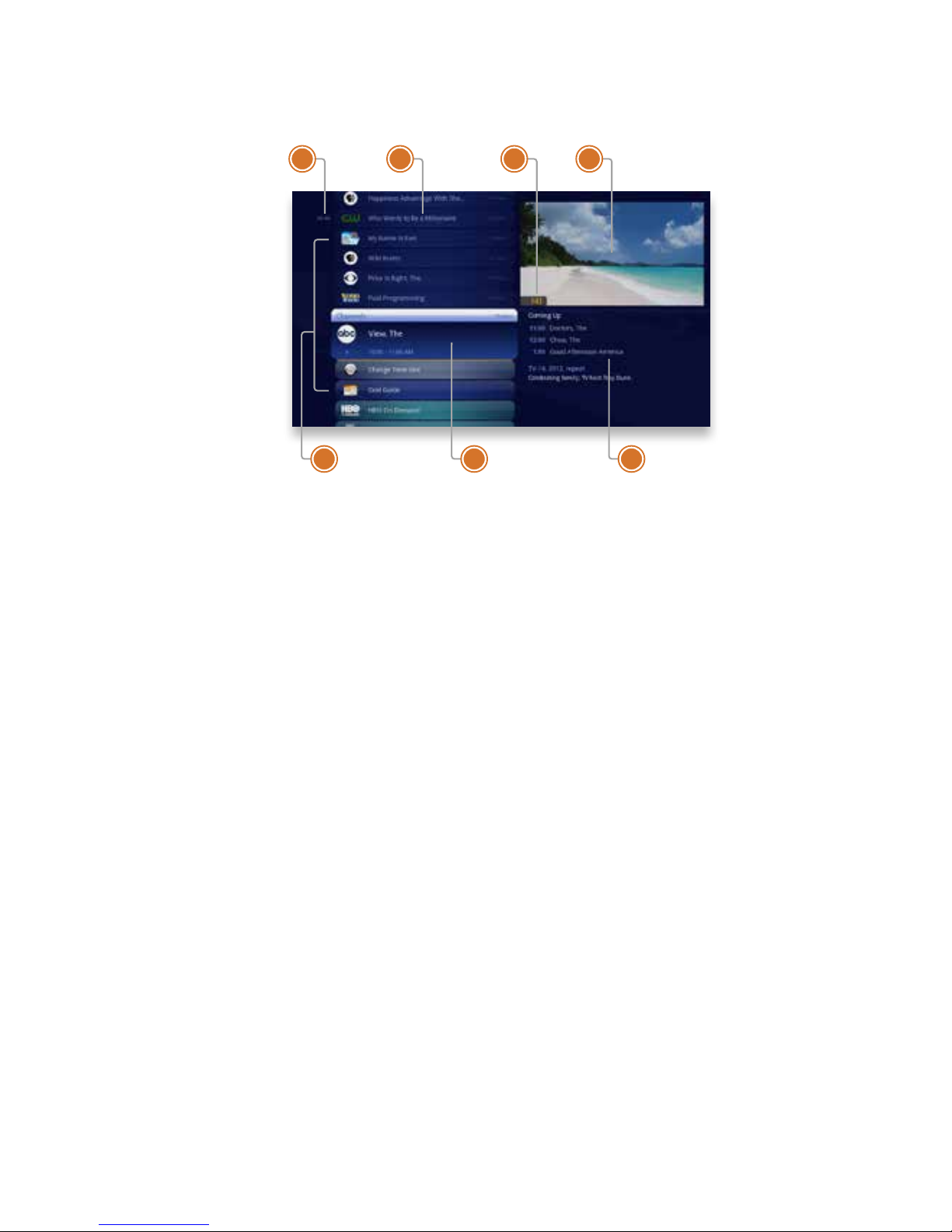
The Main Menu Layout
1� TIME
With the current time, you’ll know
when your show begins�
2� CURRENT CHANNEL
Displays the channel that is playing
in Mini TV� If the program is recorded,
an icon will display the current status
- i�e�, play or pause�
3� MINI TV
Lets you keep watching your program while you browse�
4� FOCUS
The current selection is in the focus
area of the menu� When cards are in
focus, they appear raised and highlighted�
5� VERTICAL LIST
Contains all of the items in the current horizontal category�
6� INFO PANEL
Depending on the item in focus, this
area either provides more information about that item or a selection of
choices for that item�
7� CARD
Items in vertical lists are called cards�
8� CATEGORY
Items in the horizontal band are
called categories� When a category
is in focus, the name of the category
appears in the top of the focus area�
Page 7
7
Copyright©ComSouth2014. All rights reserved.
8
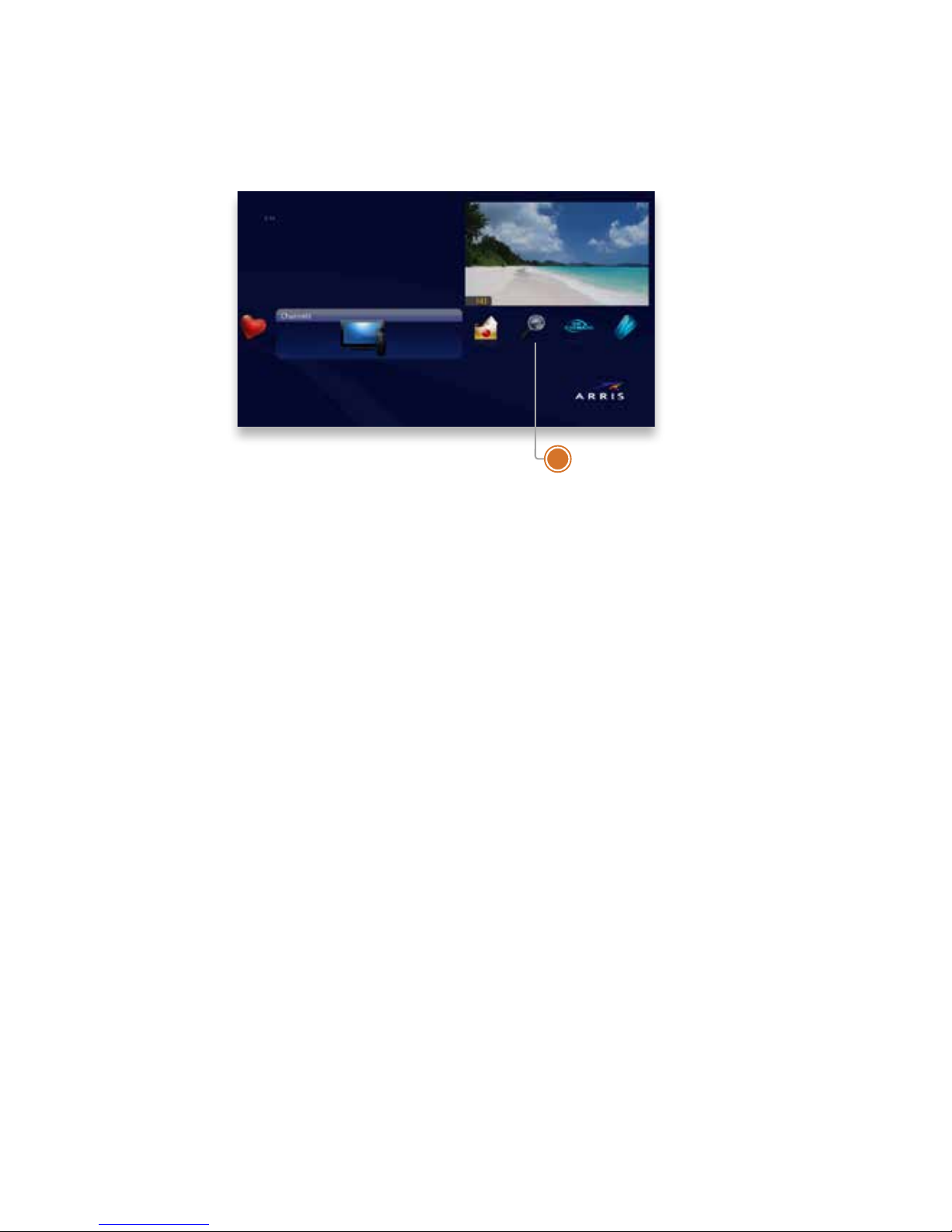
Horizontal Categories
Once you’ve pressed the MENU button to bring up the main menu, the top level
of choices will appear in a horizontal band; use the left and right arrow buttons to
browse through your choices� There are a couple of features to be aware of with the
horizontal categories:
1� Auto Expand
When you bring a horizontal card into focus, all of the choices in that category will
open up in a vertical list�
2� Navigation Fade Back
When a vertical list appears, the horizontal navigation fades� Simply pressing the
left or right arrow buttons will bring the horizontal menu right back�
Page 8
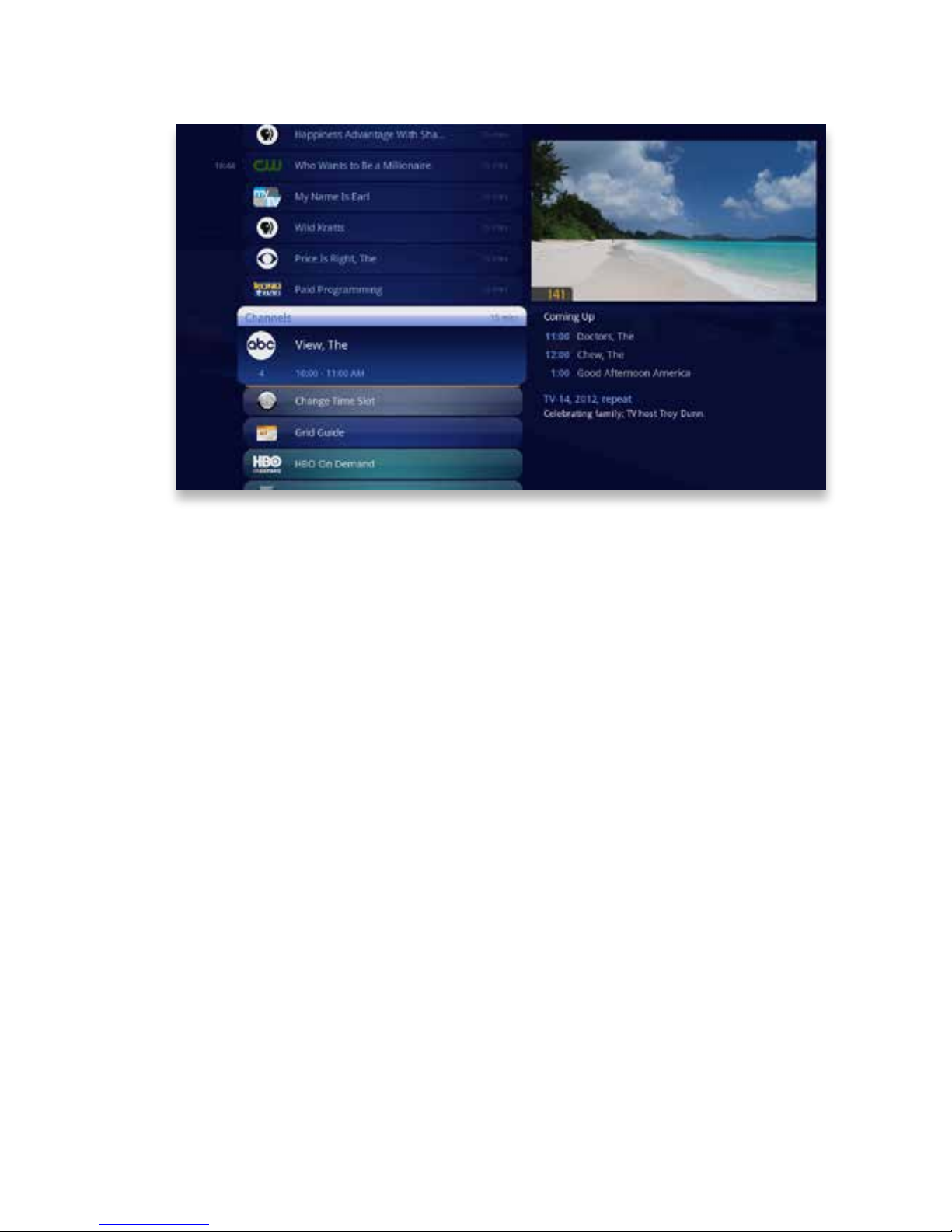
8
Copyright©ComSouth2014. All rights reserved.
Vertical Lists
End of List Marker
A thin, colored line that denes the beginning and end of a vertical list�
Option Card
Some categories contain cards that allow you to take action on the entire vertical
list� Pressing OK on these option cards will reveal all of the actions available� Option
cards will differ in appearance from the rest of the cards in the list� In some areas of
the main menu, such as Find by Category, the option card will allow you to access a
deeper level of the menu�
Turbo Scroll
If you hold down an arrow button, you can increase your browsing speed� The icons
will help you quickly recognize media as it scrolls by�
Page 9
9
Copyright©ComSouth2014. All rights reserved.
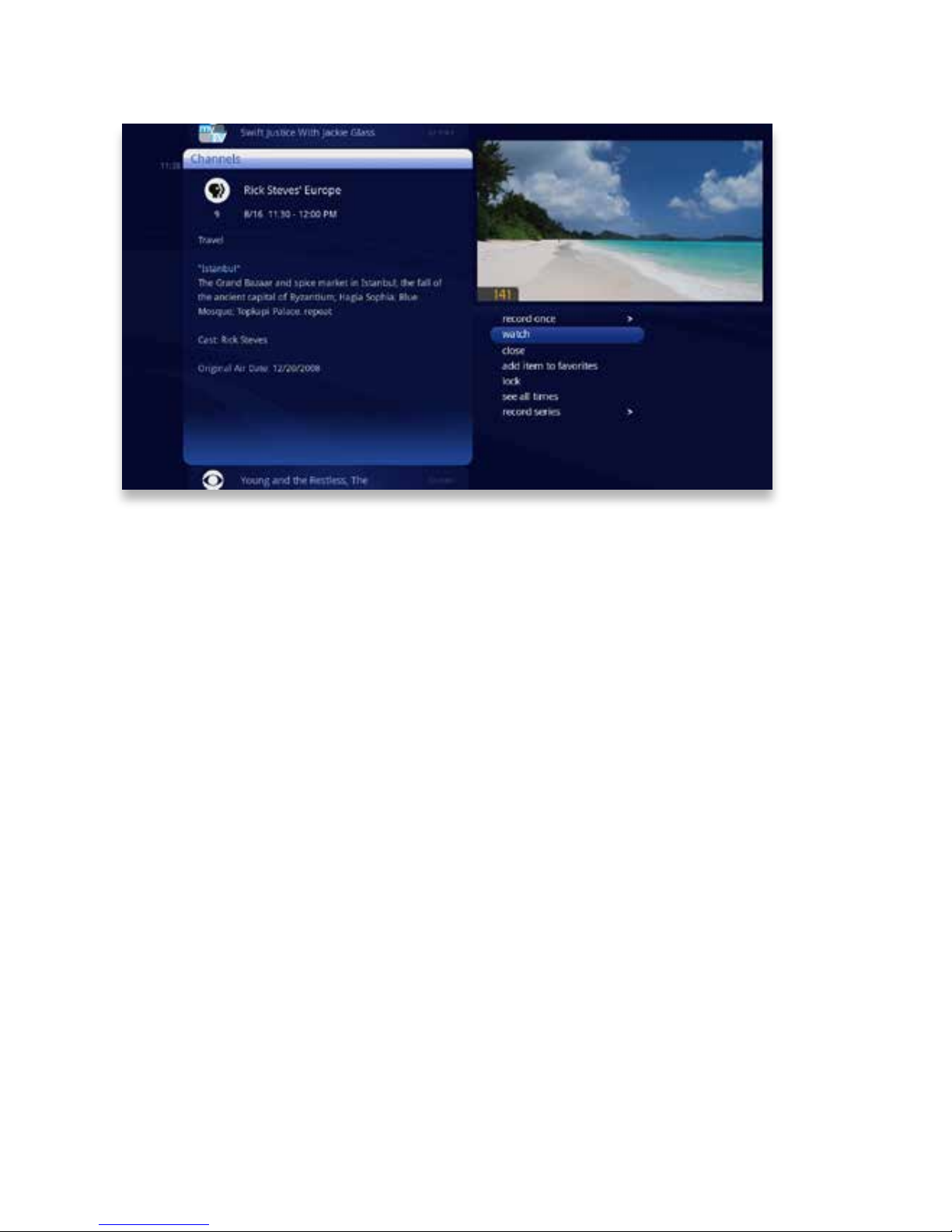
Action Menus
When you press INFO with an item in focus, you’ll get a list of options for that item
in an action menu�
Use the up and down arrow buttons to scroll through your action menu options�
Action menus have a focus, just like the main menu� To select an option, bring it into
focus and press OK�
To close the action menu, either select close or press the left arrow button�
Page 10
10
Copyright©ComSouth2014. All rights reserved.
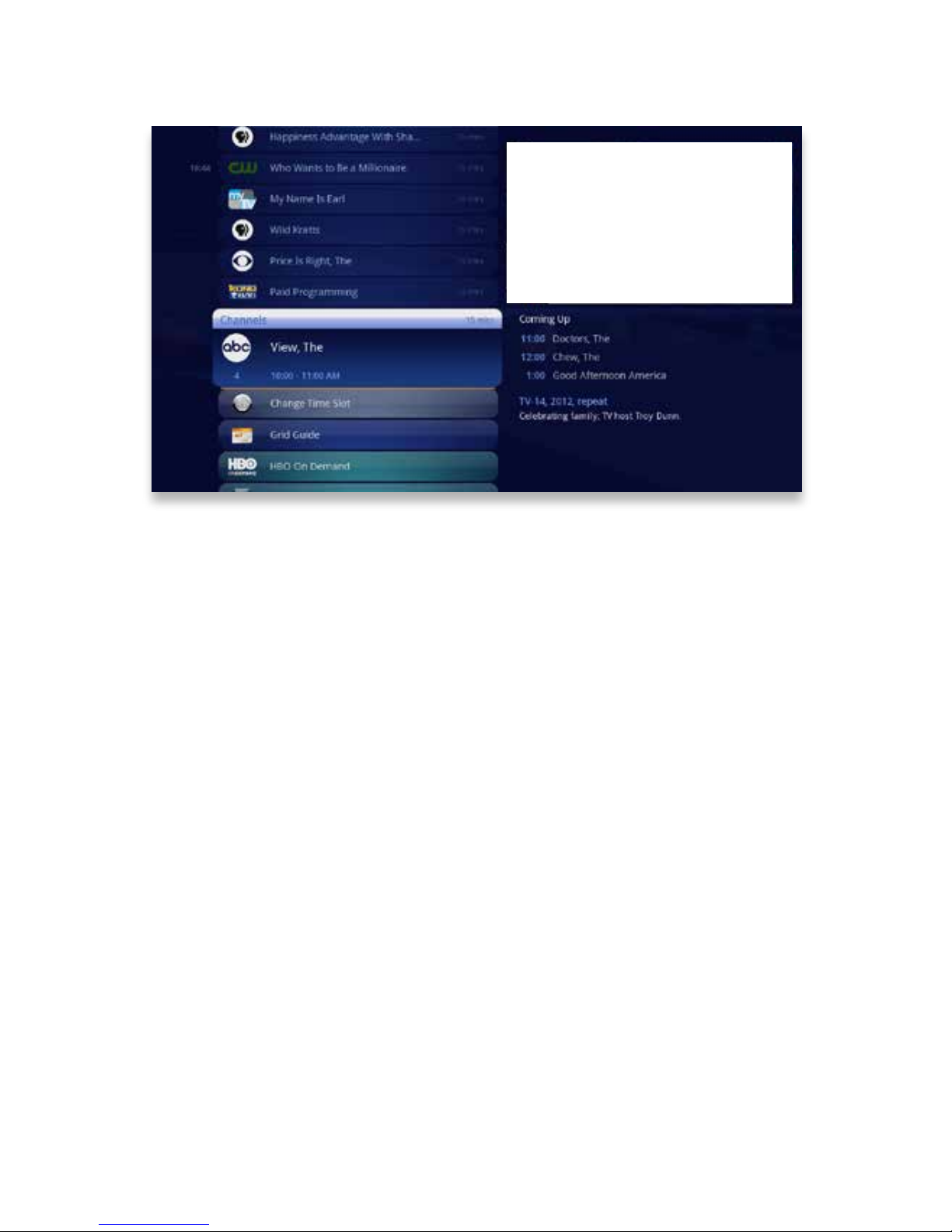
MINI TV
Mini TV
The Mini TV lets you keep an eye on what you’re watching while you’re browsing
the menu� The Mini TV will show you what’s currently playing, whether it’s a photos
slideshow, TV program or Jukebox album�
• To enjoy the media in the Mini TV full-screen, press ZOOM on your remote control�
• To watch Live TV regardless of what’s playing in the Mini TV, press LIVE TV�
Page 11

11
Copyright©ComSouth2014. All rights reserved.
Page 12

12
Copyright©ComSouth2014. All rights reserved.
Remote Control
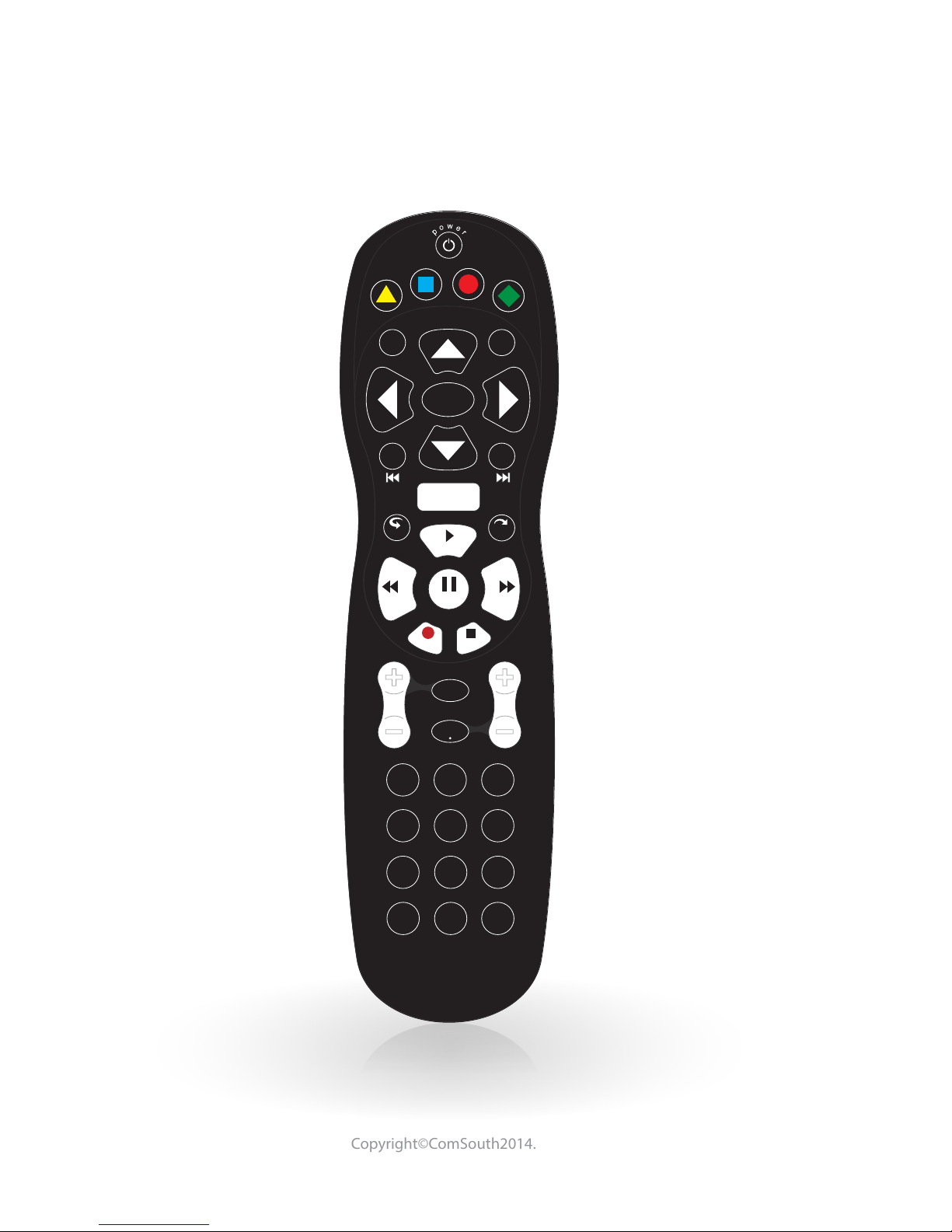
The Remote Control makes using your Media Player easy to
use while giving advanced users full control�
Page 13
13
Copyright©ComSouth2014. All rights reserved.
0
clear enter
7 8 9
pqrs tuv wxyz
4
ghi
5
jkl
6
mno
1
2
abc
3
def
vol ch
last
mute
rec
pause
play
rew fwd
stop
skipreplay
menu
back next
OK
info zoom
ticker
live
TV
A
B
C
D
0
clear enter
7 8 9
pqrs tuv wxyz
Using Your Remote
Your remote will automatically allow you to control the menu�
Page 14
14
Copyright©ComSouth2014. All rights reserved.
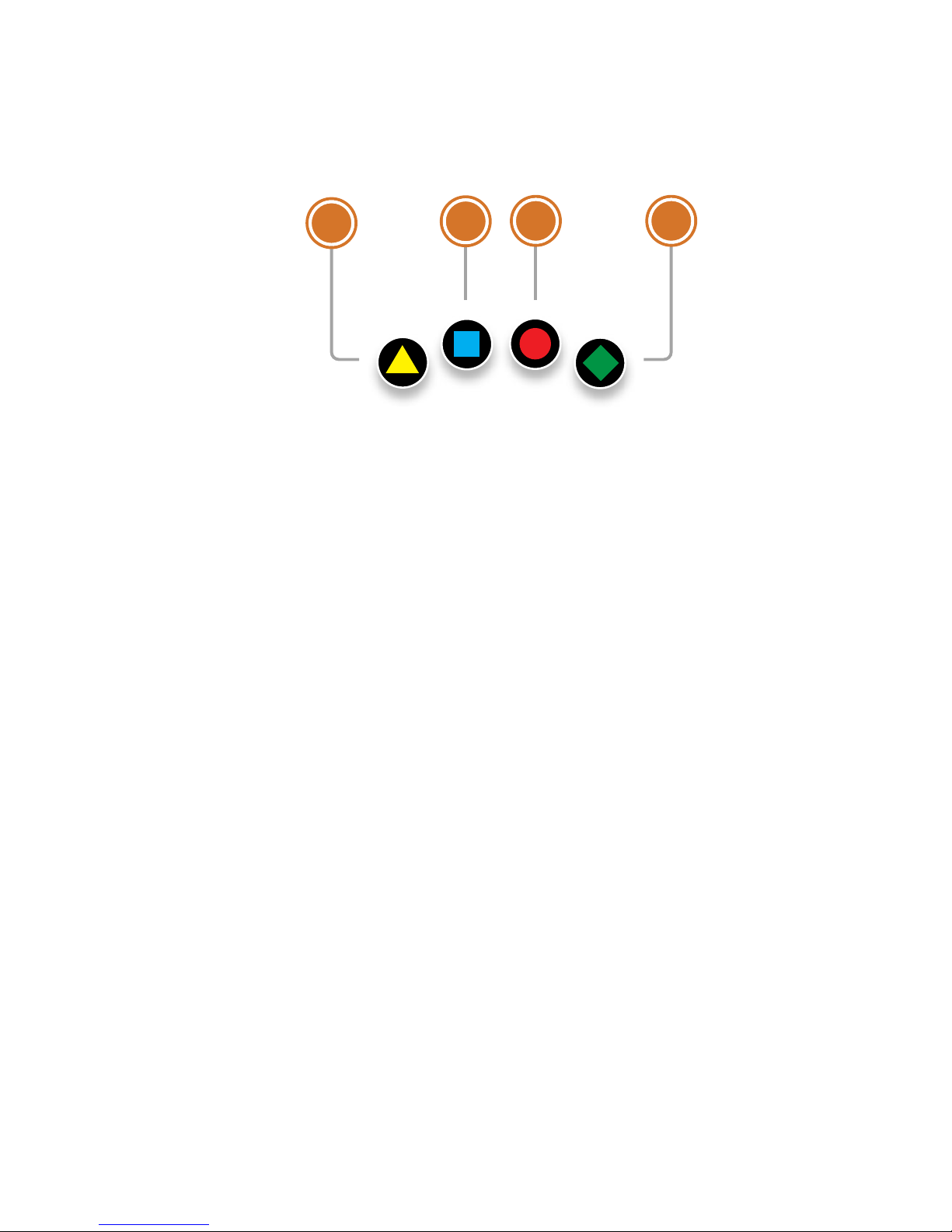
A
B
C
D
4
3
2
1
Shortcut Buttons
1� DVR
Goes to the Recorded TV category�
2� VOD
Feature not available
3� GRID
Activates the traditional Grid Guide
view of TV programming�
4� LIVE TV
Goes to full-screen, live TV, regard-
less of what’s currently in focus�
Page 15
15
Copyright©ComSouth2014. All rights reserved.
back next
info zoom
OK
0
clear enter
7 8 9
pqrs tuv wxyz
4
ghi
5
jkl
6
mno
1
2
abc
3
def
43
65
1
2
7
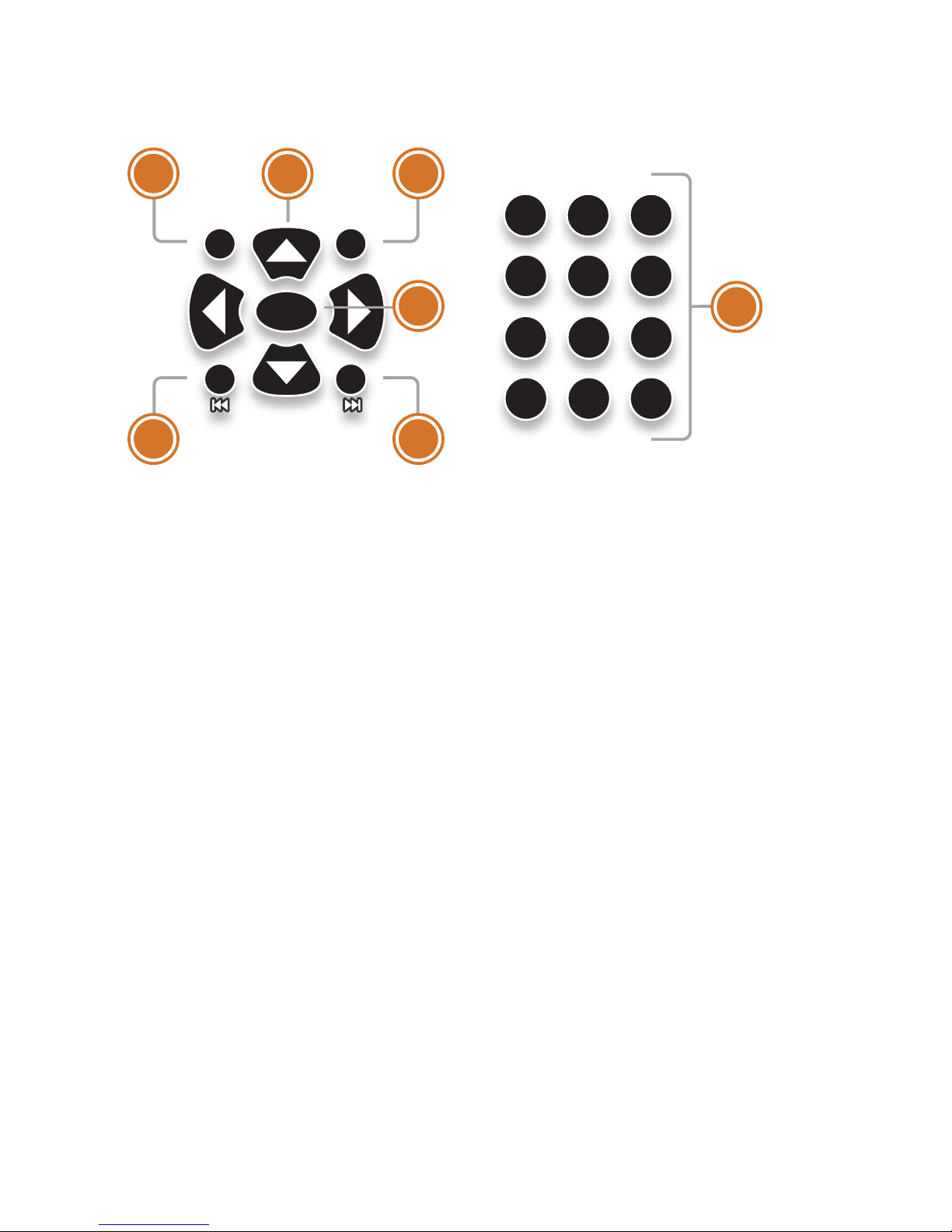
Menu Navigation
1� ARROWS
Moves the horizontal or vertical
bands one card backward or forward�
Holding them down activates Turbo
Mode and increases your browsing
speed�
2� OK
Begins playing the item in focus or
executes an option in an action menu�
3� BACK
Takes a vertical list displaying TV pro-
gramming back to the previous 15
minutes� Also pages back through
an info note and backs out of a second-level menu�
4� NEXT
Takes a vertical list displaying TV
programming forward to the next 15
minutes Also pages forward through
an info note�
5� INFO
Brings up an action menu of options
related to the item in focus
6� ZOOM
Alternates between full screen
and the main menu� Also turns the
SuperTicker on and off�
7� NUMBER KEYS
Entering numbers will take you directly to the corresponding channel�
Page 16
16
Copyright©ComSouth2014. All rights reserved.
rec
pause
play
rew fwd
stop
skipreplay
menu
9
87
65
4 3
2
1
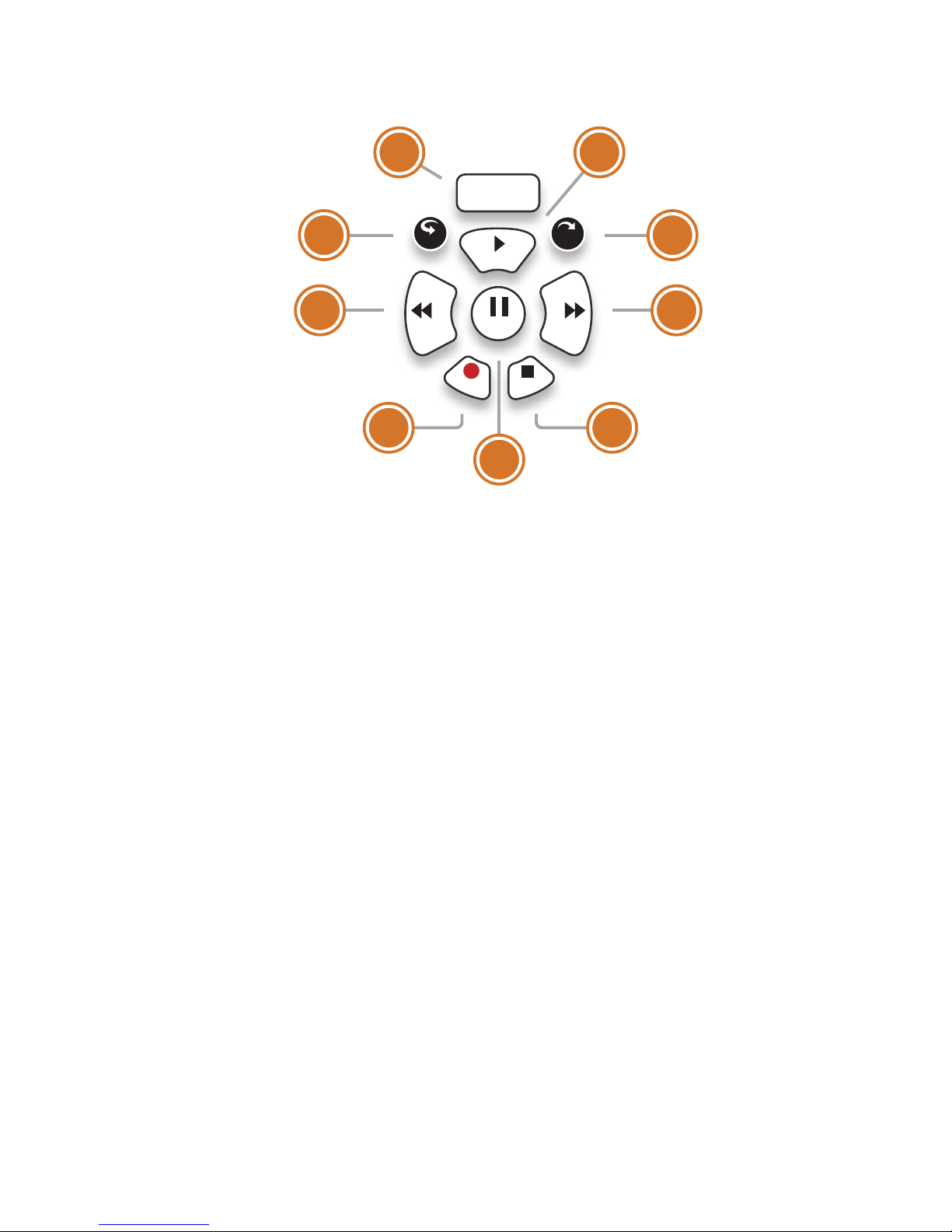
Player Controls
Control your recorded or live program with the following buttons:
1� MENU
From wherever you are, MENU returns you one step at a time toward
the top level of the main menu�
2� PLAY
Begins playing the TV show or media
le in focus� Also allows you to view
the show at the point of fast-forwarding or rewinding�
3� SKIP
Skips forward the number of sec-
onds that you predene in settings�
Also takes a vertical list of TV programming forward in time 24 hours�
4� REPLAY
Rewinds seven seconds� Also takes
a vertical list of TV programming
back in time 24 hours�
5� REWIND
Press up to three times (for three
speeds) to rewind the show�
6� FAST-FORWARD
Press up to three times (for three
speeds) to fast-forward�
7� RECORD
Press RECORD while watching a
show or with a show in focus to record�
8� STOP
Exits out of a recorded show or stops
a recording in progress if you’re
watching that show full screen�
9� PAUSE
Pauses the show you are watching�
Page 17
17
Copyright©ComSouth2014. All rights reserved.
Pairing the Remote
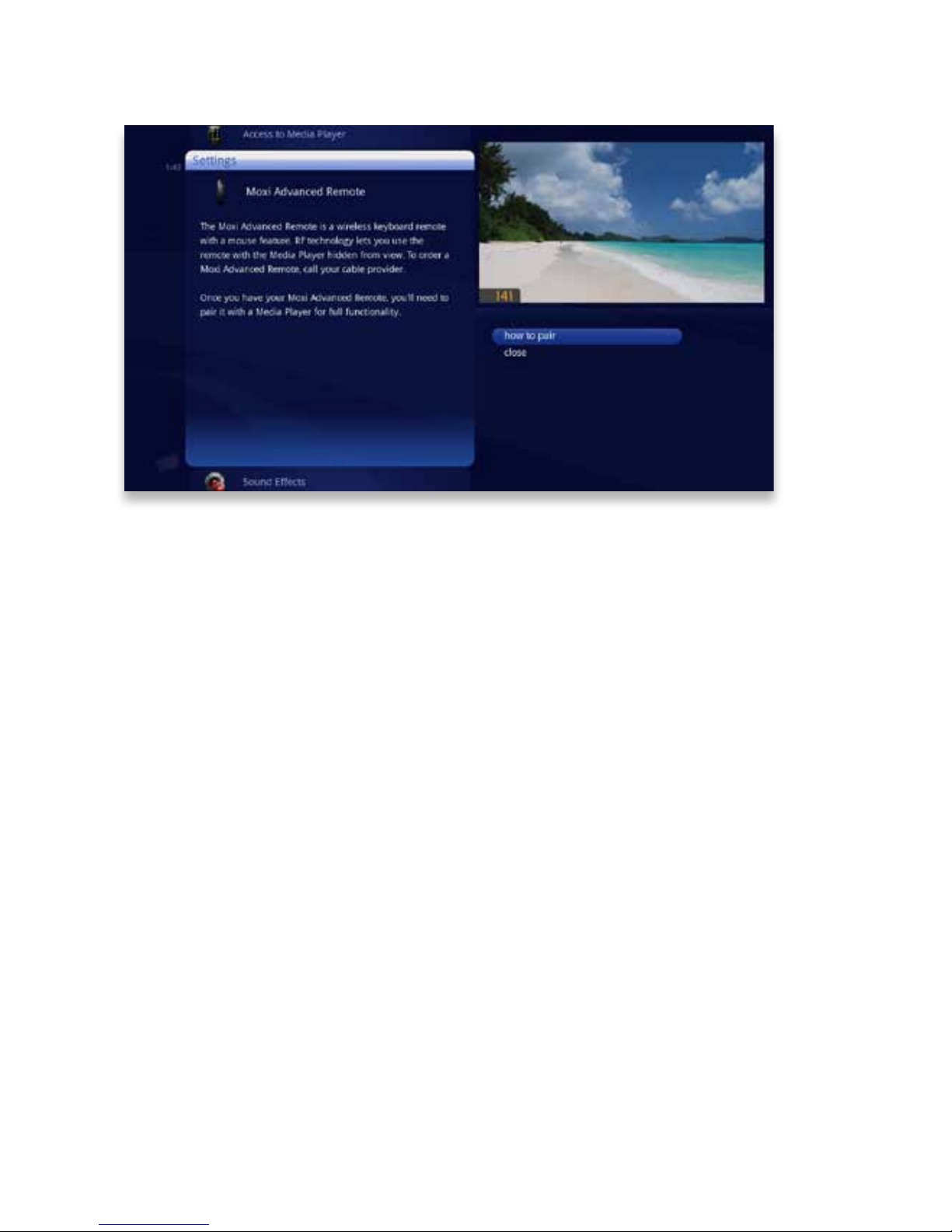
Once you have your Moxi Advanced Remote, you’ll need to pair it with a Media
Player for full functionality�
Pairing the Remote
Before you pair the Moxi Advanced Remote, it will function in IR mode, which means
that not all of the buttons will work, and you will need an unobstructed path to the
Media Player when you press buttons�
If your remote came with a USB dongle, insert it into either a front or back USB
port of the Media Player� Wait until you see a message conrming that the dongle has been detected� This takes approximately 30 seconds�
2�
Point the remote at the Media Player and press and hold the Up and SETUP
keys until the remote Power button blinks rapidly�
3�
After a few seconds, you should see two slow remote Power button blinks,
indicating that the remote has successfully paired�
Page 18

18
Copyright©ComSouth2014. All rights reserved.
Full Screen TV
With the mini guides available in full screen TV, the
KUDZU Media Player makes channel surng fun�
Page 19
19
Copyright©ComSouth2014. All rights reserved.
Coming UpOn Now
Flip Bar
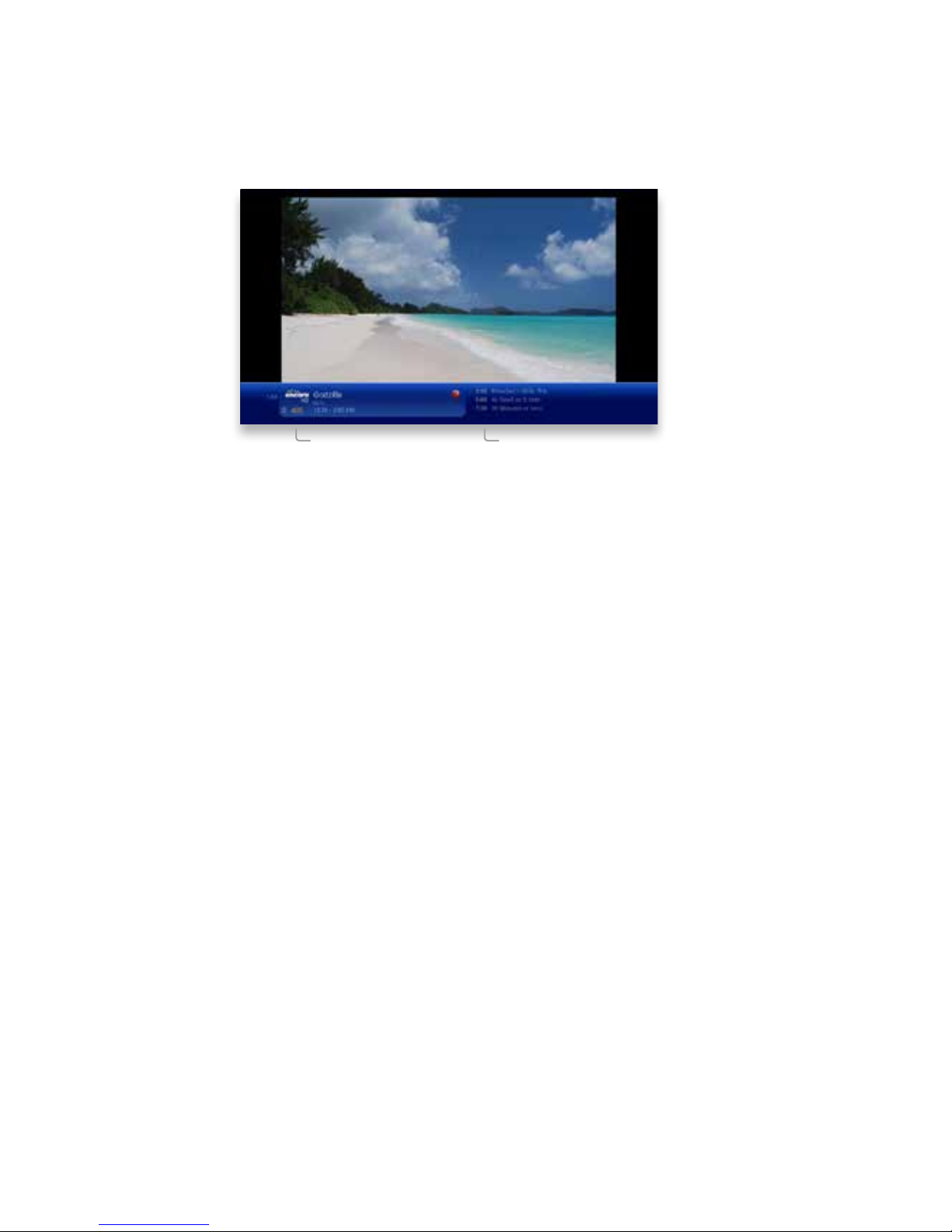
When you’re watching full-screen TV, the Flip Bar is your mini menu� Pressing an
arrow or the OK button or changing the channel will bring up the Flip Bar, giving you
program information about what you’re watching, what’s on next, and what’s on
other channels�
The main panel of the Flip Bar gives you the program name, air time, and channel�
Use the up and down arrows to change the channel displayed in the Flip Bar without
leaving the program you’re watching�
On the right, you’ll see what’s coming up next for the channel displayed in the Flip Bar�
You can see further into the future by pressing the right arrow button to highlight that
panel and then using the up and down arrow buttons to scroll through programming�
The Flip Bar will automatically disappear after ve seconds, but you can make it go
away by pressing CLEAR�
Page 20
20
Copyright©ComSouth2014. All rights reserved.
76
5
4
3
2
1
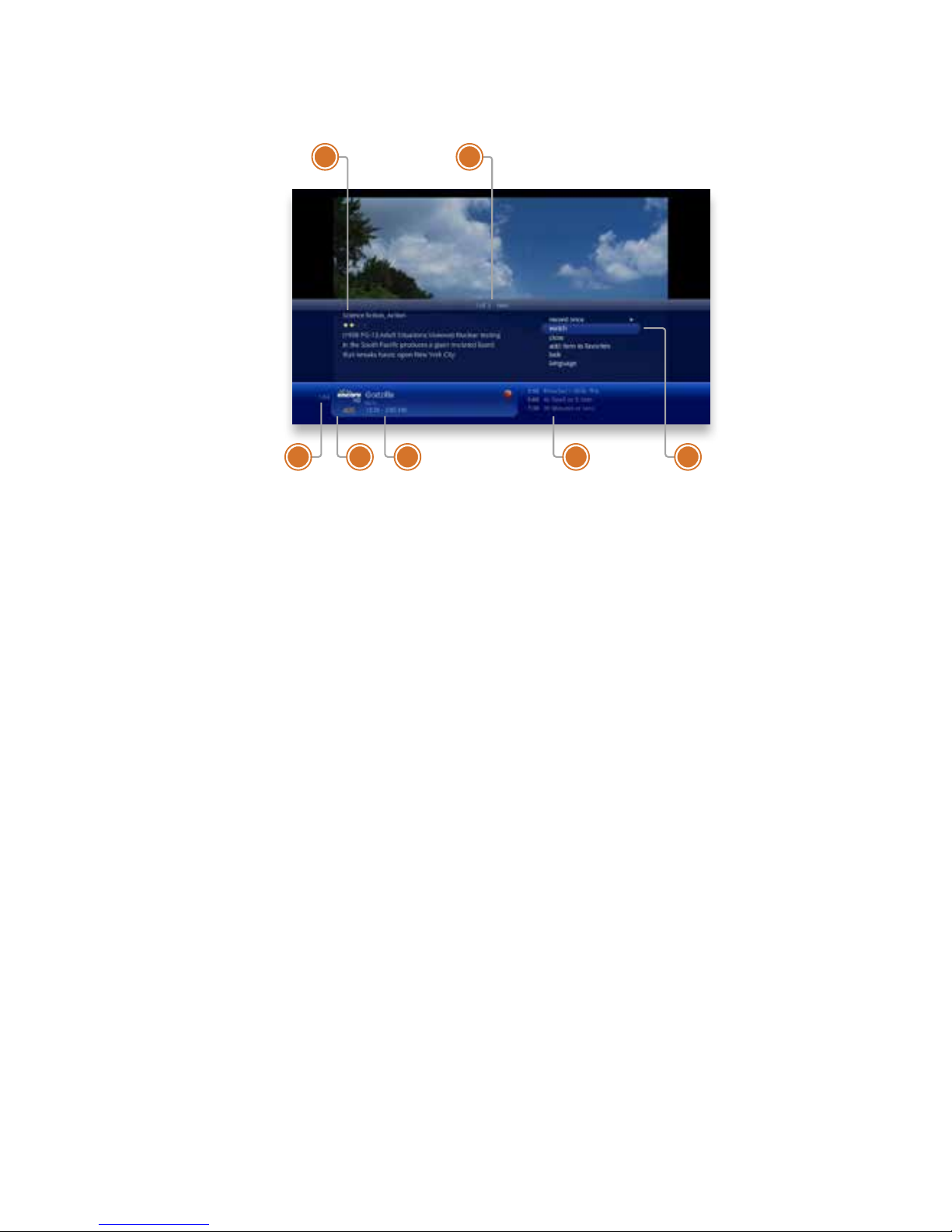
Flip Bar - Layout
If you press the INFO button with the Flip Bar visible, you’ll get more information
about the show displayed as well as options for that show�
1� GENRE
The type of show selected�
2� INFO PAGES
Press NEXT or BACK on your remote
to page through the show information�
3� CLOCK
The current time�
4� LOGO AND CHANNEL NUMBER
The logo and channel number of the
selected show�
5� PROGRAM SCHEDULE
The time the program begins and
ends�
6� COMING UP
Displays the next three shows coming up on the selected channel�
7� ACTION MENU
The list of options available for the
selected show�
Page 21
21
Copyright©ComSouth2014. All rights reserved.
What’s On Next
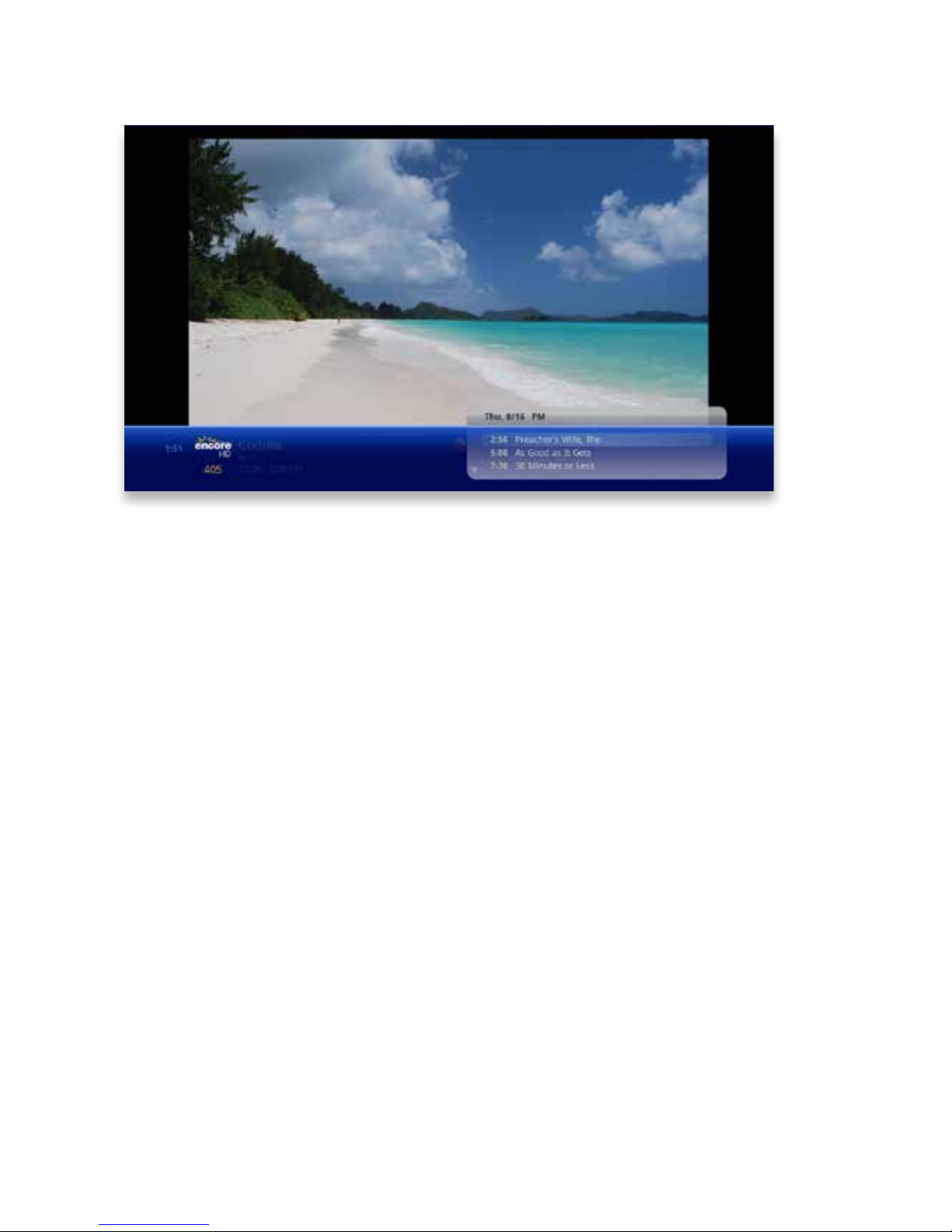
The Flip Bar also has the capability to display up to two weeks of upcoming programs
for each channel�
Press the right arrow to highlight the Coming Up Panel, and then the up and down
arrows will let you browse through programming�
See All Times
One of the options you’ll see in a show’s action menu is See All Times� Select it to
see a list of all of the times that the selected show airs� Select the Back card to return
to your original show listing�
PROGRAM INFO NOTES
Just like in the main menu, you can press the INFO button with the Flip Bar displayed
to bring up an action menu, which will give you more detailed information on the
selected show�
Page 22
22
Copyright©ComSouth2014. All rights reserved.
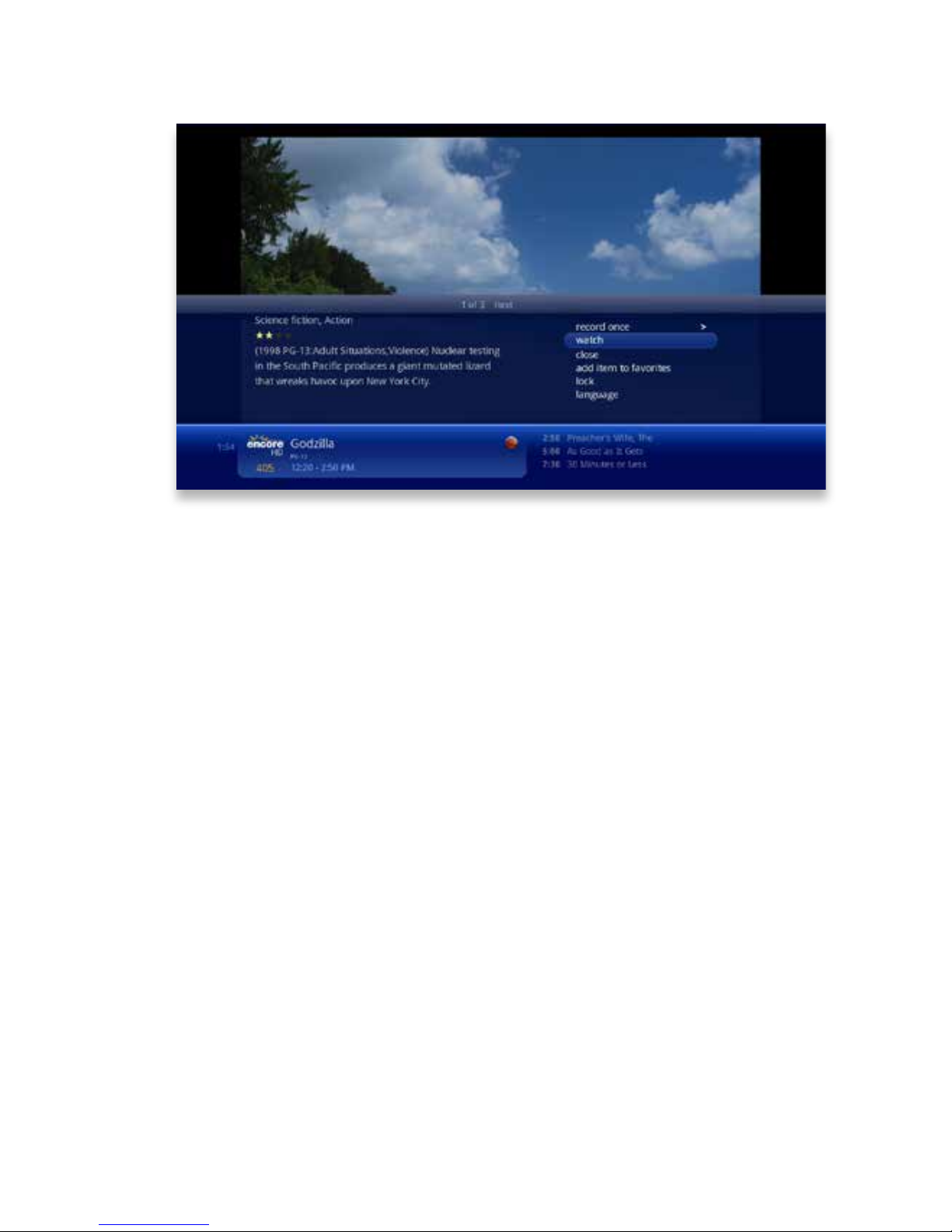
Flip Bar Options
Pressing the INFO button with the Flip Bar up will bring up an action menu for the
Flip Bar’s show�
The options available are the same options available in the Channels Menu with the
addition of closed captioning controls, which makes it easy to toggle closed captions
on and off�
Page 23
23
Copyright©ComSouth2014. All rights reserved.
rec
pause
play
rew fwd
stop
skipreplay
back next
Controlling Live TV
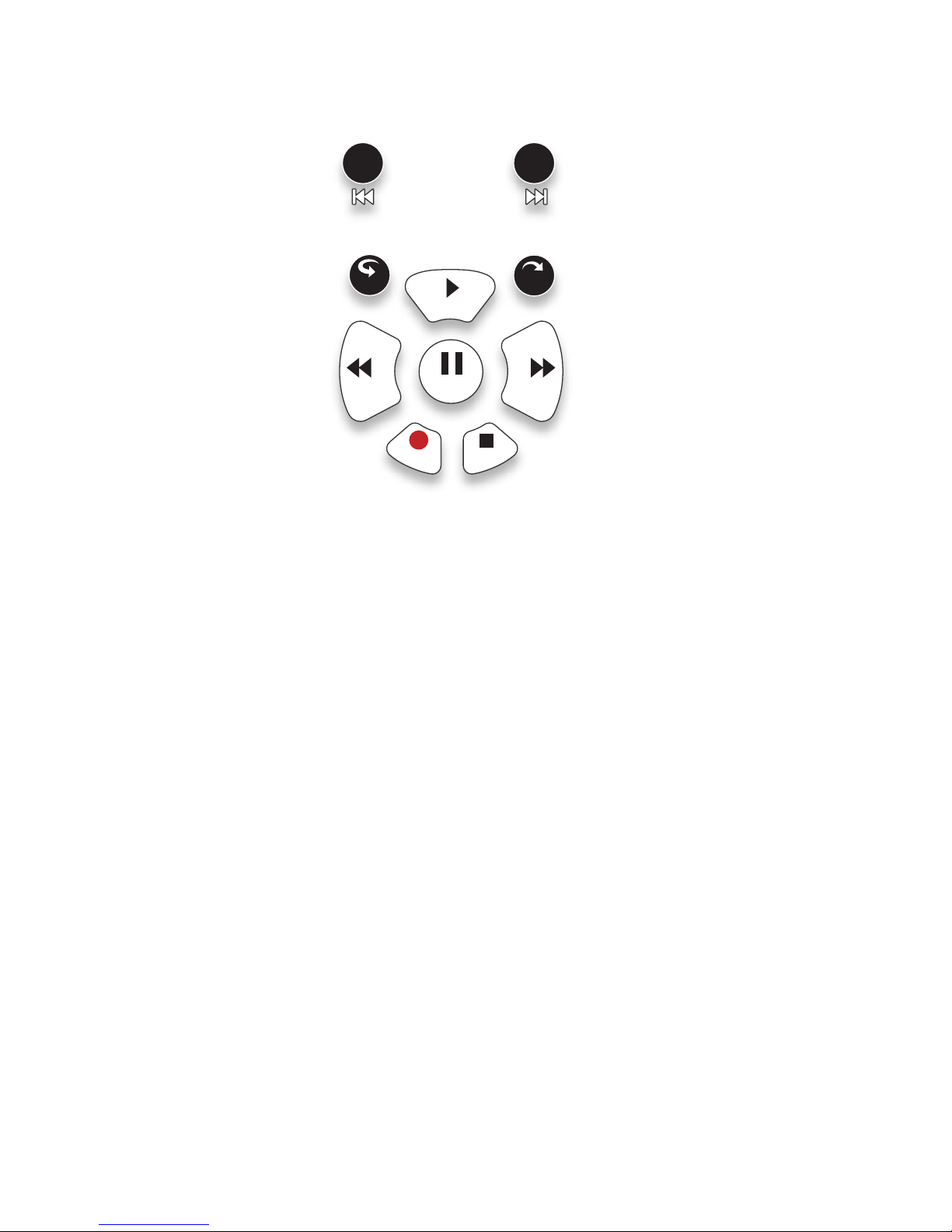
• Press PAUSE to alternate between pausing and resuming the show you’re
watching�
• Press REWIND up to three times (for three speeds) to rewind the show�
• Press FORWARD up to three times (for three speeds) to fast-forward the show
up to the point of broadcast�
• Press PLAY to stop fast-forwarding or rewinding or resume from a pause�
• Press LIVE TV to view the point of broadcast for the last channel you watched�
• Press REPLAY to view the previous 7 seconds of the show�
• Press SKIP to skip forward in the show up to the moment of broadcast� You can
decide how many seconds to skip with this button in the Settings menu�
• Press PAUSE and then FORWARD once to activate slow motion�
• Pressing RECORD to record the entire contents of the temporary memory or
buffer for the show you are watching�
• Press PAUSE and then SKIP to advance forward one frame�
Page 24
24
Copyright©ComSouth2014. All rights reserved.
Controlling Live TV
THE BUFFER
When you start watching a show, your KUDZU Media Player will start storing it in
temporary memory, called a buffer� The amount of temporary memory varies, but it is
never less than 30 minutes for standard denition or 10 minutes for HDTV�
TV Roaming
With TV Roaming, you can pause a show in one room and resume it in another�
Once you press pause, if you switch to another room and choose to watch the
same show, it automatically plays at the point you left off�
Page 25
25
Copyright©ComSouth2014. All rights reserved.
6
5
3 4
2
1
Player Bar
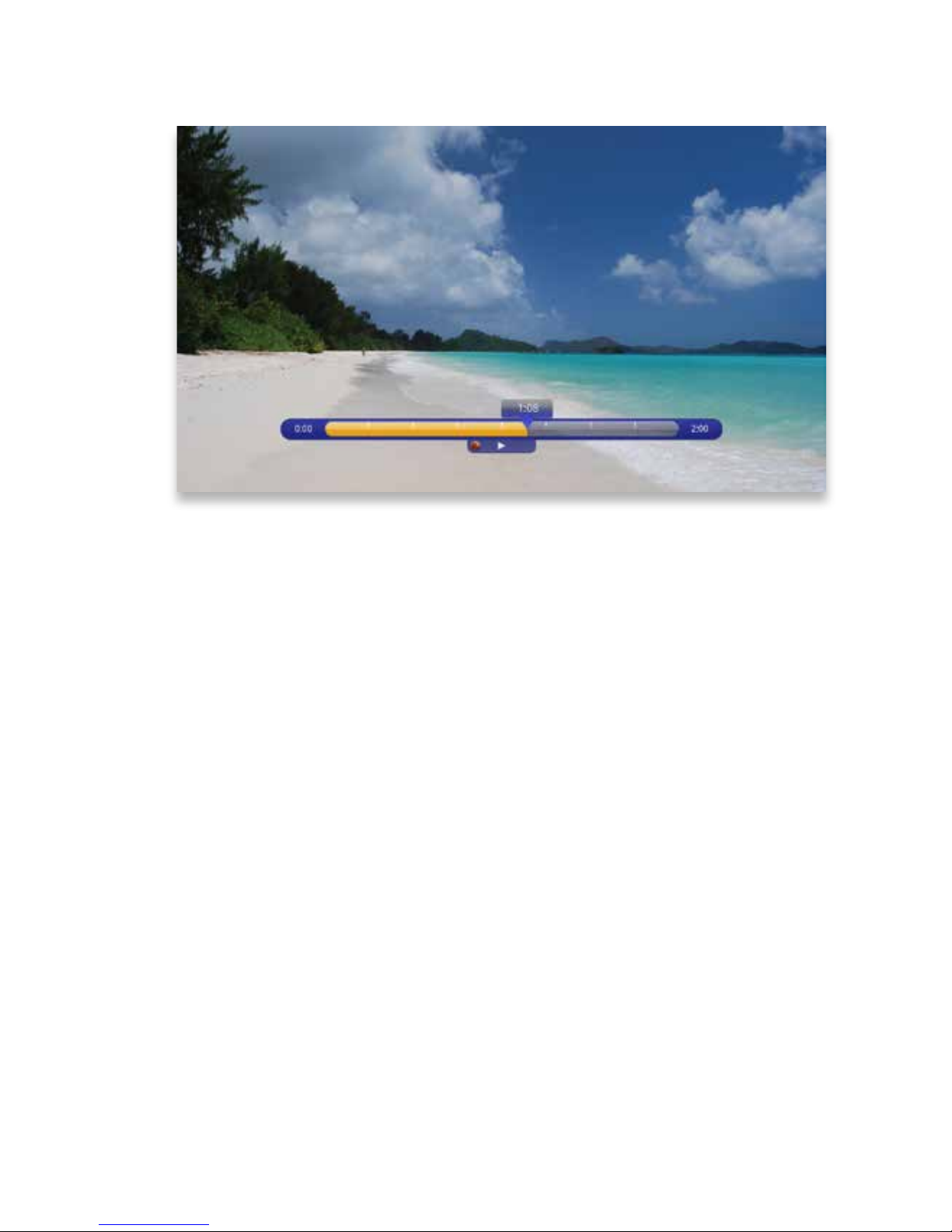
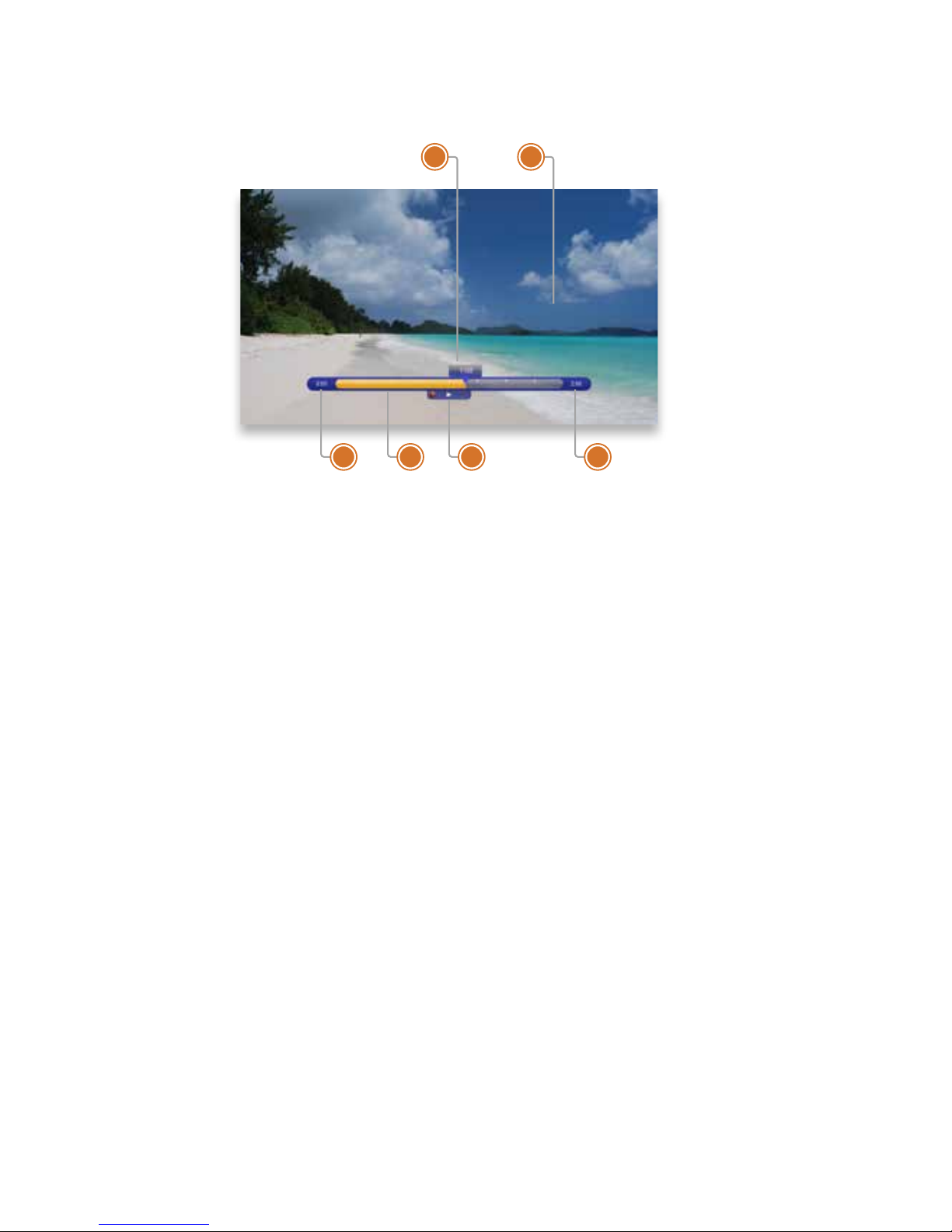
Whenever you press one of the player control buttons, you’ll see the Player Bar,
which gives you status information about the program you’re currently watching�
You’ll see a version of the player bar no matter what type of media you’re enjoying,
whether it’s recorded or live TV, photos, or music�
1� CURRENT TIME
The current time or point in the cur-
rent program�
2� PROGRAM
The current live or recorded program
being played back�
3� SHOW START TIME
The start time of the recorded or Live
TV program�
4� STORED IN MEMORY
While watching live TV, this area
(the buffer) displays the part of the
show recorded in temporary memory� While watching recorded TV, it
shows the entire contents of the
show available for viewing�
5� PLAYER BAR STATE
The current state of the program
controls, such as play, pause, rewind,
and fast-forward�
6� SHOW END TIME
Displays the end time of the Live TV
program or the duration of a recorded TV program�
Page 26

26
Copyright©ComSouth2014. All rights reserved.
Automatic Conict Detection
You may see a conict detection note while you’re watching full screen TV, which
indicates that you have more programs set to record than available tuners�
The conict detection note will allow you to decide which programs you would like to
cancel and which you would like to continue recording�
Screen Saver
If there has been no activity for more than 30 minutes while browsing the main menu,
the KUDZU Media Player will change to full screen TV with the last-watched channel
playing to help extend the life of your TV screen�
If live TV has been playing on the same channel for ve hours without any input from
the remote, the ComSouth screen saver will be displayed�
To return to the main menu, press the MENU button�
Page 27

27
Copyright©ComSouth2014. All rights reserved.
Page 28

28
Copyright©ComSouth2014. All rights reserved.
Recorded TV
Your KUDZU Media Player makes it easy to watch and manage
your recordings from one place in the main menu: Recorded TV�
Page 29
29
Copyright©ComSouth2014. All rights reserved.
Intro to Recorded TV
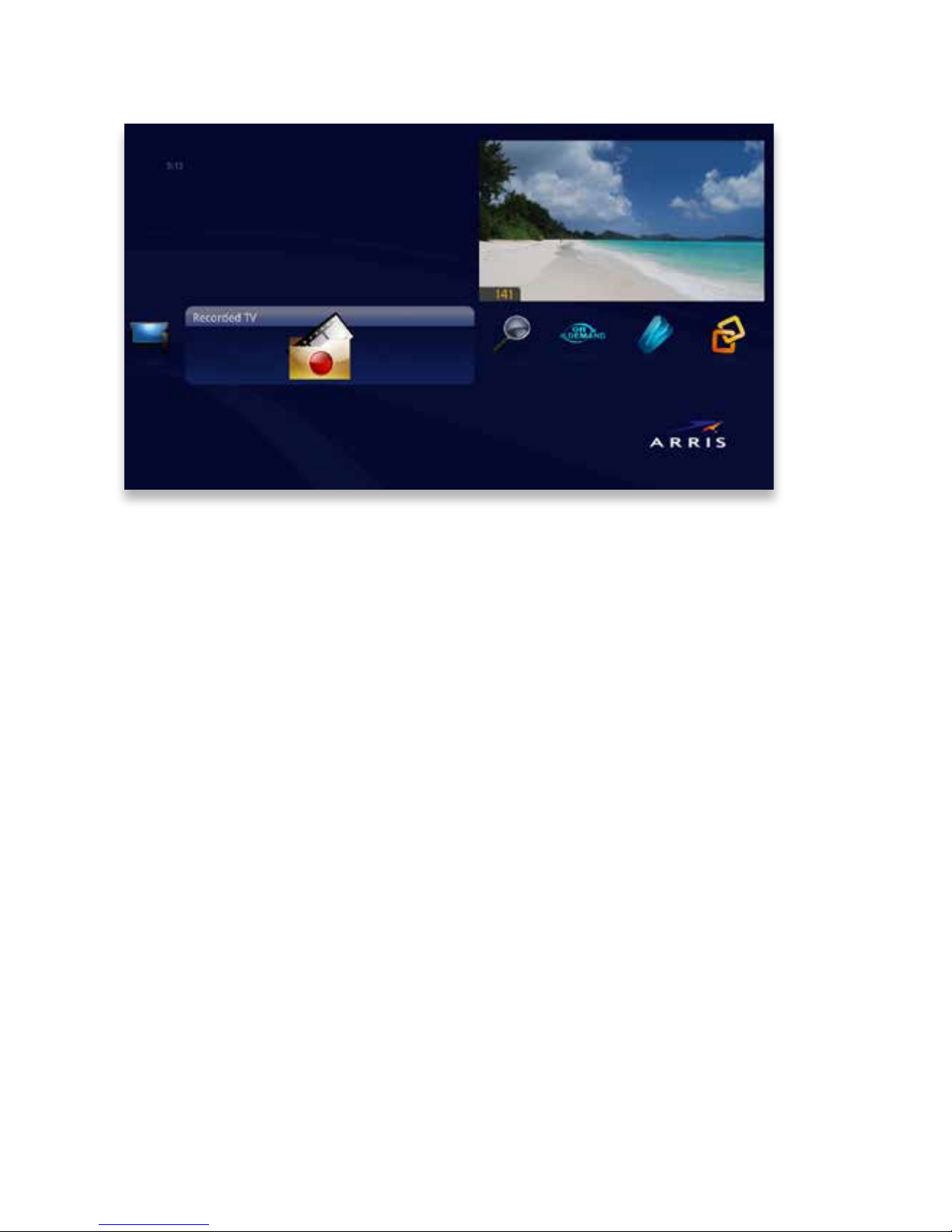
In the horizontal menu, you’ll nd the Recorded TV category� All of the recorded and
currently-recording shows are listed in the vertical band in alphabetical order� Episodes of a series are grouped into folders; you’ll see the individual episodes in the
preview panel to the right� To watch a show, select it, and press OK� And if you’ve
already watched half of the show, you can choose whether to resume where you left
off or start over from the beginning�
Page 30
30
Copyright©ComSouth2014. All rights reserved.
7
6
4 5
3
2
1
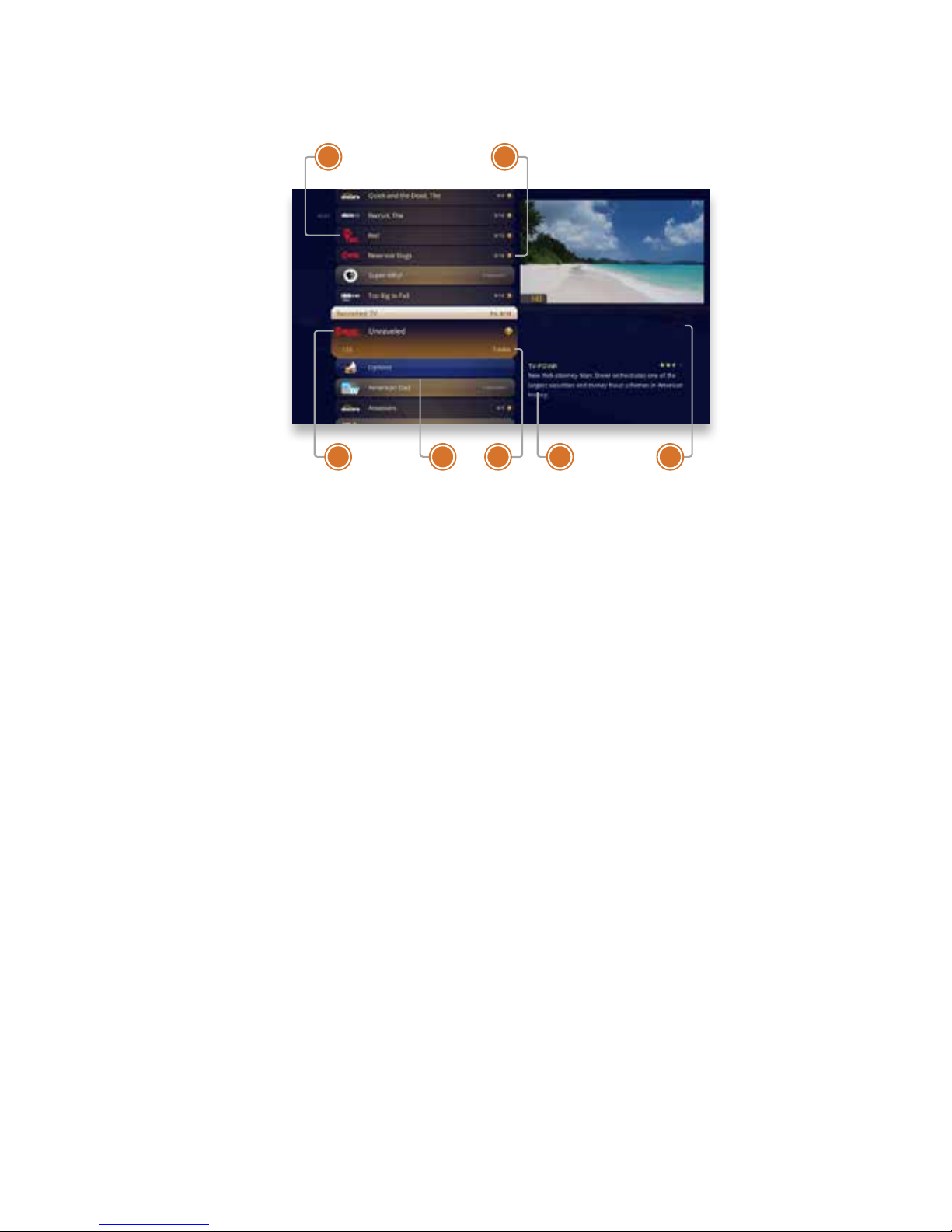
Recorded TV - Layout
1� CHANNEL LOGO
Displays the channel of the recorded
show�
2� RECORDED SHOW ICONS
Let you know if the show is in danger of deletion or protected against
deletion�
3� FOCUS
Displays the channel number, logo
and an indication of whether a show
is part of a series� Folders that contain multiple episodes in a series also
display the number of episodes�
4� SERIES FOLDER
Episodes of a series are held within a
folder listing the number of recorded
episodes�
5� EPISODES OR DURATION
If the item in focus is a folder containing episodes in a series, focus
lists the number of episodes� If it’s
an individual show, it lists the show’s
duration�
6� INFORMATION
With a folder containing episodes in
a series in focus, this area shows the
current recording options for the se-
ries� With a single recorded program
in focus, this area shows a summary
of the show information�
7� SERIES
Individual episodes in a series are
shown in the preview panel� Press
the right arrow button and select an
episode to see that episode’s action
menu�
Page 31
31
Copyright©ComSouth2014. All rights reserved.
Management
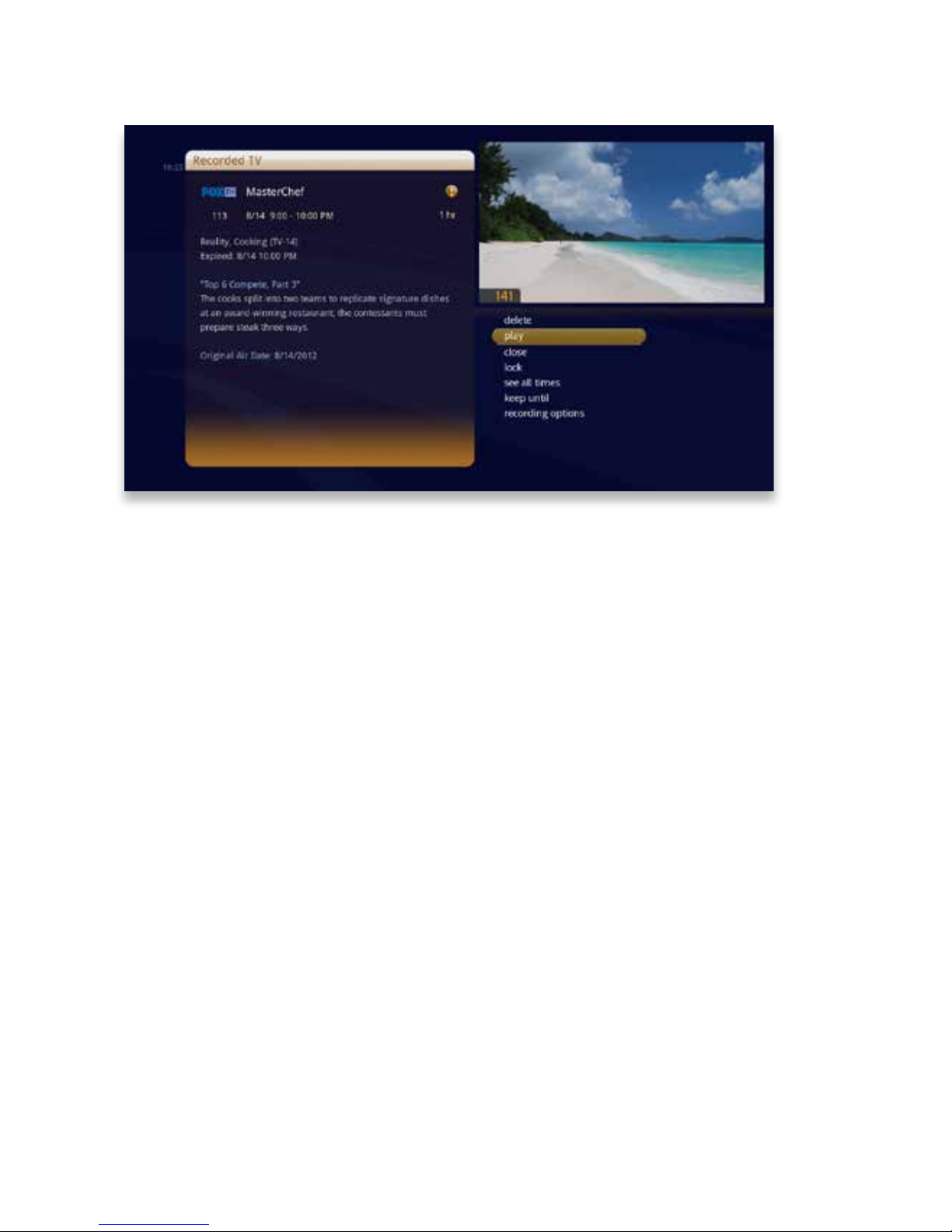
When you press INFO with a recorded program in focus, you’ll get the following list
of options in the action menu:
• Play/Start Over - Launches the program full screen from the beginning�
• Resume - This option only appears if you’ve watched a portion of the program�
Launches the program full screen from the point you left off�
• See all times - Displays all of the times that particular show airs�
• Delete - Removes the program from Recorded TV�
• Recording options - Lets you access the recording options menu�
• Keep Until - Your KUDZU Media Player will automatically delete the oldest shows
in your Recorded TV folder as you need the room for new recordings� Keep Until
lets you set the program to be deleted at the point of your choosing�
• Lock - Prevents someone from watching the recorded program without a PIN�
• Record Series - you’ll get this option if you only have a single episode recorded�
Page 32
32
Copyright©ComSouth2014. All rights reserved.
Folder Options
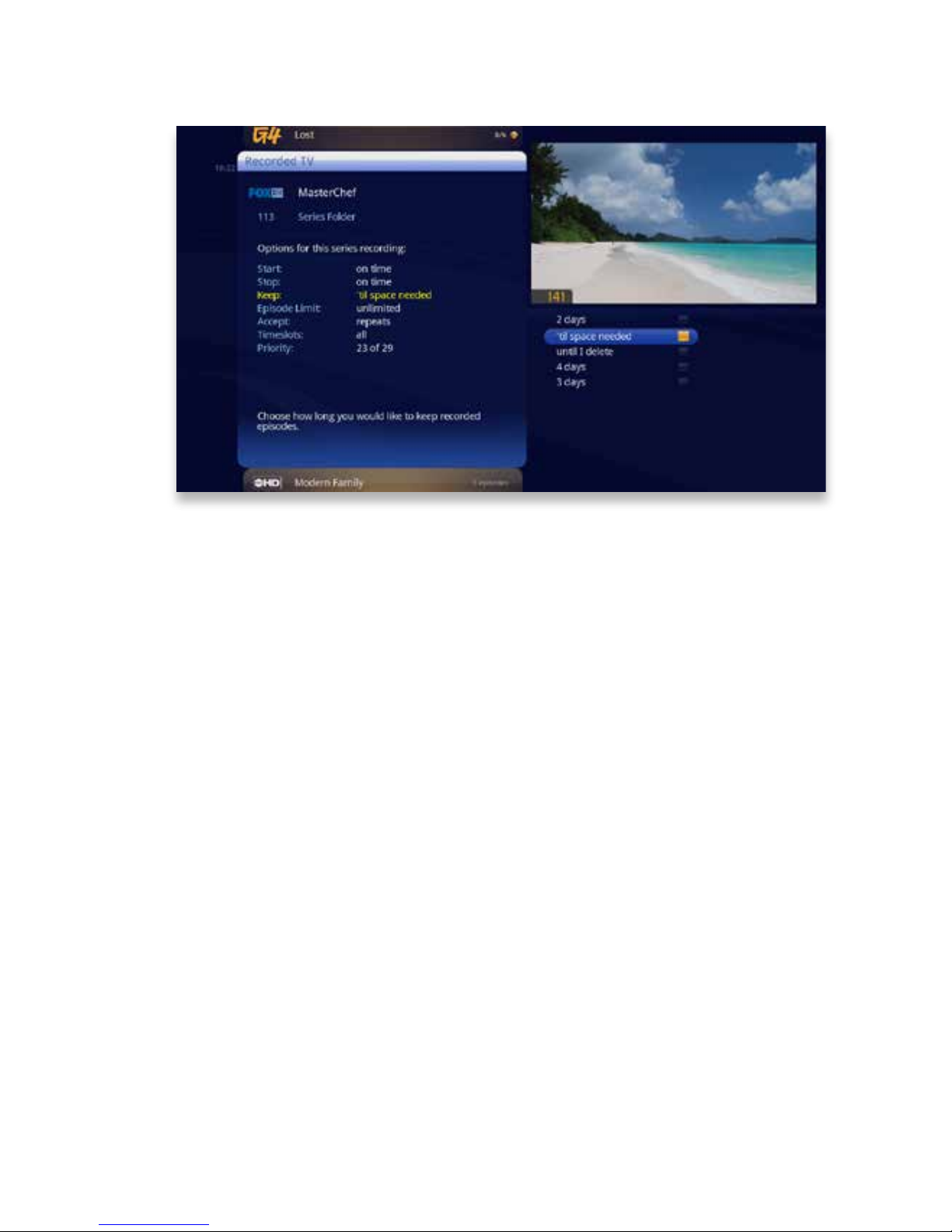
If you bring a folder of episodes into focus and press OK, you’ll see the following
options:
• see all times
• recording options
• delete all
Page 33
33
Copyright©ComSouth2014. All rights reserved.
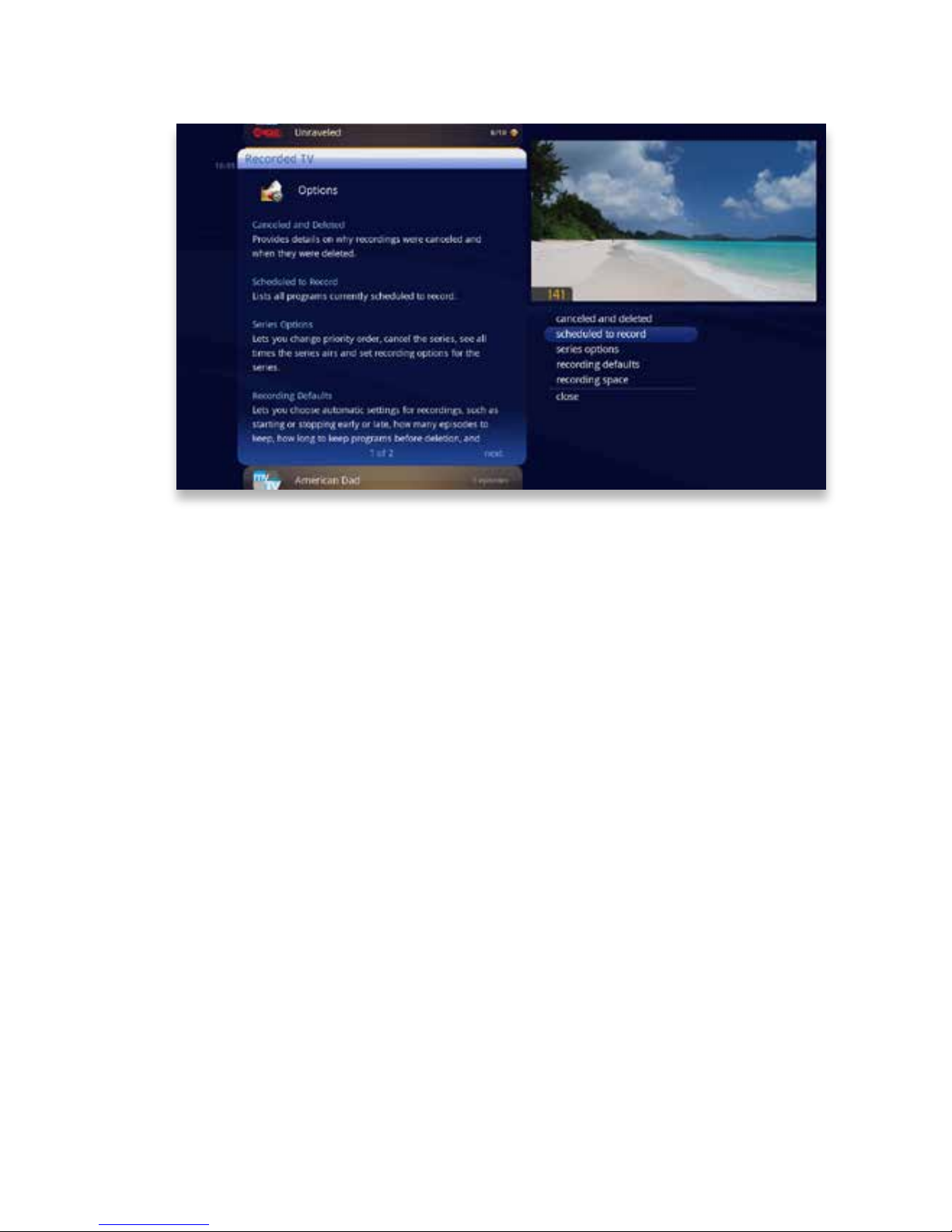
Options
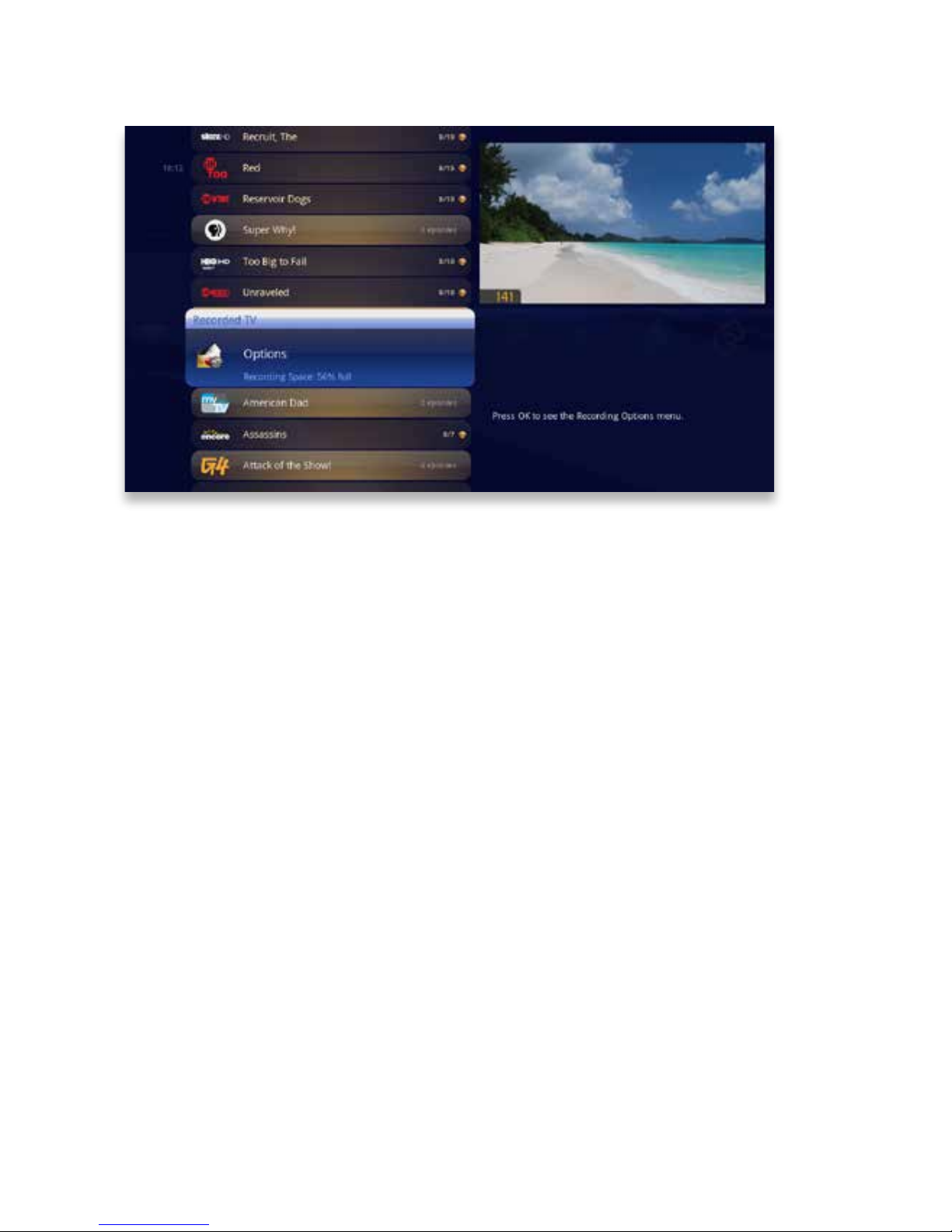
The Options card appears in the Recorded TV category and lets you set your person-
al recording preferences� Select the Options card, and you’ll get access to:
Sort Options
The recorded TV sort options allows you to choose whether recordings appear in
ascending or descending order as well as whether they are sorted alphabetically or
by date�
Canceled and Deleted
When you chose to record one show over another due to a conict, (or someone in
your household does) sometimes it’s hard to remember why that canceled show isn’t
showing up in Recorded TV� Your KUDZU Media Player keeps a list of shows that you
have scheduled that will not record as well as shows that did not record� The shows
above focus have not aired yet, while the shows below focus have already aired�
Scheduled to Record
You can conrm that a show is set to record using the Scheduled to Record category�
In Scheduled to Record, you can also cancel a recording and access your recording
options for each show� Just pick the show you want to manage and press INFO�
Page 34
34
Copyright©ComSouth2014. All rights reserved.
Options
Series Options
For details on the Series Options menu, see the “Channels” chapter�
Recording Defaults
In Recording Defaults, you can determine your preferences for the following settings,
that will then be applied each time you record a show:
• Keep - decide how long shows will be stored
• Episode Limit - determine how many episodes of a series request to keep at once
• Accept - decide whether you’ll record rst-run or repeats for a series request
• Close
• Start - start programs early or late
• Stop - stop programs early or late
Page 35
35
Copyright©ComSouth2014. All rights reserved.
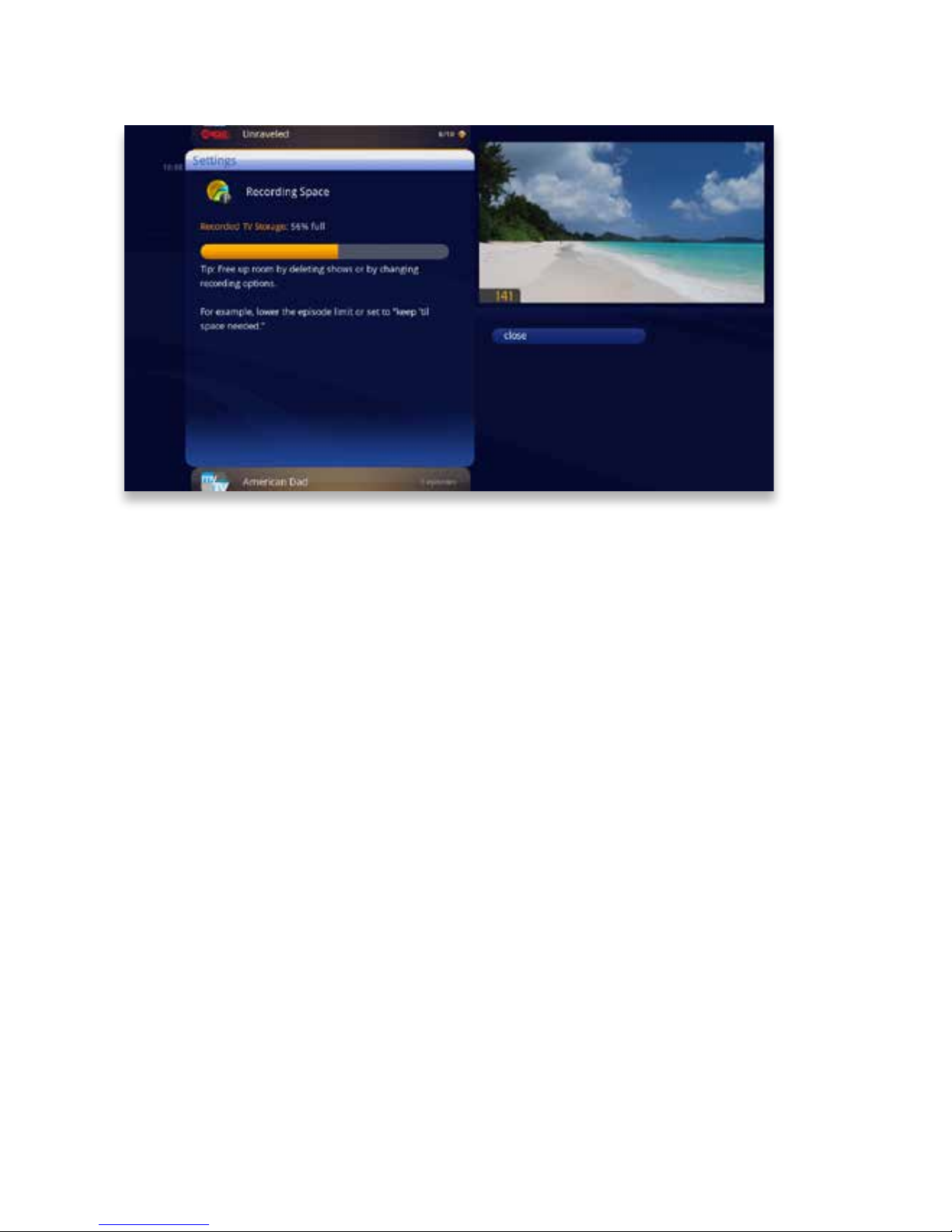
Recording Space
The storage meter lets you know how much space you have left for more recorded
programs� It’s located in two places in the main menu: the Settings category and the
Recorded TV category� Press OK with the Storage Info card in focus to view details�
Page 36

36
Copyright©ComSouth2014. All rights reserved.
External Hard Drive
To expand the space you have for recorded programs, you can connect one external
hard drive at a time to the rear eSATA port on the KUDZU Media Gateway�
When selecting an external drive, keep in mind that your KUDZU Media Gateway only
supports eSATA storage devices marketed or certied for DVR use�
For instructions on how to set up and disconnect an external drive, see the “KUDZU
Media Gateway Hardware” chapter�
Page 37

37
Copyright©ComSouth2014. All rights reserved.
Page 38
38
Copyright©ComSouth2014. All rights reserved.
TV Channels
With all of the channels available these days, it’s tough to
know what all of your options are� The TV Channels category
makes it easy to nd what you want to watch�
Page 39
39
Copyright©ComSouth2014. All rights reserved.
87
65
4
3
2
1
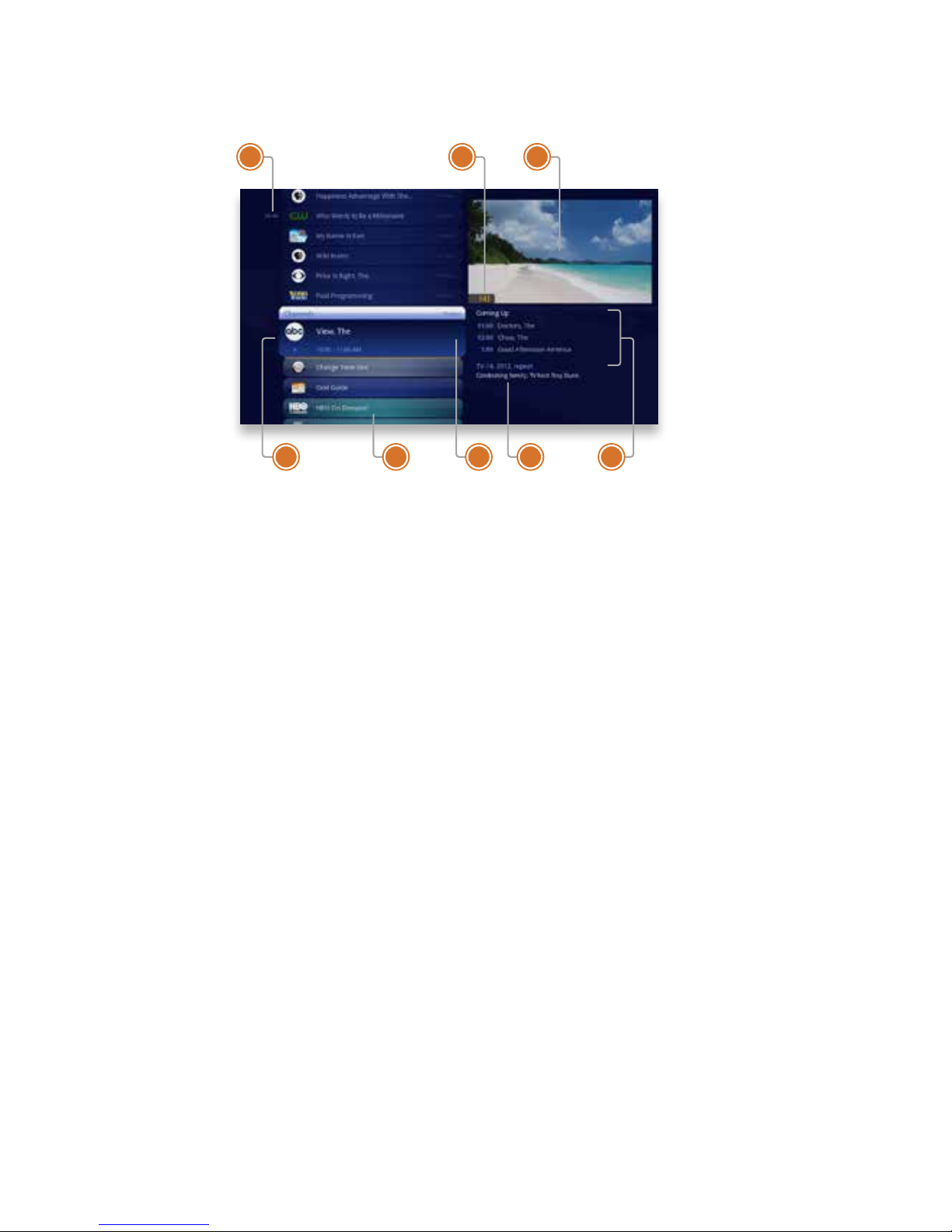
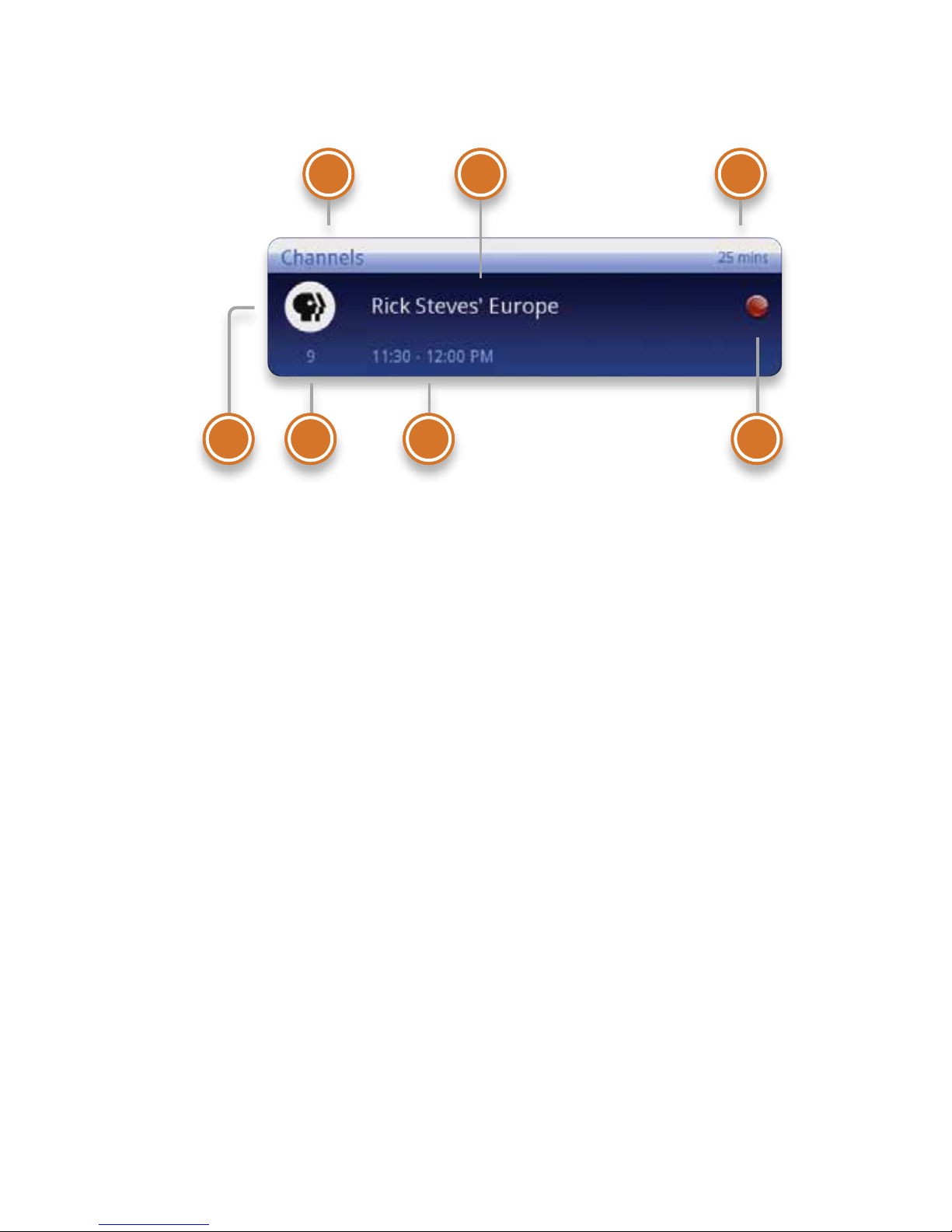
TV Channels - Layout
1� TIME
With the current time, you’ll know
when your show begins�
2� CURRENT CHANNEL
Displays the channel that is playing
in Mini TV� If the program is recorded,
an icon will display the current status
- i�e�, play or pause�
3� MINI TV
Even when channel surng, Mini TV
always keeps you in the action�
4� FOCUS PROGRAM
Pressing INFO on this item brings up
an action menu�
5� AVAILABLE TV PROGRAMS
Displays all of the programs available
in your TV lineup that are currently
airing�
6� RECORDING ICON
Displays an icon if the show is recording or scheduled to record�
7� INFORMATION PANEL
Displays program information about
the show in focus�
8� PROGRAM INFORMATION
Displays the next three upcoming
shows that will air on the channel in
focus�
Page 40
40
Copyright©ComSouth2014. All rights reserved.
7 6 5 4
321
7 6 5 4
321
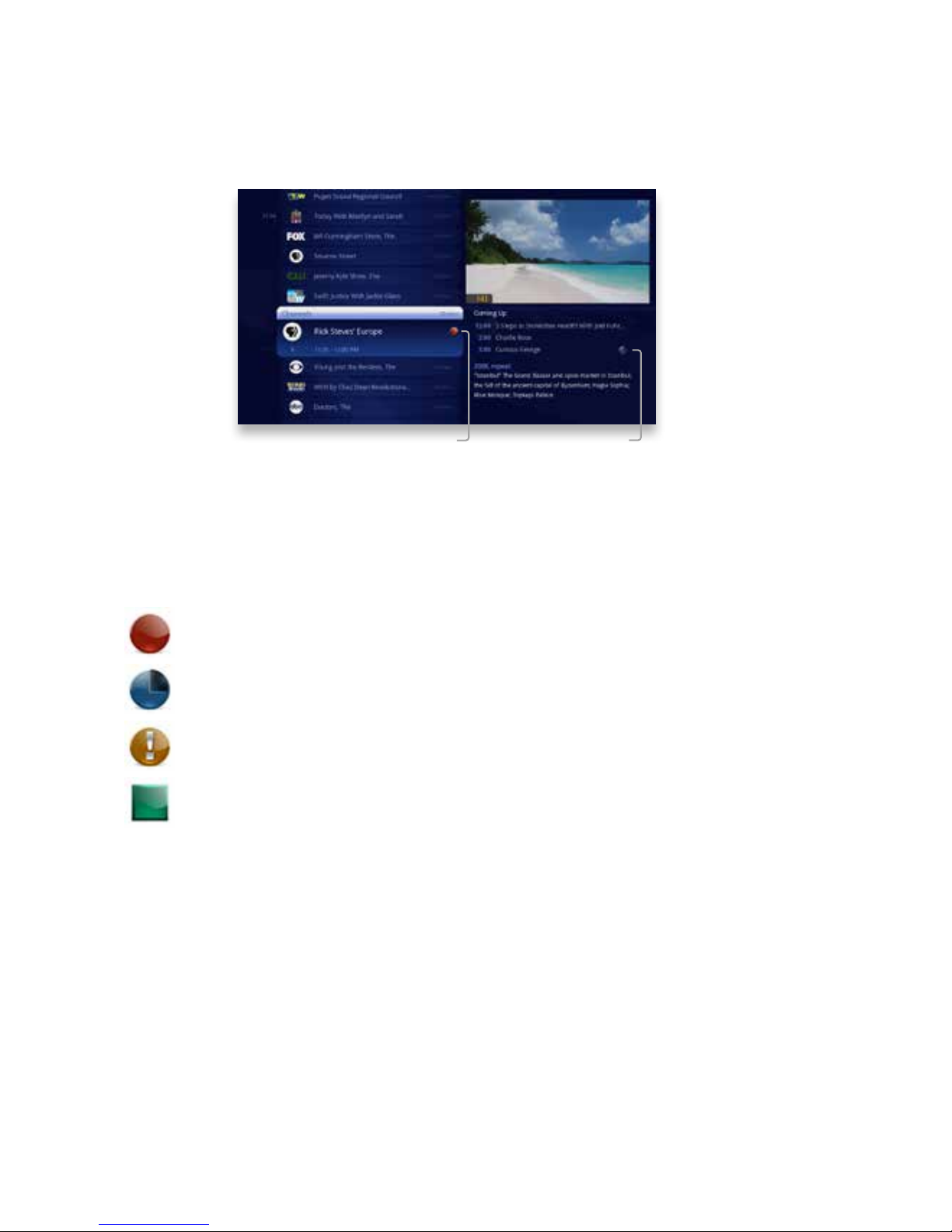
TV Channels - Focus
Different areas of the card provide more information about the TV program in focus�
1� CATEGORY
The name of the category moved into
focus�
2� SHOW TITLE
The name of the program in focus�
3� SHOW LENGTH
The selected program’s duration�
4� RECORDING ICON
Displays an icon here if the selected program is currently recording or
scheduled to record�
5� PROGRAM SCHEDULE
Displays the selected program’s air
time�
6� CHANNEL NUMBER
The selected program’s channel
number�
7� CHANNEL LOGO
Displays the channel logo for the selected program�
Page 41
41
Copyright©ComSouth2014. All rights reserved.
Scheduled
to Record
Recording
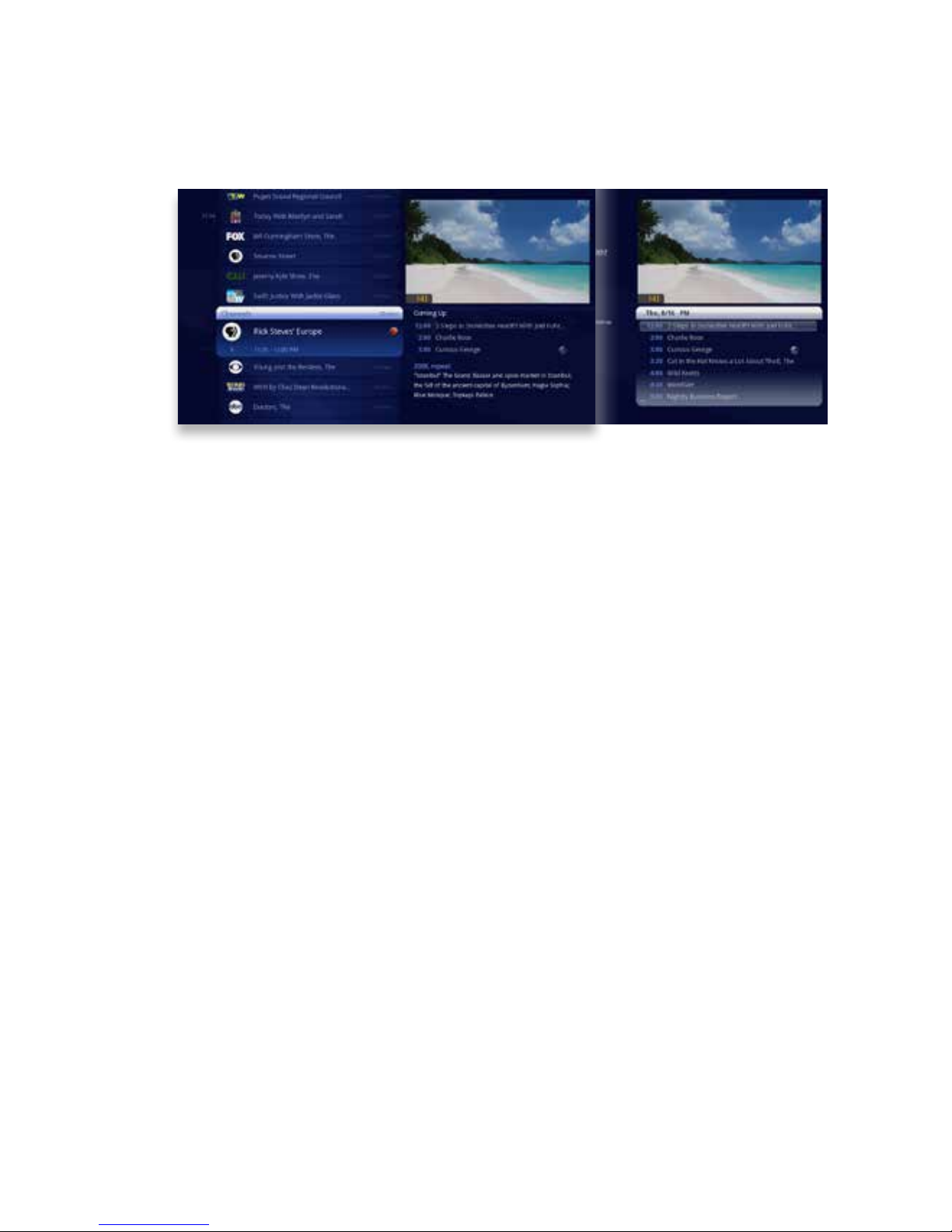
Recording Icons
Your KUDZU Media Player includes the following recording icons for DVR status at
a glance� The following icons appear on focus cards and vertical cards throughout
the main menu:
The show is recording right now�
The show is scheduled to be recorded�
The show is recorded and may be deleted when space is needed for newer
shows�
The show will not delete and can only be deleted manually�
Page 42
42
Copyright©ComSouth2014. All rights reserved.
Arrow right to view the Preview Panel
➡
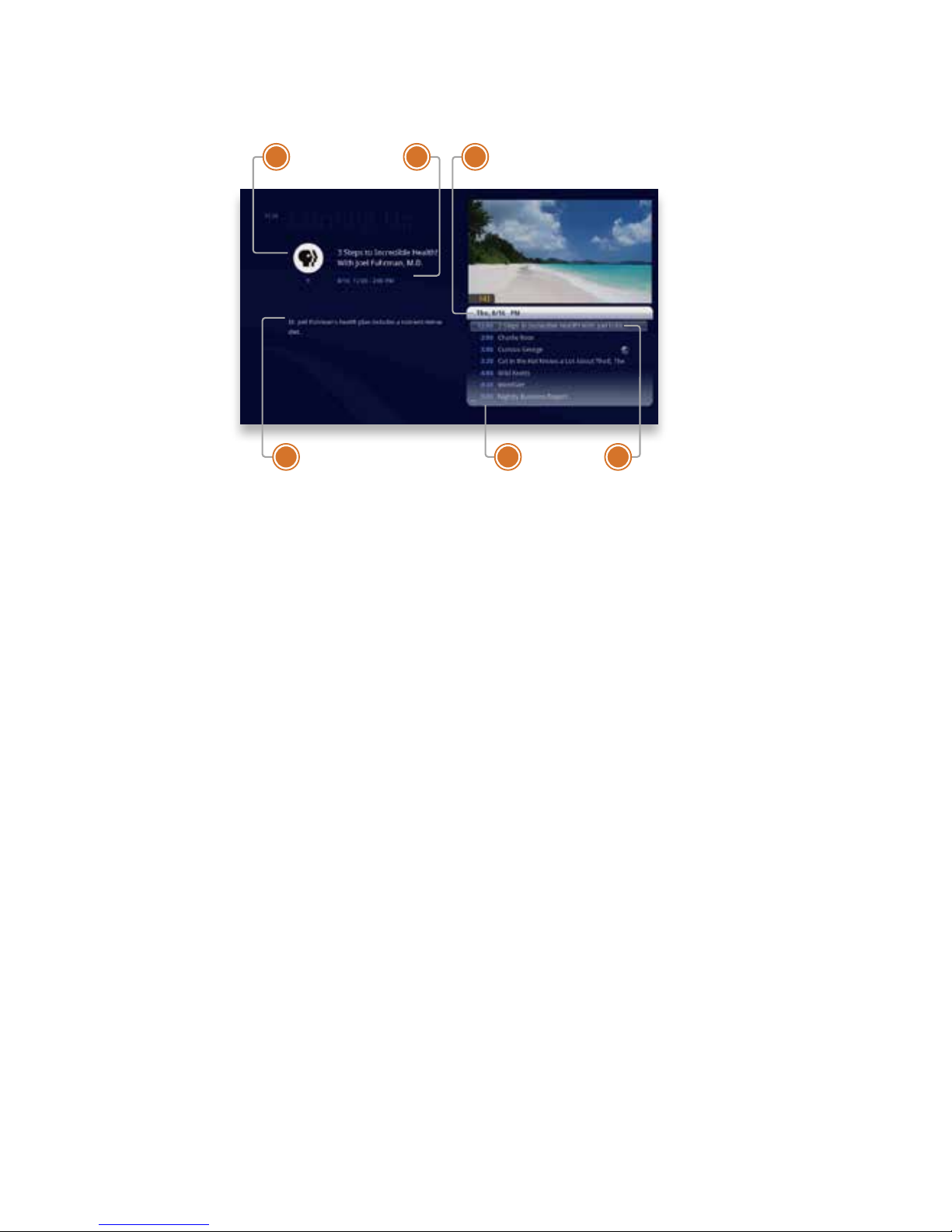
Preview Panel
TV Channels, like all horizontal categories that contain TV programming, has a pre-
view panel that displays upcoming programs for the channel in focus� Press the right
arrow button to select the panel, and then use the up and down arrows to browse
through up to two weeks of programming for that channel�
For a shortcut back to the present time, press the MENU button�
If you see a show you would like to record, press the RECORD or the INFO button�
Page 43
43
Copyright©ComSouth2014. All rights reserved.
65
4
3
2
1
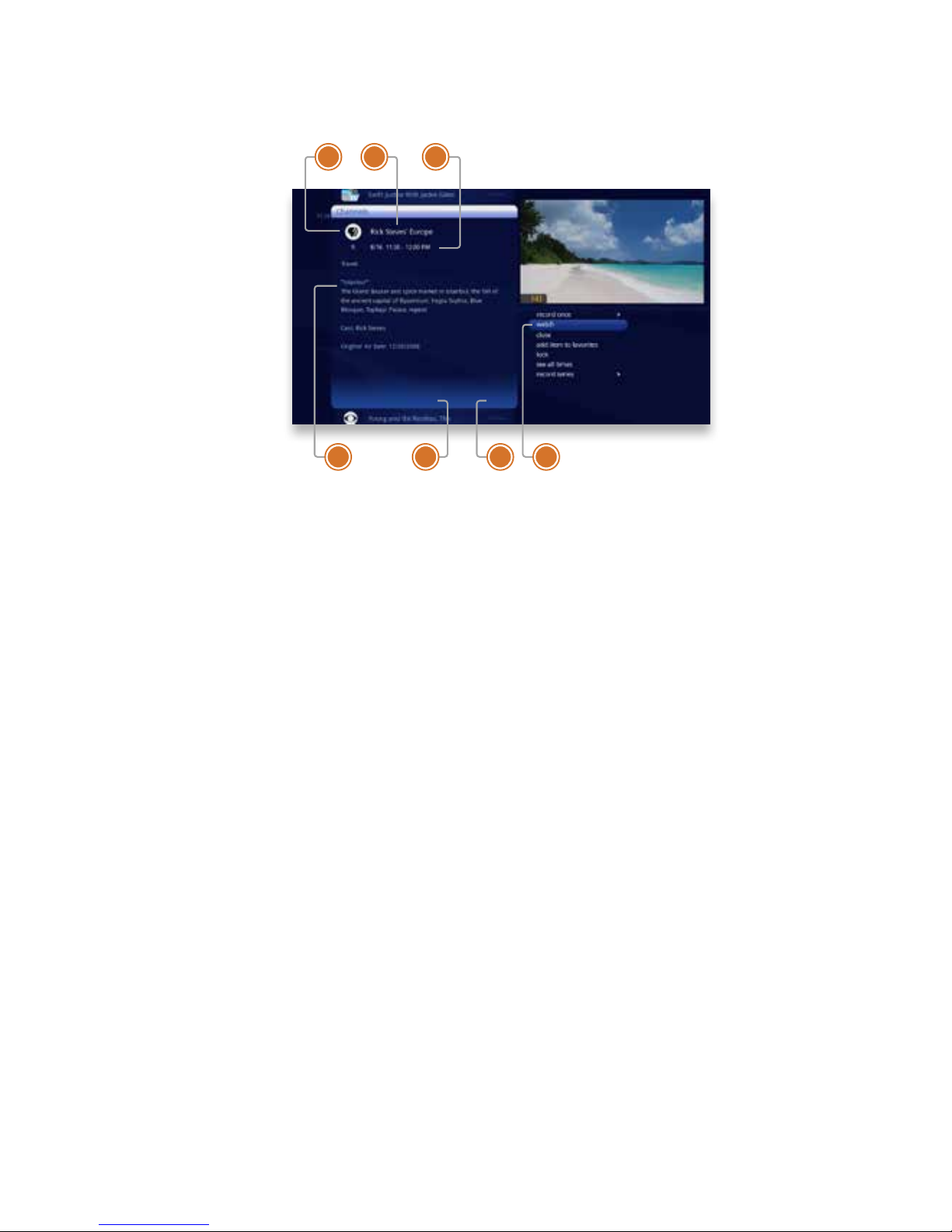
Preview Panel - Layout
1� CHANNEL LOGO
The current channel�
2� PROGRAM LENGTH
The time the program begins and
ends�
3� TIMESLOT
Indicates the day and time that the
preview panel is currently displaying�
4� PROGRAM INFORMATION
Detailed show information, such as
title, rating, whether it’s a repeat, cast
and crew�
5� TIME
Displays the time corresponding to
each show�
6� SELECTED SHOW
The currently-selected show� Press-
ing info on the selected show brings
up an action menu with options�
Page 44
44
Copyright©ComSouth2014. All rights reserved.
765
4
3
2
1
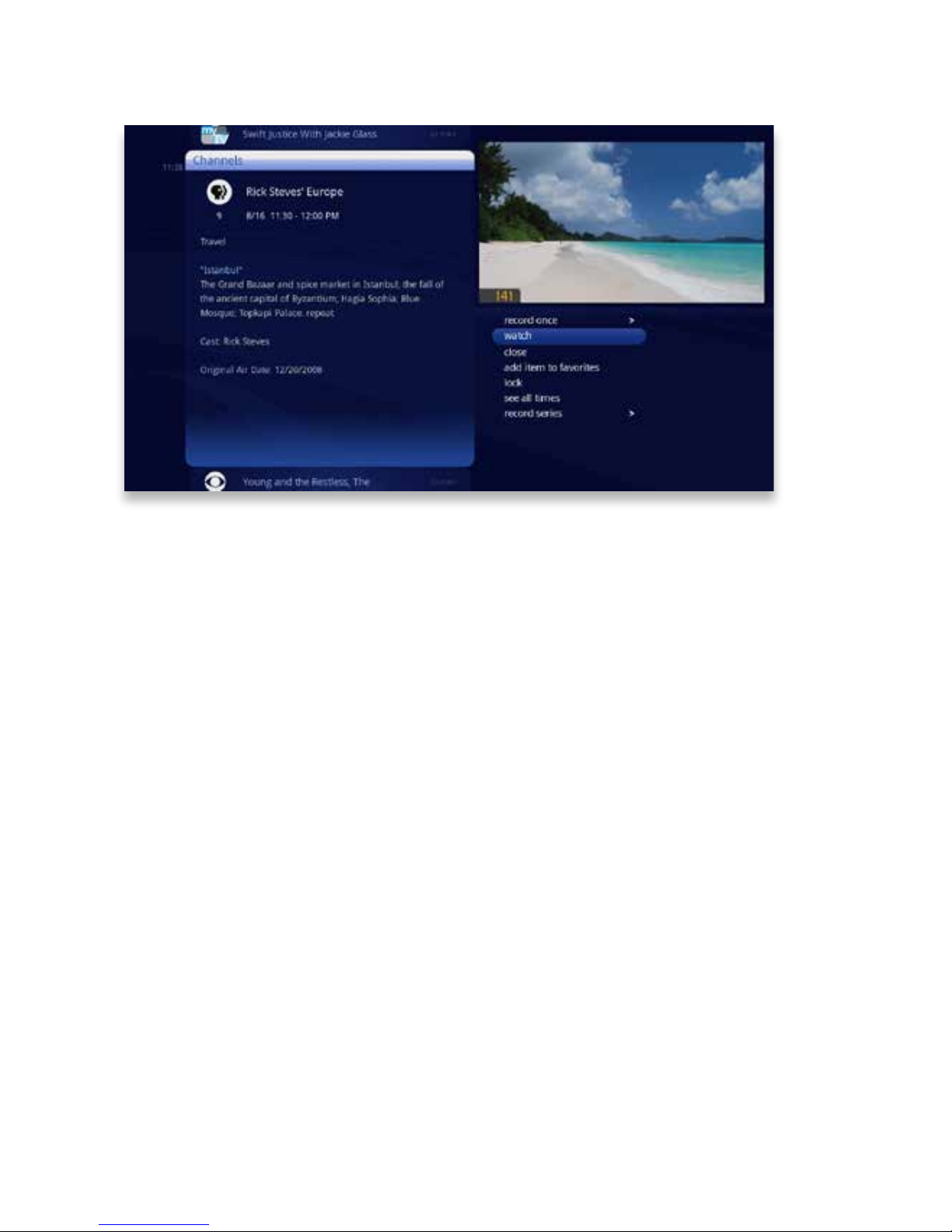
Channels Action Menu
Pressing INFO with a show in focus brings up an action menu with all of the options
for that show�
1� CHANNEL LOGO
The logo for the program’s channel�
2� SHOW TITLE
The name of the program or item�
3� PROGRAM SCHEDULE
The time the program begins and
ends�
4� PROGRAM INFORMATION
Additional show information, such as
show title, repeat, cast and crew�
5� NOTE PAGES
Number of pages of program information�
6� NEXT & BACK
Use the BACK and NEXT buttons to
page through the note�
7� OPTIONS
The list of options available for the se-
lected TV program�
Page 45
45
Copyright©ComSouth2014. All rights reserved.
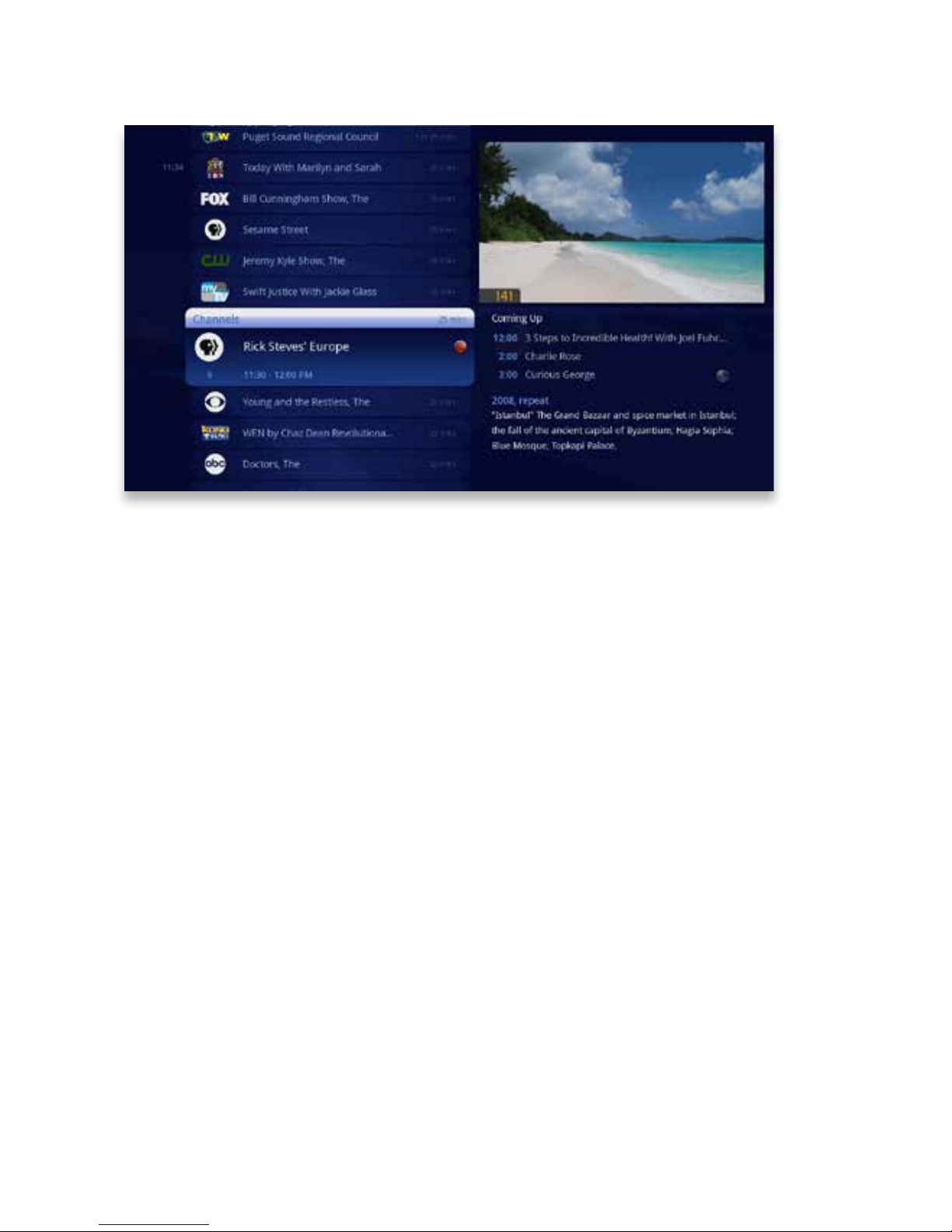
Action Menu Options
If the show you’re watching is currently airing, you’ll see the following options in the action menu:
• record once - Records only the currently-airing episode of the program, including
the portion in the live TV buffer�
• watch - plays the program in full-screen TV�
• add to favorites - Adds the channel to your Favorites category�
• lock - Activates Parental Controls for the selected channel�
• see all times - Presents a list of all of that program’s air dates/times�
• record series - Sets the entire series of that program to record� You’ll only see this
option if the show is part of a series�
Page 46

46
Copyright©ComSouth2014. All rights reserved.
Action Menu Options
If the show will air in the future, you’ll see:
•
record once
•
add to favorites
•
lock
•
see all times
•
set reminder - Allows you to set a reminder that will appear before the show airs
•
record series
If the show is currently recording, you’ll see:
•
stop recording - Stops recording the current show, but does not delete the portion already recorded�
•
watch
•
add to favorites
•
see all times
•
recording options - Gives you a list of elements to alter about the way the program will record�
If the show is scheduled to record, you’ll see:
•
recording options
•
cancel recording - Removes the program from the recording lineup�
•
add to favorites
•
lock
•
see all times
Page 47
47
Copyright©ComSouth2014. All rights reserved.
Recording a Show
The easiest way to record an individual show is to press the record button with that
show in center focus�
If you want to record a series, just press the info button and select record series from
the action menu�
Page 48
48
Copyright©ComSouth2014. All rights reserved.
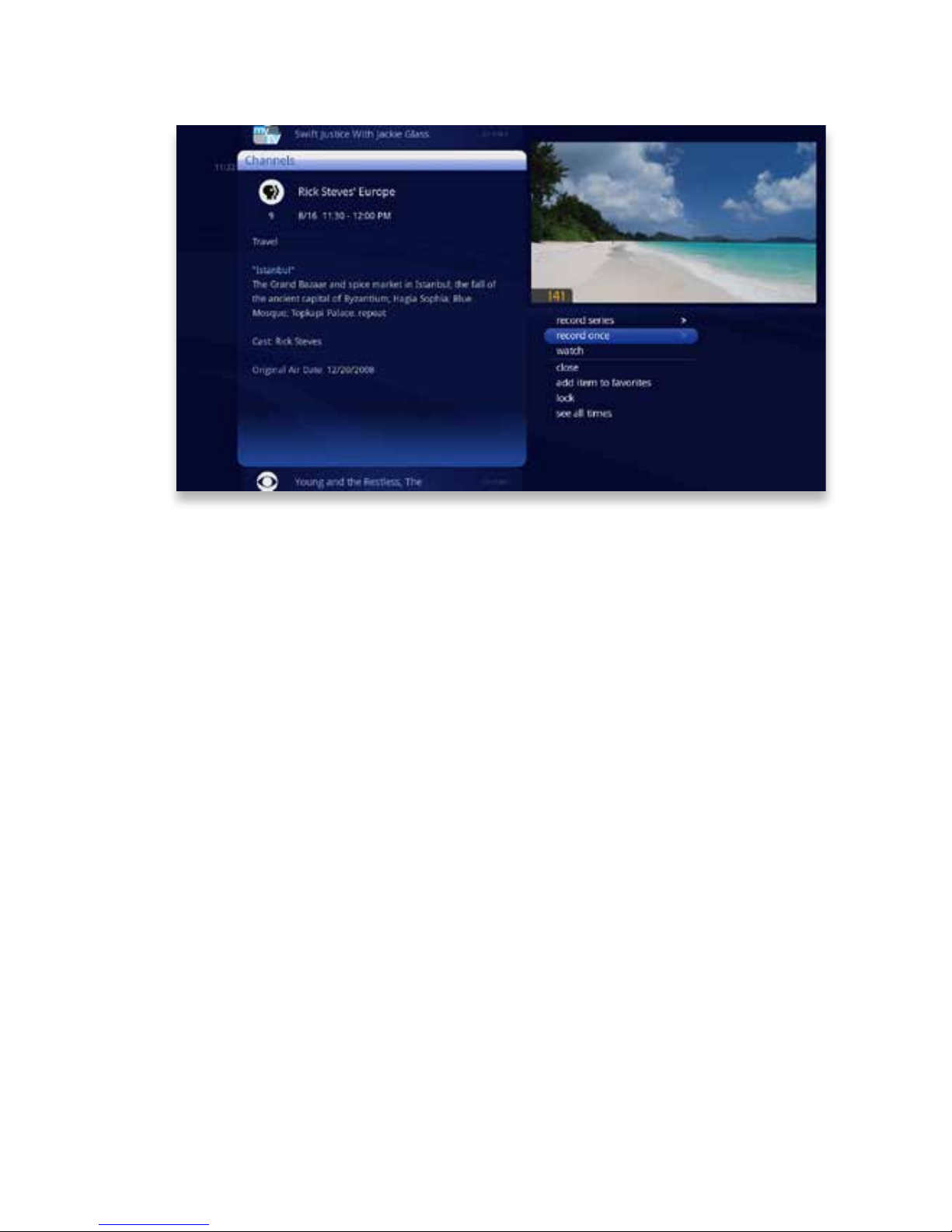
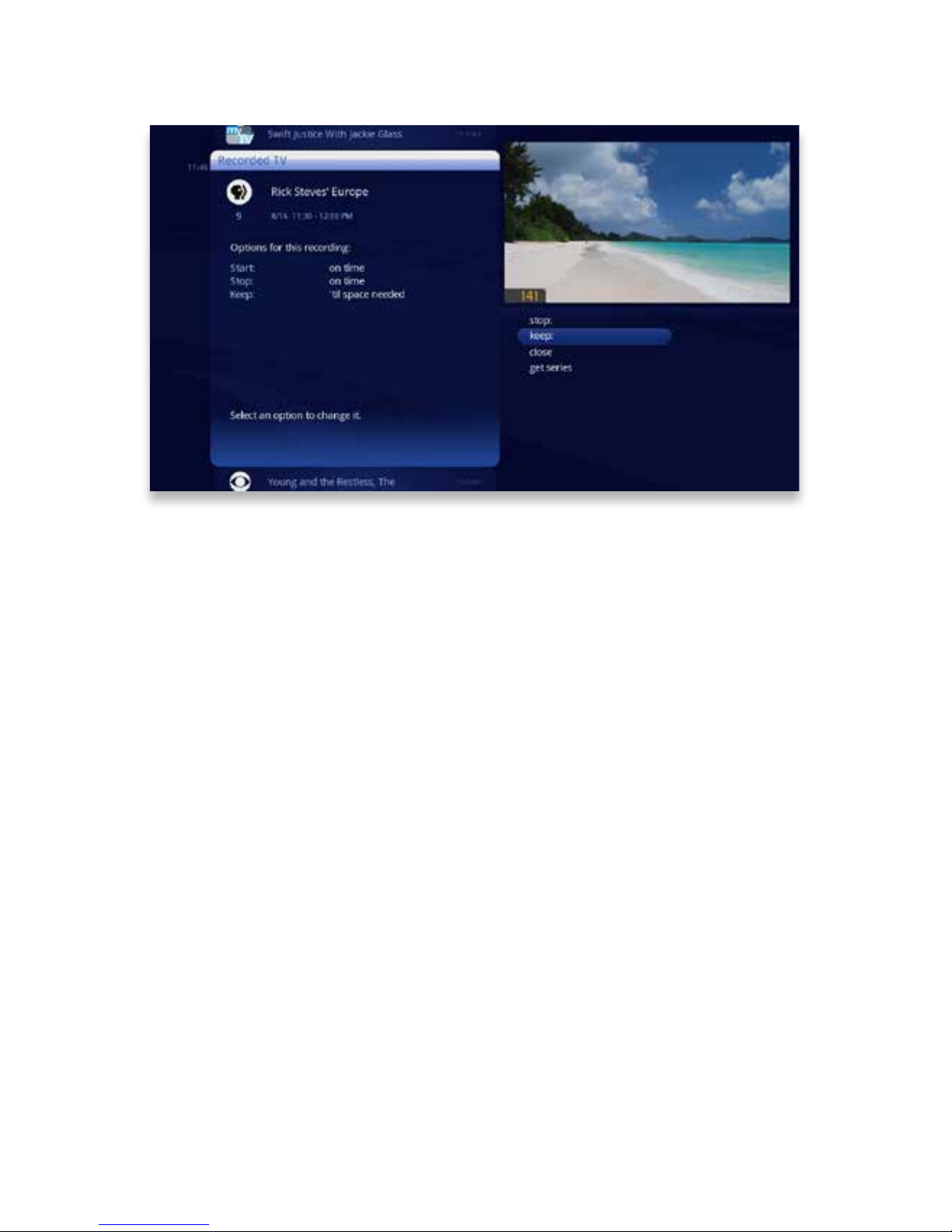
Recording Options
If you have record once or record series selected, you’ll see an arrow to the right that
allows you to access recording options� You can also access recording options from
the action menu of a show that’s currently recording or scheduled to record�
Scheduled to Record
Recording options for a single episode scheduled to record:
• keep - lets you decide when the show will be deleted�
• get series - sets the entire series to record�
• stop - allows you to set the recording to stop early or late�
• start - allows you to set the recording to start early or late�
Recording options for a series scheduled to record:
• keep
• series options - allows you to set recording preferences for the entire series�
• stop
• start
Page 49
49
Copyright©ComSouth2014. All rights reserved.
Currently Recording
Recording options for a single episode currently recording:
• keep
• get series
• stop
Recording options for a series currently recording:
• keep
• series options
• stop
Series Options
• keep
• episode limit - Determines how many episodes will be stored automatically�
• accept - Determines whether you’ll accept rst-run only or repeat episodes�
• timeslots - Lets you record only epsiodes airing at a certain timeslot�
• priority - Sets the priority order of your series recordings�
• cancel series - Cancels the scheduled recordings�
• start
• stop
Page 50
50
Copyright©ComSouth2014. All rights reserved.
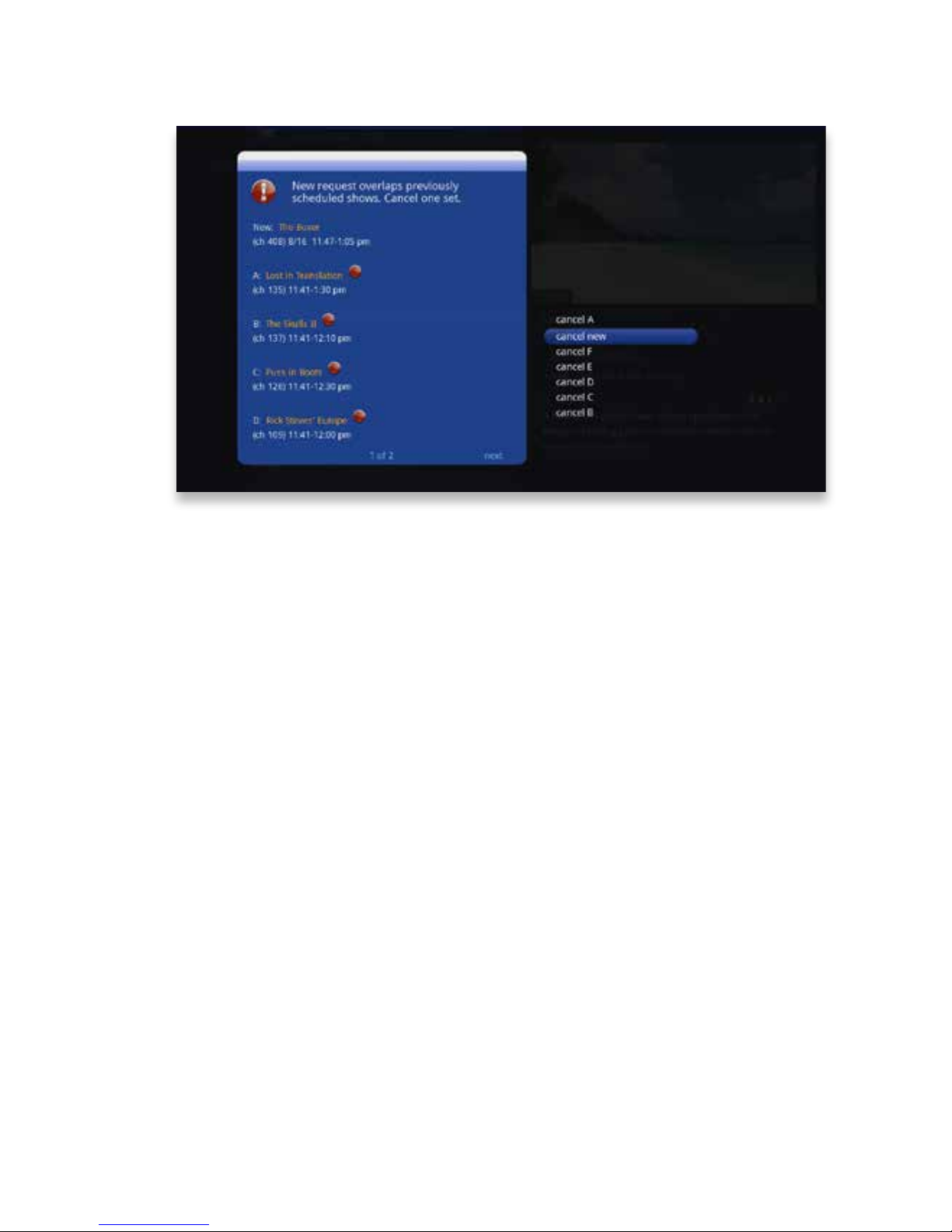
Conict Management
Your KUDZU Media Gateway comes with six tuners, which means that you can re-
cord up to six shows at once, unless someone is watching live TV at the same time�
In the event that there is a tuner conict, such as when you have six recordings
scheduled and are watching another live show, your DVR will bring up an action
menu that outlines your options and lets you make a choice�
Space Management
Shows are automatically kept until more room is needed� You can protect shows
from deletion from the Recorded TV category; see the following chapter for details�
When you schedule a new show to record, your KUDZU Media Player will check to
make sure that your KUDZU Media Gateway hard drive has enough room�
If your hard drive does not have enough room for the new recording, you’ll receive a
message informing you that, when the new show airs, some recordings may need to
be deleted in order to make room for the new show�
If all of your current recordings are protected against deletion, you’ll get a message
that your show may not be recorded�
Page 51
51
Copyright©ComSouth2014. All rights reserved.
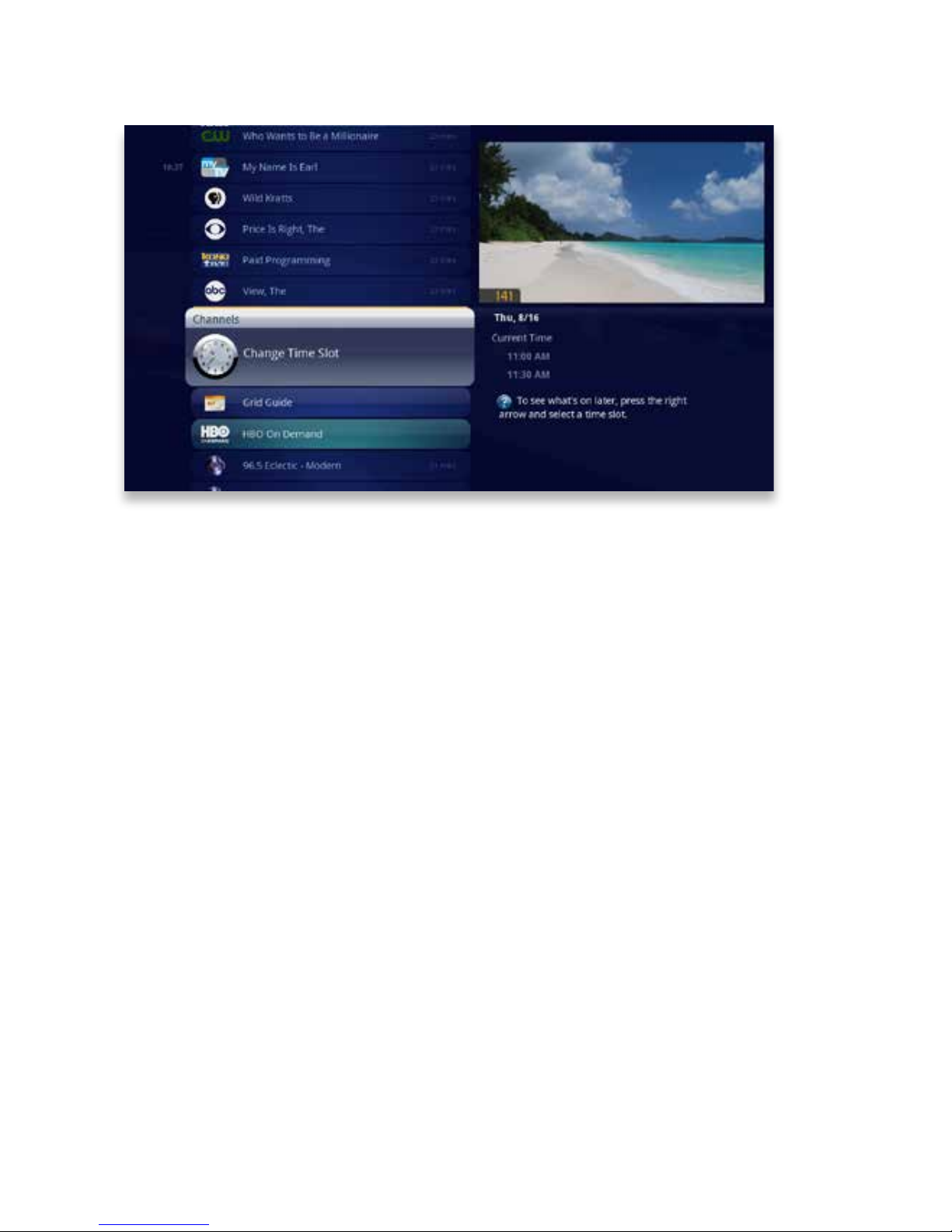
Change Time Slot
If you want to compare what’s on in the future across multiple channels, start from TV
Channels, press the NEXT button, and the entire vertical list will show the next half
hour’s programming� Shows that have not started airing yet will appear gray, while
currently-airing shows will be black�
You can use the NEXT button to view up to two weeks of upcoming shows� The
BACK button will take you one half hour earlier� The SKIP button advances the category forward 24 hours, and the REPLAY button goes back 24 hours� If you browse
to another TV category, like a lter or TV Favorites, the time slot will be maintained� To
return to the current time, just press the MENU button�
You can also use the Change Time Slot card to move the category to a future time
slot� With that card selected, press the right arrow� Use the up and down arrows to
select a time slot, and press OK� The vertical band will now display the time slot you
selected�
Page 52
52
Copyright©ComSouth2014. All rights reserved.
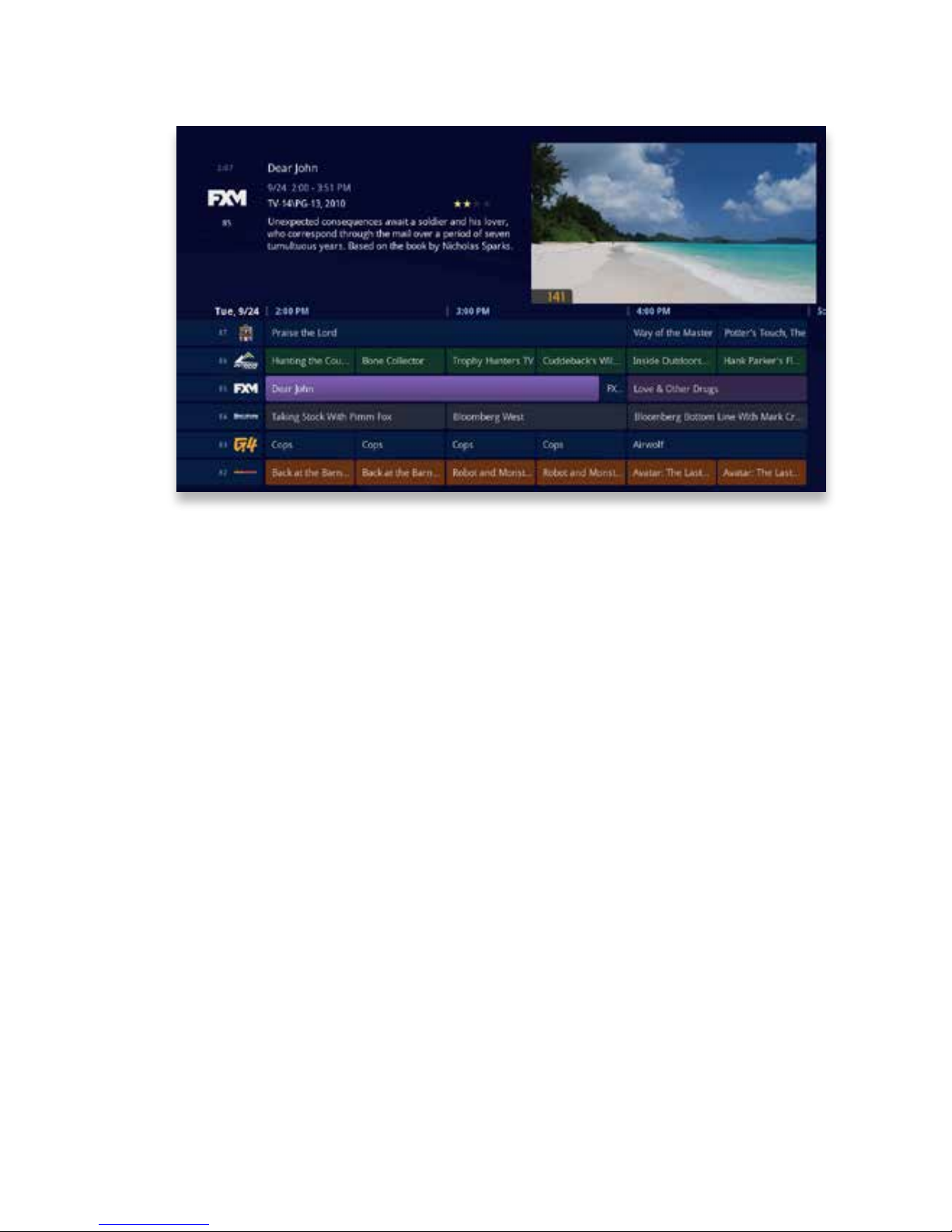
Grid Guide
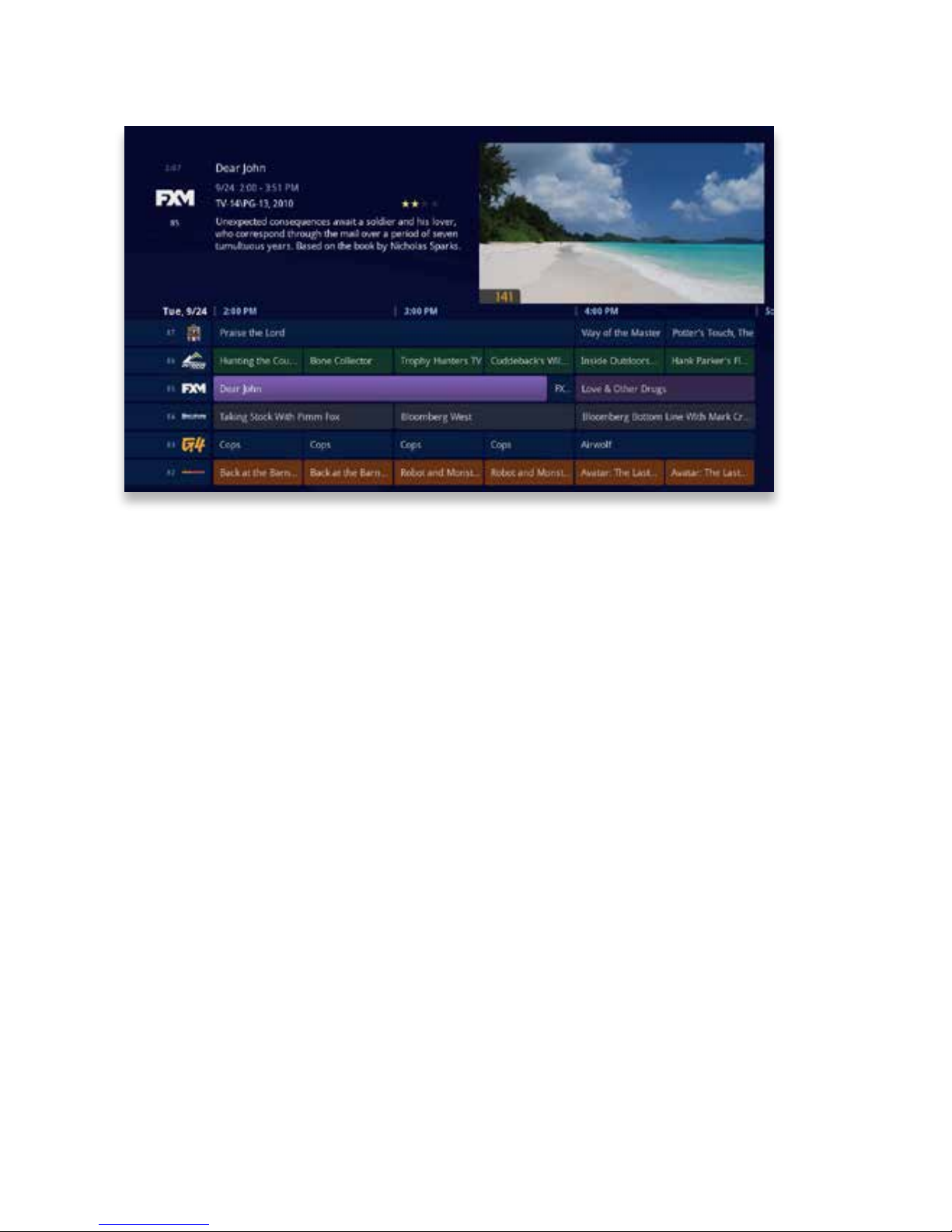
The KUDZU Media Player offers an optional Grid Guide view for people who prefer
to nd programming in that layout� You’ll see the Grid Guide card below focus when
you rst enter TV Channels� Bring it into focus, and press OK�
The Grid Guide works similarly to the rest of the main menu:
• Arrow buttons navigate the guide
• INFO brings up a list of options
• SKIP will cycle forward 24 hours; REPLAY will cycle back 24 hours
• BACK and NEXT will move through the guide in 30 minute increments
• ZOOM will alternate between the guide and full screen TV
• If you are looking at the present time in the guide, MENU will return you to the
main menu
• Black shows indicate currently-airing programs; gray shows will air in the future
• OK tunes to the show if it’s currently airing, brings up an action menu if it’s on in
the future�
Page 53
53
Copyright©ComSouth2014. All rights reserved.
Grid Guide Genres
The Grid Guide has four different types of programming that are easy to spot by color:
• Movies - red
• Sports - green
• Children’s - purple
• News - grey
Page 54

54
Copyright©ComSouth2014. All rights reserved.
Search
Sometimes you know the title� Sometimes you just know what
night it’s on� Sometimes you’re in the mood for a certain type
of show� The KUDZU Media Player has you covered to help
you nd what you’re looking for�
Page 55
55
Copyright©ComSouth2014. All rights reserved.
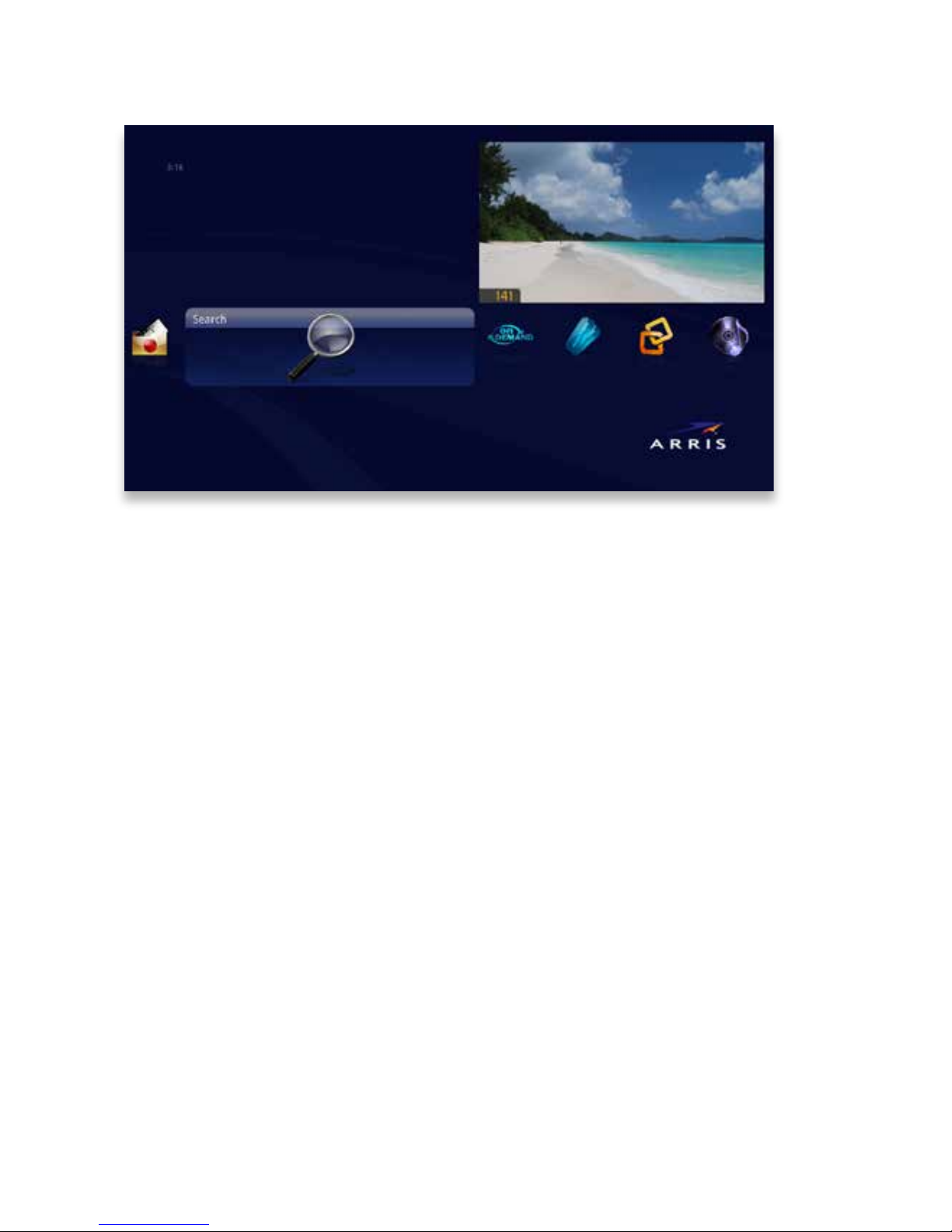
Intro to Search
The Search category in the main menu contains three different ways to search for
programming: By Title, By Keyword, and By Category�
When you use any of these three options to search for a show, the results will return
shows that are currently airing, airing sometime in the future, and shows that you
have recorded�
You’ll be able to tell what type of show you’re looking at by the color of the card:
• Current shows are black
• Future shows are gray
• Recorded programs are yellow
Page 56
56
Copyright©ComSouth2014. All rights reserved.
87
6
5
4
2 3
1
Find By Title
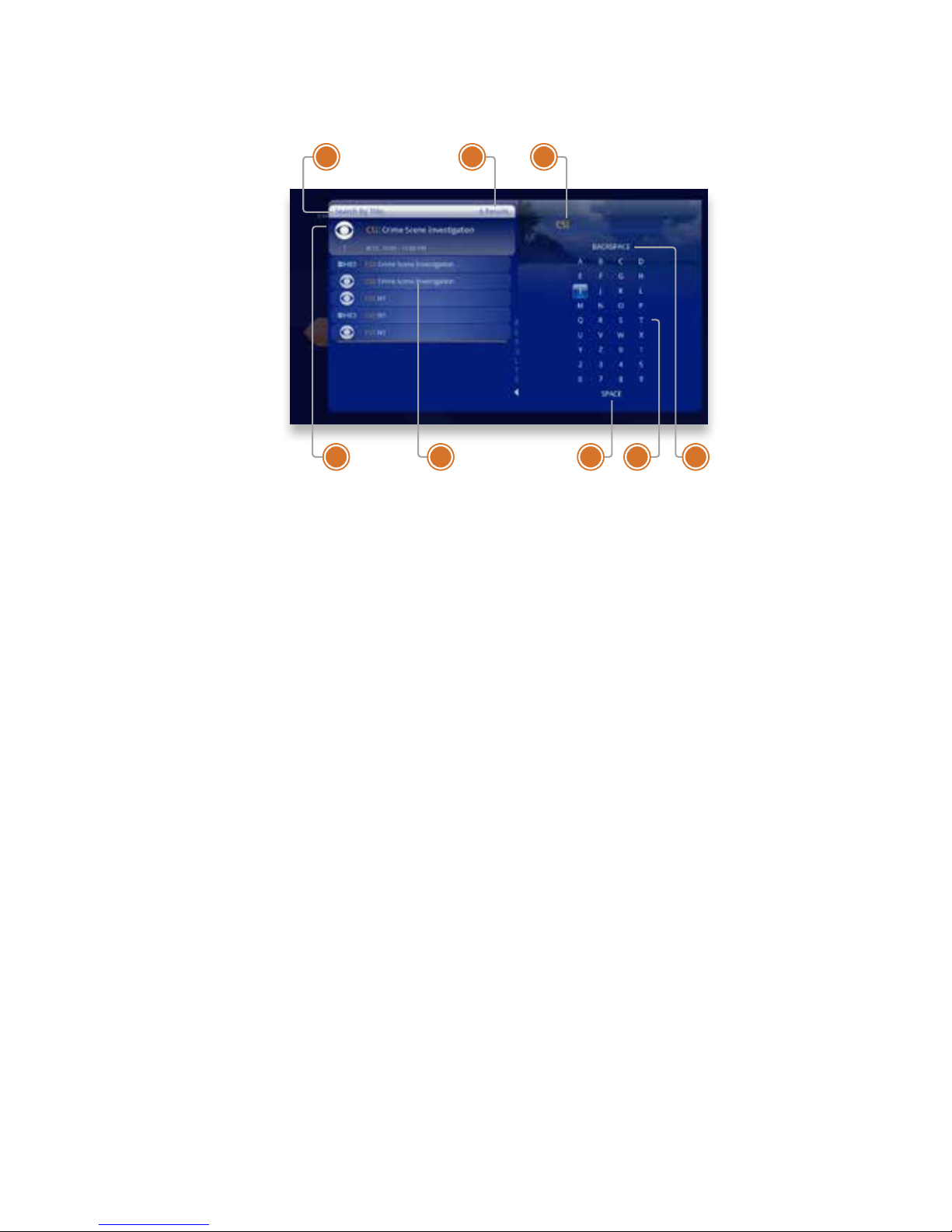
When you select Find By Title, a screen will open that allows you to enter your title
and browse through results� Use the arrow buttons to navigate the onscreen key-
board; to enter a letter, press OK with that letter highlighted� To browse the list, press
the left arrow until that panel is in focus�
1� SEARCH TYPE
This bar describes the type of search
you’re doing�
2� SEARCH RESULTS
As you enter characters on the right,
the list on the left will lter down to
only display shows that match your
entry�
3� SEARCH BOX
As you select characters, the characters are entered in the search box�
4� FOCUS
The details for the channel and show
are displayed in the focus card�
5� VERTICAL LIST
The vertical list lls with shows that
match your criteria� Pressing the up
or down arrows brings these shows
into focus�
6� SPACE
Use a space to separate words in
your search entry�
7� SELECTOR
To enter a letter, move the selector
to it, and press OK; each character
is entered into the search box� You
can use texting-style letter entry as
a shortcut�
8� BACKSPACE
Removes a character from the
search box�
Page 57
57
Copyright©ComSouth2014. All rights reserved.
Find By Keyword
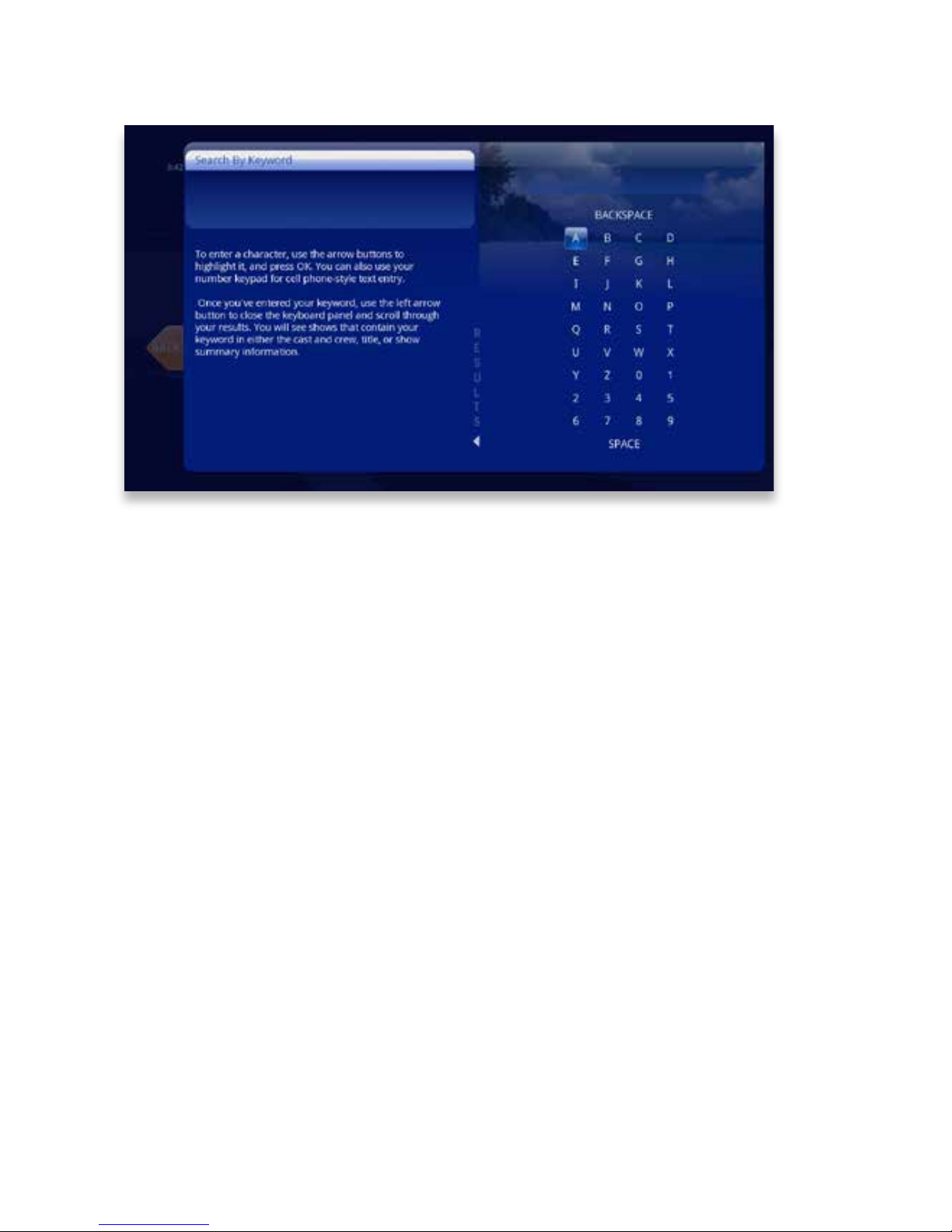
A Keyword search lets you search for any word contained in a show’s program infor-
mation� For example, if you know the actor in a show, but can’t remember the title,
you can search on the actor’s name, and all programs featuring that actor will appear
in the list�
To search by keyword, enter each letter by selecting it and pressing OK� You’ll see
results on the left lter down with each letter you enter� Press the left arrow and use
the up and down arrows to scroll through them�
SEARCHING TIP
Did you know that you can use your remote control keypad like a mobile phone
keypad?
For example, by pressing 222 on your remote control you will enter the letter C� By
pressing 33, you will enter the letter E�
• CLEAR - Clears the entire entry
• 0 - Enters a space
• 1 - Enters a backspace
Page 58
58
Copyright©ComSouth2014. All rights reserved.
2
1
5
34
Find By Category
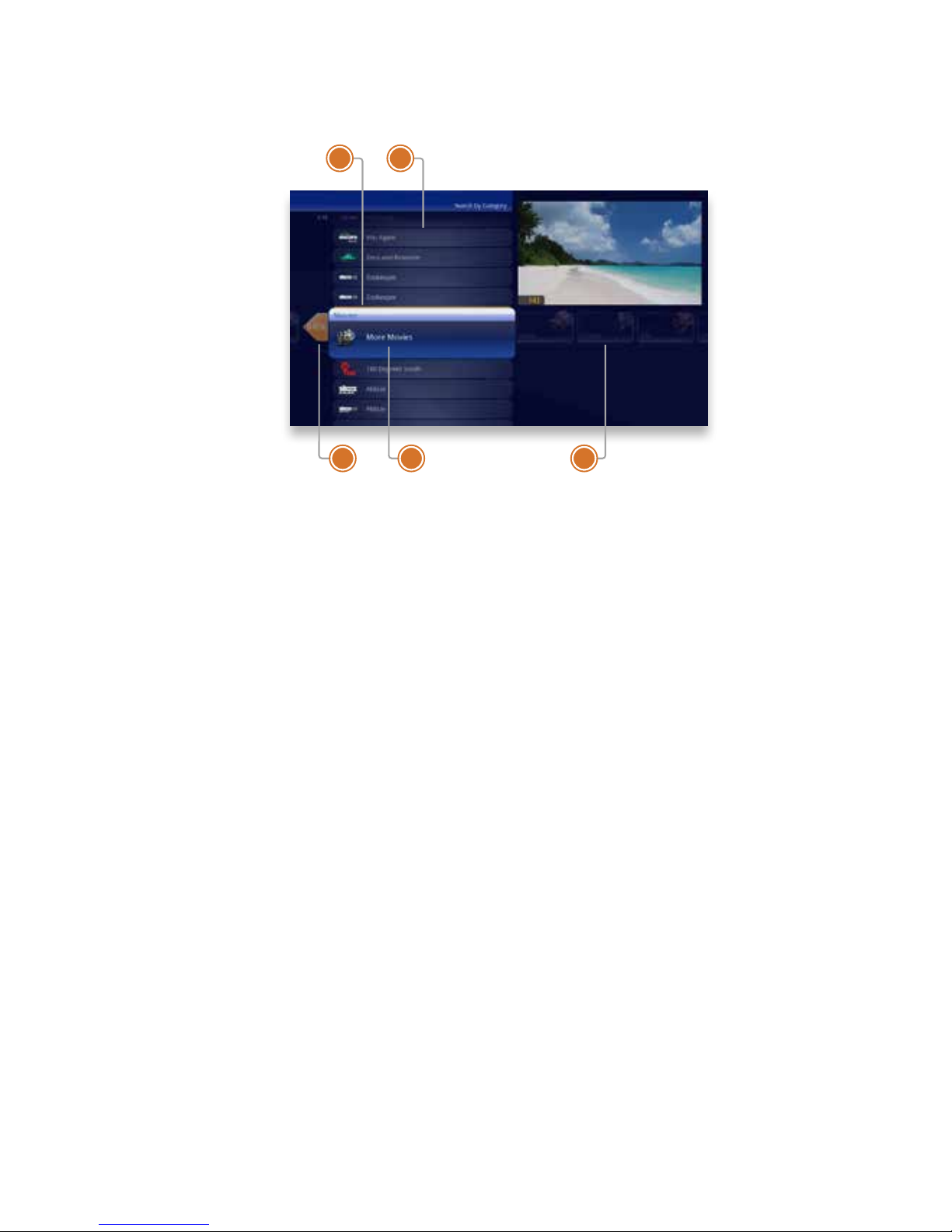
If you’re in the mood for a certain type of show, Find by Category gives you a way to
browse what you’re looking for� When you press OK with Find by Category selected,
you’ll see a list of categories along the vertical band, and a list will display the shows
in each category� An Option card in each category will take you one level deeper in
the menu and allow you to browse subcategories�
1� CATEGORY
Category describes the type of
search you’re currently doing�
2� SHOW CATEGORY
The different types of shows run
along the horizontal band�
3� SHOW LIST
Each show airing over the next 24
hours that falls into the selected cat-
egory�
4� SUB CATEGORY OPTION CARD
Each category will contain a card
labeled “Press OK to see more���”
Selecting this card will take you to
another screen with subcategories
along the horizontal band�
5� BACK CARD
Select this card and press OK to go
back up one level in the menu�
Page 59
59
Copyright©ComSouth2014. All rights reserved.
Search Options
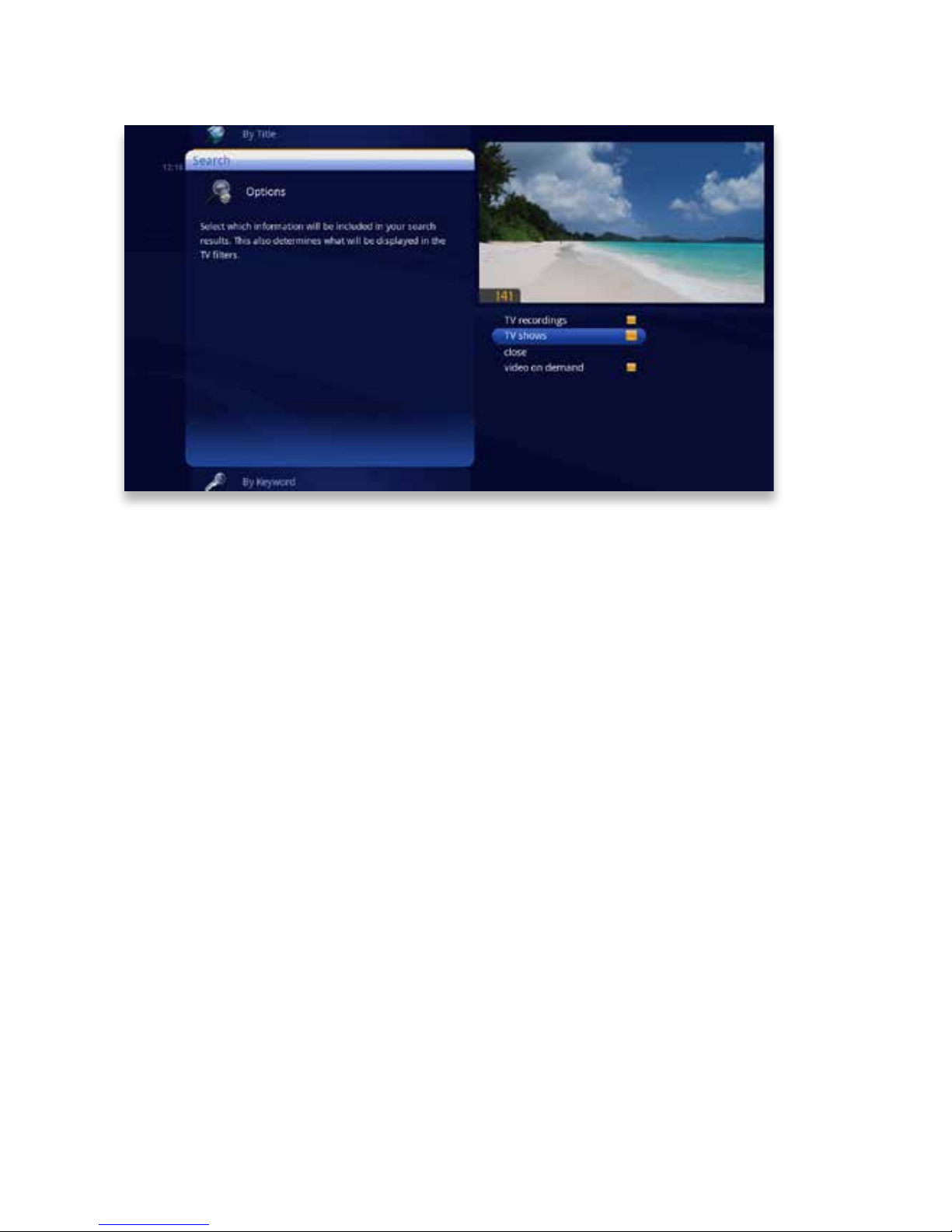
The Search Options card allows you to choose which type of content is displayed in
both Search results and in the TV Filters�
To customize the type of content that appears in both areas, select Options and
press OK to clear the check box for the type of content you would like to remove�
You can remove:
• TV Recordings - programs you’ve recorded with your DVR
• TV Shows - live TV shows from ComSouth’s lineup
Page 60

60
Copyright©ComSouth2014. All rights reserved.
Home Network
With your KUDZU Media Player, you can access your computer’s
music, video, and photos from the comfort of your living room�
Page 61

61
Copyright©ComSouth2014. All rights reserved.
Setup
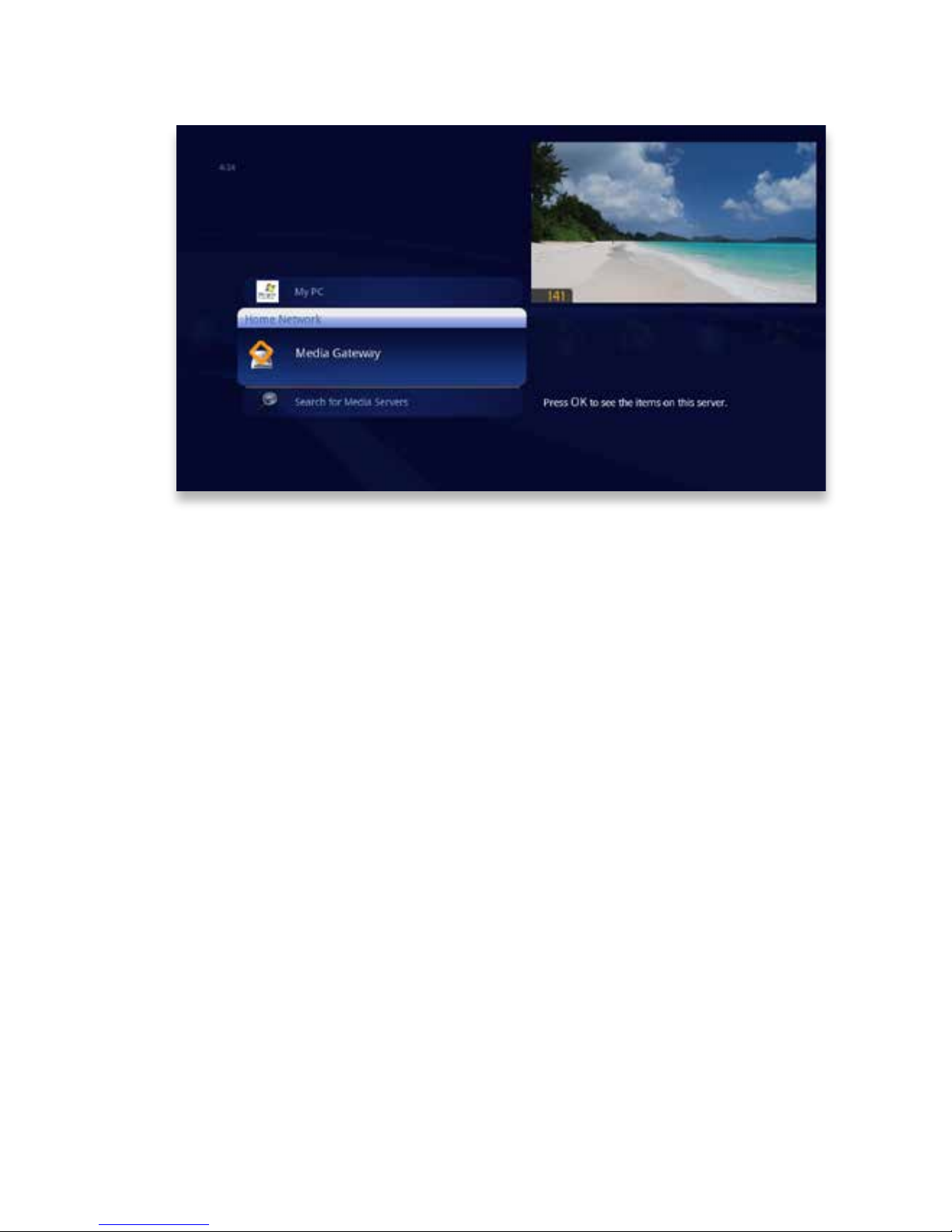
Home Network allows you to stream media from any server in your home, such
as your computer, to your KUDZU Media Player� Because Home Network is DLNA
®-based, it is completely plug and play; if your computer is connected to your home
network and has a DLNA server, you should automatically see that computer listed
in the Home Network category of the main menu�
To make sure that Home Network will function properly, make sure that:
• Your computer is set up to share content according to your server’s instructions
• Your server software is not blocked by a Firewall
DLNA Servers
Although any DLNA server will work with Home Network, the following DLNA
servers have been fully tested with your KUDZU Media Player:
• Windows Media Player
• TVersity Media Server
• Windows Media Connect
• Twonky Media Manager
• Media Mall PlayOn
Page 62
62
Copyright©ComSouth2014. All rights reserved.
Getting Started
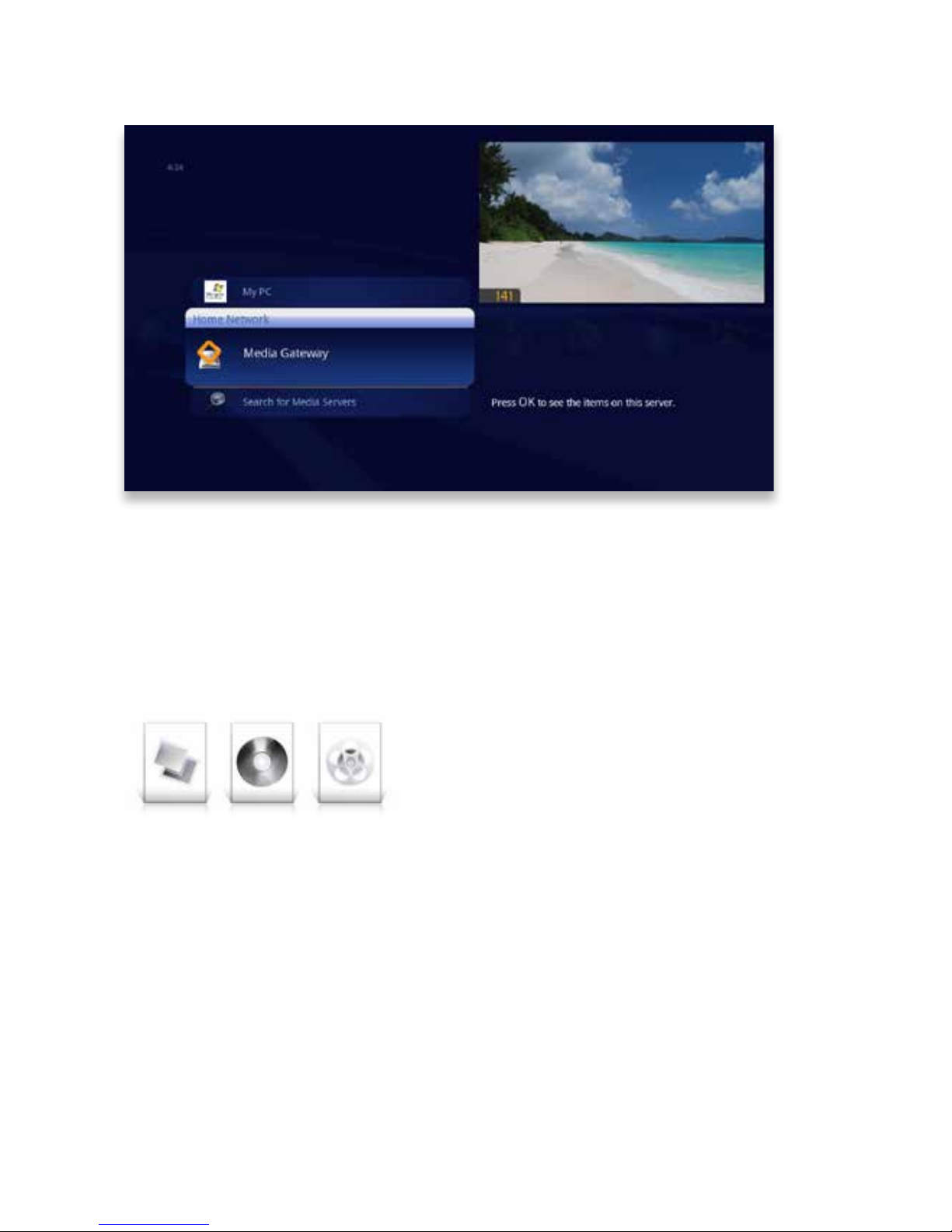
When you rst bring the Home Network card into focus, you’ll see all of your connected devices� If one isn’t showing up, select Search for Media Servers and choose
Search� If connected properly, any new devices will then appear�
Page 63
63
Copyright©ComSouth2014. All rights reserved.
Playing Media
• To access your content, choose the device that interests you, and press OK�
• To open a folder of content, press OK�
• If you have an individual le selected that you would like to play, press OK�
• If you have a folder selected, and you would like to view a list of options for the
content of that folder, press INFO�
Supported Files
• Photo: JPEG, GIF*, BMP* and PNG* les
• Music: MP3, WMA, and AAC (unprotected les), and LPCM les
• Video: MPEG-1, MPEG-2, MPEG-4, H�264, and WMV les
*These le types are available through DLNA® servers that support transcoding
Content that is protected by Digital Rights Management (DRM) will not be accessible�
Page 64
64
Copyright©ComSouth2014. All rights reserved.
Adding to Favorites
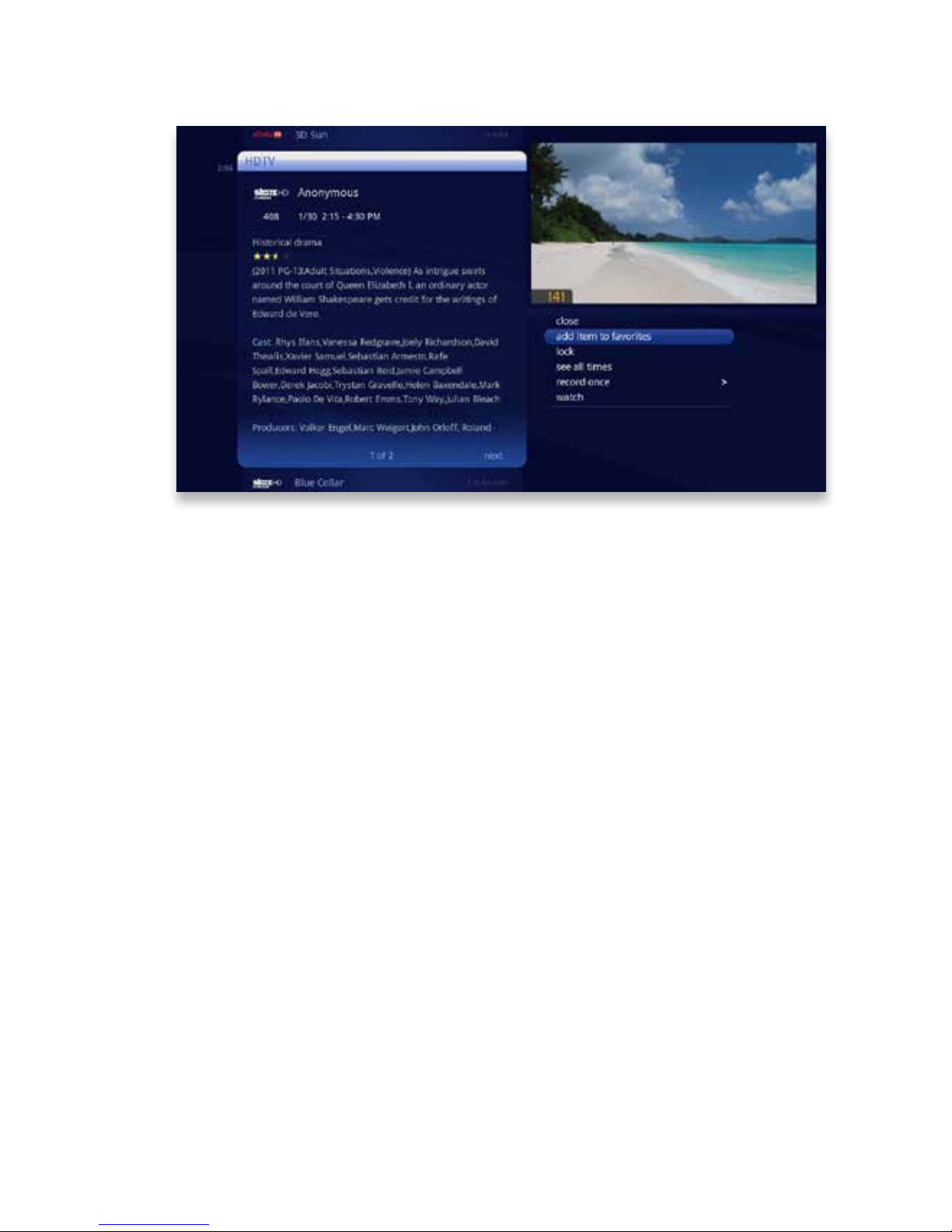
For easy access, you can add content to the Favorites category in the main menu�
Press INFO with a folder or item selected, with the exception of individual songs,
and choose add item to favorites� The content will then appear in the Favorites category
Page 65
65
Copyright©ComSouth2014. All rights reserved.
rec
pause
play
rew fwd
stop
skipreplay
back next
Player Controls
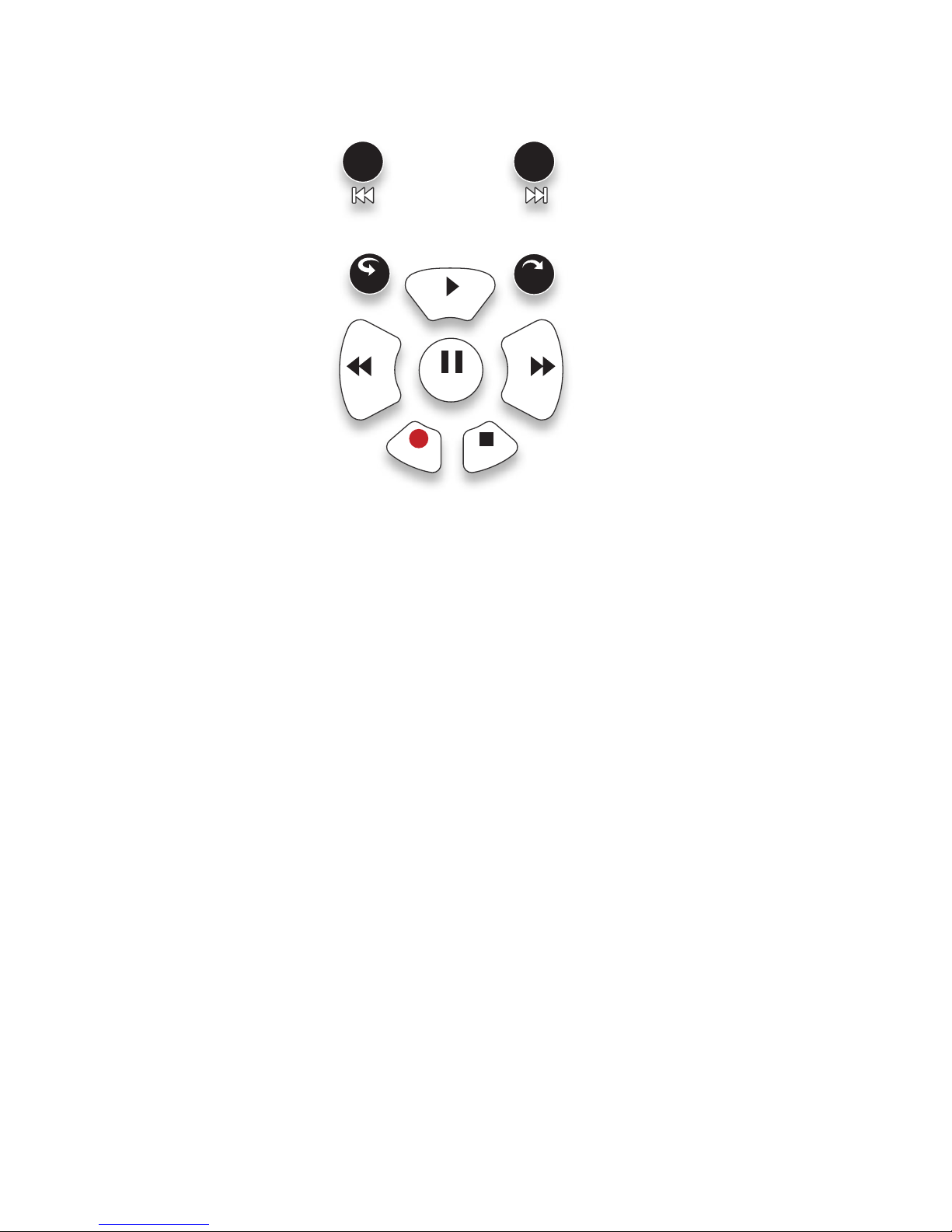
Once you are enjoying a piece of media, the following player controls can be used:
Slideshow
• PAUSE
• PLAY
• BACK
• NEXT
• SKIP
• REPLAY
• STOP
Music
• PAUSE
• PLAY
• STOP
• BACK
• NEXT
Video
• PLAY
• PAUSE
• STOP
Page 66
66
Copyright©ComSouth2014. All rights reserved.
Mobile Apps
A group of mobile apps brings control of your Media Player to
your tablet and phone�
Page 67
67
Copyright©ComSouth2014. All rights reserved.
The Mobile Apps
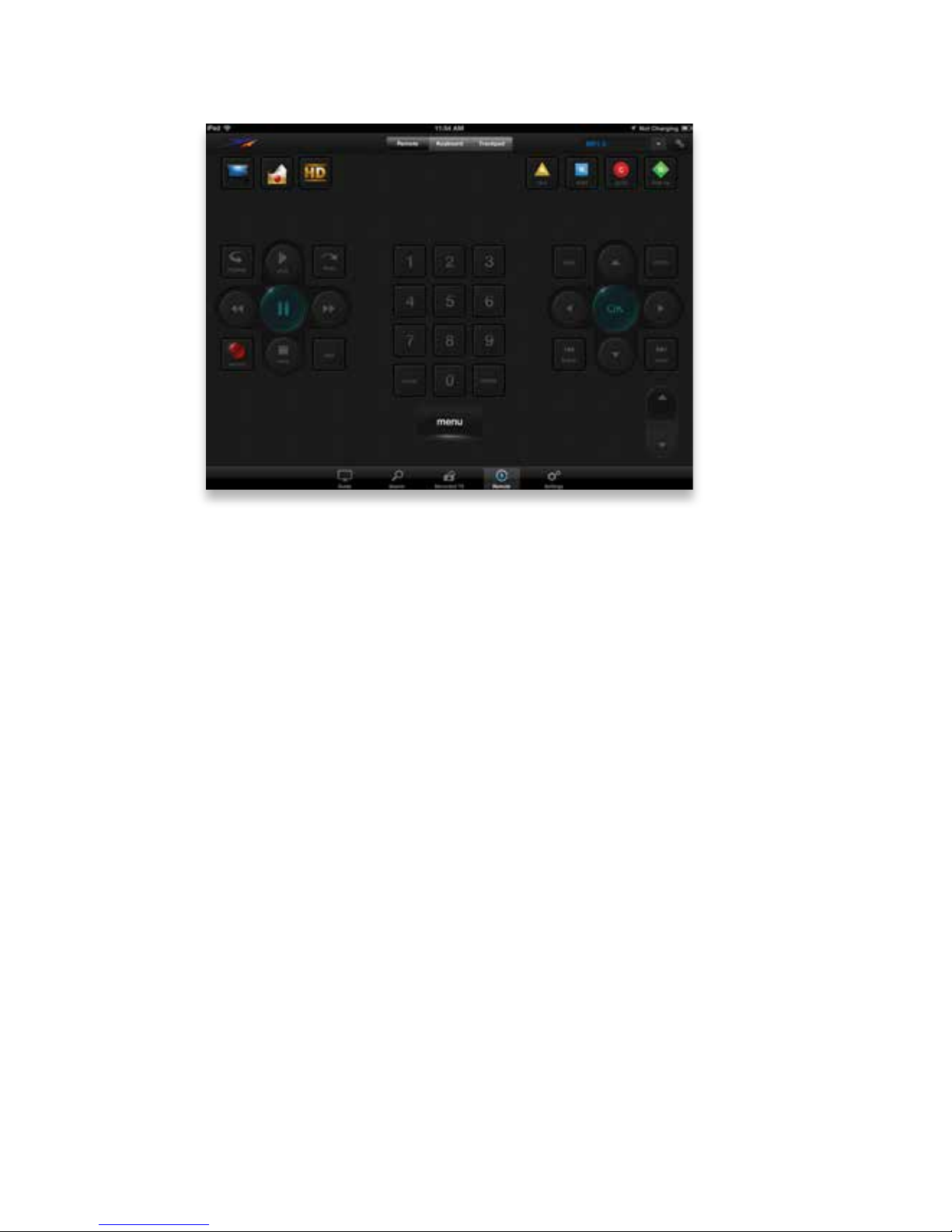
The Mobile Apps let you:
• Use your tablet or phone as a remote control for your Media Player
• Browse programming in an easy-to-lter grid guide
• Search programming by a variety of criteria
• Schedule and manage recordings
Page 68
68
Copyright©ComSouth2014. All rights reserved.
Downloading a Mobile App
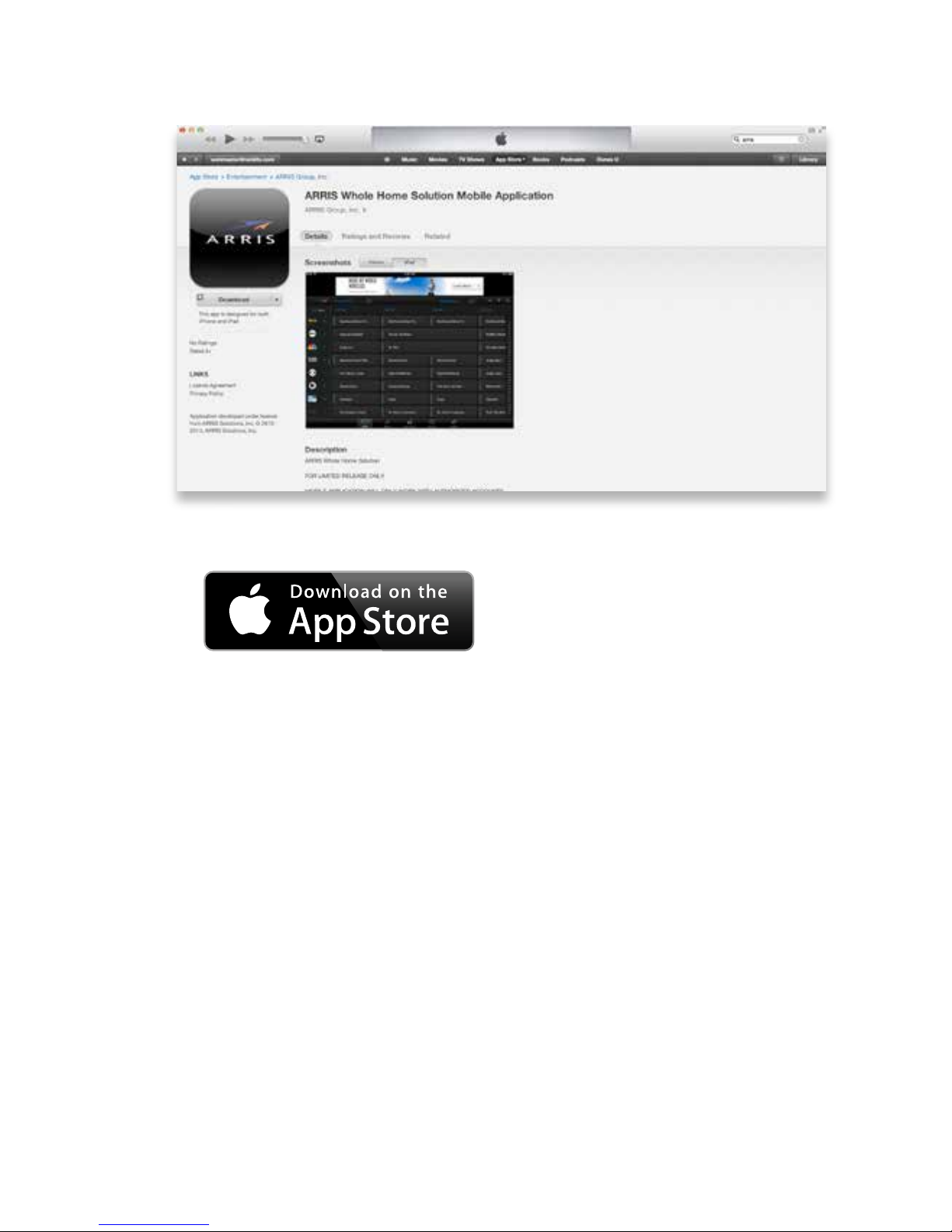
You can nd the Moxi Mobile Apps in the iTunes store�
Once you’ve downloaded a mobile app, you’ll need to pair it with your Media Player�
You can do that in three easy steps:
1� Go to the Mobile App card in the Settings area of your Media Player� Choose
add�
2� Open the mobile app on your device
3� Enter the code displayed on the screen of your Media Player into the mobile
app
The rest happens automatically� When you see the success message, you’re ready
to use your mobile app!
Page 69

69
Copyright©ComSouth2014. All rights reserved.
Page 70

70
Copyright©ComSouth2014. All rights reserved.
SuperTicker
Now you can view the latest news headlines, nancial news,
entertainment news, and weather on your TV �
Page 71
71
Copyright©ComSouth2014. All rights reserved.
SuperTicker
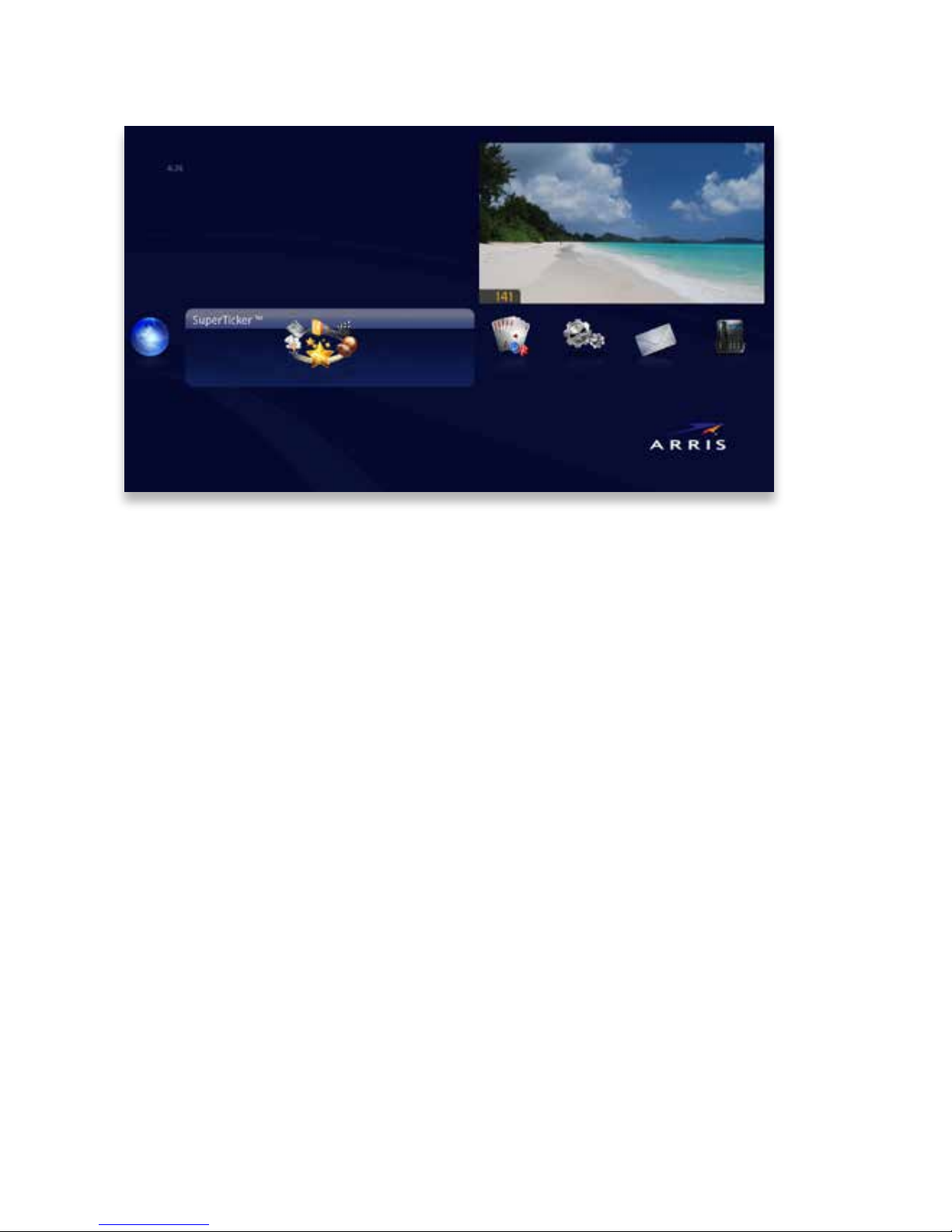
Pressing OK with the SuperTicker category in focus will launch full screen TV with the
SuperTicker displayed along the bottom of the screen� �
The SuperTicker displays information on the latest news headlines, nancial news,
entertainment news, and weather� These are called Topics� An individual story in
each topic is called an Item�
Stock market index numbers in the SuperTicker update every 3 minutes� All other
SuperTicker information updates every 15-20 minutes�
Navigation
The SuperTicker will automatically scroll through each topic, subtopic, and news
item� If you’re interested in a particular topic, you can use the left and right arrow
buttons to browse through topics and the up and down arrows to scroll through
items in each topic�
Page 72
72
Copyright©ComSouth2014. All rights reserved.
Lock a Topic or Item
The SuperTicker lets you lock on a topic or item in case you want to keep an eye on
the DOW�
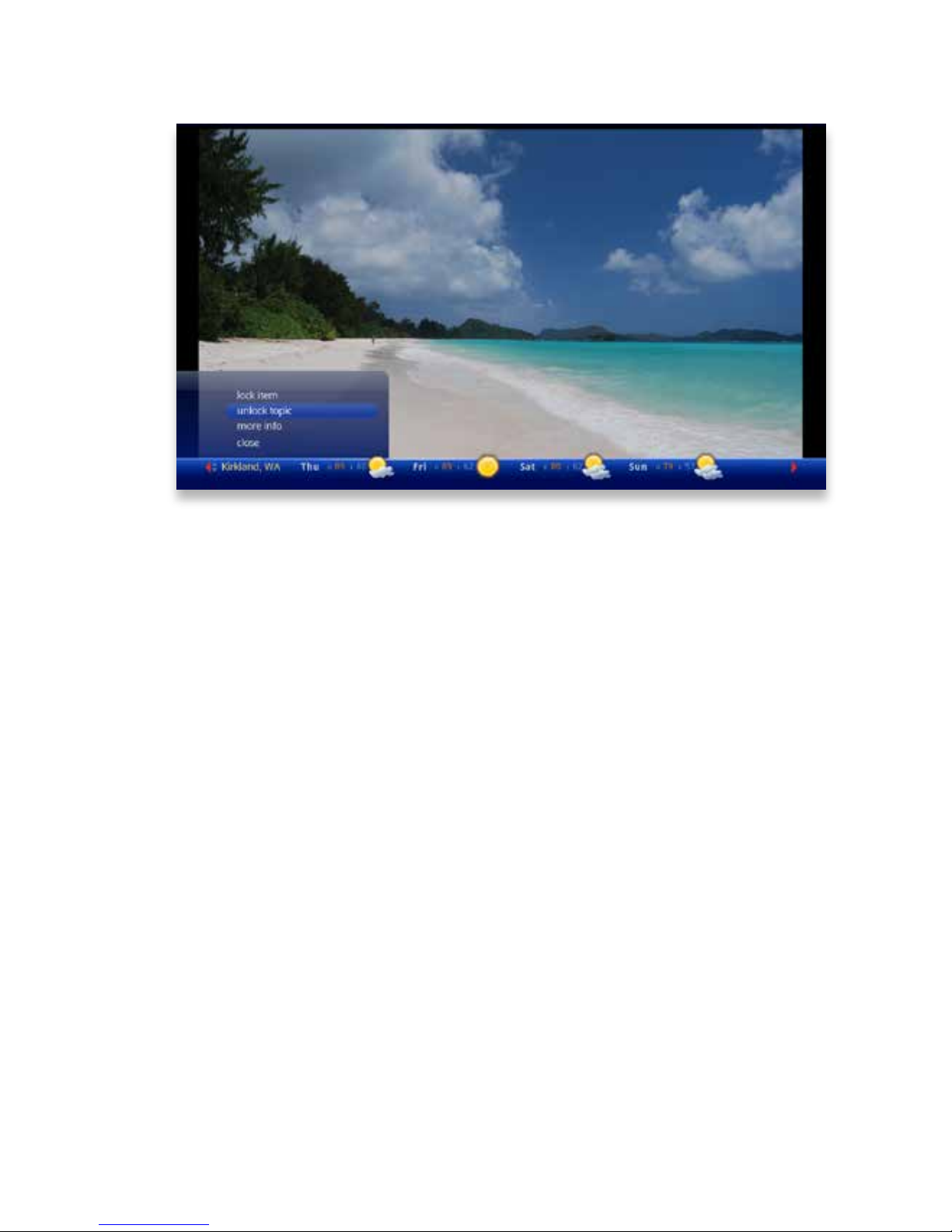
Press OK when the topic or item you’re interested in appears� If you choose lock
item, the SuperTicker will stop automatic navigation, but continue to update that
item� If you select lock topic, the SuperTicker will scroll through the items in that topic�
The Asterisk button on the remote will rotate the following options: locking a topic,
locking an item, and unlocking everything� You’ll know that a topic is locked because
the horizontal arrows turn red� When an item is locked, the vertical arrows turn red�
Page 73
73
Copyright©ComSouth2014. All rights reserved.
3
4
2
1
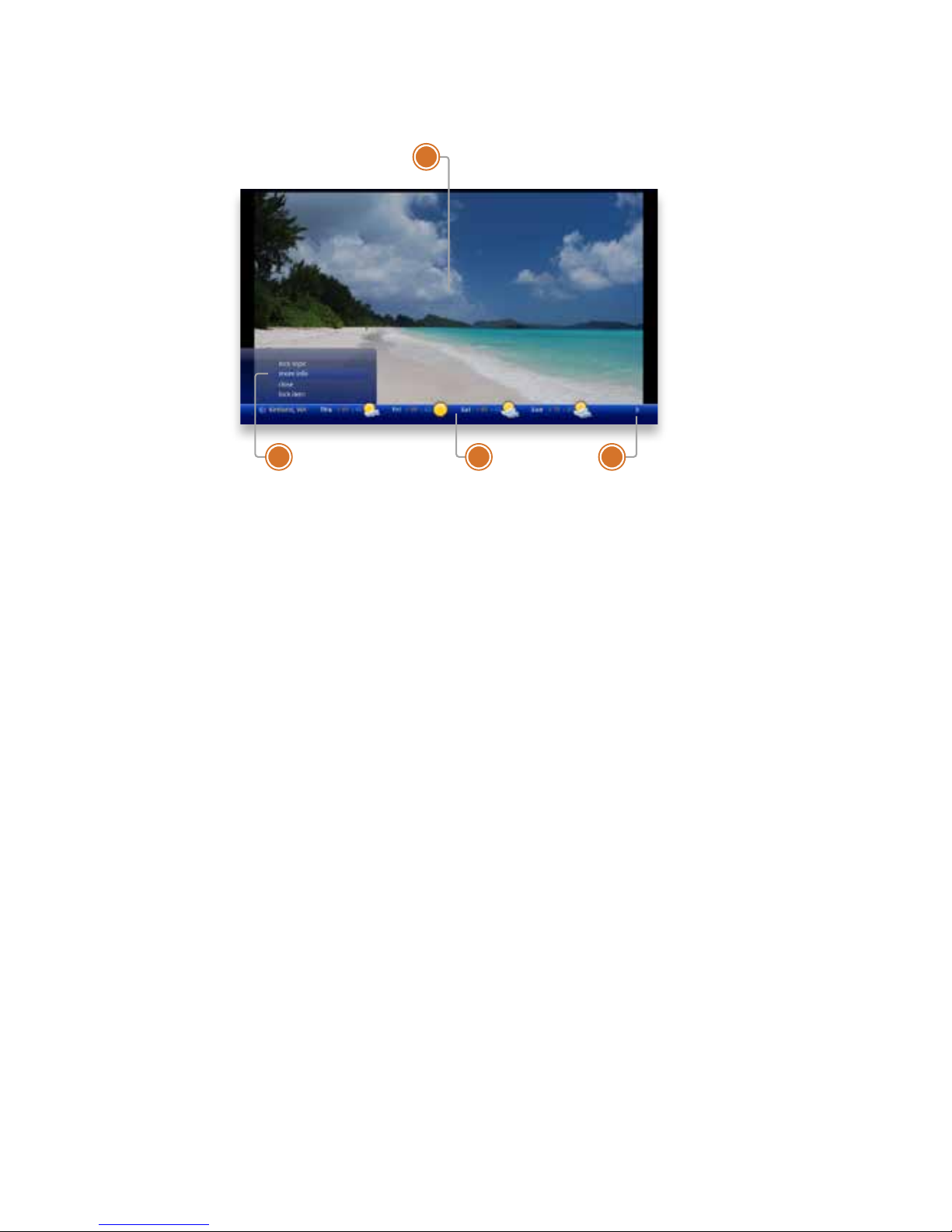
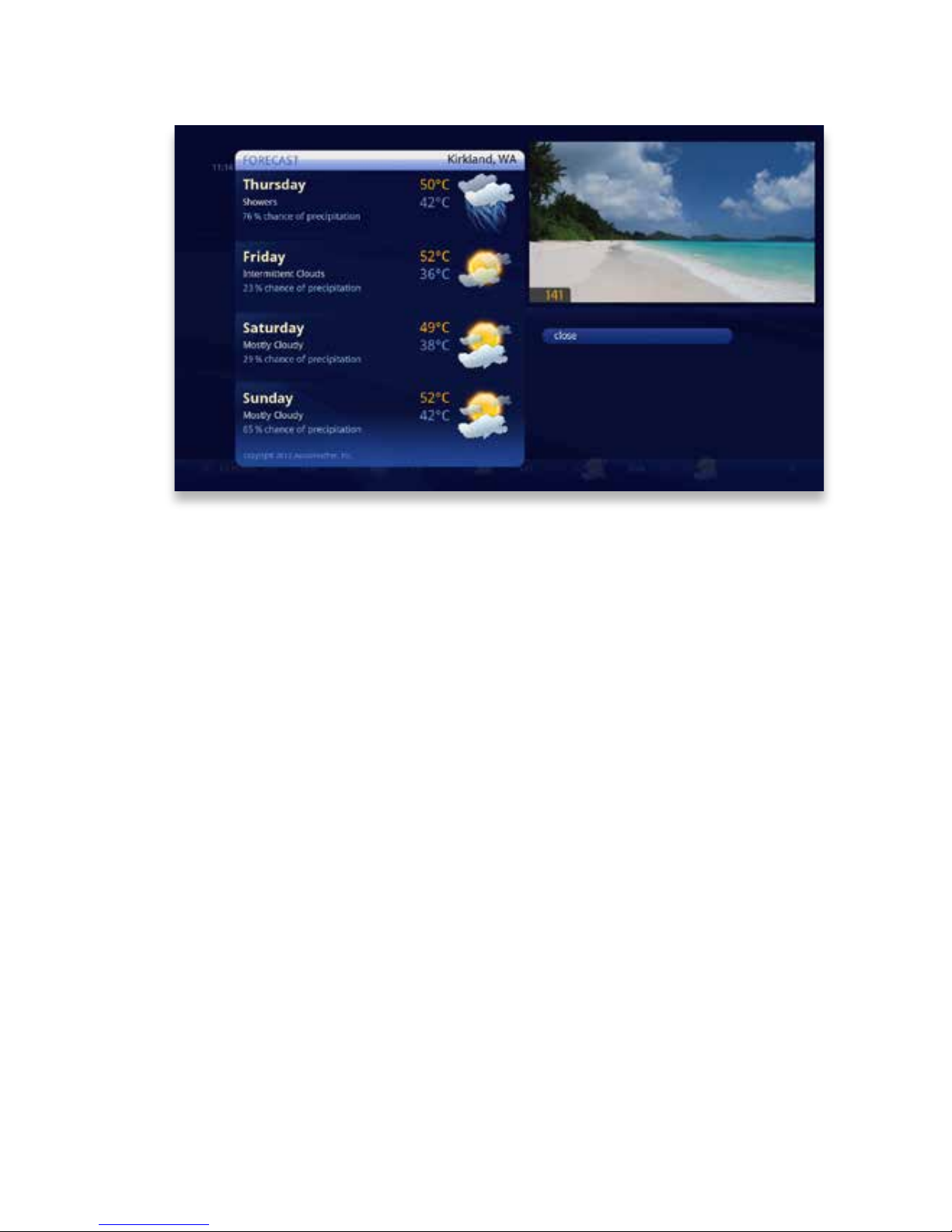
SuperTicker Displaying Weather
1� PROGRAM
The current piece of media being en-
joyed�
2� ACTION MENU
Pressing OK on an item in the
SuperTicker brings up an action
menu with that item’s options�
3� NAVIGATION
You can navigate SuperTicker top-
ics by using the left and right arrows�
You can navigate topics by using the
up and down buttons�
4� SUPERTICKER ITEMS
The SuperTicker menu items are
shown on one line�
Page 74
74
Copyright©ComSouth2014. All rights reserved.
View The Whole Story
View the Whole Story
If you see a headline that interests you, you can read the whole story by pressing OK
and choosing more info� You can also press the INFO button� An info note will open
up that displays the story�
Use the BACK and NEXT buttons to scroll through pages of the story�
Page 75

75
Copyright©ComSouth2014. All rights reserved.
Page 76

76
Copyright©ComSouth2014. All rights reserved.
Playing Games
The KUDZU Media Player comes with a collection of games to
help you pass the time between shows�
Page 77
77
Copyright©ComSouth2014. All rights reserved.
Games
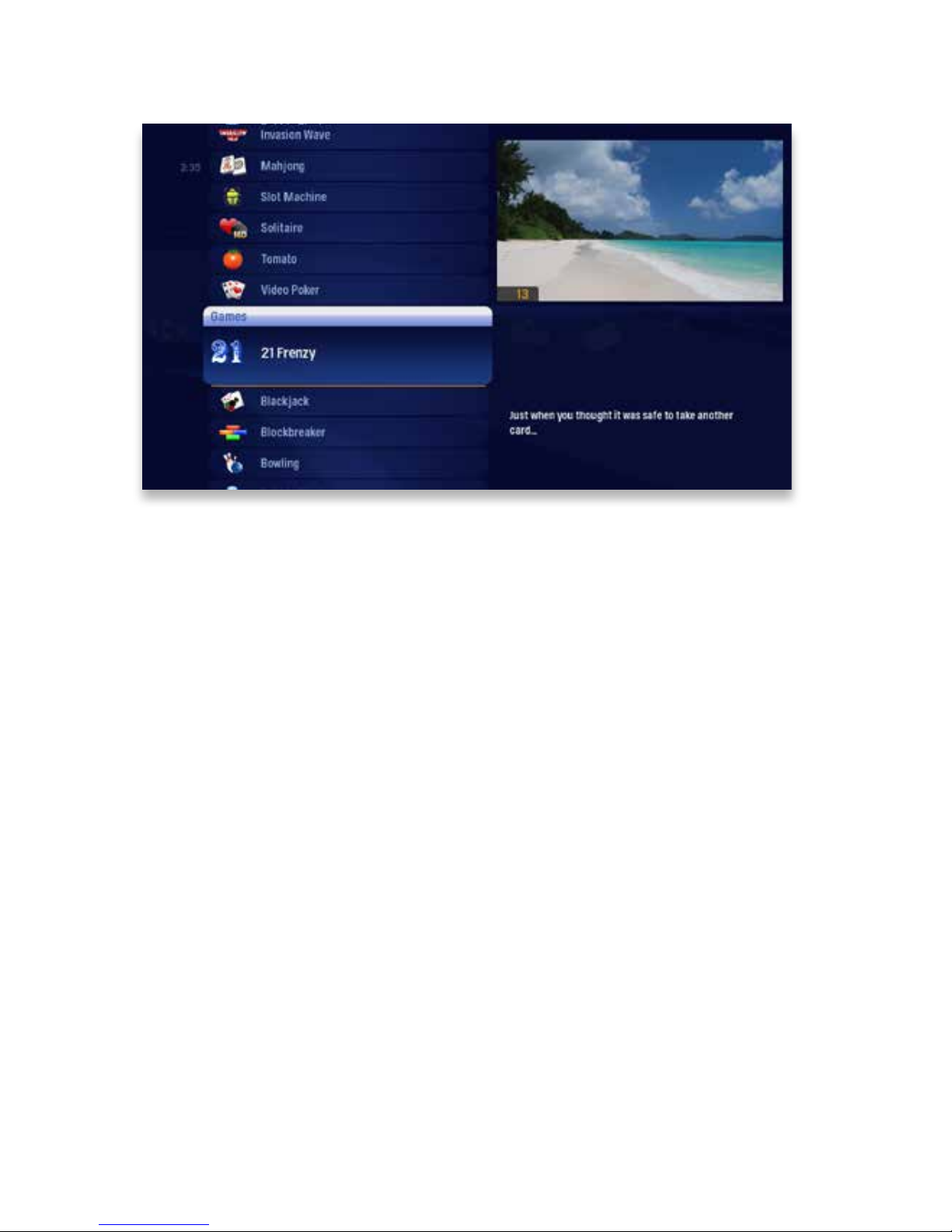
From the Games category on the horizontal band, you’ll have access to:
• Tomato
• Bowling
• Video Poker
• Blackjack
• Invasion Wave
• Blast It
• Ping
• Blockbreaker
• Bubble Blast HD
• 21 Frenzy
• Mahjong
• Code Breaker
• Solitaire HD
• Slot Machine
Page 78
78
Copyright©ComSouth2014. All rights reserved.
Screen saver and Game Display
After 30 minutes with no button-press activity, games exit and live TV appears in full
screen� However, some games include a Mini TV and some do not� The screen saver
behavior is slightly different for the two types:
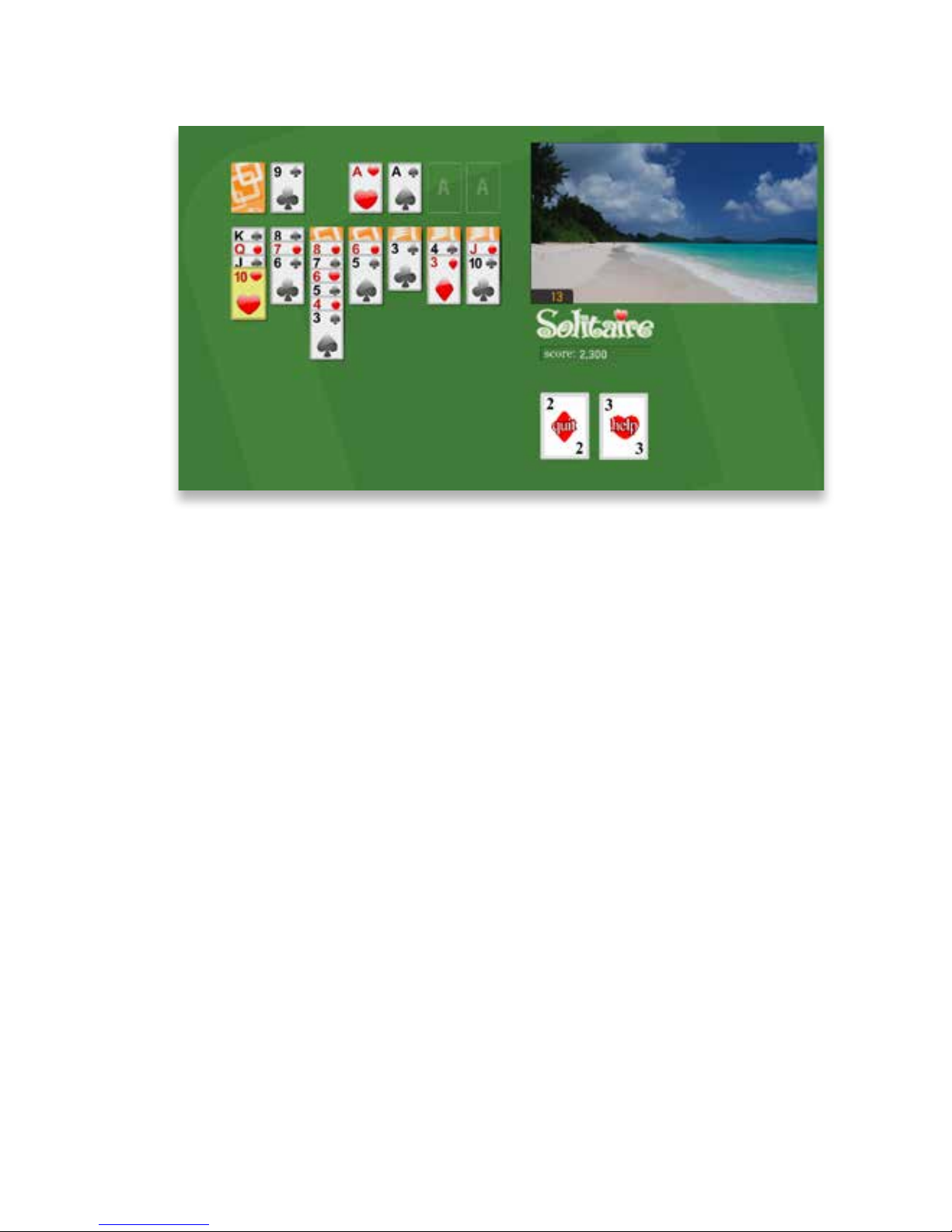
Games that include a Mini TV
After 30 minutes with no button-press activity, the media playing in the Mini TV zooms
to full screen� You can also press the ZOOM button on the remote control to move
between the game and full screen of what is playing in the Mini TV�
Full-screen games that do not include a Mini TV
After 30 minutes with no button-press activity, the game suspends, and a screen
saver appears� Press any button to continue; the game will reappear and resume�
Page 79

79
Copyright©ComSouth2014. All rights reserved.
Page 80

80
Copyright©ComSouth2014. All rights reserved.
Settings
Settings allows you to customize your KUDZU Media Player to
your preferences�
Page 81
81
Copyright©ComSouth2014. All rights reserved.
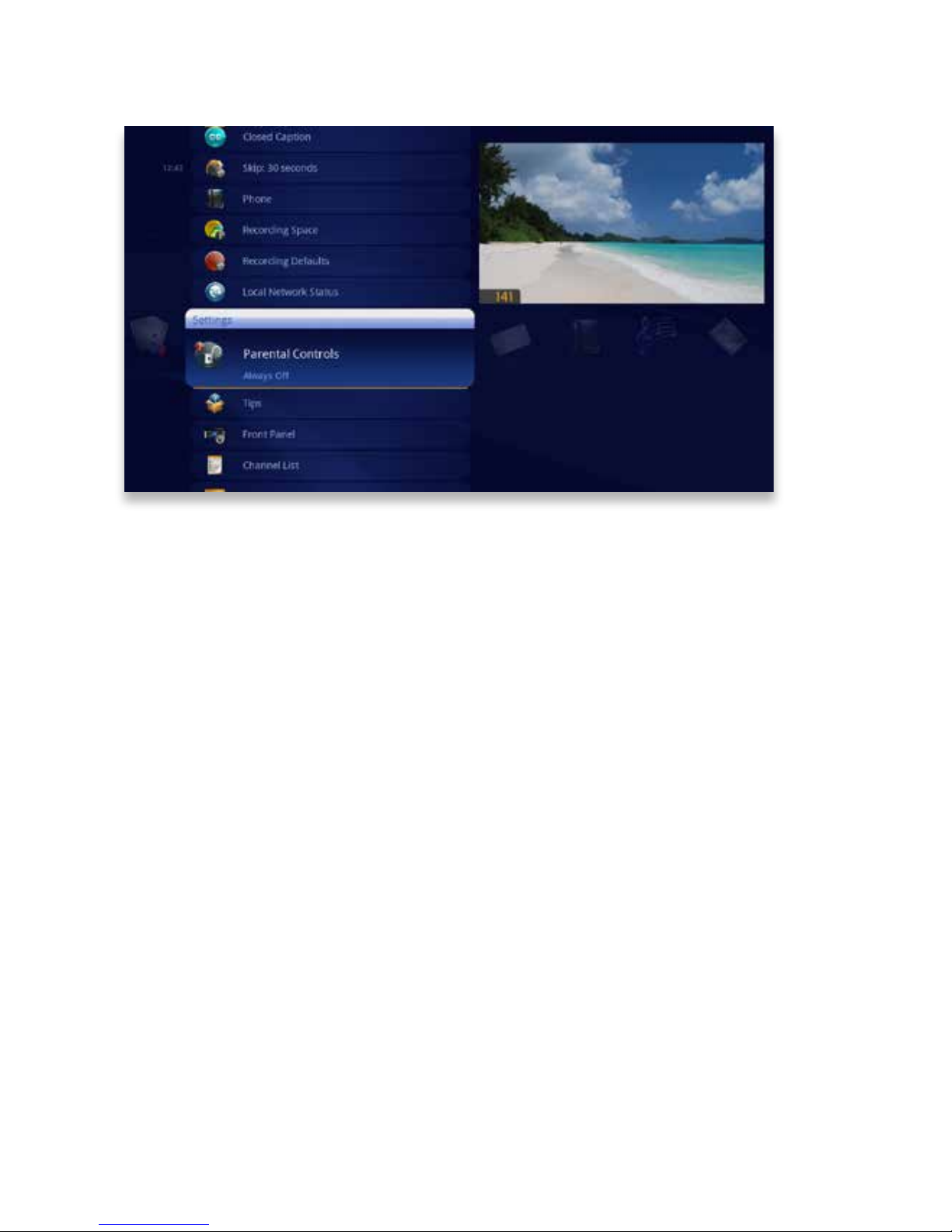
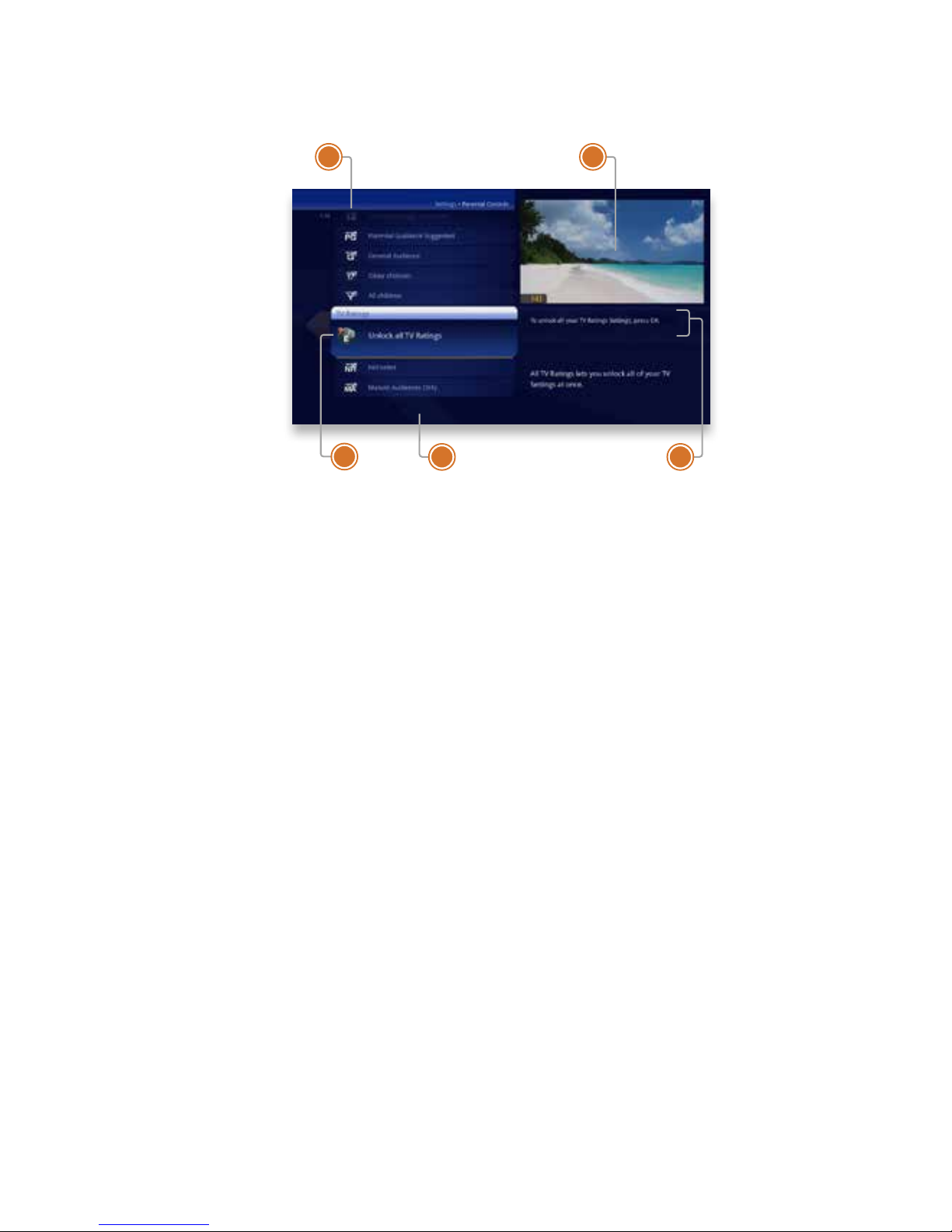
Parental Controls
Settings provides robust Parental Controls, including the ability to lock shows by:
• TV Rating
• Movie Rating
• Channel
In addition, you can lock out individual shows, including recorded programs, from action menus for each show in the main menu� The system records scheduled shows
that are blocked by parental controls, but you must enter the PIN before you can
watch them��
Page 82
82
Copyright©ComSouth2014. All rights reserved.
5
4
3
21
Parental Controls
1� RATING
You can lock individual ratings by
pressing OK on the focus� Locking a
rating locks all higher ratings above it�
2� MINI TV
Your current program, if unlocked,
will continue to play in the Mini TV�
3� LOCK ICON
The Lock icon displays if the item is
locked�
4� CATEGORY TITLES
Category titles display the parental
control category�
5� HELP
Help explains details about the currently-selected rating�
Page 83

83
Copyright©ComSouth2014. All rights reserved.
Working with your PIN
Creating a PIN
1� The rst time you use Parental Controls the system asks you to create a PIN�
2� In the Settings category, scroll to the Parental Controls card, and press OK�
3� Press the numbers on the remote to enter a four digit PIN and then enter the PIN
again to conrm it�
4� Choose close�
Changing a PIN
1� In the Settings category, scroll to the Parental Controls card, and press OK�
2� Choose settings, use the left arrow to scroll left to the Change PIN card, and then
press OK�
3� Enter the old PIN, enter the new PIN, and then enter the new PIN again to conrm
it�
If You Forget Your PIN
1� Call your local ComSouth ofce�
2� Go to the KUDZU menu and create a new PIN in order to re-lock Parental
Controls�
Page 84

84
Copyright©ComSouth2014. All rights reserved.
Locking and Unlocking Programs
Locking by Channels or by Rating
1� In the Settings category, scroll to the Parental Controls card, and press OK�
2� Choose settings� You’ll be taken to the Parental Controls menu� Use the right
arrow to choose either TV Ratings, Movie Ratings or Lock By Channel�
3� Each card contains a list of the rating systems or a list of channels� Scroll to the
format or channel you want to control�
Lock the rating or channel by choosing it, and then pressing OK on the remote�
When you lock a rating, all ratings for more restrictive content are also locked� For
example, if you lock the TVPG rating, then the TV14 and TVMA ratings are also
locked automatically, because these ratings are for more mature audiences than
TVPG� When unlocking, the reverse is also true�
If the V-Chip in your TV is enabled, you may see a black screen after tuning to a
channel with blocked content� No KUDZU menu, ip bar, sound effects, or any other
audio or video are shown or heard� To correct this, change to an unblocked channel,
or disable all V-Chip functions and use the parental control features provided by the
KUDZU system to regulate viewing�
Turning Off Parental Controls
To unlock or change all parental control settings, go to the Settings category, scroll to
the Parental Controls card, and then press OK� Follow these instructions to unlock
selected items:
1� Press OK with any locked program in focus�
2� Enter your PIN to unlock all programming temporarily or choose more options to
only unlock the current channel�
Unlock for a Specied Amount of Time:
1� In the Settings category, scroll to the Parental Controls card, and then press OK�
2� Choose settings (within Parental Controls), scroll to the Set Relock Timer card,
and then press OK�
3� Enter your PIN, if prompted�
4� Choose the unlock duration between one and six hours�
5� Once set, the Parental Controls category card displays the selected relock time�
Page 85
85
Copyright©ComSouth2014. All rights reserved.
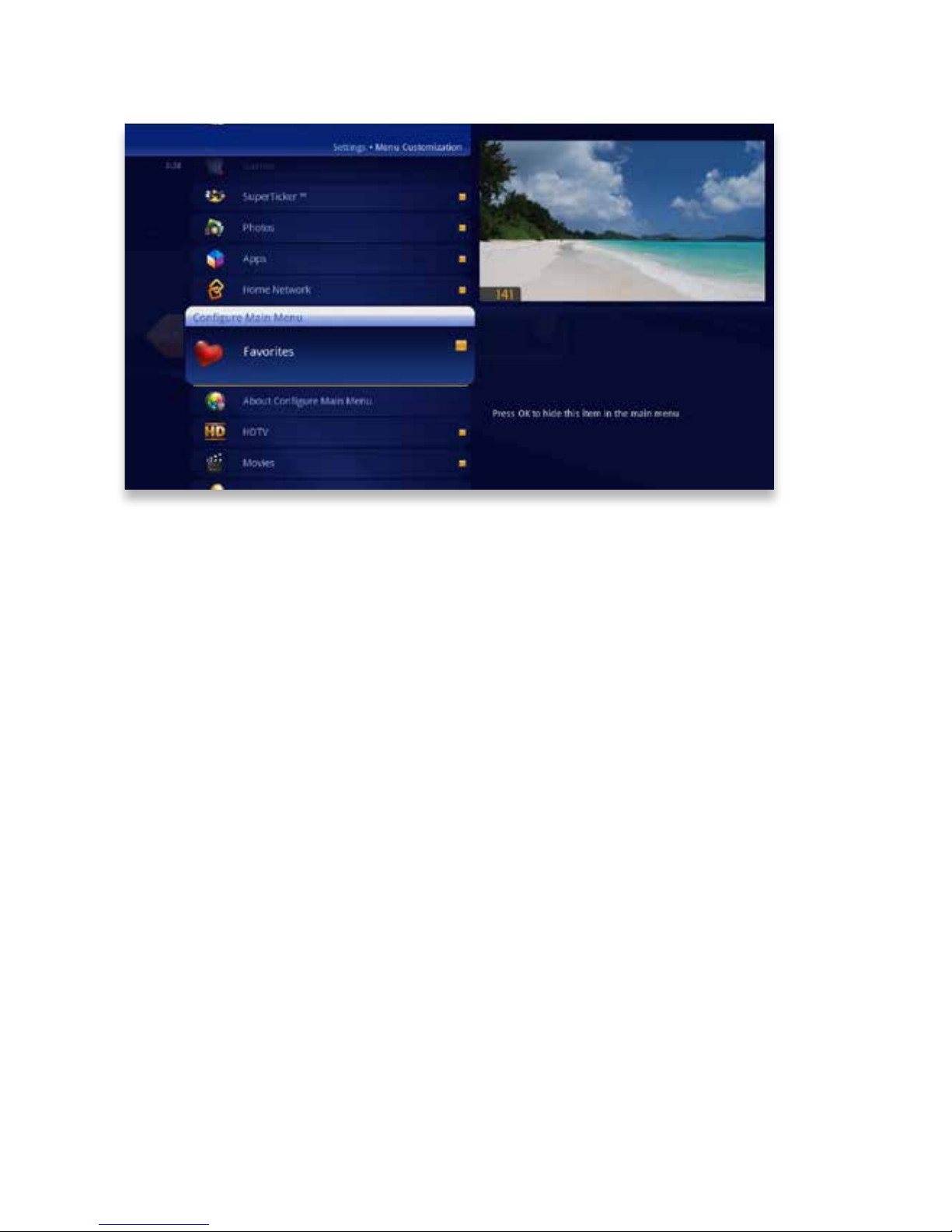
Menu Customization
The Menu Customization feature in Settings allows you to congure your main menu
and choose how TV Channels display�
Congure Main Menu
The main menu conguration section allows you to toggle each category on or off
for menu display� There are some categories, like Settings, that cannot be turned off�
Sort Options for TV Channels
This feature allows you to choose whether the TV channels sort in ascending menu
up the vertical list or descending menu down the list�
Page 86
86
Copyright©ComSouth2014. All rights reserved.
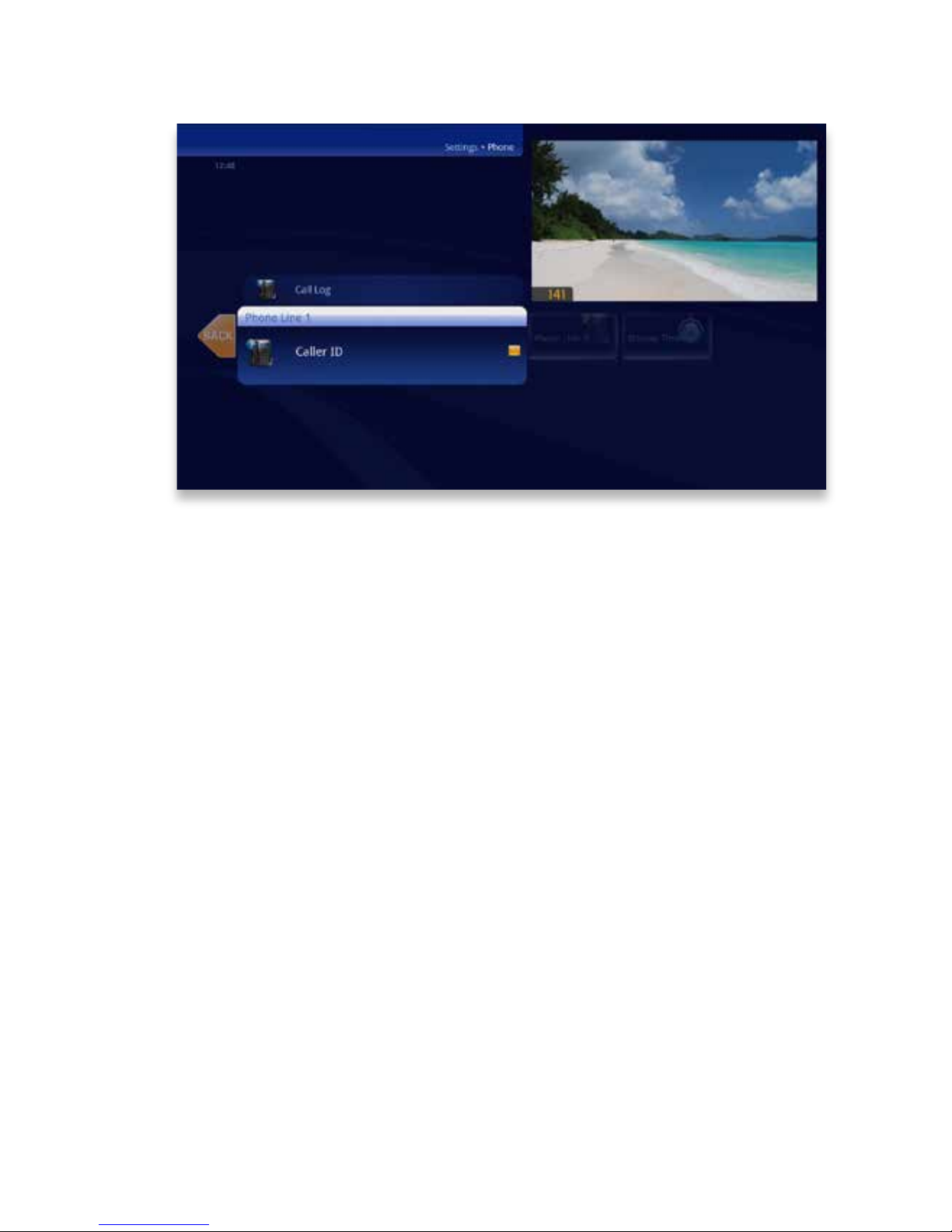
Phone
Your KUDZU Media Player comes with Caller ID services� When you rst begin using
the KUDZU Media Player, on-screen caller ID is turned on by default� When you press
OK with the phone card in Settings selected, you’ll be able to turn off both the Caller
ID and Call List features for each individual phone line�
You’ll see each phone line listed along the horizontal band, with the options for each
in the vertical� To turn a feature off, press OK to clear it�
You’ll also be able to customize the display time for call indicators that appear when
you have an incoming call�
Skip
Pressing the SKIP button on the remote moves you forward in recorded or stored
programs in set increments� In Settings, navigate to the Skip card and press OK�
Select the increment you want to apply to the SKIP button on your remote�
Local Network Status
Local Network Status will provide information on your network connection and allow
you to reconnect or refresh that connection�
Page 87
87
Copyright©ComSouth2014. All rights reserved.
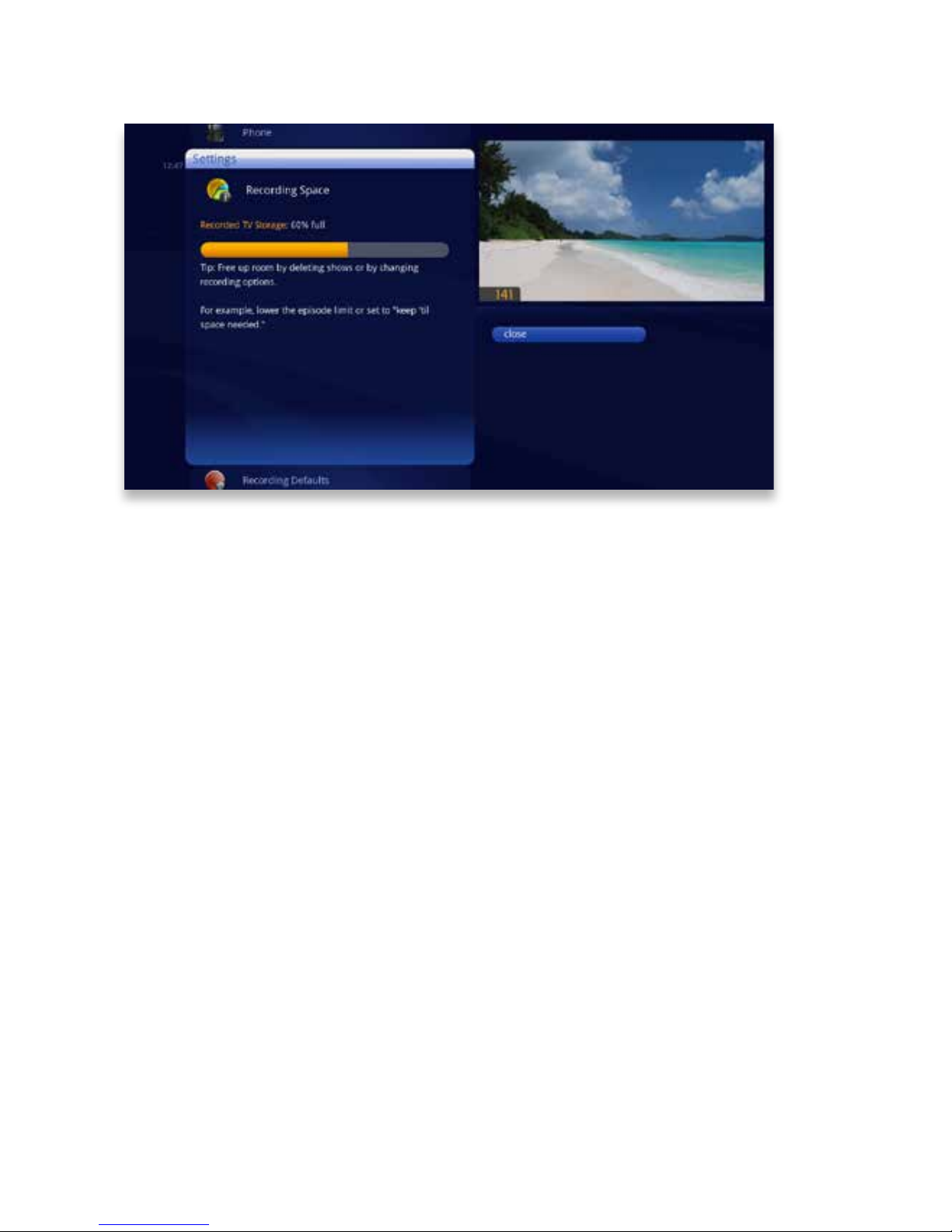
Recording Space
The Recording Space card displays the amount of Recorded TV storage space used
by recorded shows� In Settings, navigate to the Recording Space card and press OK�
For details, see the KUDZU Gateway hardware chapter�
EXTERNAL HARD DRIVE
You may connect one external hard drive at a time to the rear eSATA port on the
KUDZU Gateway system�
the Mobile App
The Mobile App allows you to use your iPad as a remote control for your Media
Player� You can also use the Mobile App to schedule and manage recordings� The
the Mobile App card in Settings helps you set up the application once you’ve down-
loaded it�
Remote Control of your Media Player
This setting allows you to turn off your Media Player’s ability to be controlled by an
alternate device, like your iPad�
Page 88
88
Copyright©ComSouth2014. All rights reserved.
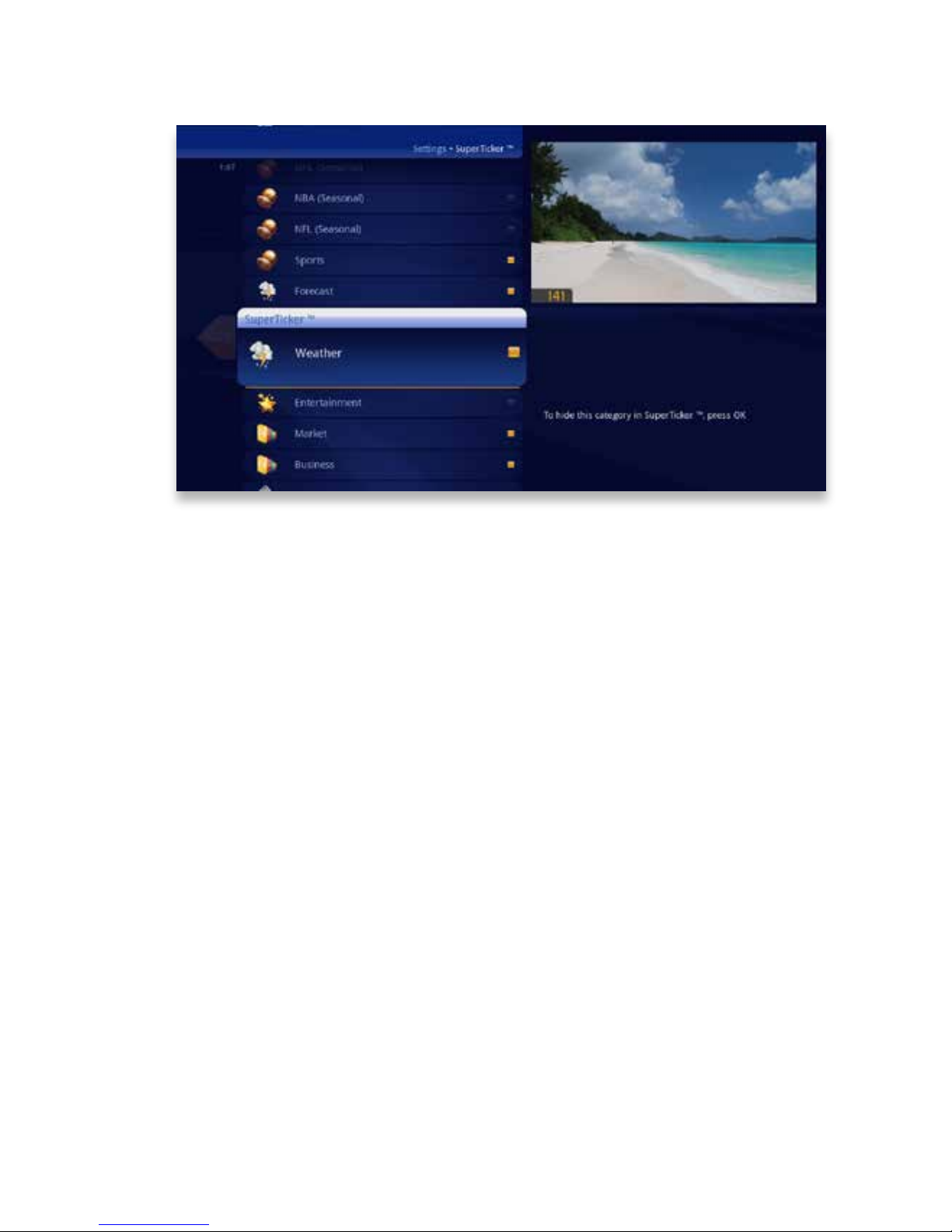
SuperTicker
When you select the SuperTicker settings card, you’ll be able to determine which
categories appear in your SuperTicker screen display� To remove a category, simply
press OK to clear it�
Closed Caption
Most viewers use these settings to turn closed captioning on or off; however, you can
select one of the following closed caption cards to set other preferences:
• Display Preferences - choose a font type, window background and color, and
other similar closed caption display settings�
• Language Preferences - set primary or secondary language display preferences�
• Digital Services - scroll through the additional digital stream service cards provid-
ed, and press OK to make a selection� Select one option at a time�
• Basic Services - scroll through the various basic service cards provided, and
press OK to make a selection� Select one option at a time�
Page 89
89
Copyright©ComSouth2014. All rights reserved.
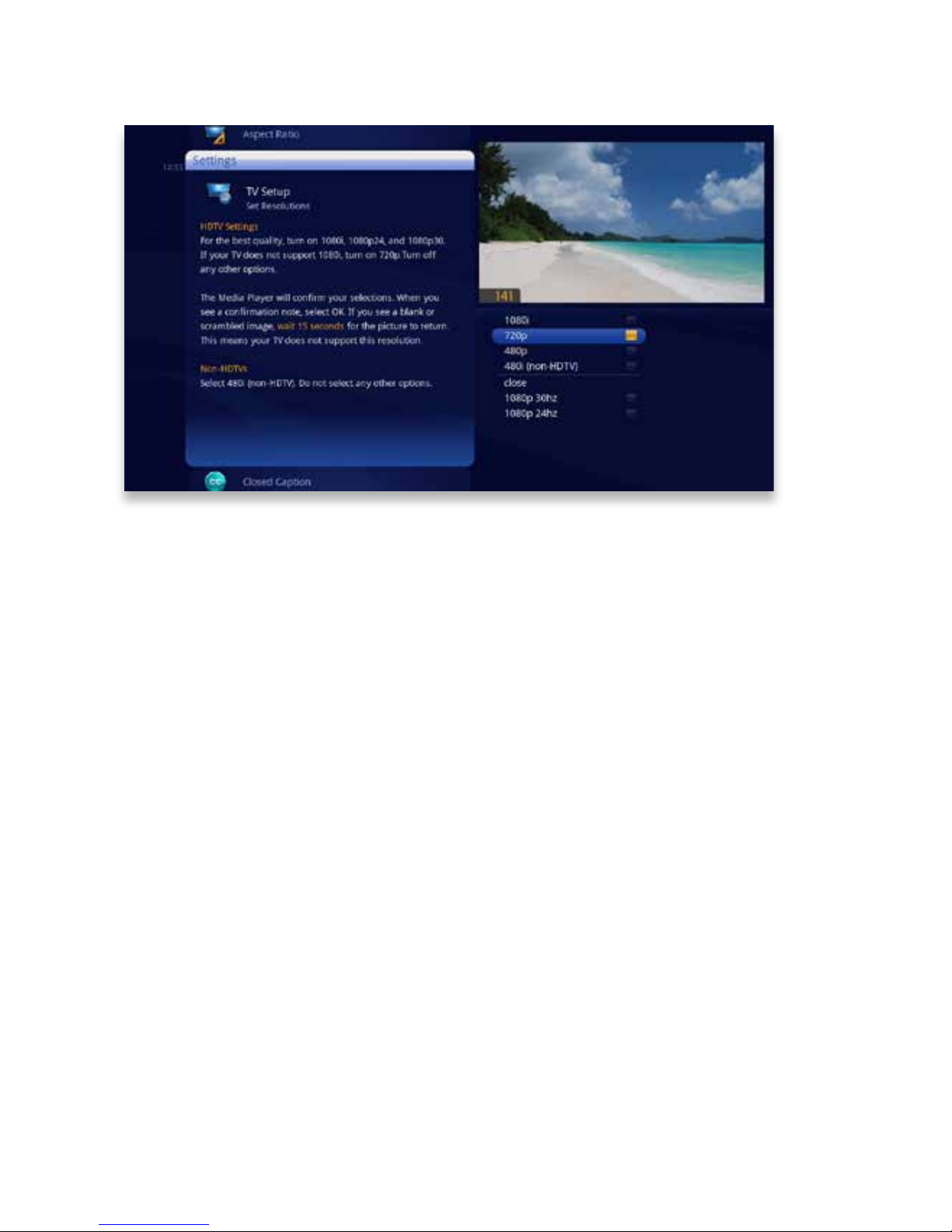
TV Setup
If you have connected the KUDZU Media Player unit to your TV with an HDMI™ ca-
ble, your TV Setup should automatically select the correct resolution�
If you are using alternate cables, including an HDMI to DVI cable, you should select
the highest video resolution supported by your TV� The KUDZU system automatically
adjusts the video output to match the broadcast format and the selections set in
the TV Setup card� The video resolution options are 480i (non-HDTV), 480p, 720p
(default), 1080i, and 1080p�
If your TV is standard-denition (SD), make sure 480i is the only box checked� All
other video resolutions will be output at 480i� You can still watch HD channels and
they may look considerably better than their SD counterparts�
Sound Effects
Allows you to set the volume level of the KUDZU Media Player sound effects, includ-
ing turning them off completely�
Front Panel
For KUDZU Media Player that have a front panel, this setting allows you to set the
brightness level�
Page 90
90
Copyright©ComSouth2014. All rights reserved.
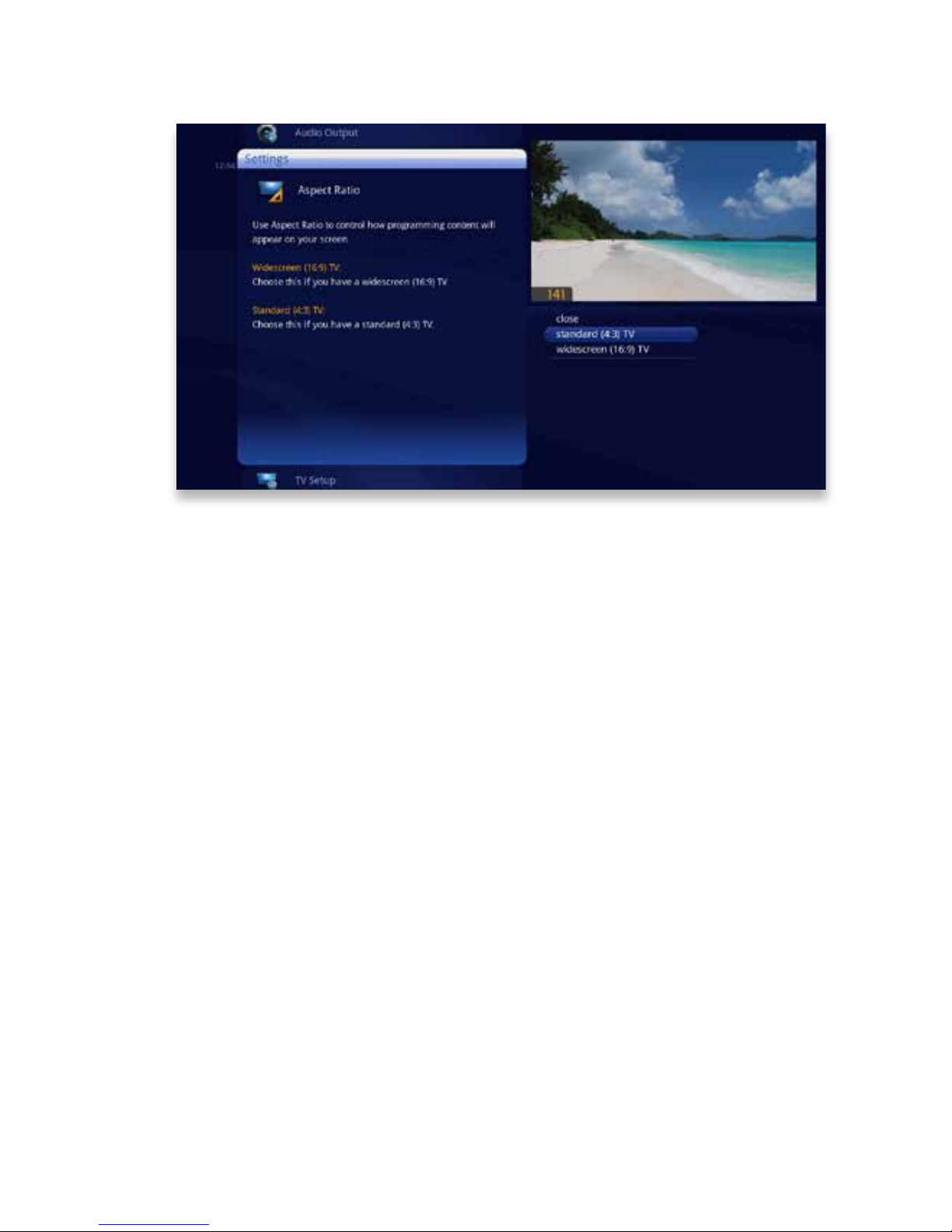
Aspect Ratio
Use the Aspect Ratio card in Settings to control how programming content appears
on your TV� For standard-denition (SD) TVs, choose Standard (4:3) only� You’ll then
be asked to choose how you want HD content to display on your TV, either by letterboxing (putting black pillars on the top and bottom of the content) or cropping the
content to t�
For Widescreen TVs, determine how standard content displays on your TV by rst
choosing Widescreen (16:9) and then selecting maintain (displays standard content
as-is), or stretch (stretches the standard content to ll the TV screen)�
Page 91

91
Copyright©ComSouth2014. All rights reserved.
Page 92

92
Copyright©ComSouth2014. All rights reserved.
Messages
You’ll receive a new message whenever there is information
from ComSouth, like the availability of a new feature�
Page 93
93
Copyright©ComSouth2014. All rights reserved.
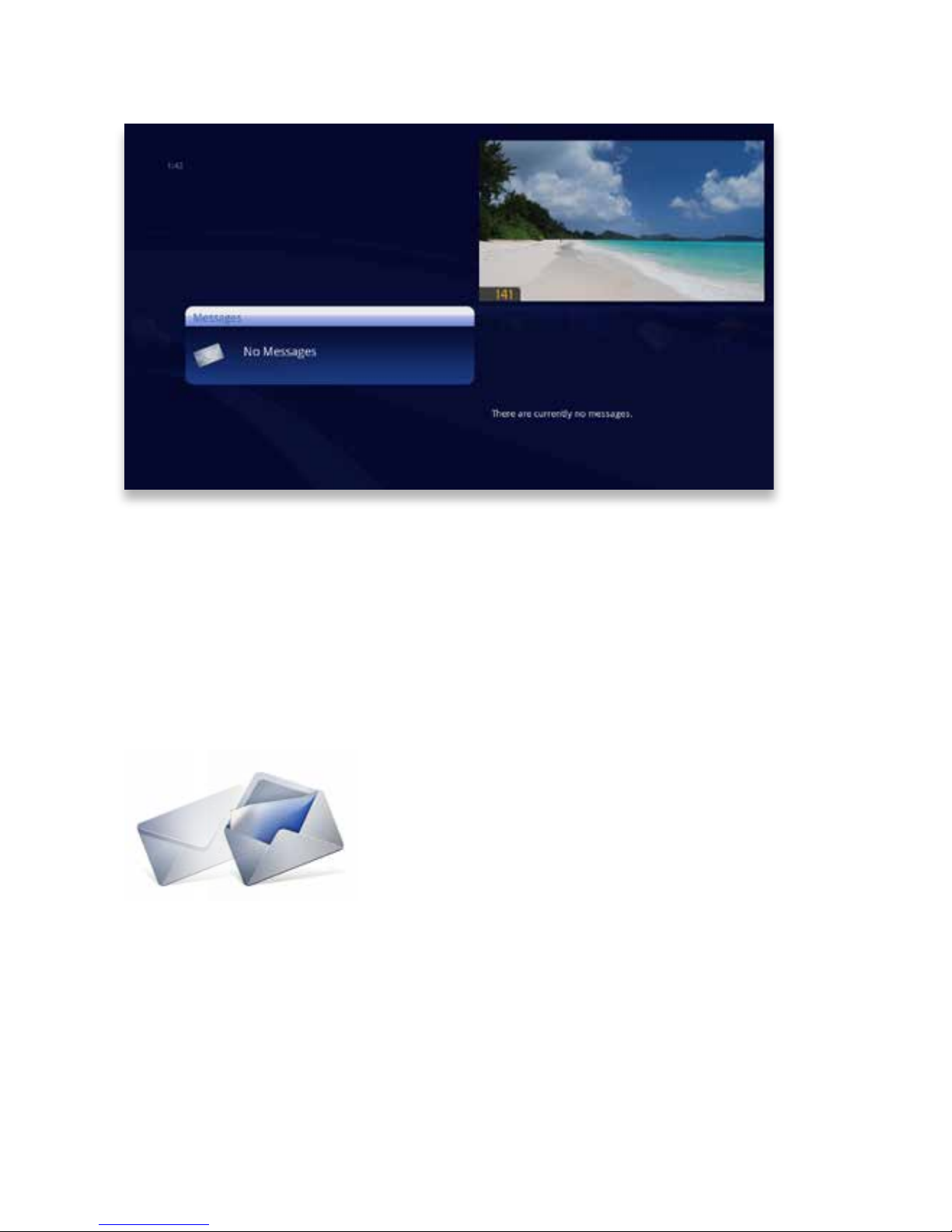
Receiving Messages
The Messages category is located in the main menu� Bring the Messages category
into focus, and your messages will appear in the vertical band� Press OK to view
each message�
Use the NEXT and BACK buttons to page through the message�
Once you have read the message, you can choose to close the message, mark it
as unread, or delete it�
New Message
When you receive a new message, a mail icon appears at the bottom left of your
main menu�
As soon as you have read all your messages, the icon will disappear�
Page 94
94
Copyright©ComSouth2014. All rights reserved.
Phone
With the KUDZU Media Player you won’t have to get up to
answer the phone to know who’s calling�
Page 95
95
Copyright©ComSouth2014. All rights reserved.
Call Indicators
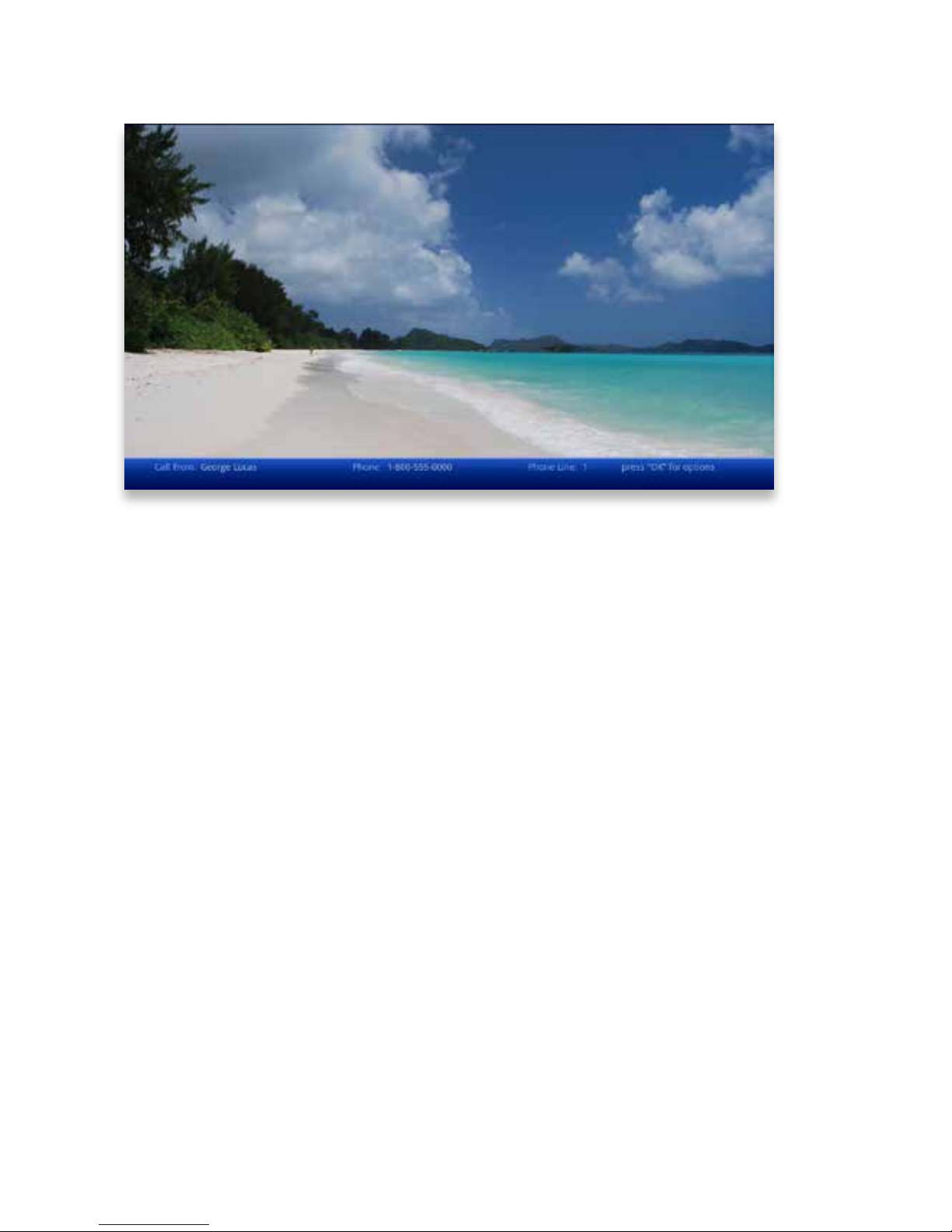
When you’re receiving an incoming call, you’ll see an indicator on the screen no
matter where you are in the menu�
While the indicator is on the screen, other remote functionality is disabled� The indicator will automatically dismiss itself after 30 seconds, but you can dismiss it immediately by press OK and choosing close� You can also use the left arrow button as a
shortcut to dismiss the indicator�
Page 96
96
Copyright©ComSouth2014. All rights reserved.
Call List
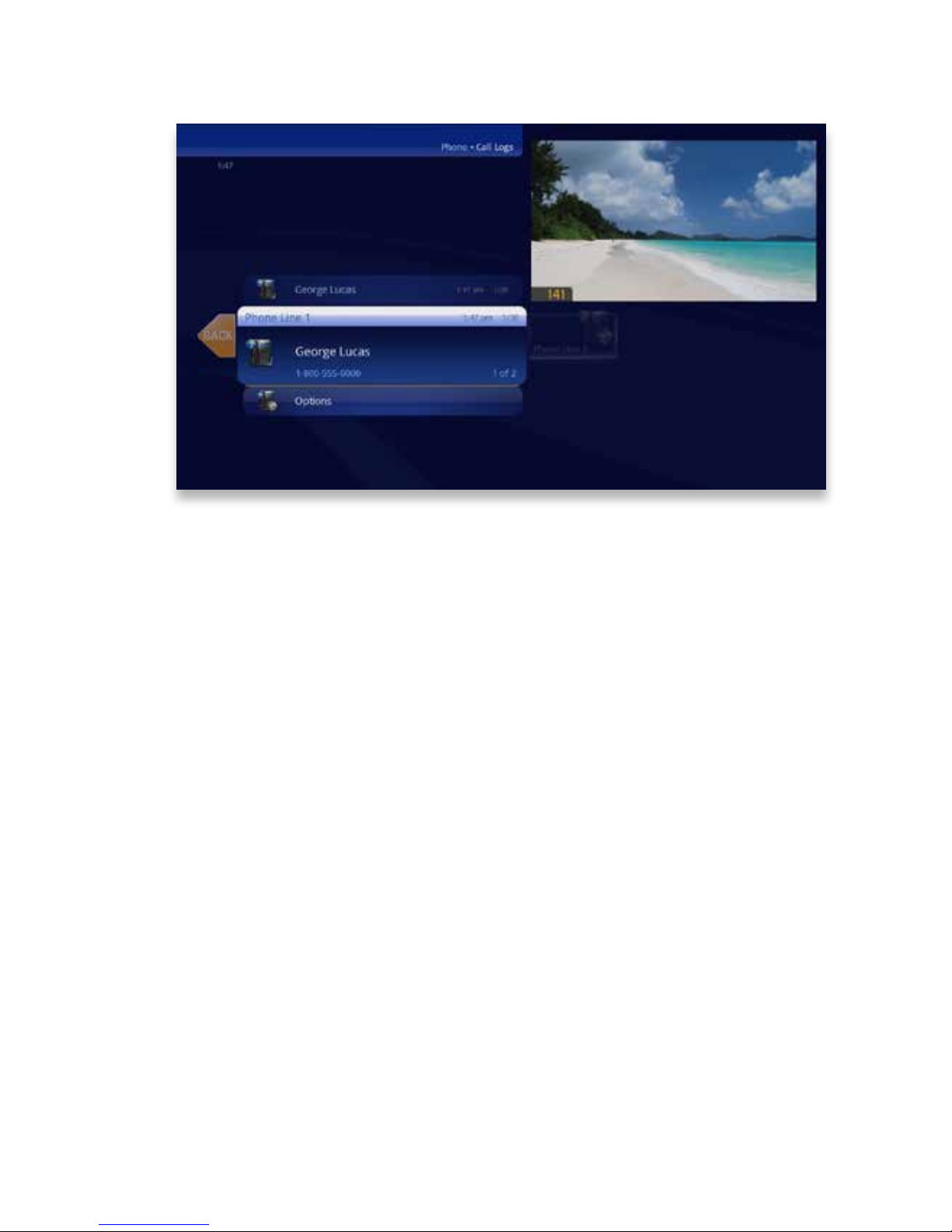
Your KUDZU Media Player maintains a list of calls you’ve received� You can access
this list in two ways: through the KUDZU Phone category or by pressing OK on a
call indicator�
When you access the list, you’ll see your phone lines listed along the horizontal band�
When you select a line, you’ll see a list of recent calls on that line expanded in the
vertical band�
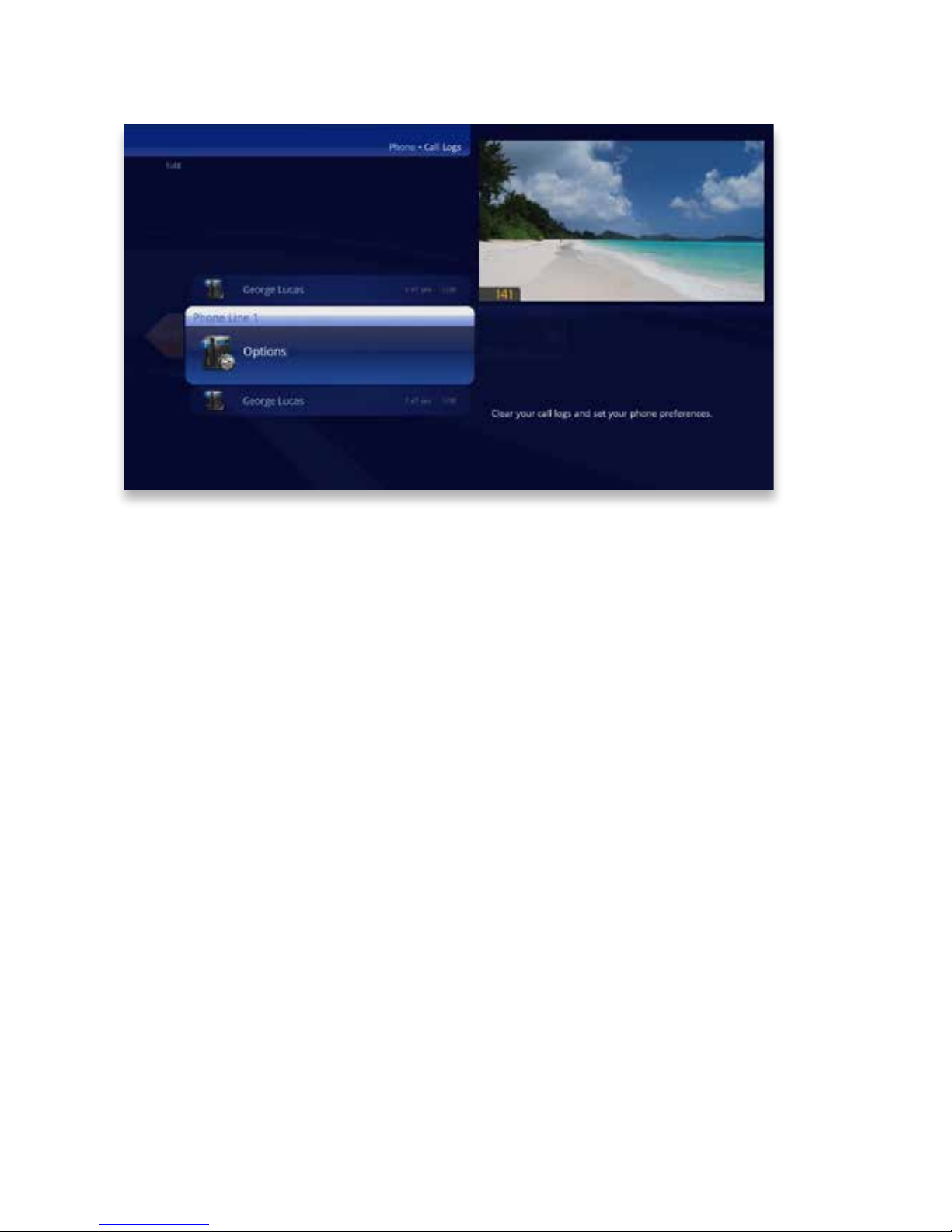
Press OK to get an action menu� Options include clear call log, which will delete the
call record, and settings, which provides a shortcut to the phone settings section�
Page 97
97
Copyright©ComSouth2014. All rights reserved.
Call Options
The Call Options card includes the following options in the action menu:
• clear call log - deletes the call record
• settings - provides a shortcut to the phone settings section
Page 98

98
Copyright©ComSouth2014. All rights reserved.
Filters
The KUDZU Media Player comes with several lter categories
for viewers who know what they like to watch and want an easy
way to nd it�
Page 99
99
Copyright©ComSouth2014. All rights reserved.
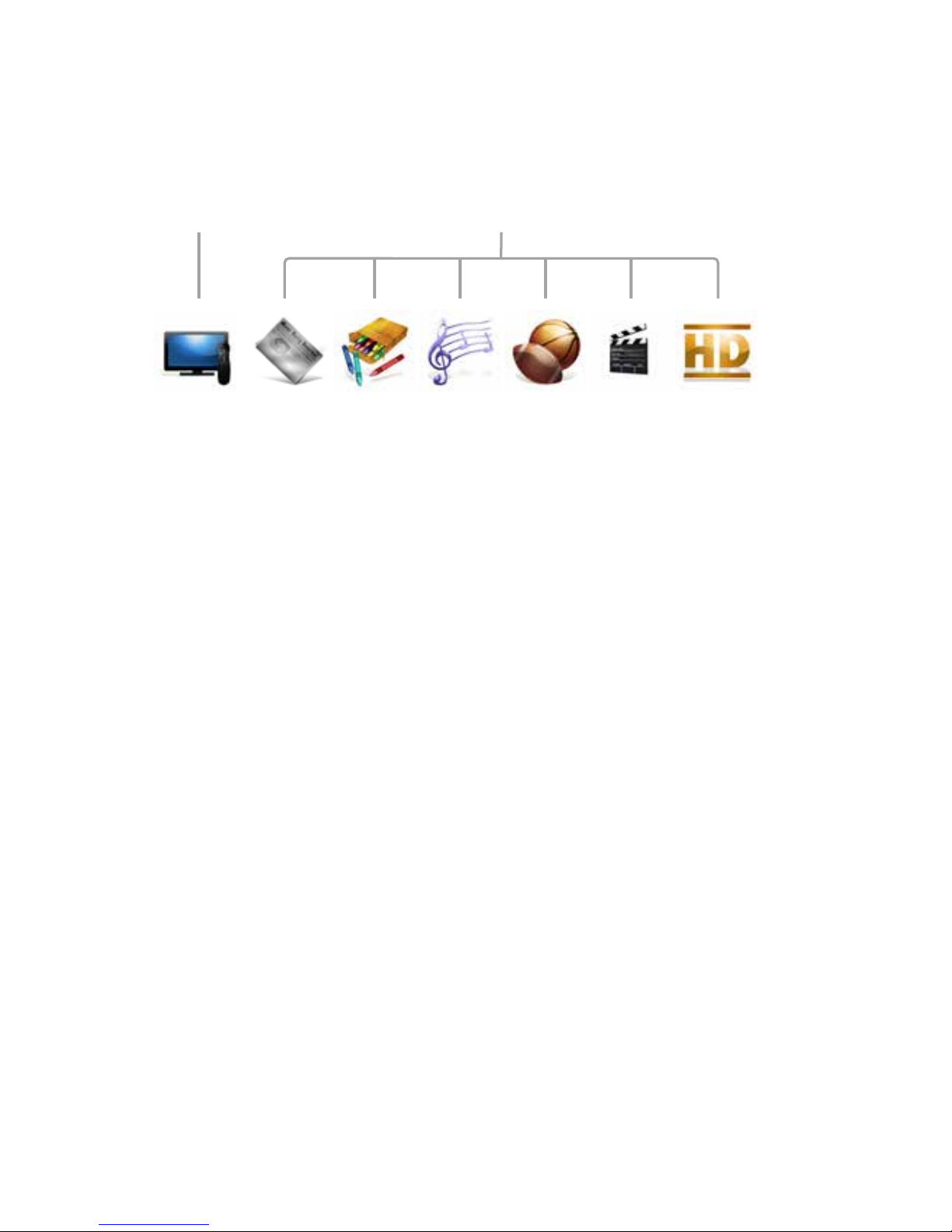
Channels Channels List Filtered
Intro to TV Filters
The main menu contains a group of lter cards:that only show you the types of programs for that category� Filters include TV Music, News, Kids, Sports, Movies, and
HD� Each lter will display live TV as well as recorded programs that t that category�
Like the Channels category, the TV lters have a Change Time Slot card that allows
you to browse up to two weeks into the future to see what’s on� You can also use the
BACK and NEXT buttons to move through time�
TV Filters also have a preview panel to the right that displays upcoming shows for live
TV channels in focus and additional information for other types of programs� For live
TV channels, you can navigate this panel the same way as the Channels category�
Page 100

100
Copyright©ComSouth2014. All rights reserved.
Favorites
The Favorites category is a convenient way to access your
favorite TV channels, videos, photos, and music�
 Loading...