

Page 1
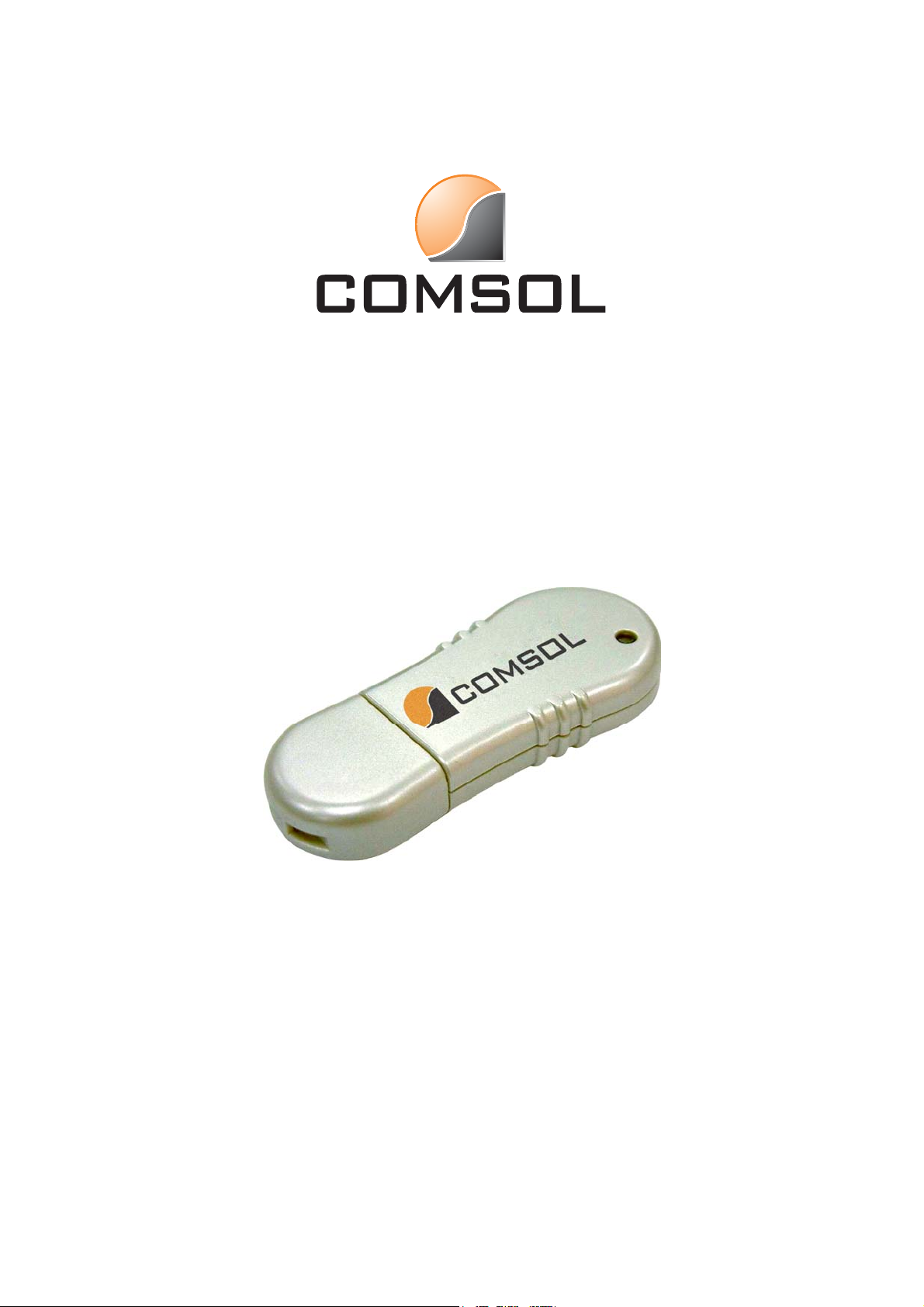
USER MANUAL
USB Bluetooth Adapter
UBT-120
Page 2

CONTENT
1. Introduction--------------------------------------------------------------------------------- 2
2. Package Content------------------------------------------------------------------------- 2
3. Product Features------------------------------------------------------------------------- 2
4. System Requirements------------------------------------------------------------------ 3
5. Driver Installation ----------------------------------------------------------------- 3
5.1 Windows® 98SE/ME/2000/XP Driver Installation------------------------------3
5.2 Windows® 98SE Platform -----------------------------------------------------------9
6. Bluetooth Logo Conditions ------------------------------------------------------- 10
7. FCC Statement -------------------------------------------------------------------------- 11
8. Disclaimer ----------------------------------------------------------------------------- 11
USB Bluetooth Adapter User Manual Page 1
Page 3

1. Introduction
The Comsol Bluetooth Adapter is a quick and easy solution for users wanting to add
Bluetooth capability to their desktop or notebook. It plugs directly into your USB port of
your computer and enables wireless connectivity with Bluetooth devices including
mobile phones, PDAs, printers and other computers.
Another benefit of Bluetooth wireless technology is the ability to connect your notebook
to the internet via a Bluetooth enabled mobile phone (GSM, GPRS or CDMA) or
Bluetooth LAN access point.
2. Package Content
Hardware:
• Comsol USB Bluetooth Adapter
• USB cable
Software:
• Driver software and manual on CD
3. Product Features
Bluetooth specification V1.1 compliant
Full speed Class 2 Bluetooth operation
Operation range - 10 metres (33ft) range
Integrated Antenna
Data transfer rate up to 1Mbps
Recive sensitivity - 89dBM
Low power saving features
Supports 2.4GHz FHSS (Frequency Hopping Spread Spectrum)
Supports Windows 98SE/ME/2000/XP
USB Bluetooth Adapter User Manual Page 2
Page 4
4. System Requirements
PC
IBM® PC Pentium 133 or higher or compatible system
Available USB2.0 port (up to 480 Mbps) or available USB1.1 port (up to 12Mbps)
Windows® 98, Windows® ME, Windows® 2000 and Windows® XP
Driver Installation
5.
5.1 Windows® 98SE/ME/2000/XP Driver Installation
DO NOT INSERT THE BLUETOOTH ADAPTER BEFORE FOLLOWING
THESE INSTRUCTIONS
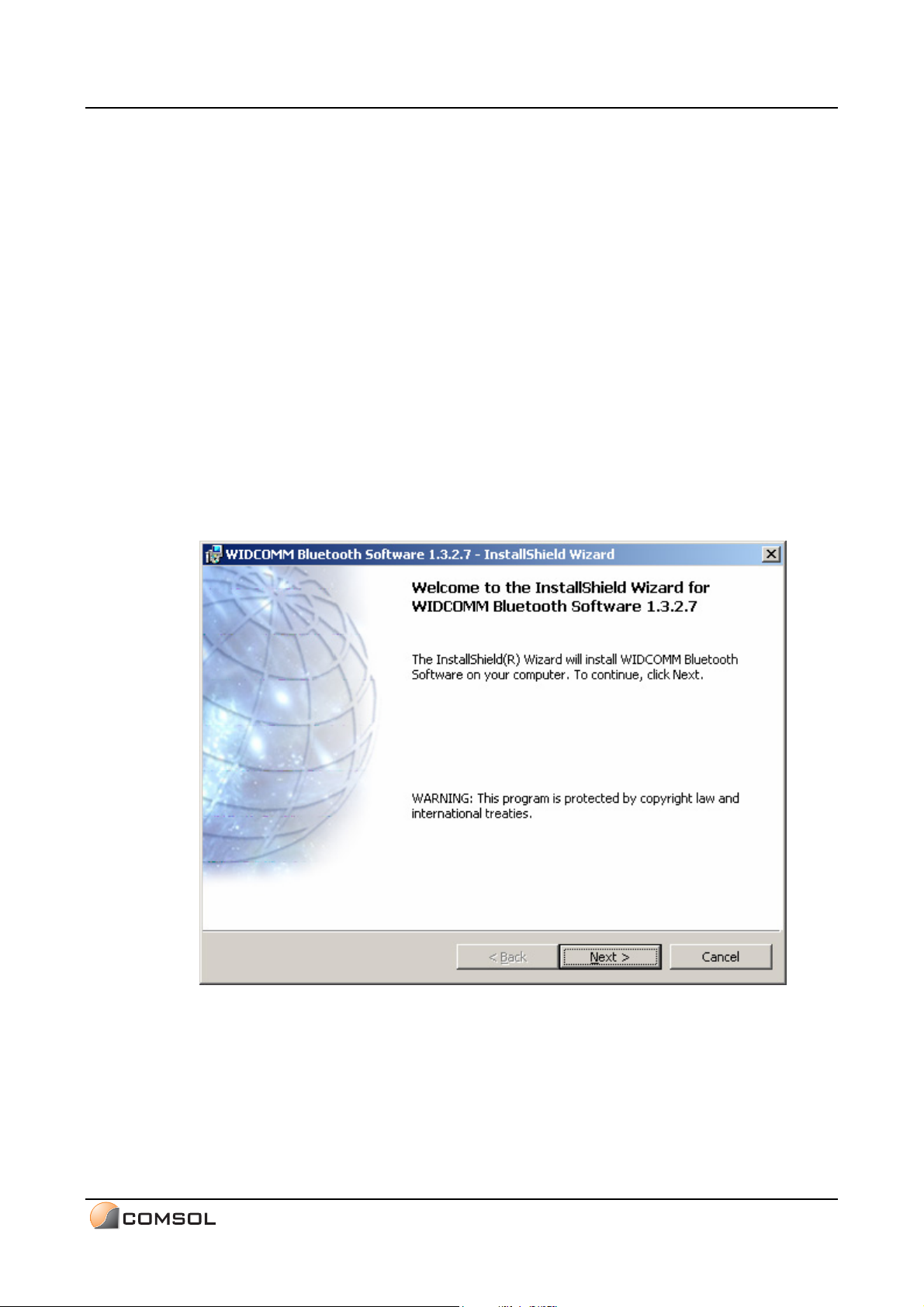
5.1.1 Insert the supplied CD disk into the CD-ROM drive.
5.1.2 The CD will auto-run and the Setup screen will appear. Click Next to
proceed.
USB Bluetooth Adapter User Manual Page 3
Page 5
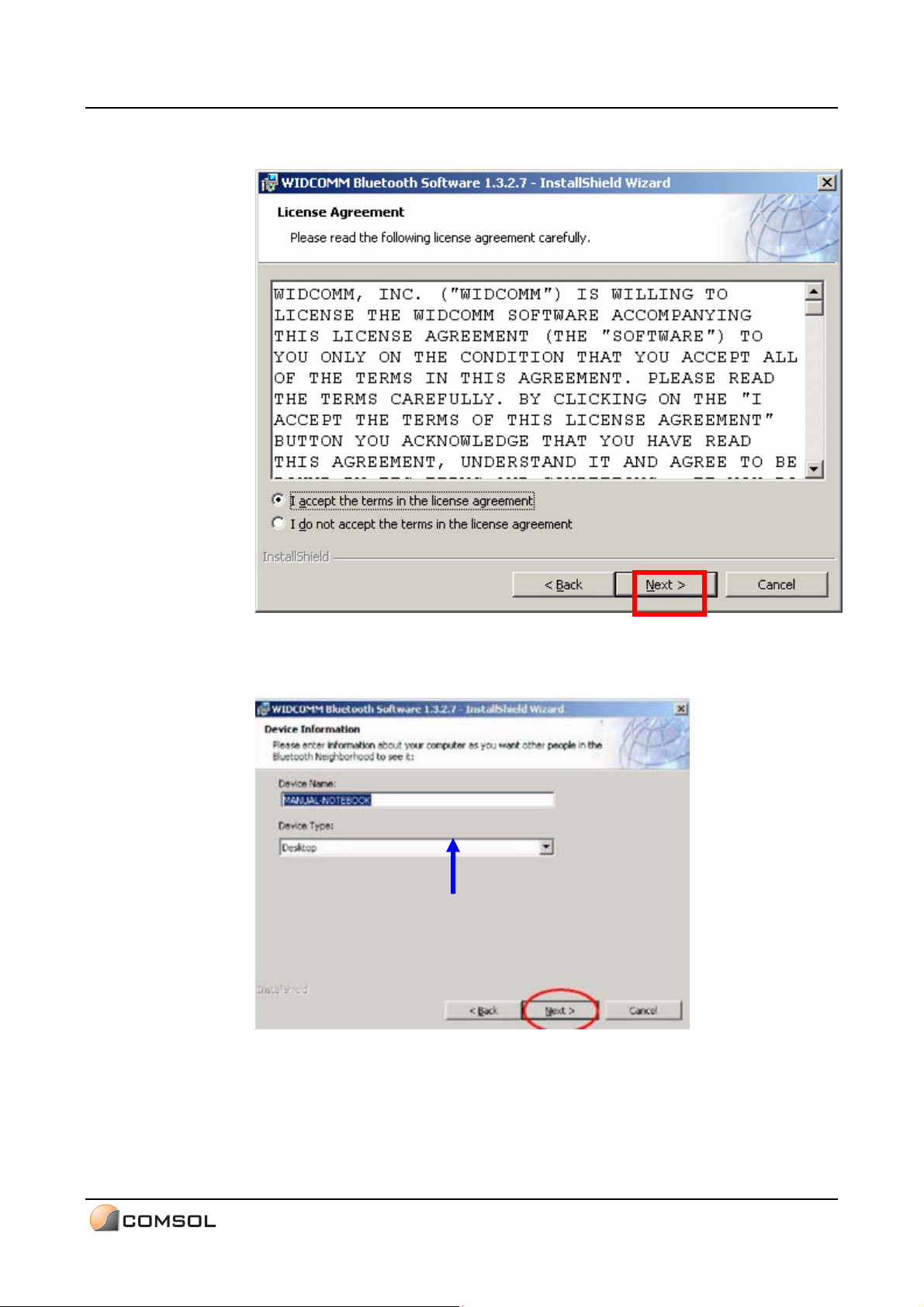
5.1.3 Select “I accept …” to enable installation of the software and click
Next.
5.1.4 NOTE: Depending on the OS installed, this screen may not appear
during initial installation.
USB Bluetooth Adapter User Manual Page 4
Page 6
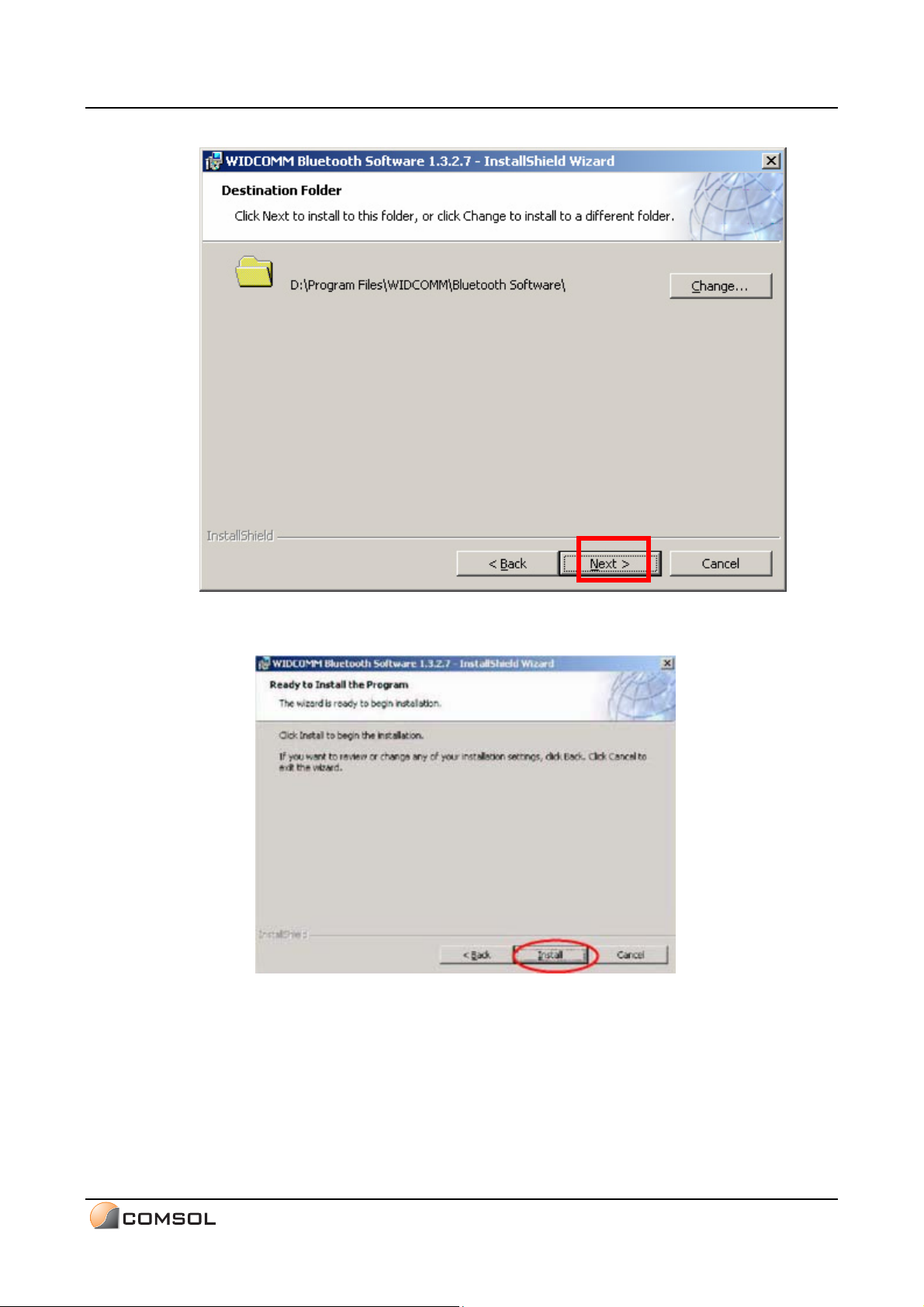
Choose the destination folder for installation and click Next.
5.1.5 Click Install to confirm installation of the software.
USB Bluetooth Adapter User Manual Page 5
Page 7
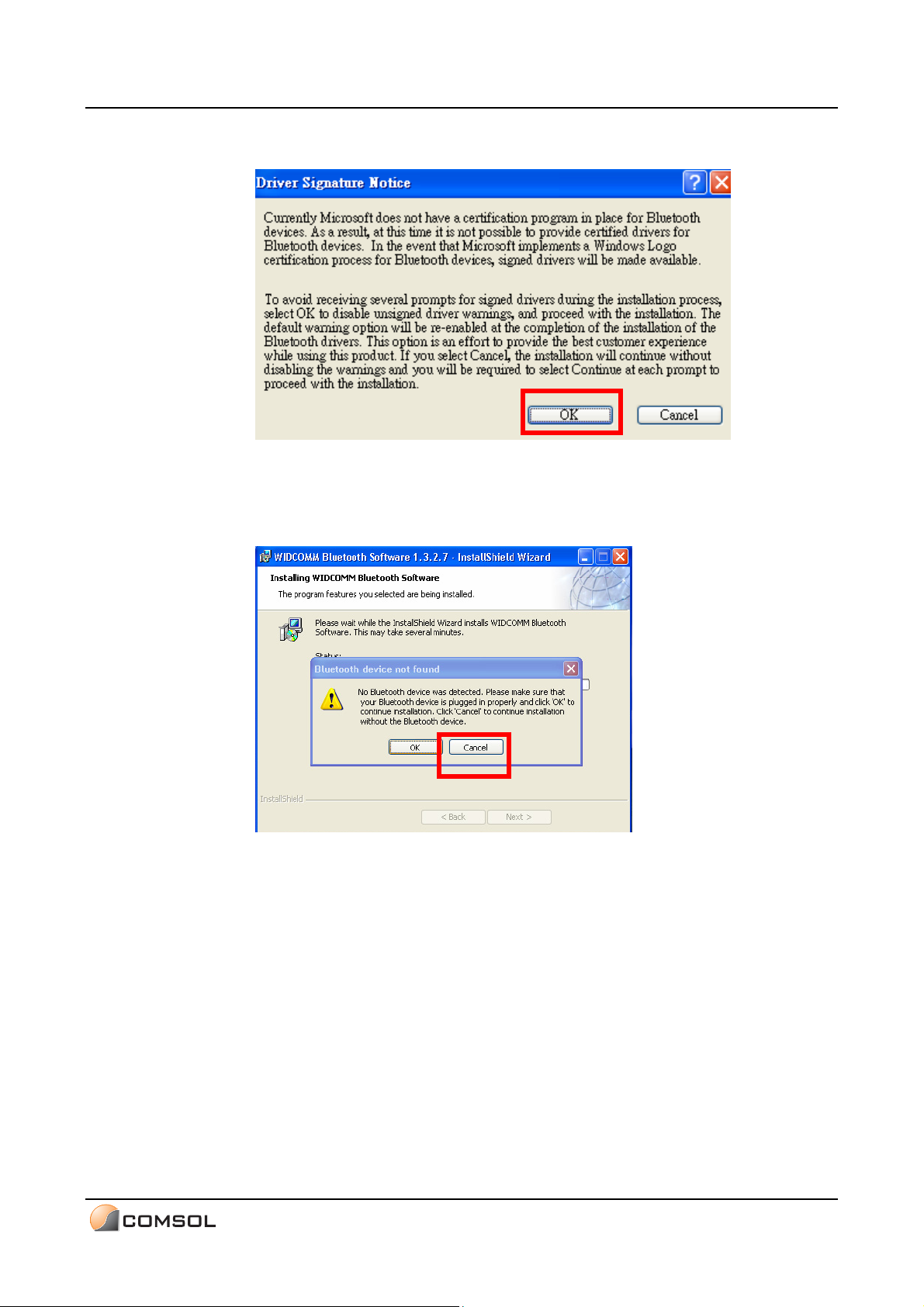
5.1.6 Click OK to disable unsigned driver warnings and proceed with the
installation.
5.1.7 PLEASE DO NOT CONNECT THE COMSOL USB BLUETOOTH
ADAPTER
Click Cancel to continue installation without the Bluetooth device.
USB Bluetooth Adapter User Manual Page 6
Page 8
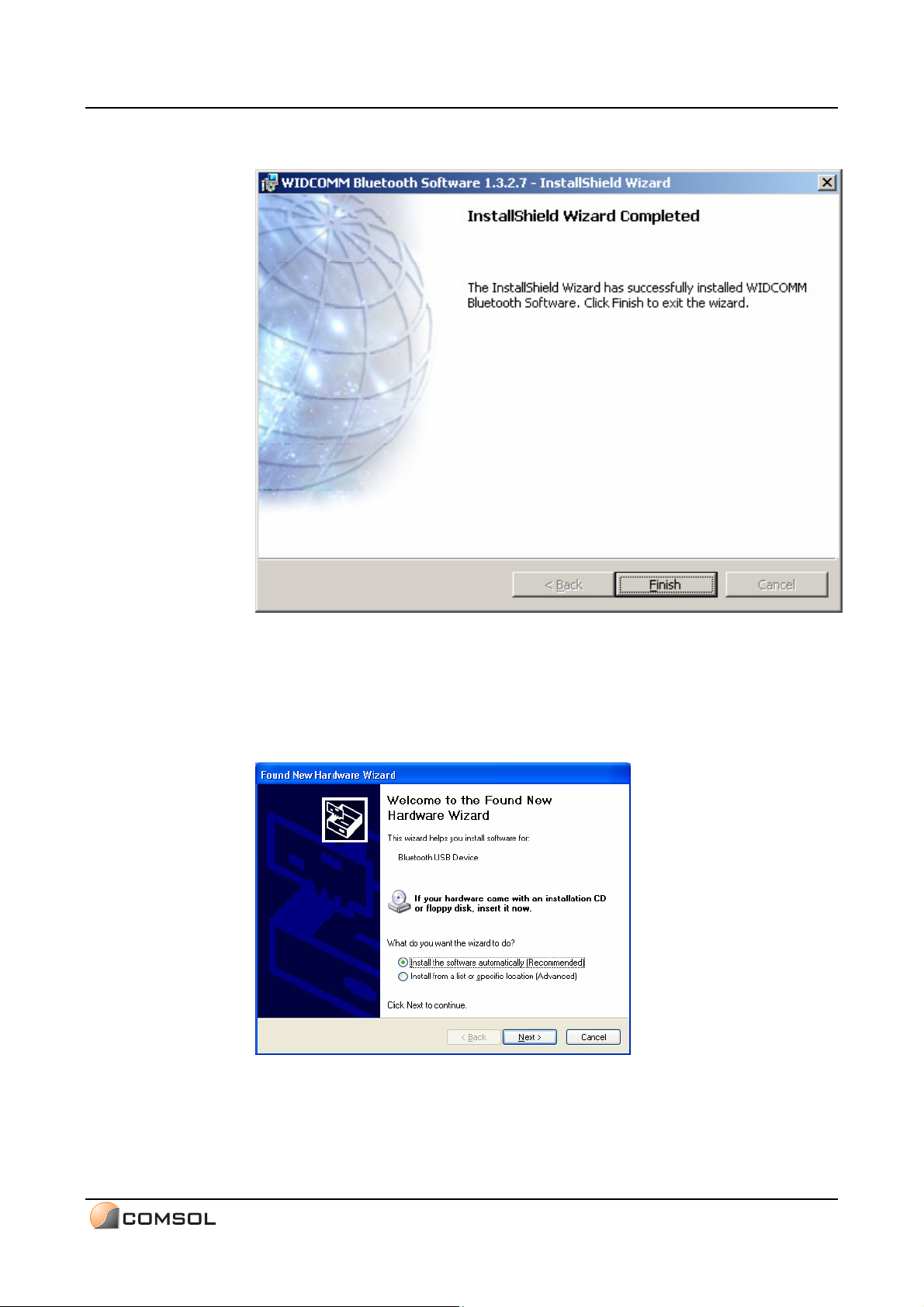
5.1.8 When installation is completed, follow the instructions to reboot the
system.
5.1.9 Insert the Comsol USB Bluetooth Adapter into an available USB port
of the PC after the software installation is complete and the system
has rebooted. After the Comsol Bluetooth Adapter is inserted, the
Found New Hardware Wizard will pop up. Follow the on-screen
instructions to install the driver.
USB Bluetooth Adapter User Manual Page 7
Page 9
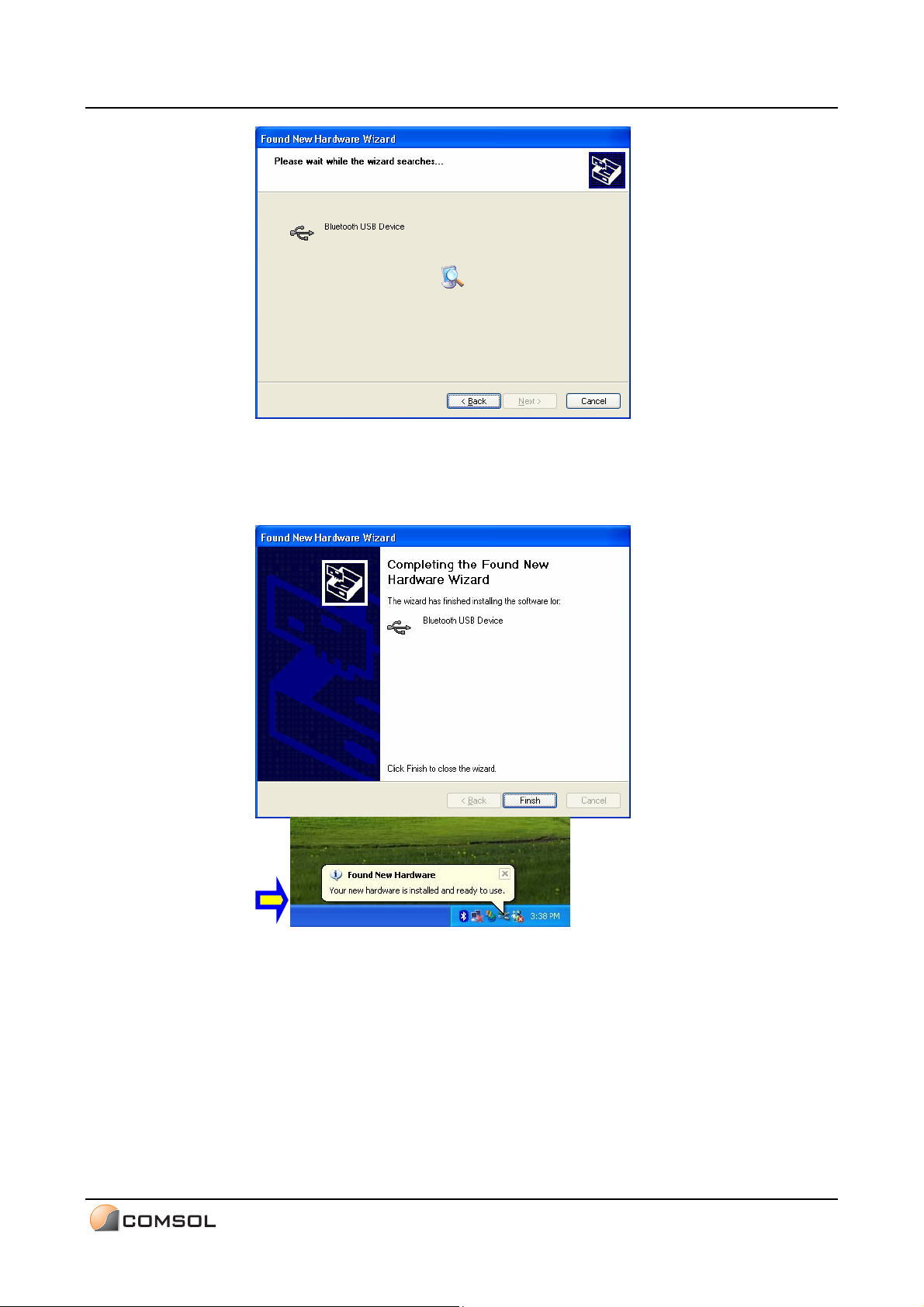
5.1.10 After completion of the driver installation, an icon will show up at the
lower-right corner of the desktop, announcing the availability of the
new hardware.
USB Bluetooth Adapter User Manual Page 8
Page 10
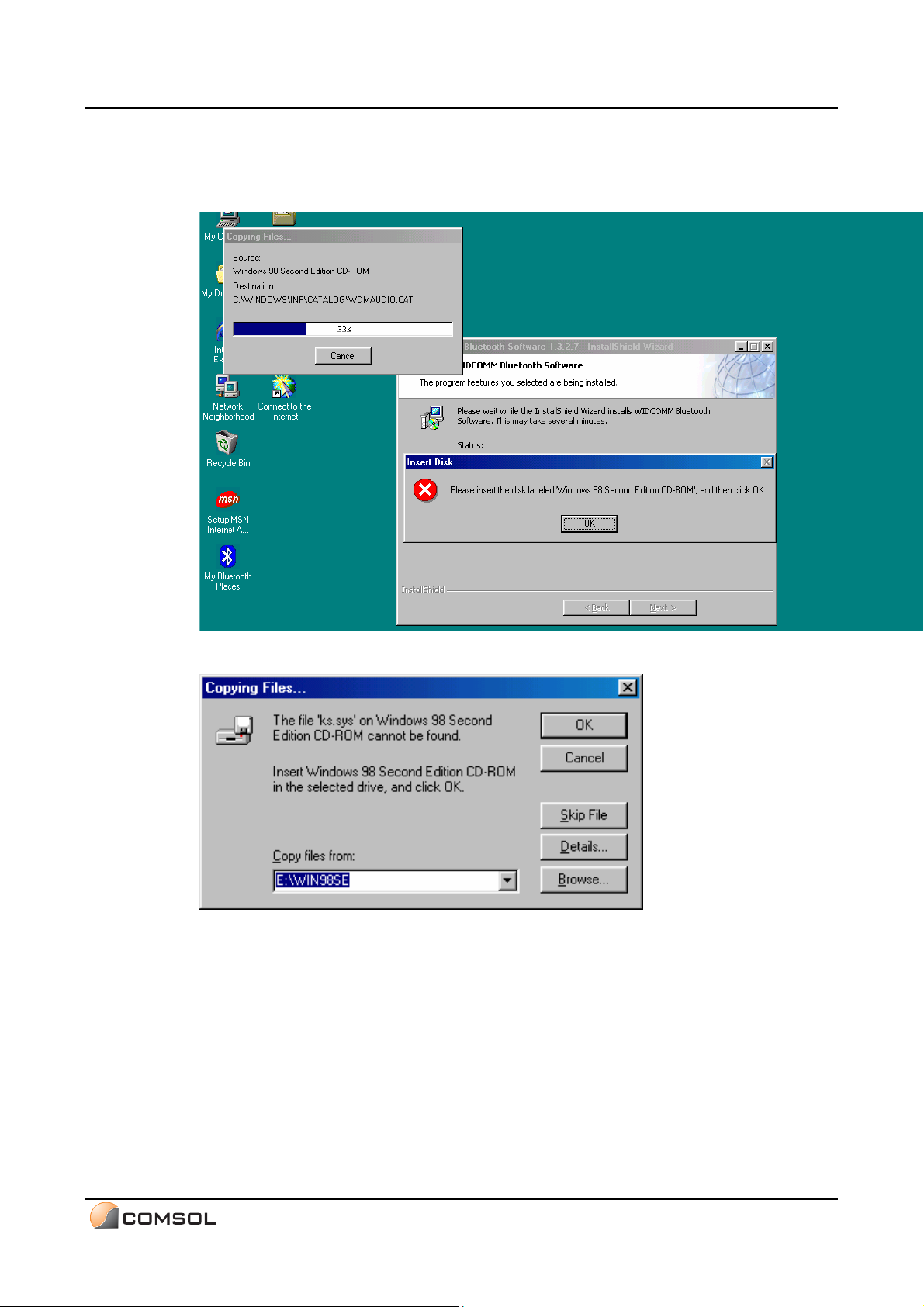
5.2 Win98SE platform
5.2.1 When installing, it would request the Win98 CD as below.
5.2.2 Click “OK”.
5.2.3 And then the dialog would appear, Click “Cancel”.
5.2.4 Then wait the installation finished, and reboot the system. If Windows
booted, insert the dongle. The driver would auto-loaded.
USB Bluetooth Adapter User Manual Page 9
Page 11
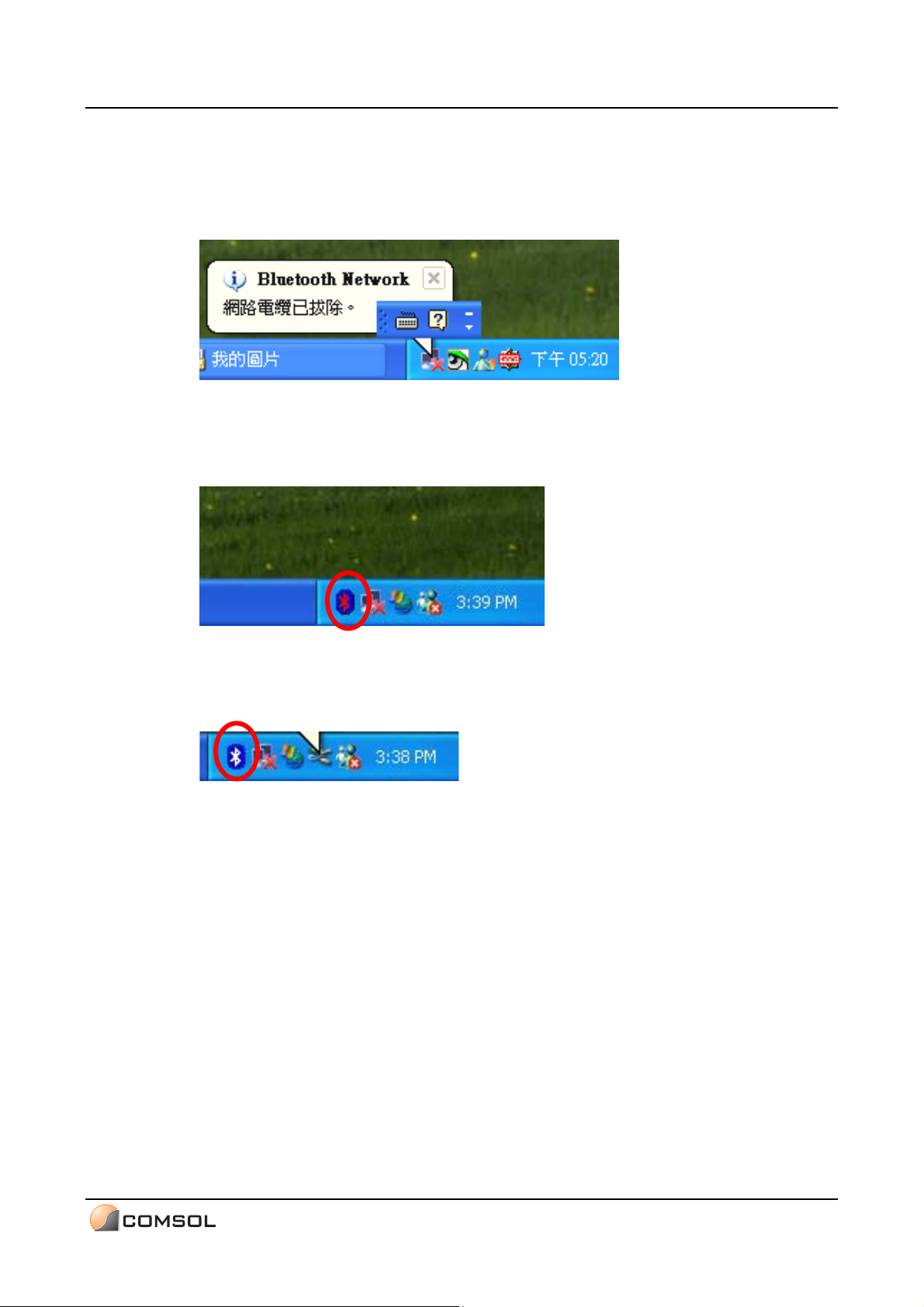
6. Bluetooth Logo Conditions
6.1 Condition 1: Disconnection of the Bluetooth Network
(The Bluetooth Network is disconnected while the Bluetooth dongle is still
plugged in and the software is under operation.)
6.2 Condition 2: Failure to detect the Bluetooth dongle
(The Bluetooth icon turns red, indicating the failure to detect the Bluetooth
dongle.)
6.3 Condition 3: Availability of the Bluetooth dongle
(The Bluetooth icon turns white, indicating the availability of the Bluetooth
dongle.)
USB Bluetooth Adapter User Manual Page 10
Page 12

7. FCC Statement
This device generates and uses radio frequency and may cause interference to
radio and television reception if not installed and used properly. This has been
tested and found to comply with the limits of a Class B computing device in
accordance with the specifications in Part 15 of FCC Rules. These specifications
are designed to provide reasonable protection against such interference in a
residential installation. However, there is no guarantee that interference will not
occur in a particular installation. If this device does cause harmful interference to
radio or television reception, which can be determined by plugging the device in and
out, the user can try to correct the interference by one or more of the following
measures:
Reorient or relocate the receiving antenna.
Increase the separation between the device and receiver.
Connect the computer into an outlet on a circuit different from that to which
the receiver is connected.
Consult the dealer or an experienced radio/TV technician for help. Consult
the dealer or an experienced radio/TV technician for help.
8. Disclaimer
Information in this document is subject to change without notice. The manufacturer
does not make any representations or warranties (implied or otherwise) regarding
the accuracy and completeness of this document and shall in no event be liable for
any loss of profit or any other commercial damage, including but not limited to
special, incidental, consequential, or other damages.
No part of this document may be reproduced or transmitted in any form by any
means, electronic or mechanical, including photocopying, recording or information
recording and retrieval systems without the express written permission of the
manufacturer.
All brand names and product names used in this document are trademarks, or
registered trademarks of their respective holders.
USB Bluetooth Adapter User Manual Page 11
 Loading...