

Page 1
TM
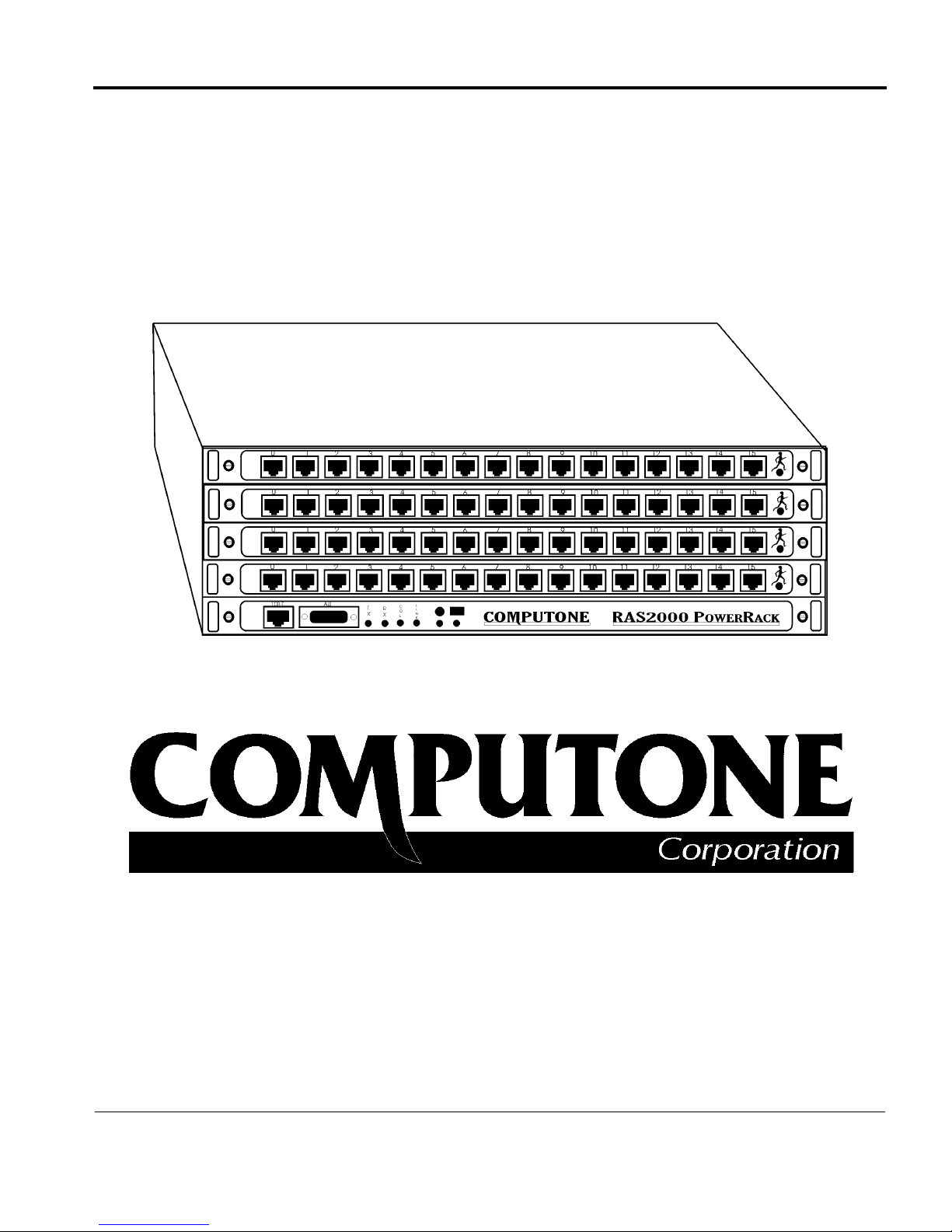
IntelliServer RAS 2000
PowerRack
Windows NT Supplement
1060 Wi ndward Parkw a y, Su i te 100, Alphar e tt a , GA, 300 05-3992 (USA)
(800) 241-3946, Outside U.S./Canada: (770) 625-0000
FAX: (770) 625-0013 email: [email protected]
INTERNET World Wide Web - http://www.computone.com
Copyright © 1999, Computone Corporation. All rights reserved. Printed in U.S.A.
Page 2

Computone Corporation
1060 Windward Ridge Parkway, Suite 100
Alpharetta, GA 30005-3992
U.S.A.
No part of this publication may be reproduced, transmitted, transcribed, stored in a retrieval system, or translated into any la nguage,
in any form or by any means (electronic or otherwise) without the prior written permission of Computo ne Corporation.
Disclaimer:
and specificall y disclai ms any implied warranties of merchantability or fitness for any particular purpo se . Furthe rmore, Computone reserves the r ight to revise this publicatio n and make changes from time to time to the contents h ereof, without obligation of
Computon e to notif y a ny person of such revisions or changes.
Support Information:
The Computone Technical Support staff ca n be reached by phone at the following numbers, from 8: 30 a.m . to 8:00 p.m. Eastern
time, Monday through Friday:
Technical Supp ort can be contacted by emai l at the Internet address
Trademarks:
are trademarks or registered trademarks of their respective corporations.
IntelliServer RAS 2000 PowerRack Windows NT Supplement
Computone Corporation ("Computone") makes no representations or warranties with respect to the contents hereof,
If you require technical support, contact your Computone dealer or Computone Technical Support.
(800) 241-3946 ext. 2002
(770) 625-0000 ext. 2002
(770) 625-0013 (FAX
Computone and IntelliServer are trademarks of Computone Corporation. All other brand names or product names
P/N: 0-13087, Rev. A
Page 3

Contents
RAS 2000 Software - - - - - - - - - - - 1
Features - - - - - - - - - - - - - - - - - - - - -2
Different Softwar - - - - - - - - - - - - - - - - - - - - - - -
Port Speeds - - - - - - - - - - - - - - - - - - - - - - - - - - 4
Port Numbering - - - - - - - - - - - - - - - - - - - - - - - - 4
Factory Defaults Differences - - - - - - - - - - - - - - - - - - 4
NT RAS (Remote Access Service
- - - - - - - - - - - - - - - - 5
Windows NT Software Installation - - - - - - - - -6
Windows NT 4.0
- - - - - - - - - - - - - - - - - - - - - - - - 6
Remote Serial Port Configuration - - - - - - - - -10
RAS 2000 Configurati o
Configuring a Remote Serial Po r
Configuring a port - - - - - - - - - - - - - - - - - - - - - - - 12
Save and Reboot - - - - - - - - - - - - - - - - - - - - - - - - 13
RAS 2 00 0 Pow erRack Windows NT Sup plement
- - - - - - - - - - - - - - - - - - - - 10
- - - - - - - - - - - - - - - - 12
2
i
Page 4

Contents
Upgrade Procedures - - - - - - - - - - - - - - - - 14
Upgrading the Kernel via Netboot i n
Emergency Boot Loader
Restorin g Factory Defaults
- - - - - - - - - - - - - - - - - - - - - 14
- - - - - - - - - - - - - - - - - - - 16
- - - - - - - - - - - - - - 14
ii
RAS 2000 PowerRack Windows NT Supplement
Page 5

RAS 2000 Softwa r e
The R A S 2 0 0 0 PowerRack int roduces a n ew system board wi t h several major
performa nce improvements. W hen compar e d to its pr edecessor, the IntelliSe rver
PowerRack, the RAS 2000 PowerRack boasts a RISC processor that runs 50%
faster, has double the cach e, a 10-Base- T ethernet control l er that h as d ouble the
throughp ut capacity, additional non- vo la tile me mory, and a writa ble ope rating
system flash through whic h up grades and bug fi xes can be loaded.
For this release, all opera tional function a l ity of the o ri g i nal PowerRack has been
ported over to the RAS 2000, with an exception that should reduce the load of
managing multip l e units. While BOOTP and TFTP fun ction ali t y ha ve been maintained for c onfig uration file downloads, support for booting dire ctly f rom a TFTP
site has been repl aced with th e ability to d ow n lo ad and eit h er execute or save a
kernel image from a TFTP site. The main advantage to this is that kernel
upgrades no longer n eed to b e st or e d on a TFTP site and made ava il abl e continuously. They may be downloaded and stored permanently on the RAS 2000.
RAS 2 00 0 Pow erRack Windows NT Sup plement
Page 1
Page 6
Features
The RAS 2000 PowerRack softwa re is almost identical in fe atures and functions
to the softwar e used on the original IntelliServer Pow e rRack. In o rder to get the
most out of the RAS 2000 Powe rRack's improv ed hardw are d es ig n, you should
be aware o f some importan t d ifferences betw een the In telliServer RA S 2000
PowerRack and the original IntelliServer PowerRack, as explained in this section.
The RA S 200 0 P owe rRa c k differe n ces are:
•
RISC pro cess or ( RISC- 860)
•
Software and configuration files
•
Port configuration
•
Facto ry defa ult
•
Great er throughput
•
Increased CPU speed (30 Mhz)
This section further explains these software differences.
Different Software
Because of the hardware differences between the IntelliServer PowerRack and
RAS 2000 Power Rack, softwar e in te n de d f o r one cannot be loaded on the other.
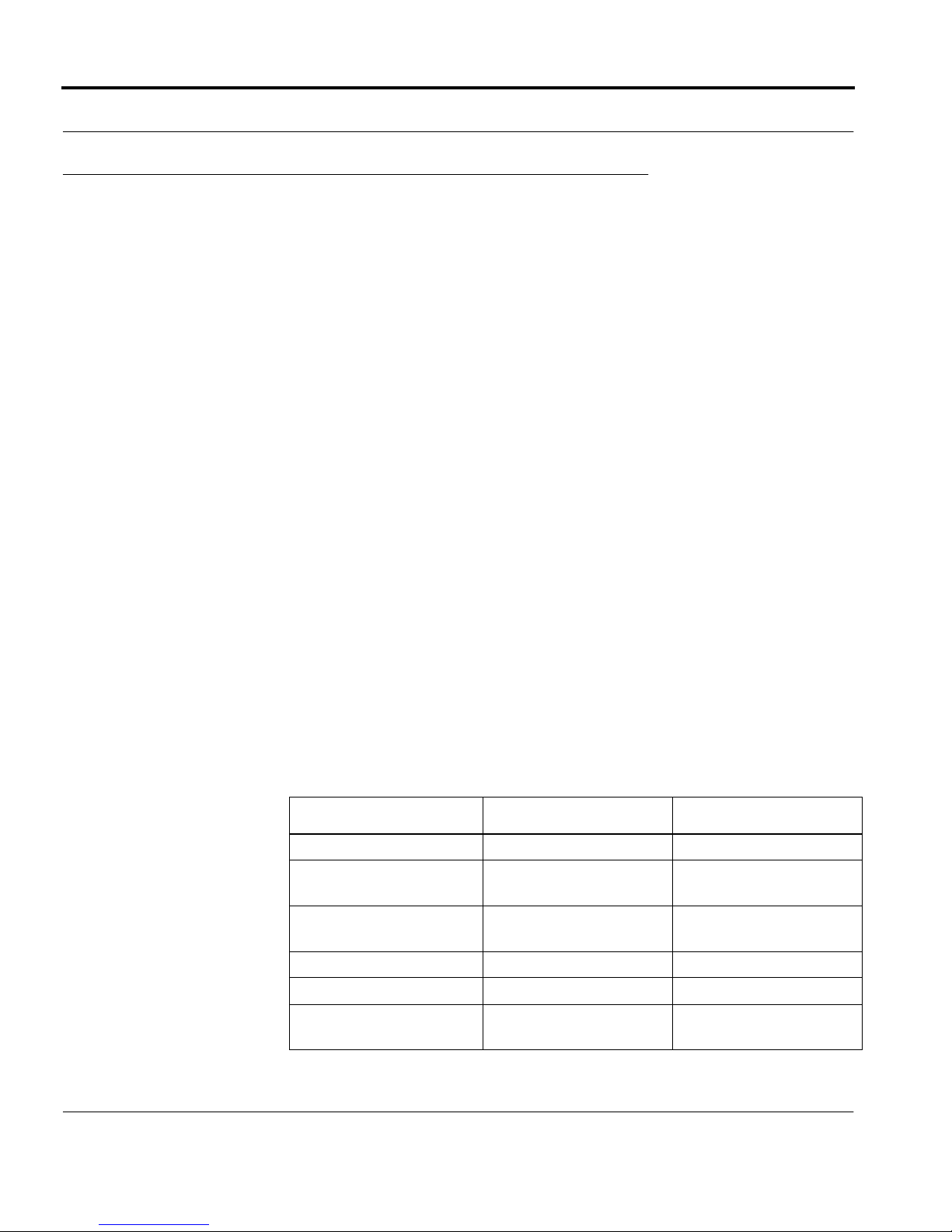
Table 1.
Parameter RAS 2000 PowerRack PowerRack
Net Booting Unique boot file Unique boot file
Version No. "RAS 2000 PowerRack" "Computone IntelliServer
Conf igurat ion File Unique file,
TFTP site load Yes Yes
Flas h Load in g Yes No
NVRAM Layout Unique, upward
Software Feature Comparison
PowerRack"
Unique file
upward compatible
Unique
compatible
Page 2
RAS 2000 PowerRack Wi ndows NT Supplement
Page 7
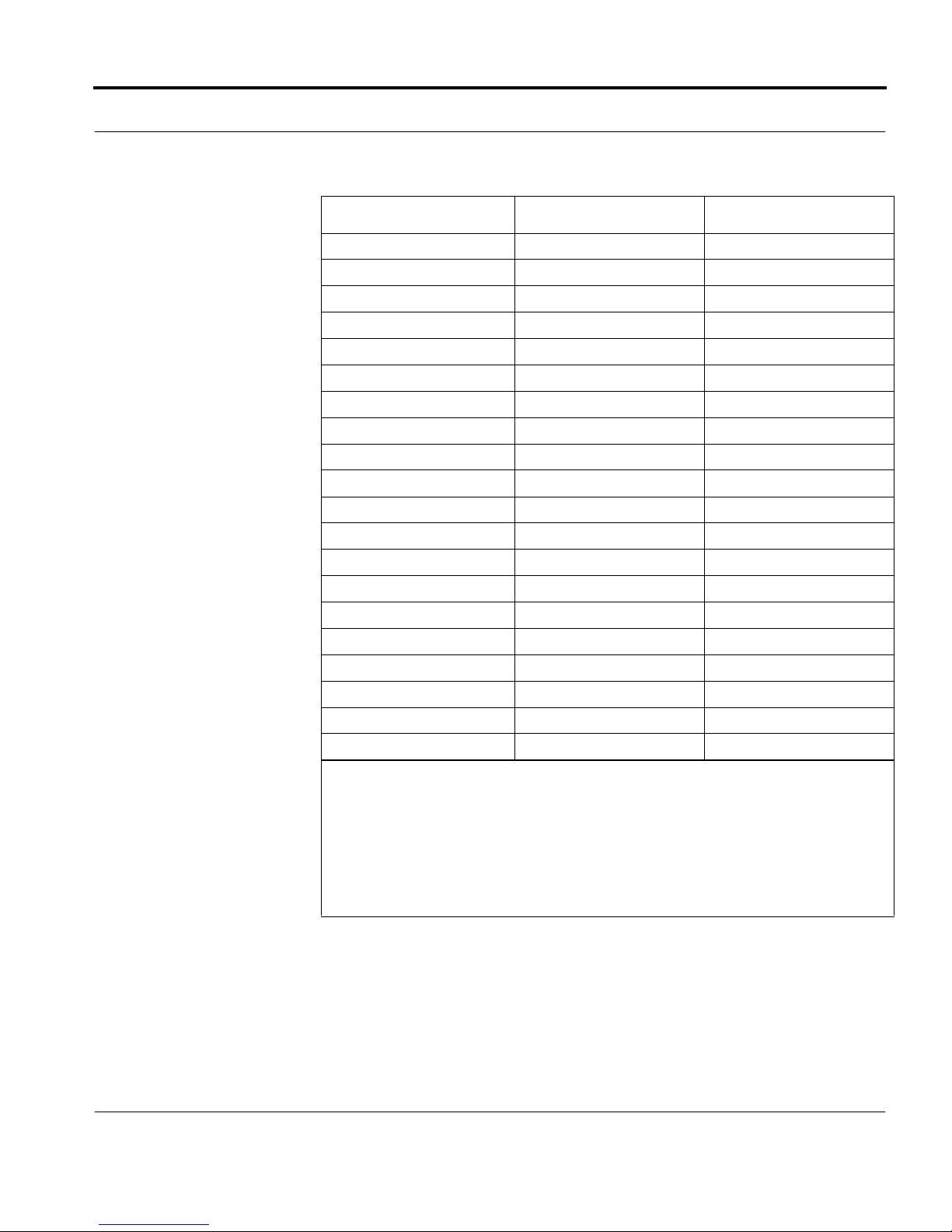
Table 1.
Parameter RAS 2000 PowerRack PowerRack
NT RAS Yes No
Protocols & Extensions
PPP Yes Yes
TCP/IP Yes Yes
SLIP/CSLIP Yes Yes
ARP/RARP Yes Yes
DNS Yes Yes
BOOTP Yes Yes
TFTP Yes Yes
RADIUS/RIP Yes Yes
rlogin Yes Yes
telnet, telnetd Yes Y es
Reverse telnet Yes Yes
Remote Console No No
ping Yes Yes
Software Feature Comparison
rcp/rsh Y es Yes
Rotary Lines Yes Yes
IP Packet Filtering Yes Yes
Subnet Routing Yes Yes
CHAP/PAP Authentication Yes Yes
Notes:
1) When getting upgrades from our FTP site, examine the file names and descriptions to
ensure you download the correct software.
2) You cannot save a configuration to a host and then restore it to a different model of
IntelliServer. If you attempt to do this, the IntelliServer will report an error, "Bad Magic
Number" which means that the file you are attempting to restore the configuration from
is not in the proper format.
RAS 2000 P owerRack Windows NT Supplement
Page 3
Page 8

Port Speeds
Because of improved hardware design, the RAS 2000 PowerRack supports line
speeds up to 921,600. When configuring a port, the following speeds are available:
50 300 3600 56000 230400
75 600 4800 57600 307200
110 1200 7200 64000 460800
134.5 1800 9600 76800 921600
150 2000 19200 115200
200 2400 38400 153600
Port Numberin
On the R A S 2000 Po werRack, the CP U En gi n e card is installe d in the lowest slot
of the enclosure (s l ot 0). Slot 1 is ne x t to the proces s or c ard and alw ays contains
ports 0 t hrou g h 15. As you install additional p orts, u se sl o ts 2 throu g h 4 in order:
Slot 2 al w a y s contains ports 16-31
Slot 3 al w a y s contains ports 32-47
Slot 4 al w a y s contains ports 48-63
If for any reason it shoul d become nec ess a ry to remove o n e of the REX ca rd s, the
remaining ports keep the same numbers. If you remove a REX card out of the middle, it leaves a gap in the port numbers that th e RA S 2000 PowerRac k recognizes.
Factory Defaults Differences
When the R A S 20 00 is u sing facto r y defau l t conf igur ation, the lo we st and the
highest port number in each slot are enable d as login p or ts and can be used for initial configuration with a terminal. (In a 64-port installation, that would be ports 0,
8, 16, 24, 32, 40, 48, and 56.)
The RAS 20 0 0 Po w erRack uses unique software that i s not int erchangeable with
the other IntelliS e rver Powe r Rack models. The main dif fe rences are:
•
Windows NT support
•
Flashable kernel
Page 4
RAS 2000 PowerRack Wi ndows NT Supplement
Page 9

NT RAS (Remote Access Service)
Typically, RAS servers are implemented in an NT environment using modem
attached to serial po rts local to th e N T se rver. Devi ces such as fax servers,
modem pool serve r s, and o ut bou n d fa x ser ver s are a few ap pl ication s th at would
use this available source of modem connections.
This design does not implement RAS or fax servers directly. Rather, it describes
the met hod by which a host machine may ga in effective control of a UART on
the RA S 2 00 0 PowerRac k . Once a host’s driver establishes communica t i on with
a RAS 2000 PowerRack, it attaches to one or more remote serial ports (RSP) and
presents them as "logical" serial ports to the host operating system. In the case of
NT, these appear as COM ports.
The following sections describe how to configure Remote Serial Ports on the
RAS 2000 and how to install the Windows NT driver.
RAS 2000 P owerRack Windows NT Supplement
Page 5
Page 10
Windows NT Software Installation
This section explains the Windows NT 4.0 software installation.
Windows NT 4.0
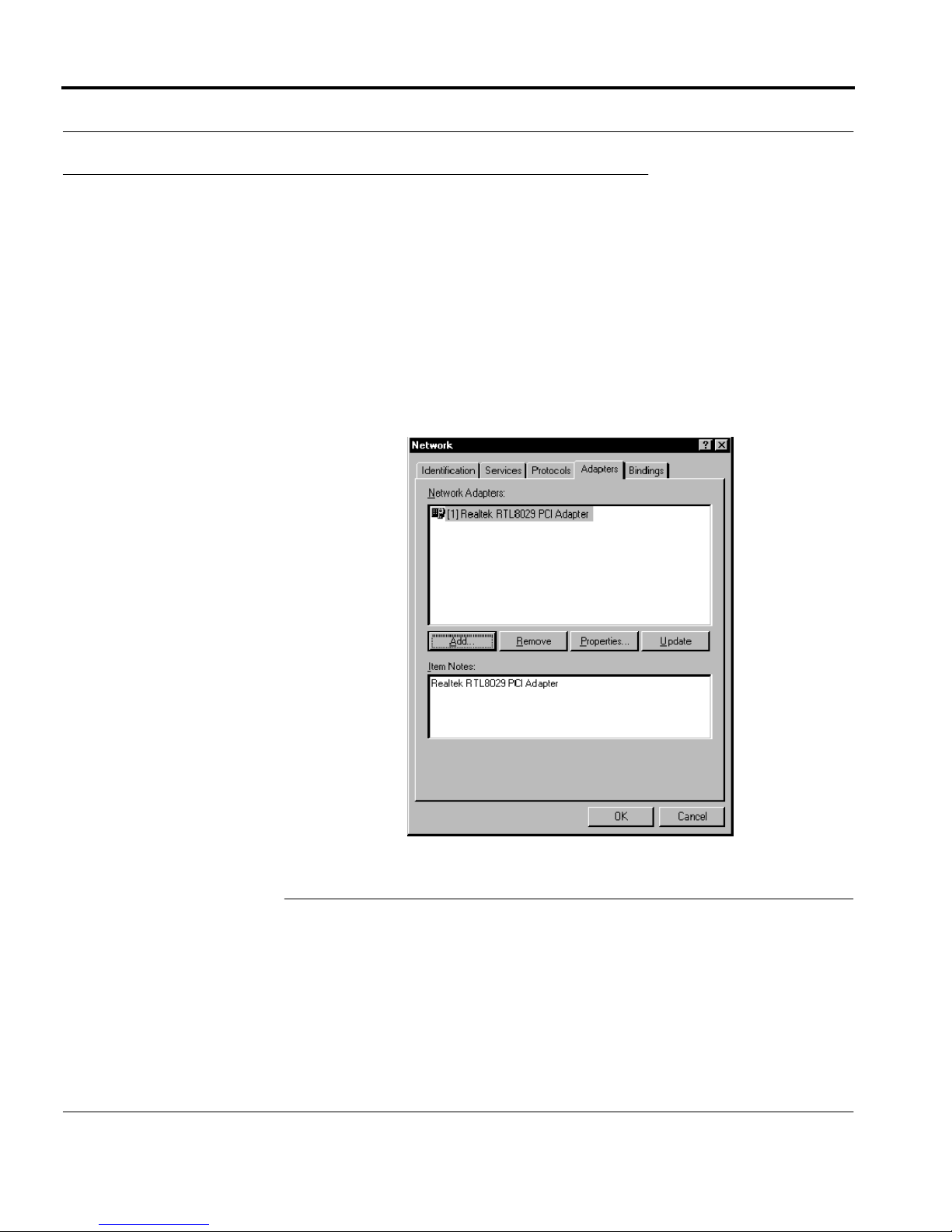
To install the RAS 2000 driver in a Win d o ws NT 4.0 environment , u se the following procedure:
1.
Select
Settings / Control Panel / Network
Adapters
/
then
Add
.
Page 6
RAS 2000 PowerRack Wi ndows NT Supplement
Figure 1.
Accessing the Network
Page 11
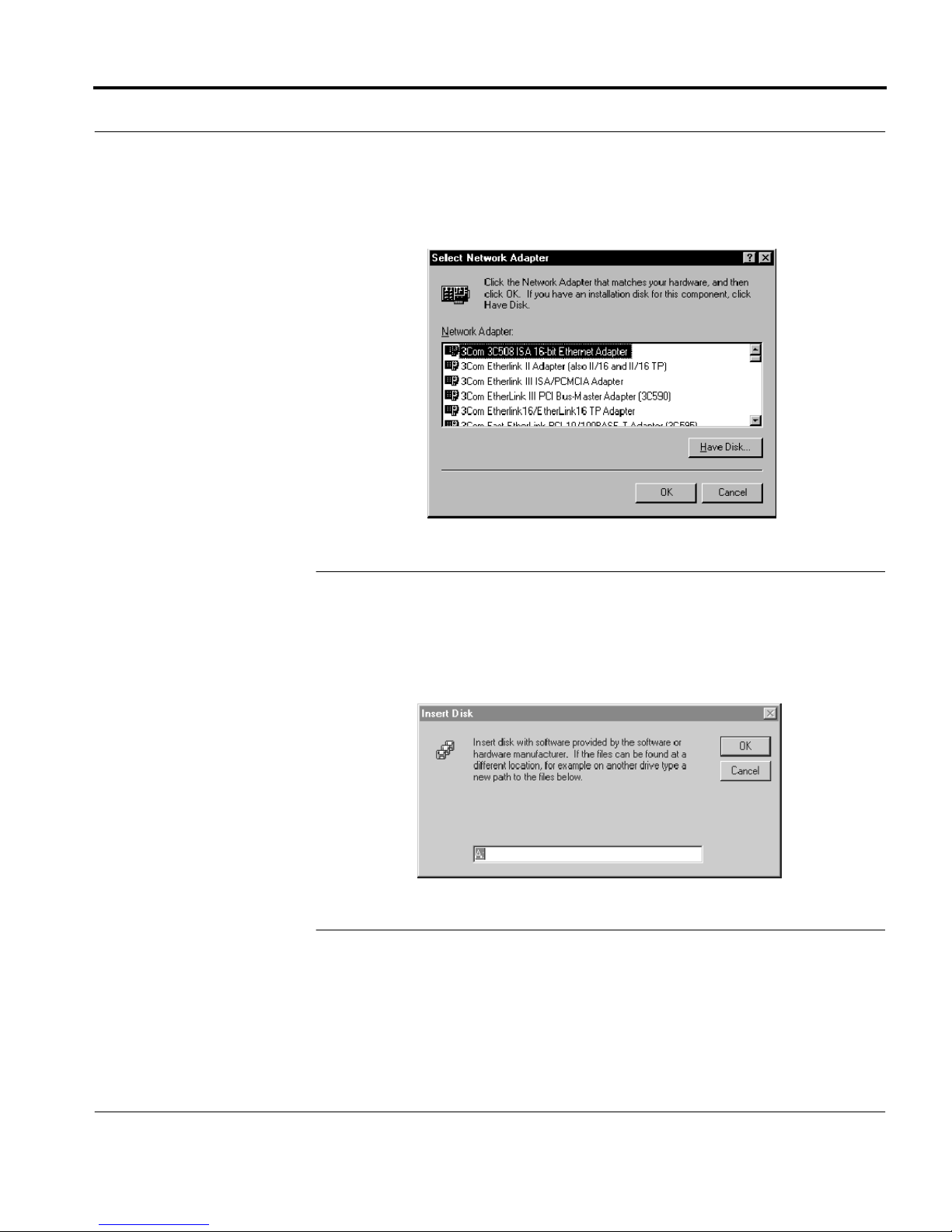
2.
Select
Have Disk
.
Figure 2.
3.
Insert y o u r RA S 2000 so ftware disk ette or CD ROM an d specify its drive des-
Selecting the Ethernet Adapter
ignator
Figure 3.
Specifying the Load Drive
RAS 2000 P owerRack Windows NT Supplement
Page 7
Page 12
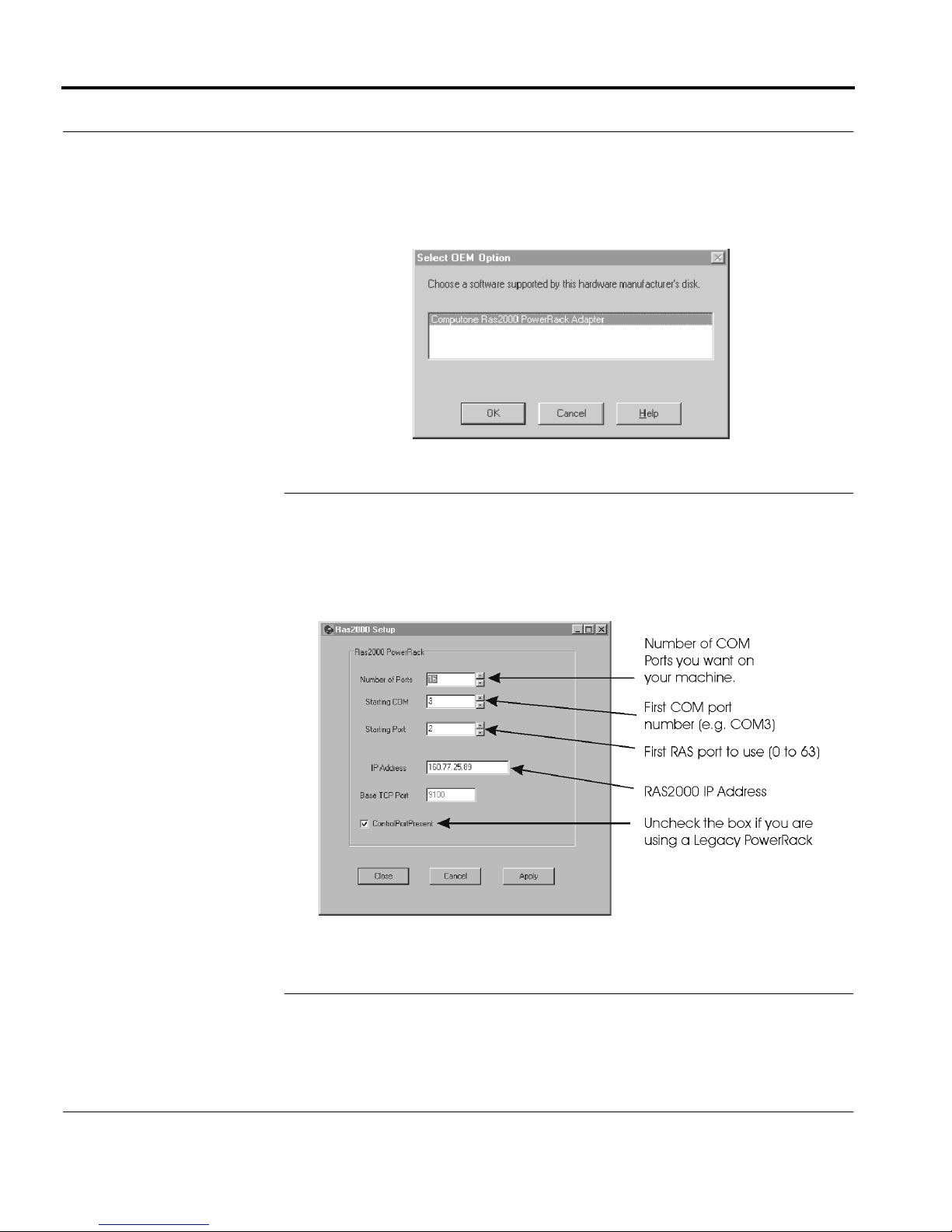
4.
Highlight the
Computone RAS 2000 PowerRack Adapter
and select OK.
Figure 4
5.
Configure the RAS 2000 Setup parameters, then select
Selecting the Adapter Software
Appl
.
Page 8
RAS 2000 PowerRack Wi ndows NT Supplement
Figure 5.
Configuring the Param ete rs
Page 13
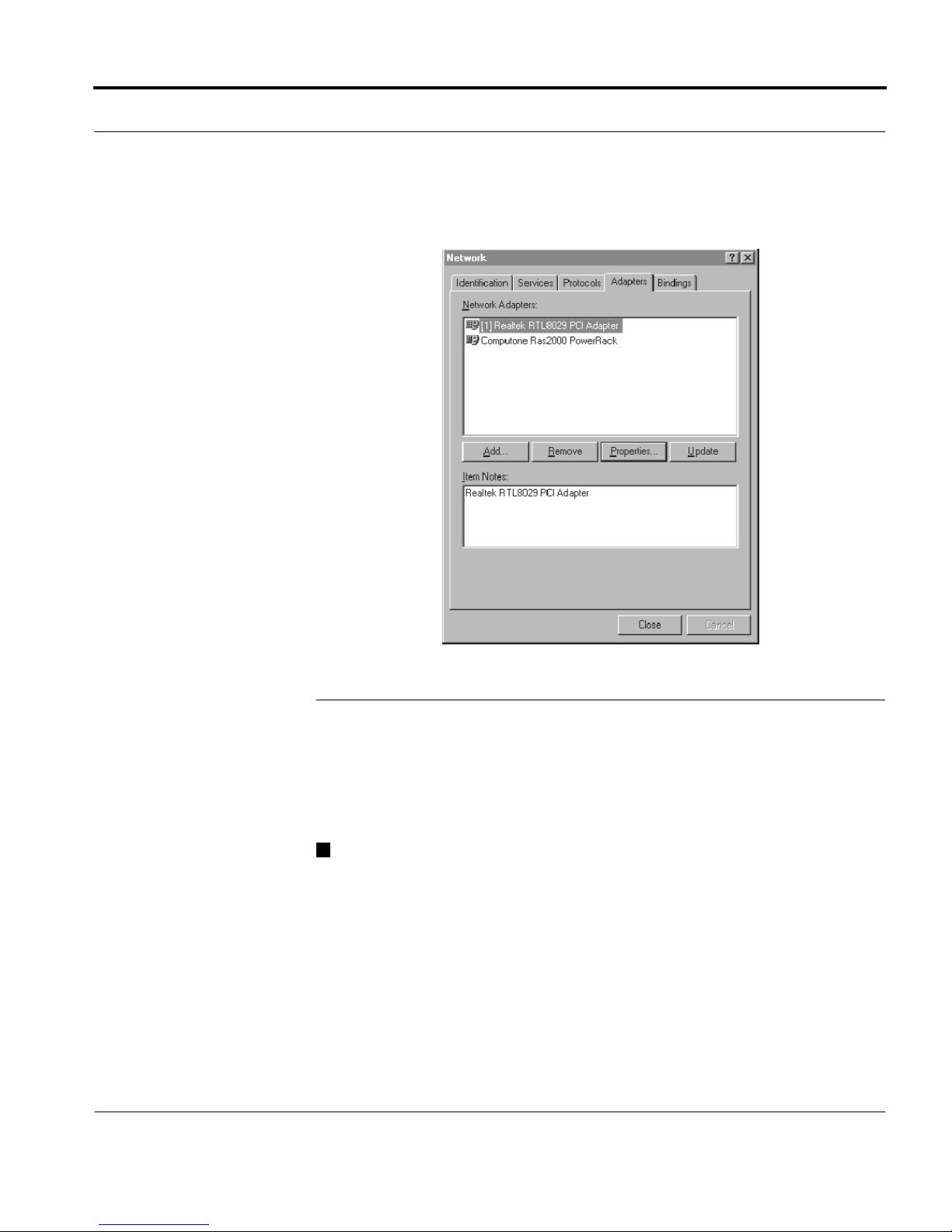
6.
Confirm that the Computone RAS 2000 PowerRack is now a listed entry.
Figure 6.
When you c hoos e
Close
, you will be prompted to reboot. If you need to change
one of the pa ramete rs , h i ghlight the
Properties
select
. You are take n b a c k to th e Figure 5 screen w here you can
Confirming Installation
Computone RAS2000 PowerRack
change t he para mete rs .
End of Procedure
RAS 2000 P owerRack Windows NT Supplement
entry then
Page 9
Page 14

Remote Serial Port Configuration
The purpose of thi s sect io n i s to provide a quick start refere n ce for configuring
the RAS 2000 in a Windows NT environment. This document i s not intended as a
replacement fo r the spiral bound
erver Configuration Guide
settings listed, as well as any settings listed as
establishes quick start guidelines for the following topics.
•
IntelliServ er co nfigur ation
•
Remote serial ports
•
Saving your configuration
IntelliServer Configuration Guide.
should be re ference d for detail ed explanations of the
default/blank
. This document
The
IntelliS-
RAS 2000 Configuration
The Intel li Server line of products can be set up in a number of different ways. For
basic setup instructions and guidelines for your particular environment, refer to
IntelliServer Configuration Guide
the
following c onf ig ur a tio n in fo r ma ti o n sh ould be used in troubleshoot i ng and initial
setup as a basic guideline. Once configured with a console, proceed with the following.
To config ure a cons o le ter minal, s ee the
erver Configuration Guide
the Menu Interface
, in the
. For help with the menu system, see chapter 4,
IntelliServer Configuration Guide
(chapters 9 & 10) for detailed setup. The
Read Me Firs
docum e n t or t he
.
IntelliS-
Using
Page 10
RAS 2000 PowerRack Wi ndows NT Supplement
Page 15

Follow the directions listed to the right of the menu options. In cases where information is left blank, use the factory defaults.
Path:
Host Name: What you would like to call your IntelliServer
IP Address: The IP Address of the IntelliServer
Subnet M a sk: defau lt/blank
Broadcast Address: default/blank
Domain Name: default/blank
Syslo g Host: default/blank
Syslog Facility: default/blank
Syslog Priori ty: defau lt/blank
Console Port Number: default/blank
Ethernet Address: Intelli Server mac address
Main M enu / A dm inis t ratio n / Net w or k / Inte lliS erv e r Conf ig uration
Table 2.
Parameter Description/Value
Setting the RAS 2 0 00 C onfiguration
Force A UI Por t : default/blank (se e
IP Filter: default/blank (see
RIP: NONE
NOTE
Reference section
:
Configuration Guide
Force AUI Port
if you are using th e IntelliSer ver' s A UI port in conjunc-
tion with a transceiver.
RAS 2000 P owerRack Windows NT Supplement
NOTE
)
NOTE
)
in chapter 10 of the
IntelliServer
Page 11
Page 16
Configuring a Remote Serial Port
Configuring a Port
Upon com p l e tion and ve r if ic at i on of the ab ove, proceed with configuring the
individual ports. Leave all other settings at their default. To duplicate a port configuration across multiple ports, see section,
chapter 5 of the
IntelliServer Configuration Guide
Duplica ting Po rt Configurations,
.
in
Path:
Port Type: RSP (Remote Serial Port)
Comment: default/blank
Local Term T ype: console type or console emulation type
User Name: default/blank
Remote Term Type: default/blank
Group: default/blank
Modem: YES/NO
Await Input: NO
Dial Script: default/blank
Modem Init: default/blank
Speed: Factory modem setting (i.e.115200). Select your baud
Size: 8
Parity: NONE
Main Menu /Administration / Port / Configure a Port / Port Number
Table 3.
Parameter Description/Value
Configuring a Port
rate.
Stop Bits: 1
Inflow: RTS for hardware flow control
Outflow: CTS for hardware flow control
Auto PPP: NO
Page 12
RAS 2000 PowerRack Wi ndows NT Supplement
Page 17
Save
To save t he c onfig u rat ion t o non-volatile mem ory, use the follow in g menu path
and re fe r t o Table 4.
Path:
Save to: local
Host Name: blank/default
File Name: blank/default
Are you Sure?: Y
Main Menu / Administration / Save Configuration
Ta ble 4.
Parameter Description/Value
Save and Reboot
Any of the above steps can be comple te d from the command line . Fo r example,
the comm a nd line for step 7 (Save and Reboot) is as follows:
At the # type
Then type
Additional proble m s not covered i n th i s document o r the
tion Guide
save
shutdown now
can be sent via e-mail to
IntelliServer Configura-
.
Include the fol-
lowing information.
•
IP Address of the RAS 2000 PowerR ack
•
A voice phone n um b e r f or cal l back
•
Modem phone number, if any
•
Port number the modem is connected to, if any
•
A brief descripti o n of the pro blem yo u are having
RAS 2000 P owerRack Windows NT Supplement
Page 13
Page 18

Upgrade Procedures
Upgrading the Kernel via Netbooting
The RAS 2000 comes with the correct kernel version installed. As additional features are made available, kernel files will be posted on Computone’s FTP site in
/pub/products/RAS 2000
the
new kernel:
1.
Download the desired kernel version from Computone’s FTP site. Be sure to
use the BINARY transfer mode.
2.
Place the file in your TFTP server’s directory.
3.
Login on the RAS 2000 as root and enter the command
where
is stored and
4.
Login as root and enter the command
host
is the name of the IP address of the TFTP server o n which the file
filename
RAS 2000 reboots. The -s option causes the downloaded kernel to be saved to
nonvola tile m emory withou t the RAS 2000 rebooting again.
End of Procedure
directory. Use the following procedure to install a
netboot host filename
is the name of the f ile as it’s stored on that server.
netboot -s host f ilename
after the
Emergency Boot L oader
While th e cha nc es of a power fai lure d u r ing a kernel upg rade is remo t e, nonetheless, it is po ssib le . Should this occur, th e im a ge i n the f lash is left in an in consistent state. The Em erge n cy B o ot Loader is de sign ed as a met h od of getting a
kernel load ed into me mo r y a n d executing and does not at te mpt t o sav e the image
to fla sh . Du r i n g the normal course of a power-u p seq ue nce, the boot loader performs sev er al integrity checks on the PR OM. It recognizes an inconsistent state
and invokes the Emergen c y B oot L o ad er. In doing so, the status LE D s on the
RAS 2000 (l a be le d with a cir cl e and rectan gle) light ye llow-red and stay on.
Page 14
RAS 2000 PowerRack Wi ndows NT Supplement
Page 19
To correct this problem, you need a:
•
Computer with a communications program such as cu, Procomm, or HyperTerminal
•
.srec file that accompanies the kernel release
•
Cable to attach port 0 to a serial port on the compu t er (Computone cable
2-20121, for example)
Once y ou h av e e ver ythi ng conn ect ed, use the fol l owing p roc edure:
1.
Specify 9600 baud, no parity, 1 stop bit, 8 data bits, and no handshaking for
the serial port.
2.
Power up the RAS 2000. You should get the following message:
There is a checksum error
in the kernel flash.
Emergency Boot Loader
EBL>
If you do not get t hi s p r o m pt, double-ch eck all cabling and communication
parameters. When you call tech support, this is the first thing they will ask you.
3.
Enter “?”, the followin g is displayed:
EBL< ?
??
Available commands:z
reset
baud <baudrate>
load
EBL>
You get a list of valid commands any time you enter an invalid command. The
commands are defined as follows:
RAS 2000 P owerRack Windows NT Supplement
Command Description
reset Resets RAS 2000.
baud <baudrate> Sets baud rate on-the-fly. Once entered, you have to change the
terminal’s baud rate a nd pre ss enter to get an oth er prompt. If you
enter an inv al id baud rate , a list of val id ba ud rates are displayed.
load Starts kernel load.
Page 15
Page 20

4.
Enter
displayed:
load
and press enter to start receiving the kernel. The following is
EBL< load
Press ESC to stop the load
If all goes well, the .
srec
file is sent in a plain ASCII tr an sfer format. Upon
uploading, the image is executed.
NOTE
: This does not fix the original corruption in the fl as h, it just gets a kernel
loaded and execut ing. Once the kernel is up and running , netboo t to attempt
another save of the kernel image.
5.
Netboot t o load and save a new kernel i mage (see s ection,
Kernel via Netbooting
).
Upgrading the
End of Procedure
Restoring Fact ory De fa ults
There a re three ways t o restore factory def au lts to N VRAM:
1.
2.
3.
restore factory
Enter
at the shell command prompt.
Hold the pape rcl ip b utt on do wn w hil e powerin g u p t he RAS 2000. Release it
after 1 second.
Connect a term inal to port 0, at 9600 baud, 8 -bit characters, no parity, and 1
stop bit. and t h en press the ESC k e y wh i le the RAS 2000 is booting (at
power-up or after a "shut down" command).
Even if you use method 2, it is recommended that you have a terminal or PC
attache d to port 0. The re ason is that t he ma c hine has no IP address and, thus, is
not accessible over the network. None of the methods above alter NVRAM so if
you want the old one back, do a
want to save the factory defaults, type in
other con figur ation.
Figure 7 show s the l oc ation of th e pap e rcl ip b utt o n to re store fa ct ory d efa ults.
Page 16
RAS 2000 PowerRack Wi ndows NT Supplement
restore, shutdown now
save
just as you would when saving any
, or a power cycle. If you
Page 21
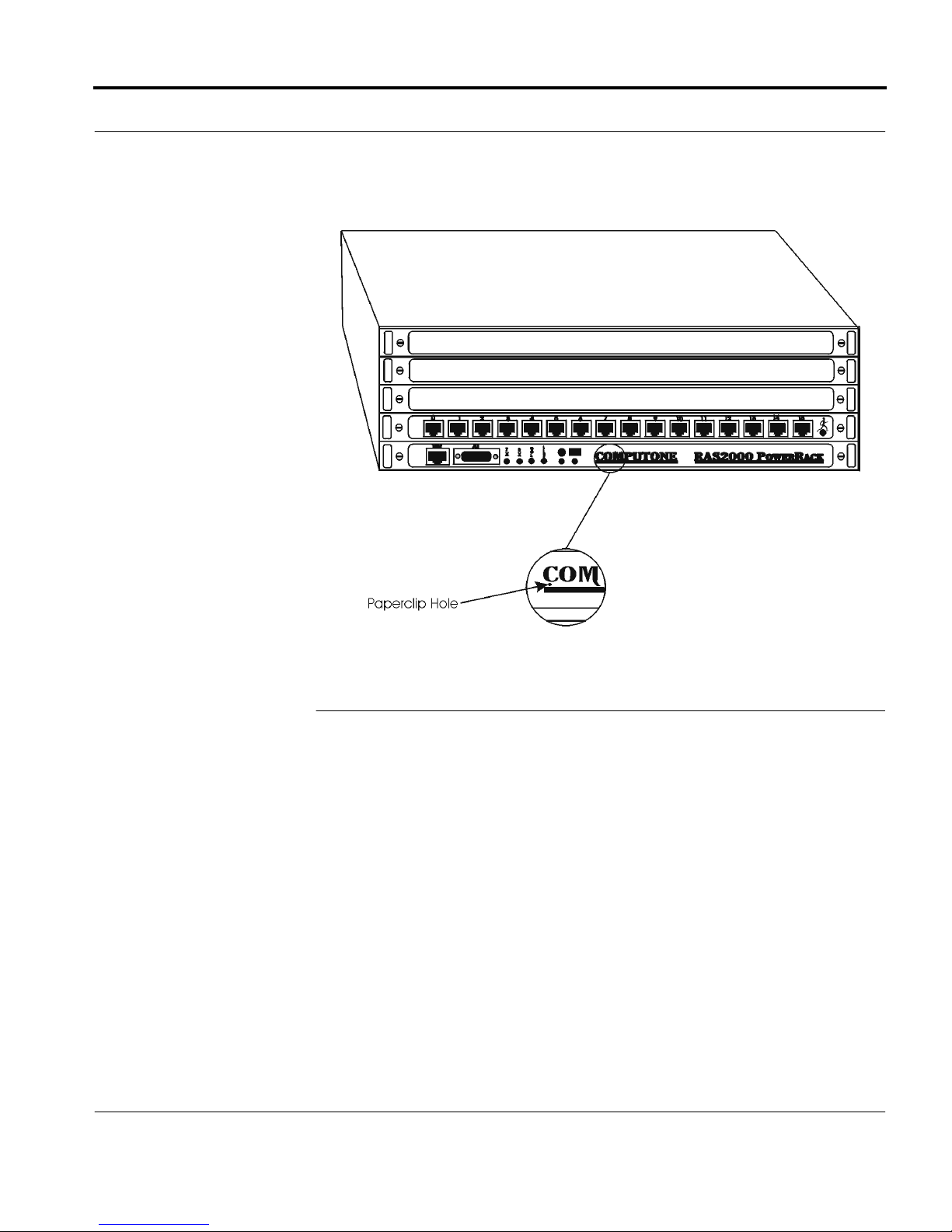
Figure 7.
Paperclip Ho le Locati o n
RAS 2000 P owerRack Windows NT Supplement
Page 17
 Loading...