

Page 1
COMPUTHERM
S100
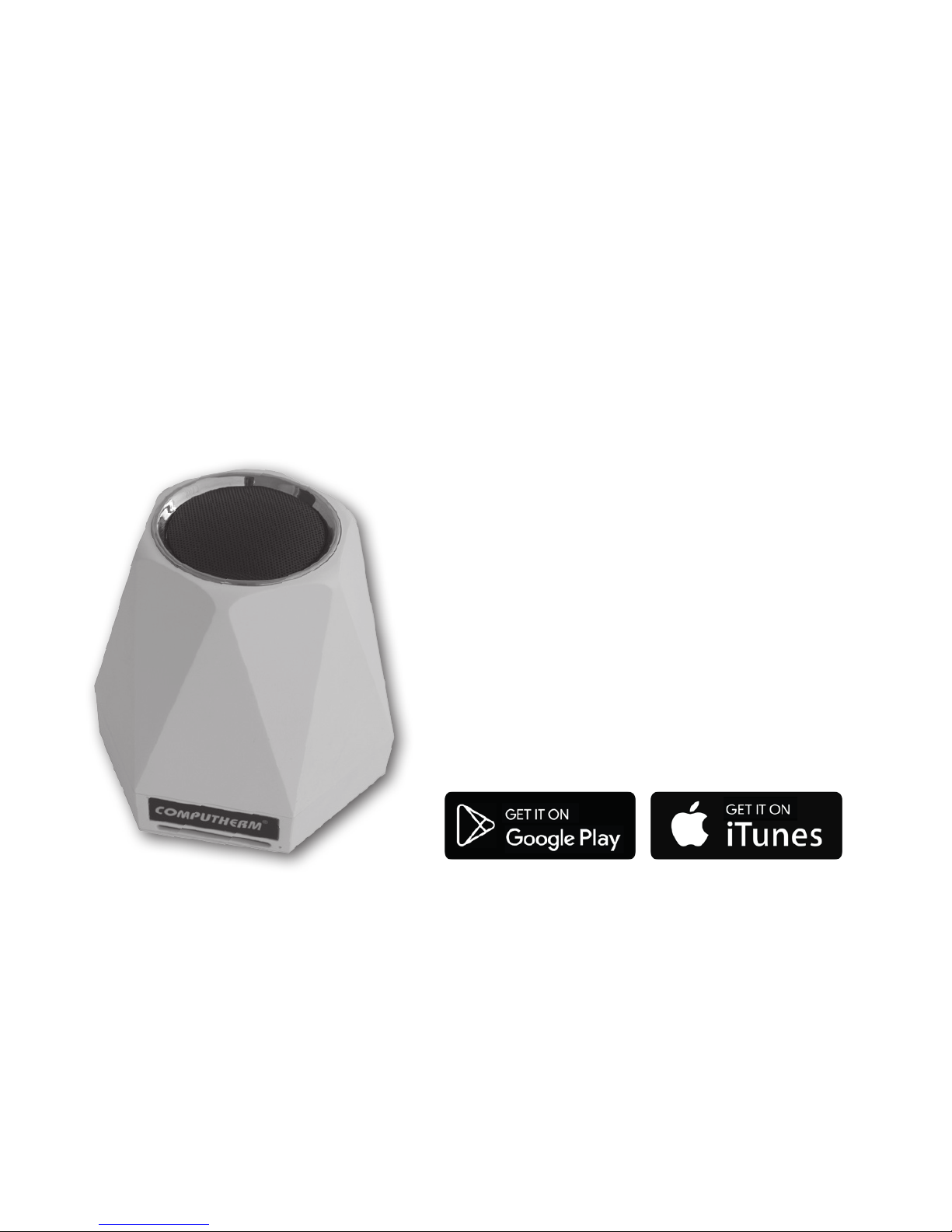
Wi-Fi sensor centre
Operating instruction
COMPUTHERM
S Series
Page 2

Page 3

- 3 -
TABLE OF CONTENTS
1. A general description of the sensor centre 4
2. Important warnings and safety recommendations 5
3. Meanings of the LED signals of the sensor centre 7
4. Putting the apparatus into operation 7
4.1. Downloading and installing mobile application 7
4.2. Connecting the sensor centre to the user account and establishing
contact between the sensor centre and the Wi-Fi network 8
5. Use of the sensor centre and application, a description
of functions and services 13
6. Practical advices 17
7. Technical data 19
Page 4

- 4 -
1. A GENERAL DESCRIPTION OF THE SENSOR CENTRE STATION
The
COMPUTHERM
S100 Wi-Fi sensor centre is able to provide continuous information on environmental data (air temperature, humidity, noise
level, luminous intensity) at the place of installation via the Internet, and,
based on measured and set values, is able to control the paired
COM-
PUTHERM
S200 socket and/or S300 thermostat via a Wi-Fi network.
The apparatus can easily be connected to a Wi-Fi network and paired
with a
COMPUTHERM
S200 and/or S300 device by means of a smart-
phone. Naturally, environmental parameters can be monitored and set-
tings can be modied by a smartphone.
We oer the installation of the
COMPUTHERM
S10 0 Wi-Fi sensor centre to those who wish to monitor environmental parameters at the place
of installation and to control their
COMPUTHERM
S200 socket and/or
S300 thermostat based on the temperature/humidity measured in an-
other room via wireless means. For example, with the installation of the
COMPUTHERM
S100 Wi-Fi sensor centre a boiler connected to a
COM-
PUTHERM
S200 socket in the basement of a house can be easily con-
trolled by the temperature measured in the sitting room upstairs or freez-
Page 5

- 5 -
ing can be prevented without having to lay a cable.
The functions and services of the apparatus are described in detail in
Chapters 5.
2. IMPORTANT WARNINGS AND SAFETY RECOM-
MENDATIONS
• Before starting to use the apparatus, please study carefully the instructions
for use and follow strictly the instructions therein.
• The device must be installed and connected by a qualied professional.
• Before starting to use the sensor centre, make sure that the Wi-Fi network
is reliably accessible at the place where you intend to use the apparatus.
• This apparatus has been designed for indoor use. Do not use it in a humid,
dusty or chemically aggressive environment.
• This apparatus is a sensor centre that can be controlled via a wireless Wi-
Fi network. To prevent jamming, keep it away from such electric equipment
which may interfere with wireless communications.
• The manufacturer will assume no responsibility for any direct or indirect
damages or income losses caused by/during the use of the product.
Page 6

- 6 -
• In case of this version the Micro SD card connector located on the rear side
of the product is out of service.
• The apparatus will not work without power supply but it memorizes the set-
tings and resumes operation without any intervention after the power supply is restored (the power outage is eliminated). If you intend to use the
apparatus in an environment where power outages occur frequently, for
safety purposes we propose you to control proper operation of the sensor
centre regularly.
• Before starting to use the
COMPUTHERM
S10 0 sensor centre matched
with a
COMPUTHERM
S200 socket and/or a
COMPUTHERM
S300 ther-
mostat, make sure that the pairing of the devices is working well and
the apparatus is operating safely.
• The software of the sensor centre and the mobile application is constantly
upgraded and updated. For proper operation please check regularly whether there is any accessible software or mobile application update in menu
item „…” / „Setting” and always use their latest version! Due to constant
updates it is possible that some functions of the apparatus and the applications operate and appear in a way other than described in these instruc-
tions for use. (The service provider will send a notication of the accessible
updated software).
Page 7

- 7 -
3. MEANINGS OF THE LED SIGNALS OF THE SENSOR
CENTRE
The operating condition of the sensor centre is indicated by one green LED
light as described below:
• Normal operation of the device is indicated by blinking solid green LED light
every 2 seconds.
• The device indicates tuning with the Wi-Fi network as follows:
- the green LED is ashing briskly or
- the green LED blinks three times then illuminates steadily for a short
time and this process is repeated
4. PUTTING THE APPARATUS INTO OPERATION
4.1. Downloading and installing mobile application
The sensor centre can be reached from devices using the Android or iOS
operating system by means of an application called
COMPUTHERM
S Series.
a) Download the free
COMPUTHERM
S Series application from App Store or
Google Play store to the device (e.g. smart phone or tablet) you intend to
use to reach the sensor centre. The application is accessible through the
below link and QR code:
Page 8

- 8 -
http://quantrax.hu/computherm-wi--termosztatok/
b) After the application has been installed, register a user account by means
of your e-mail address. During the registration process give the e-mail address you wish to use then tap the „NEXT” button. On the appearing page
tap the „SEND” button and the application will send your e-mail address to
the central server which will send a 4-digit validation code to the e-mail address given within a few minutes. Enter this 4-digit validation code into the
line „VERIFICATION CODE”. Following this, give a password composed of
at least 8 characters. When you are ready, click twice on the „REGISTER”
button and enter into your user account.
Following this, the mobile application is ready for use.
4.2. Connecting the sensor centre to the user account and establishing connection between the sensor centre and the
Wi-Fi network
The apparatus should be connected to the user account dierently from
devices which are using the Android or iOS operating system.
Page 9

- 9 -
4.2.1. In case of devices using the Android operating system you
can connect the sensor centre to the user account and the Wi-Fi network chosen by means of the following steps:
a) Enable the Wi-Fi connection on your device using the Android
operating system.
b) Connect the sensor centre to the mains power through the adaptor
packed with the micro USB cable in the direct vicinity of the Androidoperated device and the Wi-Fi router selected then wait for ~10 seconds. The Wi-Fi network selected must have Internet access.
c) Press and hold down the push button on back of the sensor centre
next to the micro USB connector for around 5 seconds. The LED
on the apparatus will blink three times then illuminates steadily for
a short time and this process is repeated. Press and hold down the
button again for around 5 seconds and the blue LED starts to blink
briskly indicating that the apparatus is in tuning mode (should you
encounter any problem during the further steps of tuning then we
propose you to reset the router to the factory default and attempt
tuning again. Another way to attempt tuning: press only once and
hold down the button on the apparatus for a longer time and the
blue LED on the apparatus blinks 3 times then illuminates steadily
Page 10

- 10 -
for a short time and this process is repeated. This blinking indicates
the alternative tuning mode)
d) On the Android device open application „
COMPUTHERM
S Series”
and click on „+” at the bottom of the screen then on the „Next” button.
e) In the application give the name and password of the Wi-Fi network to
which the sensor centre is to be connected then click on the „Next” button
again.
f) Following this, the Android operated device will automatically nd
the sensor centre in its environment and connects it to the user account and establishes connection between the sensor centre and
the Wi-Fi network selected.
g) As a last step enter a name for the sensor centre (e.g. daytime sen-
sor) so that it can be distinguished from any possible devices easily
then click on the „Submit” button. Now the sensor centre can be
seen with the name given in the application.
4.2.2. In case of a device using the iOS operating system you can
connect the sensor centre to the user account and the Wi-FI network
chosen by means of the following steps:
a) Connect the sensor centre to the mains power through the adaptor
Page 11

- 11 -
packed with the micro USB cable in the direct vicinity of the Androidoperated device and the Wi-Fi router selected then wait for ~10
seconds. The Wi-Fi network selected must have Internet access.
b) On your iOS device open the „
COMPUTHERM
S Series” application
then tap „+” at the bottom of the screen then the „Next” button.
c) Pressing the „Home” button of the iOS device send the applica-
tion to the background then enter into menu item „Settings/Wi-
Fi networks”. Press and hold down the push button on the back
of sensor centre next to the micro USB connector for around 5
seconds. The blue LED on the apparatus blinks three times then
illuminates steadily for a short time and this process is repeated.
Press and hold down the button again for around 5 seconds and
the green LED starts to blink briskly indicating that the apparatus
is in tuning mode. At this point the „ITEADxxxxxx” Wi-Fi network
should appear on the list of Wi-Fi networks. (Should you encounter
any problem during the further steps of tuning than we propose you
to reset the router to the factory default and attempt tuning again.
Another way to attempt tuning: press only once and hold down the
button on the apparatus for a longer time and the green LED on the
apparatus blinks 3 times then illuminates steadily for a short time
Page 12

- 12 -
and this process is repeated. This blinking indicates the alternative
tuning mode).
d) Out of the list of Wi-FI networks oered by the device select the net-
work named „ITEADxxxxxx” and give its password: 12345678. (If
the phone does not allow connection to the ITEADxxxxxx Wi-Fi network then delete Wi-Fi connections saved at the given place because
the phone tries to make connections to them automatically). Once the
iOS device is connected to the Wi-Fi network of the sensor centre,
exit from the „Settings” menu.
e) On your iOS device open again application „
COMPUTHERM
S Se-
ries” then tap the „Next” button at the bottom of the page.
f) On the next screen give the name and password of the Wi-Fi network
to which the sensor centre is to be connected then tap the „Next”
button again. Following this, the iOS device will connect the sensor
centre to the user account and establishes connection between the
sensor centre and the Wi-Fi network selected.
g) As a last step enter a name for the sensor centre (e.g. daytime
sensor) so that it can be distinguished easily from the other devices connected to the user account and acknowledge settings by
Page 13

- 13 -
tapping the button “Added successfully!” then „OK” that appears
afterwards. Now the sensor centre can be seen with the name
given in the application.
5. USE OF THE SENSOR CENTRE AND APPLICATION,
A DESCRIPTION OF FUNCTIONS AND SERVICES
Once you have successfully established a connection between the sensor centre and the Wi-Fi network selected (which must have the Internet
access) and connected the sensor centre to your user account, you can
check the sensor informations freely from a distance via the mobile application.
To reach the device log into your user account in the application with your
user name (phone number/e-mail address) and your password. By means
of the menu items that can be opened at the top of the main screen of the
application you can arrange the devices into groups („Group”) then you can
select those you wish to see together on the main screen.
The settings of the user account and the application can be modied and
the application can be updated in settings menu. You can return to the
main menu with the icon showing four squares
.
The Andoid application has a widget functionality, with which the basic func-
Page 14

- 14 -
tionalities of the devices connected to the user account can be accessed
directly from the home screen of the Android device.
The sensor centre will continue its pre-set function even in the absence of
the Internet access. Besides, it will continue its pre-set function after the
power is restored following a mains supply failure (power outage), except
if the Internet is not accessible any longer when power supply is restored.
If, for any reasons, in the future you intend to use you apparatus through
another Wi-Fi network or from another user account then rst you have
to remove it from this account with “Delete” or using the icon then put
the sensor centre into service again by means of the steps described in
Chapter 4.
Attention! In the setting menu of the device the software of the sensor
centre can also be updated. For proper operation please check regularly
whether a software update is available and always use the latest version!
The sensor centre has the following functions and services:
a) Manual ON/OFF control with the help of the switch located on the
power supply cable of the apparatus.
b) The apparatus can be set by pressing „...” then „Setting” button.
Now you can change the name of the apparatus and update the
Page 15

- 15 -
software. To ensure proper operation check regularly whether any
software update is available and always use the latest version!
c) Usage of the “Share” function
You can share the device with other user accounts (e.g. those of
family members/colleagues) by tapping the „Share” button. Sharing requires that the other party also registers a user account,
enters into this account and stays online while sharing steps are
carried out.
d) Coordinated control of several devices with function „Scene”:
Coordinated control of the devices connected to your user account
can be done with function „Scene”. You can manually control several devices simultaneously or, based on pre-set parameters,
turn on/o one or more
COMPUTHERM
Wi-Fi devices that are not
equipped with temperature sensor (e.g.
COMPUTHERM
S200 Wi-
Fi sockets) with the help of the
COMPUTHERM
S300 Wi-Fi ther-
mostat as a master device.
The „Scene” function is accessible from the main screen of the
application by tapping icon „...” then menu item „Scene”. After entering into this function you can create a new switch command by
tapping the „+” button at the bottom of the screen, and previous
settings also appear on this screen.
Page 16

- 16 -
The creation of the switch command is composed of four steps:
1. A name should be given to the switch command (e.g. Turn on the heat-
ing or Turn o the heating)
2. After tapping the „+” button located beside menu item „When it meets”
you have to select the type of the switch command: manual start-up
(„Tap to run”) or control from the master device („Master device”).
3. When „Master device” control is chosen, the program oers the
device(s) connected to the user account (e.g. the
COMPUTHERM
S100
Wi-Fi sensor centre), out of which one should be chosen to be a mas-
ter device. Then out of the parameters oered for control you have to
choose the one (e.g. temperature) based on which you intend to control the other device (e.g. a
COMPUTHERM
S200 socket). Finally, you
have to give the condition belonging to the parameter (e.g. „≤ 21 °C” or
„≥ 22 °C”) then tap the „OK” button to conrm the settings.
4. After conrming the parameters having been set, by tapping the „+”
button located beside menu item (Execute) you can choose the type
of switch („ON” or „OFF”) to be performed when the pre-set value is
reached on the selected device(s) (e.g. a
COMPUTHERM
S200 socket).
Page 17

- 17 -
Attention!
Function „Scene” is only in operation when each of the two or more devices
connected to the function have the Internet access.
The active „Scene” function overwrites the manual switch commands therefore
you have to delete or modify the settings of the „Scene” function if you wish
to control, either on the spot or remotely, e.g. a
COMPUTHERM
S200 socket
controlled by the „Scene” function from a
COMPUTHERM
S100 sensor centre.
6. PRACTICAL ADVICES
Problems with the Wi-Fi connection
If you are not able to control the device through the Internet because it cannot be
reached through the application, then the connection between the device and the
server has been broken. This can have multiple reasons.
In most of the cases it is caused by the Wi-Fi router. It is practical to restart the
routers from time to time by disconnecting them from the mains voltage for 2
minutes. In most cases the problems can be xed by this. If the devices still
cannot be controlled after a couple of seconds, then you should try to reconnect
the device to the Wi-Fi network, as described in Section 4.2. If you nished the
connecting steps successfully but the device still cannot be controlled, then you
Page 18

- 18 -
should reset the router to the factory default settings, because it is possible that
some settings of the router do not allow the device to connect to the internet.
The use of the application
The phone/tablet application is under constant development. It is advised to update it to the latest version, as the user experience is continuously enhanced and
there can be new functionalities available in the new versions.
Page 19

- 19 -
7. TECHNICAL DATA
Temperature measuring range: 0 °C – +100 °C
Temperature measurement accuracy: +/- 0.5 °C
Humidity measuring range: 20 - 90 % RH
Humidity measurement accuracy: +/- 5 % RH
Type of the built-in microphone: electric condenser microphone
Type of the built-in light sensor probe: GM5528 photoresistor
Type of the built-in air pollution probe: GP2Y1010AU0F optical
air pollution sensor
Supply voltage for the sensor centre: micro USB 5 V
Standby power consumption: 0.1 W (230 V; 50 Hz)
Operating frequency: Wi-Fi (b/g/n) 2.4 GHz
Storage temperature: -40 °C … +80 °C
Operating temperature: -20 °C – +70 °C
Permissible relative humidity: max. 80 % without condensation
Protection against environmental impacts: IP22
Dimensions: 110 x 92 x 92 mm
Mass: 184 g
Page 20
The
COMPUTHERM
S100 type Wi-Fi sensor centre complies with
standards RED 2014/53/EU and RoHS 2011/65/EU.
Manufacturer: QUANTRAX Kft.
H-6726 Szeged, Fülemüle u. 34.
Telephone: +36 62 424 133 • Fax: +36 62 424 672
E-mail: [email protected]
Web: www.quantrax.hu • www.computherm-hungary.hu
Country of origin: China
Copyright© 2018 Quantrax Kft. All rights reserved.
 Loading...