

Page 1

VideoMate U880
USB 2.0 TV Tuner Box
Start Up Guide
Compro Technology, Inc.
www.comprousa.com
Page 2

ii
Copyright © 2001-2005. Compro Technology, Inc. No part of this
document may be copied or reproduced in any form or by any means
without the prior written consent of Compro Technology, Inc.
Compro, VideoMate, Poladyne, Play with Power, and the Compro
logo are trademarks of Compro Technology, Inc. Other names and
marks are trademarks of their respective owners.
Compro makes no warranties with respect to this documentation and
disclaims any implied warranties of merchantability, quality, or fitness
for any particular purpose. The information in this document is subject
to change without notice. COMPRO reserves the right to make
revisions to this publication without obligation to notify any person or
entity of any such changes.
Compro Technology, Inc.
Tel. +886 2 2918 0169, Fax +886 2 2915 2389
3/F, No.12, Alley 6, Lane 45, Pao Shin Road
Hsintein City, Taipei, Taiwan
www.comprousa.com
Page 3

Table of Contents
About This Guide ......................................................2
VideoMate U880 Contents........................................3
VideoMate U880 Connectors....................................3
Installation.................................................................4
ComproPVR 2...........................................................5
Troubleshooting ...................................................... 11
Page 4

2
About This Guide
This manual tells you how to install and use your VideoMate U880 USB 2.0 TV
Tuner Box. For more information on using applications, please see the User’s
Guides in the programs, on the CDs, or at our website for the latest manuals
http://www.comprousa.com/download.
VideoMate U880 lets you watch and record TV on your PC. VideoMate U880 is
a universal tuner box features a TV tuner for all TV system worldwide, support:
Digital Video Recording (DVR) functions, scheduled recording, crystal video
quality, and intelligent TV viewing.
MINIMUM SYSTEM REQUIREMENTS
Your system must meet the following requirements to watch TV.
800 MHz Pentium III or equivalent CPU
128 MB RAM
Sound card
Open USB 2.0 port
CD-ROM drive for software installation
Windows XP SP1, Windows 2000 SP4 or above
50 MB free disk space for basic software installation.
600 MB (VCD-quality) to 3 GB (DVD-quality) per hour of recorded video.
RECOMMENDED SYSTEM REQUIREMENTS
To use all the features of VideoMate U880, including recording at DVD quality,
your system should meet the following requirements.
2.4 GHz CPU
256 MB RAM
Sound card
Open USB 2.0 ports
Windows XP SP2 or above
Page 5
3
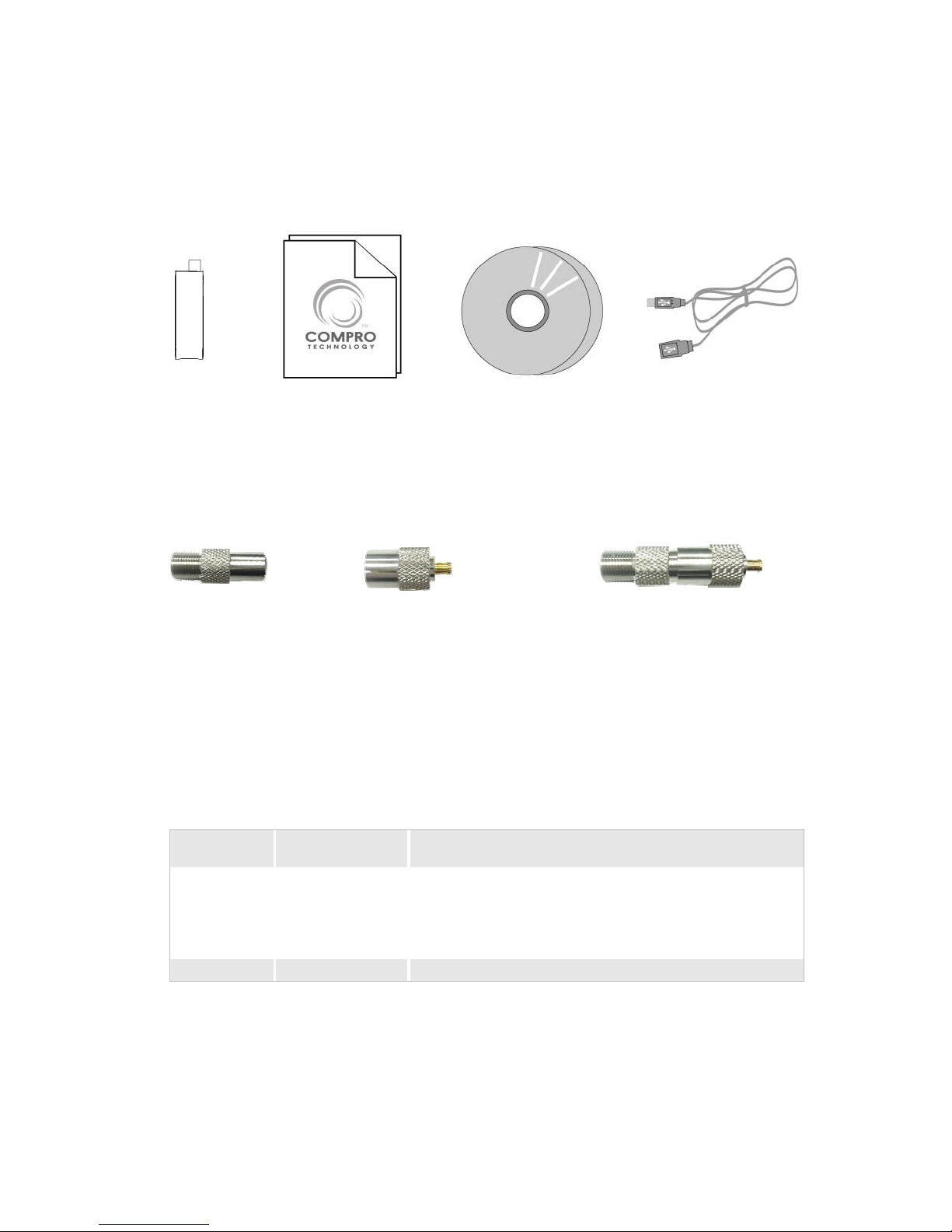
VideoMate U880 Contents
VideoMate U880 Connectors
Icon Function Description
USB USB connector Use USB extension cable to connect VideoMate
U880 (Don’t connect device without USB
extension cable in case of breaking USB
connector)
TV TV-In Connect to a TV antenna or TV cable feed.
VideoMate
U880
USB extension cable
I-type to F-type for
NTSC system
Software CDs Manual
MCX to I-type for
PAL system
Please using the connection
above for NTTSC TV input
Page 6
4
Installation
St art the computer. Make sure VideoMate U880 is connected to your computer
and insert the installation CD into your CD drive.
Step 1. After restarting, Windows will detect a new device and start the
Add/Remove Hardware Wizard. Please press Cancel and go to the
next step.
Step 2. Insert the installation CD into your CD drive. If you have Autorun
enabled, the installer will start automatically. (If Autorun is disabled,
double-click on “setup.exe” on the installation CD.) You can choose
Complete to install all necessary software (VideoMate U880 drivers,
ComproPVR, ComproDVD, Ulead PhotoExplore 8.5 SE) or choose
Custom to select item by item. Compro recommends you choose
Complete.
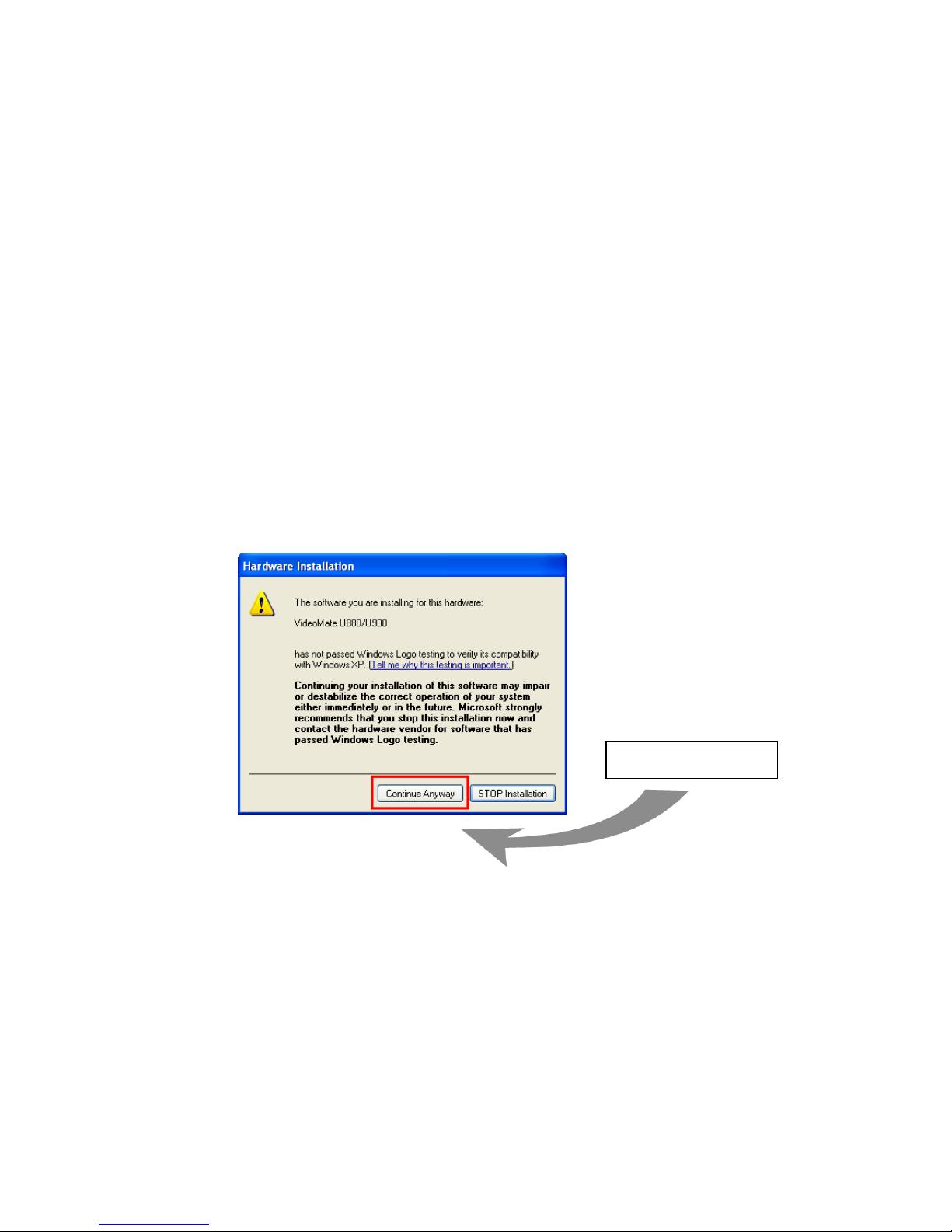
Step 3. If you see the Windows Logo testing message, below, please press
“Continue Anyway” to proceed.
Step 4. Press Next to install ComproPVR, ComproDVD, Ulead PhotoExplorer
8.5 SE.
Step 5. After each program is successfully installed, press Finish to proceed.
Step 6. When installation completes, press Finish to restart computer.
Step 7. Connect TV signal.
Step 8. Open ComproPVR to enjoy the show.
Continue Anyway
Page 7
5
ComproPVR 2
Introduction
ComproPVR is a complete digital entertainment solution for your PC. Watch
and record TV programs on your PC, in full-screen mode or in a window.
Timeshifting lets you watch TV, pause live TV, or review your favorite scenes
without missing a minute of the program. Integrated deinterlacing technology
assures the highest picture quality.
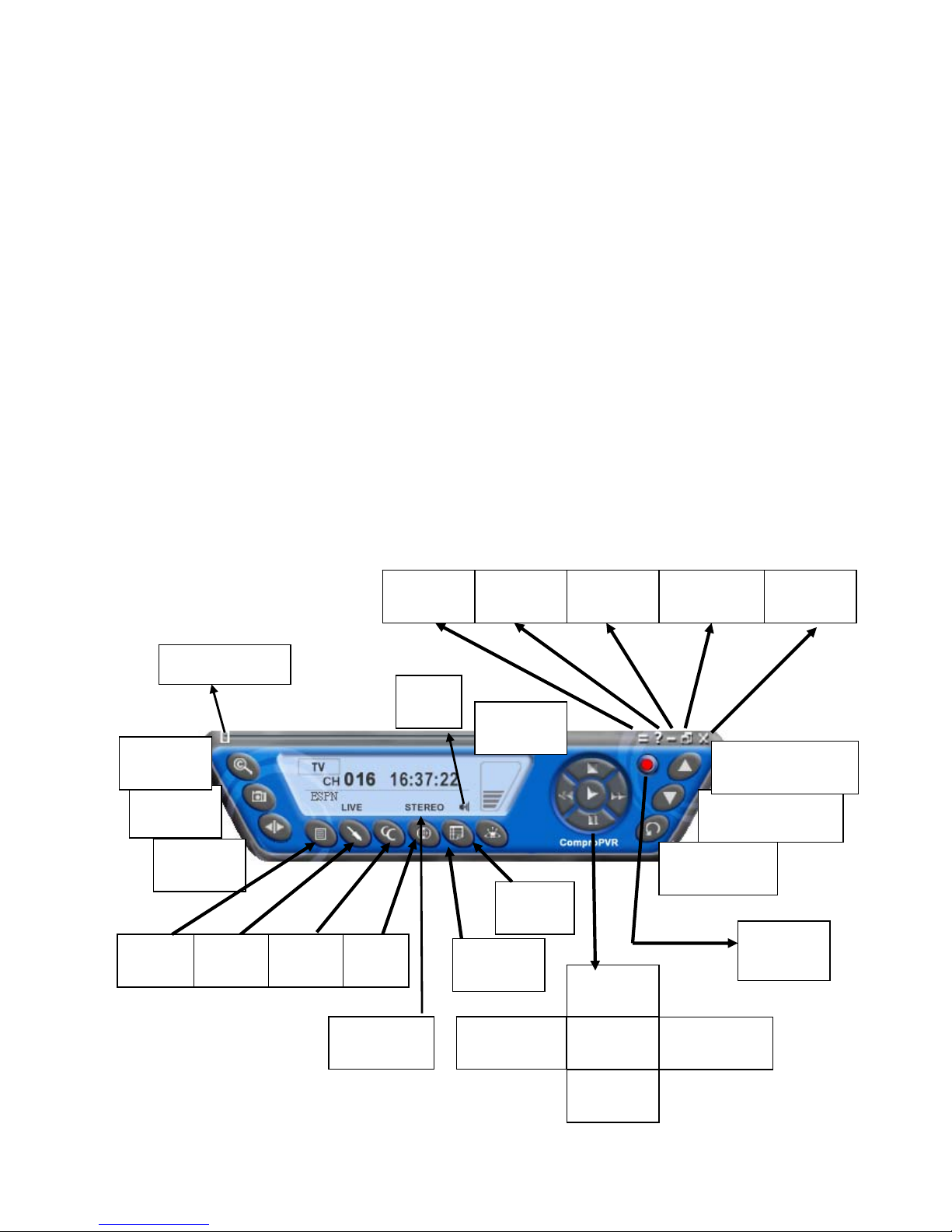
Control Panel
The ComproPVR control panel resembles the controls on a VCR. Keep in
mind that not all options are available at all times, and may be grayed out or
inaccessible depending on your hardware setup and TV services available.
The following describe the ComproPVR control panel functions, and tips for
using ComproPVR. The following figure gives you the function of the button
with (Hot Key. )
Snapshot
(Space)
Close
(CTRL+X)
Last Channel
(N)
Not
Used
Schedule
(B)
Channel
Surf(F)
Not Used
Timeshift
(T)
Channel Down
(Page down)
Stop
(S)
Docking
(D)
Volume
(+, -)
Full Screen
(Z)
Mute
(M)
Record
(R)
Channel Up (Page
Up) with lists( I )
Help
(H)
Minimize
(G)
Timeshift bar
Play
(P)
Pause
(U)
Replay
(Left Arrow)
Advance
(Right Arrow)
Options
(O)
EPG
(E)
Source
(V)
Lists
( I )
Page 8
6
Icon HotKey Description
A
Enable/Disable Always-on-Top function for
TV window.(Oregon circle on the upper-right
corner of the TV window)
n/a
L Sleep function
Note: VideoMate U880 supports mono sound only.
Watching
After installation, just double click the ComproPVR icon on the desktop you will
be able to watch TV. Same as operating a normal TV set. Watch TV programs
on your PC, in full-screen mode or in a window. Channel up and down. Close
ComproPVR and even shutdown the computer.
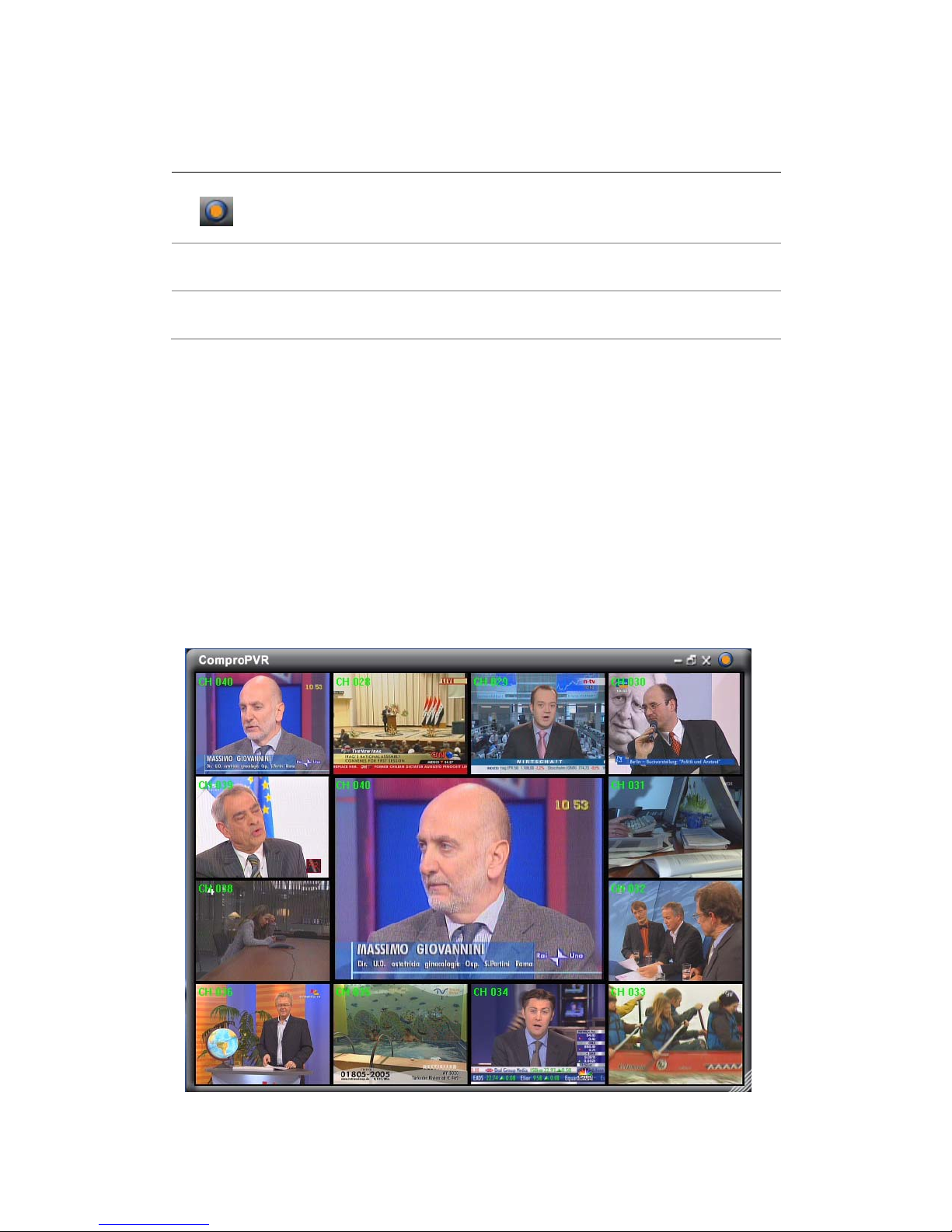
Channel Surfing
While watching TV, the channel surfing feature displays a 4x4 grid of channel
images to give you an overview of available programming.
Page 9
7
Recording
ComproPVR is a digital video recorder. ComproPVR can record full-motion
video and audio from your video source and save it to your hard disk.
ComproPVR supports MPEG-1/2/4 encoding, which saves disk space while
providing high video quality.
To instantly start recording:
1. Press the Record button . ComproPVR starts recording the video
source currently showing in the display window. It will save it to a file on
your disk.
2. Press the Stop button to stop recording.
To playback the recorded file, press the Play button and select the file you
wish to view.
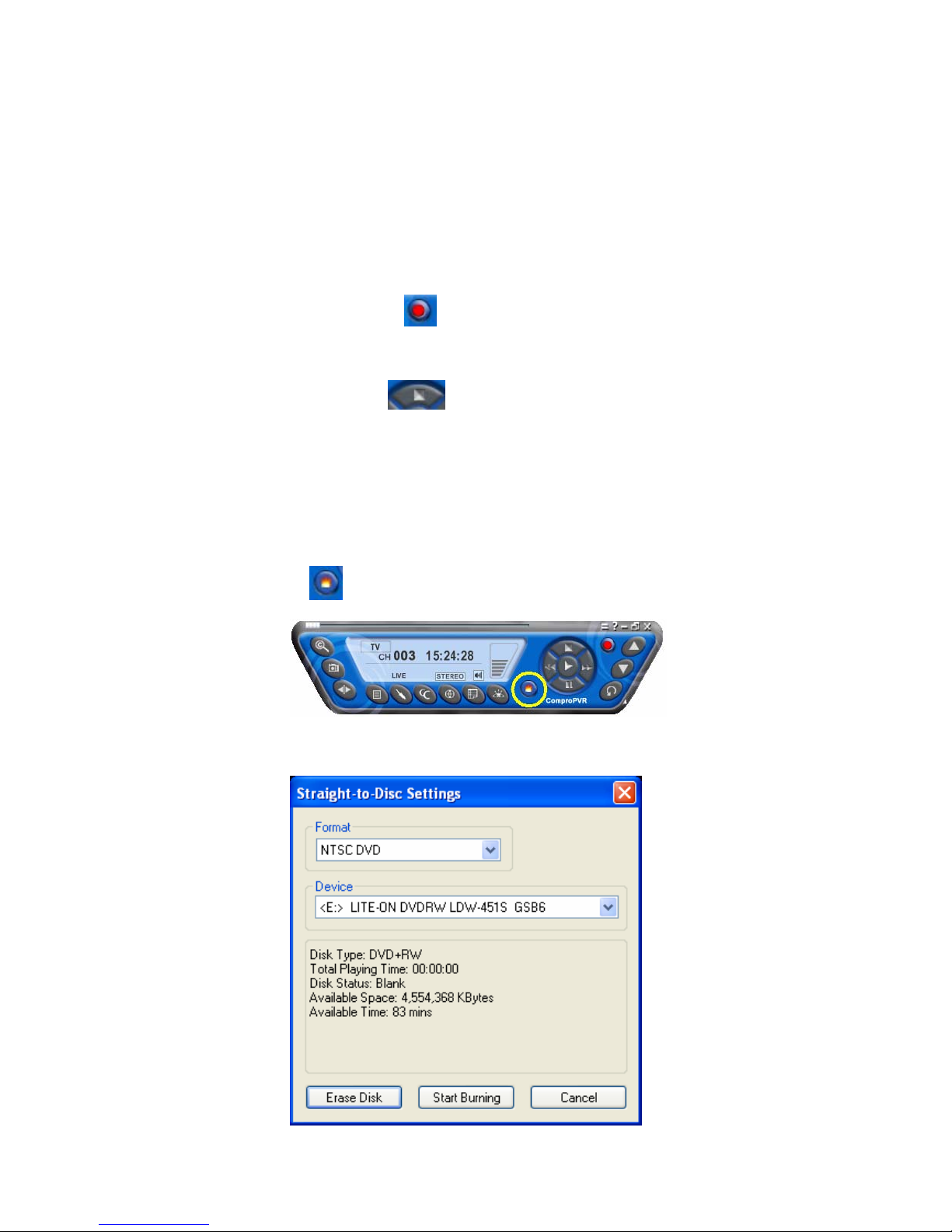
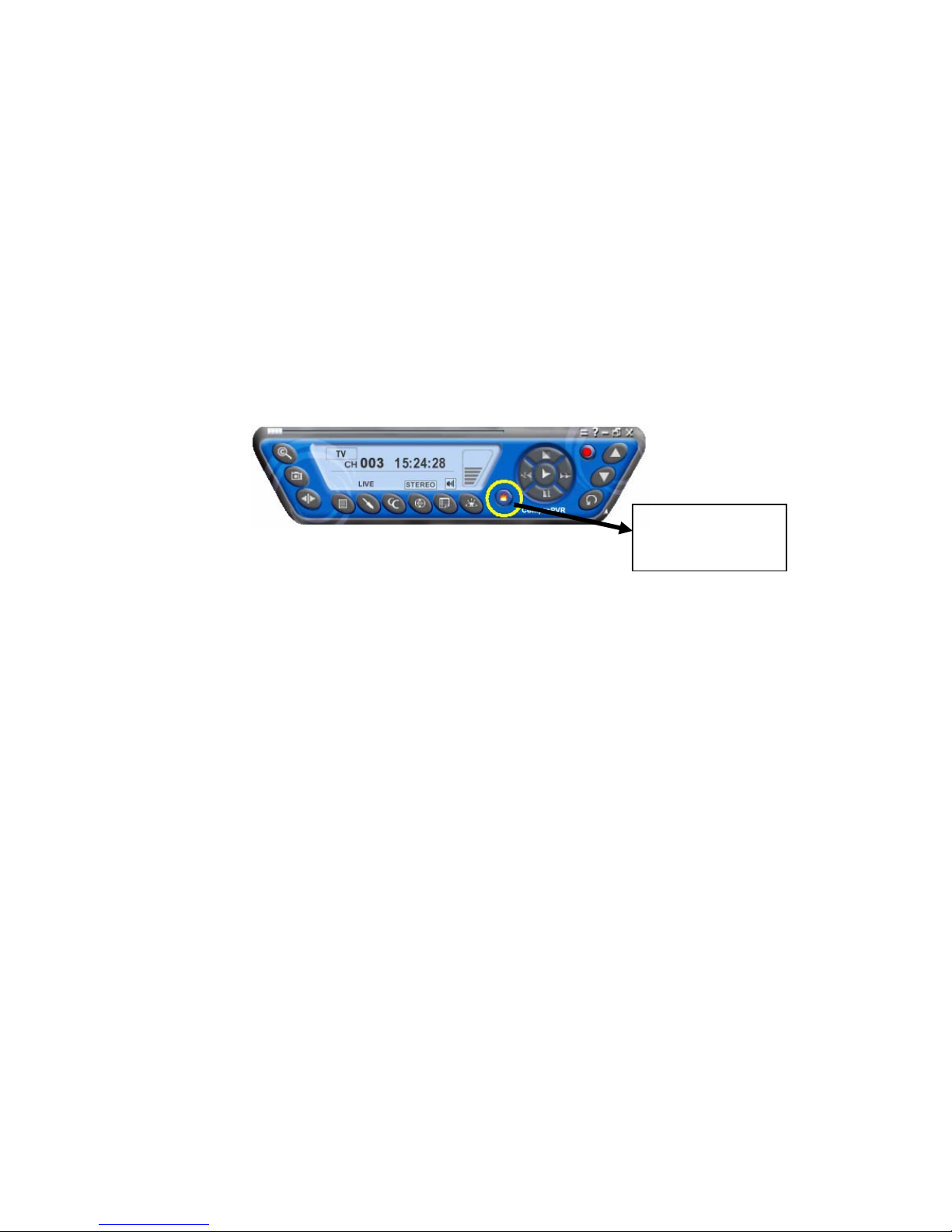
Straight-to-Disc
Click on the icon on the control panel.
You can see the straight-to-disc dialog as below.
Page 10

8
Format: Choose the recording format you like.
Device: Choose the CD-R or DVD-R device here.
Erase Disk: If the disc is re-writable and not empty, you need to erase it first.
Start Burning: Press this button to start burning disc.
Stop: Press the button on the control panel to stop burning.
Cancel: Press this button to exit the dialog.
Note
Straight-to-Disc is only available with certain models. Please check the side of
the product box to confirm if this model supports this feature.
This feature is only available on Windows XP and 2000.
You need to install the bundled Ulead DVD MovieFactory 3 SE software in
order to have this feature. If you don’t have Ulead DVD MovieFactory 3 SE in
the package, then this model doesn’t support it.
CD-R or DVD-R is necessary to use this feature and the recorded file will not
be saved in the disk.
ComproPVR will estimate your CD or DVD capacity automatically. It will stop
recording when it comes full..
The quality is related to the recording performance. Choosing better
performance in the recording option will result in a better video quality.
Options
You can press the Options button to open the Options dialog box. You
can change detail settings of ComproPVR here.
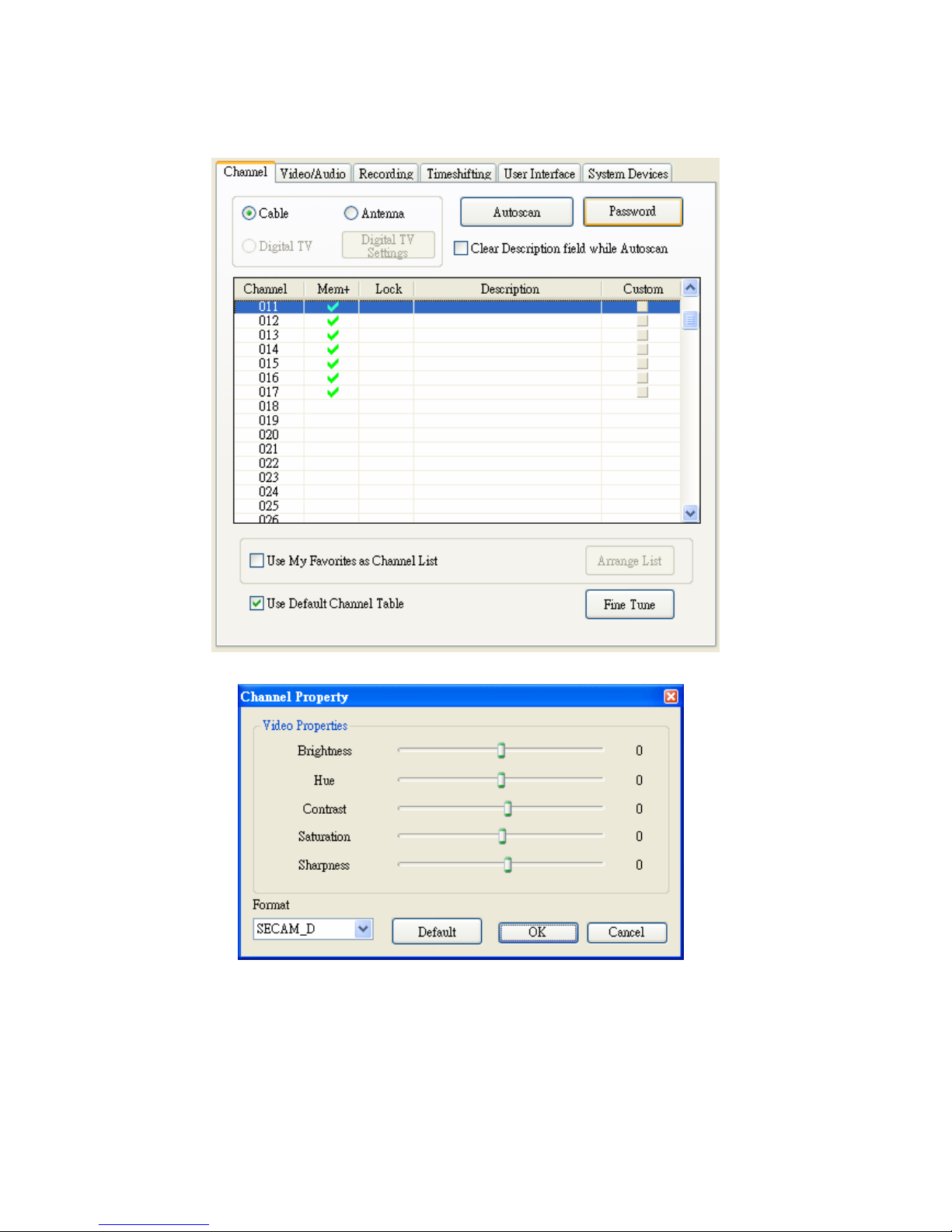
ComproPVR can let you set video properties (brightness, contrast, etc) for
each channel. Just press the button on the custom column in Channel tab in
Settings of ComproPVR. The dialog box will pop up as follow.
Page 11
9
Page 12
10
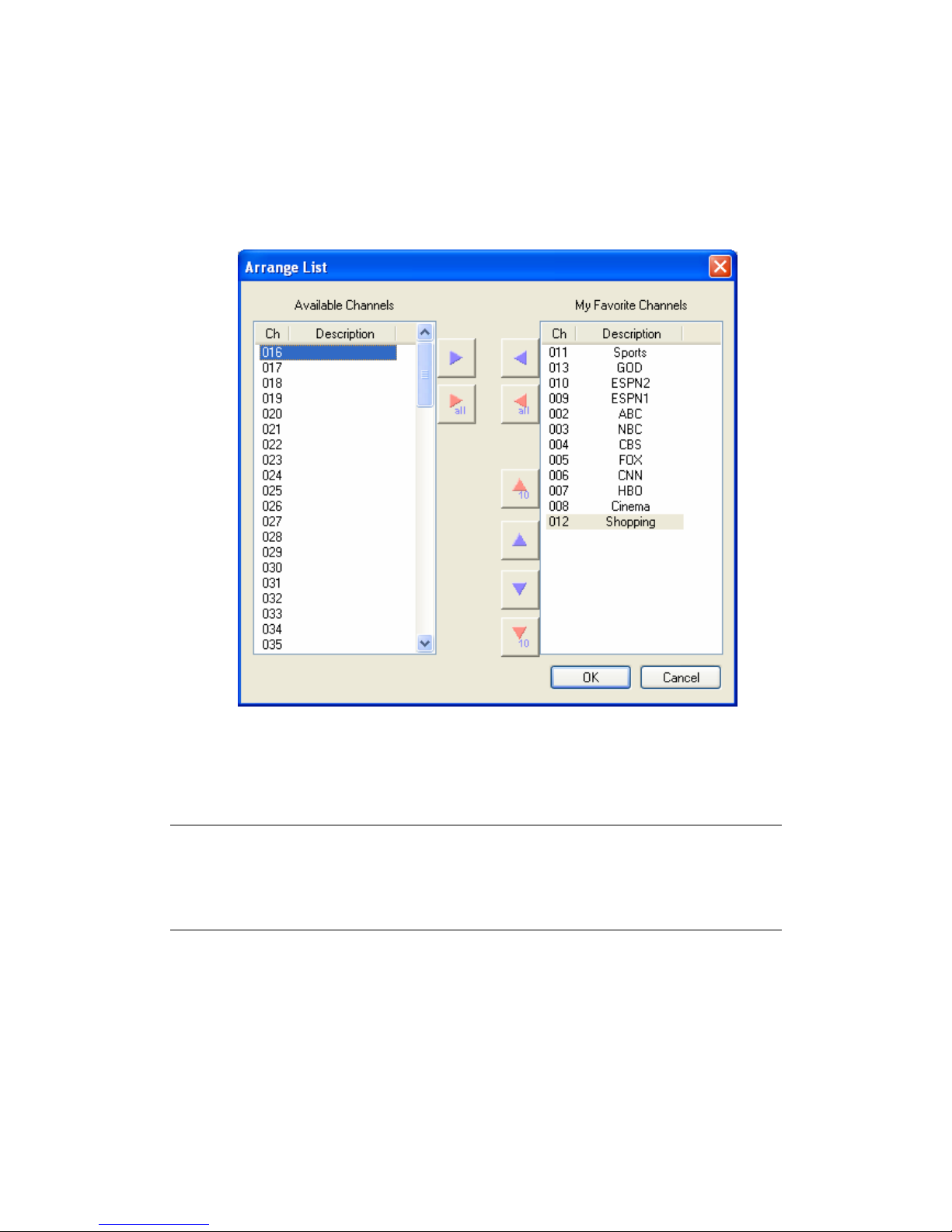
My Favorite Channels List
ComproPVR includes a channels sorting and re-ordering feature. Check the
“Use My Favorites as My Channel Lists” checkbox. You can see the window
below.
Select the channel you wish to add to my favorite and press the proper arrow
button. You may double-click on the channel to move it as well. In addition,
adjusting the channel order by using the proper arrow button.
Note
This manual only provides basic information for the ComproPVR 2. For more
information on using applications, please see the User’s Guides in the
programs, on the CDs, or at our website for the latest manuals.
Page 13
11
Troubleshooting
Troubleshooting steps
If you have problem installing or running VideoMate U880, please check the
following by step:
1. OS issue: VideoMate U880 has to work on USB 2.0 interface. Note only
Windows XP SP1 / Windows 2000 SP4 or above OS support USB 2.0. You
are welcome to www.WindowsUpdate.com website for the Service Pack
update of Microsoft.
2. USB 2.0 issue: you need to check your computer has USB 2.0 or not.
Usually you will see “USB 2.0 Root Hub” device in the "Sound, video and
game controllers" section of Windows Device Manager.
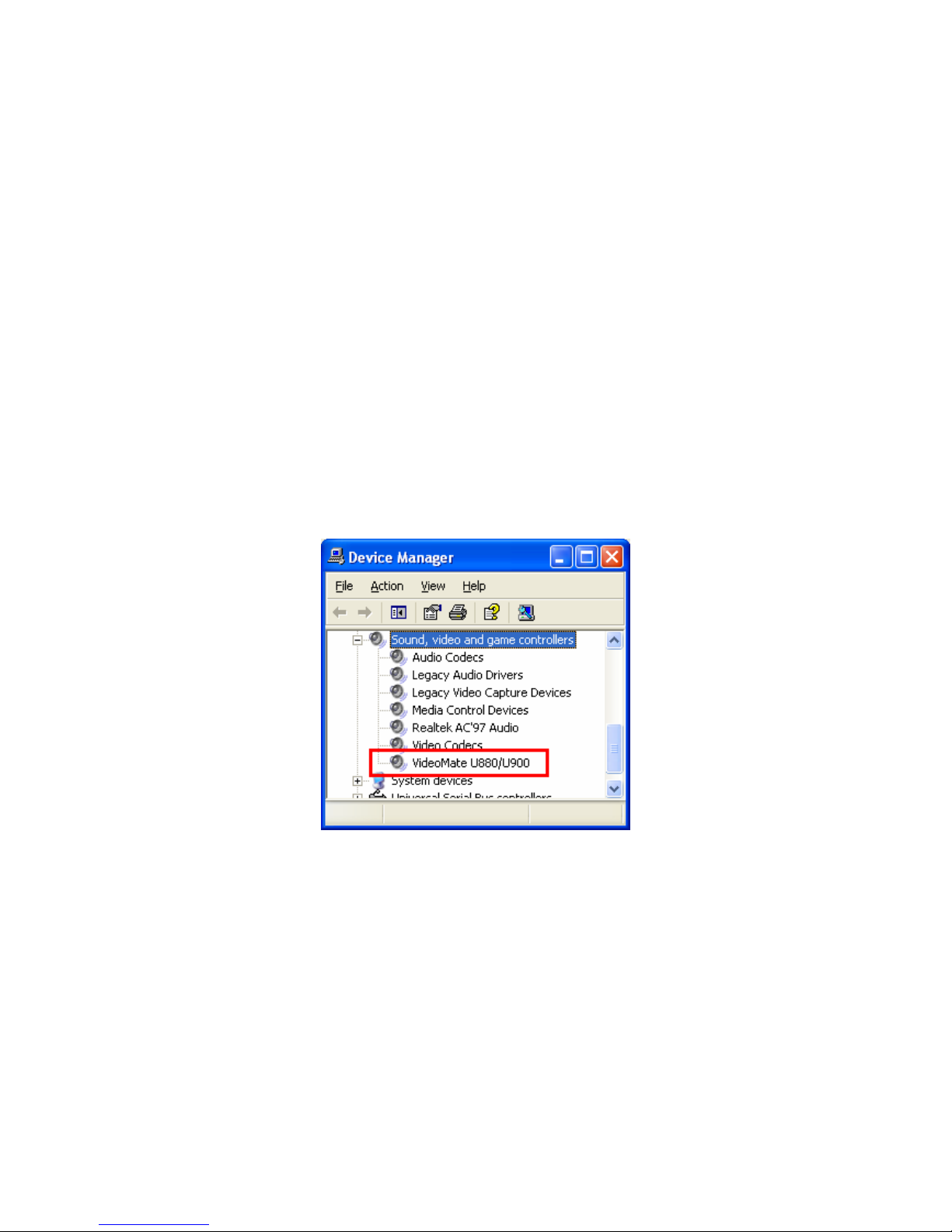
3. Driver issue: You should see " VideoMate U880 " drivers, in the "Sound,
video and game controllers" section of Windows Device Manager. If these
drivers are not there, reinstalling the VideoMate U880 drivers can help.
4. Power Issue: VideoMate U880 takes power from the USB port. Note:
PCMCIA and USB hub won’t provide enough power so that you have to use
the kind of PCMCIA and USB hub which has power adapter included.
Sometimes plugging in another USB port may help. Some motherboards
and notebook’s USB ports do not meet the USB standard providing the
standard 5V 500mA power. In these cases, VideoMate U880 will not have
enough power to work. Please contact computer vendor for the issue.
Page 14

12
5. Video OK / No Audio:
Make sure the audio device is “Your sound card device” in the System
Device in Settings of ComproPVR. Also, you have to select the audio
source to be “WAVE” in the System Device in Settings of ComproPVR.
Check that the sound is not muted or volume too low in the Windows
Volume Control dialog. (Double-click on the speaker icon in the system
tray.)
Check that the sound is not muted or volume too low in the Windows
Volume Control dialog. (Double-click on the speaker icon in the system
tray.)
Sometimes updating the sound card driver from vendor or VideoMate
U880’s software from www.comprousa.com may help as well.
6. Can’t record: ComproPVR needs to use components of Ulead
PhotoExplore 8.5 SE on the installation CD. If your computer doesn’t have
PhotoExplore, ComproPVR will fail to record. Please install Ulead
PhotoExplore 8.5 SE.
7. No sound on the recorded file: Please see above “Video OK / No Audio.”
on the number 5.
8. Playback lags: VideoMate U880 needs CPU resources to do the encoding.
Therefore, the lags come when CPU fails to encode in real time. Usually,
VCD quality needs about 1GHz CPU for recording while DVD quality needs
about 2.4G CPU for recording. Press Ctrl + Alt + Del to check your CPU
usage. If it reaches 100%, then the lag is inevitable.
9. No MPEG 4 format for recording: If you would like to record video in
MPEG-4 format, you must supply your own MPEG-4 CODEC. Furthermore,
the CODEC must be installed before using ComproPVR. In general, you
can download MPEG-4 CODEC from the following web sites.
http://www.divx.com After you install the CODEC software, you will see
the MPEG-4 format appear in the field of recording quality.
Note
Compro does not guarantee compatibility or performance with third-party
CODECs. Please try using Ulead MP3 Encoder for audio and DivX codec
directly from www.divx.com
10. No Stereo: VideoMate U880 supports Mono sound only.
Page 15
13
11. TV is not clear: Sometimes the signal could be reduced by the branching.
Please make sure the cable signal is good. Try to move the computer to a
TV set and connect the cable which is being used for the TV set. Also
directly connecting the cable before the splitter may help. This problem
could also come from static. Once you connect the cable to our TV card,
the static interferes with the system. It's possible to correct this problem by
connecting a wire from the grounding of the cable to ground. Also make
sure computer grounding is good.
12. Why can’t I do straight-to-disc: You need to install the bundled Ulead
DVD MovieFactory 3 SE software in order to have this feature. If you don’t
have Ulead DVD MovieFactory 3 SE in the package, then this model
doesn’t support it.
13. Other issue: Please go to our website for the latest software update. Many
problems may be fixed on the newer software version. You are welcome to
visit our website at http://www.comprousa.com/support
Contacting Compro Technical Support
If above doesn’t help, please check support FAQs (Frequently Asked
Questions) on our web site http://www.comprousa.com/support
You are welcome to download the latest software from our website as well.
Most problems may be solved on the updates. When contacting Compro for
technical support, please use the Compro support request form and provide as
much of the requested information as possible. Please write the details in
order to determine the problem. And also provide the product serial number
(19 digits numbers) on the VideoMate U880. Please use the form from
http://www.comprousa.com/support/form.htm.
We will get back to you as soon as possible.
Straight-to-Disc
Button
Page 16

14
Note
Make sure you include the information of hitting the button of "E-mail Info" in
the System Device in Settings of ComproPVR in order to determine the
problem.
In order to solve the problem quickly, it is very important to provide as much
detail regarding the problem as possible.
 Loading...