

Page 1
Emmy
User Guide
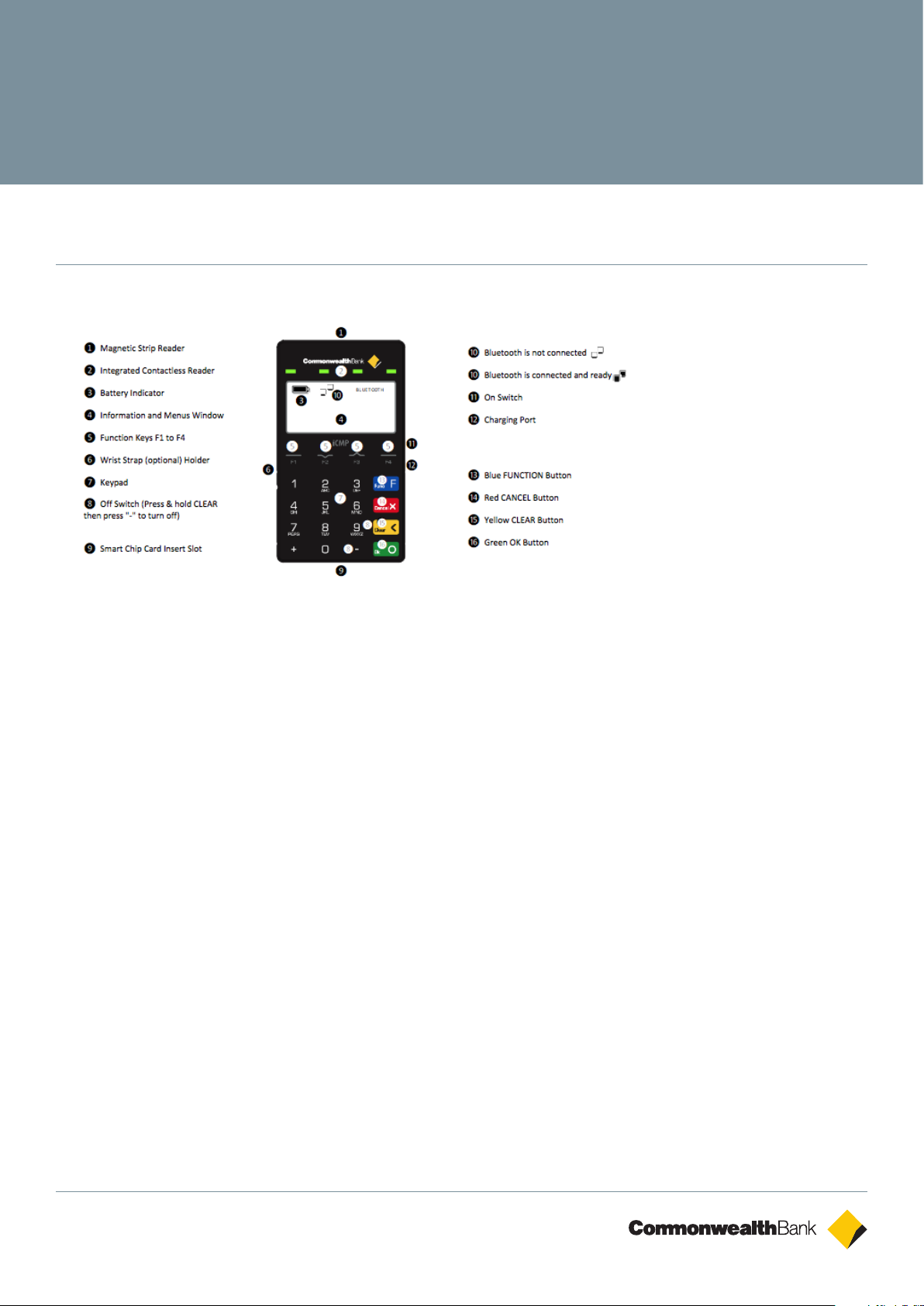
1. Emmy Terminal Features
2. Important information to protect your business
The following steps should be followed at all times to protect you and your customers from fraud.
◆ You must ensure that the software application your business is using to accept card payments via Emmy is
accredited by the Commonwealth Bank. If you are unsure please contact the Commonwealth Bank merchant
help desk.
◆ Merchants must ensure that any app that is used on their Smartphone/Tablet Device in conjunction with
Emmy does not capture any card information (including card numbers and expiry dates) or cardholder
verification (PIN or signature).
◆ Cardholders must only enter their PIN into the pinpad on the Emmy device, and must not enter it into the
Smartphone/Tablet Device.
◆ All transaction data communications processed via Emmy are at the cost of the merchant customer, the
Commonwealth Bank is not liable for communications costs resulting from transactions on the Emmy device.
3. Getting Started
The Battery
The Emmy terminal incorporates an integrated battery that is not removable or replaceable by the user. If the
battery component fails the device will need to be returned for replacement.
Charging the Battery
Before using Emmy for the first time, you will need to charge the battery for a minimum of 3 hours via a powered
computer USB port (or optional USB power adaptor) plugged into the micro-USB connector on the right-hand
side of Emmy. Further initial full charging of the terminal battery requires an additional 3 hours. The micro-USB
cable provided should be used for this purpose.
CBA3593 201014
Page 2
Emmy
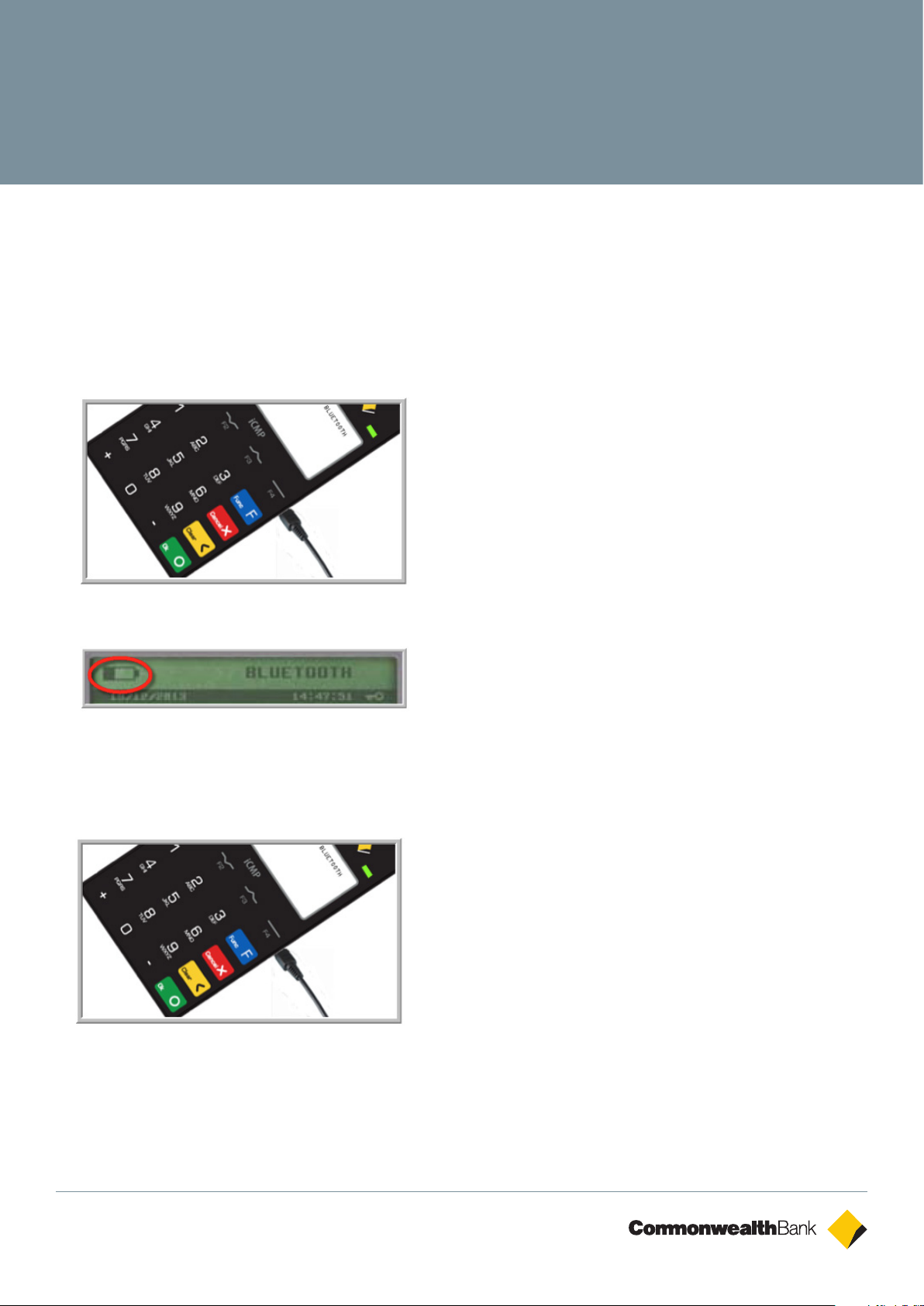
The battery charge indicator on the screen will display the progress of charging.
You can use either an optional power supply or the USB cable to charge Emmy.
Charging with power supply
◆ Plug the micro-USB connector to the right-hand side of Emmy below the “on” switch (as shown below) and
connect the power supply to your power socket.
◆ A battery indicator is provided on the Emmy screen, indicating the charge of the device.
Charging with USB cable
◆ Plug the micro-USB connector to the right-hand side of Emmy (as shown below) and connect the USB
connector to a powered USB port on your computer or powered USB hub.
CBA3593 201014
Page 3
Emmy
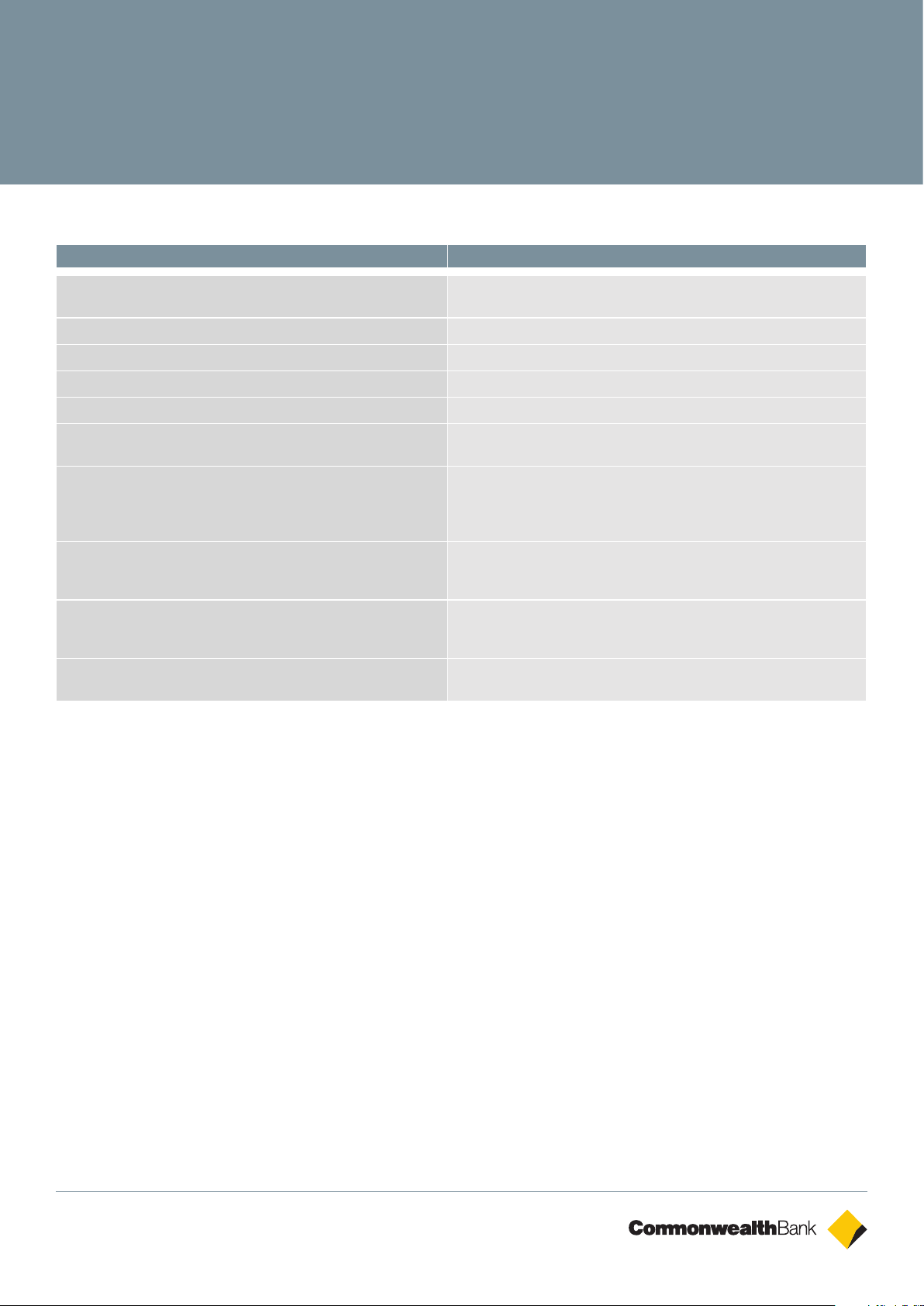
Bluetooth Pairing to Smart Device (Phone or Tablet)
Apple Devices Android Devices
Turn on Bluetooth on the Apple iPhone or iPad and ensure that
Bluetooth is discoverable
On the Emmy terminal, access the Terminal menu as follows; On the Emmy terminal, access the Terminal menu as follows;
Select <F> Function key Select <F> Function key
Enter the Manager Password followed by the <OK> key Enter the Manager Password followed by the <OK> key
Select <1> PAIR IOS Select <2> PAIR Other OS
The Emmy terminal will search for discoverable Bluetooth devices The Emmy terminal will display a 4 digit PIN to be entered into the
Scroll to the desired Bluetooth device using the <F2> (Down) and
<F3> (Up) buttons and press <OK> to select your Apple iPhone
or iPad
Enter the 4 digit PIN displayed on the Emmy terminal into the
Bluetooth pairing window of your Apple iPhone or iPad and press
<PAIR>.
The Emmy terminal should display “PAIRING OK” and the
Apple iPhone or iPad should display that “iCMP – xxxxxxx” is
“Connected” in the Bluetooth settings
Press the <CANCEL> key on the Emmy terminal to return to the
ready screen
Turn on Bluetooth on the Android phone or tablet and ensure that
Bluetooth is discoverable
Bluetooth pairing window of your phone or tablet
Press <Scan Devices> on the Android Bluetooth screen and tap
on “iCMP – xxxxxxx”, when prompted enter the 4 digit PIN that is
displayed on the Emmy terminal into your Android phone or tablet
followed by <Enter>.
The Emmy terminal will display “PAIRING OK” and the Android phone
or tablet should display that the Ingenico iCMP device is “Connected”
under Bluetooth
Press the <CANCEL> key on the Emmy terminal to return to the ready
screen
CBA3593 201014
Page 4

Emmy
TMS (Terminal Management System) logon
A logon to the TMS must be completed at initial installation to pick up any new terminal software updates. Emmy
is also scheduled to check for software updates regularly (usually weekly if connected to the smart device with
active communications ie SIM card/WiFi), if you have a preferred time for updates to automatically take place
please advise our Merchant Help Desk.
◆ Initiate TMS “Terminal Software Update” on the app on your smart device
◆ Wait for processing to be completed
Alternatively if the app does not contain TMS logon functionality, use the folowing steps on the
Emmy terminal
◆ Press the ‘F’ Function key on the Emmy terminal
◆ Press 2 - Terminal
◆ Enter the manager password followed by OK
◆ Press 1 – Configure
◆ Press F4 to scroll down
◆ Press 4 – TMS Logon
◆ Wait until TMS logon is completed where you will be taken back to the home screen
4. Processing Transactions
For further information on how to use the CommBank Small Business app, please refer to the “CommBank Small
Business app User Guide”.
Purchase – Swipe / EMV
◆ Initiate a purchase transaction on the app on your smart device
◆ Swipe or insert the card on the Emmy terminal
◆ Select the account by pressing the function keys below CHQ, SAV, CR text
◆ Enter PIN or OK for signature (Note: signature is only for credit transactions)
◆ Wait for processing to be completed
◆ Remove card when prompted by the terminal
◆ Transaction is approved and merchant copy of the receipt is printed (if applicable)
◆ Verify signature on the app (smartphone or tablet). Press YES to approve or NO to decline
◆ Transaction is approved and customer copy of receipt printed or email (subject to app functionality)
CBA3593 201014
Page 5

Emmy
Purchase – Contactless
◆ Initiate a purchase transaction on the app on your smart device
◆ Tap card on the screen of the Emmy terminal until the 4 lights above the screen light up
◆ Wait for processing to be completed
◆ Transaction is approved
Note: For contactless transactions a signature may also be required in certain situations. The way the
signature is captured is dependent upon the application being used with the Emmy terminal.
Refund
◆ Initiate a refund transaction on the app on your smart device (if applicable)
◆ If prompted by the terminal, enter the manager password and press OK
◆ Swipe, insert or tap the card
Note: Remainder of the refund transaction flow is the same as a purchase transaction.
5. Settlement Functions
Settlement – Manual Settlement
◆ Initiate settlement on the app on your smart device
◆ Wait for processing to be completed
◆ Settlement report is printed (may vary depending on app functionality)
Alternatively the Bank can set the terminal to automatically settle each day, settlement cannot occur between
22:00 and 0:00 AEST.
Pre-Settlement (Running Total)
◆ Initiate Pre-settlement (Running total) on the app on your smart device
◆ Wait for processing to be completed
◆ Pre-settlement report is printed (may vary depending on app functionality)
Last Settlement
◆ Initiate Last-settlement on the app on your smart device
◆ Wait for processing to be completed
◆ Last settlement report is printed (may vary depending on app functionality)
CBA3593 201014
Page 6
Emmy
6. Troubleshooting
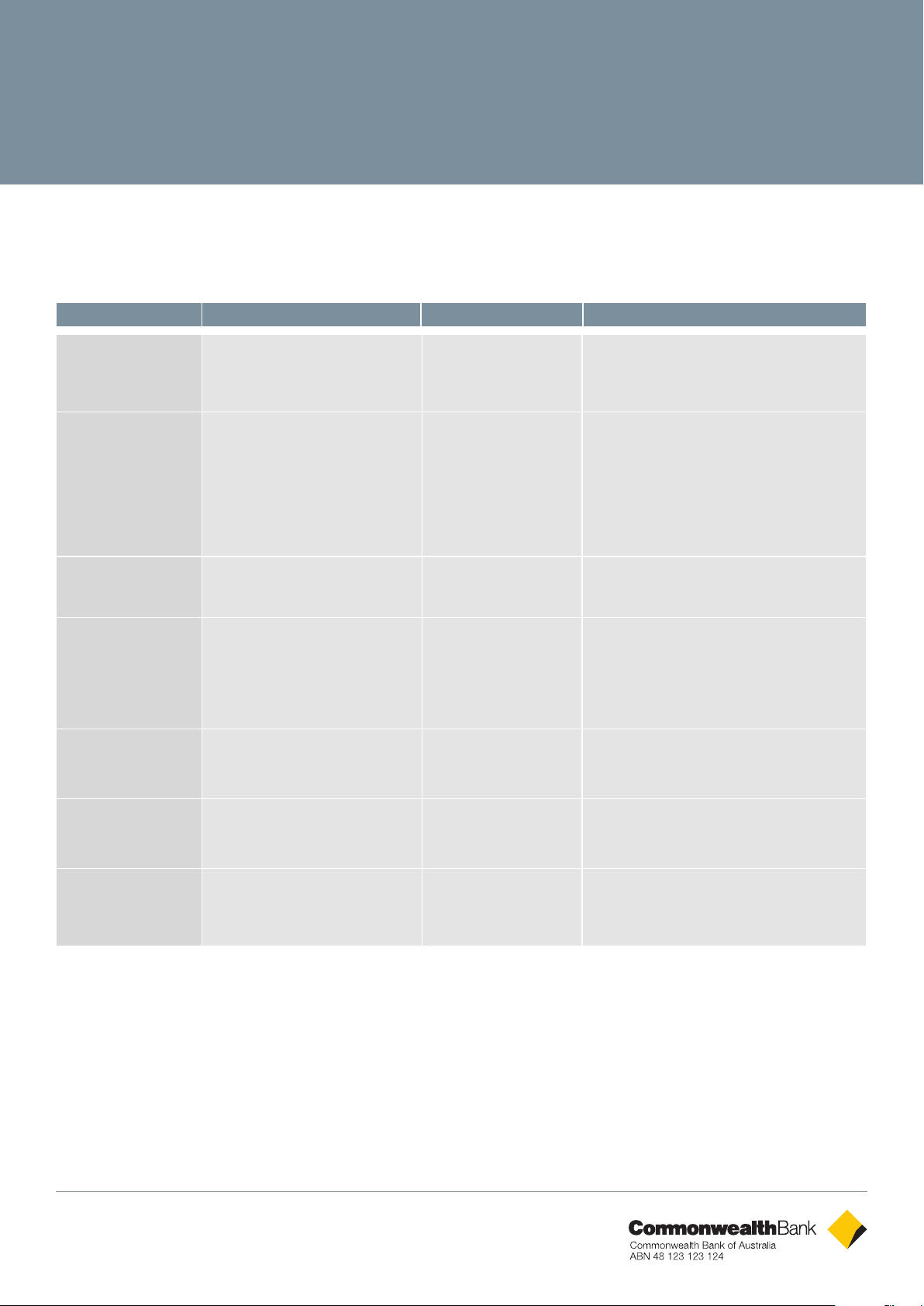
Common Terminal Error Messages
Codes Terminal Display Description Recommended Next Steps
01 DECLINED – 01
CONTACT CARD ISSUER
13 DECLINED – 13
INVALID AMOUNT
X0 DECLINED – X0 No response from host Check communications link. Try processing
S0 DECLINED - S0
MODEM ERROR
S2 DECLINED – S2
NO ANSWER
Refer to card issuer Advise the cardholder to contact their card
issuer for specific details. Ask the Customer
for another form of payment (e.g. different
card).
Invalid amount Different limits apply to different types of
transactions as defined in the merchant
agreement. For instance, there is a cashout
limit and a refund limit, and if either one
is exceeded, an error message will be
displayed. The user must simply enter a value
lower than the relevant limit defined in the
agreement.
the transaction again. If still no response,
invoke SAF.
Modem error This can represent an error with an external
modem, or if the terminal is set to fallback
to internal modem and no phone line has
been plugged in. Check communications
link on base and wall plug. Ensure cables are
properly connected.
No answer Contact the CBA Merchant Helpdesk.
S8 DECLINED – S8
NO EFT SERVER
57 DECLINED – 57
TRAN NOT ALLOWED
Link not setup on EFT
Server
Transaction not
permitted to cardholder
Contact the CBA Merchant Helpdesk.
Advise the cardholder to contact their card
issuer for specific details. Ask the Customer
for another form of payment (e.g. different
card).
Support
For support, please call the dedicated CBA merchant helpdesk on 1800 022 966, 24 hours a day, 7 days a
week.
When calling the Helpdesk, please make sure you have the following information ready:
◆ Merchant ID
◆ Terminal ID
◆ Error code (if applicable)
CBA3593 201014
 Loading...