

Page 1
Page 2
INTRODUCTION
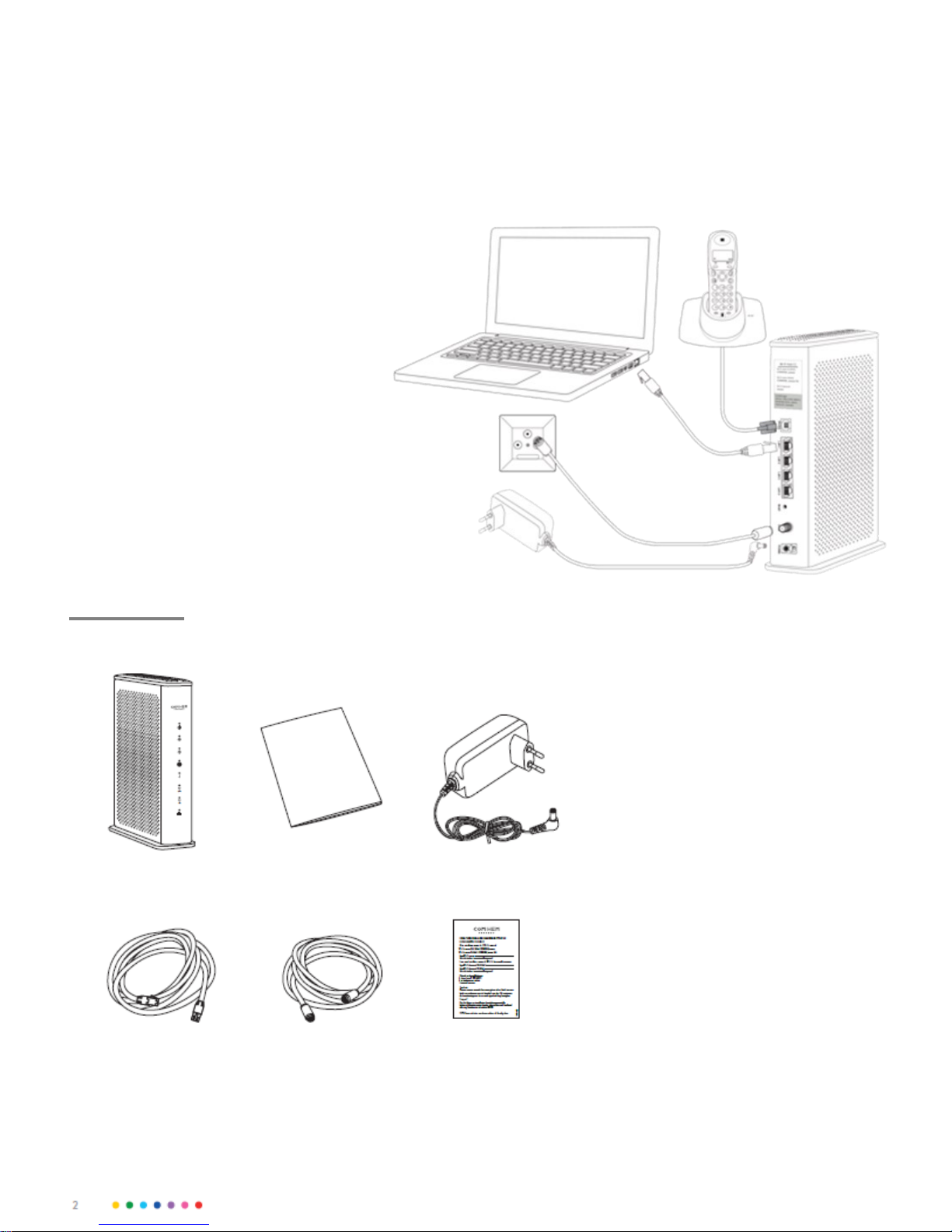
So it should look like this when it's finished!
In the picture you will see how the cables should be
connected when you have finished installing.
Just follow the different steps in this guide,
then you are soon running with your new
broadband service. Good luck!
Keep in mind that the location of the router
affect the performance of your
wireless networks. Place it
Therefore, as central in your home as
possible, standing so that air can circulate around
so it does not get too hot and with the front
outwards (side with lights). Avoid placing
it too close to the floor or the ceiling or behind a sofa a
or in a cupboard. It worsens reception.
Use the cables provided in the package.
Old cables, or cables intended for
Other equipment may impair your connection.
THE PACKAGING CONTAINS
Com Hem
Wi-Fi Hub C1
Network cable, 3m Modem cable, 3m
Documentaon Power cable
TIP! SAVE LABEL
Adhesive label with
information for the
Wi-Fi-Connection
Page 3
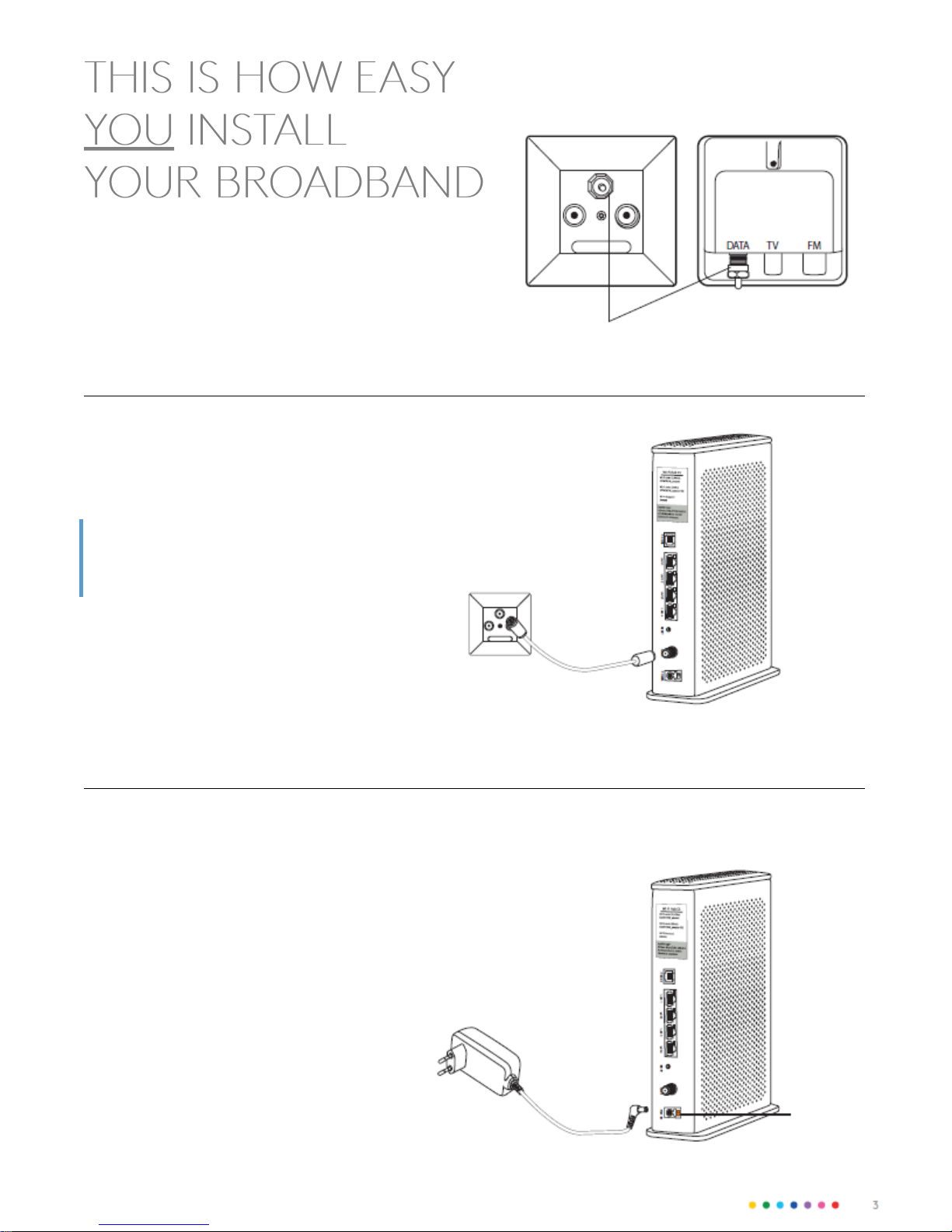
1. Start by unscrewing the protective sleeve that may be
covering the hole marked DATA in your Com Hem outlet.
2. Connect the modem cable to the jack on the router that
is marked COAX and the other end of the cable to the
DATA jack in the Com Hem socket that sits in the wall
TIP!
Make sure that the copper pin in the two ends of the cable is
straight and centered in the connector so they do not bend when
You tighten them. Also ensure that the contacts are firmly
screwed to both ends.
Your Com Hem outlet may have
any of these two appearances
Unscrew counter clockwise
3. Plug the power cord into the outlet marked POWER
on the router. Plug the other end into an electrical outlet.
The rear of the router also features an on / off switch,
make sure it is turned on. The lights on the front
now starts to flash, which means the router starts up.
On/off
switch
should be
turned on
Page 4
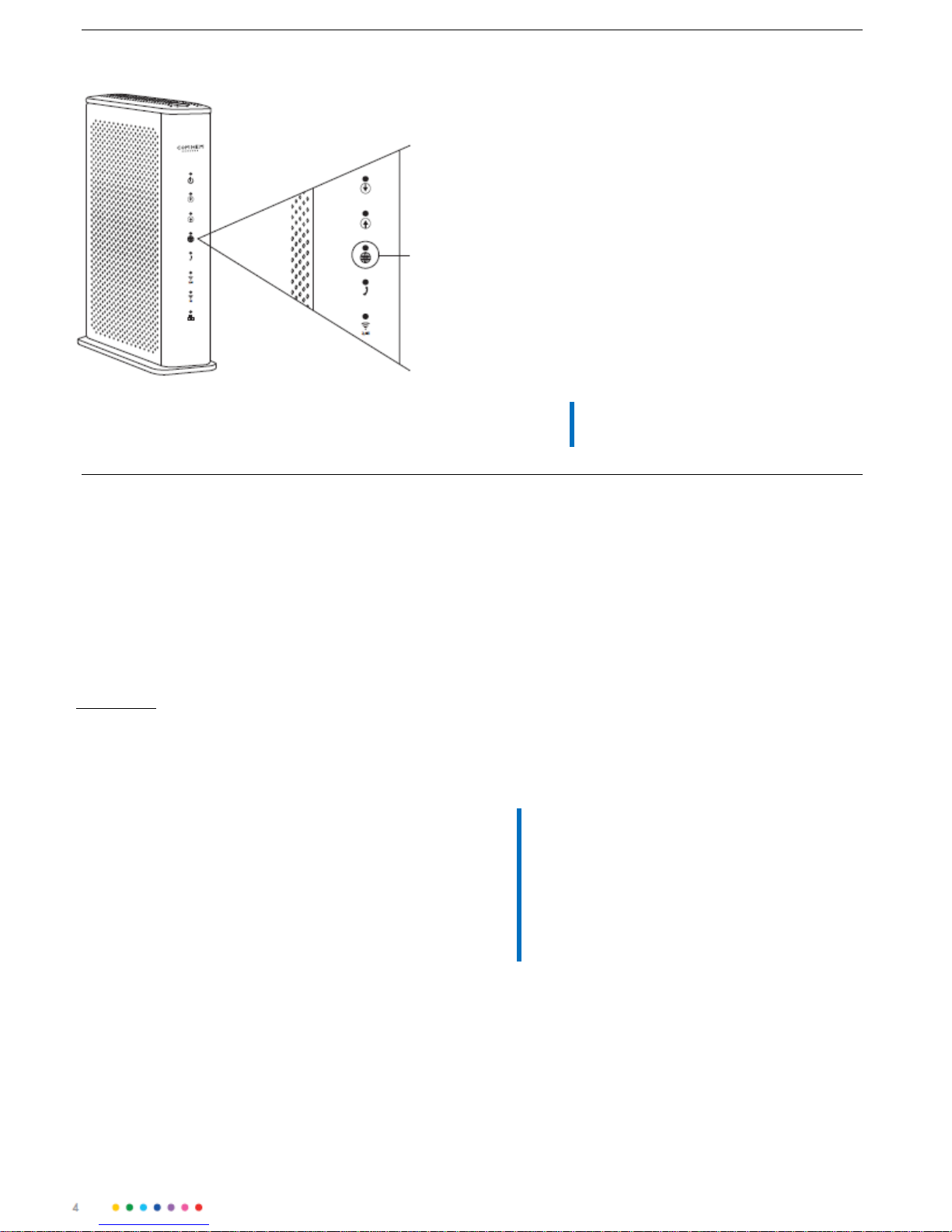
When this
lamp is lit,
your
broaband
is up and
running.
4. Soon the broadband is ready to use. When
the lamp which looks like a globe shines with
a solid green shine the broadband is ready to
use. The rst me the router is started it can
take up to 10 minutes before the lamp lights
up with a solid shine.
If the lamp does not lit after 30 minutes, do
the following:
Check that the ends of the modem cable is
seated properly. Unplug the power cord and
leave the router powerless about 20 seconds.
Then reconnect the power cord. More about
the symbols and what they mean you will nd
at comhem.se.
DO YOU ONLY HAVE TELEPHONE?
GO DIRECTLY TO PAGE 7!
SURF BOTH
WIRED AND
WIRELESS
No maer what speed you choose, you will come to
experience a fast-paced internet, much thanks to
that Com Hem Wi-Fi Hub C1 has our best
Wi-Fi ever.
There are some things that affect how fast it goes.
First, you need a good broadband service - and we can
guarantee that you have just that. Then you will need
to decide if you want to connect with a network cable
or via Wi-Fi.
You get the highest speed with a good computer,
connected with a network cable. However, your own
computer's settings can affect the speed. Make sure
you have an updated operating system and the latest
drivers for your network adapter. An old computer
with old components, such as processor, network card
or hard drive can do that your broadband is perceived
as slower. You are welcome to test us, visit the
Independent website Bredbandskollen.se.
Do you want to surf wirelessly? First, make
sure the wireless funcon on your
computer is turned on. One thing that is good
to keep in mind when browsing
Wirelessly, is that Wi-Fi is just like radio. In
some rooms the recepon is worse, in
others beer.
This can aect speed, for example:
• Other electrical equipment
• Neighbor's Wi-Fi
• Thick walls
• Older computers / network cards
TIPS FOR WIRELESS SURF VIA WI-FI!
Be sure to place your router at the same
height as the devices that are connected to it
and so centrally in your home as possible.
Do you think the connecon is not working
as well as You wish in some places in your
home, you can visit comhem.se for more ps
to help you.
Page 5
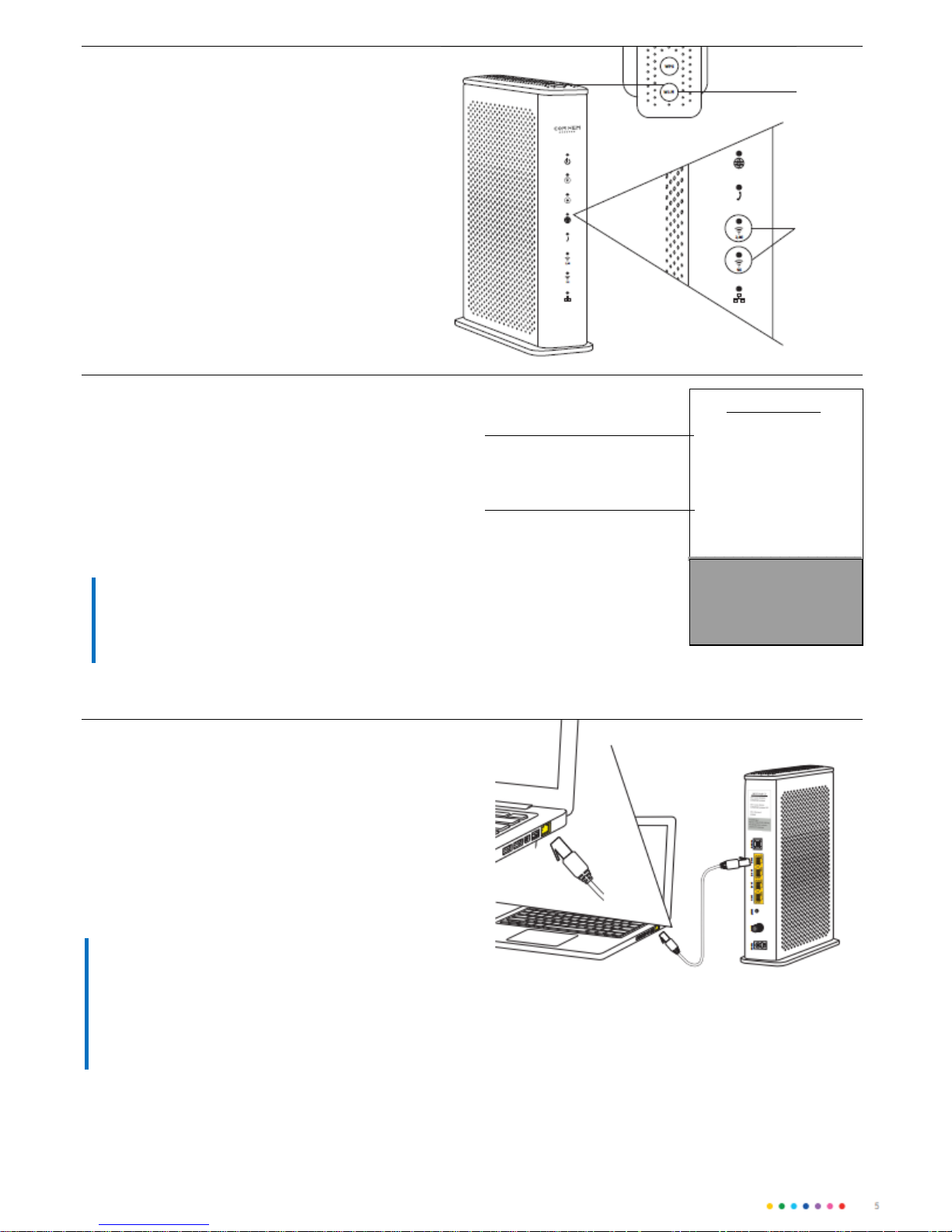
ACTIVATE AND CONNECT WIRELESS TO WI-FI
5. Your router delivered with the wireless fe-
ature acvated. As long as at least one of the
Wi-Fi lights up, you can connect to it
Wirelessly. If you want to turn o or turn on
the wireless funcon, press the WI-FI buon
on the top of the router for at least three seconds.
Note that aer that, it may take a few seconds
before the lamp goes out or lights up.
WI-FI-buon
When at least
one of
these lamps
Lights up are
your wireless
networks
acvated
6. On the next page, you will nd
informaon about how to connect your
computer, mobile or tablet to the
router wirelessly. In all cases, you need to
enter the name of the wireless network
(Wi-Fi name) and the password for the
wireless network (Wi-Fi password). The
data is available on a label that comes with
the packaging, as well as on the back of
the router.
TIP!
Please keep the Wi-Fi name (SSID) and Wi-Fi
password (WPA-KEY) that came preset on your
router. Then you can always nd out on the
router if you should forget them.
CONNECT THE ROUTER WITH NETWORK CABLE
7. Connect the network cable's one contact to one of
The yellow LAN ports marked LAN 1, LAN 2, LAN 3 or
LAN 4 on the back of the router. Connect the other
one to the computer network outlet. Test that your
internet connecon works by starng your computer
and surng on to example comhem.se
Wireless network (Wi-FI-name)
Password wireless network
(Wi-Fi password)
Wi-Fi Hub C1
Wi-Fi-name (2,4GHz):
COMHEM_xxxxxx
Wi-Fi-name (5GHz):
COMHEM_xxxxxx-5G
Wi-Fi-password:
xxxxxxxx
Sengs
Adress:
htp://192.168.0.1
Username: admin
Password
TIP!
The router has four LAN ports, which
allows you to connect, for example, more
computers, media servers or
network printer with network cable.
Page 6
GUIDE FOR WIRELESS
CONNECTION
How to connect the most common equipment Wireless to your
router.
General informaon
• The name of the wireless
network which you are going to
connect to is in format
COMHEM_xxxxxx, the
xxxxxx is your router's unique
name.
• You can nd the wireless
network Name "Wi-Fi Name" on
the label on your router, as well
as on the enclosed the label in the
router's packaging.
• You will nd the password for
your wireless network "Wi-Fi
Password" on the label on your
router, as well on the supplied
label in the routers packaging.
Phone and iPad
• Select "Sengs", then select
"Wi-Fi".
• Check that the feature is on
by pulling the control to mode
"On" (the control is then green).
• Select the name of the wireless
network you want to connect to.
• Enter the password for the
wireless network and then select
"Connect."
Android
• Open "Programs", select
"Sengs" and then select "Wi-Fi".
• Select the name of the wireless
network you want to connect to.
• Enter the password for the
wireless network and then select
"Connect."
Windows Mobile
• Go to "Applist" and press
"Sengs".
• Select "Wireless Network" then
enable Wi-Fi by changing the
control to "On".
• Select the name of the wireless
network you want to connect to.
• Enter the password for the
wireless network and then select
"Connect."
Mac OS X
• Click the Airport icon in
top right corner of the screen to
view available wireless networks.
• Click on the wireless network
to which you want to connect.
• Enter the password for the wire-
less network and then select
"Connect."
Windows 10
• Right-click the Windows ag
at the boom le (start menu).
• Select Network Connecons.
• Double-click the Wi-Fi icon.
• Click on the wireless network
which you want to connect to and
select then "Connect".
• Enter the password for the
wireless network and then select
"Next".
• Click "Yes" on queson:
computer should be able to detect others computers in this
network.
Windows 8
• Open the desktop from the
home screen.
• Click on the wireless icon
down to the right of the clock.
• Click on the wireless network
which you want to connect to and
select then "Connect".
• Enter the password for the
wireless network, and then select
next.
Windows 7
• Click the Start buon, select
"Computer".
• Click "Network," then click
"Network and Sharing Center" in
the top list.
• Click "Connect to a network".
• Click on the wireless network
which you want to connect to and
then select "Connect".
• Enter the password for the
wireless network and then select
"OK".
Windows XP and Windows Vista
• Click the Start buon, select
"Connect to" and click on
"Wireless Network Connecon ".
• Click on the wireless network
which you want to connect to and
then select "Connect".
• Enter the password for the
wireless network and then select
"OK".
If your network adapter, phone or
the tablet is prepared for wireless
5 GHz network, you will see two
networks with your Wi-Fi name
in the list, what ends up as
"-5G" is at 5GHz. Note that
networking at 5 GHz gives you
beer speed but may have a
worse scope.
Menus and names may vary
between manufacturers and
models.
Page 7
 Loading...