

Page 1

This manual brought to you by:
Visit our web page
HOME
Page 2
COMDIAL
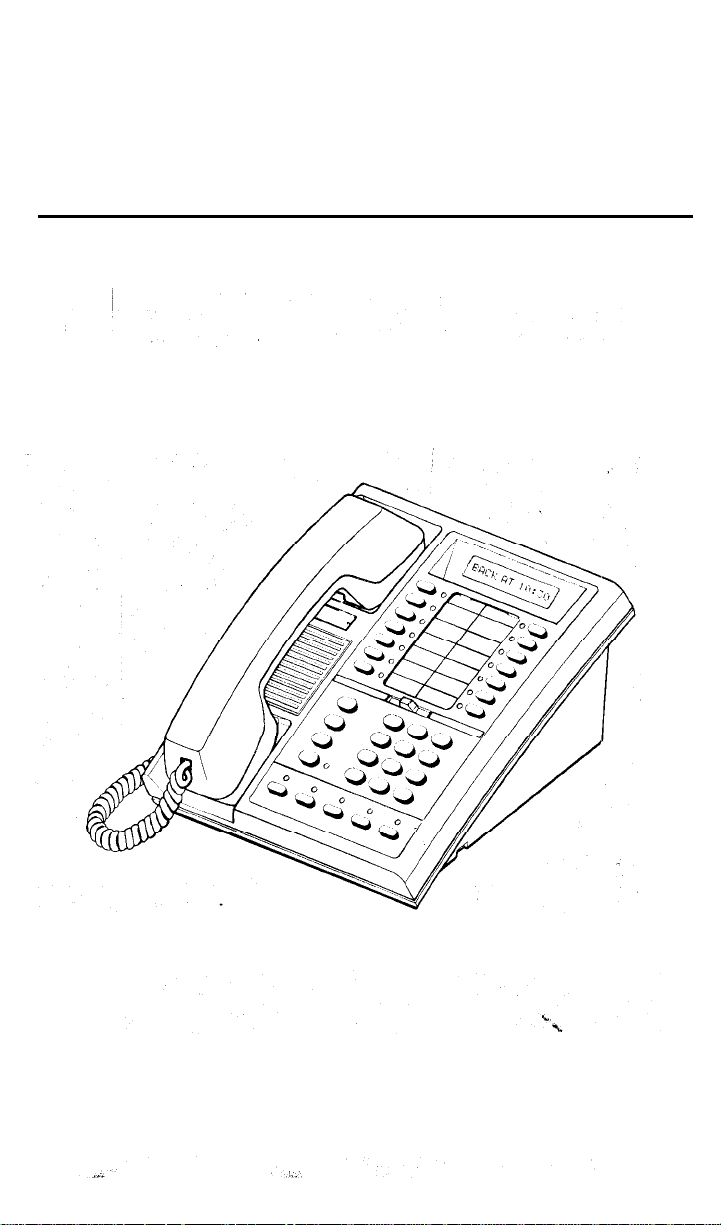
Executech LCD
Speakerphone
User’s Guide
GCA 70-088.02
June, 1988
Page 3
3
Page 4

RINGER
AUXILIARY JACK
\ I
“c”,.l.YL”
h#3NlToR SPEAKER
KEY
.
OFF
.
HOT DISllEe
DSS
DSS
SPEAKER
KEY PAD
.
uxE55
1s
SrmED,
DIAL KM FOR AUTO DIAL LCCATlDNS
PRoGFaaEDl
DIAL KEY
DIAL KEY LOCATIONS l-7
8-14
Page 5

lntroduction
This Executech LCD Speakerphone provides the
user with a Liquid Crystal Display (LCD) in addition
to the many standard available features. In the
idle state, this lbdigit LCD provides a desk clock
and calendar combination.
progress, an elapsed time display provides a con-
stant reminder of call duration. Other call
and information displays make telephone use
easier and more efficient.
All display functions occur automatically as call
processing and handling proceeds. One manual
operation (Call Messaging Display) is available for
use where needed.
When a call is in
Page 6
The Basics
Placing A Call
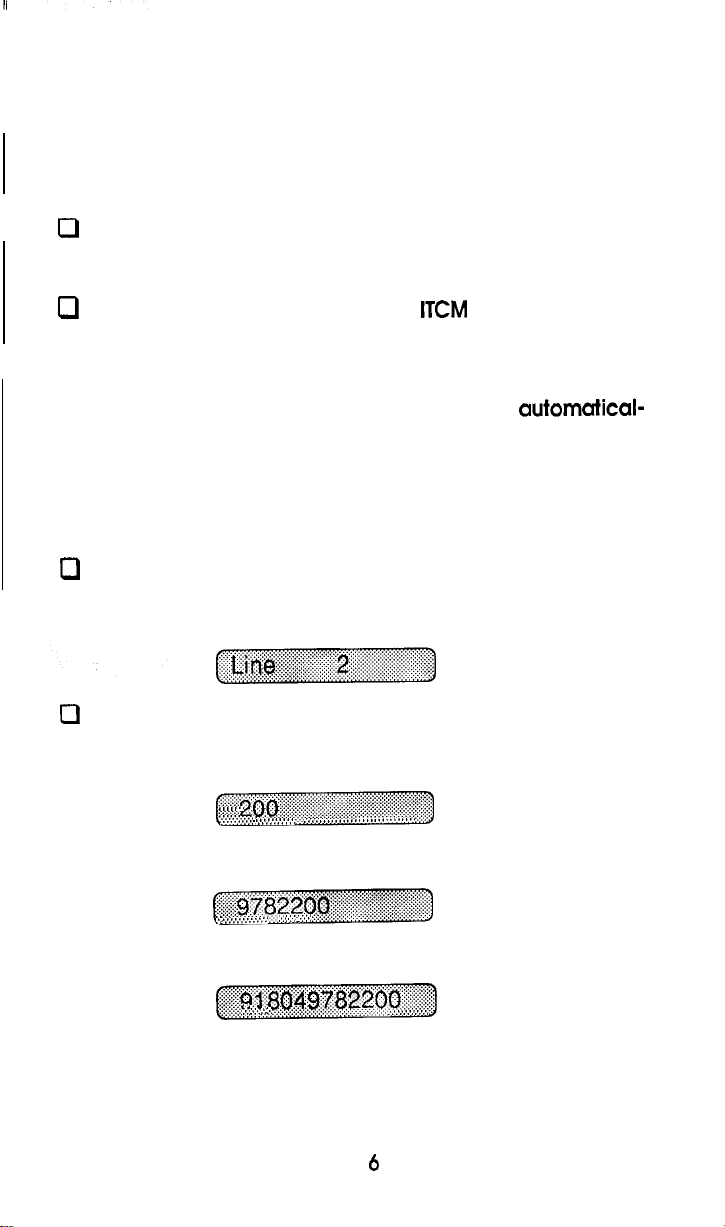
Press line key to select line.
Or
If line groups are provided, press
code for desired group.
NOTE: Selecting a line is not necessary if a line has
been assigned to you or if your telephone
iy picks an idle line for use when the handset is lifted.
A system selected idle line that is normally not assigned
to your telephone may appear on a line key reserved
for that purpose during the time that the line is in use (if
this feature is programmed).
Listen for dial tone.
RESULTS: Display will show line selected for use.
Dial number.
RESULTS: Display will show dialed number.
Typical host system extension.
1.
then dial access
Typical trunk number.
2.
3.
Typical access code preceding typical trunk
. . . . . . . . . . . . . . . . .
. . . . . . . . . . . . . . . . . . . . . . . . . . . . . . .
:::.. . . . . . . . . . . . . . . . . . . . . .
number.
.
. . .
Page 7
When party answers,
Speak toward telephone or lift handset for private con-
versation.
To return to speakerphone from handset,
Press MNTR key.
To end call,
Press MNTR key or hang up handset if engaged in
private conversation.
Hang up handset.
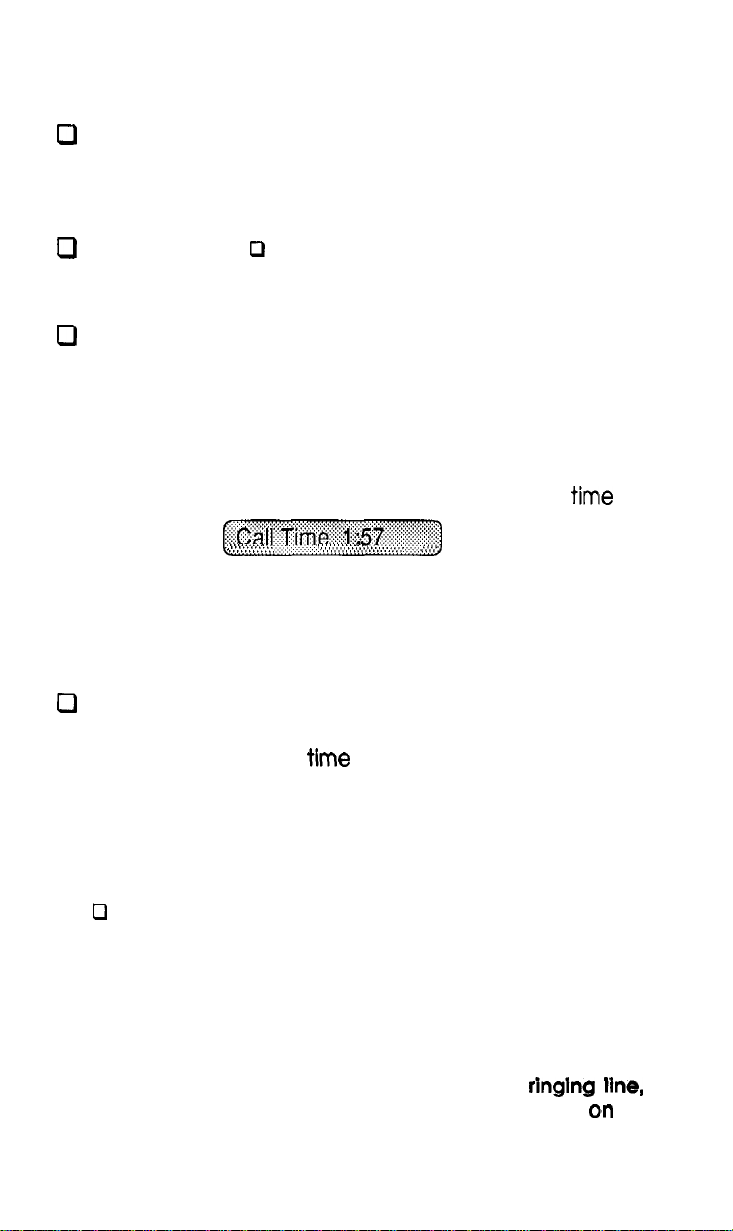
Call Timer
RESULTS: Approxlmatetly twenty seconds after dialing is
complete Call Timer shows elapsed
RESULTS: Elapsed time will show for ten seconds after call
is completed.
To recall elapsed time any time after display has dropped and
before another call is made,
Press HOLD.
RESULTS: Elapsed time will appear in display and remain
for fifteen seconds.
of call.
Answering A Call
0 Press line key of ringing line (line key with flashing light).
Speak toward telephone.
If your assigned line is ringing or if your telephone is programmed
to answer any ringing line,
0
Lift handset then switch to speakerphone (if desired) by
pressing MNTR and hanging up handset.
NOTE; If your telephone can answer any
one that is normally not assigned to it may appear
(continued on next page)
7
a
Page 8
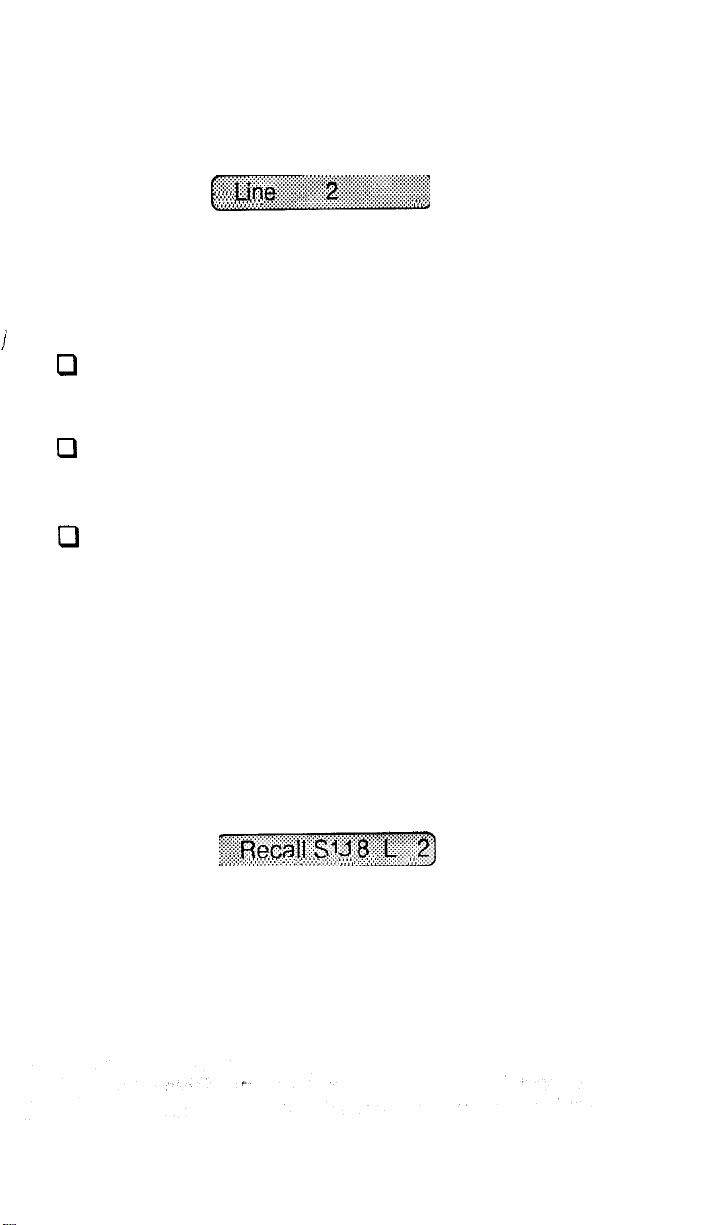
(continued from previous page)
line key resewed for that purpose when
(if this feature is programmed).
RESULTS: Display will show answered line.
. . . . . .
Placing A Call On Hold
Manual hold
held call.)
Press
To return to call on hold,
Press line key with flashing light.
Exclusive hold
Press
Hold recall feature
After a preprogrammed length of time, a call
placed on hold will automatically ring back to the
telephone which placed it on hold. If the call is on
exclusive hold, it will revert to manual hold after the
hold recall time period and can be retrieved by
anyone with that line appearance.
(Any telephone with line appearance can retrieve
HOLD.
(Only your telephone can retrieve held call.)
HOLD
twice.
it is answered.
RESULTS: Display will show line and telephone station
number each time that the timed hold recall
occurs.
: . .
Placing Intercom Calls
Intercom calls may be manually dialed as described below or
automatically dialed as described in the paragraph provided
later titled Direct Station Selection/Busy Lamp Field.
8
Page 9
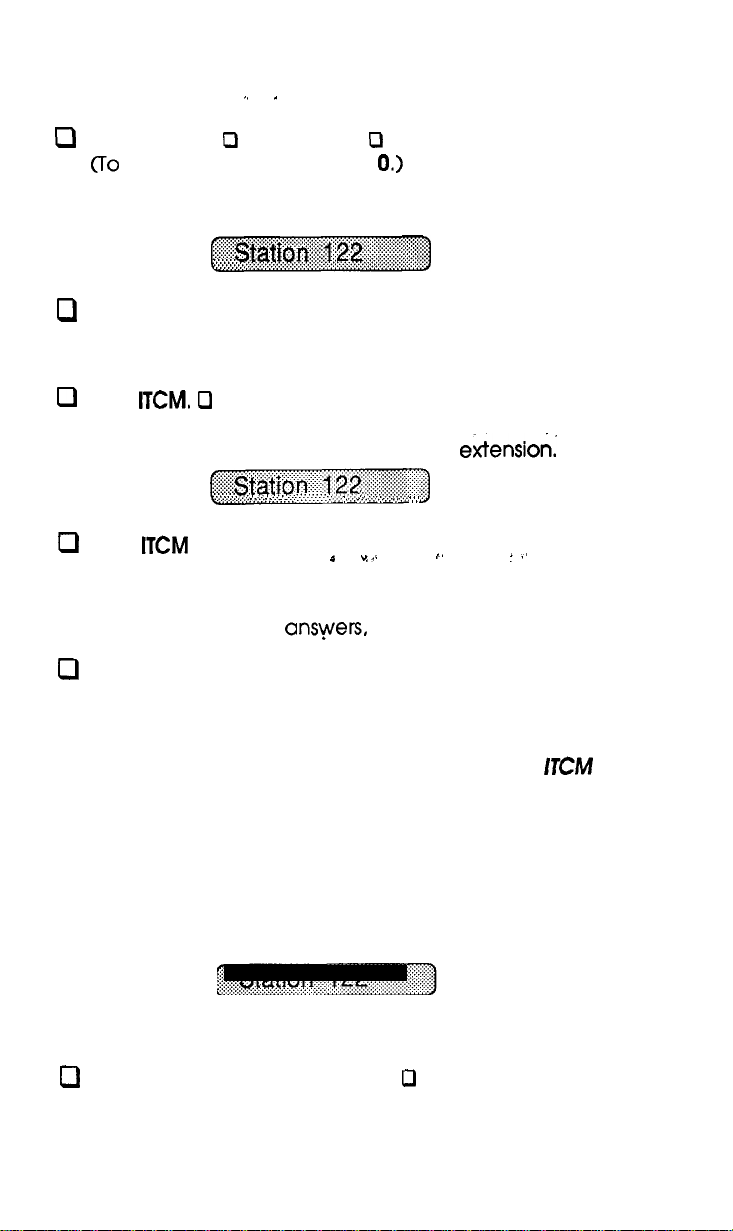
Voice Calling
call system operator, dial 0.)
RESULTS: Display will show dialed extension.
. . .
Speak to called party.
Tone Calling
Dial extension number.
Press
0 Dial extension number.
RESULTS: Display will show dialed extension:
Press
.A:.:...:.:.:.>.: ~
again.
,... .,. .,.,,
RESULTS: Called telephone will ring.
When called telephone answers.
Speak
toward telephone or lift handset for private con-
versation.
NOTE: Some systems may be programmed to tone signal as the first option. In that case, press
key
again to voice call the party instead of making the
called telephone ring.
Answering Intercom Calls
RESULTS: Display will show extension number of calling
telephone.
To answer a voice call,
is desired.
(continued on next page)
9
Page 10
(continued from previous page)
NOTE: Voice calling can be blocked. See the discus-
sion titled, Voice
To answer a tone call,
Blocking for details.
Lift handset to talk or press
telephone.
Direct Station Selection/Busy Lamp Field
(One key intercom calling with visual indication of telephone
status)
To program,
Press
Repeat last two steps for all desired telephones. 0
Press MONITOR.
NOTE: An autodial number can also be programmed as
a secondary function at every
tion. See Automufic Dialing lnshuctions for details.
To voice call a number,
Lift handset. 0 Press memory key. 0 Voice an
NOTE: If you are transferring a call, the outside line Is
automatically placed on hold when a DSS key is
pressed.
Listen for tone. 0 Dial 85. Tone will stop.
and speak toward
DSS/BLF
memory loca-
To tone call a number,
Lift handset. 0 Press memory key. 0 Press
When telephone answers, two-way conversation can
take place.
NOTE: The lights
cate status of DSS telephones: dark indicates idle
telephone, steady-on indicates telephone in use, and
flutter indicates telephone call back request.
adjacent to memory keys indi-
10
Page 11
Transferring Outside Calls
Unscreened transfer,
Answer outside call. Cl Press
placed on hold automatically.)
ber. 0 Press RECALL (Outside call begins ringing at
called telephone.
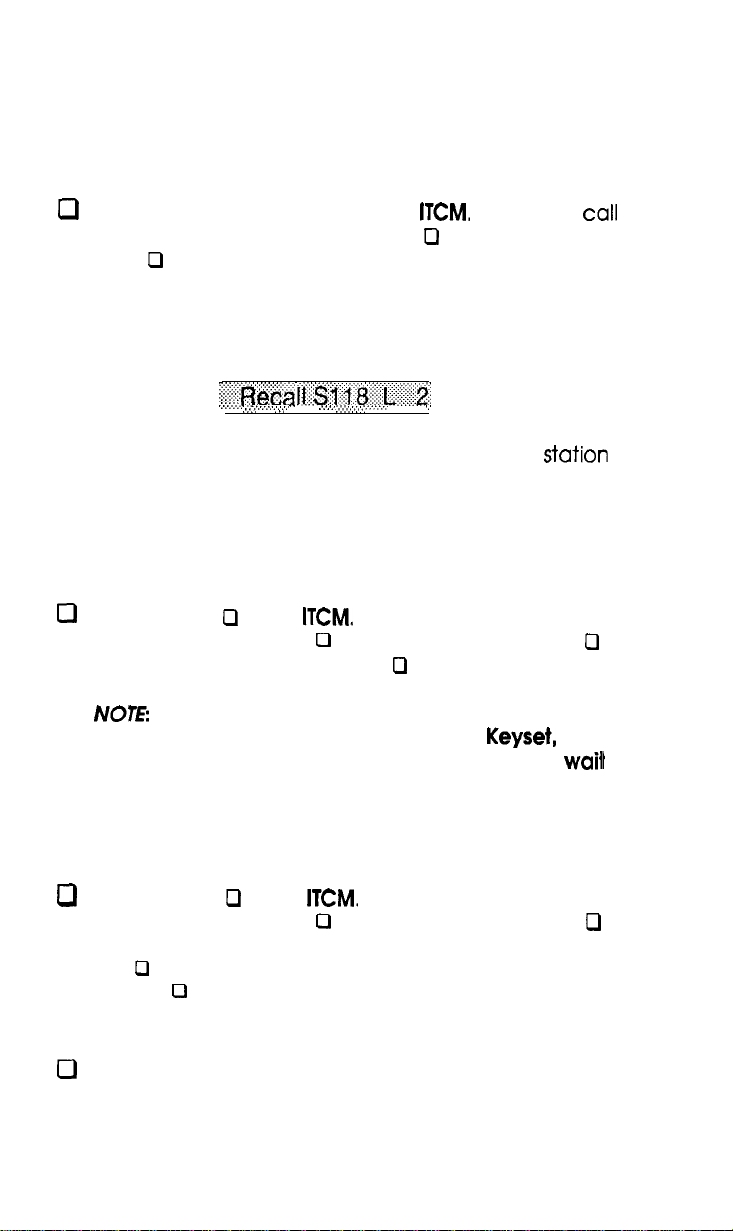
RESULTS: Call will ring back at original telephone if not
answered within a preprogrammed time.
ifiSi~i’~~~~~~~
. . . . . . . . . . . . .
. .
.
If call rings back, display will show recall message,
and line number.
(Outside
Dial extension num-
is
number,
Screened Transfer
If the line on which the call appears is shared by your telephone
and the telephone to receive the transfer,
Lift handset. 0 Press
hold automatically.) 0 Dial extension number. 0 An-
nounce call and line number.
nal blocking active or is a Single line
hear a ring back tone. In this case, you must
the user to answer your intercom call before completing the transfer.
(Outside call is placed on
Hang up handset.
you will
for
If the called telephone does not share line appearance,
Lift handset. 0 Press
hold automatically.) 0 Call extension number. 0 Announce call, and ask telephone user to lift their handset. 0 Press RECALL. (A three-way connection is estab-
lished.)
To return to outside call (busy or no answer),
Press flashing line key.
Hang up your handset.
(outside call is placed on
(continued on next page)
11
Page 12

(continued from previous page)
If the system is so programmed, a transferred
call on an unshared line can be made to appear at a
line key reserved and labeled, for that purpose (known
as a dynamic line key). Press that designated key to
gain line appearance for the duration of the transferred
call.
Conference Calls
Multiline conference (2 external parties, 1 internal party)
To set up a multiline conference,
Establish first outside call and press HOLD. Cl Establish
second outside call. Cl Press and hold down line key for
second call.
line keys.
RESULTS: Conference is established.
To drop out of established multiline conference,
Press line key for first call.
Release both
Dial
(Line lights remain lit.)
To re-enter a multiline conference,
Press either lighted line key. Lift handset if private con-
versation is desired.
To drop one conferee while your telephone is active in conference,
Press HOLD. Both lines placed on hold. 0 Press line key
of party to be dropped. 0
Press and release
hookswitch. 0 Press line key of party to be retained. 0
Resume conversation.
Add-on conference (1 external party, 2 internal parties),
This feature is available when two telephones share a common
line appearance.
(outside call placed
on hold automatically).
Dial extension number. Cl Ask
intercom party to lift their handset, and to press and
hold down line key for held line.
Press and hold down
(continued on next page)
Page 13

(continued from previous page)
line key of held outside call.
conference is established
NOTE: Conference transmission levels are not compen-
sated.
quality of the external lines.
Conference levels are dependent upon the
Release line keys when
The Features
Redialing
Saved Number Redial
The
last number dialed can
To
save a
Press
To dial saved number,
number just dialed,
SAVE
RESULTS: Display will show that feature is activated.
during call or before another call is made.
. . .
be
saved for later redial at any time.
. . . . . . .
. . . . . . . . . . .
Press HOLD SAVE.
RESULTS: Display will first show feature Is active, then show
line selected, and then show dialed number.
Last Number Redial
The last number previously dialed can be
Press
(If on line listening to dial tone, press HOLD
Listen for ringing or busy tone.
Ringing tone: Speak toward telephone when party
answers or pick up handset for private conversation.
Busy tone: Press MONITOR to disconnect.
13
Page 14

Automatic Redial
The last number previously dialed can be redialed repeatedly.
Press #
(If on line listening to dial tone, press HOLD
0 Station will redial number once a minute for ten
minutes.
RESULTS:
Display will show feature is active
. .
When the call is successfully connected,
Press MONITOR key. Lift handset for private conversa-
tion
To cancel automatic redial,
Press
Automatic Dialing
To program numbers,
Press
stop. 0 Press desired memory key. Listen for fast tone
bursts.
Listen for tone.
Or
Press SAVE. Tone will
If desired memory key is also programmed for one-key
intercom dialing. 0 Press HOLD and then press desired
memory key.
RESULTS:
Press dial pad keys 1
Listen for fast tone bursts.
Display will prompt for line entry.
4 for line group selection 1
4.
Or
Press specific line key for line.
Or
(continued on next page)
Page 15

Press 0 for none. (When 0 is stored and automatic
ing is used, system will pick line assigned to telephone
or last line used.)
RESULTS: Display will prompt for number entry.
Dial the number sequence to be stored. (Up to 16 digits
can be stored. Digits can be
and
To store a pause,
Press HOLD.
RESULTS: The letter
will appear in display.
To store a flash,
Press RECALL.
RESULTS: The letter
will appear in the display.
To store another number,
Press SAVE.
RESULTS: Display will prompt for next location.
Press next memory key. 0 Repeat above line selection
and dialing programming procedure.
To end programming,
Press MONITOR. Record autodiai names on reference
card adjacent to memory key.
HINT: Store often-used, host system PBX or
feature access dialing codes at memory key ioca-
system features.
15
Page 16

To automatically dial numbers,
Press desired memory key.
Or
If desired memory key is also programmed for one-key
intercom calling,
Press HOLD and then press desired memory key.
When party answers,
Speak toward telephone or lift handset for private
conversation.
Station Speed Dialing
To program nurnbers,
Follow same steps given for Automatic Dialing using the
dial pad keys 1
play prompts for proper inputs as was illustrated with
the Automatic Dialing instructions. Record speed dial
numbers for reference on the pull-out directory card.
To dial numbers,
0 as memory locations 1
10. The dis-
Press desired dial key 1
0.
Or
If on line listening to dial tone, OPress HOLD
and then press desired dial pad key 1
System Speed Dialing
To dial numbers,
Press
10
If on line listening to dial tone. 0 Press HOLD
and then press desired dial pad keys 10
0 Press desired dial pad keys
59 for memory locations 10 through 59.
Or
16
0.
59.
Page 17

Automatic
(only available at designated telephones)
This feature allows a user to move from
to press the hold key to place any current calls on hold
Press any line key.
RESULTS: Active line will automatically go on hold.
to line without having
Voice Signal Blocking
To block voice calls.
Press ITCM. 0 Dial 47.
RESULTS: All intercom calls will now be tone Calls.
To un-block voice calls,
Press
0 Dial 48.
Recall/Flash
Flash
require this feature.)
If your system has been configured for flash,
(PBX, Centrex and custom calling services may
Press RECALL to generate a timed flash signal.
Recall
If your system has been configured for recall,
Press RECALL to disconnect current call and
receive a new dial tone for another call.
NOTE: System can be configured for flash
or recall but not for both.
Page 18

Area Paging
Press line key dedicated to paging.
Or
(requires external paging unit)
Lift handset. 0 Press
dant). Cl Make announcement.
0 Dial paging access code.
All-Call and Zone Paging
TO page,
Press
51, or 50 for all-call). 0 Make announcement. 0 Hang
up handset or wait on line for an answer.
To answer from any telephone,
party on line for private conversation.
0 Lift handset. 0 Dial zone number
0 Dial 44. Cl Meet paging
(53.52,
Do Not Disturb
To silence your ringer and appear busy to intercom calls,
Press MONITOR. (monitor light will turn on).
RESULTS: Display will show that feature is active
NOTE lhe calling party will hear two quick tone bursts
every three seconds.
by the calling party.
To cancel,
Press MONITOR agaln. (monitor light will extinguish)
feature cannot be overridden
18
Page 19

Mute
On hook operation
To prevent other party from hearing while using speakerphone,
Press MUTE. Monitor light will flash.
RESULTS: Display will show that feature Is active
. . .
To resume two-way conversation,
Press MUTE again. Monitor light will turn off.
Off hook operation
To prevent other party from hearing while handset is lifted,
Press and hold MUTE. Monitor light will flash
RESULTS: Display will show that feature Is active.
. . . . . . . .
To resume two-way conversation,
Release MUTE. Monitor light will turn off.
Pulse/Tone Switching
If your telephone service is pulse (rotary) and you must convert to
tone while dialing,
Press
during dialing sequence where conversion is required. (System will switch back to pulse dialing when
call is ended.)
NOTE: Pulse/Tone switching can be programmed into
memory keys by pressing # during number storage.
19
Page 20

Message Waiting
The message waiting
the HOLD key, is controlled by designated
telephones or one central message desk. The MW
light will flash when a message awaits pick up.
To receive messages,
Press
is automatic.
0 Press HOLD. Connection to message desk
light, located above
Background Music
Music must be supplied by the system before it can
be turned on at a telephone.
To turn music on,
Press ITCM.
loudness of music with call monitor speaker volume
control.
To turn music
Press
NOTE: Background music automatically turns off
during calls.
Dial 45 (monitor light will turn on).
Off,
0 Dial 46 (monitor light will turn
Adjust
Call Pickup
To answer a call that you hear ringing at another telephone,
Lift handset. 0 Press
number of ringing telephone.
0 Dial 49. 0 Dial extension
Call Forward
To forward your intercom calls to another telephone,
Press
telephone to which calls are to be forwarded.
RESULTS: Display will show telephone to which call is for-
0 Dial
warded to
0 Dial extension number of
20
Page 21

To cancel call forward,
Press
NOTE: For each call received during call forward, a ring
reminder (short tone burst) will be heard to remind that
calls are being forwarded.
0 Dial 55.
Automatic Call-Back
To arrange for the system to call back when a busy
telephone becomes idle,
Make intercom call. Hear busy signal. 0 Dlal88.
RESULTS: Display will show that feature is active.
. . . . . . . .
Calling station will ring when called telephone
becomes idle.
To answer call-back ring,
Lift handset. Called telephone wilt ring.
NOTE: Call-back is cancelled if handset is not lifted.
To cancel automatic call back befo% it rings,
Press
0 Dial 87.
Call Messaging Light
(Calling telephone must be programmed for DSS/BLF at called
telephone)
To leave a call-back message signal,
Make intercom call. Hear ring back tone. 0 Dial 86 (BLF
light at called telephone will flutter).
set.
To cancel a call-back message signal,
Press ITCM. 0
telephone to which the call message was sent.
43. 0 Dial extension number of
21
Hang up
Page 22

Call Messaging Display
A message can be set at any other Executech
telephone which an Executech LCD Speakerphone
will receive. Two standard messages are provided
Additional messages can be programmed into the
system by the attendant and made available for
use.
Message 1
To turn on message,
Press
Dial 1. Intercom light will flash.
Dial time of return in twelve-hour format.
NOTE: Dial
colon character.
shows when telephone user will return,
Cl Dial
RESULTS: Display will prompt for message.
RESULTS: Display will show message.
to display dash character. Dial #to display
RESULTS: Display will show time.
. . .
. . . . . . . . . . . . . . . . .
. . . . . :....:..
. . . . . . . . . . . . . . . . . . .
.
. . . . . . .
Press MONITOR.
Whenever another Executech LCD Speakerpho,ne
is used to place an intercom call to this telephone,
the display of the calling telephone will show
CALL BACK message which was programmed at
this telephone.
To turn off message,
Press
0 Dial 56. 0 Press MONITOR.
22
Page 23

Message 2
shows number where telephone user can be
reached. (Used with Call Forward feature.)
To turn on message,
Press ITCM. 0 Dial 56.
RESULTS: Display will prompt for message.
Dial 2.
RESULTS: Display will show message.
Dial number.
RESULTS: Display will show extension number.
Press MONITOR.
Whenever another Executech LCD speakerphone
is used to place an intercom call to this telephone,
the display of the calling telephone will show the
CALL message which was programmed at this
telephone.
To turn off message,
Press ITCM.
Dial 56. Cl Press MONITOR.
Special purpose messages may also be available
for use if they are programmed into the system
from the attendant telephone(s) (extensions 110,
111). Confer with the system attendant concerning
message availability.
23
Page 24

Line Queuing
A telephone can wait in line (queue) for the
availability of a line or line group
To queue for busy outside line,
Press HOLD. 0 Press line key. Hear tone burst.
RESULTS: Display will show line queuing arrangement.
To queue for line group,
,
Lift handset. 0 Press
tone. 0 Dial trunk group access code
Hear busy tone.
RESULTS: Display will show group queuing arrangement.
Hang up handset.
To answer line queuing ring-back,
Lift handset, hear dial tone on line, and place call.
To cancel queuing,
Press
0 Dial 87.
Executive Override
To break into conversation at another telephone,
Make intercom call. Hear busy tone.
ing tone sounded at called telephones.) 0 Join
progress call. A three-way conference now exists. Any
one of the parties can leave the conference witlhout
dropping the connection to the other two.
Dial 88.
(Only available to certain telephones)
Listen for intercom
. .
. .
82, 83,
Dial 77. (Warn-
Page 25

Call Park
A call can be placed in system storage for retrieval at any
telephone in the system.
To park a call,
Press
chosen orbit is busy, dial alternate orbit number.
intercom to announce call and orbit number.
To retrieve a parked call,
Hear announcement. 0 Pick up handset. 0 Press
ITCM. 0
Answer call.
NOTE If call is not retrieved within two minutes, it rings
back to the parking telephone as a standard held call.
Personal Ringing Tones
distinctive tones for
To program tones,
Press
3, or 4).
To send call waiting tone and wait on line for an answer (camp
(call is placed on exclusive hold
0 Dial orbit access number (61, 62, 63, or
Dial orbit retrieval number (71, 72, 73, or 74).
selection of one to four
signals)
0
Dial 66, 67, 68, or 69 (selects tones
(with camp-on)
If
Use
1, 2.
Place intercom call 0 Hear busy tone 0 Dial 89 (called
party hears tone)
idle, the waiting call will ring.
To answer call waiting tone,
Hear tone (short tone burst sounds in handset receiver).
Complete present call and hang up (camped-on
call will begin ringing). 0 Lift handset.
When called telephone becomes
25
Page 26

To cancel call waiting tone,
Hang up handset.
Clock/Calendar Display
Whenever a telephone is idle, the display shows
the day of the week, the date of the month, and
the time of the day in 12-hour format.
,.....
Display Intensity Adjustment
The intensity (brightness and contrast) of the display
can be adjusted to a desired operating level any
time while the telephone is idle and on-hook.
To do so,
Press and hold the MUTE key.
RESULTS: The automatic adjusting cycle will begin in
proximately 5 seconds.
Release the MUTE key when the intensity is at the
desired level.
26
Page 27

Display Summary
DISPLAY TYPE
Desk Clock
Calendar
. . .
Call Timer
Line Selection
. . . . . . . . . . . . . . . . . . . .
WHEN DISPLAYED
During telephone idle state.
Date and time is set by at-
tendant as part of system
programming.
Begins 20 seconds after dialing is
completed and
seconds after hang-up.
To recall display for last com-
pleted call,
Press HOLD key. Display
will return for 15 seconds,
When line is selected for calling.
When ringing line is answered.
shows for 10
Dialed Numbers The display will show all dialed
numbers along with any dialed
:
codes.
. . . _L..
. . .
. . . . . . .
.
. . . . . . . . . . . . . . . . . . ..>.+:v,.:.,
: ::
: : : : : . . . . . . . . . . . . .
: . . . . .
. .
. . . . .
Station
Trunk
Access Codes
: :
. . . . . . . . . . . . . . . . . . . . . . . . . . . . . . . .
. . . . . . . . . . . . . . . . . . . .
Page 28

Calling Station
. . . . . . . :
: ! : :
The display will show extension
number of calling telephone.
. . . . . . . . . . . . . . . . . . . . . . . . . . . . . . .
Hold Recall Feature
Saved Number Redial
Last Number Redial
. . . . . . . . . . . . . . . . . . . . . . . . . . . . . . . . . .
.........
. . . . . . .,. . . . . . . . .,.,.
. .
.
Automatic Redial
..............
. .
....
. . . .
.................
. . .
...........
. . . . .
Programming for
Automatic Dialing/
Station Speed Dialing
When a timed hold
curs, display shows line being
held and holding telephone.
When a number is saved, display
shows that feature is (active.
When saved number is dialed,
display shows selected
shows dialed number.
When last number dialed Is
redialed, display shows selected
line then shows dialed number.
When feature is active, display
denotes activity.
Display will prompt for
propriate inputs during program-
ming sequence. A
played for each pause stored in
number string. An
played for each flash stored in
number string.
then
is dis-
is
Page 29

Do Not Disturb
Display shows when feature is
active. When intercom call is
received at DND telephone, dis-
play shows extension number of
calling telephone.
Call Messaging
Display
Mute
Display will prompt for message.
One of two standard messages
can be programmed to be
received by another Executech
LCD Speakerphone.
Display shows when feature is
active.
Display shows extension number
of telephone to which call is for-
warded.
Automatic Call Back When waiting for a busy called
telephone to signal that it has
. . . . . .
Line Queuing
. . . become idle, the display shows
that the feature is active.
When queuing for a line, the dis-
play will show the queuing arran-
gement.
29
Page 30

Glossary Of Terms
A
All-call and zone paging: Station can receive voice
announcements through the telephone speaker.
Area paging: Dialing an access code or pressing
dedicated line key can provide access to an external paging amplifier.
Automatic call-back: System will ring a calling
telephone when a busy called telephone becomes idle.
Automatic dialing:
programmed to store numbers for automatic dialing purposes.
Automatic hold: Automatically holds line calls when
moving from line to line without pressing hold
Automatic redial: The last number previously
can be automatically redialed by the telephone.
Redial occurs once a minute for ten minutes’ or
until answered.
B
Background music: System provided background
music can be turned on and off at individual
telephones.
Memory keys can be
C
Call forward: User can designate another telephone
to receive intercom calls normally directed to the
user’s telephone.
Call messaging display: Standard and special pur-
pose messages can be set on the display and sent
to a calling telephone display.
Call messaging light: The busy lamp field light for a
calling telephone can be turned on at a called
telephone to serve as a call-back signal.
Call park: An active call at a particular telephone
can be placed in system storage and retrieved by
any telephone.
Call pickup: A call can be answered at one
telephone when it is ringing at another telephone.
30
Page 31

Call waiting tones: A signal can be sent to a busy
telephone indicating that a call is waiting.
D
Direct telephone selection/busy lamp field: One-key
intercom calling with visual indication of telephone
status.
Do not disturb: Incoming call ringing and intercom
calling are disabled.
Dynamic line key: System temporarily assigns a nor-
mally unassigned line to an idle line key for certain
call handling operations.
E
Exclusive hold: Only the telephone placing call on
hold can retrieve it.
Executive override: A calling telephone can break
into a conversation at a busy called telephone.
I
Idle line preference: With this feature, going off-hook
automatically selects an idle line for use.
last number redial: The last number previously dialed
can be automatically redialed.
line groups: System arrangement which groups cer-
tain lines together in up to four different groups.
This feature allows lines to be accessed by dialing
line group codes.
line monitoring: Monitoring of dialing and call
progress with the handset on-hook.
line queuing: A telephone can be placed in a
dition where it awaits the availability of a line
line group.
M
Message waiting: A
telephone by a central message desk telephone
to indicate that a message awaits pick-up.
Mute: A user’s voice can be blocked to the distant
patty during a call.
can be activated at a
31
Page 32

P
Personal ringing tones: A telephone can be ar-
ranged to ring in one of four distinctive tone.
Prime line: A line designated to a particular
telephone and automatically selected when that
telephone is taken off-hook.
Pulse/Tone switching: A switch between pulse (rotary
dial signals) and tone (dual tone multiple frequen-
cy signals) signalling can be effected.
Recall/flash: Either a recall (line disconnect or hang-
up) or flash
generated.
S
Saved Number Redial: The last number previously
dialed can be saved and automatically redialed
later.
Screened transfer: Transferred call is identified before
transfer is made.
Station speed dialing: A personal list of numbers can
be programmed for automatic dialing by a user,
System speed dialing: A special system-wide list of
numbers are available for automatic dialing by all
users.
feature select signal) can be
U
Unscreened transfer: Call is transferred to another
telephone without first being identified to it.
V
Voice signal blocking! A telephone can be set to
block voice calls sent to it over the speaker.
Page 33

Application Note: The operations covered in this manual reflect the latest KSU software
revisions. When using this manual to operate a station connected to a KSU with an earlier
software release, them may be conflicting feature operations. Contact your equipment
supplier for additional information.
manual has been developed by Comdial Corporation (the “Company”) and is intended
for the use of its customers and
ject to change without notice. While every effort has been ma& to eliminate errors, the
Company disclaims liability for any difficulties arising from the interpretation of the infor-
mation contained herein.
equipment nor to provide for every possible contingency to be met in connection with installation, operation, or maintenance. Should further information be desired, or should particular problems arise which are not covered sufficiently for the purchaser’s purposes, con-
tact Corndial. Dealer Support Services. P.O. Box 7266, Charlottesville, Virginia 22906-
7266.
Copyright 1988 by Comdial Corporation. All rights reserved.
personnel. The infortnatior~in this manual is sub-
Page 34

Charlottesville, VA 22906
GCA 70-088.02
 Loading...