

Page 1
COMCAST BUSINESS VOICEEDGE™
QUICK REFERENCE GUIDE FOR PANASONIC KXTPA60
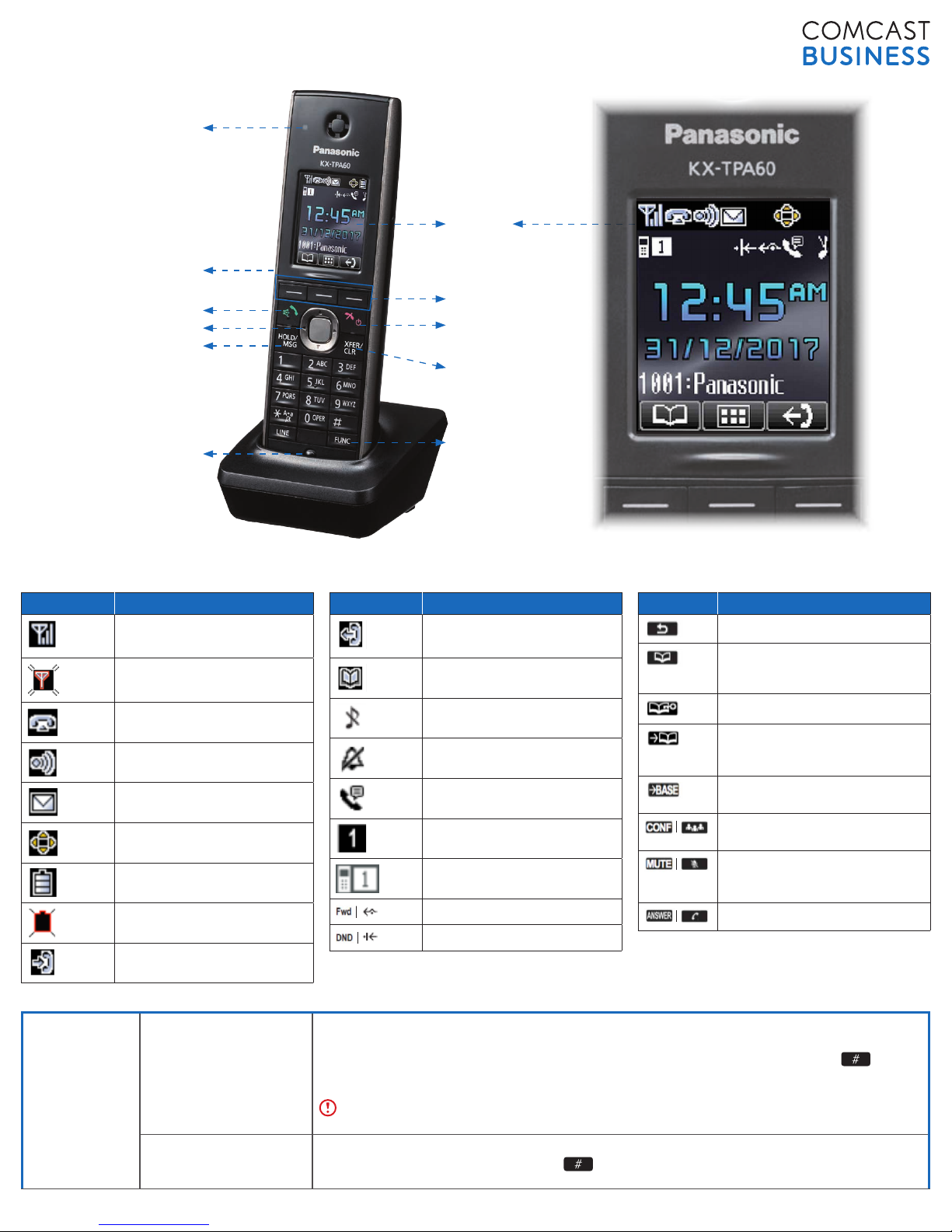
CHARGE/NEW
VOICEMAIL
INDICATOR LIGHT
DISPLAY
HEADSET JACK
SPEAKER PHONE
NAVIGATION KEYS
VOICEMAIL/
HOLD CALL
MICROPHONE
SOFT KEYS
END CALL/
EXIT KEY
TRANSFER CALL
FUNCTION KEY
DISPLAY ICONS AND SOFTKEYS
Softkeys are buttons located beneath the phone’s display screen. The buttons allow you to select options visible in the display, which change based on your call status.
DISPLAY ICON DESCRIPTION
Signal Strength Indicator
Signal Strength Indicator - Out
of Range
O-hook Status
Intercom Indicator
Voice Message
Navigator Key Guidance
Battery Indicator
Battery Indicator - Needs to be
charged
Incoming Call Log
DISPLAY ICON DESCRIPTION
Outgoing Call Log
Phonebook
Ringer O
Silent Mode
Auto Answer
Base unit number (when registered
to multiple base units)
Registration number of handset/
desk phone
Call Forwarding
Do Not Disturb
SOFTKEYS DESCRIPTION
Returns to the previous display
Opens the phonebook (pressing
for more than 2 seconds locks the
phonebook)
Displayed when in Phonebook Lock
Displays caller information stored
in the Handset Phonebook while
receiving a call
Displays caller information stored in
the base unit while receiving a call
Establishes a multiple-party
conversation (conference)
Turns the microphone mute feature
on or o during a conversation
(flashes when Mic Mute is on)
Answer key
VOICEMAIL
Set up voicemail To set up your Voicemail:
• Press [HOLD/MSG].
• Enter your passcode (provided from Comcast Business or your phone administrator) then press .
• Follow the audio prompts to create a new passcode and record your name.
• Press 1 to access the Voice Messaging main menu to retrieve messages and record greetings.
manager or technical administrator to have it reset.
Access voicemail 1. Press [HOLD/MSG].
2. Enter your voicemail passcode followed by . Follow the audio prompts to retrieve your voicemail
messages.
If you forgot or have not received your voicemail password, please contact your company’s service
(continued on next page)
Page 2
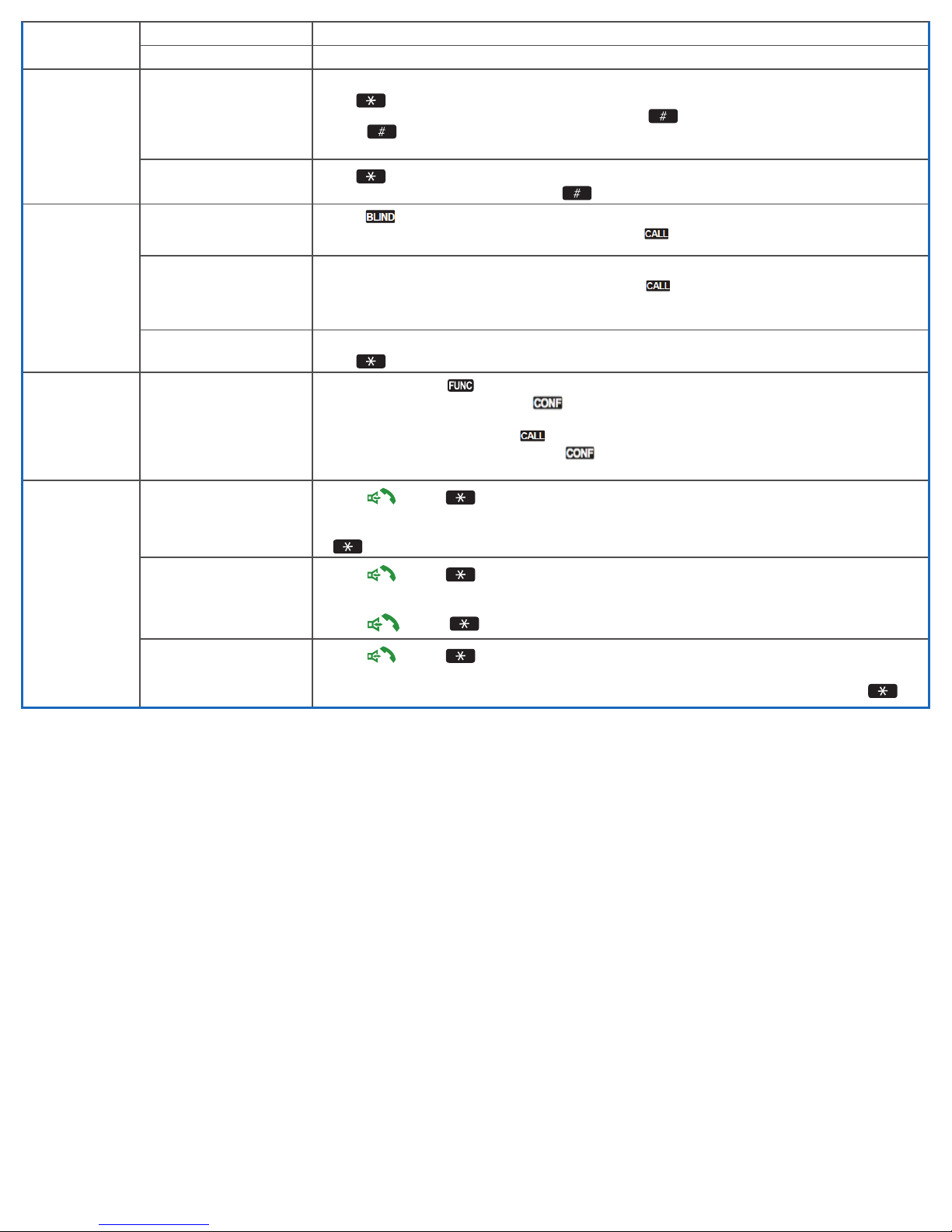
CALL HOLD
CALL PARK
CALL
TRANSFER
CONFERENCE
/ 3-WAY CALLS
CALL
FORWARDING
Place a call on hold Press [HOLD/MSG].
Retrieve a call on hold Press [HOLD/MSG].
Place a call on hold and
retrieve it on another phone
Retrieve a parked call
Blind / Cold: Transfer the
call without speaking to the
intended recipient
Warm / Consultative:
Announce the call to the
recipient to whom you intend
to transfer the call
Direct to Voicemail: Transfer
a call directly to voicemail
Start a call with three or
more individuals from a
connected call
Always: To forward all
incoming calls
No Answer: To forward all
unanswered incoming calls
1. Press [XFER/CLR].
2. Dial 68 and follow the voice instructions.
• Dial the extension you wish to park the call on then press .
• Dial to park on your own extension.
3. The call is now parked.
1. Dial 88, and press the [ TA LK ] key.
2. Dial the number where parked , then press .
1. Press on the screen.
2. Dial the number you wish to transfer the call to, then press on the screen.
1. Press [XFER/CLR].
2. Dial the number you want to transfer the call to, then press on the screen.
3. When the other party answers, announce the transfer.
4. Complete the transfer by pressing [XFER/CLR] again.
1. Press [XFER/CLR].
2. Dial 55 followed by the extension; you will hear an audio prompt that the call has been transferred.
1. While on a call, press .
2. Using the navigation arrows, scroll to .
3. Click [OK] and your first call will be placed on hold.
4. Dial the second number and press .
5. When the second party answers, press the softkey.
Note: It is best practices to consult with the second party before adding them to a conference or 3-Way call.
1. Press and dial 72.
2. Enter the phone number to which calls will be forwarded.
3. Replace telephone handset. Call Forwarding Always is now on. To turn of f Call Forwarding Always, dial
73.
1. Press and dial 92.
2. Enter the phone number to which calls will be forwarded.
3. Replace telephone handset. Call Forwarding No Answer is now on. To turn off Call Forwarding No Answer,
Press and dial 93.
Busy: To forward calls when
your phone is busy (if you are
on a call and call waiting is
not enabled).
1. Press and dial 90.
2. Enter the phone number to which calls will be forwarded.
3. Replace telephone handset. Call Forwarding Busy is now on. To turn off Call Forwarding Busy, dial 91.
WANT TO LEARN MORE ABOUT YOUR PHONE OR NEED HELP?
HELP & SUPPORT
Visit business.comcast.com/help-and-support/voiceedge for additional resources, including tutorial videos, training, and access
to the Business VoiceEdge Customer Forum
ONLINE ACCOUNT MANAGEMENT
Go to business.comcast.com/myaccount to manage your Business VoiceEdge features like managing your Be Anywhere devices,
enabling Call Forwarding, managing Do Not Disturb, and listening to voicemail
INTERACTIVE SESSIONS WITH A TRAINER
Visit business.comcast.com/help-and-support/voiceedge/webinars to sign up for weekly live sessions with a Business
VoiceEdge Trainer
VIDEO TUTORIALS
Visit business.comcast.com/help-and-support/voiceedge/self-help-videos
CUSTOMER SUPPORT
Still have a question or need help? Please contact our Business VoiceEdge Customer Support at (877) 761-7401
Page 3
BUSINESS VOICEEDGE TOP 5 COMMON CUSTOMER QUESTIONS
1. CAN I MANAGE MY BUSINESS VOICEEDGE FEATURES ONLINE?
Yes! You can quickly and easily manage your Business VoiceEdge features online anytime at
business.comcast.com/myaccount. Stay in control of key features including voicemail messages,
reviewing call history, and downloading other popular features like the Softphone.
2. PLACING YOUR PHONE ON DO NOT DISTURB AND FORGETTING?
Set up an audible signal to notify you when a call comes in and your phone is on Do Not Disturb. To set up the signal, access your
Business VoiceEdge portal, select Feature Settings, then Privacy. Check the box next to “Play ring reminder.”
3. WHAT IS BE ANYWHERE?
Be Anywhere is a Business VoiceEdge feature that allows you to make and receive business calls from virtually any phone, anywhere
while still displaying the Caller ID of your primary business number. The call can also ring on all your phones, including your landline
or mobile. Set up Be Anywhere and never miss an important phone call again. Simply log into your online account to manage your Be
Anywhere settings and devices.
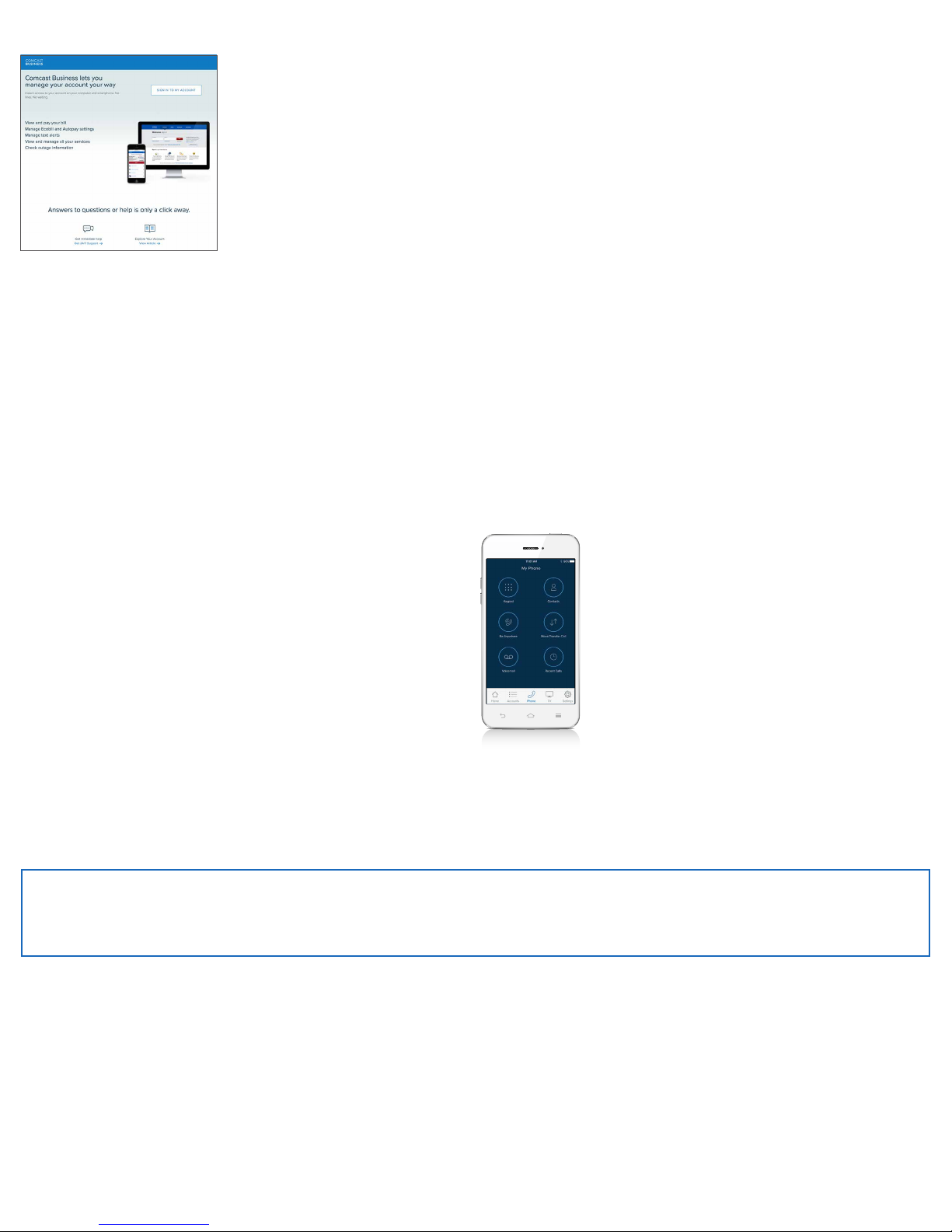
4. WHAT IS THE COMCAST BUSINESS APP AND HOW DO I DOWNLOAD IT?
The Comcast Business app allows you to extend the power of your Business VoiceEdge service by accessing a variety of advanced
phone services all from your iPhone or Android, including:
• Have your business calls follow you by ringing your
mobile or other phones for incoming calls
• Show your primary business number when making
calls from your mobile device
• Dial quickly using your Business VoiceEdge Contacts
for your Company, your call log, or your personal
contact list on your phone
• Listen to business voicemail, and record and select
voicemail greetings
Download the Comcast Business App free from the App Store
or Google Play by searching for “Comcast Business.”
5. WHERE CAN I LEARN MORE?
Visit business.comcast.com/help-and-support/voiceedge for additional resources, including tutorial videos and training options.
If you still have a question, please contact the Business VoiceEdge Customer Support at (877 ) 761 -7401.
EASILY MANAGE YOUR SERVICES ONLINE
Please visit business.comcast.com/myaccount to access your account, manage your services and features, pay your bill online,
as well as access help and support materials for your Comcast Business products.
© 2017 Comcast. All rights reserved. KX-TPA60_QRG90384_7.17
 Loading...