

Page 1
3
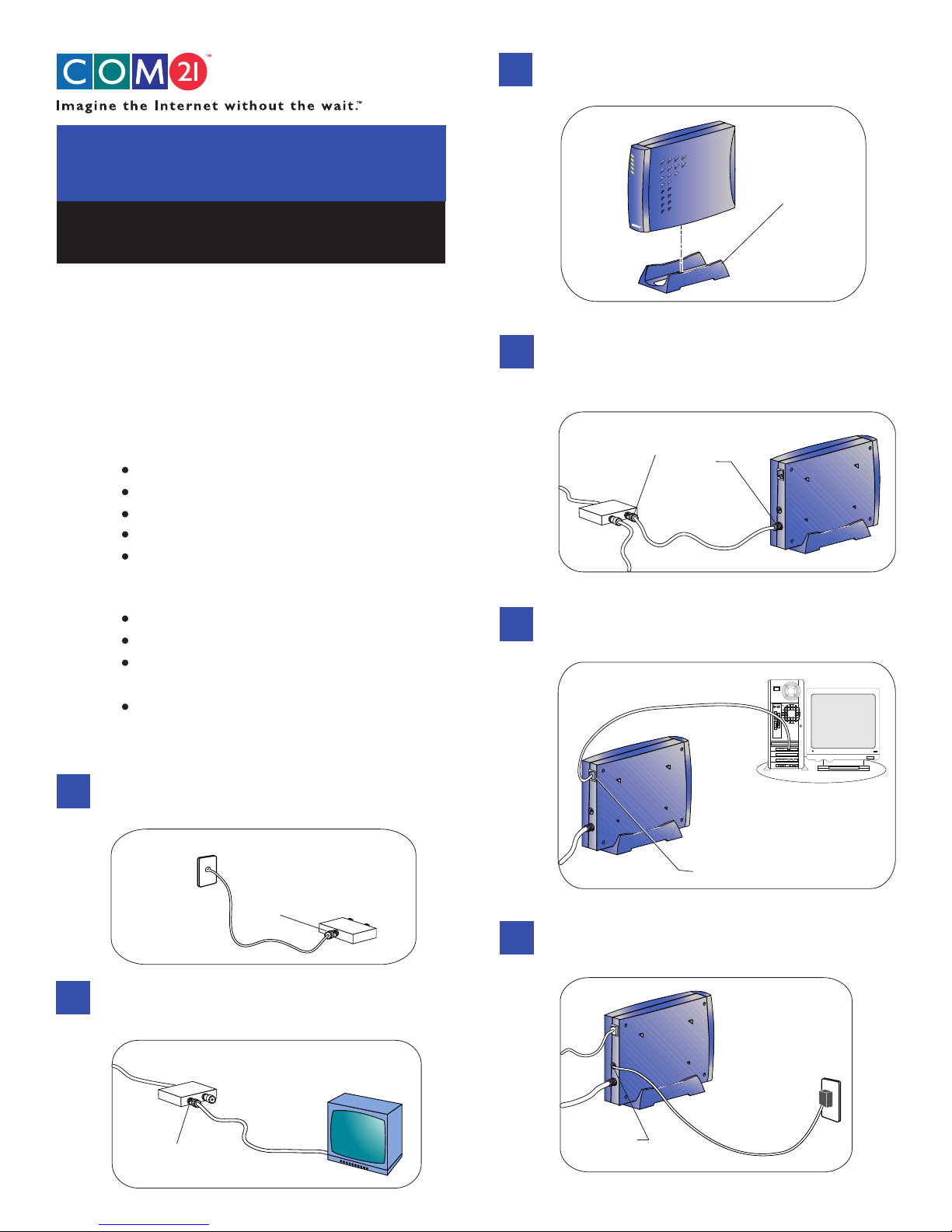
Install Doxport 111 Cable Modem into the
stand
SETTING UP
TM
DOXport 111 Cable Modem
Thank you for choosing Com21's DOXport 111
Cable Modem! Follow this easy setup guide to
connect your new cable modem. Experiencing
high-speed Internet access is only moments away.
(Call your cable company to activate Internet Service).
Before connecting your DOXport 111
Check box contents for the following:
Modem
AC adapter
RJ45 10Base-T Ethernet cable
Users guide
Reference CD-ROM
Other items you need to establish connection:
Cable TV (CATV) wall outlet
Two coaxial cables
PC with Ethernet LAN card or a USB
Ethernet LAN adapter
High quality 2-way CATV splitter
4
5
Stand
Use the second coaxial cable to connect the
remaining OUT port on the CATV splitter to
the modem's RF jack.
Cable
TV
Splitter
OUT
RF
Coaxial
Cable
A00098
Use the RJ45 Ethernet cable to connect the
computer to the modem.
Ethernet Cable
Connecting your DOXport 111 Cable Modem
Connect the wall outlet to the IN port on the
1
CATV splitter.
Cable
TV
Wall
Outlet
IN
Cable TV
Splitter
Use one of the coaxial cables to connect the
2
OUT port of the CATV splitter to the TV.
Cable TV
Splitter
Coaxial
Cable
OUT
TV
6
PC with
A00098
10Base-T
Ethernet Card
Use the power cord to connect the modem to
the power source.
Wall
Outlet
A00098
AC
Adapter
DC IN
12V 1A
A00173
Page 2
7
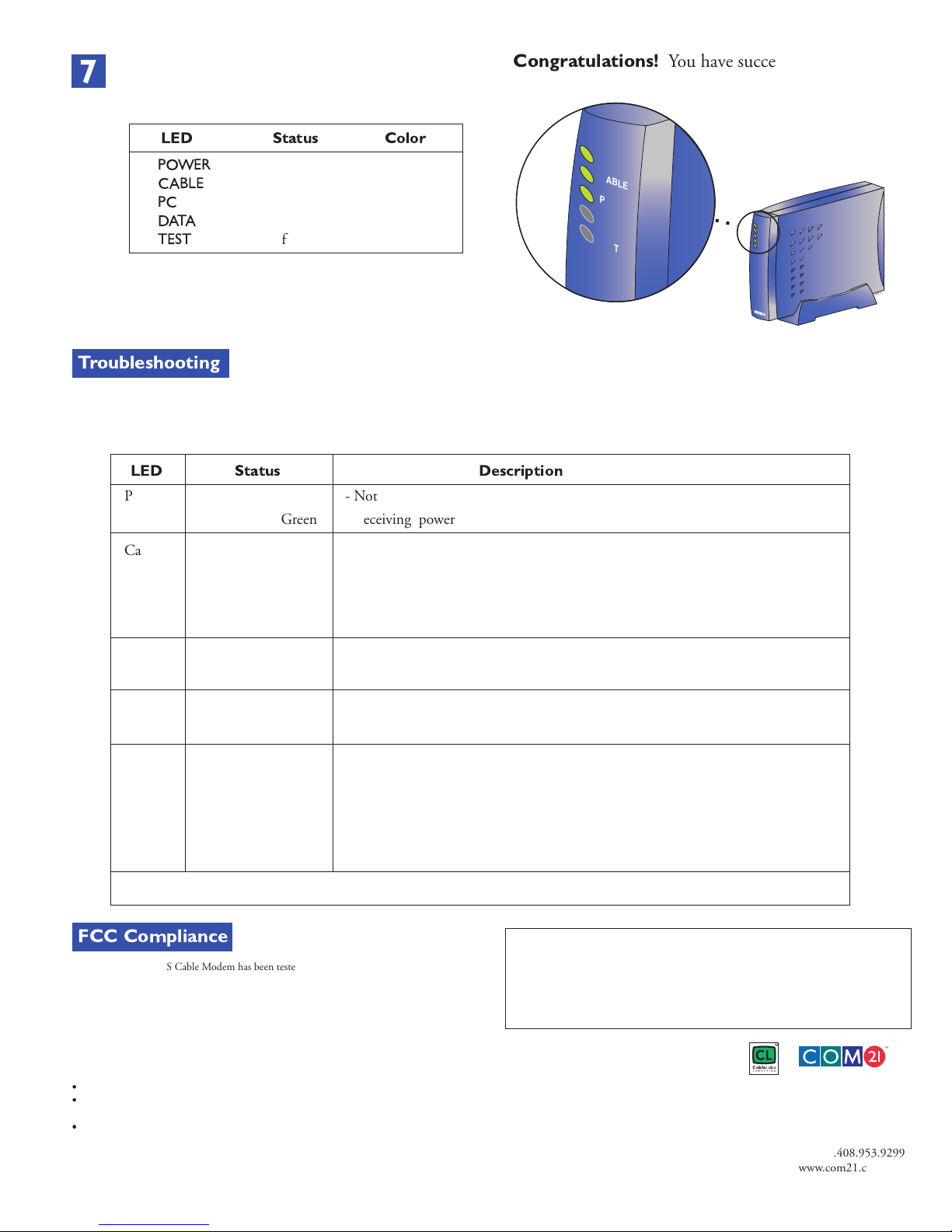
Your modem will begin self-initialization.
When it is complete, the status and color of
the LED lights must be as follows:
LED Status Color
POWER
CABLE
on green
PC
DATA
TEST
on green
on green
flashing or off green
off
Congratulations!
You have successfully installed
your new Com21 DOXport 111 cable modem!
POW
ER
CABLE
PC
DATA
TEST
If the LED lights display a different color,
follow the troubleshooting section below.
1
1
0
0
A
Troubleshooting
The DOXport 111 cable modem has five LED lights which indicate the status of the modem. The modem does not require any routine
maintenance. If there is a problem, use the following table to identify the cause.
LED Status Description
Power Off - Not receiving Power
Solid Green - Receiving power
Cable Off - Not Detecting signal from the cable network
Solid Green - Modem is online and ready to transmit data
Slow, Blinking Green - Detecting signal and trying to connect to cable network
Fast, Blinking Green - Rebooting is in progress
PC Off - Not establishing Ethernet connection
Solid Green - Ethernet connection is established
Data Off - Not transmitting data
Blinking Green - Modem is transmitting data
7
Test Off - Ready to use after initial self-test, or not receiving power
Blinking Amber - Initial self-test in progress or software downloading is in progress
Solid Amber - Self-test failed.
Corrective action: Try rebooting. If the problem persists,
call our Customer Support line listed below.
For more information about the DOXport 111 cable modem, refer to Com21's service and support web site at www.com21.com
FCC Compliance
This COM21 DOCSIS Cable Modem has been tested and found to comply with the limits
for a Class B personal computer and peripherals, pursuant to Part 15 of the FCC Rules.
These limits are designed to provide reasonable protection agains harmful interference in a
residential installation. This equipment generates, uses and can radiate radio frequency
energy and, if not installed and used in accordance with the instructions, may cause
harmful interference to radio communications. However, there is no guarantee that
interference will occur in a particular installation. If these devices do cause harmful
interference to radio or television reception, try to correct the interference by using one or
more of the following measures:
Reorient or relocate the receiving antenna until the interference stops.
Connect the equipment into an outlet on a circuit different from that to which the receiver
is connected.
If necessary, consult your cable company.
Customer Support Line: 888.868.4154
© 2000 Com21, Inc. All rights reserved. Com21 is a registered trademark, and the Com21 logo, DOXport,
the Red Door Design, and Imagine the Internet without the wait are trademarks of Com21, Inc. Any other
trademarks mentioned in this publication belong to their respective owner.
The CL CABLELABS CERTIFIED and Design mark, and the terms "Certified by CableLabs" are
certification marks of Cable Television Laboratories, Inc. and cannot be used without authorization of
Cable Television Laboratories, Inc.
A00173/174, P/N 271-0122-00
Corporate Headquarter
750 Tasman Drive
Milpitas, CA 95053
USA
Tel:: +1.408.953.9100
Fax: +1.408.953.9299
www.com21.com
 Loading...