

Page 1

User Manual
Ⅰ、Quick guide
Connect with HDMI TV:
1、 Use HDMI cable to connect mini PC with your TV.
2、 Get power connected with mini PC and TV.
3、 Set the HDMI interface connection by TV’s remote control :
Menu->Input-> HDMI 1 (Suppose mini PC connect with HDMI 1)->
the launching in photo will show up immediately.
4、 Some TV can not show the complete picture, the rate of picture
should be set to ANTO mode. You should setting as below:
Setting -> display->Reproduction rate->setting reproduction rate.
Ⅱ、User Manual
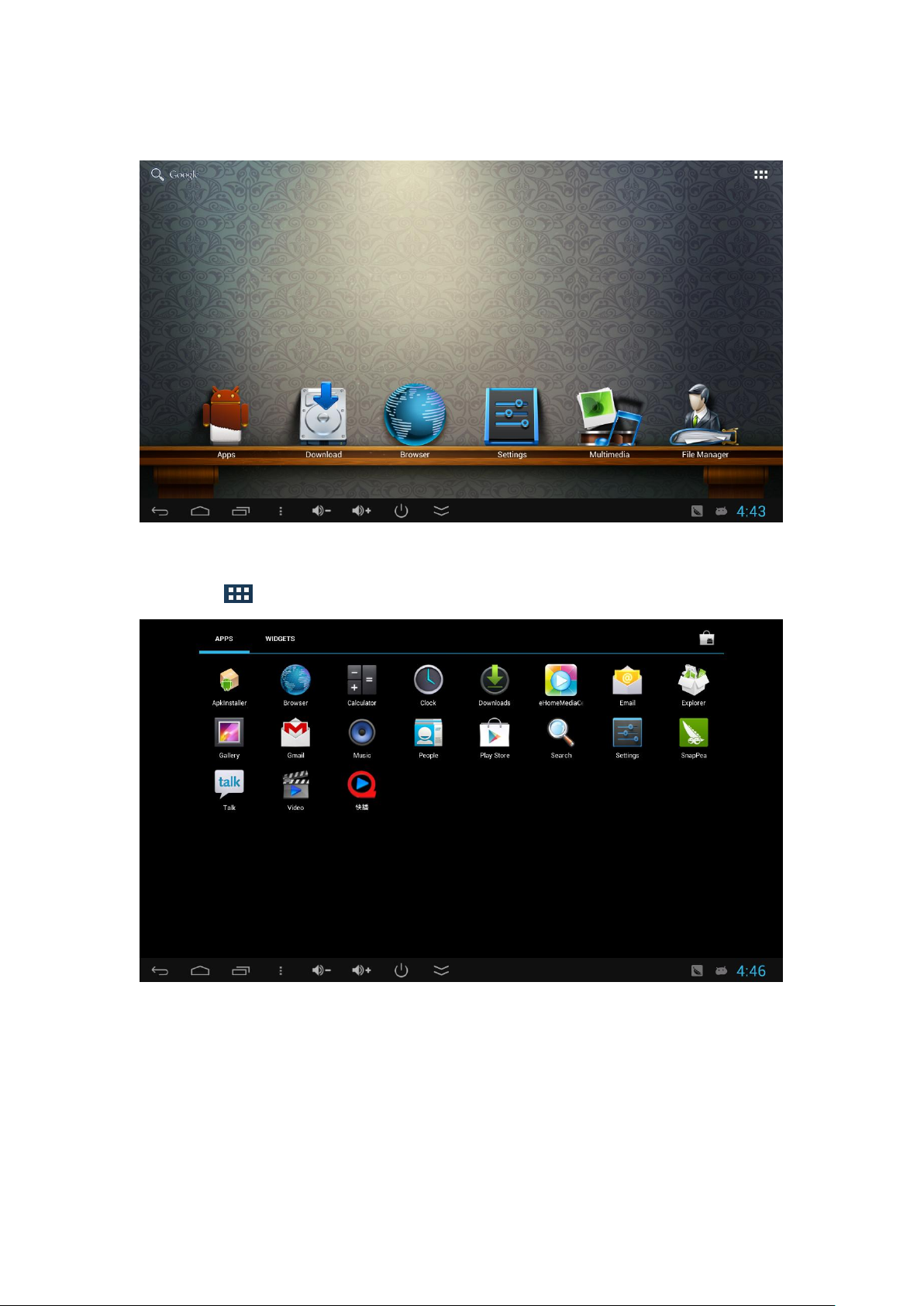
1、Operation on the main interface
1. Open system: Click left button on mouse or Enter on keyboard.
2. Press the wheel on middle of your mouse, then <MENU> will appear.
You can add application programs’shortcut key on the launcher,
such as small tools (calendar, weather forecast). You can also replace
the background picture (Dynamic Background, 3D background).
3. Choose an ICON, and Press left on mouse for long, a Rubbish box will
appear on right of the screen, Drag it to the Rubbish box and release
mouse, then icon will be deleted. (Function would stay). You can use
Page 2
mouse to slide the screen and change the ICONs place on screen.
2、Application Interface
Tap icon to enter application interface,as following picture show:
In this interface, you can choose any software you like, such as listen
music, watch video. You can also go reset your setting, such as language
and wifi.
3、Settings interface
Page 3
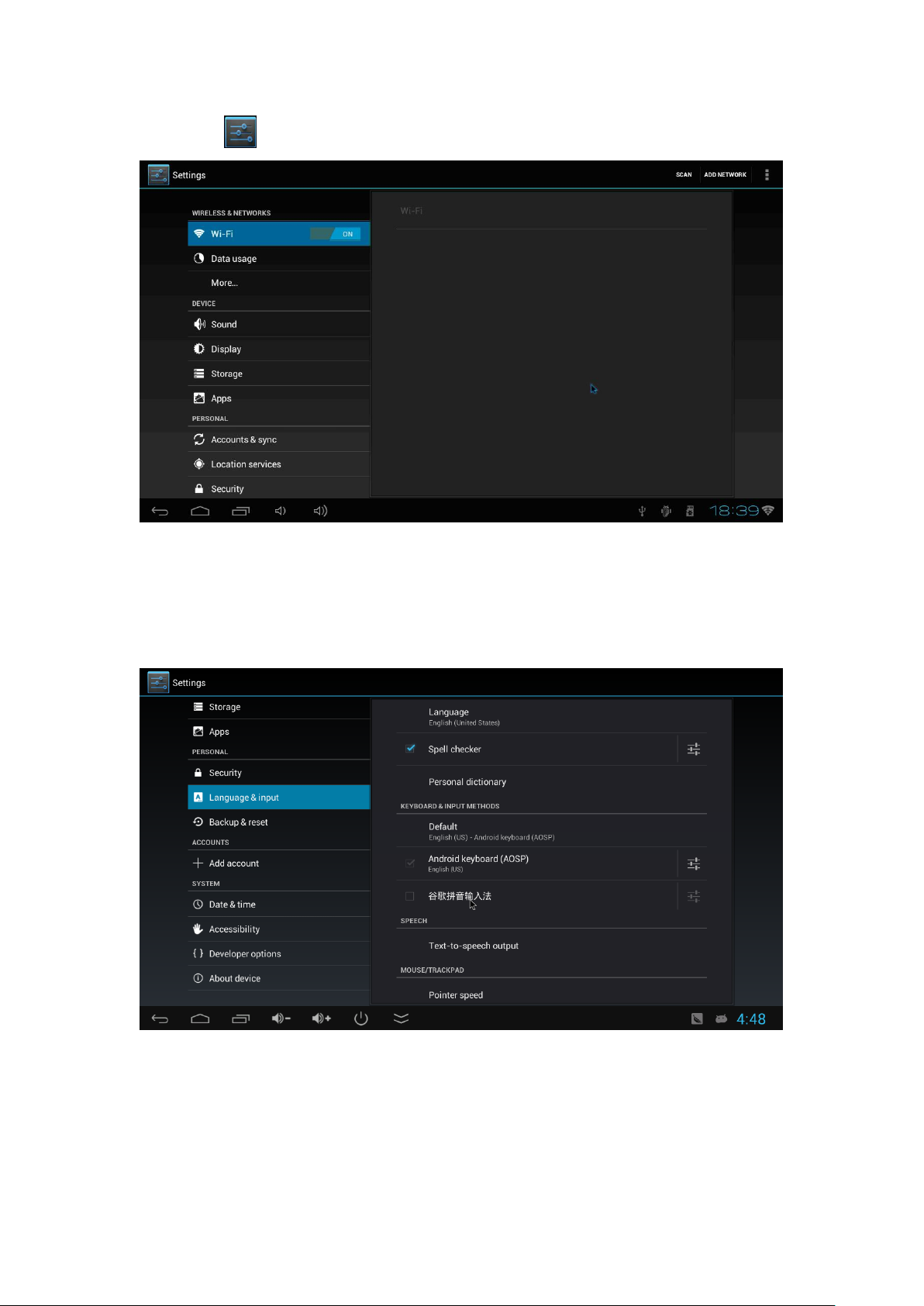
Tap icon , enter into the setting interface as below:
3.1. Language and Input
Tap icon【Language&Input】,you can choose language and input
method,as the follow picture shows:
3.2. WIFI setting
Tap icon【Wi-Fi】,set your WIFI, or you can choose Ethernet and get RJ45
connected with internet, as following picture shows:
Page 4
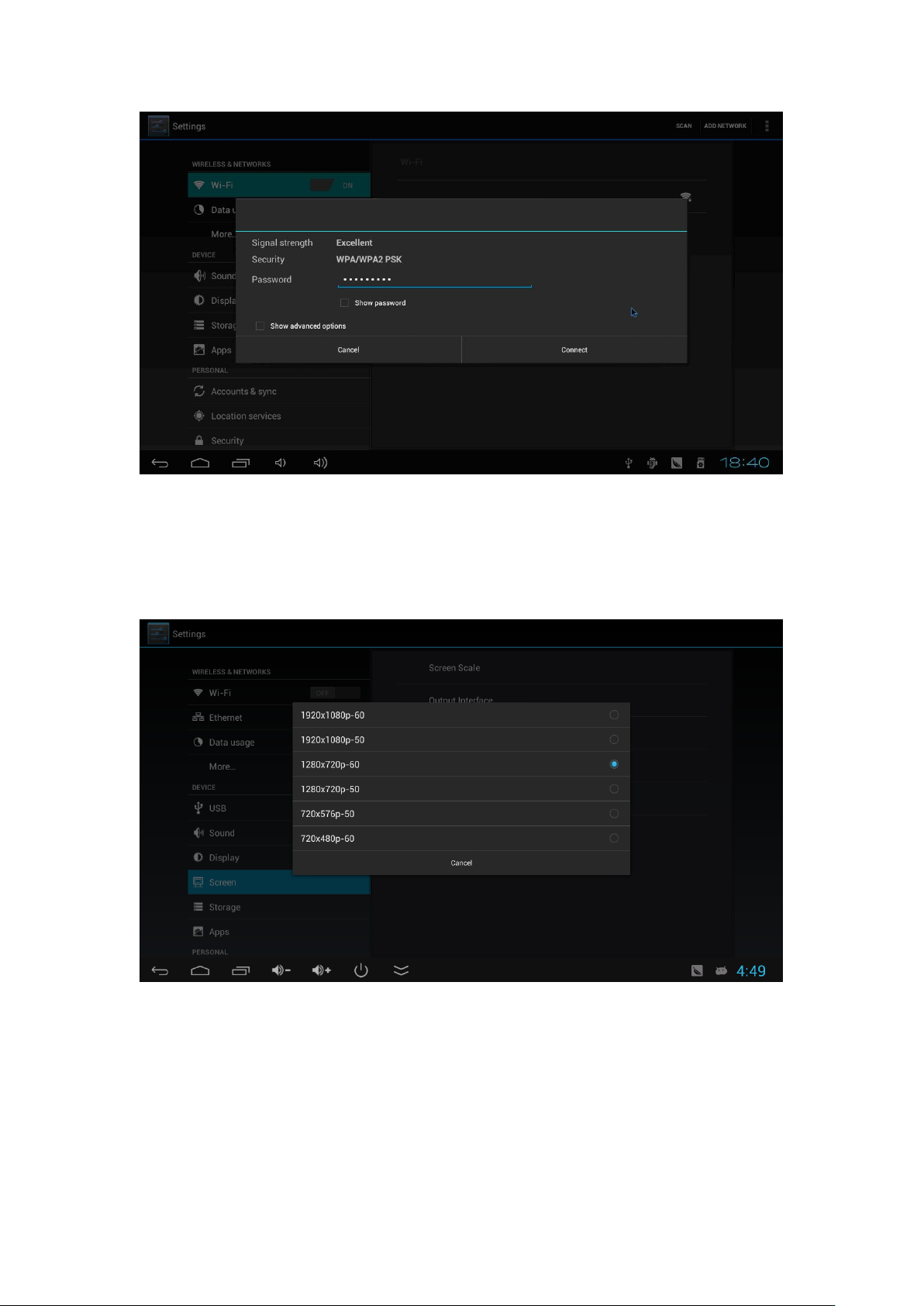
3.3.Display setting
Press icon【Screen】,,our mini PC will default with 720P , you can reset
as by your needs, as the following picture show:
3.4. Sound setting
Tap【sound】, then enter into sound setting interface, as the following
picture show:
Page 5
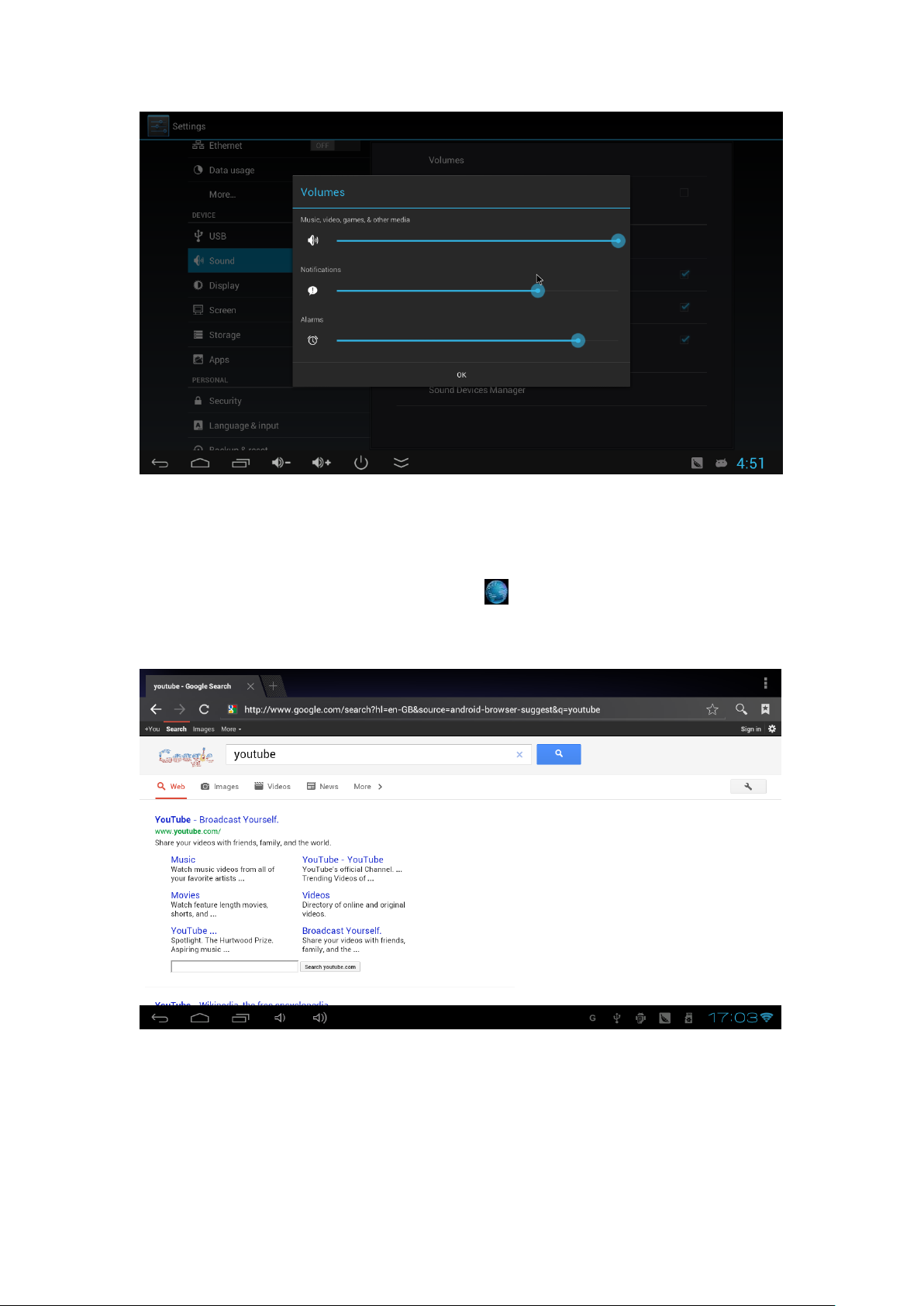
Ⅲ、Application programs
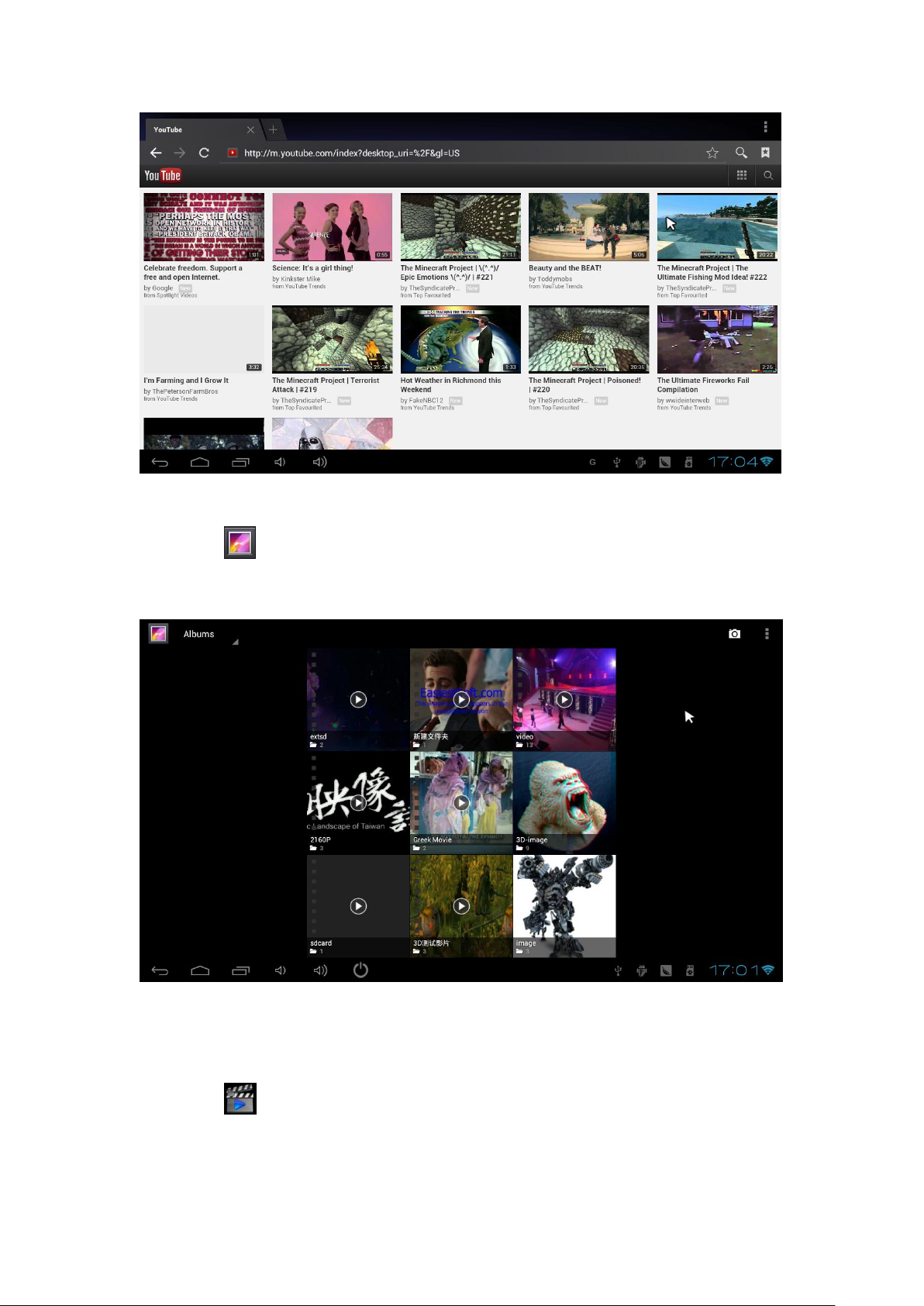
1. Browsing web
After WIFI get connected with internet. Tap to enter Google browsing, as the
following picture show:
Page 6
2. Photo
Tap icon ,enter into the scanning interface, then you can play photo
as the following picture show:
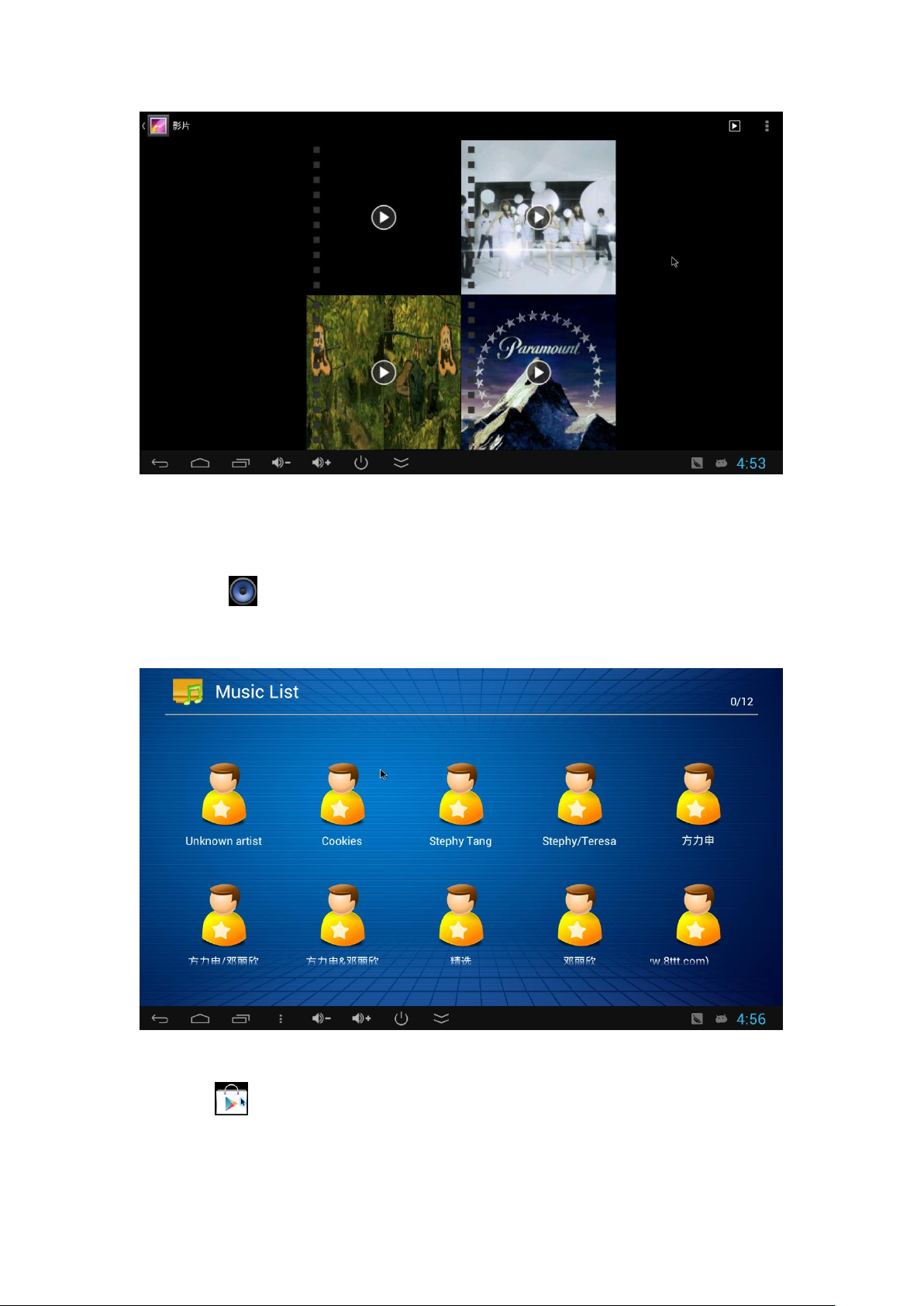
3. Video
Tap icon ,enter into the video interface, as the following picture:
Page 7
4. Music
Press icon ,enter into music interface to view them,as the following
picture:
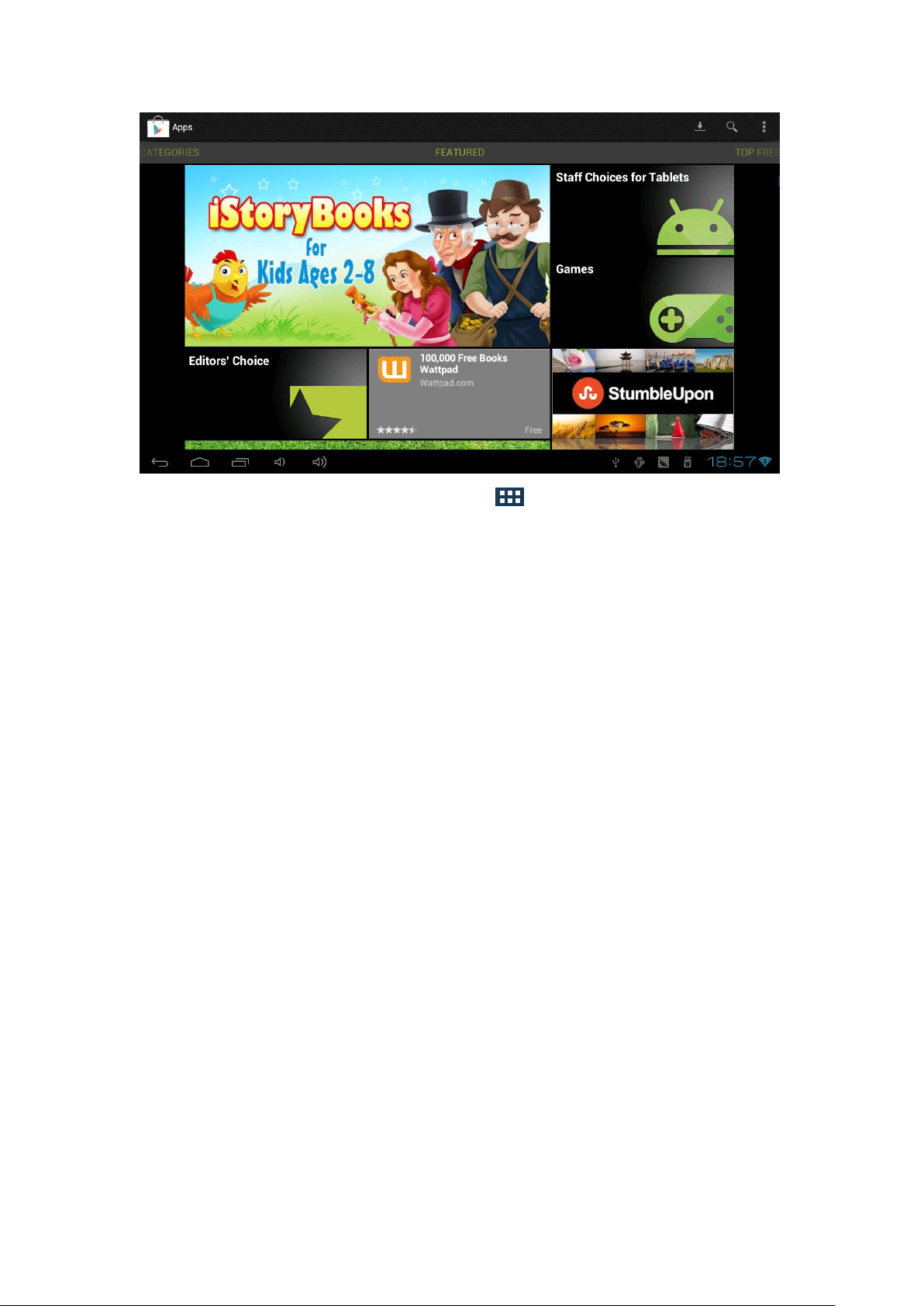
5. Install and Uninstall software
Tap icon ,enter into the installing interface, then you can choose
software you need to install or uninstall, as the following picture show:
Page 8
After all the softwares are installed,tap to enter into the application
interface. Now you can press one icon for long, then you will go back to
launcher automatically. Then icon will be placed where you release it.
Now you have successfully add a shortcut key. If you want to delete this
icon on the launcher, you can press this icon for long , then drag it to the
ash- bin.
Ⅳ、Request & Help
1. There is no signal when you start it.
Make sure the HDMI interface connected correctly.
Make sure connected to the right HDMI interface.
2. The host machine can not start:
Make sure the power connected well, and there are red and blue LED light in
the front side of the PC.
3. Fail to connect with internet
Confirm setting wifi connection and pass code is right.
Page 9
Confirm you have connected with Ethernet and you have useful net .
4. TV show is not complete or too small:
Set Reproduction rate to adjust to your tv.
5. Expansion interface:
When the usb interface fail to satisfy your needs, you can expand
USB interfaces by coonecting a USB HUB .
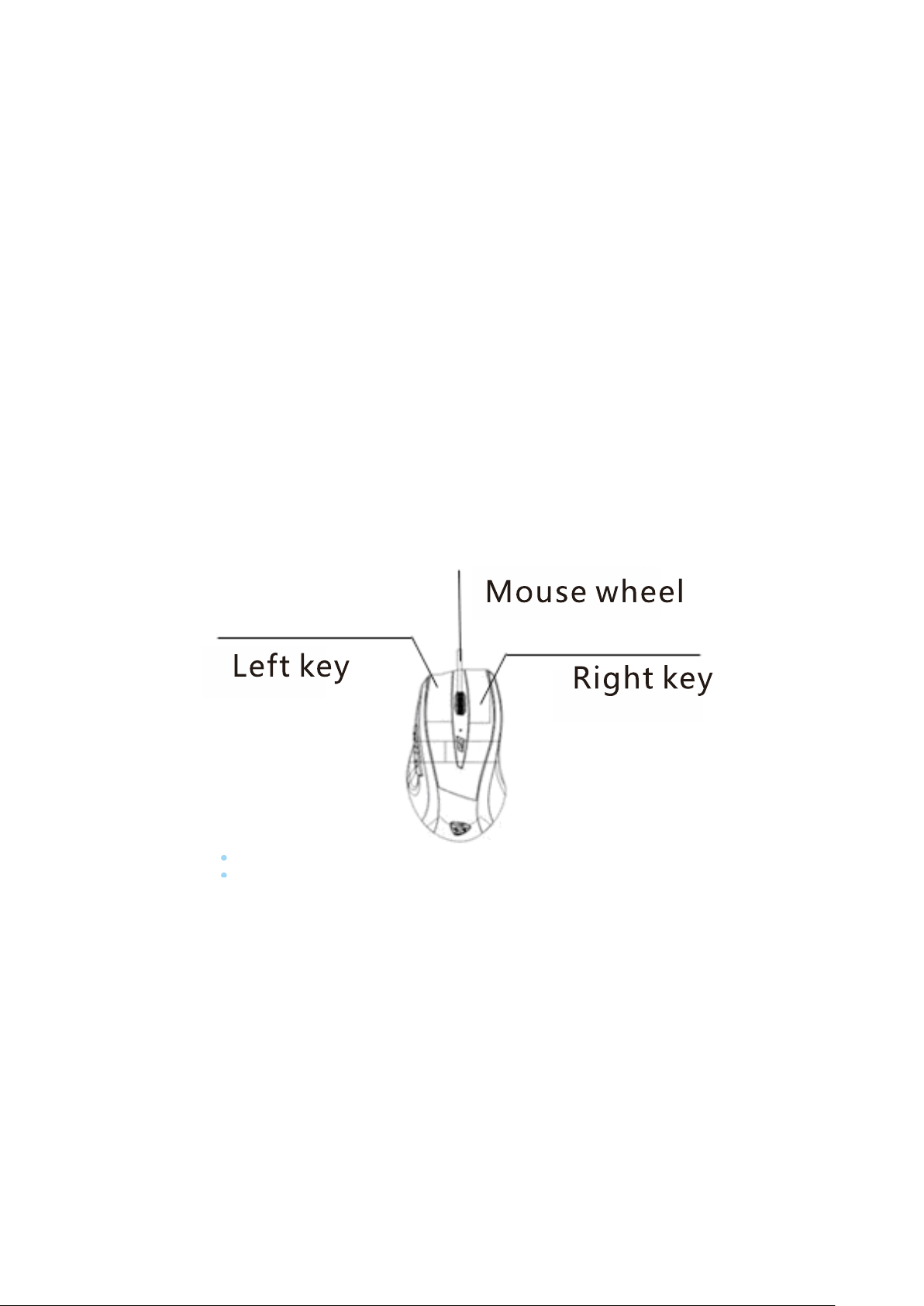
Ⅴ、Operation guide for mouse and remote
control
Left:press once to enter
Right:press once to back
Mouse roller:Move up or down , press once to make system menu
appear .
Page 10
FCC Caution.
§ 15.19 Labelling requirements.
This device complies with part 15 of the FCC Rules. Operation is subject to the
following two conditions: (1) This device may not cause harmful interference, and (2)
this device must accept any interference received, including interference that may
cause undesired operation.
§ 15.21 Changes or modification warning
Any Changes or modifications not expressly approved by the party responsible for
compliance could void the user's authority to operate the equipment.
§ 15.105 Information to the user.
Note: This equipment has been tested and found to comply with the limits for a Class
B digital device, pursuant to part 15 of the FCC Rules. These limits are designed to
provide reasonable protection against harmful interference in a residential installation.
This equipment generates uses and can radiate radio frequency energy and, if not
installed and used in accordance with the instructions, may cause harmful interference
to radio communications. However, there is no guarantee that interference will not
occur in a particular installation. If this equipment does cause harmful interference to
radio or television reception, which can be determined by turning the equipment off
and on, the user is encouraged to try to correct the interference by one or more of the
following measures:
-Reorient or relocate the receiving antenna.
-Increase the separation between theequipment and receiver.
-Connect the equipment into an outlet on a circuit different from that to which the
receiver is connected.
-Consult the dealer or an experienced radio/TV technician for help.
*RF warning for Mobile device:
This equipment complies with FCC radiation exposure limits set forth for an
uncontrolled environment. This equipment should be installed and operated with
minimum distance 20cm between the radiator & your body.
 Loading...