

Page 1
Plus
Q U I C K S T A R T G U I D E
S T E P
INSTALL YOUR S OFTWAR E
3
S T E P
1
Take your picture.
C O N T E N T S
Co lorVis ion Sp yder2™ colo rimete r
1
Col orVisi on Spyde r2 software CD
1
Col orVisi on Profi lerPLUS™ so ftware CD
1
Adobe® Photo shop® Eleme nts 3.0 CD
1
Warranty card
1
Quick Installation Guide
1
PANTONE® colorist CD
1
Spyder2 System Requirements:
❖ PC with Windows® 2000 or XP o r
Mac with OS X10.2 or better
❖ USB port
ColorVision ProfilerPLUS
❖ Adobe Photoshop 5.5 or better (for both RGB and CMYK profiles) or
Adobe Photoshop Elements 3.0 (for RGB profiles only) included with this package
❖ 300 dpi flatbed scanner or be tter
❖ Color printer
TA KING YOUR PICT URE
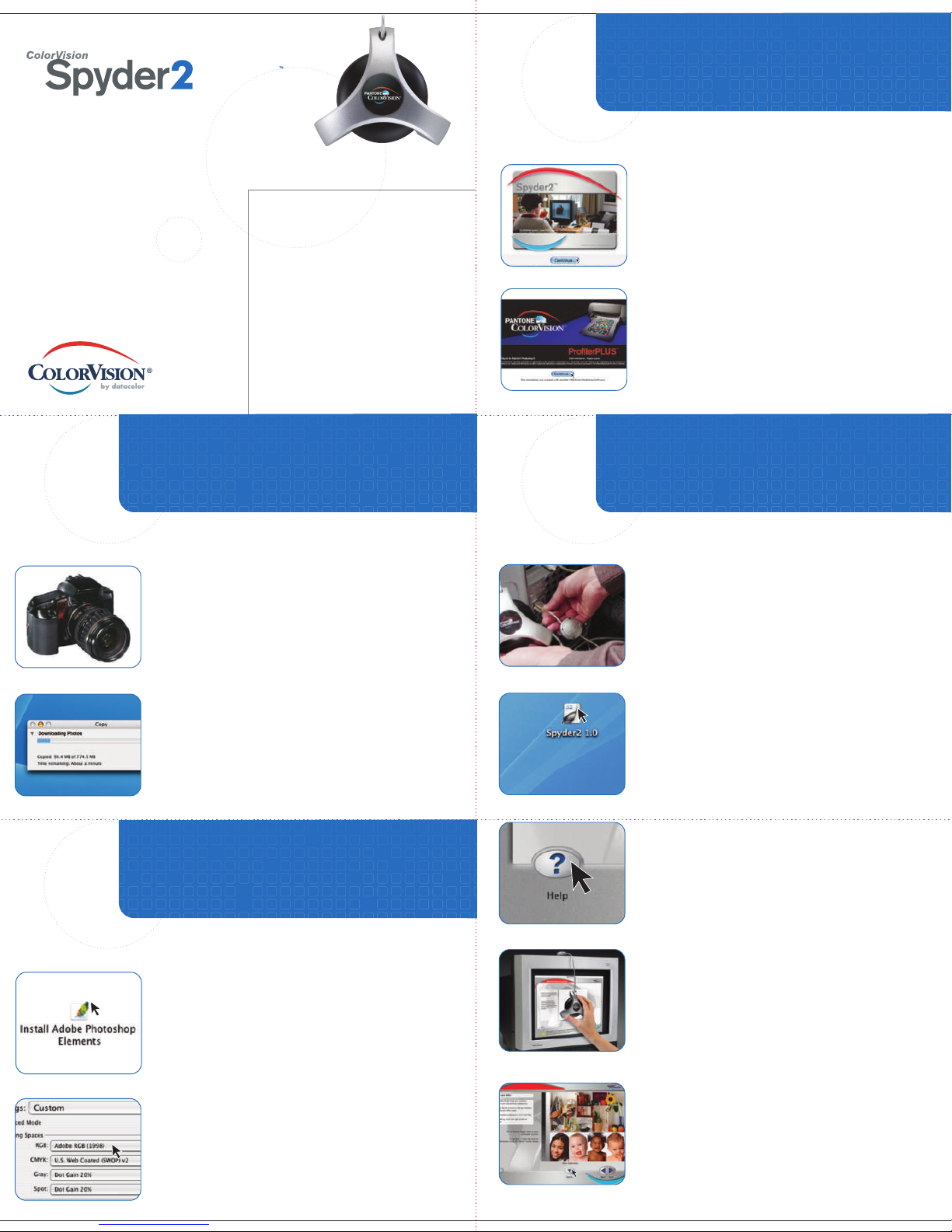
Install Spyder2 monitor calibration software,
following the onscreen instructions.
Install ProfilerPLUS printer profiling software,
TM
S T E P
following the onscreen instructions.
CALIB RATE YOUR DIS PLAY
4
Plug in your Spyder2 hardware to the USB
port on your computer.
S T E P
Download the picture to your computer.
®
ADOBE
PHOT OSHO P® ELEM ENTS 3.0
2
Install Elements 3.0,
following the on-screen instructions.
Modify color settings to “Adobe RGB (1998).
Clicking on the Spyder2 icon/alias on your desktop,
launch the Spyder2 calibration software.
Follow the steps of the calibration using the “Help”
screens for more in-depth explanation of each step.
Place the Spyder2 on your screen.
After calibration, check Before and After.
”
Page 2
PROFI LE YOU R PR INTE R PRINT YOUR DIGI TAL IMAG ES
S T E P
5
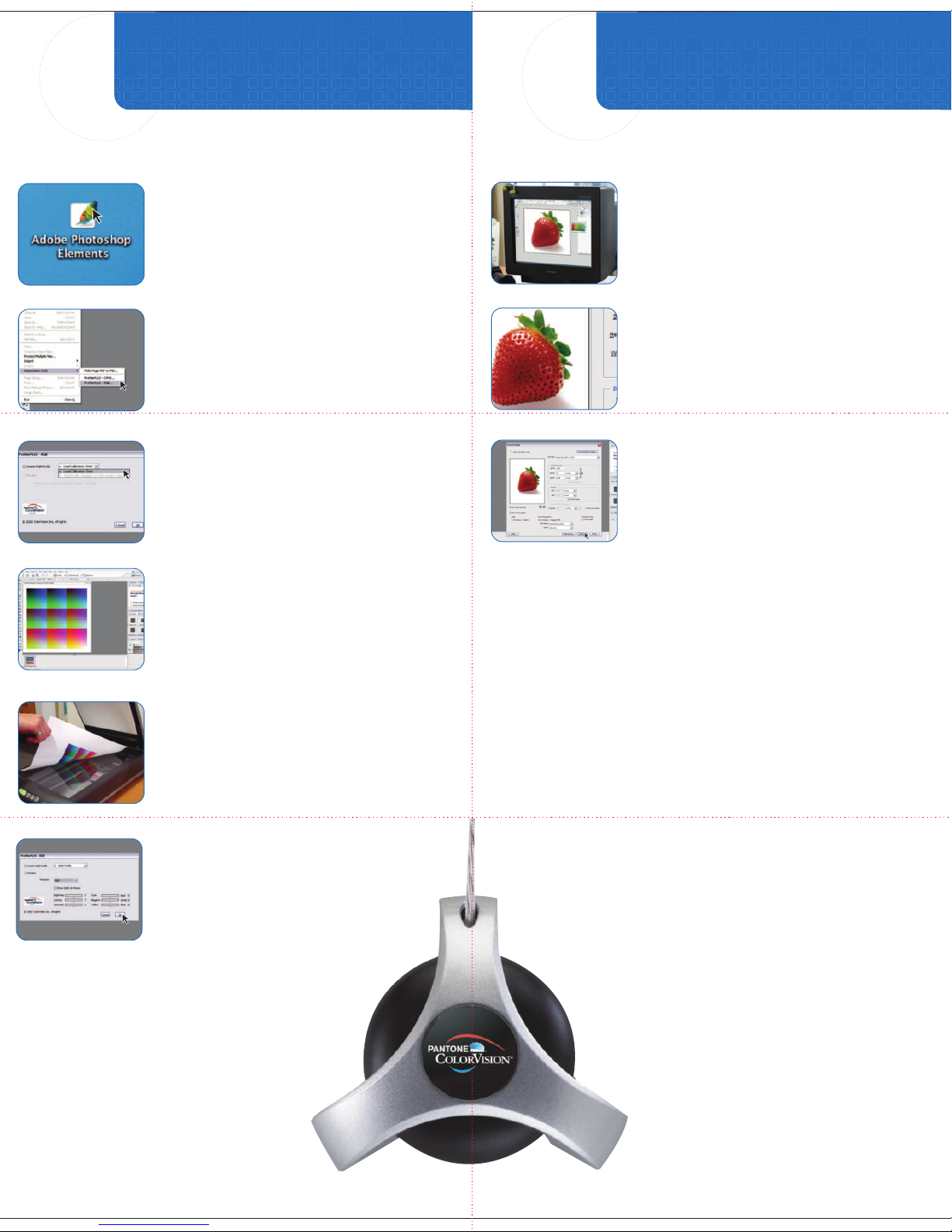
Launch Adobe Photoshop Elements.
Launch ProfilerPLUS from within Elements.
Select File>Automate>ProfilerPLUS>Load Calibration chart.
S T E P
6
Open your digital image in Elements 3.0 to print.
Make any needed adjustments before printing.
Once you are ready to print, go to:
1. File > Print > click "Show More Options."
2. Choose the "profile" created.
3. Choose "saturation" Intent.
4. Disable your printer's color management settings.
5. Print!
Print calibration chart with specific settings.
1. Disable all color management within printer drivers.
2. Disable all color management within Elements 3.0
and print "Same as Source."
Scan calibration chart with specific settings.
1. Disable all color management settings when scanning.
"Create the Profile"
See ProfilerPlus User Guide for full description.
CONGRATULATIONS, YOU’RE DONE!
For further details, advanced settings or troubleshooting, please
refer to the ColorVision Web site at: www.colorvision.com or
E-mail us at: [email protected].
For questions on printer profiling, go to the “ProfilerPLUS
Troubleshooting” section of the ColorVision Web site.
©2005 ColorVision Inc. All rights reserved. ColorVision and other ColorVision, Inc. trademarks are the property of ColorVision Inc. PANTONE® and other Pantone, Inc.
trademarks are the property of Pantone, Inc. Adobe and Photoshop are either registered trademarks or trademarks of Adobe Systems Incorporated in the United States
and/or other countries. Windows is either a registered trademark or trademark of Microsoft Corporation in the United States and/or other countries.
Mac is a trademark of Apple Computer, Inc.
 Loading...