

Page 1
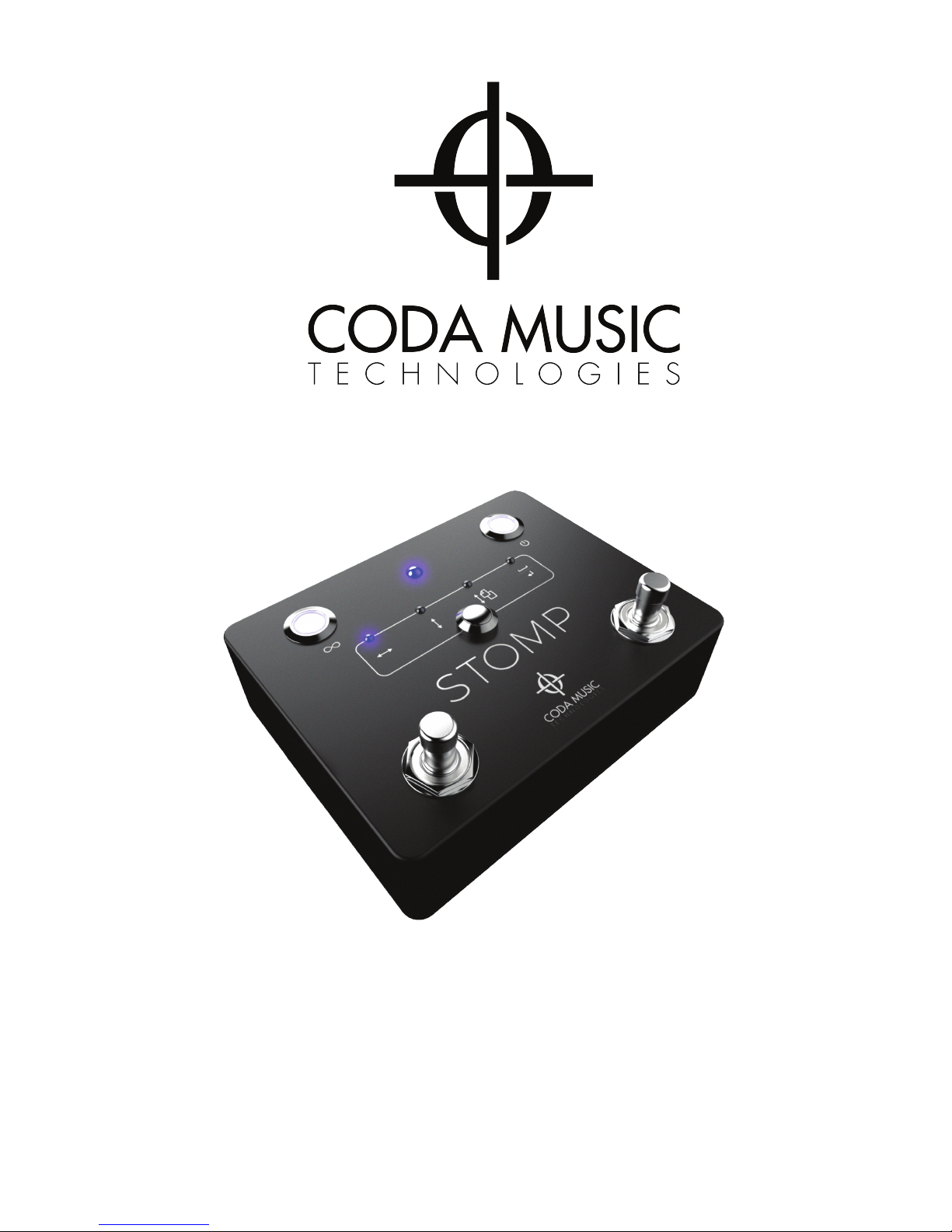
STOMP
BLUETOOTH® PAGE TURNER & APP CONTROLLER
www.codamusictech.com
Page 2
www.codamusictech.com
Welcome to the Coda Music Technologies® family. You’ve just purchased the most
reliable, floor-based, hands-free performance solution available and we’re excited to play
a part in your musical journey.
STOMP works with most Bluetooth® 4.0 and newer devices. This includes iPad 3® and
later, iPhone 4s® and later, and most Android® devices running Android® 4.3 or later
with Bluetooth® 4 or 5. STOMP is designed to work with compatible apps for Apple®
iOS, Android®, PC, and MAC, that receive HID keyboard commands. There are literally
hundreds of compatible apps available but for a short list of some of our favorites please
visit codamusictech.com/apps. If you need assistance with your app, please contact the
app developer directly.
Device & App Compatibility
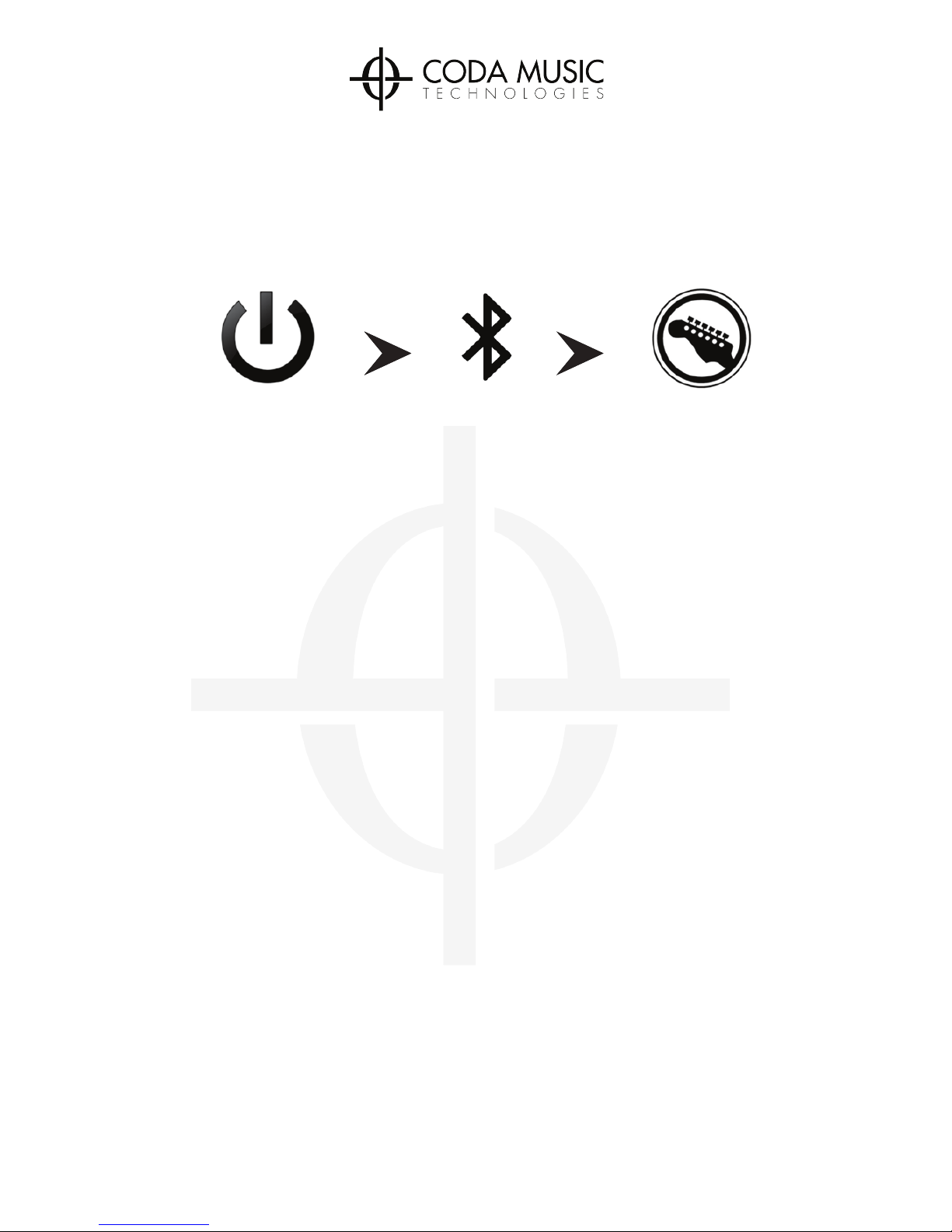
Quick Start
1. Install 9V battery or use compatible 9VDC power adapter.
2. Power on your STOMP pedal.
3. Turn on Bluetooth® Pairing within your host device (iPad®, Android® Tablet, etc).
4. Tap “Coda Music Tech” within Bluetooth® Device settings of your host device.
5. Open desired app and enable Bluetooth® Pedal Control in the app’s settings.
6. Scroll through the four different modes on your STOMP to find what works with
your app.
7. Perform!
Power Pair
Perform
Page 3

www.codamusictech.com
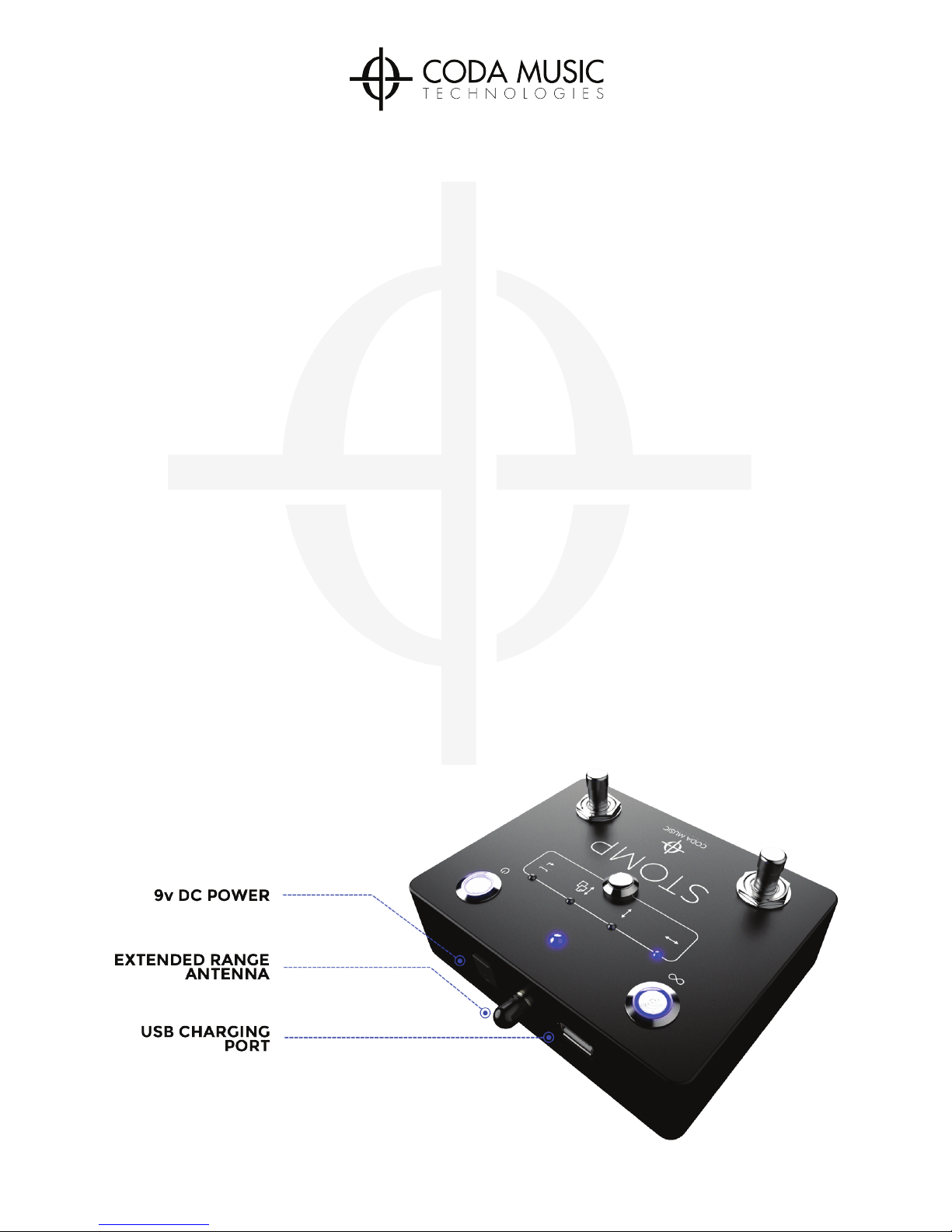
STOMP is designed to operate from either a standard 9-volt battery or a 9VDC power
supply. Both tip-negative and tip-positive power supplies are compatible. If you want to
power a phone or tablet through STOMP’s USB port, you will need a 9VDC 1500mA
power supply; however, if you only need enough power to utilize Bluetooth® functions
then a 9VDC 100mA power supply is sufficient. If battery operation is desired, a
high-quality alkaline type battery should be used.
Power Requirements
To power on or off your STOMP, make sure you have installed a new 9-volt battery or
connected a compatible 9VDC power supply, then press and release the power button
located in the top right-hand corner of the pedal. Once the pedal has been powered on,
the blue status LED will flash slowly when in pairing mode, or become solid blue when
paired.
Power ON/OFF
Pairing
1. Open your device’s Bluetooth® setup/settings menu.
2. Turn on Bluetooth® within the Bluetooth® settings.
3. Turn on STOMP using the power button located in the top right-hand corner.
4. The blue status LED will begin flashing.
5. Within your device’s Bluetooth® settings you should see “Coda Music Tech”.
6. Tap “Coda Music Tech” to pair.
7. When STOMP is fully paired the blue LED status indicator will stop flashing and
remain solid blue.
To install the battery:
1. Remove the screws securing the cover plate, which are located on the bottom of
the unit.
2. Slide the battery into the battery space located in between the left and right foot
switches.
3. Match up the positive and negative terminals to their corresponding mate and
secure the terminal.
4. Replace the cover plate.
5. Line up the screw holes and tighten the screws, making sure not to cross thread
them..
Page 4
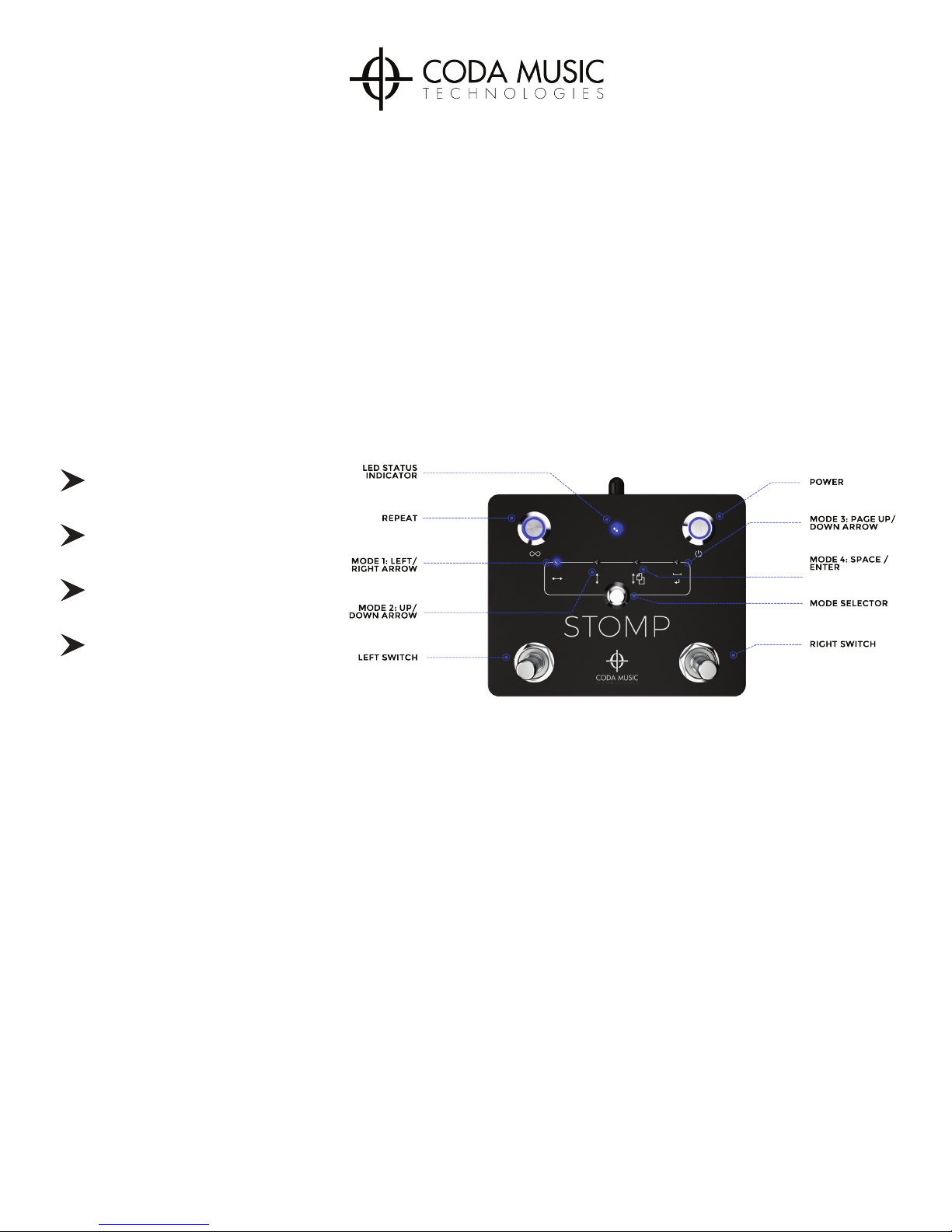
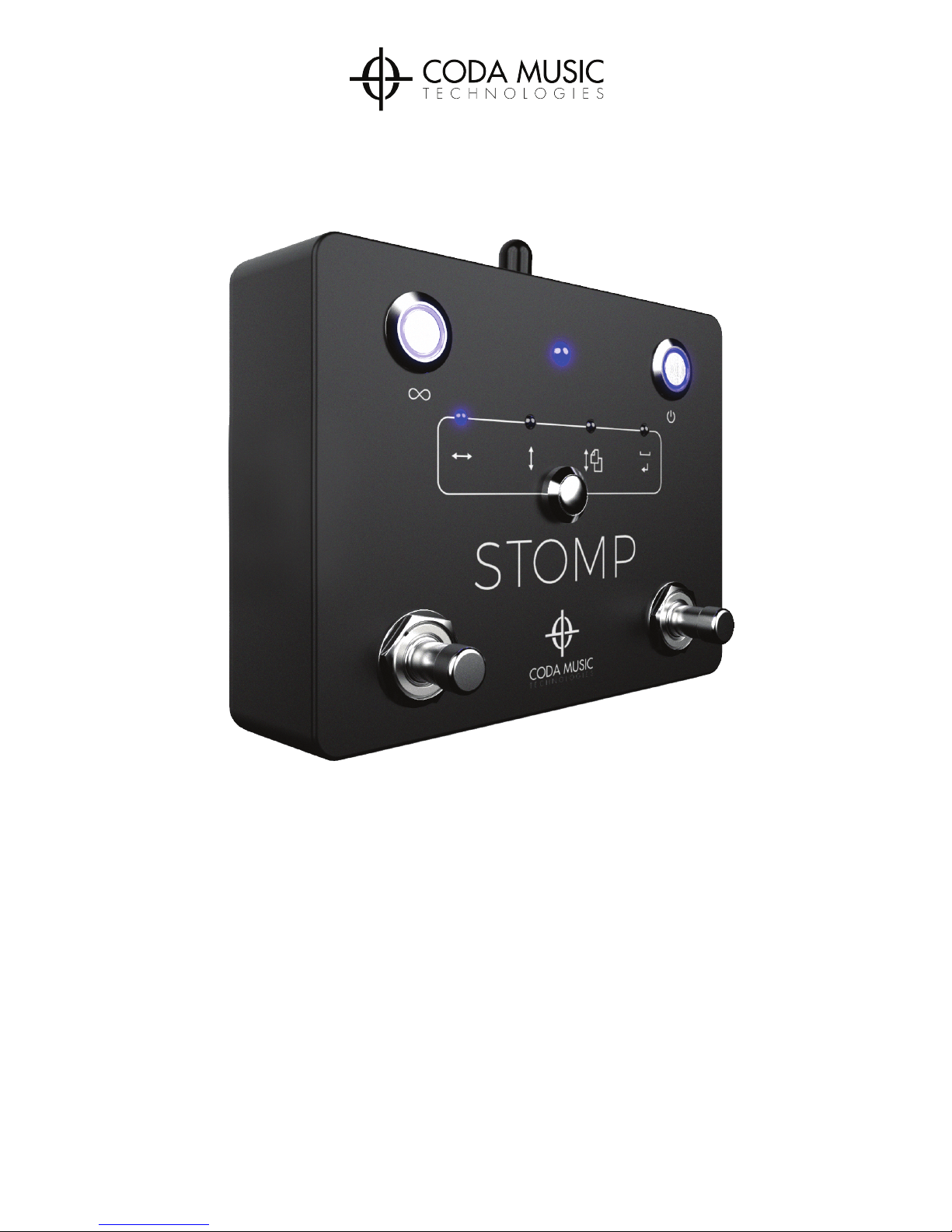
STOMP has four selectable modes which work with the majority of apps on the market.
The different modes are used to send different commands to your favorite app and
device. Different apps use different modes, so make sure to experiment with STOMP’s
four modes to determine which works best with your favorite app. A small, blue LED will
indicate which mode is selected.
Modes
Activating the repeat button allows STOMP to send continuous commands vs. a single
command when pressing and holding a switch. Pressing and holding the right switch, for
example, will trigger an unlimited series of right arrow commands which will scroll
through pages quickly and with one motion. If the Repeat function is OFF, pressing and
holding a footswitch will send a single command to the receiving device. Pressing and
holding the right switch, for example, will trigger a single right arrow command. To scroll
through multiple pages with the repeat mode off, you will need to press the footswitch
multiple times.
Repeat/Infinity Function
Mode 1: Left/Right Arrow
Mode 2: Up/Down Arrow
Mode 3: Page Up/Down
Mode 4: Space/Enter
www.codamusictech.com
Page 5
STOMP operates as a “keyboard” within your device. Because of this your device may
not automatically activate its built-in virtual keyboard function when STOMP is
connected. If you need to make any notes within your sheet music app or use another
function that requires keyboard abilities while STOMP is connected, you will need to
activate STOMP’s Virtual Keyboard Function. To activate the built-in Virtual Keyboard
Function, simultaneously press down both the left and right switches. This will
temporarily disconnect your pedal from the host device and cause the status indicator
LED to flash rapidly. To deactivate the function, press down both switches again. Please
note that not all apps will respond to this feature and you may need to disconnect
STOMP to utilize your device’s virtual keyboard depending on the app’s internal abilities.
Also note that the virtual keyboard will only activate when a text box is selected.
www.codamusictech.com
Virtual Keyboard
STOMP will remain powered for up to 150 hours using a 9-volt 220mAh battery. To
ensure extended battery life STOMP will activate sleep mode after 25 minutes of
inactivity. Sleep mode disables all LEDs but keeps an active pairing status with your host
device. To wake the pedal, simply press the left or right footswitch and the LEDs will
emit again. The status indicator LED, located at the top-center of the pedal, will emit a
blue LED when the power is above 25%. When battery life drops to 25% the LED will
change to red and the battery should be changed before the next use. Sleep mode will
not activate when the pedal is powered by 9-volt DC power adapters.
Battery Life & Sleep Mode
Page 6
STOMP is equipped with a USB port to provide power to tablets and smartphones when
connected to 9VDC 1500mA power. Please note that this feature is only designed to
charge external devices (smartphones, tablets), it will not charge STOMP. To charge an
external device, simply plug your STOMP pedal into a compatible 9VDC 1500mA power
supply, and plug a USB cable into STOMP and your device. The charging voltage is 1A to
ensure safe charging of smartphones, but it can also provide power to 2A tablets. If you
are charging a 2A device such as an iPad, STOMP will keep it powered but recharge
slowly. We recommend only using STOMP to keep your device charged rather than
relying on 1A power to charge your device from zero.
USB Port
The status indicator, located at the top-center of your STOMP pedal, will provide you
with information on the various connected states of STOMP. Use the following graph to
determine the connected state of your STOMP pedal.
LED Status Indicator
www.codamusictech.com
Blue - Solid (no flashing) Connected to host device and powered above 25%.
DefinitionLED Status
Connected to host device and power is 25% or less.
Replace battery or use compatible 9VDC power
adapter before next use.
STOMP is in virtual keyboard state - reactivate by
pressing both switches simultaneously.
The device is not paired and is waiting to be selected
within host device’s Bluetooth® settings.
Red - Solid (no flashing)
Blue - Rapid Flashing
Blue - Slow Flashing
Page 7

www.codamusictech.com
STOMP is pairing successfully but is not working with my app:
For all other troubleshooting questions, please visit www.codamusictech.com/support
1. Check that you are using a compatible app that allows Bluetooth® keyboard
commands. A list of popular apps is located on our website at
www.codamusictech.com/apps.
2. Try multiple modes. Slowly press through the different modes while pressing
the left and right footswitches to determine which mode your selected app
responds to. Most apps respond to 1 of the 4 modes, and some apps have
the ability to select which mode you would like to use for additional app
control functions..
3. Check the app settings. Many apps have a Bluetooth® Pedal Setting that
must be turned on.
1.
2.
3.
Troubleshooting
1. Forget the device “Coda Music Tech” from within the Bluetooth® settings
of your host device.
2. Turn off STOMP.
3. Turn off the Bluetooth® setting of your host device.
4. When STOMP has been removed, repeat the pairing steps as described previously.
If you experience problems with your STOMP Bluetooth® Pedal, try the following:
STOMP is not pairing with host device:
Page 8
Model Name:
Dimensions:
Weight:
Power Requirements:
Wireless Range:
Operation Type:
Operating Frequency:
STOMP
4.67” x 3.68” x 1.18”
12 oz
DC 9V 1500mA
Approximately 50 feet
Bluetooth® 4.0 Low Energy
2.402 - 2.480 GHz
Technical Specifications
www.codamusictech.com
 Loading...