

Page 1
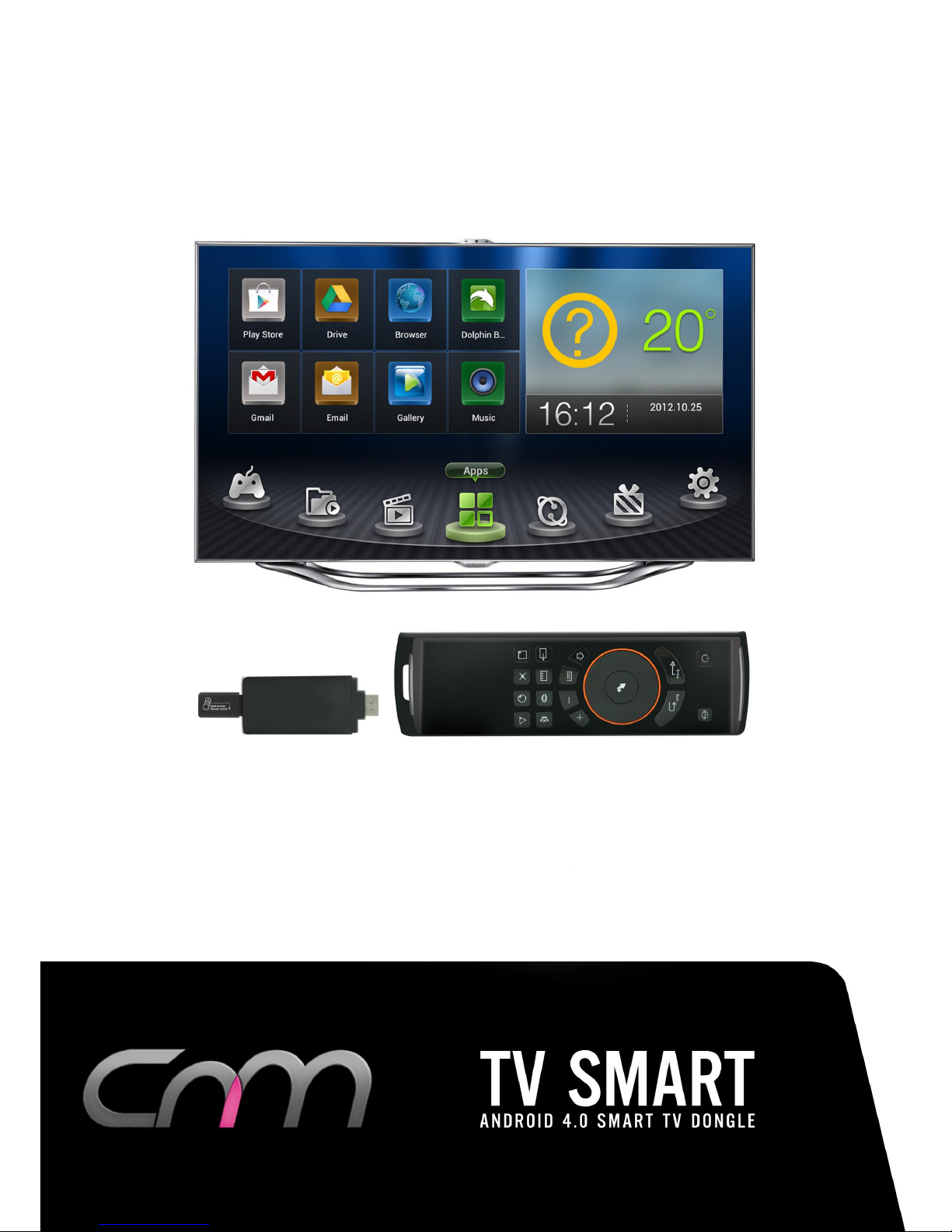
TV Not Included
Page 2

CnM TVSmart User Manual
___________________________________________________________________________________________________________________________
2
Contents
1. Using This Manual ……..…………………………………………….………….. 4
2. Safety Instructions ……………………………………………………………….. 5
3. Boxed Contents …………………………………………………………………….. 6
4. Hardware Specification …………………………………………….…….….… 7
5. Product Overview ……………………………………………………………….…. 8
6. Getting Started ……………………………………………….…………………… 10
6.1 Connecting the TVSmart …………………….……….…………………... 10
6.2 Startup ……………………………………………………….…….………….... 12
6.3 Connecting the Air Mouse ………………………….…………………… 12
6.4 Operating the Air Mouse ……………………….………………………… 13
6.5 Charging the Air Mouse ……………………………………….…….…… 13
6.6 TVSmart Navigation……………………………….……….…………….…. 14
6.7 Shutdown ……………………….……………………………….……………… 15
6.8 Connecting to a Wireless Network ……………………….………… 16
6.9 Weather / Time Widget ……………………………………….……….… 19
6.10 Applications ……………………………………………………………………. 19
7. System Settings ………………………………………………………..………….. 22
7.1 Display ………………………………………………………..……………….... 22
7.2 Storage …………………………………………………………….………….... 23
7.3 Apps ………………………………………………………………………………. 24
7.4 Accounts & Sync …………………………………………………….…….… 25
7.5 Language & Input ……………………………….…………………………… 26
7.6 Backup & Reset ………………………………….…………………………… 26
7.7 Date & Time …………………………………………….….………………….. 27
7.8 Accessibility ………………………………………………………..…………… 29
Page 3

CnM TVSmart User Manual
___________________________________________________________________________________________________________________________
3
8. Common Applications …………………………………………………..……… 30
8.1 Browser Internet Access …………………………………….…….. 30
8.2 Email ………………………………………………………………..………. 32
8.3 Gmail / Google Play Store ………………………………………….. 34
8.4 File Manager …………………………………………………………….. 37
8.5 Music ………………………………………………………………..……… 37
8.6 Gallery ……………………………………………………………………… 38
8.7 Google Drive ……………………………………………………..……… 39
8.8 Video Cloud ………………………………………………………………. 39
8.9 Netflix ………………………………………………………………..……… 40
8.10 YouTube ……………………………………………………………………. 40
8.11 Advanced Task Manager ……………………………………………. 41
9. Troubleshooting ……………………………………………………………..….… 47
10. Support………………………………………………………………..…..…………. 49
11. Copyright ………………………………………………………………..….……….. 50
12. Warranty Information ………………………………………………..………… 50
13. Licencing ..………………………………………………………………..……..…… 52
14. Correct disposal of this product ….…………………………..……..…… 53
15. Correct disposal of batteries ….………………………………..……..…… 53
16. Disclaimer ..……………………………………………………………...……..…… 54
Page 4

CnM TVSmart User Manual
___________________________________________________________________________________________________________________________
4
1. Using This Manual
Congratulations on your purchase of this CnM TVSmart TV Dongle. This powerful and
versatile device brings the best of the web, movies and on-demand programs to your HDMI
enabled TV. Built around the Google Android 4.0 operating system, the TVSmart is designed
to upgrade any HDMI enabled TV, turning it into a Smart TV and allowing access to the
Internet, gaming and access to thousands of useful and entertaining applications to enhance
your televisual experience.
Read Me First
Please keep this manual for future reference.
Please read this manual and all safety instructions carefully before using your TVSmart
to ensure safe and proper use.
The descriptions in this manual are based on the default settings of your device.
Images and screenshots used in this user manual may differ in appearance from the
actual product.
Formatting and delivery of this user manual is based on the Google Android 4.0
operating system and may vary depending on the device.
Content in this user manual may differ from the product, and is subject to change
without prior notice.
Available features and additional services may vary by device, software, or service
provider.
Applications and their functions may vary by country, region, or hardware
specification. CnM are not liable for performance issues caused by third-party
applications.
CnM are not liable for performance issues or incompatibilities caused by user editing
of system settings.
Software, wallpapers, images, sound sources, and other contents provided in this
device are licenced for limited use between CnM and their respective owners.
Extracting and using these materials for commercial or other purposes is an
infringement of copyright laws. CnM cannot be held liable for such copyright
infringement by the user.
Page 5

CnM TVSmart User Manual
___________________________________________________________________________________________________________________________
5
Trademarks
CnM and the CnM logo are registered trademarks.
The Android logo, Google Search™, Google Maps™, Google Mail™, YouTube™, Android
Market™, and GoogleTalk™ are trademarks of Google, Inc.
All other trademarks or registered trademarks, brands and names are property of their
respective owners.
2. Safety Instructions
This user manual contains important safety instructions and information for proper use of
the device. Please follow the instructions in this manual carefully.
This is a high-density electronic product; please do not dismantle it by yourself.
Avoid shocks and do not let the device fall, as otherwise it may cause damage to the
device.
Do not use damaged power cords or plugs, or loose electrical sockets.
Do not click the power cord with wet hands, or disconnect the charger by pulling the
cord.
Do not bend or damage the power cord.
Avoid using this product in the following environments: high and low temperatures,
humid environments, dusty environments, areas with strong magnetic fields and
prevent long-term exposure to the sun. In particular please avoid leaving the device in
the car during summer if the doors are closed.
To clean the product, gently wipe the product using a moist cotton cloth; the use of
other chemical cleaning is prohibited unless they are specifically designed for this
purpose. This product should be kept away from water droplets splashes, so cups filled
with liquids should not be placed near the product. Do not use alcohol, thinners or
petrol to clean the display.
Please deal with waste machinery and accessories according to local environmental
regulations.
If you have any questions about the use of this product, please contact your local
dealer or the customer service center of CnM.
Any loss of data caused by product damage, repair or through any other issues relating
to the device are not covered under warranty. Please ensure you make timely backups
of all your data.
Page 6
CnM TVSmart User Manual
___________________________________________________________________________________________________________________________
6
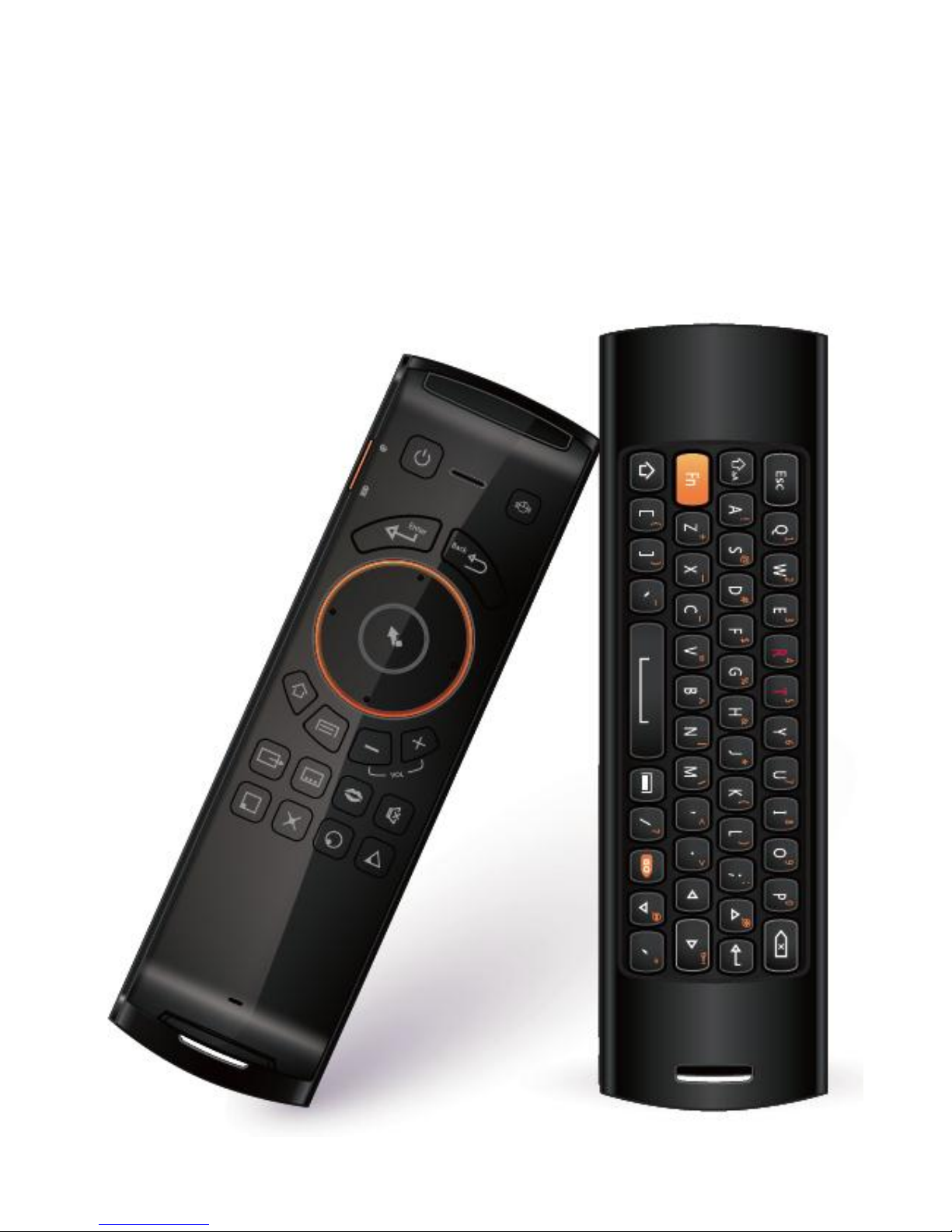
3. Boxed Contents
1. TVSmart Device
2. Air Mouse Controller
3. Power Adapter
4. USB Cable
5. HDMI Adapter
6. User Manual
7. Quick Start Guide
Page 7
CnM TVSmart User Manual
___________________________________________________________________________________________________________________________
7
4. Hardware Specification
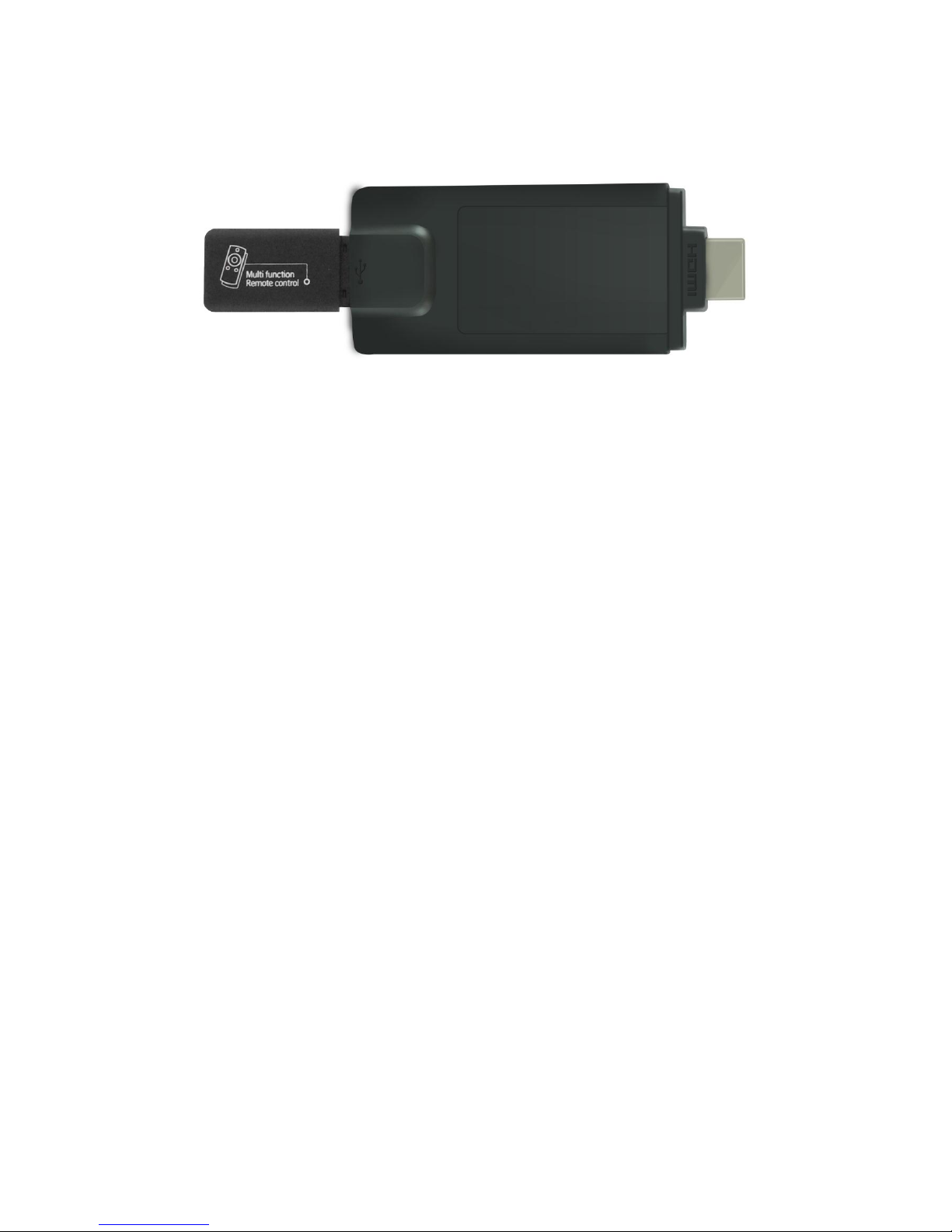
TVSmart HDMI Dongle
Processor
High performance Cortex A8 Processor 1.0GHZ
Supports hardware OpenGL 2.0 3D image acceleration
Memory
1GB DDR3 high-speed memory
Storage
4GB built-in
Wireless
IEEE802.11b/g/n Wireless internet
USB
USB2.0 OTG high speed interface
Video Output
HDMI 1.3 high definition video output interface
Audio
Via HDMI interface.
Physical
Size
(Length × Width × Thickness) 90 × 39 × 11mm
Weight
34g
Air Mouse Controller
Keyboard
47 Key Keyboard
Air Mouse
17 Buttons and
Physical
Size
(Length × Width × Thickness) 167 × 48 × 17mm
Weight
96g
Page 8
CnM TVSmart User Manual
___________________________________________________________________________________________________________________________
8
5. Product Overview
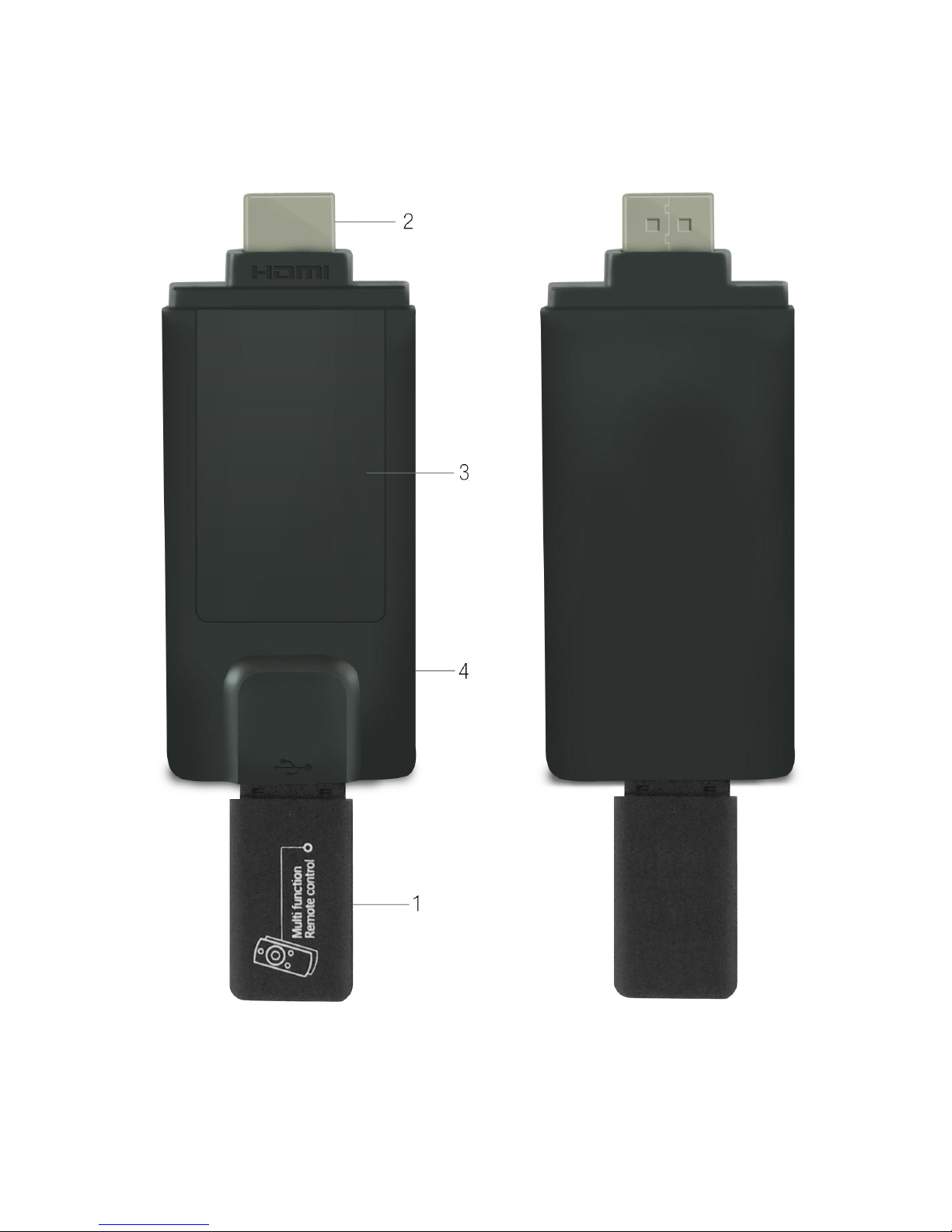
5.1 TVSmart
1.
Air Mouse Receiver
2.
HDMI connector
3.
Heatsink
4.
Power-in
Page 9
CnM TVSmart User Manual
___________________________________________________________________________________________________________________________
9
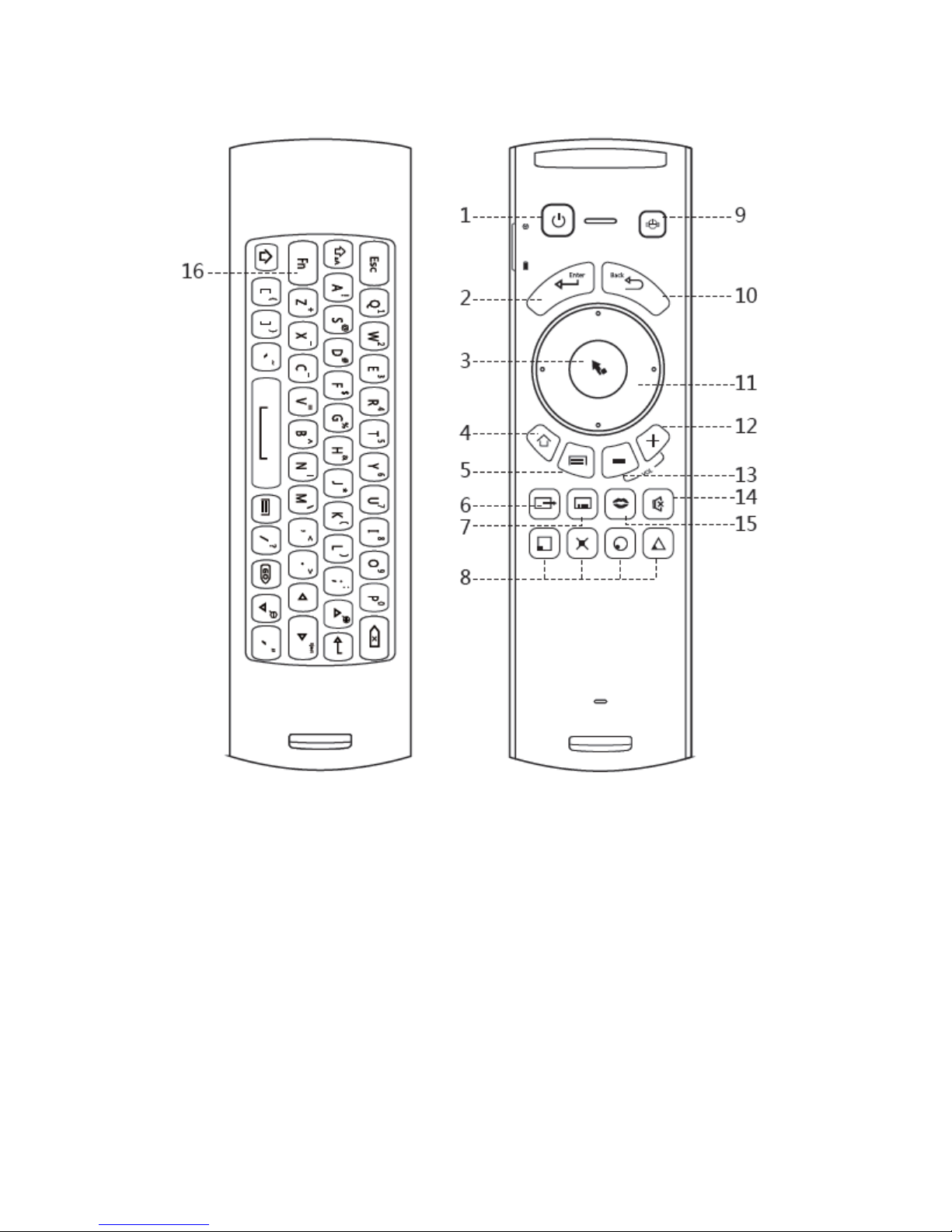
5.2 Air Mouse Controller
1.
Power Button
2.
Enter
3.
Left Mouse Button
4.
Home
5.
Menu
6.
TV Output
7.
Subtitle
8.
N/A
9.
Start-up Button
10.
Return
11.
Up, Down, Left, Right Button
12.
Volume +
13.
Volume -
14.
Mute
15.
Audio
16.
Fn Button
Page 10
CnM TVSmart User Manual
___________________________________________________________________________________________________________________________
10
6. Getting Started
6.1 Connecting the TVSmart
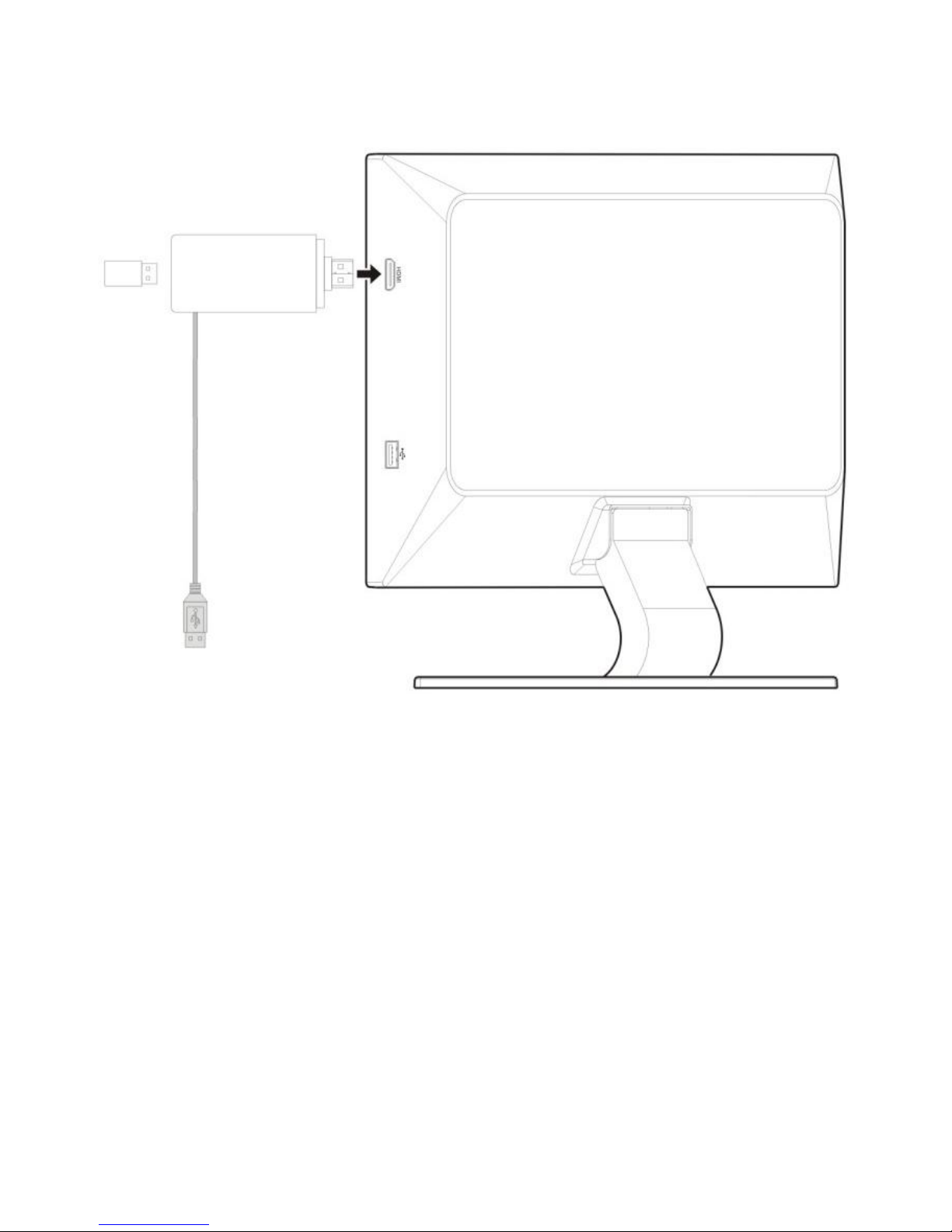
Connect
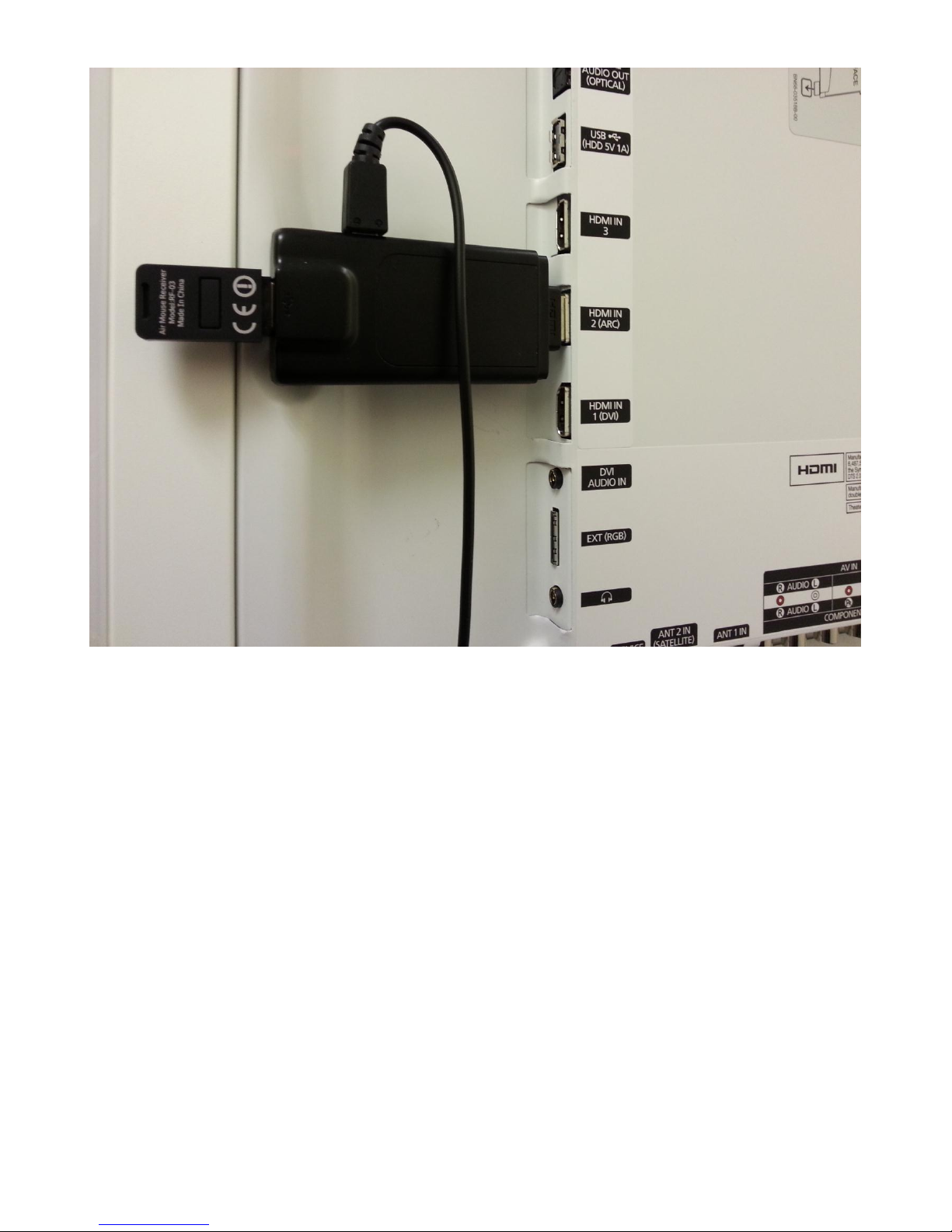
Connect the TVSmart to an available HDMI port on your TV. If the design of the TV, or cables
going into other HDMI ports prevent the TVSmart from being inserted correctly, use the
supplied HDMI adapter to resolve the problem.
Tune In
Select the correct HDMI input on your TV, using the TV’s remote control. Please see your TV
manual for more information on how to do this.
Switch On
Connect the supplied USB cable to the TVSmart and then to the supplied Power Adapter. The
TVSmart doesn’t have a physical power button, so to turn it on, all you have to do is plug it
into a power source and it will automatically start to boot.
Note: You must not plug the TVSmart into any HDMI port on a TV if the TVSmart is already
switched on, or is still connected to its power adapter. HDMI devices can transmit power
through the HDMI connector, and this could cause damage to your TV if a power surge
occurs when a powered device is plugged in.
Damage caused in this way is not warranted by the TV manufacturer or CnM.
Page 11
CnM TVSmart User Manual
___________________________________________________________________________________________________________________________
11
Troubleshooting Display Problems
The TVSmart is turned on, but the TV detects no signal:
Make sure the TVSmart is securely and firmly connected to the HDMI port of your TV.
If the TVSmart isn’t connected to the TV using the supplied HDMI Adapter, then
power it off and disconnect the power, remove it from the HDMI port and plug it in
using the supplied adapter instead.
If the TVSmart is connected to the TV using the supplied HDMI adapter, check that it
is securely and firmly connected to the HDMI port of your TV. Also check that the
TVSmart is securely and firmly connected to the HDMI adapter.
Move the TVSmart so that it is connected to another HDMI port on the TV (ideally a
known working port). Ensure the TVSmart is off and disconnected from its power
adapter before moving it.
Make sure that the correct HDMI source input option is selected on your TV.
Page 12
CnM TVSmart User Manual
___________________________________________________________________________________________________________________________
12
6.2 Startup
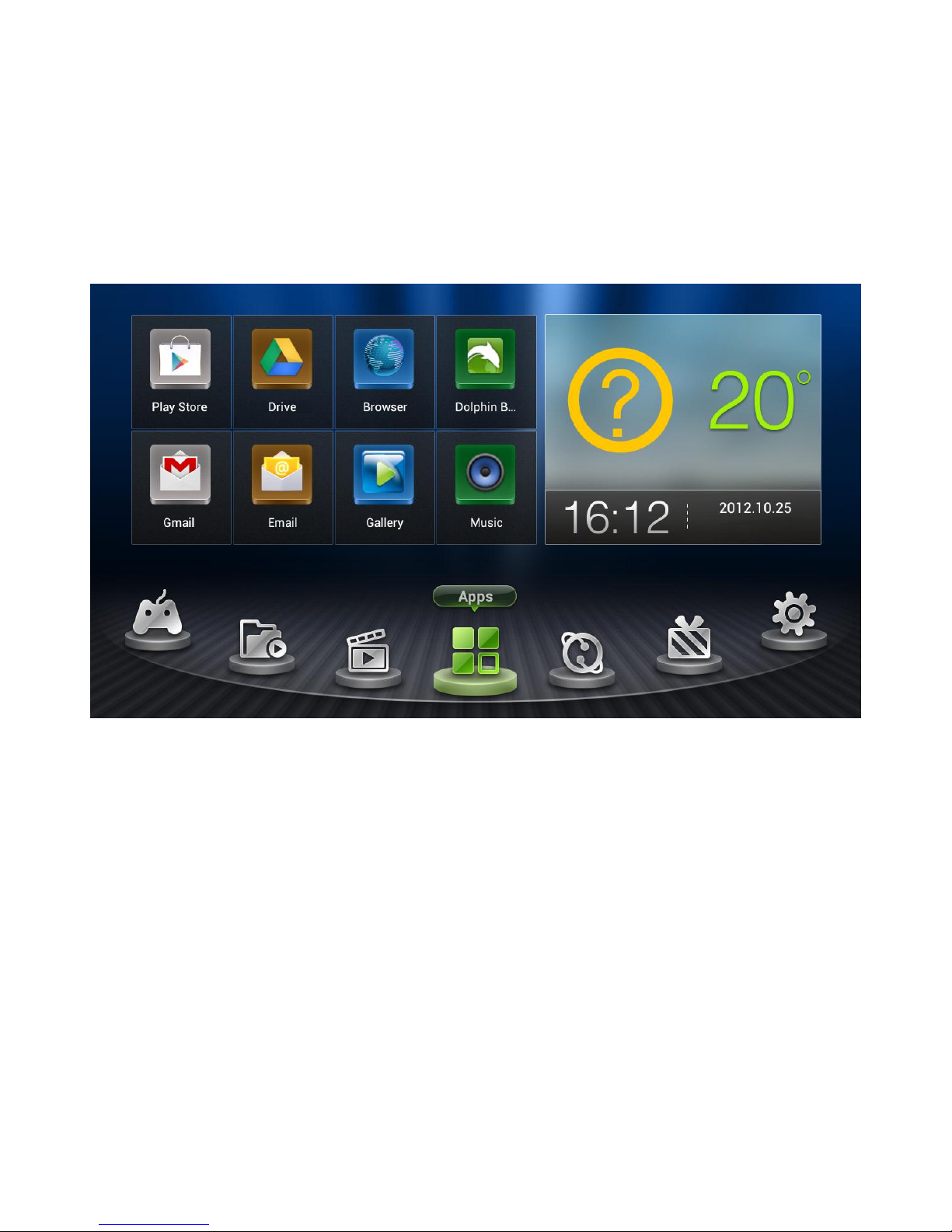
Once the device has finished booting, you will be presented with the TVSmart Home Screen
which gives you easy access to all the applications which come pre-installed on the device.
Note: When you power up the TVSmart for the first time, please be patient because it will
take a few minutes to configure itself, so performance will be a bit slow during this time.
You will now be at the default home screen.
6.3 Connecting the Air Mouse
In order to control the TVSmart you must connect the Air Mouse to it, the first time it is
used.
1. Move the Air Mouse to within 20 centimetres of the TVSmart.
2. Press the Return button and the Enter button together for 2 seconds.
During the connection process, the orange light on the side of the Air Mouse will flash
every 0.3 of a second, and will then stay lit for 2 seconds and turn off when the
connection has succeeded.
If synchronization fails, the orange light will keep on flashing. If this happens, try
removing the USB Dongle from the back of the TVSmart and then re-inserting it. Then
try stages 1 and 2 again.
Page 13

CnM TVSmart User Manual
___________________________________________________________________________________________________________________________
13
3. When the mouse disappears, press Left Mouse Button or the Return button once to
start-up the Air Mouse.
Once connected, the Air Mouse will always be available whenever the TVSmart is turned on.
If the mouse pointer disappears, just press the press Left Mouse Button or the Return
button once to make the pointer re-appear.
6.4 Operating the Air Mouse
When you are holding the Air Mouse with the keyboard face down, the keyboard will be
disabled and the Air Mouse will function as a Mouse.
When the keyboard is face up and able to be used, the mouse functionality of the Air Mouse
is disabled and the keyboard automatically becomes enabled.
During use, the light on the side of the Air Mouse will flash orange whenever any operation
occurs.
Note: It will take a bit of practice to learn how to control the onscreen mouse pointer using
the Air Mouse. It is a very sensitive device and needs to be used with a careful hand.
To put the Air Mouse in Standby Mode
1. Press the Start-up button twice to freeze the mouse cursor.
2. When mouse is not in operation for 2 minutes, the mouse cursor will automatically
turn off.
3. After the keyboard has been in use for 2 minutes, the mouse cursor will automatically
turn off.
When using the keyboard, press and hold the Fn button to use the corresponding
functions which are coloured orange on the keyboard.
6.5 Charging the Air Mouse
When the battery has less than 10% of its capacity remaining, the light on the side of the Air
Mouse will flash red every 1 second.
When charging, the light will flash red and turn off when the battery is fully charged.
Page 14
CnM TVSmart User Manual
___________________________________________________________________________________________________________________________
14
6.6 TVSmart Navigation
Navigating through the Control Panel and any Applications you are running is all done using
the Air Mouse Controller.
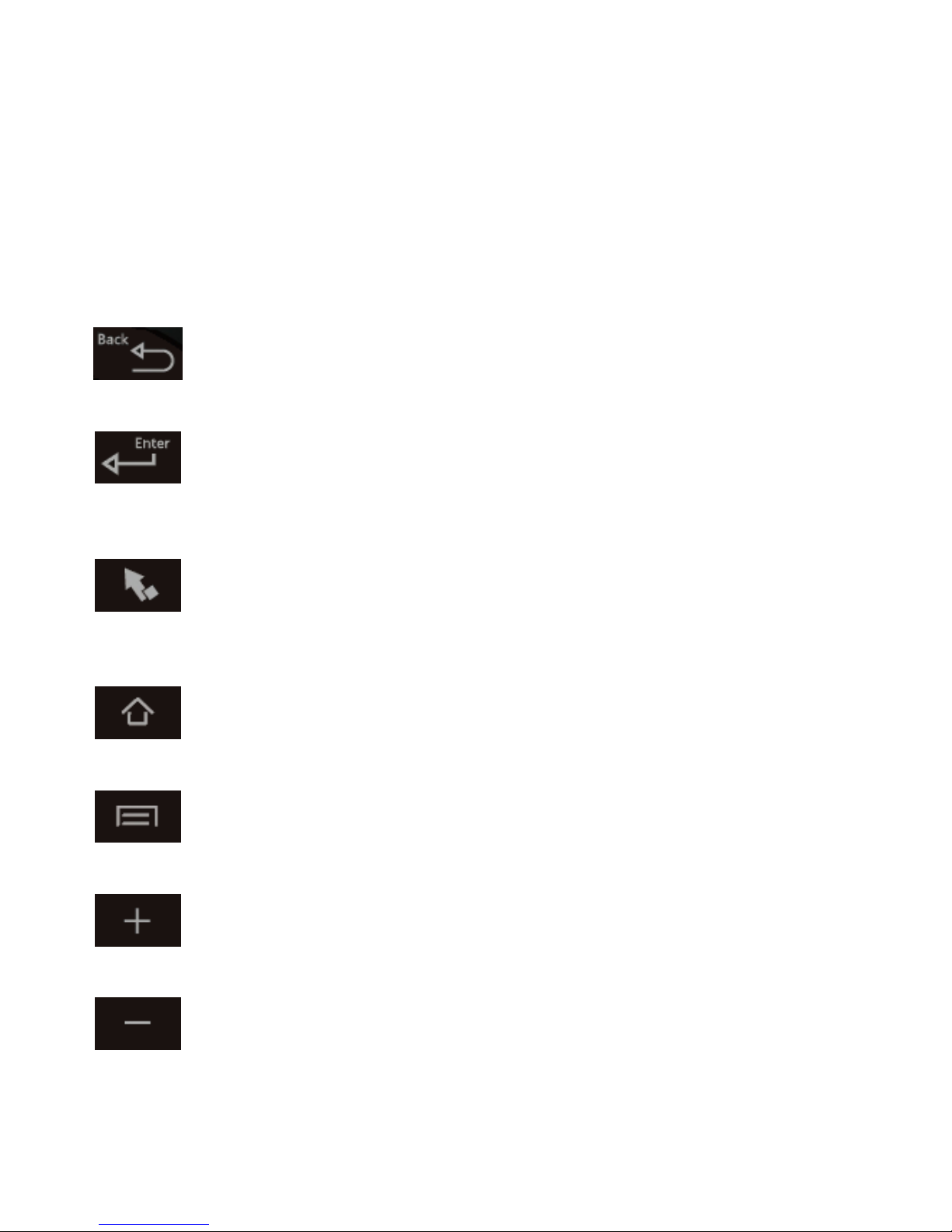
The main controls of the Air Mouse are shown below:
Button
Name
Description
Back
Opens the previous screen you were working in, even if it was in a
different app. Once you are back at the Home screen, you can't go any
further back through your history.
Enter
Click this button to select a menu option or application. Double click
this button to run an app.
Left Mouse
Button
Similar to the Enter button, click to select a menu option or
application. Double click this button to run an app. This is the more
natural button to use and is best used for games and scrolling.
Home
Returns you to the default home screen, so you can access other
applications.
Menu
Button
Allows easy access to the menu options for the current application.
Increase
Volume
Increases the overall volume of all sounds emanating from the
TVSmart.
Decrease
Volume
Decreases the overall volume of all sounds emanating from the
TVSmart.
Page 15
CnM TVSmart User Manual
___________________________________________________________________________________________________________________________
15
6.7 Shutdown
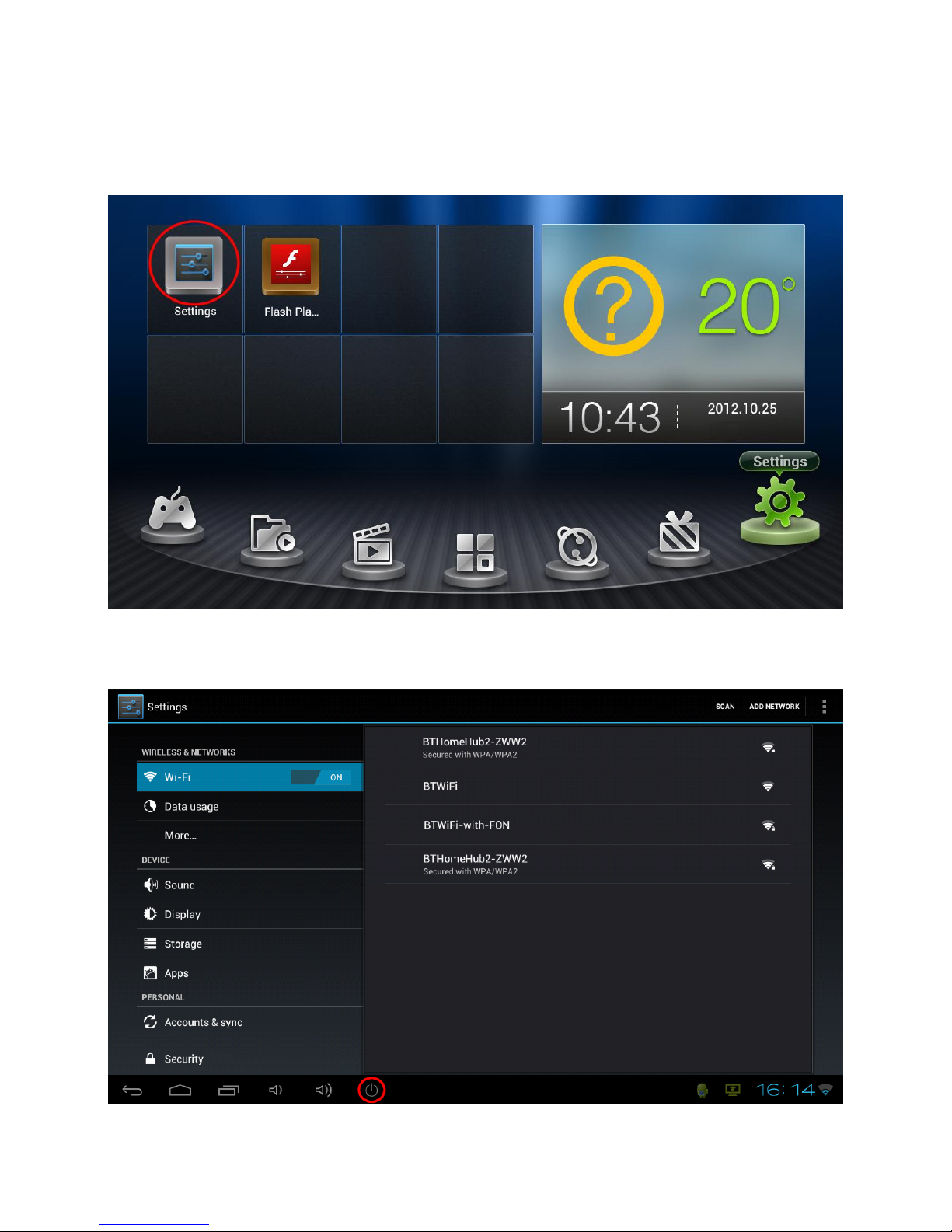
Access Settings by moving the mouse pointer to the Settings menu option (see below) and
clicking the Left Mouse button. Then double click the Left mouse button on the Settings icon
(circled in Red).
Press and hold the Power button icon (as shown below, circled in Red) until the Power off
pop-up appears on the desktop. Choose the OK option to power off the TVSmart.
Note: You do not need to turn off the TVSmart because it has an advance power saving
feature to take care of power saving.
Page 16
CnM TVSmart User Manual
___________________________________________________________________________________________________________________________
16
6.8 Connecting to a Wireless Network
Wi-Fi is a wireless networking technology that can provide Internet access at distances of up
to 100 meters, depending on the Wi-Fi router and your surroundings. To use Wi-Fi, you need
to connect to your wireless router or access point.
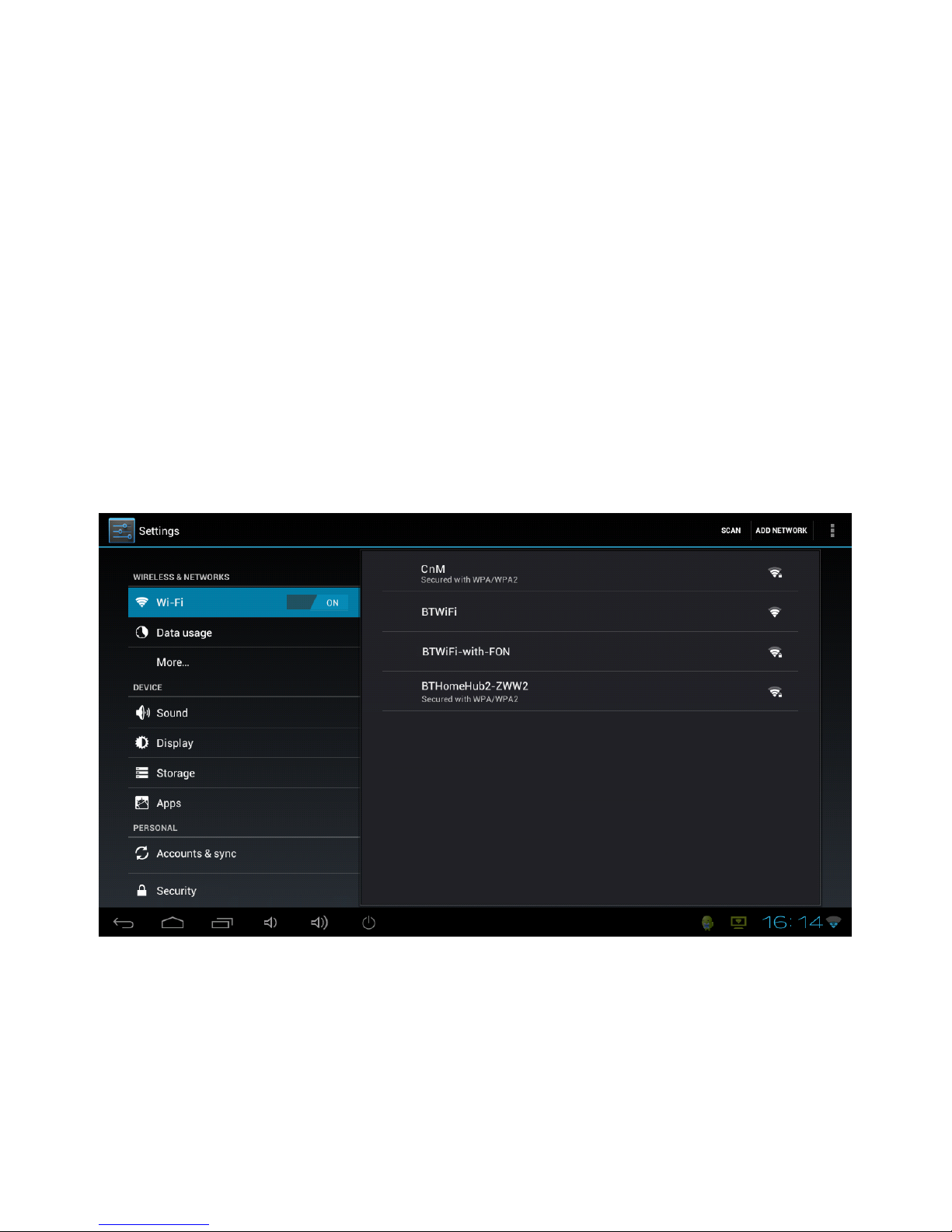
To access Wi-Fi Settings for the TVSmart, move the mouse pointer to the Settings menu
option and click the Left Mouse button. Then double click the Left mouse button on the
Settings icon.
1. To enable Wi-Fi, click the Wi-Fi switch to the right of Wi-Fi to the On position.
2. Once the Wi-Fi has been turned on, the TVSmart will automatically scan for available
Wi-Fi networks and display the names of those it finds. Secured networks are indicated
with a Lock icon. If the TVSmart finds a network that you connected to previously, it will
automatically connect to it.
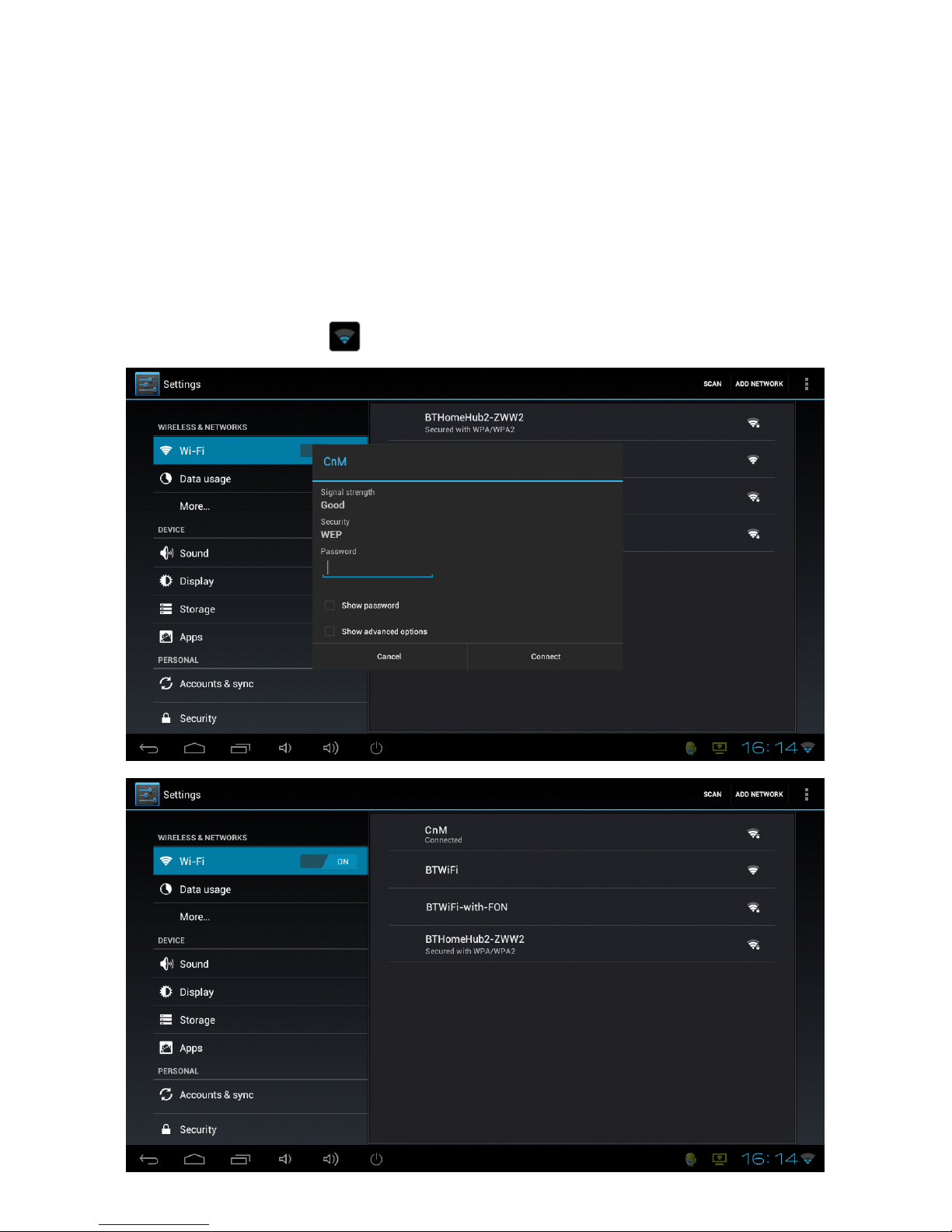
3. Find the right network and select it by clicking the correct name. If the network is
secured, you are prompted to enter a password. Make sure you enter the correct
password, otherwise the TVSmart will not be able to connect to the network.
Page 17
CnM TVSmart User Manual
___________________________________________________________________________________________________________________________
17
4. Where can the correct password be found?
If you are connecting to a Wireless Network which is provided by a router which has
been supplied by BT, Sky etc. then the password will be printed on a sticker on the unit.
Please ensure that you enter any letters using the correct case. Uppercase letters must
be entered in uppercase and lowercase letters must be lowercase.
If the router doesn’t have a sticker showing the password, you will have to ask whoever
setup the wireless network to provide you with the correct password to connect to the
network.
Once finished, the TVSmart will now be connected to the network. Once connected, you
will see the wireless icon in status bar.
Page 18

CnM TVSmart User Manual
___________________________________________________________________________________________________________________________
18
Add a Wi-Fi network
If your wireless network does not broadcast its name (SSID), or you are outside the range of
a Wi-Fi network, you can still add a Wi-Fi network so your TVSmart will remember it, along
with any security credentials, which will allow it to connect automatically when in range. To
do this:
1. Turn on Wi-Fi, if it's not already on.
2. Click Add Network at the top of the screen.
3. Enter the SSID (name) of the network. If necessary, enter security or other network
configuration details.
4. Click Save.
The information about the network is saved. Your TVSmart will connect to this network
automatically the next time you come within range.
Forget a Wi-Fi network
You can make the TVSmart forget about the details of a Wi-Fi network that you added, if you
no longer use it.
1. Turn on Wi-Fi, if it's not already on.
2. In the Wi-Fi settings screen, click the name of the network.
3. Click Forget in the dialog that opens.
Configure proxy settings for a Wi-Fi network
Some networks require you to connect to internal or external network resources via a proxy
server. By default, the Wi-Fi networks you add are not configured to connect via a proxy, but
you can change that for each Wi-Fi network you've added.
1. In the Wi-Fi settings screen, click and hold the name of the network.
2. Click Modify network in the dialog that opens.
3. Select Show advanced options.
4. If the network has no proxy settings, click None under Proxy Settings. If it does, click
Manual in the menu that opens.
5. Enter the proxy settings supplied by your network administrator.
6. Click Save.
The proxy settings apply only to the Wi-Fi network you modified. To change the proxy
settings for other Wi-Fi networks, modify them individually.
Page 19
CnM TVSmart User Manual
___________________________________________________________________________________________________________________________
19
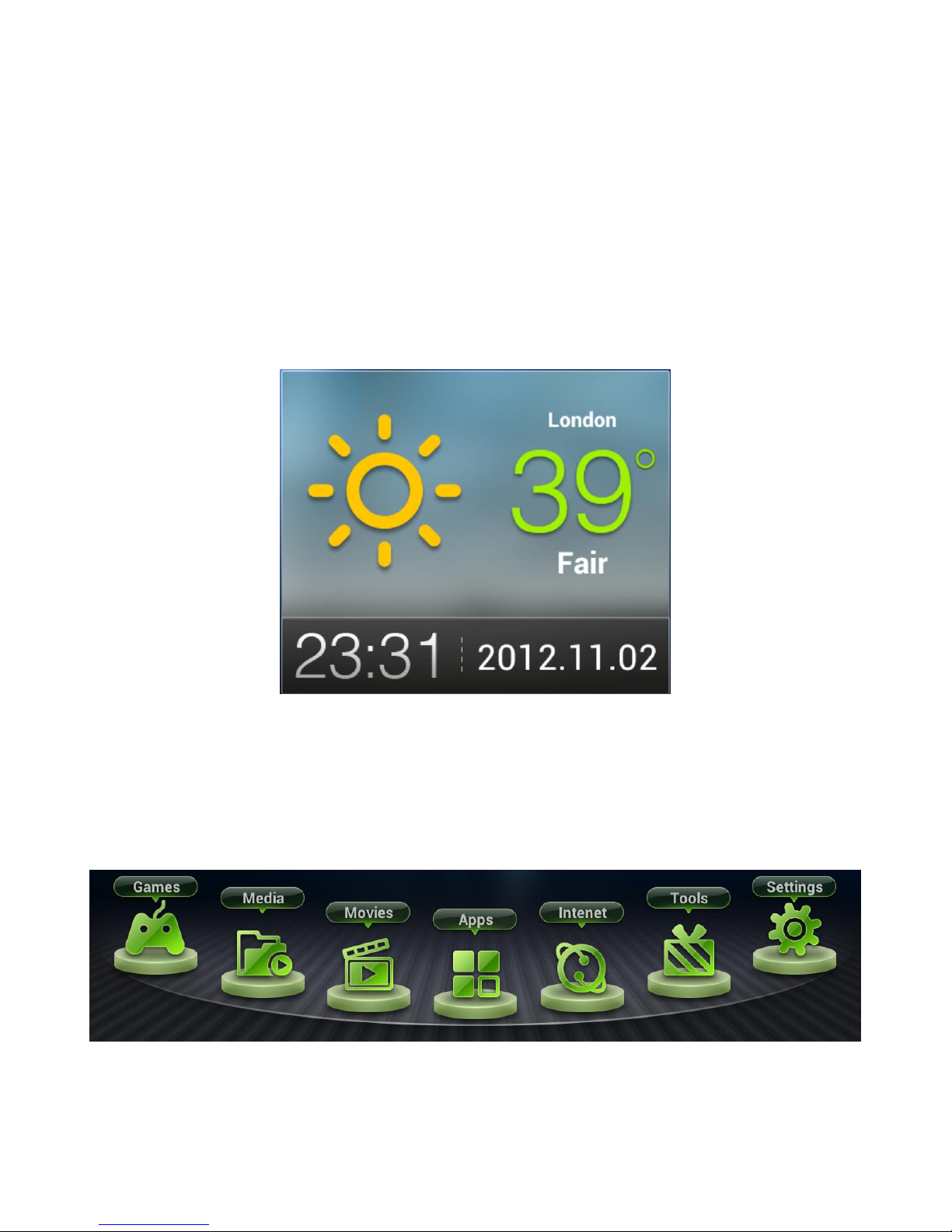
6.9 Weather / Time Widget
To configure the Weather and Time widget which is present on the default home screen,
move the Air Mouse pointer over the widget and click the Left Mouse button.
From the window which pops-up, select the country and location for the City you live in or
which is closest to you.
The widget will automatically update with the Weather and Time for that location.
Note: In order for the widget to work, you must already be connected to a wireless network.
See chapter 7.1 for details on how to connect the TVSmart to your wireless network.
6.10 Applications
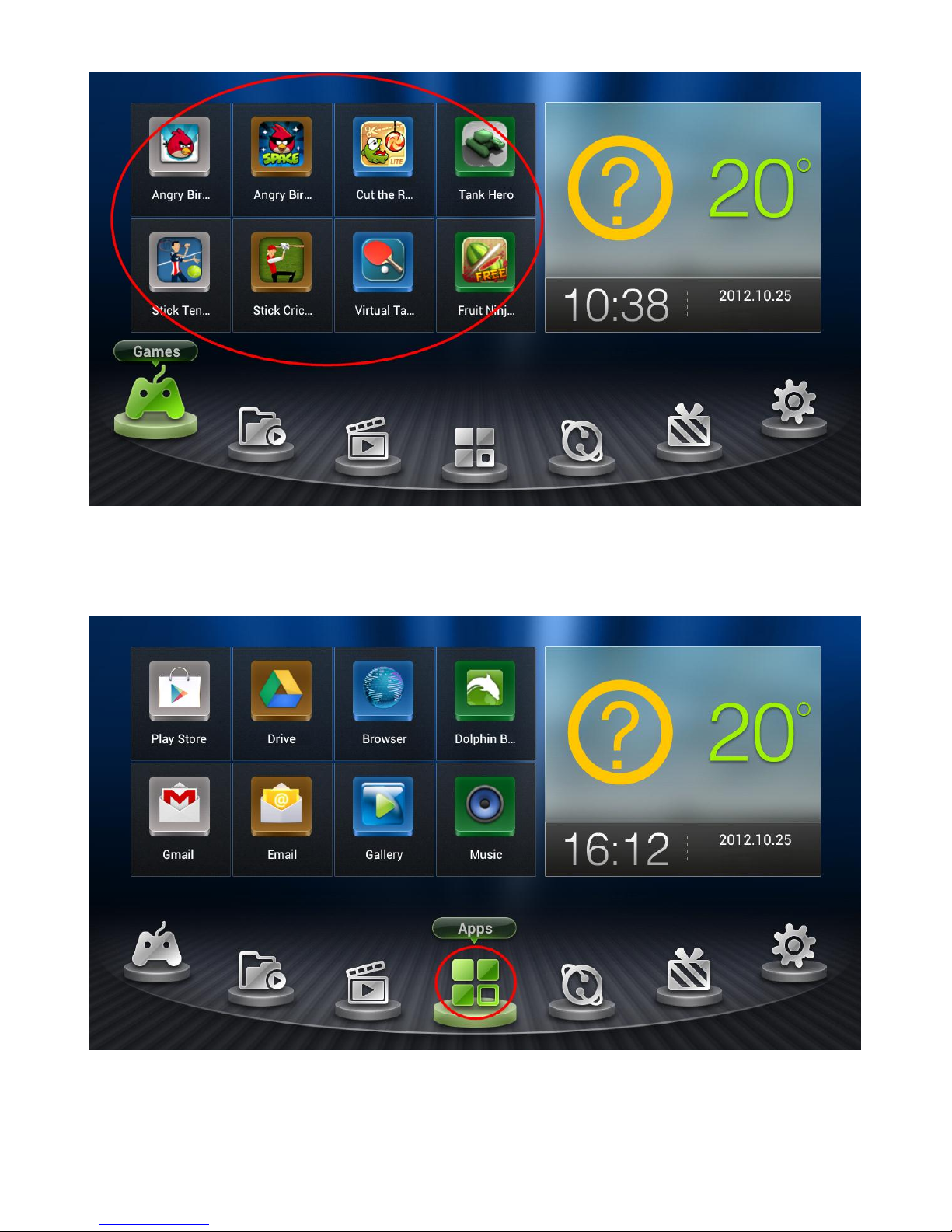
To access the applications available on the TVSmart, you can navigate using the Categories
Bar (see below), and click on one of the category options.
Once an option has been clicked on, you can run any of the applications shown within the
application list circled in red below.
Page 20
CnM TVSmart User Manual
___________________________________________________________________________________________________________________________
20
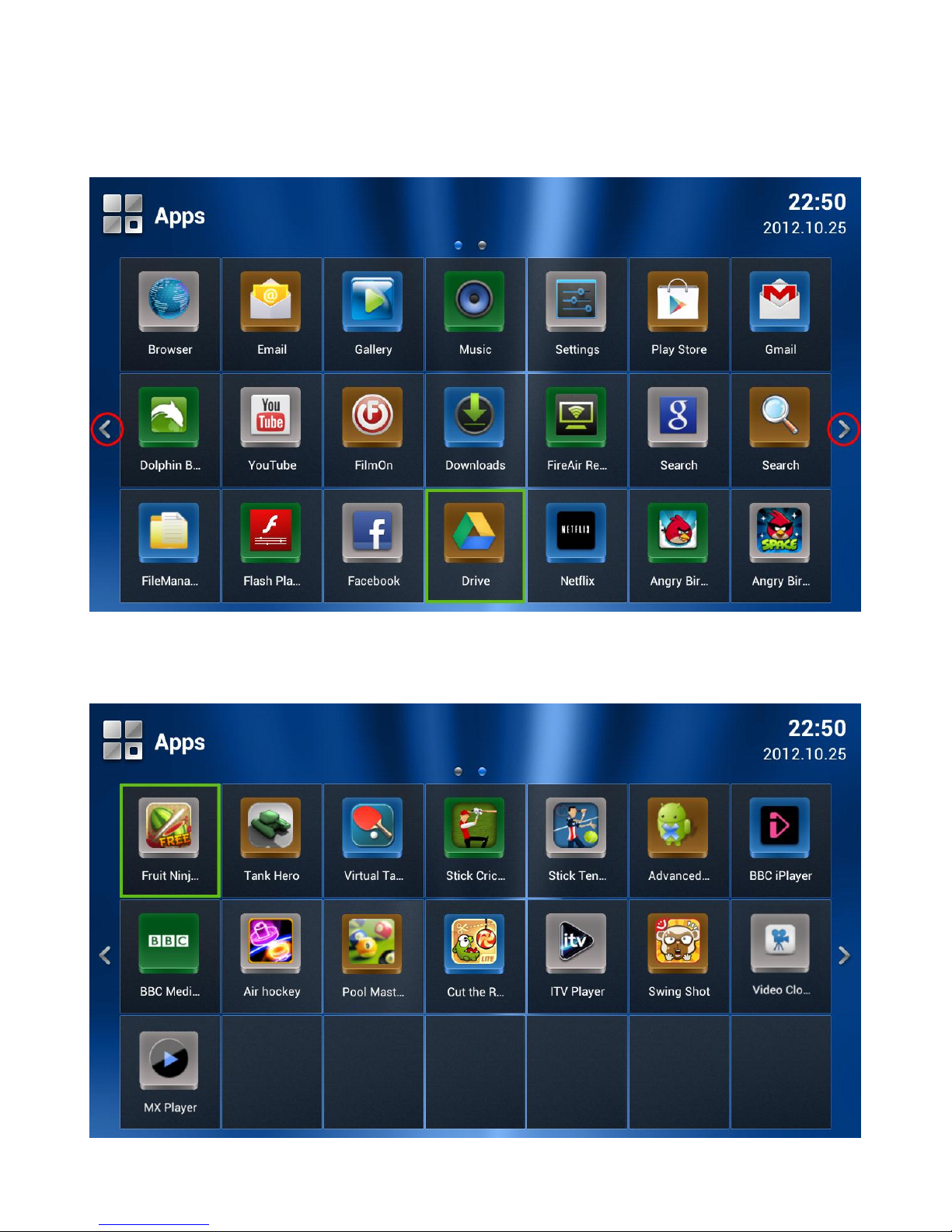
Or you can double click the Apps category (as shown below, circled in Red) to access any of
the applications installed on the TVSmart.
Page 21
CnM TVSmart User Manual
___________________________________________________________________________________________________________________________
21
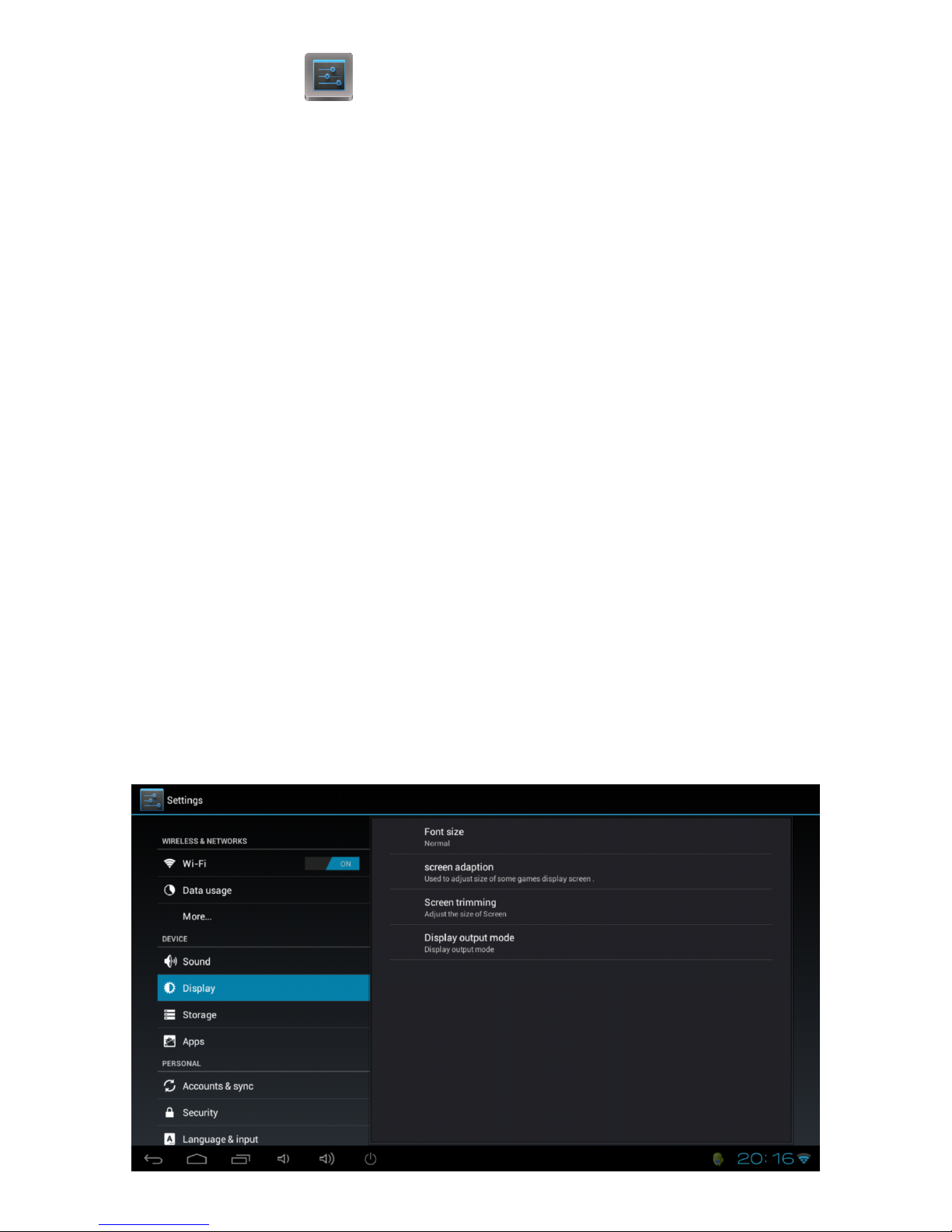
From this page you can run any application by clicking the symbol for that application. Each
page of the applications list shows 21 applications. To access more applications, scroll the
window to the right by clicking on the right arrow (as shown below, circled in Red).
You can scroll through all the apps including any you download from here. To run an app,
move the Air Mouse cursor over an app and double click the left mouse button.
Page 22
CnM TVSmart User Manual
___________________________________________________________________________________________________________________________
22
7. System Settings
To access the System Settings for the TVSmart, click the Settings option from the home page
and double click on the settings icon. This will open the system settings interface. On the left
hand side of the screen are all the available options. Clicking one of these groups allows
access to all the settings available within that group, which is displayed on the right hand
side of the screen.
7.1 Display
The display option allows access to all the display settings available within the TVSmart.
Font Size
Allows the default font size to be changed in order to allow easier
reading of text.
Screen adaption
Enabling this option allows some games to auto adjust to large screen
resolutions.
Screen Trimming
This option allows the display of the TVSmart to be enlarged or shrunk
so that it perfectly fits the screen of the TV that it is being used on.
Display output mode
This option allows the display of the TVSmart to be switched between
720p and 1080p to match the capability of the TV that the TVSmart is
plugged into.
By default the TVSmart will start-up in 720p, but you can switch to any
of the modes listed.
If the mode you choose isn’t compatible with your TV, it will
automatically switch back to the previous setting within 10 seconds of
being changed.
Page 23
CnM TVSmart User Manual
___________________________________________________________________________________________________________________________
23
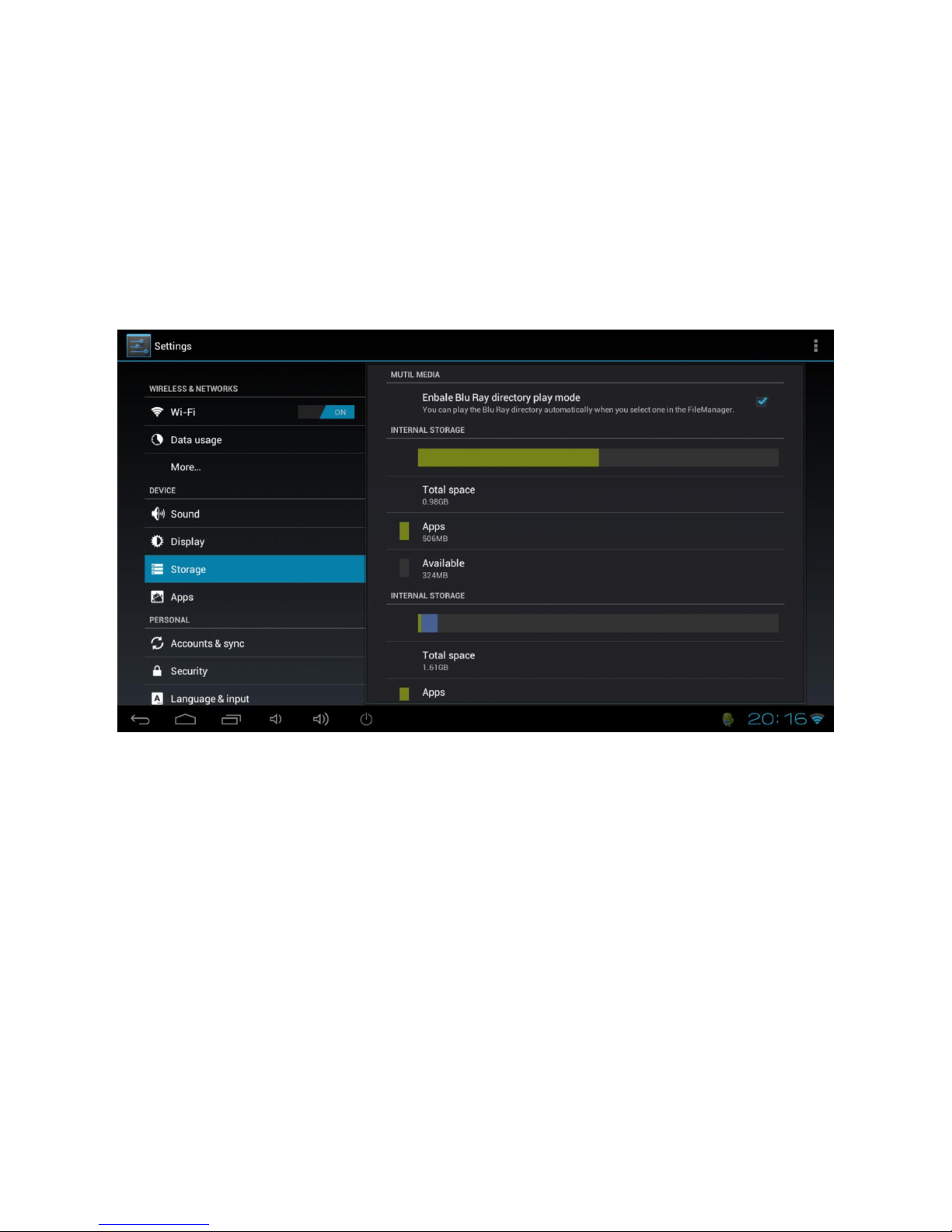
7.2 Storage
The storage option gives a complete breakdown of how internal storage and any external
micro SD cards are being used and how much space is available on them.
The first entry for Internal Storage is the system storage and is not accessible by users, but
the second entry for Internal Storage shows how much storage is being taken up by Apps,
Pictures, videos, Misc. and how much is storage is Available.
Note: If you ever get to the point where your TVSmart has less than 100MB of free storage
left, you might star to experience performance issues. Free up some space by moving some
files to the Cloud using Google Drive and accessing them directly from the Cloud. See
chapter 9.7 for more information.
Page 24
CnM TVSmart User Manual
___________________________________________________________________________________________________________________________
24
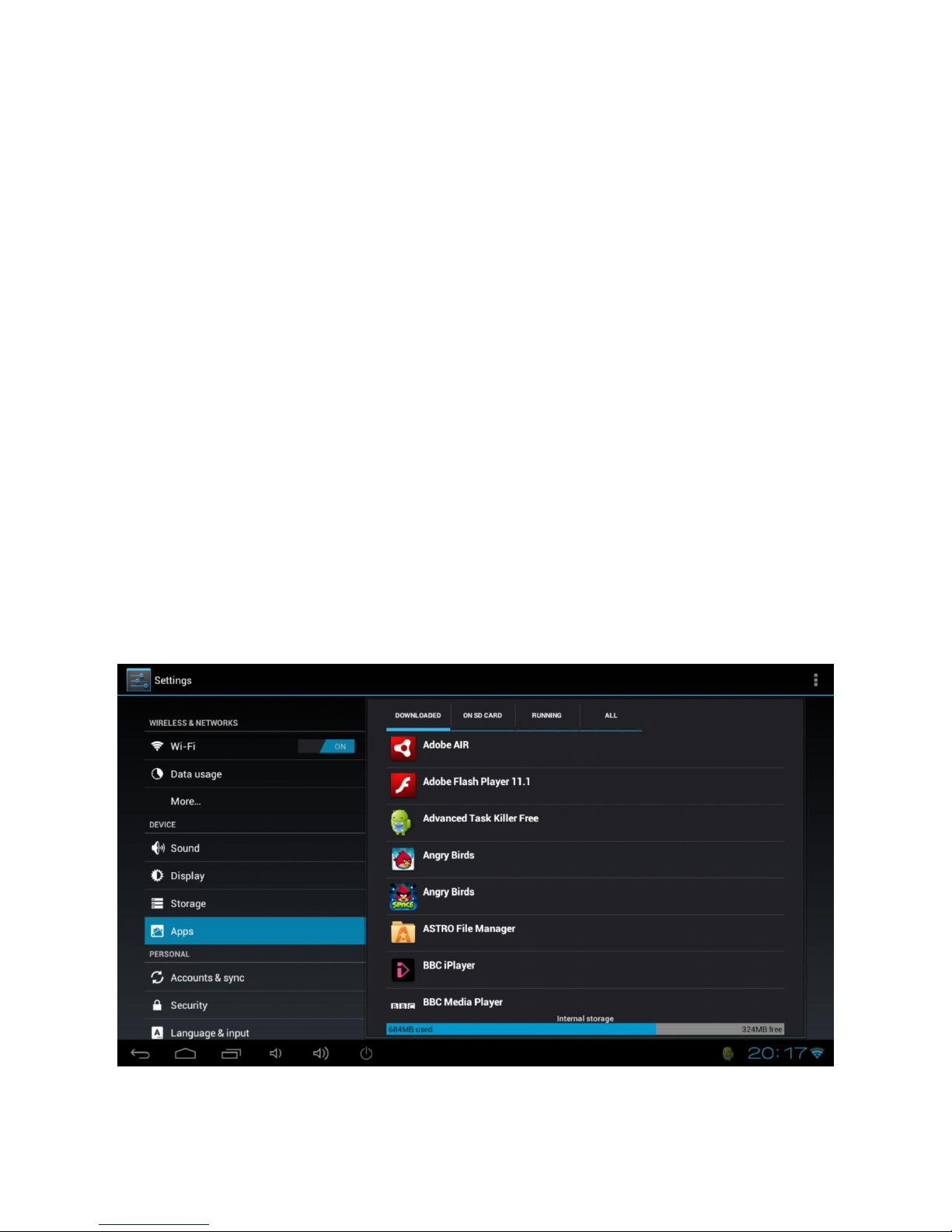
7.3 Apps
The Apps option allows you to see information about the applications that are installed on
the TVSmart. There are four menu options:
Downloaded
Shows all Apps which have been downloaded and installed.
ON SD CARD
Shows all Apps which have been installed on any mounted micro SD card.
RUNNING
Shows all Apps which are currently running.
ALL
Shows all Apps including system Apps which are part of the Operating
System.
To uninstall an App, select the application from the list by clicking it, and then select
Uninstall.
Note: You can only uninstall Apps which have been installed on the TVSmart during use. Any
Apps that were pre-installed on the system from manufacture are not able to be uninstalled
(but any updates applied to these apps can).
Page 25
CnM TVSmart User Manual
___________________________________________________________________________________________________________________________
25
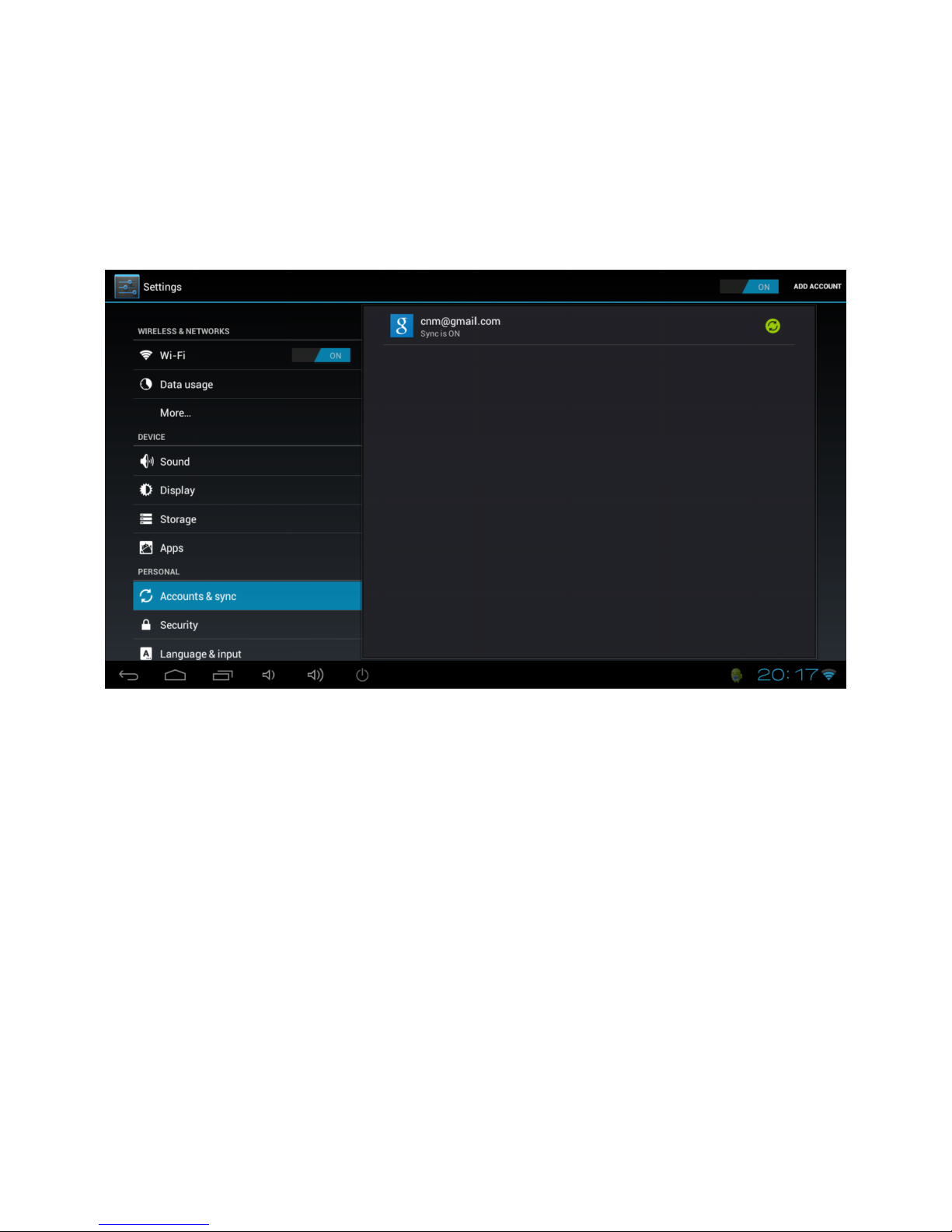
7.4 Accounts & Sync
The Accounts & Sync option allows you to setup and use multiple Google Accounts and
Microsoft Exchange ActiveSync accounts on your device.
Note: Some accounts can be added in the Accounts & Sync screen, as described here. Others
need to be added using an app that works with those kinds of accounts. For example, you
can only add IMAP and POP3 email accounts with the Email app.
Adding an account
To add an account, you may need to obtain details from system administrator about the
service to which the account connects. For example, you may need to know the account’s
domain or server address.
1. Click Add account.
2. Click the kind of account you wish to add.
3. Follow the onscreen steps to enter information about the account.
Most accounts require a username and password, but the details depend on the kind of
account you are adding and the configuration of the service you are connecting to.
Depending on the kind of account, you may be asked to configure what kinds of data you
want to sync, name the account, and other details.
When you have finished, the account is added to the list in Accounts & sync. Depending on
how you configured the account, email, contacts, and other information will start syncing to
your device.
Page 26
CnM TVSmart User Manual
___________________________________________________________________________________________________________________________
26
Remove an account
You can remove an account, which will delete it and all information associated with it from
your TVSmart, including email, contacts, settings, and so on.
1. Go to Settings > Personal > Accounts & sync.
2. Click the account to delete.
3. Click the Menu icon and select Remove account.
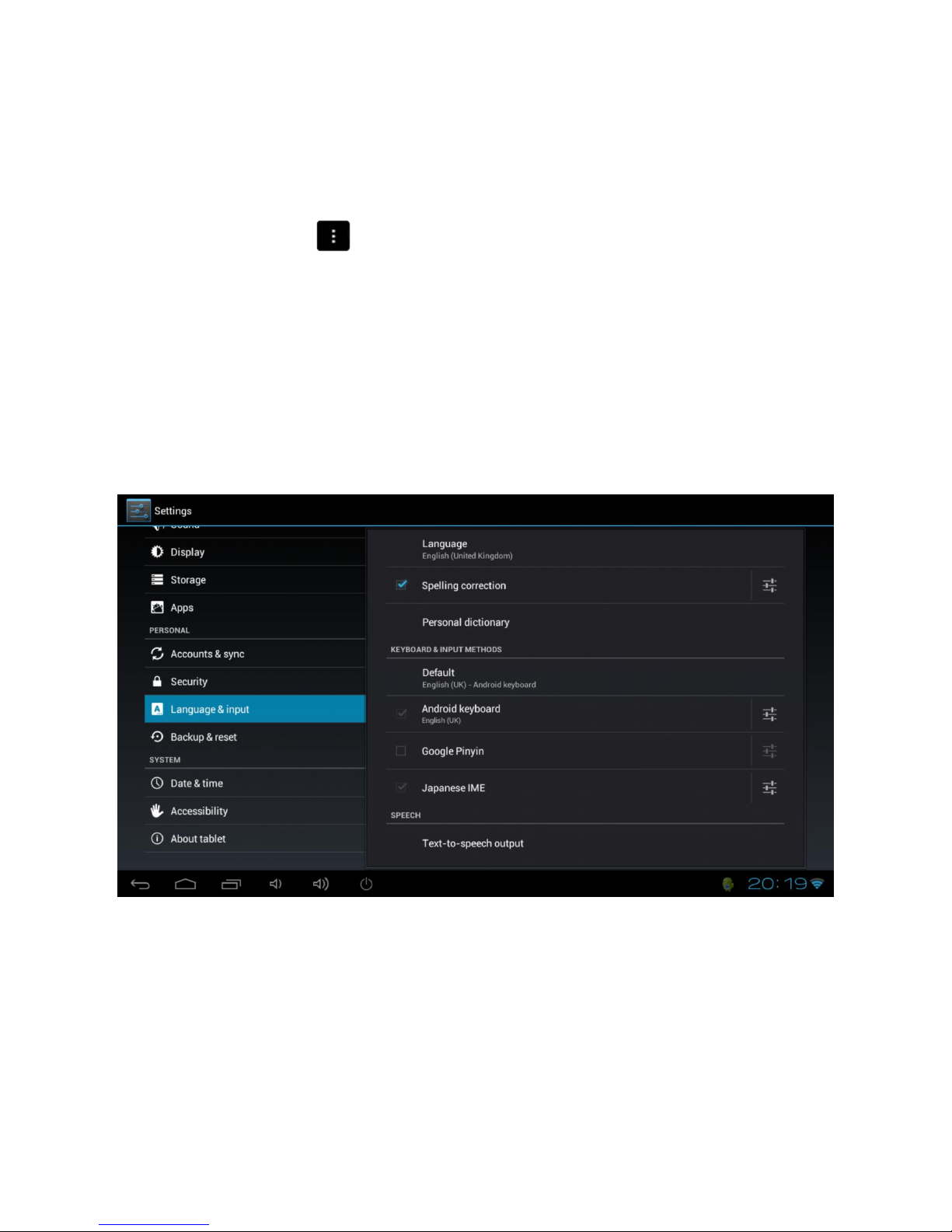
7.5 Language & Input
The Language & input option allows you to select between different languages, also you can
change the keyboard to different language and configure Voice Search and Text-to-speech
output.
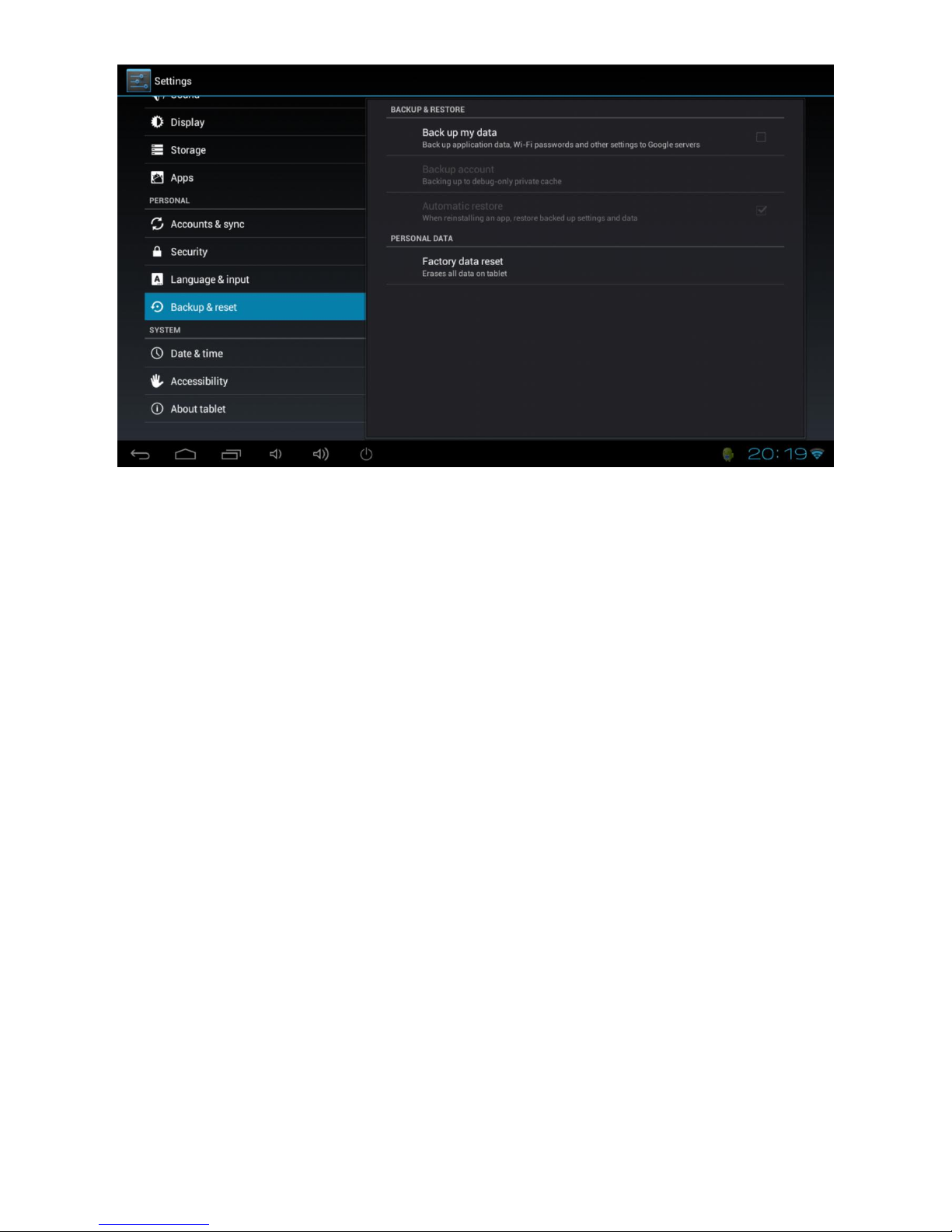
7.6 Backup & Reset
The Backup & reset option allows you to backup settings and other data associated with one
or more of your Google Accounts. So that if you need to replace or factory reset your device,
you can restore your data for any accounts that were previously backed up. It also allows
you to enable a factory reset which will completely wipe all data stored on the TVSmart and
set it back to the state it was when it left the factory.
Page 27
CnM TVSmart User Manual
___________________________________________________________________________________________________________________________
27
There are four menu options:
Back up my data
If you check this option, a wide variety of your personal data is backed up
automatically, including your Wi-Fi passwords, Browser bookmarks, a list of
the apps you’ve installed on Google Play, the words you’ve added to the
dictionary used by the onscreen keyboard, and most of your customized
settings.
If you uncheck this option, your data stops getting backed up, and any
existing backups are deleted from Google servers.
Backup account
Displays the Google Accounts whose information gets backed up. You must
sign in with one or more of these accounts on a new or reset device to
retrieve the associated information. To add a new account, click Add
account.
Automatic restore
Check this option to restore settings and other data when you reinstall an
app. This feature requires that you are backing up your data with your
Google Account and that the app is using the backup service.
Factory data reset
Click this option, then select Reset Device to erase all your personal data
from internal storage, including information about your Google Account,
any other accounts, your system and app settings, any downloaded
applications, and your music, photos, videos, and other files.
After resetting your Device, you will need to re-enter the same information requested when
you first set up your Device. If you've been backing up your data to a Google account, an
option during the setup process allows you to restore it.
Page 28
CnM TVSmart User Manual
___________________________________________________________________________________________________________________________
28
Some third-party apps also make use of the backup service, so if you re-install one, its
settings and data are restored.
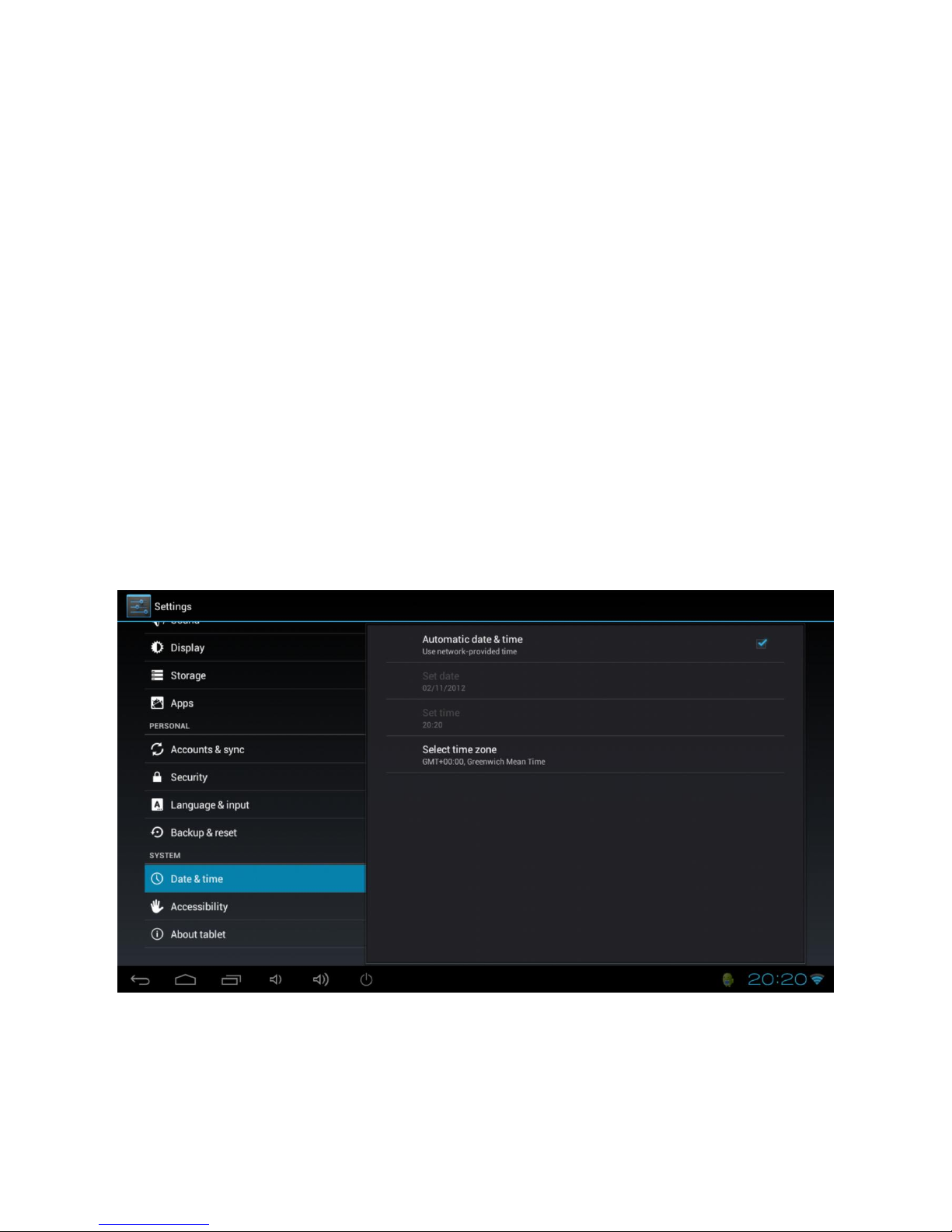
7.7 Date & Time
The Date & time option allows you to configure the date and time settings for your TVSmart.
The following options are available:
Automatic date &
time
If enabled, the TVSmart will automatically update the date and time if
connected to the Internet.
Set date
Allows the date to be set manually. This option is only available if
Automatic date & time is disabled.
Set time
Allows the time to be set manually. This option is only available if
Automatic date & time is disabled.
Select time zone
Allows your current time zone to be selected from the available options.
Page 29
CnM TVSmart User Manual
___________________________________________________________________________________________________________________________
29
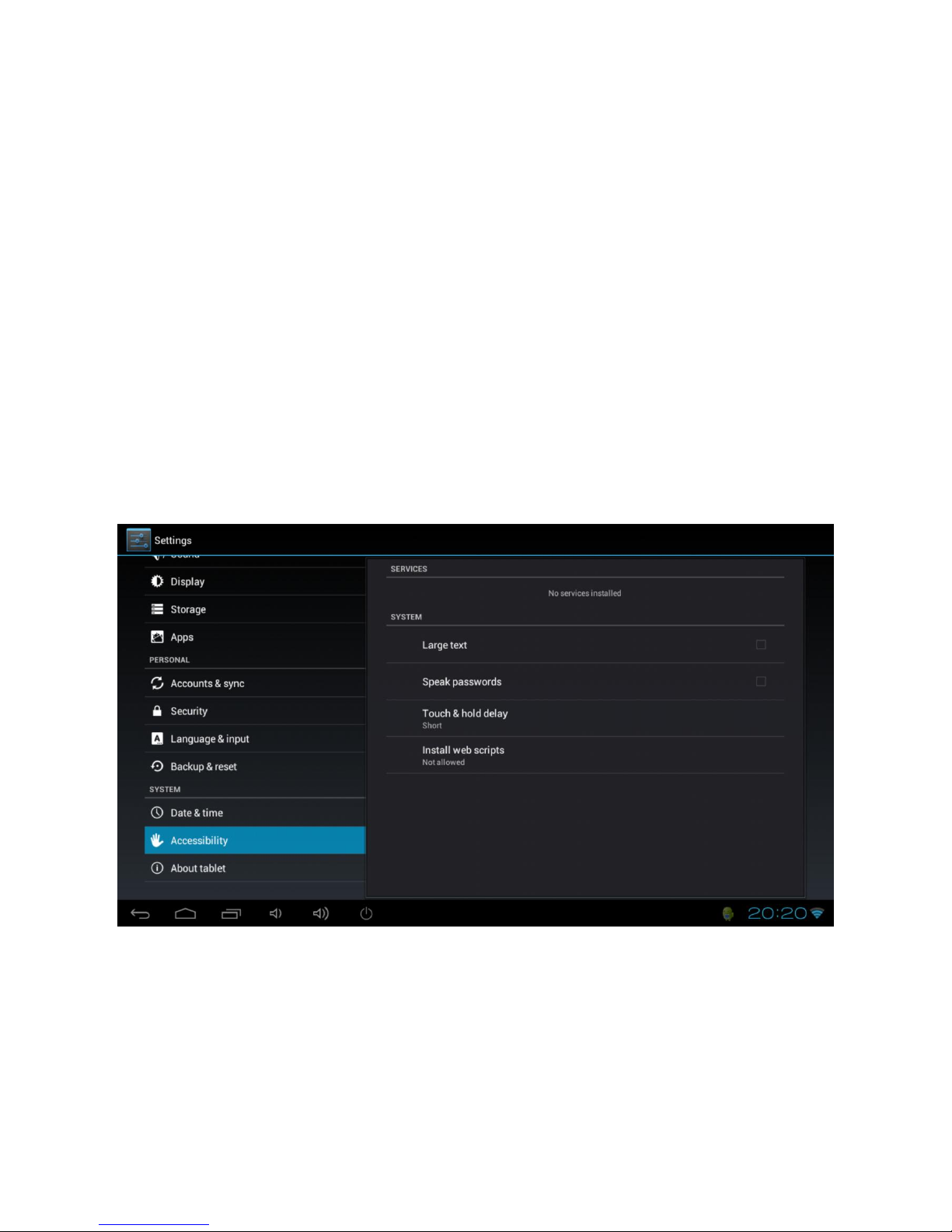
7.8 Accessibility
The Accessibility option allows the TVSmart to be configured for use by anyone. The
following options are available:
Large text
If enabled, will increase the text size used for all functions of the TVSmart.
Speak passwords
Allows passwords to be entered using speech instead of the keyboard.
Click & hold delay
Allows the delay settings for gestures on the screen to be changed.
Install web scripts
Allows Apps to install scripts from Google that make their web content
more accessible.
Page 30
CnM TVSmart User Manual
___________________________________________________________________________________________________________________________
30
8. Common Applications
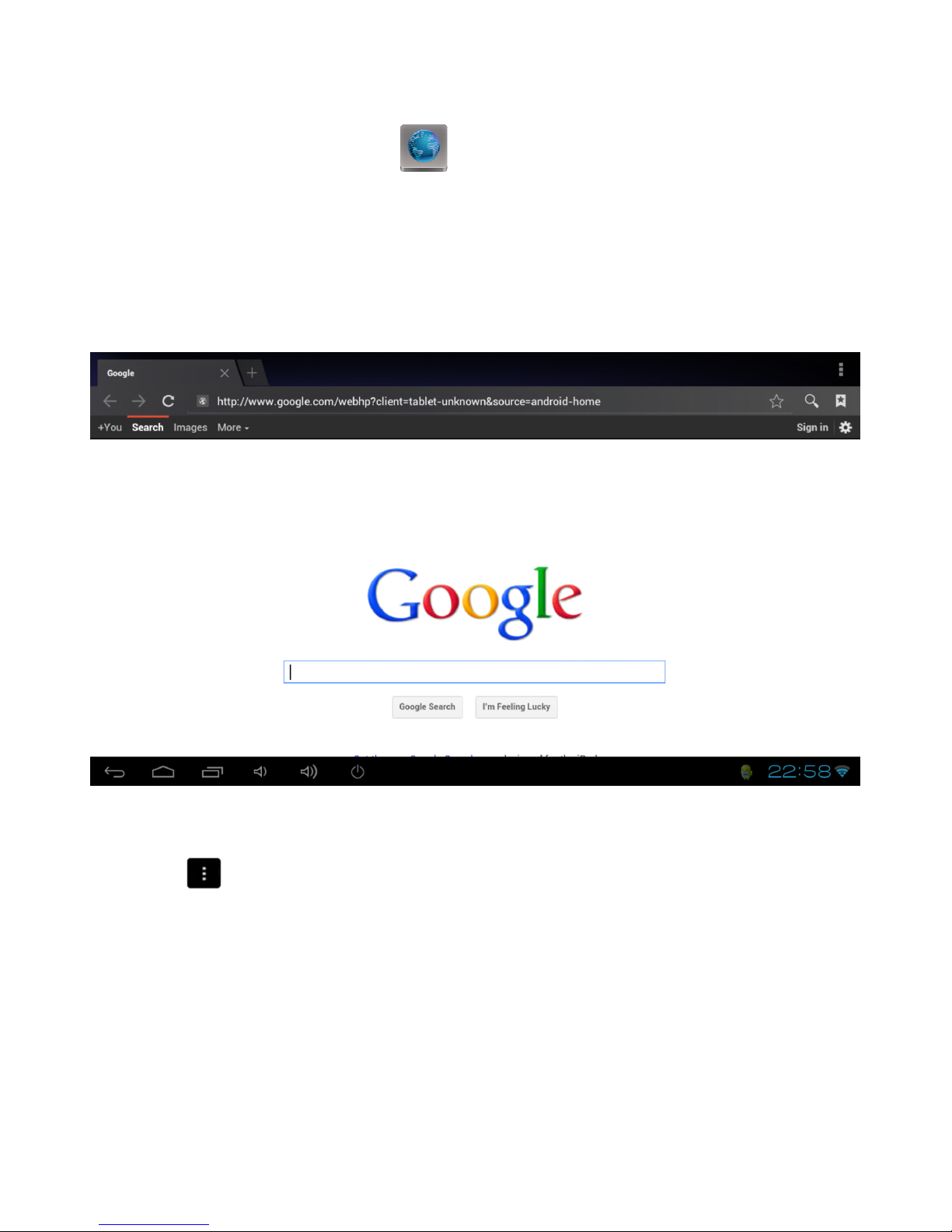
8.1 Browser Internet Access
To open the Web Browser, click the icon on the default home screen or from within
Apps.
To navigate to a website, click the address bar using the Air Mouse pointer and type in the
website address for the website you would like to view. Use the Air Mouse keyboard to enter
the address and then click Enter.
To access other functionality within the Browser including Bookmarks and Settings, click the
menu icon and select from the available options.
Page 31
CnM TVSmart User Manual
___________________________________________________________________________________________________________________________
31
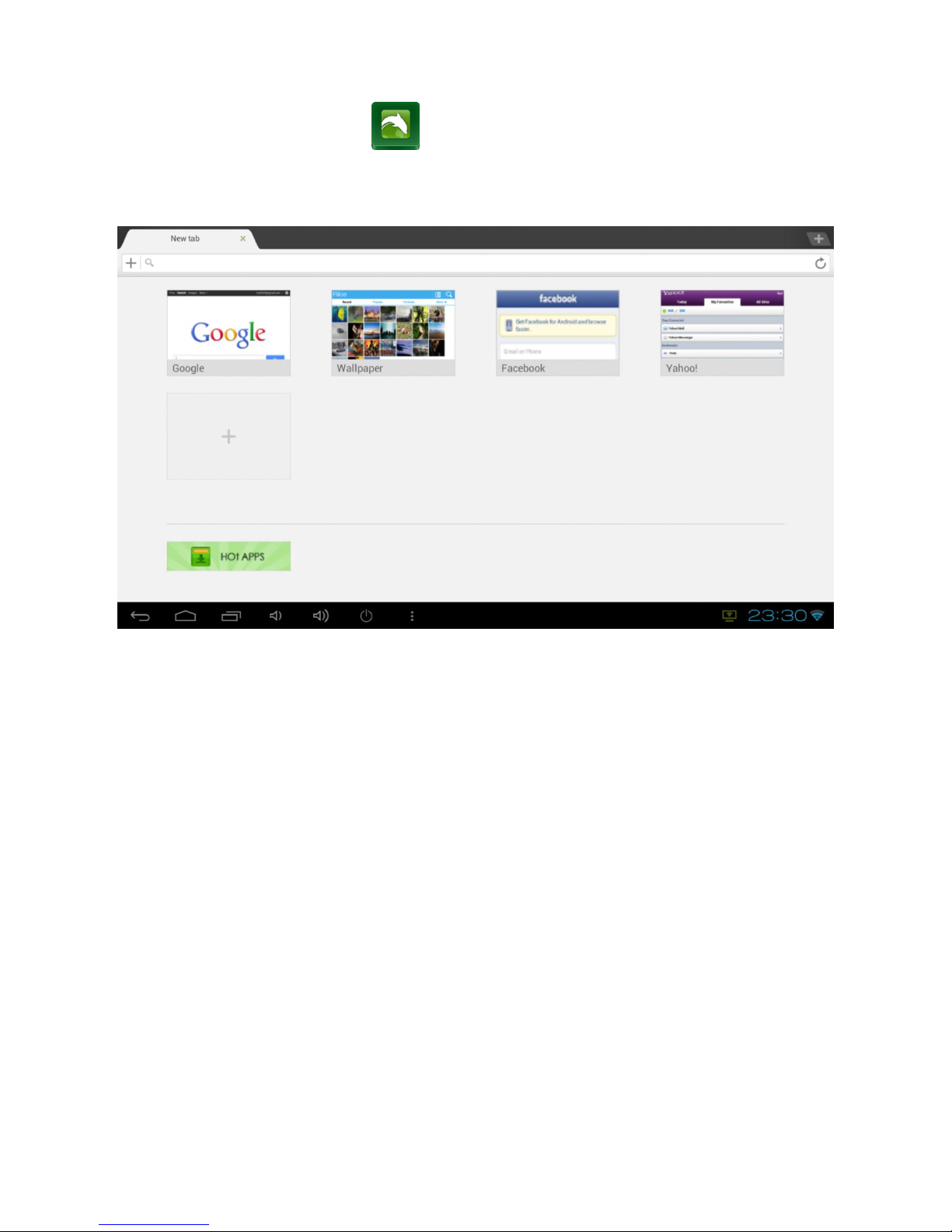
There is an alternative Web Browser pre-installed on the TVSmart called Dolphin.
This can be run by clicking on the icon. This browser performs better when accessing
some websites, including those that offer video content.
Note: Both web browsers on the TVSmart have full support for websites which use Flash for
videos and games.
Page 32
CnM TVSmart User Manual
___________________________________________________________________________________________________________________________
32
8.2 Email
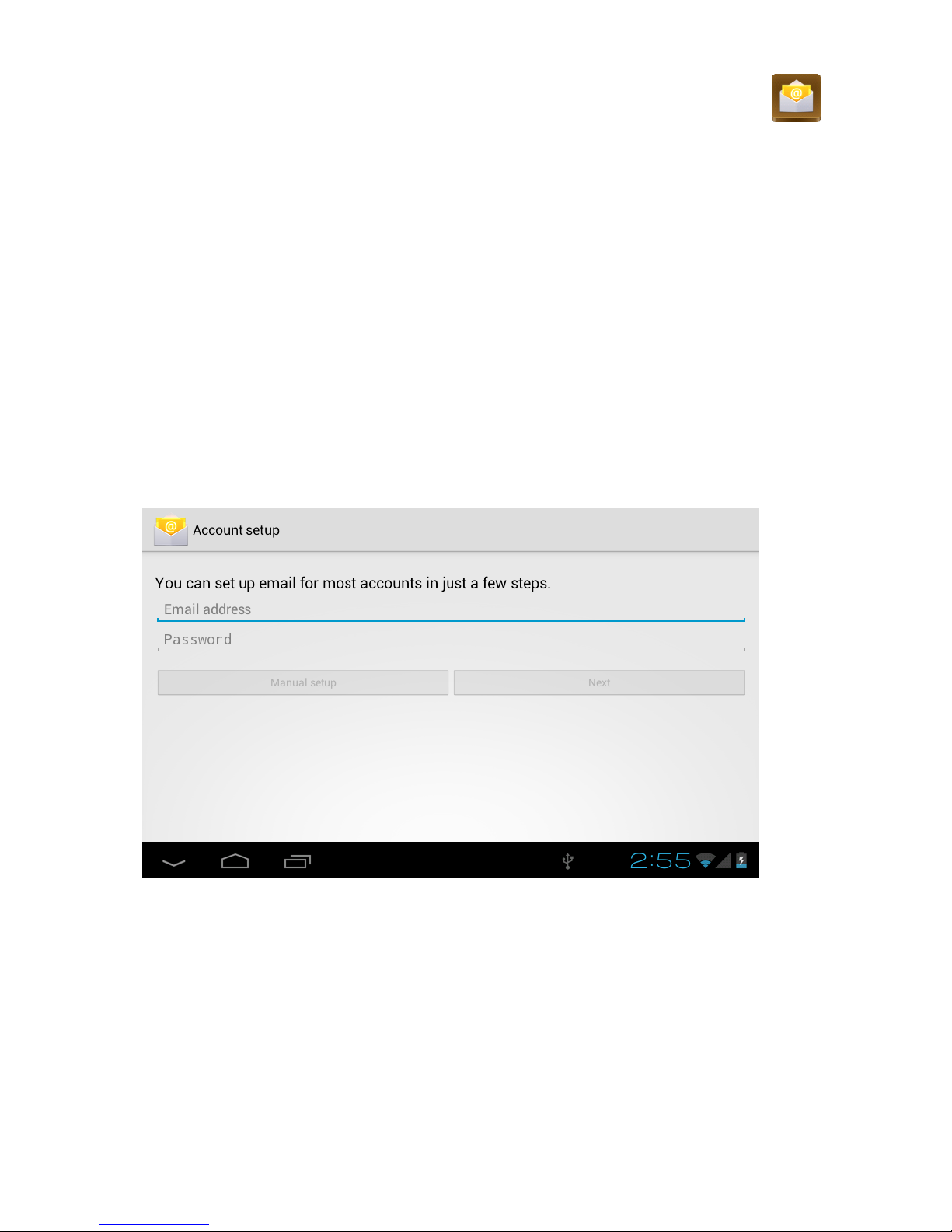
To enable access to your email account i.e. Hotmail, open Email, by clicking the icon
from within Apps.
Note: The Email application cannot be used to connect to Google Mail, please use the Gmail
application to access email from a Gmail Account.
Before you can access your email for the first time, you will need to enter the relevant
account information for the email account you want to connect to.
1. Enter the Email address into the box using the popup keyboard and click Done when
finished.
2. Enter the Password into the box using the popup keyboard and click Done when
finished.
3. Finally click Next and the application will try to finish the setup.
If the setup doesn’t automatically finish, you will have to manually enter the account
information by selecting Manual setup.
If the setup wizard hasn’t been able to connect automatically use the following procedure:
1. Tap the “Manual setup” button, select the mailbox type to be used (POP3 or IMAP)
and manually enter all the account details.
Page 33

CnM TVSmart User Manual
___________________________________________________________________________________________________________________________
33
Example for a Windows Live Hotmail Account
Note: For other email providers, please refer to the correct settings required to setup access
to your account. You may need to speak to your email providers support center to obtain
these settings.
2. Select POP3 account
Username: [email protected]
Password: ********
POP3 server: pop3.live.com
Port: 995
Security type: SSL (always)
Delete email from server: Never
3. Tap Next
SMTP server: smtp.live.com
Port: 25
Security type: None
Require sign-in: Make sure this is not ticked.
4. Tap Next
5. Decide on the Email checking frequency, whether to set this as the default email
account and whether to be notified when emails arrive. Tap Next.
6. Enter an account name and display name for outgoing messages, then tap Done.
Viewing E-mail
1. Open the email application and select the email account you wish to view emails for
by tapping the account name.
2. Tap the Inbox icon and the select the email you wish to view by tapping on it.
Sending an E-mail
1. Open the email application and select the email account you wish to send an email
from by tapping the account name.
2. Tap the Menu icon and select Compose from the Menu which appears at the bottom
of the screen.
3. Enter the To, Subject and Compose Mail information to create the email. To add an
attachment tap the Menu icon and select Add attachment, you can then browse for
the file to attach.
4. When finished tap the Send button.
Page 34

CnM TVSmart User Manual
___________________________________________________________________________________________________________________________
34
8.3 Gmail / Google Play Store
In order to use Gmail to access your Google Mail account or Google Play to download more
Apps or Games for your TVSmart, you will either have to setup a Google Account or enter
the details for an existing Google Account the first time you want to use one of these
applications.
Note: The Gmail application cannot be used to connect to any email service other than
Google Mail.
A Google Account has many benefits because it lets you organise and access your personal
information from any computer or mobile device:
Never lose your contacts again. When you sign in to your TVSmart with a Google
account, all the contacts you associate with that account in the People app are
automatically backed up. As a result, they're always accessible through your Gmail
account from any computer.
Synchronize and back up everything. Whether you draft an email, add an event to
your calendar, or take a photo, your work gets backed up continuously by Google and
synchronized with any computer where you use the same Google Account.
Access from anywhere. Check your latest calendar, email, text messages, or social
stream, wherever you are, no matter what computer or mobile device you are using.
Keep your data secure and available. Google works round the clock to protect your
personal data from unauthorized access and to ensure that you get it when you need
it, wherever you need it.
Use other Google services. Your Google Account also lets you take full advantage of
any other Google apps and services that you may want to use, such as Gmail,
YouTube, Google Play, YouTube, Google Talk, Messaging, and many more.
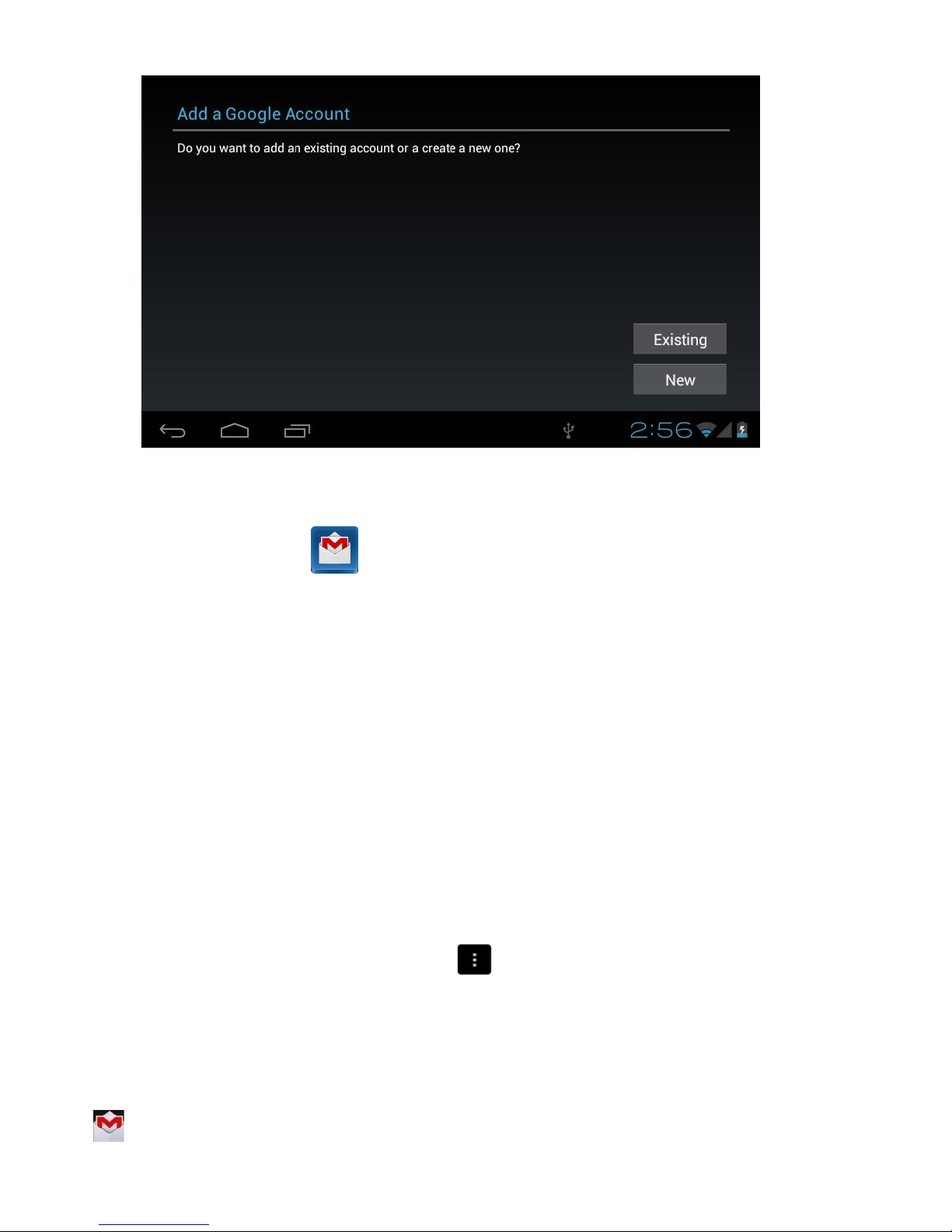
To enter details for an existing account click the Existing option, or to create a new Google
Account click the New option and follow the straightforward setup process.
Page 35
CnM TVSmart User Manual
___________________________________________________________________________________________________________________________
35
Gmail
To launch Gmail, click the icon on from within the Apps screen and Gmail will open in
the Inbox. From here, you can:
Read email
Click a message to read it. Unread messages are bold. While
you're reading a message:
Click the icons and menu along the bottom of the screen to
archive, throw away, label, or perform other actions on that
message.
Swipe left or right to read the previous or next conversation.
Organize email
Check the box beside a message to select it. Then use the icons
and menu along the bottom of the screen to manage the
selected messages.
Change your
settings
Click the Menu icon to change your preferences, add an
account, or get Help.
No matter where you are within Gmail, you can always get back to the Inbox by clicking
in the top left corner of the screen.
Page 36
CnM TVSmart User Manual
___________________________________________________________________________________________________________________________
36
Google Play Store
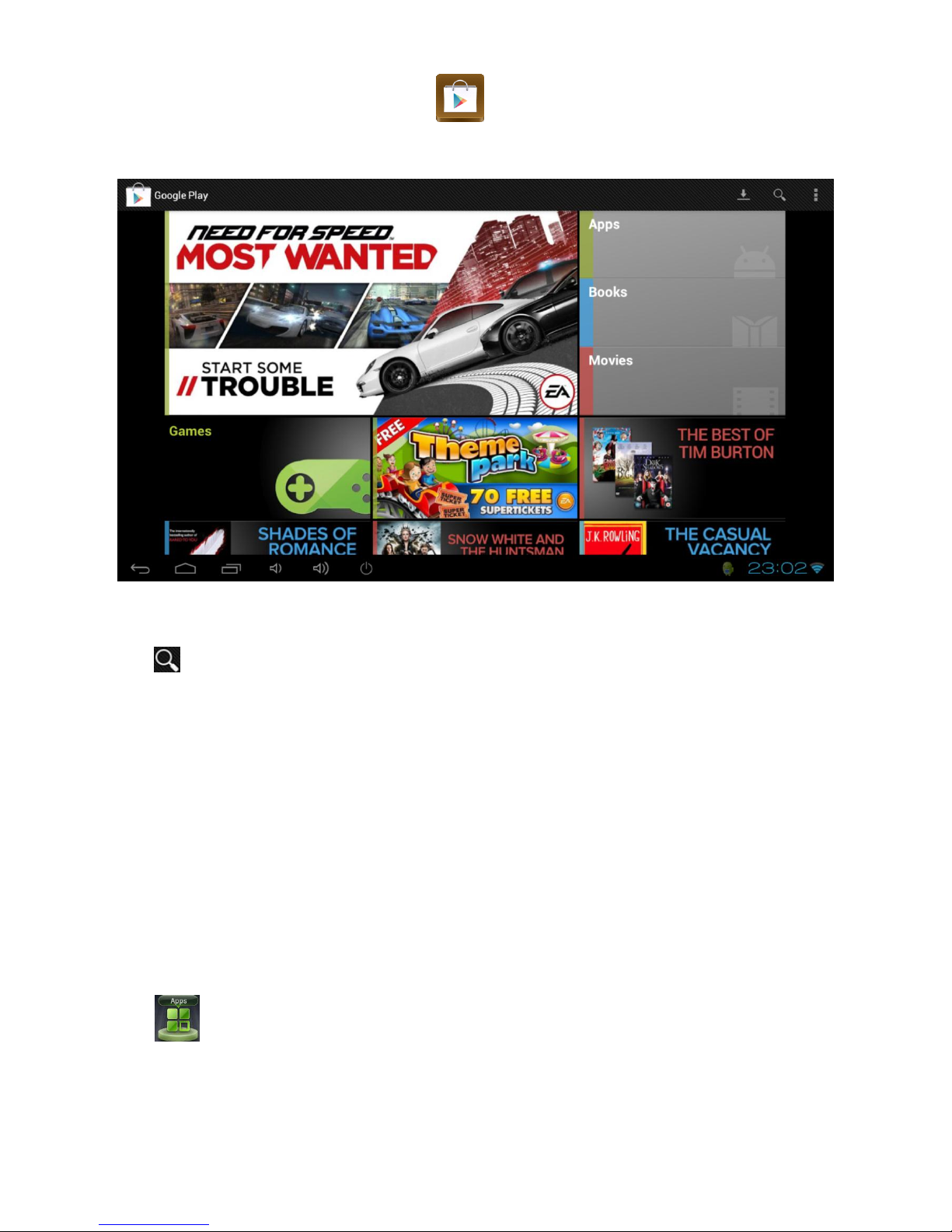
To launch Google Play Store, click on the icon from within the Apps screen and
Google Play Store will open.
You can search for Apps, Books and Movies you would like to download by clicking the
search icon. Enter the name of something you would like to search for using the popup
keyboard and then click the search icon to search for it.
Once you have found something you would like to download / install, select it by clicking its
entry on screen and then select Install.
From the popup permissions window, click the option to Accept & download the App.
Once the installation has finished you can select Done to continue or Open to run the App
for the first time.
Installed Apps will appear in Apps, double click the Apps category option on the home
screen to view all installed applications and look for the newly installed App.
Page 37
CnM TVSmart User Manual
___________________________________________________________________________________________________________________________
37
8.4 File Manager
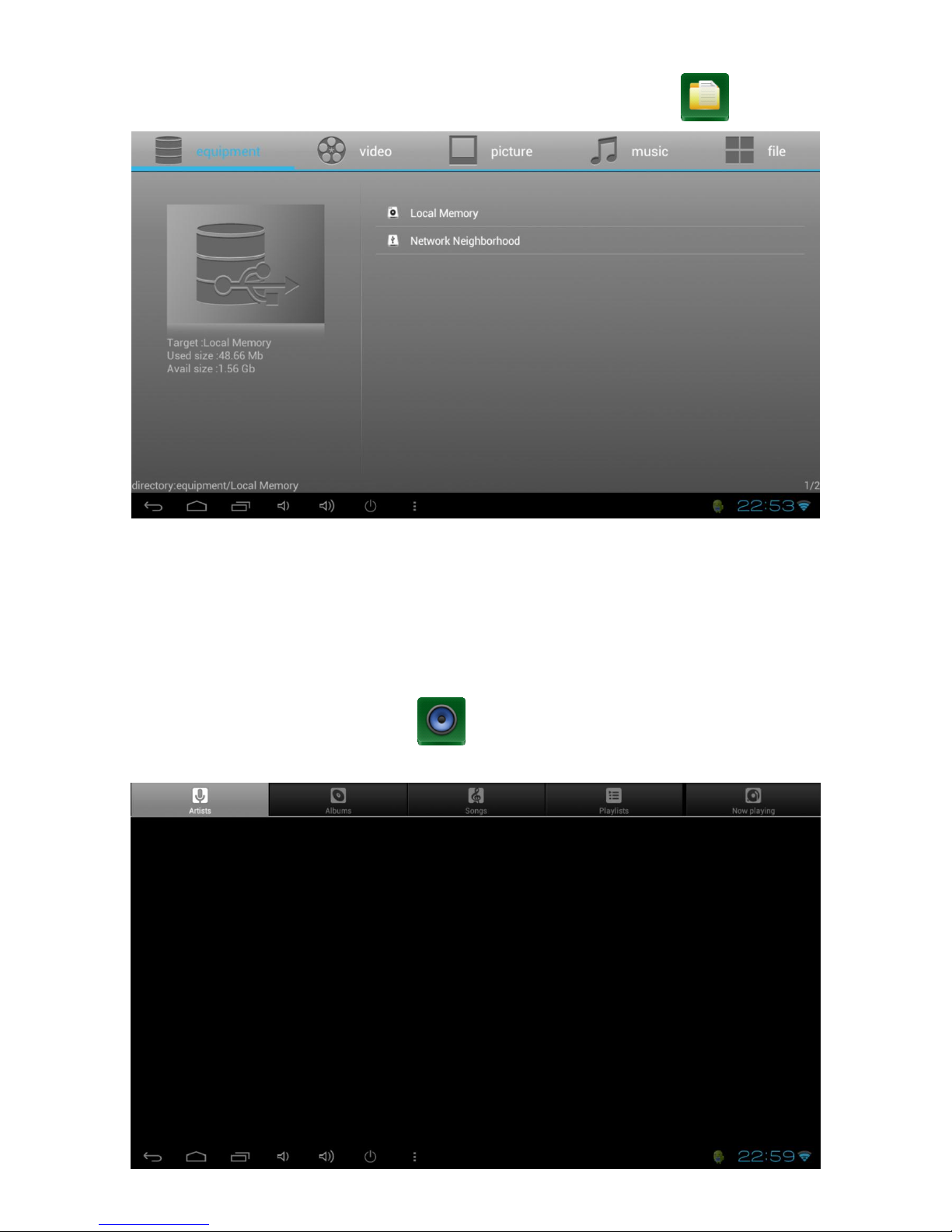
To navigate to all files on your TVSmart, click on the File Manager icon
When File Manager opens it allows you to select the storage you want to access: Local
Memory or Network Neighborhood. Or you can see video files, picture files, music files or
just all files by selecting the options running across the top of the screen.
You can navigate through folders just by clicking them and select files by also clicking them.
8.5 Music
To access the Music player, click the icon from within Apps. By default the Music
player will access tracks stored in the Music folder of the TVSmart’s internal storage.
Page 38
CnM TVSmart User Manual
___________________________________________________________________________________________________________________________
38
8.6 Gallery
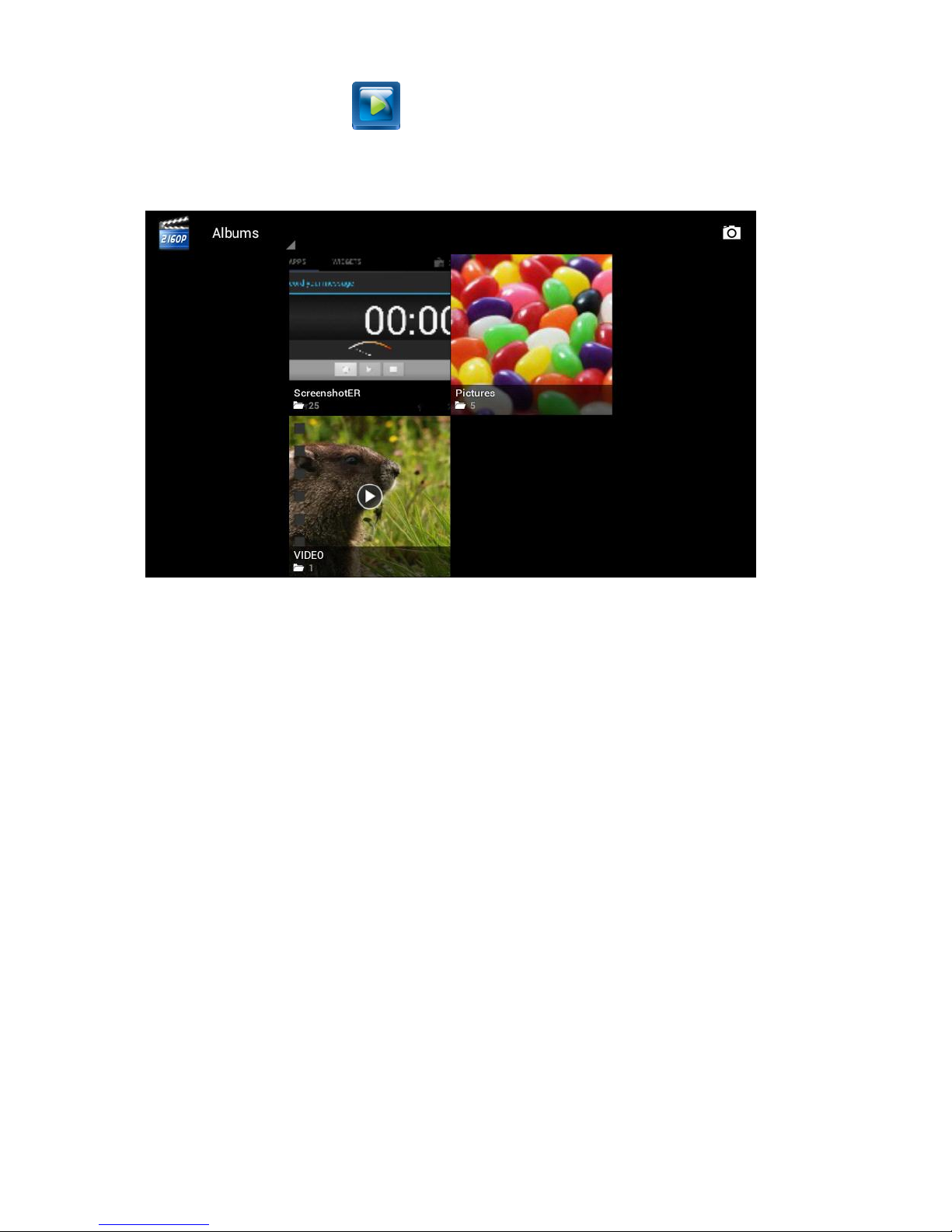
To access the Gallery, click the icon from within Apps or you can navigate to a movie
and open it in the player from File Manager. If no movie is specified, the player will access
videos stored in the Movies folder of the TVSmart’s internal storage.
Select a video by clicking it and it will start playing. Standard controls are available to control
playback at the bottom of the screen. They will disappear after a few seconds, but can be
brought back by clicking the screen.
Play / Pause
Your video will begin playing automatically, to pause the video, simply click the screen
anywhere on the video player to bring up the control bar and then click the pause icon. To
resume playing, click the play icon.
Seek
Clicking the video player will display the control bar, which shows the timestamp of that
particular point in the video. Press and hold the dot, then slide your finger, to move to the
desired point in your video.
Page 39
CnM TVSmart User Manual
___________________________________________________________________________________________________________________________
39
8.7 Google Drive
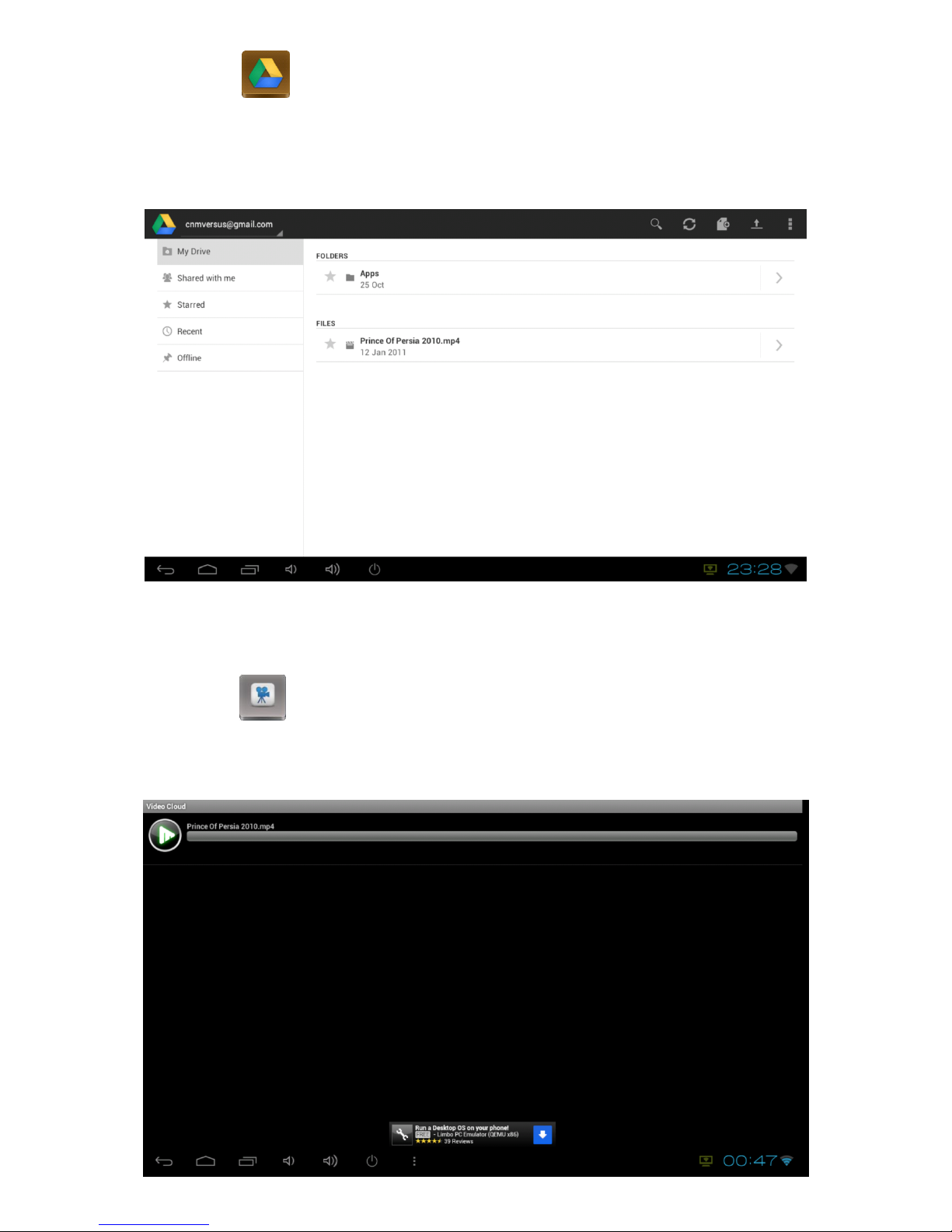
Google Drive is an application that allows you to store files from your PC to the Cloud and
access them on your TVSmart or any other Android device.
This makes it very useful for transferring music, or video files between your devices.
For more information about how to use Google Drive and to download the application for
your PC please go to http://drive.google.com/start.
8.8 Video Cloud
When used in conjunction with Google Drive, Video Cloud allows you to stream MP4 videos
stored on Google Drive straight to your TVSmart.
Page 40
CnM TVSmart User Manual
___________________________________________________________________________________________________________________________
40
8.9 Netflix
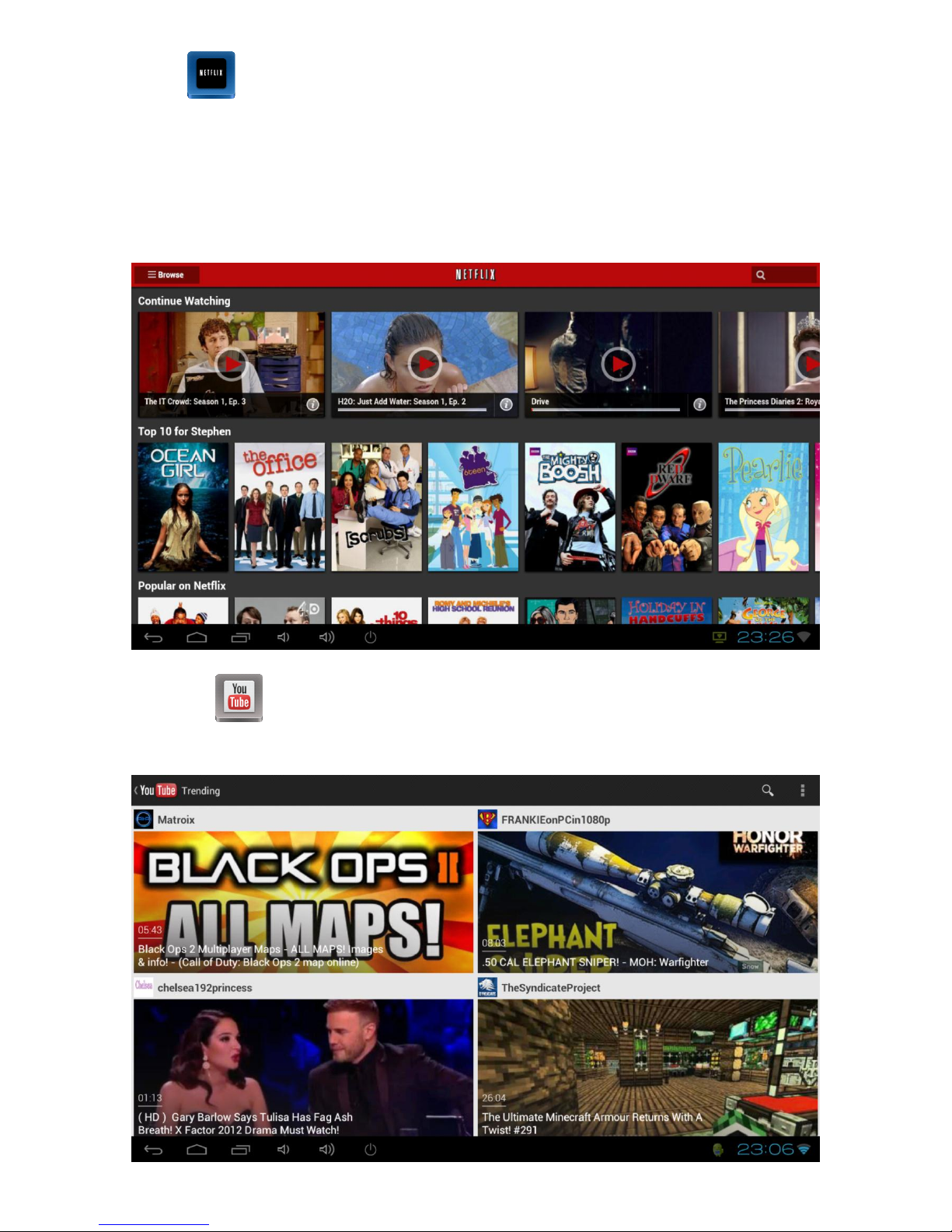
Netflix is one of the leading online subscription service streaming films & TV episodes over
the Internet. The Netflix app allows you to access all their content, but you must sign up for a
subscription before you can access it.
Note: The pre-installed app is designed to work with the TVSmart, so should not be updated.
8.10 YouTube
The YouTube app allows you to access all of the online video content available on YouTube.
Page 41
CnM TVSmart User Manual
___________________________________________________________________________________________________________________________
41
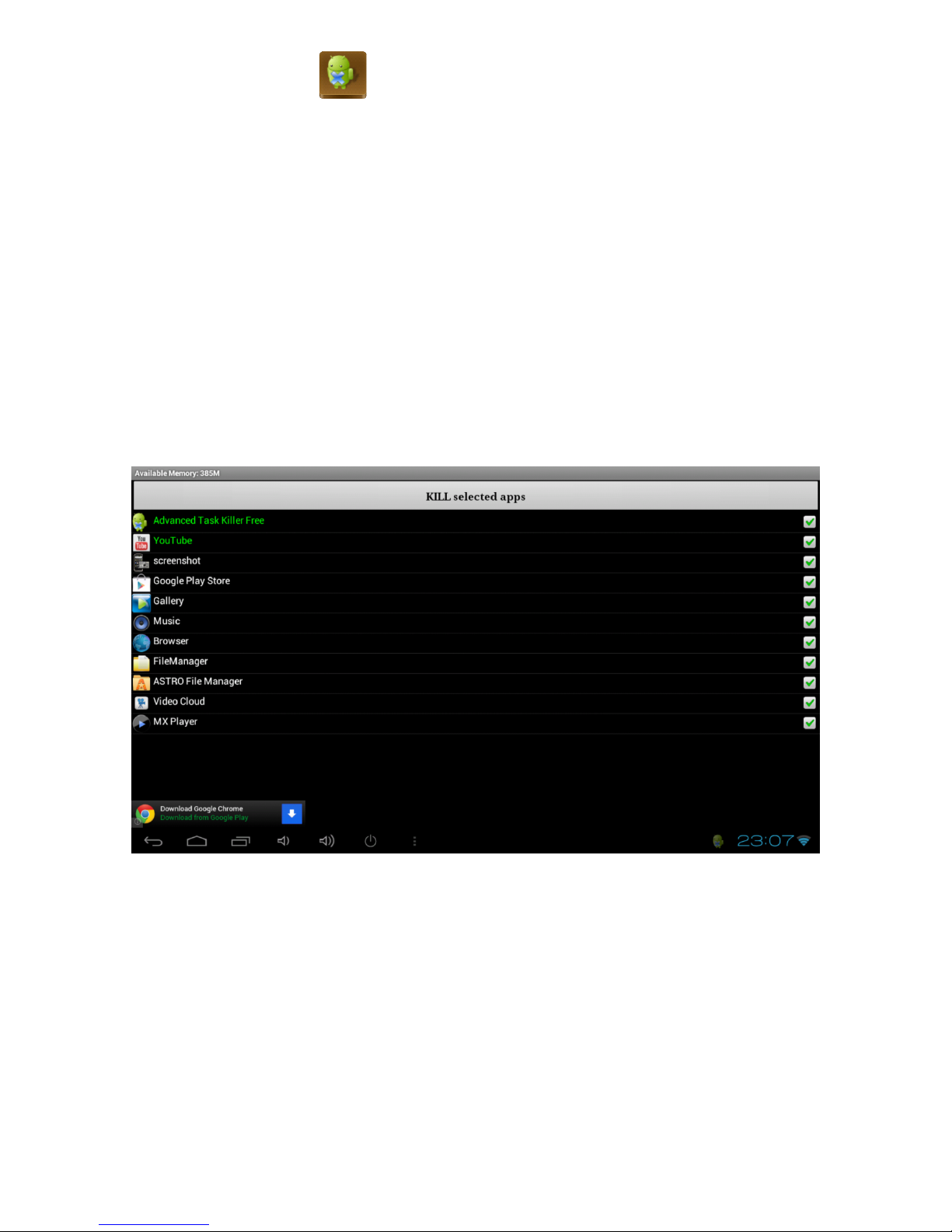
8.11 Advanced Task Killer
If you ever find your TVSmart is running slowly, it will probably be because of applications
which haven’t been closed properly and are still running in the background. Most
applications will close correctly, if you use the back option to exit out of the application and
select yes when it asks if you want to close the app (just keep pressing the Back button until
you get to this option).
If an application doesn’t close properly or any time your TVSmart seems to be running slowly,
run Advanced Task Manager from within Apps.
When it runs, it will show a list of all the currently open applications. You can kill any
application by making sure it has a green tick to the right of it in the list an then clicking on
Kill selected apps at the top of the screen.
Page 42

CnM TVSmart User Manual
___________________________________________________________________________________________________________________________
42
9. Troubleshooting
9.1 TVSmart cannot connect to Wi-Fi
Ensure the wireless network is working by testing it using another wireless device.
Ensure the device is within range of the wireless network to be connected too. Walls or
other obstructions will reduce the possible distances between wireless devices.
Ensure the security password being used is correct.
9.2 Device doesn’t turn on.
Check if the charger is connected correctly.
9.3 Heat Issues
When running, this device can get very warm.
This is normal and should not cause any inconvenience when in use.
9.4 System has anomalies and doesn’t work correctly
Installing some third-party applications may cause the system to not operate correctly.
Try uninstalling any recently installed apps that could be causing this problem.
9.5 Cannot setup e-mail or other online applications
Ensure that the TVSmart is connected to a Wi-Fi network and can connect to the
Internet.
Ensure you E-mail settings have been entered correctly for the account being accessed.
Make sure your system time and local time are correct.
9.6 Restoring factory settings
If the TVSmart appears to have a significant error, you can use this procedure to restore the
device to its factory settings.
Note: Restoring factory settings will delete all downloaded applications and user settings, so
all data will be lost, remember to back up your data before carrying out a factory restore.
Tap the Settings icon from Application page.
Tap Backup & reset and scroll to the bottom of the list.
Page 43

CnM TVSmart User Manual
___________________________________________________________________________________________________________________________
43
Tap Factory data reset.
The system will enter an erasing data state and the screen will go off. This process takes
around 10 seconds, after the erasing process, the system will automatically reboot.
9.7 Error messages appear when opening music files
Some music files may not play on this TVSmart for a variety of reasons. If you receive error
messages when opening music files on your device, try the following:
Ensure that the music file is not Digital Rights Management (DRM)-protected. If the file is
DRM-protected, ensure that you have the appropriate license or key to play the file.
Free some memory by deleting files from your device.
10. Support
For support on your CnM product please visit www.cnmlifestyle.com and read our frequently
asked questions page.
Support issues can also be emailed to [email protected], please provide detailed
information about the problem you are experiencing.
CnM also provides English-language Technical Support to its customers, which can be
contacted by calling +44 (0) 844 997 9979 (calls are charged at 5p per minute). This support
line is available from 9:30am to 6:00pm GMT Monday to Friday.
If you experience difficulty during the installation or subsequent use of a CnM product, you
should contact the CnM Technical Support department prior to servicing your system.
Firmware Updates
Firmware updates may be made available periodically on the CnM website. Please go to the
support section of www.cnmlifestyle.com for more information on the availability of any
updates and how to perform an update.
We hope you enjoy your CnM product.
Page 44

CnM TVSmart User Manual
___________________________________________________________________________________________________________________________
44
11. Copyright
All rights reserved. No part of this manual may be reproduced, stored in a retrieval system,
or transmitted in any form or by any means, electronic, mechanical, photocopying, recording
or otherwise, without the prior written permission from the copyright holder. According to
copyright law, no recorded data may be used for purposes other than personal enjoyment
without permission from the copyright holder.
12. Warranty Information
One year limited hardware warranty
This product is covered by a one year warranty against defects in material and workmanship.
This warranty excludes the battery, which is covered by a six month warranty.
This limited warranty applies only to the original end user customer of the product for so
long as the original end user customer owns the product. This limited warranty is
non-transferable.
For all warranty issues please contact your place of purchase.
CnM warrants to the original end user customer of its products specified below that its
products are free from defects in material and workmanship. Subject to the conditions and
limitations set forth below, CnM will, at its option, either repair or replace any part of its
products that prove defective by reason of improper workmanship or materials. Repaired
parts or replacement products will be provided by CnM on an exchange basis, and will be
either new or refurbished to be functionally equivalent to new. If CnM is unable to repair or
replace the product, it will refund the current value of the product at the time the warranty
claim is made.
This limited warranty does not cover any damage to this product that results from improper
installation, accident, abuse, misuse, natural disaster, insufficient or excessive electrical
supply, abnormal mechanical or environmental conditions, or any unauthorized disassembly,
repair, or modification. This limited warranty also does not apply to any product on which
the original identification information has been altered, obliterated or removed, has not
been handled or packaged correctly, has been sold as second-hand or has been resold
contrary to the US export regulations.
This limited warranty covers only repair, replacement or refund for defective CnM products,
as provided above. CnM is not liable for, and does not cover under warranty, any loss of data
or any costs associated with determining the source of system problems or removing,
servicing or installing CnM products. This warranty excludes 3rd party software, connected
equipment or stored data. In the event of a claim, CnM’s sole obligation shall be
replacement of the hardware.
Page 45

CnM TVSmart User Manual
___________________________________________________________________________________________________________________________
45
The foregoing is the complete warranty for CnM products and supersedes all other
warranties and representations, whether oral or written. except as expressly set forth above,
no other warranties are made with respect to CnM products and CnM expressly disclaims all
warranties not stated herein, including, to the extent permitted by applicable law, any
warranty that may exist under national, state, provincial or local law including but not
limited to any implied warranty of non-infringement, merchantability or fitness for a
particular purpose. All warranties, whether express or implied, are limited to the periods of
time set forth above. Some states or other jurisdictions do not allow the exclusion of implied
warranties or limitations on how long an implied warranty lasts, so the above limitations may
not apply to you.
CnM products are not authorized for use as critical components in life support equipment or
for applications in which the failure or malfunction of the products would create a situation
in which personal injury or death is likely to occur. CnM shall not be liable for the death of
any person or any loss, injury or damage to persons or property by use of products used in
applications including, but not limited to, military or military-related equipment, traffic
control equipment, disaster prevention systems and medical or medical-related equipment.
If such use is intended, contact CnM for components suitable for such applications.
CnM’s total liability under this or any other warranty, express or implied, is limited to repair,
replacement or refund. Repair, replacement or refund are the sole and exclusive remedies
for breach of warranty or any other legal theory. to the fullest extent permitted by applicable
law, CnM shall not be liable to the purchaser or end user customer of a CnM product for any
damages, expenses, lost data, lost revenues, lost savings, lost profits, or any other incidental
or consequential damages arising from the purchase, use or inability to use the CnM product,
even if CnM has been advised of the possibility of such damages. Some states or other
jurisdictions do not allow the exclusion or limitation of incidental or consequential damages,
so the above limitations or exclusions may not apply to you.
This limited warranty gives you specific legal rights, and you may also have other rights which
vary from state to state or jurisdiction to jurisdiction.
With regards to citizens of countries that are members of the European Union, if this product
is purchased by a consumer and not in the course of a business, this warranty shall not affect
your statutory rights as a consumer. This disclaimer does not purport to limit or exclude
CnM’s liability for death or injury caused by its negligence or for fraudulent
misrepresentation.
Page 46

CnM TVSmart User Manual
___________________________________________________________________________________________________________________________
46
Limitation of warranty
The above warranty shall not apply to defects resulting from:
misuse; unauthorized modification; opening for any reason; operation or storage outside the
environmental specifications for the product; in-transit damage; improper maintenance;
physical damage to the unit, such as a cracked or broken screen or defect resulting from use
software, accessories, media, supplies, consumables, or such items not designed for use with
the product.
There is no other express warranty, whether written or oral, with respect to this product.
Any implied warranty of merchantability or fitness for a particular purpose is limited to the
one-year duration of this written warranty.
Some states, provinces, or countries do not allow limitations on how long an implied
warranty lasts, so the above limitation or exclusion may not apply to you.
This warranty gives your specific legal rights, and you may also have other rights that vary
from state to state, province to province, or country to country.
13. Licencing
Google Android is Licenced under the Apache Licence, Version 2.0. More information about
this licence can be obtained from http://www.apache.org/licenses/LICENSE-2.0.
The source code for the full Android stack is available from the Android Open Source Project
site http://source.android.com/.
Other mirrored GPL and LGPL'd components are available at http://code.google.com
/p/android/downloads/list.
Notices for other licenses can be found within the SDK.
All information is subject to change without notice.
Page 47
CnM TVSmart User Manual
___________________________________________________________________________________________________________________________
47
14. Correct disposal of this product
(Waste Electrical & Electronic Equipment)
(Applicable in the European Union and other European countries
with separate collection systems)
This marking on the product, accessories or literature indicates that
the product and its electronic accessories (e.g. charger, headset,
USB cable) should not be disposed of with other household waste
at the end of their working life.
To prevent possible harm to the environment or human health from uncontrolled waste
disposal, please separate these items from other types of waste and recycle them
responsibly to promote the sustainable reuse of material resources.
Household users should contact either the retailer where they purchased this product, or
their local council office, for details of where and how they can take these items for
environmentally safe recycling.
Business users should contact their supplier and check the terms and conditions of the
purchase contract. This product and its electronic accessories should not be mixed with
other commercial wastes for disposal.
This EEE is compliant with RoHS
15. Correct disposal of batteries
(Applicable in the European Union and other European countries
with separate battery return systems)
This marking on the battery, manual or packaging indicates that
the batteries in this product should not be disposed of with other
household waste at the end of their working life.
Where marked, the chemical symbols Hg, Cd or Pb indicate that the battery contains
mercury, cadmium or lead above the reference levels in EC Directive 2006/66. If batteries
are not properly disposed of, these substances can cause harm to human health or the
environment.
To protect natural resources and to promote material reuse, please separate batteries from
other types of waste and recycle them through your local, free battery return system.
The rechargeable battery built into this product is not user replaceable.
For information on its replacement, please contact VS support.
Page 48

CnM TVSmart User Manual
___________________________________________________________________________________________________________________________
48
16. Disclaimer
Some content and services accessible through this device belong to third parties and are
protected by copyright, patent, trademark and / or other intellectual property laws. Such
content and services are provided solely for your personal non-commercial use. You may
not use any content or services in a manner that has not been authorised by the content
owner or service provider. Without limiting the foregoing, unless expressly authorised by
the applicable content owner or service provider, you may not modify, copy, republish,
upload, post, transmit, translate, sell, create derivative works, exploit, or distribute in any
manner or medium any content or services displayed through this device.
Third party content and services are provided as is. CnM does not warrant the content or
services provided, this is neither expressed nor implied, for any purpose. CnM expressly
disclaims any implied warranties, including but not limited to, warranties of merchantability
or fitness for a particular purpose. CnM does not guarantee the accuracy, validity,
timeliness, legality, or completeness of any content or service made available through this
device and under no circumstances, including negligence, shall CnM be liable, whether in
contract or tort, for any direct, indirect, incidental, special or consequential damages,
attorney fees, expenses, or any other damages arising out of, or in connection with, any
information contained in, or as a result of the use of any content or service by you or any
third party, even if advised of the possibility of such damages.
Third party services may be terminated or interrupted at any time, and CnM makes no
representation or warranty that any content or service will remain available for any period
of time. Content and services are transmitted by third parties by means of networks and
transmission facilities over which CnM has no control. Without limiting the generality of this
disclaimer, CnM expressly disclaims any responsibility or liability for any interruption or
suspension of any content or service made available through this device.
CnM is neither responsible nor liable for customer service related to the content and
services. Any question or request for service relating to the content or services should be
made directly to the respective content and service providers.
 Loading...