

Page 1

CHC® i80 GNSS Receiver
QuickTour with FieldGenius
(UHF Rover Mode)
Page 2
1
1.Prerequisites
Hardware: CHC i80 Base with internal radio
Kit, Controller Kit,UHF Bar Antenna (450-470
MHz), Lithium Battery, pole
Software: FieldGenius8
2.Steps to set i80 working as
rover in Internal UHF mode with
FieldGenius
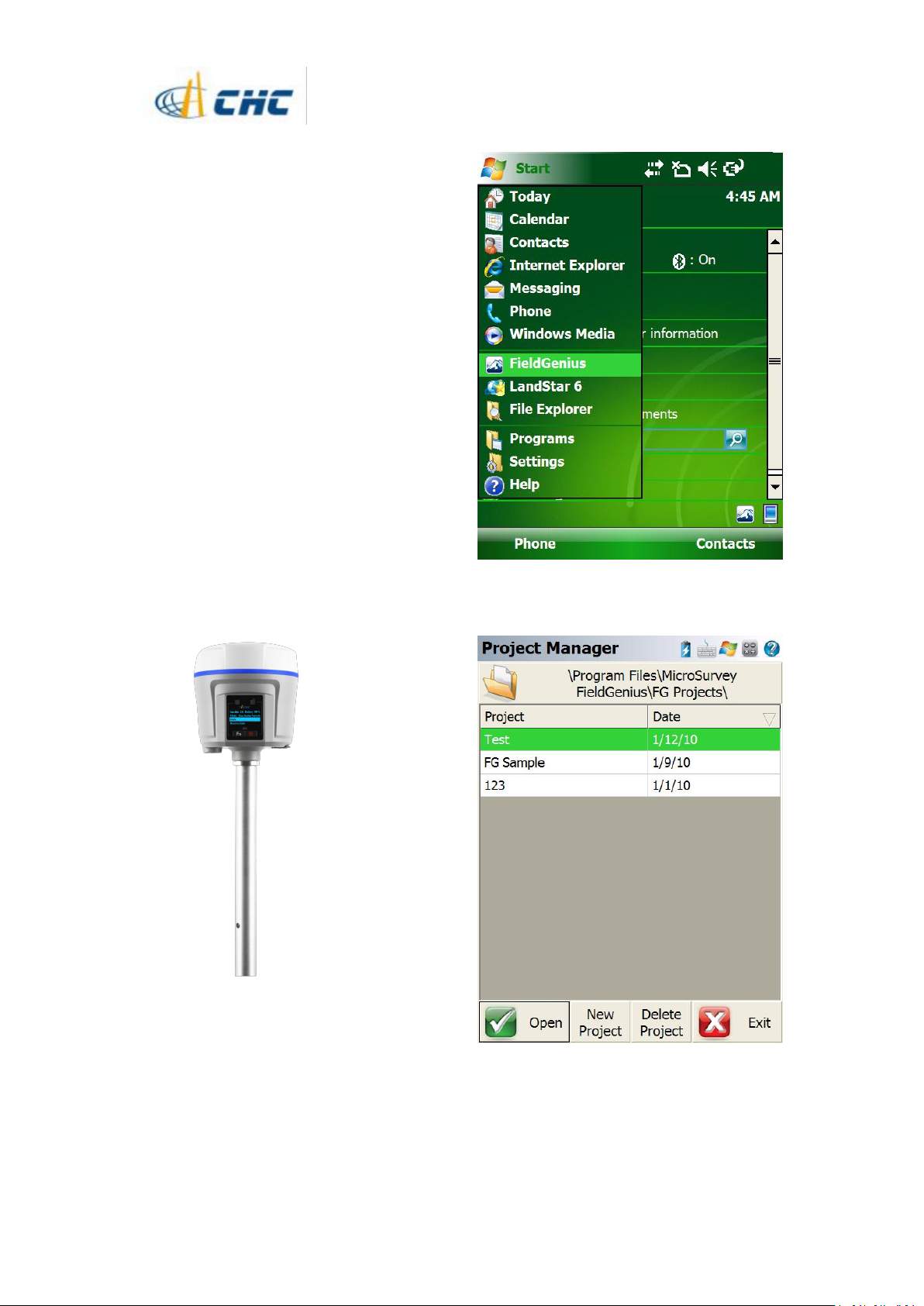
2.1 Rover installation
Fix the bar antenna onto the antenna port,
screw the rover receiver on the pole, and
put the Controller adapter in the right place
like the figure.
2.2 Rover setting in FieldGenius
Power on the receiver
Long press the i80 power button until the
green and blue LED lights are on.
2. Click on [start] and then FieldGenius.
3. Click [New Project] to create a project or
Click [Open] to open one exist project.
i80 GNSS Receiver Quick Tour with FieldGenius (UHF Rover)
Page 3
2
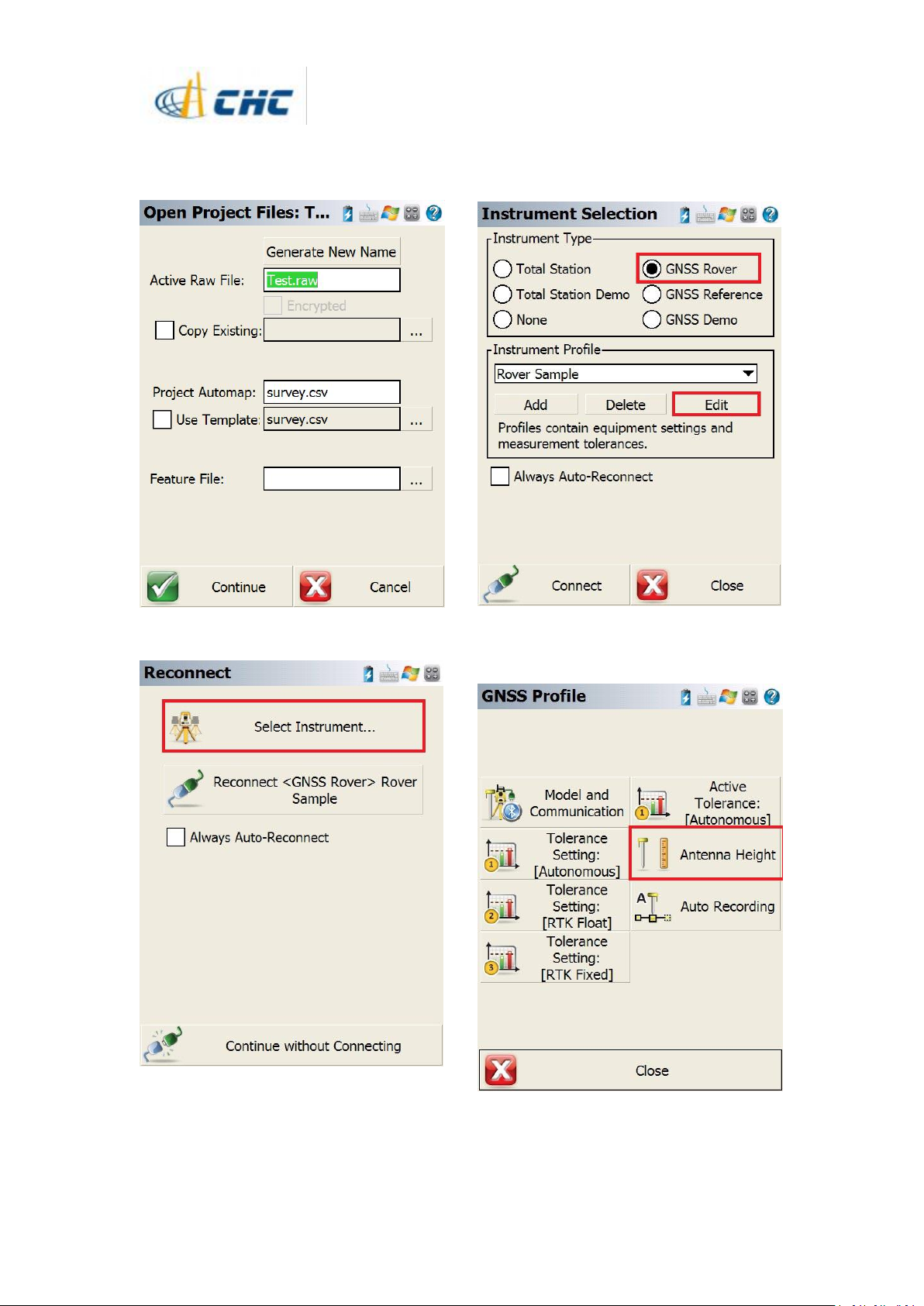
4. A project file should be selected then
click [Continue] for next step
5. Click on [Select Instrument]
6. Select [GNSS Rover] option then click
[Edit] to select device and linking method
7. Click [Antenna Height] tab to set the
antenna height of the receiver
i80 GNSS Receiver Quick Tour with FieldGenius (UHF Rover)
Page 4
3
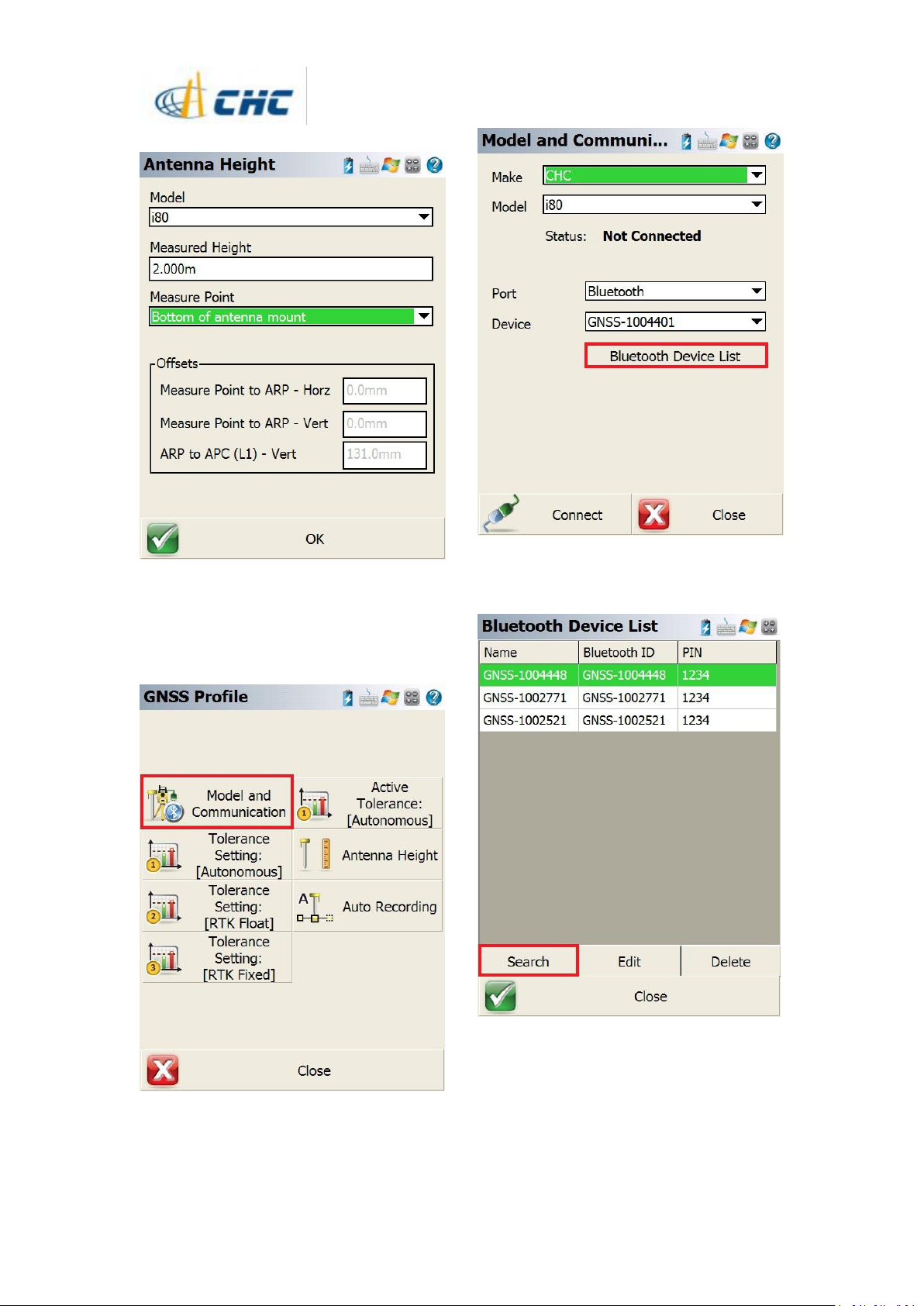
9. Click [Model and Communication]
tab→select Make as [CHC], Model as [i80],
Port as [Bluetooth] → click [Bluetooth Device
List] to add bluetooth device
10. Click [Search] to search the around
Bluetooth device.
i80 GNSS Receiver Quick Tour with FieldGenius (UHF Rover)
Page 5
4
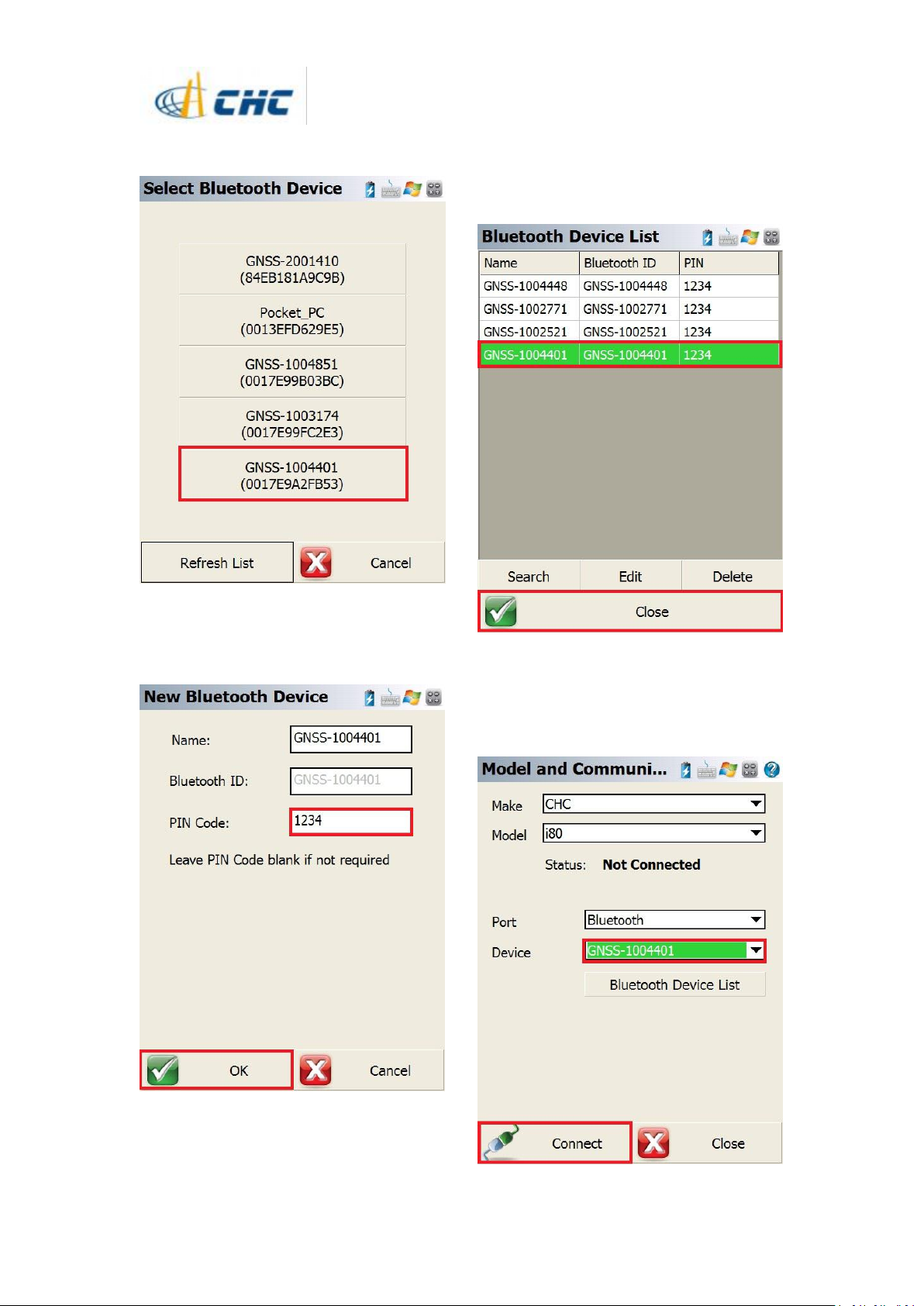
11. Click on the device that matches your
device serial number, then click it
12. Type in the PIN Code of the bluetooth
then click [OK] button to finish the device
edit.
13. Then our target device can be selected in
the bluetooth device list. Click [OK] button
back to [Model and Communication]
interface.
14. The target device can be selected in the
drop-down box then click [Connect] button.
The software will build the connection to your
device
i80 GNSS Receiver Quick Tour with FieldGenius (UHF Rover)
Page 6
5
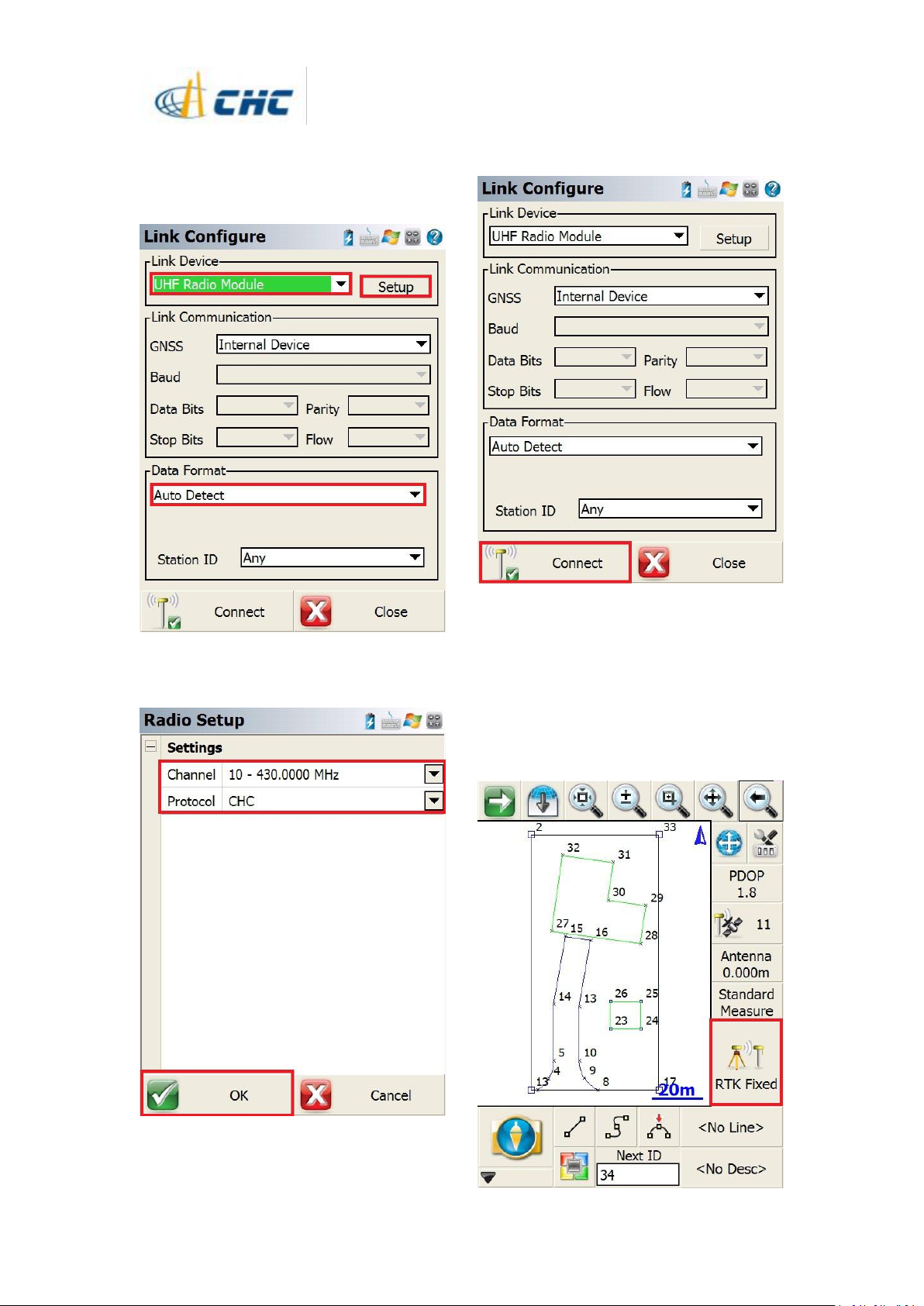
15. Select the Link Device as [UHF Radio
Module] from the drop-down box, select the
Data Format as [Auto Detect] then click the
[Setup] button.
16. Select the Protocol and Frequency in the
drop-down box then click [Ok] button
17. Please click [Connect] button to finish
rover setting
18. Then the green LED will flash and the
states will become [Autonomous] to [float]
then to [fix],which means the rover is getting
the correction data from base.
Then please click the [RTK Fixed] to start the
measurement
i80 GNSS Receiver Quick Tour with FieldGenius (UHF Rover)
Page 7
6
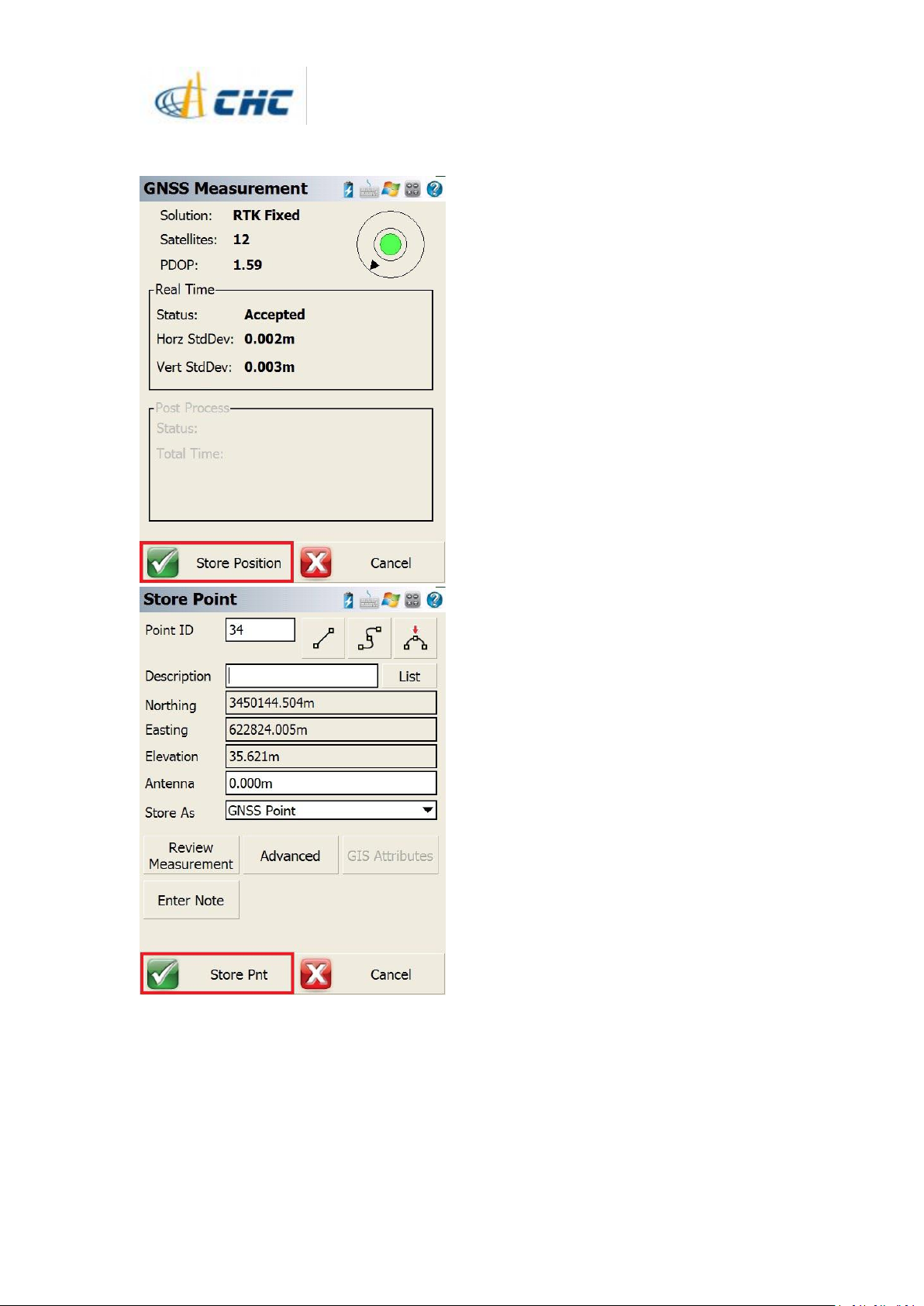
Only if the i80 states meets the tolerance, the
measurement can be done.
19. The survey work can be done with the
i80
i80 GNSS Receiver Quick Tour with FieldGenius (UHF Rover)
 Loading...