

Page 1
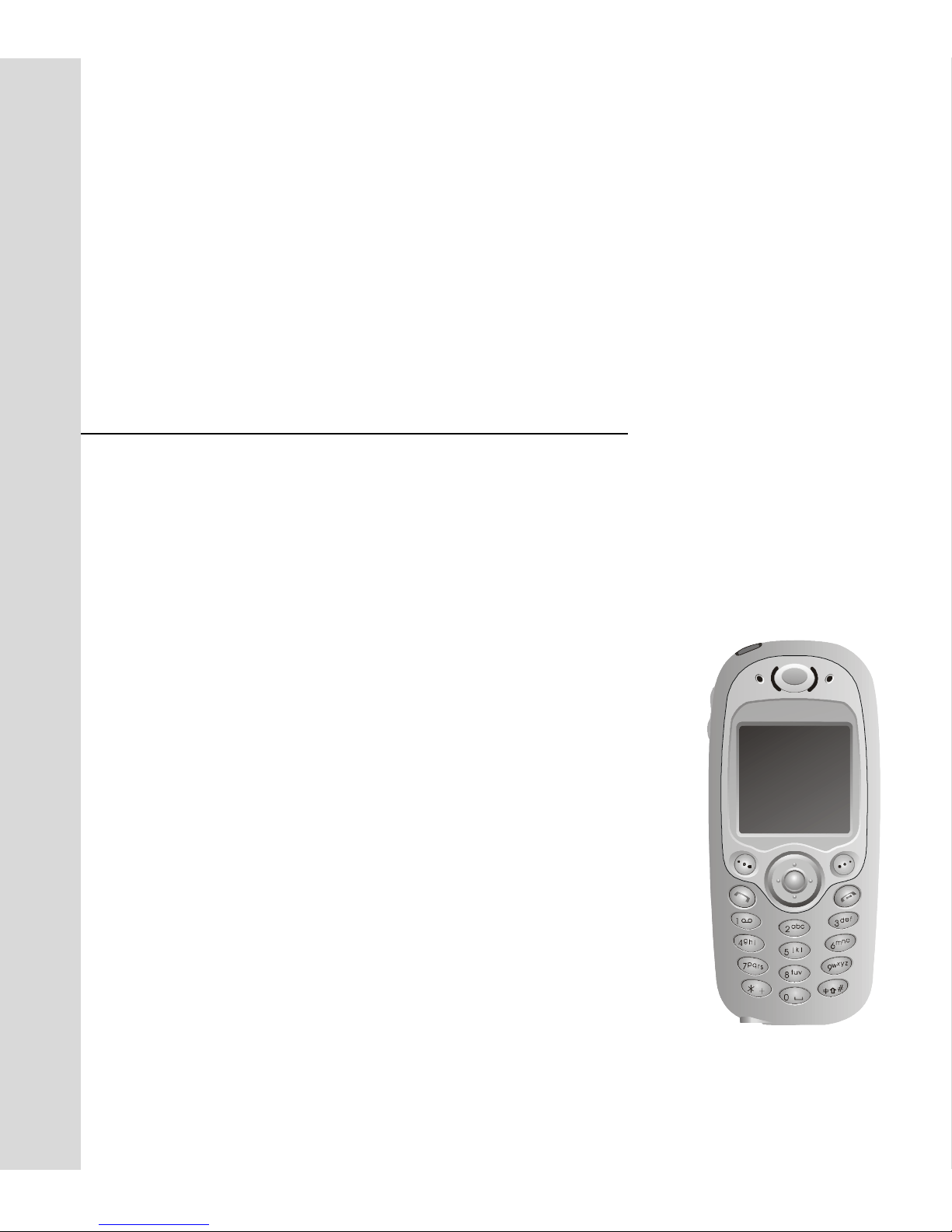
CMCS GSM/GPRS Phone
Amadeus
User Guide
Page 2

Page 3

Copyright Statement
Copyright 2003 by CMCS. All rights reserved. No part of this publication may be reproduced, transmitted, transcribed, stored in a retrieval system or translated into any language or computer language,
in any form or by any means, electronic, mechanical, magnetic, optical, chemical, manual or otherwise, without the prior written permission of CMCS.
Disclaimer
CMCS makes no representations or warranties, either expressed or implied, with respect to the contents hereof and specifically disclaims any warranties, merchantability or fitness for any particular purpose. Further, CMCS reserves the right to revise this publication and to make changes from time to
time in the contents hereof without obligation of CMCS to notify any person of such revision or
changes.
ALL INFORMATION IS PROVIDED BY CMCS ON AN "AS IS" BASIS ONLY. CMCS PROVIDES NO REPRESENTATIONS AND WARRANTIES, EXPRESS OR IMPLIED, INCLUDING THE IMPLIED WARRANTIES OF FITNESS FOR A PARTICULAR PURPOSE,
MERCHANTABILITY AND NONINFRINGEMENT.
Page 4
Important Safety Precautions
When using this product, the safety precautions below must be taken against possible legal issues and
damages.
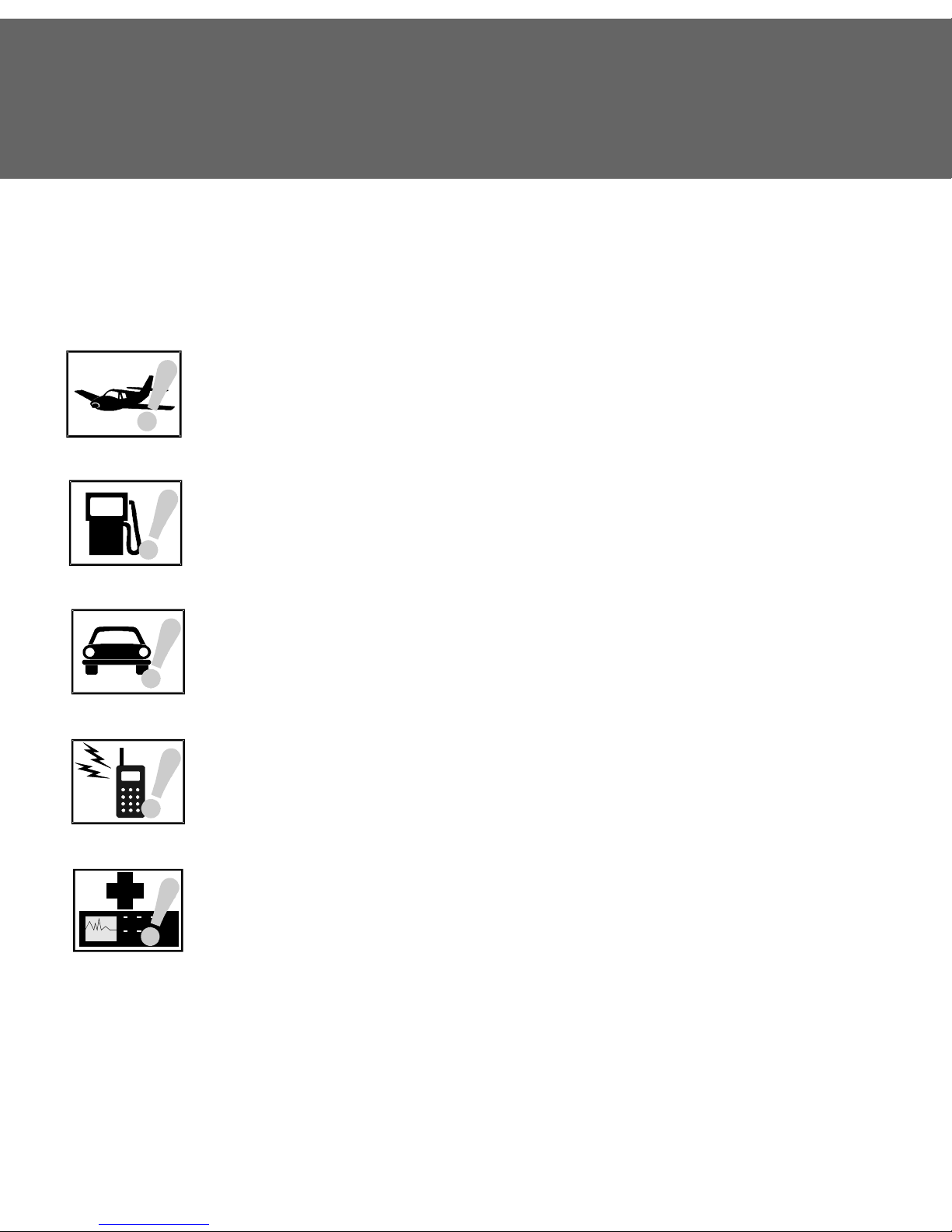
SAFETY IN AIRCRAFT
The interference would be caused by this product to an aircraft's navigation system
and its network. In most countries, using this product on board an airplane is
against the law.
SAFETY FOR ENVIRONMENTS
Do not use this product in gas stations. Also the use of this product is prohibited
in fuel storehouse, chemical plants and locations containing explosives.
SAFETY ON THE ROAD
Vehicle drivers in motion are not permitted to use telephony services with the
handheld device, except in the case of emergency. In some countries, using handfree devices as an alternative is allowed.
SAFETY ABOUT RADIATION
This product should be operated in the suggested normal condition only to ensure
the radiative performance and safety of the interference.
SAFETY FOR MEDICAL EQUIPMENTS
This product may cause malfunctions of medical equipments. In most hospital or
medical centers, use of this product is forbidden.
Page 5
Attention
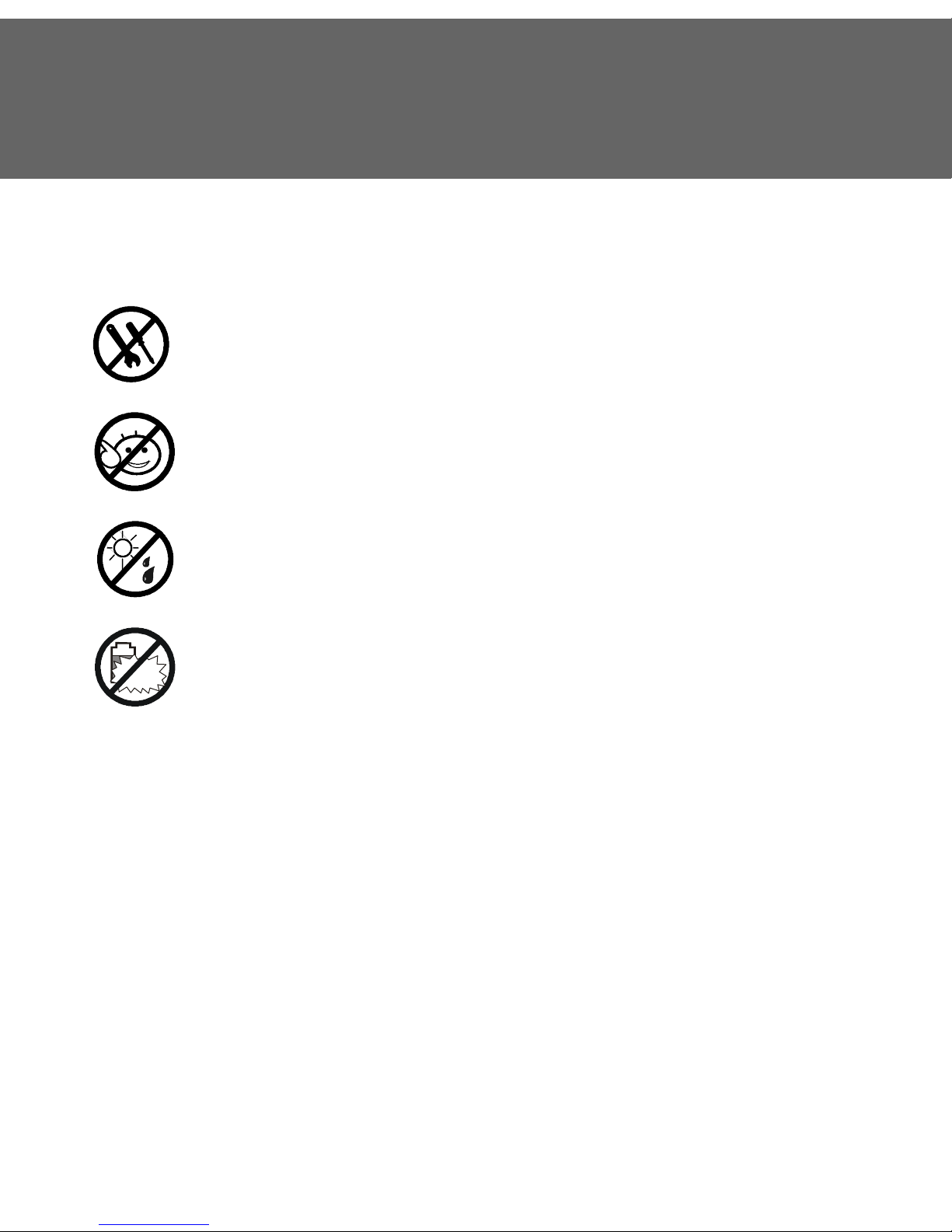
There are no user serviceable parts inside this product. If this product appears to be
broken, call a qualified service personnel or send this product to your original dealer.
Do not attempt to disassemble or repair this product as it may result in electric shock
or unrecoverable damage to the product itself.
Keep this product out of reach of small children.
Store this product in its protective case in a cool dry place.
Do not throw the battery into fire or other heat source. Dispose of used batteries
according to your local regulations.
CAUTION RISK OF EXPLOSION IF BATTERY IS REPLACED BY AN INCORRECT TYPE.
DISPOSE OF USED BATTERIES ACCORDING TO THE INSTRUCTIONS
Tips When Using
• Avoid using the product near metal structures (for example, large metal furniture or steel frames of a
building). The transmission and reception of signal can be effected by these objects.
• Avoid using the product near strong electromagnetic sources, such as microwave ovens, sound
speakers, TV and radio.
• Avoid using the product right after dramatic change of temperature.
Page 6

FCC Compliance Statement
This device complies with Part 15 of the FCC Rules. Operation is subject to the following two conditions: (1) this device may not cause harmful interference, and (2) this device must accept any interference received, including interference that may cause undesired operation.
FCC ID: QDJ-0302AMD01
Statement according to FCC part 15.21
Modifications not expressly approved by CMCS could void the user's authority to operate the equipment.
Statement according to FCC part 15.105
NOTE: This equipment has been tested and found to comply with the limits for a Class B digital
device, pursuant to Part 15 of the FCC Rules. These limits are designed to provide reasonable protection against harmful interference in a residential installation. This equipment generates, uses and can
radiate radio frequency energy and, if not installed and used in accordance with the instructions, may
cause harmful interference to radio communications. However, there is no guarantee that interference
will not occur in a particular installation. If this equipment does cause harmful interference to radio or
television reception, which can be determined by turning the equipment off and on, the user is
encouraged to try to correct the interference by one or more of the following measures:
• Reorient or relocate the receiving antenna.
• Increase the separation between the equipment and receiver.
• Connect the equipment into an outlet on a circuit different from that to which the receiver is connected.
• Consult the dealer or an experienced radio/TV technician for help.
RF exposure
Tests for SAR are conducted using standard operating positions specified by the FCC with the phone
transmitting at its highest certified power level in all tested frequency bands. Although the SAR is
determined at the highest certified power level, the actual SAR level of the phone while operation can
be well below the maximum value. This is because the phone is designed to operate at multiple power
levels so as to use only the power required to reach the network. In general, the closer you are to a
wireless base station antenna, the lower the power output.
Before a phone model is available for sale to the public, it must be tested and certified to the FCC that
it does not exceed the limit established by the government-adopted requirement for safe exposure. The
tests are performed in positions and locations (e.g., at the ear and worn on the body) as required by
the FCC for each model. (Body-worn measurements may differ among phone models, depending
upon available accessories and FCC requirements). While there may be differences between the SAR
Page 7

levels of various phones and at various positions, they all meet the government requirement for safe
exposure.
For body worn operation, to maintain compliance with FCC RF exposure guidelines, use only accessories that contain no metallic components and provide a separation distance of 1.5cm (0.6 inches) to
the body. Use of other accessories may violate FCC RF exposure guidelines and should be avoided.
Health and Safety Information
Exposure to Radio Frequency (RF) Signals
Your wireless phone is a radio transmitter and receiver. It is designed and manufactured not to exceed
the emission limits for exposure to radio frequency (RF) energy set by the Federal Communications
Commission of the U.S. Government. These limits are part of comprehensive guidelines and establish
permitted levels of RF energy for the general population. The guidelines are based on the safety standards previously set by both U.S. and international standards bodies:
* American National Standards Institute (ANSI) IEEE. C95.1-1992
* National Council on Radiation Protection and Measurement (NCRP). Report 86. 1986
* International Commission on Non-Ionizing Radiation Protection (ICNIRP) 1996
* Ministry of Health (Canada), Safety Code 6. The standards include a substantial safety margin
designed to assure the safety of all persons, regardless of age and health.
The exposure standard for wireless mobile phones employs a unit of measurement known as the Spe-
cific Absorption Rate, or SAR. The SAR limit set by the FCC is 1.6W/kg *.
* In the U.S. and Canada, the SAR limit for mobile phones used by the public is 1.6 watts/kg (W/kg) averaged over
one gram of tissue. The standard incorporates a substantial margin of safety to give additional protection for the public
and to account for any variations in.
SAR Information
THIS MODEL DEVICE MEETS THE GOVERNMENT'S REQUIREMENTS FOR
EXPOSURE TO RADIO WAVES.
Your wireless mobile GSM phone is a radio transmitter and receiver. It is designed and manufactured
not to exceed the emission limits for exposure to radio frequency (RF) energy set by the Federal Communications Commission of the U.S. Government. These limits are part of comprehensive guidelines
and establish permitted levels of RF energy for the general population. The guidelines are based on
the safety standards previously set by both U.S. and international standards bodies:
* American National Standards Institute (ANSI) IEEE. C95.1-1992
Page 8

* National Council on Radiation Protection and Measurement (NCRP). Report 86. 1986
* International Commission on Non-Ionizing Radiation Protection (ICNIRP) 1996
* Ministry of Health (Canada), Safety Code 6. The standards include a substantial safety margin
designed to assure the safety of all persons, regardless of age and health.
The exposure standard for wireless mobile GSM phone employs a unit of measurement known as the
Specific Absorption Rate, or SAR. The SAR limit set by the FCC is 1.6W/kg *.
For body worn operation, this phone has been tested and meets the FCC RF exposure guidelines
when used with an accessory that contains no metal and that position the antenna of the GSM phone
a minimum of 1.5cm from the body. The SAR values of this GSM phone are 1.52mW/g (body) and
0.347mW/g (head). Use of other accessories may not ensure compliance with the FCC RF exposure
guidelines.
The FCC has granted an Equipment Authorization for this model device with all reported SAR levels
evaluated as in compliance with the FCC RF exposure guidelines. SAR information on this model
device is on file with the FCC and can be found under the Display Grant section of http://
www.fcc.gov/oet/fccid after searching on FCC ID QDJ-0302AMD01. Additional information on
Specific Absorption Rates (SAR) can be found on the Cellular Telecommunications & Internet Association (CTIA) web-site at http://www.devicefacts.net.
* In the U.S. and Canada, the SAR limit for mobile GSM phone used by the public is 1.6 watts/kg
(W/kg) averaged over one gram of tissue. The standard incorporates a substantial margin of safety to
give additional protection for the public and to account for any variations in.
Page 9

Table of Contents
Making Your First Call ............................................ 1
Installing SIM card ................................................ 2
Installing and charging the battery ....................... 3
Turning on the phone .......................................... 5
Dialing the number .............................................. 6
Ending the call ..................................................... 6
Introduction to Your Phone .................................... 7
Parts of your phone and their names .................... 8
Front view ............................................................ 8
Top view .............................................................. 9
Bottom view ......................................................... 9
Rear view ............................................................. 10
Icons on the screen .............................................. 11
The keys on the phone ......................................... 13
Function keys ...............................13
Alphanumeric keys ........................................ 14
Basic Operations .................................................... 15
Turning on the phone ........................................... 16
Turning off the phone ........................................... 16
Making a call ........................................................ 16
Making an emergency call ..................................... 17
Answering a call ................................................... 18
Ending a call ......................................................... 18
Missed call message ............................................. 18
Adjusting earpiece volume .................................... 18
i
Page 10

Selecting sound profile ......................................... 18
Options during a call ............................................. 18
Making a new call ................................................. 19
Answering a new incoming call .............................19
Transmitting DTMF tones ...................................... 19
Ending calls .......................................................... 19
Consulting Phone Book .........................................20
Accessing Main Menu ...........................................20
Muting/unmuting the microphone ........................ 20
Holding/unholding a call ......................................20
Listening to your voice mail .................................. 21
Reading messages ................................................ 21
Entering Text ........................................................ 21
Selecting an input mode .......................................22
Entering text ......................................................... 22
Erasing text .......................................................... 23
Using key lock ...................................................... 23
Phone Book ........................................................... 25
Adding a Phone Book entry ................................... 26
Searching for a Phone Book entry ..........................26
Editing a Phone Book entry ................................... 26
Editing name ........................................................26
Editing number .....................................................27
Adding new phone number to existing entries ......27
Changing caller group .......................................... 27
Sending a entry as business card ..........................27
Assigning default phone number .......................... 28
Changing the type of number ............................... 28
Sending messages from Phone Book ..................... 28
ii
Page 11

Erasing Phone Book entry ..................................... 28
Copying Phone Book entry .................................... 29
Setting up Speed Dial ............................................ 30
Viewing speed dial number .................................. 30
Changing speed dial number ................................ 30
Erasing speed dial number ................................... 31
Setting up Caller Group ......................................... 31
Changing caller group settings ............................. 31
Changing caller group name .......................... 31
Changing caller group ringtone ..................... 31
Changing caller group graphic ....................... 31
Miscellaneous settings .......................................... 32
Personal number .................................................. 32
Adding a personal number ............................. 32
Editing personal number ................................ 32
Erasing personal number ............................... 32
Your own business card ....................................... 32
Creating your own business card ................... 33
Viewing your business card ........................... 33
Sending your business card ........................... 33
Editing your business card ............................. 33
Erasing your business card ............................ 33
Fixed dial number ................................................ 34
Activating Fixed dial ...................................... 34
Adding new Fixed dial number ...................... 34
Viewing Fixed dial number ............................. 34
Editing Fixed dial number .............................. 34
Erasing Fix dial number ................................. 34
Phone Book memory setting ................................. 35
iii
Page 12

Selecting Phone Book memory ........................ 35
Checking Phone Book memory status ............. 35
Dialing lo ??? ..................................................35
The Main Menu ...................................................... 36
Overview ....................................................................37
Message .....................................................................38
Writing and sending new messages ....................... 38
Viewing sent messages ......................................... 39
Viewing received messages ................................... 39
Viewing received messages in the Inbox ...............40
Chatroom ............................................................. 41
Opening a new chat session .................................. 41
Options during a chat session ............................... 41
Customizing preset message templates ................ 42
Customizing message template ............................42
Erasing customized message template ..................42
Sending a message from templates ....................... 42
iv
Erasing all messages .............................................42
Text message settings .......................................... 43
Configuring text message setting profiles ............. 43
Using the profile on your SIM card .................. 43
Configuring a new profile ............................... 43
Using a self-configured profile .......................43
Configuring voice mailbox number ....................... 44
Message options ................................................... 44
Message status report .................................... 44
Reply path ...................................................... 44
Page 13

Send by GSM or GPRS ..................................... 44
Checking message memory status ................. 45
Sending history .................................................... 45
Cell broadcast options ......................................... 45
Turning on or off cell broadcast ..................... 45
Setting up cell broadcast topics ..................... 45
Sending message service commands .................... 46
Call Meter ...................................................................47
Viewing missed call records .................................. 47
Viewing received call records ................................ 47
Viewing dialed call records ................................... 47
Erasing all call records .......................................... 48
Viewing call time information ............................... 48
Clearing call timer ................................................ 48
Viewing call cost information ................................ 48
Viewing call cost .................................................. 48
Clearing call cost .................................................. 49
Viewing remaining call cost credit ........................ 49
Configuring call cost settings ............................... 49
Viewing GPRS related information .......................... 50
GPRS data ............................................................ 50
GPRS data counter ......................................... 50
Clearing GPRS data counter ............................ 50
GPRS connection time .......................................... 50
GPRS timer ..................................................... 50
Clearing GPRS timer ....................................... 50
In-call count ......................................................... 51
Session information .............................................. 51
v
Page 14

Call Feature ................................................................52
Call divert ............................................................. 52
Diverting voice calls .............................................. 52
Deactivating voice call divert function ............52
Inquiring status ..............................................53
Diverting data or fax calls .....................................53
Deactivating data or fax call divert function .... 53
Inquiring status ..............................................53
Deactivating all call divert functions ...................... 53
Call waiting ........................................................... 53
Deactivating call waiting .......................................54
Inquiring status ....................................................54
Call barring ...........................................................54
Barring outgoing calls ........................................... 54
Cancel barring of outgoing calls .....................54
Inquiring status ..............................................55
Barring incoming calls ..........................................55
Cancel barring of incoming calls .....................55
vi
Inquiring status ..............................................55
Cancel all call barring functions ............................55
Changing network code ........................................56
Showing/hiding your number ................................ 56
Selecting a phone line to use ................................ 56
Anykey answer ...................................................... 57
Auto redial ............................................................ 57
Speed dialing ........................................................ 57
Receiving a fax or data call ................................... 57
Talk and Fax ......................................................... 58
Page 15

Sound .........................................................................59
Sound profiles ...................................................... 59
Selecting a sound profile ............................... 59
Customizing a sound profile .......................... 60
Renaming a sound profile .................................... 60
Composing your ringing tones .............................. 61
Quick silence ........................................................ 63
Minute reminder ................................................... 63
Phone setup ...............................................................64
Changing menu language ..................................... 64
Adjusting backlight duration ................................. 64
Adjusting screen contrast ..................................... 64
Clock .................................................................... 64
Showing/hiding clock on the screen ..................... 64
Setting up current time and date .......................... 64
Selecting time zone ....................................... 65
Setting up current date .................................. 65
Setting up current time .................................. 65
Setting up date format ......................................... 65
World clock .......................................................... 65
Auto power off ..................................................... 66
Activating Auto power off ..................................... 66
Deactivating Auto power off ................................. 66
Display settings .................................................... 66
Changing color scheme ........................................ 66
Changing wallpaper ............................................. 67
Key lock ................................................................ 67
vii
Page 16

Activating Key lock .........................................67
Deactivating Key lock ..................................... 67
Selecting default input mode ................................ 67
Changing right softkey function ............................68
Restoring factory settings ..................................... 68
Phone security settings ......................................... 69
Activating/deactivating security codes ..................69
Activating/deactivating PIN code .................... 69
Activating/deactivating phone code ................ 69
Activating/deactivating SIM lock ..................... 70
Changing security codes .......................................70
Changing PIN code .........................................70
Changing PIN2 code ....................................... 70
Changing phone code .................................... 71
Changing SIM lock code .................................71
Closed user group ................................................ 71
viii
Network settings ................................................... 72
Network selection .................................................72
Band selection ...................................................... 72
Connection indicator ............................................. 72
Extras .........................................................................73
My Picture ............................................................. 73
Creating My Picture ...............................................73
Editing My Picture ................................................. 74
Erasing My Picture ................................................74
Sending My Picture ............................................... 74
Alarm clock ........................................................... 75
Activating alarm clock ........................................... 75
Page 17

Deactivating alarm clock ...................................... 75
Calendar ............................................................... 75
Writing note ......................................................... 76
Viewing note ........................................................ 76
Viewing today’s note ..................................... 76
Viewing notes on a specific date .................... 76
View all notes ................................................ 77
Viewing calendar in month mode ......................... 77
Jumping to a specific day ..................................... 77
Editing note ......................................................... 77
Erasing note ......................................................... 77
Moving a note to another date ............................. 78
Copying a note to another date ............................ 78
Sending a note ..................................................... 78
Sending a message .............................................. 79
Account book ....................................................... 79
Creating an accounting record ............................. 79
Viewing accounting records ................................. 80
Viewing results of accounting records .................. 80
Editing accounting record .................................... 81
Erasing accounting record .................................... 81
Playing Games ...................................................... 81
Five Ball ............................................................... 82
Flying ................................................................... 82
Popo car ............................................................... 83
Genie ................................................................... 84
Thirteen ............................................................... 85
Calculator ............................................................. 86
Using calculator ................................................... 86
Converting currencies .......................................... 86
Setting up exchange rate ............................... 86
Performing currency exchange ....................... 87
ix
Page 18

Stopwatch ............................................................. 87
Split timing ........................................................... 87
Lap timing ............................................................87
Viewing timing records .........................................87
Erasing timing records ..........................................88
WAP Service ................................................................89
Browsing the Internet ............................................ 89
Going to your homepage ......................................89
Going to your bookmarked pages .........................89
Navigating the Internet using the options menu ....89
Configuring WAP profiles ...................................... 91
Setting up a WAP profile .......................................91
Selecting and activating a WAP profile ................... 92
Editing a WAP profile ............................................ 92
Renaming a WAP profile ........................................92
My shortcut ................................................................93
Using My shortcut ................................................. 93
Customizing My shortcut ...................................... 93
Java ............................................................................94
Operator services .......................................................95
x
Page 19

Making Your First Call
1
Page 20
Making Your First Call
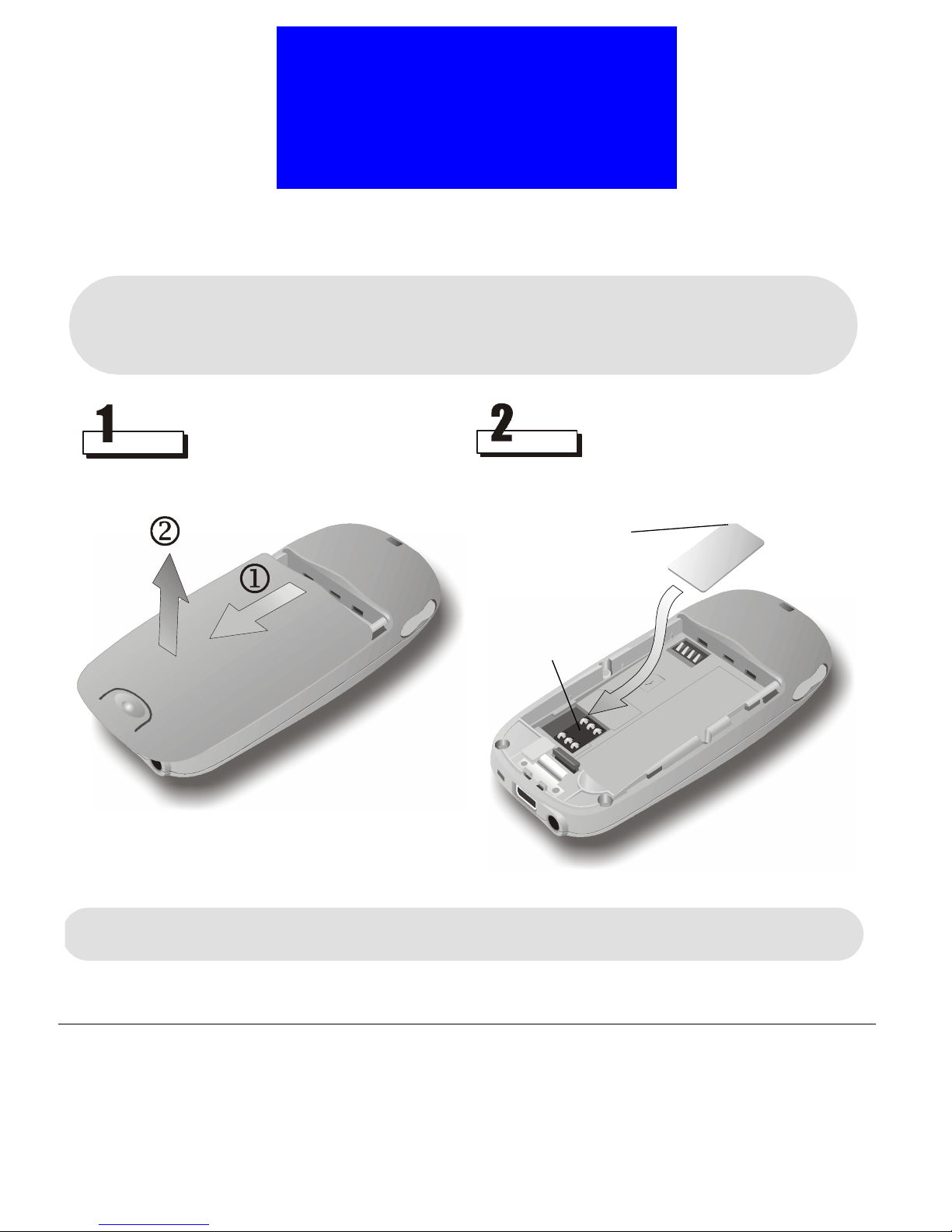
Installing SIM card
What is a SIM card?
The SIM (Subscriber Identification Module) card is a small plastic card with metal contact
on it. You get this card after you subscribe to your operator. Your personal subscriber information is stored in the SIM card and you need to use this card in the phone to make/receive
calls and access services provided by your operator.
• Turn the phone face down.
• Open the back cover.
• Slide the SIM card into the SIM card socket.
The bevelled corner
SIM card socket
Pay special attention to the SIM card when you install. The metal contacts can be damaged
easily by scratches.
2
Page 21
Making Your First Call
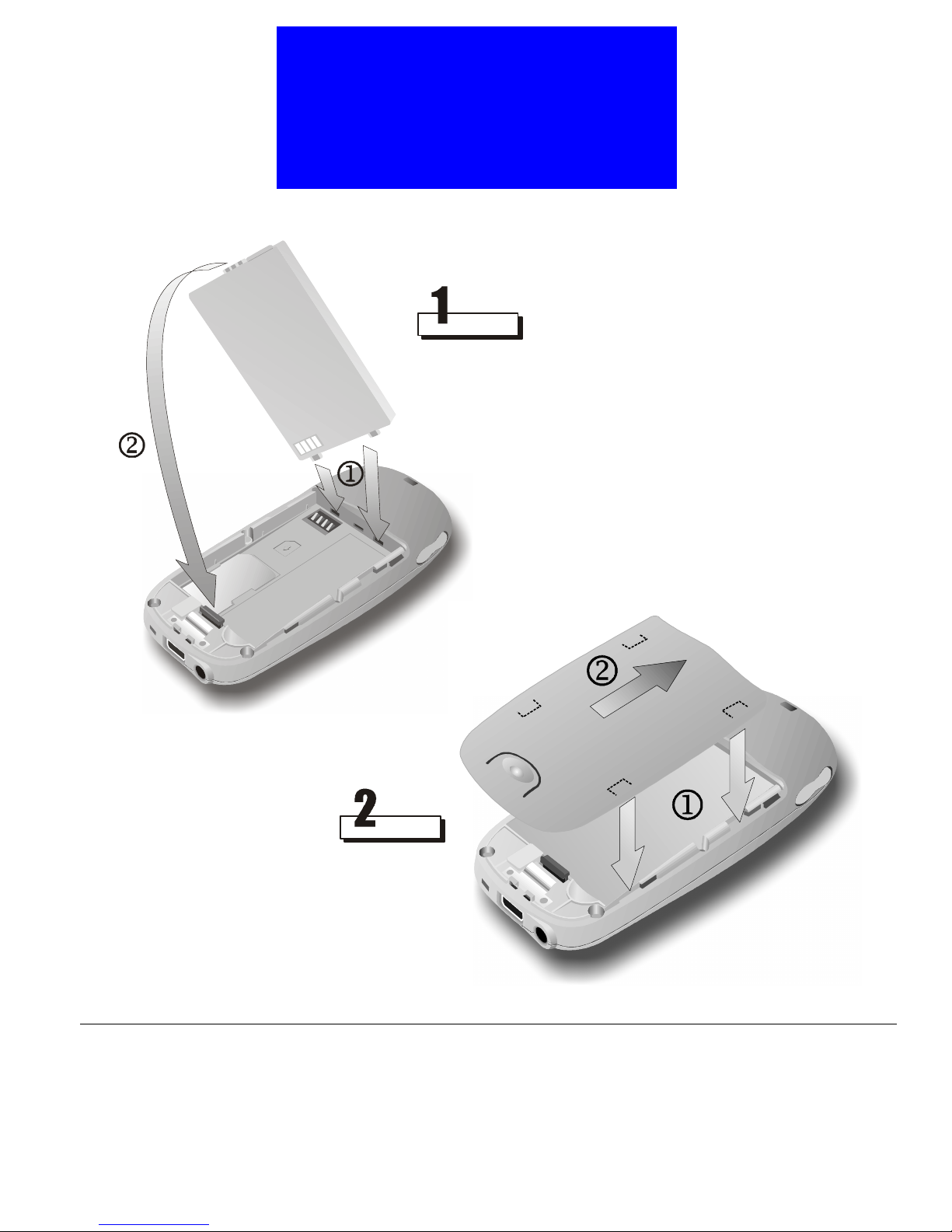
Installing and charging the battery
Place the top end of the battery on the back of the phone, then
push the bottom end into the phone until you hear a click.
Install the battery cover as shown.
3
Page 22
Making Your First Call
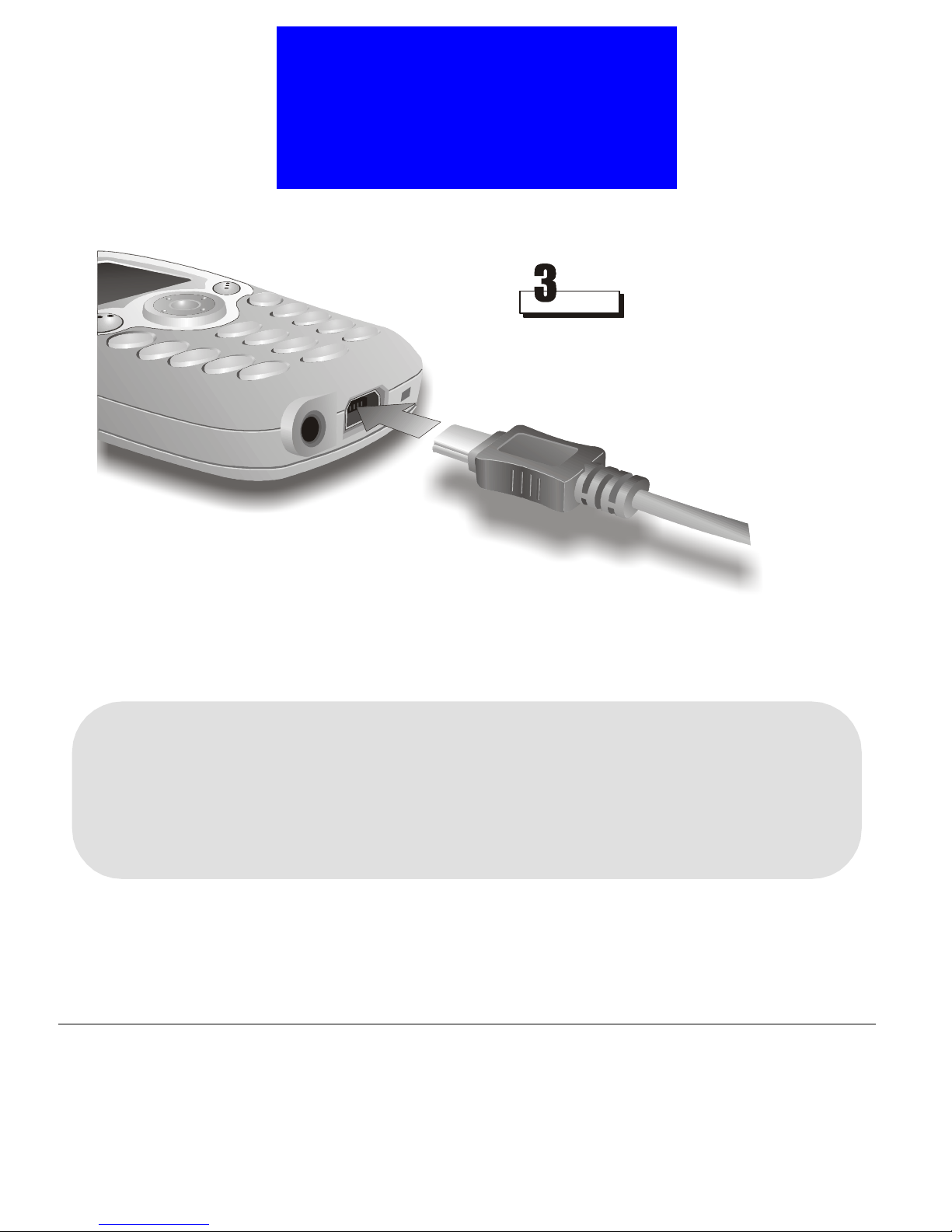
Insert the battery charger connector into the
battery charging socket located at the bottom of
the phone, and then plug into the electric
power outlet.
Note
• When the battery is being charged, the bars of the charging status icon on phone screen
scrolls. When charging is completed, the bars will stop scrolling.
• You can use the phone while charging, however, it will take longer to charge the battery.
• For future use of the battery, it takes approximately 3 hours to complete the recharging
process.
• When battery power is low, low battery message will appear on the screen. Charge the
battery immediately. If battery power runs out, the power of phone will be turned off
automatically.
4
Page 23
Making Your First Call
Turning on the phone
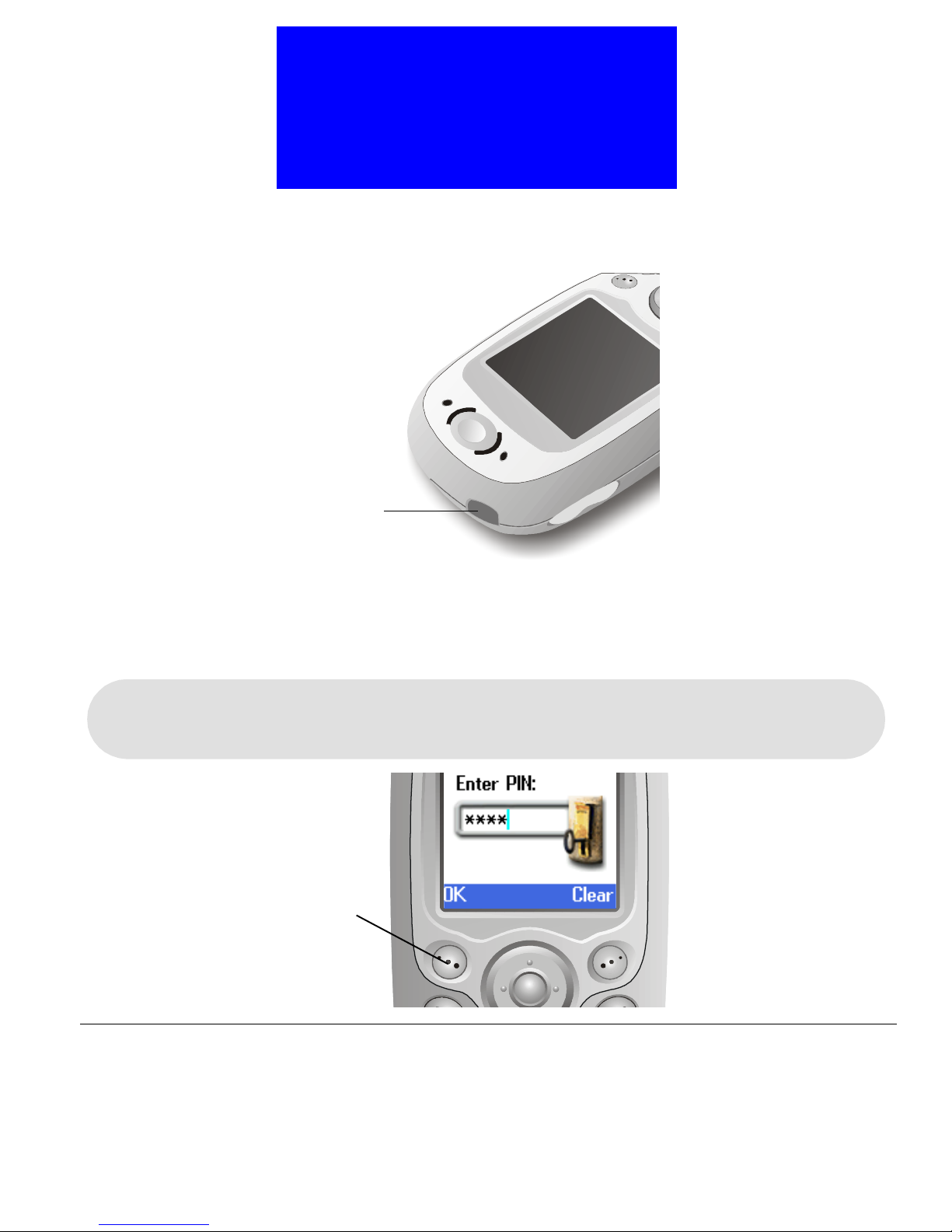
Press and hold the power key located on the top of the phone.
Power key
A welcome screen appears and you probably will be asked to enter your PIN
code. Enter the PIN code and press OK. If you accidentally typed a wrong
number, press Clear to erase it.
Note
For convenience of operation, your phone is equipped with two soft keys. You can press a
softkey to execute the function that is indicated on the screen. In this manual, “press OK”
refers to “press the softkey under OK that is displayed on the screen”.
Press this soft key to confirm
the PIN code you entered.
5
Page 24

After the PIN code is verified, you will be prompted to enter current time and
date. Enter the information and press OK.
The phone will start searching for the network to use. If network is available,
the operator name, signal strength and some other icons will appear on the
screen (see "Icons on the screen"on page 11 for details). This is called the
standby mode of the phone.
Dialing the number
Enter the number you want to dial (including the area code) and press
key. If the phone number you entered is wrong, press Clear to erase a wrong
number, or press and hold Clear to clear a whole line.
Making Your First Call
Ending the call
6
When you want to end the call, press key (or press End). The call will be
terminated.
Page 25

Introduction to Your Phone
7
Page 26
Introduction to Your Phone
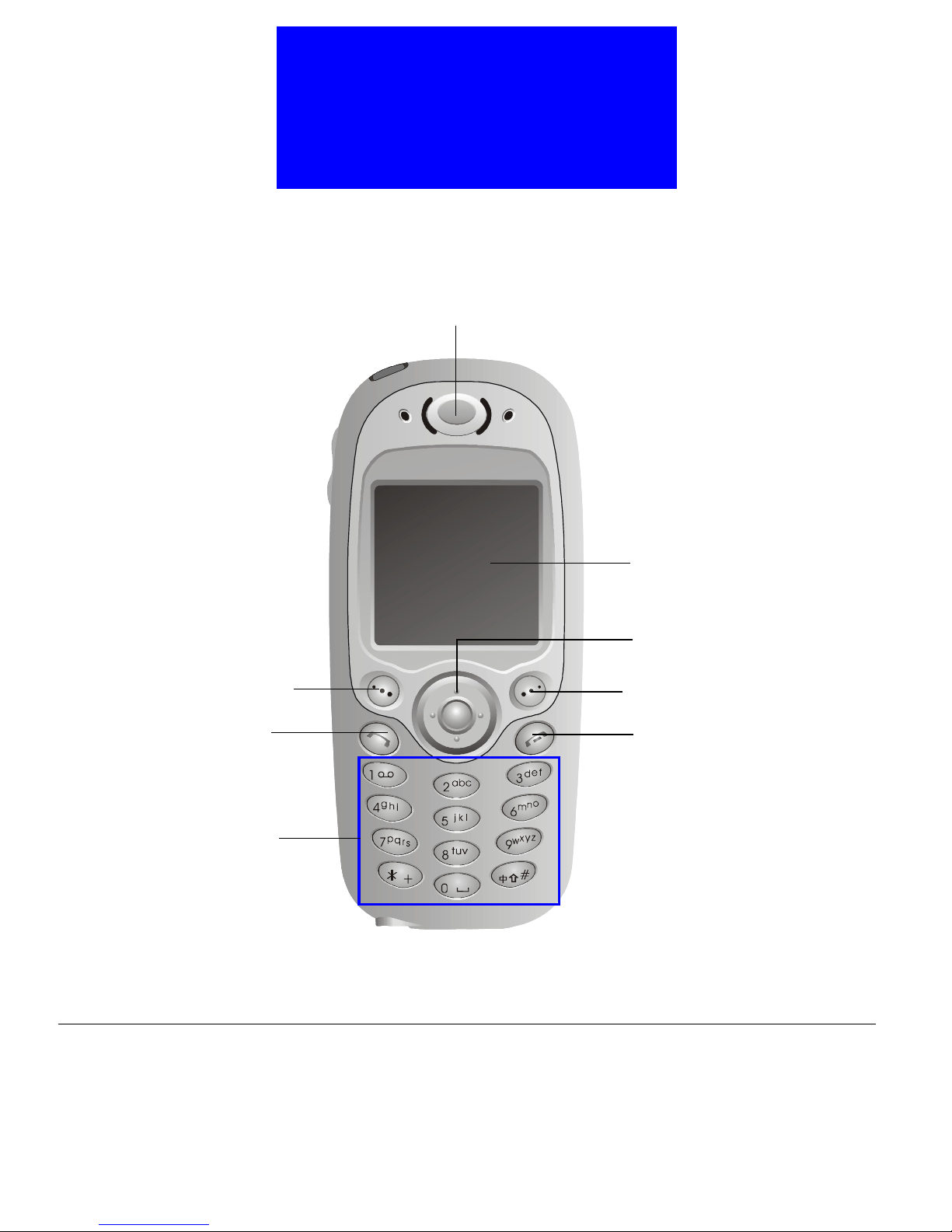
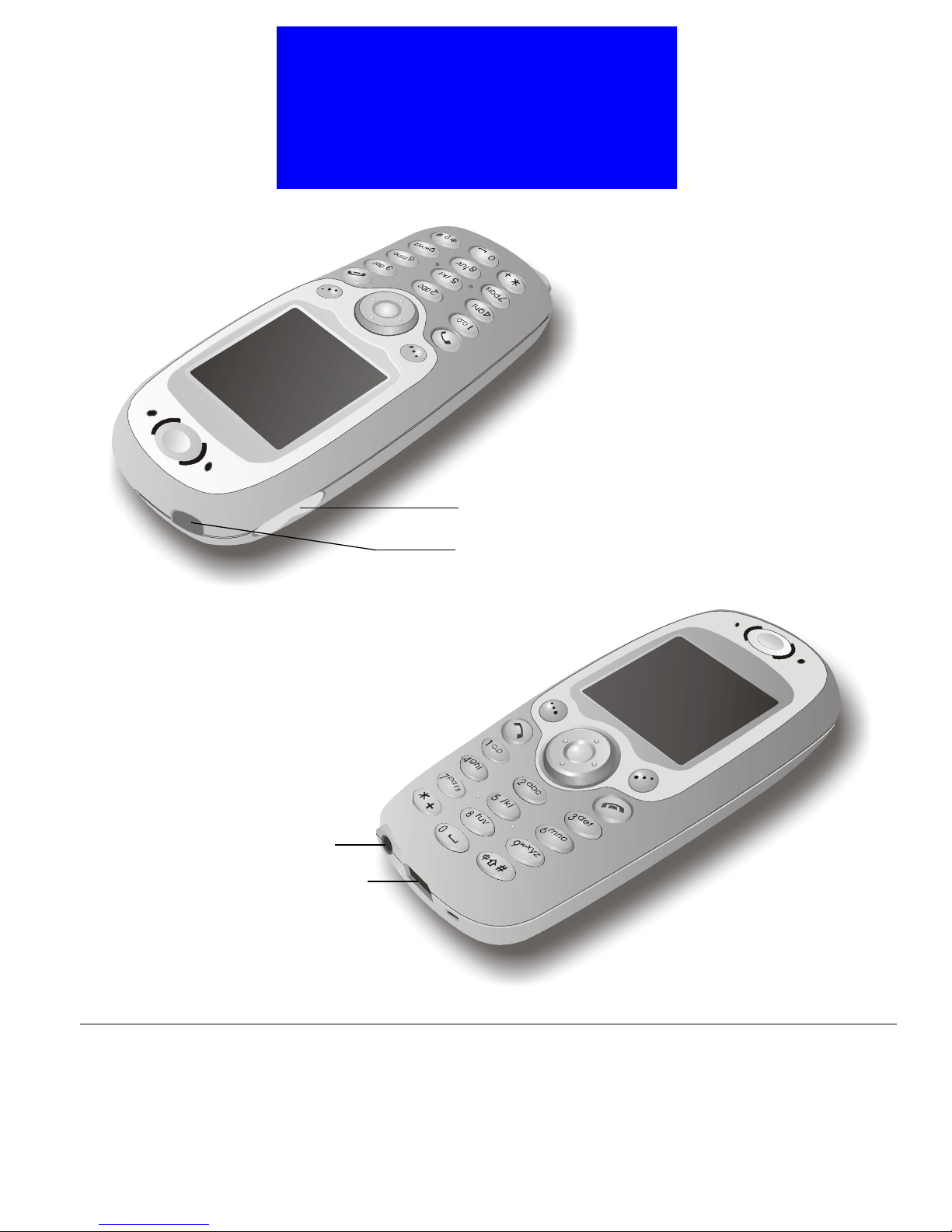
Parts of your phone and their names
Front view
Earpiece
Screen
Navigation key
Left soft key
Send key
Alphanumeric keys
Right soft key
Power/End key
8
Page 27
Introduction to Your Phone
Earpiece volume adjustment key
Power key
Top view
Bottom view
Earphone jack
Battery charger socket & Data cable
connector
9
Page 28
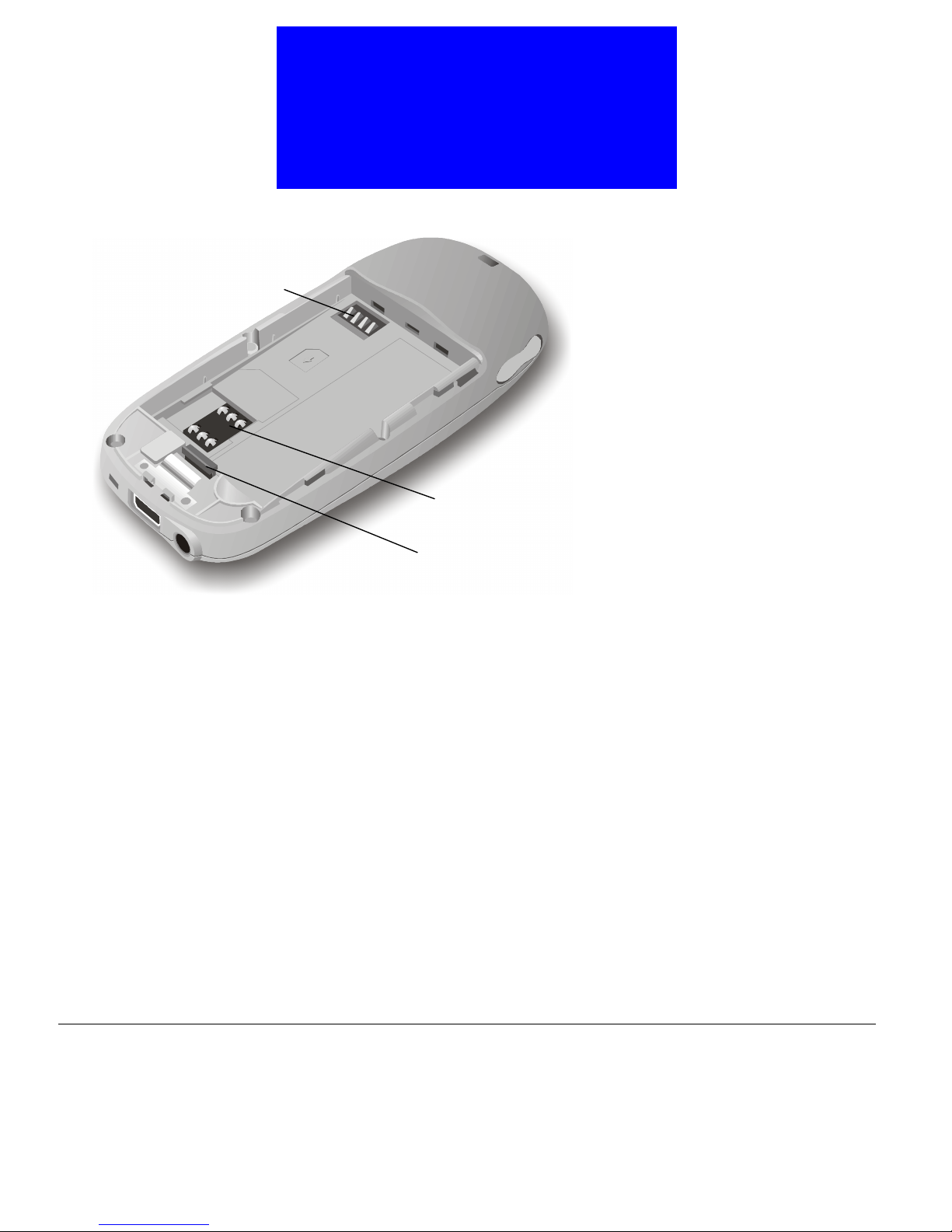
Battery terminals
Introduction to Your Phone
Rear view
SIM card socket
Battery latch
10
Page 29
Introduction to Your Phone
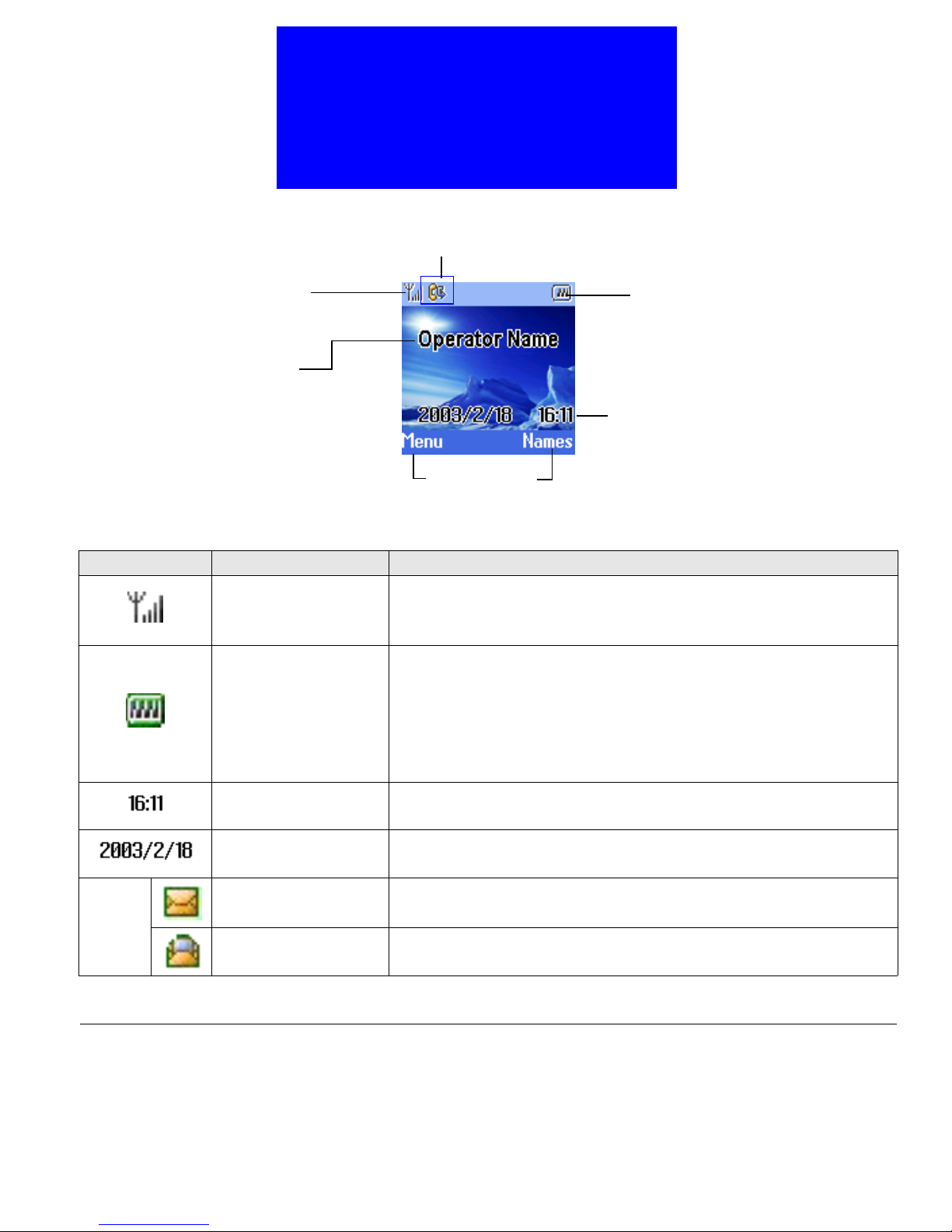
Icons on the screen
Status icon(s)
Signal strength
Operator name
Soft key items
Battery power level
Current time
Please refer to the table below for the icons that appear on the screen and their
meanings.
Icon Name Description
Shows the condition of signal reception. The more the num-
Signal strength
ber of vertical bars, the better the reception of signal (Appearance of 4 bars indicates the best signal reception).
Shows remaining battery power. The more the number of
vertical bars, the more the battery power (Appearance of 4
Battery power level
bars indicates that the battery is full).
If battery power is near empty, charge it immediately. When
charging, the vertical bars scroll until the battery is fully
charged.
Current time
Current date
Shows current time. See "Setting up current time and date"on
page 64 for how to set up current time.
Shows current date. See "Setting up current time and date"on
page 64 for how to set up current time.
Status
New text message
icons
Message full
Appearance of this icon indicates that you have new unread
text message(s).
This icon appears when the message storage is full. You need
to delete some messages.
11
Page 30
Introduction to Your Phone
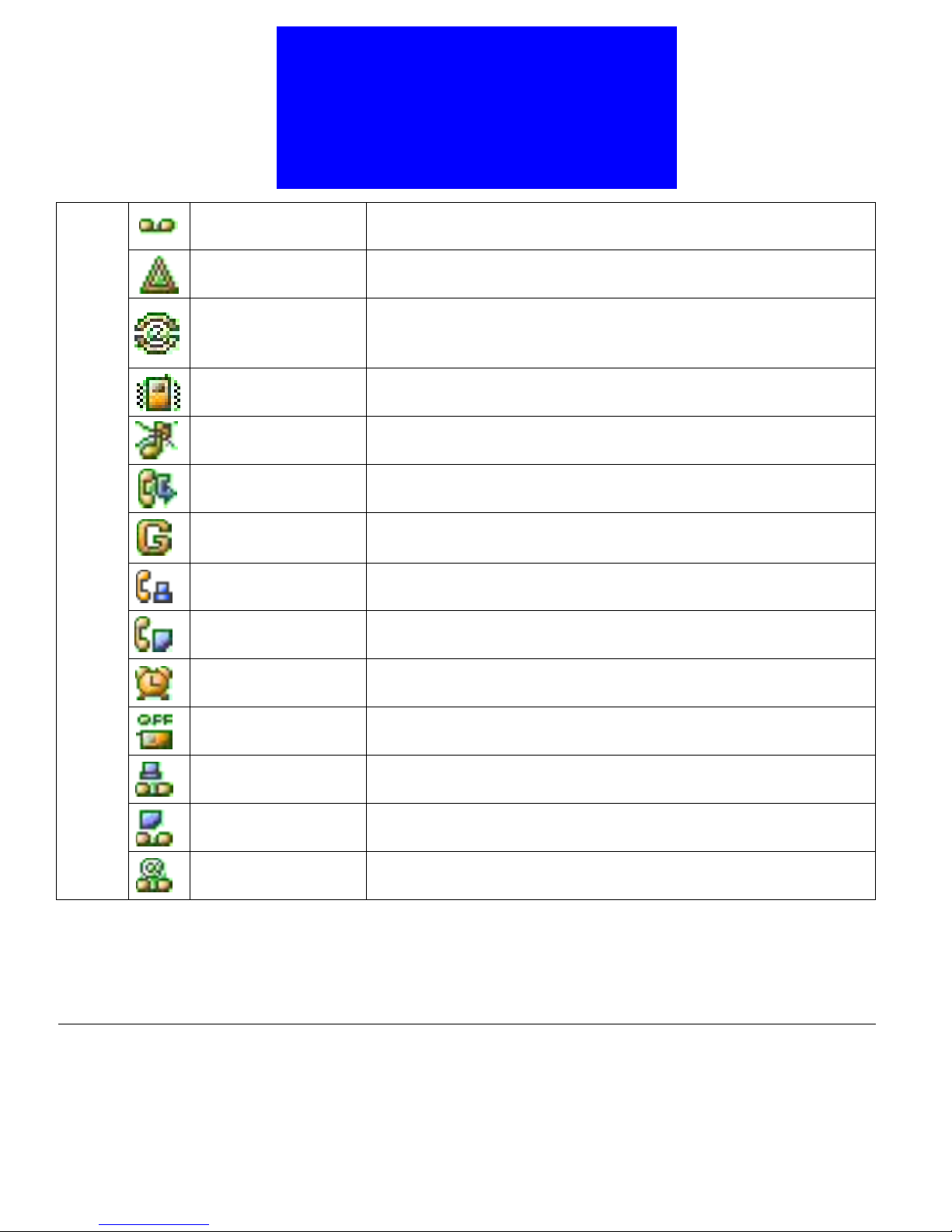
Status
icons
New voicemail
message
Roaming
Appearance of this icon indicates that you have new voicemail
messages.
This icon appears when you are roaming under another network.
If you speak with the second telephone line, this icon will
Line 2
appear. (See "Selecting a phone line to use"on page 56 for
details)
Vibrator on This icon appears when the vibrator function is turned on.
Silent This icon appears when you turn off all sounds of your phone.
Call divert
GPRS mode
Next call is set as fax
call
Next call is set as
data call
This icon shows that the call divert function is turned ON.
(See "Call divert"on page 52 for details)
When your phone has been connected to the GPRS network,
this con will appear.
This icon appears when you have set your phone ready to
receive the next incoming call as fax call.
This icon appears when you have set your phone ready to
receive the next incoming call as data call.
12
Alarm If you have activated the Alarm function, this icon will appear.
Auto power off
If you have activated the Auto Power Off function, this icon
will appear.
New fax message This icon appears when you have received a new fax message.
New data message
New e-mail
This icon appears when you have received a new data message.
This icon appears when you have received a new message in email format.
Page 31
Introduction to Your Phone
The keys on the phone
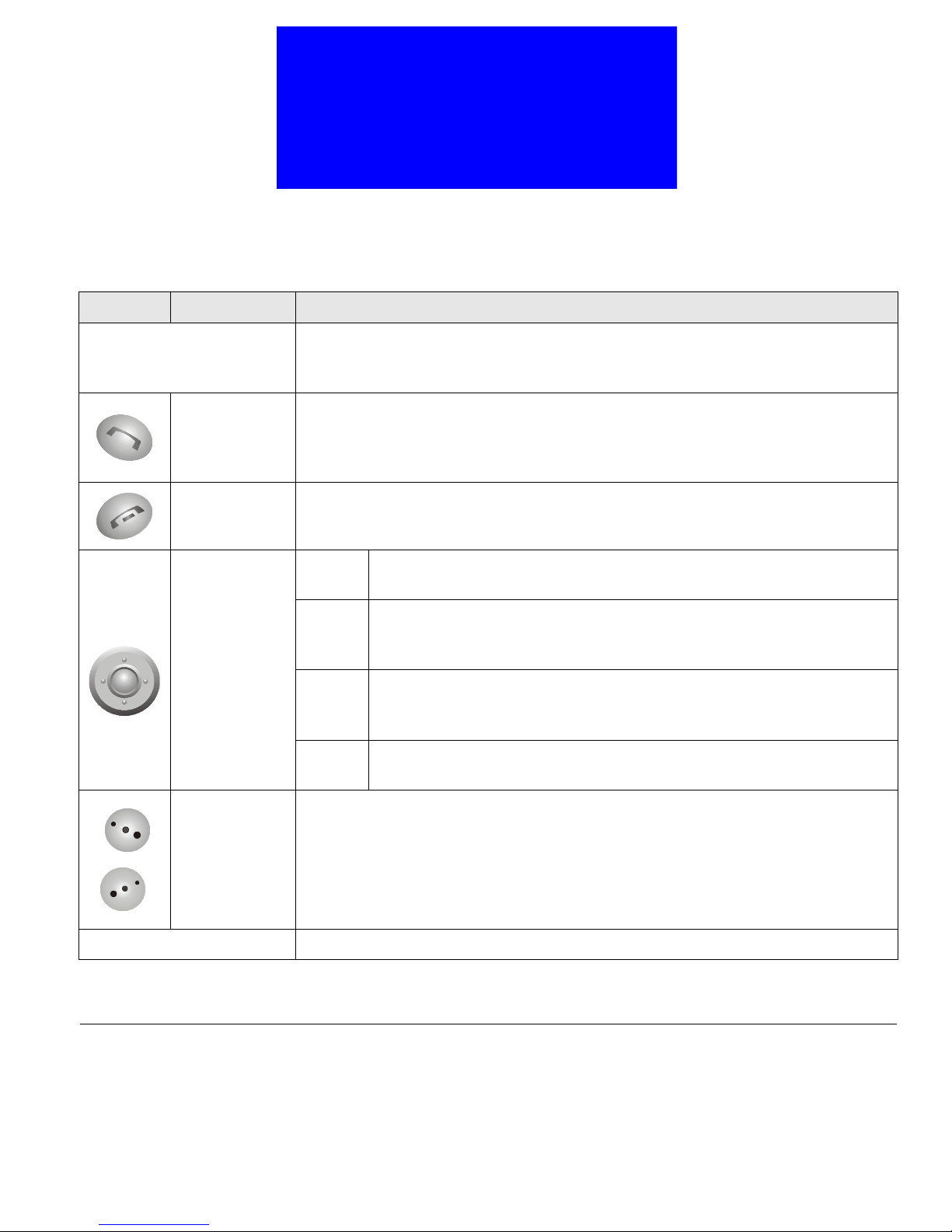
Function keys
Key Name Description
• Long press this key to turn phone power on or off.
Power key
Call key
Cancel key
• When phone power is on, press this key to open the Profile Selection
menu. (See "Selecting sound profile"on page 18 for details)
• When there is an incoming call, press this key to answer the call.
• After phone number is entered using alphanumeric keys, press this key
to dial.
• In standby mode, press to view the last dialed calls. Press again to dial.
• Press to return to standby mode from the Main Menu.
• If there is an incoming call, press to reject the call.
Up
Left
Navigation
key
Right
Down
Left/Right
Soft keys
Volume adjustment key Press the key to adjust earpiece volume.
Press these soft keys to execute corresponding commands that appear
above them on the screen.
• In standby mode, press to access Phone Book.
• In Main Menu, press to scroll items up.
• In standby mode, press to view missed calls.
• In Main Menu, press to return to the previous menu level.
• When entering text, press to move the cursor to the left.
• In standby mode, press to view answered calls.
• In Main Menu, press to go to the submenus.
• When entering text, move the cursor to the right.
• In standby mode, press to access Phone Book.
• In Main Menu, press this arrow to scroll items down.
13
Page 32
Introduction to Your Phone
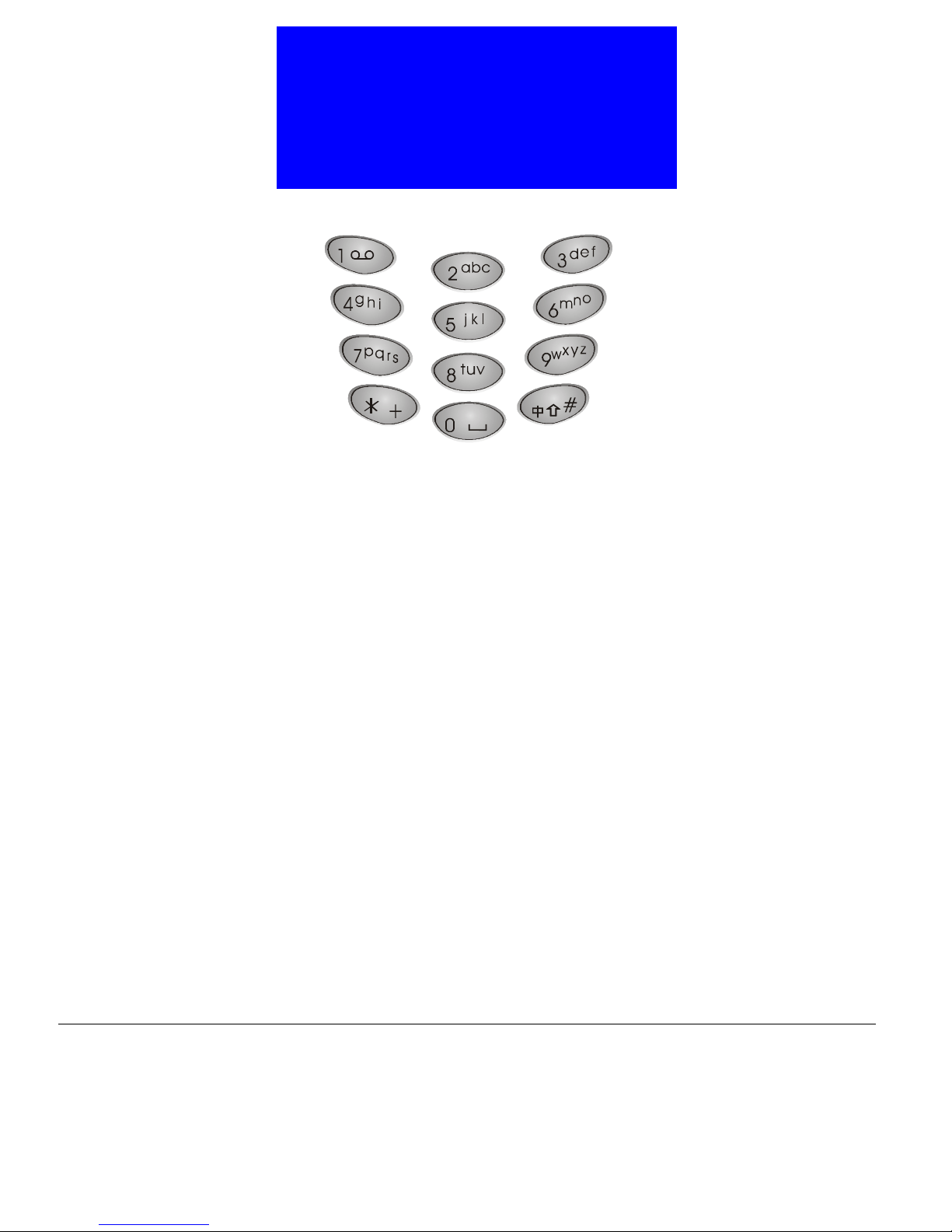
Alphanumeric keys
The alphanumeric keys on the phone can be used to enter numbers and letters.
To enter phone numbers, press corresponding number keys directly. To enter
letters, please see "Entering text"on page 22 for details.
14
Page 33

Basic Operations
15
Page 34

Turning on the phone
When phone power is off, press and hold the power key to switch it on.
If the PIN code protection function has been activated, you will be asked to
enter your PIN code. Enter the code and press OK. You can also choose to
turn off PIN code protection. Please see "Activating/deactivating PIN code"on
page 69 for details.
A welcome screen will appear and the phone will start searching for its home
network automatically. If the network is found, the operator and phone profile name, battery level icon and signal strength icon (and other icons if available) will appear on the screen.
Now the phone enters its standby mode. In this mode, you can:
• Press the right soft key to enter Phone Book.
• Press the left soft key to access Main Menu.
• Press Up or Down to browse your Phone Book records.
• Press Left to view missed call records.
• Press Right to view answered call records.
• Long press key to access your voicemail box.
• Long press key to access My shortcut.
• Press the power key to access Profile menu.
Basic Operations
Turning off the phone
When hone power is on, long press the power key to switch it off.
Making a call
In standby mode, you can make an outgoing call in the following ways:
• Enter phone number using alphanumeric keys and press key.
• Press key two times to redial the last dialed call.
• Press key to view last dialed call records.
Scroll to the one you want to call.
Press key to dial.
• Press Left to view missed call records.
Scroll to the number you want to call.
16
Page 35
Basic Operations
Press key to dial.
• Press Right to view answered call records.
Scroll to the number you want to call.
Press key to dial.
• Find a phone number in the Phone Book and press key to dial.
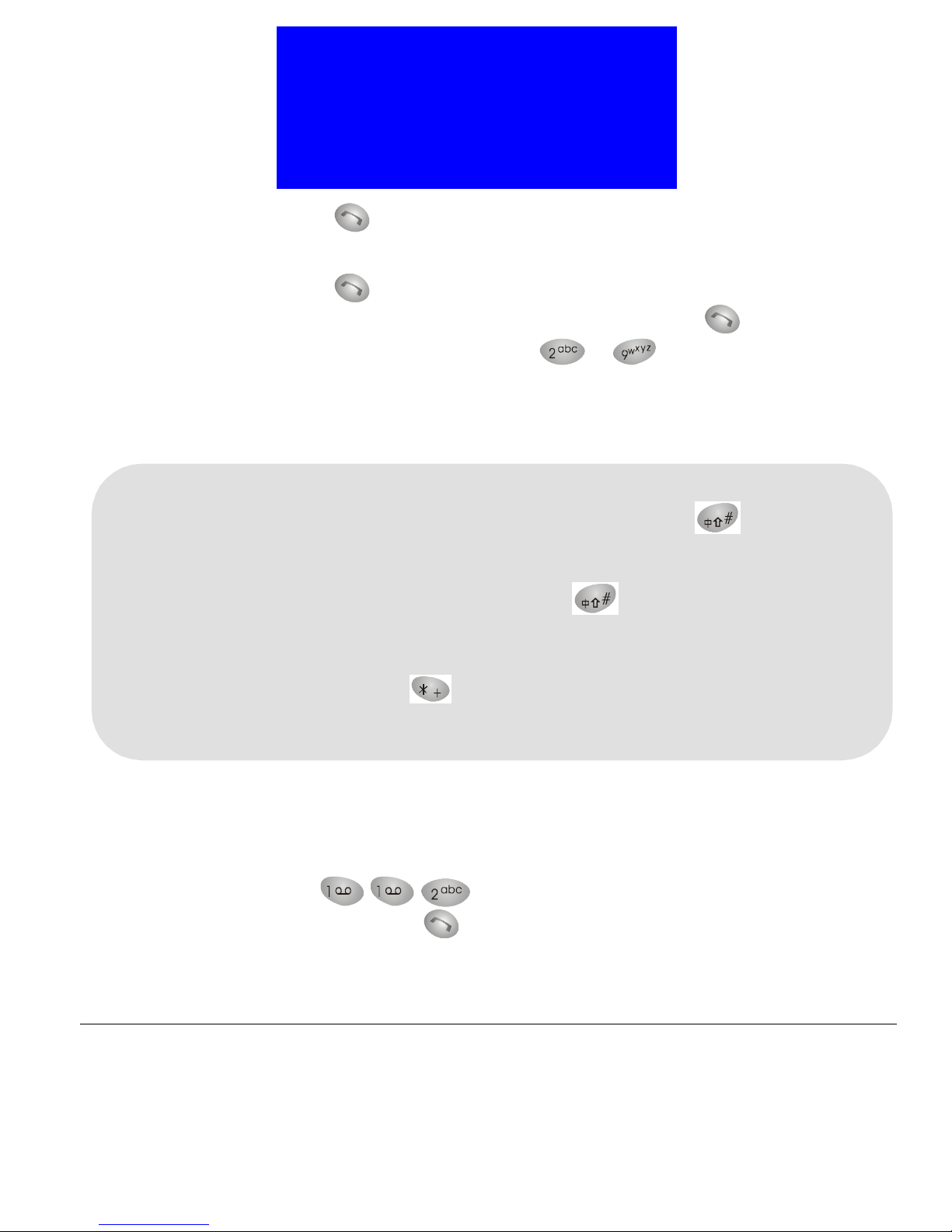
• Long press alphanumeric keys ~ to dial the phone number
located #2 ~#9 in the Phone Book. (You must set up Speed Dial and acti-
vate such function first. Please see "Setting up Speed Dial"on page 30 and
"Speed dialing"on page 57 for details)
Note
Inserting pause To insert a pause after phone number (used when there is an extension
number following the phone number), long press key until P
appears.
For example, to call extension number 234 after the number 1234567,
enter 1234567 and then long press key to insert a P, then enter
the extension number 234.
Making an
international call
To make an international call:
1. Long press key to insert a + (international dialing prefix).
2. Enter the recipient’s country code and area code (omit the starting 0).
3. Enter the recipient’s phone number.
During a call, the call time counter will appear on the screen, letting you know
the time you spent on the call.
Making an emergency call
Press (or any other emergency number specified by your
operator) and then key. Depending on your operator, the emergency call
can be made even when there is no SIM card in the phone.
17
Page 36

Answering a call
Your phone rings or vibrates (or remains silent, according to the setting of
sound profile) when an incoming call is received. Meanwhile, the caller’s name
(if the caller’s name can be found in your Phone Book) or number will appear
on the screen. Otherwise, “Unknown” will appear instead. You can:
• Press key (or any key on the phone except key, if the AnyKey
Answer function has been turned on) to answer the call.
• Press key to reject the call.
Ending a call
Press key to end a call. Depending on your setup in Session information
(see "Session information"on page 51 for details), the session information may
appear on the screen.
Missed call message
If you have missed calls, the number of missed calls will appear on the screen.
You can press Detail to view detailed missed call records, or Exit to clear the
screen and return to standby mode.
Basic Operations
Adjusting earpiece volume
During a phone call, press the volume adjustment key to increase/decrease earpiece volume.
Selecting sound profile
1. Press the power key in standby mode. The sound profiles menu will appear
on the screen.
2. Scroll to desired profile and press Select.
You can also customize these profiles. See "Customizing a sound profile"on
page 60 for details.
Options during a call
During a call, you have the choice to access several in-call options.
To access these options:
18
Page 37

Basic Operations
1. Press Options during a call.
2. Scroll to a desired item in the In Call Option menu that appears.
3. Press Select to select it.
Making a new call
To make a new call during a call:
1. Highlight Dial new call in the In Call Option menu and press Select.
2. Enter the phone number of the second call and press key.
Answering a new incoming call
If you have a new incoming call when you are already on a call, new incoming
call message will appear on the screen. Press key to put current call on
hold and answer the new call. Press key to end (or reject) the new incoming call and you will be connected to the old call automatically.
Transmitting DTMF tones
Ending calls
This feature allows you to send DTMF tones during a call. For example, when
you are asked to enter your bank account number during a telephone banking
service call.
To transmit DTMF tones:
1. Highlight Send DTMF in the In Call Option menu and press Select.
2. Enter the number you are asked to.
This feature allows you to end current call or end one of the calls on progress
on a multi-party call.
To end current call:
Highlight End Calls in the In Call Option menu and press Select.
• To end one call on a multi-party call, highlight the call party you want to
end and press Select.
• To end all calls, highlight All and press Select.
19
Page 38

Basic Operations
Consulting Phone Book
During a call, you can use this function to consult names and numbers in the
Phone Book. For details about Phone Book, please refer to "Phone Book"on
page 25.
To consult Phone Book during a call:
1. Highlight Phone Book in the In Call Option menu and press Select.
2. You will enter the Phone Book menu. You can search for a name and num-
ber or add a new number..., etc.
Accessing Main Menu
During a call, you can use this function to access the Main Menu. For details
about Main Menu, please refer to "The Main Menu"on page 36.
To access Main Menu during a call:
1. Highlight Main Menu in the In Call Option menu and press Select.
2. The Main Menu will appear on the screen.
Muting/unmuting the microphone
If you don’t want the calling party to hear your voice, you can use this function to mute the microphone.
To mute the microphone during a call:
Highlight Mute in the In Call Option menu and press Select.
To unmute the microphone:
Highlight unmute in the In Call Option menu and press Select.
Holding/unholding a call
If you have multiple calls in progress, you can use this function to hold one of
the calls.
To hold a call:
1. Highlight Hold in the In Call Option menu and press Select.
2. Select the call you want to hold in the menu that appears.
3. Press Select.
To unhold calls:
1. Highlight Unhold in the In Call Option menu and press Select.
2. Select the call you want to unhold in the menu that appears.
3. Press Select.
20
Page 39
Basic Operations
Listening to your voice mail
When a new voice mail is received, the icon appears on the screen. To listen to the new voice mail, long press key in standby mode and connect
to your voice mailbox.
Depending on your operator, you may need to configure your voice mailbox
before you can use this function. Please refer to "Configuring voice mailbox
number"on page 44 for how to setup your voice mailbox.
Reading messages
When a new message is received, new message alert will be generated
(depending on your sound profile setting) and the new message prompt will
appear on the screen.
To read the new message:
1. Press Detail to go to the list of received messages.
2. Scroll to the message you want to read and press Select.
Entering Text
The phone provides several input methods that enable you to enter text in
Phone Book, write a message..., etc. You can also switch among these input
methods easily.
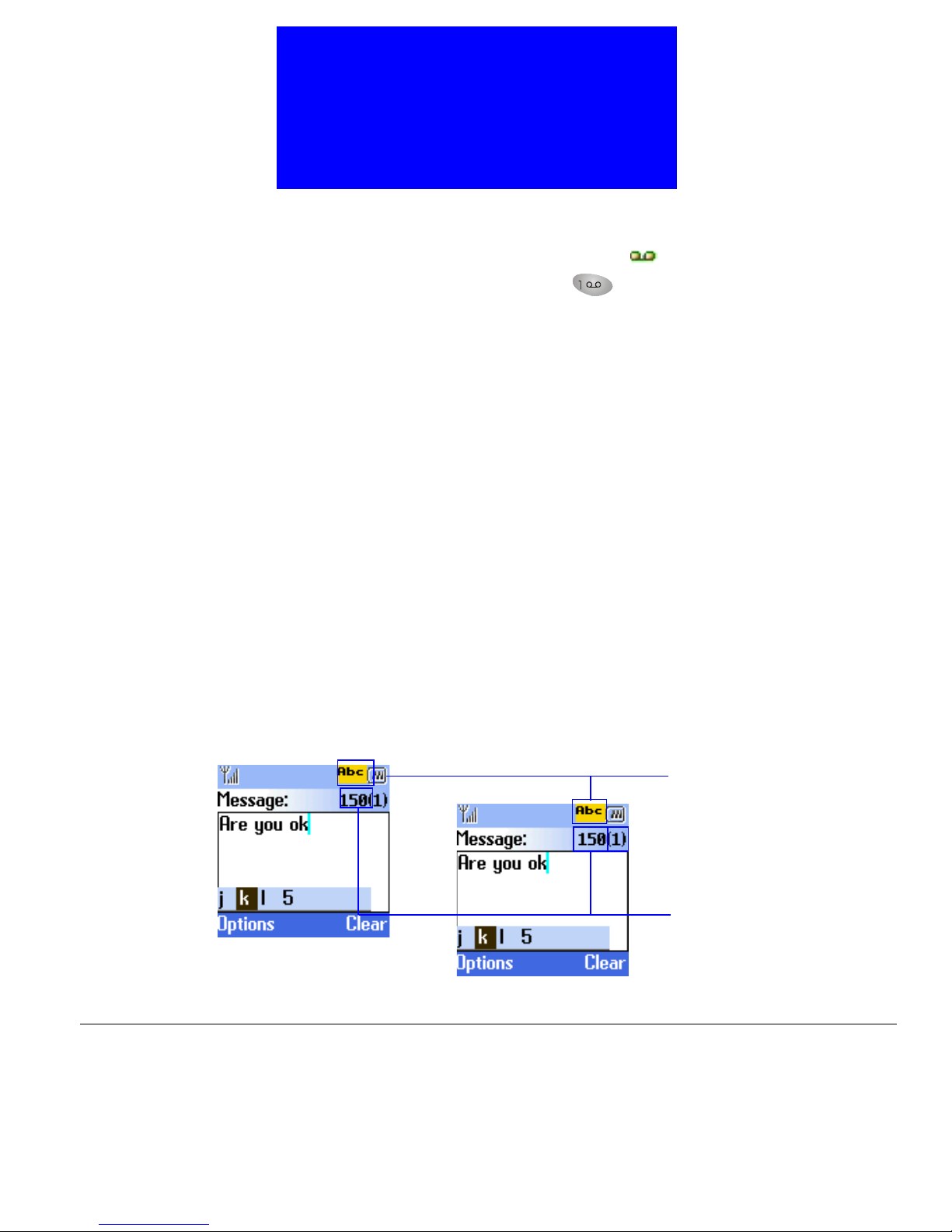
When you add a new entry to your Phone Book (see "Adding a Phone Book
entry"on page 26) or write a new message (see page), the following text editor
screen appears:
Phone Book editor screen
Current input mode
Remaining number of
characters available for
input
Message editor screen
21
Page 40
Selecting an input mode
1. Press key. Available input modes will appear on the screen.
2. Scroll to the desired input method and press Select. The selected mode will
appear on the upper right corner of the screen.
• abc mode: Allows you to enter lower case letters.
• ABC mode: Allows you to enter upper case letters.
• Abc mode: The first letter entered is automatically capitalized.
• 123 mode: Allows you to enter numbers.
• Punctuation (,.!?:;) mode: Enter punctuation marks.
Entering text
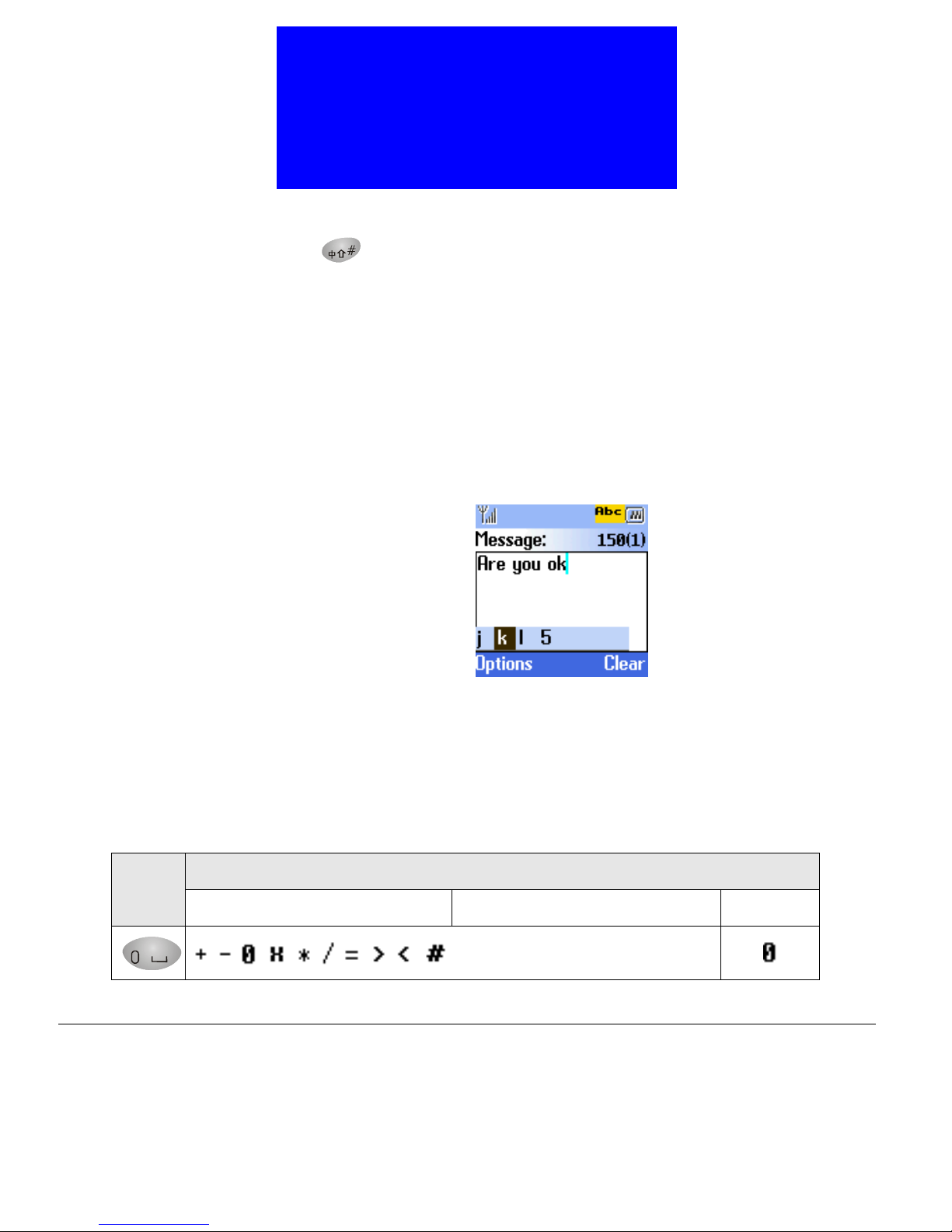
• Press a key and the corresponding letters will appear in a bar on the lower
part of the screen.
Basic Operations
22
• Press the key several times to highlight the desired letter (or number) and it
will be entered when the bar disappears. You can also proceed to enter the
next letter when the desired letter (or number) is highlighted. The remaining number of letters you can enter is shown on the upper right corner of
the screen.
The table below shows the mapping of each key and the corresponding letter
in different input modes.
Input Modes
Keys
ABC abc 123
 Loading...