

Page 1

Clover Station
Feature Guide
Page 2

English
1
Deutsch
Español
Français
Italiano
Nederlands
Polski
Português
10
20
30
40
50
60
70
Page 3

This guide describes
We are continuously
Clover Station’s hardware
and software features.
improving our software.
To see the latest version
of this guide, visit
clover.com/setup.
In Europe, visit eu.clover.com/setup
1 Clover Station Feature Guide English 2
Page 4

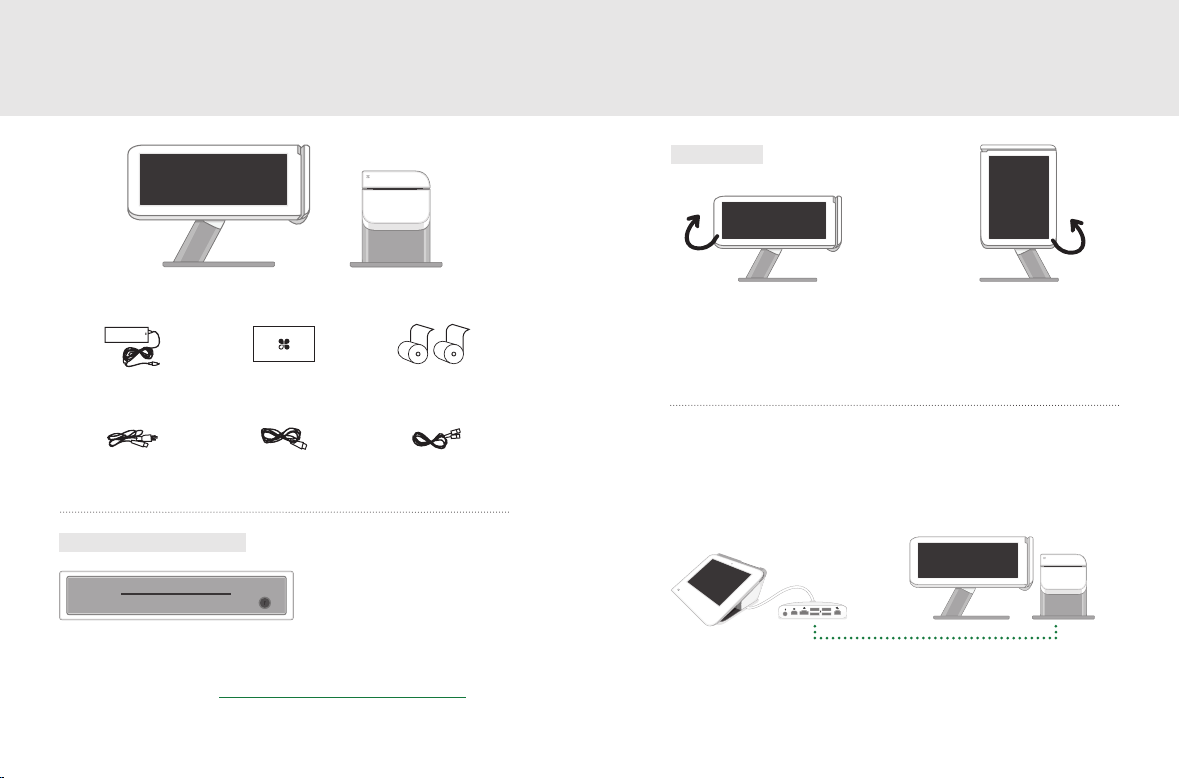
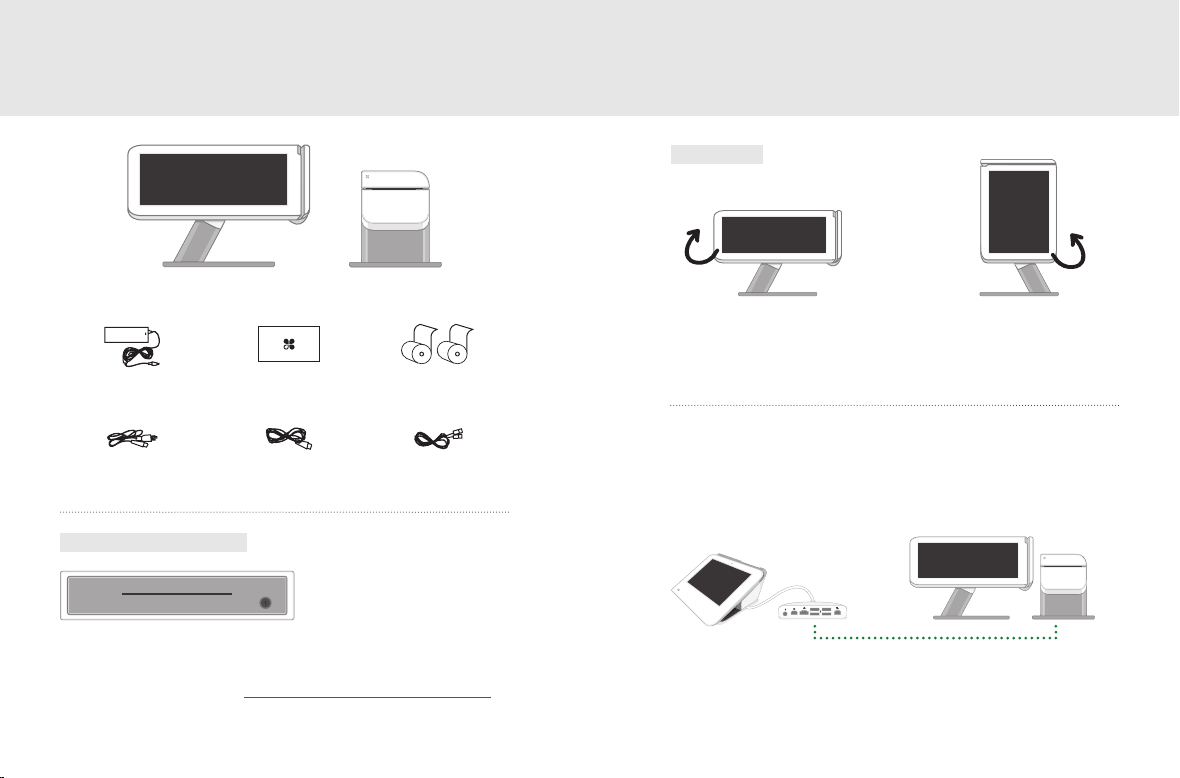
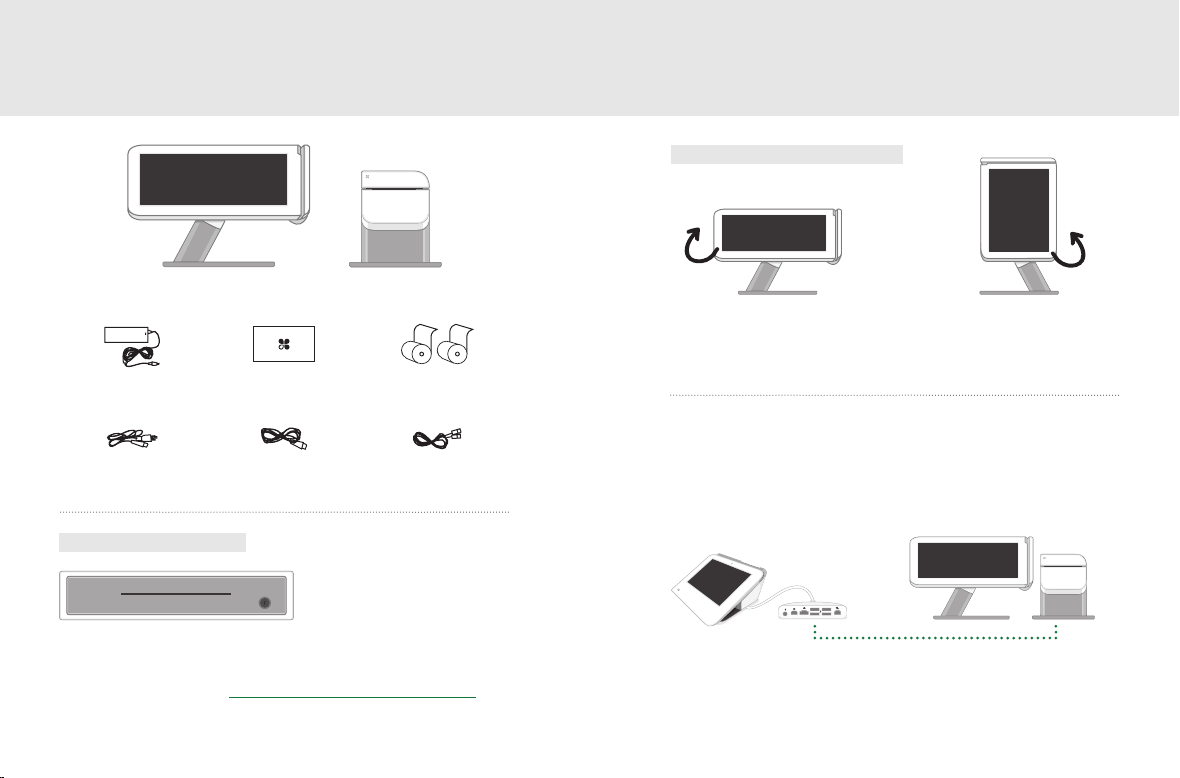
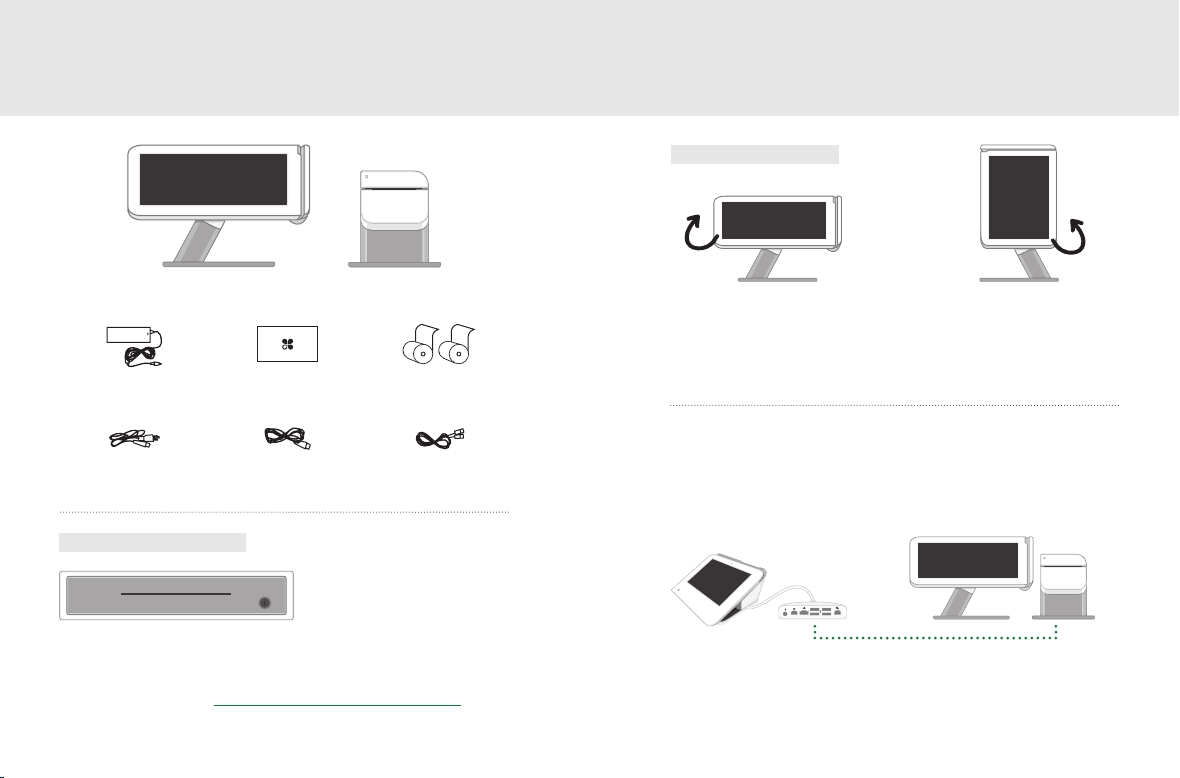
What’s included Get to know your Clover Station
Views
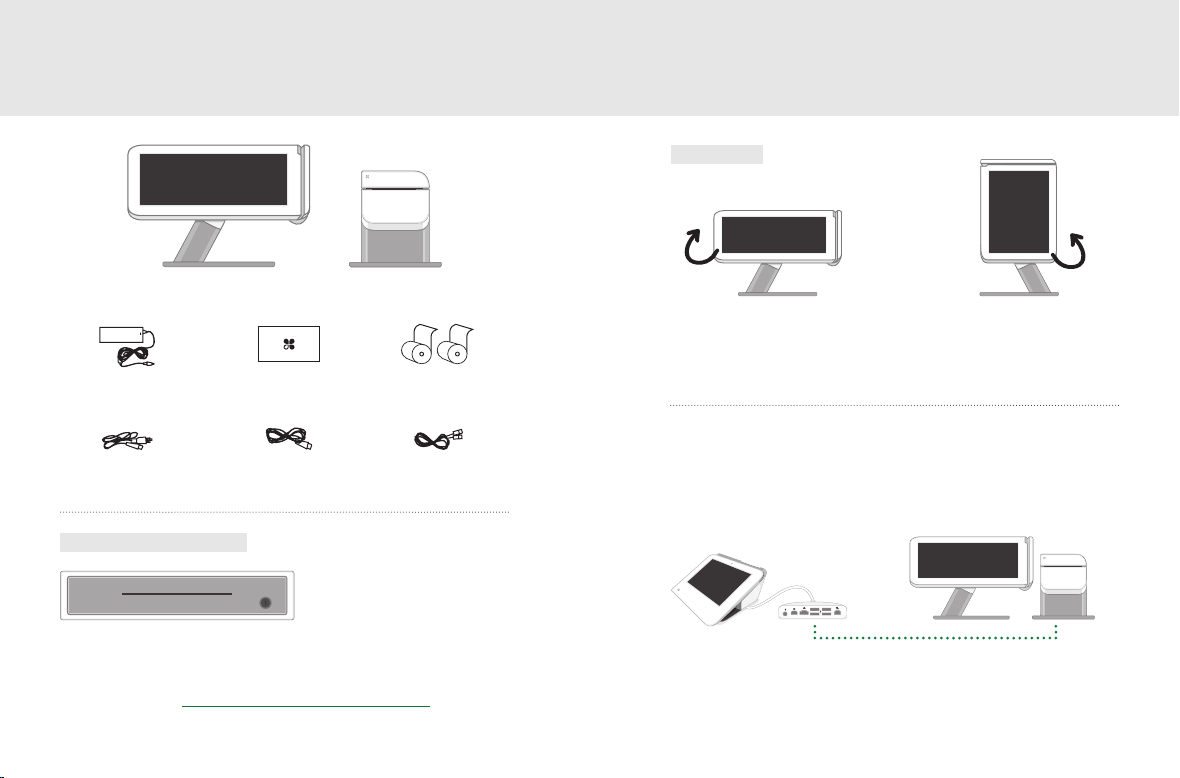
Clover Station display Receipt Printer
Merchant Facing Customer Facing
Rotate the display to switch smoothly between
merchant-facing and customer-facing mode.
Power brick
(region specic)
Optional Accessories
Cash Drawer
(And more: barcode scanner, label printer, kitchen printer)
See complete list: clover.com/pos-hardware/accessories
3 Clover Station Feature Guide English 4
Deposit bag
DisplayPower
Receipt paper x2
Ethernet
Optional Conguration
Clover’s hardware design adapts to your needs by oering
multiple USB ports for additional congurations.
Clover Mini + Clover Station
For more details visit clover.com/setup.
Page 5

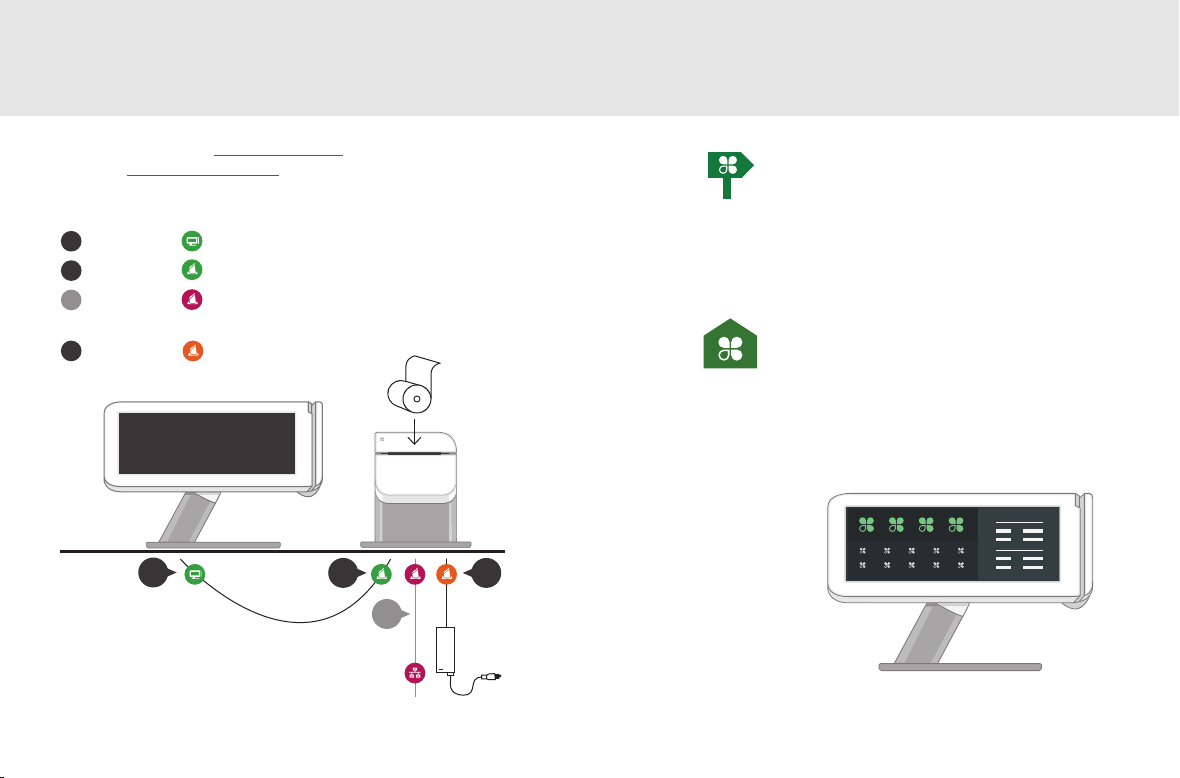
Set up your Clover Station
Video set up: clover.com/setup
Europe: eu.clover.com/setup
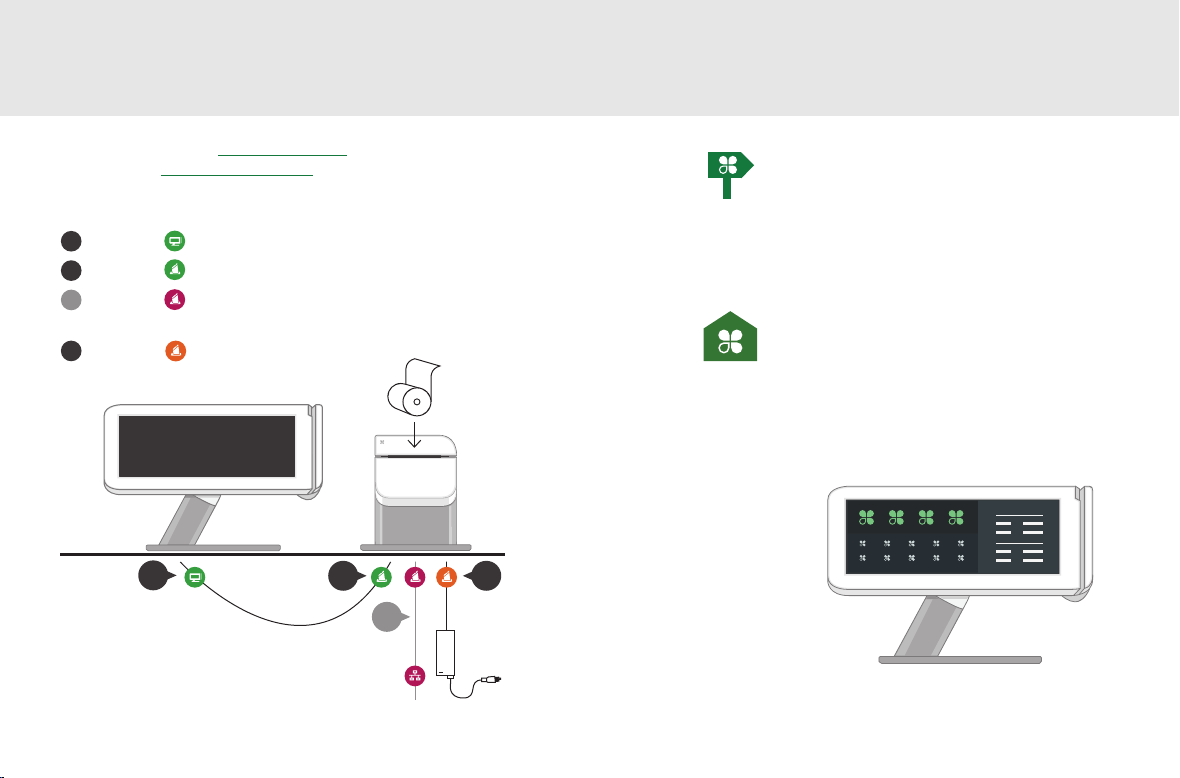
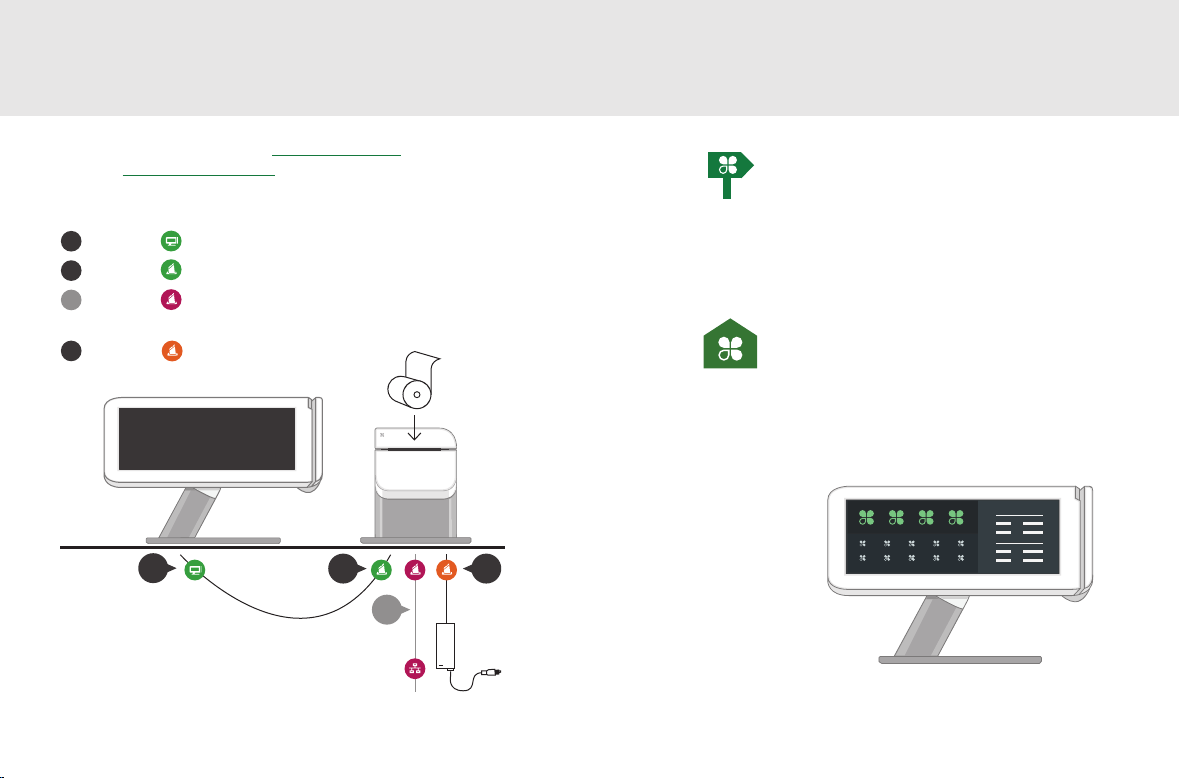
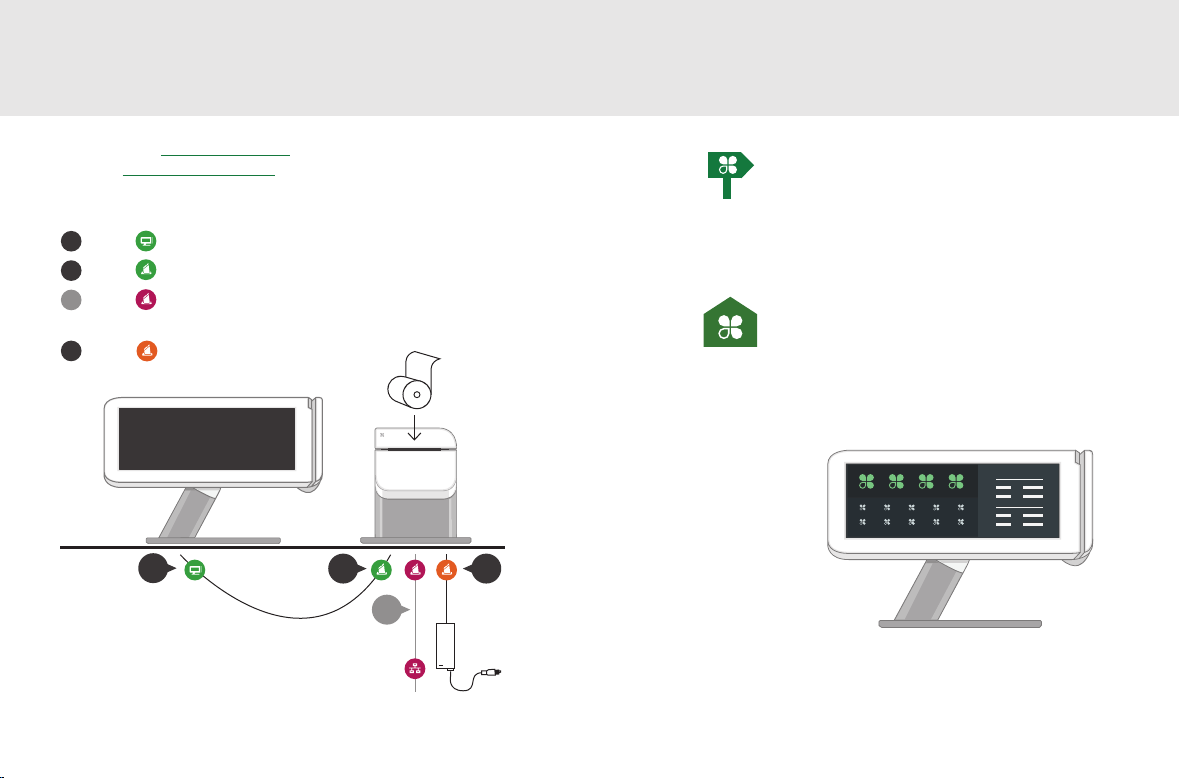
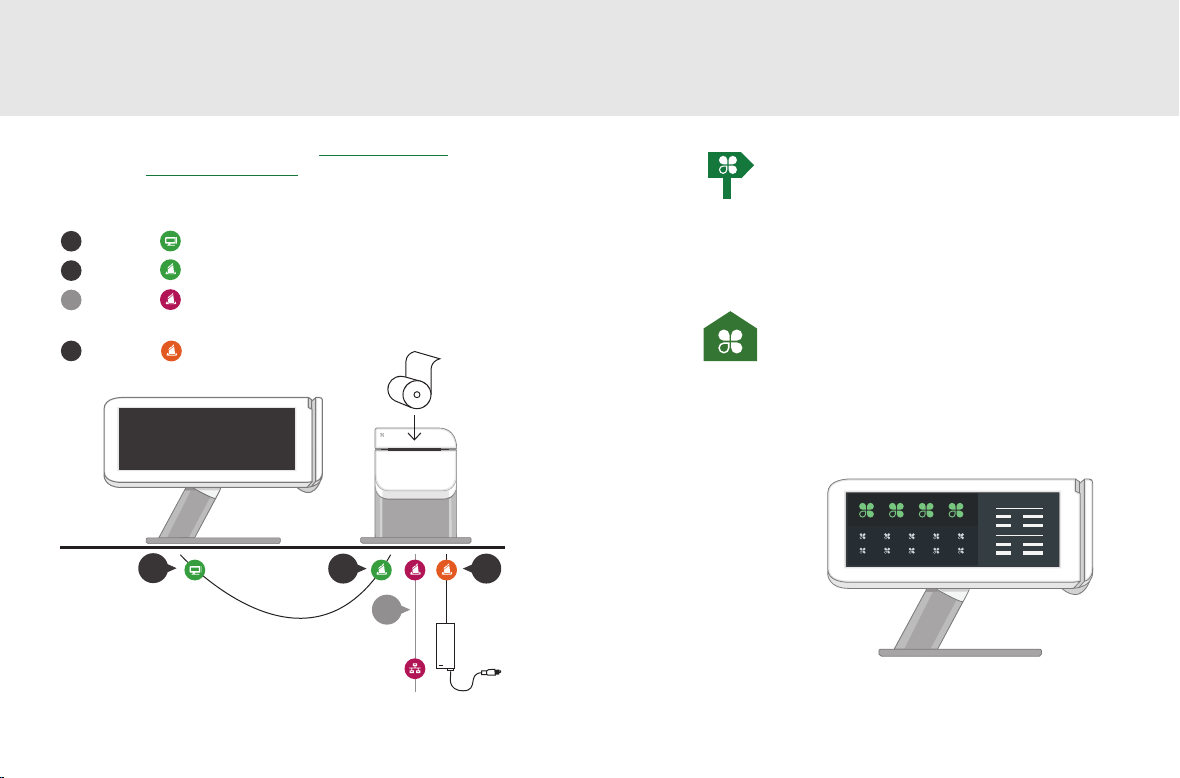
Connect the cables to the hardware in this order:
1
Plug into Display
2
Plug into Printer
3
Plug into Printer
(optional if using a wireless network)
Plug into Printer
4
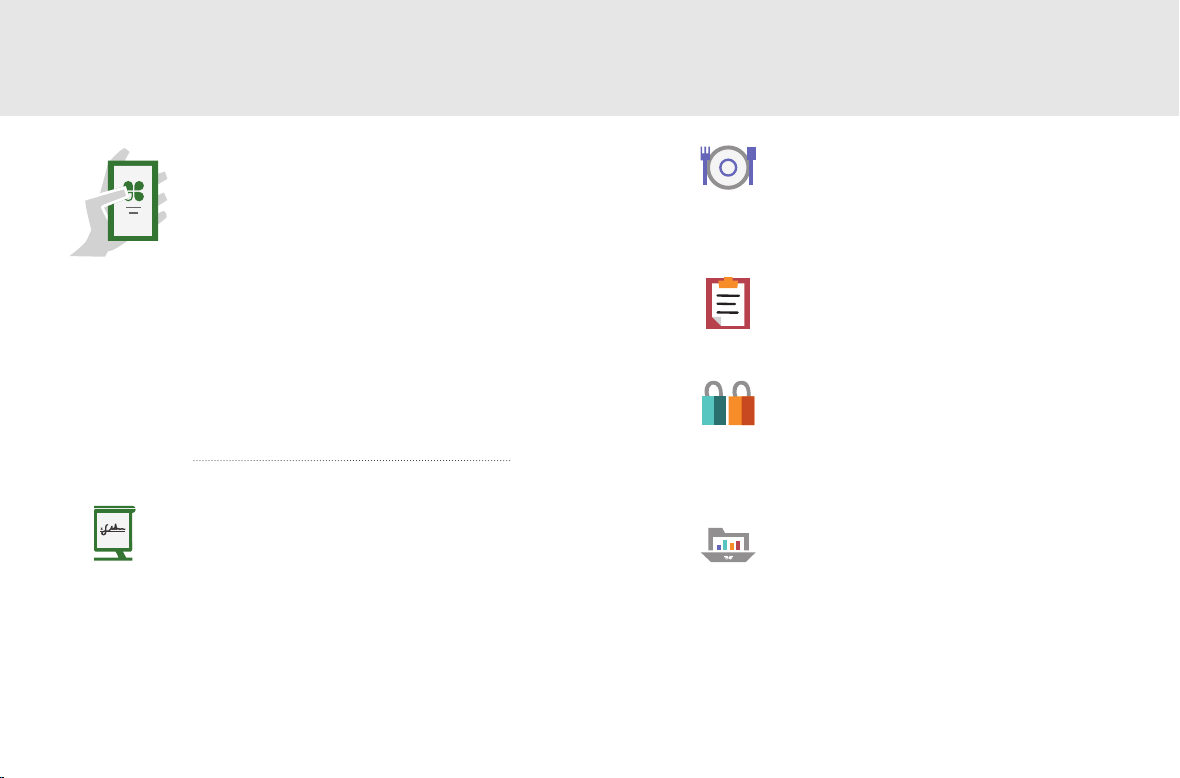
Getting Started
Setup Wizard
This is your guide for setting up Clover
Station. Your activation code is in your
welcome email.
Home
Use your Clover Home screen for quick
access to all your Clover apps. Employees
can also log in and out from here.
1
2
4
3
5 Clover Station Feature Guide English 6
Page 6

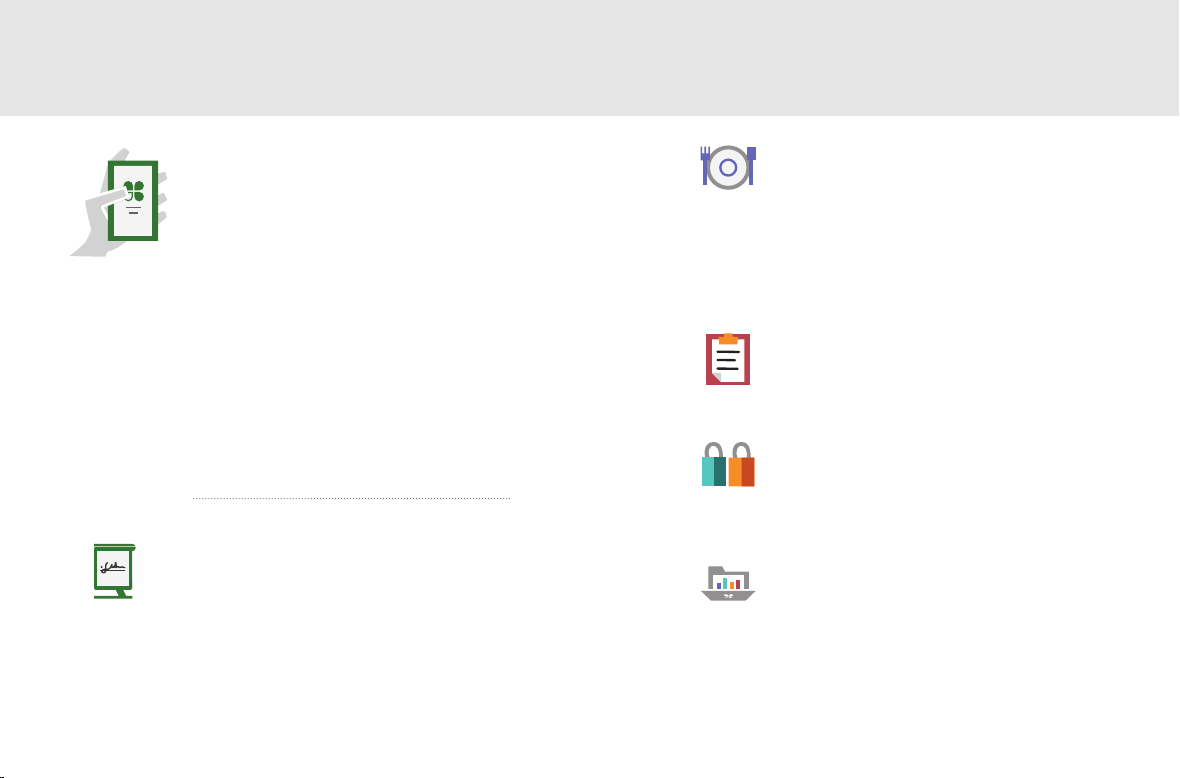
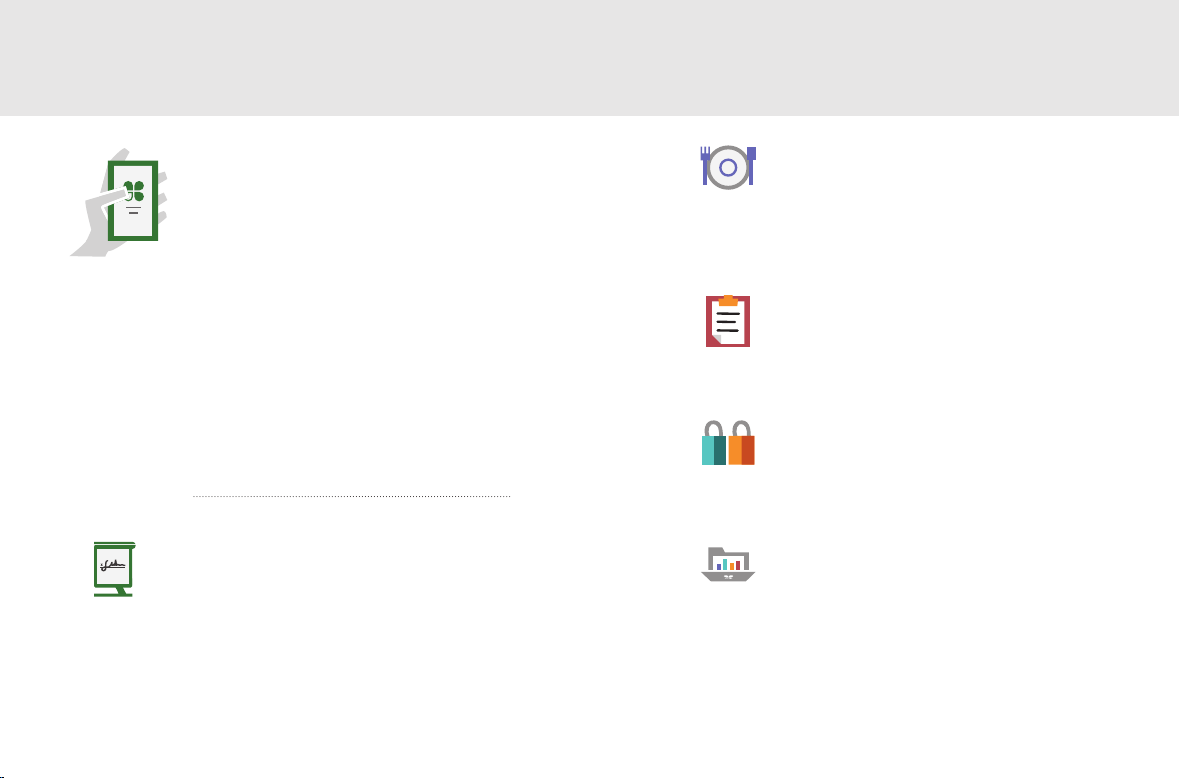
Applications
App Market
The power of Clover’s system
is in the variety of applications
Tables
Full Service Table Management
Full service restaurants: this is your home.
Assign tables to servers and manage table
ordering, printing, and paying from here.
available for download to suit
your specic needs. We’re
adding new ones all the time,
so be sure to check our App
Market periodically.
Register
Ring Up Transactions
Your home base for quickly creating and
charging for orders. View all of your items
in one place.
7 Clover Station Feature Guide English 8
Orders
Order Central
Track and nd your orders, add tips, and
refund payments.
Customers
Get to know your customers
Quick access to your customers and
their latest orders allows you to serve
them better.
Reporting
Analytics in an instant
Reports give you powerful insight into
your business. Get instant access to
payments, cash logs, and employee sales.
Page 7

Useful Resources
Web Access
Manage Your Apps
Some apps allow you to access them via
your web browser. We’ve put shortcuts to
these web pages at clover.com/home.
Please use Chrome, Safari, or Firefox.
In Europe, visit eu.clover.com/home
Need Help?
Visit help.clover.com, use the Help app,
or call us anytime at the phone number
given in your welcome email.
Funktionsübersicht für
Clover Station
9 Clover Station Feature Guide Deutsch 10
Page 8

Dieses Handbuch
Wir entwickeln unsere
beschreibt die Hardwareund Softwarefunktionen
von Clover Station.
Software ständig weiter.
Die neueste Version
dieser Anleitung nden
Sie auf clover.com/setup.
Für Europa nden Sie diese Informationen auf
eu.clover.com/setup
11 Funktionsübersicht für Clover Station Deutsch 12
Page 9

Lieferumfang Lernen Sie Clover Station kennen
Ansichten
Display von Clover Station Belegdrucker
Händleransicht Kundenansicht
Faites pivoter doucement l’écran pour passer du mode
faisant face au marchand au mode faisant face au
client et inversement.
Netzteil
Geldtasche
2Belegrollen
Optionale Konguration
(regionsspezisch)
DisplayEinschalttaste
Optionales Zubehör
Kassenlade
(Und mehr: Barcode-Scanner, Etikettendrucker, Küchendrucker)
Siehe vollständige Liste: clover.com/pos-hardware/accessories
13 Funktionsübersicht für Clover Station Deutsch 14
Ethernet
Das Hardware-Design von Clover passt sich mit mehreren
USB-Anschlüssen für weitere Kongurationen an Ihre
Anforderungen an.
Clover Mini + Clover Station
Weitere Informationen nden Sie auf clover.com/setup.
Page 10

Clover Station einrichten
Einrichtung per Video: clover.com/setup
Europa: eu.clover.com/setup
Schließen Sie die Kabel in der folgenden Reihenfolge an die
Hardware an:
1
Schließen Sie an das Display an.
2
Schließen Sie an den Drucker an.
3
Schließen Sie an den Drucker an
(bei einem drahtlosen Netzwerk bleibt dies freigestellt)
Schließen Sie an den Drucker an.
4
Erste Schritte
Einrichtungsassistent
Führen Sie die im Folgenden
beschriebenen Schritte aus, um Clover
Station einzurichten. Sie benötigen
dazu den Aktivierungscode aus Ihrer
Begrüßungs-E-Mail.
Startansicht
Über die Startansicht haben Sie schnellen
Zugri auf alle Clover-Anwendungen.
Außerdem dient sie zur An- und
Abmeldung der Mitarbeiter, die das Gerät
bedienen.
1
2
4
3
15 Funktionsübersicht für Clover Station Deutsch 16
Page 11

Anwendungen
App-Markt
Die Leistungsfähigkeit des
Clover-Systems beruht auf der
Vielzahl von Anwendungen, die
Sie entsprechend Ihrer speziellen
Anforderungen herunterladen
können. Wir stellen ständig
neue Anwendungen bereit;
daher sollten Sie den App-Markt
regelmäßig besuchen und prüfen,
was es Neues gibt.
Kasse
Abrechnungstransaktionen
Dies ist Ihre Basis für das schnelle
Eingeben und Abrechnen von
Bestellungen. Alle Posten werden
zentral angezeigt.
17 Funktionsübersicht für Clover Station Deutsch 18
Tische
Tischverwaltung mit Tischbedienung
Restaurant mit Tischbedienung: Dies ist
Ihre Startseite. Von hier aus können Sie
den Bedienungen Tische zuweisen und
Bestellungen der Tische, Ausdrucke und
Abrechnungen verwalten.
Bestellungen
Bestellungszentrale
Hier können Sie Ihre Bestellungen verfolgen
und nden, Trinkgelder hinzufügen und
Zahlungen zurückerstatten.
Kunden
Lernen Sie Ihre Kunden kennen
Durch den schnellen Zugri auf Ihre Kunden
und ihre letzten Bestellungen können Sie sie
besser bedienen.
Berichterstellung
Sofortige Analysen
Berichte geben Ihnen wichtige Einblicke in
Ihr Geschäft. Sie haben sofortigen Zugri auf
Zahlungen, Bargeldbestände und Verkäufe
der Mitarbeiter.
Page 12

Weitere Informationen
Internetzugang
Apps verwalten
Der Zugri auf bestimmte Anwendungen
erfolgt über Ihren Webbrowser. Auf
clover.com/home nden Sie Links zu den
entsprechenden Webseiten.
Verwenden Sie hierzu Chrome, Safari
oder Firefox.
In Europa nden Sie diese Informationen
unter eu.clover.com/home.
Hilfe
Nutzen Sie die Anwendung „Hilfe“,
besuchen Sie help.clover.com oder
setzen Sie sich unter der in Ihrer
Begrüßungs-E-Mail angegebenen
Telefonnummer mit uns in Verbindung.
Guía de funciones de
Clover Station
19 Funktionsübersicht für Clover Station
Español 20
Page 13

En esta guía se describen
Siempre estamos
las funciones del
hardware y el software
de Clover Station.
mejorando nuestro
software. Para ver la
versión más reciente de
esta guía, visite
clover.com/setup.
En Europa, visite eu.clover.com/setup
21 Guía de funciones de Clover Station Español 22
Page 14

Contenido Descripción de Clover Station
Vistas
Pantalla de Clover Station Impresora de
recibos
Orientada al vendedor Orientada al cliente
Gire la pantalla para cambiar los modos de orientada
al vendedor a orientada al cliente.
Fuente de
alimentación
Bolsa para efectivo
2 rollos de papel
para recibos
Conguración opcional
(según la región)
PantallaAlimentación
Accesorios opcionales
Caja registradora
(Y mucho más: escáner de códigos de barras, impresora de
etiquetas, impresora de cocina)
Consulte la lista completa: clover.com/pos-hardware/accessories
23 Guía de funciones de Clover Station Español 24
Ethernet
El diseño del hardware de Clover se adapta a sus
necesidades ya que ofrece varios puertos USB para
conguraciones adicionales.
Clover Mini + Clover Station
Para obtener más detalles, visite clover.com/setup.
Page 15
Preparación de Clover Station
Vídeo de instalación: clover.com/setup
Para Europa: eu.clover.com/setup
Conecte los cables al equipo guiándose por los adhesivos:
1
Conecte a la pantalla.
2
Conecte a la impresora.
3
Conecte a la impresora
(opcional si utiliza una red inalámbrica).
Conecte a la impresora.
4
Introducción
Asistente de conguración
Esta guía le permitirá instalar Clover
Station. El código de activación se
encuentra en el correo electrónico de
bienvenida.
Inicio
Use la pantalla de inicio de Clover para
obtener un rápido acceso a todas las
aplicaciones de Clover. Los empleados
también pueden usarla para iniciar y
cerrar sesión.
1
2
4
3
25 Guía de funciones de Clover Station Español 26
Page 16
Aplicaciones
App Market
La ventaja del sistema de
Clover radica en la variedad
de aplicaciones que puede
descargar en función de sus
necesidades concretas. Puesto
que constantemente añadimos
nuevas aplicaciones, no olvide
consultar periódicamente
nuestro App Market.
Caja registradora
Cobre a sus clientes
Su plataforma para crear y cobrar pedidos
rápidamente. Vea todos los productos en
un solo lugar.
27 Guía de funciones de Clover Station Español 28
Mesas
Administración de mesas de servicio
completo
La solución ideal para restaurantes con
servicio completo. Asigne mesas a los
camareros y administre desde aquí los
pedidos de cada mesa, así como su
impresión y su cobro.
Pedidos
Central de pedidos
Rastree y localice sus pedidos, introduzca
propinas y reembolsos.
Clientes
Conozca a sus clientes
El acceso rápido a sus clientes y a sus
últimos pedidos le permitirá atenderlos
mejor.
Informes
Análisis instantáneos
Estos informes le proporcionarán un
conocimiento profundo de su negocio.
Obtenga acceso instantáneo a los pagos,
los registros de caja y las ventas de cada
empleado.
Page 17
Recursos útiles
Acceso a la Web
Gestione sus aplicaciones
A algunas aplicaciones se puede acceder
mediante el navegador web. Hemos
colocado accesos directos a esas páginas
web en clover.com/home.
Use Chrome, Safari o Firefox.
En Europa, visite eu.clover.com/home
¿Necesita ayuda?
Visite help.clover.com, utilice la aplicación
de ayuda o llámenos cuando lo necesite
al número de teléfono incluido en el
mensaje de bienvenida.
Guide des fonctionnalités
de CloverStation
29 Guía de funciones de Clover Station
Français 30
Page 18

Ce guide décrit les
Nous améliorons sans
caractéristiques
matérielles et logicielles
de CloverStation.
cesse nos logiciels. Pour
consulter la dernière
version de ce guide,
rendez-vous sur
clover.com/setup.
Depuis l’Europe, rendez-vous sur eu.clover.com/setup
31 Guide des fonctionnalités de CloverStation Français 32
Page 19
Contenu
Présentation de votre
CloverStation
Vues
Écran du dispositif
CloverStation
Imprimante de
reçus
Face au marchand Face au client
Faite pivoter doucement l’écran pour passer du mode
faisant face au marchand au mode faisant face au
Adaptateur
secteur
Pochette de dépôt
Deux rouleaux de
caisse
client et inversement.
Conguration facultative
(selon la région)
ÉcranAlimentation
Accessoires en option
Tiroir-caisse
(et plus: lecteur de codes-barres, imprimante d’étiquettes,
imprimante pour cuisine)
Voir la liste complète: clover.com/pos-hardware/accessories
33 Guide des fonctionnalités de CloverStation Français 34
Ethernet
La conception matérielle de Clover s’adapte à vos besoins
grâce aux plusieurs ports USB destinés à des congurations
supplémentaires.
Clover Mini + Clover Station
Pour en savoir plus, consultez la page eu.clover.com/setup.
Page 20
Installation de votre Station
Vidéo d’installation : clover.com/setup
Europe : eu.clover.com/setup
Connectez les câbles au matériel dans l’ordre suivant:
1
Connectez à l’écran
2
Connectez à l’imprimante
3
Connectez à l’imprimante
(facultatif avec un réseau sans l)
Connectez à l’imprimante
4
Premiers pas
Assistant de conguration
Ce guide vous permettra de congurer
CloverStation. Vous trouverez votre code
d’activation dans l’e-mail de bienvenue
que vous avez reçu.
Accueil
Utilisez l’écran d’accueil pour accéder
rapidement à toutes vos applications
Clover. Les employés peuvent également
ouvrir et fermer leur session à partir de
cet écran.
1
2
4
3
35 Guide des fonctionnalités de CloverStation Français 36
Page 21
Applications
App Market
La puissance du système Clover
réside dans la diversité des
applications qu’il est possible
de télécharger an de répondre
à vos besoins spéciques. Nous
en ajoutons de nouvelles en
permanence. Aussi, pensez à
consulter régulièrement notre
AppMarket.
Caisse
Saisie des transactions
Votre poste de base pour créer et facturer
rapidement les commandes. Achez tous
vos articles dans un seul lieu.
37 Guide des fonctionnalités de CloverStation Français 38
Tables
Gestion de tables avec service complet
Restaurants à service complet: vous
êtes ici chez vous. Attribuez des tables
aux serveurs et gérez les commandes,
l’impression et les paiements.
Commandes
Poste central des commandes
Suivez et trouvez vos commandes,
ajoutez les pourboires et procédez aux
remboursements.
Clients
Découvrez vos clients
Un accès rapide à vos clients et à leurs
dernières commandes vous permet de
mieux les servir.
Rapports
Analyses instantanées
Les rapports vous fournissent des
informations particulièrement
importantes sur votre entreprise. Accédez
immédiatement aux paiements, journaux
de caisse et ventes des employés.
Page 22
Ressources utiles
Accès au Web
Gérer vos applications
Vous pouvez accéder à certaines
applications à l’aide d’un navigateur
Internet. Nous avons répertorié des
raccourcis conduisant à ces pages Web à
l’adresse clover.com/home.
Utilisez les navigateurs Chrome, Safari ou
Firefox.
Pour les pays d’Europe, consultez la page
eu.clover.com/home
Besoin d’aide?
Consultez la page help.clover.com, utilisez
l’application Aide ou contactez-nous à
tout moment par téléphone au numéro
indiqué dans votre e-mail de bienvenue.
Guida alle funzionalità
di Clover Station
39 Guide des fonctionnalités de CloverStation
Italiano 40
Page 23

La guida descrive le
Il nostro software viene
funzionalità di hardware e
software di Clover Station.
sottoposto a continui
miglioramenti. Per
visualizzare la versione
più aggiornata della
guida, visitare il sito
clover.com/setup.
In Europa, visitare eu.clover.com/setup
41 Guida alle funzionalità di Clover Station Italiano 42
Page 24
Componenti inclusi Informazioni su Clover Station
Viste
Schermo Clover Station Stampante per ricevute
Lato commerciante Lato cliente
Ruotare lo schermo per passare agevolmente dalla
modalità lato commerciante a quella lato cliente.
Trasformatore
(in base alla località)
Accessori opzionali
Cassetto cassa
(E altro ancora: dispositivo di scansione dei codici a barre,
stampante per etichette, stampante cucina)
Vedere l’elenco completo: clover.com/pos-hardware/accessories
43 Guida alle funzionalità di Clover Station Italiano 44
Sacchetto portavalori
SchermoAlimentazione elettrica
2 x rotoli di carta
per ricevute
Ethernet
Congurazione opzionale
I componenti hardware di Clover si adattano alle proprie
esigenze perché dotati di più porte USB che permettono
congurazioni aggiuntive.
Clover Mini + Clover Station
Per ulteriori dettagli, visitare il sito clover.com/setup.
Page 25
Congurazione della Station
Video per la configurazione: clover.com/setup
Europa: eu.clover.com/setup
Collegare i cavi all’hardware secondo questo ordine:
1
Inserire nello schermo
2
Inserire nella stampante
3
Inserire nella stampante
(facoltativo se si utilizza una rete wireless)
Inserire nella stampante
4
Guida introduttiva
Congurazione guidata
La presente guida illustra come
congurare Clover Station. Il codice di
attivazione è indicato nel messaggio
e-mail di benvenuto.
Schermata iniziale
Utilizzare la schermata iniziale di Clover
per accedere rapidamente a tutte le app
Clover. Può anche essere utilizzata dai
dipendenti per eseguire l’accesso e la
disconnessione.
1
2
4
3
45 Guida alle funzionalità di Clover Station Italiano 46
Page 26
Applicazioni
Store di app
La ricchezza del sistema
Clover sta nella vasta gamma
di applicazioni scaricabili in
grado di soddisfare esigenze
speciche. Ne aggiungiamo
sempre di nuove, consigliamo
quindi di controllare con
regolarità lo Store di app.
Registrazione
Scontrino per i clienti
L’applicazione di base per creare e addebitare
rapidamente gli ordini, dalla quale è possibile
visualizzare tutti gli elementi.
47 Guida alle funzionalità di Clover Station Italiano 48
Tavoli
Gestione tavoli per ristoranti con servizio
al tavolo
Questa applicazione è ideale per i ristoranti con
servizio al tavolo. Da qui è possibile assegnare i
tavoli ai camerieri, gestire gli ordini, la stampa di
ricevute e i pagamenti da un’unica posizione.
Ordini
Centrale ordini
Questa applicazione consente di monitorare
e trovare gli ordini, aggiungere le mance e
rimborsare i pagamenti.
Clienti
Informazioni sui clienti
L’accesso rapido alle schede dei clienti e agli
ordini più recenti permette di orire un servizio
migliore.
Creazione report
Analisi istantanee
I report consentono di acquisire informazioni
approfondite sull’andamento dell’attività.
Questa applicazione ore accesso istantaneo ai
dati dei pagamenti, dei registri di cassa e delle
vendite dei dipendenti.
Page 27
Risorse utili
Accesso Web
Gestione delle app
È possibile accedere ad alcune app tramite
browser Web. All’indirizzo eu.clover.com/
home, sono disponibili i collegamenti alle
pagine Web corrispondenti.
Utilizzare Chrome, Safari o Firefox.
In Europa, visitare eu.clover.com/home
Per ricevere assistenza
Visitare l’indirizzo help.clover.com,
utilizzare l’app Guida o chiamare in
qualsiasi momento i numeri indicati nell’email di benvenuto.
Functiegids Clover Station
49 Guida alle funzionalità di Clover Station
Nederlands 50
Page 28

In deze handleiding
Wij werken continu aan
worden de hardware- en
softwarefuncties van de
Clover Station beschreven.
de verbetering van onze
software. Voor de meest
recente versie van deze
handleiding gaat u naar
clover.com/setup.
In Europa gaat u naar eu.clover.com/setup
51 Functiegids Clover Station Nederlands 52
Page 29
Inbegrepen Maak kennis met je Clover Station
Opstellingsmogelijkheden
Beeldscherm van de Clover Station Bonprinter
Gericht naar de medewerker Gericht naar de klant
Richt het beeldscherm eenvoudig naar de medewerker
of klant door het te draaien.
Stroomadapter
Kasetui
Kassabonpapier 2x
Mogelijke opstelling
Clover-hardware is ontworpen om tegemoet te komen aan
uw wensen en heeft daarom meerdere USB-poorten, zodat
(aangepast op regio)
BeeldschermStroomkabel
Ethernet
u de hardware op kunt stellen zoals u wilt.
Optionele accessoires
Geldlade
(En meer: barcodescanner, labelprinter, keukenprinter)
Bekijk de volledige lijst: clover.com/pos-hardware/accessories
53 Functiegids Clover Station Nederlands 54
Bezoek clover.com/setup voor meer informatie.
Clover Mini + Clover Station
Page 30
Je Station opstellen
Instelfilmpje: clover.com/setup
Europa: eu.clover.com/setup
Sluit de kabels aan in de volgende volgorde:
1
Plug in het Beeldscherm
2
Plug in de Printer
3
Plug in de Printer
(optioneel als u gebruikmaakt van een draadloos netwerk)
Plug in de Printer
4
Aan de slag
Installatiewizard
Deze wizard begeleidt u bij de installatie
van de Clover Station. U vindt de
activeringscode in uw welkomstbericht.
Startscherm
Gebruik het startscherm van de Clover om
snel toegang te krijgen tot al uw Cloverapps. Medewerkers kunnen zich vanuit dit
scherm ook aan- en afmelden.
1
2
4
3
55 Functiegids Clover Station Nederlands 56
Page 31
Toepassingen
App-markt
De kracht van het Cloversysteem ligt in de diversiteit aan
toepassingen die gedownload
kunnen worden om tegemoet
te komen aan uw wensen. Wij
ontwikkelen constant nieuwe
toepassingen. Bezoek daarom
regelmatig de App-markt.
Kasregister
Transacties aanslaan
De plek om snel orders te plaatsen en
in rekening te brengen. Bekijk al uw
producten op één plek.
57 Functiegids Clover Station Nederlands 58
Tafels
Tafels beheren met de Clover
Een uitkomst voor restaurants. Wijs tafels
toe aan obers en beheer de bestellingen,
rekeningen en betalingen vanaf de Clover.
Orders
Ordercentrale
Orders bijhouden en terugzoeken, fooien
toevoegen en retourbetalingen bijhouden.
Klanten
Leer uw klanten kennen
Snelle toegang tot uw klantgegevens en
de meest recente bestellingen van uw
klanten zorgt ervoor dat u uw klanten
beter van dienst kunt zijn.
Rapportage
Razendsnelle analyses
Rapportages geven u een duidelijk
inzicht in uw bedrijf. Directe toegang
tot betalingen, kassaregistraties en
verkoopcijfers van uw medewerkers.
Page 32
Nuttige bronnen
Webtoegang
Beheer uw apps
Sommige apps zijn toegankelijk via uw
webbrowser. Op clover.com/home vindt u
snelkoppelingen naar deze webpagina’s.
Gebruik hiervoor Chrome, Safari of
Firefox.
In Europa gaat u naar
eu.clover.com/home
Hulp nodig?
Ga naar help.clover.com, gebruik de app
Help of bel ons op het telefoonnummer
dat u vindt in uw welkomst-e-mail.
Przewodnik po funkcjach
zestawu Clover Station
59 Functiegids Clover Station
Polski 60
Page 33

W tej instrukcji opisano
Staramy się ciągle ulepszać
funkcje sprzętu i
oprogramowania
zestawu Clover Station.
nasze oprogramowanie.
Aby zapoznać się z
najnowszą wersją tej
instrukcji, odwiedź stronę
clover.com/setup.
W Europie: eu.clover.com/setup
61 Przewodnik po funkcjach zestawu Clover Station Polski 62
Page 34
Zawartość zestawu
Zapoznanie z zestawem
Clover Station
Widoki
Wyświetlacz Clover Station Drukarka
paragonów
Widok sprzedawcy Widok klienta
Można obracać wyświetlacz, aby płynnie przechodzić
między trybami widoku sprzedawcy i widoku klienta.
Zasilacz
Torebka na utarg
Papier paragonowy
(2 szt.)
Opcjonalna konguracja
Kabel zasilający
(zależny od regionu)
Akcesoria opcjonalne
Szuada kasowa
(I inne: skaner kodów paskowych, drukarka etykiet, drukarka
kuchenna)
Zobacz całą listę: clover.com/pos-hardware/accessories
63 Przewodnik po funkcjach zestawu Clover Station Polski 64
Kabel
wyświetlacza
Kabel sieci
Ethernet
Konstrukcję sprzętową systemu Clover można
dostosowywać do własnych potrzeb dzięki kilku gniazdom
USB umożliwiającym dodatkowe konguracje.
Clover Mini + Clover Station
Dodatkowe informacje: clover.com/setup.
Page 35
Kongurowanie zestawu
Clover Station
Film przedstawiający konfigurację: clover.com/setup
W Europie: eu.clover.com/setup
Podłącz kable do urządzeń w następującej kolejności:
1
Podłącz do wyświetlacza
2
Podłącz do drukarki
3
Podłącz do drukarki
(opcjonalnie — jeśli korzystasz z sieci bezprzewodowej)
Podłącz do drukarki
4
Rozpoczęcie pracy
Kreator konguracji
To jest przewodnik dotyczący
kongurowania zestawu Clover Station.
Kod aktywacji można znaleźć w powitalnej
wiadomości e-mail.
Ekran początkowy
Ekran początkowy systemu Clover
pozwala szybko uzyskiwać dostęp
do aplikacji Clover. Umożliwia on
również logowanie i wylogowywanie się
pracowników.
1
2
4
3
65 Przewodnik po funkcjach zestawu Clover Station Polski 66
Page 36
Aplikacje
Rynek aplikacji
Potencjał systemu Clover
tkwi w bogatym wyborze
dostępnych do pobrania
aplikacji, które zaspokajają
różne potrzeby. Ponieważ stale
udostępniamy nowe aplikacje,
zachęcamy do regularnego
odwiedzania Rynku aplikacji.
Kasa
Rejestrowanie transakcji
Twoje centrum szybkiego tworzenia i
rozliczania zamówień. Możesz wyświetlać
wszystkie pozycje w jednym miejscu.
67 Przewodnik po funkcjach zestawu Clover Station Polski 68
Stoliki
Zarządzanie stolikami z obsługą
Idealne rozwiązanie dla restauracji z
obsługą kelnerską. Można przydzielać
stoliki kelnerom i w jednym miejscu
zarządzać zamówieniami, wydrukami i
płatnościami.
Zamówienia
Centralne zamawianie
Monitoruj i wyszukuj zamówienia,
dodawaj napiwki i dokonuj zwrotów
płatności.
Klienci
Warto znać swoich klientów
Szybki dostęp do klientów i ich ostatnich
zamówień umożliwia podnoszenie
standardów obsługi.
Raporty
Błyskawiczne analizy
Raporty zapewniają cenny wgląd w
działalność i sytuację rmy. Zapewniają
błyskawiczny dostęp do płatności,
rejestrów kasowych i transakcji sprzedaży
pracowników.
Page 37
Przydatne zasoby
Dostęp przez Internet
Zarządzanie aplikacjami
Niektóre aplikacje są dostępne za
pośrednictwem przeglądarki internetowej.
Skróty do ich stron internetowych można
znaleźć pod adresem clover.com/home.
Należy użyć przeglądarki Chrome, Safari
lub Firefox.
W Europie: eu.clover.com/home
Potrzebujesz pomocy?
Skorzystaj z aplikacji Pomoc, odwiedź
stronę help.clover.com lub w dowolnym
czasie zadzwoń do nas pod numer podany
w powitalnej wiadomości e-mail.
Guia de recursos da
Clover Station
69 Przewodnik po funkcjach zestawu Clover Station
Português 70
Page 38

Este guia descreve os
Buscamos a melhoria
recursos de hardware e de
software da Clover Station.
constante de nosso
software. Para ver a
versão mais recente
deste guia, acesse
clover.com/setup.
Na Europa, acesse eu.clover.com/setup
71 Guia de recursos da Clover Station Português 72
Page 39
O que está incluído Conheça sua Clover Station
Visualizações
Monitor da Clover Station Impressora de
recibos
Virado para o
estabelecimento
Virado para o cliente
Gire o monitor para alternar facilmente entre o modo de
visualização do estabelecimento e visualização do cliente.
Fonte externa
Malote
Papel para recibos
(2 unidades)
Congurações opcionais
(especíco da região)
MonitorEnergia
Acessórios opcionais
Gaveta de dinheiro
(E mais: leitor de código de barras, impressora de rótulos,
impressora de cozinha)
Veja a lista completa: clover.com/pos-hardware/accessories
73 Guia de recursos da Clover Station Português 74
Cabo Ethernet
O design de hardware da Clover adapta-se às suas
necessidades, oferecendo várias portas USB para
congurações adicionais.
Clover Mini + Clover Station
Para mais detalhes, consulte clover.com/setup.
Page 40
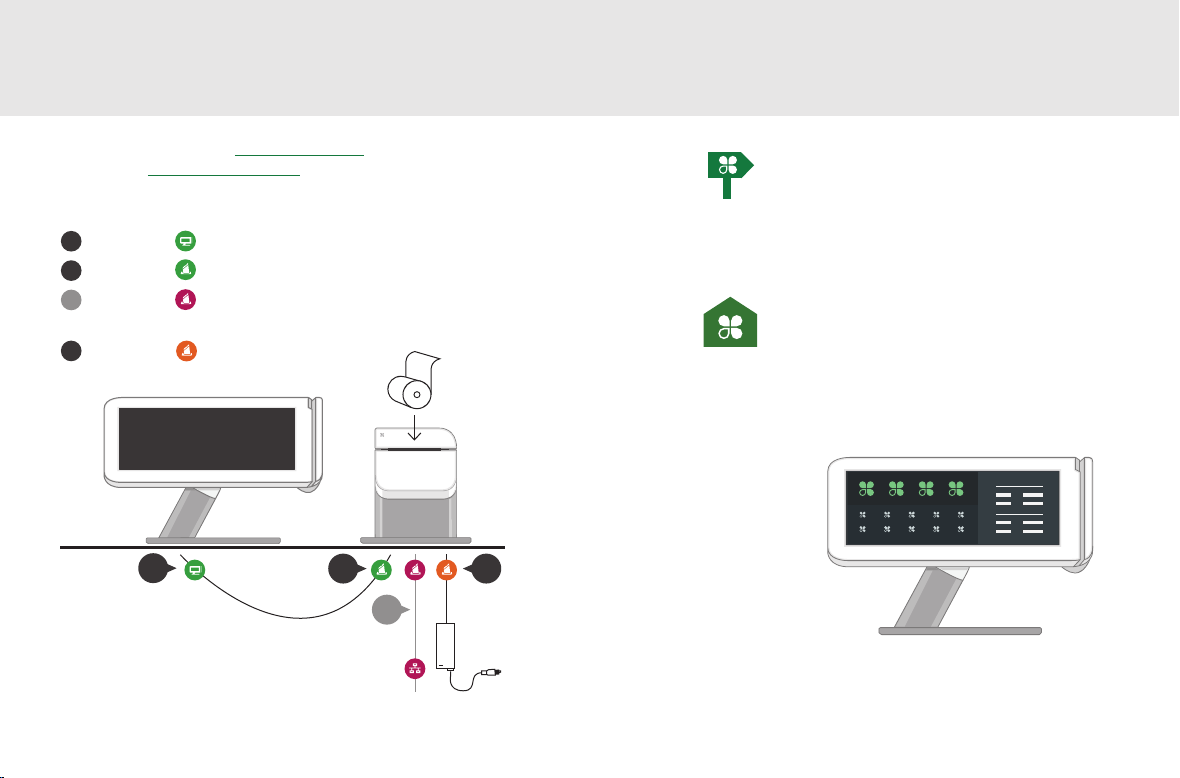
Congure a sua Clover Station
Vídeo de configuração: clover.com/setup
Na Europa: eu.clover.com/setup
Conecte os cabos ao hardware nesta ordem:
1
Conecte o ao monitor
2
Conecte o à impressora
3
Conecte o à impressora
(opcional para uso com redes sem o)
Conecte o à impressora
4
Começando
Assistente de instalação
Este é o seu guia para a conguração da
Clover Station. O código de ativação está
no e-mail de boas-vindas.
Início
Use a tela inicial da Clover para o acesso
rápido a todos os seus aplicativos da
Clover. Os funcionários também podem
fazer o login e encerrar a sessão aqui.
1
2
4
3
75 Guia de recursos da Clover Station Português 76
Page 41
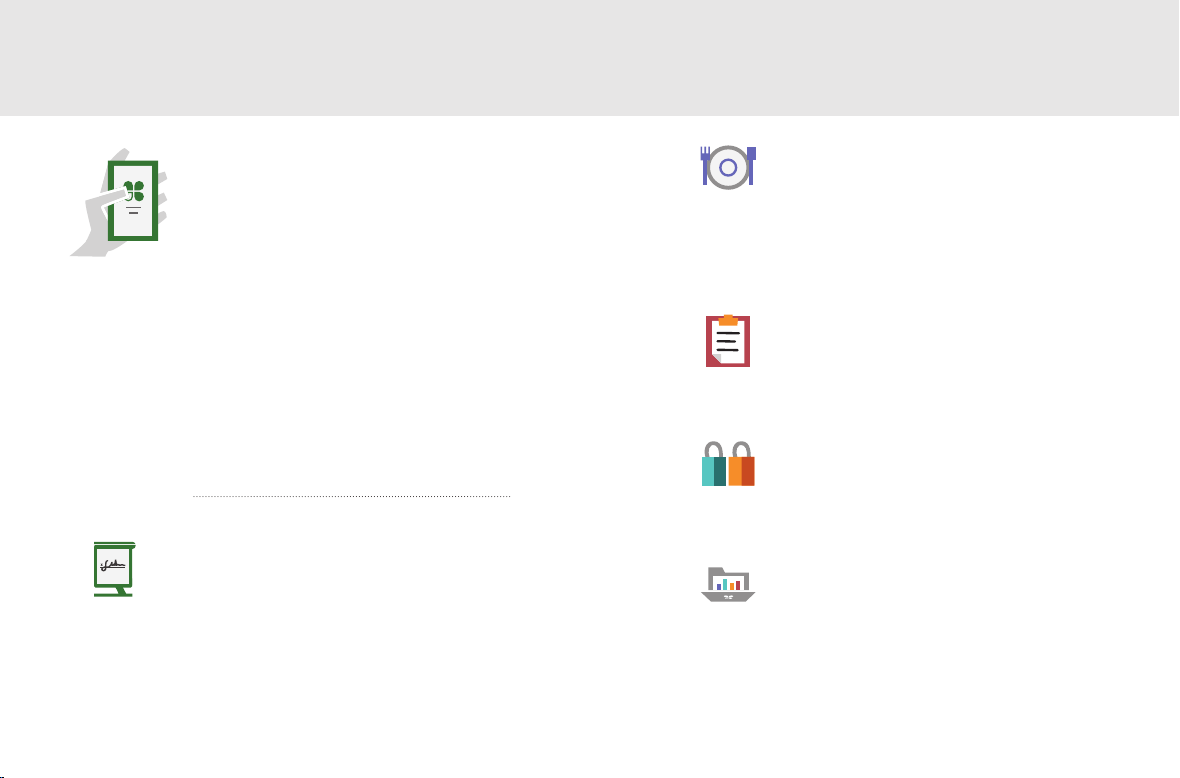
Aplicativos
Loja de aplicativos
O ponto forte do sistema
da Clover é a variedade de
aplicativos disponíveis para
download de acordo com suas
necessidades especícas. Novos
aplicativos são adicionados com
frequência; assim, não deixe de
vericar nossa Loja de aplicativos
periodicamente.
Registre-se
Transações de registro
Sua base para criar e cobrar pedidos
rapidamente. Veja todo o seu inventário
em um único lugar.
77 Guia de recursos da Clover Station Português 78
Mesas
Serviço completo de gerenciamento de
mesas
Restaurantes: esta é a sua página inicial.
Atribua mesas aos garçons e gerencie os
pedidos, as impressões e os pagamentos
das mesas aqui.
Pedidos
Central de pedidos
Controle e encontre seus pedidos,
adicione gorjetas e faça reembolsos de
pagamentos.
Clientes
Conheça seus clientes
O acesso rápido aos clientes e aos
pedidos mais recentes permite que você
melhore o atendimento.
Relatórios
Análises imediatas
Os relatórios trazem informações
importantes sobre o seu negócio.
Obtenha acesso instantâneo a
pagamentos, registros de caixa e vendas
de funcionários.
Page 42
Recursos úteis
Acesso via Web
Gerencie os seus aplicativos
Alguns aplicativos permitem o acesso
por meio de seu navegador da Web.
Colocamos atalhos para essas páginas da
Web em clover.com/home.
Use o Chrome, o Safari, ou o Firefox.
Na Europa, acesse eu.clover.com/home
Precisa de ajuda?
Acesse help.clover.com, use o aplicativo
de ajuda ou ligue para nós a qualquer
momento usando o telefone informado
no e-mail de boas-vindas.
FCC Part 15
This device complies with Part 15 of the FCC Rules. Operation is subject to the
following two conditions: (1) This device may not cause harmful interference, (2)
This device must accept any interference received, including interference that
may cause undesired operation.
FCC Part 15 Class B-specic
Note: This equipment has been tested and found to comply with the limits
for a Class B digital device, pursuant to part 15 of the FCC Rules. These limits
are designed to provide reasonable protection against harmful interference
in a residential installation. This equipment generates, uses and can radiate
radio frequency energy and, if not installed and used in accordance with
the instructions, may cause harmful interference to radio communications.
However, there is no guarantee that interference will not occur in a particular
installation. If this equipment does cause harmful interference to radio or
television reception, which can be determined by turning the equipment o and
on, the user is encouraged to try to correct the interference by one or more of
the following measures:
Reorient or relocate the receiving antenna.
Increase the separation between the equipment and receiver.
Connect the equipment into an outlet on a circuit dierent from that to which
the receiver is connected.
Consult the dealer or an experienced radio/TV technician for help.
FCC Warning
Changes or modications not expressly approved by the party responsible for
compliance could void the user‘s authority to operate the equipment.
FCC exposure limit compliance statement (SAR statement)
This equipment complies with FCC radiation exposure limits set forth for
an uncontrolled environment. End users must follow the specic operating
instructions for satisfying RF exposure compliance.
79 Guia de recursos da Clover Station
Page 43

Industry Canada Compliance
CAN ICES-3 (B)/NMB-3(B)
This device complies with Industry Canada license-exempt RSS standard(s).
Operation is subject to the following two conditions:
(1) this device may not cause interference, and
(2) this device must accept any interference, including interference that may
cause undesired operation of the device.
Le présent appareil est conforme aux CNR d’Industrie Canada applicables
aux appareils radio exempts de licence. L’exploitation est autorisée aux deux
conditions suivantes:
(1) l’appareil ne doit pas produire de brouillage, et
(2) l’utilisateur de l’appareil doit accepter tout brouillage radioélectrique subi,
même si le brouillage est susceptible d’en compromettre le fonctionnement.
The device could automatically discontinue transmission in case of absence of
information to transmit, or operational failure. Note that this is not intended to
prohibit transmission of control or signaling information or the use of repetitive
codes where required by the technology.
The device for operation in the band 5150–5250 MHz is only for indoor
•
use to reduce the potential for harmful interference to co-channel mobile
satellite systems;
The maximum antenna gain permitted for devices in the bands 5250–5350
•
MHz and 5470–5725 MHz shall comply with the e.i.r.p. limit; and
The maximum antenna gain permitted for devices in the band 5725–5825
•
MHz shall comply with the e.i.r.p. limits specied for point-to-point and non
point-to-point operation as appropriate.
In addition, high-power radars are allocated as primary users (i.e. priority users)
of the bands 5250–5350 MHz and 5650–5850 MHz and that these radars could
cause interference and/or damage to LE-LAN devices.
L’appareil pourrait automatiquement interrompre la transmission s’il n’y
a aucune information à transmettre ou en cas de panne fonctionnelle. À
noter que l’objectif de cette disposition n’est pas d’empêcher la transmission
d’informations de contrôle ou de signalisation, ou encore l’utilisation de codes
répétitifs exigés par la technique.
L’appareil fonctionnant dans la bande comprise entre 5150 et 5250MHz
•
est uniquement réservé à une utilisation en intérieur, an de réduire le
risque d’interférences nocives aux systèmes mobiles par satellite utilisant le
même canal;
Le gain d’antenne maximum autorisé pour les appareils fonctionnant dans
•
les bandes comprises entre 5250 et 5350MHz, et entre 5470 et 5725MHz,
doit se conformer à la limite de p.i.r.e.; et
Le gain d’antenne maximum autorisé pour les appareils fonctionnant dans
•
la bande comprise entre 5725 et 5825MHz doit se conformer aux limites
de p.i.r.e. spéciées pour l’exploitation point à point et non point à point,
selon le cas.
De plus, les utilisateurs de radars de haute puissance sont désignés comme
utilisateurs principaux (c.-à-d. comme utilisateurs prioritaires) des bandes
comprises entre 5250 et 5350MHz, et entre 5650 et 5850MHz, et ces radars
pourraient causer des interférences et/ou des dommages aux appareils LAN-EL.
Page 44

IMPORTANT
If the available socket outlet is not suitable for the plug supplied with this
equipment, it should be cut o and an appropriate three pin plug tted. With
alternative plugs on approved 3 amp fuse must be tted in the plug or adaptor
or in the main fuse box.
NOTE: The plug severed from the mains lead must be destroyed, as a plug with
bared exible cords is hazardous if engaged in a live socket outlet. In the event
of replacing the plug fuse, use a 3 amp fuse approved by ASTA to BS 1362, ie
carries the mark.
Always replace the fuse cover, never use plugs with the fuse cover omitted.
WARNING - THIS APPLIANCE MUST BE EARTHED.
The wires in this mains lead are coloured in accordance with the following code:
Green-and Yellow Earth
Blue Neutral
Brown Live
As the colour of the wiring in the mains lead of this appliance may not
correspond with the coloured markings identifying the terminals in your plug,
proceed as follows.
The wire which is coloured Green-and-Yellow must be connected to the terminal
in the plug which is marked with the letter “E”, or by the earth symbol or
coloured Green-and-Yellow,
The wire which is coloured Blue must be connected to the terminal which is
marked with the letter “N” or coloured Black or Blue.
The wire which is coloured Brown must be connected to the terminal which is
marked with the letter “L” or coloured Red or Brown.
Clover Network, Inc.
415 N Mathilda Ave, Sunnyvale, CA 94085, USA
EU Declaration of Conformity
Hereby, Clover Network, Inc. declares that the radio equipment type, POS
Terminal is in compliance with Directive 2014/53/EU. The full text of the EU
declaration of conformity is available at the following internet address:
help.clover.com/eu-compliance
The frequency band and the maximum transmitted power in EU are listed
below:
2400MHz - 2483.5MHz: 20dBm (EIRP)
5150MHz – 5250MHz: 19dBm (EIRP)
5250MHz – 5350MHz: 19dBm (EIRP)
5470MHz – 5725MHz: 20dBm (EIRP)
Restrictions in AT/BE/BG/CZ/DK/EE/FR/DE/IS/IE/IT/EL/ES/CY/LV/LI/LT/LU/HU/
MT/NL/NO/PL/PT/RO/SI/SK/TR/FI/SE/CH/UK/HR. 5150MHz-5350MHz is for indoor
use only.
Caution: Exposure to Radio Frequency Radiation
This equipment complies with EU radiation exposure limits set forth for an
uncontrolled environment. This equipment should be installed and operated
with minimum distance 20cm between the radiator & your body
v.4 all
Page 45

Clover Station 1.0 Model C100
(Wireless 802.11a/b/g/n)
FCC ID: HFS-CS100
EU Importer
OmniPay Ltd
Unit 9, Richview Oce Park, Clonskeagh, Dublin 14, Ireland
Waste Electrical and Electronic Equipment-WEEE
NOTE: This product is covered electronic equipment under the European Union’s
Waste from Electrical and Electronic Equipment (“WEEE”) Directive (2012/19/EU).
The WEEE Directive requires that covered equipment be collected and managed
separately from typical household waste in all EU member states. Please follow
the guidance of your local environmental authority or ask the shop where you
purchased the product for collection or recycling options.
 Loading...