

Page 1
▲ Store this device in -20°C ~ 70°C (-4°F ~ 158°F)
▲ Relative Humidity: 10% ~ 90% R.H.
▲ Avoid storing the device under direct sunlight. ▲ Keep out of reach of children.
STORAGE & TRANSPORTATION
∙ Recycle or dispose of the device and the battery separately, in accordance with applicable
federal, state, and local regulations.
∙ This product contains a button battery CR2032.
DISPOSAL
SUPPORT INFORMATION
ShengHuo Technology Ltd.
11F, No. 31, Section 3, Zhongshan North Road, Zhongshan District, Taipei City 104, Taiwan
Tel: +886 2 25869597
Website: www.diabnext.com
Mdi Europa GmbH
Langenhagener Str. 71, D-30855 Langenhagen, Germany
Tel: +49-511-3908 9530 Web: www.mdi-europa.com
E-mail: [email protected]
▲ BEFORE USING CLIPSULIN®, CAREFULLY READ ALL INSTRUCTIONS AND THE "TERMS OF USE" ON THE MOBILE APP.
▲ Check CLIPSULIN
®
for any physical damage each time before use.
▲ The CLIPSULIN
®
is currently only intended to be used with 1.0-unit insulin pens.
▲ If you have any questions, please contact customer service for more information.
▲ If you regularly use two different insulin pens, please pair each pen with two separate CLIPSULIN
®
devices to avoid unidentifiable data.
▲ DO NOT use your CLIPSULIN® without previously pairing it.
PRECAUTION
CLEANING INSTRUCTIONS
Use a dry cloth to wipe the outer surface of the CLIPSULIN®.
D
O NOT immerse CLIPSULIN® in any fluids.
DO NOT
spray any fluids at or into CLIPSULIN®.
DO NOT
use CLIPSULIN® with any acid or alkaline solutions.
Cleaning, disinfecting, or testing liquid may damage CLIPSULIN
®
.
Data recording malfunction may occur if there is excessive bodily movement or vibration of the CLIPSULIN® and insulin pen during use.
Each CLIPSULIN® should only be used on one insulin pen model only. Sharing the CLIPSULIN® may lead to unidentifiable data.
Always select the correct pen in the APP. If you change pen or insulin type, modify the pen selection in the APP list accordingly.
After replacing the battery, sync the CLIPSULIN® with the DIABNEXT® app to allow the CLIPSULIN® to adjust its time.
CAUTION
Manufacturer
Authorized Representative in the
European Community
Keep Away From Sunlight
-20°C
70°C
WARNING
DO NOT use if any part of your CLIPSULIN® appears damaged.
DO NOT use on insulin pens that are not dosed with single unit increments.
DO NOT operate or store CLIPSULIN® under improper environmental conditions.
* refer to the “CLIPSULIN® Description" and “Storage & Transportation" sections
If any physical irritation or discomfort occurs during the use of CLIPSULIN®, please stop using the device immediately, and contact your healthcare provider
or customer service.
Data within CLIPSULIN® will be overwritten if you do not transfer your records to the DIABNEXT® APP regularly. (Device memory: 200 injections)
The NFC connection can only transmit the lastest 50 records in your CLIPSULIN®.
Keep out of reach of children, as small parts may be swallowed and pose a choking hazard.
If CLIPSULIN® is not synced with the APP to adjust its time after battery replacement, incorrect timestamps of the records may occur.
CLIPSULIN® DESCRIPTION
The CLIPSULIN® is a removable memory recorder designed to be used with the following insulin pens: Lilly KwikPen®, Lilly HumaPen®, Novo Nordisk FlexPen®,
Novo Nordisk FlexTouch®, Sanofi SoloStar®, and Sanofi ClikStar®. (The CLIPSULIN® is currently only intended to be used with 1.0-unit insulin pens.)
The dose, date, and time of injection are stored in the CLIPSULIN®, and through a Bluetooth/NFC connection, this information can be transmitted to the
DIABNEXT® APP on your smartphone/tablet for easy access and review.
ABOUT
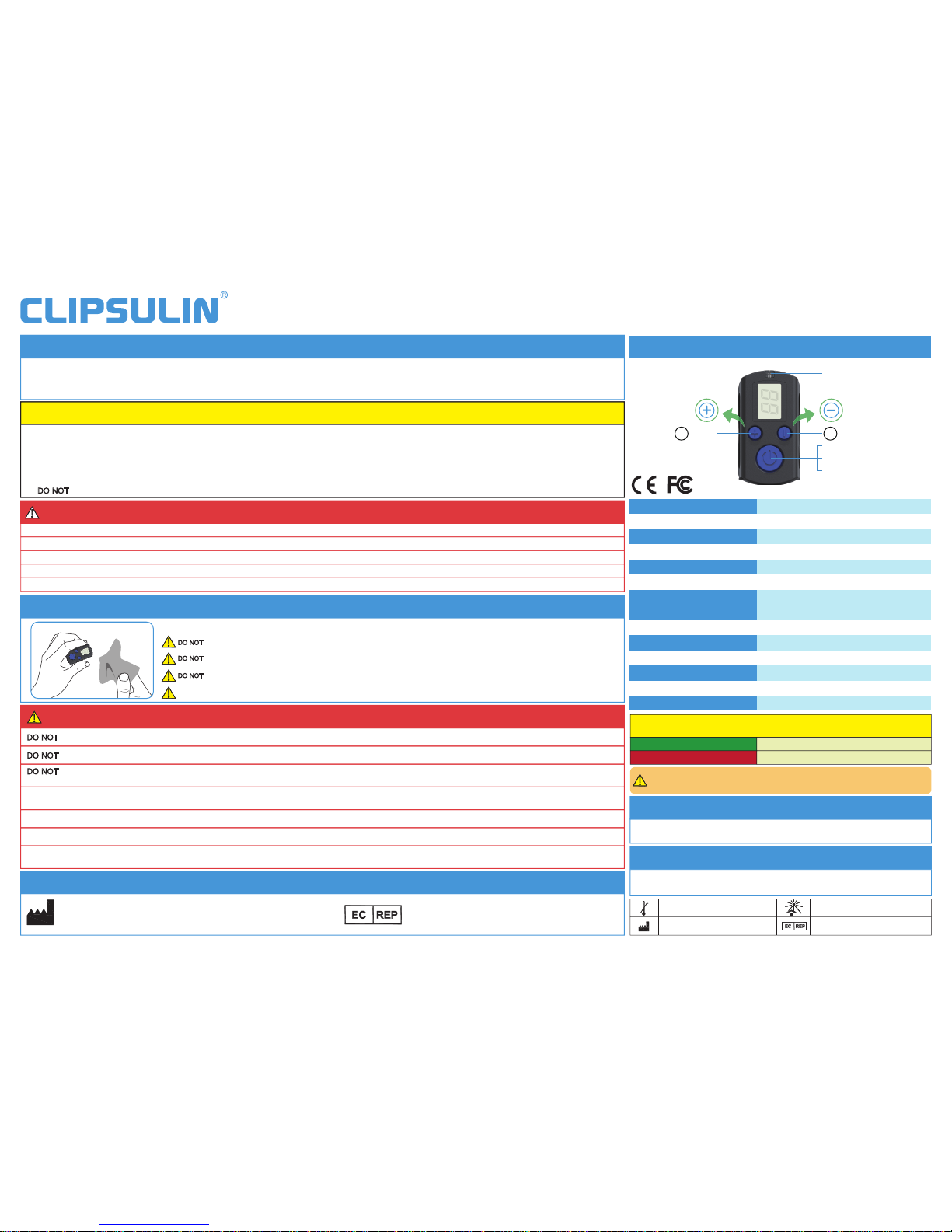
LED (Red/Green)
LCD
Power Button
Data Validation Button
Data Transmission Button
-1 Button+1 Button
Green light blinks
Data recorded
Red light blinks Battery level low
DEVICE LED SIGNAL DESCRIPTION
After you see the low battery LED indication for the first time, the device will allow you to
perform one additional week of injections. Replace the battery CR2032 as soon as
possible to avoid loss of data storage.
Battery type
Battery life
Lithium Coin Cell Battery (CR2032)
Weight 9 grams
Size L 46mm X W 25mm X H 23mm
1800 injections
Shelf life 2 years
Data transmission
Bluetooth: latest 200 records
NFC: latest 50 records
Device memory 200 injections
Operating temerature 5°C ~ 40°C (41°F ~ 104°F)
Relative humidity 10% ~ 90% R.H.
APP operating system iOS/Android
Wireless connection Bluetooth Smart/NFC
Maximum allowed RF output power
+4 ~ -40 dBm
Frequency range 2.402GHz ~ 2.480GHz
UNIVERSAL INSULIN PENS RECORDER
Temperature Limit: -20°C ~70°C
(-4°F ~158°F)
IFU-CS03E1-A-1712
Model No: C3
Transfer your records to the DIABNEXT® app regularly to avoid losing data stored in CLIPSULIN®.
Page 2
3. USING THE CLIPSULIN
®
1. SETUP
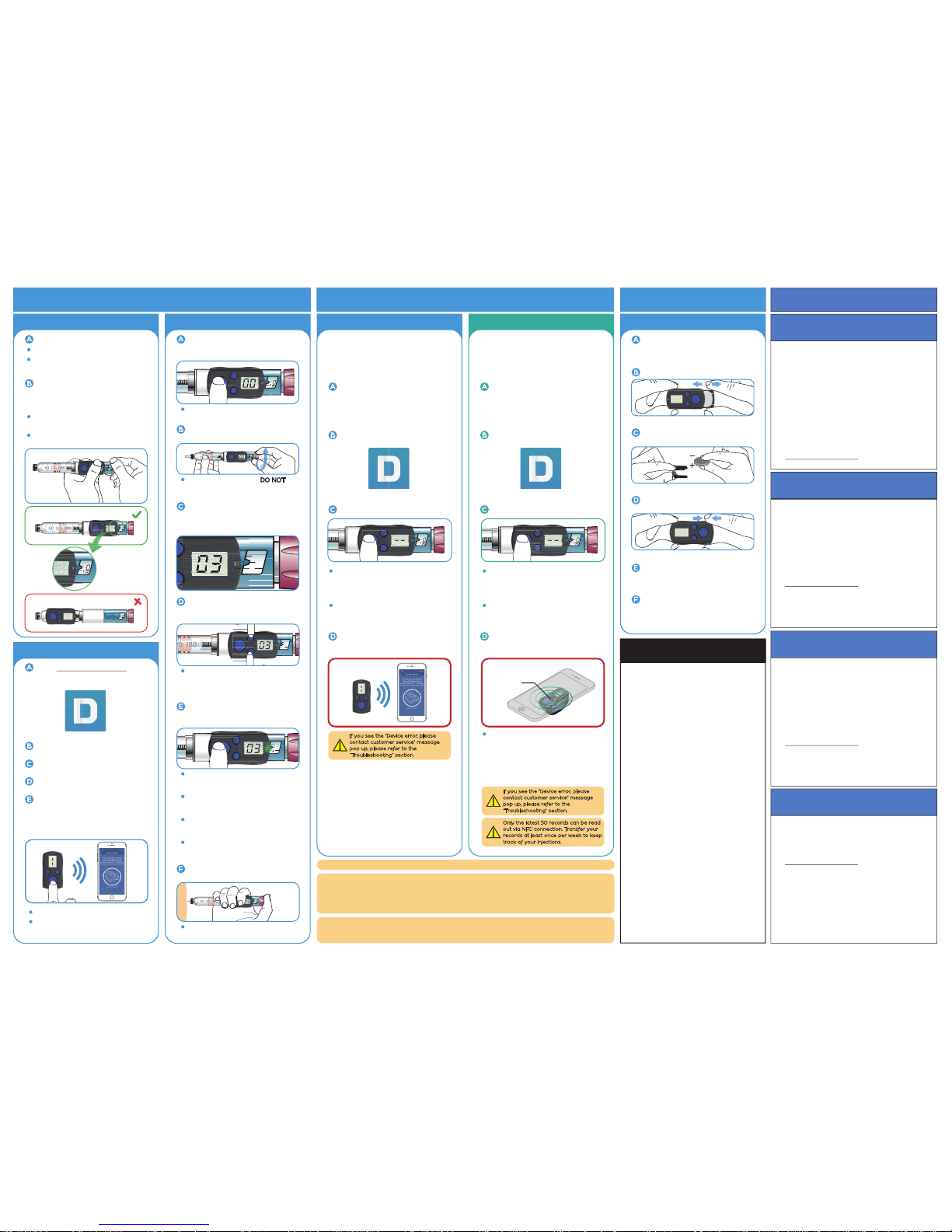
HOW TO OPERATE YOUR CLIPSULIN
®
DATA TRANSMISSION BATTERY
FCC STATEMENT
Install a new battery.
Clip the CLIPSULIN® onto your insulin
pen in a way that allows you to see the
LCD screen next to the unit window of
your insulin pen.
Select your injection dose on the
insulin pen.
Remove the cap of your insulin
pen and install the needle. Click the
power
button to turn on the CLIPSULIN®.
Transfer your stored records before
replacing the battery.
BATTERY REPLACEMENT
Open the battery compartment.
Replace the old battery with a new
one.
Push the compartment back into
the CLIPSULIN
®
to close it.
Battery
Click the power button to check the
status of CLIPSULIN
®
.
Sync your device with the DIABNEXT
®
APP before using it again, to ensure
that the timestamps of the records
will be correct.
This device complies with part 15 of the
FCC Rules. Operation is subject to the
following two conditions:
1. This device may not cause harmful
interference, and
2. This device must accept any interference
received, including interference that
may cause undesired operation.
NOTE:
This equipment has been tested and found
to comply with the limits for a Class B
digital device, pursuant to part 15 of the
FCC Rules.
These limits are designed to provide reasonable
protection against harmful interference in a
residential installation.
This equipment generates, uses and can
radiate radio frequency energy and, if not
installed and used in accordance with the
instructions, may cause harmful interference
to radio communications. However, there
is no guarantee that interference will not
occur in a particular installation.
If this equipment does cause harmful
interference to radio or television reception,
which can be determined by turning the
equipment off and on, the user is encouraged
to try to correct the interference by one or
more of the following measures:
· Reorient or relocate the receiving antenna.
· Increase the separation between the
equipment and receiver.
· Connect the equipment into an outlet on
a circuit different from that to which the
receiver is connected.
· Consult the dealer or an experienced
radio/TV technician for help.
Changes or modifications not expressly
approved by the party responsible for
compliance could void the user’s authority
to operate the equipment.
Verify that the number of units
displayed on the
CLIPSULIN® is the
same as the selected dose on the
insulin pen.
2
4
If the numbers are not the same, use
the “ + ” or “ - ” button to adjust
manually the units on the
CLIPSULIN®.
2. BEFORE FIRST USE
Go to www.diabnext.com/app and
install the DIABNEXT® APP on your
mobile device.
Turn on the Bluetooth function of your
mobile device and open the DIABNEXT® APP.
Click “Insulin Pens” and select your
insulin pen type.
Enter the menu, select “My Tools” and
click “Add Tools”.
Attach the CLIPSULIN® near the dosage
window.
·
Ensure that your CLIPSULIN® is tightly
fitted onto your insulin pen.
·
Battery type: CR2032.
·
Refer to “Battery Replacement"
section.
·
TROUBLESHOOTING
If there is no LCD display and/or LED signal light
feedback of CLIPSULIN
®
, please follow the steps below:
Check if there is any physical damage to the
CLIPSULIN
®
. If yes, stop using the device and
replace it with a new one. If no, check the LCD
and LED functions.
If only the LCD display OR the LED signal light
is not functioning, stop using the CLIPSULIN
®
and
replace it with a new one.
If both the LCD and LED are not functioning
properly, replace the battery and check both
functions again.
Caution: After replacing the battery, before using
the CLIPSULIN
®
with your insulin pen, sync the
CLIPSULIN
®
with the DIABNEXT® APP to adjust its time.
If the problem persists, go to customer service.
(www.diabnext.com/Q&A)
1.
2.
3.
*
4.
If the CLIPSULIN® cannot connect with the
DIABNEXT
®
APP, please follow the steps below:
1.
2.
3.
4.
Check if there is any physical damage to the
CLIPSULIN
®
. If yes, stop using the device and
replace it with a new one.
If no, reboot the Bluetooth/NFC function on the
mobile device, and then try to connect with the
CLIPSULIN
®
again.
If rebooting the Bluetooth/NFC function does not
resolve the issue, reinstall the DIABNEXT
®
APP,
then try to connect with the CLIPSULIN
®
again.
If the problem persists, go to customer service.
(www.diabnext.com/Q&A)
If the injection data cannot be transferred to the
DIABNEXT
®
APP, please follow the steps below:
1.
2.
3.
4.
Check if there is any physical damage to the
CLIPSULIN
®
. If yes, stop using the device and
replace it with a new one.
If no, reboot the Bluetooth/NFC function on the
mobile device, and then try to connect with the
CLIPSULIN
®
again.
If rebooting the Bluetooth/NFC function does not
resolve the issue, reinstall the DIABNEXT
®
APP,
then try to connect with the CLIPSULIN
®
again.
If the problem persists, go to customer service.
(www.diabnext.com/Q&A)
If you see the “Device error, please contact customer
service" message pop up in your APP, please follow
the steps below:
1.2.When this message pops up, it means that
some records in the memory might be
damaged.
Please confirm the message and go to customer
service.
(www.diabnext.com/Q&A)
BLUETOOTH NFC
Open the DIABNEXT® APP.
Enable the NFC (Near Field
Communication) function on your
mobile device.
Note: For iPhone users, you may
skip this step.
Enable the Bluetooth function on
your mobile device.
You can use the NFC transmitting function
with your mobile phone if you have:
- iPhone 7 or newer, and have the iOS 11
system updated or newer.
- Android phone with NFC function.
You can use the Bluetooth transmitting
function with your mobile phone if you
have iOS / Android with BLE 4.0 or
higher.
Press and hold down the power button
of CLIPSULIN
®
, until you see the double
dash “- -” blinking on the LCD screen,
to pair with the APP.
·
“- -” will be displayed on the screen of
CLIPSULIN
®
.
·
The NFC transmitter of the CLIPSULIN®
is near the power button. Please
confirm the NFC transmitter location
of your smartphone/tablet, and be
sure to have your smartphone/tablet
close to your CLIPSULIN® for proper
pairing/syncing.
·
Follow the instructions on the APP.
Your stored records will be transferred
automatically, and can be viewed
on your mobile device.
The CLIPSULIN
®
will automatically transmit the stored injection data under these conditions:
1. You have paired your CLIPSULIN
®
with the DIABNEXT® APP before.
2. The Bluetooth/NFC function is enabled on your smartphone or tablet.
3. Your smartphone or tablet is nearby with the DIABNEXT
®
APP open amd connected to
your CLIPSULIN
®
.
★
The dose, date, and time of injection will be automatically stored in your CLIPSULIN®.
Your
CLIPSULIN® can store up to 200 records, but the NFC connection can only transmit the
latest 50 records in the memory. Transfer your records regularly to your smartphone
or tablet to keep track of your injections.
Press and hold down the power button
of CLIPSULIN
®
, until you see the double
dash “- -” blinking on the LCD screen,
to pair with the APP.
·
“- -” will be displayed on the screen of
CLIPSULIN
®
.
·
Open the DIABNEXT® APP.
Follow the instructions on the APP.
Your stored records will be transferred
automatically, and can be viewed on
your mobile device.
It will take a few seconds to connect.
·
“- -” will be displayed on the screen
of CLIPSULIN
®
.
·
Confirm the two numbers are the same,
then click the blue button (Power) to
validate and send your dosage data.
Perform your injection in your normal
manner.
The green light and the LCD will blink
to signal that the data has been
recorded.
·
You can increase the number gradually
by holding down the “+” (plus) button,
or decrease the number gradually by
holding down the “-” (minus) button.
·
The data will not be recorded if the
green light and the LCD have not
blinked.
·
Your data will be automatically
transmitted to your mobile APP
after injections. (See the “ ★ ” part.)
·
If you do not want your data to be
transferred automatically, please refer
to the “Data Transmission" section.
·
The device will automatically shut
down after 10 seconds of inactivity.
·
Follow the instructions on the APP.
(Press and hold down the power button
of CLIPSULIN
®
, until you see the double
dash “- -” blinking on the LCD screen,
to pair with the APP.)
2
4
2
“00” will be displayed on the
CLIPSULIN®
screen.
·
Ensure that your hands DO NOT come
into contact with the
CLIPSULIN
®
during dose selection.
·
If you see the “Device error, please
contact customer service” message
pop up, please refer to the
“Troubleshooting” section.
If you see the “Device error, please
contact customer service” message
pop up, please refer to the
“Troubleshooting” section.
Only the latest 50 records can be read
out via NFC connection. Transfer your
records at least once per week to keep
track of your injections.
CLIP
2
4
+1 UNIT
-1 UNIT
NFC signal
emitting point
DIABNEXT
DIABNEXT DIABNEXT
 Loading...