

Page 1
COLLABORATE® Live 900
Quick-Start Guide
Page 2
COLLABORATE LIVE 900
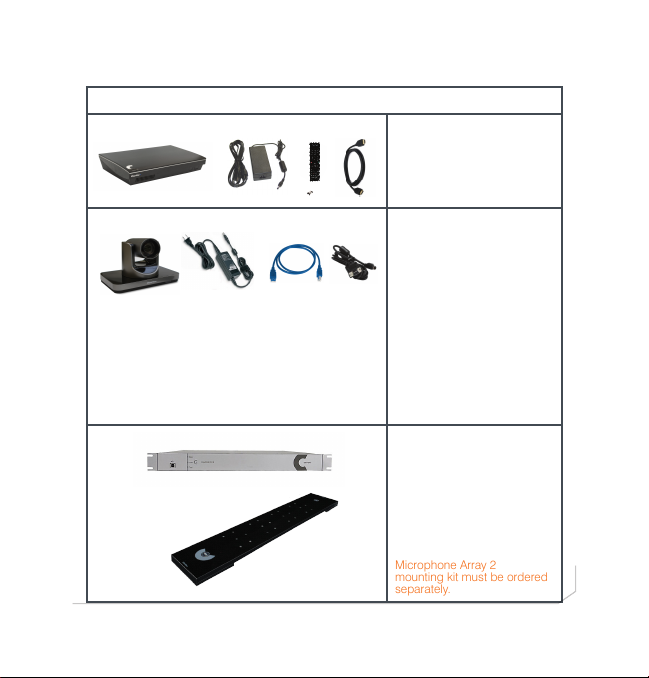
COMPONENTS INCLUDED
COLLABORATE Live 900
COLLABORATE Live
codec with power supply,
COLLABORATE Remote
control with dongle, and
HDMI cable.
910-2100-003
UNITE 200 PTZ camera,
power supply, HDMI cable
and RS232 Serial Control
cable.
Note: The remote control
inside the camera box
is only for any advanced
configuration in the camera,
if required.
For the camera’s control, use
the COLLABORATE Codec
Appliance’s remote control.
CONVERGE Pro 2 48V
Mixer, Beamforming
Microphone Array 2,
cables and power
supplies.
Note: The Beamforming
Microphone Array 2
mounting kit must be ordered
separately.
2
Page 3
QUICK-START GUIDE
MAKING THE CONNECTIONS
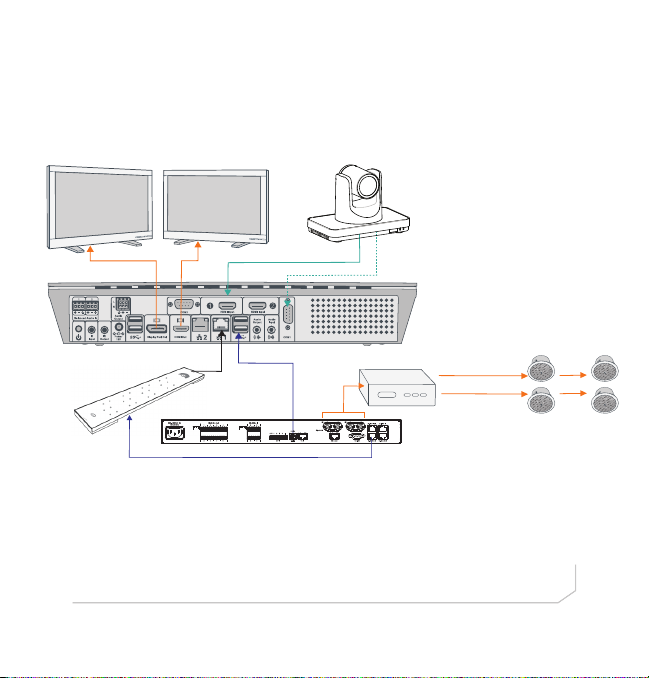
Connect the Beamforming Microphone Array 2 to the CONVERGE Pro 2 48V.
Then, connect the CONVERGE Pro 2 48V, UNITE 200 camera, Ethernet, and
monitor(s) to the COLLABORATE Live codec as shown.
UNITE
Camera
Beamforming Microphone
Array 2
Display Port
Output
HDMI
Output
Ethernet Connection
E-bus From LINK Out
USB Audio Transmit and Receive
CONVERGE Pro 2 48V
NOTE: Audio output and power connections not shown.
Amplifier
1080p HDMI Camera Video
Camera Serial Control
Amplifier
Loud Speakers
3
Page 4
COLLABORATE LIVE 900
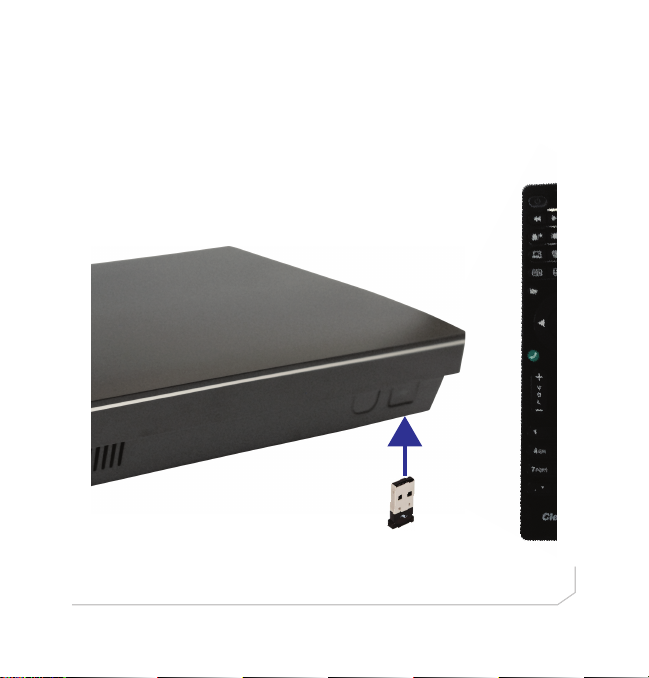
CONNECTING THE REMOTE CONTROL DONGLE
The Remote Control includes a dongle that plugs into the FRONT USB
port on the codec.
4
Page 5
QUICK-START GUIDE
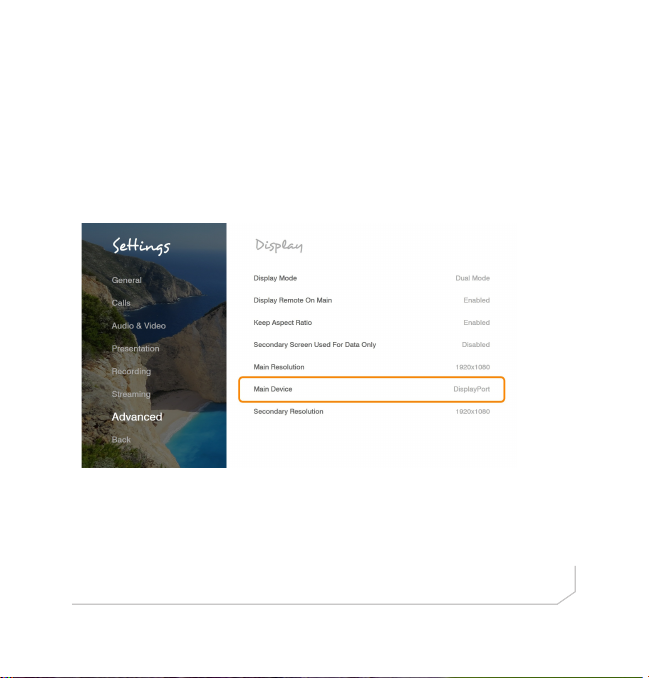
CONFIGURING DISPLAY SETTINGS
After all peripherals are connected to the unit, turn the unit on.
Once COLLABORATE Live is loaded – you will see your local camera
video on your screen.
Using the remote control, navigate to the display settings:
Settings > Advanced > Display
According to your monitor capabilities, set to the maximum supported
resolution. If 2 monitors are connected to the unit, the display mode is
automatically changed to dual mode and you can set both monitors’
resolutions.
5
Page 6
COLLABORATE LIVE 900
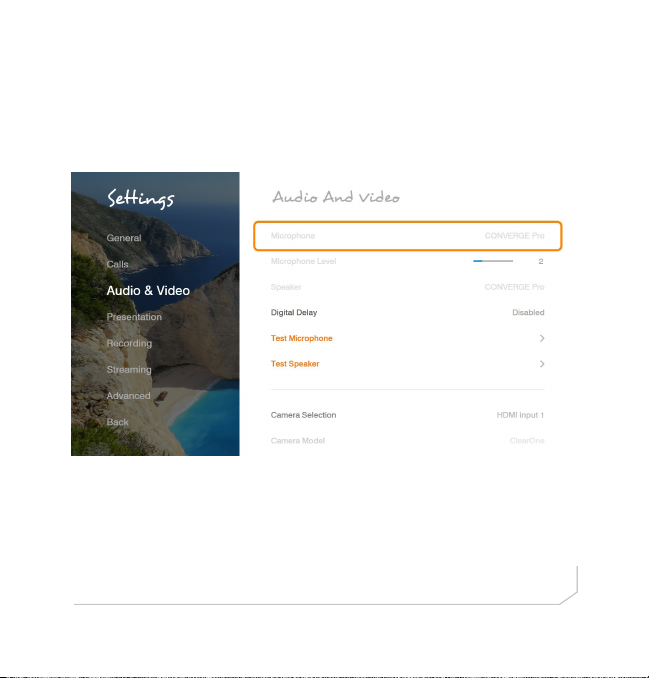
CONFIGURING AUDIO SETTINGS
The COLLABORATE Live audio input and output is Converge Pro.
Verify this in COLLABORATE Settings > Audio & Video
6
Page 7
QUICK-START GUIDE
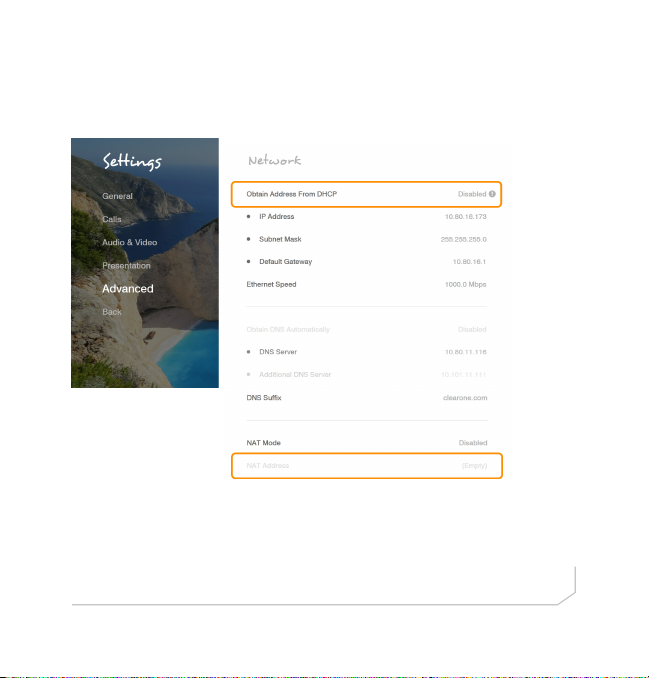
CONFIGURING NETWORK SETTINGS
Using your remote control, navigate into the network settings:
Settings > Advanced > Network
The COLLABORATE Live obtains its IP automatically by default from the
DHCP server.
Set “Obtain Address From DHCP” to “Disabled” to manually configure
network settings.
7
Page 8

COLLABORATE LIVE 900
CLEARONE CONTACTS
Headquarters
5225 Wiley Post Way
Suite 500
Salt Lake City, UT 84116
US & Canada
Tel: 801.975.7200
TollFree: 800.945.7730
Fax: 801.303.5711
International
Tel: +1.801.975.7200
e-mail: [email protected]
© 2019 ClearOne, Inc. All rights reserved.
Information in this document is subject to change without notice. QSG-0071-001 Revision 1.0, February 2019
Sales
Tel: 801.975.7200
e-mail: [email protected]
TechSupport
Tel: 801.974.3760
e-mail: [email protected]
Website
www.clearone.com
8
 Loading...