

Page 1

Clavister Eagle E5
Getting Started Guide
Clavister AB
Sjögatan 6J
SE-89160 Örnsköldsvik
SWEDEN
Phone: +46-660-299200
www.clavister.com
Published 2014-12-12
Copyright © 2014 Clavister AB
Page 2

Clavister Eagle E5
Getting Started Guide
Published 2014-12-12
Copyright © 2014 Clavister AB
Copyright Notice
This publication, including all photographs, illustrations and software, is protected under
international copyright laws, with all rights reserved. Neither this manual, nor any of the material
contained herein, may be reproduced without the written consent of Clavister.
Disclaimer
The information in this document is subject to change without notice. Clavister makes no
representations or warranties with respect to the contents hereof and specifically disclaims any
implied warranties of merchantability or fitness for a particular purpose. Clavister reserves the
right to revise this publication and to make changes from time to time in the content hereof
without any obligation to notify any person or parties of such revision or changes.
Limitations of Liability
UNDER NO CIRCUMSTANCES SHALL CLAVISTER OR ITS SUPPLIERS BE LIABLE FOR DAMAGES OF
ANY CHARACTER (E.G. DAMAGES FOR LOSS OF PROFIT, SOFTWARE RESTORATION, WORK
STOPPAGE, LOSS OF SAVED DATA OR ANY OTHER COMMERCIAL DAMAGES OR LOSSES)
RESULTING FROM THE APPLICATION OR IMPROPER USE OF THE CLAVISTER PRODUCT OR
FAILURE OF THE PRODUCT, EVEN IF CLAVISTER IS INFORMED OF THE POSSIBILITY OF SUCH
DAMAGES. FURTHERMORE, CLAVISTER WILL NOT BE LIABLE FOR THIRD-PARTY CLAIMS AGAINST
CUSTOMER FOR LOSSES OR DAMAGES. CLAVISTER WILL IN NO EVENT BE LIABLE FOR ANY
DAMAGES IN EXCESS OF THE AMOUNT CLAVISTER RECEIVED FROM THE END-USER FOR THE
PRODUCT.
2
Page 3

Table of Contents
Preface ........ ................ ................. ................ ................. ................ ................ ...... 5
1. Product Overview . .............. ................. ................ ................ ................. ............. 7
1.1. Unpacking the Product . .............. ................ ................. ................ ............ 7
1.2. Interfaces and Ports ... ................ ................. ................ ................ ............. 9
2. Installation ................ ................. ................ ................. ................ ................ .... 12
2.1. Installation Guidelines ........... ................ ................. ................ ................12
2.2. Rack Mounting ........ ................ ................. ................ ................. ............ 14
2.3. Local Console Port Connection .......... ................ ................. ................ ...... 16
2.4. Connecting Power ............ ................ ................. ................ ................. .... 18
2.5. Resetting to Factory Defaults .......... ................ ................ ................. ........ 19
3. cOS Core Configuration . ................ ................ ................. ................ ................ ... 21
3.1. Management Workstation Connection ........... ................ ................ ........... 21
3.2. Web Interface and Wizard Setup ............ ................. ................ ................ .. 24
3.3. Manual Web Interface Setup ......... ................ ................. ................ .......... 32
3.4. CLI Setup ......... ................ ................. ................ ................ ................. ... 48
3.5. Installing a License ........... ................. ................ ................ ................. .... 56
3.6. Setup Troubleshooting ............... ................. ................ ................. .......... 58
3.7. Going Further with cOS Core ......... ................. ................ ................. ......... 60
4. Warranty Service ....... ................. ................ ................. ................ ................ ..... 63
5. Safety Precautions ..... ................. ................ ................. ................ ................ ..... 65
A. E5 Specifications ..... ................. ................ ................ ................. ................ ....... 68
B. Declarations of Conformity ................ ................ ................. ................ ............... 69
C. Port Based VLAN Setup . ............. ................. ................ ................ ................. ..... 71
3
Page 4

List of Figures
1.1. An Unpacked Clavister E5 Appliance ........... ................ ................. ................ ...... 7
1.2. Clavister E5 Connection Ports . ................ ................ ................ ................. .......... 9
1.3. The E5 Ethernet Interface Ports ........ ................ ................. ................ ................ . 9
2.1. The E5 Local Console Port . ............... ................. ................ ................ ............... 16
2.2. E5 Power Inlet Socket ............... ................. ................ ................ ................. .... 18
4
Page 5
Preface
Target Audience
The target audience for this guide is the administrator who has taken delivery of a packaged
Clavister E5 appliance and is setting it up for the first time. The guide takes the user from
unpacking and installation of the device through to power-up, including network connections
and initial cOS Core configuration.
Text Structure
The text is divided into chapters and subsections. Numbered subsections are shown in the table
of contents at the beginning of the document.
Notes to the main text
Special sections of text which the reader should pay special attention to are indicated by icons
on the left hand side of the page followed by a short paragraph in italicized text. There are the
following types of such sections:
Note
This indicates some piece of information that is an addition to the preceding text. It may
concern something that is being emphasized or something that is not obvious or
explicitly stated in the preceding text.
Tip
This indicates a piece of non-critical information that is useful to know in certain
situations but is not essential reading.
Caution
This indicates where the reader should be careful with their actions as an undesirable
situation may result if care is not exercised.
Important
This is an essential point that the reader should read and understand.
Warning
This is essential reading for the user as they should be aware that a serious situation
may result if certain actions are taken or not taken.
5
Page 6

Text links
Where a "See section" link is provided in the main text, this can be clicked on to take the reader
directly to that reference. For example, see Section 3.6, “Setup Troubleshooting ”.
Web links
Web links included in the document are clickable. For example, http://www.clavister.com.
Trademarks
Certain names in this publication are the trademarks of their respective owners.
cOS Core is the trademark of Clavister AB.
Windows, Windows XP, Windows Vista and Windows 7 are either registered trademarks or
trademarks of Microsoft Corporation in the United States and/or other countries.
Apple, Mac and Mac OS are trademarks of Apple Inc. registered in the United States and/or other
countries.
Preface
6
Page 7
Chapter 1: Product Overview
• Unpacking the Product, page 7
• Interfaces and Ports, page 9
1.1. Unpacking the Product
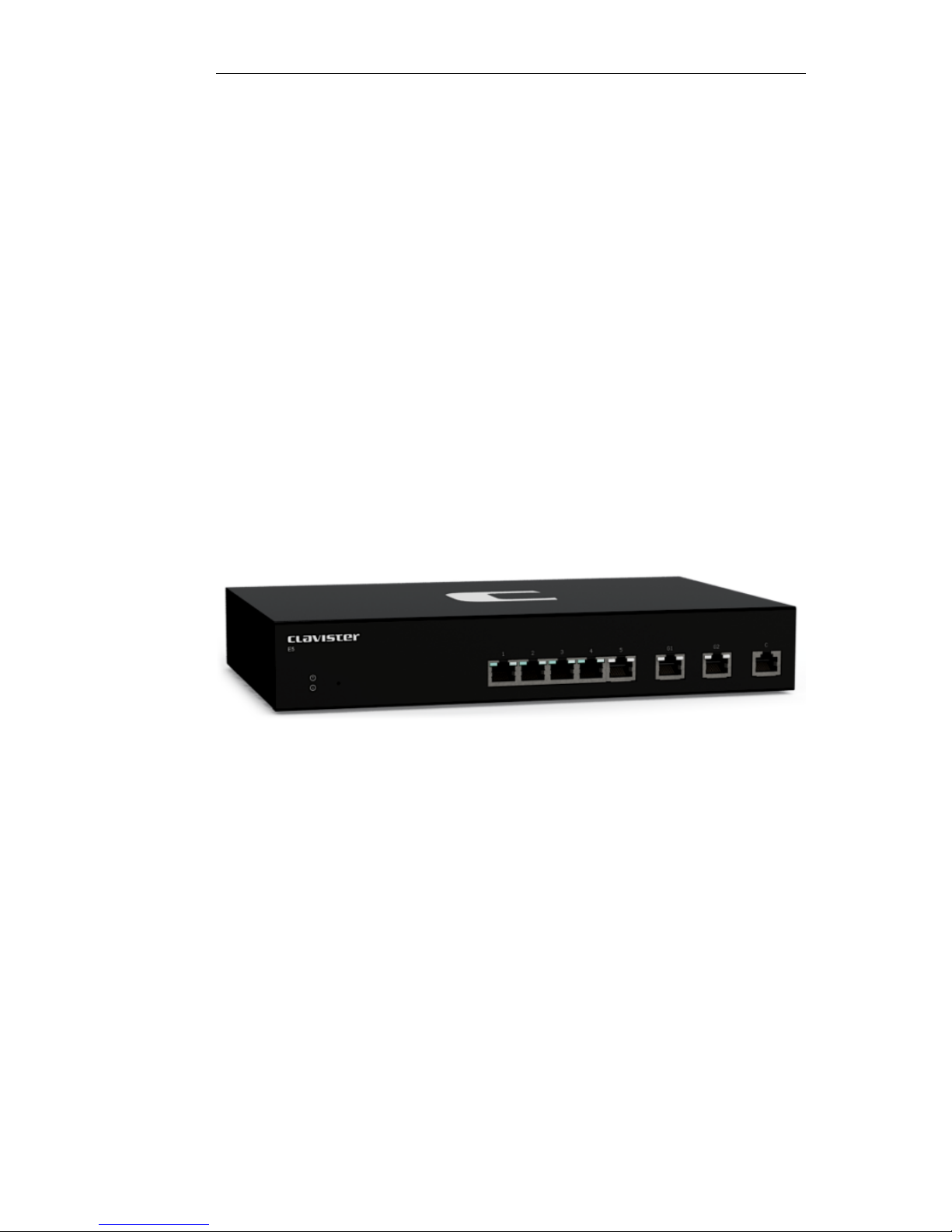
Figure 1.1. An Unpacked Clavister E5 Appliance
This section details the unpacking of the E5 appliance. Open the packaging box used for
shipping and carefully unpack the contents. The delivered product packaging should contain the
following:
• The Clavister E5 appliance.
• RJ45 Ethernet cable.
• Power cable.
• A rack mount kit consisting of brackets and screws suitable for a 19-inch rack.
The E5 has an internal 100-240V AC, 50-60Hz, 0.4A power adaptor.
7
Page 8
Note: If any items are missing
If any items are missing from your package, please contact your reseller or distributor.
All relevant documentation can be downloaded in PDF format from the Clavister
website.
Downloadable E5 Documentation
All documentation and other resources for the E5, including this guide, can be downloaded from
the E5 product page which can be found at http://www.clavister.com/start.
End of Life Treatment
The E5 appliance is marked with the European Waste Electrical and Electronic Equipment (WEEE)
directive symbol which is shown below.
The product, and any of its parts, should not be discarded of by means of regular refuse disposal.
At end-of-life, the product and parts should be given to an appropriate service that deals with
the removal of such specialist materials.
Chapter 1: Product Overview
8
Page 9
1.2. Interfaces and Ports
This section is an overview of the E5 product's external design.
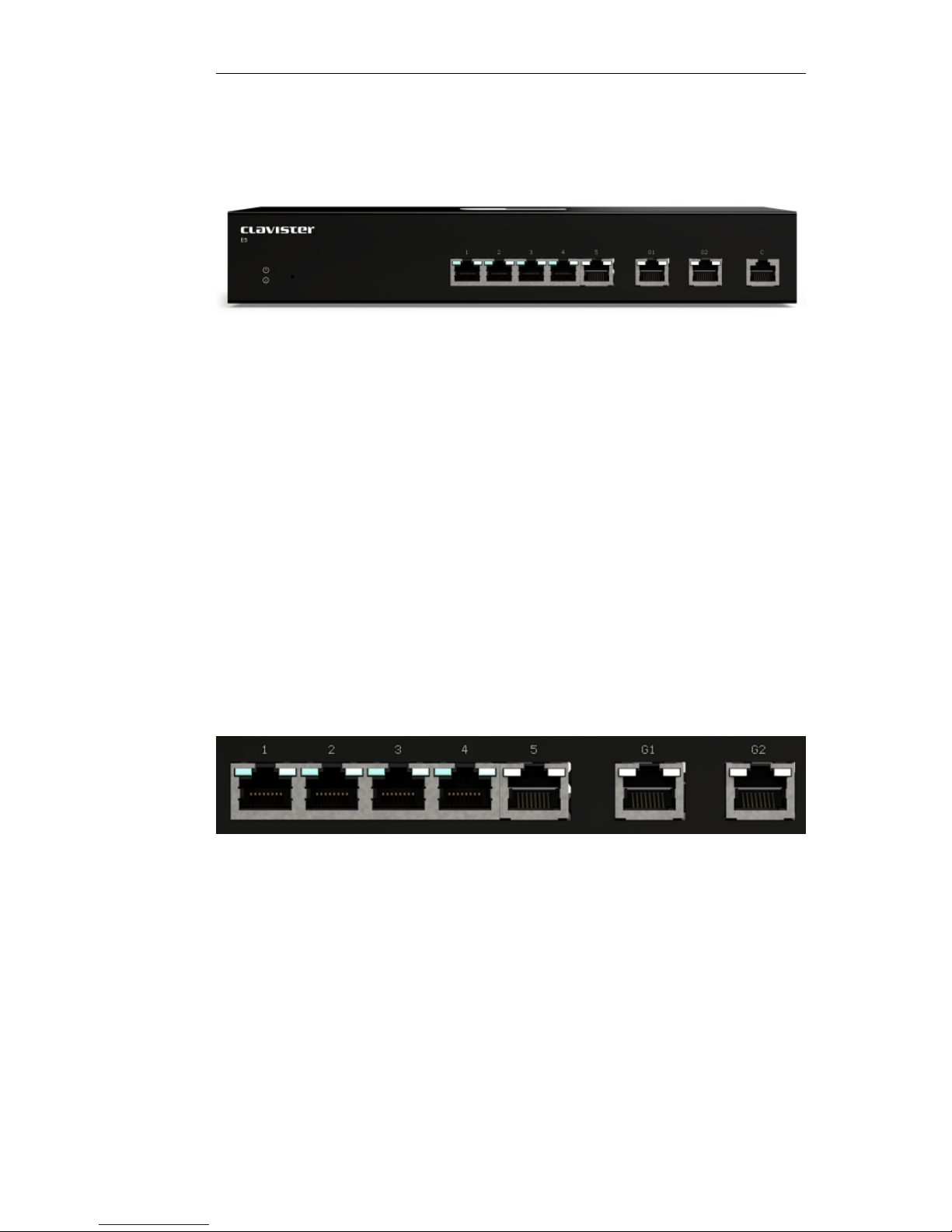
Figure 1.2. Clavister E5 Connection Ports
The E5 features the following connection ports on the front panel:
• On the left there is a set of RJ45 Gigabit Ethernet interfaces which are numbered 1 to 5. All 5
interfaces are connected together by a common switch fabric and share the single logical
cOS Core interface name GESW. This means that any security policy in the cOS Core rule sets
that refers to the interface GESW can apply to traffic on any of the 5 physical interfaces.
The GESW interfaces allow the configuration of Port Based VLANs through cOS Core so that
the 5 interfaces can be divided up into different VLANs. This feature is described further in
Appendix C, Port Based VLAN Setup.
• Next, are 2 x RJ45 Gigabit Ethernet interfaces. These have the logical cOS Core names of G1
and G2. The names are marked on each interface. These interfaces function independently of
each other and are not connected by a switch fabric and can be used for any purpose.
• Last, is an RJ45 console port which is used for direct access to the cOS Core Boot Menu and
the cOS Core Command Line Interface (CLI). Access can be password protected.
All E5 Ethernet interfaces are capable of link speed auto-negotiation and can operate using
10Base-T, 100Base-Tx, or 1000Base-T.
Figure 1.3. The E5 Ethernet Interface Ports
All the E5 Ethernet interfaces support Automatic MDI-X and do not require a crossover cable for
direct connection from another computer.
The full connection capabilities of all E5 Ethernet interfaces are listed in Appendix A, E5
Specifications.
Ethernet Interface Status LEDs
On the E5 there are indicator lights at the top left and top right of each interface which illuminate
according to link status and activity. The conditions shown are:
Chapter 1: Product Overview
9
Page 10

• The top-left flashes green to indicate data traffic.
• The top-right light is green if the link is 10 or 100 Mb.
• The top-right light is amber if the link is 1 Gb.
Note: The GESW interface cannot be used with link aggregation
If the cOS Core link aggregation feature is used, the logical GESW interface cannot be
part of a LinkAggregation object.
Chapter 1: Product Overview
10
Page 11

Chapter 1: Product Overview
11
Page 12

Chapter 2: Installation
• Installation Guidelines, page 12
• Rack Mounting, page 14
• Local Console Port Connection, page 16
• Connecting Power, page 18
• Resetting to Factory Defaults, page 19
2.1. Installation Guidelines
Guidelines
Follow these guidelines when installing your Clavister E5 appliance:
• Safety
Take notice of the safety guidelines laid out in Chapter 5, Safety Precautions. These are
specified in multiple languages.
• Power
Make sure that the power source circuits are properly grounded and then use the power cord
supplied with the appliance to connect it to the power source.
• Using Other Power Cords
If your installation requires a different power cord than the one supplied with the appliance,
be sure to use a cord displaying the mark of the safety agency that defines the regulations for
power cords in your country. Such marks are an assurance that the cord is safe.
• Power Overload
Ensure that the appliance does not overload the power circuits, wiring and over-current
protection.
To determine the possibility of overloading the supply circuits, add together the ampere
ratings of all devices installed on the same circuit as the appliance and compare the total
with the rating limit for the circuit. The maximum ratings for the E5 are listed in Appendix A, E5
12
Page 13
Specifications.
• Surge Protection
A third party surge protection device should be considered and is strongly recommended as
a means to prevent electrical surges reaching the appliance. This is mentioned again in
Section 2.4, “Connecting Power”.
• Temperature
Do not install the appliance in an environment where the ambient temperature during
operation might fall outside the specified operating range. This range is documented in
Appendix A, E5 Specifications.
The intended operating temperature range is "room temperature". That is to say, the
temperature most commonly found in a modern office and in which humans feel
comfortable. This is usually considered to be between 20 and 25 degrees Celsius (68 to 77
degrees Fahrenheit). Special rooms for computer equipment may use a lower range and this
is also acceptable.
• Airflow
Make sure that airflow around the appliance is not restricted.
• Dust
Do not expose the appliance to environments with elevated dust levels.
Note: The specifications appendix provide details
Detailed information concerning power supply range, operating temperature range and
other operating details can be found at the end of this publication in Appendix A, E5
Specifications.
Flat Surface Installation
The E5 can be mounted on any appropriate stable, flat, level surface that can safely support the
weight of the appliance and its attached cables.
Caution: Always leave space around the appliance
Always ensure there is adequate space around the appliance for ventilation and access
to operating switches and cable connectors. No objects should be placed on top of the
casing.
The E5 can also be rack mounted in a 19-inch rack using the kit which is included with the
product and this is described next in Section 2.2, “Rack Mounting”.
Chapter 2: Installation
13
Page 14
2.2. Rack Mounting
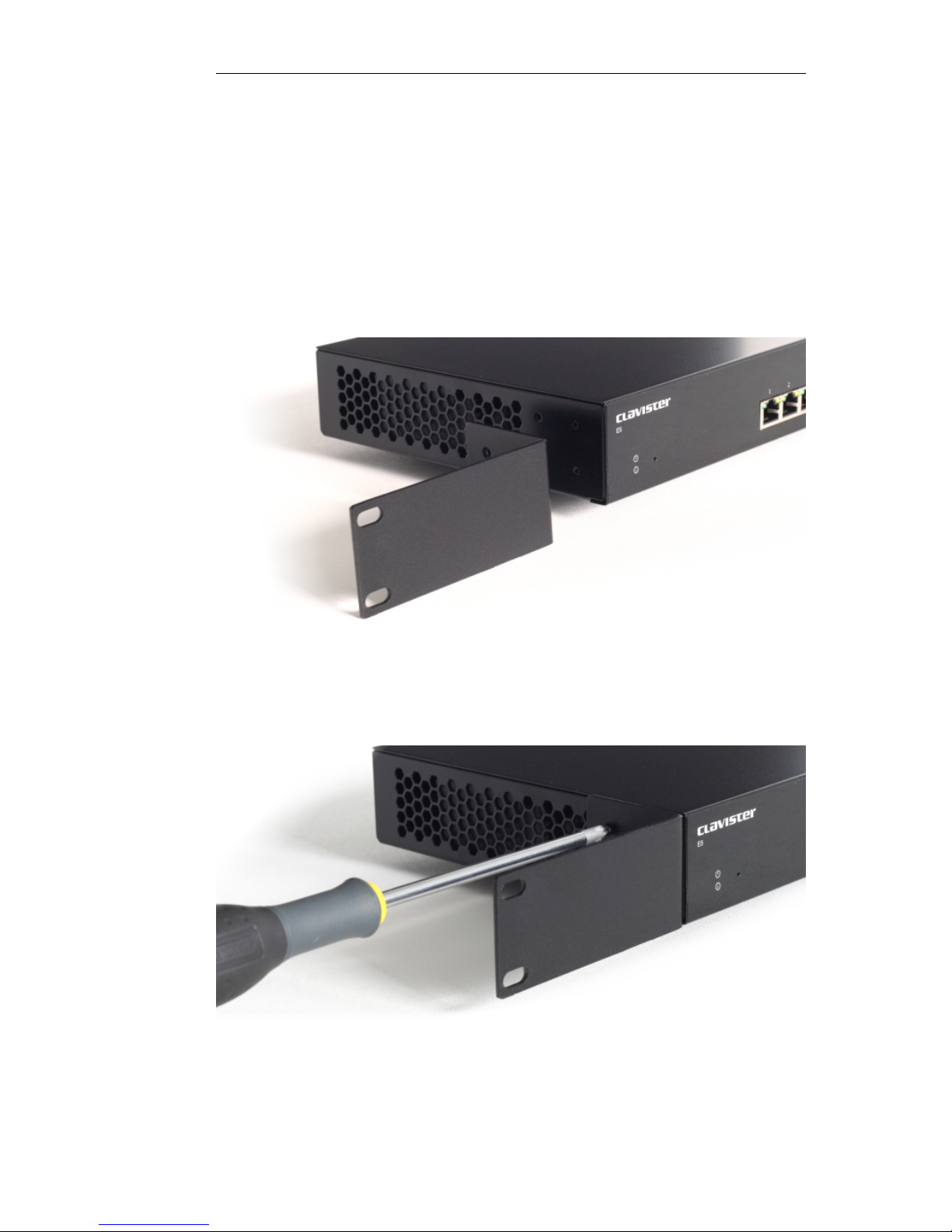
A Rack Mount Kit is supplied with the E5 for mounting the product in a 19-inch rack. Included
with the kit is the following:
• 2 x side brackets.
• 8 x bracket screws, 4 for securing one bracket to the either side of the E5.
The kit is attached to the sides of the E5 unit prior to mounting in the rack. There are predrilled
holes in each bracket as shown below.
Align the brackets screw holes with the predrilled holes on the side of the E5, then fit and tighten
the supplied screws into the holes with a suitable screwdriver as shown below.
Chapter 2: Installation
14
Page 15
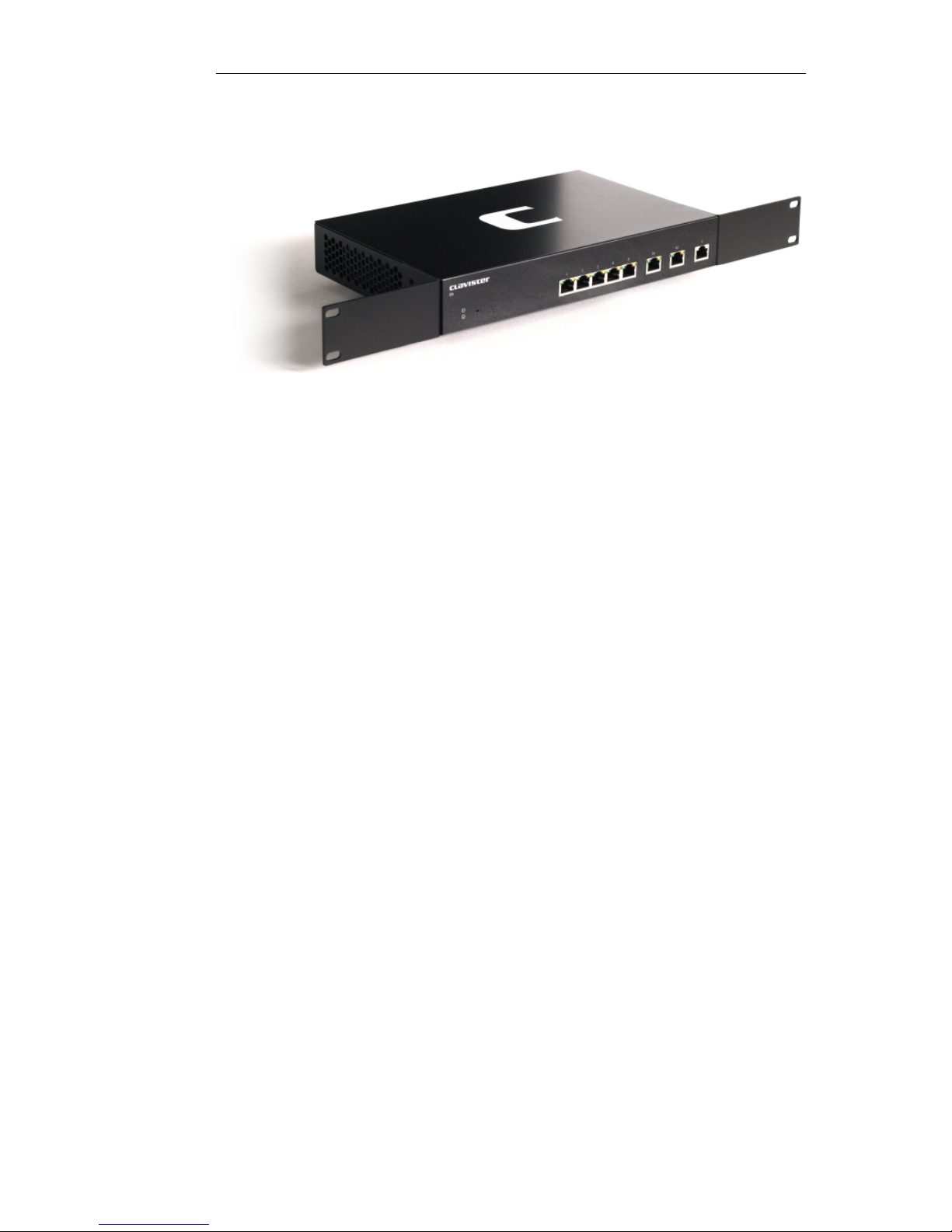
Repeat this for each side of the E5, so the brackets are mounted as shown below.
The E5 is now ready to be rack mounted.
Chapter 2: Installation
15
Page 16
2.3. Local Console Port Connection
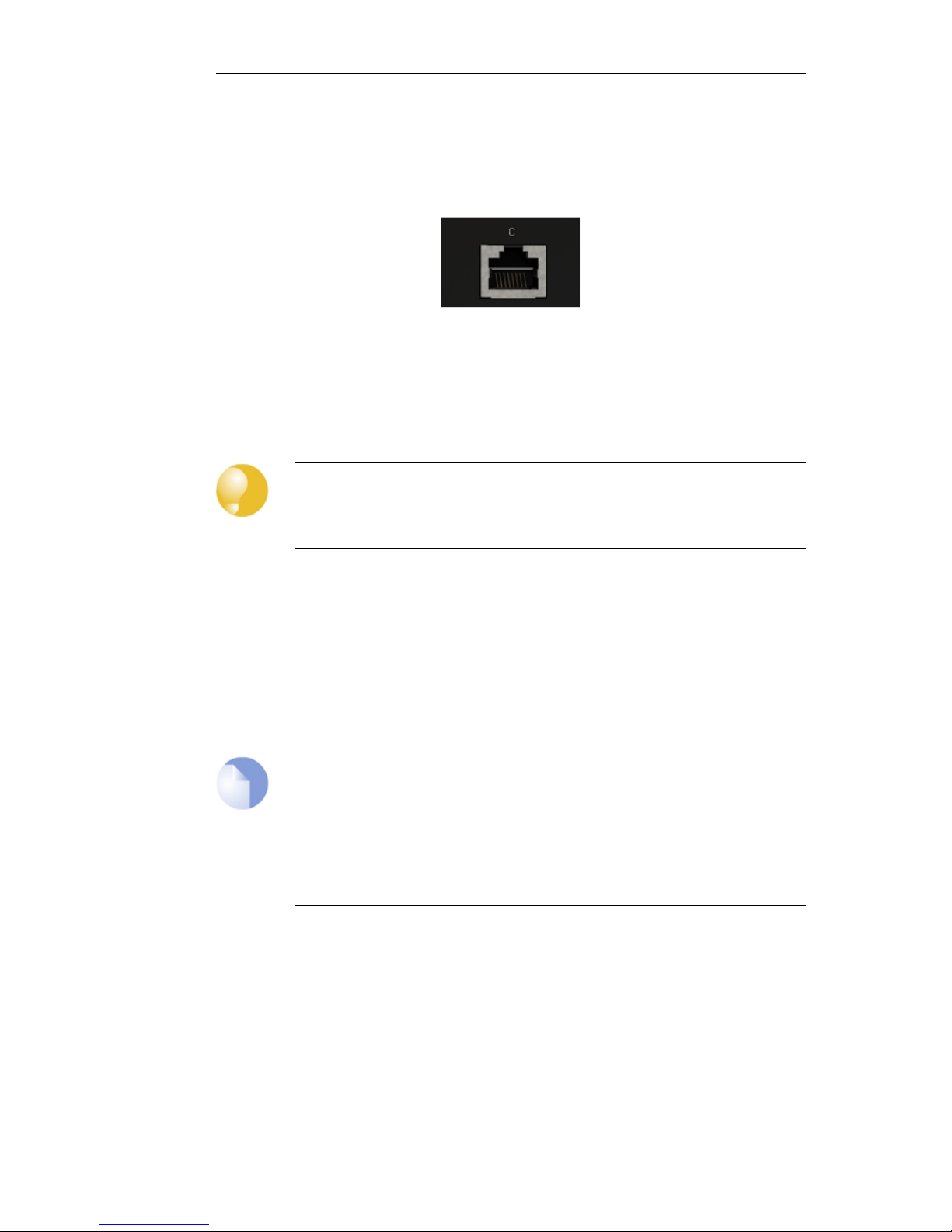
The local console port is the physical RJ45 RS-232 port on the far right-hand side front panel of
the E5.
Figure 2.1. The E5 Local Console Port
This local console port allows direct management connection to the appliance, either from a
separate computer running console emulation software or from a console terminal. Local
console access can then be used for both management of cOS Core with CLI commands or to
enter the boot menu in order to access E5 firmware loader options.
Tip: Skip the rest of this section if using the Web Interface
This rest of this section can be initially skipped if cOS Core setup is going to be done with
the cOS Core Web Interface since neither boot menu or CLI access will be needed.
Issuing CLI Commands
CLI commands can be issued via the local console port for both initial cOS Core setup as well as
for ongoing system administration.
The local console port need not be used if setup is done through a web browser as described in
Section 3.2, “Web Interface and Wizard Setup”. If the local console port is used for setup, no
password is initially needed and the CLI commands required are described in Section 3.4, “CLI
Setup”.
Note: Setting a local console password
A local console password need not be set. If this is the case, anyone with physical access
to the local console has full administrator rights.
If the E5 is not placed in a secure area, it is therefore advisable to set the console
password. This is done using the console boot menu and more detail on this can be
found in the separate cOS Core Administrators Guide.
Requirements for Local Console Connection
To get management access via the local console port, the following is needed:
• A terminal or a computer with a serial port and the ability to emulate a terminal (for example,
the open source puTTY software).
• The terminal console should have the following settings:
i. 9600 bps.
Chapter 2: Installation
16
Page 17

ii. No parity.
iii. 8 bits.
iv. 1 stop bit.
v. No flow control.
• An RS-232 cable with appropriate terminating connectors.
Connection Steps
To connect a terminal to the local console port, perform the following steps:
1. Check that the console connection settings are configured as described above.
2. Connect one of the connectors on the cable directly to the local console port on the E5.
3. Connect the other end of the cable to a console terminal or to the serial connector of a
computer running console emulation software.
Connection Using SSH
An alternative to using the local console port for CLI access is to connect via a physical Ethernet
interface and using a Secure Shell (SSH) client on the management workstation to issue CLI
commands. This is discussed further in Section 3.1, “Management Workstation Connection”.
Chapter 2: Installation
17
Page 18
2.4. Connecting Power
This section describes connecting power. The E5 has a single internal 12V/2.5A AC to DC power
adaptor. As soon as power is applied, the E5 will boot-up and cOS Core will start.
Important
Please review the electrical safety information in Chapter 5, Safety Precautions.
Connecting AC Power
To connect power, follow these steps:
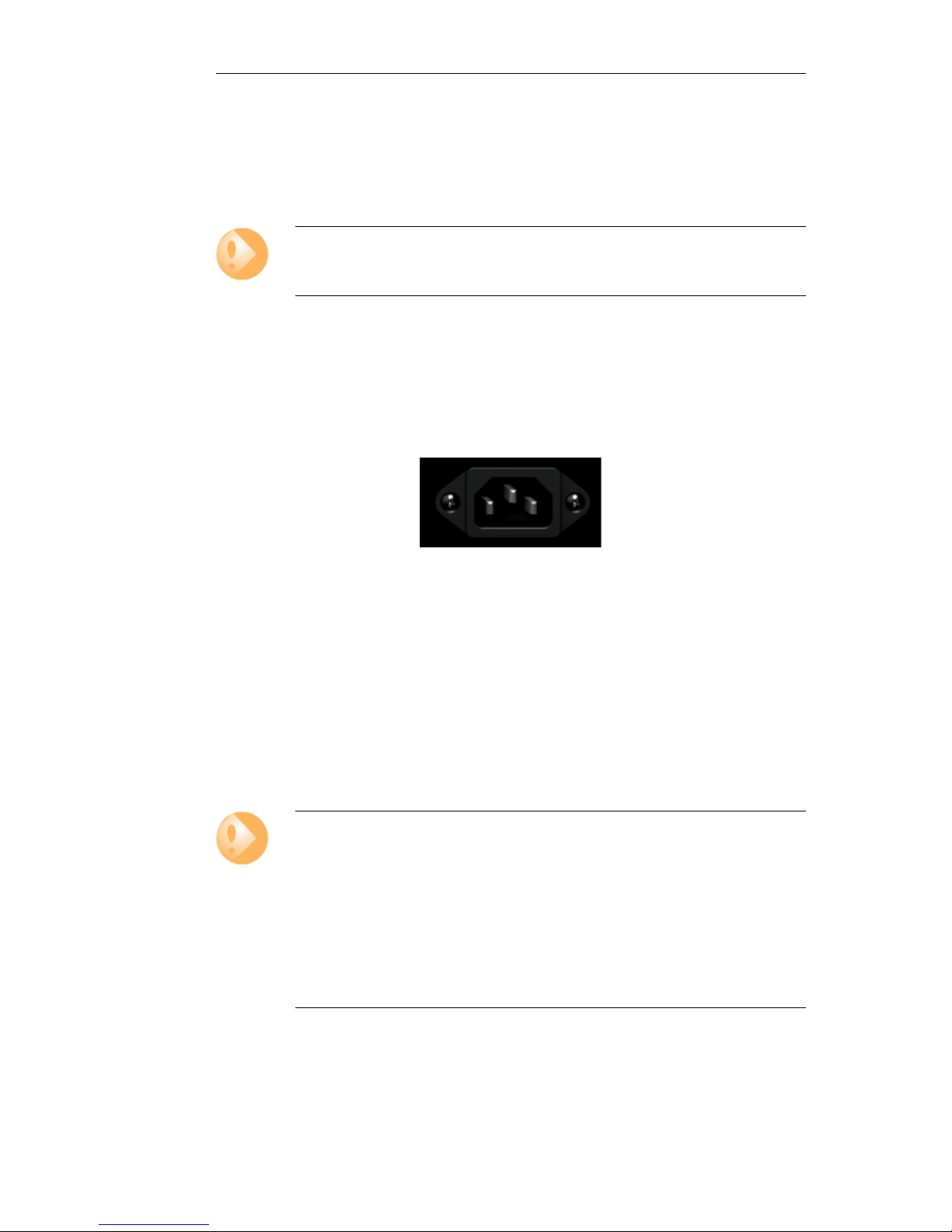
1. Plug the end of the power cord into the power inlet on the E5.
Figure 2.2. E5 Power Inlet Socket
2. Plug the power adapter into a suitable AC power outlet. There is no On/Off switch and the
unit will begin to boot up as soon as power is applied.
3. The E5 will boot up and cOS Core will start. After a brief period of time, cOS Core will be
initialized and the appliance is ready for configuration from a management workstation
using either the Web Interface or the Command Line Interface (CLI) as the management
interface.
Initial configuration is discussed in detail in Chapter 3, cOS Core Configuration.
Important: Protecting Against Power Surges
It is strongly recommended that the purchase and use of a separate surge protection
unit from a third party is considered. This is to ensure that computer hardware is
protected from damage by electrical power surges.
Surge protection is particularly important in locations where there is a heightened risk of
lightning strikes or where power grid spikes are more common.
Any surge protection unit should be installed exactly according to the manufacturer's
instructions since correct installation of such units is vital for them to be effective.
Chapter 2: Installation
18
Page 19

2.5. Resetting to Factory Defaults
In some circumstances, it may be necessary to reset the E5 hardware to the state it was in when it
left the factory. This is known as a reset to factory defaults.
The recessed button next to the indicator LEDs on the front and left of the E5 can be used to
reset the E5 to its factory defaults.
Performing the Reset
The steps for a reset are as follows:
1. The progress of the reset can be followed using a local console connection. If that is
required, open a console display window connected to the E5 local console port.
2. Power off the hardware.
3. Push in the reset button with a suitable pointed tip tool.
4. Hold the button in and at the same time re-apply power to the appliance.
5. Continue holding in the button for at least 30 seconds longer after power is applied.
6. If a console was connected in step 1, the console output will now indicate that the hardware
has been reset to its factory defaults.
7. Release the button and the Clavister Security Gateway can now be configured through the
console as though it was brand new.
8. If a console password was set this will also be reset to the factory default of no password. If
required, the console password should be re-entered to protect the console.
Warning: Current configuration and cOS Core upgrades are lost
The factory defaults will include the default configuration and the original version of
cOS Core that the product left the factory with.
This means:
• The current cOS Core configuration will be lost but can be restored if a backup is
available.
• Any cOS Core upgrades that have been performed since the product left the factory
will be lost. An upgrade to a newer cOS Core version must be repeated.
Chapter 2: Installation
19
Page 20

Chapter 2: Installation
20
Page 21

Chapter 3: cOS Core Configuration
• Management Workstation Connection, page 21
• Web Interface and Wizard Setup, page 24
• Manual Web Interface Setup, page 32
• CLI Setup, page 48
• Installing a License, page 56
• Setup Troubleshooting , page 58
• Going Further with cOS Core, page 60
3.1. Management Workstation Connection
cOS Core Starts After Power Up
It is assumed that the E5 unit is now unpacked, positioned correctly and powered is applied. If
not, the earlier chapters in this manual should be referred to before continuing.
Clavister's cOS Core network security operating system is preloaded on the E5 and will
automatically boot up after power is applied. After boot-up is complete, an external
management computer workstation can be used to configure cOS Core.
The Default Management Interface
After first time startup, cOS Core automatically makes management access available on a single
predefined Ethernet interface and assigns the private IPv4 address 192.168.1.1 to it.
For the E5, the default management interface is any of the GESW interfaces since they are
connected together by a switch fabric. By convention, the first interface (labeled 1) is normally
used for management workstation connection.
cOS Core Setup Methods
Initial cOS Core software configuration can be done in one of the following ways:
21
Page 22

• Through a web browser.
A standard web browser running on a standalone computer (also referred to as the
management workstation) can be used to access the cOS Core Web Interface. This provides an
intuitive graphical interface for cOS Core management. When this interface is accessed for
the first time, a setup wizard runs automatically to guide a new user through key setup steps.
The wizard can be closed if the administrator wishes to go directly to the Web Interface to
perform setup manually.
The wizard is recommended for its simplification of initial setup and is described in detail in
Section 3.2, “Web Interface and Wizard Setup”. The wizard assumes that connection to the
public Internet is one of the tasks to be performed and has a step for this.
• Through a terminal console using CLI commands.
Alternatively, the setup process can be performed using console CLI commands and this is
described in Section 3.4, “CLI Setup”. The CLI allows step by step control of setup and should
be used by administrators who fully understand both the CLI and setup process.
CLI access is possible in one of two ways:
i. CLI access can be remote, across a network to a physical Ethernet interface. This is a
similar to the connection used with the Web Interface and is also done using the default
management interface after powering up for the first time.
ii. Alternatively, CLI access can be through console emulation software running on a
separate management computer connected directly to the RJ45 local console port on
the E5 hardware. Direct console connection is described in Section 2.3, “Local Console
Port Connection”.
Network Connection Setup
For setup using the Web Interface via a web browser or the CLI via SSH, it is necessary to connect
an Ethernet interface on an external workstation computer to the default management Ethernet
interface on the E5.
The default management Ethernet interface for the E5 is any of the GESW interfaces (as a
convention, the first is normally used) and this is assigned the default IPv4 address of
192.168.1.1 by cOS Core. This interface should be connected to the same network as the
management workstation (or a network accessible from the workstation via one or more
switches).
Typically, the connection between the management workstation and the default management
interface is made via a switch using standard Ethernet cables, as shown in the illustration below.
Chapter 3: cOS Core Configuration
22
Page 23

For connection to the public Internet, another E5 Ethernet interface should be connected to an
ISP and this is referred to in the setup wizard as the WAN interface. In this guide, it is assumed
that the physical G2 interface of the E5 is used for Internet connection, although any other
unused interface could be used instead.
Direct Connection to the Management Interface
Connection to the management interface from the workstation can be done directly without a
switch. This could be done using a crossover cable. However, all the RJ45 interfaces on the E5
support Automatic MDI-X and a crossover cable is not necessary.
Workstation Ethernet Interface Setup
The only requirement for the Ethernet interface used for connection on the management
workstation is that DHCP is enabled. cOS Core automatically enables a DHCP server on the
security gateway's GESW interfaces and this allocates the required IP addresses to the
workstation computer using DHCP.
If the workstation is configured manually, the following settings should be used:
• IP address: 192.168.1.30
• Subnet mask: 255.255.255.0
• Default gateway: 192.168.1.1
Tip: Using another workstation interface IP address
The IPv4 address assigned to the management workstation's Ethernet interface, could
be any address from the 192.168.1.0/24 network. However, the IP chosen must be
different from 192.168.1.1 which is used by cOS Core's default management interface.
Chapter 3: cOS Core Configuration
23
Page 24
3.2. Web Interface and Wizard Setup
This chapter describes the setup when accessing cOS Core for the first time through a web
browser. The user interface accessed in this way is called the Web Interface. It assumes that a
physical network connection has been set up from a management computer to the default
management Ethernet interface as described in Section 3.1, “Management Workstation
Connection”.
Note: Some screenshot images have been clipped
Many of the images in this section are cut from original screenshots to condense the
information presented. However, all relevant details in the images have been preserved.
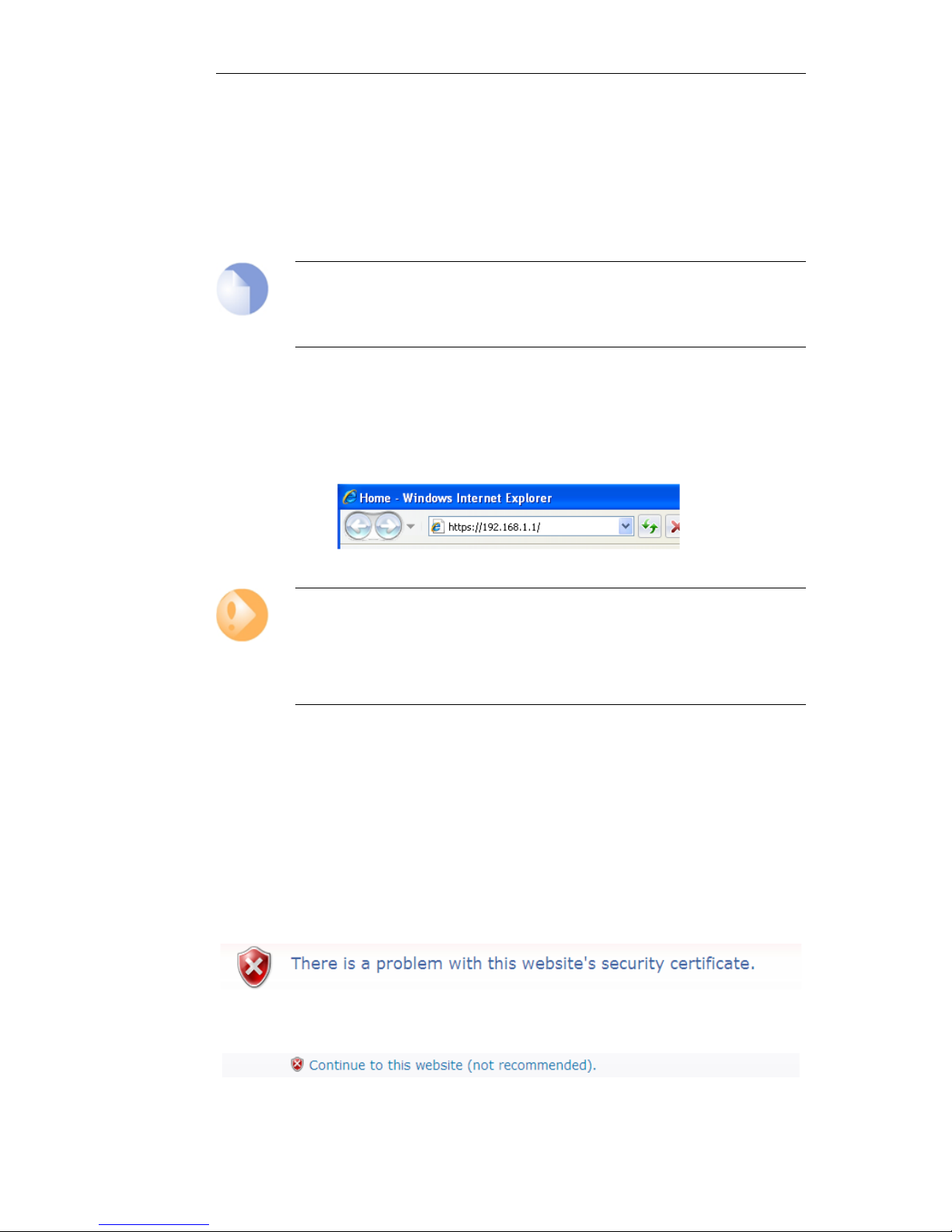
Connect By Browsing to https://192.168.1.1
Using a web browser, enter the address https://192.168.1.1 into the navigation window as shown
below.
Important: Disable any proxy server and turn off popup blocking
Make sure the web browser doesn't have a proxy server configured.
Any popup blocking in the browser should also be temporarily turned off to allow the
setup wizard to run.
If there is no response from cOS Core and the reason is not clear, refer to the help checklist in
Section 3.6, “Setup Troubleshooting ”.
The cOS Core Self-signed Certificate
When responding to an https:// request, by default cOS Core sends a self-signed certificate which
will not be initially recognized so it will be necessary to tell the browser to accept the certificate
for this and future sessions.
Different browsers handle this self-signed certificate in slightly different ways. In Microsoft
Internet Explorer the following error message will be displayed in the browser window.
To continue, tell IE to accept the certificate by clicking the following link which appears near the
bottom of the browser window.
In Firefox, this procedure is called "Add a security exception".
Chapter 3: cOS Core Configuration
24
Page 25
It is possible to configure cOS Core to use a CA signed certificate instead of self-signed certificate
for the management login and doing this is described in the cOS Core Administration Guide.
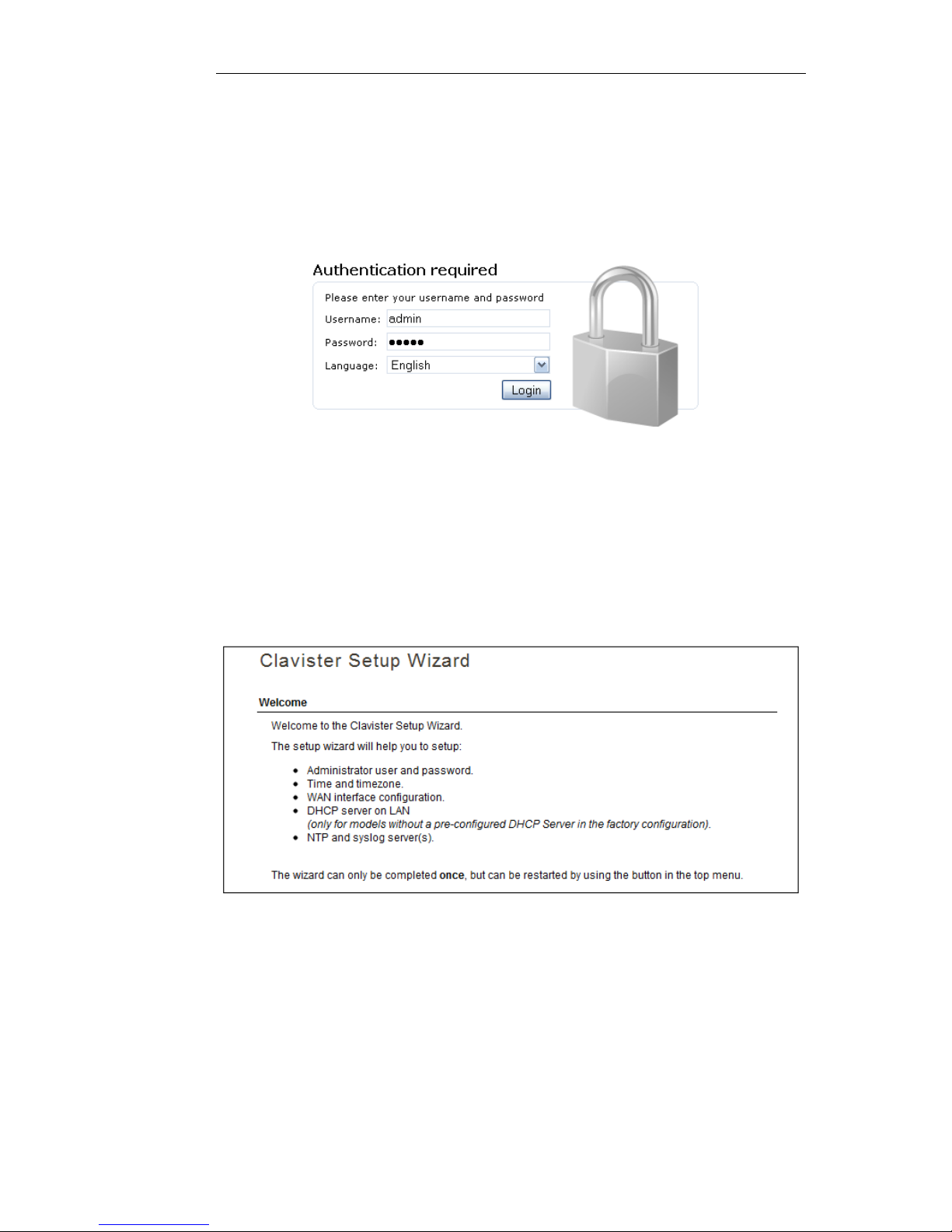
The Login Dialog
cOS Core will next respond like a web server with the initial login dialog page as shown below.
The available Web Interface language options are selectable at the bottom of this dialog. This
defaults to the language set for the browser if cOS Core supports that language.
Enter the administrator username admin and default password admin.
The Setup Wizard
After login, the Web Interface will appear and the cOS Core setup wizard should begin
automatically. The first wizard dialog is the wizard welcome screen which should appear as
shown below.
Cancelling the Wizard
The setup wizard can be cancelled at any point before the final Activate screen and run again by
choosing the Setup Wizard option from the Web Interface toolbar. Once any configuration
changes have been made and activated, either through the wizard, Web Interface or CLI, then
the wizard cannot be run since the wizard requires that cOS Core has the factory defaults.
The Wizard Assumes Internet Access will be Configured
The wizard assumes that Internet access will be configured. If this is not the case, for example if
Chapter 3: cOS Core Configuration
25
Page 26
the Clavister Security Gateway is being used in Transparent Mode between two internal networks,
then the configuration setup is best done with individual Web Interface steps or through the CLI
instead of through the wizard.
Advantages of the Wizard
The wizard makes setup easier because it automates what would otherwise be a more complex
set of individual setup steps. It also reminds you to perform important tasks such as setting the
date and time and configuring a log server.
The steps that the wizard goes through after the welcome screen are listed next.
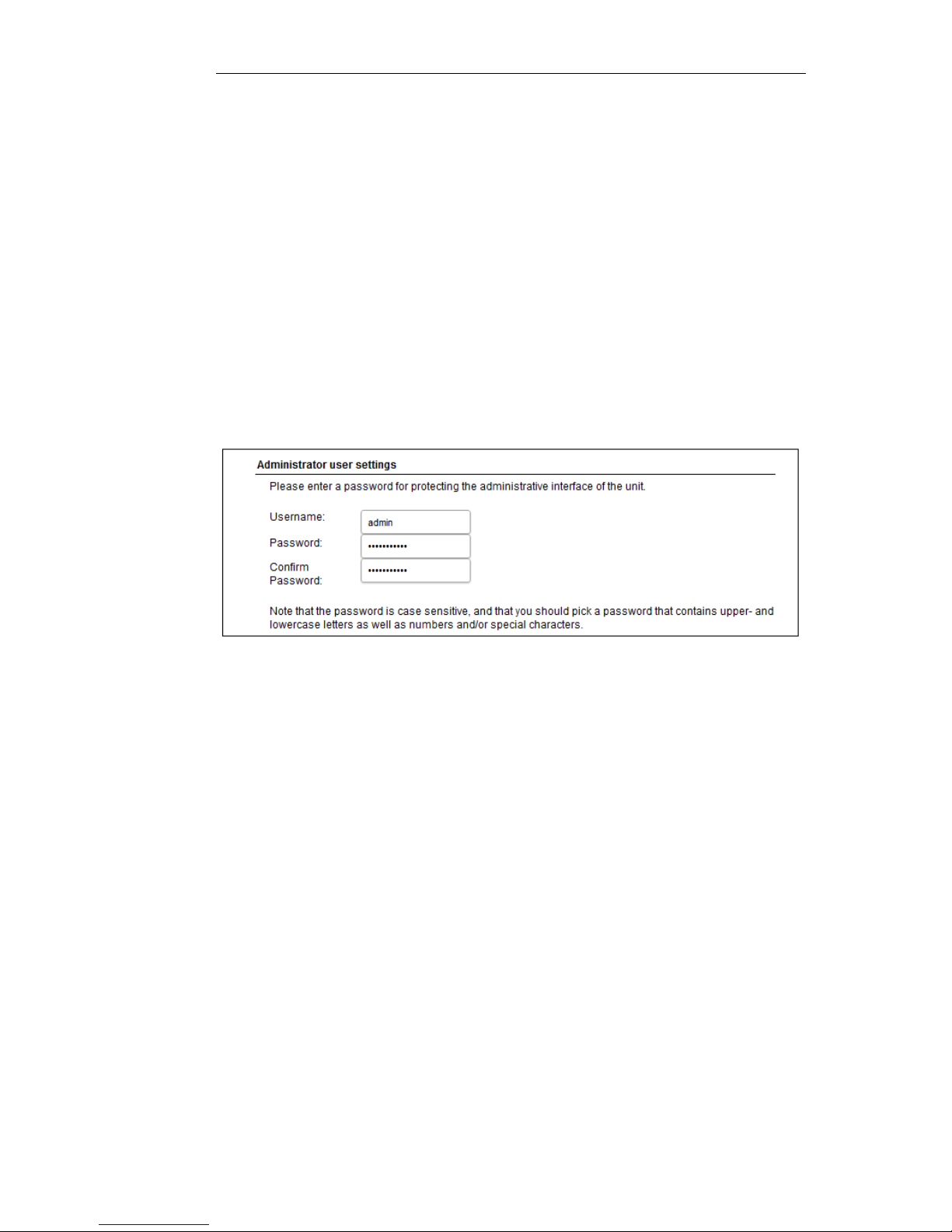
Wizard step 1: Enter a new username and password
You will be prompted to enter a new administration username and password as shown below. It
is recommended that this is always done and the new username/password is remembered (if
these are forgotten, restoring to factory defaults will restore the original admin/admin
combination). The password should be composed in a way which makes it difficult to guess.
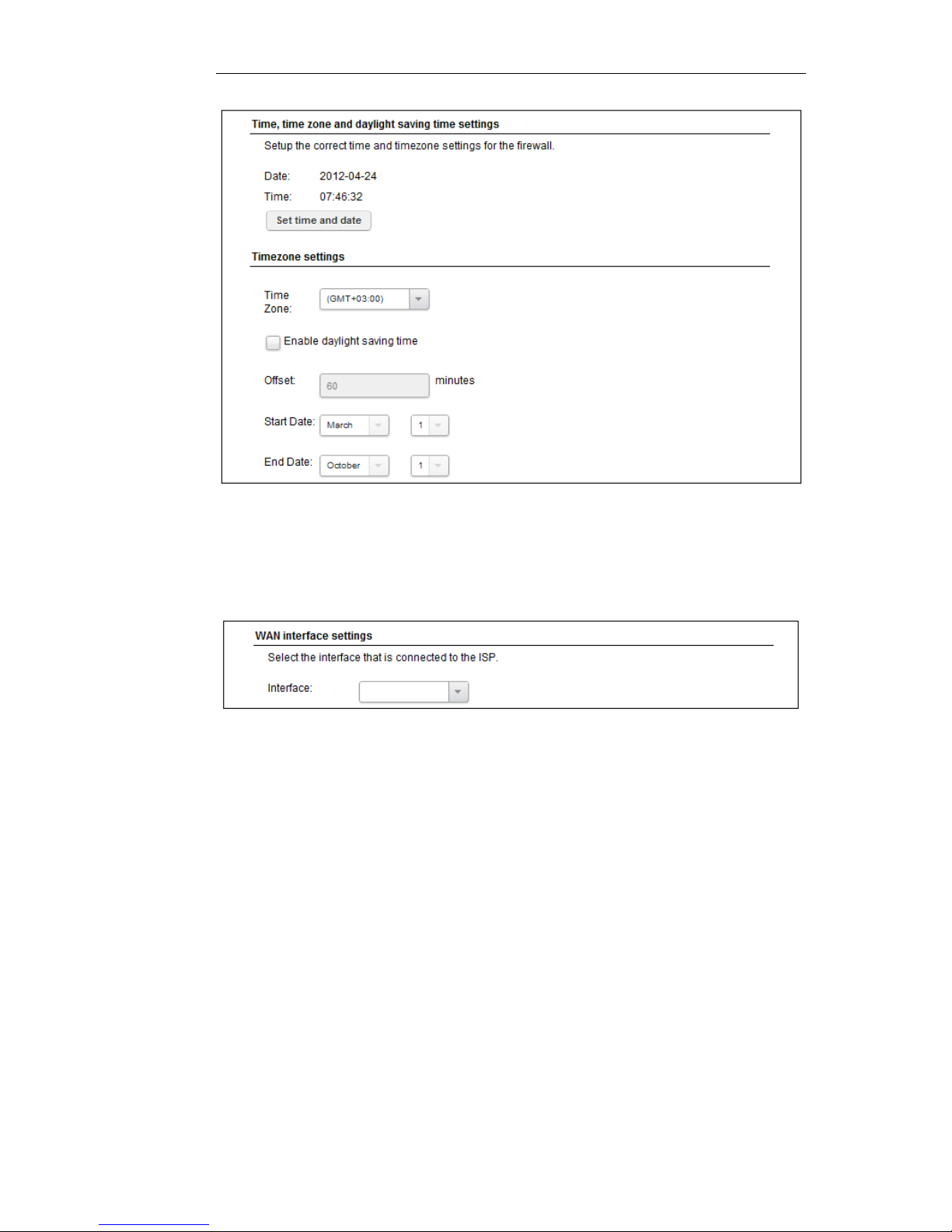
Wizard step 2: Set the date and time
Many cOS Core functions rely on an accurate date and time, so it is important that this is set
correctly in the fields shown below.
Chapter 3: cOS Core Configuration
26
Page 27
Wizard step 3: Select the WAN interface
Next, you will be asked for the WAN interface that will be used to connect to an ISP for Internet
access.
Wizard step 4: Select the WAN interface settings
This step selects how the WAN connection to the Internet will function. It can be one of Manual
configuration, DHCP, PPPoE or PPTP as shown below.
Chapter 3: cOS Core Configuration
27
Page 28
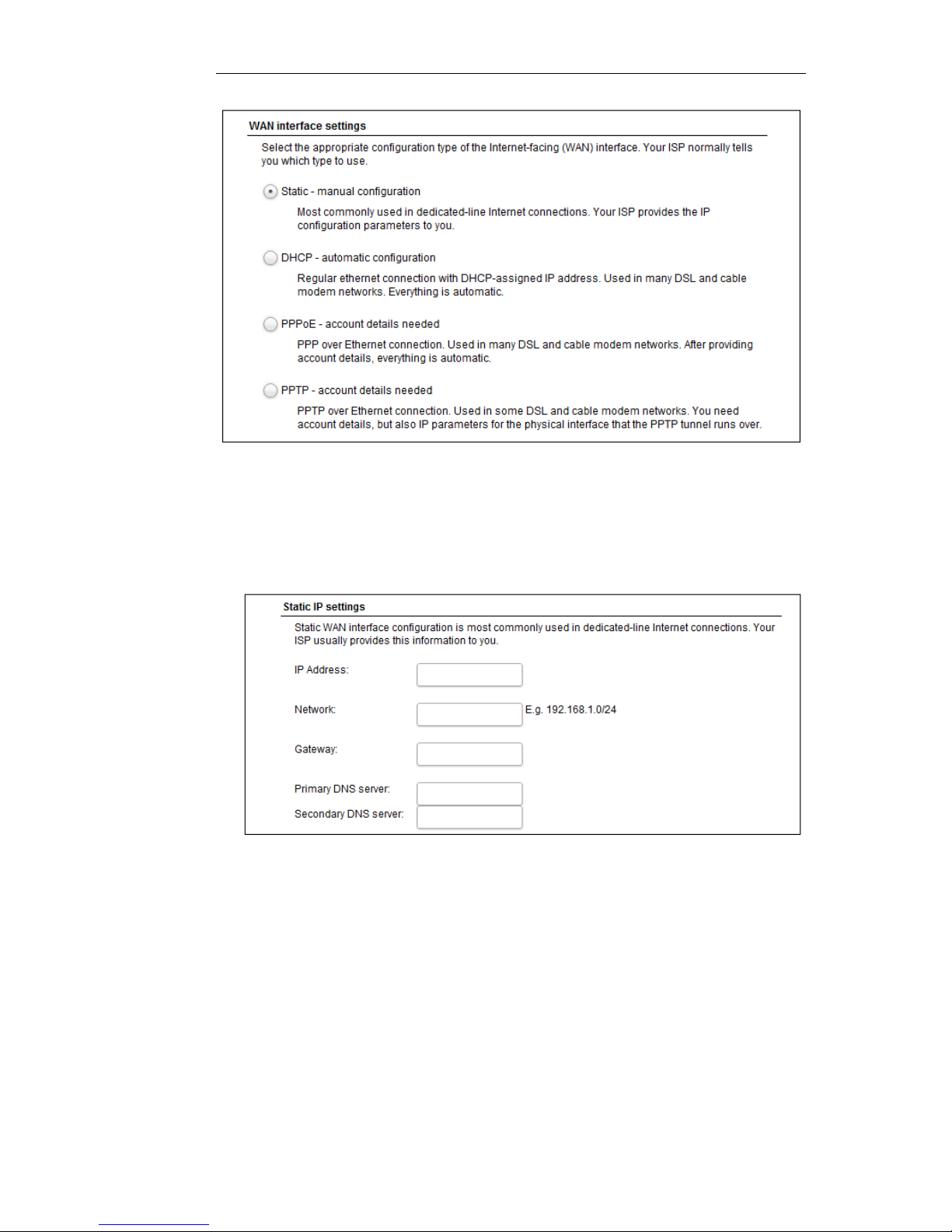
These four different connection options are discussed next in the subsections 4A to 4D that
follow.
• 4A. Static - manual configuration
Information supplied by the ISP should be entered in the next wizard screen. All fields need
to be entered except for the Secondary DNS server field.
• 4B. DHCP - automatic configuration
All required IP addresses will automatically be retrieved from the ISP's DHCP server with this
option. No further configuration is required for this so it does not have its own wizard screen.
• 4C. PPPoE settings
The username and password supplied by an ISP for PPPoE connection should be entered. The
Service field should be left blank unless the ISP supplies a value for it.
Chapter 3: cOS Core Configuration
28
Page 29
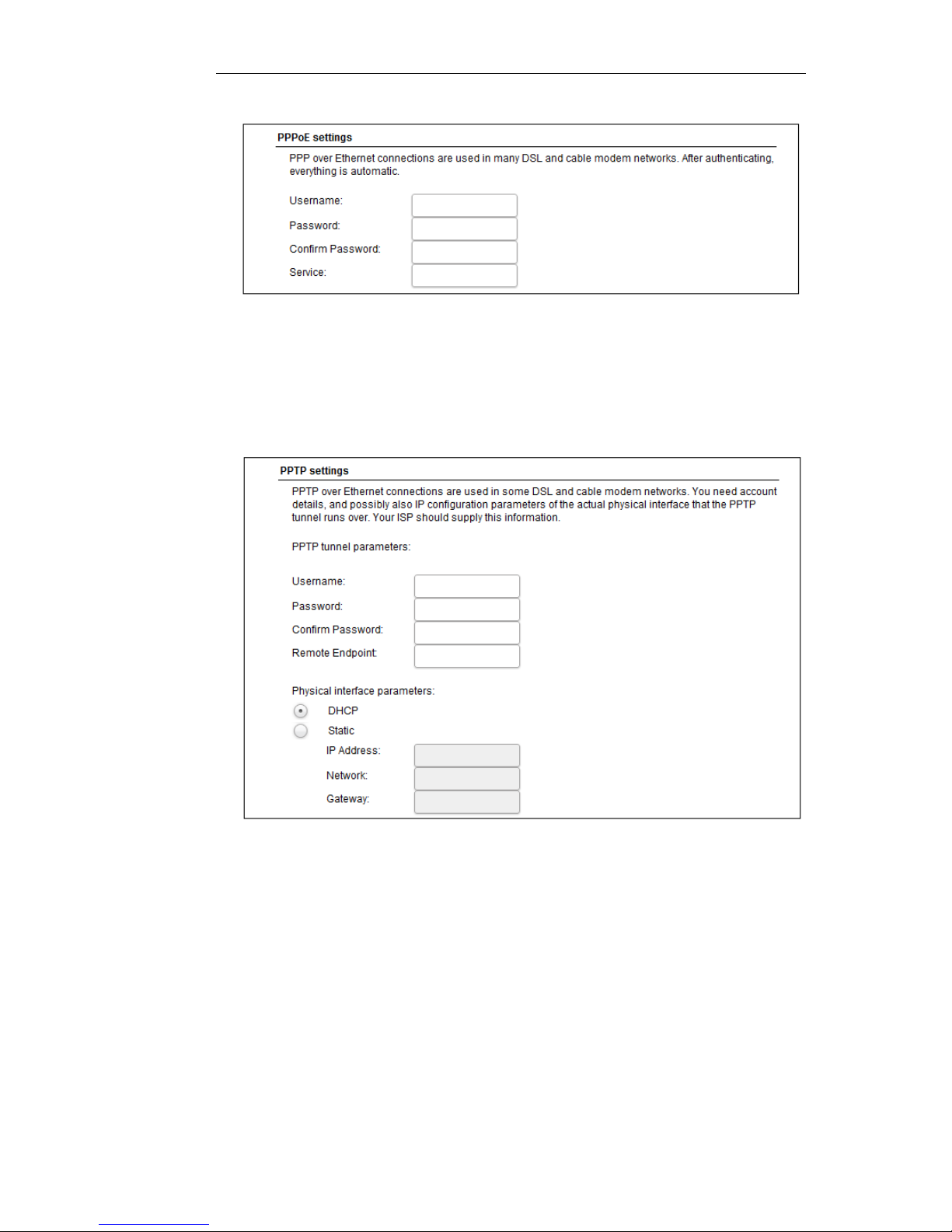
DNS servers are set automatically after connection with PPPoE.
• 4D. PPTP settings
The username and password supplied by an ISP for PPTP connection should be entered. If
DHCP is to be used with the ISP then this should be selected, otherwise Static should be
selected followed by entering the static IP address supplied by the ISP.
DNS servers are set automatically after connection with PPTP.
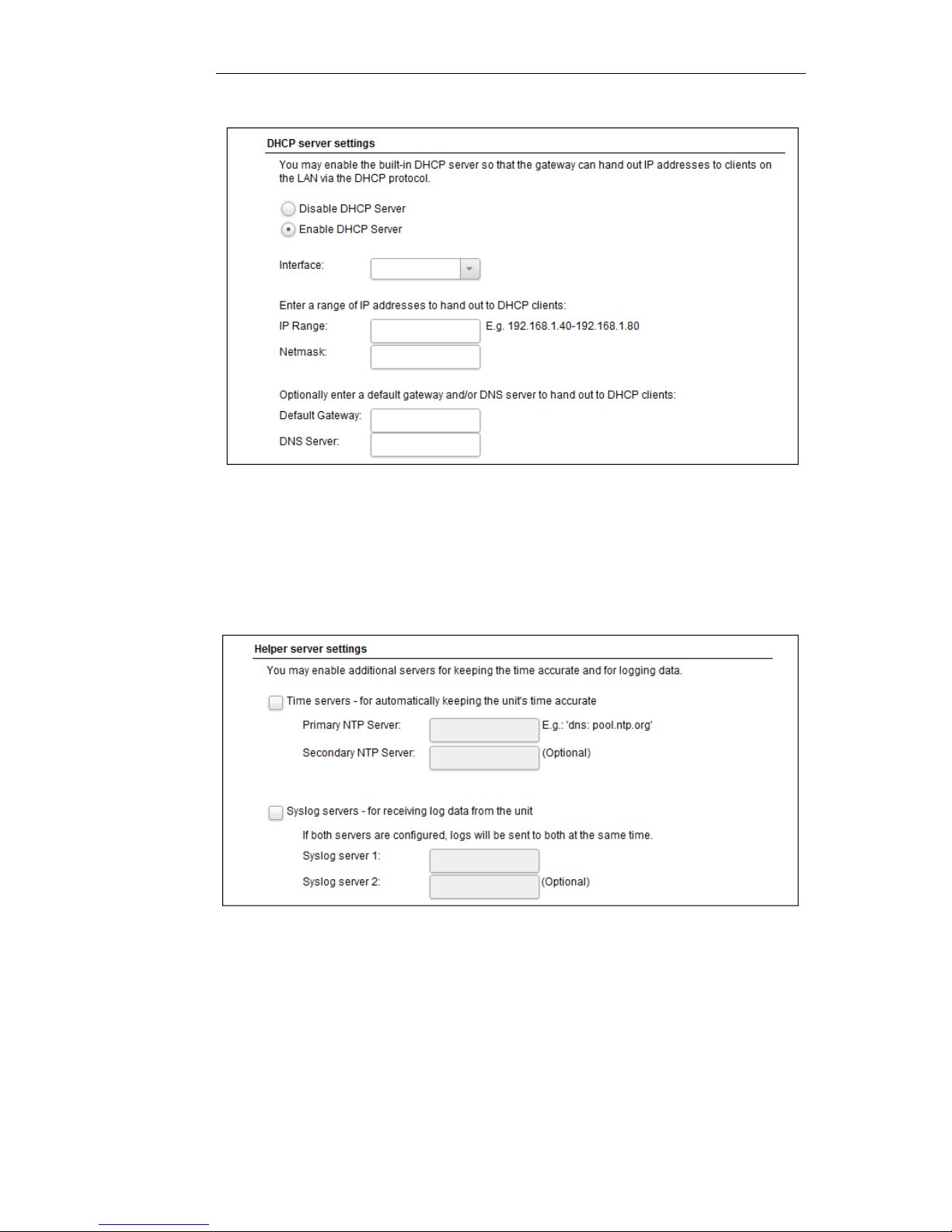
Wizard step 5: DHCP server settings
If the Clavister Security Gateway is to function as a DHCP server, it can be enabled here in the
wizard on a particular interface or configured later.
The range of IPv4 addresses that can be handed out must be specified in the form n.n.n.n -
n.n.n.n, where n is a number between 0 and 255 and n.n.n.n is a valid IPv4 address within a
subnet local to the security gateway.
For example, the private IPv4 address range might be specified as 192.168.1.50 - 192.168.1.150
with a netmask of 255.255.255.0.
Chapter 3: cOS Core Configuration
29
Page 30
Wizard step 6: Helper server settings
Optional NTP and Syslog servers can be enabled here in the wizard or configured later. Network
Time Protocol servers keep the system date and time accurate. Syslog servers can be used to
receive and store log messages sent by cOS Core.
For the default gateway, it is recommended to specify the IPv4 address assigned to the internal
network interface. In this setup, this corresponds to 192.168.1.1. The DNS server specified should
be the DNS supplied by an ISP.
When specifying a hostname as a server instead of an IP address, the hostname should be
prefixed with the string dns:. For example, the hostname host1.company.com should be entered
as dns:host1.company.com.
Chapter 3: cOS Core Configuration
30
Page 31
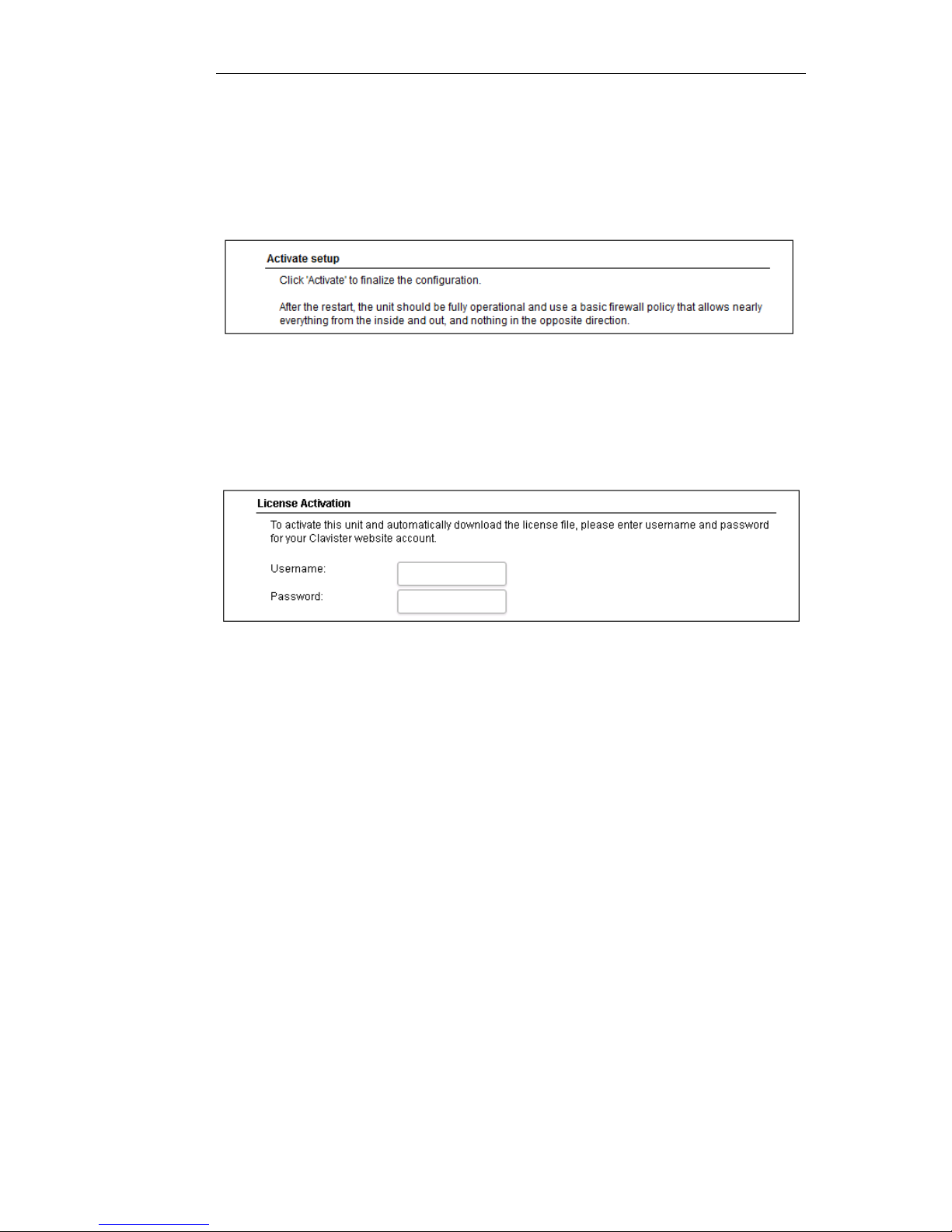
Wizard step 7: Activate setup
The final step for the configuration is to save and activate it by pressing the Activate button. After
this step the Web Interface returns to its normal appearance and the administrator can continue
to configure the system.
Wizard step 8: License Activation
This optional step is to install a license which is fetched from the Clavister website. Internet
access will have been set up in previous wizard steps for this option to function. The only input
required is a customer username and password.
If customer registration has not been previously been done, a link is provided to open a browser
window to complete registration.
Alternatively, this step can be skipped and license installation can be done later, in which case
cOS Core will run in demo mode with a 2 hour time limit before it ceases to function.
If a license is installed at this point, the wizard will then ask if a reconfigure or restart operation
should be performed. If all license parameters are to take effect, cOS Core must be restarted.
Running the Wizard Again
Once the wizard has been successfully finished and activated, it cannot be run again. The
exception to this is if the Clavister Security Gateway has its factory defaults restored in which
case the appliance will behave as though it were being started for the first time.
Chapter 3: cOS Core Configuration
31
Page 32
3.3. Manual Web Interface Setup
This section describes initial cOS Core configuration performed directly through the Web
Interface, without using the setup wizard. Configuration is done as a series of individual steps,
giving the administrator more direct control over the process. Even if the wizard is used, this
section can also be read as a good introduction to using the Web Interface for configuring key
aspects of cOS Core.
Ethernet Interfaces
The physical connection of external networks to the Clavister Security Gateway is through the
various Ethernet interfaces which are provided by the hardware platform. On first-time startup,
cOS Core scans for these interfaces and determines which are available and allocates their
names. The first interface detected in the scan always becomes the initial default management
interface and this cannot be changed beforehand.
All cOS Core interfaces are logically equal for cOS Core and although their physical capabilities
may be different, any interface can perform any logical function. With the E5, any of the GESW
interfaces acts as the default management interface. The other interfaces can be used as desired.
For the sake of example, it is assumed here that the G1 interface will be used for connection to a
protected network and the G2 interface will be used for connection to the public Internet.
Setting the Date and Time
Many cOS Core functions rely on an accurate date and time, so it is important that this is set
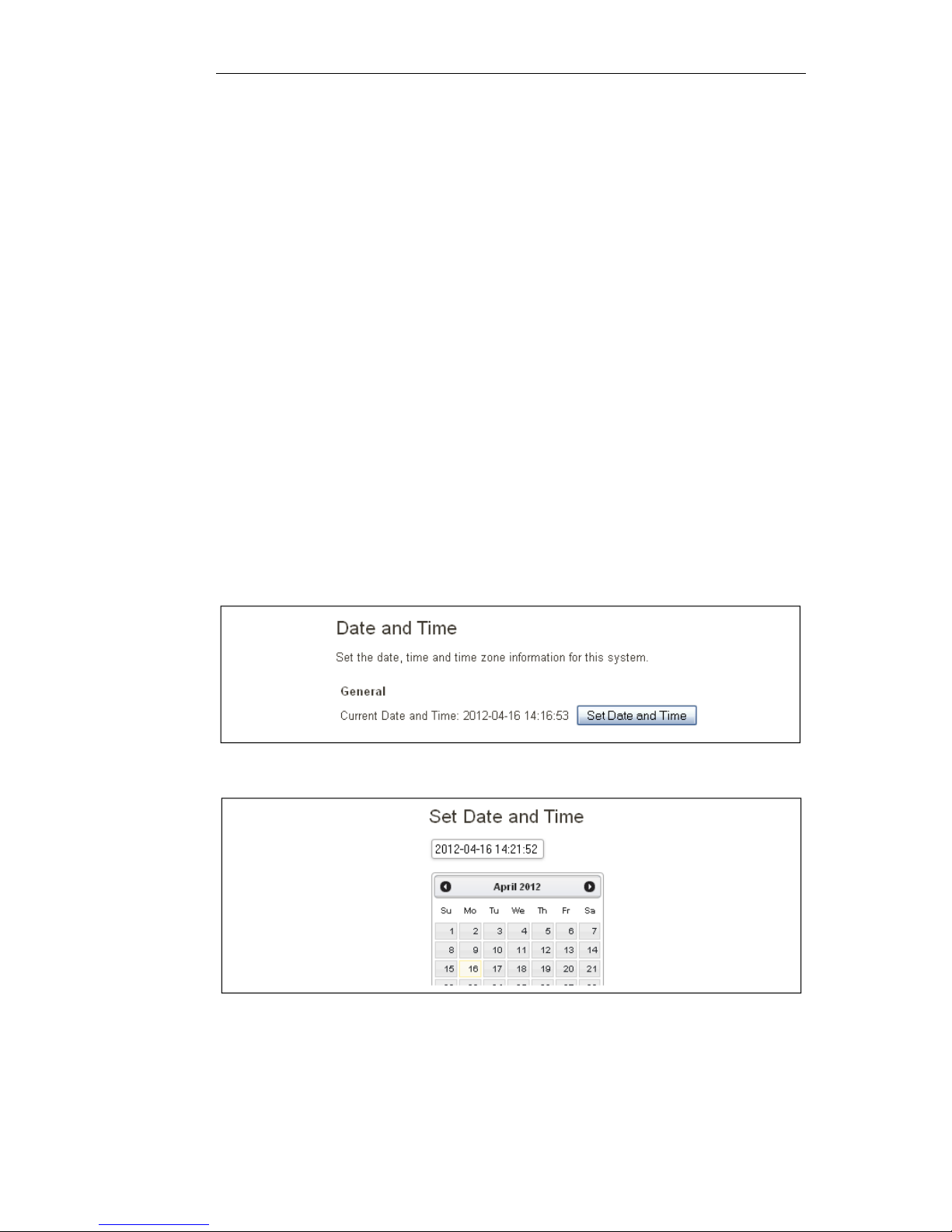
correctly. To do this, select System > Device > Date and Time.
By pressing the Set Date and Time button, a dialog appears that allows the exact time to be set.
A Network Time Protocol (NTP) servers can optionally be configured to maintain the accuracy
of the system date and time and this will require public Internet access. Enabling this option is
strongly recommended since it ensures the accuracy of the date and time. A typical NTP setup is
shown below.
Chapter 3: cOS Core Configuration
32
Page 33
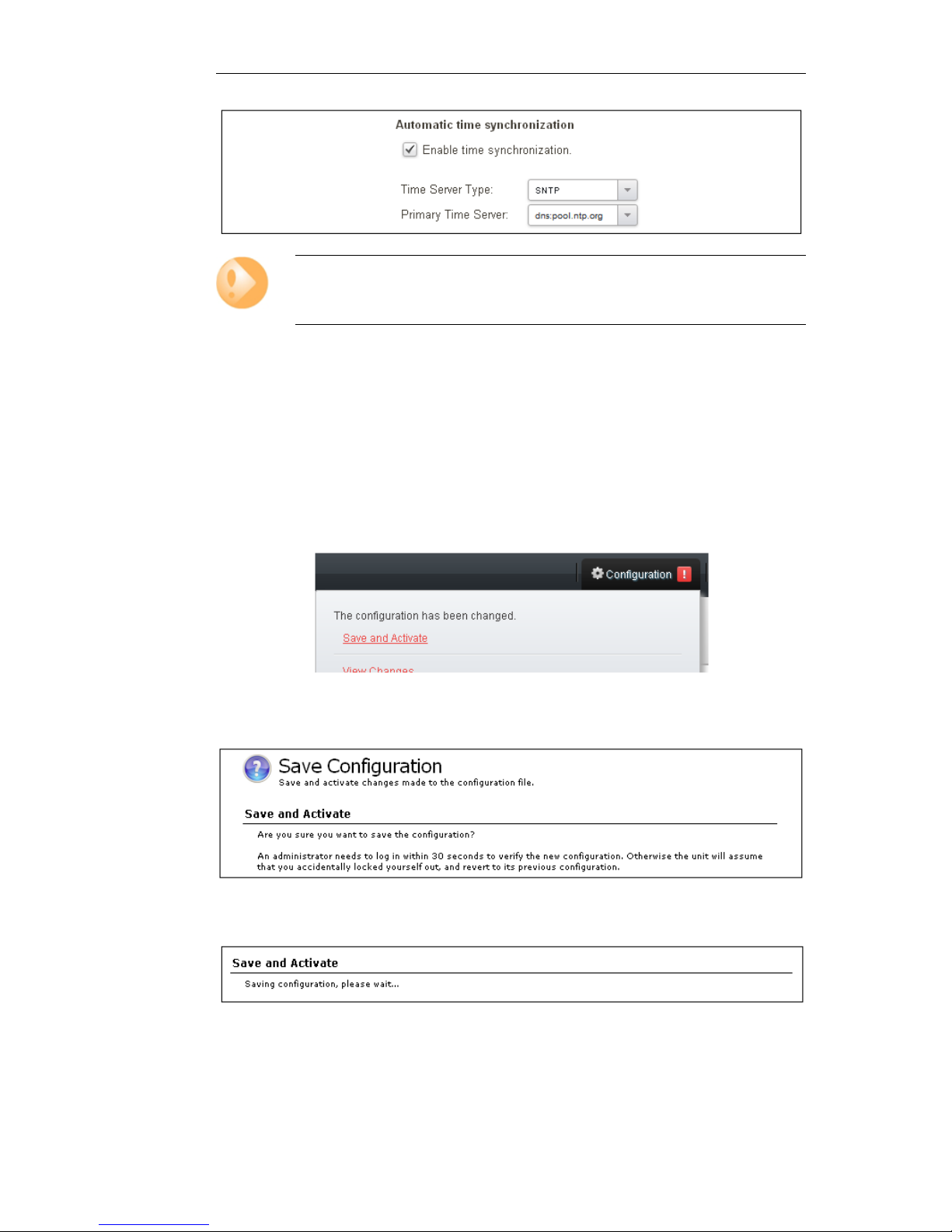
Important: The time server URL requires the "dns:" prefix
When specifying a URL in cOS Core for the time server, it must have the prefix "dns:".
Once the values are set correctly, we can press the OK button to save the values while we move
on to more steps in cOS Core configuration. Although changed values like this are saved by cOS
Core, they do not become active until the entire saved configuration becomes the current and
active configuration. We will look at how to do this next.
Activating Configuration Changes
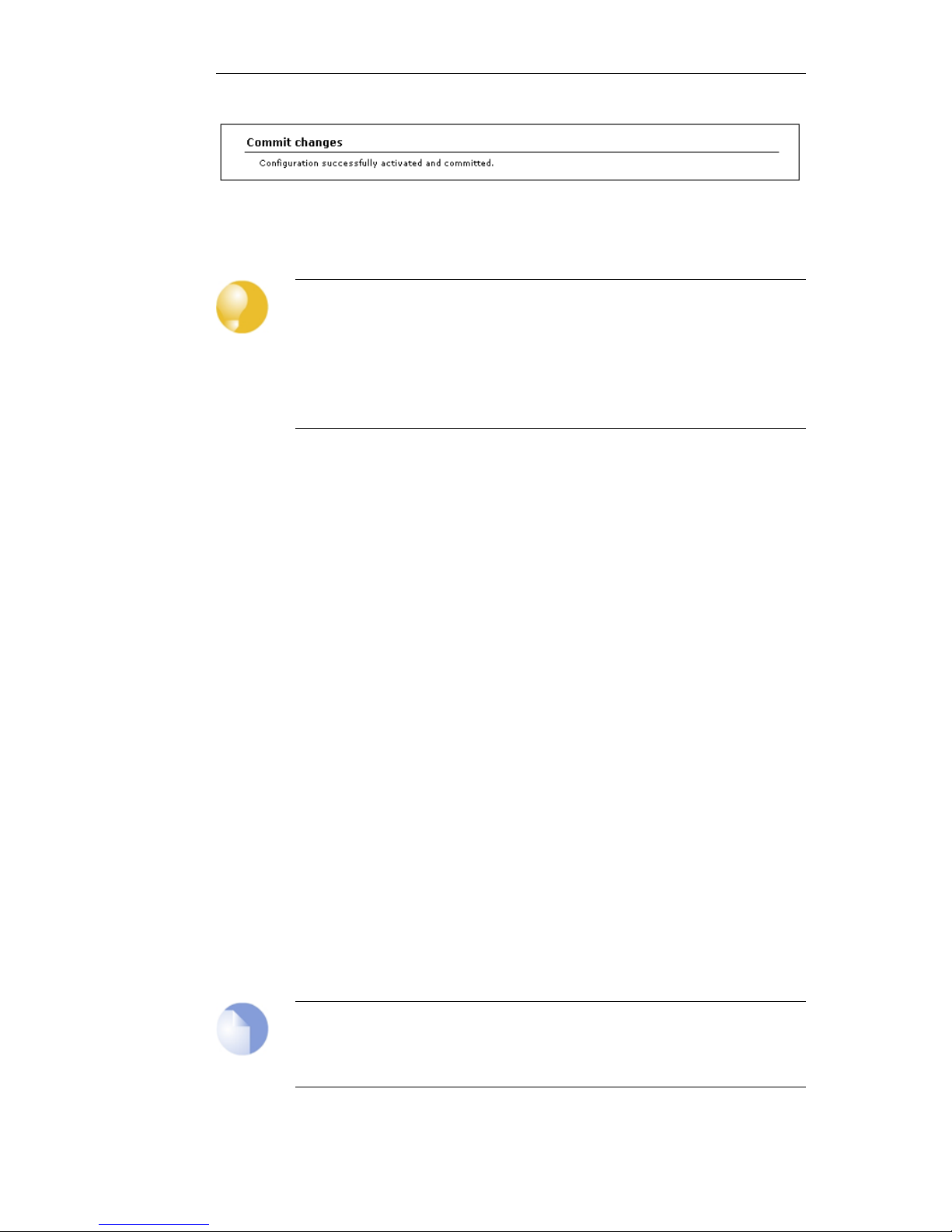
To activate any cOS Core configuration changes made so far, select the Save and Activate
option from the Configuration menu (this procedure is also referred to as deploying a
configuration).
A dialog is then presented to confirm that the new configuration is to become the running
configuration.
After clicking OK, cOS Core reconfiguration will take place and, after a short delay, the Web
Interface will try and connect again to the security gateway.
If no reconnection is detected by cOS Core within 30 seconds (this length of time is a setting that
can be changed) then cOS Core will revert back to the original configuration. This is to ensure
that the new configuration does not accidentally lock out the administrator. After
reconfiguration and successful reconnection, a success message is displayed indicating
successful reconfiguration.
Chapter 3: cOS Core Configuration
33
Page 34
Reconfiguration is a process that the cOS Core administrator may initiate often. Normally,
reconfiguration takes a brief amount of time and causes only a slight delay in traffic throughput.
Active user connections through the Clavister Security Gateway should rarely be lost.
Tip: How frequently to commit configuration changes
It is up to the administrator to decide how many changes to make before activating a
new configuration. Sometimes, activating configuration changes in small batches can
be appropriate in order to check that a small set of changes work as planned.
However, it is not advisable to leave changes uncommitted for long periods of time,
such as overnight, since any system outage will result in these edits being lost.
Automatic Logout
If there is no activity through the Web Interface for a period of time (the default is 15 minutes),
cOS Core will automatically log the user out. If they log back in through the same web browser
session then they will return to the point they were at before the logout occurred and no saved
(but not yet activated) changes are lost.
Setting Up Internet Access
Next, we shall look at how to set up public Internet access. The setup wizard described in the
previous chapter, provides the following four options:
A. Static - manual configuration.
B. DHCP - automatic configuration.
C. PPPoE setup
D. PPTP setup
The individual manual steps to configure these connection alternatives with the Web Interface
are discussed next.
A. Static - manual configuration
Manual configuration means that there will be a direct connection to the ISP and all the relevant
IP addresses for the connecting interface are fixed values provided by the ISP which are entered
into cOS Core manually.
Note: The interface DHCP option should be disabled
For static configuration of the Internet connection, the DHCP option must be disabled
(the default) in the properties of the interface that will connect to the ISP.
Chapter 3: cOS Core Configuration
34
Page 35
The initial step is to set up a number of IPv4 address objects in the cOS Core Address Book. Let us
assume for this section that the interface used for Internet connection is G2 and that the static
IPv4 address for this interface is to be 10.5.4.35, the ISP's gateway IPv4 address is 10.5.4.1, and the
network to which they both belong is 10.5.4.0/24.
Note: Private IPv4 addresses are used for example only
Each installation's IP addresses will be different from the IP addresses used here in the
examples. Also, the addresses used in the examples are private IPv4 addresses and in
reality an ISP would issue public IPv4 addresses for Internet access.
Now, add the gateway IP4 Address object using the address book name wan_gw and assign it the
IPv4 address 10.5.4.1. The ISP's gateway is the first router hop towards the public Internet from
the Clavister Security Gateway. Go to Objects > Address Book in the Web Interface.
The current contents of the address book will be listed and will contain a number of predefined
objects created by cOS Core after it scans the interfaces for the first time. The screenshot below
shows the initial address book for the E5.
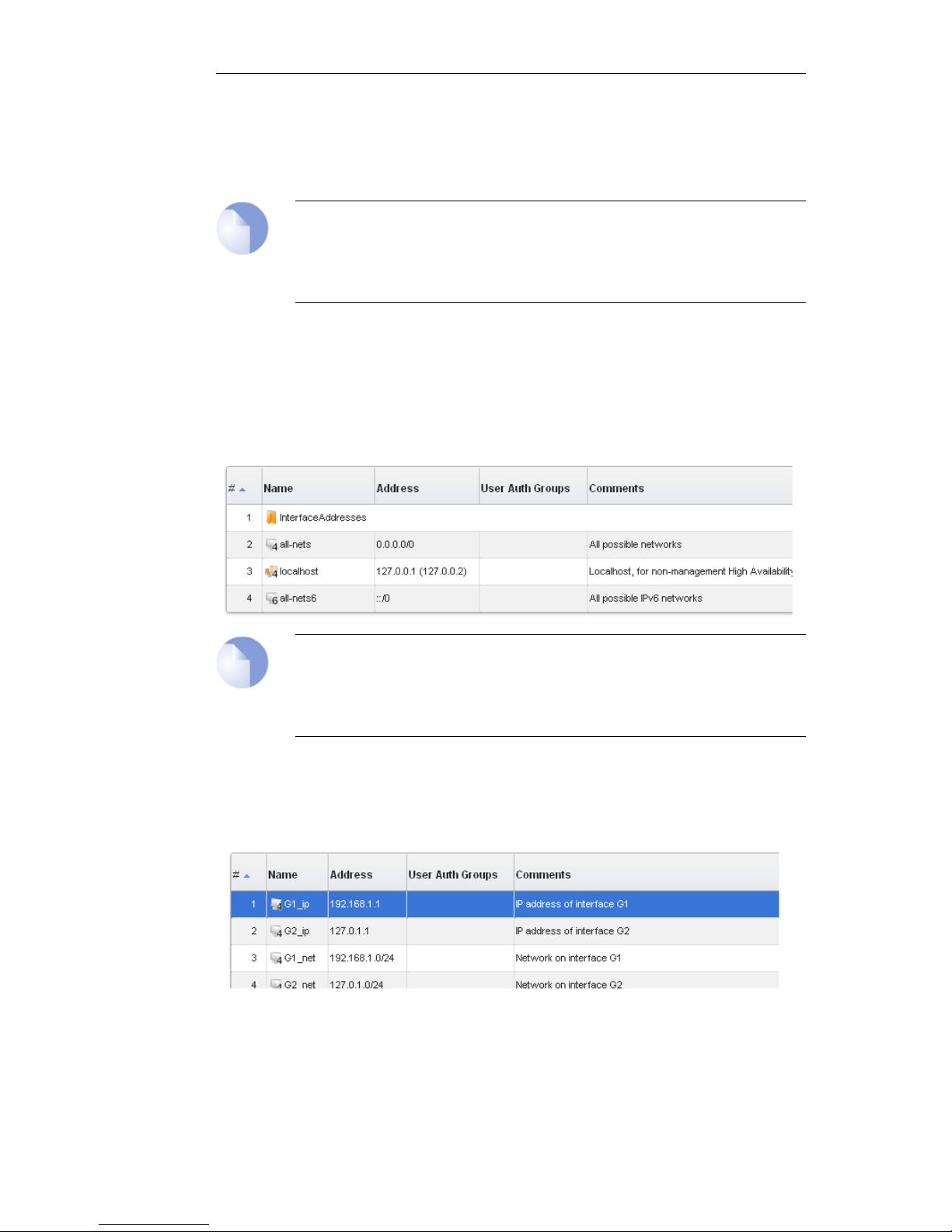
Note: The all-nets address
The IPv4 address object all-nets is a wildcard address that should never be changed and
can be used in many types of cOS Core rules to refer to any IPv4 address or network
range.
For the E5, all the Ethernet interface related address objects are gathered together in an address
book folder called InterfaceAddresses. By clicking on this folder, it will be opened and the
individual address objects it contains can be viewed. The first few default addresses in the folder
are shown below.
On initial startup, two IPv4 address objects are created automatically for each interface detected
by cOS Core. One IPv4 address object is named by combining the physical interface name with
the suffix "_ip" and this is used for the IPv4 address assigned to that interface. The other address
object is named by combining the interface name with the suffix "_net" and this is the network to
which the interface belongs.
Chapter 3: cOS Core Configuration
35
Page 36
Tip: Creating address book folders
New folders can be created when needed and provide a convenient way to group
together related IP address objects. The folder name can be chosen to indicate the
folder's contents.
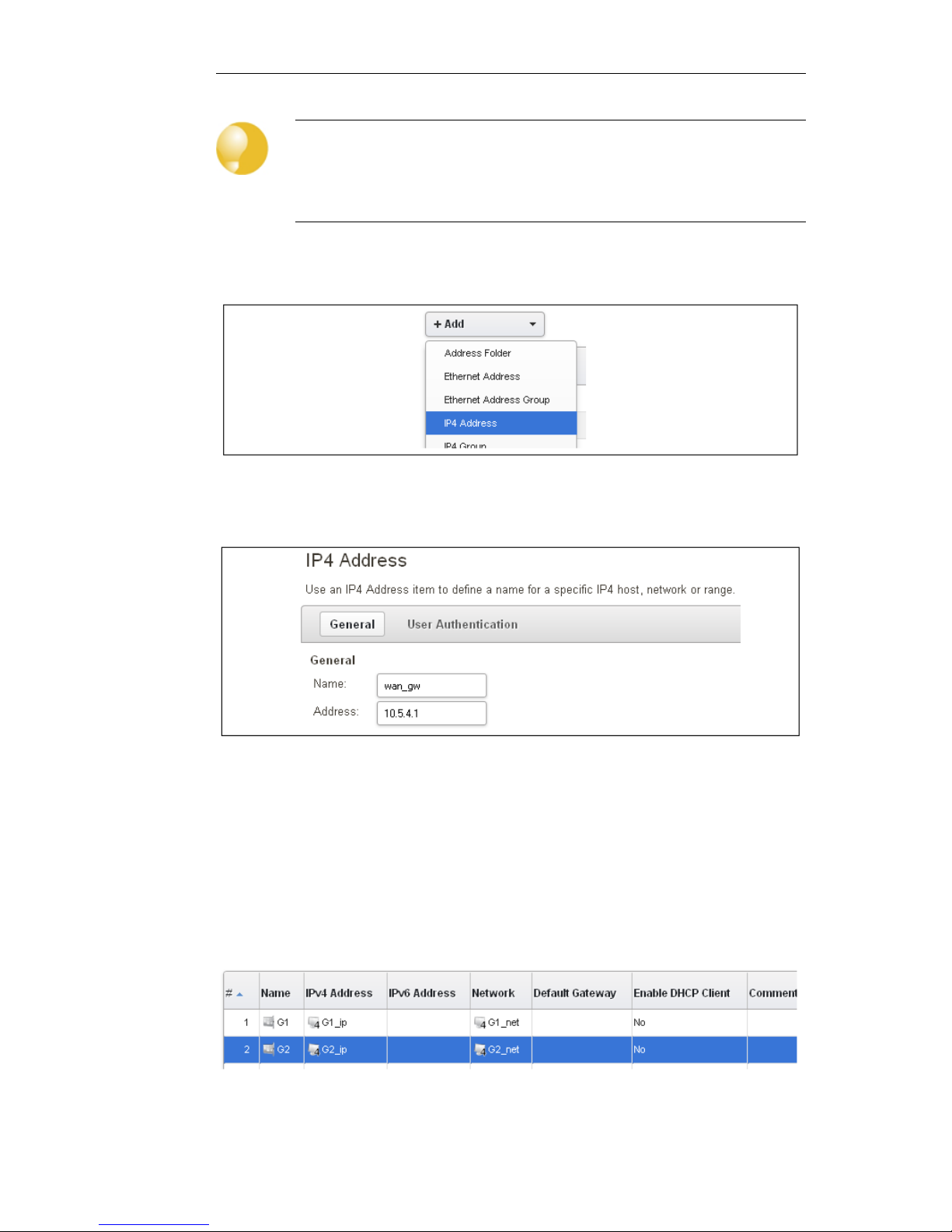
Now click the Add button at the top left of the list and choose the IP4 Address option to add a
new address to the folder.
Enter the details of the object into the properties fields for the IP4 Address object. Below, the IPv4
address 10.5.4.1 has been entered for the address object called wan_gw. This is the IP of the ISP's
router which acts as the gateway to the public Internet.
Click the OK button to save the values entered.
Then set up G2_ip to be 10.5.4.35. This is the IPv4 address of the G2 interface which will connect
to the ISP's gateway.
Lastly, set the IP4 Address object G2_net to be 10.5.4.0/24. Both G2_ip and wan_gw must belong
to this network in order for the interface to communicate with the ISP.
Together, these three IPv4 address objects will be used to configure the interface connected to
the Internet which in this example is G2. Select Network > Interfaces and VPN > Ethernet to
display a list of the physical interfaces. The first lines of the interface list for the E5 are shown
below.
Click on the interface in the list which is to be connected to the Internet. The properties for this
Chapter 3: cOS Core Configuration
36
Page 37
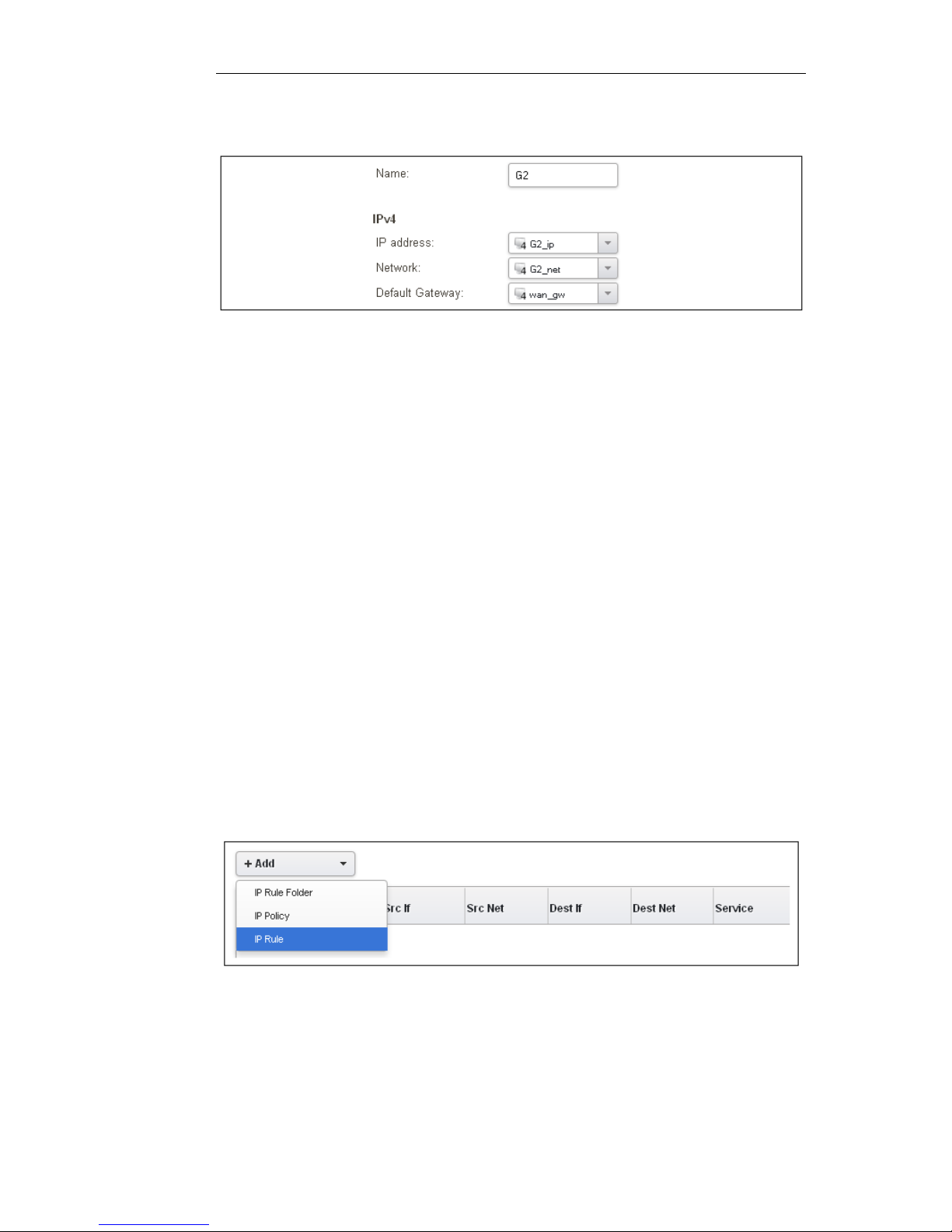
interface will now appear and the settings can be changed including the default gateway.
Press OK to save the changes. Although changes are remembered by cOS Core, the changed
configuration is not yet activated and won't be activated until cOS Core is told explicitly to use
the changed configuration.
Remember that DHCP should not be enabled when using static IP addresses and also that the IP
address of the Default Gateway (which is the ISP's router) must be specified. As explained in more
detail later, specifying the Default Gateway also has the additional effect of automatically adding
a route for the gateway in the cOS Core routing table.
At this point, the connection to the Internet is configured but no traffic can flow to or from the
Internet since all traffic needs a minimum of the following two cOS Core configuration objects to
exist before it can flow through the Clavister Security Gateway:
• An IP rule or IP Policy object that explicitly allows traffic to flow from a given source network
and source interface to a given destination network and destination interface.
• A route defined in a cOS Core routing table which specifies on which interface cOS Core can
find the traffic's destination IP address.
If multiple matching routes are found, cOS Core uses the route that has the smallest (in other
words, the narrowest) IP range.
We must therefore first define an IP rule that will allow through traffic from a designated source
interface and source network. In this case let us assume we want to allow web browsing from the
internal network G1_net connected to the interface G1 to be able to access the public Internet.
To do this, first go to Policies > Firewalling > Main IP Rules.
The empty main IP rule set will now appear. Press the Add button at the top left and select IP
Rule from the menu.
The properties for the new IP rule will appear. In this example, we will call the rule lan_to_wan.
The rule Action is set to NAT (this is explained further below) and the Service is set to http-all
which is suitable for most web browsing (it allows both HTTP and HTTPS connections). The
interface and network for the source and destinations are defined in the Address Filter section of
the rule.
Chapter 3: cOS Core Configuration
37
Page 38
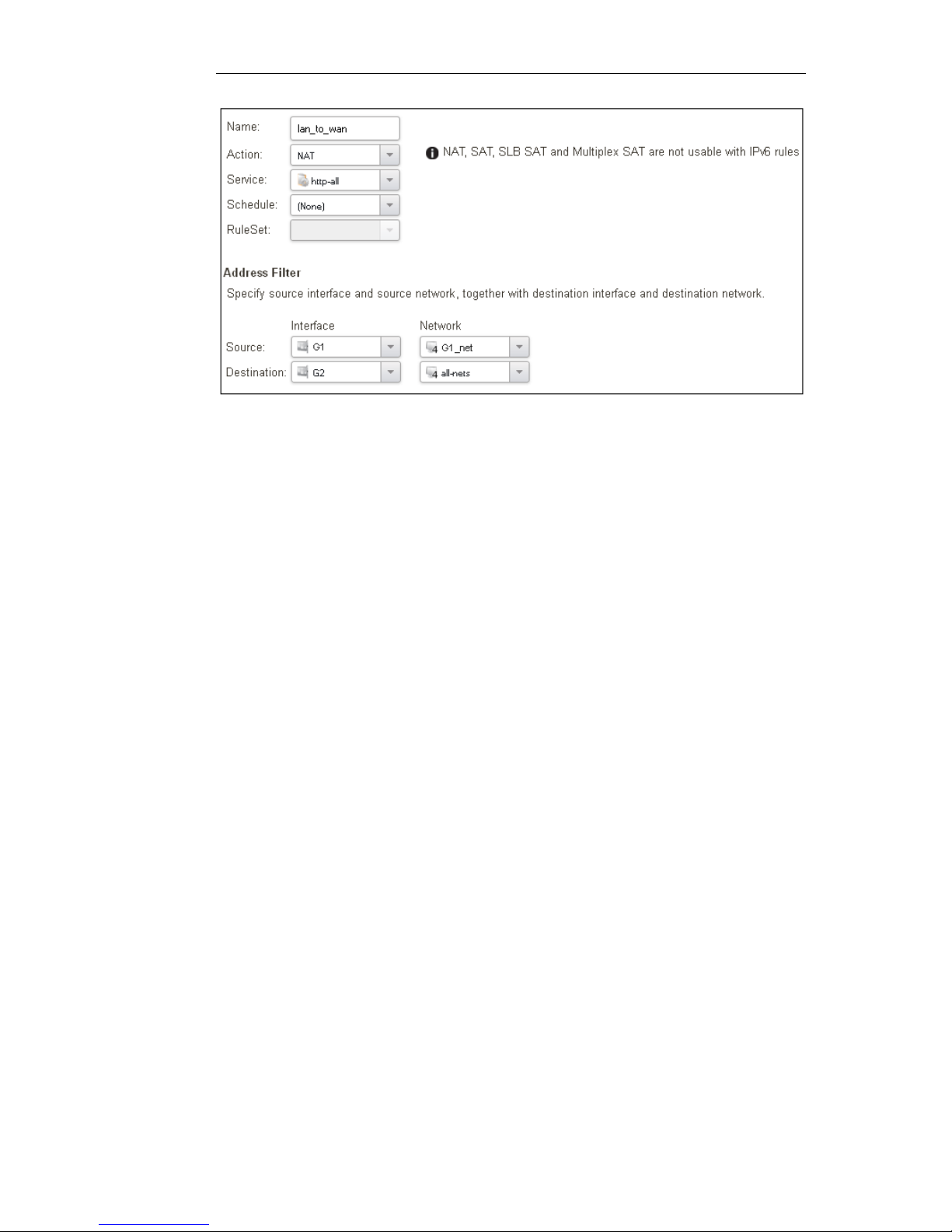
The destination network in the IP rule is specified as the predefined IP4 Address object all-nets.
This is used since it cannot be known in advance to which IP address web browsing will be
directed and all-nets allows browsing to any IP address. IP rules are processed in a top down
fashion, with the search ending at first matching rule. An all-nets rule like this should be placed
towards the bottom or at the end of the rule set since other rules with narrower destination
addresses should trigger before it does.
Only one rule is needed since any traffic controlled by a NAT rule will be controlled by the cOS
Core state engine. This means that the rule will allow connections that originate from the source
network/destination and also implicitly allow any returning traffic that results from those
connections.
In the above, the predefined service called http-all is the best service to use for web browsing
(this service includes HTTP and HTTPS but not DNS). It is advisable to always make the service in
an IP rule or IP policy as restrictive as possible to provide the best security possible. Custom
service objects can be created for specific protocols and existing service objects can also be
combined into a new, single service object.
The IP rule Action could have been specified as Allow, but only if all the hosts on the protected
local network have public IPv4 addresses. By using NAT, cOS Core will use the destination
interface's IP address as the source IP. This means that external hosts will send their responses
back to the interface IP and cOS Core will automatically forward the traffic back to the originating
local host. Only the outgoing interface therefore needs to have a public IPv4 address and the
internal network topology is hidden.
To allow web browsing, DNS lookup also needs to be allowed in order to resolve URLs into IP
addresses. The service http-all does not include the DNS protocol so a similar IP rule that allows
this is needed. This could be done with a single IP rule or IP policy that uses a custom service
which combines the HTTP and DNS protocols but the recommended method is to create an
entirely new IP rule that mirrors the above rule but specifies the service as dns-all. This method
provides the most clarity when the configuration is examined for any problems. The screenshot
below shows a new IP rule called lan_to_wan_dns being created to allow DNS.
Chapter 3: cOS Core Configuration
38
Page 39
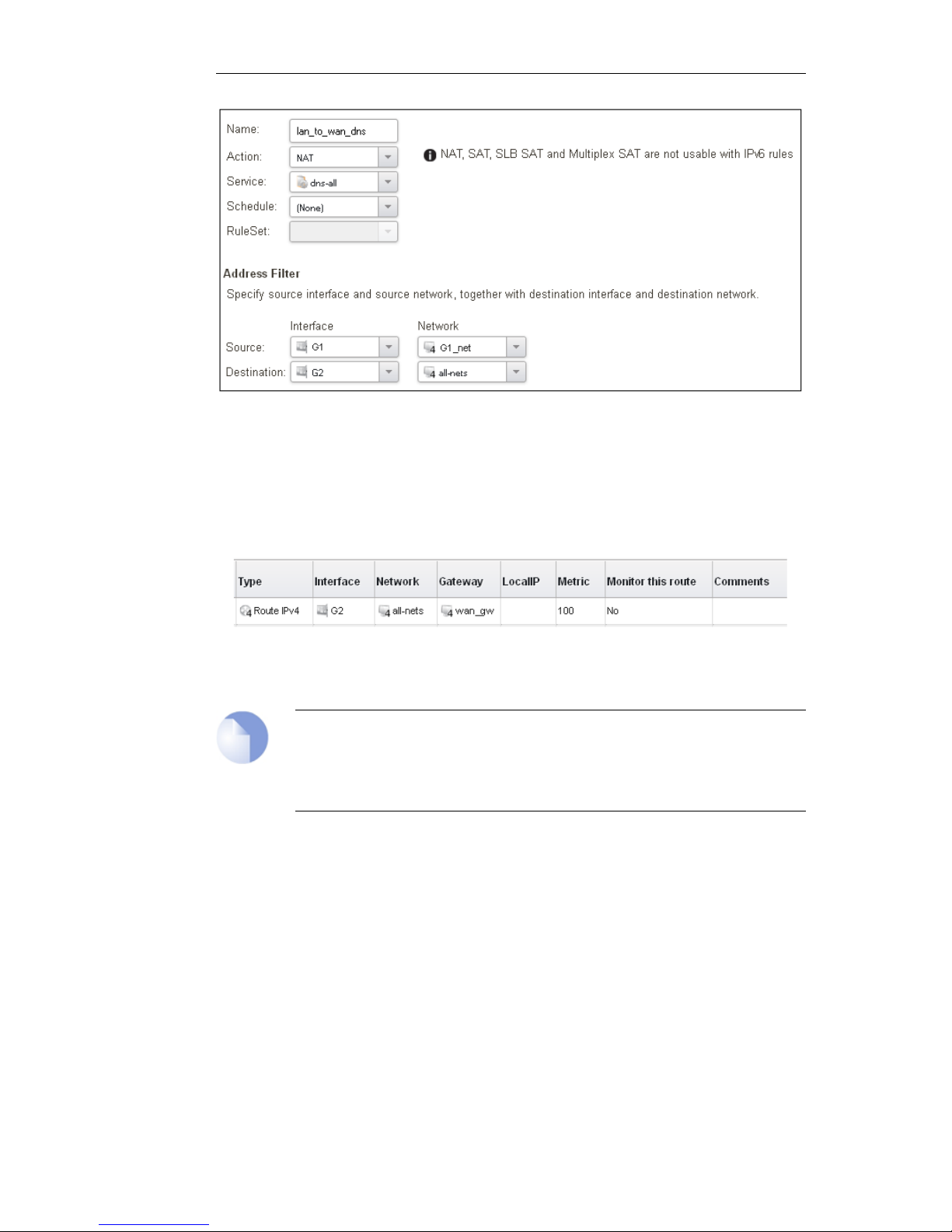
Like the IP rule for HTTP, this rule also specifies that the action for DNS requests is NAT so all DNS
request traffic is sent out by cOS Core with the outgoing interface's IP address as the source IP.
For the Internet connection to work, a route also needs to be defined so that cOS Core knows on
which interface the web browsing traffic should leave the Clavister Security Gateway. This route
will define the interface where the network all-nets (in other words, any network) will be found. If
the default main routing table is opened by going to Network > Routing > Routing Tables >
main, the route needed should appear as shown below.
This required all-nets route is, in fact, added automatically after specifying the Default Gateway
for a particular Ethernet interface and this was done earlier when setting up the required IP4
Address objects.
Note: Disabling automatic route generation
Automatic route generation is enabled and disabled with the setting "Automatically
add a default route for this interface using the given default gateway" which can
be found in the properties of the interface.
As part of the setup, it is also recommended that at least one DNS server is also defined in cOS
Core. This DSN server or servers (a maximum of three can be configured) will be used when cOS
Core itself needs to resolve URLs which is the case when a URL is specified in a configuration
object instead of an IP address. It is also important for certificate handling
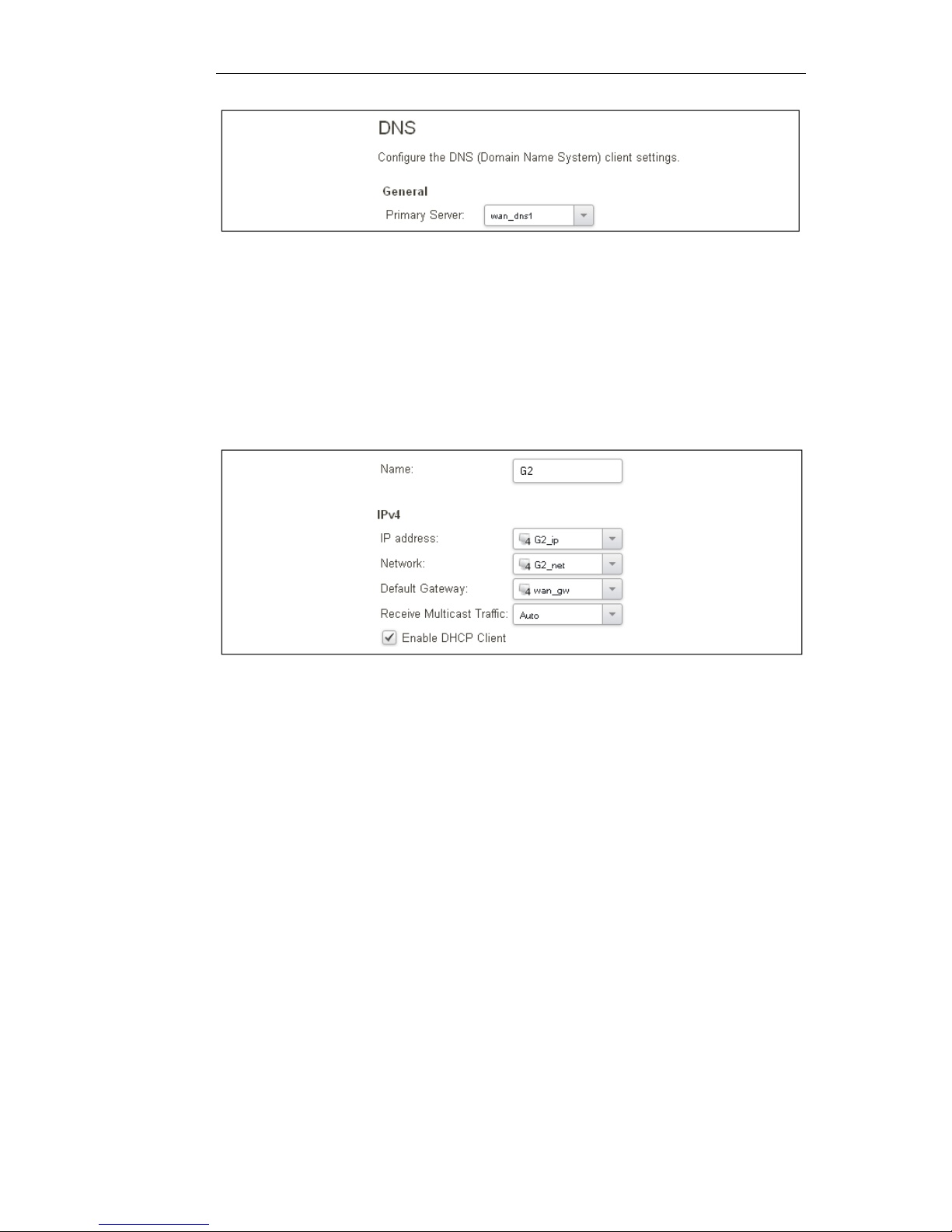
Let's assume an IPv4 address object called wan_dns1 has already been defined in the address
book and this is the address for the first DNS server. By choosing System > Device > DNS, the
DNS server dialog will open and this object from the address book can be assigned as the first
server.
Chapter 3: cOS Core Configuration
39
Page 40
B. DHCP - automatic configuration
All the required IP addresses for Internet connection can, alternatively, be automatically retrieved
from an ISP's DHCP server by enabling the DHCP Client option for the interface connected to the
ISP. This option is enabled by first selecting Network > Interfaces and VPN > Ethernet to
display a list of all the interfaces.
Click the G2 interface in the list to display its properties and select the option to enable the
interface as a DHCP client.
Usually, a DHCP Host Name does not need to be specified but can sometimes be used by an ISP
to uniquely identify this Clavister Security Gateway as a particular DHCP client to the ISP's DHCP
server.
On connection to the ISP, all required IP addresses are retrieved automatically from the ISP via
DHCP and cOS Core automatically sets the relevant address objects in the address book with this
information.
For cOS Core to know on which interface to find the public Internet, a route has to be added to
the main cOS Core routing table which specifies that the network all-nets can be found on the
interface connected to the ISP and this route must also have the correct Default Gateway IP
address specified. This all-nets route is added automatically by cOS Core during the DHCP
address retrieval process.
After all IP addresses are set via DHCP and an all-nets route is added, the connection to the
Internet is configured but no traffic can flow to or from the Internet since there is no IP rule
defined that allows it. As was done in the previous option (A) above, we must therefore define an
IP rule that will allow traffic from a designated source interface and source network. (in this
example, the network G1_net and interface G1 to flow to the destination network all-nets and the
destination interface G2.
C. PPPoE setup
Chapter 3: cOS Core Configuration
40
Page 41
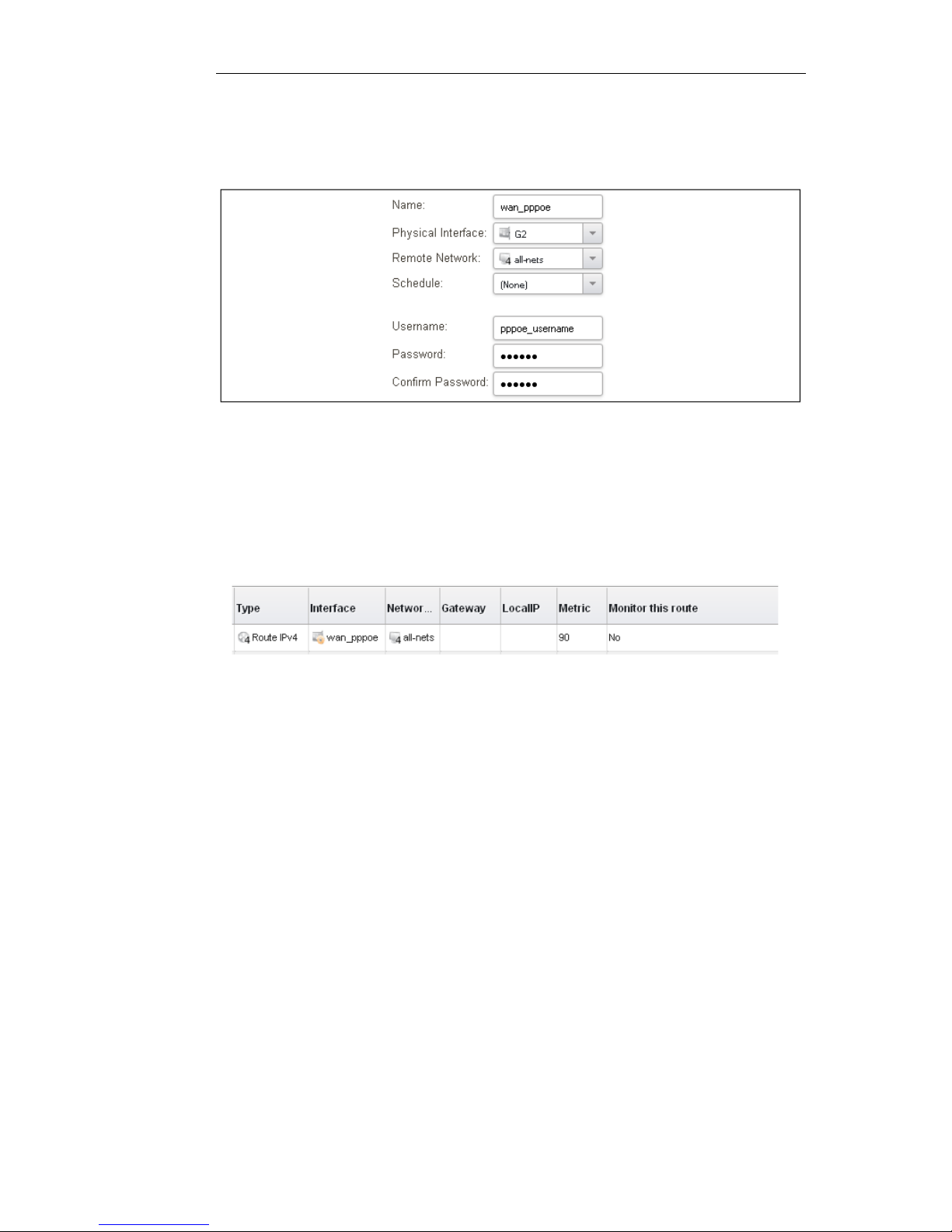
For PPPoE connection, we must create a PPPoE tunnel interface associated with the physical
Ethernet interface. Assume that the physical interface is G2 and the PPPoE tunnel object created
is called wan_pppoe. Go to Network > Interfaces and VPN > PPPoE and select Add > PPPoE
Tunnel. These values can now be entered into the PPPoE Tunnel properties dialog.
An ISP will supply the correct values for pppoe_username and pppoe_password in the dialog
above.
The PPPoE tunnel interface can now be treated exactly like a physical interface by the policies
defined in cOS Core rule sets.
There also has to be a route associated with the PPPoE tunnel to allow traffic to flow through it,
and this is automatically created in the main routing table when the tunnel is defined. If we go to
Network > Routing > Routing Tables > main we can see this route.
If the PPPoE tunnel object is deleted, this route is also automatically deleted.
At this point, no traffic can flow through the tunnel since there is no IP rule defined that allows it.
As was done in option A above, we must define an IP rule that will allow traffic from a designated
source interface and source network (in this example, the network G1_net and interface G1 to
flow to the destination network all-nets and the destination interface which is the PPPoE tunnel
that has been defined.
D. PPTP setup
For PPTP connections, a PPTP client tunnel interface object needs to be created. Let us assume
that the PPTP tunnel will be called wan_pptp with a remote endpoint 10.5.4.1 which has been
defined as the IP4 Address object pptp_endpoint. Go to Network > Interfaces and VPN >
PPTP/L2TP Clients and select Add > PPTP/L2TP Client. The values can now be entered into the
properties dialog and the PPTP option should be selected.
Chapter 3: cOS Core Configuration
41
Page 42
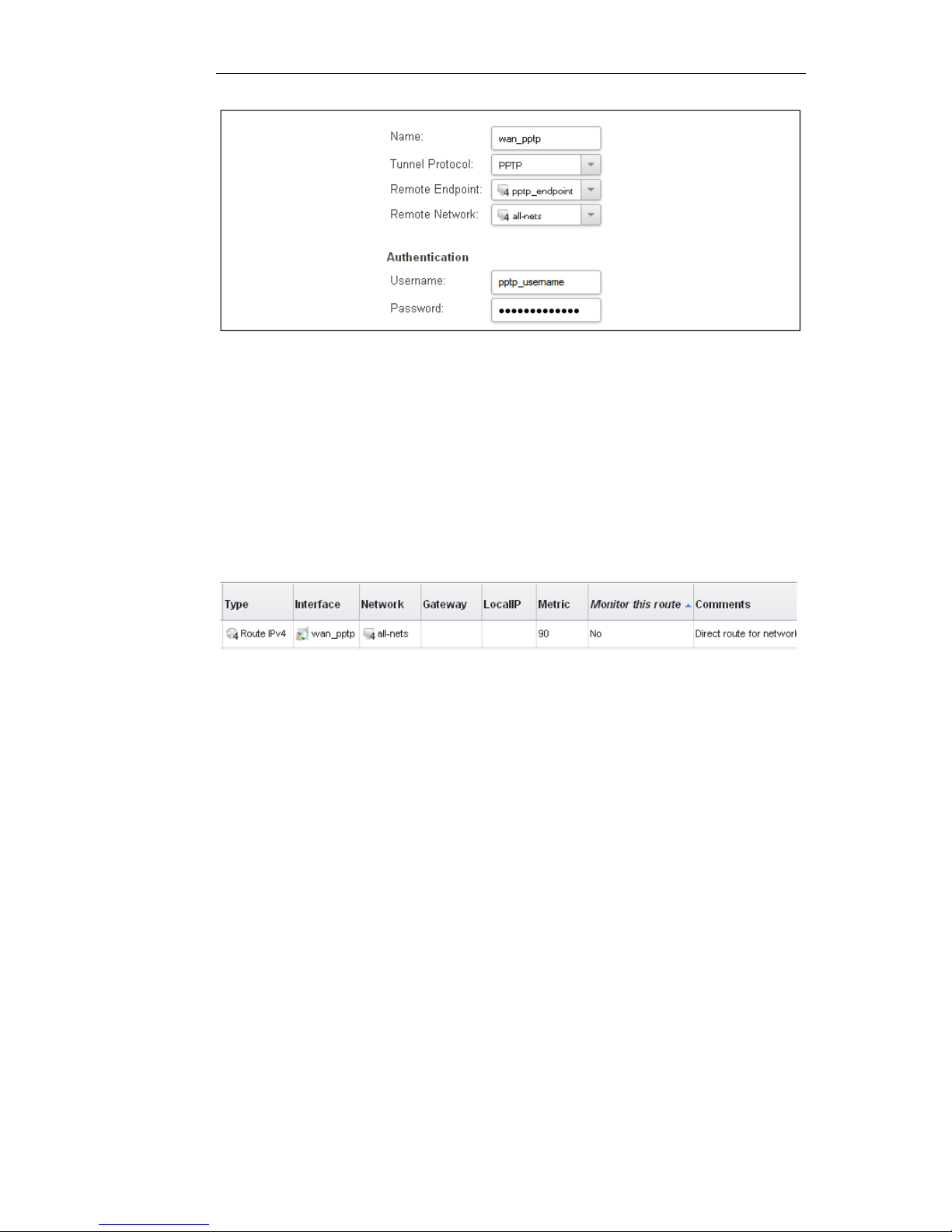
An ISP will supply the correct values for pptp_username, pptp_password and the remote
endpoint. An interface is not specified when defining the tunnel because this is determined by
cOS Core looking up the Remote Endpoint IP address in its routing tables.
The PPTP client tunnel interface can now be treated exactly like a physical interface by the
policies defined in cOS Core rule sets.
There also has to be an associated route with the PPTP tunnel to allow traffic to flow through it,
and this is automatically created in the main routing table when the tunnel is defined. The
destination network for this route is the Remote Network specified for the tunnel and for the
public Internet this should be all-nets.
If we go to Network > Routing > Routing Tables > main we can see this route.
If the PPTP tunnel object is deleted, this route is also automatically deleted.
At this point, no traffic can flow through the tunnel since there is no IP rule defined that allows it.
As was done in option A above, we must define an IP rule that will allow traffic from a designated
source network and source interface (in this example, the network G1_net and interface G1 to
flow to the destination network all-nets and the destination interface which is the PPTP tunnel
that has been defined.
DHCP Server Setup
If the Clavister Security Gateway is to act as a DHCP server then this can be set up in the following
way:
First, create an IP4 Address object which defines the address range to be handed out. Here, it is
assumed that this has the name dhcp_range. It is also assumed that another IP4 Address object
dhcp_netmask has been created which specifies the netmask.
We now create a DHCP server object called dhcp_lan which will only be available only on the G1
interface. To do this, go to Network > Network Services > DHCP Servers and select Add >
DHCP Server. The server properties can now be specified.
Chapter 3: cOS Core Configuration
42
Page 43
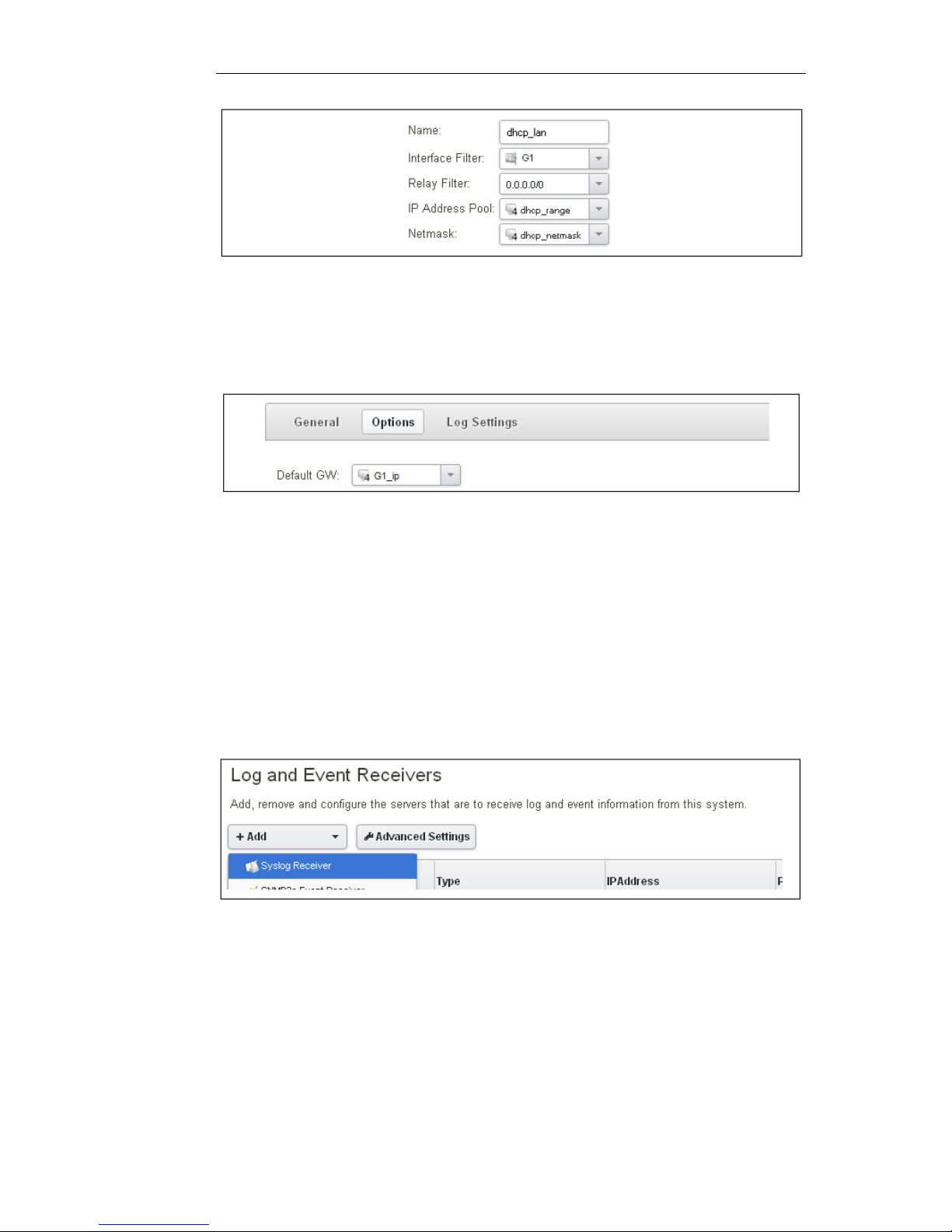
An example IP pool range might be 196.168.1.10 - 192.168.1.20 with a netmask of 255.255.0.0.
In addition, it is important to specify the Default gateway for the server. This will be handed out
to DHCP clients on the internal networks so that they know where to find the public Internet. The
default gateway is always the IPv4 address of the interface on which the DHCP server is
configured, in this case, G1_ip Select the Options tab to set this.
Also in the Options tab, we should specify the DNS address which is handed out with DHCP
leases. This could be set, for example, to be the IPv4 address object dns1_address.
Syslog Server Setup
Although logging may be enabled, no log messages are captured unless at least one log server is
set up to receive them and this is configured in cOS Core. Syslog is one of the most common
server types.
First we create an IP4 Address object called, for example, syslog_ip which is set to the IPv4 address
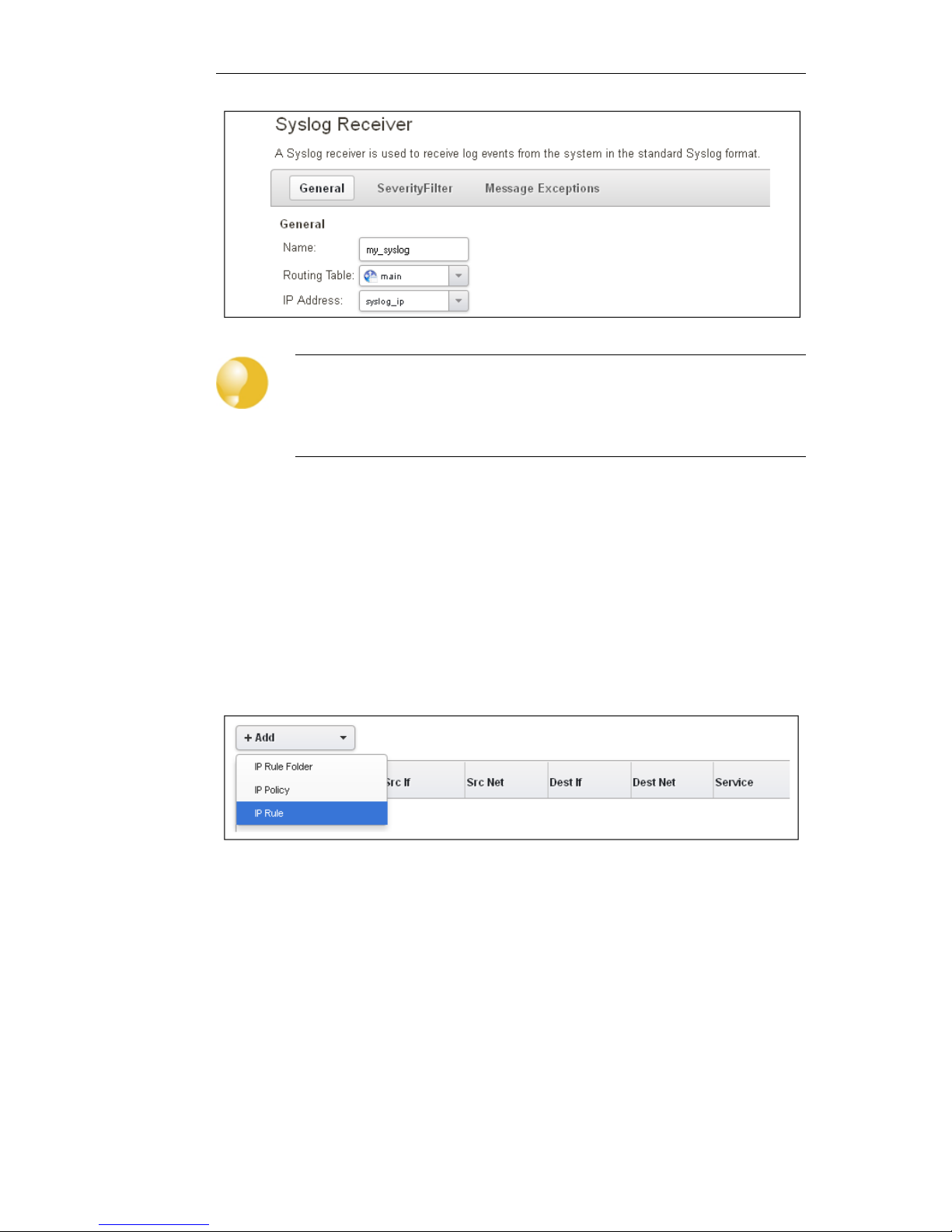
of the server. We then configure the sending of log messages to a Syslog server from cOS Core by
selecting System > Device > Log and Event Receivers and then choosing Add > Syslog
Receiver.
The syslog server properties dialog will now appear. We give the server a name, for example
my_syslog, and specify its IPv4 address as the syslog_ip object.
Chapter 3: cOS Core Configuration
43
Page 44
Tip: Address book object naming
The cOS Core address book is organized alphabetically so when choosing names for IP
address objects it is best to have the descriptive part of the name first. In this case, use
syslog_ip as the name and not ip_syslog.
Allowing ICMP Ping Requests
As a further example of setting up IP rules, it can be very useful to allow ICMP Ping requests to
flow through the Clavister Security Gateway. As discussed earlier, the cOS Core will drop any
traffic unless an IP rule explicitly allows it. Let us suppose that we wish to allow the pinging of
external hosts with the ICMP protocol by computers on the internal G1_net network.
There can be several rule sets defined in cOS Core but there is only one rule set defined by
default and this is called main. To add a rule to it, first select Policies > Firewalling > Main IP
Rules.
The main rule set list contents are now displayed. Press the Add button and select IP Rule.
The properties for a new IP rule will appear and we can add a rule, in this case called
allow_ping_outbound.
Chapter 3: cOS Core Configuration
44
Page 45
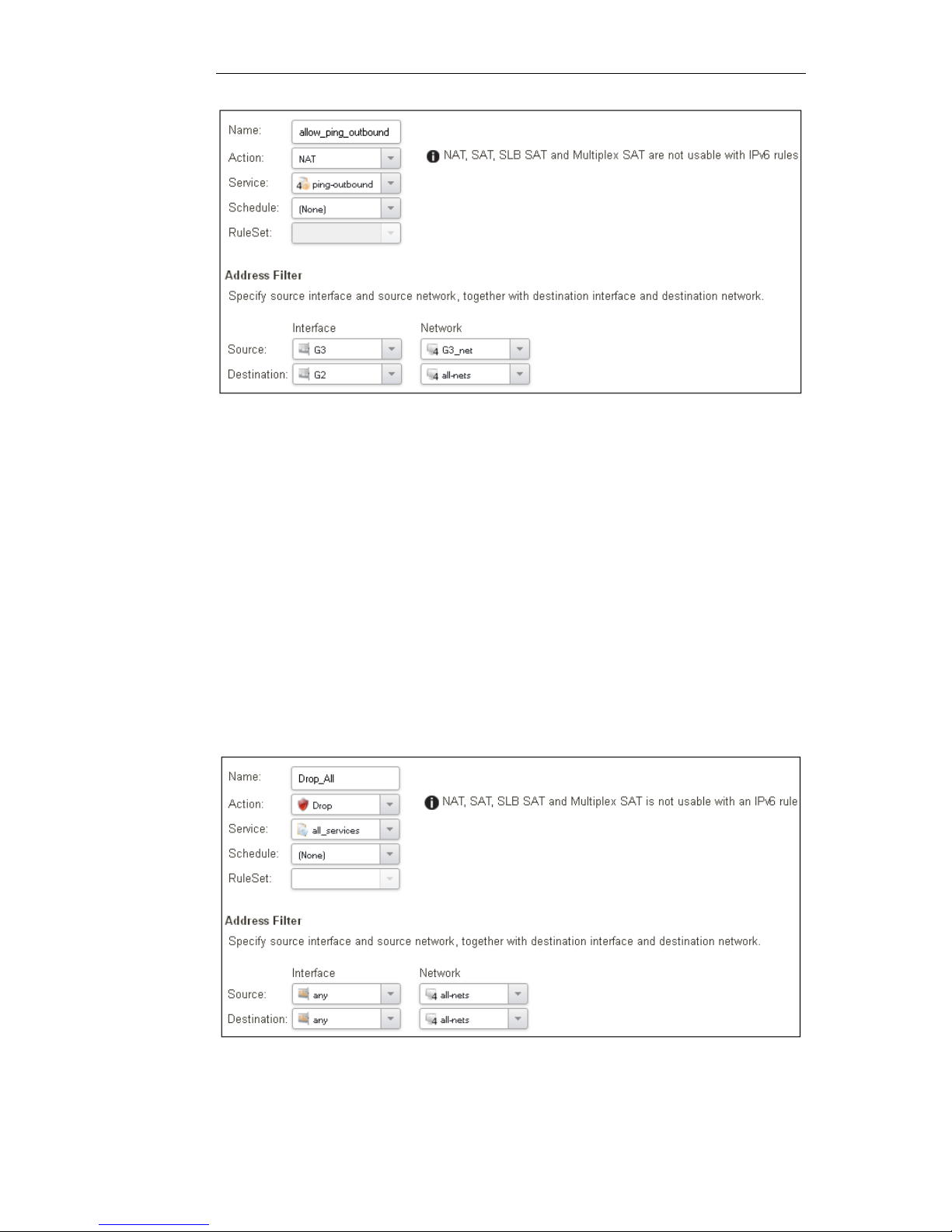
The IP rule again has the NAT action and this is necessary if the protected local hosts have private
IPv4 addresses. The ICMP requests will be sent out from the Clavister Security Gateway with the
IP address of the interface connected to the ISP as the source interface. Responding hosts will
send back ICMP responses to this single IP and cOS Core will then forward the response to the
correct private IPv4 address.
Adding a Drop All Rule
The top-down nature of the IP rule set scanning has already been discussed earlier. If no
matching IP rule is found for a new connection then the default rule is triggered. This rule is
hidden and cannot be changed and its action is to drop all such traffic as well as generate a log
message for the drop.
In order to gain control over the logging of dropped traffic, it is recommended to create a drop
all rule as the last rule in the main IP rule set. This rule has an Action of Drop with the source and
destination network set to all-nets and the source and destination interface set to any.
The service for this rule must also be specified and this should be set to all_services in order to
capture all types of traffic.
If the this rule us the only one defined, displaying the main IP rule set will be as shown below.
Chapter 3: cOS Core Configuration
45
Page 46
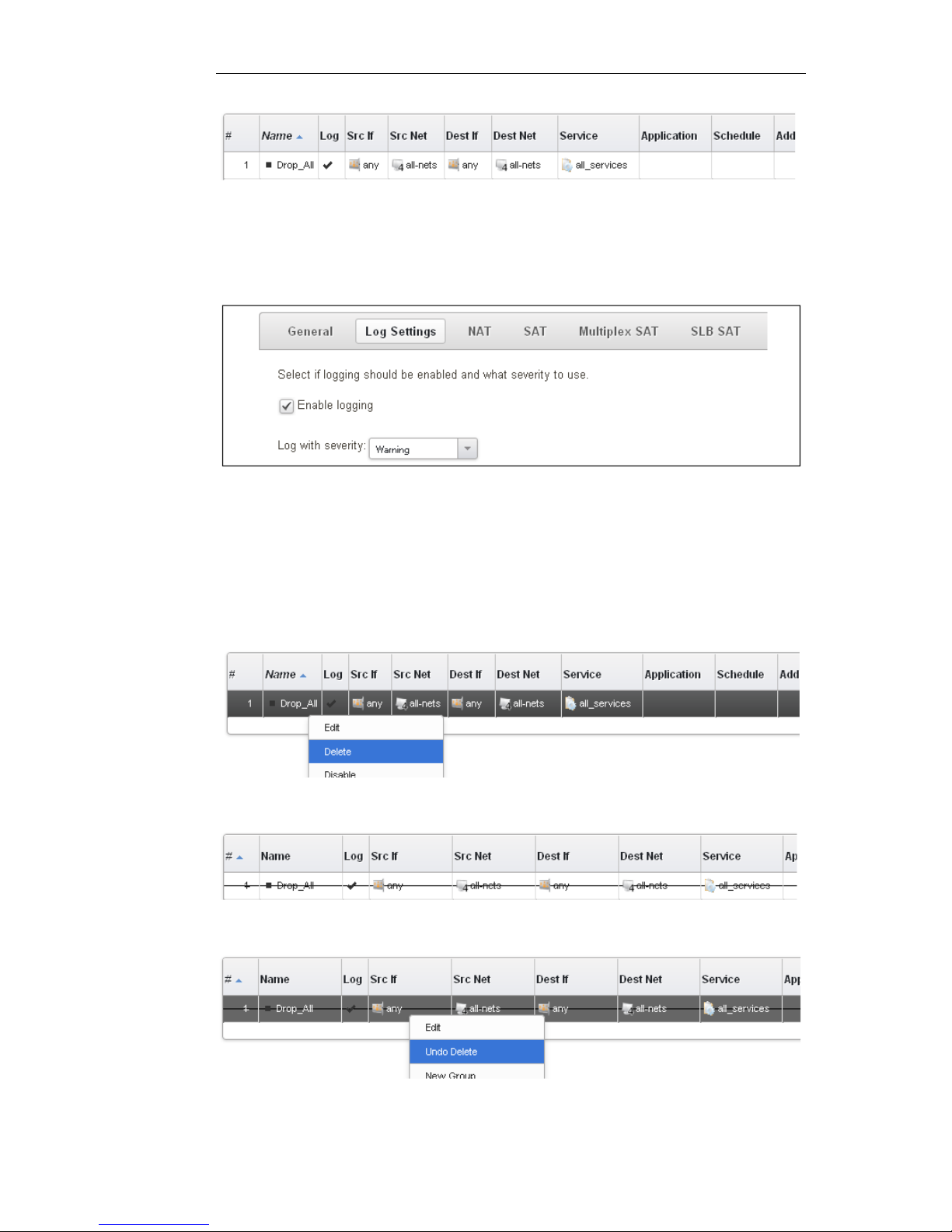
Logging can now be enabled on this rule with the desired severity. Click the Log Settings tab,
and click the Enable logging box. All log messages generated by this rule will be given the
selected severity and which will appear in the text of the log messages. It is up to the
administrator to choose the severity and depends on how they would like to classify the
messages.
Deleting Configuration Objects
If information is deleted from a configuration during editing then these deletes are indicated by
a line scored through the list entry while the configuration is still not yet activated. The deleted
entry only disappears completely when the changes are activated.
For example, we can delete the drop all IP rule created in the previous paragraph by right
clicking the rule and selecting Delete in the context menu.
The rule now appears with a line scored through it.
We can reverse the delete by right clicking the rule again and choosing Undo Delete.
A valid license should now be installed to remove the cOS Core 2 hour demo mode limitation.
Chapter 3: cOS Core Configuration
46
Page 47

Doing this is described in Section 3.5, “Installing a License”.
Chapter 3: cOS Core Configuration
47
Page 48

3.4. CLI Setup
This chapter describes the setup steps using CLI commands instead of the setup wizard.
The CLI is accessible using either one of two methods:
• Using an SSH (Secure Shell) client, across a network connection to the IPv4 address
192.168.1.1 on the default management Ethernet interface. The physical network connection
setup to the computer running the client is described in Section 3.1, “Management
Workstation Connection” and is the same as that used in Section 3.2, “Web Interface and Wizard
Setup”.
If there is a problem with the workstation connection, a help checklist can be found in
Section 3.6, “Setup Troubleshooting ”.
• Using a terminal or computer running a console emulator connected directly to the local
console port on the E5.
The CLI commands listed below are grouped so that they mirror the options available in the
setup wizard.
Confirming the Connection
Once connection is made to the CLI, pressing the Enter key will cause cOS Core to respond. The
response will be a normal CLI prompt if connecting directly through the local console port and a
username/password combination will not be required (a password for this console can be set
later).
Device:/>
If connecting remotely through an SSH (Secure Shell) client, an administration
username/password must first be entered and the initial default values for these are username
admin and password admin. When these are accepted by cOS Core, a normal CLI prompt will
appear and CLI commands can be entered.
Changing the Password
To change the administration username or password, use the set command to change the
current CLI object category (also referred to as the context) to be the LocalUserDatabase called
AdminUsers.
Device:/> cc LocalUserDatabase AdminUsers
Device:/AdminUsers>
Tip: Using tab completion with the CLI
The tab key can be pressed at any time so that cOS Core gives a list of possible options in
a command.
Now set the username and password for the administrator. Both are case sensitive. In the
example below, the username is set to the value new_name and the password is set to the value
new_pass.
Device:/AdminUsers> set User Admin Name=new_name Password=new_pass
Chapter 3: cOS Core Configuration
48
Page 49

The new username/password combination should be remembered and the password should be
composed in a way which makes it difficult to guess. The next step is to return the CLI to the
default context which is the top level of object categories.
Device:/AdminUsers> cc
Device:/>
Setting the Date and Time
Many cOS Core functions, such as event logging and certificate handling, rely on an accurate
date and time. It is therefore important that this is set correctly using the time command. A
typical usage of this command might be:
Device:/> time -set 2008-06-24 14:43:00
Notice that the date is entered in yyyy-mm-dd format and the time is stated in 24 hour hh:mm:ss
format.
Ethernet Interfaces
The connection of external networks to the Clavister Security Gateway is via the various Ethernet
interfaces which are provided by the hardware platform. On first-time startup, cOS Core scans for
these interfaces and determines which are available and allocates their names. The first interface
detected in the scan becomes the initial default management interface and this can only be
changed after initial startup.
All cOS Core interfaces are logically equal for cOS Core and although their physical capabilities
may be different, any interface can perform any logical function. With the E5, any of the GESW
interfaces can act as the default management interface. The other interfaces can be used as
desired. For the sake of example, it is assumed here that the G1 interface will be used for
connection to a protected network and the G2 interface will be used for connection to the public
Internet.
Setting Up Internet Access
Next, we shall look at how to set up public Internet access with the CLI. The setup wizard
described previously, provides the following four options:
A. Static - manual configuration.
B. DHCP - automatic configuration.
C. PPPoE setup.
D. PPTP setup.
The individual manual steps to configure these connection alternatives with the CLI are
discussed next.
A. Static - manual configuration
We first must set or create a number of IPv4 address objects. It is assumed here that the interface
used for Internet connection is G2, the ISP gateway IPv4 address is 10.5.4.1, the IPv4 address for
the connecting interface will be 10.5.4.35 and the network to which they both belong is
10.5.4.0/24.
Chapter 3: cOS Core Configuration
49
Page 50

Note: Private IPv4 addresses are used for example only
Each installation's IP addresses will be different from the example IP addresses but they
are used here only to illustrate how setup is done. Also, these addresses are private IPv4
addresses and in reality an ISP would use public IPv4 addresses instead.
We first add the gateway IPv4 address object which we will call wan_gw:
Device:/> add Address IP4Address wan_gw Address=10.5.4.1
This is the address of the ISP's gateway which is the first router hop towards the public Internet. If
this IP object already exists, it can be given the IP address with the command:
Device:/> set Address IP4Address wan_gw Address=10.5.4.1
Now use this object to set the gateway on the G2 interface which is connected to the ISP:
Device:/> set Interface Ethernet G2 DefaultGateway=wan_gw
Next, set the IP object G2_ip which will be the IPv4 address of the interface connected to the ISP:
Device:/> set IP4Address InterfaceAddresses/G2_ip Address=10.5.4.35
Note: Qualifying the names of IP objects in folders
On initial startup of the E5, cOS Core automatically creates and fills the
InterfaceAddresses folder in the cOS Core address book with Ethernet interface related
IPv4 address objects.
When an IP address object which is located in a folder is specified in the CLI, the object
name must be qualified with the name of its parent folder. For example, to reference the
address G2_ip, it must be qualified with the folder name InterfaceAddresses so it
becomes InterfaceAddresses/G2_ip.
If an object is not contained in a folder and is at the top level of the address book then no
qualifying parent folder name is needed.
Now, set the IP object G2_net which will be the IP network of the connecting interface:
Device:/> set IP4Address InterfaceAddresses/G2_net Address=10.5.4.0/24
It is recommended to verify the properties of the G2 interface with the command:
Device:/> show Interface Ethernet G2
The typical output from this will be similar to the following:
Property Value
-------------------------- -------------------------Name: G2
IP: InterfaceAddresses/G2_ip
Network: InterfaceAddresses/G2_net
DefaultGateway: wan_gw
Broadcast: 10.5.4.255
PrivateIP: <empty>
NOCHB: <empty>
MTU: 1500
Metric: 100
DHCPEnabled: No
Chapter 3: cOS Core Configuration
50
Page 51

EthernetDevice: 0:G2 1:<empty>
AutoSwitchRoute: No
AutoInterfaceNetworkRoute: Yes
AutoDefaultGatewayRoute: Yes
ReceiveMulticastTraffic: Auto
MemberOfRoutingTable: All
Comments: <empty>
Setting the default gateway on the interface has the additional effect that cOS Core
automatically creates a route in the default main routing table that has the network all-nets
routed on the interface. This means that we do not need to explicitly create this route.
Even though an all-nets route is automatically added, no traffic can flow without the addition of
an IP rule which explicitly allows traffic to flow. Let us assume we want to allow web browsing
from the protected network G1_net on the interface G1 A simple rule to do this would have the
rule's Action property set to the value Allow and is defined with the following command:
The IP rule set main always exists by default and is a top level CLI context. Add an IP rule called
lan_to_wan to allow the traffic through to the public Internet:
Device:/> add IPRule name=lan_to_wan
Action=Allow
SourceInterface=G1
SourceNetwork=InterfaceAddresses/G1_net
DestinationInterface=G2
DestinationNetwork=all-nets
Service=http-all
This IP rule would be correct if the internal network hosts have public IPv4 addresses but in most
scenarios this will not be true and internal hosts will have private IPv4 addresses. In that case, we
must use NAT to send out traffic so that the apparent source IP address is the IP of the interface
connected to the ISP. To do this we simply change the Action property in the above command
from a value of Allow to a value of NAT:
Device:/main> add IPRule name=lan_to_wan
Action=NAT
SourceInterface=G1
SourceNetwork=InterfaceAddresses/G1_net
DestinationInterface=G2
DestinationNetwork=all-nets
Service=http-all
The service used in the IP rule is http-all which will allow most web browsing but does not
include the DNS protocol to resolve URLs into IP addresses. To solve this problem, a custom
service could be used in the above rule which combines http-all with the dns-all service.
However, the recommended method which provides the most clarity to a configuration is to
create a separate IP rule for DNS:
Device:/main> add IPRule name=lan_to_wan_dns
Action=NAT
SourceInterface=G1
SourceNetwork=InterfaceAddresses/G1_net
DestinationInterface=G2
DestinationNetwork=all-nets
Service=dns-all
It is recommended that at least one DNS server is also defined in cOS Core. This DSN server or
servers (a maximum of three can be configured) will be used when cOS Core itself needs to
resolve URLs which will be the case when a URL is specified in a configuration instead of an IP
address. If we assume an IP address object called dns1_address has already been defined for the
first DNS server, the command to specify the first DNS server is:
Chapter 3: cOS Core Configuration
51
Page 52

Device:/> set DNS DNSServer1=dns1_address
Assuming a second IP object called dns2_address has been defined, the second DNS server is
specified with:
Device:/> set DNS DNSServer2=dns2_address
B. DHCP - automatic configuration
Alternatively, all required IP addresses can be automatically retrieved from the ISP's DHCP server
by enabling DHCP on the interface connected to the ISP. If the interface on which DHCP is to be
enabled is G2, then the command is:
Device:/> set Interface Ethernet G2 DHCPEnabled=Yes
Once the required IP addresses are retrieved with DHCP, cOS Core automatically sets the relevant
address objects in the address book with this information.
For cOS Core to know on which interface to find the public Internet, a route has to be added to
the main cOS Core routing table which specifies that the network all-nets can be found on the
interface connected to the ISP and this route must also have the correct Default Gateway IP
address specified. This all-nets route is added automatically by cOS Core during the DHCP
address retrieval process. Automatic route generation is a setting for each interface that can be
manually enabled and disabled.
After all IP addresses are set via DHCP and an all-nets route is added, the connection to the
Internet is configured but no traffic can flow to or from the Internet since there is no IP rule
defined that allows it. As was done in the previous option (A) above, we must therefore manually
define an IP rule that will allow traffic from a designated source interface and source network (in
this example, the network G1_net and interface G1 to flow to the destination network all-nets
and the destination interface G2.
C. PPPoE setup
For PPPoE connection, create the PPPoE tunnel interface on the interface connected to the ISP.
The interface G2 is assumed to be connected to the ISP in the command shown below which
creates a PPPoE tunnel object called wan_ppoe:
Device:/> add Interface PPPoETunnel wan_ppoe
EthernetInterface=G2
username=pppoe_username
Password=pppoe_password
Network=all-nets
The ISP will supply the correct values for pppoe_username and pppoe_password in the dialog
above.
The PPPoE tunnel interface can now be treated exactly like a physical interface by the policies
defined in cOS Core rule sets.
There also has to be a route associated with the PPPoE tunnel to allow traffic to flow through it
and this is automatically created in the main routing table when the tunnel is defined. If the
PPPoE tunnel object is deleted, this route is also automatically deleted.
At this point, no traffic can flow through the tunnel since there is no IP rule defined that allows it.
As was done in option A above, we must define an IP rule that will allow traffic from a designated
Chapter 3: cOS Core Configuration
52
Page 53

source interface and source network (in this example, the network G1_net and interface G1 to
flow to the destination network all-nets and the destination interface which is the PPPoE tunnel
that has been defined.
D. PPTP setup
For PPTP connection, first create the PPTP tunnel interface. It is assumed below that we will
create a PPTP tunnel object called wan_pptp with the remote endpoint 10.5.4.1:
Device:/> add Interface L2TPClient wan_pptp
Network=all-nets
username=pptp_username
Password=pptp_password
RemoteEndpoint=10.5.4.1
TunnelProtocol=PPTP
Your ISP will supply the correct values for pptp_username, pptp_password and the remote
endpoint.
Your ISP will supply the correct values for pptp_username, pptp_password and the remote
endpoint. An interface is not specified when defining the tunnel because this is determined by
cOS Core looking up the Remote Endpoint IP address in its routing tables.
The PPTP client tunnel interface can now be treated exactly like a physical interface by the
policies defined in cOS Core rule sets.
There also has to be an associated route with the PPTP tunnel to allow traffic to flow through it,
and this is automatically created in the main routing table when the tunnel is defined. The
destination network for this route is the Remote Network specified for the tunnel and for the
public Internet this should be all-nets.
As with all automatically added routes, if the PPTP tunnel object is deleted then this route is also
automatically deleted.
At this point, no traffic can flow through the tunnel since there is no IP rule defined that allows it.
As was done in option A above, we must define an IP rule that will allow traffic from a designated
source interface and source network (in this example, the network G1_net and interface G1 to
flow to the destination network all-nets and the destination interface which is the PPTP tunnel
that has been defined.
Activating and Committing Changes
After any changes are made to a cOS Core configuration, they will be saved as a new
configuration but will not yet be activated. To activate all the configuration changes made since
the last activation of a new configuration, the following command must be issued:
Device:/> activate
Although the new configuration is now activated, it does not become permanently activated
until the following command is issued within 30 seconds following the activate:
Device:/> commit
The reason for two commands is to prevent a configuration accidentally locking out the
administrator. If a lock-out occurs then the second command will not be received and cOS Core
will revert back to the original configuration after the 30 second time period (this time period is a
setting that can be changed).
Chapter 3: cOS Core Configuration
53
Page 54

DHCP Server Setup
If the Clavister Security Gateway is to act as a DHCP server then this can be set up in the following
way:
First define an IPv4 address object which has the address range that can be handed out. Here, we
will use the IPv4 range 192.168.1.10 - 192.168.1.20 as an example and this will be available on the
G1 interface which is connected to the protected internal network G1_net
Device:/> add Address IP4Address dhcp_range
Address=192.168.1.10-192.168.1.20
The DHCP server is then configured with this IP address object on the appropriate interface. In
this case we will call the created DHCP server object dhcp_lan and assume the DHCP server will
be available on the G1 interface:
Device:/> add DHCPServer dhcp_lan
IPAddressPool=dhcp_range
Interface=G1
Netmask=255.255.255.0
DefaultGateway=InterfaceAddresses/G1_ip
DNS1=dns1_address
It is important to specify the Default gateway for the DHCP server since this will be handed out to
DHCP clients on the internal network so that they know where to find the public Internet. The
default gateway is always the IP address of the interface on which the DHCP server is configured.
In this case, G1_ip.
NTP Server Setup
Network Time Protocol (NTP) servers can optionally be configured to maintain the accuracy of the
system date and time. The command below sets up synchronization with the two NTP servers at
hostname pool.ntp.org and IPv4 address 10.5.4.76:
Device:/> set DateTime TimeSyncEnable=Yes
TimeSyncServer1=dns:pool.ntp.org
TimeSyncServer2=10.5.4.76
The prefix dns: is added to the hostname to identify that it must resolved to an IP address by a
DNS server (this is a convention used in the CLI with some commands).
Syslog Server Setup
Although logging may be enabled, no log messages are captured unless a server is set up to
receive them and Syslog is the most common server type. If the Syslog server's address is
195.11.22.55 then the command to create a log receiver object called my_syslog which enables
logging is:
Device:/> add LogReceiverSyslog my_syslog IPAddress=195.11.22.55
Allowing ICMP Ping Requests
As a further example of setting up IP rules, it can be useful to allow ICMP Ping requests to flow
through the Clavister Security Gateway. As discussed earlier, cOS Core will drop any traffic unless
an IP rule explicitly allows it. Let us suppose that we wish to allow the pinging of external hosts
with the ICMP protocol by computers on the internal G1_net network. The commands to allow
this are as follows.
Chapter 3: cOS Core Configuration
54
Page 55

Add an IP rule called allow_ping_outbound to allow ICMP pings to pass:
Device:/> add IPRule name=allow_ping_outbound
Action=NAT
SourceInterface=G1
SourceNetwork=InterfaceAddresses/G1_net
DestinationInterface=G2
DestinationNetwork=all-nets
Service=ping-outbound
The IP rule again has the NAT action and this is necessary if the protected local hosts have private
IPv4 addresses. The ICMP requests will be sent out from the Clavister Security Gateway with the
IP address of the interface connected to the ISP as the source interface. Responding hosts will
send back ICMP responses to this single IP and cOS Core will then forward the response to the
correct private IP address.
Adding a Drop All Rule
Scanning of the IP rule set is done in a top-down fashion. If no matching IP rule is found for a
new connection then the default rule is triggered. This rule is hidden and cannot be changed and
its action is to drop all such traffic as well as generate a log message for the drop.
In order to gain control over the logging of dropped traffic, it is recommended to create a drop
all rule as the last rule in the main IP rule set. This rule has an Action of Drop with the source and
destination network set to all-nets and the source and destination interface set to any.
The service for this rule must also be specified and this should be set to all_services in order to
capture all types of traffic. The command for creating this rule is:
Device:/main> add IPRule name=drop_all
Action=Drop
SourceInterface=any
SourceNetwork=any
DestinationInterface=any
DestinationNetwork=all-nets
Service=all_services
A valid license should now be installed to remove the cOS Core 2 hour demo mode limitation.
Doing this is described in Section 3.5, “Installing a License”.
Chapter 3: cOS Core Configuration
55
Page 56

3.5. Installing a License
Without a valid license installed, cOS Core will run in demo mode (demonstration mode) which
means that it will cease to function after two hours of operation (rebooting the system will
re-enable cOS Core for another two hours). To remove this restriction, a valid license must be
installed.
As described in Section 3.2, “Web Interface and Wizard Setup”, when the wizard is used for initially
configuring Clavister hardware, the administrator can choose to install a license as one of the
wizard steps. Alternatively, a license can be installed separately later and this section describes
the various ways of doing that.
Installation Methods
There are three methods for installing a license:
1. Manually through the Web Interface or SCP
This option is the only choice when the E5 hardware does not have a connection to the
public Internet. The procedure consists of the following steps:
i. In a web browser, go to the Clavister website at https://www.clavister.com, select Log
in and then log in to the site. This will require registration on the site if this has not
been done already.
ii. Go to Licenses > Register License.
iii. Select the option Register by Service Tag and Hardware Serial Number.
iv. Enter the Serial Number and Service Tag codes. For Clavister hardware products, these
codes are found on a label on the unit.
v. Download a license from the license list to the computer's local disk.
vi. The license file is uploaded to the security gateway through the cOS Core Web
Interface by going to Status > Maintenance > License and pressing the Upload
button to select the license file. Following upload, cOS Core will install the file.
Alternatively, the license file can be uploaded using SCP. cOS Core automatically
recognizes an uploaded license file but it is then necessary to manually to perform a
reconfigure or reboot operation to complete installation.
License installation must be done manually if the cOS Core installation has already had a
license installed previously.
2. Automatically through the Web Interface
Go to Status > Maintenance > License and enter the customer's login credentials for the
Clavister website, then press Activate. The license is fetched automatically across the public
Internet and installed.
This option is also only available once and that is when installing a license in a Clavister
hardware product for the first time.
3. Automatically through the CLI
In the CLI, enter the command:
Device:/> license -activate -request -username=myname -password=mypass
Chapter 3: cOS Core Configuration
56
Page 57

The customer username and password login are included in the command with the license
fetched automatically across the public Internet. The login credentials are the same ones
that are used for the Clavister website. It is then necessary to manually enter the reconf or
shutdown command to complete installation.
This option is also only available once and that is when installing a license in a Clavister
hardware product for the first time.
Important: A reboot is recommended after installing a license
Some license changes, such as increasing the number of allowed VPN tunnels, change
memory requirements and will not take effect until after cOS Core is rebooted.
Rebooting will disrupt traffic flows but is recommended in order that all license
parameters become active. If only a reconfiguration operation is performed, not all
license parameters may come into effect although this does not disrupt traffic.
When installing a license through the Web Interface or when using the startup wizard,
the option to reboot or reconfigure are presented to the administrator. With the CLI and
SCP, these options are not presented and reboot must be initiated by the administrator.
For rebooting via the Web Interface, go to Status > Maintenance > Reset & Restore.
With the CLI, use the command:
Device:/> shutdown -reboot
Licenses and license installation are described further in the separate cOS Core Administrators
Guide.
Chapter 3: cOS Core Configuration
57
Page 58

3.6. Setup Troubleshooting
This appendix deals with connection problems that might occur when connecting a
management workstation to a Clavister Security Gateway.
If the management interface does not respond after the Clavister Security Gateway has powered
up and cOS Core has started, there are a number of simple steps to troubleshoot basic
connection problems:
1. Check that the correct interface is being used.
The most obvious problem is that the wrong Clavister Security Gateway interface has been used
for the initial connection. Only the first interface found by cOS Core is activated for the initial
connection from a browser after cOS Core starts for the first time.
2. Check that interface characteristics match.
If a Clavister Security Gateway's interface characteristics are configured manually then the
interface on a switch to which it is connected should be configured with the same characteristics.
For instance, the link speeds and half/full duplex settings must match. If they do not,
communication will fail. This problem will not occur if the interfaces are set for automatic
configuration on both sides and automatic is always the Clavister factory default setting.
3. Check that the workstation IP is configured correctly.
The second most obvious problem is if the IP address of the workstation running the web
browser is not configured correctly.
4. Is the management interface properly connected?
Check the link indicator lights on the management interface. If they are dark then there may be a
cable problem.
5. Using the ifstat CLI command.
To investigate a connection problem further, connect the a console to the local console port on
the Clavister Security Gateway. Once cOS Core has started, it should respond with the a standard
CLI prompt when the enter key is pressed. Now enter the following command once for each
interface:
Device:/> ifstat <if-name>
Where <if-name> is the name of the management interface. This will display a number of
counters for that interface. The ifstat command on its own can list the names of all the interfaces.
If the Input counters in the hardware section of the output are not increasing then the error is
likely to be in the cabling. However, it may simply be that the packets are not getting to the
Clavister Security Gateway in the first place. This can be confirmed with a packet sniffer if it is
available.
If the Input counters are increasing, the management interface may not be attached to the
correct physical network. There may also be a problem with the routing information in any
connected hosts or routers.
6. Using the arpsnoop CLI command.
A final diagnostic test is to try using the console command:
Device:/> arpsnoop all
Chapter 3: cOS Core Configuration
58
Page 59

This will display console messages that show all the ARP packets being received on the different
interfaces and confirm that the correct cables are connected to the correct interfaces. To look at
the ARP activity only a particular interface, follow the command with the interface name:
Device:/> arpsnoop <interface>
To switch snooping off, use the command:
Device:/> arpsnoop none
Chapter 3: cOS Core Configuration
59
Page 60

3.7. Going Further with cOS Core
After initial setup is complete, the administrator is ready to go further with configuring cOS Core
to suit the requirements of a particular networking scenario. All E5 resources can be downloaded
from the E5 product page which can be found at http://www.clavister.com/start.
The primary reference documentation consists of:
• The cOS Core Administrators Guide
• The cOS Core CLI Reference Guide
• The cOS Core Log Reference Guide
The cOS Core Administrators Guide
This guide is a comprehensive description of all cOS Core features and includes a detailed table
of contents with a comprehensive index to quickly locate particular topics.
Examples of the setup for various scenarios are included but screenshots are kept to a minimum
since the user has a variety of management interfaces to choose from.
Basic cOS Core Objects and Rules
As a minimum, the new administrator should become familiar with the cOS Core Address Book for
defining IP address objects and with the cOS Core IP rule set for defining IP Rule objects which
allow or block different traffic and which can also be used to set up NAT address translation.
IP rules identify the targeted traffic using combinations of the source/destination
interface/network combined with protocol type. By default, no IP rules are defined so all traffic is
dropped. At least one IP rule needs to be defined before traffic can traverse the Clavister Security
Gateway.
An alternative to IP Rule objects is to use IP Policy objects. These have essentially the same
function but simplify the setting up of address translation and the use of important functions
such as application control, virus scanning and web content filtering.
In addition to rules, Route objects need to be defined in a Routing Table so that traffic can be sent
on the correct interface to reach its final destination. Traffic will need both a relevant rule and
route to exist in order for it to traverse the security gateway.
ALGs
Once the address book and IP rules are understood, the various ALGs will probably be relevant
for managing higher level protocols such as HTTP. For example, for management of web
browsing, the HTTP ALG provides a number of important features such as content filtering. Using
IP Policy objects can remove the need to use ALGs as separate objects.
VPN Setup
A common requirement is to quickly setup VPN networks based on Clavister Security Gateways.
The cOS Core Administrators Guide includes an extensive VPN section and as part of this, a VPN
Quick Start section which goes through a checklist of setup steps for nearly all types of VPN
scenarios.
Included with the quick start section is a checklist for troubleshooting and advice on how best to
Chapter 3: cOS Core Configuration
60
Page 61

deal with the networking complications that can arise with certificates.
Log Messages
By default, certain events will generate log messages and at least one log server should be
configured in cOS Core to capture these messages, although a feature called memlog will capture
recent log messages in local cOS Core memory. The administrator should review what events are
important to them and at what severity. The cOS Core Log Reference Guide provides a complete
listing of the log messages that cOS Core is capable of generating.
The CLI Reference Guide
The CLI Reference Guide provides a complete listing of the available CLI commands with their
options. A CLI overview is also provided as part of the cOS Core Administrators Guide.
cOS Core Education Courses
For details about classroom and online cOS Core education as well as cOS Core certification, visit
the Clavister company website at http://www.clavister.com or contact your local sales
representative.
Staying Informed
Clavister maintains an RSS feed of announcements that can be subscribed to at
https://forums.clavister.com/rss-feeds/announcements/. It is recommended to subscribe to this
feed so that you receive notifications when new releases of cOS Core versions are available for
download and installation. Alternatively, announcements can be read directly from the Clavister
forums which can be found at https://forums.clavister.com/.
Chapter 3: cOS Core Configuration
61
Page 62

Chapter 3: cOS Core Configuration
62
Page 63

Chapter 4: Warranty Service
Limitation of Warranty
Clavister warrants to the customer of the E5 Appliance that the Hardware components will be
free from defects in material and workmanship under normal use for a period of two (2) years
from the Start Date (as defined below). The warranty will only apply to failure of the product if
Clavister is informed of the failure not later than two (2) years from the Start Date or thirty (30)
days after that the failure was or ought to have been noticed by the customer.
The warranty will not apply to products from which serial numbers have been removed or to
defects resulting from unauthorized modification, operation or storage outside the
environmental specifications for the product, in-transit damage, improper maintenance, defects
resulting from use of third-party software, accessories, media, supplies, consumables or such
items not designed for use with the product, or any other misuse. Any replacement Hardware
will be warranted for the remainder of the original warranty period or thirty days, whichever is
longer.
Note that the term "Start Date" means the earlier of the product registration date OR ninety (90)
days following the day of shipment by Clavister.
Obtaining Warranty Service with an RMA
Warranty service can be obtained within the warranty period with the following steps:
1. Obtain a Return Material Authorization (RMA) Number from Clavister. This number must
be obtained before the product is sent back.
The Clavister RMA request form can be found online at (clickable link):
http://www.clavister.com/support/support-center/
If the Purchaser's circumstances require special handling of warranty correction, then at the
time of requesting the RMA number, the Purchaser may also propose suitable special
procedures.
2. The defective product MUST be packaged securely in the original packaging or other
suitable shipping packaging to ensure that it will not be damaged in transit.
3. The RMA number must be clearly marked on the outside of the package.
4. The package is then shipped to Clavister with all the costs of mailing/shipping/insurance
paid by the Purchaser. The address for shipping is:
63
Page 64
Clavister AB
Sjögatan 6J
891 60 Örnsköldsvik
SWEDEN
If the product has not yet been registered with the Clavister through its client web, a proof
of purchase (such as a copy of the dated purchase invoice) must be provided with the
shipped product.
Important: An RMA Number must be obtained before shipping!
Any package returned to Clavister without an RMA number will be rejected and shipped
back to the Purchaser at the Purchaser's expense. Clavister reserves the right in such a
case to levy a reasonable handling charge in addition to mailing and/or shipping costs.
Data on the Hardware
Note that Clavister is not responsible for any of the purchaser's software, firmware, information,
or memory data contained in, stored on, or integrated with any product returned to Clavister
pursuant to this warranty.
Contacting Clavister
Should there be a problem with the online form then Clavister support can be contacted by
email at: [email protected].
Customer Remedies
Clavister's entire liability according to this warranty shall be, at Clavister's option, either return of
the price paid, or repair or replacement of the Hardware that does not meet Clavister's limited
warranty and which is returned to Clavister with a copy of your receipt.
Limitations of Liability
Refer to the legal statement at the beginning of the guide for a statement of liability limitations.
Chapter 4: Warranty Service
64
Page 65

Chapter 5: Safety Precautions
Safety Precautions
Clavister E5 devices are Safety Class I products and have protective ground terminals. There must
be an uninterrupted safety earth ground from the main power source to the product’s input
wiring terminals, power cord, or supplied power cord set. Whenever it is likely that the protection
has been impaired, disconnect the power cord until the ground has been restored.
For LAN cable grounding:
• If your LAN covers an area served by more than one power distribution system, be sure their
safety grounds are securely interconnected.
• LAN cables may occasionally be subject to hazardous transient voltage (such as lightning or
disturbances in the electrical utilities power grid). Handle exposed metal components of the
network with caution.
There are no user-serviceable parts inside these products. Only service-trained personnel can
perform any adjustment, maintenance or repair.
Säkerhetsföreskrifter
Dessa produkter är säkerhetsklassade enligt klass I och har anslutningar för skyddsjord. En
obruten skyddsjord måste finnas från strömkällan till produktens nätkabelsanslutning eller
nätkabel. Om det finns skäl att tro att skyddsjorden har blivit skadad, måste produkten stängas
av och nätkabeln avlägnas till dess att skyddsjorden har återställts.
För LAN-kablage gäller dessutom att:
• om LAN:et täcker ett område som betjänas av mer än ett strömförsörjningssystem måste
deras respektive skyddsjord vara ihopkopplade.
• LAN kablage kan vara föremål för farliga spänningstransienter (såsom blixtnedslag eller
störningar i elnätet). Hantera metallkomponenter i förbindelse med nätverket med
försiktighet.
Det finns inga delar i produkten som kan lagas av användaren. All service samt alla justeringar,
underhåll eller reparationer får endast utföras av behörig personal.
65
Page 66

Informations concernant la sécurité
Cet appareil est un produit de classe I et possède une borne de mise à la terre. La source
d’alimentation principale doit être munie d’une prise de terre de sécurité installée aux bornes du
câblage d’entree, sur le cordon d’alimentation ou le cordon de raccordement fourni avec le
produit. Lorsque cette protection semble avoir été endommagée, débrancher le cordon
d’alimentation jusqu’à ce que la mise à la terre ait été réparée.
Mise à la terre du câble de réseau local:
• si votre réseau local s’étend sur une zone desservie par plus d’un système de distribution de
puissance, assurez-vous que les prises de terre de sécurité soint convenablement
interconnectées.
• Les câbles de réseaux locaux peuvent occasionnellement être soumis à des surtensions
transitoires dangereuses (telles que la foudre ou des perturbations dans le réseau
d’alimentation public). Manipulez les composants métalliques du réseau avec précautions.
Aucune pièce contenue à l’intérieur de ce produit ne peut être réparée par l’utilisateur. Tout
dépannage, réglage, entretien ou réparation devra être confié exclusivement à un personnel
qualifié.
Hinweise zur Sicherheit
Dies ist ein Gerät der Sicherheitsklasse I und verfügt über einen schützenden Erdungsterminal.
Der Betrieb des Geräts erfordert eine ununterbrochene Sicherheitserdung von der
Hauptstromquelle zu den Geräteingabeterminals, den Netzkabeln oder dem mit Strom
belieferten Netzkabelsatz voraus. Sobald Grund zur Annahme besteht, dass der Schutz
beeinträchtigt worden ist, das Netzkabel aus der Wandsteckdose herausziehen, bis die Erdung
wiederhergestellt ist.
Für LAN-Kabelerdung:
• Wenn Ihr LAN ein Gebiet umfasst, das von mehr als einem Stromverteilungssystem beliefert
wird, müssen Sie sich vergewissern, dass die Sicherheitserdungen fest untereinander
verbunden sind.
• LAN-Kabel können gelegentlich gefährlichen Übergangsspannungen ausgesetz werden
(beispielsweise durch Blitz oder Störungen in dem Starkstromnetz des Elektrizitätswerks). Bei
der Handhabung exponierter Metallbestandteile des Netzwerkes Vorsicht walten lassen.
Dieses Gerät enthält innen keine durch den Benutzer zu wartenden Teile. Wartungs-,
Anpassungs-, Instandhaltungs- oder Reparaturarbeiten dürfen nur von geschultem
Bedieningspersonal durchgeführt werden.
Considerazioni sulla sicurezza
Questo prodotte è omologato nella classe di sicurezza I ed ha un terminale protettivo di
collegamento a terra. Dev’essere installato un collegamento a terra di sicurezza, non
interrompibile che vada dalla fonte d’alimentazione principale ai terminali d’entrata, al cavo
d’alimentazione oppure al set cavo d’alimentazione fornito con il prodotto. Ogniqualvolta vi sia
probabilità di danneggiamento della protezione, disinserite il cavo d’alimentazione fino a
quando il collegaento a terra non sia stato ripristinato.
Per la messa a terra dei cavi LAN:
Chapter 5: Safety Precautions
66
Page 67

• se la vostra LAN copre un’area servita da più di un sistema di distribuzione elettrica,
accertatevi che i collegamenti a terra di sicurezza siano ben collegati fra loro;
• i cavi LAN possono occasionalmente andare soggetti a pericolose tensioni transitorie (ad
esempio, provocate da lampi o disturbi nella griglia d’alimentazione della società elettrica);
siate cauti nel toccare parti esposte in metallo della rete.
Nessun componente di questo prodotto può essere riparato dall’utente. Qualsiasi lavoro di
riparazione, messa a punto, manutenzione o assistenza va effettuato esclusivamente da
personale specializzato.
Consideraciones sobre seguridad
Este aparato se enmarca dentro de la clase I de seguridad y se encuentra protegido por una
borna de puesta a tierra. Es preciso que exista una puesta a tierra continua desde la toma de
alimentacíon eléctrica hasta las bornas de los cables de entrada del aparato, el cable de
alimentación hasta haberse subsanado el problema.
Puesta a tierra del cable de la red local (LAN):
• Si la LAN abarca un área cuyo suministro eléctrico proviene de más de una red de
distribución de electricidad, cerciorarse de que las puestas a tierra estén conectadas entre sí
de modo seguro.
• Es posible que los cables de la LAN se vean sometidos de vez en cuando a voltajes
momentáneos que entrañen peligro (rayos o alteraciones en la red de energía eléctrica).
Manejar con precaución los componentes de metal de la LAN que estén al descubierto.
Este aparato no contiene pieza alguna susceptible de reparación por parte del usuario. Todas las
reparaciones, ajustes o servicio de mantenimiento debe realizarlos solamente el técnico.
Chapter 5: Safety Precautions
67
Page 68
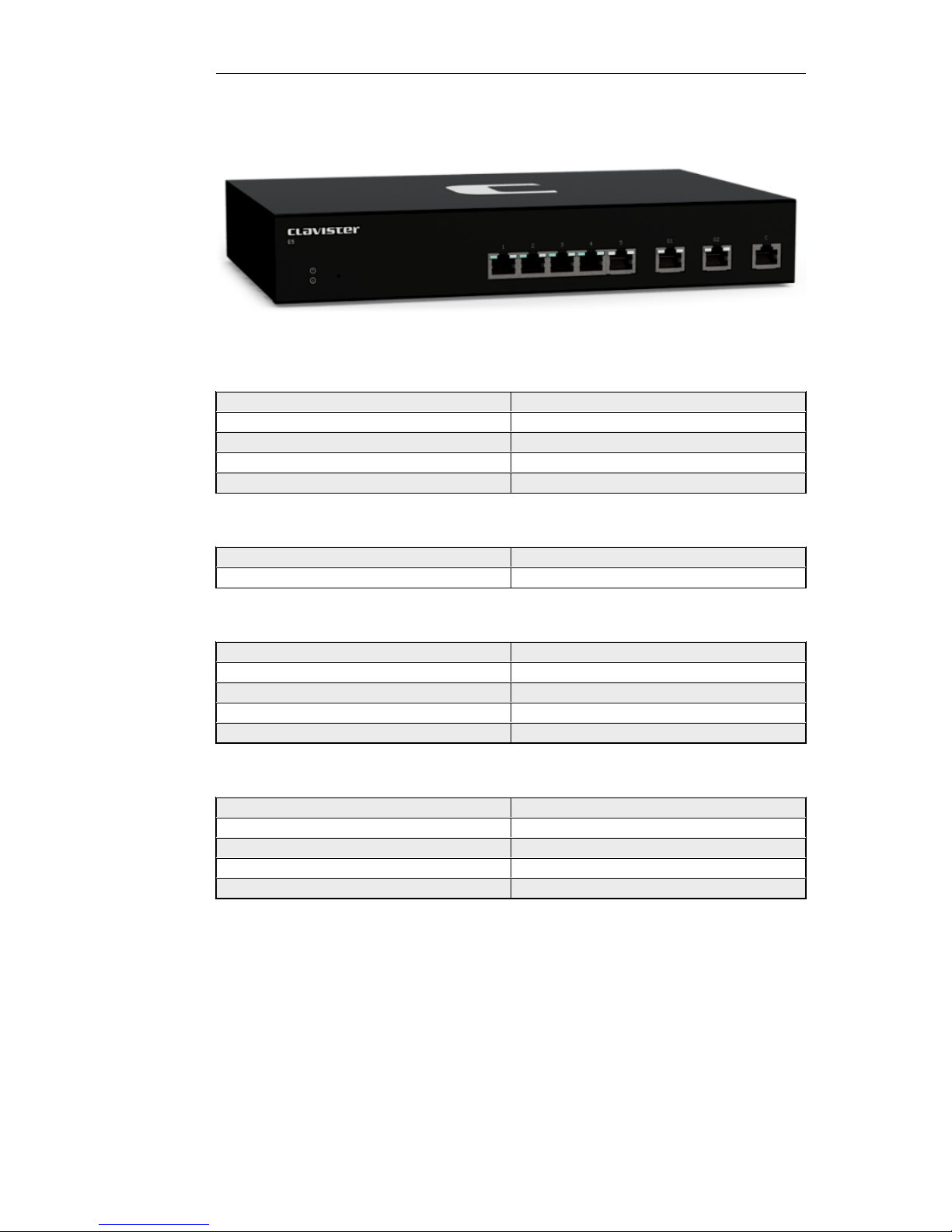
Appendix A: E5 Specifications
Below are the key hardware specifications for the Clavister E5 product.
Dimensions, Weight and MTBF
Height x Width x Depth (mm) 44 x 280 x 180
Hardware Weight 1.6 kg
Hardware Form Factor Desktop
19-inch Rack Mountable Yes, using mounting kit
MTBF 498,410 hours @ 40° C
Regulatory and Safety Standards
Safety UL, CE
EMC FCC class A, CE class A
Environmental
Operating and Storage Humidity 5% to 95% noncondensing
Operating Temperature 0 to 40° C
Storage Temperature -20° to 70° C
Vibration 0.41 Grms2 (3-500 Hz)
Mechanical Shock 30 G
Power Specifications
Power Supply (AC) 90-264 VAC, 50-60 Hz to internal adapter
Typical Power Consumption 14 W
Typical Current @ 230V 61 mA
BTU 48 BTU
PSU Rated Power 30 W
Ethernet Interface Support
For more information about Clavister products, go to: http://www.clavister.com.
68
Page 69

Appendix B: Declarations of Conformity
69
Page 70
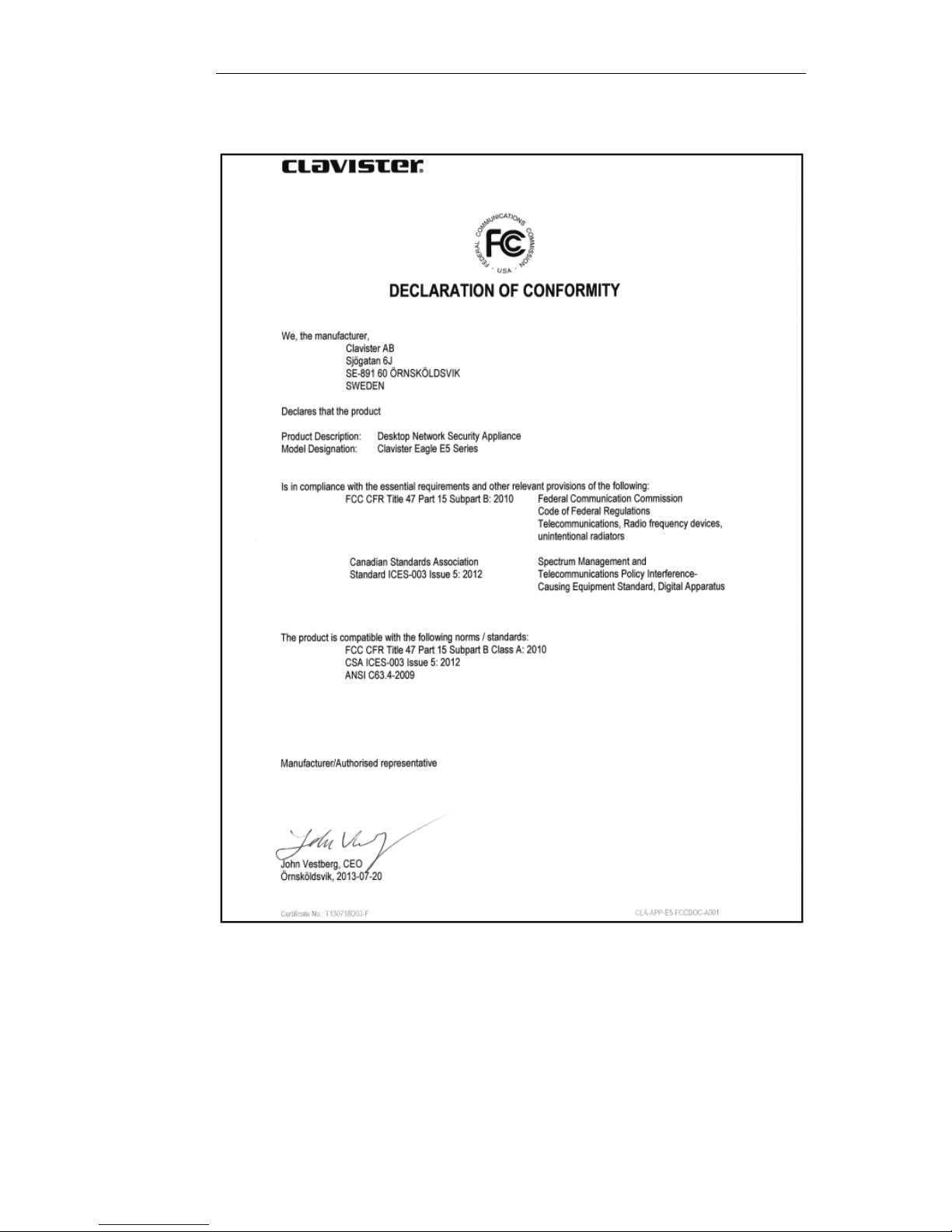
Appendix B: Declarations of Conformity
70
Page 71

Appendix C: Port Based VLAN Setup
VLAN support on the E5 is divided into two types:
• On the Ethernet interfaces G1 and G2, VLANs are created by configuring them normally in
cOS Core. It is cOS Core that then takes on the task of adding and recognizing VLAN tags in
packets. It is not a hardware function.
Setting up these types of VLAN with the E5 is discussed in the separate cOS Core
Administration Guide.
• For the E5 GESW interfaces only (numbered 1 to 5), VLANs are configured in cOS Core in a
different way.
All the GESW interfaces are connected together by a common hardware switch fabric and
this fabric also takes care of managing the packet tagging for any VLANs configured on the
interfaces. This allows the ability to configure Port Based VLANs.
This appendix describes configuring port based VLANs for of the GESW interfaces.
The arrangement of VLANs on the GESW interfaces has the following characteristics:
• Each of the E5 GESW interfaces has the possibility of being a separate VLAN or part of a VLAN
group.
• The E5 GESW interfaces can be grouped together onto VLANs with arbitrary numbers of
physical ports in each VLAN. For example, the interfaces could be divided so that the first 2
interfaces are part of one VLAN, the next 2 interfaces are part of a second VLAN and the
remainder are left in normal operation.
• The GESW interfaces that are not part of a VLAN will continue to operate as a single interface
with the logical interface name GESW.
Configuring VLANs
How to configure port based VLANs will be illustrated with an example. Assume that the
requirement is to divide the GESW interfaces as follows:
• The first interface will continue to operate normally through the switch fabric. This will
therefore be the logical cOS Core interface GESW.
• The GESW interfaces 2, 3 and 4 will become a single VLAN with the logical name
gesw_port2-4.
• The remaining GESW interface 5 will become a single VLAN with the logical name
gesw_port5.
To configure these VLANs, perform the following steps in the Web Interface:
1. Define the VLAN objects
In the Web Interface, go to Network > Interfaces and VPN > VLAN > Add and add two new
VLAN objects. Each VLAN should have an arbitrary value assigned for the VLAN ID, IP Address and
Network properties. Only the VLAN ID needs to be unique for the GESW interface. The IP
addresses should not be public IPv4 addresses.
A screenshot of how the resulting VLAN list might look in the Web Interface is shown below.
71
Page 72
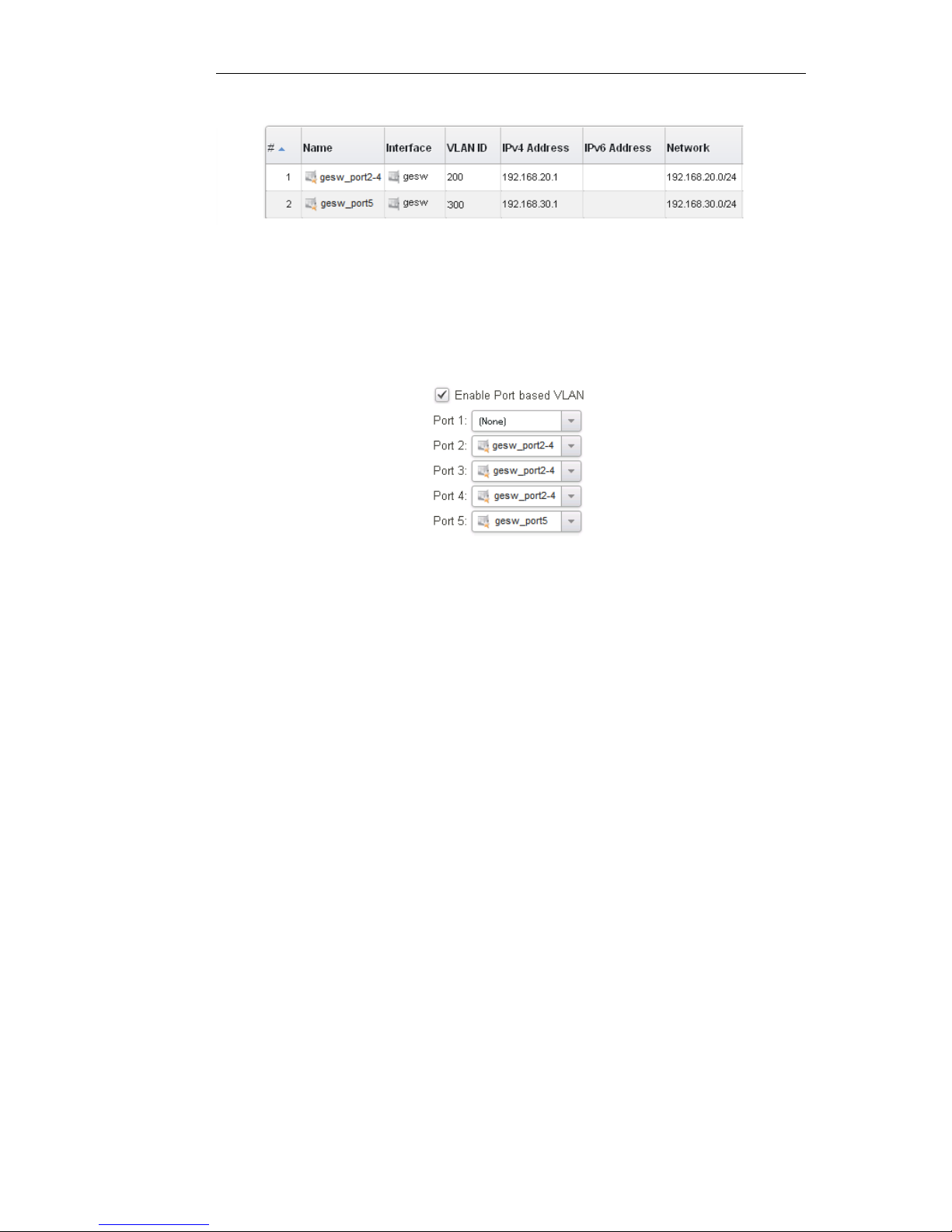
2. Associate the VLANs with GESW interfaces
Go to Network > Interfaces and VPN > VLAN > Switch Management, enable port based VLAN
and set each numbered GESW interface to be associated with the relevant VLAN to get the
desired configuration.
For this example, the screenshot below shows how this would look in the Web Interface.
This last dialog is only available in the Web Interface for Clavister hardware platforms that
support port based VLANs.
Port Based VLAN Issues
There are some issues which the adminstrator should be aware of when setting up port based
VLANs:
• Port based VLANs cannot be mixed with VLAN trunks.
When the port based VLAN feature is used, all of the GESW interfaces act as access ports and
none can be used for 802.1q VLAN trunks.
• MAC addresses are duplicated.
The MAC addresses of all the GESW interfaces are the same. This means that a switch might
have two connections to the security gateway that have two different IP addresses but the
same MAC address. For some switches this can be a problem and the situation should be
avoided by using separate switches.
Appendix C: Port Based VLAN Setup
72
Page 73

Clavister AB
Sjögatan 6J
SE-89160 Örnsköldsvik
SWEDEN
Phone: +46-660-299200
www.clavister.com
 Loading...