

Page 1
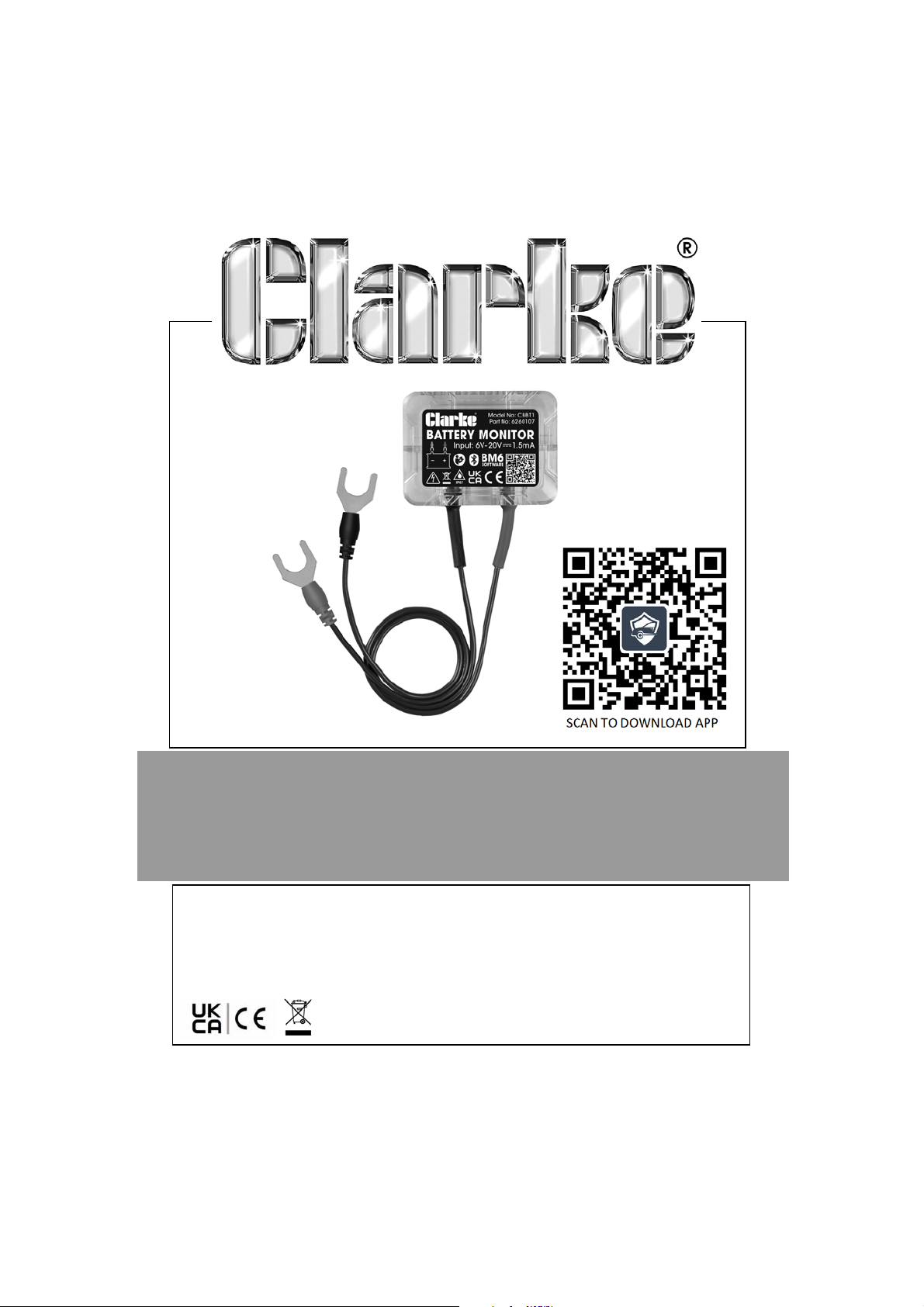
12V BLUETOOTH BATTERY MONITOR
MODEL NO: CBBT1
PART NO: 6260107
OPERATION & MAINTENANCE
INSTRUCTIONS
ORIGINAL INSTRUCTIONS DL0124 Rev 2
Page 2

INTRODUCTION
Thank you for purchasing this CLARKE product.
Before attempting to use this product, please read this manual
thoroughly and follow the instructions carefully. In doing so you will
ensure the safety of yourself and that of others around you, and you
can look forward to your purchase giving you long and satisfactory
service.
GUARANTEE
This product is guaranteed against faulty manufacture for a period of
12 months from the date of purchase. Please keep your receipt which
will be required as proof of purchase.
This guarantee is invalid if the product is found to have been abused
or tampered with in any way, or not used for the purpose for which it
was intended.
Faulty goods should be returned to their place of purchase, no
product can be returned to us without prior permission.
This guarantee does not effect your statutory rights.
2
Parts & Service: 020 8988 7400 / E-mail: [email protected] or [email protected]
Page 3
SAFETY INSTRUCTIONS
WARNING: HIGH VOLTAGES ARE PRESENT AT THE FOLLOWING
POINTS: - THE IGNITION COILS, DISTRIBUTOR CAP, IGNITION
CABLE, SPARK PLUGS.
CAUTION: PLEASE READ THESE INSTRUCTIONS AS WELL AS
THOSE IN YOUR VEHICLE HANDB OOK VERY C AREFULLY BEFORE
USING THE DEVICE, KEEP THEM IN A SAFE PLACE FOR FUTURE
REFERENCE.
1. Clarke International are not liable for any damages or
consequences resulting from:
• Connection and installation errors.
• Damage to the device due to mechanical influences or
voltage surges or any modification to the device.
• Any unauthorized manipulation to the product which would
lead to cancellation of the guarantee.
• Use of the device for purposes other than described in this
instruction manual.
• Any influence of fluids.
• Any 3rd party or unauthorised software.
2. DO NOT use the device in a moist or wet environment.
3. DO NOT use the device close to flammable materials.
4. DO NOT use the device in an explosive environment.
5. Make sure the device is always positioned in a safe place.
• The device must be placed out of reach of children.
• DO NOT expose the device to direct sunlight or other direct
heat source.
6. Store the monitor in a safe, dry place after use.
3
Parts & Service: 020 8988 7400 / E-mail: [email protected] or [email protected]
Page 4
7. DO NOT try to use other cables with this product.
8. DO NOT open the case, there are no replaceable parts inside the
product.
9. If the product malfunctions, please consult your dealer.
10. Seek professional help if you are unsure about anything related to
the electrical system in your vehicle.
11. If the outer skin of the cable is damaged, it may cause a short
circuit. Stop using it immediately and contact your dealer.
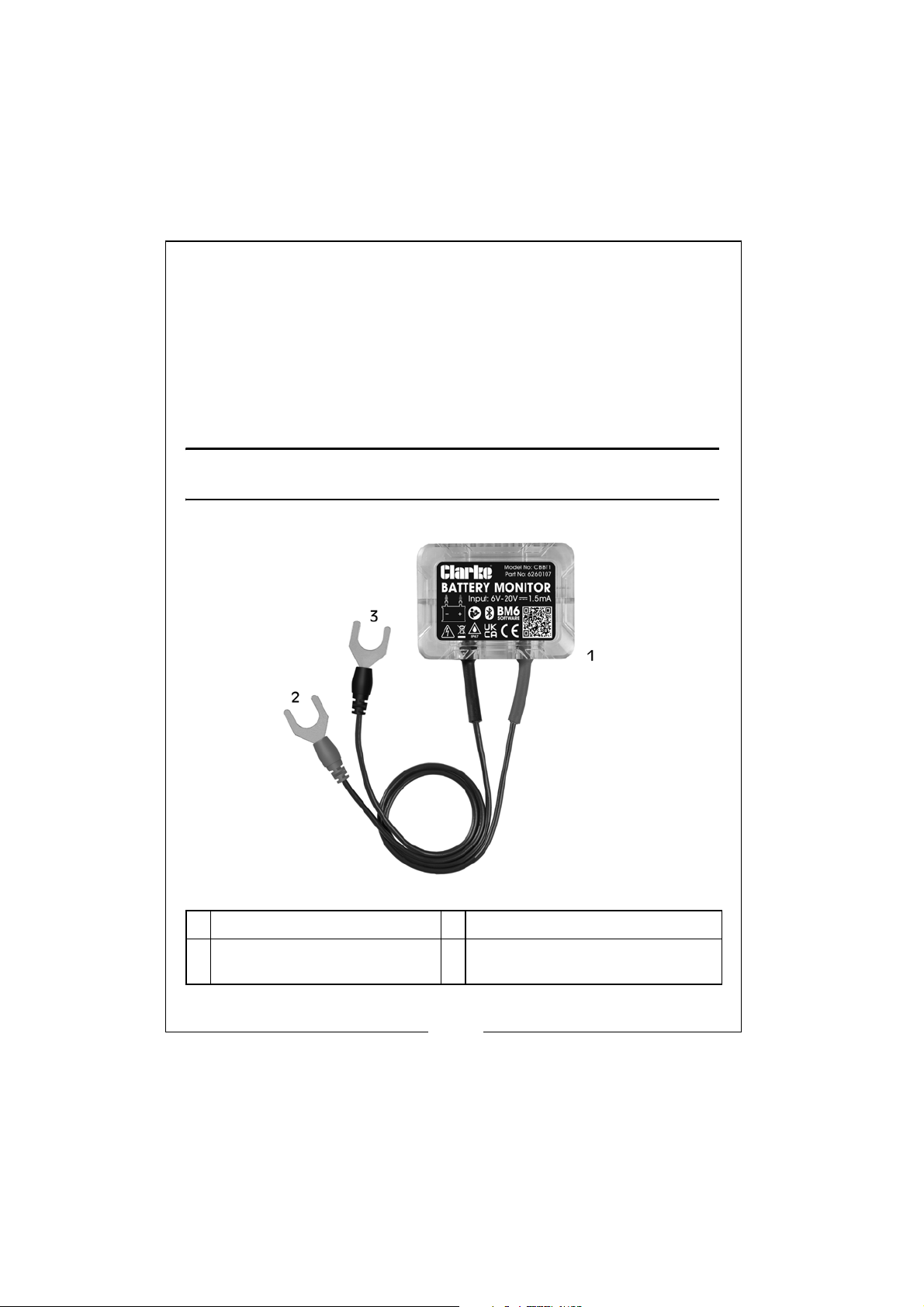
PARTS IDENTIFICATION
1 Battery Monitoring Device 3 Negative (- / Black) Connector
2 Positive (+ / Red)
Connector
Parts & Service: 020 8988 7400 / E-mail: [email protected] or [email protected]
4 Adhesive Tape (Not Shown)
4
Page 5

OPERATION
MAIN FUNCTION DESCRIPTION
1. Real-time display of battery power, temperature and voltage.
2. Automatically tests the starting and charging systems of the
vehicle.
3. Sends alarm notification if the battery is abnormal.
4. App supports multi-device connection, 4 devices can be
monitored at the same time.
5. Records the track, cost and driving habits of each trip which can
be exported to an Excel file.
6. Records the last known parking position automatically and
provides a car finder function through navigation. Please note that
this is not a live tracking function.
7. Stores historical data (voltage, charge percentage and
temperature) in the device for up to 30 days. Saves the data every
2 minutes.
8. Save unlimited historical data within the app.
INSTRUCTIONS
1. The input voltage range of this device is 6V - 20V, which is suitable
for 12V vehicle/yacht lead-acid & LiFePO4 batteries. Too high
input voltage may cause equipment damage.
2. IMPORTANT: Before attaching the device to the battery, make a
note of the serial number which can be found on the back of the
device.
• Serial Number:
3. In order to obtain accurate battery temperature, stick the device
on the battery case using the double sided tape provided.
Connect the Positive (+ / Red) connector to the Positive terminal
of the battery and the Negative (- / Black) connector to the
Negative terminal of the battery.
5
Parts & Service: 020 8988 7400 / E-mail: [email protected] or [email protected]
Page 6
4. When installing the app, all permissions must be obtained to
access all of the devices functions. If permission fails, some
functions will not work.
5. Some functions need to allow the app to self start and run in the
background. The app has been optimised for this and will not
consume more power.
MOBILE APPLICATION
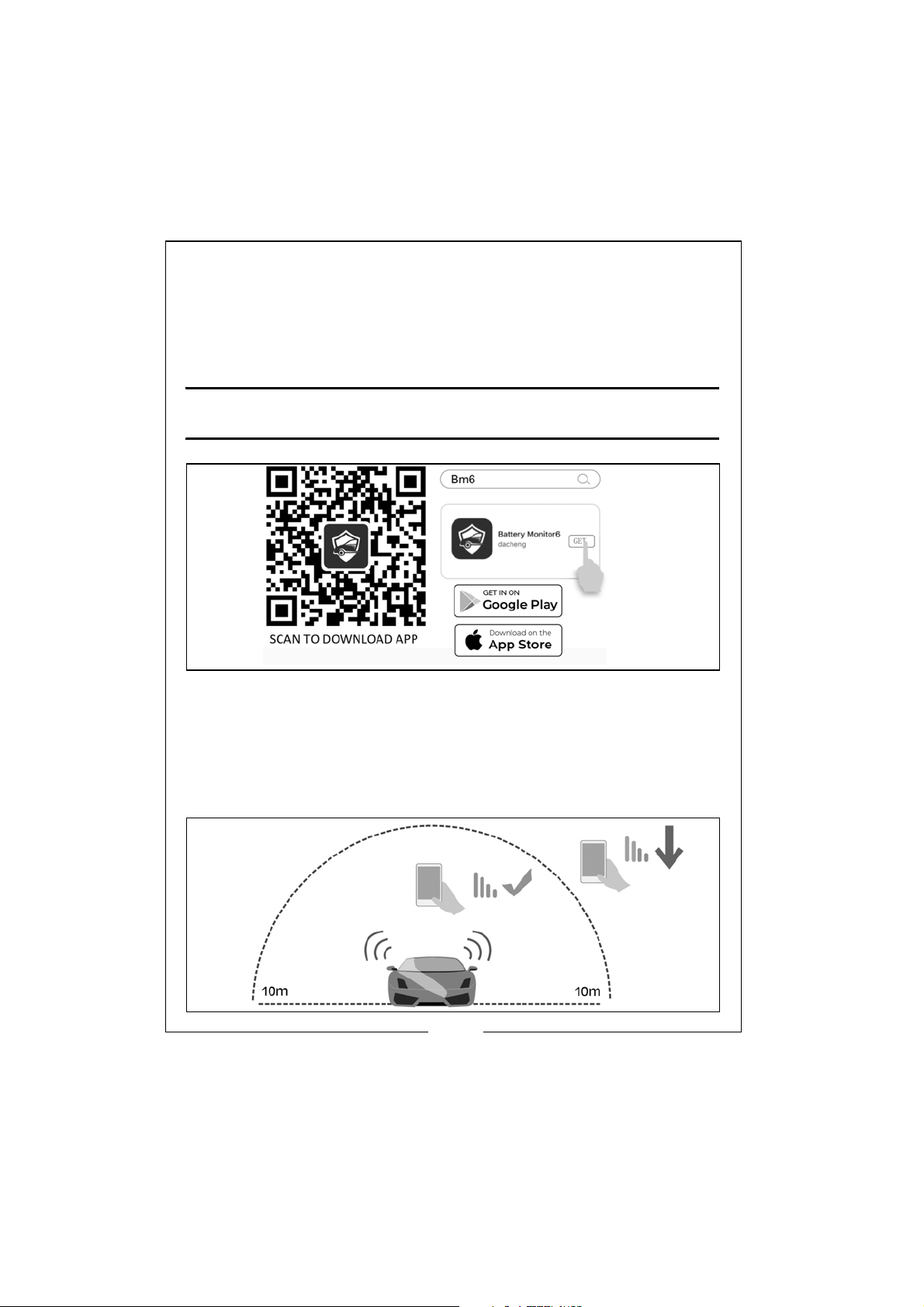
1. Scan the above QR code for the application or go to Google Play
or Apple App Store and search Battery Monitor 6 or Bm6.
2. Download the Battery Monitor 6 (Bm6) application.
3. To connect to the device, turn on your mobile Bluetooth and be
within 10m of the vehicle battery/device.
6
Parts & Service: 020 8988 7400 / E-mail: [email protected] or [email protected]
Page 7
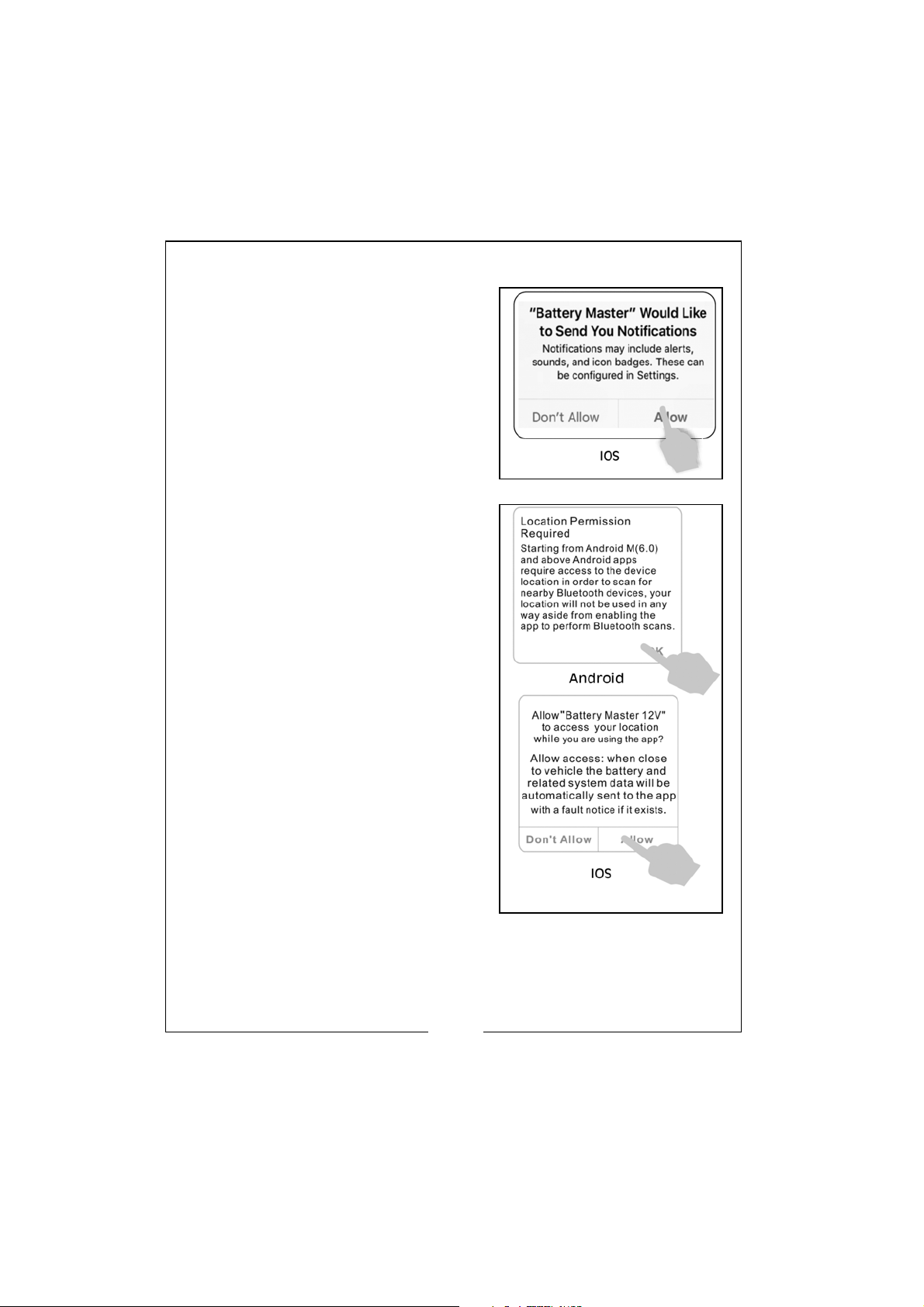
4. Click the App icon, and run.
5. Allow the app to access location,
even when not using the app. If
not the device will not
automatically notify the user after
monitoring a problem.
6. Allow the app to receive
notifications, including the car
battery, cranking system,
charging system and problem
alerts. This will allow, when your
mobile is in Bluetooth range, to
receive information notifications
even if the app is not running.
7
Parts & Service: 020 8988 7400 / E-mail: [email protected] or [email protected]
Page 8
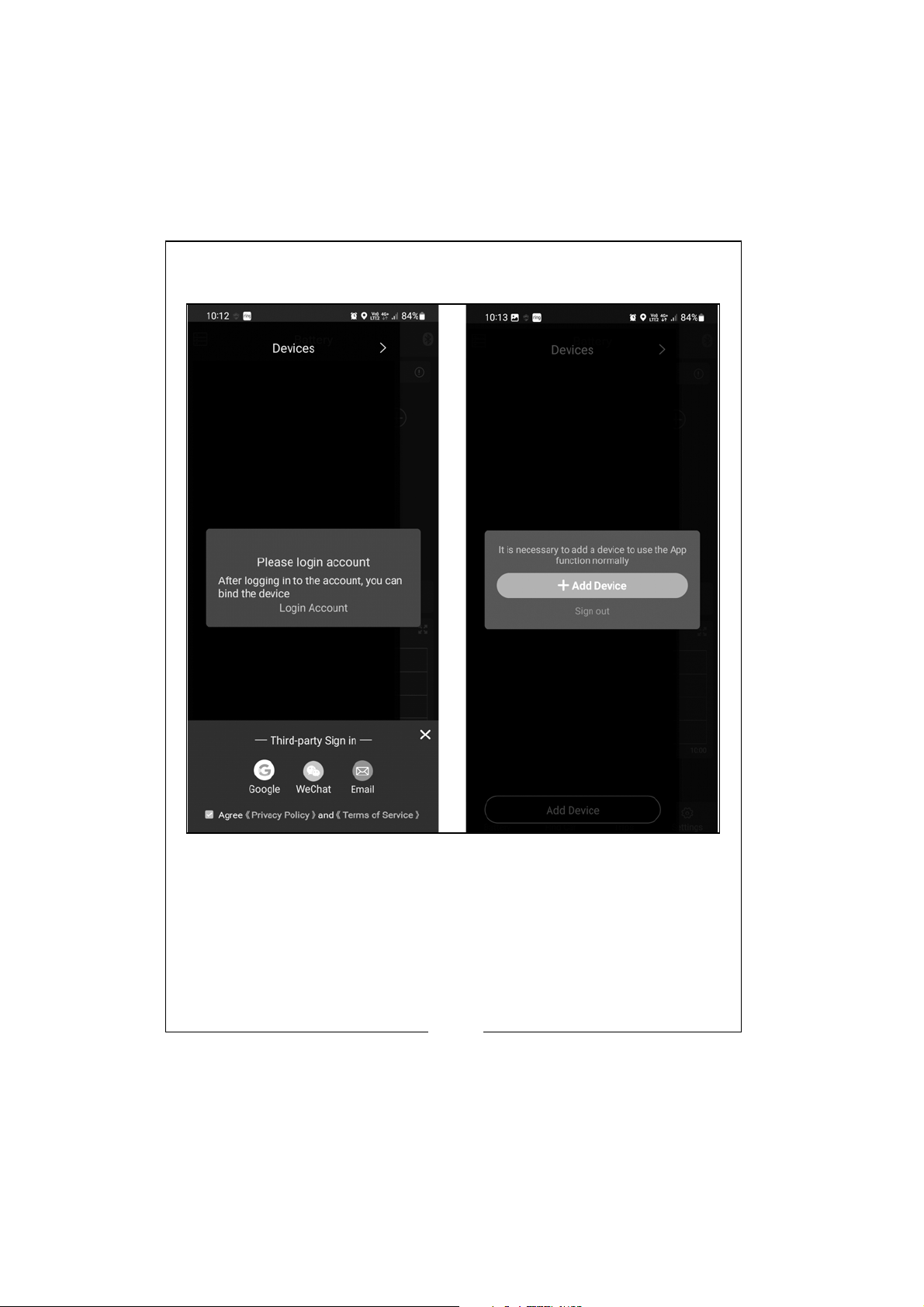
7. Register with either an E-mail or Google account and agree to
terms of service. Click the ‘+ Add Device’ button.
8
Parts & Service: 020 8988 7400 / E-mail: [email protected] or [email protected]
Page 9
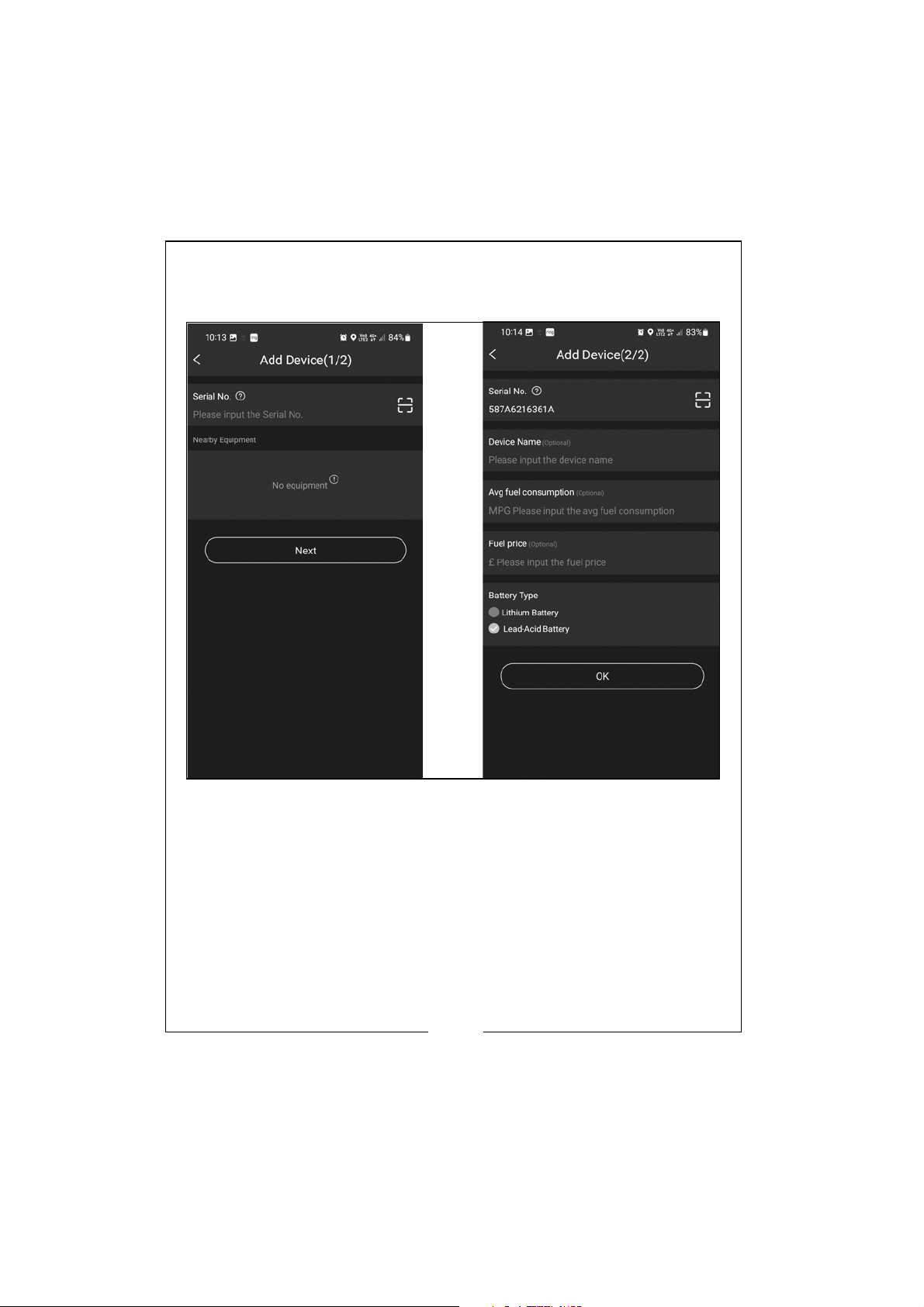
8. To add a new device, enter the serial number of the device (this
can be found on the back of the device and should be recorded
on page 5 of this manual) and device name (which is optional).
NOTE: Fuel consumption and price can be added here or
added and changed in the settings page.
NOTE: The app can add/delete/manage up to 4 devices at
once.
NOTE: Each serial number can only be bound to one
account. If the serial number is listed in one account, it
must be deleted first before it can be used in another
account.
9
Parts & Service: 020 8988 7400 / E-mail: [email protected] or [email protected]
Page 10
Page 11

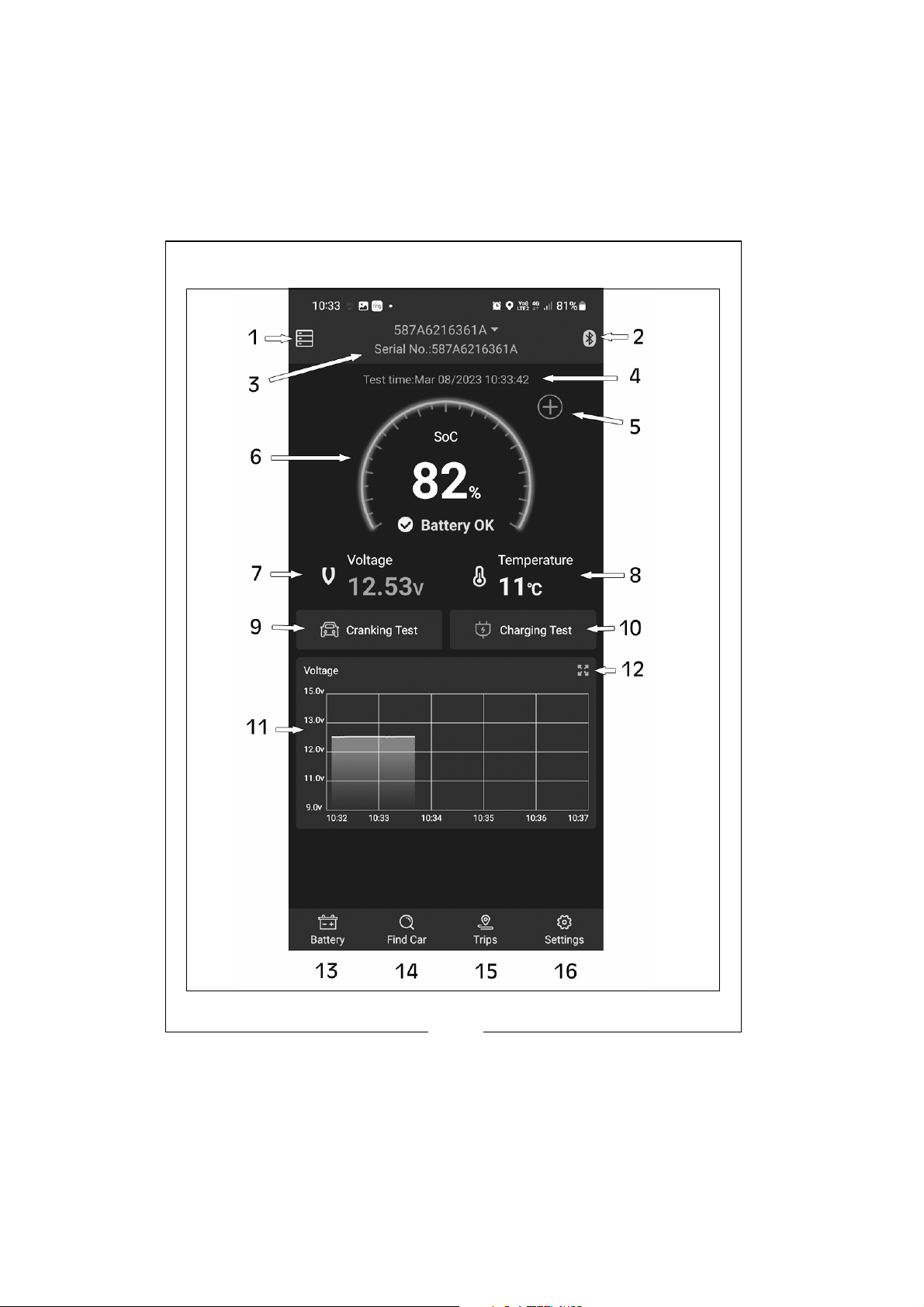
1. Lists all devices and gives option to add more devices (Maximum
of 4).You can also edit the device name, average fuel
consumption, fuel price and battery type of each device.
2. Bluetooth connection status. Blue icon means connected, red
icon means disconnected. It is set as default to connect to the
latest device automatically, but can be connected or
disconnected manually.
3. Shows the device name, as default, it will be the device ID no. The
user can set a new name in the device management system
setup.
4. Latest battery testing time and date.
5. Option to add other devices.
6. Shows battery real-time data: battery status and state of charge
(SOC).
7. Current battery voltage.
8. Current battery temperature.
9. Cranking System Test: Mainly to test and analyse the starting
motor.Through testing the actual required cranking current and
cranking voltage of the starting motor, it can work out whether the
starting motor is working correctly.
10. Charging System Test: To check and analyse the charging system.
This includes generator, rectifier, rectifier diode, etc. this will give
the output voltage of the generator and tell if the rectifier diode is
working normal and the charging current is normal.
11. Graph review of the voltage history.
12. Graph Expander: This will expand the graph to show more detail
and to be able to toggle between dates, state of charge,
temperature and voltage.
13. Home page button.
14. Find Car page button.
15. Trips page button.
16. Settings page button
11
Parts & Service: 020 8988 7400 / E-mail: [email protected] or [email protected]
Page 12
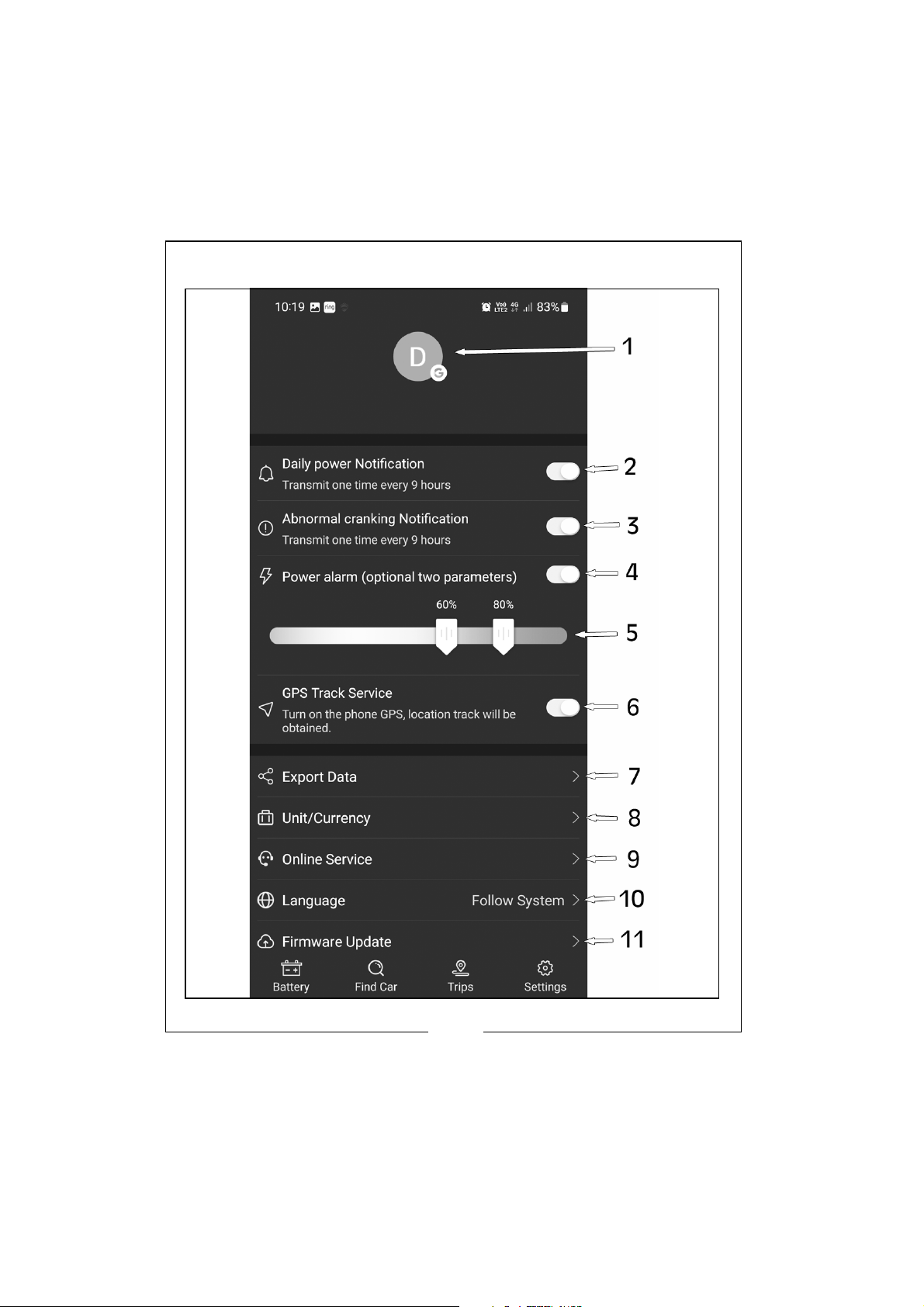
SYSTEM SETUP/SETTINGS
12
Parts & Service: 020 8988 7400 / E-mail: [email protected] or [email protected]
Page 13

1. Account - logged in.
2. Daily notification alert setup: Green is on, Grey is off. System
default is every 6 hours. The notification frequency can be set here
(1, 3, 6, 9, 12 or 24 hours).
3. Cranking daily notification setup: Green is on, Grey is off. System
default is every 6 hours. The notification frequency can be set here
(1, 3, 6, 9, 12 or 24 hours).
4. Power alarm: Green is on, Grey is off.
5. Power alarm: Slide the icons to set low and high parameters. When
the battery power fails to reach the set value, user will receive an
app notification about the charge level.
6. GPS track service: turn on or off.
7. Export Data: You can export the following information to a
Microsoft Excel file (Date, Time, Voltage, SOC & Temperature)
8. Unit/Currency: Change between Distance (m/km or feet/miles),
Temperature (centigrade or fahrenheit), Fuel Consumption (L/
100km or MPG) and Fuel Cost Currency.
9. Online Services: Contact the App administrator with any problems
that may occur.
10. Language: Click to change to appropriate language.
11. Firmware Update: Click to confirm current firmware version and to
upload any new firmware updates when available.
13
Parts & Service: 020 8988 7400 / E-mail: [email protected] or [email protected]
Page 14
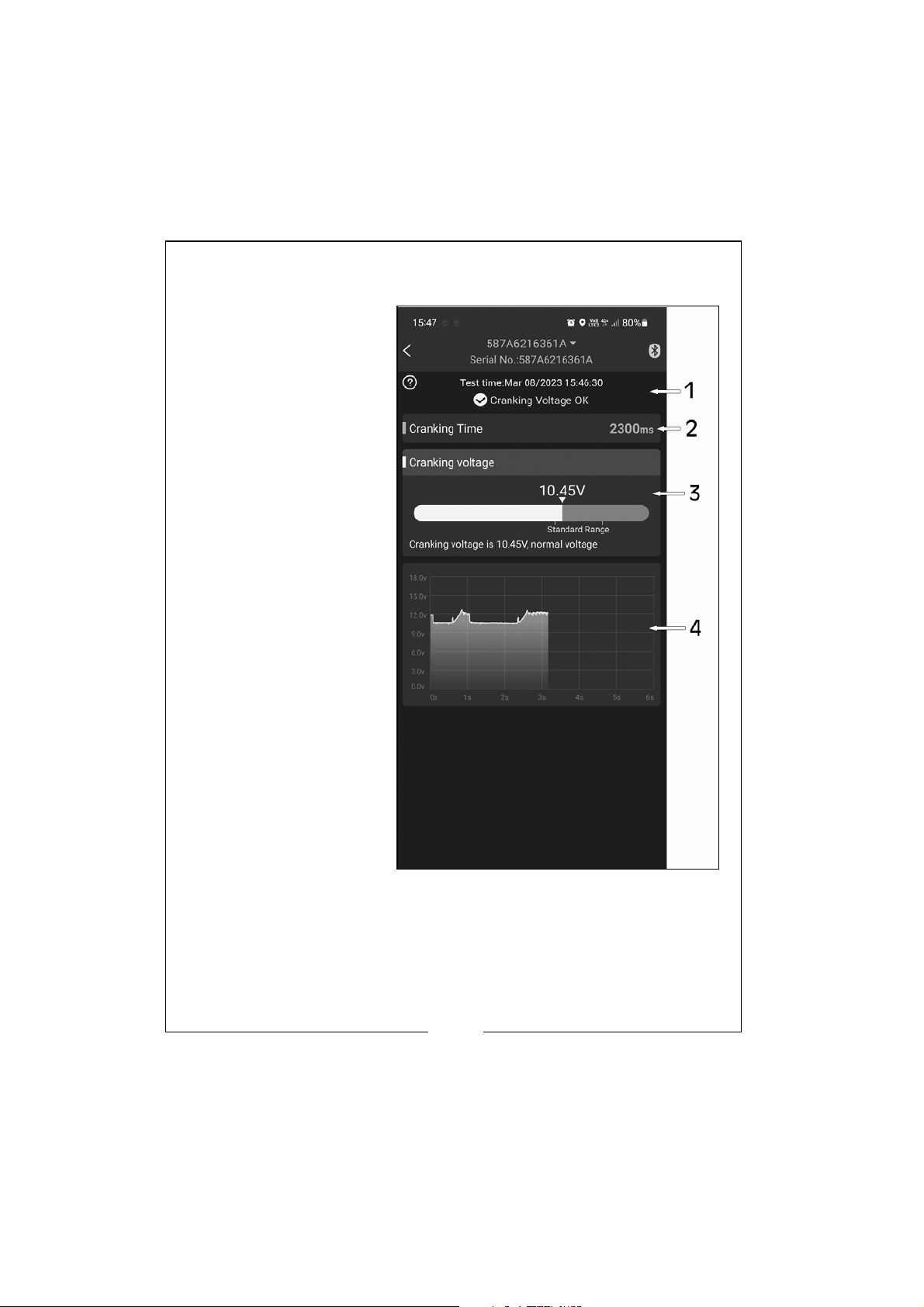
CRANKING TEST
Cranking Test: When the engine starts, the device will test the cranking
system automatically
and store the test result.
Usually, if the cranking
voltage is more than
9.6V, it means it is normal. But if the cranking
voltage is less than 9.6V,
it means it is abnormal. If
the cranking voltage is
too low, this maybe due
to the age of the battery, low power or a
starter fault etc.
Press the Cranking Test
button on the Home
page to show results.
1. Date and time of
test.
2. Cranking Time:
Shown in
milliseconds
3. Display of the
cranking voltage
values, green
means healthy, red
means unhealthy.
4. Cranking voltage
graph.
14
Parts & Service: 020 8988 7400 / E-mail: [email protected] or [email protected]
Page 15
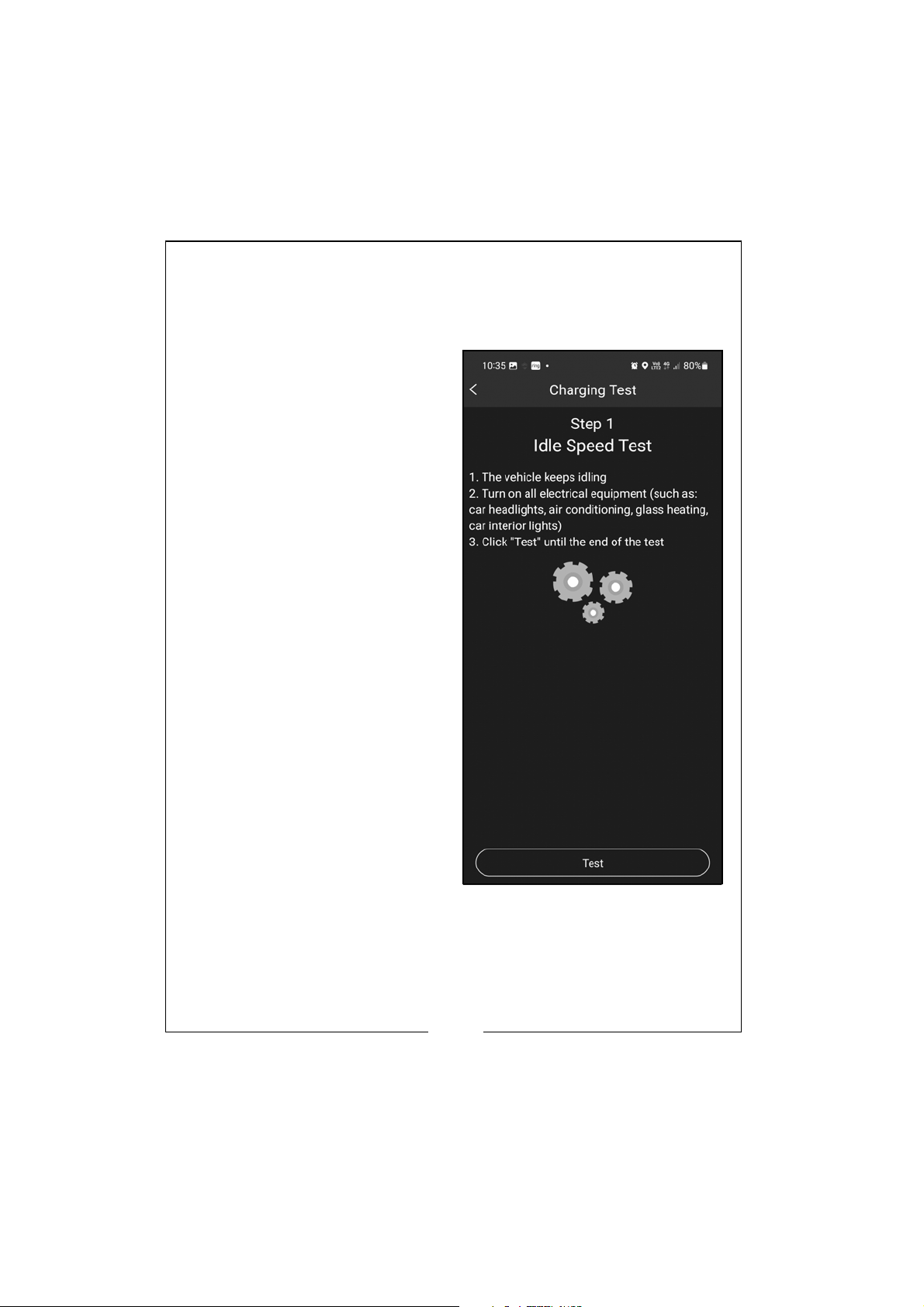
CHARGING TEST
There are 3 parts to the Charging Test; Idle Speed Test, High Speed Test
and Diode Ripple Test. Press the Charging Test button on the home
page to start testing.
1. Idle Speed Test:
1) Keep the vehicle in idle
mode.
2) Turn on all electrical
equipment, such as headlights, air con, glass heating,
interior lighting.
3) Click Test, which will run for 6
seconds.
15
Parts & Service: 020 8988 7400 / E-mail: [email protected] or [email protected]
Page 16
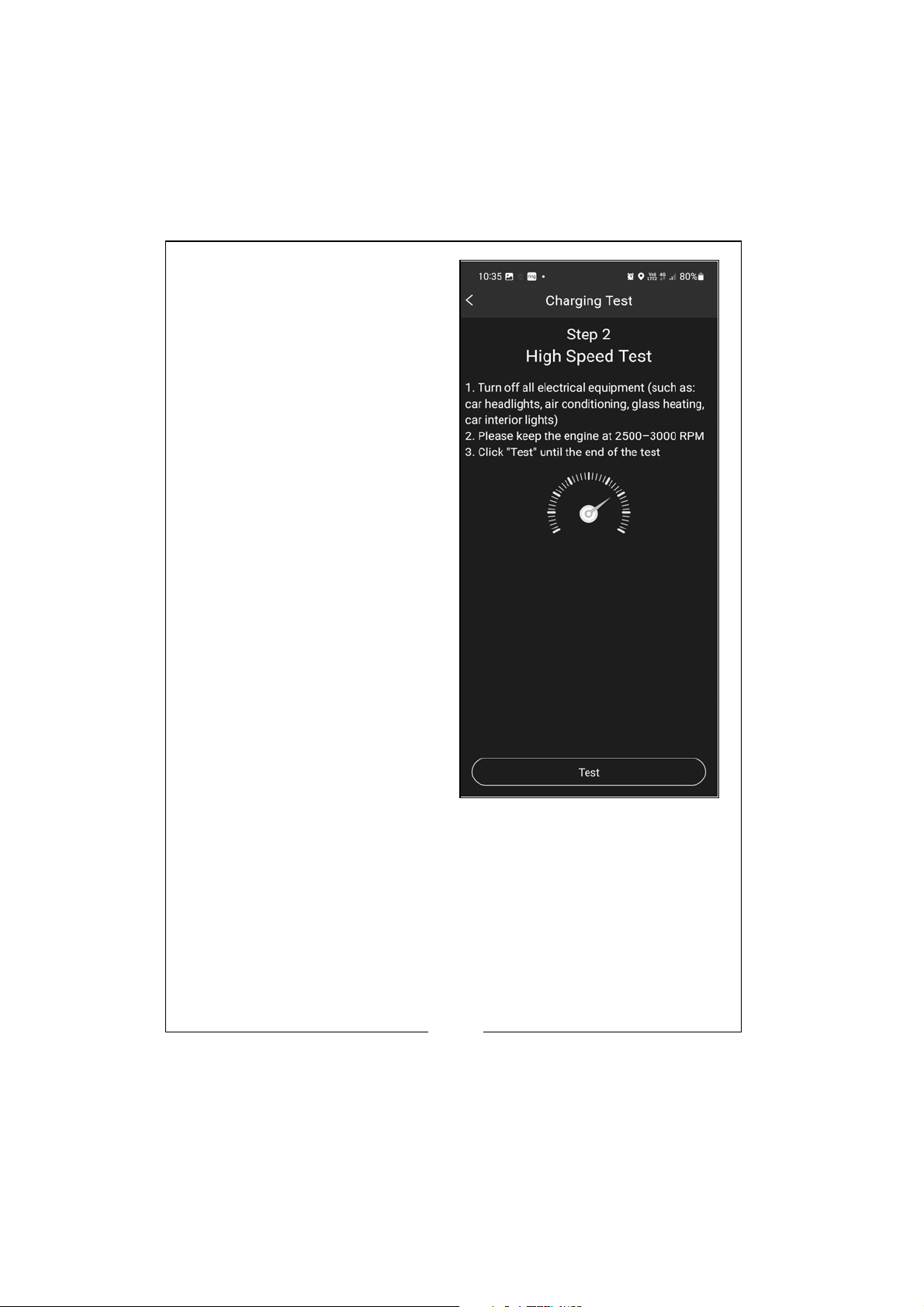
2. High Speed Test:
1) Turn off all electrical
equipment, such as headlights, air con, glass heating, interior lighting.
2) Keep the engine at 2500 -
3000 RPM.
3) Click Test, which will run for
6 seconds.
16
Parts & Service: 020 8988 7400 / E-mail: [email protected] or [email protected]
Page 17
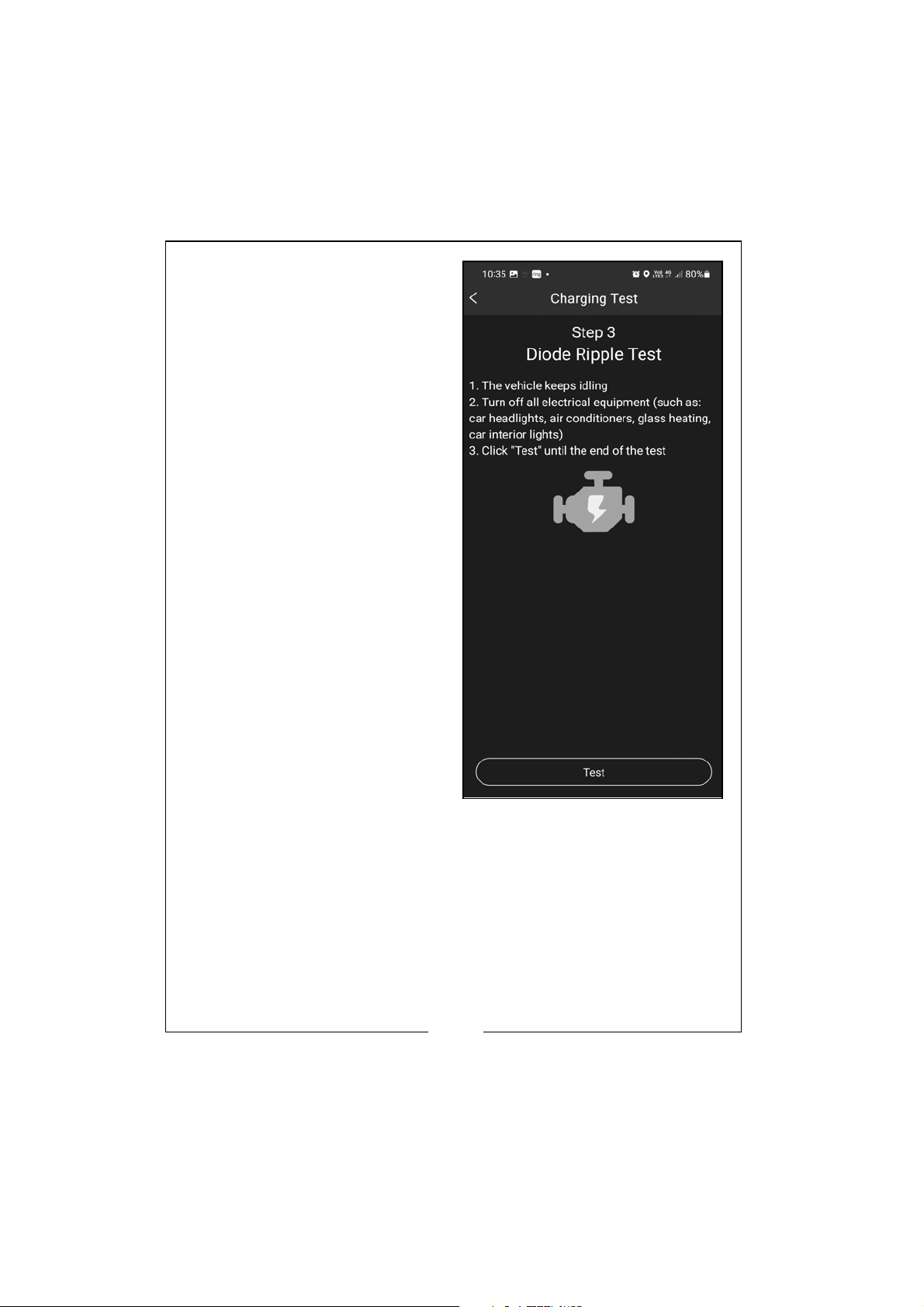
3. Diode Ripple Test:
1) Keep the vehicle in idle
mode.
2) Turn off all electrical
equipment, such as headlights, air con, glass heating,
interior lighting.
3) Click Test, which will run for 6
seconds.
17
Parts & Service: 020 8988 7400 / E-mail: [email protected] or [email protected]
Page 18
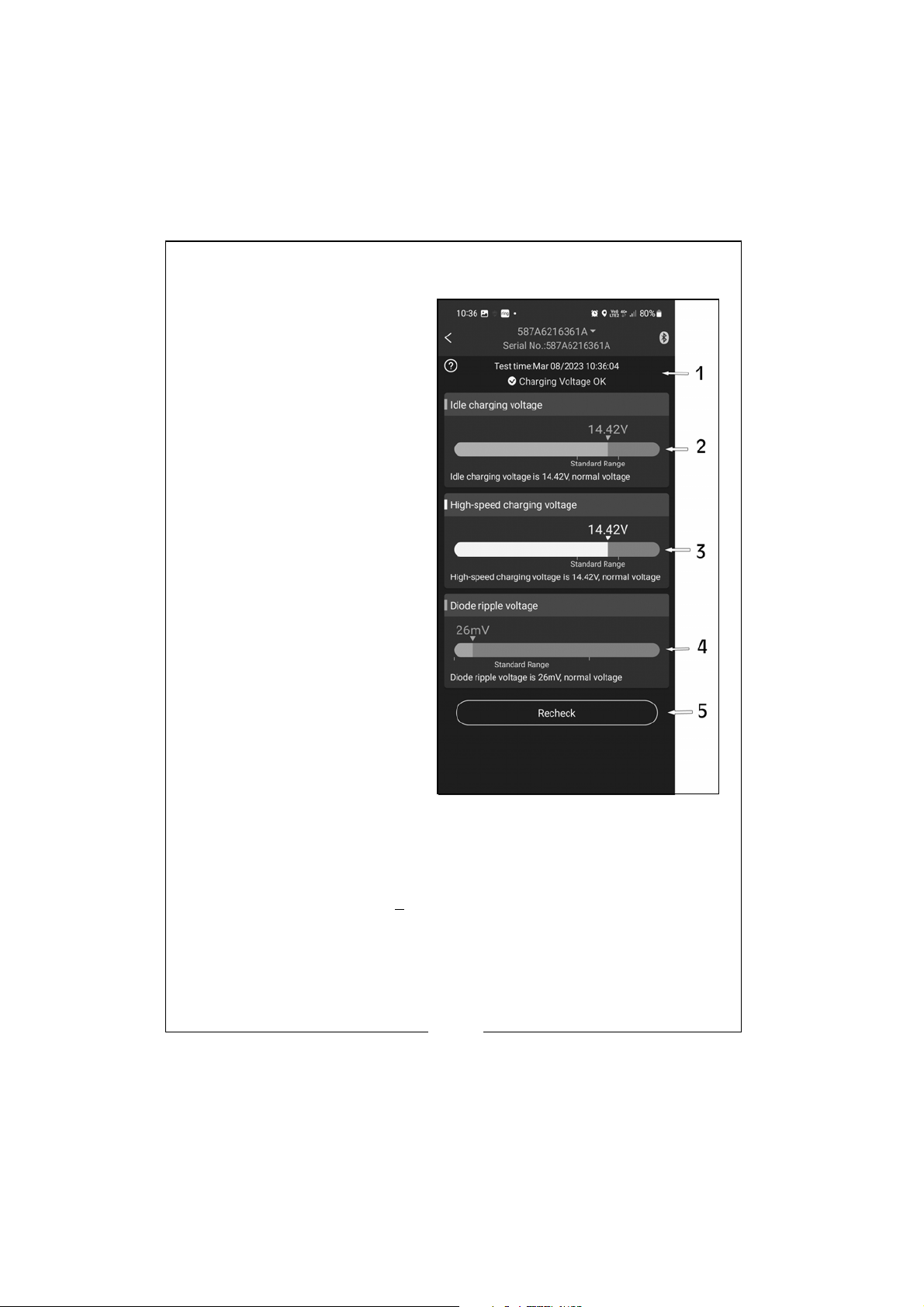
CHARGING TEST RESULTS
1. Date and Time of test.
2. Idle Charging Voltage:
Green = Ok, Red =
Abnormal.
3. High Speed Charging
Voltage: Green = Ok, Red
= Abnormal.
4. Diode Ripple Voltage:
Green = Ok, Red =
Abnormal.
5. Click button to restart
test.
Description of charging voltage
tests.
a) Charging Voltage: Normal.
Charging system shows the
alternator output normal, no
problem detected.
b) Charging Voltage: Low.
Check engine transmission belt
isn’t slipping or disconnected,
check whether the line
connection between the
alternator and battery is normal
or not. If transmission belt and
line connection is good, please
follow the car manufacturers
recommendations to exclude the alternator failure.
c) Charging Voltage: High. The alternator output voltage is too high.
Since most automotive engines use built-in regulators, there maybe a
need to replace the regulator assembly (older vehicles use external
regulators, which may need replacing). Common voltage limits for
automotive regulators is 14.7+
the battery and shorten its life and may make it malfunction.
d) No Voltage Output: No engine voltage output is detected. Check if
the alternator cable and alternator belt are working correctly.
0.5V. High charging volt will overcharge
18
Parts & Service: 020 8988 7400 / E-mail: [email protected] or [email protected]
Page 19
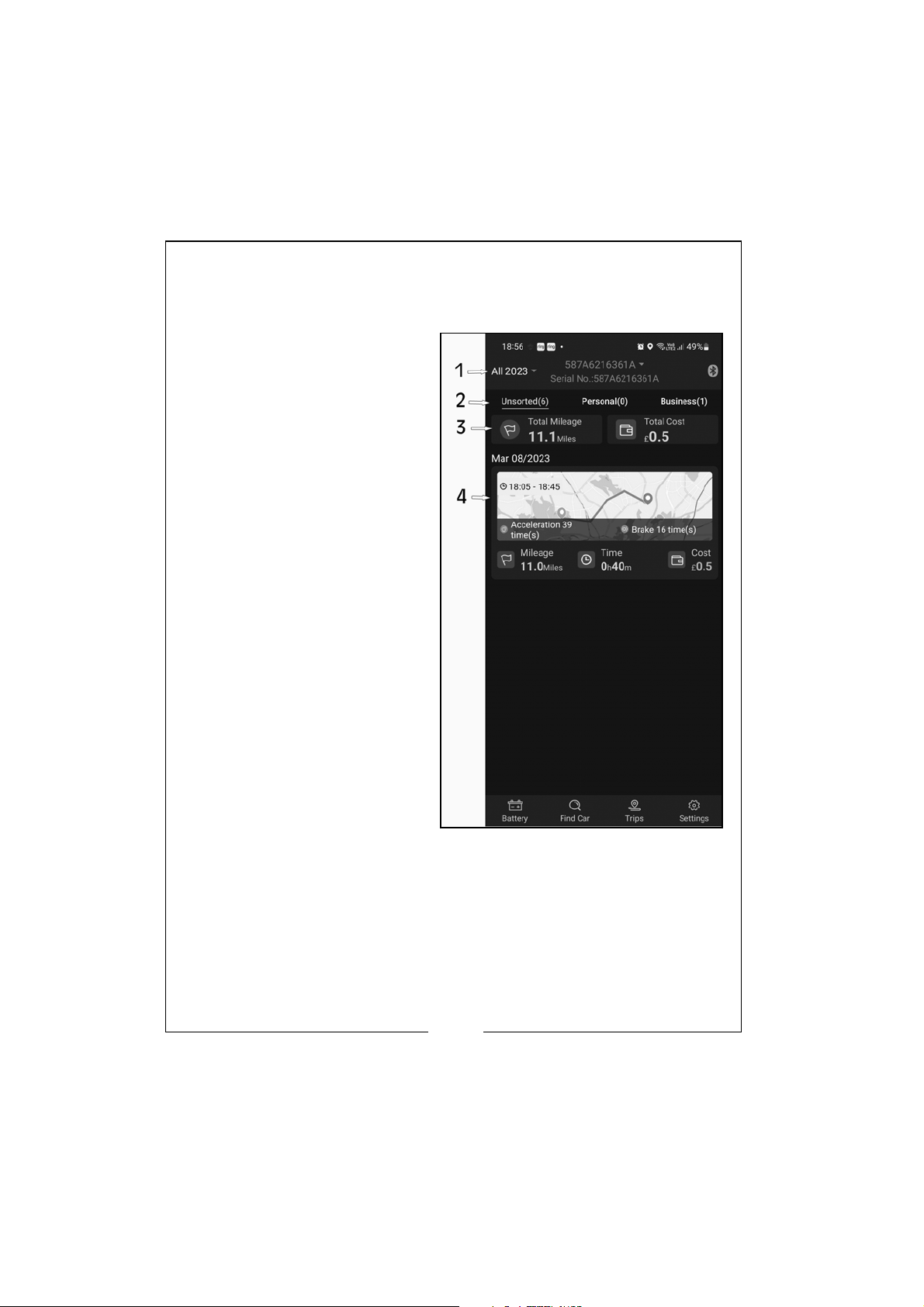
TRIP RECORD
The app will automatically record each trip made for analysis. Click on
‘Trips’ on the home page to view the trip data.
1. Search and list all trips by
month.
2. A trip will automatically
be listed as Unsorted until
filed as Personal or
Business. See page 20 on
how to categorise each
trip.
3. Shows a running total of
all trips in mileage and
cost.
4. Shows each individual trip
made showing a map of
the trip, mileage, time
and cost.
19
Parts & Service: 020 8988 7400 / E-mail: [email protected] or [email protected]
Page 20
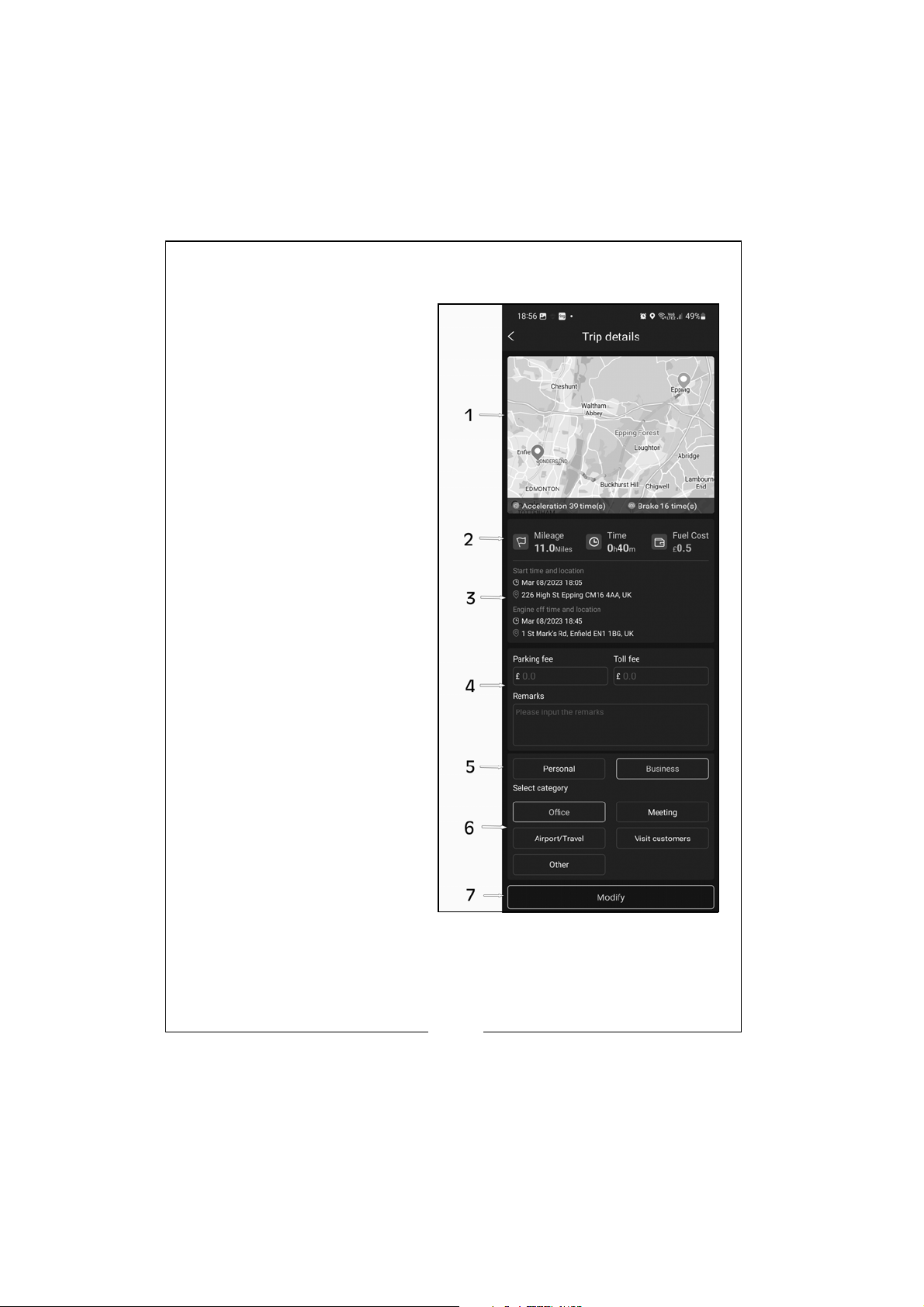
Users can view the details of each single trip by touching each trip icon
on the ‘Trip’page.
1. Shows map of the trip
made.You can zoom in
and out to view the
driving route and help
you analyse driving habits
through the rapid
acceleration (shown in
green) and sudden
braking data (shown in
orange/red).
2. Shows the mileage, time
and cost of the trip
made.
3. Shows the start location
and time and the finish
start and location of the
trip made.
4. You can record any
parking or toll fees paid
on the trip and any
comments.
NOTE: Scroll down screen
to see points 5, 6 &
7
5. You can categorise each
trip either personal or
business. The category
chosen will show green.
6. You can sub-categorise
the trip either: Office,
Meeting, Airport/Travel,
Visit Customers or Other.
The category chosen will
show green.
7. Click ‘Modify’ to save the changes to the trip.
20
Parts & Service: 020 8988 7400 / E-mail: [email protected] or [email protected]
Page 21
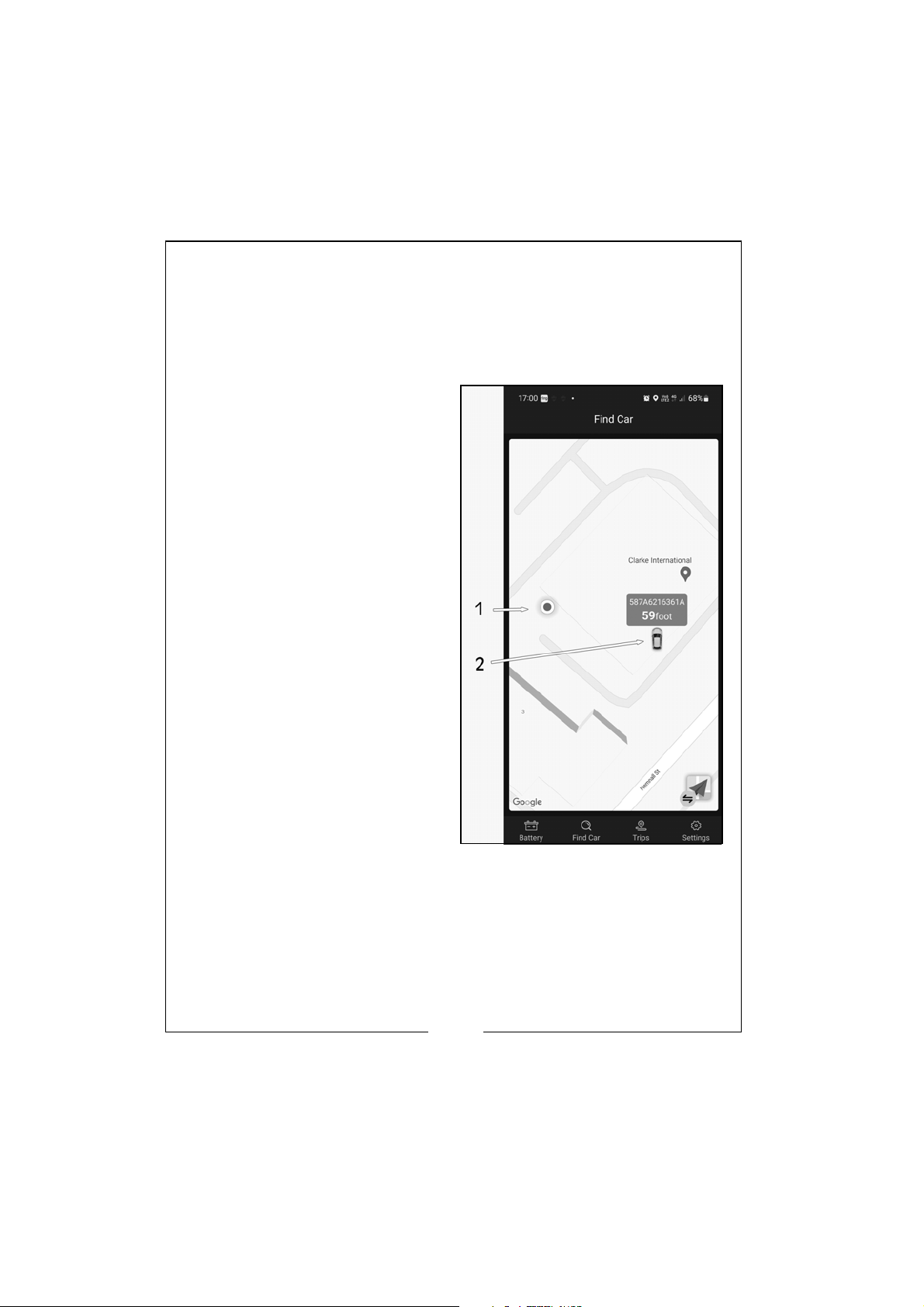
FIND CAR
The app will automatically save the parking position of your vehicle when
the engine is switched off. Click ‘Find Car’ on the home page and the
app will show both your current mobile location and the position of your
vehicle using your mobiles map application.
1. A blue dot will show your
current mobile location.
2. A green car will show you
the last recorded position of
your vehicle and the
distance to it in feet.
NOTE: This is not a live
tracking application
and can not be used
to track your vehicle if
it has moved from the
location you last
parked it.
21
Parts & Service: 020 8988 7400 / E-mail: [email protected] or [email protected]
Page 22

TIPS
1. The App requires a smartphone with the minimum software:
Android 5.0 and higher, IPhone iOS 11.0 and higher, based on
software version 2.3.0.
2. When your mobile enters Bluetooth range (10m), it will receive
notification.
3. At the time of set up, if you choose “not allowed to access
location”, you will not receive notification alerts. If you want to use
this function in the future, you can open the location in the phone
settings by selecting “always allow location access”.
4. If the daily test alert or exception test alert functions are not open
when the mobile is close to the device, it also can’t get
notification of the daily test results. You can set to allow
notifications both in the app and phones settings.
5. Firmware update will clear all data in the device, please open the
app, wait for sync to finish before updating the firmware.
6. All historical data will be stored in the phone. App upgrades will
not lose the historical data. But if the app is uninstalled, the phone
data will be cleared.
7. The device will automatically monitor the vehicle battery,
cranking and charging systems and store the data for 30 days.
Use the app and link to the device via bluetooth at least once
every 30 days for the device to synchronise all data to your
mobile.
8. If the app can not search the battery monitor, please ensure the
mobile bluetooth is on and within 10m of the device.
22
Parts & Service: 020 8988 7400 / E-mail: [email protected] or [email protected]
Page 23
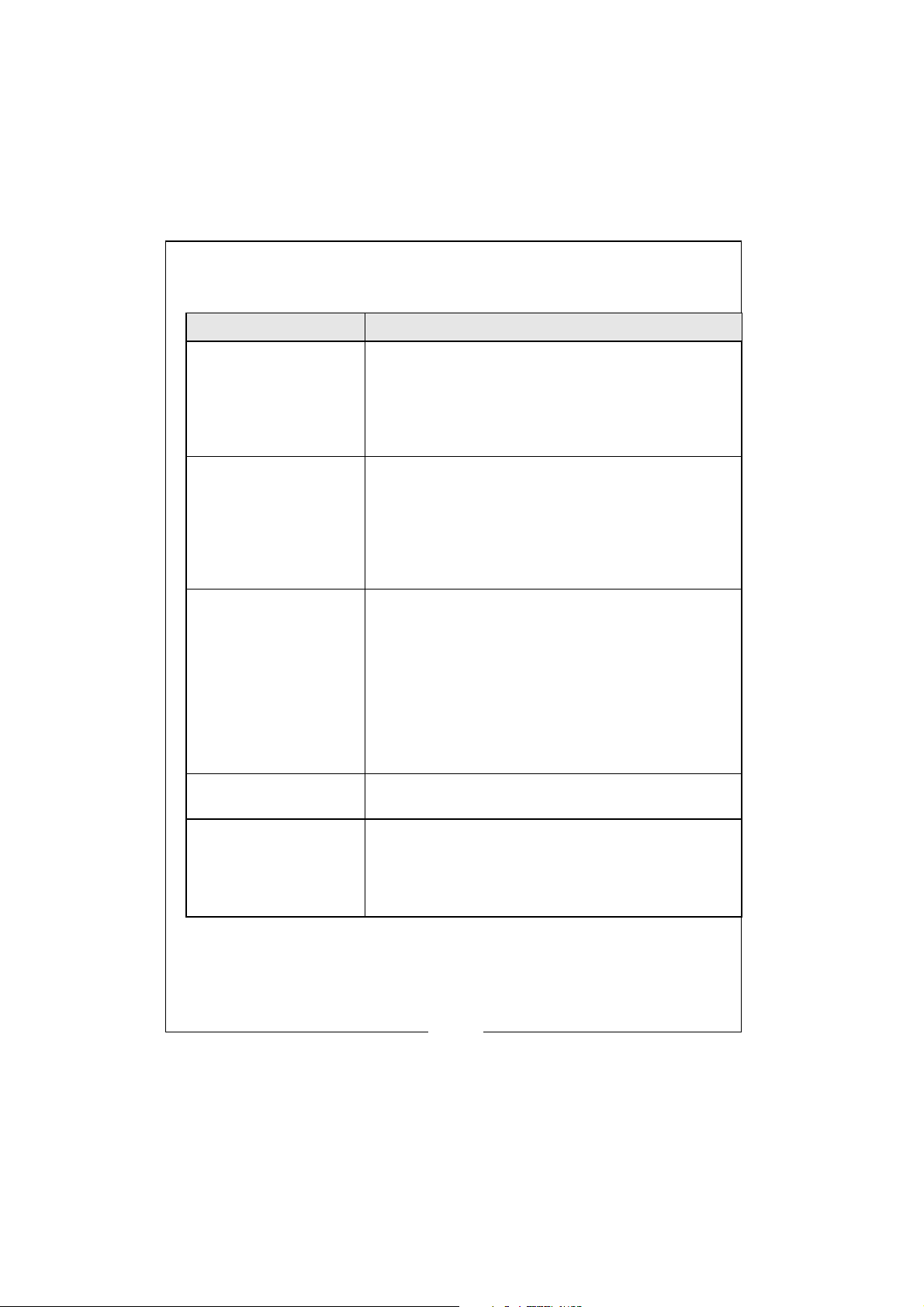
TROUBLESHOOTING
Issue Solution
Need to enter a PIN
code for Bluetooth
connection.
Bluetooth connection
fail.
There is no track or
parking position for
the trip.
There is no abnormal
alarm notification.
When Bluetooth switch is turned on, some mobile
phones will automatically list all nearby Bluetooth
device names. Please ignore this PIN code
pop-up as the device does not require a PIN
code. Re-running the app will automatically
connect to the device.
Ensure that the Bluetooth switch of the mobile is
turned on, and there are no other phones nearby
to connect the device. Then try to restart the
Bluetooth or restart the mobile. In addition, if the
phone Bluetooth is connected with any other
device, it may also cause the Bluetooth not to
connect correctly.
1.) Confirm that the GPS switch of the mobile is
turned on.
2.) Confirm that the app has obtained the
permission of the location service.
3.) Confirm that the app is running and the
device is connected.
4.) Confirm that the “GPS Track Server” in the
settings of the app is turned on.
5.) Confirm that the app can be started by itself
and can run in the background.
Go to the settings of the mobile phone and turn
on the application notification permission.
The display of battery
power is inaccurate or
no vehicle starting
system data.
Parts & Service: 020 8988 7400 / E-mail: [email protected] or [email protected]
Suitable for 12V lead-acid and LiFEPO4 starting
batteries of vehicles. If there is no in-vehicle usage
scenario, such as no engine start behavior, the
power may be inaccurate and there is no start
data.
23
Page 24
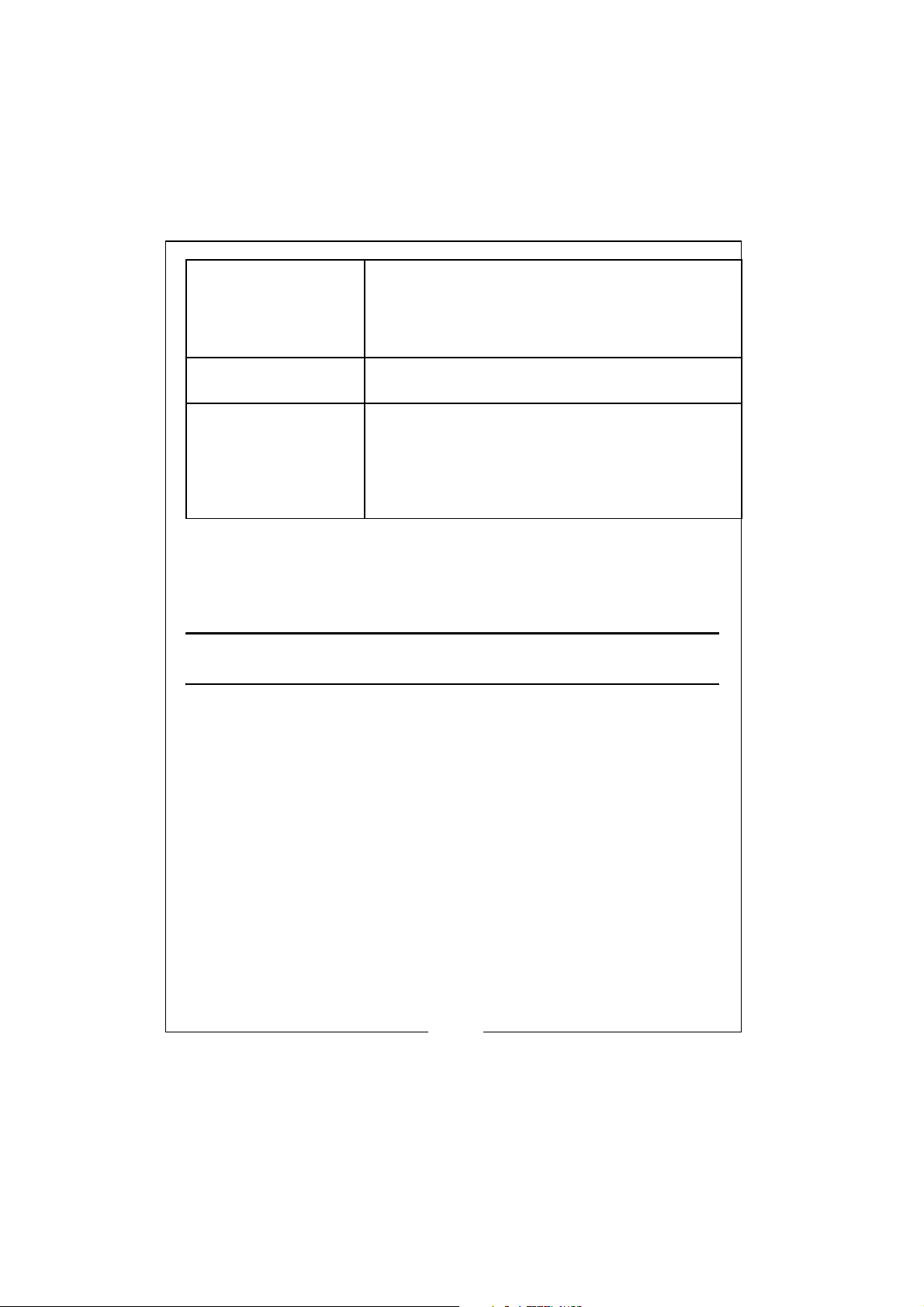
The vehicle charging
system cannot be
tested.
The test needs to be performed during engine
running. It supports all ordinary alternators, and
does not support smart alternators. If the test still
does not work, please check with the vehicle
manufacturer whether it is a smart alternator.
The fuel cost statistics
are inaccurate.
The position or
trajectory is sometimes
correct, sometimes
incorrect or not
obtained.
Check whether the fuel consumption and the
fuel price are correctly entered.
If the app can’t be self-started and run in the
background, the location data cannot be
obtained. It is necessary to give the app the
permission to self start and run in the background.
this needs to be obtained in the settings of the
phone.
NOTE: If your issue is not listed above, you can contact the
App Administrator by going to the ‘Home’ page and
clicking on ‘Settings’and then clicking on ’Online
Service’.
MAINTENANCE
CLEANING
• Before cleaning, disconnect the device from the battery.
• DO NOT use any liquid cleaning product.
• DO NOT use any inflammable cleaning product.
• DO NOT submerge the device or spill any liquids over it.
• If needed, clean the device with a light, damp, soft cloth.
24
Parts & Service: 020 8988 7400 / E-mail: [email protected] or [email protected]
Page 25
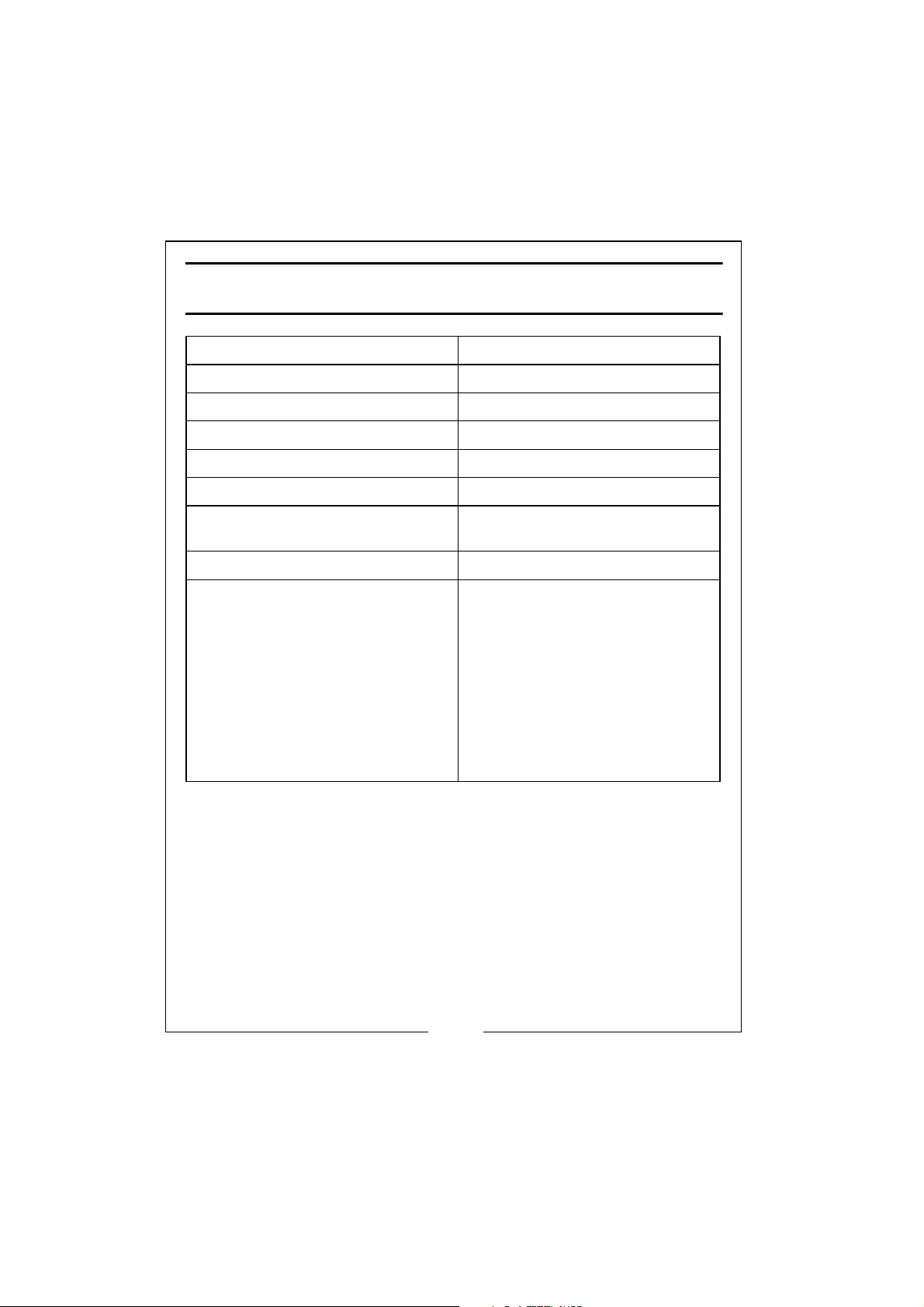
SPECIFICATION
Operating Voltage 6V - 20V (12V System)
Operating Temp. Range -40c - 90c
IP Rating IP67
Device Measurement (H x W x D) 55 x 41 x 12.5 mm
Cable Length 270mm
Product Weight 30g
Minimum Mobile Operating
System Requirement
Minimum Bluetooth Requirement Bluetooth 4.2
Compatible Battery Types WET (Flooded)
Android 5.0
IPhone iOS 11.0
MF (Maintenance Free)
EFB (Enhanced Flooded)
AGM (Absorbed Glass Mat)
GEL
VRLA (Valve Regulated Lead
Acid)
Lead Calcium
SLA (Sealed Lead Acid)
12V LiFePO4 (Lithium Iron
Phosphate)
25
Parts & Service: 020 8988 7400 / E-mail: [email protected] or [email protected]
Page 26
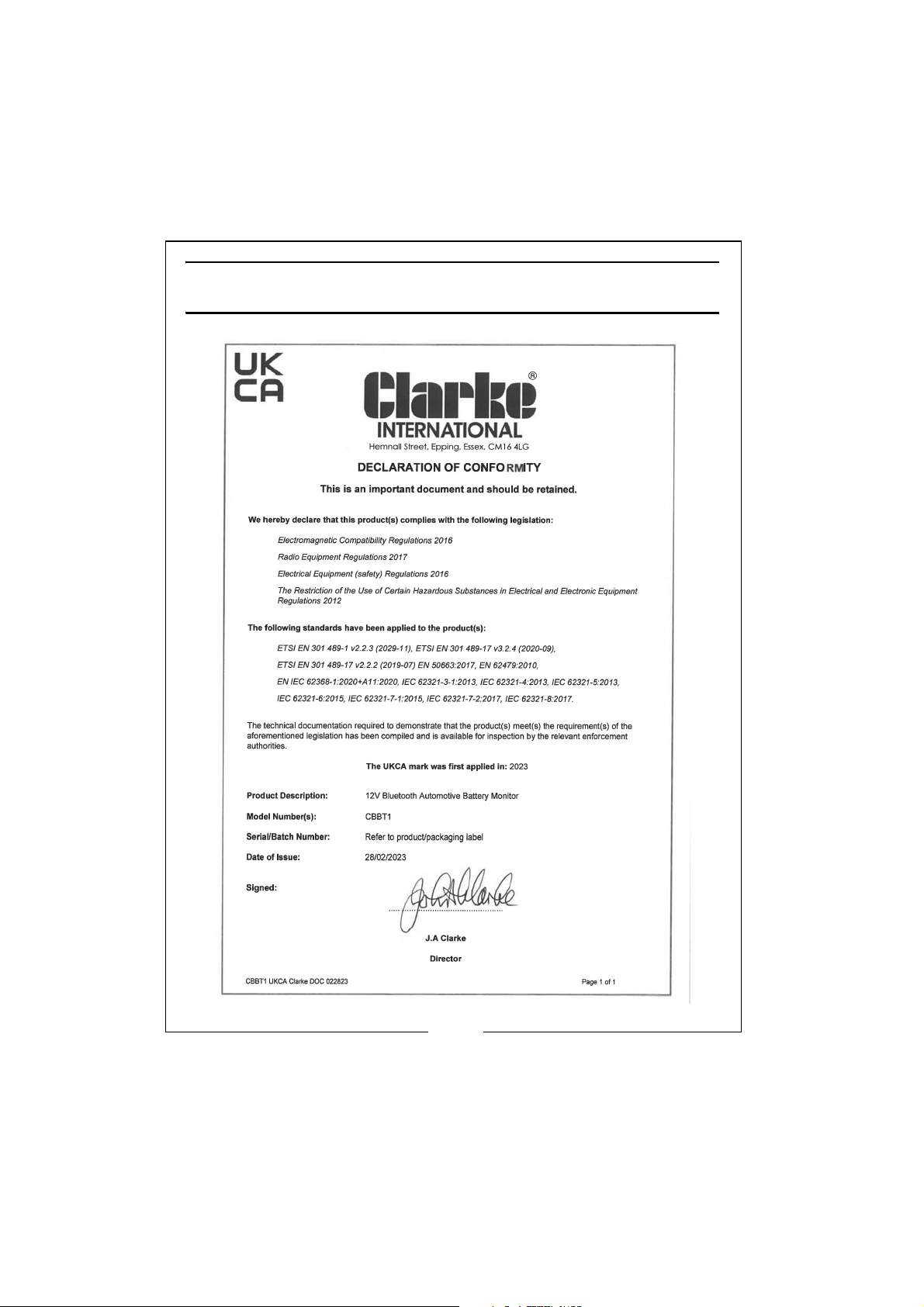
DECLARATION OF CONFORMITY - UKCA
26
Parts & Service: 020 8988 7400 / E-mail: [email protected] or [email protected]
Page 27
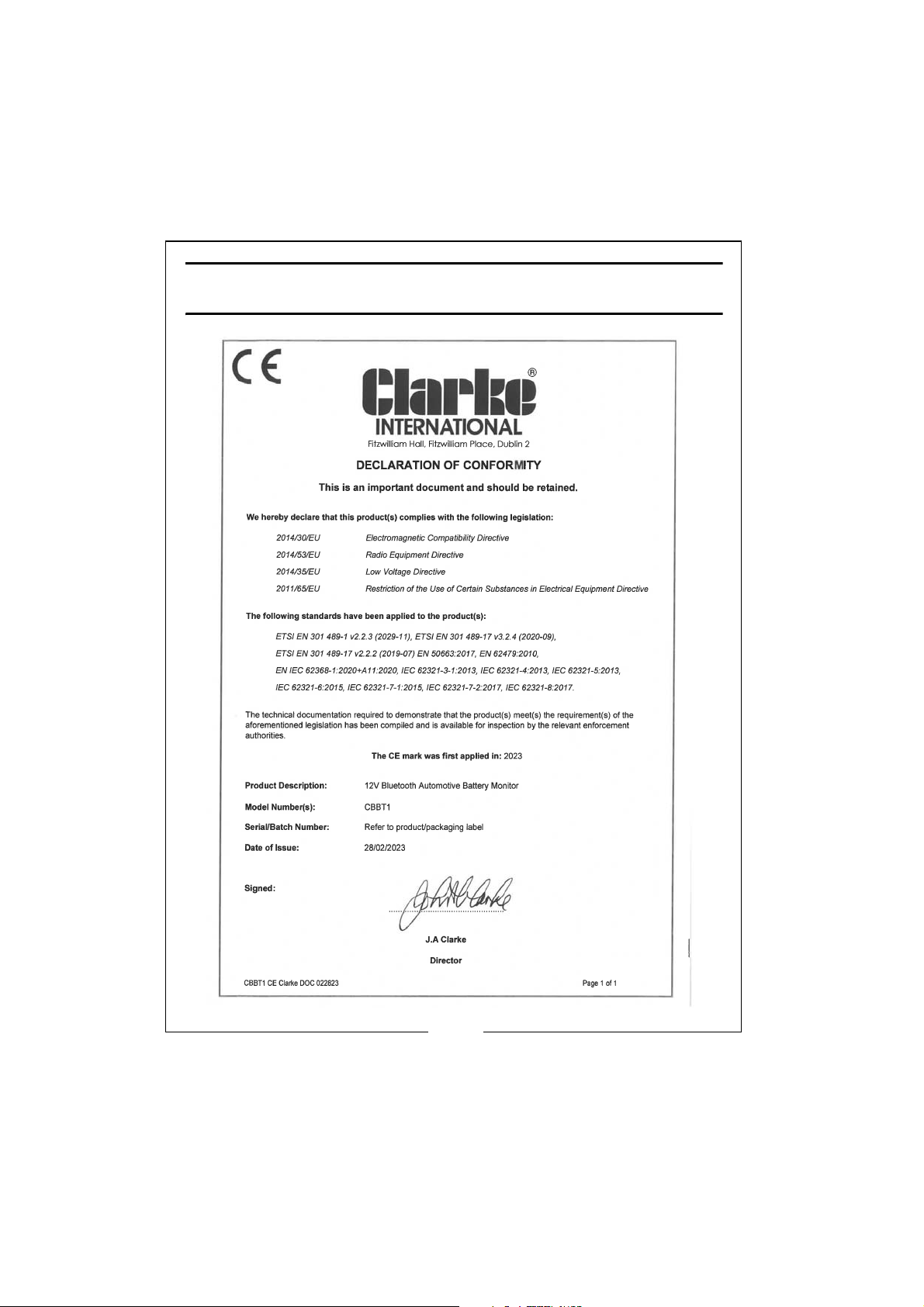
DECLARATION OF CONFORMITY - CE
27
Parts & Service: 020 8988 7400 / E-mail: [email protected] or [email protected]
Page 28

 Loading...